Author: Duke

  • Docker & Docker Compose Commands I Keep Forgetting (Cheat Sheet)

    I recently started building a side project and decided to use Docker Compose to manage my containers. While working on it, I noticed that there are quite a few commands I keep reaching forโ€”and I wanted to have them written down somewhere.

    In my day-to-day (9โ€“5) work, I donโ€™t use Docker extensively beyond the basic up and down commands, so some of the more advanced or less frequent commands tend to get rusty over time.

    While refreshing my Docker and Docker Compose knowledge, I decided to collect all the commands I actually use and put them into one place. Think of this post as a personal cheat sheetโ€”useful for quick debugging, reminders, or getting unstuck when something isnโ€™t behaving as expected. Hopefully, it helps you too. ๐Ÿ˜Š

    Docker Compose Commands

    Docker Compose allows you to define and run multi-container applications using a single configuration file, making local development and orchestration much easier.. These are the commands I use most.

    Starting Services

    These commands are used to start one or more services defined in your docker-compose.yml file, either in the foreground or background.

    Start all services defined in docker-compose.yml:

    docker compose up
    Bash

    Start in background (detached mode) – you get your terminal back:

    docker compose up -d
    Bash

    Start services and force a rebuild of images (useful after changing a Dockerfile or dependencies):

    docker compose up --build
    Bash

    Start specific service only:

    docker compose up -d service-a
    Bash

    or start multiple services at once:

    docker compose up -d service-a service-b
    
    Bash

    Stopping Services

    Use these commands to stop running containers, with options to either keep or completely remove them.

    Stop all services (containers are stopped but not removed):

    docker compose stop
    Bash

    Stop and remove containers (this is what you usually want):

    docker compose down
    Bash

    Stop, remove containers and volumes
    โš ๏ธ Warning: This deletes persisted data such as databases.

    docker compose down -v
    Bash

    Stop specific service:

    docker compose stop service-a
    Bash

    Restarting Services

    Restarting services is useful after configuration changes or when a container becomes unresponsive.

    Restart all services:

    docker compose restart
    Bash

    Restart specific service:

    docker compose restart service-a
    Bash

    Viewing statuses

    These commands help you quickly check which services are running and their current state.

    List running containers for this project:

    docker compose ps
    Bash

    List all containers (including stopped):

    docker compose ps -a
    Bash

    Docker commands

    In addition to Docker Compose, these core Docker commands are useful for inspecting and interacting with individual containers.

    Executing Commands in Containers

    These commands let you access a running container directly, which is especially helpful for debugging and inspecting the runtime environment.

    Using an interactive shell

    docker exec -it container_name bash
    Bash

    If bash is not available (for example, in Alpine images), use sh instead:

    docker exec -it container_name sh
    Bash

    These commands let you enter a running container with an interactive shell, so you can inspect files, run commands, and debug things directly from inside the container.

    Cleanup commands

    Docker can accumulate unused containers, images, and volumes over timeโ€”these commands help keep your system clean.

    Remove stopped containers, images or volumes:

    docker container prune
    
    docker image prune
    
    docker volume prune
    Bash

    or in case you need something more generic

    docker system prune --volumes
    Bash

    which removes all unused resources, including volumes.

    Removing Containers by Name Prefix

    While setting up my project, I found some containers from old projects that i had probably forgotten to cleanup. Instead of removing them one by one, because they were a lot, I tried to find a command that removes all of them, by using their prefix (needless to say they were sharing the same prefix). The following command removed all containers with the prefix si:

    docker rm -f $(docker ps -aq --filter "name=si_")
    Bash

    Viewing Logs

    Logs are often the first place to look when something isnโ€™t working. These commands help you inspect service output, debug errors, and monitor behavior in real time.

    docker compose logs
    docker compose logs -f service-a # -f keeps streaming logs in real time
    docker compose logs --tail=100 # Only the last 100 log lines
    Bash

    So if you wanted to see logs for a specific container, in real time you could use

    docker compose logs -f --tail=100 <container-name>
    Bash

    Copy Files From Container

    docker cp container_name:/path/in/container ./local-path
    Bash

    docker-compose vs docker compose

    You may see Docker Compose used in two different ways:

    • docker-compose
    • docker compose

    They do the same thing, but theyโ€™re not the same tool.

    docker-compose (Legacy)

    • Older, standalone CLI
    • Installed separately
    • Common in older projects and tutorials
    docker-compose up -d
    Bash

    docker compose (Recommended)

    • Built into the Docker CLI
    • Installed by default with modern Docker
    • Actively maintained and recommended
    docker compose up -d
    Bash

    Which One Should You Use?

    Existing projects: stick with whatever the project already uses

    New projects: use docker compose

    Quick Reference Card

    This section provides a compact overview of the most commonly used Docker and Docker Compose commands for quick access.

    โ•”โ•โ•โ•โ•โ•โ•โ•โ•โ•โ•โ•โ•โ•โ•โ•โ•โ•โ•โ•โ•โ•โ•โ•โ•โ•โ•โ•โ•โ•โ•โ•โ•โ•โ•โ•โ•โ•โ•โ•โ•โ•โ•โ•โ•โ•โ•โ•โ•โ•โ•โ•โ•โ•โ•โ•โ•โ•โ•โ•โ•โ•โ•โ•โ•—
    โ•‘                 DOCKER COMMANDS QUICK REFERENCE               โ•‘
    โ• โ•โ•โ•โ•โ•โ•โ•โ•โ•โ•โ•โ•โ•โ•โ•โ•โ•โ•โ•โ•โ•โ•โ•โ•โ•โ•โ•โ•โ•โ•โ•โ•โ•โ•โ•โ•โ•โ•โ•โ•โ•โ•โ•โ•โ•โ•โ•โ•โ•โ•โ•โ•โ•โ•โ•โ•โ•โ•โ•โ•โ•โ•โ•โ•ฃ
    โ•‘ COMPOSE                                                       โ•‘
    โ•‘   docker compose up -d          Start in background           โ•‘
    โ•‘   docker compose down           Stop and remove               โ•‘
    โ•‘   docker compose logs -f api    Follow service logs           โ•‘
    โ•‘   docker compose up --build     Rebuild and start             โ•‘
    โ•‘   docker compose exec api sh    Shell into service            โ•‘
    โ• โ•โ•โ•โ•โ•โ•โ•โ•โ•โ•โ•โ•โ•โ•โ•โ•โ•โ•โ•โ•โ•โ•โ•โ•โ•โ•โ•โ•โ•โ•โ•โ•โ•โ•โ•โ•โ•โ•โ•โ•โ•โ•โ•โ•โ•โ•โ•โ•โ•โ•โ•โ•โ•โ•โ•โ•โ•โ•โ•โ•โ•โ•โ•โ•ฃ
    โ•‘ CONTAINERS                                                    โ•‘
    โ•‘   docker ps                     List running                  โ•‘
    โ•‘   docker ps -a                  List all                      โ•‘
    โ•‘   docker stop name              Stop container                โ•‘
    โ•‘   docker rm -f name             Force remove                  โ•‘
    โ•‘   docker exec -it name sh       Shell into container          โ•‘
    โ• โ•โ•โ•โ•โ•โ•โ•โ•โ•โ•โ•โ•โ•โ•โ•โ•โ•โ•โ•โ•โ•โ•โ•โ•โ•โ•โ•โ•โ•โ•โ•โ•โ•โ•โ•โ•โ•โ•โ•โ•โ•โ•โ•โ•โ•โ•โ•โ•โ•โ•โ•โ•โ•โ•โ•โ•โ•โ•โ•โ•โ•โ•โ•โ•ฃ
    โ•‘ IMAGES                                                        โ•‘
    โ•‘   docker images                 List images                   โ•‘
    โ•‘   docker rmi name               Remove image                  โ•‘
    โ•‘   docker build -t name .        Build image                   โ•‘
    โ•‘   docker pull name:tag          Pull from registry            โ•‘
    โ• โ•โ•โ•โ•โ•โ•โ•โ•โ•โ•โ•โ•โ•โ•โ•โ•โ•โ•โ•โ•โ•โ•โ•โ•โ•โ•โ•โ•โ•โ•โ•โ•โ•โ•โ•โ•โ•โ•โ•โ•โ•โ•โ•โ•โ•โ•โ•โ•โ•โ•โ•โ•โ•โ•โ•โ•โ•โ•โ•โ•โ•โ•โ•โ•ฃ
    โ•‘ LOGS & DEBUG                                                  โ•‘
    โ•‘   docker logs -f name           Follow logs                   โ•‘
    โ•‘   docker logs --tail 100 name   Last 100 lines                โ•‘
    โ•‘   docker inspect name           Full container info           โ•‘
    โ•‘   docker stats                  Resource usage                โ•‘
    โ• โ•โ•โ•โ•โ•โ•โ•โ•โ•โ•โ•โ•โ•โ•โ•โ•โ•โ•โ•โ•โ•โ•โ•โ•โ•โ•โ•โ•โ•โ•โ•โ•โ•โ•โ•โ•โ•โ•โ•โ•โ•โ•โ•โ•โ•โ•โ•โ•โ•โ•โ•โ•โ•โ•โ•โ•โ•โ•โ•โ•โ•โ•โ•โ•ฃ
    โ•‘ CLEANUP                                                       โ•‘
    โ•‘   docker system prune           Remove unused                 โ•‘
    โ•‘   docker system prune -a        Remove all unused             โ•‘
    โ•‘   docker volume prune           Remove unused volumes         โ•‘
    โ•‘   docker system df              Check disk usage              โ•‘
    โ•šโ•โ•โ•โ•โ•โ•โ•โ•โ•โ•โ•โ•โ•โ•โ•โ•โ•โ•โ•โ•โ•โ•โ•โ•โ•โ•โ•โ•โ•โ•โ•โ•โ•โ•โ•โ•โ•โ•โ•โ•โ•โ•โ•โ•โ•โ•โ•โ•โ•โ•โ•โ•โ•โ•โ•โ•โ•โ•โ•โ•โ•โ•โ•โ•
    ```
    Bash

    Do you have any Docker or Docker Compose commands that have saved you in tricky situations, or ones you use every day?
    Feel free to share themโ€”weโ€™d love to expand this cheat sheet with more real-world examples.

  • Naming Conventions: How to Name Your Components Without Fighting Your UI Library

    Naming Conventions: How to Name Your Components Without Fighting Your UI Library

    At some point in pretty much every project, whether youโ€™re setting up the infrastructure or introducing an important library that will be used throughout your app, you run into a tiny problem that turns out not to be so tiny: naming conventions.

    Letโ€™s take a classic example.

    You need a <Modal />.
    Your UI library already has a <Modal />.

    So you open a file and write the imports, and suddenly youโ€™re staring at something like this:

    import { Modal } from "@heroui/react";
    import { Modal } from "./my-components/Modal";
    JavaScript

    You see? Youโ€™re not the only one thinking Modal is a great name for a component aboutโ€ฆ well, a modal! In my case, I liked the name, but the developers building the HeroUI library also liked it.

    Now you have a small issue: how are you going to denote that a modal is one of yours, or that itโ€™s imported from your UI library?

    In this example youโ€™re probably thinking, โ€œWell, maybe Iโ€™ll just rename one.โ€ Obviously. Maybe <HeroModal />. Maybe <MyModal />. It works, JavaScript has no issues, TypeScript stops complaining, and you move on.

    The problem with this approach is that your code may start feeling noisy after a while. Not broken, but slightly uncomfortable. You might see different files using different aliases, which isnโ€™t the best approach. This increases your cognitive load because you have to remember things instead of intuitively understanding them.

    Thatโ€™s usually when people think the issue is naming.

    Itโ€™s not.

    Whatโ€™s actually happening is that two completely different ideas are being treated like theyโ€™re the same thing.

    A library modal is just a tool. It renders a dialog, handles focus, animates, and gets out of the way.

    A modal in your app has meaning. It shows up for specific reasons. It follows product rules. It has opinions.

    Once you see that difference, naming stops being a guessing game.

    To avoid all this headache, the best thing you can do is stop for a bit, think about your approach, and decide what naming conventionโ€”a pattern, if youโ€™d likeโ€”will help you intuitively understand whatโ€™s going on in your app without having to scroll up to your imports every time you see a component used.

    Naming convention 1: Your app owns “Modal”, the library is the “Base”

    This is the easiest convention, the one you probably thought about first. The idea behind this is:

    • Your app gets to use the “clean” name Modal
    • The UI library gets a more technincal name: ModalBase

    Example

    import { Modal as ModalBase } from "@heroui/react";
    JavaScript

    Then inside your component’s implementation would be:

    function Modal(props) {
      return <ModalBase {...props} />;
    }
    JavaScript

    Other examples for naming your components using this convention could be

    <ModalBase />
    
    <BaseModal />
    
    <HeroModal /> // (library-prefixed)
    
    <ModalCore />
    
    <UIModal />
    
    <ModalRaw />
    
    <RawModal />
    JavaScript

    Pros

    • โœ… Everyone on your team can use <Modal /> without worrying about where it came from.
    • โœ… If you ever change your UI library, you only change this wrapper, not your whole codebase.
    • โœ… Great for beginners because it keeps things simple and consistent.

    Cons

    • โŒ If your wrapper grows too much, it can become โ€œmagicโ€. Teammates may not be able to understand why the modal has more complex logic implementation
    • โŒ You must be disciplined with naming

    Naming convention 2: Name your modals based on what they actually do

    In this case you skip the generic name and instead name your modals based on what they are doing. This is helpful for large codebases, not small side projects.

    Examples of that could be:

    <EditProfileModal />
    
    <DeleteAccountModal />
    
    <InviteUserModal />
    
    <SettingsModal />
    
    <ShareModal />
    
    <ConfirmActionModal />
    
    <FeedbackModal />
    JavaScript

    Pros

    • โœ… Very clear meaning โ€“ you know what <DeleteAccountModal /> does just by reading it.
    • โœ… Great for beginners โ€“ easier to understand than a generic <Modal /> everywhere.

    Cons

    • โŒ Can repeat logic โ€“ if all modals need the same props or behavior, you might duplicate code.
    • โŒ Too many similar names โ€“ if you have lots of modals, the list can get long and harder to scan.

    Naming convention 3: Use prefix or suffix to show ownership

    If the word Modal confuses you because you are not sure where it came from, which is a valid point, you could ignore using the word Modal by itself and instead decide on a good suffix/prefix identifier.

    For your UI library component:

    <AppModal />
    
    <ProjectModal />
    
    <MainModal />
    
    <CoreModal />
    
    <ClientModal />
    
    <CustomModal />
    
    <ETModal /> // Prefixing your modal with your app's initials e.g Energy Tracker app
    JavaScript

    For your App component:

    <HeroModal />
    
    <LibModal />
    
    <UIModal />
    
    <ModalLib />
    JavaScript

    Pros

    • โœ… Very explicit โ€“ you can tell at a glance which modal is from your app vs the library.
    • โœ… Works well in mixed environments โ€“ e.g. multiple UI libraries, monorepos, shared packages.

    Cons

    • โŒ Names get longer โ€“ <AppModal />, <HeroModal /> are not as clean as <Modal />.
    • โŒ Can become inconsistent โ€“ if people invent new prefixes (<BaseModal />, <CoreModal />, <MainModal />) without a rule.

    Naming conventions that usually cause trouble

    Most teams try at least one of these at some point.

    MyModal sounds harmless but doesnโ€™t mean anything to anyone else.

    CustomModal stops being descriptive the moment you have more than one.

    Library-branded names everywhere tie your feature code to a vendor, even when it shouldnโ€™t care.

    Versioned names like Modal2 or NewModal are usually a sign that a decision was postponed, not solved.

    All of them workโ€ฆ until they donโ€™t.

    A simple question that keeps things clean

    When naming feels hard, this question usually cuts through the noise:

    Is this a basic UI building block, or does it express actual product behavior?

    If itโ€™s a tool, name it like one.
    Example: <ModalBase />, <InputPrimitive />, <ButtonCore />.

    If itโ€™s intent, name it like intent.
    Example: <EditProfileModal />, <CreateProjectForm />, <DeleteAccountModal />.

    Thatโ€™s the whole trick. Youโ€™ll know youโ€™ve landed in a good place when your imports start feeling calm again:

    Wrapping up

    Naming might look like a small detail, but it affects how your whole project feels. Usually when Iโ€™m building a project and itโ€™s time to decide on a UI library, I donโ€™t want to spend time trying to identify names โ€” I just start using whatever the import gives me and continue.

    The problem is that after a while I usually find myself needing to refactor because my app is getting more complex. You might say, โ€œWell, itโ€™s fine, youโ€™re following the simple-now, refactor-later idea,โ€ and you might be right. Thereโ€™s a principle in programming, called YAGNI, that says you shouldnโ€™t build complex systems just in case. You build infrastructure when you know you will need it soon.

    This applies directly to naming conventions.
    If youโ€™re building a small side project just for fun, go ahead and use the UI library names like <Modal /> and skip the wrappers.

    But if youโ€™re building an app you plan to present, monetize, or seriously grow, then stop for a moment, decide on your conventions, and then continue. The time you spend choosing now will be far less than the time youโ€™ll lose later dealing with refactors and headaches.

    If youโ€™re just getting started with app development, naming conventions are one of those topics that only start to matter after your environment is properly set up. If youโ€™re still at that stage, you might find these guides useful before diving deeper into UI architecture:
    โ€“ How to install Git on macOS
    โ€“ How to install Homebrew on macOS
    โ€“ How to install npm on macOS
    โ€“ How to install PostgreSQL on macOS
    โ€“ How to install Java on macOS

  • How to Install Java on Mac: Step-by-Step Guide

    How to Install Java on Mac: Step-by-Step Guide

    If youโ€™ve ever tried running a Java program on a Mac without setting anything up, youโ€™ve probably seen an error about a missing Java Runtime. Thatโ€™s because, unlike JavaScript, Java doesnโ€™t come built into your computer โ€” you need to install a Java Development Kit (JDK) first.

    In this guide, weโ€™ll go step by step:

    • Check if Java is already installed (so you donโ€™t install it twice by mistake)
    • Learn what a JDK kit is and why most developers use it
    • Install Java on a Mac using either Homebrew or the official Oracle download
    • Set up your environment so the java command works anywhere in your terminal
    • Verify the installation, uninstall if needed, and fix common issues

    Whether youโ€™re new to Java or just coming from another language like JavaScript, this guide will give you a clear path to getting Java up and running on macOS.

    Check if Java is Already Installed

    Before installing Java, itโ€™s worth checking if itโ€™s already on your Mac. Maybe youโ€™re not on your personal machine, or you installed it months ago for a side project and completely forgot.

    To check if Java is already installed:

    1. Open your Terminal
    2. Type java -version
    3. If Java is installed, youโ€™ll see something like:
    OpenJDK version 11.x
    Bash

    If itโ€™s not installed, youโ€™ll get a message like:

    The operation couldnโ€™t be completed. Unable to locate a Java Runtime.
    Please visit http://www.java.com for information on installing Java.
    Bash

    If you see the โ€œUnable to locateโ€ message, donโ€™t worry โ€” just continue with this guide to install Java on your Mac.

    What is a JDK?

    If this is your first programming language, or if youโ€™re like me, coming from another one โ€” in my case, Javascript โ€” you might not know much about the Java ecosystem. And honestly, you donโ€™t really need to at first, right?

    Still, because of assumptions, you might expect the installation to be as simple as running brew install java. But when you look it up, youโ€™ll quickly see that the recommended way is to install a JDK instead. Before we continue, letโ€™s take a quick look at what that actually is.

    JDKJava Development Kit is an open-source implementation of Java, maintained by big tech companies such as Oracle, Red Hat, and others.

    When we refer to an open-source implementation, it simply means software built according to official rules. In this case, the rules come from the Java SE Specification.

    So what does the JDK provide? It contains:

    • Compiler โ€“ turns your .java files into an executable form called bytecode.
    • Runtime (JVM) โ€“ executes that bytecode on any computer (Windows, Mac, Linux, etc.).
    • Standard library โ€“ a huge set of built-in tools to help you out with your code.

    It essentially has everything you need to use Java on your machine. The JDK is considered an essential tool for developers working with Java, and the OpenJDK project and Oracle distribute it.

    Install Java on Mac

    You can install Java on macOS in two main ways:

    1. Install Using Homebrew – quick and beginner-friendly
    2. Install by Downloading from Oracle

    If youโ€™re new to Java or simply want the fastest setup, the Homebrew method is the best choice. (We have a separate post that walks you through installing Homebrew if you donโ€™t have it yet.)

    In this guide, weโ€™ll use the Homebrew method.

    To find out which is the latest version of Java, you can visit this page.

    Install Java using Homebrew

    To install Java using Homebrew:

    1. Update Homebrew
      Open your terminal and run: brew update
      This makes sure youโ€™re working with the latest package list.
    2. Install OpenJDK 21
      After updating, run:
      brew install openjdk@21
    3. Verify installation
      Open your terminal and run:
    java -version
    Bash

    At the time of writing this guide, version 21 is the latest long-term support (LTS) release. If you want to install a different version, just replace 21 with the version number you need (for example, openjdk@17).

    Optional: Read More About the Package
    You can check out the official Homebrew formula page for OpenJDK here.

    Set JAVA_HOME Environment Variable

    After installing OpenJDK, you could have tried to verify the installation and found out that you still get

    The operation couldnโ€™t be completed. Unable to locate a Java Runtime.
    Please visit http://www.java.com for information on installing Java.
    Bash

    In that case, you will need to add the Java home directory to your PATH. Since we installed OpenJDK@21, the command to add this to our PATH is

    echo 'export PATH="/opt/homebrew/opt/openjdk@21/bin:$PATH"' >> ~/.zshrc
    Bash

    Youโ€™ll also see this message in the Homebrew installation logs for OpenJDK, near the end of the process.

    What this command essentially does is prepend the existing list of paths with the directory where OpenJDK is installed. So when you ask it to run a java program, it will search first there.

    If you installed a different version, change the version accordingly to the command above.

    Verify Installation

    To verify our installation regardless of the method we used we should type java --version. By now you should be seeing

    โžœ  ~ java -version
    openjdk version "21.0.8" 2025-07-15
    OpenJDK Runtime Environment Homebrew (build 21.0.8)
    OpenJDK 64-Bit Server VM Homebrew (build 21.0.8, mixed mode, sharing)
    Bash

    Uninstalling Java (Homebrew)

    If you want to remove a specific version of OpenJDK installed via Homebrew, run:

    brew uninstall openjdk@21
    Bash

    Checking Installed Versions

    To see all the Java versions (and other packages) you currently have installed, run:

    brew list --versions
    Bash

    You might see something like this:

    ...
    openjdk@17 17.0.12
    openjdk@21 21.0.4
    ...
    Bash

    This means you have both Java 17 and Java 21 installed on your system.

    Choosing an IDE for Java

    Now that youโ€™ve installed Java, the next step is picking an Integrated Development Environment (IDE) to support your learning. An IDE helps you compile code, catch mistakes, and debug programs more easily โ€” making your path to mastering Java smoother.

    Some popular free choices include:

    • IntelliJ IDEA Community Edition, published by JetBrains. This is my personal recommendation, since itโ€™s beginner-friendly and offers a free edition.
    • Eclipse, maintained by the Eclipse Foundation
    • NetBeans, maintained by the Apache Foundation

    Pick one of these tools, set it up, and youโ€™ll be ready to start coding your very first Java programs with confidence!

    Troubleshooting Common Issues

    Below are some common issues you might face when installing or using Java on macOS.
    If youโ€™re dealing with a different problem and havenโ€™t figured out the solution, drop it in the comments โ€” weโ€™ll try to help you out.
    Also, if youโ€™ve solved a tricky Java issue yourself, share it in the comments so other readers can benefit too.

    Wrong Java Version Running

    Cause: Multiple Java versions are installed, and the wrong one is first in your PATH.
    Fix: Check which Java is being used

    which java
    Bash

    Then adjust your PATH so the version you want comes first. You can do that by typing:

    export PATH="/opt/homebrew/opt/openjdk@<version-you-want>/bin:$PATH"
    Bash

    brew install fails

    Cause: Homebrew may be outdated or missing.

    Fix: Update Homebrew:

    brew update
    Bash

    If Homebrew is not installed, see our homebrew installation guide.

    java Command Not Found

    Cause: OpenJDK is installed but not linked to your environment.

    Fix: Link the installed version so the java command is available:

    brew link --force --overwrite openjdk@21
    Bash

    If you installed a different version, replace 21 with that version number.

  • Am I Too Old to Learn Coding?

    Am I Too Old to Learn Coding?

    I have to say, this is a question Iโ€™ve been hearing for a long time since I got into the web development world. Itโ€™s a very common question, so please donโ€™t feel like youโ€™re alone when asking it. Many people are in your shoes and wonder the exact same thing.
    This question is probably not just about coding, but about change in general. Deep down, the question might not be โ€œAm I too old to learn coding?โ€ but rather โ€œAm I too old to change?โ€ Letโ€™s explore this together.

    For those of you looking for a TLDR answer: No! You are not too old!
    But Iโ€™m quite sure that doesnโ€™t fully convince youโ€”so let me explain.

    My Late Start in Web Development

    Hereโ€™s a short story about me, just so you know we might have been walking a similar path.

    Iโ€™m not 100% a tech person. I didnโ€™t study Computer Science or anything related when I finished school. I started working in a completely different fieldโ€”sales in supermarket goods. At some point, I went on to take an MSc in Information Systems, a program designed for non-tech people. It had no coding lessons related to web development.

    I discovered web development while browsing sites like Coursera and edXโ€”and I loved it. I was in my mid-30s at the time, and I asked myself the same question: Am I too old to learn coding? Let me tell you what I found out.

    By the way, Iโ€™ve been working as a web developer for the past 7 years. So yesโ€”there are success stories out there, and yours can definitely be one of them too!

    Youโ€™re Not Starting from Zero

    This is 100% trueโ€”youโ€™re not starting from zero. You might be thinking, โ€œBut I have no experience with programming. How can that be true?โ€ Well, even if you’re new to coding, programming is about more than just writing code.

    While youโ€™ll focus on technical skills when learning for a job, thatโ€™s only part of what youโ€™ll need to succeed in tech. Like any job, being a good developer also depends on other important skills, such as:

    • Soft skills โ€“ How you communicate and work with your team.
    • Product skills โ€“ How well you understand product requirements and how they should be built.
    • People skills โ€“ How you interact with clients and stakeholders (the people asking for new features).
    • Organizational skills โ€“ Coding isnโ€™t just about typing code. Itโ€™s also about planning your work, breaking it into smaller tasks, staying focused, and delivering on time.
    • Life balance skills โ€“ Avoiding burnout, keeping a healthy routine, getting enough restโ€”these all matter too.

    You might think this sounds like a lotโ€”but itโ€™s all true. If you want to grow into a great developer, youโ€™ll need to develop more than just technical knowledge.

    From what Iโ€™ve seen, the best developers arenโ€™t always the ones who know every new framework or advanced technique. Theyโ€™re often the ones who are humble, reliable, and great team players.

    So if you feel like you have nothing to offerโ€”think again!
    You already have experience, even if itโ€™s not from the tech world.

    • If youโ€™ve been a taxi driver, youโ€™ve learned how to stay patient and handle people in all situations.
    • If youโ€™re a mother, youโ€™ve mastered multitasking and managing emotionsโ€”skills that come in handy at work too, especially with your managers!
    • If youโ€™ve been a gardener, you probably have a great eye for detail and know how to focus on repetitive tasks.

    Every job teaches you something valuable.
    So now that weโ€™ve cleared that up โ€” you are skilled, letโ€™s talk about age…

    Too Old Compared to What?

    This is one of the most common โ€” and most unrealistic โ€” comparisons: โ€œAm I too old?โ€ Too old compared to who?

    Are you 15? Then yes, youโ€™re older than a 5-year-old.
    Are you 65? Then sure, you’re older than someone who’s 30.

    But hereโ€™s the real question: You know who youโ€™re younger than?
    The version of you a few years from now. I mean you can choose to start learning nowโ€”whether you’re in your teens, your 40s, or your 70s.
    Or you can waitโ€ฆ and reach your 30s, 60s, or 90s having never started.

    So whatโ€™s the difference between the version of you who starts learning and the one who doesnโ€™t?

    Time will pass either way (Even Gandalf doesn’t help here).

    Am I too old to code?

    Both versions of you will grow older. But only one will arrive at that next age with a new skillโ€”or even a new career.

    So why not start your path right now? Of course, you could avoid it. You could push it away.

    What’s the Alternative?

    Well, there is oneโ€”and it’s a bit grim. I asked myself the same thing when I was wondering, โ€œIf Iโ€™m too old, what does that really mean?โ€ The answer? You can just waitโ€”wait until death comes sometime in the far future.

    Don’t fight for your dreams! Just don’t!

    Yes, do nothing. Donโ€™t fight for your dreams. Donโ€™t live the life you want. Donโ€™t start learning and keep learning until you have no energy left. Just stay where you are and let time pass. Eventually, your journey will end.

    Does that sound like something you would actually do? No, right? Because in reality, there is no real alternative. You either try โ€” or you donโ€™t. You could try and realize itโ€™s not something you enjoy. Or you could find out itโ€™s something that changes your life โ€” because it turns out to be something you truly love doing.

    The Learning Curve: Yes, Itโ€™s Real โ€“ and Beatable

    Ok, now weโ€™re getting somewhere. But is it hard? Will you have tough times? Will you make it through?

    Well, I have to be honest โ€” being a programmer is a great profession to be in. Some of its advantages are:

    Continuous learningโ€”which can sometimes feel like a disadvantage too.

    Great compensation, especially if you’re working fully remote.

    Remote flexibilityโ€”wherever your laptop goes, you can go.

    But itโ€™s not all sunshine. Like any career, programming has its own set of challenges. In my opinion, the two most challenging aspects are the steep learning curve and impostor syndrome.

    You might want to reflect a bit before diving in and ask yourself: Is programming really for me? If you’re unsure, donโ€™t worryโ€”weโ€™ve got you covered with a post comparing its pros and cons in more detail.

    Letโ€™s talk about the learning curve first. Itโ€™s steep. You will feel overwhelmedโ€”sooner or later. That depends on your personality, energy, and life situation. If youโ€™re going through a tough period, it may hit harder.

    Why is it so steep? Because thereโ€™s so much to learnโ€”and even while learning, you may catch yourself thinking, I donโ€™t know enough. Let me stop you right there: you will never know everything. And thatโ€™s perfectly normal.

    When I first started, that exact fear hit me hardโ€”How will I ever learn it all? Then I came across a tweet that changed my perspective. It went something like this:

    Beginner programmers are anxious because of their uncertainty. Senior programmers find peace in the fact that theyโ€™ll never be certain.

    That moment was eye-opening for me. I realized: this is just the nature of the game. No one knows everythingโ€”and thatโ€™s OK. The only thing that truly matters is to show up, keep learning, and keep having fun.

    If you can combine fun with perseverance, you wonโ€™t lose โ€” I promise.

    But even if youโ€™ve got the patience and the motivation to startโ€ฆ is there still a chance this might not work out?

    Whatโ€™s the Worst That Could Happen?

    Letโ€™s be honestโ€”thereโ€™s always a worst-case scenario. It might look different for each of you, but Iโ€™ll try to cover a few common ones that apply to many people starting this journey.

    What If You Love Coding but Still Canโ€™t Get a Job?

    Yes, this is a tough one. Iโ€™ve seen it happen, and Iโ€™ve been there myself. Let me tell you how I dealt with it.

    When I first started applying for jobs, all employers saw on my CV was: sales, sales, and more sales. No one trusted me because I had no experience. Classic case of “no experience, but no way to get it either.”

    At that point, I saw two possible options:

    • Get a non-paid internship
    • Start building a portfolio with real projects (like websites for friends, local businesses, or anything you can find)

    For me, the internship route worked. I landed a 6-month unpaid internship that offered the chance for paid work afterward. Financially, it was a tough decision. But I took itโ€”and it changed everything.

    Suddenly, my CV didnโ€™t just say “sales.” It showed real web development experience. The next time I applied for a job, I imagine employers were thinking, โ€œWell, if he managed to work in one company, maybe he can work for us too.โ€

    The day I started that internship was a great one.

    What If You Try Coding and Donโ€™t Like It?

    This is another real possibility. Not everything is for everyone. Maybe you love the thrill of the first lessons, but later you feel overwhelmed, bored, or just not that into it.

    There are two ways this can go:

    • Youโ€™re just hitting a tough spot and need to push through
    • Or youโ€™ve genuinely discovered that coding isnโ€™t for you

    If itโ€™s the second one, thatโ€™s perfectly fine. Youโ€™ve now stopped wondering, โ€œAm I too old to learn coding?โ€โ€”because youโ€™ve answered a more important question: โ€œIs coding for me?โ€

    And honestly, thatโ€™s a win too. Knowing whatโ€™s not for you is just as important as finding what is. Now you can move on to your next adventure, with no regretsโ€”because you tried.

    Ready to Start? Letโ€™s Talk About Where to Begin

    So, now that youโ€™re (hopefully) feeling more confidentโ€”not because thereโ€™s nothing to fear, but because youโ€™re ready to commit even with those fearsโ€”where do you start?

    Well, I can only speak for web development, not every path in programming.

    Think of coding like becoming a doctorโ€”there are many different specializations, and no one can explain them all at once. Donโ€™t like that comparison? Try this: imagine walking into a chocolate shop for the first time. How do you figure out what you like? Simpleโ€”you start tasting.

    From my point of view, the fastest route to getting a developer job is through frontend development.

    In case you donโ€™t know, a frontend developer is the person who builds what users see and interact with on a website. I believe itโ€™s the quickest path because you can learn a few core building blocks and start seeing results fast. Youโ€™ll be able to create things, show them to potential employers, and feel a sense of progress early on.

    This means faster feedback, less overwhelm, and a shorter path to your first job.

  • Why are internet cookies called cookies?

    Why are internet cookies called cookies?

    I am sure you have heard of cookies ๐Ÿช no matter how many hours you’ve spent learning programming, or even if you are just a casual user unrelated to the tech world. Youโ€™ll see this term used all over the Internet. Itโ€™s usually the first thing that pops up when you visit a site for the first time. The site requests that you agree to cookies and explains how it uses them.

    A good percentage of internet users often portray cookies as harmful. Mostly because people feel that someone is tracking their behavior while visiting a site โ€” and yes, to some extent, this is true. But have you ever stopped to wonder: why are internet cookies called cookies? Why not use some other kind of delicacy? Like tarts or donuts? ๐Ÿคญ

    Why are internet cookies called cookies? The Cookie Montster
    The Cookie Monster – Sesame Street

    The Legacy of Montulli’s Internet Cookies

    To fully answer why are internet cookies called cookies, we need to start with Lou Montulli, one of Netscapeโ€™s founding engineers.

    In 1994, Montulli introduced browser cookies as a technical solution to a frustrating problem: websites had no memory. Each time you loaded a new page, the website had no idea who you were or what you’d done moments earlier โ€” it couldnโ€™t remember if you had logged in, or what items you’d placed in your shopping cart. This limitation made building useful, user-friendly web experiences nearly impossible.

    Why are internet cookies called cookies? Lou Montulli holding a jar of cookies
    Lou Montulli

    Montulliโ€™s solution was simple. He stored small pieces of data in your browser. These allowed websites to โ€œrememberโ€ things between visits and page loads. This idea โ€” storing small amounts of information to improve the userโ€™s experience โ€” became a turning point in the history of the web.

    But why are internet cookies called cookies and not something else? Montulli himself has explained that while he was brainstorming, he recalled a term from his college days in computer science: โ€œmagic cookies.โ€

    As mentioned in Montulli’s blog post

    I had heard the term “magic cookie” from an operating systems course from college. The term has a somewhat similar meaning to the way Web Cookies worked and I liked the term “cookies” for aesthetic reasons. Cookies was the first thing I came up with and the name stuck.   

    Lou Montulli

    Many say Montulli also drew inspiration from fortune cookies ๐Ÿฅ  โ€” little treats containing small hidden messages. Similarly, browser cookies contain small packets of information about the user. However, Montulli clarified that the fortune cookie analogy was secondary; the real naming influence came from established computing terminology.

    Magic cookies, LSD, and Unix users

    The term “magic cookie” existed long before internet cookies, and understanding this connection helps clarify why are internet cookies called cookies today.

    In programming, systems often pass a magic cookie โ€” a small piece of data โ€” between each other as a kind of identifier or token. The recipient doesnโ€™t care whatโ€™s inside the cookie. Programmers took this idea from early computing.

    The term magic cookie appears in the Unix Programmerโ€™s Manual. It helps explain how functions like ftell() and fseek() track file positions using seemingly random numbers. To many programmers, these cookies felt like magic because they just worked.

    ftell returns the current value of the offset… It is measured in bytes on UNIX; on some other systems it is a magic cookie, and the only foolproof way to obtain an offset for fseek.   

    Unix documentation

    Montulli liked the term โ€œcookiesโ€ partly because of this existing technical jargon and partly because of its playful, light-hearted sound.

    For added flavor, some point to the 1970s hacker culture, Unix communities, and counterculture comics like Odd Bodkins by Dan Oโ€™Neil. In these circles, magic cookies were tokens with mysterious, sometimes surreal, properties โ€” much like the arbitrary bits of data passed between systems.

    So, when asking why are internet cookies called cookies, the answer is clear. It comes from a blend of technical tradition, playful naming, and Montulliโ€™s own preferences.

    The Cookie Monster Connection ๐Ÿช

    Itโ€™s hard to discuss cookies without mentioning Cookie Monster from Sesame Street. He devours cookies mindlessly. Browsers behave in a similar way, silently gobbling up cookies in the background. This connection is mostly playful. Still, it helped reinforce the idea of โ€œcookiesโ€ being small, harmless, and consumed without much thought. That light-hearted image made the term easier for people to accept at the time.

    Why Are Internet Cookies Called Cookies? โ€” A Quick Recap

    • Lou Montulli introduced browser cookies in 1994 to give websites “memory.”
    • He drew on the existing programming term “magic cookies” as inspiration.
    • The term “cookies” was already familiar in tech, playful, and non-threatening.
    • Fortune cookies served as a fitting metaphor but werenโ€™t the primary reason.
    • Why are internet cookies called cookies? Because it combines tech history with simplicity and charm.

    While researching for this post, I stumbled upon an insightful Youtube video discussing hidden heroes like Montulli created by Netguru. I recommend giving it a watch as it delves deeper into Montulli’s journey in pioneering the first-ever cookies.

    If youโ€™re into history-related programming trivia, you might also enjoy this post about the origin of the word “bug” in programming. Itโ€™s another quirky and surprising piece of tech history that shows how language shapes the tech world we live in today.

  • MacOS Shortcuts – Cheatsheet for New Users

    MacOS Shortcuts – Cheatsheet for New Users

    If you’re a new Mac user (like me!), knowing a few common shortcuts can save you tons of time. Here’s a simple cheatsheet of macOS shortcuts โ€” including some of the ones Iโ€™ve searched for myself.
    You might want to bookmark this โ€” I’ll keep adding more as I come across new and useful shortcuts.

    ๐Ÿ”„ Basic Editing MacOS Shortcuts

    ๐Ÿ‘จโ€๐Ÿ’ป Developer – Focused macOS Shortcuts

    ๐Ÿ’ป Productivity MacOS Shortcuts

    ๐Ÿ”ค Other Useful Shortcuts

    Since Iโ€™m still fairly new to macOS after switching from Ubuntu Linux, Iโ€™ve been collecting these shortcuts to help myself โ€” and hopefully to help you too.

    You might also find other posts where I share not just shortcuts, but tips for developers and guides on installing tools or setting things up on macOS. These arenโ€™t just for Mac beginners โ€” theyโ€™re for anyone adjusting to new workflows. Feel free to check them out here.

  • Husky Hooks: The Easy Way to Improve Your Project Workflow

    Husky Hooks: The Easy Way to Improve Your Project Workflow

    We all miss stuff sometimes โ€” skipping a test run, forgetting to lint, or pushing code that breaks something.
    Yes, guilty as charged! Husky hooks help you catch those issues early by running scripts right when you commit or push. ๐Ÿถ
    Itโ€™s a simple way to keep your workflow clean, lower the pressure, save time, and avoid nasty surprises later.

    Introduction: Why use Husky hooks in your project?

    Husky is a great tool to help you out when working on a project and being proactive. It can catch problems before they are committed and make it into your codebase.

    How? By running scripts like tests or linters when committing or pushing your code. It’s a simple way to enforce code quality.

    But why not just use native Git hooks or a CI tool like CircleCI or GitHub Actions, you might wonderโ€ฆ and honestly, thatโ€™s a fair question โ€” I asked the same thing when I first came across Husky.

    The answer really comes down to when you want to catch issues in your code, and whether youโ€™re comfortable setting up native Git hooks or working with a team where shared, versioned hooks make more sense.

    Do you want to wait for your CI tool to run all steps just to tell you a test failed or a semicolon was missing?
    Or would you rather know right away, before even pushing your code? โšก

    What are you waiting for if you’d like to catch issues immediately? ๐Ÿš€
    Letโ€™s go ahead and install Husky and learn more about this cool tool! ๐Ÿ› ๏ธ๐Ÿถ

    Installing and initializing Husky in your project

    Installing Husky is straightforward; you just type in your terminal

    npm
    npm install --save-dev husky
    Bash

    Or (if you are using yarn)

    yarn
    yarn add --dev husky
    Bash

    Now that weโ€™ve installed the package, letโ€™s go ahead and initialize it by typing:

    Bash
    npx husky init
    Bash

    Initializing Husky does the following:

    • creates a .husky directory in your project, which includes:
      • a pre-commit hook file
      • a _ subfolder for additional settings.
    • Adds a prepare script to your package.json file to ensure Husky is set up when dependencies are installed.

    .husky/pre-commit

    The pre-commit file is a Git hook managed by Husky. It runs automatically before each commit, allowing you to run scripts like linters or tests to catch issues early.

    When Husky initializes its structure, it adds the following content to this hook file:

    pre-commit
    npm test
    Plaintext

    This basically means that whenever you are running your git commit command, Husky will first run npm test. If the tests pass, the commit will go through. If they fail, the commit will be blocked, and youโ€™ll need to fix the errors before trying again.

    When I tried this in a brand-new project by making a simple change and committing it, hereโ€™s what I saw:

    git commit -m "A simple change to see pre-commit hook"
    
    > [email protected] test
    > jest
    
     PASS  src/pages/hello.test.ts
     PASS  src/components/heading.test.tsx
    
    Test Suites: 2 passed, 2 total
    Tests:       2 passed, 2 total
    Snapshots:   0 total
    Time:        0.491 s, estimated 1 s
    Ran all test suites.
    [playground c6e4aaf] A simple change to see pre-commit hook
     2 files changed, 5 insertions(+), 1 deletion(-)
     create mode 100644 .husky/pre-commit
    
    
    Bash

    See? It ran the two tests included in my project and then finalized the commit process.

    .husky/_ folder

    This folder is created by Husky and contains setup code that helps your Git hooks run smoothly across different systems.

    You usually donโ€™t need to touch anything here โ€” it just works in the background to support the other hook files.

    prepare script

    When you set up Husky, it adds a prepare script to your package.json file:

    package.json
    "scripts": {
      "prepare": "husky install"
    }
    JSON5

    This script makes sure git hooks are installed whenever someone installs your projectโ€™s dependencies (e.g., by running npm install or yarn install).

    This could come in handy if you are sharing your project with a team. The prepare script will ensure Husky works automatically for everyone without any extra steps needed.

    Expanding pre-commit: Catch more before it hits your repo

    Although running tests before committing is what Husky suggests by default when it initializes, I personally find that a bit too much. It feels like a blocker when all I want is to make a quick commit to save my progress. So instead of leaving npm run test in the pre-commit file, I prefer to remove the testing and go with simpler, quicker checks at that point.

    Before we change our pre-commit file, I just want to share a quick tip โ€” did you know you can test Husky hooks without having to write a new commit message every single time?

    Good news: you can do exactly that by adding a simple line at the end of your pre-commit file.

    pre-commit
    npm test
    
    exit 1
    
    Plaintext

    exit-1 will stop the script from continuing, which makes it a safe way to test your pre-commit commands without actually committing your changes.

    Hook for linting checks

    Go to your .husky folder and open the pre-commit file replace its content with:

    pre-commit
    echo "๐Ÿถ Executing pre-commit hook..."
    echo ""
    
    # Run lint on staged files
    
    echo "๐Ÿ” Running ESLint on staged files..."
    
    npx eslint .
    
    echo "โœ… ESLint passed."
    
    Plaintext

    By doing this, weโ€™ve added ESLint checks right before committing โ€” simple as that!

    To make sure it works, try committing some new changes, and youโ€™ll see the results show up right in your terminal.

    ๐Ÿถ Executing pre-commit hook...
    
    ๐Ÿ” Running ESLint on staged files...
    โœ… ESLint passed.
    
    Bash

    Awesome, right? No linting errors! ๐ŸŽ‰
    But what if there were some? What would that look like?

    I added a small linting issue (couple of spaces) to test it, and hereโ€™s what showed up when I ran it again:

    ๐Ÿถ Executing pre-commit hook...
    
    ๐Ÿ” Running ESLint on staged files...
    
    /my-project/src/components/Heading.test.tsx
      6:5  error  Delete `ยทยท`  
    
    โœ– 1 problem (1 error, 0 warnings)
      1 error and 0 warnings potentially fixable with the `--fix` option.
    
    Bash

    All thatโ€™s left now is to fix the issue and commit the changes successfully. โœ…

    Hooks to catch console.log statements

    Now that weโ€™ve got linting checks in place, why not expand them a bit and catch things we definitely donโ€™t want sneaking into our code โ€” like console.logs maybe?

    Just add the following content to your pre-commit file:

    pre-commit
    echo "๐Ÿถ Executing pre-commit hook..."
    echo ""
    
    # Run lint on staged files
    
    echo "๐Ÿ” Running ESLint on staged files..."
    
    npx eslint .
    
    echo "โœ… ESLint passed."
    echo ""
    
    # Match staged JS/TS files
    FILES_PATTERN='\.(js|ts)(x)?$'
    
    # Disallowed patterns: console methods
    FORBIDDEN='(console.log)'
    
    echo "๐Ÿ”Ž Checking staged files for forbidden patterns (e.g. console.log)..."
    
    # Scan staged files for forbidden patterns
    if git diff --cached --name-only --diff-filter=ACM | \
        grep -E "$FILES_PATTERN" | \
        xargs grep --with-filename -n -E "$FORBIDDEN" | \
        grep -v '^\s*//'; then
    
        echo ""
        echo "๐Ÿšซ COMMIT REJECTED! Found forbidden patterns"
        echo "๐Ÿ˜… Please clean them up before committing."
        echo ""
        exit 1
    fi
    
    echo "โœ… No forbidden patterns found!"
    echo "โœ… Git pre-commit hook passed. You're good to go ๐Ÿš€"
    
    exit 0
    
    
    Plaintext

    Let’s check what each part does

    echo is a command used to print informational messages in the terminal โ€” basically just outputting text so we can see whatโ€™s happening.

    exit 0 means the script completed successfully, while exit 1 signals an error or that something failed.

    Next, we see:

    pre-commit
    # Match staged JS/TS files
    FILES_PATTERN='\.(js|ts)(x)?$'
    
    # Disallowed patterns: console methods
    FORBIDDEN='(console.log)'
    Plaintext

    In this part, by using FILES_PATTERN, weโ€™re basically saying we only want to match files with the extensions .js, .jsx, .ts, or .tsx โ€” and yep, you guessed it, Iโ€™m working in a project thatโ€™s transitioning from JS to TS!

    The next constant, FORBIDDEN, defines what I donโ€™t want slipping into my commits โ€” for now, thatโ€™s just console.logs.

    The next part is the trickiest one:

    pre-commit
    if git diff --cached --name-only --diff-filter=ACM | \
        grep -E "$FILES_PATTERN" | \
        xargs grep --with-filename -n -E "$FORBIDDEN" | \
        grep -v '^\s*//'; then
    
        echo ""
        echo "๐Ÿšซ COMMIT REJECTED! Found forbidden patterns"
        echo "๐Ÿ˜… Please clean them up before committing."
        echo ""
        exit 1
    fi
    Plaintext

    It’s a loop that goes through all the staged files and checks each one against every pattern weโ€™ve defined, like console.log. If it finds a match, it prints an error message showing the file and the exact pattern it caught.

    Otherwise, it lets us know everythingโ€™s clean and weโ€™re good to move forward with the commit:

    pre-commit
    echo "โœ… No forbidden patterns found!"
    echo "โœ… Git pre-commit hook passed. You're good to go ๐Ÿš€"
    
    Plaintext

    To test this script, I added a console.log to one of my files, just to see what it would print when running this hook

    ๐Ÿถ Executing pre-commit hook...
    
    ๐Ÿ” Running ESLint on staged files...
    โœ… ESLint passed.
    
    ๐Ÿ”Ž Checking staged files for forbidden patterns (e.g. console.log)...
    src/components/Heading.test.tsx:6:    console.log('test');
    
    ๐Ÿšซ COMMIT REJECTED! Found forbidden patterns
    ๐Ÿ˜… Please clean them up before committing.
    
    Bash

    After fixing that and removing the console.log, I ran it again and saw everything passed โ€” no errors, no blocks. Just a smooth, satisfying commit! ๐Ÿ™Œ

    ๐Ÿถ Executing pre-commit hook...
    
    ๐Ÿ” Running ESLint on staged files...
    โœ… ESLint passed.
    
    ๐Ÿ”Ž Checking staged files for forbidden patterns (e.g. console.log)...
    โœ… No forbidden patterns found!
    โœ… Git pre-commit hook passed. You're good to go ๐Ÿš€
    
    
    Bash

    This script could easily be expanded to catch all console methods like .log, .info, and so on โ€” or even .only in your test files. All you need to do is update the FORBIDDEN constant like this:

    pre-commit
    # Disallowed patterns: console methods
    FORBIDDEN='(console\.(log|info|warn|error|clear|dir)|it\.only)'
    Plaintext

    Other Git hook ideas to level up your workflow

    Although using the pre-commit hook may seem like itโ€™s blocking your workflow or might appear straightforward in terms of what you can do with it, there are other use cases where you can run scripts at different stages, not just on commit.
    Here are a few common Husky hooks you can use:

    • commit-msg – Validate or format the commit message using your project’s guidelines or some conventional ones
    • pre-push – Run final checks before pushing to remote
    • post-merge – Automatically sync dependencies or regenerate files after a merge (e.g., run npm install or pnpm install) ๐Ÿ”„
    • post-checkout – Run scripts after switching branches (e.g., load env files, clean build cache)

    These hooks are just examples of whatโ€™s possible โ€” you donโ€™t need to use them all, but knowing they exist can help you pick the right tool for the right task.
    Start small, and build up as your project grows!

    Husky vs GitHub actions: When to use each tool

    You might be working on a project that already uses a CI/CD tool like GitHub Actions or CircleCI, and wondering โ€” how is that different from Husky? ๐Ÿค”
    Letโ€™s look at some key differences to help you decide whether Husky is a good fit for your project.

    Feature
    Husky
    CI/CD Tools (e.g., GitHub Actions, GitLab CI)
    Runs when?
    Locally, before code is committed or pushed
    After code is pushed to a remote repository
    Best for
    Catching issues early, enforcing local standards
    Automating builds, tests, deployments
    Speed
    Instant feedback (runs on your machine)
    Slower (runs in external environments)
    Purpose
    Prevent bad code from leaving your laptop ๐Ÿ’ป
    Handle what happens after it leaves your laptop ๐Ÿš€

    The way I see it, itโ€™s great to save time and feel confident that everything Iโ€™m pushing follows the projectโ€™s rules and guidelines. Thatโ€™s why Iโ€™d choose to use both: CI/CD tools for automation after pushing, and Husky for those extra checks before the code even leaves my machine.

    Local git hooks vs Husky: What’s the difference?

    If youโ€™ve worked with Git hooks before, itโ€™s only natural to question what Husky really adds on top of them.
    I had the exact same thought when I first came across it. And then it clicked โ€” letโ€™s take a closer look at how they differ. ๐Ÿ”

    Feature
    Local Git Hooks
    Husky
    Setup
    Manual โ€“ you write and place hook scripts
    Managed by Husky with simple commands
    Version control
    Not tracked by default
    Fully version-controlled in your repo
    Sharing with team
    Hard to sync
    Easy to share and maintain across the team

    Iโ€™d say the most significant and most useful advantage of Husky is that it lets you share your hooks with your team and track them through Git.
    I used to try setting up Git hooks manually, even when working solo โ€” but it always felt like this mysterious black box, and I kept putting it off.
    Husky makes the whole process way easier and more straightforward. Plus, being able to commit your hooks with the repo and even reuse the same setup across projects? Huge time-saver. Count me in! ๐Ÿ™Œ

    Frequently Asked Questions

    Is there a way to temporarily skip Git hooks?

    Yes, you can!
    If you’re under pressure or just need to skip Git hooks (including Husky hooks) for any reason, you can do it by adding the --no-verify flag to your Git command.

    For example

    git commit -m "My quick fix" --no-verify
    Bash

    Just keep in mind โ€” skipping hooks should be the exception, not the habit. Hooks are there to help your workflow, not get in the way. ๐Ÿ˜‰

    Another way to do this is by using HUSKY=0 in your script e.g

    HUSKY=0 git commit ...
    Bash

    I got used to using --no-verify when I want to skip hooks, but it’s nice to know that Husky offers an alternative.

    Can I use Husky locally even if the rest of the team isnโ€™t?

    Absolutely! You can set up Husky on your own without forcing it on others. Since Husky hooks live in the .husky/ folder, you can simply add that folder to .gitignore if you donโ€™t want to commit it.
    Alternatively, you can commit it and let others opt in if they want โ€” it’s up to your teamโ€™s workflow.

    Have you used Husky in your projects, or do you prefer sticking with native Git hooks or CI tools?
    Drop a comment and share how you manage your Git workflow โ€” Weโ€™d love to hear whatโ€™s worked for you! ๐Ÿ’ฌ๐Ÿ‘‡

  • How to Do the Copyright Symbol on Mac

    How to Do the Copyright Symbol on Mac

    If you’re wondering how to type the copyright symbol on a Mac, the solution is quick and easy. Mac keyboards come with built-in shortcuts for special characters, including the copyright symbol.

    Why use the copyright symbol?

    The copyright symbol ยฉ shows that your work is protected by copyright law. You can put it in blog posts, documents, or any other type of creative work. It shows people that your work belongs to you.

    Some people also add the year and their name next to it, for example:

    ยฉ 2025 John Doe

    This makes it even clearer who owns the content and when it was created. However, the symbol by itself may not be enough to fully protect your rights in all situations โ€” itโ€™s best to include clear terms and conditions for your website or publications, and seek professional legal advice if you need comprehensive protection.

    Typing the Copyright Symbol on macOS

    To type the ยฉ symbol on a Mac, simply press:

    Option (โŒฅ) + G

    Thatโ€™s all you need to do! This shortcut works across most apps on macOS โ€” whether you’re writing in Pages, Word, Google Docs, or even in your browser.

    If you are new to Mac and do not know the Option key: it is next to the Command (โŒ˜) key. On most keyboards, there is one Option key on the left side and one on the right side.

    If the shortcut mentioned above doesn’t work, you can use the Character Viewer:

    • Press Control + Command + Space
    • Search for “copyright”
    • Double-click the symbol to insert it.

    Related Tips: Typing Other Special Symbols on Mac

    Mac has shortcut for many symbols. There are some you might also like:

    • Trademark (โ„ข) – Press Option (โŒฅ) + 2
    • Registered Trademark (ยฎ) โ€” Press Option (โŒฅ) + R
    • Degree (ยฐ) โ€” Press Shift + Option (โŒฅ) + 8
    • Ellipsis (โ€ฆ) โ€” Press Option (โŒฅ) + ;
    • Section (ยง) โ€” Press Option (โŒฅ) + 6

    These shortcuts work almost everywhere on macOS. If you forget them, you can either open the Character Viewer and search for the symbol you want or bookmark this post.

    Extra tips for Mac beginners

    When I first switched from Ubuntu Linux to macOS, I felt a bit lost. Many things were different. On Linux, I used different key combinations for special characters, and sometimes I had to copy and paste them. On Mac, once I learned the shortcuts, my work became faster. You might be in the same situation โ€” maybe not from Ubuntu, but perhaps you are coming from Windows? Or maybe you are just a newcomer to the computer world.

    Regardless, these simple, everyday shortcuts might also help you:

    • Command + C to copy
    • Command + V to paste
    • Command + Z to undo
    • Command + Shift + 4 to take a screenshot of a selected area

    I’m a new Mac user and have been having questions about shortcuts, processes, and other little details in macOS since I switched from Ubuntu Linux. I started adding these posts to help me remember โ€” and hopefully, they’ll help you too.

    Since moving to macOS, Iโ€™ve been collecting tips and shortcuts to make my daily work easier. I share them here so theyโ€™re easy to find โ€” and maybe theyโ€™ll help you too.

  • How to Close a Full Screen on Mac

    How to Close a Full Screen on Mac

    If you’re new to Mac, like I am, you might be wondering: How do I close full screen on Mac? Donโ€™t worry, itโ€™s very simple once you know how!

    Here are three quick and easy methods you can use to exit full-screen mode on your Mac:

    A. Use the Green Button

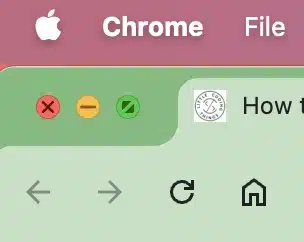
    Move your mouse to the top of the screen until you see the menu bar and the three window buttons (red, yellow, green) appear in the top-left corner of the window.

    Click the green button to exit full screen and return to normal window size. You can also click it again if you want to go back into full screen.

    How to Close Full Screen on Mac: Green icon on top left is for expanding/minimizing windows on mac.
    The green icon is used to expand or minimize windows on a Mac.

    Tip: In macOS, the green button is not just for full screen โ€” itโ€™s also used to resize or tile windows. If you hold down the Option key while clicking, you can maximize the window without entering full screen.

    B. Press and Hold Esc

    In some apps, you can simply press and hold the Esc key to exit full screen. This works in many media apps, like QuickTime or YouTube, when viewed in Safari.

    While this doesnโ€™t work in every app, itโ€™s worth trying. Often, when you move your mouse to the top of the screen, you might see a small message saying: โ€œTo exit full screen, press and hold Esc.โ€

    Hold Esc for about 3 seconds, and you should see the app switch back to windowed mode.

    C. Keyboard Shortcut

    For a faster method, press Control + Command + F. This shortcut works in most Mac apps and will toggle between full screen and windowed mode instantly.

    Tip: If youโ€™re using a MacBook with the Touch Bar, you might see a dedicated โ€œExit Full Screenโ€ button appear when youโ€™re in full screen. Tapping it is the same as using the keyboard shortcut.

    When Full Screen Wonโ€™t Exit

    There could be a case that your app may not respond to the methods mentioned above. In this case, try pressing Command + Tab to switch to another app, then close the full-screen one from the Dock.

    You can also right-click the app icon in the Dock and select Options > Exit Full Screen if available.

    If nothing works, press Command + Option + Esc to force quit the app, then reopen it in normal mode. This is rare, but itโ€™s good to know if a program freezes while in full screen.

    Looking for more beginner-friendly Mac tips? Check out our other quick guides for macOS beginners.

  • How to Install Postgres on MacOS

    How to Install Postgres on MacOS

    If you’re working on a Node.js project and run into errors like ECONNREFUSED ::1:5432, chances are PostgreSQL isn’t running โ€” or it isn’t even installed. Here’s a quick guide to install postgres on macOS using Homebrew, the most reliable and straightforward method.

    Before installing PostgreSQL, make sure you already have Homebrew installed on your Mac. Homebrew is the package manager weโ€™ll be using to install and manage PostgreSQL.

    Don’t have Homebrew yet? No worries, we got you covered. Check out our guide: How to Install Homebrew on macOS.

    Once youโ€™ve got Homebrew set up, youโ€™re ready to continue.

    Step 1: Install PostgreSQL via Homebrew

    With Homebrew installed, adding PostgreSQL is easy:

    brew install postgresql
    Bash

    If you want to install a specific version of postgres, e.g, version 17 type:

    brew install postgresql@17       
    Bash

    Step 2: Start the PostgreSQL Service

    Once installed, start PostgreSQL as a background service:

    brew services start postgresql
    Bash

    To confirm itโ€™s running:

    brew services list
    Bash

    You should see something like:

    Name        Status   User       File
    postgresql  started  your-name  Library/LaunchAgents/[email protected]
    Bash

    Step 4: Confirm the Installation

    Check that PostgreSQL is installed correctly:

    psql --version
    Bash

    psql is the interactive command-line tool when working with Postgres

    Expected output:

    psql (PostgreSQL) 17.5 (Homebrew)
    Bash

    In case you are getting a command not found: psql error you have to explicitly link it. For my example, in which i installed version 17, I just had to type

    brew link postgresql@17 --force
    Bash

    By typing psql --version you should now see the postgreSQL you just installed.


    Step 5: Connect to PostgreSQL

    You can now open a PostgreSQL shell:

    psql postgres
    Bash

    Or create your own database:

    createdb mydb
    psql mydb
    Bash

    Step 6 (Optional): Choosing a GUI

    If you prefer a graphical interface over the terminal, consider installing

    These tools make managing your databases even easier.

  • HTML for Blinking Text โ€“ Simple Copy & Paste Code

    If youโ€™re here, chances are youโ€™re looking for HTML for Blinking Text โ€” maybe you remember the old-school <blink> tag that used to make text flash or flicker on screen. It looked something like this:

    <blink>This text will blink</blink>
    HTML

    Unfortunately (or fortunately, depending on your view), the <blink> tag is now considered obsolete and is no longer supported by modern browsers.

    Modern browsers no longer support <blink> because it was never officially standardized, causing serious accessibility issues. Visually impaired users, in particular, often rely on assistive technologies that donโ€™t handle blinking content well. Plus, from a design standpoint, constant blinking can be distracting and overwhelming to users.

    Blinking Text Using HTML and CSS

    So how do you create blinking text today, in a way thatโ€™s clean, compliant, and works across all devices? Thatโ€™s where HTML and CSS come in. With simple CSS animations powered by @keyframes, you can replicate the blinking effect โ€” only better.

    <p class="blinking">This text will blink using CSS</p>
    HTML
    .blinking {
      animation: blink 1s step-start 0s infinite;
    }
    
    @keyframes blink {
      50% {
        opacity: 0;
      }
    }
    CSS

    This CSS-based method offers more flexibility than the old <blink> tag. You can control timing, opacity, color changes, or even trigger it on events like hover. Plus, it works across all modern browsers, making it a practical solution for attention-grabbing UI elements like warnings or notifications.

    You can even combine it with other effects like scaling or background changes for more dynamic visuals. Whether you’re building a retro-style webpage or emphasizing urgent content, this is a reliable, modern solution.

    Check this out in our codepen too

    See the Pen
    Blinking Text
    by Little Coding Things (@Little-Coding-Things)
    on CodePen.

    If youโ€™re working on a project and still want that eye-catching flicker using CSS animation is the best and most future-proof way to implement HTML for Blinking Text. It’s responsive, accessible, and keeps your design up to todayโ€™s standards.

    Want to take it to the next level? Check out our post on creating a blinking eyes animation using CSS!

  • What does git add -a do?

    If you’re reading this post, chances are you’re looking for a Git command that stages all changes before committing. To set the record straight: the correct command is git add -A. A quick look at the git add documentation will show you that git add -a doesn’t exist. Instead, git add -A is the command that stages all recent changes โ€” including new, modified, and deleted files.

    Letโ€™s take a closer look to see if this is the command youโ€™re really after.

    Common Mistake: git add -a

    When someone types git add -a, theyโ€™re usually trying to stage everything before a commit. Itโ€™s often a case of muscle memory or a mistaken assumption that -a stands for โ€œadd all.โ€

    In most situations, what the user actually meant was either:

    • git add -A to stage everything, or
    • git add . to stage changes in the current folder and below

    git add . vs git add -A

    These two commands are often used interchangeably, but theyโ€™re not exactly the same. While both will stage new, modified, and (in modern Git) deleted files, the main difference lies in their scope.

    git add -A: Stages Everything, Everywhere

    When you run git add -A, Git stages all changes across the entire working tree, no matter where you are in the project.
    For example, even if youโ€™re working in a deep directory like src/assets/images, git add -A will still stage changes from higher directories like src/ or the root.

    git add .: Stages From the Current Directory Down

    On the other hand, git add . only stages changes in the current directory and its subdirectories. The dot (.) refers to โ€œthis folder,โ€ so changes in sibling or parent directories wonโ€™t be included.

    So, When Does It Matter?

    If you’re working from the root of your repository, there’s practically no difference between git add . and git add -A in modern Git versions โ€” both will stage everything.

    But if you’re working in a subdirectory and want to stage all changes in the project, you should use git add -A.

    If you only want to stage changes within the folder youโ€™re in, then git add . is the right choice.

    Frequently Asked Questions (FAQ)

    Is git add -a a valid Git command?

    No โ€” git add -a is not a valid command. If you try it, Git will return an error: error: unknown switch 'a'.
    The correct command to stage all changes is git add -A.

    Do I need to run git add -A from the root of my repository?

    No, you can run git add -A from any directory inside your project, and it will always stage changes across the entire directory

    Thanks for being here! ๐Ÿ™Œ If you found this post helpful, giving it a like or share means a lot to us โ€” it helps others find it too.

    Got another Git command thatโ€™s confusing or unclear? Drop a comment below, and weโ€™ll be happy to explain it in a future post or reply directly. Weโ€™re here to make Git simpler, one command at a time. ๐Ÿ˜Š

  • Coding Interview Series – Intro to Express.js & Middleware

    Coding Interview Series – Intro to Express.js & Middleware

    While preparing for a coding interview, I found myself feeling a bit rusty on theoretical questions and scenarios I havenโ€™t dealt with recently in my everyday work. After all, a developer doesnโ€™t have to remember everything, right? Based on experience, a developer usually just remembers something exists โ€” or has to look it up if theyโ€™ve never built anything similar.

    So whatโ€™s this post about? This โ€” and others coming soon โ€” will be part of a series covering questions I believe are important for any developer to know in order to feel confident going into an interview focused on Express.js. If you can answer these questions, you should feel pretty good. You wonโ€™t know everything, but youโ€™ll be in solid shape to show your knowledge and tackle most of what comes your way.

    For me, these are basically my notes from preparing for coding interviews, and I figured Iโ€™d share them in case they help you too.

    We also plan to share a quiz app featuring these same questions in a simple, game-like environment. Weโ€™re building it now and will share it with you soon, so stay tuned!

    Enough said! Letโ€™s start with some simple questions and gradually go deeper. In each post, Iโ€™ll also include links to the next parts of the series.

    Each answer in this series isnโ€™t meant to be 100% complete or the final word. The goal is to show the interviewer that you understand the topic well and can explain it clearly. Thereโ€™s always room for improvement or deeper discussion.

    Some questions include additional context to strengthen your understanding or explore the topic more deeply โ€” weโ€™ve marked those with a ๐Ÿง  icon.

    Others will point you to related resources for continued learning or best practices โ€” those are marked with a ๐Ÿš€ icon.

    Introductory coding interview questions

    What is Express.js?


    Express.js is a web application framework built on Node.js. It provides a higher-level API for handling HTTP requests. Express.js is commonly used to build REST APIs because it simplifies route handling compared to Node.js.

    What are some alternatives to Express.js?

    • Koa.js – Created by the same team behind Express
    • Fastify – Focuses on speed and performance
    • Nest.js – TypeScript-first framework

    Why should you use Express.js over Node’s built-in HTTP module?

    Node.js provides a low-level foundation, while Express abstracts common patterns, such as routing and middleware, making development faster and more maintainable.

    ๐Ÿง  Deeper – Compare Express and Node Doing the Same Thing

    It’s easy sometimes to say something is different, but it would be nice to have a quick glimpse at an actual example. Because of this, below is a simple GET / users route implemented first with Express.js and then with plain Node.js so you can see the practical difference in code size and readability.

    // Express.js
    
    const express = require('express');
    const app = express();
    
    app.get('/users', (req, res) => {
      res.json({ message: 'Users list' });
    });
    
    app.listen(3000, () => console.log('Express server on port 3000'));
    JavaScript

    In Express.js if you use res.json() (or pass an object/array to res.send()), Express automatically sets the Content-Type header to application/json; charset=utf-8. You donโ€™t need to call res.setHeader() yourself.

    // Node
    const http = require('http');
    
    const server = http.createServer((req, res) => {
      if (req.method === 'GET' && req.url === '/users') {
        res.statusCode = 200;
        res.setHeader('Content-Type', 'application/json');
        res.end(JSON.stringify({ message: 'Users list' }));
      } else {
        res.statusCode = 404;
        res.end('Not Found');
      }
    });
    
    server.listen(3000, () => console.log('Node server on port 3000'));
    JavaScript

    Middlewares

    What is middleware in Express?

    A middleware is a function. It runs before the final route handler, and it has access to the request, response, and next callback.

    An example of a middleware on a route level could be:

    // auth middleware
    function auth(req, res, next) {
      if (!checkAuthOfUserId(req.params.id)) {
        return res.status(403).send('Access denied');
      }
      next();
    }
    
    app.get('/users/:id', auth, (req, res) => {
      res.send(`Access granted to user ${req.params.id}`);
    });
    
    JavaScript

    How many types of middleware do you know?

    There are types of middleware:

    • Global
    • Path based
    • Route specific
    • Error handling

    Examples for each would be:

    Global type middleware example

    const express = require('express');
    
    const app = express();
    
    app.use(express.json());
    JavaScript

    This middleware will run for all incoming requests, regardless of route or method.

    Path-specific middleware example

    // middleware definition
    function adminLogger(req, res, next) { ... }
    
    // Apply middleware to all /admin paths (any method)
    app.use('/admin', adminLogger);
    
    app.get('/admin', (req, res) => {
      res.send('Admin Home');
    });
    
    app.post('/admin', (req, res) => {
      res.send('Admin POST');
    });
    
    app.get('/admin/settings', (req, res) => {
      res.send('Admin Settings');
    });
    JavaScript

    A path-specific middleware will run on all HTTP methods for any route that starts with that path.

    Route-based middleware example

    function requireAuth(req, res, next) { ... }
    
    app.get('/profile', requireAuth, (req, res) => {
      res.send('Welcome to your profile!');
    });
    JavaScript

    This middleware is applied only to a specific route and will run only when a GET request is made to the /profile endpoint.

    Error-handling middleware example

    Error-handling middleware is a special feature in Express.js that catches errors and handles them in a single location. It has four parameters:

    function errorHandler(err, req, res, next) {
      // Custom error handling logic
    }
    
    JavaScript

    In Express 5, if a route handler or middleware returns a Promise that is either rejected or throws an exception, Express will automatically call next(err) for you.

    What do you know about the app.use function?

    app.use() is a method in Express used to register middleware functions. These middleware run before any route handler and can modify the request or response, or end the response cycle.

    ๐Ÿš€ Further reading – Using the Right Terms โ€” Path, Route, or Handler?

    When working with Express.js, you’ll frequently encounter the terms route, path, and handler. It’s important to understand the distinction between them, as each plays a different role in handling HTTP requests.

    Letโ€™s break it down using the following example:

    app.get('/users', (req, res) => { ... });
    JavaScript

    Path: The URL pattern that the server listens to โ€” here, it’s '/users'.

    Route: The combination of an HTTP method (e.g., GET, POST) and a path. In this example, GET /users is the route.

    Handler: The callback function that is executed when a request matches the route. In this case, itโ€™s the function (req, res) => { ... }.

    Routes

    What is a route in Express.js?

    A route in Express defines a specific endpoint by combining an HTTP method (such as GET, POST, etc.) with a path, along with the logic (called a handler) that should execute when that request is received.

    Example

    app.get('/hello', (req, res) => {
      res.send('Hello this is route!')
    })
    JavaScript

    What’s the difference between app.get and app.post?

    Both app.get and app.post define routes.

    • app.get() handles GET requests for fetching data.
    • app.post() handles POST requests for updating or creating data.

    How would you retrieve a route param from a URL like /users/:id?

    app.get('/users/:id', (req, res) => {
      const { id } = req.params;
      res.send(`User id is ${id}`)
    })
    JavaScript

    Whatโ€™s the difference between req.params, req.query, and req.body?

    Property
    Source
    Example
    req.params
    Route parameters
    /users/:id โ†’ req.params.id
    req.query
    URL query string
    /search?q=test โ†’ req.query.q
    req.body
    POST/PUT body
    req.body.name

    needs middleware like express.json()

    Can a route have multiple middleware functions? How?

    Yes, you could add middleware by adding it to the route before the handler.

    app.get('/secure', authMiddleware, loggingMiddleware, (req, res) => {
      res.send('Access granted');
    });
    JavaScript

    What is express.Router() and why would you use it?

    express.Router() creates a modular, mini Express app. It helps organize code by separating routes into files.

    For example, you might organize all your user-related routes in a separate file, such as:

    // routes/users.js
    
    const express = require('express');
    const router = express.Router();
    
    // GET /users
    router.get('/', (req, res) => {
      res.send('User list');
    });
    
    // GET /users/:id
    router.get('/:id', (req, res) => {
      res.send(`User ID: ${req.params.id}`);
    });
    
    module.exports = router;
    JavaScript

    and then import and register them in your main Express application file like this:

    const express = require('express');
    const app = express();
    
    const userRoutes = require('./routes/users');
    
    // Mount user router at /users
    app.use('/users', userRoutes);
    
    app.listen(3000, () => console.log('Server running'));
    JavaScript

    What’s next?

    In this post, we reviewed key Express.js concepts โ€” from routing and middleware types to error handling. These are the kinds of topics that come up often in coding interviews.

    In the next part of this series, we’ll shift gears toward project-level questions. Stay tuned!

  • How to Restart Your Node App Without Nodemon

    If youโ€™ve built anything with Node.js, youโ€™ve probably used nodemon to automatically restart your app when files change. Itโ€™s been a go-to developer tool for years โ€” but did you know you no longer need it?

    With Node.js 18.11 and above, thereโ€™s a built-in --watch option. It tells Node to monitor your source files and automatically restart the process when changes are detected.

    node --watch app.js
    Bash

    Thatโ€™s it. No configuration, no dependencies, no waiting for external tools to kick in.

    It works great when:

    • Youโ€™re building small or medium apps.
    • You donโ€™t need advanced features like custom delay or file filters.
    • You want to keep your environment minimal and lean.

    Keep in mind that, large projects with complex file structures might still benefit from nodemon or more advanced tools.

  • How to install Git on Mac – MacOS for beginners

    How to install Git on Mac – MacOS for beginners

    So, youโ€™re new to macOS and ready to set up Git? Great choice! Git is one of the essential tools for developers, and installing it should be one of the first steps in your journey. Donโ€™t worryโ€”itโ€™s easier than you think. Letโ€™s get started!

    If youโ€™ve never worked with Git before, think of it as a timeline for your files. It’s a tool used to keep track of every change you make, so you can jump backward in time if you break something or experiment freely without losing your original work.

    Itโ€™s not just for programmers โ€” writers, researchers, and designers also use Git to track versions of their work. Installing Git on your Mac now will save you a lot of headaches later.

    Although thereโ€™s a small learning curve at first, youโ€™ll quickly find that once youโ€™ve used Git for a while, you canโ€™t imagine working without it โ€” youโ€™ll wonder how you ever managed before.

    Check if Git is already installed

    If youโ€™re just setting up your Mac, itโ€™s unlikely that Git is already installed. macOS doesnโ€™t come with a fully functional Git by default. Instead, it includes a placeholder located at /usr/bin/git. This placeholder acts as a link to the actual Git version, which gets installed with Xcode or the Command Line Tools.

    To check, open your terminal and type:

    git --version

    If you see something like:

    No developer tools were found, requesting install

    it means that macOS detected that you tried to use a command-line developer tool – git in this case – but the Xcode Command Line Tools are not installed on your system.

    From here, you have two main choices for installing Git on your Mac โ€” Appleโ€™s Xcode Command Line Tools or the Homebrew package manager. Both will get the job done, but they have different strengths.

    • Xcode Command Line Tools is quick and easy if you just want to start using Git right away, but the version it installs is maintained by Apple and might not always be the latest.
    • Homebrew, on the other hand, gives you more control and makes it simple to update Git whenever a new release comes out. If you plan to keep working with Git regularly, I suggest going with Homebrew for its flexibility and ease of maintenance.

    Install Git on Mac using Xcode

    Xcode is one of the quickest ways to install Git on your system. Since Xcode Command Line tools include Git in the package, to use Git all you need to do is type the following command in your terminal

    xcode-select --install

    When the pop-up appears, click Install. Make sure youโ€™re connected to the internet.

    Once the installation finishes, confirm it by typing:

    git --version

    You should now see something like:

    git version 2.39.5 (Apple Git-154)

    Install Git on Mac using Homebrew

    Another popular way to install Git on macOS, apart from using Xcode Command Line Tools, is by using Homebrew.

    This method is often preferred by developers who want more control over the Git version or are already using Homebrew for managing other software.

    To install Git using Homebrew, run the following command

    brew install git

    Running this command will display some logs related to the Git installation, such as:

    ....
    ==> Installing git
    ==> Pouring git--2.47.1.arm64_sequoia.bottle.tar.gz
    ==> Caveats
    The Tcl/Tk GUIs (e.g. gitk, git-gui) are now in the `git-gui` formula.
    Subversion interoperability (git-svn) is now in the `git-svn` formula.
    
    zsh completions and functions have been installed to:
      /opt/homebrew/share/zsh/site-functions
    ==> Summary
    ๐Ÿบ  /opt/homebrew/Cellar/git/2.47.1: 1,685 files, 54.4MB
    ==> Running `brew cleanup git`...
    ....

    Once the installation process is complete, you can verify that Git was installed successfully by typing:

    git --version

    You should see

    git version 2.39.5 (Apple Git-154)

    With Git successfully installed, you’re now ready to dive into your development journey and take full control of your projects!

    ๐Ÿ›  Extra Tip: When installing via Homebrew, you can easily update Git later by running:

    brew update && brew upgrade git
    Bash

    This ensures youโ€™re always on the latest stable release without waiting for Apple updates. It also makes switching between different Git versions simple, which is useful for testing or specific project needs.

    Verify Git configuration

    After installing Git, itโ€™s a good idea to configure your identity so your commits are linked to the right name and email address. Run the following commands in your terminal:

    git config --global user.name "Your Name"
    git config --global user.email "[email protected]"
    Bash

    You can check your saved settings with:

    git config --list
    Bash

    This will show your username, email, and other configuration details. These can be changed at any time if you switch accounts or need to adjust your settings.

    Next Steps with Git

    Installing Git is just the beginning. The next step is learning a few key commands that will make you productive right away. Start with:

    • git init โ€“ Create a new repository in the current folder.
    • git add <filename> โ€“ Stage files you want to include in your next commit.
    • git commit -m "message" โ€“ Save your staged changes with a short description.
    • git status โ€“ Check whatโ€™s been modified, staged, or committed.
    • git log โ€“ View a history of all commits in the repository.

    Once youโ€™re comfortable with these, try creating a branch with git branch <branchname> and switching to it using git checkout <branchname>. Branching is one of Gitโ€™s most powerful features, letting you work on new ideas without touching your main project until youโ€™re ready.

    As you explore these commands, remember that consistent practice is the fastest way to build confidence and skill with Git. And if you want to take things a step further, tools like Husky pre-commit hooks can help automate checks and streamline your workflow as you grow.