Author: Duke

  • How to install Homebrew – MacOS for beginners

    How to install Homebrew – MacOS for beginners

    If you are making your first steps on macOS, you may have never heard of Homebrew before. Homebrew is a powerful package manager, similar to npm if you’ve worked with it before. It allows you to easily install, update, and remove software packages directly from your terminal, making it an incredibly handy tool for developers. In this post, you’ll find a step-by-step guide to install Homebrew on MacOS.

    Why is it essential to install Homebrew?

    Homebrew is widely regarded as the most popular package manager for macOS. It’s the go-to choice for developers and power users because of its simplicity and active community support.

    Homebrew lets you easily get the tools and libraries you need for development or daily tasks, from developer tools like Git and Node.js to simple everyday utilities. It saves time by skipping the trouble of manual downloads and setup. It’s simple, fast, and perfect for customizing your Mac.

    If you haven’t used a tool like Homebrew before, don’t overlook it – it could completely transform the way you manage software on your Mac.

    Check if Homebrew is already installed

    Just to make sure you haven’t already installed Homebrew in the past, let’s check it out. Open your terminal and type:

    brew help

    If you have it installed, you should see something like

    Example usage:
      brew search TEXT|/REGEX/
      brew info [FORMULA|CASK...]
      brew install FORMULA|CASK...
      brew update
      brew upgrade [FORMULA|CASK...
      ....

    otherwise, you will get the following result

    command not found: brew

    How to install Homebrew

    Ready to install Homebrew? Here’s everything you need to know. Open your terminal (Cmd + Space and type Terminal“) and type

    /bin/bash -c "$(curl -fsSL https://raw.githubusercontent.com/Homebrew/install/HEAD/install.sh)" 
    

    Oh, you say! What is this command? Let me explain. This command asks bash (which is a command-line shell language commonly used in macOS and Linux) to execute a script.

    Here’s how it works:

    • /bin/bash: specifies the bash shell, ensuring the command is executed using bash, even if your default shell is something else (like zsh).
    • -c: This flag tells bash to execute the command provided in quotes.
    • $(curl -fsSL https://raw.githubusercontent.com/Homebrew/install/HEAD/install.sh): This part fetches the Homebrew installation script directly from GitHub using curl (a tool for transferring data).

    In simple terms, this command downloads the Homebrew installer script from GitHub and immediately runs it using bash to set up Homebrew on your system.

    You will be asked for your super user password:

    /bin/bash -c "$(curl -fsSL https://raw.githubusercontent.com/Homebrew/install/HEAD/install.sh)"
    
    Checking for `sudo` access (which may request your password)...
    
    Password:
    

    After typing your password, you’ll see a message prompting you to press ENTER to proceed with the installation. Simply press ENTER, and the installation will continue.

    /bin/bash -c "$(curl -fsSL https://raw.githubusercontent.com/Homebrew/install/HEAD/install.sh)"
    
    Checking for `sudo` access (which may request your password)...
    
    Password:
    
    ==> This script will install:
    /opt/homebrew/bin/brew
    /opt/homebrew/share/doc/homebrew
    ....
    /opt/homebrew
    ==> The following new directories will be created:
    /opt/homebrew/bin
    /opt/homebrew/etc
    /opt/homebrew/include
    ....
    /opt/homebrew/Frameworks
    
    Press RETURN/ENTER to continue or any other key to abort:

    Wait for the installation process to complete—it may take a few minutes. Once it’s done, you’ll see the message “Installation successful!”. However, to ensure everything was installed correctly, let’s verify it by typing the following command in the terminal:

    brew help

    If it was successfully installed, you should see the following response.

    Example usage:
      brew search TEXT|/REGEX/
      brew info [FORMULA|CASK...]
      brew install FORMULA|CASK...
      ....

    Homebrew doesn’t work after installing it

    If you’ve already followed all the steps described to install Homebrew but see a “command not found” error when running, e.g., brew help it typically means that the Homebrew binary is not properly added to your system’s PATH.

    To resolve the issue, revisit the logs from the Homebrew installation script. At the end of the script, you’ll typically find specific instructions for finalizing the installation.

    Warning: /opt/homebrew/bin is not in your PATH.
      Instructions on how to configure your shell for Homebrew
      can be found in the 'Next steps' section below.
    ==> Installation successful!
    ...
    ...
    ...
    ==> Next steps:
    - Run these commands in your terminal to add Homebrew to your PATH:
        echo >> /Users/<your username>/.zprofile
        echo 'eval "$(/opt/homebrew/bin/brew shellenv)"' >> /Users/<your username>/.zprofile
        eval "$(/opt/homebrew/bin/brew shellenv)"

    copy the last part of the Homebrew installation instructions —starting from the command that begins with echo — and paste it into your terminal. This command typically adds Homebrew to your system’s PATH.

    By now, you should have Homebrew installed on your system successfully. Congratulations! This is just the first small step on your exciting journey to mastering powerful tools and workflows as you grow your skills.If you’re exploring ways to automate parts of your development workflow next, you might find Git tools like Husky pre-commit hooks especially helpful.

  • How to Add Sass to A Create-React-App Project

    How to Add Sass to A Create-React-App Project

    In this post, we’ll be sharing all the steps you need to follow to learn how to add Sass to a Create-React-App project. We’ll take it step by step and make it crystal clear for you! Let’s do it!

    Setup a Create-React-App project

    To build your initial project structure, you have two options, either install create-react-app (CRA) package globally and use that, or use npx and avoid installing create-react-app in your system.

    To check if you already have CRA installed, type in your terminal:

    create-react-app --version
    Bash

    If you see a version logged, something like 5.0.1 then you are just fine and can start the project initialization process. Otherwise, you need to decide whether to proceed by installing CRA or not. Both decisions are valid and it depends on your coding style and whether you like to keep global packages or not.

    Installing Create-React-App

    If you want to install create-react-app in your terminal type:

    npm install create-react-app --global
    Bash

    After installing the package, check its version to verify the installation by typing create-react-app --version.

    Now that you have installed CRA, you can create your project by typing

    create-react-app my-project
    Bash

    Using npx – Avoid installing Create-React-App

    If you want to avoid installing create-react-app and just use npx, you can just type

    npx create-react-app my-project
    Bash

    Basic difference between npx and npm is that npm is a package manager and npx is a package executor.

    Using npx doesn’t install the package you want permanently but rather temporarily so that it gets the job done. That’s why if you check the version of the package used after using npx, you will get nothing back, compared to the classic installation with npm in which you’ll get the installed package’s version. Try it out!

    You may ask how npx was added to my system. Since npm version 5.2.0, npx is pre-bundled with npm.

    Add Sass to Create-React-App

    Now that we have our project’s basic structure, let’s start adding some Sass code. Our first step is installing Sass:

    npm install sass
    Bash

    Now that we have the Sass package installed, the next step would be to rename our App.css file to App.scss and add some Sass styling there like so:

    body {
      background-color: red;
    }
    Sass

    Now I know what you are thinking, and yes, this is not solid styling for our app; it’s just to verify our changes are applied as expected. One final step before verifying everything works. We have renamed our App.css to App.scss so we will be getting an error if we run our app because the importing in the App.js file is using the previous extension import './App.css';.

    Let’s change that too by making it import './App.scss';

    Now, check out your browser, and you should see the applied changes! Keep in mind, though, that based on your already applied stylings, you may not actually see our styles on the browser because they will probably get overridden by yours. You can still see if everything worked as expected and if our style was “passed” to the browser either by checking your browser’s dev tools or by increasing your style’s specificity.

    Sass VS SCSS – What’s the difference?

    For those of you who are paying extra attention, you may have already seen that we have installed a Sass package to handle new code styling, but we have used .scss file extension. What’s with that?

    Well, first of all, sass package encompasses both the Sass and SCSS syntax, so we are fine with that regardless of the style we want to use, Sass or SCSS.

    The difference between Sass and SCSS is basically their syntax. Sass is more concise and doesn’t use curly braces, whereas SCSS (Sassy CSS) has a more CSS-like syntax.

    Both serve the same purpose of allowing maintainability and efficient CSS usage, however .scss extension is more popular in the Sass community, and that’s why we have chosen in this post to use the .scss file extension.

    Remove Create-React-App

    If, after finishing your project, you’d like to remove CRA from your system, you can just type

    npm uninstall --global create-react-app
    Bash

    Remember, if you have used npx for your project’s initialization, nothing was installed, so you’ll be just fine, no reason for uninstalling anything.

  • How to Install npm on MacOS

    How to Install npm on MacOS

    Installing Node.js and npm (Node Package Manager) on your Mac is super simple. With these tools, you can manage Javascript packages, create powerful web applications, and dive deep into modern web development. Start by following these steps:

    Step 1: Verify that npm is installed

    Open your terminal and type

    node -v
    npm -v
    Bash
    • If you see version numbers (e.g., v16.13.0 for Node.js and 8.1.0 for npm), they’re already installed.
    • If you see errors or no versions, continue to the next step.

    Step 2: Install Node.js (includes npm)

    The easiest way to install Node.js and npm is by using Homebrew. If you don’t have Homebrew installed, install it first.

    Then run:

    brew install node
    Bash

    Step 3: Verify the Installation

    After the installation completes, type the following command to check the versions and ensure everything is installed properly:

    node -v
    npm -v
    Bash

    You should see version numbers for both. 🎉

    Step 4: Update npm (Optional)

    npm updates frequently, so ensure you have the latest version:

    npm install -g npm@latest
    Bash

    🎉 You’re all set! Now, you can use Node.js and npm to manage and build amazing projects. Happy coding! 😊

    Why Use Node.js and npm?

    • Fast & Scalable: Node.js enables fast, scalable network applications with non-blocking I/O.
    • Massive Ecosystem: npm offers access to over 1 million open-source packages.
    • Cross-Platform: Develop once and deploy anywhere.

    These tools are essential for any web developer aiming to build modern, high-performance applications.

  • How To Use A Javascript Double Question Mark​

    The Javascript double question mark​ ?? is known as the nullish coalescing operator. It is a logical operator useful for checking whether a value is undefined or null, allowing us to provide a default value based on that check.

    How does the Javascript nullish coalescing operator work? 🧁

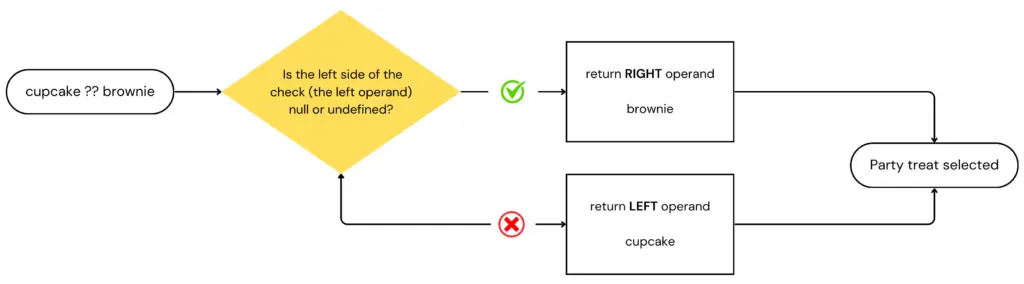
    Suppose we want to decide on a party treat based on whether a cupcake is available. If the cupcake is missing (i.e. it’s undefined or null), we’ll go with the brownie instead.

    const partyTreat = cupcake ?? brownie; 
    JavaScript

    The operator ?? in this snippet returns the right-hand operand – brownie – when the left one – cupcake – is null or undefined.

    For those of you who immediately jumped, shouting that this is the same as the logical OR operator ||, hang in there, I’ll get to you soon.

    So, to make this crystal clear, let’s see the possible scenarios:

    • If the cupcake is null or undefined, then our partyTreat will be a brownie.
    • If the cupcake is anything other than null or undefined, then our partyTreat will be the cupcake.
      I just hope they actually bring a real cupcake, not a truthy version of it… 🥶 (A cold programmer’s joke 🤣).
    javascript double question mark​ flow diagram
    Flowchart of the ?? operator: how JavaScript handles nullish values

    Choosing the Right Operator: ?? or ||?

    When it comes to handling default values in JavaScript, understanding the difference between the nullish coalescing operator (??) and the logical OR operator (||) is essential.

    While both operators can provide fallback values, they behave differently with certain inputs.

    The nullish coalescing operator returns the right-hand operand only if the left-hand operand is null or undefined, making it ideal for cases where you want to avoid falsy values like 0 or ''.

    In contrast, the logical OR operator returns the right-hand operand for any falsy value, including 0, NaN, or an empty string.

    By now, I am sure you understand that the nullish coalescing operator is a special case of a logical || operator, right?

    So, they are different, but what would be a use case where one operator is preferable over the other?

    Let’s assume we have a function that gets us a user’s score

    // Logical operator || example
    function getUserScore() {
      const finalScore = score || 100; 
      ...
    }
    
    // Nullish coalescing operator ?? example
    function getUserScore() {
      const finalScore = score ?? 100; 
      ...
    }
    JavaScript

    In the first case, if the score is 0, which is falsy, then the finalScore ends up being assigned the default value of 100, even though 0 might be a legitimate score.

    In the second case, that won’t happen. 0 is neither null or undefined, so the finalScore will end being 0, which is indeed a valid score.

    Frequently Asked Questions

    Can I combine the nullish coalescing operator with other operators in Javascript?

    Yes, you can combine the Javascript nullish coalescing operator (??) with other operators to create more complex logic in your code. For example, by writing something like

    const defaultValue = hasUserInput ?? (isAdmin && fallbackValue);
    JavaScript

    we first evaluate if the user has entered a value (such as in a form). If userInput is null or undefined, we then evaluate whether the user is an admin.

    If the user is an admin, result will be assigned the fallbackValue. If the user is not an admin, result will be false instead.

    How can I chain multiple nullish coalescing operators together?

    You can chain multiple nullish coalescing operators to evaluate different variables. For example, if you have several fallback options, the operator will return the first defined value it encounters:

    const partyTreat = cupcake ?? brownie ?? defaultTreat;
    JavaScript

    Have you encountered any situations where one operator has significantly impacted your coding experience? If so, please share your examples in the comments below. We’d love to hear your insights!

  • Best Job Sites for Web Developers

    Best Job Sites for Web Developers

    If you feel like you’re the only one struggling to find remote web developer jobs, let’s clear that up — you’re not alone! We’ve been in your shoes, and we might still be there right now. During our search, we realized that while some remote job sites are easy to find, others are buried deep (thanks, SEO), and some lists of remote job sites are hidden behind paywalls (we won’t name names).

    To make things easier for everyone, we compiled a list of websites offering remote web developer jobs – and more – for anyone seeking remote work, regardless of the field.

    We hope this helps you reach your goal!

    If you manage a site that showcases remote developer jobs, we’d love to hear from you! Contact us to be added to our list. Reach out in the comments or visit our Contact Us page.

    General boards for remote jobs

    General remote job boards are fantastic resources for discovering flexible work opportunities across various industries! These platforms showcase a diverse range of listings in fields like tech, marketing, and customer service, making it super easy to find and apply for remote positions that suit your style. Below, you’ll find a curated list of the best remote job boards to kickstart your remote career!

    EU Remote Jobs

    EU Remote Jobs is a frequently updated job board focused on remote opportunities within Europe. It’s a great resource for web developers, offering a wide variety of roles across frontend, backend, and full-stack development.

    The site is easy to navigate, with clear categories and filters that help you quickly find positions that match your skills. New jobs are posted regularly—sometimes multiple times a day—so there’s always fresh opportunities to explore.

    While the focus is on roles available to candidates based in Europe, many listings are open to international applicants as well. Whether you’re looking for a full-time position or freelance gigs, EU Remote Jobs is a solid place to find consistent, high-quality leads.

    We Work Remotely

    We Work Remotely is an excellent website for finding remote web developer jobs in tech, programming, design, and startups. It has a clean and easy-to-use layout, making it simple to browse different job categories. According to their site, “For over a decade, WWR has been the number one destination to find and list incredible remote jobs. We’re home to the largest remote work community in the world with 4.5M visitors.

    The site offers various jobs in programming, DevOps, design, product, customer support, and sales, clearly showing whether they are full-time or contract roles.

    Gun.io

    Gun.io is a platform designed for developers to connect with remote job opportunities while keeping 100% of their set rate. You start by creating a comprehensive profile highlighting your work history and preferred languages, which helps the team match you with roles that suit your skills.

    Once your profile is complete, senior-level developers review it to ensure you’re a great fit for potential positions. Gun.io also provides support throughout your freelance journey, making it easier to focus on your work while ensuring you get paid what you deserve.

    4 day week

    4 Day Week is a fantastic platform that promotes the four-day workweek and one you should not ignore! Here, you’ll find various remote job listings that embrace this innovative work model, allowing you to enjoy a better work-life balance while still achieving your career goals. Dive into a world where you can maximize productivity and enjoy your long weekends!

    Remote OK

    Remote OK is one of our top picks for finding remote jobs, offering roles for developers, designers, copywriters, and customer support representatives. Its beautiful user interface and simple, easy-to-use filters make it easy to find full-time remote work or remote part time jobs that fit your needs.

    Trusted by major companies like Microsoft, IBM, and Amazon, the site also highlights that you can reach up to 1.9 million remote workers when hiring, making it a go-to resource for companies and job seekers alike. Whether you’re looking for tech or non-tech positions, Remote OK is a fantastic platform to explore!

    Jobspresso

    Jobspresso is a trusted platform for finding remote jobs in fields like tech, marketing, customer support, and more. Each listing is carefully selected and reviewed to ensure top-quality job opportunities. From software development and AI roles to content writing and sales, Jobspresso offers various remote work options.

    Remotive

    Remotive stands out as a remote jobs platform with a unique focus on community and flexibility. Created in 2014 by Rodolphe Dutel, Remotive has attracted over 500,000 followers across social networks.

    It’s perfect for people who want to work remotely, whether you’re looking to ditch the commute, need a career-focused part-time role, or want a more flexible schedule. As their site says, Remotive is great for “anyone who wants to work remotely,” including parents seeking better work-life balance or professionals looking for alternative schedules.

    FlexJobs

    Flexjobs is a platform established in 2007 by Sara Sutton to simplify the search for reliable remote and flexible job options. After facing frustrations with misleading job ads, she created a site that features thoroughly vetted job listings in more than 50 industries, catering to everyone from entry-level applicants to executives.

    With a commitment to quality, FlexJobs offers valuable resources and insights to help job seekers make informed decisions while providing a satisfaction guarantee to ensure a positive experience.

    JobRack

    JobRack is a valuable platform connecting skilled professionals in Eastern Europe and South Africa with remote job opportunities. It features a variety of roles across multiple industries, making it easier for job seekers to find positions that match their skills and preferences.

    Whether you’re seeking full-time or part-time work, JobRack helps you connect with employers who appreciate talent and flexibility.

    JustRemote

    JustRemote is a platform dedicated to helping individuals find authentic remote job opportunities across various fields. Their mission is to connect job seekers with reputable employers and make remote work accessible to everyone.

    The site features carefully curated job listings in categories such as business, customer service, development, design, and marketing. While it primarily caters to U.S. residents, Just Remote also provides remote positions for applicants in numerous countries worldwide.

    By simplifying the job search process, Just Remote empowers people to discover fulfilling remote work.

    Working Nomads

    Working nomads is a job board that connects remote workers with quality opportunities across various fields, including administration, development, marketing, and writing.

    Their listings also include remote part-time jobs and contract positions from trusted companies. When this was written, their premium package provided access to over 30,000 remote jobs, making it easier for job seekers to find the right fit. Working Nomads helps seasoned professionals and newcomers discover their ideal remote role with daily or weekly job alerts.

    Remote.co

    Remote.co is a great platform for finding high-quality remote work opportunities in fields like tech, marketing, and customer support. Featured in Forbes and CNBC, it offers a wide range of job listings to help job seekers. With helpful resources and articles about remote work trends, Remote.co is a valuable tool for anyone looking for a remote job.

    Arc

    Arc is a platform that connects top tech talent with remote opportunities, focusing on high-quality job matches for developers and other tech professionals to thrive in a remote work environment.

    Pangian

    Pangian is a global remote job board that specializes in connecting job seekers with remote roles in various fields, promoting a diverse and inclusive work culture for professionals worldwide.

    Honorable mentions

    Here are some honorable mentions—additional job boards that serve as exceptional resources for finding remote work opportunities.

    Wellfound

    Wellfound – A platform for connecting startups with talented professionals seeking remote and flexible job opportunities.

    Jobgether

    Jobgether – A user-friendly site that lists remote jobs across various industries, making it easy to find your next opportunity.

    Himalayas

    Himalayas – A curated job board for remote jobs at innovative companies focusing on technology and startups.

    Remote4me

    Remote4me – A platform that aggregates remote job listings from various sources to simplify your job search.

    Remote Woman

    Remote Woman is job board specifically for women seeking remote work opportunities in tech and other fields.

    Euro Remote Jobs

    Euro Remote Jobs is a job board dedicated to remote jobs in Europe, featuring a wide range of positions from various companies.

    Lemon.io

    Lemon.io is a platform that connects companies with skilled developers, focusing on providing high-quality remote tech talent while ensuring a smooth hiring process.

    Ruby on Remote

    Ruby on Remote is a dedicated job board for Ruby developers featuring a curated list of remote job opportunities specifically tailored for professionals with Ruby skills across various industries.

    Don’t give up. The right remote job is out there!

    Remote junior developer jobs

    Yes! You saw that right! This section is for remote jobs for juniors. So many people are trying to get remote jobs as juniors and struggle to find them. Well, the market has listened… well, actually some developers did, but hopefully the market heard your voices too! As I was saying…some developers have created job boards just for junior developers. Here you go! Enjoy the ride, newcomers!

    Remote Rocketship

    Remote Rocketship offers a collection of entry-level remote jobs across various fields, making it easier for newcomers to kickstart their careers.

    Entry Level Remote Job

    Entry Level Remote Job is a dedicated platform that connects job seekers with remote opportunities specifically designed for those starting their careers.

    Best freelancer websites

    If you don’t want to focus all your energy on one client and prefer to find gigs or part-time projects, this section is for you. Below, you’ll find a list of platforms where you can discover multiple freelance opportunities.

    Toptal

    Toptal is a freelance platform that connects top professionals with companies needing remote talent. It’s famous for its tough selection process, accepting only the top 3% of applicants, so it’s not for the faint-hearted.

    With opportunities in software development, design, and finance, Toptal is trusted by companies like Airbnb and Shopify. It’s a great option for freelancers seeking high-quality projects and businesses looking for the best talent.

    Upwork

    Upwork is one of the largest and most popular freelance marketplaces, offering a wide variety of remote job opportunities in fields like web development, design, writing, and marketing.

    Freelancers can create profiles, bid on projects, and connect with clients from around the world. Upwork has remote jobs for all experience levels, from beginners to experts, making it an excellent platform for anyone who wants to start or grow their freelance career.

    Fiverr

    Fiverr is a popular freelance platform where professionals can offer services starting at $5, covering everything from graphic design and writing to voiceovers and web development.

    Freelancers create “gigs”, and clients can easily browse and purchase services. With its straightforward interface and wide range of categories, Fiverr is an excellent choice for freelancers seeking specialized services and clients needing quick, affordable solutions.

    Freelancer

    Freelancer is a global freelance marketplace where businesses can post projects, and freelancers can bid to get hired. Covering a wide range of categories like software development, writing, accounting, design, translation, data entry, and much more, it’s a platform suitable for all skill levels.

    With contests and time-tracking features, Freelancer helps beginners and experienced professionals find remote work opportunities quickly and efficiently.

    PeoplePerHour

    PeoplePerHour connects freelancers with clients seeking specific skills, particularly in tech, marketing, and design. Freelancers can apply for posted jobs or offer services in their own “Hourlies” — pre-packaged services at set prices.

    Known for its ease of use and quality listings, PeoplePerHour is a solid choice for freelancers wanting flexible projects and clients looking for skilled professionals.

    Turing

    Turing is a platform designed to simplify the hiring process for global talent. Founded by Jonathan Siddharth and Vijay Krishnan, who faced challenges in sourcing high-quality talent in their previous venture, Turing combines comprehensive candidate profiles with a strict vetting process.

    Launched in 2018, Turing has become a leading provider of AI-driven solutions, matching companies with skilled professionals for product development and engineering projects. With its innovative approach, Turing has earned the trust of numerous companies for their AI deployment, large language model training, and custom engineering requirements.

    X-Team

    X-Team is a unique platform that connects companies with top developers from around the world. Founded on the belief that work should be fulfilling, X-Team empowers its developers by providing them with opportunities to work remotely while continuously honing their skills. With a rigorous selection process, X-Team ensures that only the best talent joins its ranks, allowing companies to tap into a diverse pool of skilled professionals. Their emphasis on team culture, support, and ongoing learning has made X-Team a preferred choice for businesses looking for dedicated developers to drive their projects forward.

    Codeable

    Codeable is a platform that connects clients with expert WordPress developers. With a focus on quality, Codeable vets its developers to ensure only top-tier talent is available for hire.

    Job boards with remote filters

    While not solely focused on remote work, popular job boards like Indeed and LinkedIn offer filters to help you find flexible remote work opportunities. Here are a few top sites where you can search for remote positions:

    Linkedin

    Linkedin is a professional networking site with a filter for remote web developer jobs, allowing you to search within your field.

    Glassdoor

    Glassdoor although primarily known for company reviews, it also provides options to filter remote job listings.

    Monster.com

    Monster.com – A well-known job board that features filters to help you find remote job opportunities.

    We’ll continue to update this post whenever we discover new remote job websites, so be sure to bookmark this page for future reference!

    How to get the most out of remote job boards

    Finding remote web developer jobs isn’t just about knowing where to look — it’s also about how you use these platforms. Before applying, make sure your resume and portfolio clearly highlight your remote experience, communication skills, and ability to work independently. Many companies hiring remotely care just as much about collaboration and reliability as they do about technical skills.

    If you’re a junior developer, focus on job boards that explicitly mention entry-level or junior-friendly roles, and don’t be discouraged by listings that ask for “experience” — many are flexible if you can show strong fundamentals and real projects.

    For freelancers, platforms like Toptal, Upwork, and Codeable reward specialization. Niching down (for example, “React performance optimization” or “WordPress security”) can significantly improve your chances of landing consistent remote work.

    Remote work opportunities change fast, so checking these job boards regularly, setting up alerts, and staying active will dramatically increase your chances. This list is updated often to help you stay ahead of the curve.

    Common mistakes when applying for remote web developer jobs

    One of the biggest mistakes developers make when applying for remote roles is sending the same generic application everywhere. Remote-first companies often receive hundreds of applications, so small details matter. Tailor your resume to highlight relevant skills, real-world projects, and tools mentioned in the job description.

    Another common issue is ignoring time zone and availability requirements. Even fully remote teams often expect some overlap in working hours, so make sure you’re clear about your location and schedule upfront to avoid wasted applications.

    Finally, don’t underestimate the importance of your online presence. A well-maintained GitHub profile, live demos, or case studies can make a big difference — especially for junior developers or career switchers who may not have extensive work experience yet.

    Happy job hunting! 🚀

  • Integration and Unit Tests: How to Choose the Right One?

    Integration and Unit Tests: How to Choose the Right One?

    If you are making your first steps in code testing, I want to start by congratulating you on walking that path! 🥳 This is a crucial decision and a great addition to your skill set. Before writing some tests, it’s vital to grasp the difference between two fundamental testing methods regarding integration and unit tests. In this post, we’ll dive into these testing types and explore their differences.

    If you’re new to testing in general and want a broader overview before comparing testing types, this introduction to Javascript testing for beginners explains the core ideas in simple terms.

    Testing scenario for our comparison

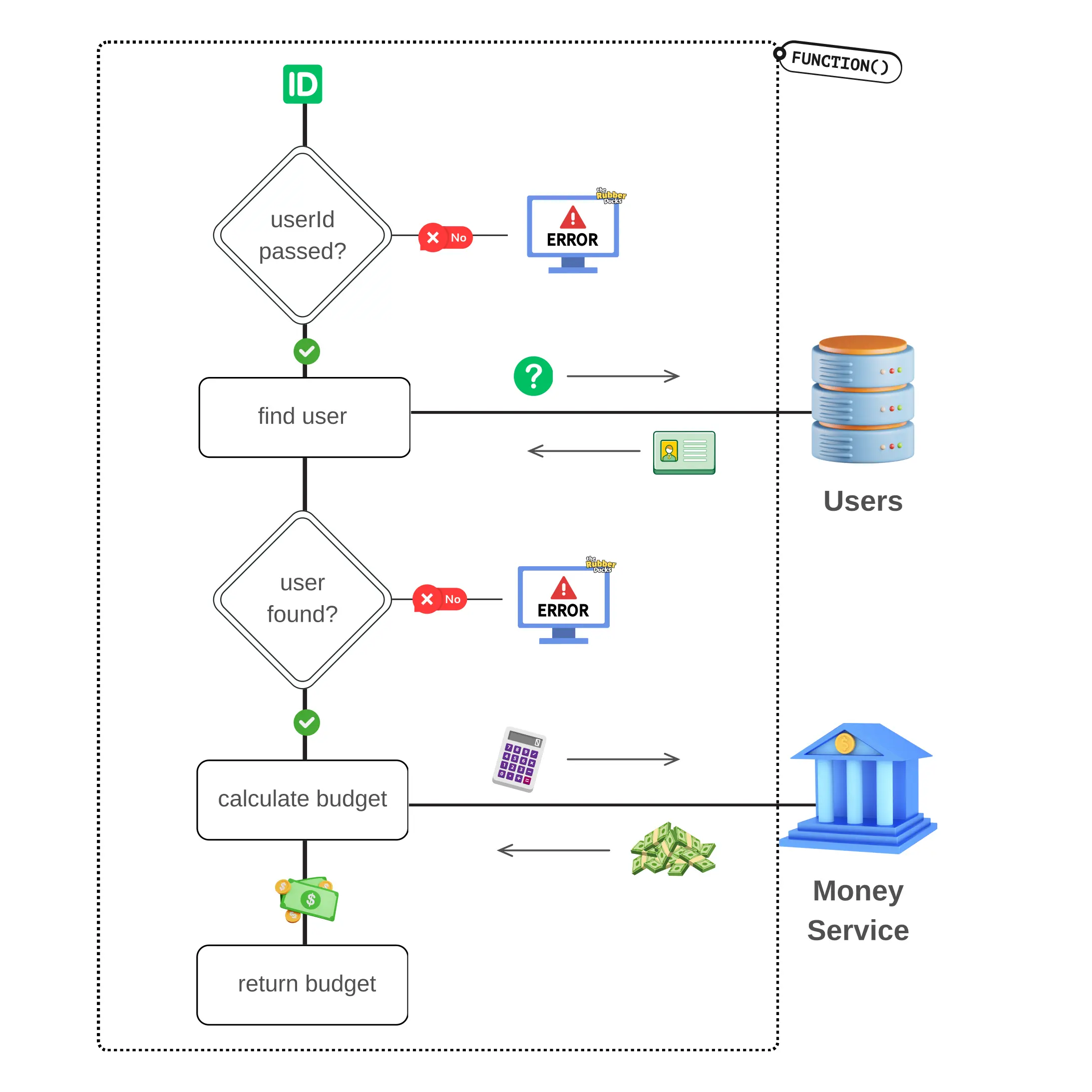
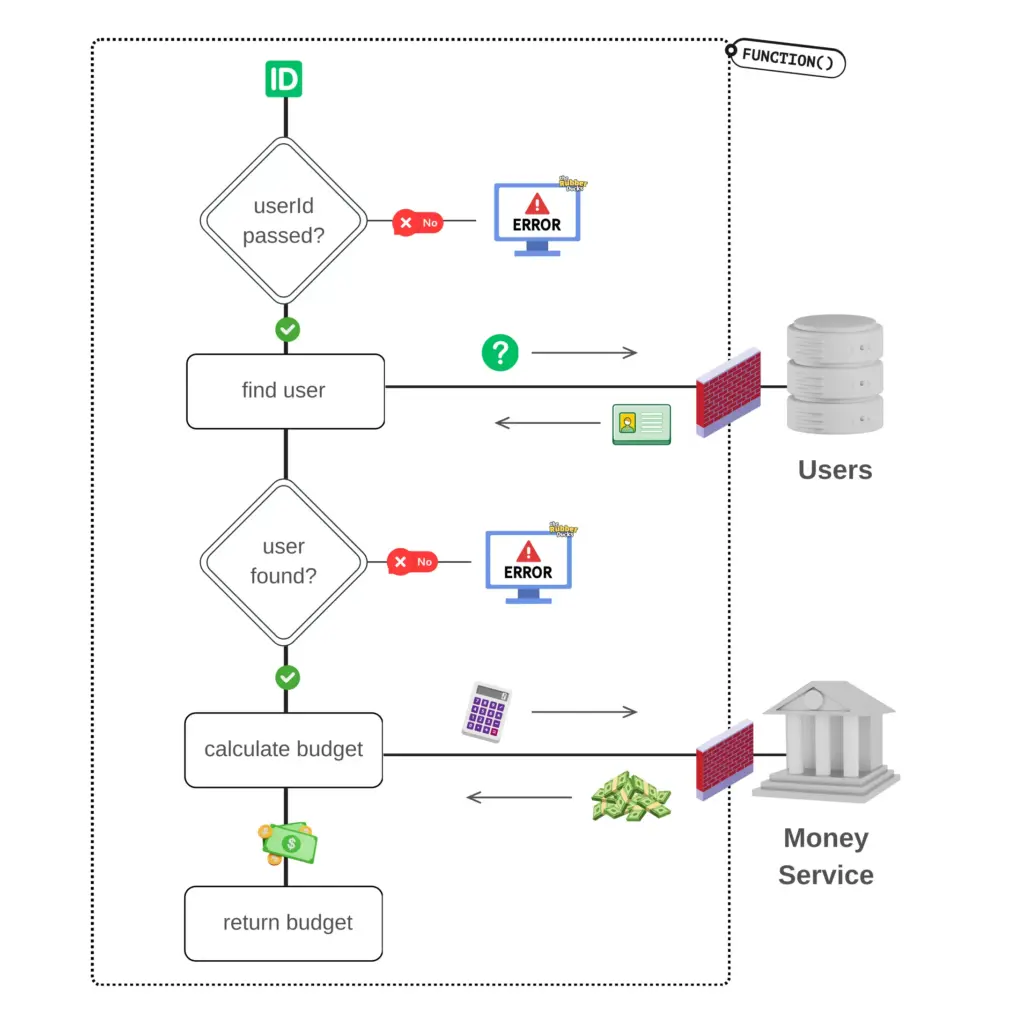
    To understand the difference between integration and unit tests, let’s use an example of a function that calculates a user’s daily budget. We’ll name our function determineUserBudget and have the following flow:

    • Takes a userId parameter to perform a search for a user.
    • Uses the provided  userId to search for the corresponding user in the Users table of our database.
    • If we call the function without passing a userId, it will throw an Error to indicate the missing parameter.
    • Furthermore, if no user is found, it will also throw an Error to signify the absence of a matching user.
    • However, if a user is found, it will use the user’s info and call our Budget service.
    • Subsequently, it will perform budget calculations based on the retrieved data.
    • Lastly, the function will return the budget as its final output.

    Let’s see what was just described through the following diagram so that it is easier to understand the function flow:

    To differentiate between the internal workings of the function and the external connections that need to be made, I am using a dotted border.

    Now that we have our testing scenario, let’s see what’s the difference between these two types of testing, and how we would test our function in each method.

    (We won’t be writing any code in this post).

    What is a unit test?

    When writing a unit test we want to isolate the part of the code we are testing from the rest of the system.

    This Is The Main Characteristic Of Unit Tests, Isolation!

    Consider it as if you are focusing all your energy only on what’s happening inside a function without any regard for the function’s calls/interactions with the database, services, or any other invoked functions.

    In our scenario, to unit test determineUserBudget , we’ll ignore the call to our database and the call to the money service. Our focus will solely be on testing if all potential function flows (see green arrows) are followed as expected.

    So, for the unit testing methodology, here are some testing scenarios we could write regardless of the testing suite, to ensure comprehensive coverage of your function:

    • it should throw an error if no userId is passed.
    • it should make a call to the database if the correct userId is passed.
    • it should throw an error if no user is found.
    • it should contact the Money service if a user is found.
    • it should return the calculated user’s budget

    However, what about the two calls in the database and service? How can we isolate our function from these calls?

    When writing unit tests we need to substitute the external calls with mock functions so that we can simulate the call without actually making it.

    A mock function is a function that replaces the behavior of an actual function during the testing.

    To create an effective mock function, it’s essential to understand the response type and structure of the function being replaced. Understanding the response type and structure allows us to mimic the behavior of the original function and ensure that the mocked function provides the expected data during our testing.

    After replacing the external calls with mocked ones we can safely focus on testing the function without any interactions with the external environment. This isolation allows us to concentrate on the internal workings of the function and successfully unit test it.

    What is an integration test?

    In contrast with unit tests, the keyword on integration tests is not isolation but interaction. Through integration tests, we are testing how different parts of our code interact with each other.

    The Key Word On Integration Tests Is Interaction!

    In our testing scenario, we will test much more! We will test our function’s results, including the interaction with the database and the correctness of the budget returned. The difference with the unit test is that we will pass “real” data and receive back “real” data to test.

    In the integration testing methodology, the following testing scenarios could be some examples you could use based on our use case:

    • it should return X budget when a user is approved.
    • it should return Y budget when user is new.
    • it should follow Z budget calculation methodology when user is pending confirmation.
    • it should calculate the budget correctly for a user with a positive income and no expenses.

    As you can see, the nature of our tests changed; we shifted our focus from testing the internal flow, to verifying our function produces the desired results, data, and budget.

    Writing integration tests can be challenging because they require proper data preparation before executing the actual test. It’s quite common to spend more time during the initial steps to understand the required data and set up the necessary test environment before successfully executing the test.

    Trusting external package providers

    See that I didn’t mention testing the connection with the service? Well even if these are integration tests, they still don’t test connections with external services/providers.

    Through integration tests, we are testing the way our functions interact with each other, not how they interact with external service functions. These functions are expected to have been tested by the service provider.

    So, if for example you like using lodash and have used isEmpty in your function, you should not write unit tests about lodash isEmpty. It should be taken for granted that isEmpty is a black box for you that has been thoroughly tested by lodash’s developers.

    Caution when using real data

    It’s important to note that when I mention using real data, I am not referring to the same data used on the production site. Using production data in testing can lead to serious issues, like GDPR compliance and the leak of sensitive data.

    Instead, by “real” data, I mean realistic/similar data, that the testing suite will use based on the testing environment. For example, when testing locally, the test would use data from the local database. When testing on a staging environment, the test would use data from the staging database.

    A staging environment is an environment we use for testing features and bug fixes before deploying them on production. A safe simulation of a site or software used in production.

    You should anticipate that these databases will be populated with data that is structured similarly to your production database, but not identical.

    Which testing method to choose?

    While there isn’t a definitive answer to this question if I had to answer that, I’d say, “It depends.” And yes I know you probably don’t like that answer. In that case, if I had to choose one answer, I would say that you always need to choose both types.

    Unit tests are awesome for checking function flows, but integration tests are the best so that you may have a good night’s sleep! 😴 What I usually do is follow an approach that combines both. For complex functions, I write at least one integration test and multiple unit tests for each individual function the complex function relies on.

    I consider writing tests a form of art, and while it may take time to master, incorporating it into your workflow will bring immense value. Once it becomes an integral part of your everyday workflow, you’ll experience a remarkable mind-shift that will not only enhance your testing skills but will also change the way you implement a feature. You’ll begin wearing two hats, the developer and the tester. By doing so, you’ll be able to proactively think about edge cases, error conditions, and much more while implementing your features!

    I can assure you it’s a mind-blowing and life-changing process. So what are you waiting for? Go for it!!

  • Most Common Typescript Errors and How to Solve Them

    Most Common Typescript Errors and How to Solve Them

    While learning Typescript, I encountered many issues that were either recurring or difficult to solve. Because of this, I decided to share them in this post so that I could have access to the most common Typescript errors and their solutions. Since these are my first steps in learning TypeScript, feel free to share your insights and correct me if you see a solution applied incorrectly.

    I will occasionally add more typescript errors to this post, hoping to save time and spare at least one of you the frustration and effort of dealing with them!

    TS2580 – Cannot find name ‘require’

    Error 🆘 (TS2580)

    error TS2580: Cannot find name 'require'. Do you need to install type definitions for node? Try `npm i --save-dev @types/node`.
    
    Bash

    Reason 🔬

    As the error description clearly suggests, Typescript needed @types/node to successfully finish the compilation.

    Solution

    Running npm i --save-dev @types/node solves this issue

    TS7006 – Parameter ‘res’ implicitly has an ‘any’ type.

    Error 🆘

    error TS7006: Parameter 'res' implicitly has an 'any' type.6 app.get('/', (req, res) => {
    
    Bash

    Reason 🔬

    I was building a project and had the following boilerplate code included

    const express = require('express');
    const app = express();
    
    app.get('/', (req, res) => {
      res.send('Hello World!');
    })
    
    TypeScript

    My tsconfig.json file had compilerOptions: {"strict": true } set, so it was basically telling TS not to accept type any for its parameters. strict: true is a shortcut for applying strict rules, including the noImplicitAny rule.

    If you’re running into this error while setting up a backend project, it usually means Express is working but TypeScript isn’t fully configured yet. In that case, you might find it helpful to follow a complete walkthrough on setting up an Express.js server with Typescript from scratch, including the correct typings and project structure.

    Solution

    To solve this issue, we need to install @types/express by running

    npm install --save-dev @types/express
    
    Bash

    In addition, we will refactor our code to use explicit types for our function parameters and constants.

    import express, { Express, Request, Response } from 'express';
    const app: Express = express();
    const port = 3004;
    
    app.get('/', (req: Request, res: Response) => {
      res.send('Hello World!');
    })
    app.listen(port, () => {
      console.log(`Example app listening on port ${port}`);
    });
    
    
    TypeScript

    TS7016 – Could not find a declaration file for module X.file Y implicitly has an ‘any’ type

    Error 🆘

    error TS7016:  Could not find a declaration file for module X.file Y implicitly has an 'any' type.
    
    
    Bash

    Reason 🔬

    This error occurs because module X may not include TypeScript type definitions by default, and type definitions for module X haven’t been installed or declared in your project.

    Solution

    If there are community-maintained type definitions, e.g @types/module-x install them, and this will solve your issue.
    Another way to overcome this error is to create a custom-type declaration if option 1 is unavailable.

    TS18003 – No inputs were found in config file <filename>

    While initializing my project, I saw this error when running npx tsc

    Error 🆘

    error TS18003: No inputs were found in config file '/server-project/tsconfig.json'. Specified 'include' paths were '["**/*"]' and 'exclude' paths were '[]'.
    
    Bash

    Reason 🔬

    Typescript needs at least one ts file in a project to compile. I was seeing this error cause I was too eager to run the tc compiler without any .tsc files include in my project.

    Solution

    Just add a .ts file, even an empty one, for starters, in your project.

    How to prevent common Typescript errors in new projects

    Many Typescript errors appear not because something is broken, but because the project setup is incomplete. A few small habits can prevent most of the issues listed above.

    First, always install type definitions alongside your dependencies. If you’re using node, Express, or other popular Javascript libraries, there’s usually a corresponding @types/* package available. Installing these early prevents many implicit any and missing type errors.

    Second, review your tsconfig.json before writing too much code. Options like strict, noImplicitAny, and moduleResolution have a big impact on how Typescript behaves. Enabling strict mode early is usually easier than fixing hundreds of errors later.

    Finally, don’t silence Typescript errors just to make the project compile. Typescript is most useful when you understand why an error exists — fixing the root cause often prevents the same issue from showing up again in future projects.

    Common beginner mistakes when working with Typescript

    Running the Typescript compiler too early is a frequent issue. Typescript expects at least one valid .ts file, so initializing a project without source files will often result in misleading errors.

    Another common mistake is ignoring Typescript warnings just to “make it work.” While this may speed things up short-term, it usually leads to repeated issues later. Treat TypeScript errors as guidance, not obstacles.

    Finally, relying too heavily on any defeats the purpose of using Typescript in the first place. If you find yourself adding any often, it’s usually a sign that some types or definitions are missing.

    If you’re experiencing a recurring error that’s frustrating you, please mention it in the comments section so we can address it and help others who might be facing the same issue.

  • How to Deploy A Next.js App with Render.com (2024)

    How to Deploy A Next.js App with Render.com (2024)

    So you’ve developed your cool Next.js project and now you are ready to deploy it and feel proud for having it live. First of all, kudos on that!! 🤩 After doing some research, you found that Render.com is a great choice to deploy a Next.js app, but you’re not sure how to do it. Let’s learn how to do it together.

    Create your Next.js app

    In case you are here and want to start from ground zero then you’ll need to create your app by typing in your terminal

    npx create-next-app@latest my-awesome-project
    Bash

    The Next.js setup will start asking some questions regarding your project’s settings. You may choose whatever you like, I made the following choices:

     Would you like to use TypeScript? Yes
     Would you like to use ESLint? Yes
     Would you like to use Tailwind CSS? No
     Would you like to use 'src/' directory? Yes
     Would you like to use App Router? Yes
     Would you like to customize the default import alias (@/*)? No
    Bash

    Connect your project to GitHub

    To deploy on Render.com we will be using a GitHub repository so it will now be a good idea to connect our app with one of our repos.

    When creating a repository you are given a couple of ways to connect your local project with a remote one. From the ones mentioned in GitHub, since we have our project already initialized, we will be using the “push existing repository” method:

    Deploy a next.js app to Render.com:
Commands to push an existing repository from the command line

    When you are done with pushing your changes, you will see all your code on the GitHub repository. Great, let’s proceed with Render.com and the deployment steps.

    Create a Render.com service

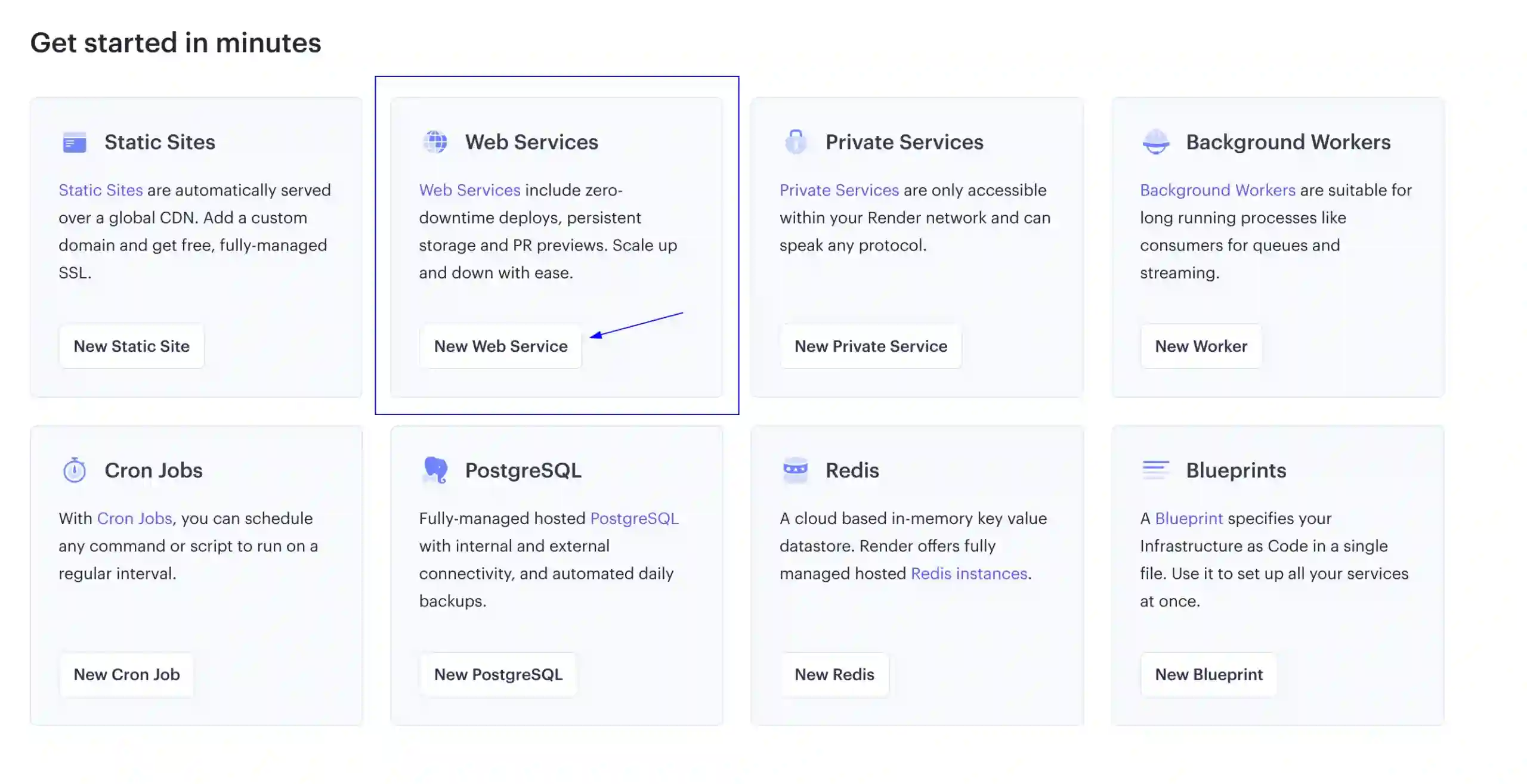
    If you haven’t done so yet, make sure to sign up for a new account on Render.com. Next, you’ll need to create a new Web service

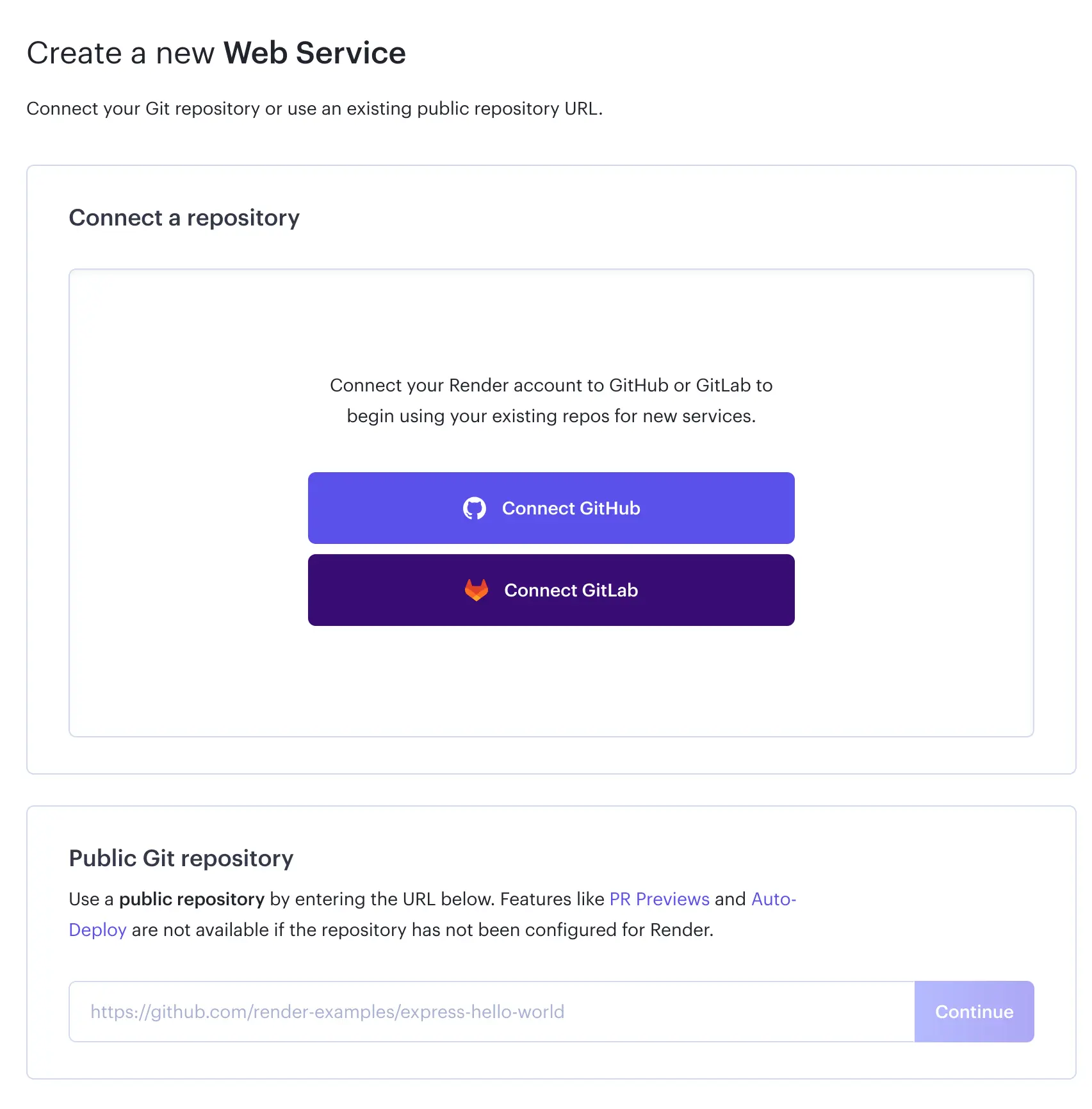
    You will be asked to connect your GitHub/GitLab account or add your repo’s URL if it’s a public one. For this post, I’ve selected to connect my GitHub account since, in this case, my GitHub repository is a private one.

    Connect your GitHub account or Gitlab in Render.com

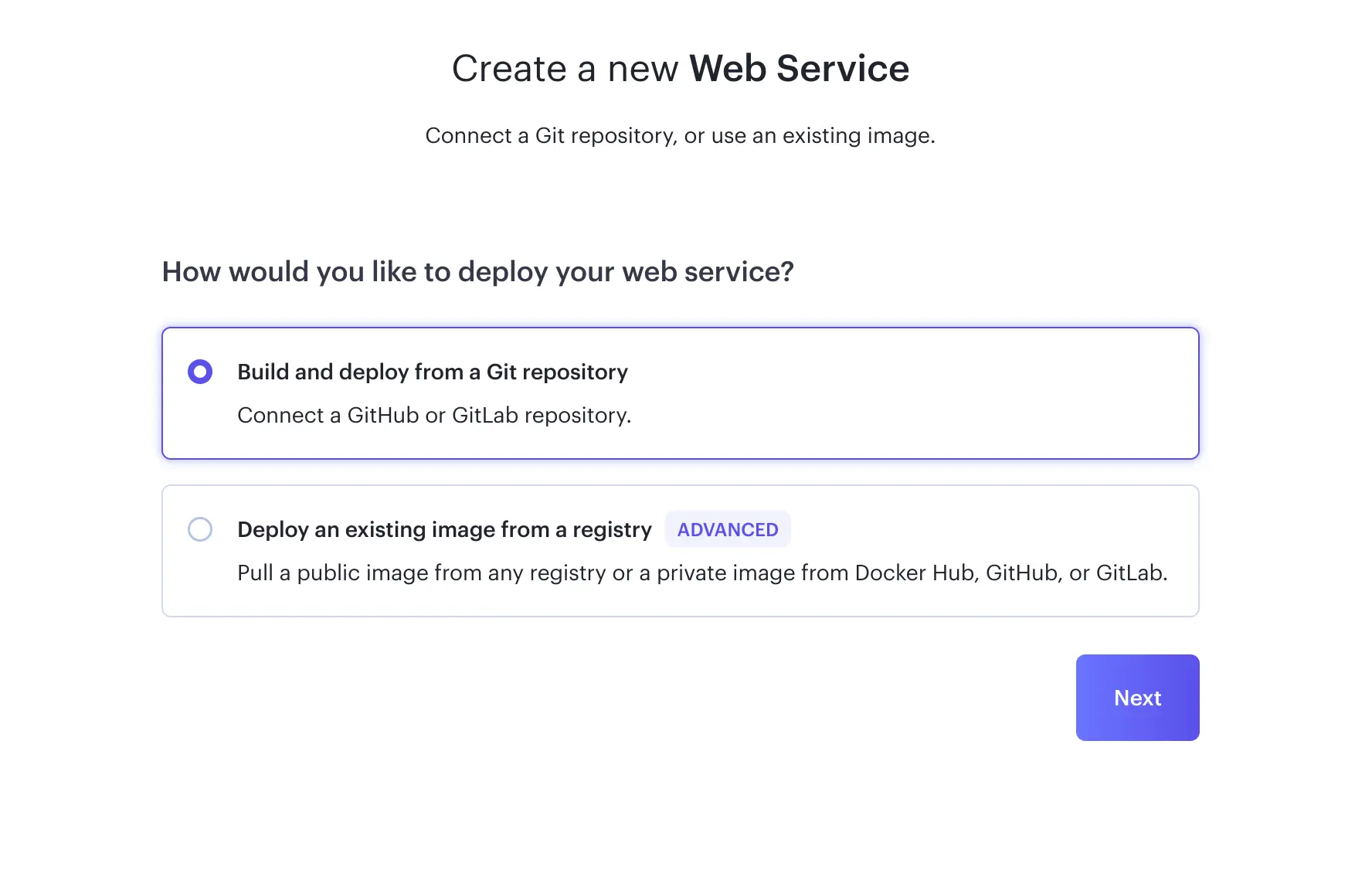
    When creating your service, choose to deploy from a GitHub repository

    Select to deploy from a Git repository

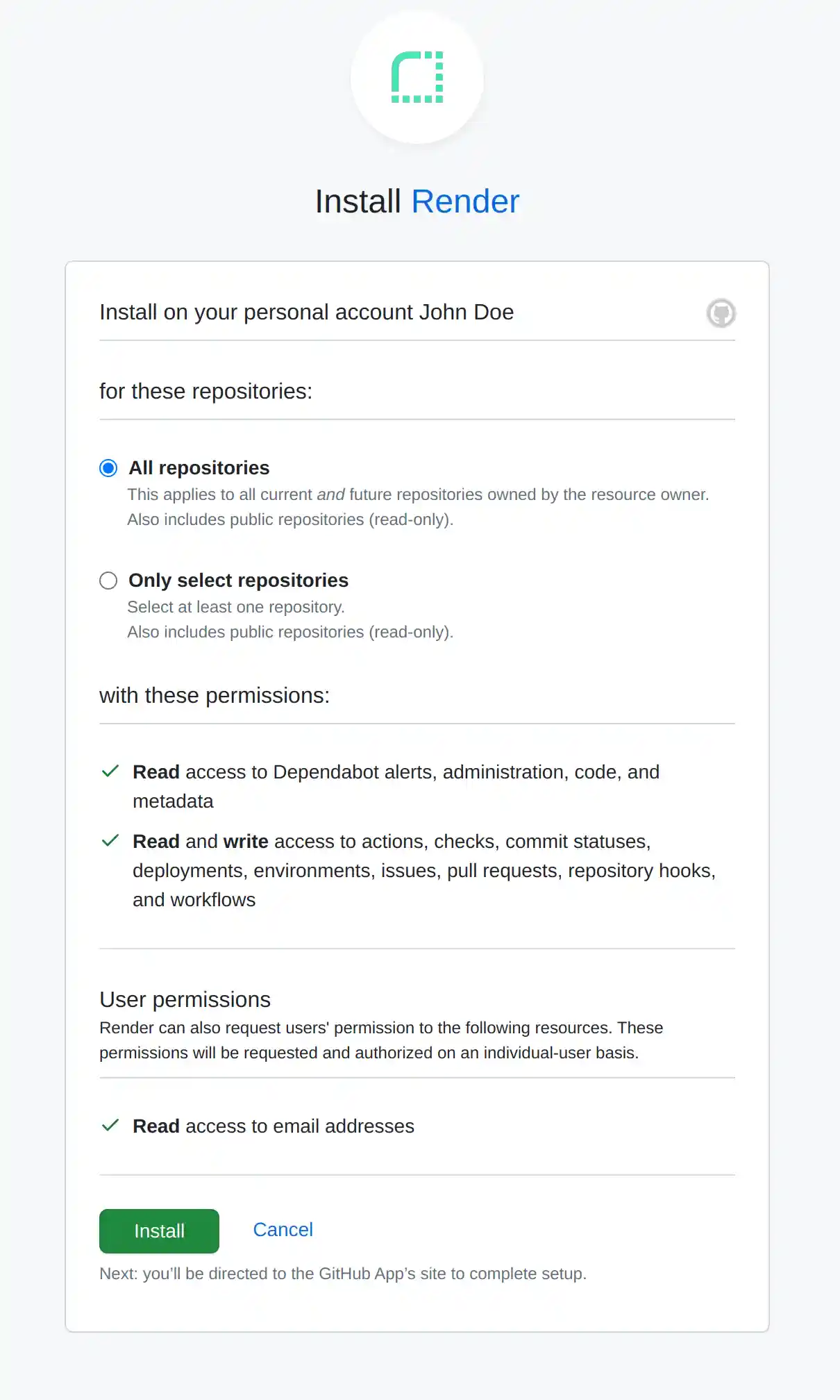
    The next step would be to decide whether you’ll give access to all your repositories or just the one used by your project.

    The choice is yours, but I decided to grant access only to the one I’m deploying.

    If you followed my choice, the next step is to choose your repository in the “Connect a repository” section. Click “Connect” where it mentions your repository name. Now that it’s connected, let’s continue to adjust our service settings. We’re getting much closer to deploying our awesome Next.js app!

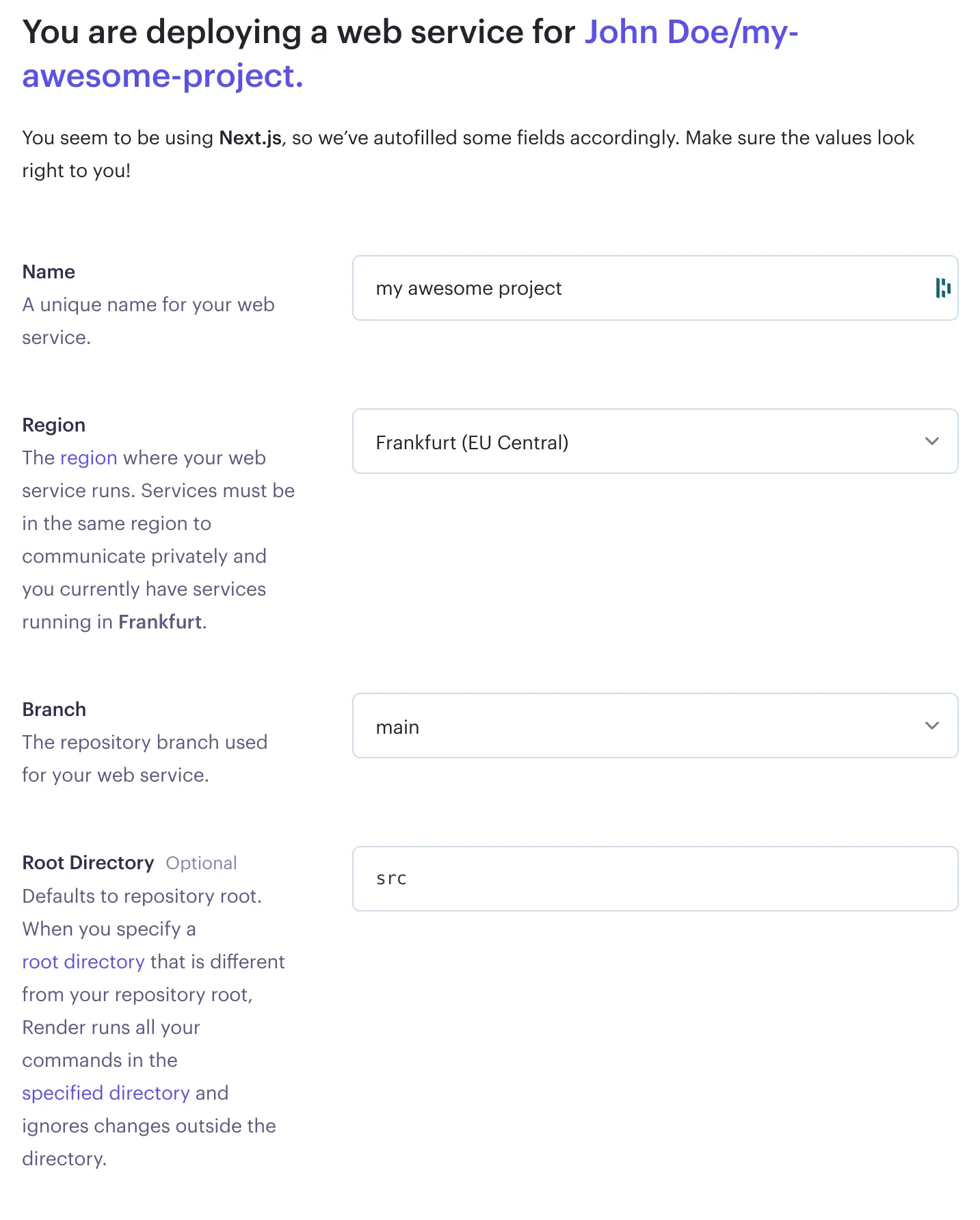
    Web Service settings

    Before your first deployment starts you will need to choose your deployment settings based on your project characteristics. Because of this, keep in mind that our choices may differ. Let’s see the available options in few details:

    Name
    Your project’s name is just a label to differentiate this service from your other Render.com services.

    Region
    As clearly described, this is your server’s location.

    Branch
    Your repository’s central branch. GitHub typically uses main as the default branch, but in older projects, you might encounter master being used as well.

    Root Directory
    This, as mentioned, is optional. If you have built your project with the same setup options as I did, Next.js will have added a src root folder, so you’ll need to mention that here.

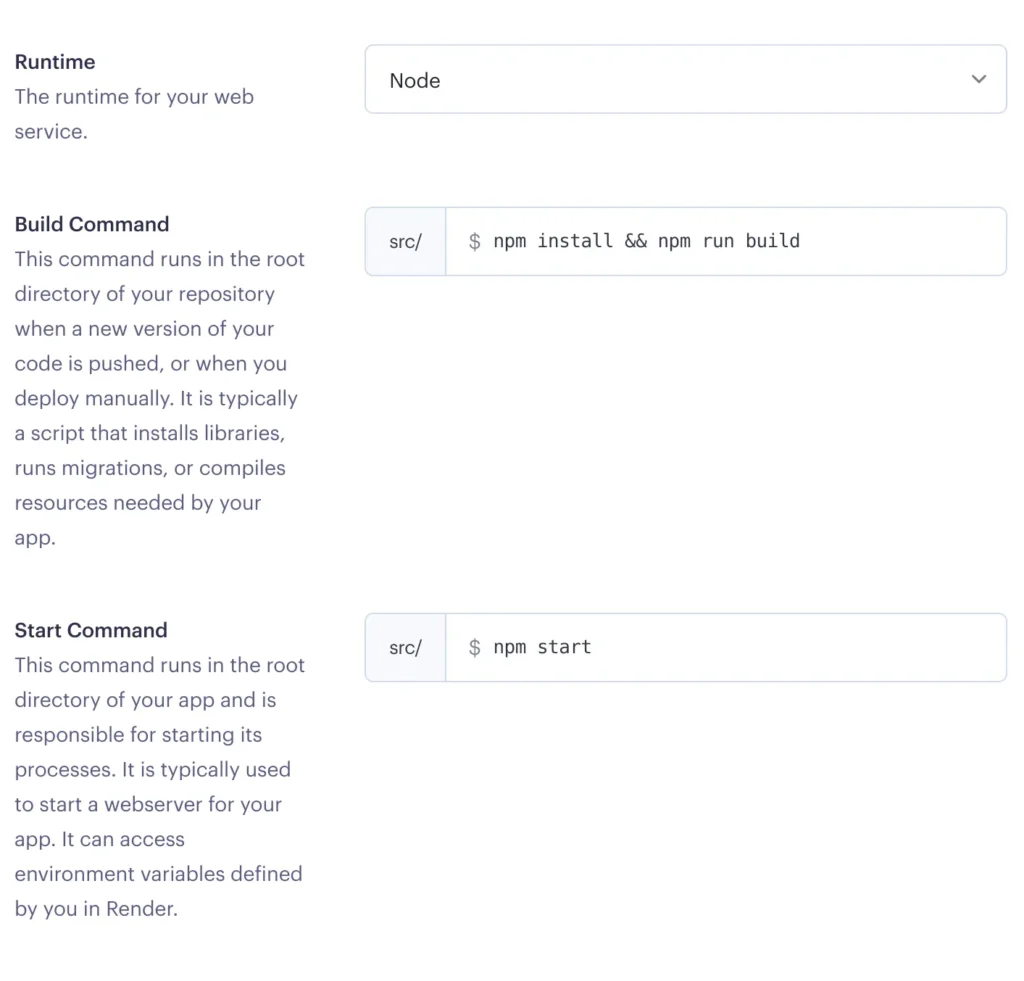
    Let’s check the rest of the options provided:

    Runtime
    The runtime environment your service will be using, I am guessing this will be Node for you too, but of course, change it accordingly if necessary.

    Build Command
    You might see here the default option yarn; yarn build, if you are using yarn manager then leave it as is, my package manager choice was npm so I had to change it.

    Start Command
    Same as the build command, the default prefilled option is yarn start, I have added npm start.

    Don’t forget to select the Free instance type option so that you’re not charged for this service unless you have other plans in which case, you know better! 😎

    Don’t worry if you are not sure about any of these settings, you can change them later.

    At the bottom of your screen, hit “Create Web Service” to get this show on the road!

    Start deployment

    By default when a new Service is created, Render.com will start its deployment process based on the last commit you have pushed to your main branch (or the branch you’ve selected as your main one).

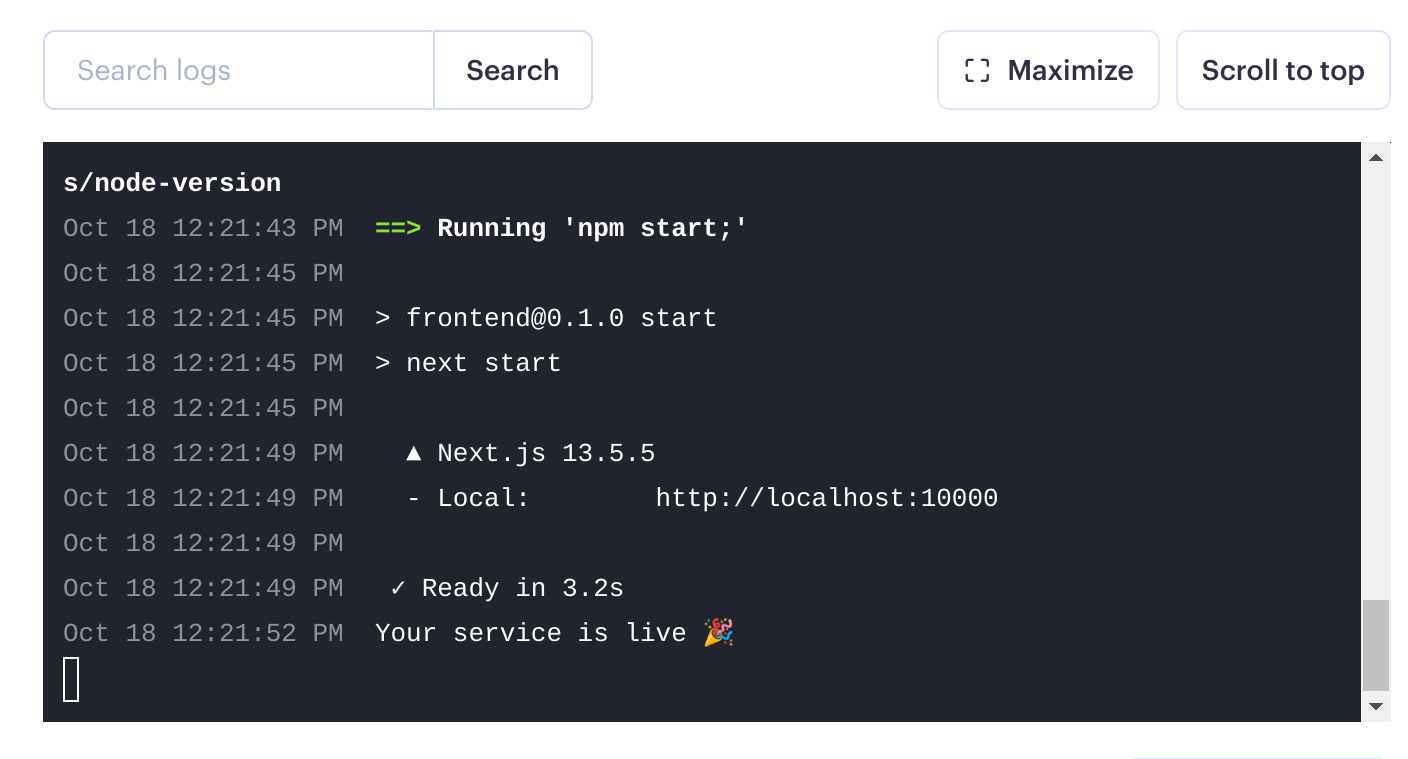
    If your initial deployment went smoothly, you should see something like this:

    Successfull deployment logs

    In that case… congratulations!! 🥳🥳 To see your deployed app, underneath your service’s name, you’ll see a link, click that and you’ll get redirected to your app’s URL.

    Deploy a next.js app to Render.com:
Selecting your deployed service's url

    However, if you weren’t as lucky as I was 😕, you might be greeted by a not-so-pleasant red message saying “Build failed“. This being my first time working with deployment on a platform like Render.com, it was quite challenging to figure out why a straightforward Next.js project, without any complex configurations, failed to deploy.

    So, if you’ve faced a similar situation,I’ve shared my findings on why my Render.com deployment failed, and I sincerely hope they come in handy and ease your frustrations.

    Adding extra repositories to Render.com

    If you initially connected only one repository to Render.com and you’re looking to create an additional Web Service, you’ll notice that you have only that repository as the sole available option for connecting your new service.

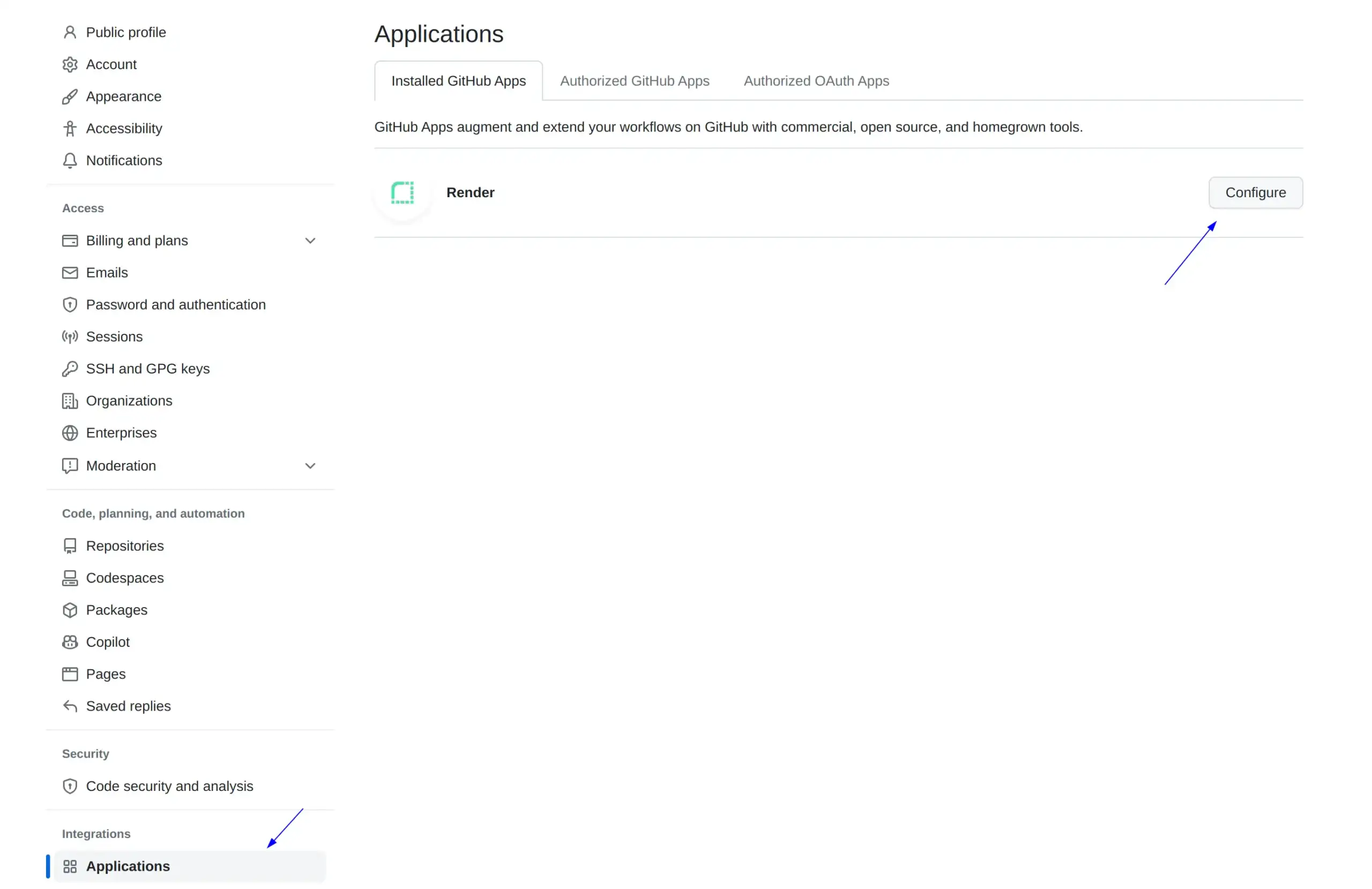
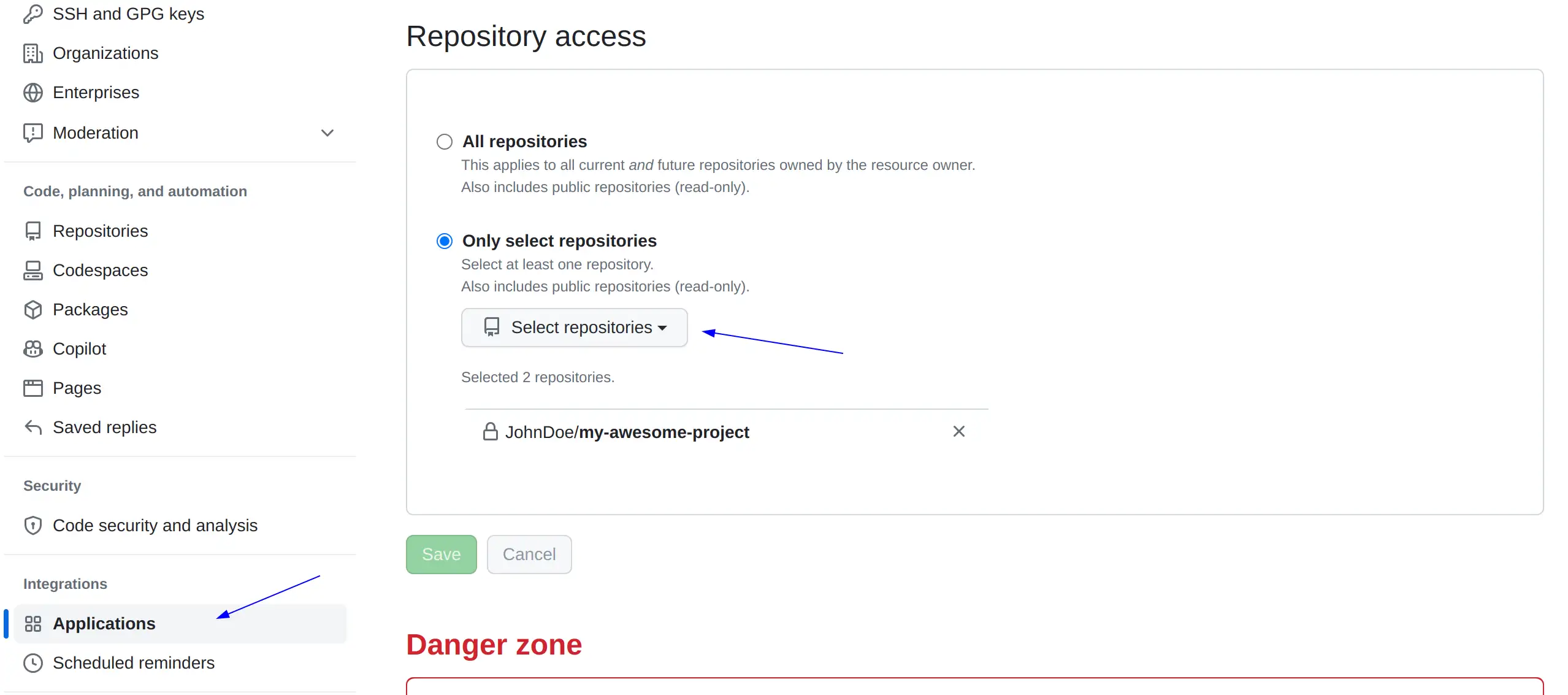
    To fix that, you don’t have to disconnect your GitHub account and reconnect it to Render. You need to visit your GitHub account, go to Settings -> Applications, and click Configure in your Render application.

    On the middle-bottom of your page, you’ll see the “Only select repositories” option, click on “Select repositories“, select the repository you would like to add for Render.com to use, and click “Save“.

    Go back to Render.com and you’ll be able to use this repo now.

    Awesomeness!! 🥳

  • Why Did Your New Next.js Deployment Fail on Render.com?

    Why Did Your New Next.js Deployment Fail on Render.com?

    My new Next.js app got a deployment fail on Render.com, and if you faced the same issue, you understand my frustration. I mean, why did a new Next.js project failed to deploy? I did nothing exotic, all I did was type npx create-next-app@latest frontend and follow all the basic steps needed to deploy to Render.com.

    Why did the deployment fail?

    Long story short, you deployed an app and didn’t define the node version your deployment service (Render) will use.

    Even though you’ve built your project successfully on your local environment, that doesn’t mean Render.com will be able to do the same, since it might be using different software versions.

    Now hang on a minute…you are correct to assume that since you’ve specified all necessary versions through your package.json file you are ready, and Render.com should follow these specifications. However, if you find yourself here, it’s likely because something is still missing or not properly defined. 😇

    Okay, what wasn’t defined then? If you are experiencing the exact same issue as I did, your node version wasn’t defined in your package.json file.

    Check your local node version by typing

    node -v
    Bash

    My local node version was 18.18.2.

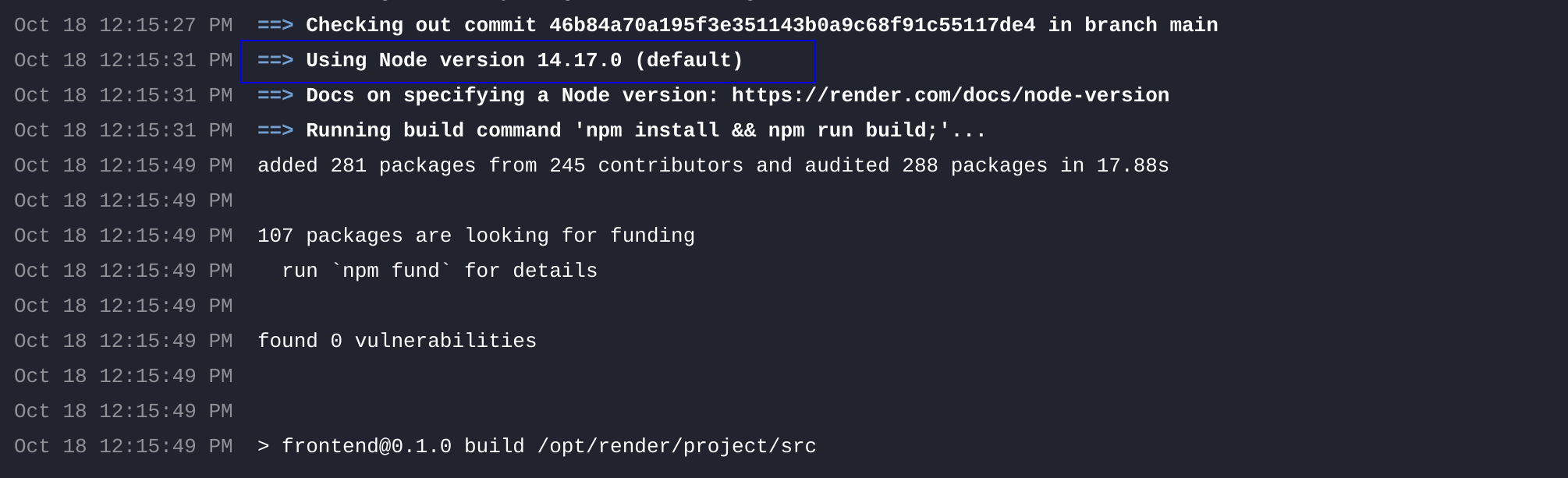
    The problem is that Render.com, by default uses (when this post was written) node version 14.17.0. You get where this is going right? We need to ask Render.com to use our version of node so that we have consistency between what’s happening in our local environment and on our live one.

    To verify this is the issue with your deployment, you can check your last deployment logs. Somewhere in the beginning you will see Render mentioning the node version it uses:

    Deployment fail on Render.com: Failing logs because of default node version

    Deploying successfully

    To resolve this problem, we just need to follow a few simple steps. Don’t be afraid; in just a couple of minutes, you’ll be so proud of your deployed app!

    The first step is to add in package.json the npm engine property and state our node’s version

    package.json
      "scripts": {
        "dev": "next dev",
        "build": "next build",
        "start": "next start",
        "lint": "next lint"
      },
      "engines": {
        "node": "18.18.2"
      },
    JSON5

    Although I haven’t read this elsewhere (so far) since we modified package.json, I like to run npm install to also generate the updated package-lock.json. This way I can include both package files in my commit.

    We’ll also need two files inside our source folder

    .nvrmc
    18.18.2
    Plaintext
    .node_version
    18.18.2
    Plaintext

    In case you have selected to add an src folder during your Next.js app initialization, you need to add these 2 new files (.nvrmc and .node_version) inside the src folder.

    The final step is to include a new environment variable on Render.com. Simply go to the Environment section of your service, and there you can add it by using NODE_VERSION as the key and setting its value to 18.18.2.

    We are ready now! Commit and push your applied changes to the remote GitHub repo and a new deployment will be triggered automatically. Voila!

    Deployment fail on Render.com:
Successfull deployment

    So awesome to see successful deployments!! 😎

  • How To Setup An Express.js Server Using Typescript (2024)

    How To Setup An Express.js Server Using Typescript (2024)

    This post describes all the necessary steps to set up an Express.js server using Typescript. We’ll start our project from scratch, create an Express.js server using Vanilla Javascript, and then convert our project to support Typescript. Let’s dive in!

    Technology stack used

    • npm10.8.2
    • node20.15.1
    • express.js4.19.2
    • typescript5.5.3

    Setting Up the Project with Express.js

    In an empty folder of your choice, run the npm initializer with all default options selected by using the following command:

     
    npm init --yes  # or npm init -y
    
    Bash

    By using the --yes flag we ask npm to set the default answer to any question asked during setup. Remove the --yes flag to see the questions I am referring to.

    We will be using a folder called server-project for this post. Running the previous command is the first step of our project, resulting in a package.json file with the following content:

    package.json
    {
      "name": "server-project",
      "version": "1.0.0",
      "main": "index.js",
      "scripts": {
        "test": "echo \"Error: no test specified\" && exit 1"
      },
      "keywords": [],
      "author": "",
      "license": "ISC",
      "description": ""
    }
    
    
    JSON

    Now that we have initialized our project using npm let’s install Express.js:

    
    npm install [email protected]
    
    Bash

    By doing so, Express.js will be added to the package.json file’s dependencies.

    package.json
    {
      "name": "server-project",
      "version": "1.0.0",
      "main": "index.js",
      "scripts": {
        "test": "echo \"Error: no test specified\" && exit 1"
      },
      "keywords": [],
      "author": "",
      "license": "ISC",
      "description": "",
      "dependencies": {
        "express": "^4.19.2"
      }
    }
    
    
    JSON

    The next step is to set up a basic server following Express’s documentation

    Create a new file in your project folder, named index.js, and inside that file, add

    index.js
    const express = require('express');
    const app = express();
    
    const port = 3004;
    
    app.get('/', (req, res) => {
      res.send('Hello World!');
    })
    
    app.listen(port, () => {
      console.log(`Example app listening on port ${port}`);
    });
    
    JavaScript

    Excellent! Using node we get to see this baby up and running!

    node index.js
    Bash

    Executing this to your terminal will show you

    Example app listening on port 3004
    
    Bash

    Opening localhost:3004 to your browser, you will see our server’s response.

    Browser showing basic express server "Hello World"reponse

    In any case, you get some kind of error like listen EADDRINUSE: address already in use :::3004 it means that you are running another application in the port 3004. To fix this, either change in the index.js file, this app’s port, to e.g 3001 or kill the other app you already are running on port 3004.

    Installing Typescript

    Now that we have successfully installed our Express.js server and we see that everything is working as expected, it’s time to add Typescript.

    Kill the node script using Ctrl + C and install Typescript by running

    npm install --save-dev [email protected]
    Bash

    Typescript is stored as a development dependency because it is used only in the development phase of a project for transpiling TS code to Javascript. In production environments, browsers and servers are capable of interpreting and executing JavaScript, not Typescript code.

    package.json
    {
      "name": "server-project",
      "version": "1.0.0",
      "main": "index.js",
      "scripts": {
        "test": "echo \"Error: no test specified\" && exit 1"
      },
      "keywords": [],
      "author": "",
      "license": "ISC",
      "description": "",
      "dependencies": {
        "express": "^4.19.2"
      },
      "devDependencies": {
        "typescript": "^5.5.3"
      }
    }
    
    JSON

    After installing Typescript to our project we need to initialize it by typing

    npx tsc --init
    Bash

    --init flag is used to initialize a TS project and create a tsconfig.json file with the default options set.

    But what about tsc and npx? Where did these come from?

    Understanding tsc and npx: Why do we use them?

    tsc is the command line tool used by Typescript to compile code (tsc 👉 typescript compiler) into Javascript. It is a part of Typescript package, and it became available to our system when we installed Typescript.

    npx on the other side is a package runner tool that came with npm. It was released from npm version 5.2.0. This tool is useful in cases where:

    • We want to run a package without installing it
    • We will be executing a package using different versions
    • To avoid global installation of a package

    Ok, sure, but in our case, since we have Typescript installed in our local project folder, and because of this, we also have tsc installed, then why not just use tsc --init? Right? Why do we want to use npx to run tsc?

    Just using tsc might use a global version of Typescipt and not the local one

    That question killed some of my brain cells 🧠 before figuring it out 😅. Just using tsc --init may use a global version of Typescript installed on your computer. Using npx tsc --init instead will make sure that you are using the local version of tsc package. This way, you will avoid any surprises because of different package versions. 🥳

    After successfully executing npx tsc --init you will see a tsconfig.json file created with the following content

    tsconfig.json
    {
      "compilerOptions": {
        /* Visit https://aka.ms/tsconfig to read more about this file */
    
        /* Projects */
        // "incremental": true,                              /* Save .tsbuildinfo files to allow for incremental ompilation of projects. */
        // "composite": true,                                /* Enable constraints that allow a TypeScript project to be used with project references. */
        // "tsBuildInfoFile": "./.tsbuildinfo",              /* Specify the path to .tsbuildinfo incremental compilation file. */
        // "disableSourceOfProjectReferenceRedirect": true,  /* Disable preferring source files instead of declaration files when referencing composite projects. */
        // "disableSolutionSearching": true,                 /* Opt a project out of multi-project reference checking when editing. */
        // "disableReferencedProjectLoad": true,             /* Reduce the number of projects loaded automatically by TypeScript. */
    
        /* Language and Environment */
        "target": "es2016",                                  /* Set the JavaScript language version for emitted JavaScript and include compatible library declarations. */
        // "lib": [],                                        /* Specify a set of bundled library declaration files that describe the target runtime environment. */
        // "jsx": "preserve",                                /* Specify what JSX code is generated. */
        // "experimentalDecorators": true,                   /* Enable experimental support for legacy experimental decorators. */
        // "emitDecoratorMetadata": true,                    /* Emit design-type metadata for decorated declarations in source files. */
        // "jsxFactory": "",                                 /* Specify the JSX factory function used when targeting React JSX emit, e.g. 'React.createElement' or 'h'. */
        // "jsxFragmentFactory": "",                         /* Specify the JSX Fragment reference used for fragments when targeting React JSX emit e.g. 'React.Fragment' or 'Fragment'. */
        // "jsxImportSource": "",                            /* Specify module specifier used to import the JSX factory functions when using 'jsx: react-jsx*'. */
        // "reactNamespace": "",                             /* Specify the object invoked for 'createElement'. This only applies when targeting 'react' JSX emit. */
        // "noLib": true,                                    /* Disable including any library files, including the default lib.d.ts. */
        // "useDefineForClassFields": true,                  /* Emit ECMAScript-standard-compliant class fields. */
        // "moduleDetection": "auto",                        /* Control what method is used to detect module-format JS files. */
    
        /* Modules */
        "module": "commonjs",                                /* Specify what module code is generated. */
        // "rootDir": "./",                                  /* Specify the root folder within your source files. */
        // "moduleResolution": "node10",                     /* Specify how TypeScript looks up a file from a given module specifier. */
        // "baseUrl": "./",                                  /* Specify the base directory to resolve non-relative module names. */
        // "paths": {},                                      /* Specify a set of entries that re-map imports to additional lookup locations. */
        // "rootDirs": [],                                   /* Allow multiple folders to be treated as one when resolving modules. */
        // "typeRoots": [],                                  /* Specify multiple folders that act like './node_modules/@types'. */
        // "types": [],                                      /* Specify type package names to be included without being referenced in a source file. */
        // "allowUmdGlobalAccess": true,                     /* Allow accessing UMD globals from modules. */
        // "moduleSuffixes": [],                             /* List of file name suffixes to search when resolving a module. */
        // "allowImportingTsExtensions": true,               /* Allow imports to include TypeScript file extensions. Requires '--moduleResolution bundler' and either '--noEmit' or '--emitDeclarationOnly' to be set. */
        // "resolvePackageJsonExports": true,                /* Use the package.json 'exports' field when resolving package imports. */
        // "resolvePackageJsonImports": true,                /* Use the package.json 'imports' field when resolving imports. */
        // "customConditions": [],                           /* Conditions to set in addition to the resolver-specific defaults when resolving imports. */
        // "resolveJsonModule": true,                        /* Enable importing .json files. */
        // "allowArbitraryExtensions": true,                 /* Enable importing files with any extension, provided a declaration file is present. */
        // "noResolve": true,                                /* Disallow 'import's, 'require's or '<reference>'s from expanding the number of files TypeScript should add to a project. */
    
        /* JavaScript Support */
        // "allowJs": true,                                  /* Allow JavaScript files to be a part of your program. Use the 'checkJS' option to get errors from these files. */
        // "checkJs": true,                                  /* Enable error reporting in type-checked JavaScript files. */
        // "maxNodeModuleJsDepth": 1,                        /* Specify the maximum folder depth used for checking JavaScript files from 'node_modules'. Only applicable with 'allowJs'. */
    
        /* Emit */
        // "declaration": true,                              /* Generate .d.ts files from TypeScript and JavaScript files in your project. */
        // "declarationMap": true,                           /* Create sourcemaps for d.ts files. */
        // "emitDeclarationOnly": true,                      /* Only output d.ts files and not JavaScript files. */
        // "sourceMap": true,                                /* Create source map files for emitted JavaScript files. */
        // "inlineSourceMap": true,                          /* Include sourcemap files inside the emitted JavaScript. */
        // "outFile": "./",                                  /* Specify a file that bundles all outputs into one JavaScript file. If 'declaration' is true, also designates a file that bundles all .d.ts output. */
        // "outDir": "./",                                   /* Specify an output folder for all emitted files. */
        // "removeComments": true,                           /* Disable emitting comments. */
        // "noEmit": true,                                   /* Disable emitting files from a compilation. */
        // "importHelpers": true,                            /* Allow importing helper functions from tslib once per project, instead of including them per-file. */
        // "downlevelIteration": true,                       /* Emit more compliant, but verbose and less performant JavaScript for iteration. */
        // "sourceRoot": "",                                 /* Specify the root path for debuggers to find the reference source code. */
        // "mapRoot": "",                                    /* Specify the location where debugger should locate map files instead of generated locations. */
        // "inlineSources": true,                            /* Include source code in the sourcemaps inside the emitted JavaScript. */
        // "emitBOM": true,                                  /* Emit a UTF-8 Byte Order Mark (BOM) in the beginning of output files. */
        // "newLine": "crlf",                                /* Set the newline character for emitting files. */
        // "stripInternal": true,                            /* Disable emitting declarations that have '@internal' in their JSDoc comments. */
        // "noEmitHelpers": true,                            /* Disable generating custom helper functions like '__extends' in compiled output. */
        // "noEmitOnError": true,                            /* Disable emitting files if any type checking errors are reported. */
        // "preserveConstEnums": true,                       /* Disable erasing 'const enum' declarations in generated code. */
        // "declarationDir": "./",                           /* Specify the output directory for generated declaration files. */
    
        /* Interop Constraints */
        // "isolatedModules": true,                          /* Ensure that each file can be safely transpiled without relying on other imports. */
        // "verbatimModuleSyntax": true,                     /* Do not transform or elide any imports or exports not marked as type-only, ensuring they are written in the output file's format based on the 'module' setting. */
        // "isolatedDeclarations": true,                     /* Require sufficient annotation on exports so other tools can trivially generate declaration files. */
        // "allowSyntheticDefaultImports": true,             /* Allow 'import x from y' when a module doesn't have a default export. */
        "esModuleInterop": true,                             /* Emit additional JavaScript to ease support for importing CommonJS modules. This enables 'allowSyntheticDefaultImports' for type compatibility. */
        // "preserveSymlinks": true,                         /* Disable resolving symlinks to their realpath. This correlates to the same flag in node. */
        "forceConsistentCasingInFileNames": true,            /* Ensure that casing is correct in imports. */
    
        /* Type Checking */
        "strict": true,                                      /* Enable all strict type-checking options. */
        // "noImplicitAny": true,                            /* Enable error reporting for expressions and declarations with an implied 'any' type. */
        // "strictNullChecks": true,                         /* When type checking, take into account 'null' and 'undefined'. */
        // "strictFunctionTypes": true,                      /* When assigning functions, check to ensure parameters and the return values are subtype-compatible. */
        // "strictBindCallApply": true,                      /* Check that the arguments for 'bind', 'call', and 'apply' methods match the original function. */
        // "strictPropertyInitialization": true,             /* Check for class properties that are declared but not set in the constructor. */
        // "noImplicitThis": true,                           /* Enable error reporting when 'this' is given the type 'any'. */
        // "useUnknownInCatchVariables": true,               /* Default catch clause variables as 'unknown' instead of 'any'. */
        // "alwaysStrict": true,                             /* Ensure 'use strict' is always emitted. */
        // "noUnusedLocals": true,                           /* Enable error reporting when local variables aren't read. */
        // "noUnusedParameters": true,                       /* Raise an error when a function parameter isn't read. */
        // "exactOptionalPropertyTypes": true,               /* Interpret optional property types as written, rather than adding 'undefined'. */
        // "noImplicitReturns": true,                        /* Enable error reporting for codepaths that do not explicitly return in a function. */
        // "noFallthroughCasesInSwitch": true,               /* Enable error reporting for fallthrough cases in switch statements. */
        // "noUncheckedIndexedAccess": true,                 /* Add 'undefined' to a type when accessed using an index. */
        // "noImplicitOverride": true,                       /* Ensure overriding members in derived classes are marked with an override modifier. */
        // "noPropertyAccessFromIndexSignature": true,       /* Enforces using indexed accessors for keys declared using an indexed type. */
        // "allowUnusedLabels": true,                        /* Disable error reporting for unused labels. */
        // "allowUnreachableCode": true,                     /* Disable error reporting for unreachable code. */
    
        /* Completeness */
        // "skipDefaultLibCheck": true,                      /* Skip type checking .d.ts files that are included with TypeScript. */
        "skipLibCheck": true                                 /* Skip type checking all .d.ts files. */
      }
    }
    
    JSON
    Expand

    Refactoring JavaScript to TypeScript

    Now that we have successfully installed and initialized Typescript we need to start writing some Typescript to have fun.

    First of all let’s rename our index.js file to index.ts. If we don’t do that and we run our tsc compiler we will see an error

    error TS18003: No inputs were found in config file 'server-project/tsconfig.json'. Specified 'include' paths were '["**/*"]' and 'exclude' paths were '[]'.
    
    Bash

    because we have no .ts files in our project.

    Make sense right? After all we need at least .ts one file to start our TS journey. Ok now that we have renamed it, lets, out of curiosity, run npx tsc and see what happens. By running this command, I get the following errors

    index.ts:1:17 - error TS2580: Cannot find name 'require'. Do you need to install type definitions for node? Try `npm i --save-dev @types/node`.
    
    1 const express = require('express');
                      ~~~~~~~
    
    index.ts:6:15 - error TS7006: Parameter 'req' implicitly has an 'any' type.
    
    6 app.get('/', (req, res) => {
                    ~~~
    
    index.ts:6:20 - error TS7006: Parameter 'res' implicitly has an 'any' type.
    
    6 app.get('/', (req, res) => {
                         ~~~
    
    Bash

    It seems the compiler is unable to successfully convert our .ts file to .js due to three issues. We need to address these issues one at a time. A guide is available that describes each error in detail, including their causes and solutions. Feel free to check it out if you want to learn more.

    After dealing with all the necessary problems, the updated .ts file should look something like

    index.ts
    import express, { Express, Request, Response } from 'express';
    
    const app: Express = express();
    
    const port = 3004;
    
    app.get('/', (req: Request, res: Response) => {
      res.send('Hello World!');
    })
    
    app.listen(port, () => {
      console.log(`Example app listening on port ${port}`);
    });
    
    
    TypeScript

    Now that we have everything fixed let’s run npx tsc to see if there is anything left. Running this command showed nothing in my terminal. Which is a good sign. To see the compilation results though, I need to make two small tweaks.

    Configure TypeScript to create a new folder for all compiled files by using the outDir compiler option.

    tsconfig.json
    {
      "compilerOptions": {
        // ....
        "outDir": "./dist",
        // Specify an output folder for all emitted files.
      }
    }
    
    JSON

    Rename the package.json main file and add a compilation Script

    package.json
    {
      "name": "server-project",
      "version": "1.0.0",
      "main": "dist/index.js",
      "scripts": {
        "start": "npx tsc && node dist/index.js",
        "test": "echo \"Error: no test specified\" && exit 1"
      },
      "keywords": [],
      "author": "",
      "license": "ISC",
      "description": "",
      "dependencies": {
        "express": "^4.19.2"
      },
      "devDependencies": {
        "@types/express": "^4.17.21",
        "@types/node": "^22.1.0",
        "typescript": "^5.5.4"
      }
    }
    
    
    JSON

    Superb! Now we have everything we need. What’s next? A victory dance! When you run npm start, your terminal will display “Example app listening on port 3004,” which means we did it!

    Example app listening on port 3004
    Bash
  • Do You Still Need To Use npm install –save?

    Do You Still Need To Use npm install –save?

    If you are here, it probably means you are not 100% sure whether you should be using the --save flag when running npm install --save. Since this post was written in 2024, the short answer is no, you don’t need to. Let’s see why.

    When using, npm install --save (shorthand npm install -S), what you are basically asking npm is to record the packages you are installing as dependencies to your project’s package.json file.

    Starting with npm version 5, you no longer need to use the –save flag

    Starting with npm version 5, you no longer need to use the --save flag when installing packages. By default, npm automatically saves installed packages as dependencies in your package.json file. This means that whether you include the --save flag or not, the outcome is the same: the dependencies will be recorded in the package.json file.

    What about developer dependencies?

    For packages that you should handle as developer dependencies – devDependencies -, you should still use --save-dev or -D.

    Interesting npm install –save flags

    By the way, while writing this post, I got curious about other npm flags since I have mostly been using the two mentioned earlier. As you’d expect, there are more. Here are a few that I found particularly interesting if you want to explore further:

    --save-optional

    The --save-optional flag saves packages as optionalDependencies. As the name suggests, these are packages that our application may not require. During the installation process, npm will not fail if, for any reason, an optional dependency fails to install.

    --save-prod

    The --save-prod flag is somewhat confusing at first glance, as it behaves similarly to the --save flag. It explicitly saves any installed package to the dependencies section of the package.json file. This ensures that your application’s production dependencies include the package.

    --save-peer

    The --save-peer made an impression! This one saves the dependencies into a peerDependencies section. Peer dependencies specify that your package is compatible with a particular version of another package without directly including it as a dependency.

  • How to Change The Default Port in A Create-React-App Project

    How to Change The Default Port in A Create-React-App Project

    So you just generated a new cool side project and now you are wondering how one changes the default port in a create-react-app project. After all, we have other ports available, right? And there could be a case that 3000 port is already taken. But how can you do that? There are several ways to do that, so let’s check the basic ones.

    Using package.json

    One way is to go to your package.json file and change your port through your scripts options, in this case, we are adding PORT=3001 to denote that we want our app to run in port 3001

    package.json
     "scripts": {
        "start": "PORT=3001 react-scripts start",
        "build": "react-scripts build",
        "test": "react-scripts test",
        "eject": "react-scripts eject"
      },
    JSON5

    Using the command line

    In certain scenarios, you may find it necessary to specify the port directly via the command line when executing your run command. You could do that by typing in your terminal

    PORT=3001 npm start 
    Bash

    Keep in mind that if you have a port defined on your package.json and you try adding it inline through the terminal, your package.json port setting will override any port passed through the terminal.

    Using .env file

    In case you are working on a more complex project or a project that you will be deploying for the world to see your awesome work, you’ll need to set the port to a dynamic value. Why is that? Because the system that will handle your deployment will also be handling the ports.

    In this case, you just need to tell your app, where to find the port’s value that will be used, when deployed.

    Let’s start by creating a file called .env. Type in your terminal

    touch .env
    Bash

    Now open your .env file and type

    .env
    PORT=3001
    Plaintext

    According to the advanced configuration documentation, of Create-React-App, the app’s listening port is determined by reading the value of PORT from the .env file by default.

    As a result, our application will utilize the PORT value specified in the .env file to run, so there is no need to make any more changes to our code.

    If you’re curious about the order of precedence in case someone adds a port to every possible option, I’ve conducted experiments that reveal the following respected order.

    • package.json
    • command line
    • .env file

    Don’t forget to have fun with your new project!! You got this! 😎

  • Javascript Array Methods – Easy Examples For Beginners

    Javascript Array Methods – Easy Examples For Beginners

    Whether you are learning Javascript for the first time or you are an experienced developer, chances are you will be working with arrays frequently. This post was created to help you understand (or remind you of) how the most common Javascript array methods work. We recommend bookmarking this post, as it will be helpful more often than you might expect.

    In addition to briefly explaining each method and providing relevant examples, we have also included the .length property since it’s also commonly used.

    All Javascript array methods described in this post have been organized in alphabetical order to make searching easier. For those who want to learn more, we’ve also included a link to the MDN documentation in the footer of each code snippet for quick access to detailed information about the related method.

    For any beginner developers who have just started their journey, seeing .prototype. in the name of every method might be confusing. I have to say, in my first steps, it confused me a lot, thinking, “Why not just say Array.every instead of Array.prototype.every” ? A quick and short explanation to help you move forward without getting stuck is that when we write Array.prototype.<method_name> it indicates that the method described exists natively within every array instance (within every array you use).

    Array.prototype.every()

    When to choose this: When you are checking if every element of an array passes a specific condition.
    Returns: true or false

    
    [🦊, 🐻, 🐼].every(element => element === 🐼);
    
    // false


    [🐻, 🐻, 🐻].every(element => element === 🐻);
    
    // true
    
    MDN Documentation

    Callback params

    1. element – the element checked in each step
    2. index – the element’s index (its position)
    3. array – the array itself, to which you have called .every

    Array.prototype.filter()

    When to choose this: The Javascript array filter method is probably one of the most used ones. Use it when you want to create a new array with elements that pass a specific condition.
    Returns: A new array, including the elements that passed the condition.

    
    [🦊, 🐻, 🐼].filter(element => element !== 🐼);
    
    // [🦊, 🐻]


    [🐻, 🐻, 🐻].filter(element => element === 🐼);
    
    // []
    
    MDN Documentation

    Callback params

    1. element – the element checked in each step
    2. index – the element’s index (its position)
    3. array – the array itself, to which you have called .filter

    When a method returns a new array, it is not 100% independent from its source array. It’s a shallow copy! Proceed with extra caution on this because you might see some unexpected surprises!

    Array.prototype.find()

    When to choose this: When trying to find the first element in an array that passes a specific condition.
    Returns: The element that passes the condition or undefined if no element is found.

    
    [🦊, 🐻, 🐼].find(element => element === 🐼);
    
    // 🐼


    [🐼, 🐻, 🐼].find(element => element === 🐼);
    
    // 🐼 (The first one)


    [🐻, 🐻, 🐻].find(element => element === 🐼);
    
    // undefined
    
    MDN Documentation

    Callback params

    1. element – the element checked in each step
    2. index – the element’s index (its position)
    3. array – the array itself, to which you have called .find

    Array.prototype.flat()

    When to choose this: When you have complex array structures (arrays in arrays), and you want to flatten everything into one level.
    Returns: A new array containing all elements from different array levels.

    
    [🐻, 🐻, 🐻].flat();
    
    // [🐻, 🐻, 🐻]


    [🐻, 🐻, 🐼, [🦊, [🐻, 🐻], 🦊]].flat();
    
    // default level is 1
    
    // [🐻, 🐻, 🐼, 🦊, [🐻, 🐻], 🦊]


    [🐻, 🐻, 🐼, [🦊, [🐻], 🦊]].flat(Infinity);
    
    // Infinity will flatten all levels
    
    // [🐻, 🐻, 🐼, 🦊, 🐻, 🦊]
    
    MDN Documentation

    (Remember, the new array is a shallow copy of the source one).

    Array.prototype.forEach()

    When to choose this: When you need to iterate through every element of an array and perform a specific action on each element.
    Returns: undefined

    
    [🐻, 🐻, 🐼].forEach(element => {
       
       // check something about this element
       
       isAnimalCarnivore(element);
      
    });
    
    // undefined
    
    MDN Documentation

    Callback params

    1. element – the element of each iteration
    2. index – the element’s index (its position)
    3. array – the array itself, to which you have called .forEach

    Since this method always returns undefined, if you want your loop to return something, you might want to check the .map method.

    This method doesn’t break the iteration unless you throw an Error!

    Array.prototype.includes()

    When to choose this: When you want to see if a Javascript array contains a specific element.
    Returns: true or false

    
    [🦊, 🐻, 🐼].includes(🐻);
    
    // true


    [🦊, 🐻, 🐼].includes(🐸);
    
    // false
    
    MDN Documentation

    When working with objects, keep in mind that something like this 👇 won’t work:

    
    [{ name: 'Bob' }].includes({ name: 'Bob' });
    
    // false
    

    What you need is probably .some, .filter, or maybe .find.

    Array.prototype.length

    When to choose this: When you want to know/check the length of an array.
    Returns: A number – The array’s length.

    
    [🦊, 🐻, 🐼].length;
    
    // 3


    [].length;
    
    // 0
    
    MDN Documentation

    This is a property, not a method. Don’t invoke it.

    Array.prototype.map()

    When to choose this: When you want to create a new array where each element is transformed by applying a callback function to each element of the original array.
    Returns: A new array containing the transformed elements based on the callback function.

    
    [🦊, 🐻, 🐼].map((element, index) => ({
    
     id: index, animalIcon: element
    
    }));
    
    
    /* 
       [
         { id: 0, animalIcon: 🦊 },
         
         { id: 1, animalIcon: 🐻 },
         
         { id: 2, animalIcon: 🐼 }
       ]
       
    */ 
    
    MDN Documentation

    Callback params

    1. element – the element checked in each step
    2. index – the element’s index (its position)
    3. array – the array itself, to which you have called .map

    Array.prototype.pop()

    When to choose this: When you want to throw away the last item of the array.
    Returns: The item you threw, or undefined if the array was already empty.

    
    [🦊, 🐻, 🐼].pop();
    
    // 🐼


    [].pop();
    
    // undefined
    
    MDN Documentation

    The opposite method of .pop is .shift.

    Array.prototype.push()

    When to choose this: When you want to add an element (or more than one) to the end of your array.
    Returns: The new array’s length. The method modifies the original array by adding any passed element(s) to its end.

    
    [🦊, 🐻, 🐼].push(🦊);
    
    // returns 4
    
    // [🦊, 🐻, 🐼, 🦊];


    [🦊, 🐻, 🐼].push(🦊, 🦊, 🦊);
    
    // returns 6
    
    // [🦊, 🐻, 🐼, 🦊, 🦊, 🦊];
    
    MDN Documentation

    Array.prototype.reduce()

    When to choose this: When you want to condense an array into a single value based on some logic applied by the callback function. E.g., when you want to calculate a sum or an average.
    Returns: A single value as a result of applying the callback function to each element of the array.

    
    [1, 2, 1].reduce((acc, element) => acc + element)
    
    // 4


    [1, 2, 1].reduce((acc, element) => acc + element, 10)
    
    // 14 (accumulator - initial value - set to 10)
    
    MDN Documentation

    Callback params

    1. accumulator – What is returned by the callback function. The default value of an accumulator, if not specified otherwise, is 0
    2. element – the iteration’s element
    3. index – the element’s index position

    Array.prototype.reverse()

    When to choose this: When you want to reverse the order of the array’s elements.
    Returns: The original array reversed.

    
    [🦊, 🐻, 🐼].reverse();
    
    // [🐼, 🐻, 🦊];
    
    MDN Documentation

    Array.prototype.shift()

    When to choose this: When you want to throw away the first item of the array.
    Returns: The item you threw, or undefined if the array was already empty.

    
    [🦊, 🐻, 🐼].shift();
    
    // 🦊


    [].shift();
    
    // undefined
    
    MDN Documentation

    The opposite method of .shift is the .pop method.

    Array.prototype.slice()

    When to choose this: When you want a slice 🍕 of an array.
    Returns: The slice you asked for in a new array.

    
    [🦊, 🐻, 🐼, 🐸, 🐯, 🦝].slice();
    
    // returns slice
    
    // [🦊, 🐻, 🐼, 🐸, 🐯, 🦝]


    [🦊, 🐻, 🐼, 🐸, 🐯, 🦝].slice(2);
    
    // returns slice
    
    // [🐼, 🐸, 🐯, 🦝] - first 2 animals ignored


    [🦊, 🐻, 🐼, 🐸, 🐯, 🦝].slice(1, 3);
    
    // [ ... -> 🐻] - starting position - element 1
    
    // (included)
    
    
    // [ ... <- 🐸 ...] - ending position element 3
    
    //  (not included)
    
    
    // returns slice
    
    // [🐻, 🐼]
    
    MDN Documentation

    Parameters

    • start: The starting point from which the slicing begins. The start is included in the slice.
    • end: The position that the slicing stops. The end position is not included in the slice.

    (Remember, the new array is a shallow copy of the source one).

    Array.prototype.some()

    When to choose this: When you are checking if at least one element of an array passes a specific condition.
    Returns: true or false

    
    [🦊, 🐻, 🐼].some(element => element === 🐼);
    
    // true


    [🐻, 🐻, 🐻].some(element => element === 🐼);
    
    // false
    
    MDN Documentation

    If you want to check if all elements pass the condition, you should check .every method.

    Array.prototype.sort()

    When to choose this: When you want to sort the elements in a specific way.
    Returns: The source array sorted.

    
    [3, 2, 1].sort();
    
    // [1, 2, 3]


    ['A', 'C', 'B'].sort();
    
    // ['A', 'B', 'C'] 


    [
      { id: 13 },
      
      { id: 42 },
      
      { id: 10 }
      
    ].sort((itemA, itemB) => itemA.id - itemB.id);
    
    // Result [{ id: 10 }, { id: 13 }, { id: 42 }]
    
    MDN Documentation

    Array.prototype.splice()

    When to choose this: When you want to replace some contents of an array or remove them.
    Returns: A new array is created by the removed/replaced elements.

    [🦊, 🐻, 🐼, 🐸, 🐯, 🦝].splice();
    
    // [🦊, 🐻, 🐼, 🐸, 🐯, 🦝] - source array
    
    // [] - returns empty array


    [🦊, 🐻, 🐼, 🐸, 🐯, 🦝].splice(2);
    
    // [🦊, 🐻] - source array
    
    // [🐼, 🐸, 🐯, 🦝] - new array


    [🦊, 🐻, 🐼, 🐸, 🐯, 🦝].splice(2, 1);
    
    // [🦊, 🐻, 🐸, 🐯, 🦝] - source array
    
    // [] - returns empty array


    [🦊, 🐻, 🐼, 🐸, 🐯, 🐯].splice(2, 0, 🦝, 🦝);
    
    // [🦊, 🐻, 🐸, 🦝, 🦝, 🐯, 🐯] - source array
    
    // [] - new array
    
    /*
       New array was not created
       
       since we asked for 0 deletion.
       
       Instead the source array was modified.
     
     */ 
    
    MDN Documentation

    Parameters

    • start: The starting point from which the removing/replacing begins. The start is included in the slice.
    • count: How many elements to delete. If omitted, it will be set from the starting position till the end of the array.
    • replacement: New element(s) to be added from the starting position

    (Remember, the new array is a shallow copy of the source one).

    Guidance on using Javascript array methods

    You don’t have to memorize every Javascript array method, its syntax, and its exact functionality! It’s more important to know that they exist. Over time, you’ll naturally develop muscle memory for the ones you use frequently. For the less used methods, just keep them in mind and look them up when needed. Consider bookmarking this post for future reference! 🤓

    In this post, we tried to explain/demonstrate some of the most common Javascript array methods. Our intention was not to provide comprehensive documentation, so we intentionally omitted more advanced parameters that are applicable to some of the methods described.

    If you’re interested in learning about these less frequently used parameters, we recommend visiting the MDN Documentation linked in the footer of each code snippet.

  • How to Improve Pull Requests: 3 Basic Rules

    How to Improve Pull Requests: 3 Basic Rules

    In this post, I would like to share some thoughts that have helped me structure and enhance a pull request from the perspective of both the author and the reviewer. If you’re looking to create better pull requests, this post is for you.

    While writing this post, I am thinking mostly of GitHub, but I am sure that my thoughts apply, with a bit of modification maybe, to other platforms, too.

    So even if you are already the best on pull requests, maybe there is still room for improvement? 😅

    High five scene from the Anchorman movie
    Anchorman: The Legend of Ron Burgundy (2004)

    Just kidding, I am sure you are doing great and I know this post will ignite excitement among those with more basic and advanced skills.

    Screenshots for UI changes

    Whenever I’ve found myself working on frontend features, I’ve seen that it can be tough to understand UI modifications by just reviewing markup. An experienced developer might be able to catch any peculiar HTML/CSS code usage, but understanding exactly what’s changed on the UI requires supernatural abilities. 🦸

    (Have to say, it’s not a myth! I’ve met a developer with such skills! They truly exist out there!)

    So what can you do to help improve the process? One way to help your reviewers do a better job is by including screenshots of the UI changes you made through your pull request, rather than letting them review only the code differences.

    Think about it. Which one feels easier to understand? Seeing something like this:

    Or review it with a screenshot attached, like this:

    By adding screenshots, you can give your colleagues a clearer understanding of what you’ve implemented and, at the same time, increase the chances of catching a bug before it gets deployed! 🐛

    Extra points 🧐

    • Attaching an image to show how the UI looked before your tweaks, could also improve the review process. Something like before – after.
    • Including mobile/tablet screenshots may also help in identifying a potential issue by seeing the UI changes for all devices, while QA testing.

    QA testing (Quality Assurance), is a process that amongst others, includes, checking if a code change (feature/bug) was implemented correctly. This is often done by a QA engineer/tester. Some QA testing also takes place by the actual developers, implementing a feature, before they send it for review.

    For minor UI changes adding screenshots is probably an overkill. I am sure your reviewers will be able to understand what’s changed without seeing an image. 😎

    Proactive comments for better pull requests

    Sometimes it can be difficult for me to understand if I have implemented something “correctly”. Especially when working on a large codebase, with many collaborators, it’s important to follow the agreed-upon coding guidelines.

    If you find yourself in a situation like this, don’t hesitate to ask for help by highlighting the pieces of code for which you don’t have much confidence. How? Simply by adding an emphasis comment. Just like adding a review comment in your own pull request, state your concerns so that your reviewers will pay extra attention, like this:

    As a result, your reviewer will conduct a more thorough review of the code modifications, and as a result, you’ll feel more confident about your pull request when it finally gets deployed.

    Improving the pull request title

    One of my favorite ways to improve a pull request is by adding suffixes to the titles. So, for example, let’s consider the following title:

    Better Github pull requests - nothing on title

    Although this is a nice pull request title, it still doesn’t provide answers, simply by checking the pr listing, to the following questions:

    • What’s the branch this pr is merged into?
    • What is the related issue?

    Let’s try and see how we can improve it, by changing its structure a bit. Our goal is to be able to extract more concise information simply by looking at the pr title.

    Adding the target branch

    It’s common for projects to have some basic branches, apart from the main one (old master). These branches are usually for QA testing or client demos, client playgrounds, etc.

    If you are working on a project like that, you might find yourself creating multiple requests per branch for various reasons. One pull request for QA testing, one pull request for the final deployment to the main branch, and so on.

    But if you do so, there is no way to identify the branch through the pr’s title, right? So what I prefer doing is just adding a simple suffix with the branch’s name. By doing so, if I have pull requests of the same feature to multiple branches it’s easier for me to understand what’s what.

    Better Github pull requests - Branch on title

    Showing the related issue

    Another interesting suffix that works perfectly for GitHub (and I assume in a similar way for other platforms too) is adding the issue number in your pr title.

    (If you are using a workflow in which you create a GitHub issue before working on a new feature, then this is for you)

    Let’s assume you have created a GitHub issue with the number #312. After deploying your changes to the last branch, you might find yourself going through the GitHub Issues list and trying to find the respective issue so that you can close it. Right?

    Did you know there is a way to automatically close an issue when a pull request is merged? How? Well, it’s as simple as adding the Closes <Issue number> in the pull request’s title. So let’s say that for our pull requests, the Issue you have been working on is #312. If you change the last pull request title to something like:

    Better Github pull requests - Branch and issue on title

    That means that when you merge the third pull request, issue 312, will also automatically close! Cool right?

    Likewise, other suffixes that may be used to connect an issue with a pull request are:

    • Fixes as in Fixes #312
    • Closes
    • Resolves

    Furthermore, there are several other resources available for you to explore in addition to the ones mentioned here; check the GitHub documentation for more.

    You may also want to check out our post on simplifying pull requests through prerequisite changes and helpful ways of splitting front VS back changes. This post explores how identifying and addressing necessary modifications before submitting your code for review can improve the code review process and increase your chances of success.

  • How To Use Absolute Paths In A Node Project (2024)

    How To Use Absolute Paths In A Node Project (2024)

    In this post, I will share my findings and what I learned while trying to understand how to use absolute paths in a node project. I found two different methods for doing so, using NODE_PATH and package.json imports, so let’s quickly dive in and hopefully help you out with your own project, too.

    Disclaimer!
    I hate path resolving, I truly hate it! 😋 It feels so complicated for some reason, especially when you have to decide if you want Typescript, if you want CommonJS, or ESM… it feels that hell breaks loose for something that should be much simpler….! 😡 Now that I got it out of my system, let’s continue.🤭

    By the way, if you are here because you are creating a cool side project and want to stop using relative paths hell, this is your post! If, on the other hand, you are a node guru 🧙‍♂️, and you have already climbed the ladders of node wisdom then this is also a post for you. In your case, though, maybe you could add some comments in the end and share your knowledge with us. Don’t be shy! We need Gandalfs like you to guide us! 🌟

    Gandalf gif saying "I have no memory of this place".
    Source: Giphy

    Initializing our project structure

    The stack I am using in this post:

    • Ubuntu 22.04.4 LTS
    • npm 10.5.0
    • node 20.12.0

    Before explaining how you can change your importing using absolute paths, let’s build a basic project structure so that we are both on the same page when referring to folders/files in our post’s code snippets.

    So, nothing fancy here, just an empty folder initialized by npm. I just ran npm init --yes so that my project is initialized automatically with all default values preselected. After doing that, we’ll need some basic folder files and folders:

    📦node-paths
     ┣ 📁 server
     ┃   ┗ 📁 src
     ┃       ┣ 📁 controllers
     ┃       ┃  ┗ 📜 UserController.js
     ┃       ┣ 📁 utils
     ┃       ┃  ┗ 📜 helper.js
     ┃       ┗ 📜 app.js
     ┗ 📜 package.json

    Typing mkdir -p server/src/controllers will create all structures at once. The -p flag throws no error if the parent folder doesn’t exist, on the contrary, it creates the parent.

    Define our importing challenge

    Now that we have completed our project’s structure let’s decide on our challenge. Suppose we want to import one helper – in this case validateEmail – from server/src/utils/helper.js

    helper.js
    function validateEmail(email) {
      // ... validating email logic here
    }
    
    module.exports  = {
      validateEmail,
    }
    JavaScript

    to our server/src/controllers/UserController.js file.

    UserController.js
    class UserController {
      static createUser(userParams) {
        const { email } = userParams;
        if (!validateEmail(email)) {
          throw new Error('Email is not valid');
        }
      }
    }
    
    JavaScript

    With our current settings, we could do it by adding a relative import

    UserController.js
    const { validateEmail } = require("../utils/helper");
    JavaScript

    Well, that’s nice, but we could do much better. Let’s challenge ourselves and change our project’s setting so that we can import by writing:

    UserController.js
    const { validateEmail } = require("src/utils/helper");
    JavaScript

    Now be honest! Wouldn’t that be so much better? Great then! Challenge accepted!

    I’ve created a basic app.js file which basically imports and calls the createUser method.

    app.js
    const userController = require("./controllers/UserController.js");
    
    userController.createUser({})
    
    JavaScript

    Now that we are ready, I’ll start my node server by running nodemon app.js. (I am using nodemon to watch for file changes and make my life easier, instead of using node).

    Using NODE_PATH for absolute paths

    One common approach for asking node to search for our imported paths from the root folder is by exploiting NODE_PATH. Based on node’s documentation, we just need to add our root folder path in the NODE_PATH variable.

    Let’s do that by adding the following lines in our app’s earliest possible point, in our case, the app.js file’s first lines.

    app.js
    process.env.NODE_PATH = process.cwd();
    
    require("module").Module._initPaths();
    
    const userController = require("./controllers/UserController.js");
    
    userController.createUser({})
    JavaScript

    There it is! Nodemon restarted our server and the new import path worked like a charm! 🥳🥳

    For those of you who would like to know a bit more, let’s see what we did.

    app.js
    process.env.NODE_PATH = process.cwd();
    JavaScript

    In this line of code we are configuring the environment variable NODE_PATH to match our Node process’s current working directory.

    NODE_PATH is used when the require method is called to import modules, so we are expanding Node’s search scope by adding one more place to search for, when we ask it to load a new module.

    app.js
    require("module").Module._initPaths();
    JavaScript

    This line of code serves to initialize the module paths within our Node.js application. The initPaths method is pivotal in this process, as it handles the initialization.

    Using package.json imports for absolute paths

    If the first method didn’t suit you or didn’t work, there’s another way to import your files using absolute paths by exploiting imports in your package.json file.

    Open your package.json file and add the following highlighted lines

    package.json
    "main": "app.js",
    "scripts": {
      "test": "echo \"Error: no test specified\" && exit 1"
    },
    "imports": {
      "#helper": "./server/src/utils/helper.js"
    }
    JSON5

    then in our app.js add the following import path

    app.js
    const { validateEmail } = require("#helper");
    
    const userController = require("./controllers/UserController.js");
    
    userController.createUser({})
    JavaScript

    Voila! This is another way to import your paths! 😎

    Keep in mind that the “Imports” feature was introduced in version 14.6.0 and must start with a #.

    Package.json imports and IDEs

    If you decide to go with “imports” you could see some errors thrown by your IDE. I had the same issue while working with Webstorm 2023.3.6.

    This happens because your IDE does not support the imports field, and you need to help your IDE understand your new setting. (You could also be facing the same issue with other IDEs like VScode.)

    I managed to help my Webstorm understand what was going on by adding the following jconfig.json file in the root folder

    jsconfig.json
    {
      "compilerOptions": {
        "baseUrl": "./",
        "paths": {
          "src/*": [
            "server/src/*",
          ]
        }
      }
    }
    
    JSON5