CSS, HTML, animations, and UI techniques that shape the web experience. Learn how to build beautiful, responsive, and interactive interfaces right in the browser.
Hey everyone! 😃 In this post, we’ll take a look at the CSS property called word spacing. It controls the horizontal distance between words in a text. By default, the CSS word spacing is set to 0px, which is known as normal (word-spacing: normal). If you increase the spacing value, the distance between words will get bigger, while decreasing it will make the spacing smaller.
Let’s take a closer look at this simple yet useful CSS property to gain a better understanding of it.
Let’s begin by creating an HTML document. In it, we include three headings <h1> that display the text “Hello World”. The first heading has the class .spacing-normal, the second heading has the class .spacing-big, and the third heading has the class .spacing-small. All headings contain the same text, as it allows an easy comparison. 👌
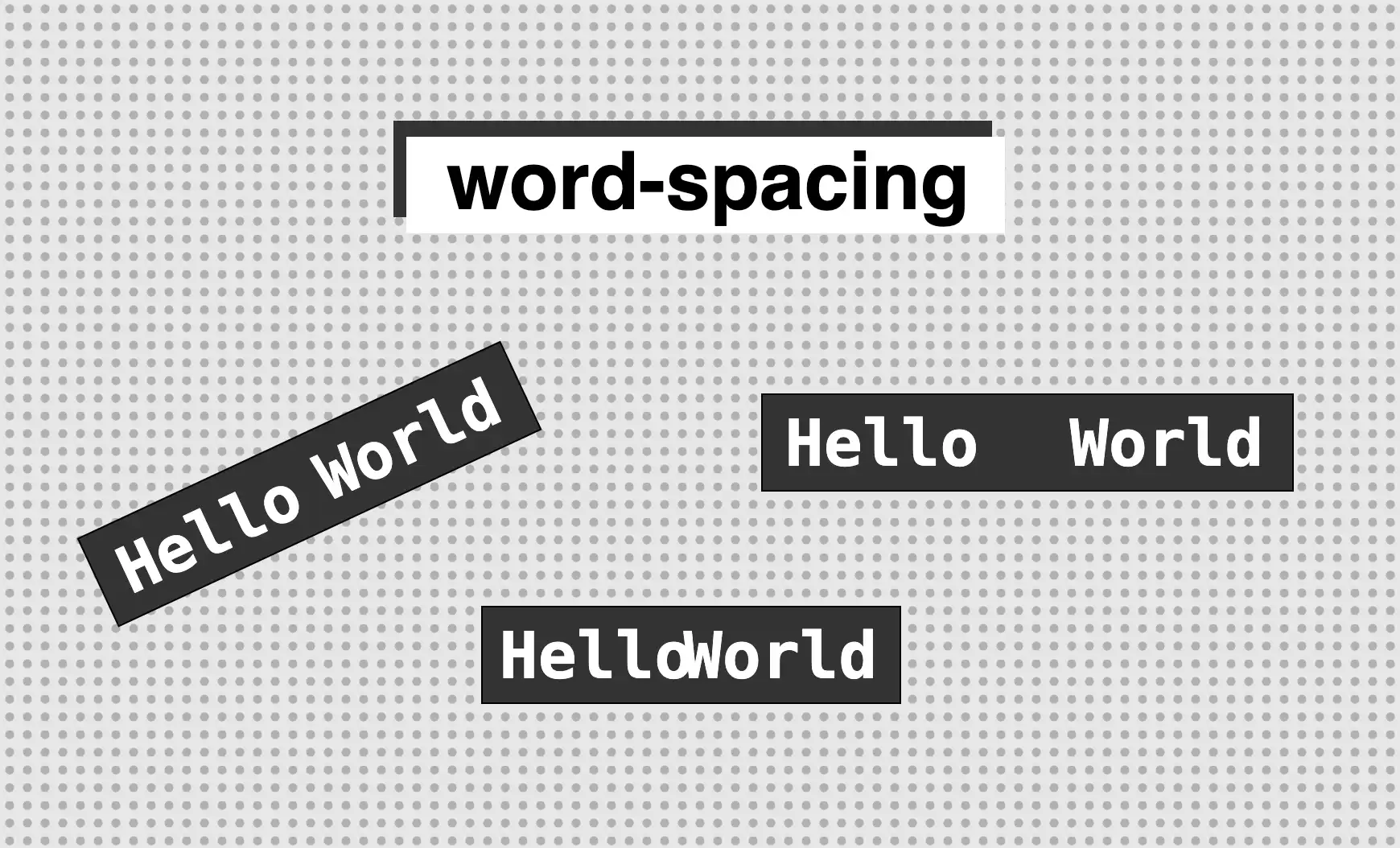
The image below illustrates the effect of varying word spacing values on each of our headings. The first heading has normal word spacing, while the second has a larger distance between words due to the increased word spacing value. Similarly, the third heading has a narrower spacing resulting from the decreased value.
🔖 It is important to avoid using word spacing values that are either too large or too small.
In summary, this image illustrates how adjusting the spacing between words can affect the appearance of text. It’s amazing how even small changes can have a significant impact. Isn’t it? 😎
The amazing CSS selectors family! One of the most helpful tools we can use when styling our website. In today’s post, 😃 we’ll examine the unstoppable battle of nth-child() VS nth-of-type() selectors. They both allow you to target HTML elements based on their position within a parent, but they achieve that differently.
The moment to clarify the key difference between them and how to use each effectively to get the styling we want has finally come! 🤓
So, let’s proceed by analyzing and comparing these amazing pseudo-classes! 💻 ✨
Preparing our HTML structure
We begin with an HTML code snippet by creating a <section> element as the parent, which contains some <p> and <div> children.
<section><p>I'm the first paragraph</p><div>I'm the first div</div><p>I'm the second paragraph</p><div>I'm the second div</div><p>I'm the third paragraph</p><div>I'm the third div</div></section>
HTML
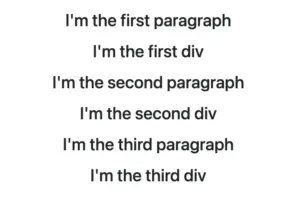
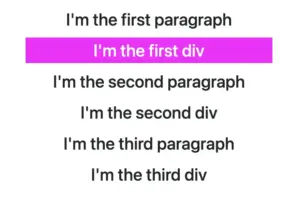
Below, we can see what is rendered on the screen for now. Three paragraphs and three div elements. Note that I have kept the default styling: black text on a white background.
The nth-child selector
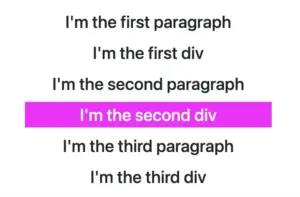
The :nth-child() selectortargets the HTML element declared inside the parentheses, regardless of its type. In the code snippet below, we pick the second child (which happens to be a div) by placing the number 2 inside the parentheses.
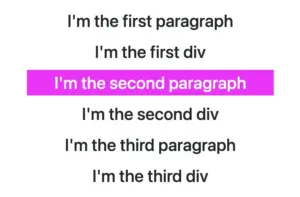
The :nth-of-type() selector targets HTML elements based on their type. In the following code snippet, we pick the second <p> element by placing the number 2 inside the parentheses () and specifying the type p before the selector.
We now notice that the styling is removed from the second paragraph and applied to the second div. Cool huh? 😎
By learning correctly when and how to use each selector, we can ensure that our CSS targets exactly the elements we intend and help us achieve more precise and effective styling. Happy coding! 🎉 👩💻
Hello there! Today, we will explore a simple yet valuable topic. How do you create a CSS reflection using only one property? Let’s unlock the amazing –webkit-box-reflect property and effortlessly craft repeatable elements with minimal 😉 code! 🥳
Simple CSS Reflection
We will start by creating two identical boxes. We set 200 pixels width and 100 pixels height and also add a solid black 2 pixel border. Continuing, we give our boxes an indigo background-color.
Next, we proceed with our -webkit-box-reflect where we create the reflection of each box, ensuring that their direction remains the same (right direction). However, the second reflection is located 150 pixels from the original box. That way, we can explore both direction and distance.
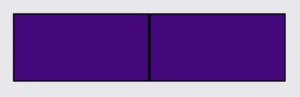
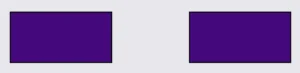
In the images provided, we can see two boxes along with their corresponding reflections. In the first image, the box’s reflection is located exactly on the right-hand side, adjacent to the original box, while in the second image, the box also has a reflection on the right-hand side but is positioned 150 pixels away from the original box.
-webkit-box-reflect: right
-webkit-box-reflect: right 150px
CSS Reflection With Fade-Out Effect
It is essential to know that we can use the -webkit-box-reflect CSS property to create a reflection effect that accurately mirrors the original element’s appearance and style. We can further improve this effect and make it seem more authentic by using the linear-gradient CSS property, which gives us the impression of a gradual fade-out. This technique is pretty cool! 😎
We will start with our HTML code snippet, creating again two boxes with identical characteristics. We set 200 pixels width and 100 pixels height. Next, we give both boxes an indigo background-color.
Next, we proceed with our -webkit-box-reflect where we create the reflections of each box, ensuring that they have the same direction (below). However, the second reflection has a linear-gradient that creates a fade-out effect from top to bottom.
When adjusting the reflection vertically, we need to use above and below instead of top and bottom.
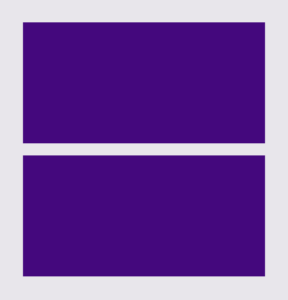
Below, you can observe two boxes along with their related reflections. In the first image, the box’s reflection is located 10 pixels above the original box. In the second image, the reflection stands again 10 pixels above the origin box, but this time has the fade-out effect. It looks nice, doesn’t it?
Hello there! Today, we will analyze the amazing variables in CSS, also known as custom properties or cascading variables. It is a powerful technique that allows us to store reusable values for colors, sizes, fonts, and even animations. These values can be set once and used as many times as we want throughout our project.
Simply put, if we want to update a value throughout our CSS code, we only need to change it in one place instead of searching and modifying multiple CSS rules. This keeps our code clean and organized and our work more flexible, especially in larger projects. 😎
How to declare CSS variables
CSS variables are defined using the -- prefix and are typically declared in the :root pseudo-class. Below, we can see an example with two declared variables. The first one refers to the --primary-color (main color) of our project, while the second one concerns the --text-font-size (text’s font size).
By defining variables in the :root pseudo-class, we make them accessible globally. To limit a variable’s scope, we can define it locally, within a specific selector, like a class or ID.
How to use CSS Variables
We connect these two variables with our CSS styles, using the var() function. This step is crucial for ensuring our variables will work correctly. Simple but super useful! 🤓 ✨
Now, let’s examine what we mean by global and local variables and how knowing the difference between these two types of variables can help us write more flexible, organized, and efficient code.
Global and local variables in CSS are essential for keeping styles easily managed. Global variables, defined in the :root selector, can be used in any CSS rule in the entire stylesheet, creating consistent layouts. In contrast, local variables, declared inside a class or ID selector, are scoped only to specific elements and their children, allowing for a more customized styling.
Understanding variable scope with an example
Global type
We create two global variables named --primary-color and --secondary-color that can be applied everywhere in the stylesheet.
/* Anything inside :root is accessible globally */:root {--primary-color: pink; --secondary-color: gray;}body {background-color: var(--primary-color); /* Accessible here */}header {color: var(--secondary-color); /* Accessible here as well */}
CSS
Local type
We create a local variable named --header-bg located inside the .header class. This specific variable can be applied only to the header and its descendants.
.header {--header-bg: gray; /* Local variable */background-color: var(--header-bg); /* Accessible here */}.headerh1 {color: var(--header-bg); /* Accessible here */}.footer {background-color: var(--header-bg); /* Not accessible here, will not work */}
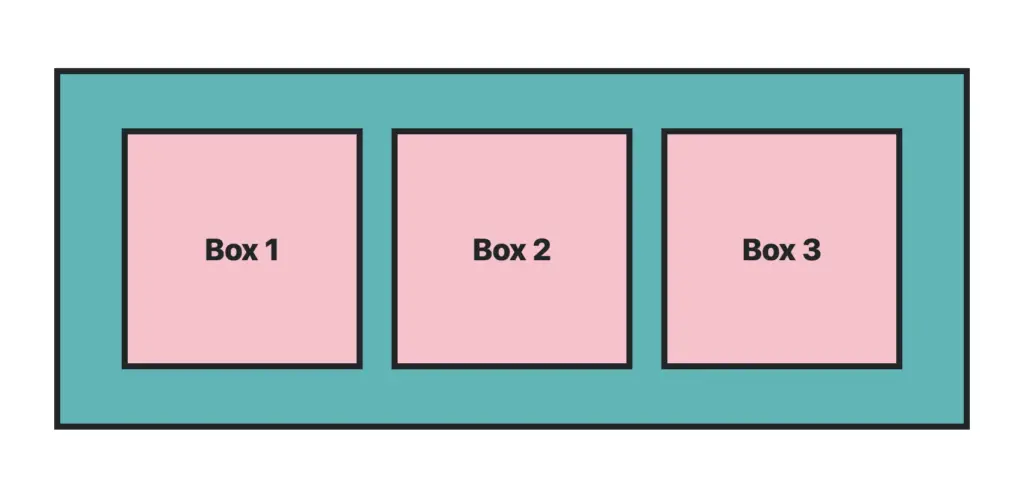
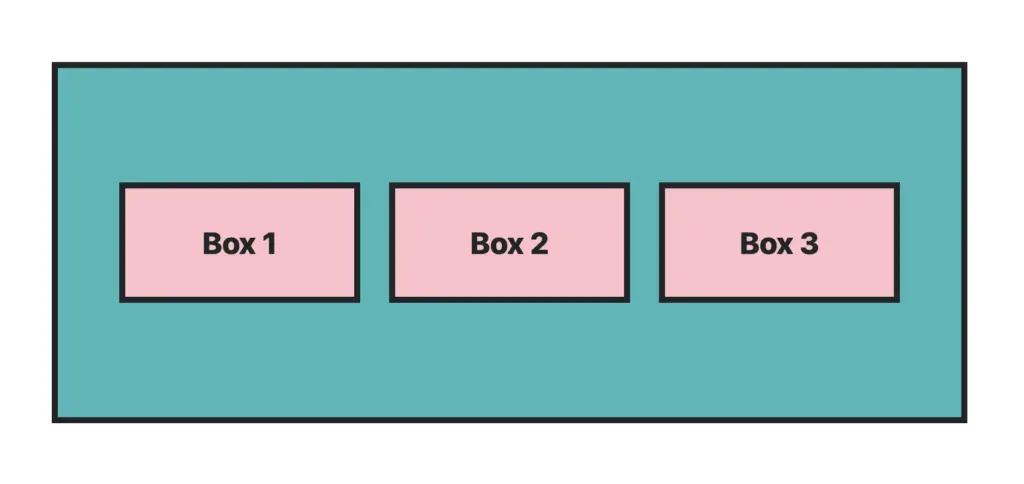
For better understanding, I’ve prepared a more detailed example of CSS variables, showing how to apply them in a stylesheet and an image to help visualize the results. We intend to create three identical boxes side by side within a container, all styled using CSS variables.
In the following image, we can see the layout we just created.
If we want to modify the height of our boxes, we can easily do it by changing only the --box-height variable. For example, let’s change it from 150px to 50px.
In the image below, we can notice the difference.
Naming variables can be a really demanding task! Keep names simple, but ensure they are clear and meaningful.
Combining multiple CSS variables
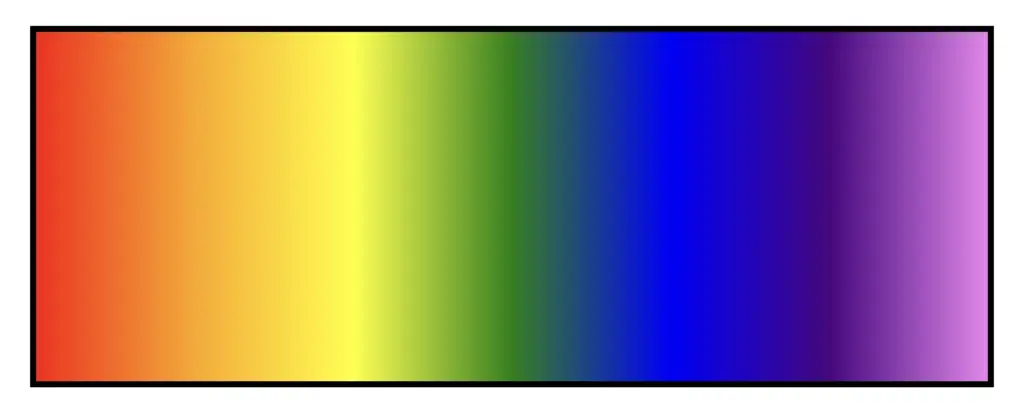
When working with variables, we have the flexibility to add many values inside a CSS property. Let’s try to create a rainbow effect. We have to define variables for each rainbow color (--color-red, --color-orange, --color-yellow, --color-green, --color-blue, --color-indigo, --color-violet). Then, we’ll apply them in linear-gradient to create the rainbow effect. 🌈 🎉
We also have the flexibility to use fallbacks. But what is a fallback? 🤔 A fallback acts as a default value when:
A variable is not defined, or
the value of a variable is not valid.
Below are examples for each case to help you better understand it. 🧐 Case 1 –A variable is not defined In the following example, the box will feature a dark gray background since --bg-color is not defined, resulting in the use of the fallback color.
<divclass="box"></div>
HTML
:root {--box-width: 300px;--box-height: 300px;/* --bg-color is not defined */--border-all-around: 5pxsolid;}.box {width: var(--box-width);height: var(--box-height);background-color: var(--bg-color, darkgray); /* Fallback to darkgray */border: var(--border-all-around);}
CSS
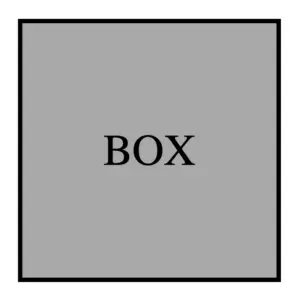
The image below displays the results.
Case 2 – the value of a variable is not valid The box will have a dark gray background because --bg-color is set to an invalid value; “pinky” is not a valid way to specify the color pink, so the fallback will be used instead.
No, spaces are not allowed in CSS variable names. You can use hyphens (-), underscores (_), or camelCase instead.
What are the valid characters for css variable names?
CSS variable names can include letters, numbers, underscores (_), hyphens (-), and must start with two dashes (--). They cannot contain spaces or special characters.
Is our life surrounded by lists ✔ or do we live in a perfect world where taking care of things is unnecessary? Are we able to deal with our problems without organizing them? Are we ready to work on something difficult or, even worse, build something from scratch without using a list of steps? Do lists improve our life balance and make us more methodical? In this post, we will see how to create HTML lists and make our work and, by extension, our lives easier. 😃 ✨
Do lists improve our life balance and make us more methodical?
HTML Lists
A list is defined as agroup of matching items. By default, the list’s direction is vertical. There are three categories of HTML lists: ordered, unordered, and description lists.
Ordered list
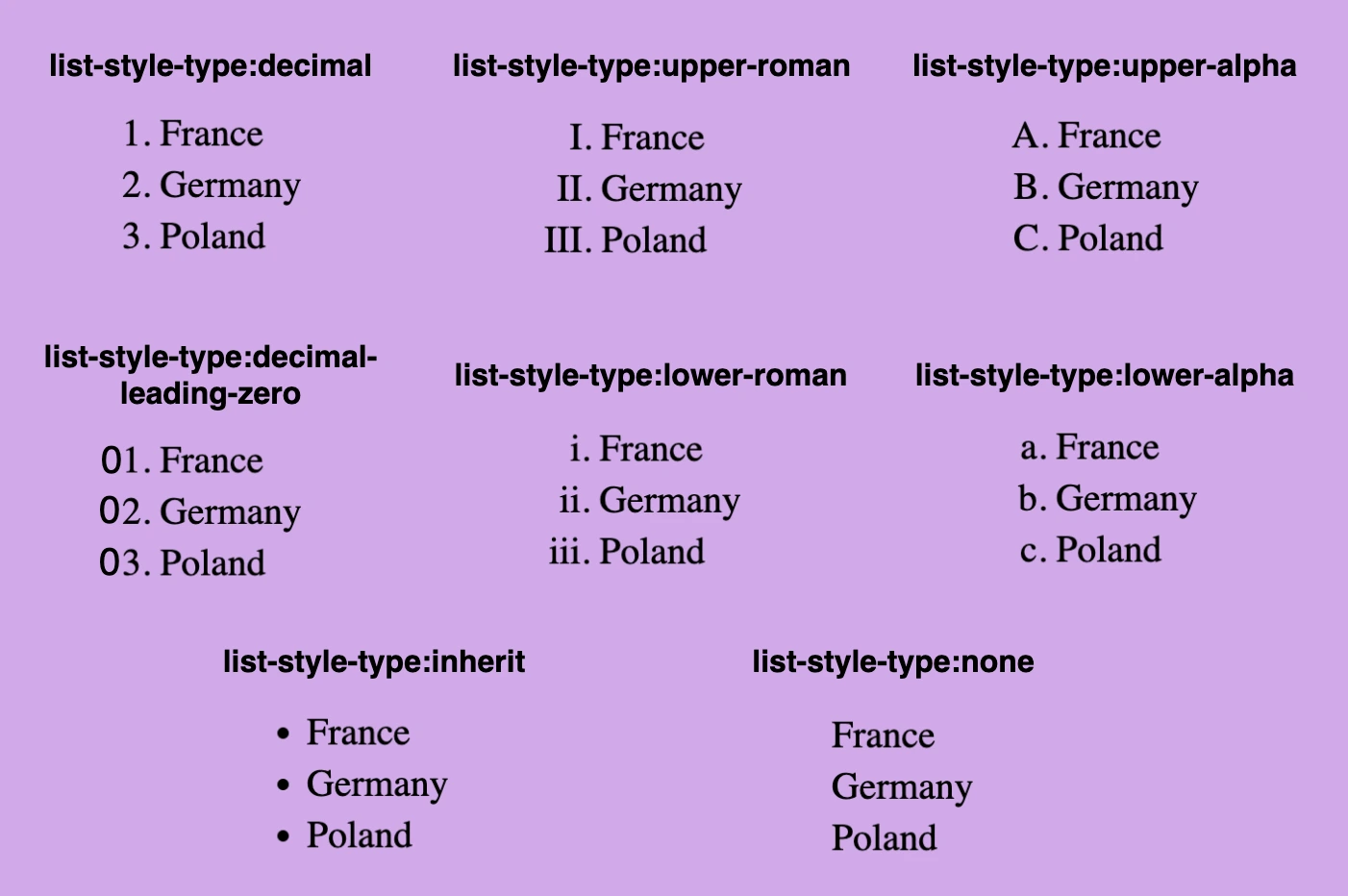
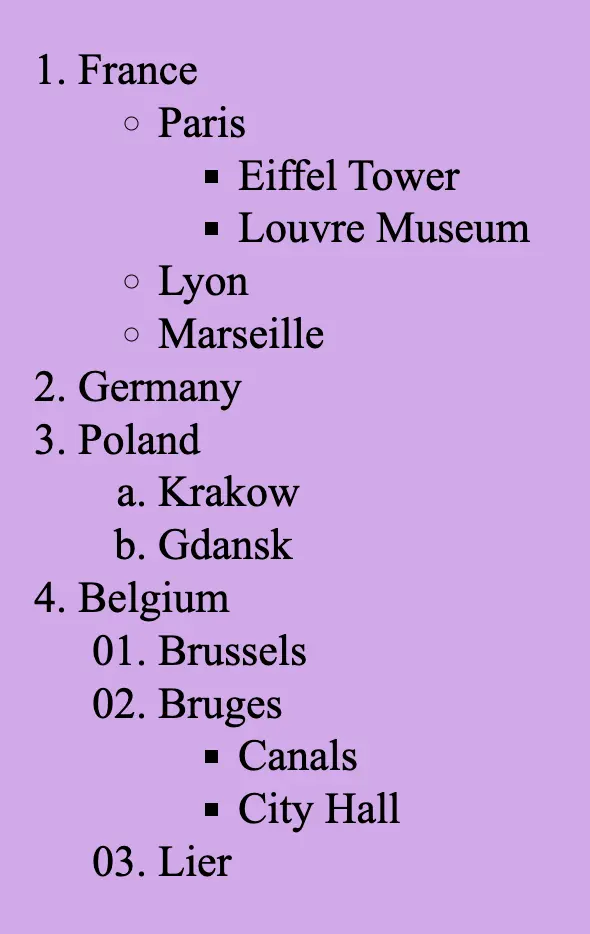
An ordered list, by default, uses numbers as markers for each list item. We have the ability to manipulate the list-style-type property and select the desired style.
<olstyle="list-style-type:decimal;"><!-- decimal is for example, you can choose any list-style-type you prefer --><li>France</li><li>Germany</li><li>Poland</li></ol>
HTML
Below, you can see the types off the ordered list.
Unordered list
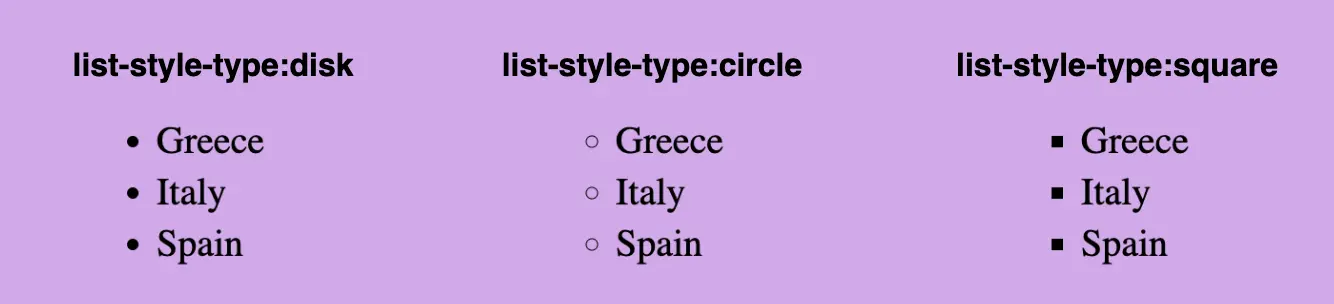
An unordered list, by default, uses a dot like a small black music disk, as its marker (list-style-type: disk;). We can manipulate the list-style-type property and choose the willing style.
<ulstyle="list-style-type:disk;"><!-- disk is for example, you can choose any list-style-type you prefer --><li>Greece</li><li>Italy</li><li>Spain</li></ul>
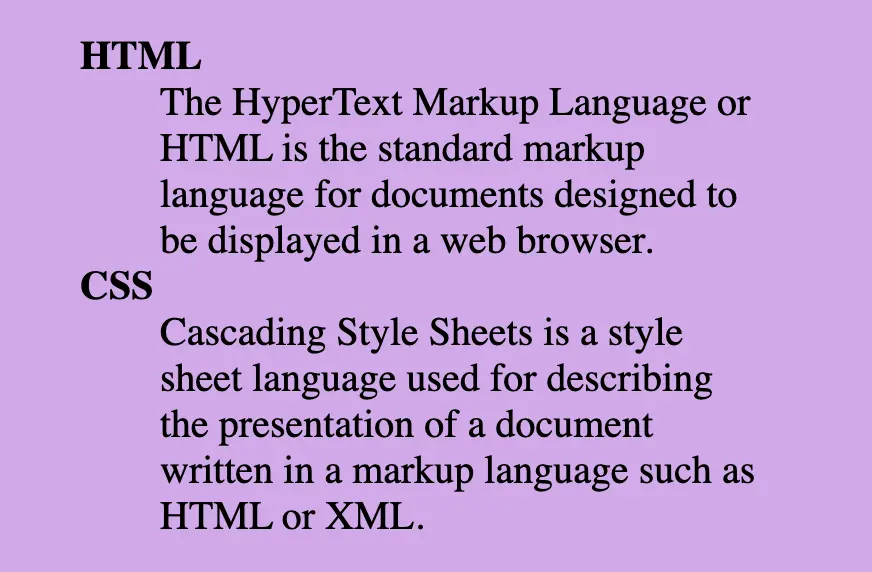
Description lists are used when we want to show terms followed by their descriptions. It consists of <dl> tag (a description list) which requires two elements. The first one is a <dt> tag, the description term element, and the second one is the <dd> tag, the description element. Keep in mind, that the <dd> element has somemargin-left set by default.
📝 We must pay attention to the correct order, as <dt> tag always comes before <dd> tag.
<dl><dt><b>HTML</b></dt><dd>The HyperText Markup Language or HTML is the standard markup language for documents designed to be displayed in a web browser.</dd><dt><b>CSS</b></dt><dd>Cascading Style Sheets is a style sheet language used for describing the presentation of a document written in a markup language such as HTML or XML.</dd></dl>
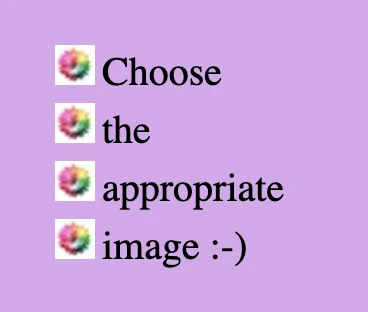
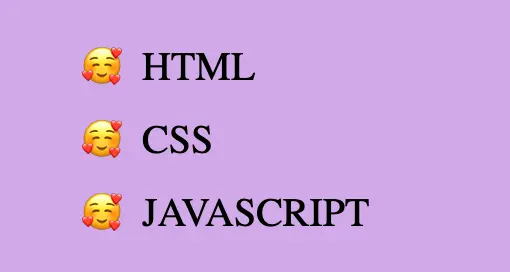
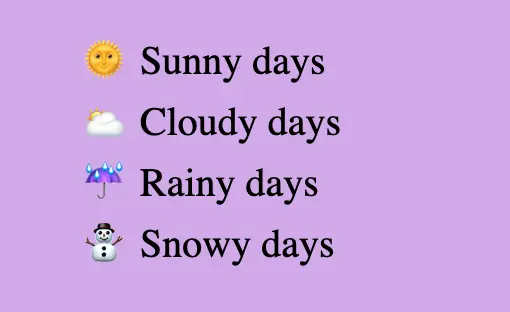
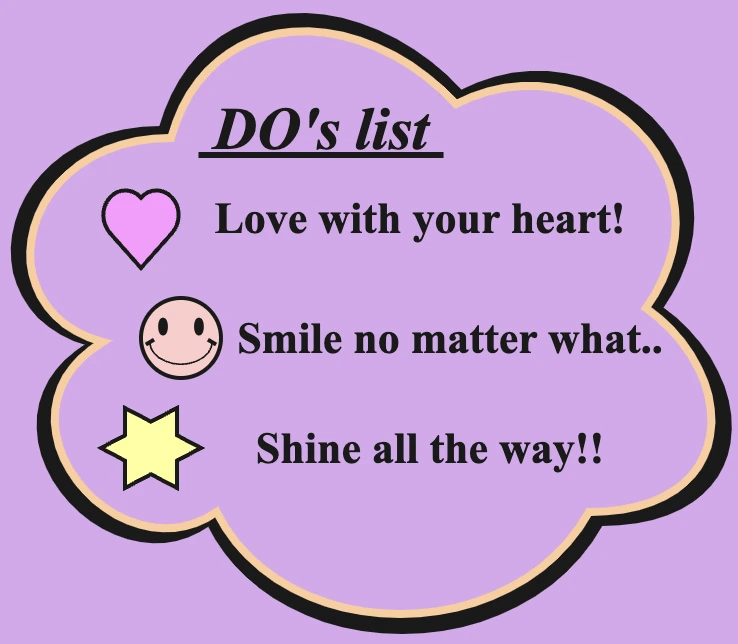
In HTML lists, instead of marks, we can also use an image. Although it is really demanding, if we choose the appropriate image and do all the necessary modifications we can achieve a really amazing result. We have to replace the marks and create a list by adding the image’s URL to the list-style-image property.
.emoticons-weather {list-style: none;}/* We use :not(:last-child) selector because we want to add distance * between all list items apart from the last one. */li:not(:last-child) {margin-bottom: 4px;}.emoticons-weatherli {&:before {margin-right: 8px; }&:nth-child(1):before {content: "🌞"; }&:nth-child(2):before {content: "🌥"; }&:nth-child(3):before {content: "☔"; }&:nth-child(4):before {content: "⛄"; }} /* end of emoticons-weather li */
SCSS
🤗 I chose these lovely emoticons above for my examples, but you can select any emoticon you want! All you have to do is copy and paste them into the content property.
By default, HTML lists are vertical & list items have display: block;.Because of their blocked display, each list item takes up the available screen width and starts in a new line. In order to use them in a horizontal direction, we must implement them by changing the list-style property to none list-style: none; and setting the display property to inline-block display: inline-block;. This way, they occupy the same space as their size, and we can put them, side by side, on the same line.
💡 It is common to use horizontal lists in order to make navbars.
When capitalizing CSS property values, a key advantage is that CSS is not case-sensitive. 🪶 This means that no matter how you choose to capitalize your CSS values, either by using different letter cases, including lowercase, uppercase, or a combination of both, the browser will still understand all of them correctly.
The letter case used for color names in CSS does not impact how the browser interprets them
Here are some examples of this, using color properties:
Lowercase: You may use all lowercase letters for color names. For example, “red”, “green”, “blue”, “orange”, and “yellow” are all valid.
.element {background-color: green;}
CSS
Uppercase: Uppercase letters are also valid, so “RED”, “GREEN”, “BLUE”, “ORANGE” and “YELLOW” will be just fine.
.element {color: GREEN;}
CSS
Combinations of both: You have the flexibility to use both uppercase and lowercase letters in color names. This lets you style color names according to your coding preferences or highlight specific parts of the color name.
.element {border-color: LightGreen;}
CSS
No Impact on Interpretation: Regardless of the letter case used, the browser will correctly understand and apply the specified color. The choice of letter case is purely a matter of personal or coding style preference.
.element {color: LiGhtgreeN;}
CSS
To sum it up, the letter case used for color names in CSS does not impact how the browser interprets them. 😃
Whether you opt for all lowercase, uppercase, or a combination of both, it’s up to your coding style or your development team’s coding standards. The important thing to remember is that the browser will understand and apply the specified color, regardless of the letter casing used.
That said, developers still often follow conventions. While browsers are forgiving of capitalization, one common standard practice is to use all lowercase for CSS property values.
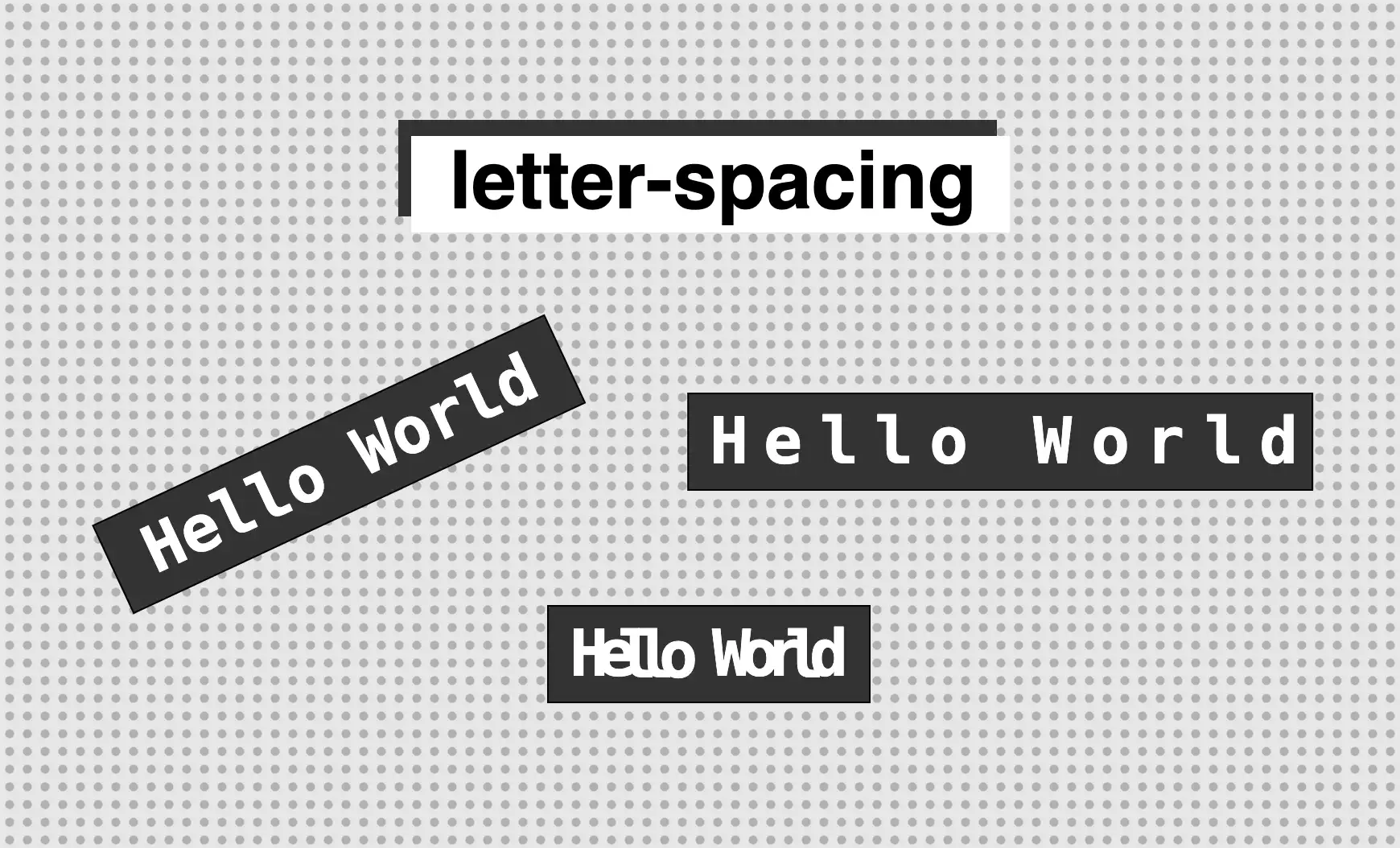
Greetings! 😃 In today’s post, we will explore the CSS letter spacing property, which is responsible for the horizontal distance between letters. The default letter spacing is equivalent to 0px, known as normal (letter-spacing: normal). Increasing value results in bigger spacing.
We will continue with some examples to understand better this easy but still useful CSS property.
We start with our HTML document by creating three <h1> headings with the text “Hello World”. All headings contain identical text to highlight the difference in letter spacing. The headings are styled differently, the first one uses .spacing-normal class, the second one .spacing-small class, and the third one .spacing-big.
We continue our work with the CSS structure. We have assigned the letter-spacing property to all three classes but with different values. Even though the text is the same in all headings, they will appear different due to class variation.
In the image provided, we can see the effect of varying letter spacing in css on the previously created headings. Increasing the letter spacing value results in greater distance between the letters, resulting in a more notable gap between them. The image clearly illustrates the relationship between letter spacing and letter distance.
🔖 Note that letter spacing affects the distance between words, too.
What to AVOID when using CSS letter-spacing property
The letter spacing can support negative values. However, reducing the default letter spacing requires caution as it can negatively impact text legibility by causing letters to appear too close together. Here’s an example:
Hello there! Today, we’ll explore how the CSSnth-of-type() selector works. This powerful CSS selector allows us to targetevery nth childHTML elementof a specific type within its parent container.
Below, I prepared some examples to analyze this amazing pseudo-class thoroughly.
Basic HTML structure
We begin with the HTML structure. We create an <article> HTML element. It contains two headings (<h1> , <h2>) elements. Also, we include some <p> and <div> HTML elements. The example may seem slightly complicated, but it is the right way to understand just how useful 🛠 tool this selector can be. 😃 For now, we’ll maintain the default styling with a white background and black text.
🔖 Please note that this HTML code snippet will be used across all examples.
<article><h1>Explore India</h1><h2>India's Top Ten Attractions</h2><p>Here goes the 1st paragraph about India's attractions</p><p>Here goes the 2nd paragraph about India's attractions</p><h2>India's Food</h2><div>Here goes text about India's cusine</div><div>Here goes text about India's cusine</div></article>
HTML
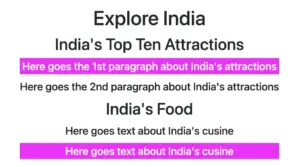
Below, we can see what is rendered on the screen 💻 for now. It’s just a simple article in a newspaper 🗞 or on the internet. At least as articles were once upon a time 😂 just text, no images, and no special styling. Don’t worry; it works well for us!
Targeting a specific HTML element
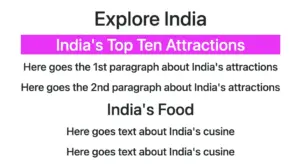
Now let’s explore how this selector works. We start by using the nth-of-type() selector, preceded by h2, and placing the number 1 inside the parentheses (). This targets the very first<h2> element within our <article> parent.
In the following image, we can see the result of the applied nth-of-type selector.
Targeting all elements of a specific type
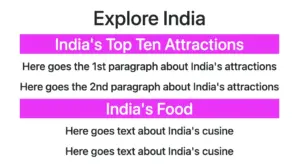
We continue and dive a bit deeper! We place h2 before our nth-of-type() selector, but this time, we add the n inside the parentheses(). By doing so, we target all<h2> elements within our parent element.
The n in nth-of-type(n) enables the selector to match elements at any position among siblings. This means you can apply styles to all matching elements without specifying an exact position, ensuring that every instance is included.. 😎
Additionally, we have the option to use the nth-of-type() selector to target more than one different type of HTML elements. In our case, we set the p:nth-of-type(1) to target the first <p> element and also the div:nth-of-type(2) to target the second <div> element.
Greetings 😃 In today’s session, we’re about to explore 🔎 the fascinating world of the CSS shadow properties. Get ready to unlock 🗝 the secret between CSS drop-shadow and box-shadow properties!
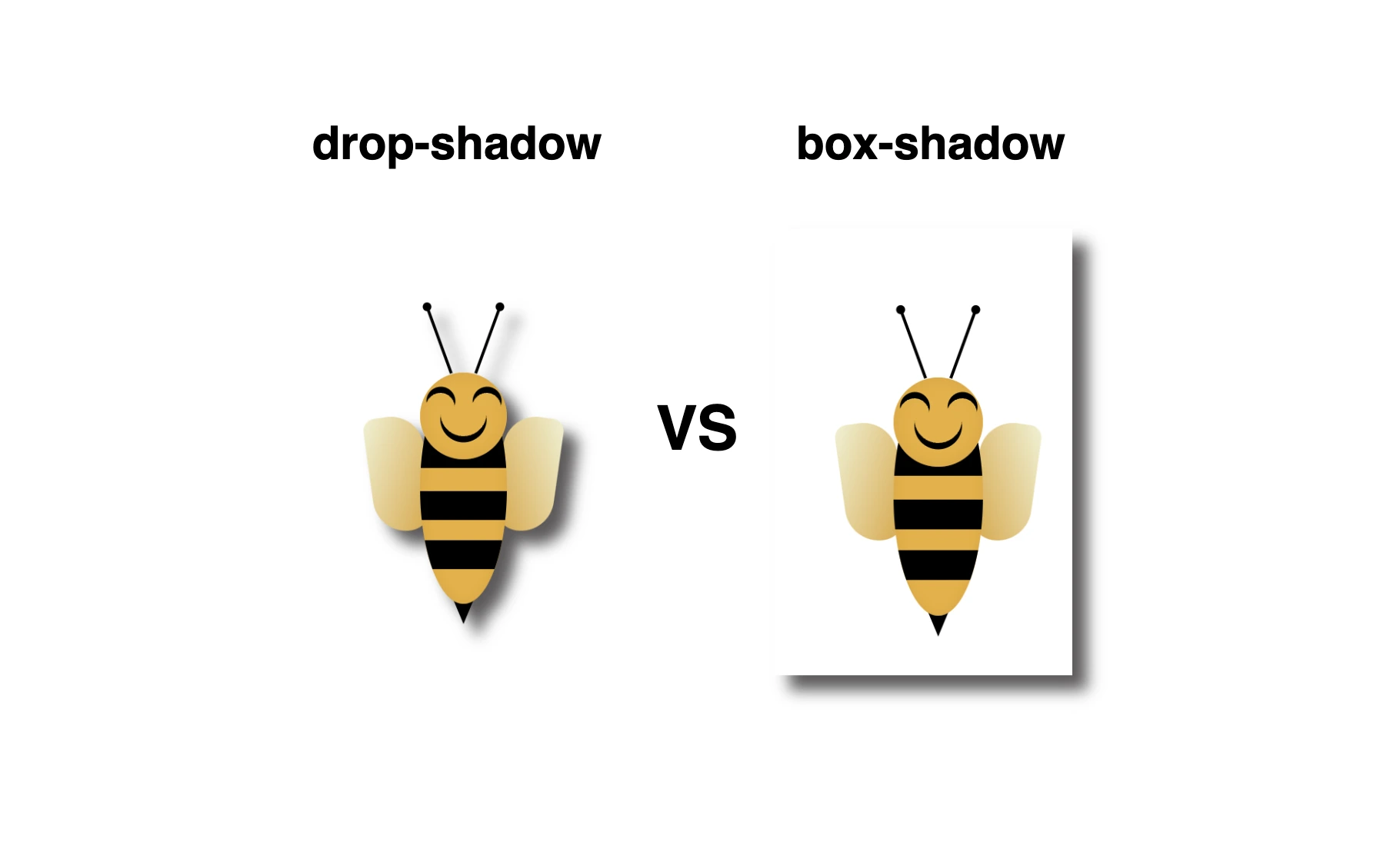
I created a beautiful, playful bee 🐝 to make our example understandable and funny! You can check out my “bee code” at the end of my post and see how I created it. You are welcome to use it wherever suits you!
CSS box-shadow
Now, let’s focus on our shadows! In the following example, we see the effect of the box-shadow property. Our shadow is applied to the two sides of our box (bee-wrapper). The code I provided creates a gray shadow with the following characteristics:
offset-X: adds 10 pixels to the right of the element.
offset-Y: adds 10 pixels below the element.
blur-radius: A blurry shadow with a radius of 10 pixels. (You are free to use a higher blur radius for a softer, more diffuse shadow, or you might opt for a lower blur radius to create a sharper, crisper shadow).
spread-radius: The shadow doesn’t expand or contract beyond the blur radius as I set it to zero. (I chose not to add spread, but it’s totally up to you if you want to add it. 🔖 Keep in mind that the spread-radius parameter determines whether the shadow expands or reduces in size. A positive value will enlarge the shadow, whereas a negative value will shrink it).
color: The color of the shadow is a shade of gray (#5b5959).
CSS drop-shadow
In this case, on the other hand, we can see that by setting the filter: drop-shadow() property the shadow applies smoothly to all parts of our content inside the box (bee-wrapper). Cool 🥳 ha! So, let’s see our code in more detail and how the shadow will now be rendered on the screen through our lovely bee!
filter: The filter property in CSS applies various graphical effects, including blurs, color adjustments, and, in this instance, shadows, to an element.
offset-X: This specifies the horizontal offset of the shadow from the element. It’s 10 pixels to the right, creating a shadow on the right side of the element.
offset-Y: This specifies the vertical offset of the shadow from the element. It’s 10 pixels below the element, creating a shadow below it.
blur-radius: A moderately blurry shadow with a radius of 5 pixels. (A higher value would create a more diffused and softer shadow, while a lower one would create a sharper shadow).
color: The shadow’s color is a shade of gray (#5b5959).
🔖 It is worth mentioning that spread-radius property does not appear here.
In the world of web design, adding a touch of nostalgia or a vintage vibe to images can significantly enhance a website’s aesthetic. One timeless technique to achieve this effect is the CSS sepia filter.
Originating from sepia ink, which has been used for centuries, this filter gives photos a warm, brownish tone reminiscent of old photographs, lending a sense of history and charm to the visuals.
An image with 0% sepia maintains its original, true colors, while at 100% sepia, the image is entirely transformed into a warm, brownish tone as an aged photograph. As you increase the percentage, you intensify the sepia effect.
Join me 😃 into the magic of the filter: sepia(%) CSS property and explore how it can be seamlessly integrated into your web design toolbox.
History of the sepia ink
🧐 Did you know that sepia ink is a brownish-black ink made from the ink sac of the common cuttlefish, Sepia? 🐙 They belong to the class Cephalopoda, which also includes squid, octopuses, and nautiluses.
Historically, it has been used for writing and drawing, and it was particularly popular in the past for writing manuscripts and creating artwork.
The ink took its name from the sepia cuttlefish, which was the source of the ink. The ink was widely used in antiquity and during the Renaissance*, and it has a characteristic warm, brownish hue which is why the CSS filter that replicates this effect is referred to as the “sepia” filter.
(* The Renaissance was a period in European history that spanned roughly from the 14th century to the 17th century. It was characterized by a significant cultural, artistic, and intellectual rebirth after the Middle Ages. The term “Renaissance” is derived from the French word meaning “rebirth”).
Use the CSS sepia filter to an image
Below I craft an example as an easy way to explain this amazing CSS property to you! 😃 So, let’s proceed.
We will start with our HTML and CSS code snippets.
The HTML snippet contains two <img> elements. The first one has the .original-image class, indicating a standard image. The second one has also the .original-image and additionally the .with-sepia, implying it’s a styled image using the sepia filter, giving it a warm, brownish tone.
The .original-image class is shared by both image elements, setting a background image, ensuring it doesn’t repeat and covering the specified width and height (400px by 500px).
The .with-sepia class applied only to the second image, introduces a sepia filter of 80%, giving a warm, brownish tone.
Enrich filter CSS sepia property with grayscale value
In addition, we can add the filter: grayscale(%) CSS property. Together, these filters can create a unique and visually captivating presentation, capturing the essence of both the past and the present in a single frame.
Transforming your images into stunning black-and-white tones with depth and texture has become easier than ever with the powerful grayscale filter. Adding a touch of gray to your images creates a modern vibe and turns them into art. To achieve this effect, we use the CSS filter: grayscale(%) property.
The grayscale filter allows you to adjust the percentage of gray. When you increase the percentage, you boost the effect. An image with 0% grayscale maintains its authentic colors, while at 100% grayscale, the image is entirely transformed into a cold, grayish tone.
Join me 😃 in the magic of the grayscale filter, explore how it can be merged harmoniously, and enhance your techniques.
Monochrome – Grayscale method
The grayscale method, or in other words, monochrome photography method, captures and displays different levels of light but not different colors. It includes all forms of black-and-white photography, which produces images with shades of gray ranging from black to white.
It originated in 1820 when Nicephore Niepce, a French inventor and photographer, created the first photograph. In today’s world, monochrome photography is mainly used for applications other than photographs.
Applying the grayscale filter to an image
Below, I’ve prepared an example to help clarify this property for you! 😃 So, let’s move forward.
The HTML snippet includes three img elements. The first one has the .original-image class, indicating a standard image. The second and the third also have the .original-image plus the .with-grayscale class, meaning it’s a styled image using the grayscale filter, giving it a cold, grayish tone.
The .original-image class is applied to all image elements, setting a background image, ensuring no repetition, and covering the specified dimensions of 400px width and 500px height.
The .with-grayscale class applied only to the second and third images, introduces a grayscale filter. In the second case, it is set at 50%, displaying our image with some grayish tones, while in the third case, it is set at 100%, decolorizing our image and declaring a completely gray tone.
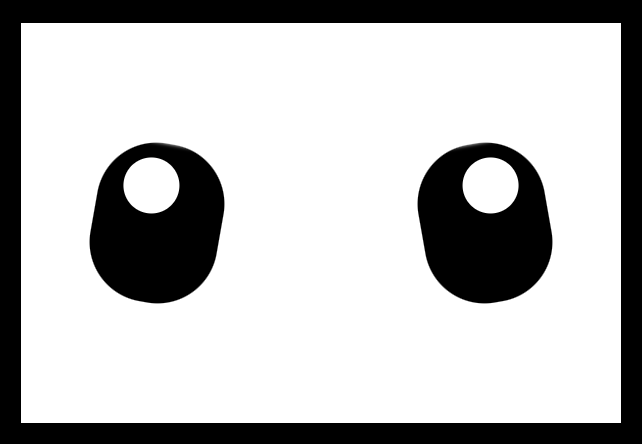
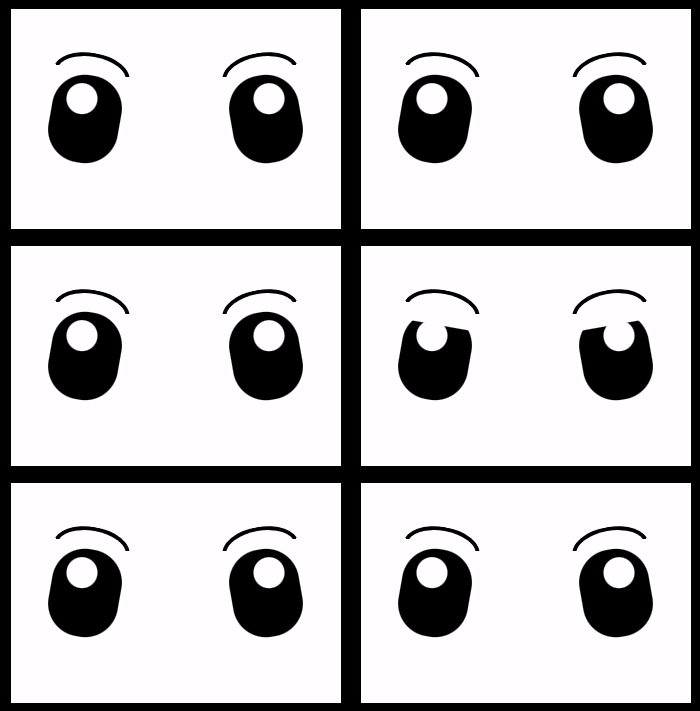
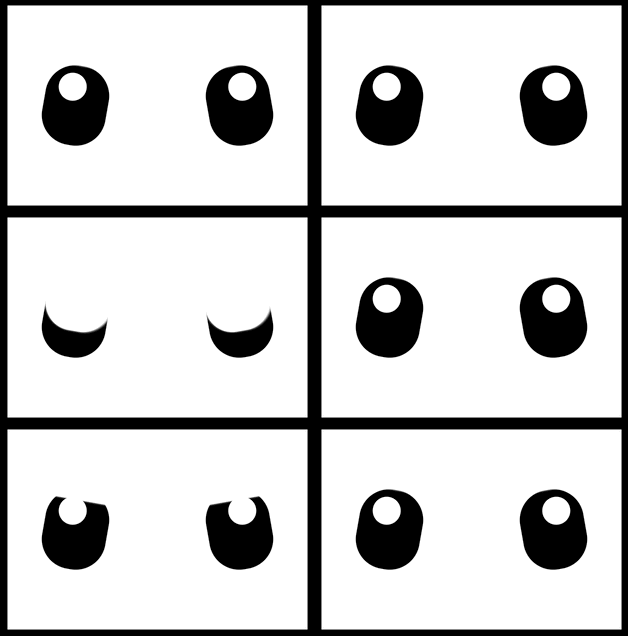
Hey there! In this post, I will show you how to create a pair of blinking eyes effect using only CSS (SCSS), complete with a smooth blinking animation to bring the eyes to life.A cow’s pair of eyes! Yes, yes, you read it right! We are dealing with a hidden 🐮 cow! Below, you can see our new 🐄 friend, with flesh and bones.
We are dealing with a hidden 🐮 cow!
HTML Structure
Firstly, let’s build our blinking eyes’ initial structure using only HTML:
Secondly, we continue by enhancing our HTML with CSS, starting from the body. We use flexbox as we want to place our face container in the center of our screen.
body {height: 100vh; // gives us the full screen-size heightbackground-color: black;display: flex;align-items: center;justify-content: center;}
CSS
CSS Face Structure
Next, we add our face container styling in order to be ready for our eyes’ positioning. We set background-color: white; just for contrast since our eyes will be black. Afterward, we use display: grid; and place-items: center; because we want our container’s children, our eyes, to get centered.
Afterward, we continue by creating our beautiful cow’s 👀 eyes.
.face { ....eye {position: absolute;width: 64px;height: 80px;background-color: black;border-radius: 30px;overflow: hidden;&:before { // iriscontent: "";position: absolute;width: 28px;height: 28px;background-color: white;border-radius: 50%; } // end of before &--left { // position of left eyeleft: 200px;transform: rotate(-10deg);&:before { // position of left iristop: 8px;right: 12px; } }&--right { // position of right eyeright: 200px;transform: rotate(10deg);&:before { // position of right iristop: 8px;left: 12px; } } } // end of eye } // end of face
SCSS
Adding the blinking animation
Now is the right time, drum 🥁 roll, to add our blinking animation 😉 .
.face { ....eye { ...&:after { // eyelid content: "";position: absolute;/* takes the same width as the eye (width: 64px;) in order to cover the whole eye when blinking */width: 100%;/* we need 0 initial height - as our starting point before the animation runs */height: 0%;background-color: white;border-radius: 30px;box-shadow: 1px-2px2px2pxwhite;/* here we add our "blink" animation since this is the html part (:after - blinking) we want to make animate. We want the animation to repeat every 4 seconds forever. */animation: blink4sinfiniteease-in; } // end of after } // end of eye} // end of face/* we name our animation "blink". We set different height percentagesas a way to set our eye lids STAY IN DIFFERENT PART each time */@keyframesblink {0% {height: 0%; }30% {height: 0%; }33% {height: 100%; }40% {height: 0%; }70% {height: 0%; }75% {height: 100%; }78% {height: 0%; }81% {height: 100%; }84% {height: 0%; }100% {height: 0%; }}
SCSS
Hint 💡 Moreover, you should apply box shadow (check code above) to make the blinking eyelid overflow the eyes’ borders. This way during the blinking animation it will cover the whole eye and make it more realistic!
Finally, we add the 🤨 eyebrows to complete the gaze.
.face { ....eye { ... } /* end of eye */.eyebrow {position: absolute;width: 70px;height: 20px;border: solid4pxblack;border-color: blacktransparenttransparenttransparent;border-radius: 50%/20px20px00;top: 40px;&--left {left: 40px;transform: rotate(10deg); }&--right {right: 40px;transform: rotate(-10deg); } } /* end of eyebrow */} /* end of face */
SCSS
Complete code solution
Below is the full CSS code referenced in this blog post. Feel free to copy and use it in your projects.
body {height: 100vh; // gives us the full screen-size heightbackground-color: black;display: flex;align-items: center;justify-content: center;}.face {position: relative;width: 300px;height: 200px;background-color: white;display: grid;place-items: center;.eye {position: absolute;width: 64px;height: 80px;background-color: black;border-radius: 30px;overflow: hidden;&:before { // iriscontent: "";position: absolute;width: 28px;height: 28px;background-color: white;border-radius: 50%; } // end of before &:after { // eyelid content: "";position: absolute;/* takes the same width as the eye (width: 64px;) in order to cover the whole eye when blinking */width: 100%;/* we need 0 initial height - as our starting point before the animation runs */height: 0%;background-color: white;border-radius: 30px;box-shadow: 1px-2px2px2pxwhite;/* here we add our "blink" animation since this is the html part (:after - blinking) we want to make animate. We want the animation to repeat every 4 seconds forever. */animation: blink4sinfiniteease-in; } // end of after&--left { // position of left eyeleft: 200px;transform: rotate(-10deg);&:before { // position of left iristop: 8px;right: 12px; } }&--right { // position of right eyeright: 200px;transform: rotate(10deg);&:before { // position of right iristop: 8px;left: 12px; } } } // end of eye .eyebrow {position: absolute;width: 70px;height: 20px;border: solid4pxblack;border-color: blacktransparenttransparenttransparent;border-radius: 50%/20px20px00;top: 40px;&--left {left: 40px;transform: rotate(10deg); }&--right {right: 40px;transform: rotate(-10deg); } } /* end of eyebrow */} // end of face@keyframesblink {0% {height: 0%; }30% {height: 0%; }33% {height: 100%; }40% {height: 0%; }70% {height: 0%; }75% {height: 100%; }78% {height: 0%; }81% {height: 100%; }84% {height: 0%; }100% {height: 0%; }}
Hello there! 😃 In CSS, we have a really helpful property called backdrop-filter. It’s like a special filter that applies grayish shades to the backgrounds. A useful tool when we want to focus on a part of the webpage without changing the actual element itself. Mm… 🤔 that is a little bit tricky! Isn’t it? Let’s grab a cup of coffee ☕ and move forward! We will clarify everything in this post about using a grayscale backdrop filter. 👩💻
How the backdrop filter works
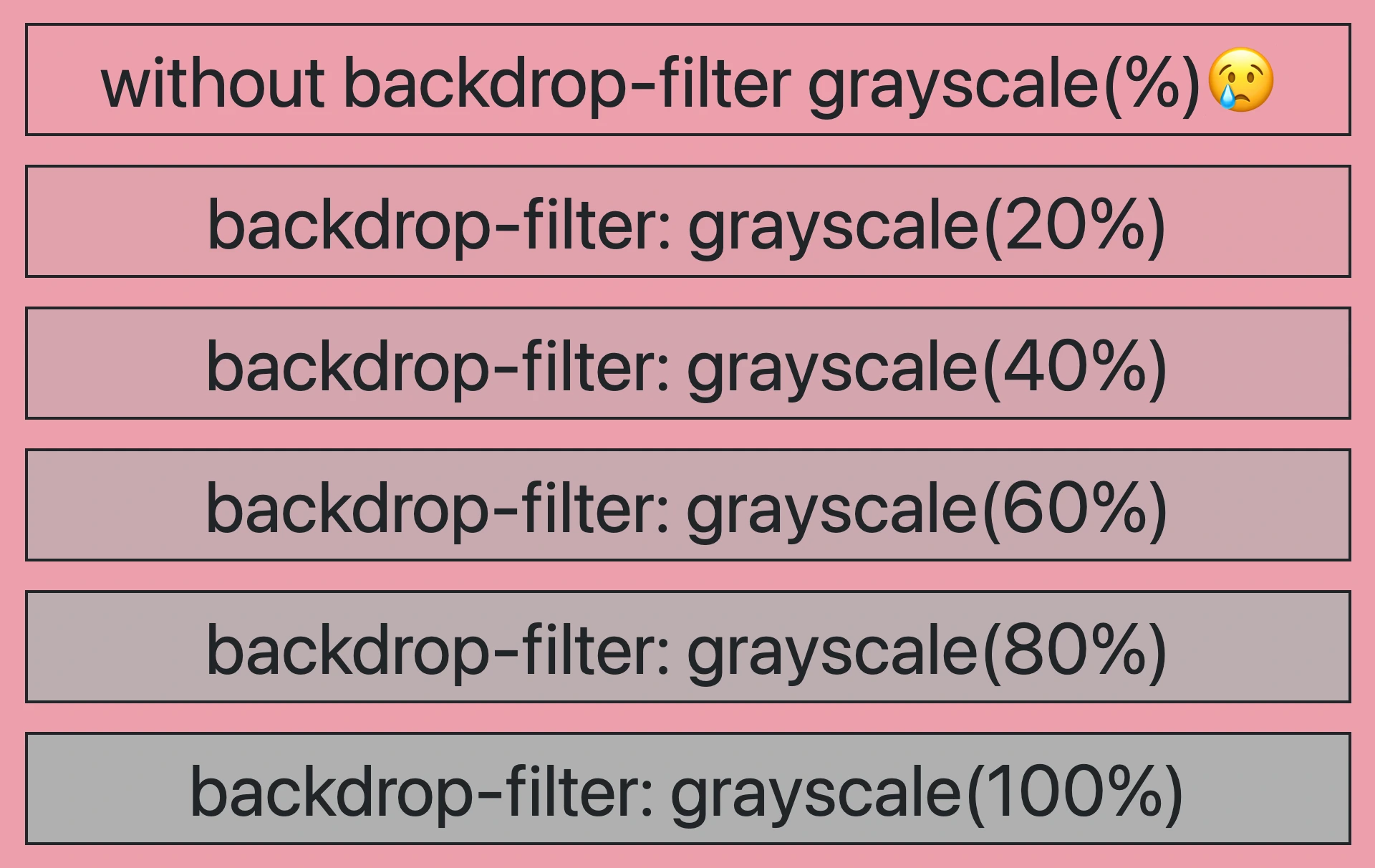
So, how does this property really work? We will begin by setting the backdrop-filter property to grayscale(percentage), where the percentage determines the intensity of the grayscale effect, ranging from 0% to 100%. A value of 100% turns the color into a complete grayscale color, while a value of 0% will keep the element’s original color shades without any grayscale effect.
This CSS property is not quite noticeable on black or white backgrounds because it adds shades of gray, and black is already the darkest shade while white is the lightest one. In simpler words, black and white will not get converted to grayscale because it already belongs to the darkest side of grayscale.
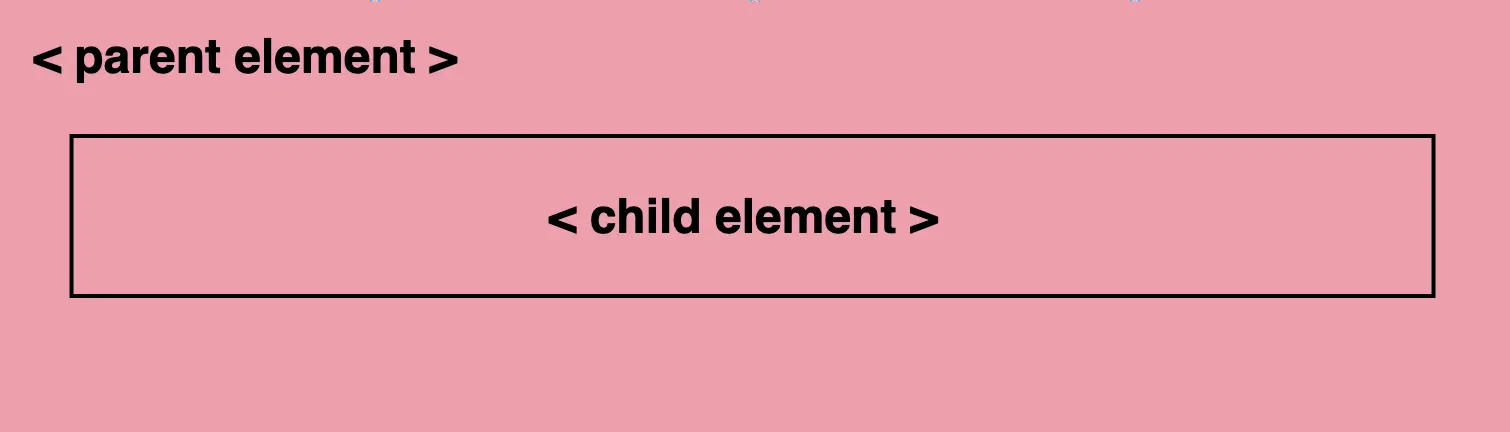
For the filter to work properly, as a first step, we need to set the background-color property of the parent element. Afterward, we add the backdrop filter to the child elements we want to apply the grayscale effect. The backdrop filter will only affect the child element’s background color but not its content, text, images, etc.
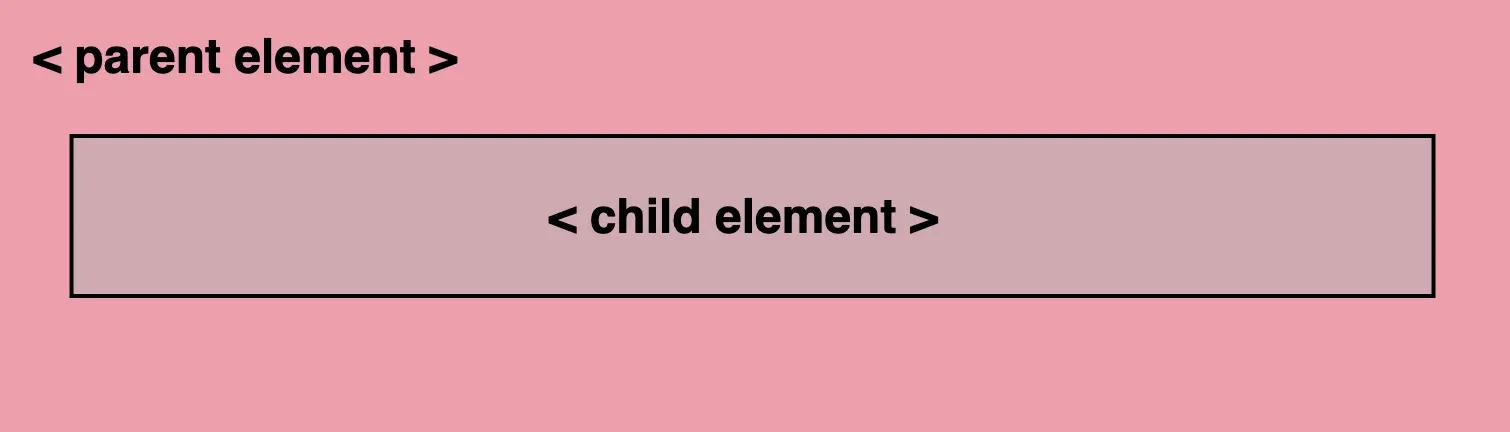
As a result, the parent element maintains its original background color, while the child element’s background is desaturated, creating a monochromatic, grayscale effect.
Create a grayscale backdrop filter effect
This HTML and CSS code above creates a <section> element (father) with a <p> element (child) inside. The section has a background color in a shade of pinkish peach, defined by the hex color code #f99bab. Initially, the paragraph inherits the same background color.
<section><p>...</p></section
HTML
/* PARENT ELEMENT */section {background-color: #f99bab; // a shade of pinkish peach}/* CHILD ELEMENT */p {backdrop-filter: grayscale(50%);}
CSS
We continue with the <p> element styled by a backdrop-filter with a grayscale value of 50%. This effect visually desaturates the paragraph’s background (the paragraph inherits its background from its parent, the section). This means that the colors where the backdrop filter is applied (the area behind the element) will be desaturated to 50%. As a result, a grayscale effect will be applied where the colors are halfway between their original color and grayscale while leaving the content unaffected.
In simple terms, by setting this code, we create a parent element with a shade of pinkish peach-colored background, and its child element has a somewhat muted, desaturated appearance while at the same time retaining some of the original pink color.
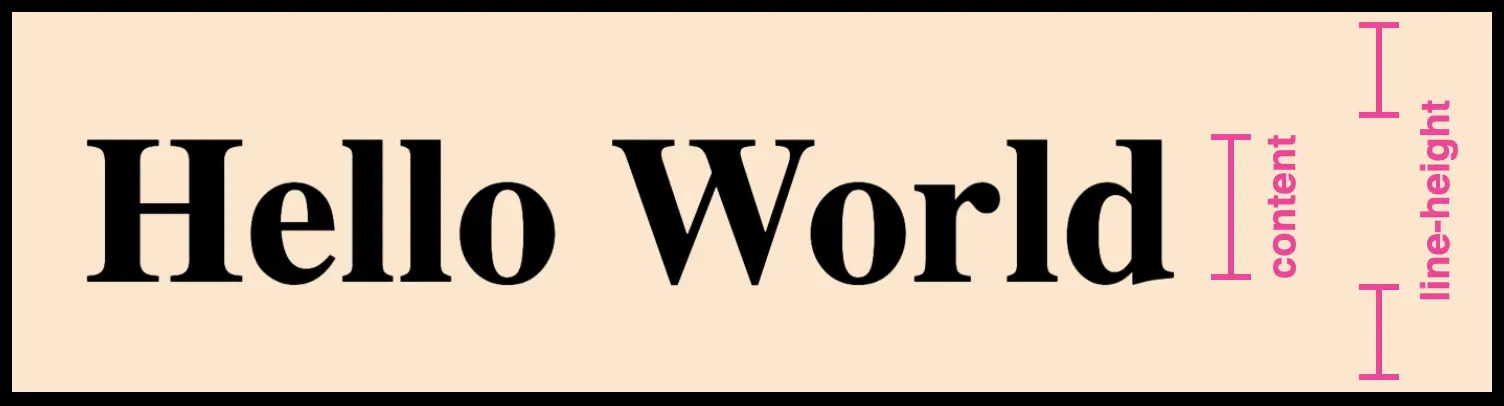
Hello there! 😃 Today, we’ll explore how we can calculate the CSS line height property, which defines the height of a line on a webpage. Each line contains the main content (text) as well as the space above and below the content ↕ (line-height). While the default value for desktop browsers is 1.2, we should keep in mind that it can vary depending on the font family. We can also set a custom line-height according to our preferences.
⛔ Please note that the system does not accept negative values. The default value will be automatically used if a negative value is entered.
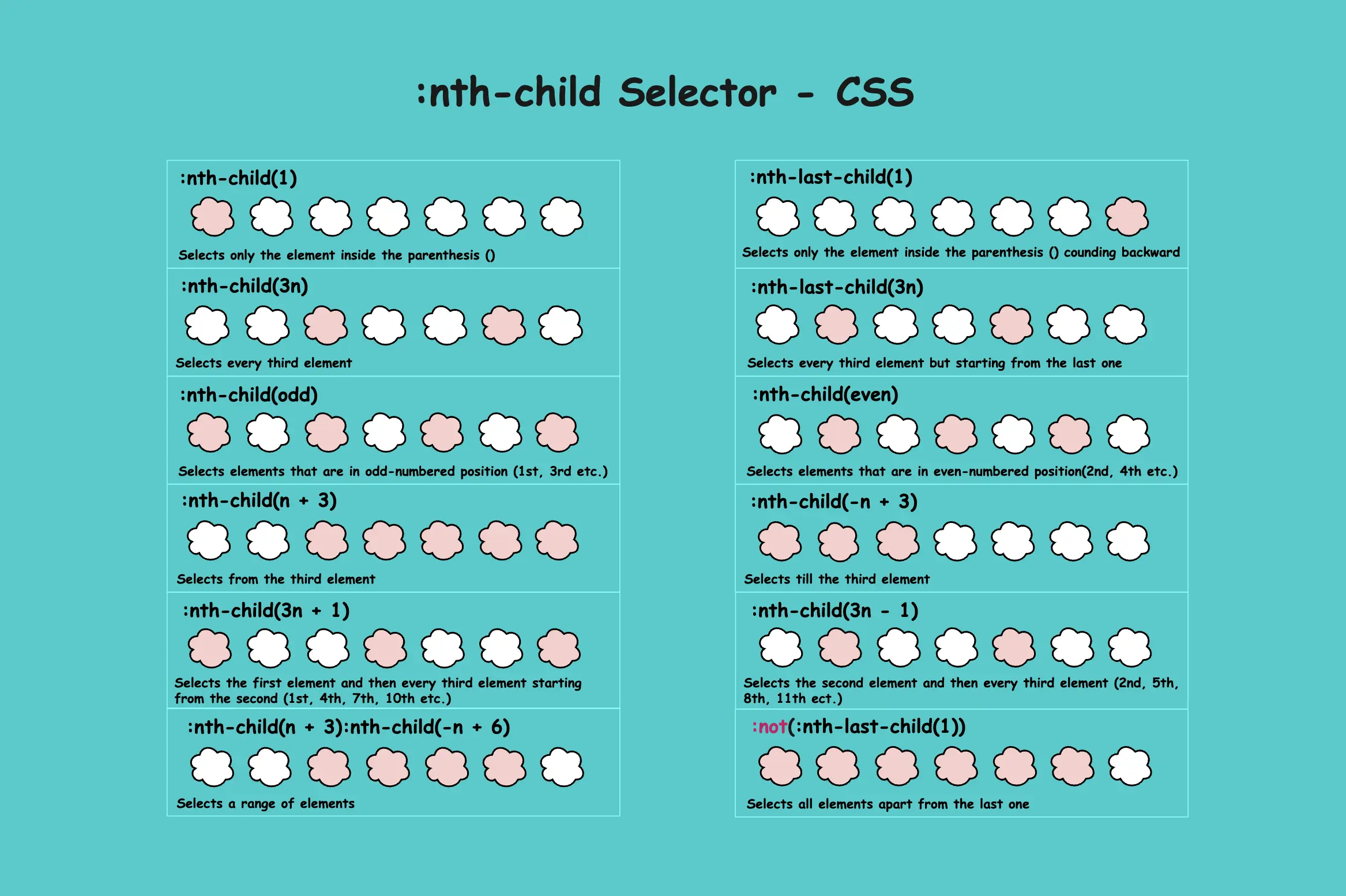
Below, I have drafted a plan that might help you understand things better. Check it out:
Below is an example to explain this CSS property more analytically.
HTML structure for CSS line height
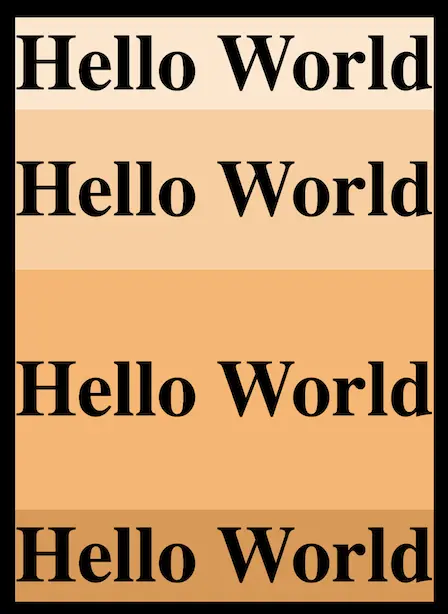
We create an HTML document with four headings <h1> . All headings have the same content (text) but different classes, each with unique characteristics concerning the line-height.
We will move forward with our CSS code and add the necessary characteristics. The first heading has a class with line-height: normal, the second one has a class with line-height: 200px, the third one has a class with line-height: 300px, and the fourth has a class with line-height: -300px (⛔ negative value).
I am using different background-color for each class to easily distinguish them and notice the results clearly. 😉
In the image that follows, we can see the differences between the four headings regarding their line-height ↕.
Utilizing the line-height CSS property can significantly improve text clarity and visual appeal, creating a comfortable reading experience for users. ✨ 😃
The CSS nth child selector is an extremely useful tool for targeting and styling the nth element within a group of similar HTML elements on a webpage. It’s really handy for organizing your code and helps you pick elements based on their position in a sequence. It’s also part of a larger group of selectors.
You can apply specific styles like color or size to just that nth item or to combinations with the nth item in a list or group, making it different from all the others.
The “nth” is a mathematical term that refers to any position in a list or sequence, such as the first, second, third, and so on. A sequence is a set of numbers or elements that follow a particular pattern or rule.
Below are examples of utilizing this selector. Let’s proceed and explore its uses in more detail. 🧐
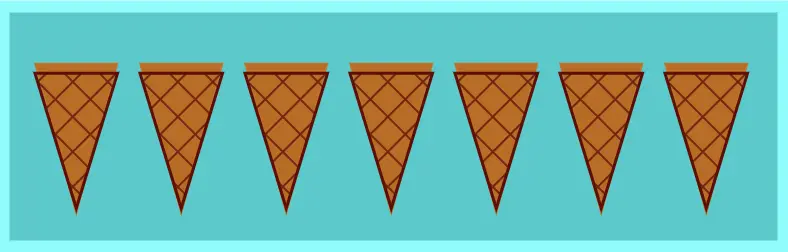
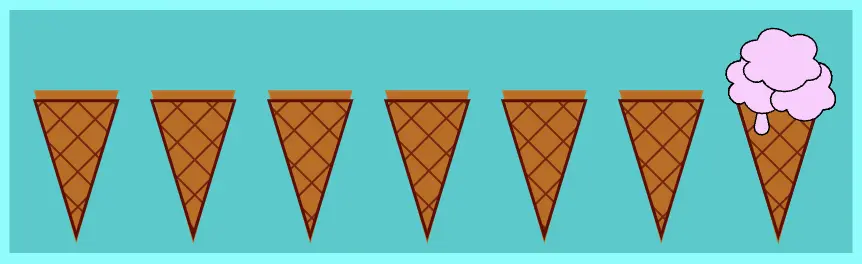
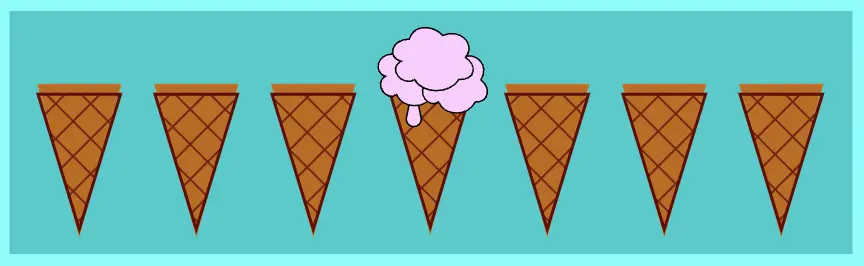
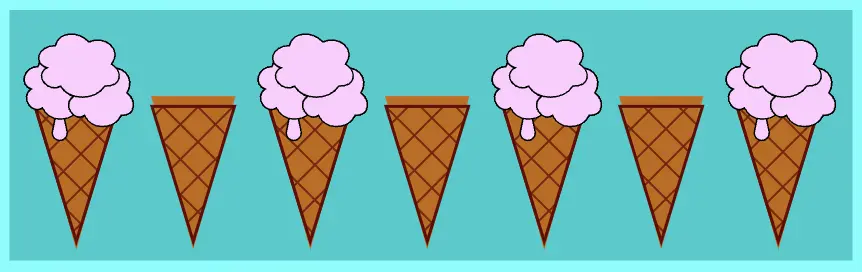
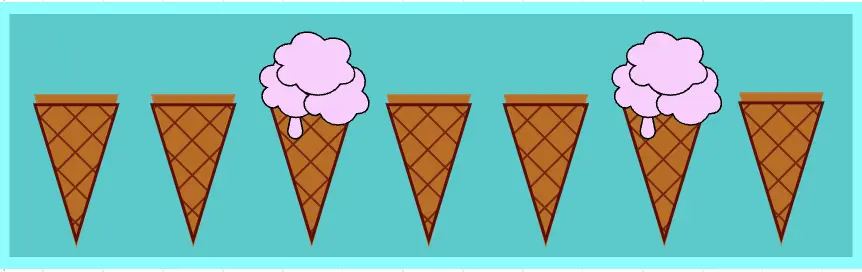
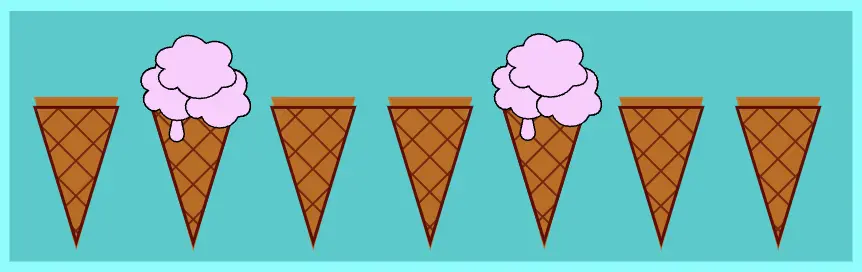
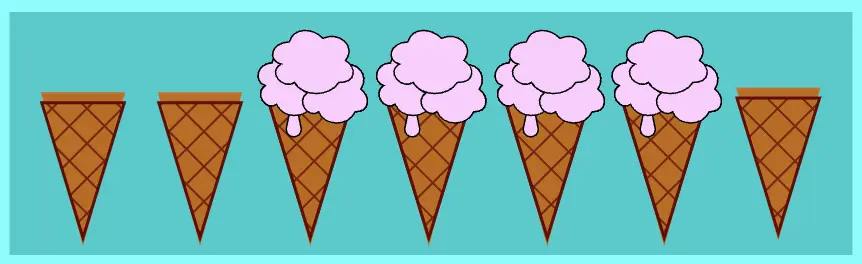
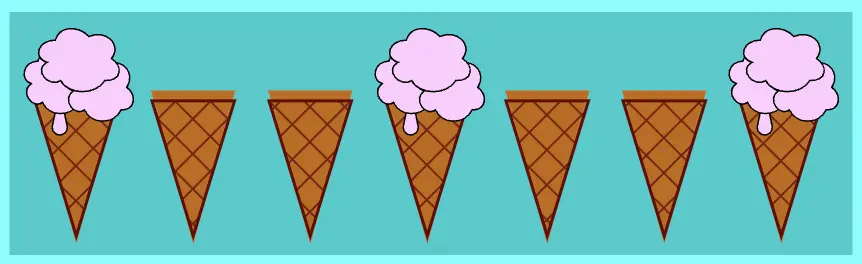
We will use the same HTML code snippet for all instances. We have seven child elements inside our body element. Each one represents an ice cream cone. Yes! You read correctly! An ice cream cone! Let’s make our learning a bit fun! The empty cones remain unaffected, while the cones that have ice cream strawberry 🍓 flavor 🍦 on top are styled based on thenth-child()selector.
Let’s imagine that what you see below would be rendered on the screen if each div child element was actually a cone.
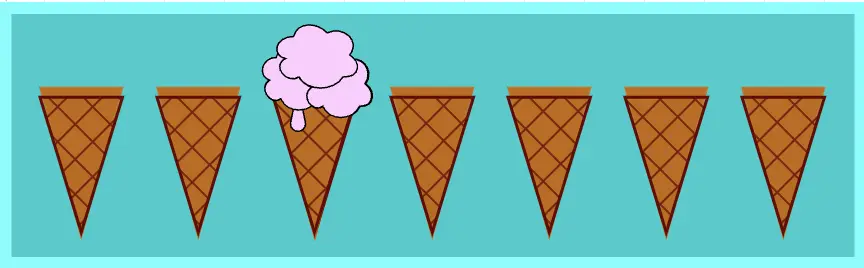
Styling the first element with nth-child(1)
The nth-child(1) selector targets and styles only the first element. So, in our case, we add ice cream strawberry 🍓 flavor 🍦 only to the top of the first cone. All the other cones remain unaffected.
div:nth-child(1) {background-color: pink;}
CSS
* If we want to target the third child, use:nth-child(3), and similarly for other positions.
Styling only the last element with nth-last-child(1)
The nth-last-child(1) selector targets and styles only the last element as it counts backward. That’s why we added the word last in our selector. So that it will pick the first (1) element from the endof the list.
div:nth-last-child(1) {background-color: pink;}
CSS
* If we want to pick the fourth child from the end, we set the:nth-last-child(4), etc.
Select all elements apart from the last one
Combing the nth-last-child selector with the not pseudoclass, we can target and style all elements apart from the last one. That’s why, in this example, we added the word :not and then the word last in our selector, indicating we wanted all but not the last one(1). 🤔
*If we want to pick all elements apart from the first one we can erase thelastword and set the:not(:nth-child(1))etc.
Target every odd child element
Using the word “odd” in our nth-child selector we can target and style every other element, specifically the 1st, 3rd, 5th, 7th and so on
*Odd numbers are those that, when divided by 2, always leave a remainder of 1.
div:nth-child(odd) {background-color: pink;}
CSS
Target every even child element
Just as we did for odd elements, we can also target even elements by using the keyword “even” in our nth-child selector. This allows us to style every second element, specifically the 2nd, 4th, 6th, and so on
*Even numbers are those that can be divided by 2 and leave no remainder.
The nth-child() selector offers great flexibility, allowing us to create combinations that target multiple child elements simultaneously.
Selecting elements based on multiplying by the nth-child()
By using nth-child(3n) we target every third element. In this example, the 3rd element is the first one selected. From there, we move three steps forward forward to the next target, which is the 6th element.
The n in 3n starts at 0 and increases incrementally with each integer (0, 1, 2, 3…). By multiplying n by 3 we target elements at positions that are multiples of 3 (0, 3, 6, 9…).
div:nth-child(3n) {background-color: pink;}
CSS
Select elements based on multiplies with the nth-child(), counting backward
When using the nth-last-child(3n)selector we target every third element, but this time, it starts counting from the end. In our case, we have seven elements. Starting counting from the 7th one, the 5th element is the first we pick. Then we continue by taking three steps backward to the second choice, which is the 2nd element.
The n in 3n starts at 0 and increases incrementally with each integer (0, 1, 2, 3…). The number 3 we assign to n shows multiplies of it, but we also have the last word in our selector, which indicates we start counting from the last child towards the first one.
div:nth-last-child(3n) {background-color: pink;}
CSS
Pick elements that appear after a specific point
This one seems more complicated. 😰 Let’s analyze it a bit more! 🧐
When using the nth-child(n + 3) selector, we are targeting the third element and all subsequent elements. If we use n + 5, it would start counting from the fifth element onward, including the fifth element itself, and continue until the end.
The (n) starts at 0 and increases incrementally with each integer (0, 1, 2, 3…). The (+ 3) means that the selector starts matching from the 3rd element onward.
Here’s how n works under the hood:
n=0 selects the 3rd element (0 + 3 = 3). n=1 selects the 4th element (1 + 3 = 4). n=2 selects the 5th element (2 + 3 = 5). n=3 selects the 6th element (3 + 3 = 6). n=4 selects the 7th element (4 + 3 = 7).
div:nth-child(n + 3) {background-color: pink;}
CSS
Select elements that appear up to a specific point
Using nth-child(-n+3), the selector targets elements up to a specific point, setting a limit to which element will stop. In our case, it picks and styles all the elements up to and including the third element.
The (n) represents 0. The (-n) by itselft is not used in CSS selectors because it does not correspond to any valid child positions. However when combined with a positive number (e.g. :nth-child(-n + 3)), it allows to select the child elements up to and including the specified position, such as the 3rd child. The (+ 3) part of the selector means that the selector matches elements up to and including the 3rd element..
Here’s how n works in practice:
n=0 selects the 3rd element (-0 + 3 = 3). n=1 selects the 2nd element (-1 + 3 = 2). n=2 selects the 1st element (-2 + 3 = 1). n=3 selects no child element (-3 + 3 = 0). 😮
div:nth-child(-n + 3) {background-color: pink;}
CSS
:nth-child(n + X) targets every element from the Xth onward, ensuring the Xth element is also included. WHILE :nth-child(-n + X) targets every element up to and including the Xth element.
Pick a range of elements
If we combine the previous two types of the nth-child selector, we can pick and style a portion of elements. In our example, all elements between the 3rd and the 6th element. Both the start (3rd element) and the end (6th element) are included.
The :nth-child(n + 3) selector targets all children starting from the third element onward.
The :nth-child(-n + 6) selector targets all children up to the sixth element.
Select the first element and then every third element
The n starts at 0 and increases by 1 with each step, representing all integer values (0, 1, 2, 3, …)
Using the expression (n + 1) we determine which elements we want to pick.
By applying the multiplier 3n, we instruct CSS to target every third element in the sequence.
Combining all those charectistics we get:
When n is 0, 3n + 1 => 3 * 0 + 1 = 1, so it selects the 1st child. When n is 1, 3n + 1 => 3 * 1 + 1 = 4, so it selects the 4th child. When n is 2, 3n + 1 => 3 * 2 + 1 = 7, so it selects the 7th child, etc.
div:nth-child(3n + 1) {background-color: pink;}
CSS
Choose the first element and then every third element, counting backward
Same as before, but this time, we start picking elements from the end, as indicated by the word last in our selector.
The n starts at 0 and increases by 1 with each step, representing all integer values (0, 1, 2, 3, …)
Using the expression (n + 1) we determine which elements we want to pick.
By applying the multiplier 3n, we instruct CSS to target every third element in the sequence.
Let’s see how that works:
When n is 0, 3n + 1 => 3 * 0 + 1 = 1, so it selects the 1st child from the end which is the 7th child. When n is 1, 3n + 1 => 3 * 1 + 1 = 4, so it selects the 4th child. When n is 2, 3n + 1 => 3 * 2 + 1 = 7, so it selects the 7th child from the end which is the 1th child.
Choose the second element and then every third element
The same logic applies as in the previous example, except that in this case, we are using subtraction with the selector 3n-1
The n starts at 0 and increases by 1 with each step, representing all integer values (0, 1, 2, 3, …)
Using the expression (n - 1) we determine which elements we want to pick.
By applying the multiplier 3n, we instruct CSS to target every third element in the sequence.
Now that we know what each part does, let’s dive in and see how CSS works when using this selector:
When n is 0 then 3n - 1 => 3 * 0 - 1 = -1, so it selects no child. (I know 🥱) When n is 1 then 3n - 1 => 3 * 1 - 1 = 2, so it selects the 2nd child. When n is 2 then 3n - 1 => 3 * 2 - 1 = 5, so it selects the 5th child, etc.
div:nth-child(3n - 1) {background-color: pink;}
CSS
Using + or - in the selector may sometimes result in the same outcome. In our example, doing 3n+2 or 3n-1, ends up targeting the second element and then every third element onward. However, it’s important to understand that the underlying logic is different.
Select the second element and then every third element, counting backward
Same as before, but this time, we start picking from the end since we have the word last in our selector.
The n starts at 0 and increases by 1 with each step, representing all integer values (0, 1, 2, 3, …)
Using the expression (n - 1) we determine which elements we want to pick.
By applying the multiplier 3n, we instruct CSS to target every third element in the sequence.
Let’s dive in and see whats happening:
When n is 0 then 3n - 1 => 3 * 0 - 1 = -1, so it selects no child. When n is 1 then 3n - 1 => 3 * 1 - 1 = 2, so it selects the 2nd child from the end. When n is 2 then 3n - 1 => 3 * 2 - 1 = 5, so it selects the 5th child from the end, etc.
Although the nth-child() selector is made in order to target specific positions or patterns among children, we can also use it to match all child elements at once by assigning the n inside the parenthesis ().
The n lets the selector match elements at any position inside the parent element. This flexibility allows us to pick elements and apply styles without specifying an exact position. As a result, we can target all possible positions. 😎 Additionally, we have all our cones full of delicious strawberry 🍓 flavor 🍦 ice cream! So, this is by far the sweetest choice!
div:nth-child(n) {background-color: pink;}
CSS
I hope you enjoyed our little trip to the “ice cream CSS nth child” land!! 🎉 🎉 Keep going till next time!! 🍓 🍦 ✨