Category: In the Browser

CSS, HTML, animations, and UI techniques that shape the web experience. Learn how to build beautiful, responsive, and interactive interfaces right in the browser.

  • Introduction To The Powerful CSS Blur Effect

    Introduction To The Powerful CSS Blur Effect

    Hello everybody 😃 Today, we will discover the art of the powerful CSS blur effect. Get ready to meet the amazing backdrop-filter CSS property. We’ll dive 🤿 into the world of adding visual elegance and depth to our web design, and we will learn to create captivating and stunning web elements. Let’s get started!

    Adding basic HTML structure

    Let’s get started with the HTML setup. We create a parent div named custom-container for the background and a child div named blurry-container where we will apply the CSS blur effect. Follow along for the step-by-step process.

    <div class="custom-container">
      <div class="blurry-container"></div>
    </div>
    HTML

    Adding the background image

    We move forward with the CSS structure by preparing the background. I opted for a striking and colorful background image as it is more impressive and gives prominence to our effect, setting background-image. I also add background-repeat which determines how the background image is shown, and background-size which sets the size of the image, in our case we want to fill the entire display. Completing it with height: 100vh for full-screen coverage.

    .custom-container {
      background-image: url(https://images.unsplash.com/photo-1540959733332-eab4deabeeaf?ixlib=rb-1.2.1&ixid=MnwxMjA3fDB8MHxwaG90by1wYWdlfHx8fGVufDB8fHx8&auto=format&fit=crop&w=1194&q=80);
      background-repeat: no-repeat;
      background-size: cover;
      height: 100vh;
    }

    CSS

    The next step is to create a “place” where we can accommodate our blur, I believe a box would serve this need. To begin, I create one by setting the appropriate width and height along with its border and border-radius. I utilized borders to ensure my box remains visible. Whether to keep them or not is entirely up to you. The design can still look great in both cases. Feel free to choose whichever option suits your preference or the project’s requirements. 😃

    .blurry-container {
      border: 2px solid white;
      border-radius: 5px;
      width: 400px;
      height: 500px;
    }

    CSS

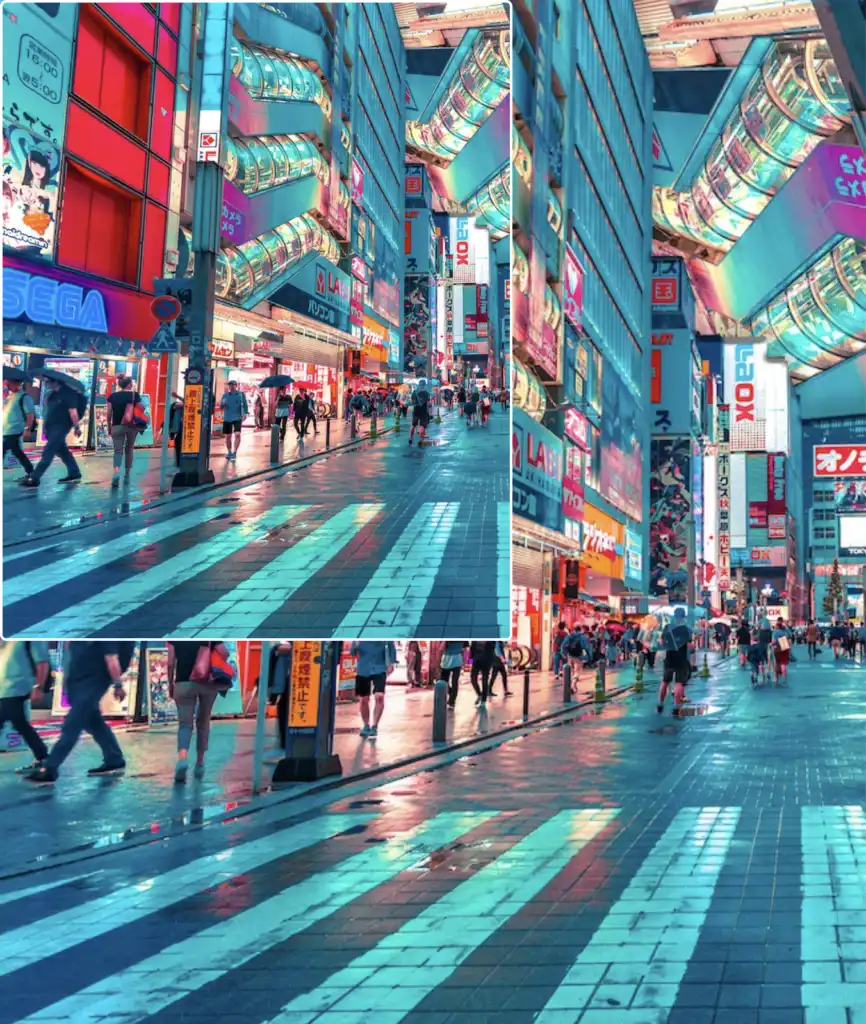
    If we want our box to share the same image as its background, and not just be transparent, it is crucial to add the background: inherit CSS property.

    In the following image, we can see clearly that our box now has the exact same image as its background.

    .blurry-container {
      ...
      background: inherit;
    }
    CSS

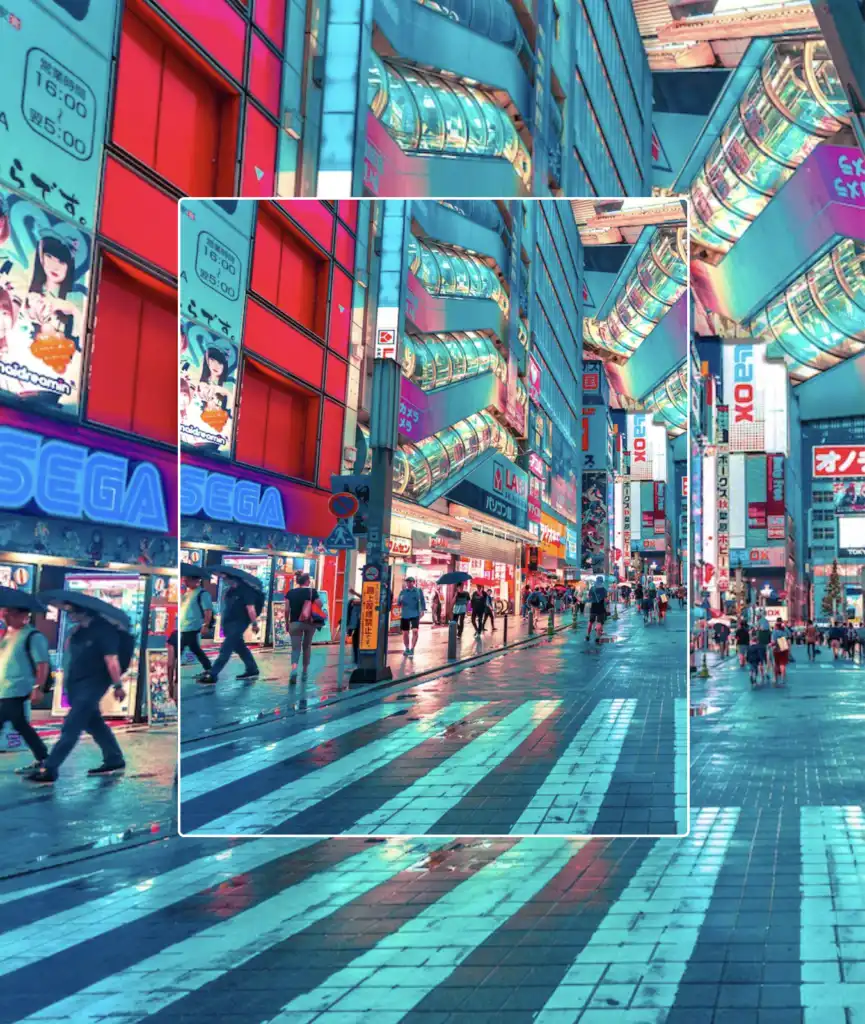
    Now it’s time to center our box. We do so by applying the flex CSS property to the parent HTML element which is the custom-container.

    .custom-container {
      ...
      display: flex;
      align-items: center;
      justify-content: center;
    }
    CSS

    Adding the blur effect (backdrop-filter)

    We create the blur effect using the pseudo-element :before. To manage this, we have to set position:relative to the parent element and position: absolute to the child. The child element needs the content CSS property to be assigned an empty string value in order to be displayed. Despite the recent code adjustments, you won’t notice any visible changes on the screen just yet. 😭

    .custom-container {
      ...
      position: relative;
      .blurry-container {
        ...
        &:before {
          position: absolute;
          content: "";
        } /* end of before */
      } /* end of blurry-container */
    } /* end of custom-container */
    SCSS

    Let’s proceed with our effect. 🥁 We do so by adding the backdrop-filter CSS property to :before pseudoelement. Increasing the pixel value intensifies the blur effect by creating a stronger visual impact. I’ve applied a 12px blur effect, but you have the flexibility to adjust it according to your preferences. If you desire a clearer look, feel free to reduce ⬇ the pixels. Alternatively, for a stronger fade effect, you can increase ⬆ the pixel value.

    &:before {
      ...
      backdrop-filter: blur(12px);
    }


    SCSS

    🔖 What to avoid when applying the blur effect

    Remember that the blur effect can sometimes get out of control on a web page because of how it’s applied to an element. When you use the blur effect, it makes the element bigger, like it’s expanded, depending on how much blur you want. So, the more blur you add, the larger the element becomes. Because of that, the element might grow so big that it spills out of its box or crashes into nearby elements. 😟
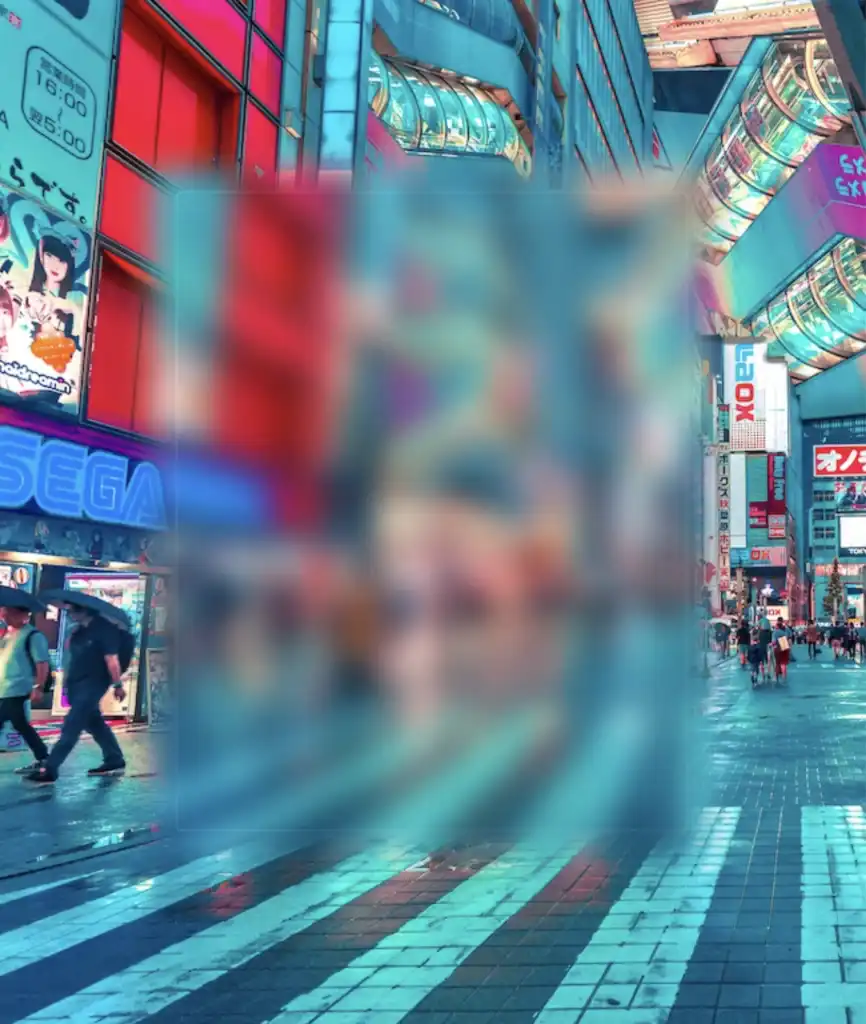
    Observe how the blur CSS property overflows in the current setup above. To correct that, apply the overflow: hidden CSS property to the PARENT element custom-container. With this modification, you can control the blur effect and prevent it from causing a mess on your web page.

    .custom-container {
      ...
      overflow: hidden;
    }
    SCSS

    … and boom 🥳 here it is! Our blur effect displayed flawlessly, as intended!
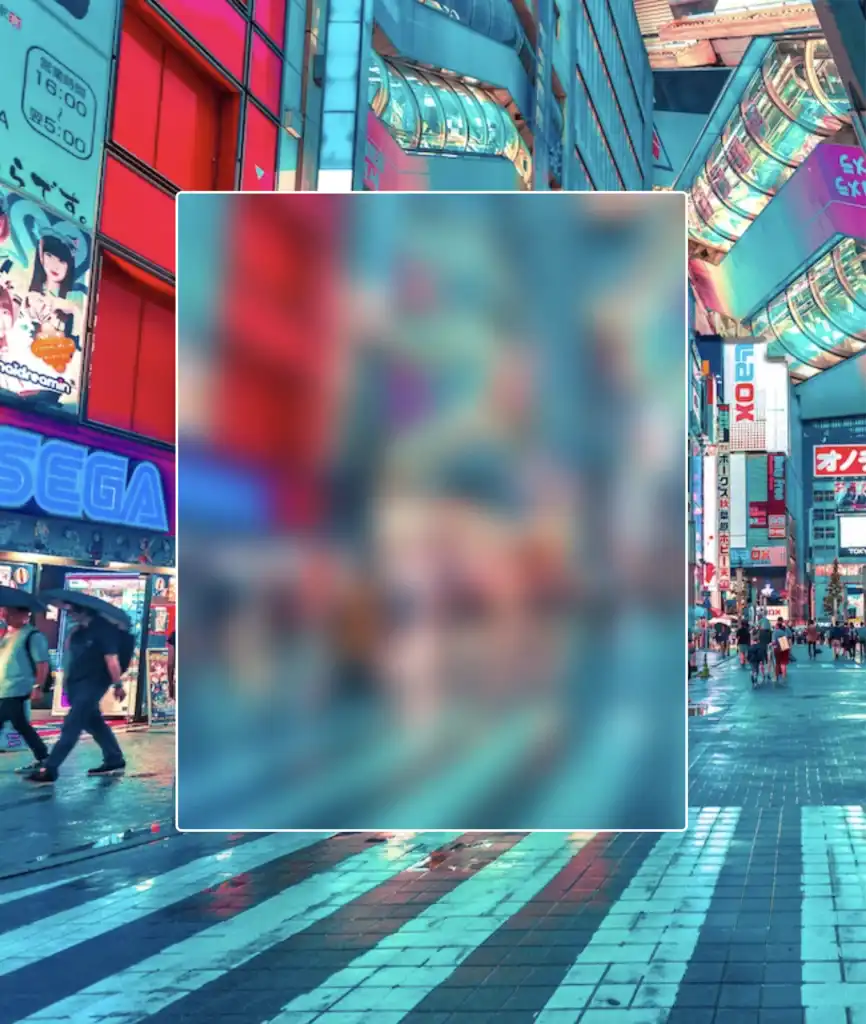
    Complete code solution

    Below is the full code referenced in this blog post. Feel free to copy and use it in your own projects. If you have any questions or encounter any issues, don’t hesitate to reach out for assistance. You can easily copy the desired code snippet by clicking on the copy icon, located in the top-right corner of each snippet.

    <section class="custom-container">
      <div class="blurry-container">
        <div class="title">Hello World</div>
      </div> <!-- end of blurry-container -->
    </section> <!-- end of customer-container -->
    HTML
    * {
      box-sizing: border-box;
      padding: 0;
      margin: 0;
    }
    
    .custom-container {
      height: 100vh;
      display: flex;
      align-items: center;
      justify-content: center;
      background-image: url(https://images.unsplash.com/photo-1540959733332-eab4deabeeaf?ixlib=rb-1.2.1&ixid=MnwxMjA3fDB8MHxwaG90by1wYWdlfHx8fGVufDB8fHx8&auto=format&fit=crop&w=1194&q=80);
      background-repeat: no-repeat;
      background-size: cover;
    
      .blurry-container {
        position: relative;
        border: 2px solid white;
        border-radius: 5px;
        width: 400px;
        height: 500px;
        padding: 100px 50px;
        display: flex;
        align-items: center;
        justify-content: center;
        background: inherit;
        overflow: hidden;
        &:before {
          content: "";
          position: absolute;
          top: -20px;
          left: -20px;
          bottom: -20px;
          right: -20px;
          box-shadow: inset 0 0 300px rgba(25, 100, 128, 0.5);
          backdrop-filter: blur(12px);
        }
        .title {
          font-size: 50px;
          color: #132216;
          font-weight: bold;
          padding: 5px 20px;
          border: 2px solid #364739;
          border-radius: 50px;
          backdrop-filter: blur(8px);
        }
      } /* end of blurry-container */
    } /* end of customer-container */
    SCSS
    Expand

    Complete code solution for post’s cover

    Below, I include the code for my post’s cover. I also added a title to see how we add text over the blur effect. 😎

    <section class="custom-container">
      <div class="blurry-container">
        <div class="title">Hello World</div>
      </div> <!-- end of blurry-container -->
    </section> <!-- end of customer-container -->
    HTML
    * {
      box-sizing: border-box;
      padding: 0;
      margin: 0;
    }
    
    .custom-container {
      height: 100vh;
      display: flex;
      align-items: center;
      justify-content: center;
      background-image: url(https://images.unsplash.com/photo-1440342359743-84fcb8c21f21?w=800&auto=format&fit=crop&q=60&ixlib=rb-4.0.3&ixid=M3wxMjA3fDB8MHxzZWFyY2h8MTJ8fGZvcmVzdHxlbnwwfDB8MHx8fDA%3D);
      background-repeat: no-repeat;
      background-size: cover;
      .blurry-container {
        position: relative;
        border: 2px solid #364739;
        border-radius: 20px;
        width: 500px;
        height: 300px;
        padding: 100px 50px;
        display: flex;
        align-items: center;
        justify-content: center;
        background: inherit;
        overflow: hidden;
        &:before {
          content: "";
          position: absolute;
          top: -20px;
          left: -20px;
          bottom: -20px;
          right: -20px;
          box-shadow: inset 0 0 100px rgba(100, 200, 100, 0.8);
          backdrop-filter: blur(2px);
        }
      } /* end of blurry-container */
      .title {
        font-size: 50px;
        color: #132216;
        font-weight: bold;
        padding: 5px 20px;
        border: 2px solid #364739;
        border-radius: 50px;
        backdrop-filter: blur(8px);
      }
    } /* end of customer-container */
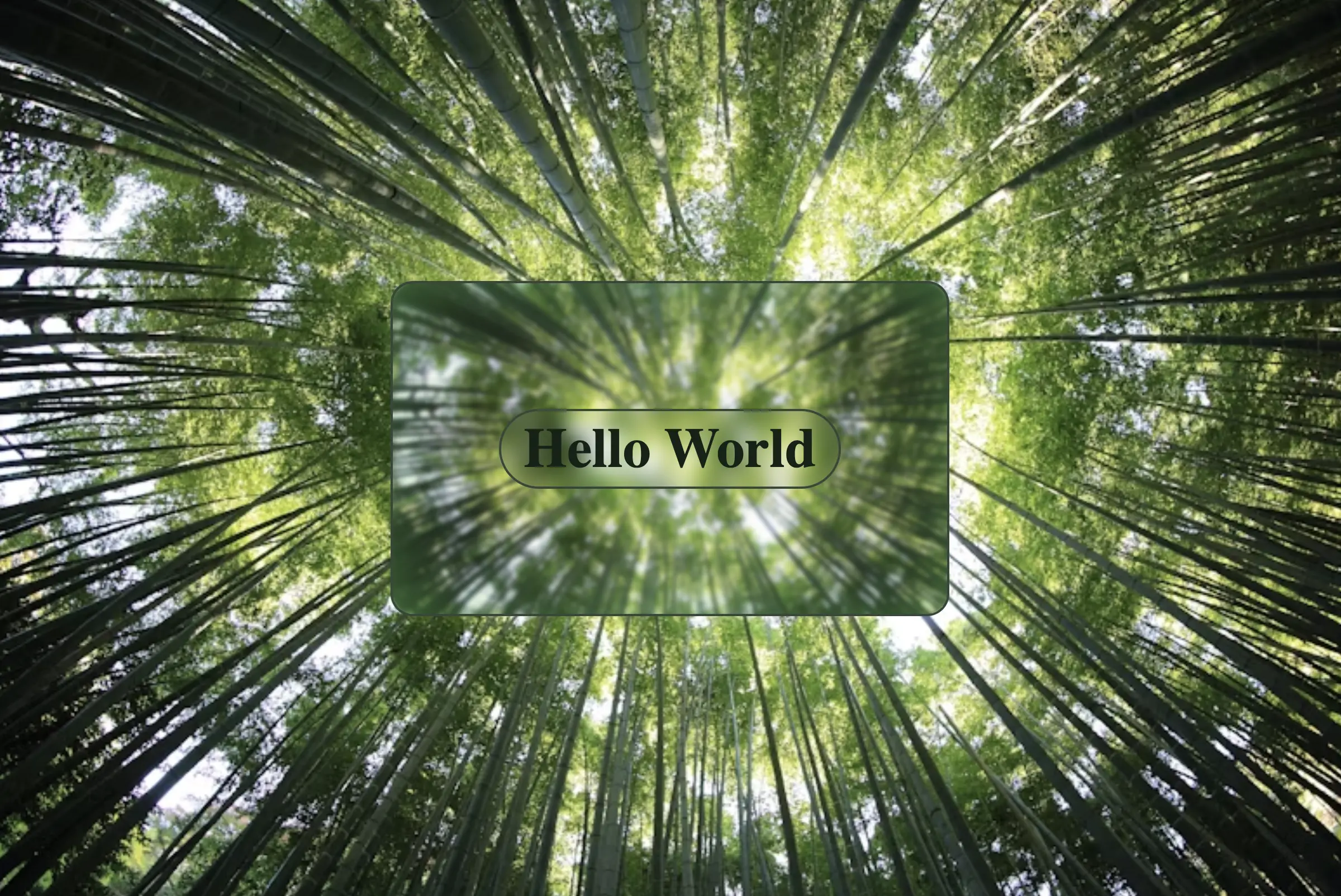
    SCSS
    Expand
  • How to Make a Transparent Button Using HTML and CSS

    How to Make a Transparent Button Using HTML and CSS

    Hey there! 😃 In today’s technology-driven world, it’s super important to learn how to create an awesome transparent button. A well-designed button not only adds to the product’s aesthetic appeal but also enhances the user experience. Therefore, it’s essential to create buttons that are both visually appealing and functionally efficient.

    Let’s work together, utilizing only HTML and CSS, to design the perfect button that stands out and enhances your app’s user-friendliness.

    HTML basic structure

    First, we prepare our HTML code snippet. We need to create a parent element with the class .wrapper that acts as the base of the button. Next, we add a child element within the parent element that will serve as the clickable part of the button. This child element has the class .custom-button . Doing so will help us create an interactive button that users can click on, to perform an action. How amazing is this! 😎

    <div class="wrapper">
      <button class="custom-button"></button>
    </div>
    HTML

    CSS foundation

    Let’s continue by using our CSS magic and making our button look cool! For this post, I am writing CSS using Sass syntax. If you would like to convert it to vanilla CSS and don’t already know how, I’d suggest you use an online Sass —CSS converter.

    Create the base for the transparent button

    First of all, we set the background-color of the body to dark grey and also add some extra positioning properties in order for our button to be centered. We will be using the same color for our button, by applying the background: transparent CSS property, along with some width and height of our choice in the .wrapper class.

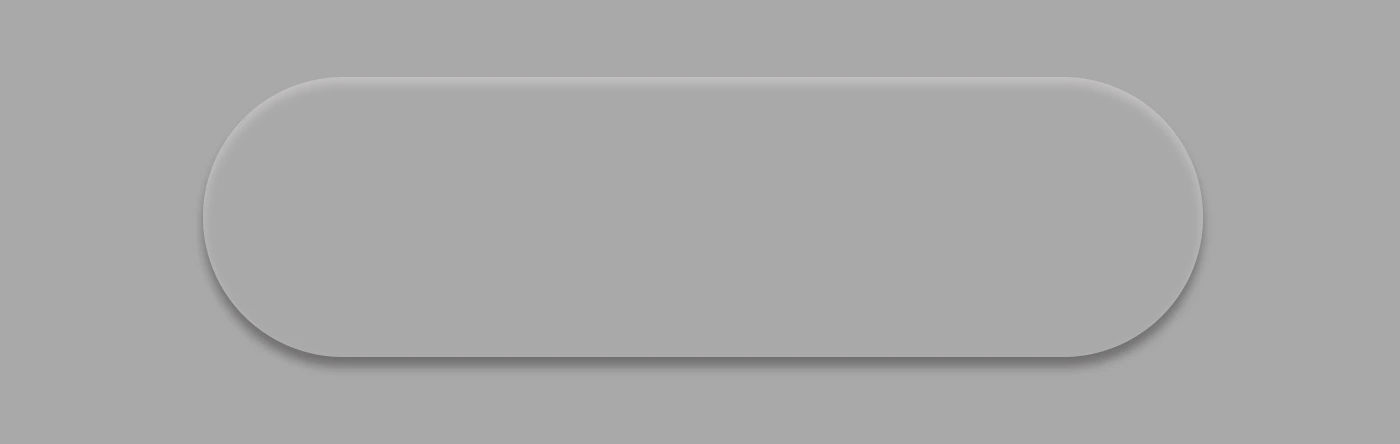
    We are also applying a border-radius of 80 pixels and a box-shadow with carefully selected shades of grey. It is important to select the appropriate shades to ensure the desired outcome. 😉

    For our example, we are placing the clickable part of the button in the center of the base. For that reason, we are using the flex method.

    body {
      background-color: darkgrey;
      height: 100vh;
      
      display: flex;
      align-items: center;
      justify-content: center;
    }
    
    .wrapper {
      width: 500px;
      height: 140px;
      background: transparent;
      border-radius: 80px;
      box-shadow: inset 0px 3px 5px #c6c2c2,
        0px 5px 5px #727070;
    
      display: flex;
      align-items: center;
      justify-content: center;
    } 
    SCSS

    Take a look at the image below to see what’s currently rendered on screen.

    Create the clickable part of the transparent button

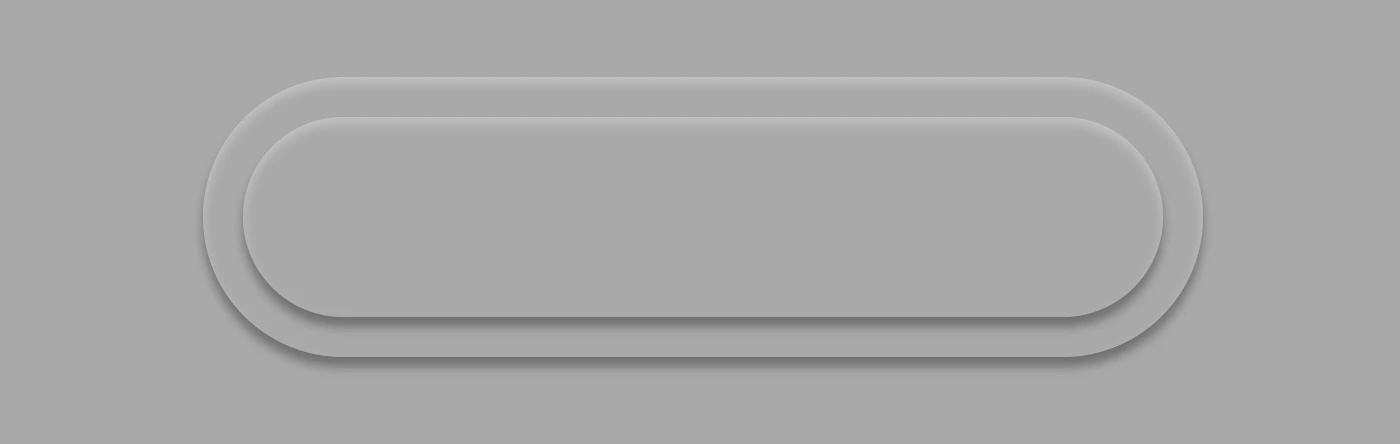
    We proceed with the clickable area of our button. After applying some basic dimensions, we need to make sure the background is set to transparent as we did before, with the base part of the button. After that, we adjust the border-radius and box-shadow to inherit, so that these attributes would be identical to the base. To remove any natively applied border styling we use border: none.

    .custom-button {
      width: 460px;
      height: 100px;
      background: transparent;
      border-radius: inherit;
      box-shadow: inherit;
      border: none;
    }
    SCSS

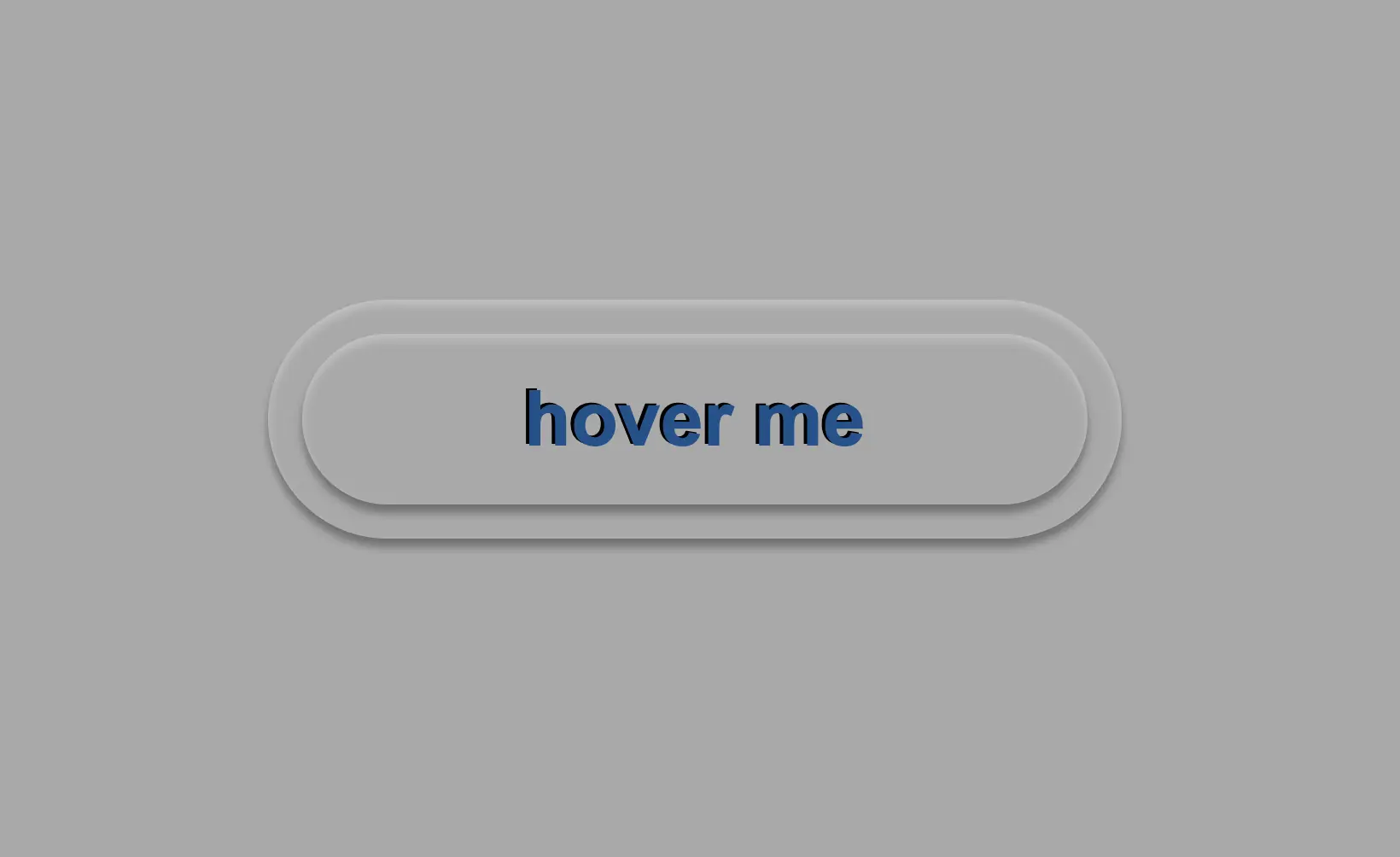
    Below, you see what’s on the screen now, with the clickable (top) part of our button added.

    Add the button text

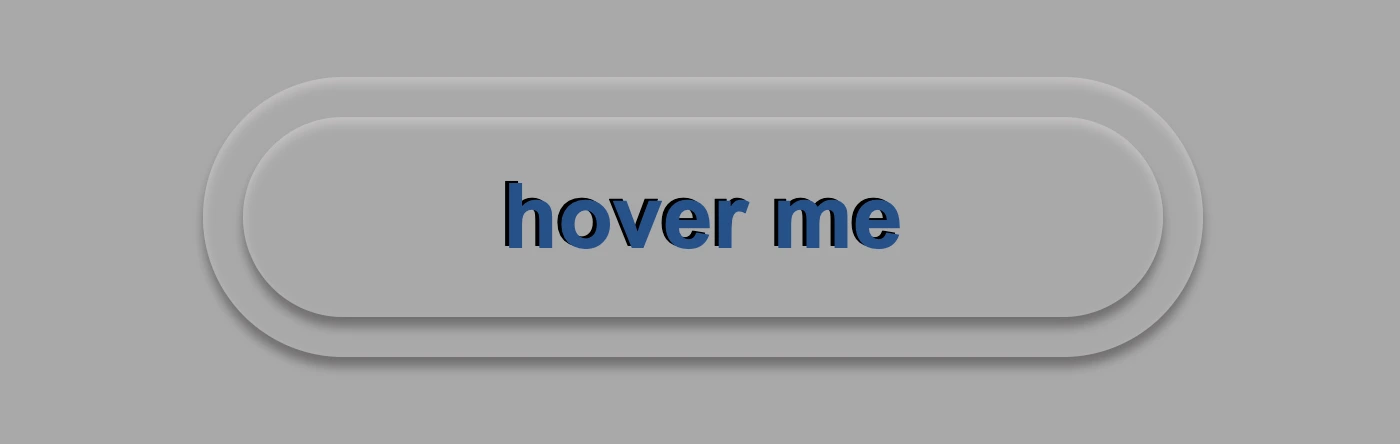
    To begin, we use the flex method to center the button’s text appropriately. Then we add the text using the :before CSS pseudoselector, adding “hover me” as the content. I used a bold, 45-pixel blue text with a black shadow effect. For enhanced readability, I opted for the Arial font-family as it is really legible. 🆒 ✨

    .custom-button {
      ...
      font-family: 'Arial';
      font-size: 45px;
      color: #12528e; /* a shade of blue */
      font-weight: bold;
      display: flex;
      align-items: center;
      justify-content: center;
      &:before {
        position: absolute;
        content: "hover me";
        text-shadow: -2px -1px black;
      }
    }
    SCSS

    In the following image, we can see what’s displayed on the screen now.

    Apply the hover effect of the transparent button

    Now, is the appropriate time to implement the hover effect. We can achieve this by adding the :hover CSS pseudo-class with the cursor set to pointer. After that, we will use :before again to modify the text content to display “click me”.

    .custom-button {
      ...
      &:hover {
        cursor: pointer;
        &:before {
          content: "click me";
        }
      }
    }
    SCSS

    Below, we can observe 🔎 the hover effect in action. Moving the cursor over the button, immediately transforms from arrow ⬆ into pointer 👆(hand), and the text content changes. The hover effect is a widely used design technique that adds interactivity and visual interest to a webpage.

    Apply the active effect of the transparent button

    Now, we can add the :active state to the button to finish our work. Once we click on the button, the active state will be triggered. To make it look more realistic and impressive, we adjust the box-shadow CSS property.

    Additionally, we will modify the text content using the :before CSS property and change it to be inspiring and display the text “Good Job!” in indigo color with white text-shadow.

    .custom-button {
      ...
      &:active {
        box-shadow: 0px -1px 3px #969393,  /* top side */
          inset 0px 5px 3px #b7b5b5, /* inset top side */
          inset 1px 0px 3px #969393, /* inset left side */
          inset -1px 0px 3px #969393, /* inset right side */
          inset 0px -4px 3px #969393; /* inset bottom side */
        &:before {
          content: "Good Job!";
          color: indigo;
          text-shadow: -2px -1px white;
        }
      }
    }
    SCSS

    At this moment, you can witness 🧐 the active effect in action. Take a moment to observe and analyze how the effect is taking place and what impact it has. This will help you gain a better understanding of the process and its outcomes, which can be useful for future reference and decision-making. 😇 So, good luck with your work!

    Complete code solution

    Below is the full code referenced in this blog post. Feel free to copy and use it in your own projects. If you have any questions or encounter any issues, don’t hesitate to reach out for assistance. You can easily copy the desired code snippet by clicking on the copy icon, located in the top-right corner of each snippet.

    <div class="wrapper">
      <button class="custom-button"></button>
    </div>
    HTML
    body {
      background-color: darkgrey;
      height: 100vh;
      
      display: flex;
      align-items: center;
      justify-content: center;
    }
    
    .wrapper {
      width: 500px;
      height: 140px;
      background: transparent;
      border-radius: 80px;
      box-shadow: inset 0px 3px 5px #c6c2c2,
        0px 5px 5px #727070;
    
      display: flex;
      align-items: center;
      justify-content: center;
    }
    
    .custom-button {
      width: 460px;
      height: 100px;
      background: transparent;
      border-radius: inherit;
      box-shadow: inherit;
      border: none;
      font-family: 'Arial';
      font-size: 45px;
      color: #12528e; /* a shade of blue */
      font-weight: bold;
      display: flex;
      align-items: center;
      justify-content: center;
      &:before {
        position: absolute;
        content: "hover me";
        text-shadow: -2px -1px black;
      }
      &:hover {
        cursor: pointer;
        &:before {
          content: "click me";
        }
      }
      &:active {
        box-shadow: 0px -1px 3px #969393,  /* top side */
          inset 0px 5px 3px #b7b5b5, /* inset top side */
          inset 1px 0px 3px #969393, /* inset left side */
          inset -1px 0px 3px #969393, /* inset right side */
          inset 0px -4px 3px #969393; /* inset bottom side */
        &:before {
          content: "Good Job!";
          color: indigo;
          text-shadow: -2px -1px white;
        }
      }
    }
    SCSS
    Expand
  • How To Make A CSS Text Reflection Effect

    How To Make A CSS Text Reflection Effect

    Hi there! 😃 In this post, we’ll learn bit by bit how to create a CSS text reflection effect. When we say reflection, we’re referring to a mirror-like effect that looks like the text reflects on a surface, much like the way we see our reflection in a mirror.

    This is a simple yet amazing way to enhance the appearance of your text. Let’s analyze our effect so that you can easily follow along.

    HTML structure

    We will begin with our HTML structure. As you can see below, I prepared a div with the class .reflection-text , this is where our effect will take place.

    <div class="reflection-text">HELLO WORLD</div>
    CSS

    CSS foundation

    Let’s move forward with the CSS basic structure. We start with defining the background. It’s worth noting that using radial-gradient can make our effect more impressive. 😃

    body {
      background: radial-gradient(lightgreen, darkgreen);
      height: 100vh;
    }
    CSS

    Below, we can see the background we just created.

    In web development, we use the flex method in order to center our text. Then we will enhance its appearance, by making some adjustments. We will set the font-size to 100 pixels, select the “Roboto” font-family, and choose white as the text color.

    body {
      ...
      display: flex;
      align-items: center;
      justify-content: center;
    }
    
    .reflection-text {
      font-size: 100px;
      font-family: 'Roboto', sans-serif;
      color: white;
    }
    CSS

    This is what is rendered on the screen for now. A perfectly centered, 🎯 white text.

    Adding the CSS structure for the reflection effect

    Creating a reflection can be achieved by using pseudoelements like :before and :after. To ensure this works properly, we need to include position: relative in our .reflection-text class.

    .reflection-text {
      ...
      position: relative;
    }
    CSS

    Now, we are ready to proceed and create our reflection by adding the :before pseudoelement with all the necessary properties, as shown in the following code snippet.

    .reflection-text:before {
      content: "HELLO WORLD";
      position: absolute;
      top: 65px;
      transform: rotate(180deg) scaleX(-1);
      background: linear-gradient(
        to bottom, 
        rgba(255, 255, 255, 0) 20%, 
        rgba(255, 255, 255, 0.5) 60%, 
        rgba(255, 255, 255, 2) 100%
      );
      background-clip: text;
      color: transparent;
      opacity: 0.3;
    }
    CSS

    Breaking down the process

    🟢 To begin, we add the text “HELLO WORLD” to create another text element with the same content. This new text will serve as our reflection. Then, we set position: absolute so that we can move our reflected text below the original text. We use the top property to move the reflected text 65 pixels from the top, but you can always move the reflection in any direction you prefer. It is important to position the text and its reflection closely together for a more realistic reflection effect. 😉

    🟢 We move forward and use the transform CSS property to rotate the text by 180 degrees

    and then flip it horizontally using scaleX(-1). Now we have the perfect reflection! Let’s continue and make it more realistic.

    🟢 In the next step, we will adjust the color of our reflected text. To achieve this, we will utilize the linear-gradient CSS property and specify the direction as downwards. This will create white gradients, with the top appearing more intense and gradually fading towards the bottom of the text.

    🟢 It is commonly known that gradients cannot be directly applied to texts. Don’t worry! 🤔 We already have the solution to this problem. For now, let’s give a quick explanation. To create a clipped linear background pattern for text, first, we add the -webkit-background-clip: text property, and at the same time, we set the color to transparent, and our text automatically turns to transparent. In that way, our text takes the background: linear-gradient as its real color.

    🟢 For a more transparent text, we can adjust the opacity. The lower the opacity, the more transparent our text becomes. So, here we are! Our reflection is ready! 🥳

    Exploring different colors

    🔖 It is always an option to use black or any other color in our work. Below, I’ve included examples of texts with black, purple, and green colors. It’s important to remember that the key factor is to set the correct gradients at the linear-gradient property. That way, we can create respective shades. Therefore, please give extra attention to that! 😊

    Black text

    .reflection-text {
      position: relative;
      font-size: 100px;
      font-family: 'Roboto', sans-serif;
      color: black; /* default color */
    }
    CSS
    .reflection-text:before {
      content: "HELLO WORLD";
      position: absolute;
      top: 65px;
      transform: rotate(180deg) scaleX(-1);
      background: linear-gradient(to bottom, 
      rgba(0, 0, 0, 0) 20%, 
      rgba(0, 0, 0, 0.5) 60%, 
      rgba(0, 0, 0, 2) 100%);
      background-clip: text;
      color: transparent;
      opacity: 0.3;
    }
    CSS

    Purple Text

    .reflection-text {
      position: relative;
      font-size: 100px;
      font-family: 'Roboto', sans-serif;
      color: purple;
    }
    CSS
    .reflection-text:before {
      content: "HELLO WORLD";
      position: absolute;
      top: 65px;
      transform: rotate(180deg) scaleX(-1);
      background: linear-gradient(to bottom, 
      rgba(255, 55, 205, 0) 20%, 
      rgba(255, 55, 205, 0.5) 60%, 
      rgba(255, 55, 205, 2) 100%);
      background-clip: text;
      color: transparent;
      opacity: 0.3;
    }
    CSS

    Green Text

    .reflection-text {
      position: relative;
      font-size: 100px;
      font-family: 'Roboto', sans-serif;
      color: green;
    }
    CSS
    .reflection-text2:before {
      content:"HELLO WORLD";
      position: absolute;
      top: 65px;
      transform: rotate(180deg) scaleX(-1);
      background: linear-gradient(to bottom, 
      rgba(20, 150, 20, 0) 20%, 
      rgba(20, 150, 20) 60%, 
      rgba(20, 150, 20, 2) 100%);
      background-clip: text;
      color: transparent;
      opacity: 0.3;
    }
    CSS
  • CSS Linear Gradient Techniques: Create Colorful Line Drawings

    CSS Linear Gradient Techniques: Create Colorful Line Drawings

    Hey there! 😃 Exploring CSS linear gradient techniques is a fantastic approach to fashion vibrant, colorful mixtures. Gradients give us the flexibility to choose any desired direction, defined by their starting and ending points. Mixing a minimum of two colors is fundamental, yet the potential for blending expands further, enabling us to achieve seamless transitions or pronounced shifts based on our design requirements.

    Today, let’s dive into the exciting world of CSS linear gradient techniques. 🌈✨ Picture a smooth transition of colors in a straight line, adding a sleek and dynamic touch to your web design. With linear gradients, you can smoothly transition between colors. You have the power to guide the eye seamlessly from one color to another. Whether it’s a subtle shift or a striking contrast, mastering linear gradients empowers you to enhance the visual appeal of your web projects.

    Ready to discover 🔍 the art and versatility behind linear gradients? Let’s get started! 💻

    Definition of a radial gradient

    A linear gradient is a visual effect that allows us to smoothly shift between colors in a straight line inside any shape we want. It’s like blending multiple colors together in a straight line pattern, allowing us to create colorful and visually appealing backgrounds or effects for elements on our website.

    A linear gradient is a visual effect that allows us to smoothly shift between colors in a straight line inside any shape we want

    The default CSS linear gradient

    We will begin our exploration with the default linear gradient, characterized by its top-to-bottom direction. The following code snippet and image provide a clear representation.

    .linear-default {
      background-image: linear-gradient(red, green);
    }
    
    /* we are free to use "deg" too */
    .linear-default {
      background-image: linear-gradient(180deg, red, green);
    }
    CSS

    From side to side

    We can adjust the direction of our gradients whenever we need to. To help you understand this better, take a look at the example below, where we changed the default direction to to right.

    We are also free to choose any direction we want to top , to right , to bottom (the default direction), to left.

    .linear-to-top {
      background-image: linear-gradient(to right, red, green, blue);
    }
    CSS

    From corner to corner

    At any point, we also have the flexibility to alter the orientation of our gradients along the diagonal path. To illustrate this concept, consider the following example with the to bottom right direction.

    Here colors would spread from the top-left corner to the bottom-right corner. We can combine any corner with its adjacent sides, to top left, to top right, to bottom left, and to bottom right.

    .linear-to-corner {
      background-image: linear-gradient(to bottom right, red, green, blue);
    }
    CSS

    CSS Linear gradient using percentages %

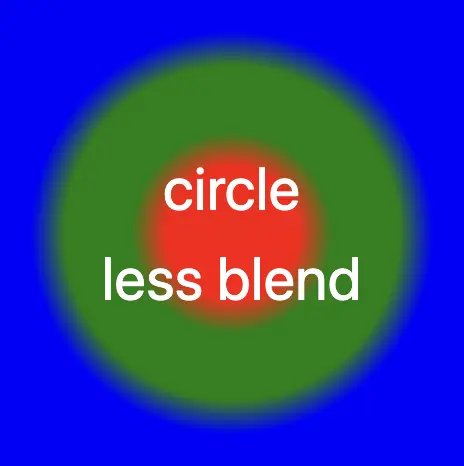
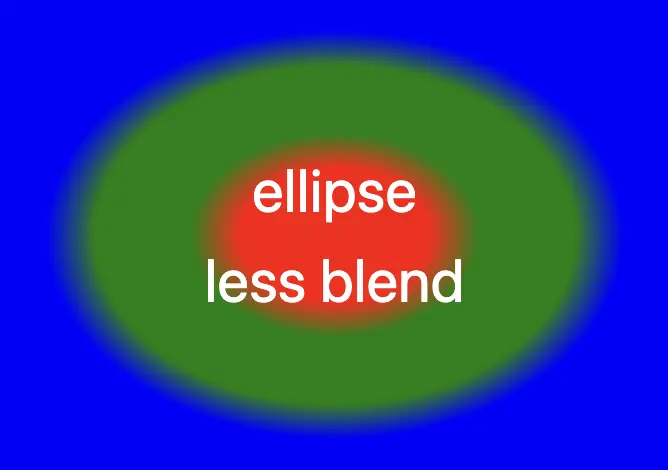
    With less blend

    If we want to create a linear gradient with less blending (colors have more distinct limits this way) and maintain the same space for each color, we can use equal specific stops in the gradient by adding % percentages.

    .linear-less-blend {
      background-image: linear-gradient(
        red 0%, red 18%,
        green 22%, green 38%,
        blue 42%, blue 58%,
        purple 62%, purple 78%,
        orange 82%, orange 100%
      );
    }
    CSS

    🕵️‍♂️ In this example, I’ve divided the space into 5 segments, but I left a 4% blend among each space in order to create a smooth but small transition.

    The percentages between the color stops determine how smooth the transition between colors is.

    • Red (0% – 18%): defines a red color stop that starts at 0% and ends at 18% of the gradient.
    • Between 18% and 22%, there is no specific color stop defined. This gap represents a transition zone where the gradient transitions smoothly from red to green.
    • Green 22%, green 38%): defines a green color stop that starts at 22% and ends at 38% of the gradient.
    • Between 38% and 42%, there is no specific color stop defined. This gap represents a transition zone where the gradient transitions smoothly from green to blue.
    • Blue (42% – 58%): defines a blue color stop that starts at 42% and ends at 58% of the gradient.
    • Between 58% and 62%, there is no specific color stop defined. This gap represents a transition zone where the gradient transitions smoothly from blue to purple.
    • Purple (62% – 78%): defines a purple color stop that starts at 62% and ends at 78% of the gradient.
    • Between 78% and 82%, there is no specific color stop defined. This gap represents a transition zone where the gradient transitions smoothly from purple to orange.
    • Orange (82% – 100%): defines an orange color stop that starts at 82% and ends at 100% of the gradient.
    A colorful css linear gradient technique. Setting the background-image: linear-gradient( red 0%, red 18%, green 22%, green 38%, blue 42%, blue 58%, purple 62%, purple 78%, orange 82%, orange 100% );

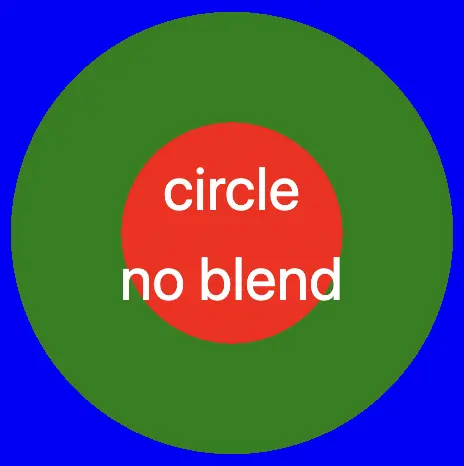
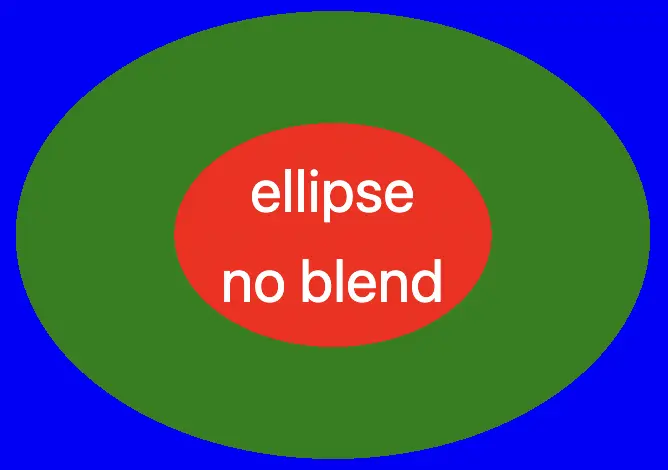
    Without blend

    Finally, it is really useful to know that we are able to create non-smooth transitions. In the following example, we will see a gradient with distinct color stops at specific percentage intervals, resulting in a distinct color transition from red to orange. Each color stop abruptly changes to the next color at the defined percentage points.

    .linear-no-blend {
      background-image: linear-gradient(
        red 0%, red 20%, 
        green 20%, green 40%, 
        blue 40%, blue 60%, 
        purple 60%, purple 80%, 
        orange 80%, orange 100%
      );
    }
    CSS

    🕵️‍♂️ In this example, I’ve divided the space into 5 equal segments without blending among each other. So, we create multiple color stops without transitions.

    • Red (0% – 20%): defines a red color stop that starts at 0% and ends at 20% of the gradient.
    • Green (20% – 40%): defines a green color stop that starts at 20% and ends at 40% of the gradient.
    • Blue (40% – 60%): defines a blue color stop that starts at 40% and ends at 60% of the gradient.
    • Purple (60% – 80%): defines a purple color stop that starts at 60% and ends at 80% of the gradient.
    • Orange (80% – 100%): defines an orange color stop that starts at 80% and ends at 100%
  • How To Make a CSS Shine Effect Animation

    How To Make a CSS Shine Effect Animation

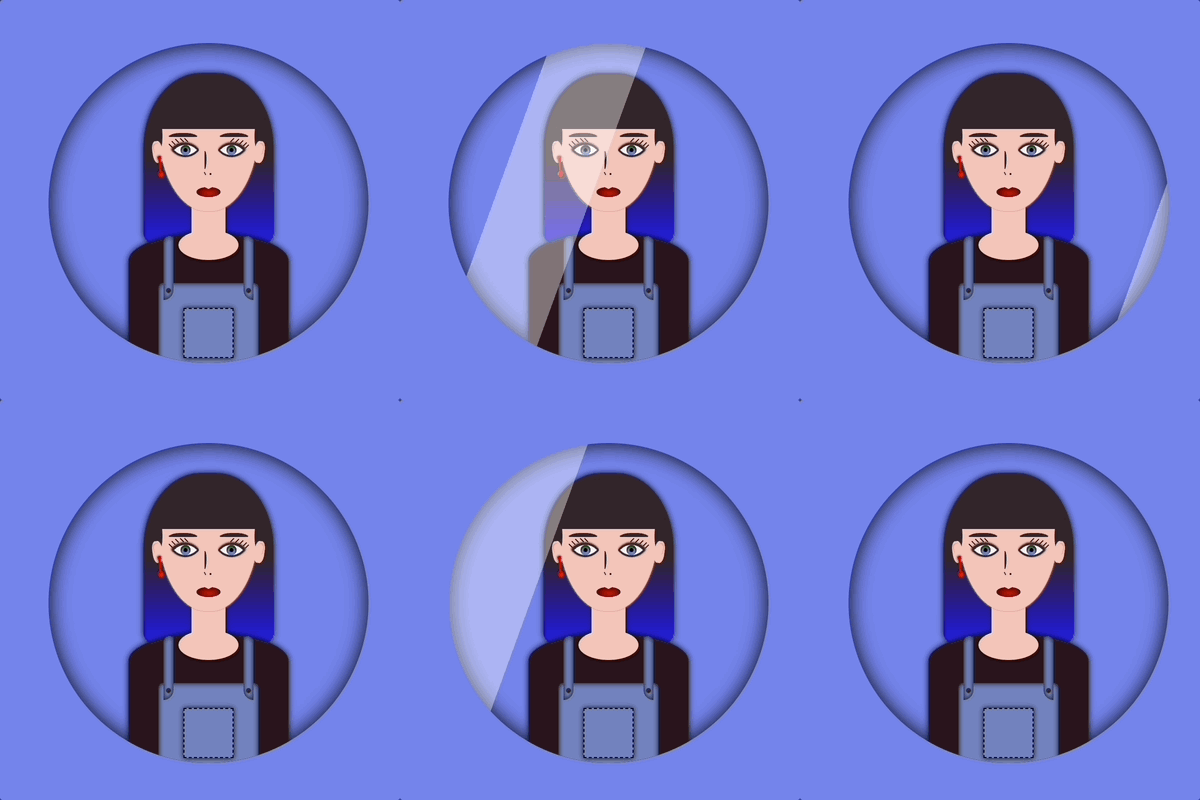
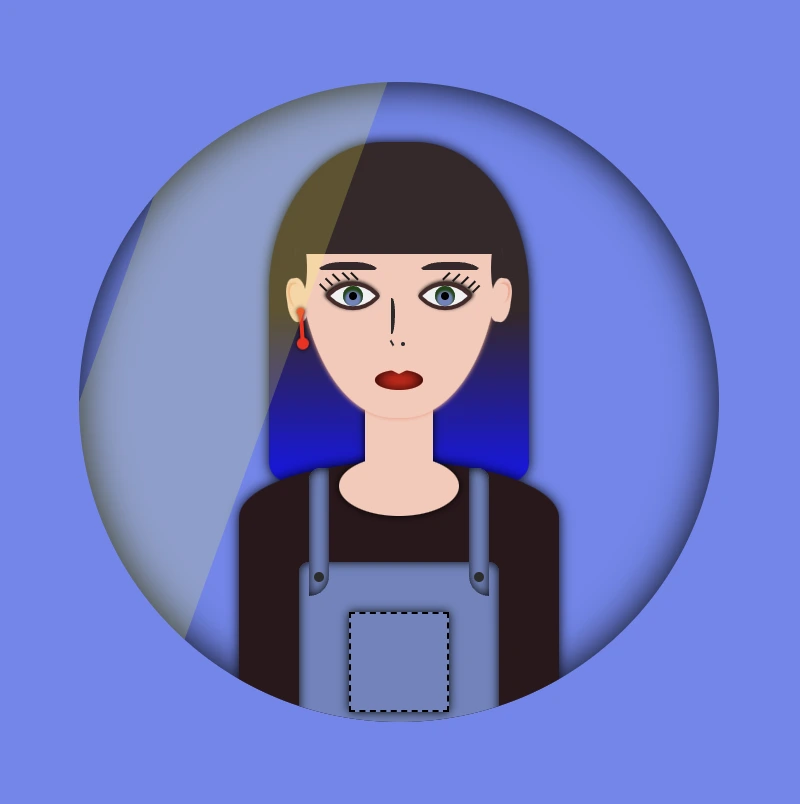
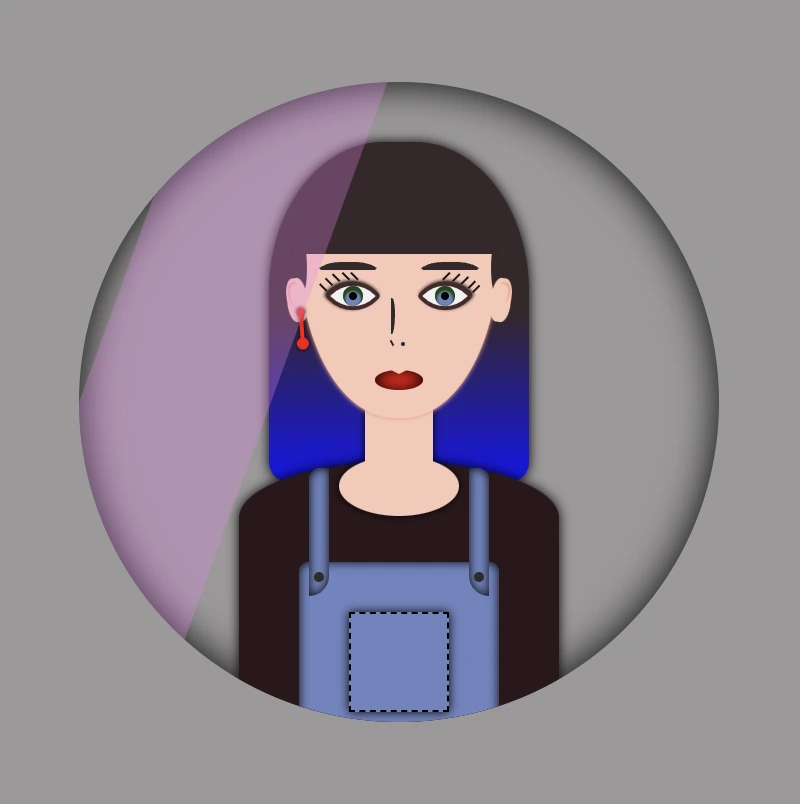

    Welcome to this post! Today, I will share with you how to create a fascinating CSS shine effect animation. To make it more interesting and attractive, I have already prepared an avatar (using only HTML and CSS) and added the animation to it. If you’re curious about how I made the avatar, you can find the complete avatar code at the end of this post. Please feel free to enclose it in your animation if you wish. Remember, the most important thing is to have fun and let your creativity shine. 😉 ✨

    For the moment, let’s focus on making this astonishing animation!

    HTML structure

    To begin, we need to create the base for our project by adding the HTML structure. We’ll start by creating our avatar-container , which will serve for our manipulations. I will carefully guide you through the following steps to achieve the desired results. Once we have a good structure in place, we can build upon it our CSS shine effect.

    <div class="avatar-container">
     ... Here goes my avatar
    </div> <!-- end of avatar-container -->
    HTML

    CSS basic structure

    Moving forward, let’s focus on organizing our project’s visual appeal by adding the CSS structure. Our first step will be to center the avatar-container on the screen, therefore, we can take advantage of the display: flex property of the body element. This will help us align it along the horizontal and vertical axes, creating a perfectly centered layout. With this basic structure in place, we can then proceed to add styles and create everything we have in mind. 😊

    $body-color: #6e87ef;
    
    * {
      margin: 0;
      padding: 0;
      box-sizing: border-box;
    }
    
    html,
    body {
      height: 100%;
    }
    
    body {
      width: 100%;
      display: flex;
      align-items: center;
      justify-content: center;
      background: $body-color;
    }
    SCSS

    CSS avatar container

    In order to place the avatar inside the container, it is essential to set it position: relative. Then we can place the components we want to include for our avatar, just by adding position: absolute to them.

    .avatar-container {
      position: relative;
      min-width: 320px;
      height: 320px;
      background-color: transparent;
      box-shadow: inset 0 0 20px;
      border-radius: 50%;
    } /* end of avatar-container */

    SCSS

    CSS Shine Effect

    All the necessary preparations have been completed. Let’s now move forward and make the shine 🥳 effect.

    Create the shine

    • Firstly, we use :before pseudo-element which allows styling specific parts of an element without adding extra content to HTML. It behaves as a child of the chosen CSS element. In our case, avatar-container takes extra data only by using :before CSS property.
    • Next, we set width: 30% and height: 100% as this is a proper space in our example.
    • We also set background-color: rgba(255, 255, 255, 0.4) as it is the most suitable for the CSS shine effect.
    • We continue with z-index which overlaps the stack order of an HTML element. In simple words, it manages which HTML element should appear on top of others. The higher the stack order, the higher the element will be placed at the top of the stacking order. A really useful CSS property that is responsible for layering. To achieve the desired effect over my avatar, I have specified a z-index: 4 as my avatar has multiple layers. Without multiple layers applied to it (in simple words without the avatar), z-index CSS property is not necessary. It’s good practice when we use z-index to count close numbers. We can set positive and negative integer values.
    .avatar-container {
        position: relative;
        width: 320px;
        height: 320px;
        background-color: transparent;
        box-shadow: inset 0 0 20px;
        border-radius: 50%;
        overflow: hidden;
        &:before {
          position: absolute;
          content: "";
          width: 30%;
          height: 100%;
          background-color: rgba(255, 255, 255, 0.4);
          transform: skewX(-20deg);
          left: -120px;
          z-index: 3;
        } /* end of before */
      } /* end of avatar-container */

    SCSS

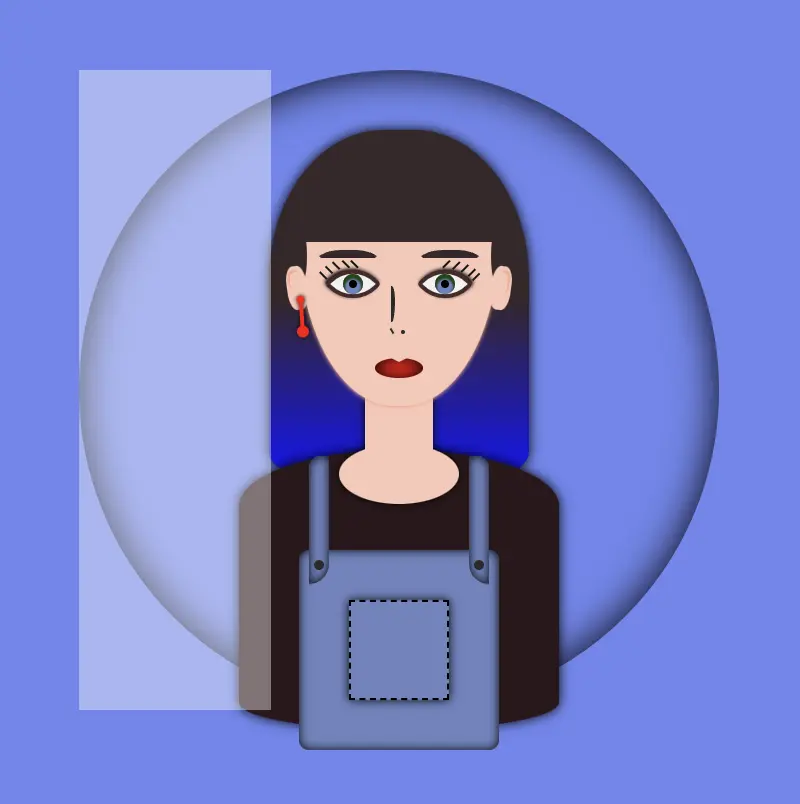
    The image below displays a preview of the code mentioned above.

    Transform the CSS shine effect

    • Afterward is necessary to add overflow: hidden to avatar-container, as we want to hide the content that flows over our container’s bounds.
    • We continue with transform: skew as a way to add inclination to our shine.
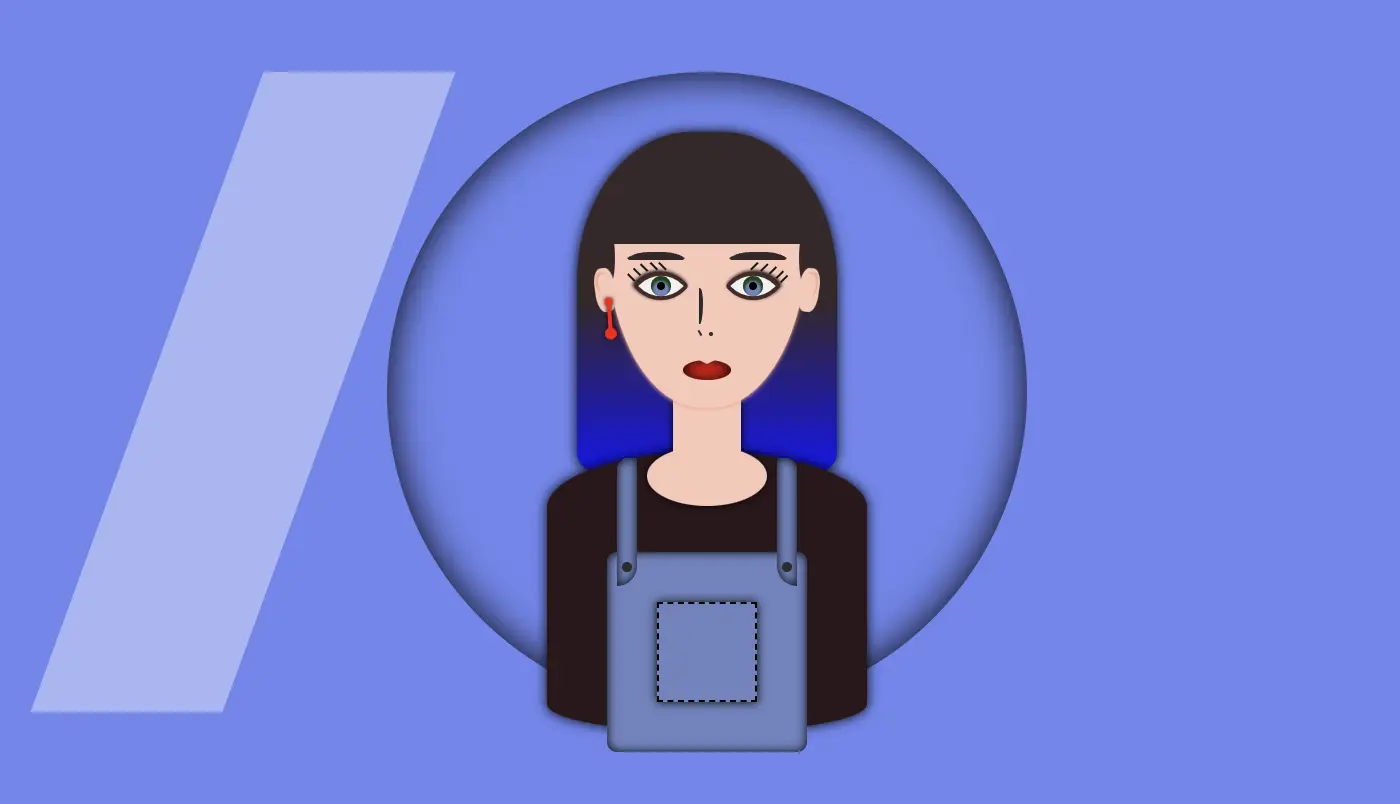
    • Finally left: -120px keeps our effect in the appropriate place, -120px left out of the avatar-container , in order to be invisible. As we previously used, overflow: hidden anything outside of the avatar-container is not visible, that’s why in this pick, below, we can’t see our effect. It’s still there though! 😄

    HINT

    💡 Well, maybe at this point it might be a good idea to temporarily disable the CSS property overflow: hidden and observe the current position of the effect. By doing so, one can see if the effect is working as intended and make any necessary adjustments. The effect is now positioned -120 pixels to the left, as this is the starting point from where the effect will begin to move.

    Create an animation for the CSS shine effect

    • To finalize my work, firstly, I’m adding the animation CSS property animation: <animation-name> <animation-duration> <animation-iteration-count> which is responsible for the way our animation behaves.
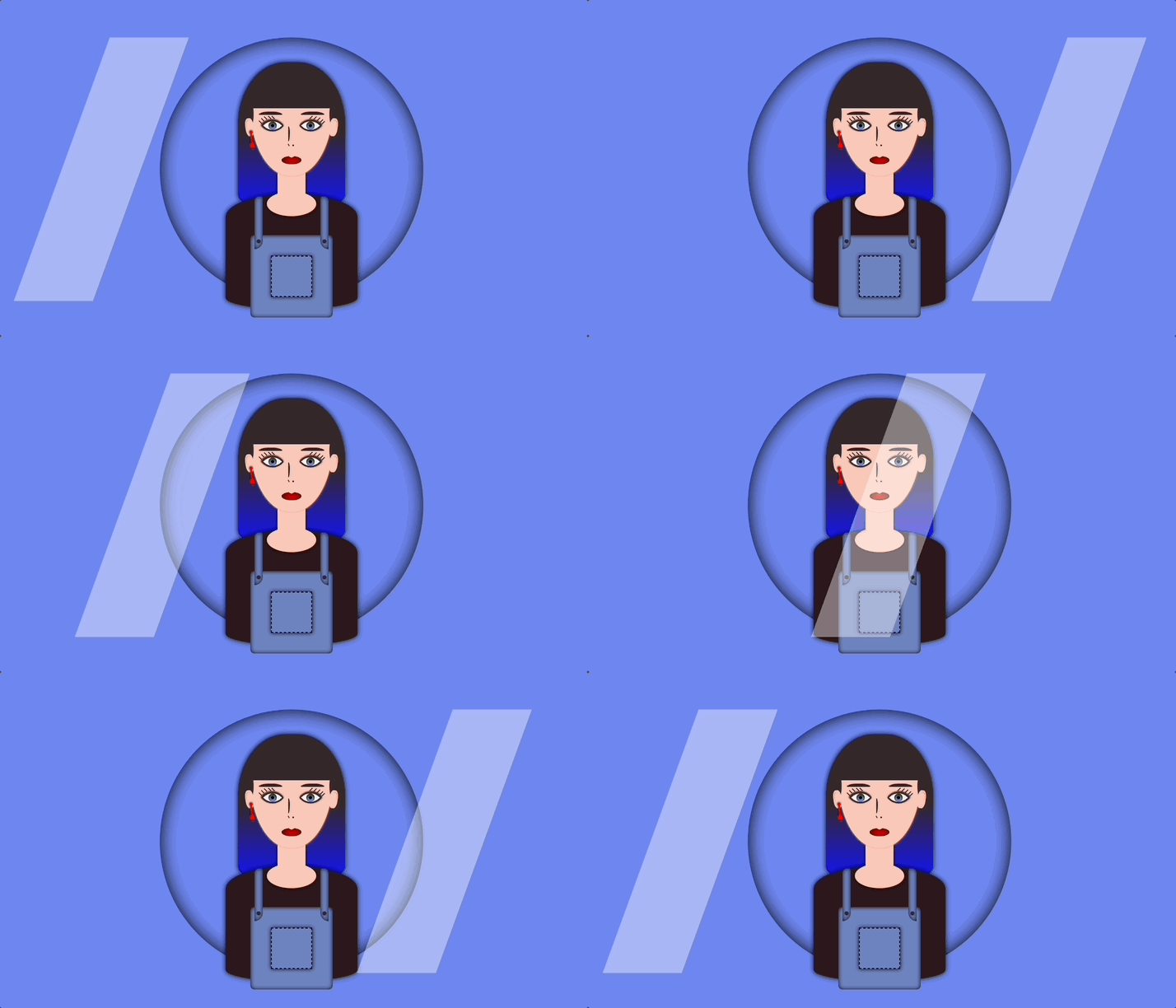
    • Secondly, I add CSS @keyframes which is used to control the style of the animation at different points in time. In this post, we want our shine to move rightwards, starting from -120px left to 350px left and then turning back to -120px left again.
    • By combining these 2 properties we end up having the desired animation result, that is, moving our shine every 5 seconds, forever (infinite), from -120px to 350px and back.

    🚫 It is required to connect these two properties. We do so by giving a name to the @keyframes and putting the same name on the animation property. In our case, this name is “shine”.

    .avatar-container {
      ...
      &:before {
        ...
        animation: shine 5s infinite;
      } /* end of before */
    } /* end of avatar-container */

      
      
    /* My animation */
    @keyframes shine {
      0% {
        left: -120px;
      }
      50% {
        left: 350px;
      }
      0% {
        left: -120px;
      }
    }
    SCSS

    💡 If you want to see the whole move of the CSS shine effect you can once again disable the CSS property overflow: hidden to avatar-container and observe the effect. Isn’t it great? 😄

    🔖 Please be informed that you have the flexibility to modify the background-color: rgba(..., ..., ..., ...) CSS property at any point to adjust both the color and opacity of your shine effect. In this context, I have chosen to generate a grey shine, as this shade is widely recognized and utilized.

    Below, I add some examples with different shades. You are free to try them, or you can experiment and create some from scratch! 🛠

    Yellow shade -> background-color:rgba(255, 255, 0, 0.2)

    🧨 Blue shade -> background-color:rgba(100, 100, 250, 0.5) always remember to make contrasts. Avoid using the same color for backgrounds and shades.

    You can also try to change both the container’s and shades’ background-color.

    Pink shade -> background-color:rgba(238, 130, 238, 0.3)

    Container’s color -> background-color: #c4c0c0 (grey)

    Complete avatar code

    Below, I include my HTML and CSS avatar code.

    <div class="avatar-container">
      <div class="hair-long"></div>
      <div class="face">
        <div class="ear ear--left">
          <div class="earing earing--left"></div>
        </div>
        <div class="ear ear--right"></div>
        <div class="hair-front"></div>
        <div class="eyebrow eyebrow--left"></div>
        <div class="eyebrow eyebrow--right"></div>
        <div class="eye eye--left">
          <div class="eyelash eyelash--left"></div>
          <div class="eyelash eyelash--left1"></div>
          <div class="eyelash eyelash--left2"></div>
          <div class="eyelash eyelash--left3"></div>
          <div class="eyelash eyelash--left4"></div>
        </div> <!-- end of left eye -->
        <div class="eye eye--right">
          <div class="eyelash eyelash--right"></div>
          <div class="eyelash eyelash--right1"></div>
          <div class="eyelash eyelash--right2"></div>
          <div class="eyelash eyelash--right3"></div>
          <div class="eyelash eyelash--right4"></div>
        </div> <!-- end of right eye -->
        <div class="nose"></div>
        <div class="lips"></div>
      </div> <!-- end of face -->
      <div class="body-avatar">
        <div class="neck"></div>
        <div class="t-shirt"></div>
        <div class="dungarees">
          <div class="pocket"></div>
          <div class="strap strap--left">
            <div class="button button--left"></div>
          </div>
          <div class="strap strap--right">
            <div class="button button--right"></div>
          </div>
        </div> <!-- end of dungarees -->
      </div> <!-- end of body -->
    </div> <!-- end of avatar-container -->
    HTML
    Expand
    $body-color: #6e87ef;
    $skin-color: #fac8b9;
    $hair-color: #36272a;
    $hair-ombre-color: linear-gradient(#36272a 50%, #1616ee);
    $eyebrow-color: #36272a;
    $eye-color: #6d84c0;
    $eye-base-color: #f1f1f1;
    $eyeline-color: #472a2a;
    $eyelash-color: #171616;
    $iris-color: #000;
    $earing-color: red;
    $nose-color: #2b2a2a;
    $lips-color: #f50000;
    $t-shirt-color: #2c171b;
    $dungarees-color: #6d84c0;
    $strap-color: #6d84c0;
    $button-color: #2d2c2c;
    
    
    * {
      margin: 0;
      padding: 0;
      box-sizing: border-box;
    }
    
    html,
    body {
      height: 100vh;
    }
    
    body {
      width: 100%;
      display: flex;
      align-items: center;
      justify-content: center;
      background: $body-color;
    }
    
    .avatar-container {
      position: relative;
      min-width: 320px;
      height: 320px;
      background-color: transparent;
      box-shadow: inset 0 0 20px;
      border-radius: 50%;
      overflow: hidden;
    
      .hair-long {
        position: absolute;
        width: 130px;
        height: 170px;
        border-radius: 44% 44% 10px 10px;
        top: 30px;
        left: 50%;
        transform: translate(-50%);
        background: $hair-ombre-color;
        filter: drop-shadow(0 0 3px);
      }
    
      .face {
        position: absolute;
        width: 100px;
        height: 110px;
        border-radius: 100% / 50% 50% 160% 160%;
        background-color: $skin-color;
        top: 58px;
        left: 50%;
        transform: translate(-50%);
        z-index: 2;
        box-shadow: 0 0.5px 2px darken($skin-color, 10%);
        .ear {
          position: absolute;
          width: 10px;
          height: 22px;
          background-color: $skin-color;
          border-radius: 40%;
          top: 40px;
          z-index: 3;
          &--left {
            left: -6px;
            transform: rotate(-8deg);
            &:before {
              content: "";
              position: absolute;
              width: 6px;
              height: 12px;
              background-color: $skin-color;
              border-radius: 40% 40% 50% 50%;
              box-shadow: -1px -1px 1px darken($skin-color, 10%);
              top: 3px;
              left: 2px;
            }
          }
          &--right {
            right: -6px;
            transform: rotate(8deg);
            &:before {
              content: "";
              position: absolute;
              width: 6px;
              height: 10px;
              background-color: $skin-color;
              border-radius: 40% 40% 50% 50%;
              box-shadow: 1px -1px 1px darken($skin-color, 10%);
              top: 3px;
              right: 2px;
            }
          }
          .earing {
            position: absolute;
            width: 4px;
            height: 4px;
            background-color: $earing-color;
            filter: drop-shadow(0 0 1px);
            border-radius: 50%;
            transform: rotate(4deg);
            &:before {
              content: "";
              position: absolute;
              width: 2px;
              height: 16px;
              background-color: $earing-color;
            }
            &:after {
              content: "";
              position: absolute;
              width: 6px;
              height: 6px;
              background-color: $earing-color;
              border-radius: 50%;
            }
            &--left {
              top: 15px;
              left: 4px;
              &:before {
                top: 3px;
                right: 1px;
              }
              &:after {
                top: 15px;
                left: -1px;
              } 
            }
          } // end of earing
        } // end of ear
        .hair-front {
          position: absolute;
          width: 104px;
          height: 30px;
          top: -2px;
          left: -2px;
          border-radius: 5px;
          background-color: $hair-color;
          &:before {
            content: "";
            position: absolute;
            width: 28px;
            height: 6px;
            background-color: $hair-color;
            border-radius: 50%;
            top: 34px;
            left: -11px;
            transform: rotate(-90deg);
          }
          &:after {
            content: "";
            position: absolute;
            width: 28px;
            height: 6px;
            background-color: $hair-color;
            border-radius: 50%;
            top: 34px;
            right: -11px;
            transform: rotate(-90deg);
          }
        }  // end of hair-front
    
        .eye {
          position: absolute;
          width: 20px;
          height: 20px;
          top: 39px;
          background-color: $eye-base-color;
          border: 2px solid $eyeline-color;
          border-radius: 85% 10%;
          transform: rotate(45deg);
          &:before {
            content: "";
            position: absolute;
            width: 10px;
            height: 10px;
            top: 50%;
            left: 50%;
            transform: translate(-50%, -50%);
            background-color: $eye-color;
            border-radius: 50%;
            box-shadow: inset 1px 1px 1px 1px #17460d;
          }
          &--left {
            left: 17px;
            box-shadow: -1px 0 2px darken($eyeline-color, 50%);
          }
          &--right {
            right: 17px;
            box-shadow: 0 -1px 2px darken($eyeline-color, 50%);
          }
          &:after {
            content: "";
            position: absolute;
            width: 4px;
            height: 4px;
            top: 50%;
            left: 50%;
            transform: translate(-50%, -50%);
            background-color: $iris-color;
            border-radius: 50%;
          }
          .eyelash {
            position: absolute;
            width: 1px;
            height: 5px;
            background-color: $eyelash-color;
            &--left,
            &--left1,
            &--left2,
            &--left3,
            &--left4 {
              transform: rotate(90deg);
            }
            &--left {
              top: -2px;
              left: 1px
            }
            &--left1 {
              top: 1px;
              left: -2px
            }
            &--left2 {
              top: 5px;
              left: -5px
            }
            &--left3 {
              top: 9px;
              left: -6px
            }
            &--left4 {
              top: 13px;
              left: -6px
            }
            &--right {
              top: -2px;
              right: 14px;
            }
            &--right1 {
              top: -5px;
              right: 10px;
            }
            &--right2 {
              top: -7px;
              right: 6px;
            }
            &--right3 {
              top: -8px;
              right: 2px;
            }
            &--right4 {
              top: -8px;
              right: -1px;
            }
          }  // end of eyelash
        }  // end of eye
    
        .eyebrow {
          position: absolute;
          width: 35px;
          height: 7px;  
          border: solid 4px $hair-color;
          border-color: $hair-color transparent transparent transparent;
          border-radius: 50%/10px 10px 0 0;
          top: 32px;
          &--left {
            left: 7px;
          }
          &--right {
            right: 7px;
          }
        } // end of eyebrows
    
        .nose {
          position: absolute;
          width: 2px;
          height: 18px;
          border: 2px solid $nose-color;
          border-left: 0px;
          border-top-right-radius: 80% 40%;
          border-bottom-right-radius: 80% 60%;
          top: 50px;
          left: 46px;
          &:before {
            position: absolute;
            content: "";
            width: 1px;
            height: 3px;
            background-color: $nose-color;
            top: 19px;
            transform: rotate(-30deg);
          }
          &:after {
            position: absolute;
            content: "";
            width: 2px;
            height: 2px;
            border-radius: 50%;
            background-color: $nose-color;
            top: 20px;
            left: 5px;
          }
        } // end of nose
    
        .lips {
          position: absolute;
          width: 24px;
          height: 10px;
          border-radius: 50%;
          background-color: $lips-color;
          top: 86px;
          left: 50%;
          transform: translate(-50%);
          box-shadow: inset 0 0 7px;
          &:after {
            content: "";
            position: absolute;
            width: 0;
            height: 0;
            border-left: 6px solid transparent;
            border-right: 6px solid transparent;
            border-top: 3px solid $skin-color;
            border-radius: 60%;
            top: -1px;
            left: 6px;
          }
        } // end of lips
      } // end of face
    
      .body-avatar {
        .neck {
          position: absolute;
          width: 34px;
          height: 50px;
          background-color: $skin-color;
          filter: drop-shadow(0 0 2px);
          top: 152px;
          left: 50%;
          transform: translate(-50%);
          z-index: 1;
          &:before {
            content: "";
            position: absolute;
            width: 60px;
            height: 30px;
            background-color: $skin-color;
            border-radius: 50%;
            top: 35px;
            left: 50%;
            transform: translate(-50%);
          }
        }
    
        .t-shirt {
          position: absolute;
          width: 160px;
          height: 140px;
          background-color: $t-shirt-color;
          border-radius: 100% / 40% 40% 20% 20%;
          top: 190px;
          left: 50%;
          transform: translate(-50%);
          filter: drop-shadow(0 0 3px);
        } // end of t-shirt
    
        .dungarees {
          position: absolute;
          width: 100px;
          height: 100px;
          background-color: $dungarees-color;
          border-radius: 5%;
          box-shadow: inset 0 0 5px;
          top: 240px;
          left: 50%;
          transform: translate(-50%);
          .pocket {
            position: absolute;
            width: 50px;
            height: 50px;
            background-color: $dungarees-color;
            border: 1px dashed black;
            box-shadow: 0 0 5px;
            top: 25px;
            left: 50%;
            transform: translate(-50%);
          }
          .strap {
            position: absolute;
            width: 10px;
            height: 64px;
            background-color: $strap-color;
            box-shadow: inset 0 0 5px;
            top: -47px;
            .button {
              position: absolute;
              width: 5px;
              height: 5px;
              background-color: $button-color;
              border-radius: 50%;
              top: 52px;
              &--left {
                left: 50%;
                transform: translate(-50%);
              }
              &--right {
                left: 50%;
                transform: translate(-50%);
              }
            } // end of button
            &--left {
              left: 5px;
              border-radius: 6px 0 10px 0;
            }
            &--right {
              right: 5px;
              border-radius: 0 6px 0 10px;
            }
          } // end of strap
        } // end of dungarees
      } // end of body-avatar
    } // end of avatar-container
    SCSS
    Expand
  • Learn How to Select Only the CSS First Child

    Learn How to Select Only the CSS First Child

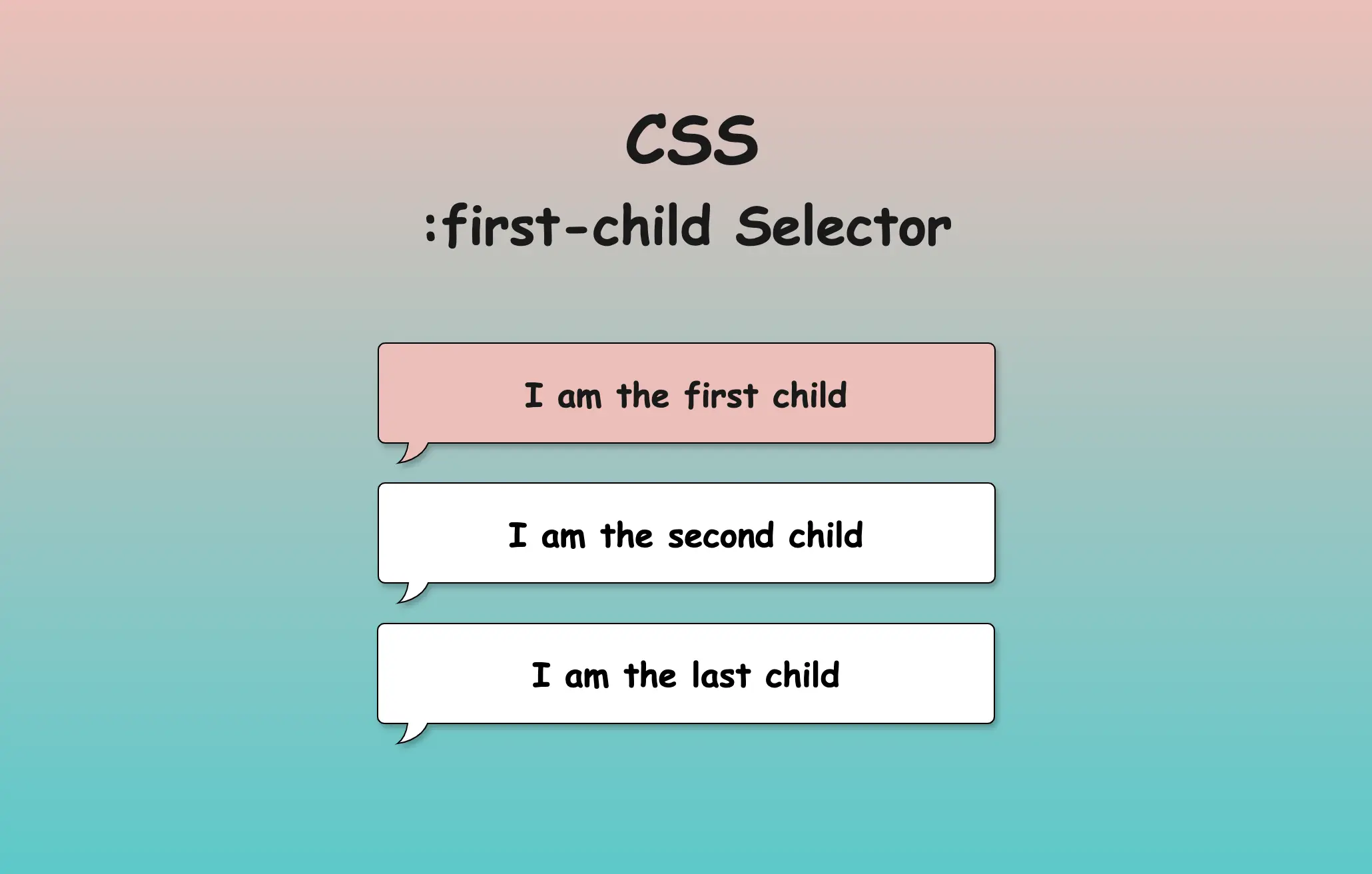
    Hello everybody! In this post, we will analyze the CSS first child selector, one of the most useful selectors in CSS. We utilize the CSS first-child selector when we want to target and manipulate only the first element among a variety of elements of the same type. Note that when we refer to types of elements, we mean HTML tags like paragraphs (<p>), headings (<h1>, <h2> …), lists (<li>), and so on.

    We often apply the CSS first child selector to list items (<li>), but it can be used with any type of element. Below, I have prepared some examples to help you understand how to use the CSS first child selector depending on your needs.

    Alternatively, we can use the CSS nth child selector like this :nth-child(1) for the same purpose, but it’s more generic as it allows the selection of any child based on its position.

    In addition to providing all the necessary CSS syntax for each first child case we describe, we have also included Sass syntax under each code snippet if you are using a Sass pre-processor.

    CSS first child selector: List element

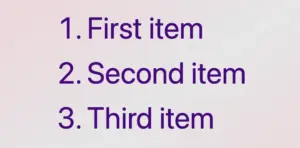
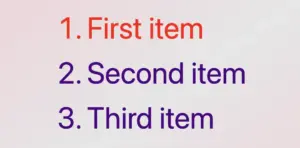
    In the following example, the HTML structure consists of an ordered list (<ol>) with three list items (<li>), all colored indigo.

    <ol>
      <li>First item</li>
      <li>Second item</li>
      <li>Third item</li>
    </ol>
    HTML
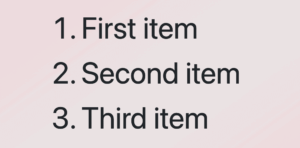
    An ordered list with three items all colored indigo.

    Then, we add the CSS rule, which selects only the first item and applies a red color to it.

    /* Applies indigo color to all list items */
    li {
      color: indigo; 
    }
    
    
    /* Applies red color only to the first list item */
    li:first-child {
      color: red; 
    }
    
    
    /*       OR       */
    
    li:nth-child(1) {
      color: red;
    }
    CSS

    🔖 When we work with Sass, our code will be structured as follows:

    li {
      color: indigo;
    
      &:first-child {
        color: red;
      }
    }
    
    /*       OR       */
    
    li {
      color: indigo;
      
      &:nth-child(1) {
        color: red; 
      }
    }
    SCSS
    An ordered list with three items all colored indigo apart from the first one which has color red as we used the: CSS first child selector. :first-child OR :nth-child(1)

    When using the :first-child selector in CSS, it targets the very first element within its parent. When we add a new item to the beginning of the list, this new item becomes the first child of the list, and the previous first item now becomes the second one. This change causes the :first-child selector to now target the newly added item instead.

    CSS first child selector: Non-list element

    In the example below, we set the first child selector for paragraphs. The HTML structure consists of a <div> containing three paragraph (<p>) elements. By default, all HTML elements have black text color, so paragraphs will appear in black.

    <div>
      <p>First paragraph</p>
      <p>Second paragraph</p>
      <p>Third paragraph</p>
    </div>
    HTML
    Three paragraphs all colored by default black.

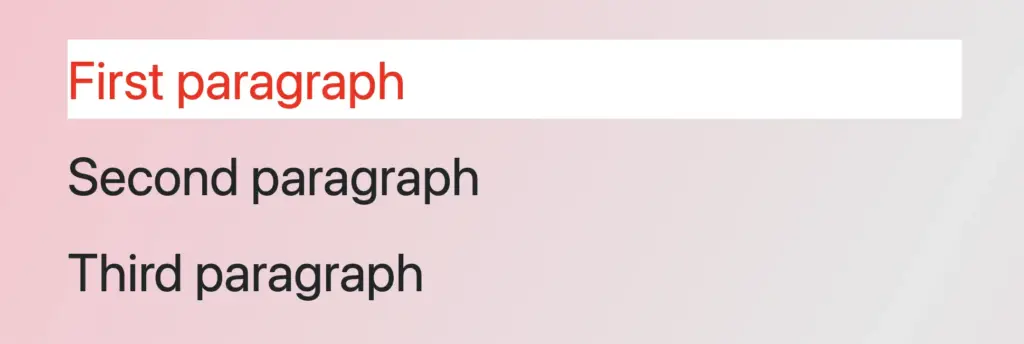
    By applying the CSS first child selector, it selects the first <p> element and apply the text color red to a white background. As a result, the first paragraph appears in red with a white background, while the subsequent paragraphs maintain their default styling.

    /* Applies red color and background white
       to the first paragraph
    */
    p:first-child {
      color: red;
      background-color: white;
    }
    
    /*       OR       */
    
    p:nth-child(1) {
      color: red;
      background: white;
    }
    
    CSS

    🔖 When working with Sass, our code will be structured as follows:

    p {
      &:first-child {
        color: red;
        background: white;
      }
    }
    
    /*       OR       */
    
    p {
      &:nth-child(1) {
        color: red;
        background: white;
      }
    }
    
    SCSS
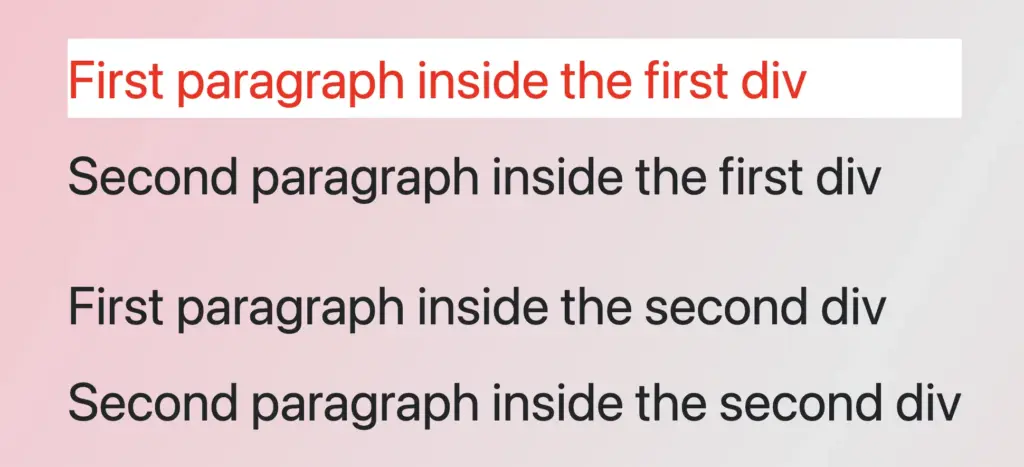
    Three paragraphs all colored by default black, apart from the first one which has color red and background color white as we used the first child css selector.

    First child CSS selector applied across multiple parent containers

    In this example, we can see a different approach, as most times, we have multiple HTML elements to manipulate within a document. In our case, we have two div elements, each containing two paragraph (<p>) elements colored black.

    <div>
      <p>First paragraph inside the first div</p>
      <p>Second paragraph inside the first div</p>
    </div>
    <div>
      <p>First paragraph inside the second div</p>
      <p>Second paragraph inside the second div</p>
    </div>
    HTML
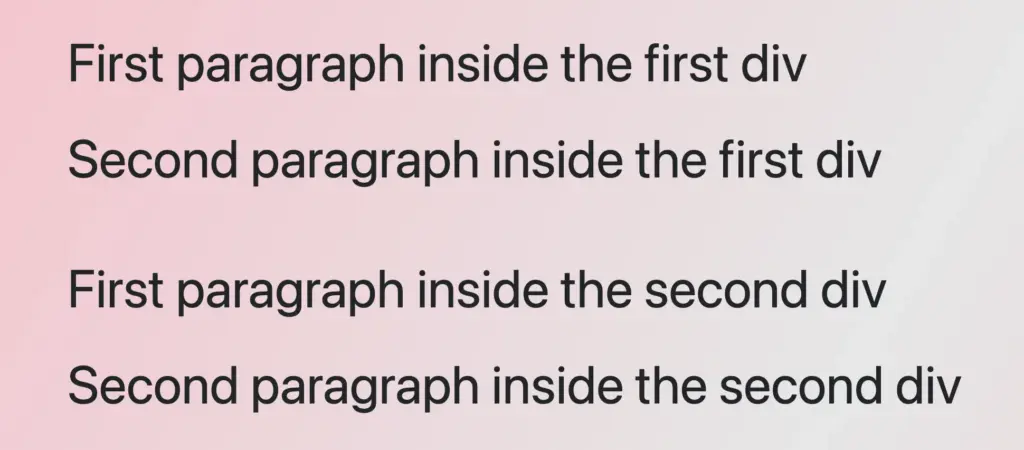
    Four paragraphs all colored black

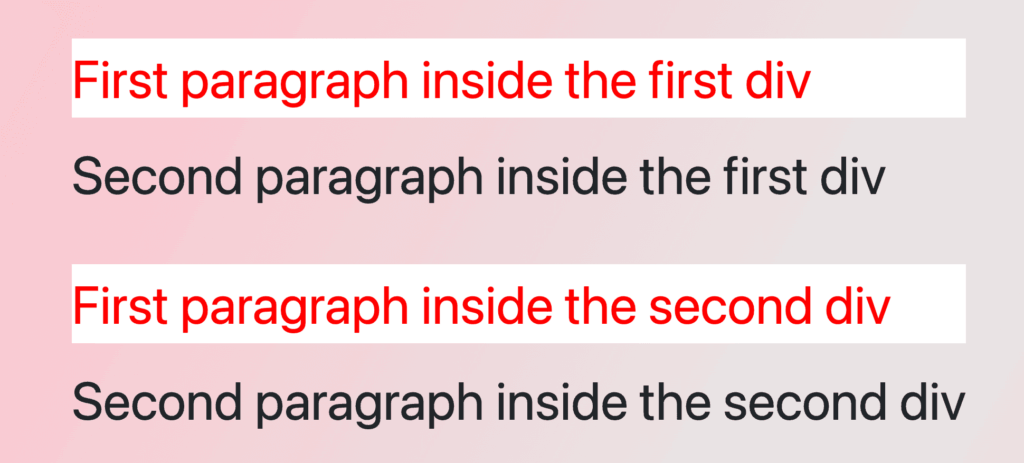
    The CSS rule div p:first-child selects the first <p> element within any <div> and applies the specified styles to it. As a result, the first paragraph within each <div> will display in red with a white background, while the remaining paragraphs will retain their default styles. This demonstrates how the :first-child selector can be used to style the first element within a number of parent containers. 😉

    /* Applies red color and white background
       to the first paragraph inside each div
    */
    div p:first-child {
      color: red;
      background-color: white;
    }
    
    /*       OR       */
    
    div p:nth-child(1) {
      color: red;
      background-color: white;
    }
    
    CSS

    🔖 When using Sass, our code will look like this:

    div {
      p:first-child {
        color: red;
        background-color: white;
      }
    }
    
    /*       OR       */
    
    div {
      p:nth-child(1) {
        color: red;
        background-color: white;
      }
    }
    
    SCSS
    Four paragraphs colored black. The first paragraphs are colored red with white background as we set the first child css selector.

    First child CSS selector targeting the first element of the first parent

    In the following example, we have two div elements, each containing two paragraph (<p>) elements colored black.

    <div>
      <p>First paragraph in the first div</p>
      <p>Second paragraph in the first div</p>
    </div>
    <div>
      <p>First paragraph in the second div</p>
      <p>Second paragraph in the second div</p>
    </div>
    HTML
    Four paragraphs all colored by default black.

    the CSS rule div:first-child p:first-child selects only the first paragraph (<p>) within the first div and applies the specified styles to it. Thus, the first paragraph in the first div will be displayed in red with a white background, while the second paragraph will remain in its default black color.

    The second div, remains unaffected by the styles applied to the first div, showcasing how to apply specific styles selectively. 😉 This approach is really helpful for applying specific styles to elements in complex layouts.

    /* Applies red color and white background
       to the first paragraph of the first div
    */
    
    div:first-child p:first-child {
      color: red;
      background-color: white;
    }
    
    /*       OR       */
    
    div:nth-child(1) p:nth-child(1) {
      color: red;
      background-color: white;
    }                    
    CSS

    🔖 When we work with Sass, we will write our code as follows:

    div:first-child {
      p:first-child {
        color: red;
        background-color: white;
      }
    }
    
    /*       OR       */
    
    div:nth-child(1) {
      p:nth-child(1) {
        color: red;
        background-color: white;
      }
    }
    SCSS
    Four paragraphs colored black. The first paragraph is colored red with white background as we have set the

    Using the :not(:first-child) selector

    In our last example, we have the opposite case. How not to select the CSS first child. The HTML structure consists of an ordered list <ol> containing three list <li> elements.

    <ol>
      <li>First item</li>
      <li>Second item</li>
      <li>Third item</li>
    </ol>
    HTML
    An ordered list with three items all colored by default, black.

    The CSS rule ol li:not(:first-child) selects all <li> elements within the ol apart from the first one and applies the specified styles to them. Because of that, all list items apart from the first one will be displayed in red, while the first list item will retain its default color, black.

    /* Applies red color to all paragraphs
       except for the first one
    */
    
    ol li:not(:first-child) {
      color: red;
    }
    
    /*       OR       */
    
    ol li:not(:nth-child(1)) {
      color: red;
    }
    
    CSS

    🔖 When we work with Sass, we will write our code as follows:

    ol {
      li:not(:first-child) {
        color: red;
      }
    }
    
    /*       OR       */
    
    ol {
      li:not(:nth-child(1)) {
        color: red;
      }
    }
    SCSS
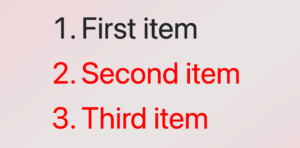
    An ordered list with three items. The first item has by default color black while the other two items have color red as we used the css  not first child selector.
  • Javascript Array Methods – Easy Examples For Beginners

    Javascript Array Methods – Easy Examples For Beginners

    Whether you are learning Javascript for the first time or you are an experienced developer, chances are you will be working with arrays frequently. This post was created to help you understand (or remind you of) how the most common Javascript array methods work. We recommend bookmarking this post, as it will be helpful more often than you might expect.

    In addition to briefly explaining each method and providing relevant examples, we have also included the .length property since it’s also commonly used.

    All Javascript array methods described in this post have been organized in alphabetical order to make searching easier. For those who want to learn more, we’ve also included a link to the MDN documentation in the footer of each code snippet for quick access to detailed information about the related method.

    For any beginner developers who have just started their journey, seeing .prototype. in the name of every method might be confusing. I have to say, in my first steps, it confused me a lot, thinking, “Why not just say Array.every instead of Array.prototype.every” ? A quick and short explanation to help you move forward without getting stuck is that when we write Array.prototype.<method_name> it indicates that the method described exists natively within every array instance (within every array you use).

    Array.prototype.every()

    When to choose this: When you are checking if every element of an array passes a specific condition.
    Returns: true or false

    
    [🦊, 🐻, 🐼].every(element => element === 🐼);
    
    // false


    [🐻, 🐻, 🐻].every(element => element === 🐻);
    
    // true
    
    MDN Documentation

    Callback params

    1. element – the element checked in each step
    2. index – the element’s index (its position)
    3. array – the array itself, to which you have called .every

    Array.prototype.filter()

    When to choose this: The Javascript array filter method is probably one of the most used ones. Use it when you want to create a new array with elements that pass a specific condition.
    Returns: A new array, including the elements that passed the condition.

    
    [🦊, 🐻, 🐼].filter(element => element !== 🐼);
    
    // [🦊, 🐻]


    [🐻, 🐻, 🐻].filter(element => element === 🐼);
    
    // []
    
    MDN Documentation

    Callback params

    1. element – the element checked in each step
    2. index – the element’s index (its position)
    3. array – the array itself, to which you have called .filter

    When a method returns a new array, it is not 100% independent from its source array. It’s a shallow copy! Proceed with extra caution on this because you might see some unexpected surprises!

    Array.prototype.find()

    When to choose this: When trying to find the first element in an array that passes a specific condition.
    Returns: The element that passes the condition or undefined if no element is found.

    
    [🦊, 🐻, 🐼].find(element => element === 🐼);
    
    // 🐼


    [🐼, 🐻, 🐼].find(element => element === 🐼);
    
    // 🐼 (The first one)


    [🐻, 🐻, 🐻].find(element => element === 🐼);
    
    // undefined
    
    MDN Documentation

    Callback params

    1. element – the element checked in each step
    2. index – the element’s index (its position)
    3. array – the array itself, to which you have called .find

    Array.prototype.flat()

    When to choose this: When you have complex array structures (arrays in arrays), and you want to flatten everything into one level.
    Returns: A new array containing all elements from different array levels.

    
    [🐻, 🐻, 🐻].flat();
    
    // [🐻, 🐻, 🐻]


    [🐻, 🐻, 🐼, [🦊, [🐻, 🐻], 🦊]].flat();
    
    // default level is 1
    
    // [🐻, 🐻, 🐼, 🦊, [🐻, 🐻], 🦊]


    [🐻, 🐻, 🐼, [🦊, [🐻], 🦊]].flat(Infinity);
    
    // Infinity will flatten all levels
    
    // [🐻, 🐻, 🐼, 🦊, 🐻, 🦊]
    
    MDN Documentation

    (Remember, the new array is a shallow copy of the source one).

    Array.prototype.forEach()

    When to choose this: When you need to iterate through every element of an array and perform a specific action on each element.
    Returns: undefined

    
    [🐻, 🐻, 🐼].forEach(element => {
       
       // check something about this element
       
       isAnimalCarnivore(element);
      
    });
    
    // undefined
    
    MDN Documentation

    Callback params

    1. element – the element of each iteration
    2. index – the element’s index (its position)
    3. array – the array itself, to which you have called .forEach

    Since this method always returns undefined, if you want your loop to return something, you might want to check the .map method.

    This method doesn’t break the iteration unless you throw an Error!

    Array.prototype.includes()

    When to choose this: When you want to see if a Javascript array contains a specific element.
    Returns: true or false

    
    [🦊, 🐻, 🐼].includes(🐻);
    
    // true


    [🦊, 🐻, 🐼].includes(🐸);
    
    // false
    
    MDN Documentation

    When working with objects, keep in mind that something like this 👇 won’t work:

    
    [{ name: 'Bob' }].includes({ name: 'Bob' });
    
    // false
    

    What you need is probably .some, .filter, or maybe .find.

    Array.prototype.length

    When to choose this: When you want to know/check the length of an array.
    Returns: A number – The array’s length.

    
    [🦊, 🐻, 🐼].length;
    
    // 3


    [].length;
    
    // 0
    
    MDN Documentation

    This is a property, not a method. Don’t invoke it.

    Array.prototype.map()

    When to choose this: When you want to create a new array where each element is transformed by applying a callback function to each element of the original array.
    Returns: A new array containing the transformed elements based on the callback function.

    
    [🦊, 🐻, 🐼].map((element, index) => ({
    
     id: index, animalIcon: element
    
    }));
    
    
    /* 
       [
         { id: 0, animalIcon: 🦊 },
         
         { id: 1, animalIcon: 🐻 },
         
         { id: 2, animalIcon: 🐼 }
       ]
       
    */ 
    
    MDN Documentation

    Callback params

    1. element – the element checked in each step
    2. index – the element’s index (its position)
    3. array – the array itself, to which you have called .map

    Array.prototype.pop()

    When to choose this: When you want to throw away the last item of the array.
    Returns: The item you threw, or undefined if the array was already empty.

    
    [🦊, 🐻, 🐼].pop();
    
    // 🐼


    [].pop();
    
    // undefined
    
    MDN Documentation

    The opposite method of .pop is .shift.

    Array.prototype.push()

    When to choose this: When you want to add an element (or more than one) to the end of your array.
    Returns: The new array’s length. The method modifies the original array by adding any passed element(s) to its end.

    
    [🦊, 🐻, 🐼].push(🦊);
    
    // returns 4
    
    // [🦊, 🐻, 🐼, 🦊];


    [🦊, 🐻, 🐼].push(🦊, 🦊, 🦊);
    
    // returns 6
    
    // [🦊, 🐻, 🐼, 🦊, 🦊, 🦊];
    
    MDN Documentation

    Array.prototype.reduce()

    When to choose this: When you want to condense an array into a single value based on some logic applied by the callback function. E.g., when you want to calculate a sum or an average.
    Returns: A single value as a result of applying the callback function to each element of the array.

    
    [1, 2, 1].reduce((acc, element) => acc + element)
    
    // 4


    [1, 2, 1].reduce((acc, element) => acc + element, 10)
    
    // 14 (accumulator - initial value - set to 10)
    
    MDN Documentation

    Callback params

    1. accumulator – What is returned by the callback function. The default value of an accumulator, if not specified otherwise, is 0
    2. element – the iteration’s element
    3. index – the element’s index position

    Array.prototype.reverse()

    When to choose this: When you want to reverse the order of the array’s elements.
    Returns: The original array reversed.

    
    [🦊, 🐻, 🐼].reverse();
    
    // [🐼, 🐻, 🦊];
    
    MDN Documentation

    Array.prototype.shift()

    When to choose this: When you want to throw away the first item of the array.
    Returns: The item you threw, or undefined if the array was already empty.

    
    [🦊, 🐻, 🐼].shift();
    
    // 🦊


    [].shift();
    
    // undefined
    
    MDN Documentation

    The opposite method of .shift is the .pop method.

    Array.prototype.slice()

    When to choose this: When you want a slice 🍕 of an array.
    Returns: The slice you asked for in a new array.

    
    [🦊, 🐻, 🐼, 🐸, 🐯, 🦝].slice();
    
    // returns slice
    
    // [🦊, 🐻, 🐼, 🐸, 🐯, 🦝]


    [🦊, 🐻, 🐼, 🐸, 🐯, 🦝].slice(2);
    
    // returns slice
    
    // [🐼, 🐸, 🐯, 🦝] - first 2 animals ignored


    [🦊, 🐻, 🐼, 🐸, 🐯, 🦝].slice(1, 3);
    
    // [ ... -> 🐻] - starting position - element 1
    
    // (included)
    
    
    // [ ... <- 🐸 ...] - ending position element 3
    
    //  (not included)
    
    
    // returns slice
    
    // [🐻, 🐼]
    
    MDN Documentation

    Parameters

    • start: The starting point from which the slicing begins. The start is included in the slice.
    • end: The position that the slicing stops. The end position is not included in the slice.

    (Remember, the new array is a shallow copy of the source one).

    Array.prototype.some()

    When to choose this: When you are checking if at least one element of an array passes a specific condition.
    Returns: true or false

    
    [🦊, 🐻, 🐼].some(element => element === 🐼);
    
    // true


    [🐻, 🐻, 🐻].some(element => element === 🐼);
    
    // false
    
    MDN Documentation

    If you want to check if all elements pass the condition, you should check .every method.

    Array.prototype.sort()

    When to choose this: When you want to sort the elements in a specific way.
    Returns: The source array sorted.

    
    [3, 2, 1].sort();
    
    // [1, 2, 3]


    ['A', 'C', 'B'].sort();
    
    // ['A', 'B', 'C'] 


    [
      { id: 13 },
      
      { id: 42 },
      
      { id: 10 }
      
    ].sort((itemA, itemB) => itemA.id - itemB.id);
    
    // Result [{ id: 10 }, { id: 13 }, { id: 42 }]
    
    MDN Documentation

    Array.prototype.splice()

    When to choose this: When you want to replace some contents of an array or remove them.
    Returns: A new array is created by the removed/replaced elements.

    [🦊, 🐻, 🐼, 🐸, 🐯, 🦝].splice();
    
    // [🦊, 🐻, 🐼, 🐸, 🐯, 🦝] - source array
    
    // [] - returns empty array


    [🦊, 🐻, 🐼, 🐸, 🐯, 🦝].splice(2);
    
    // [🦊, 🐻] - source array
    
    // [🐼, 🐸, 🐯, 🦝] - new array


    [🦊, 🐻, 🐼, 🐸, 🐯, 🦝].splice(2, 1);
    
    // [🦊, 🐻, 🐸, 🐯, 🦝] - source array
    
    // [] - returns empty array


    [🦊, 🐻, 🐼, 🐸, 🐯, 🐯].splice(2, 0, 🦝, 🦝);
    
    // [🦊, 🐻, 🐸, 🦝, 🦝, 🐯, 🐯] - source array
    
    // [] - new array
    
    /*
       New array was not created
       
       since we asked for 0 deletion.
       
       Instead the source array was modified.
     
     */ 
    
    MDN Documentation

    Parameters

    • start: The starting point from which the removing/replacing begins. The start is included in the slice.
    • count: How many elements to delete. If omitted, it will be set from the starting position till the end of the array.
    • replacement: New element(s) to be added from the starting position

    (Remember, the new array is a shallow copy of the source one).

    Guidance on using Javascript array methods

    You don’t have to memorize every Javascript array method, its syntax, and its exact functionality! It’s more important to know that they exist. Over time, you’ll naturally develop muscle memory for the ones you use frequently. For the less used methods, just keep them in mind and look them up when needed. Consider bookmarking this post for future reference! 🤓

    In this post, we tried to explain/demonstrate some of the most common Javascript array methods. Our intention was not to provide comprehensive documentation, so we intentionally omitted more advanced parameters that are applicable to some of the methods described.

    If you’re interested in learning about these less frequently used parameters, we recommend visiting the MDN Documentation linked in the footer of each code snippet.

  • Make Amazing CSS 2D Card With Flipping Animation On Hover

    Make Amazing CSS 2D Card With Flipping Animation On Hover

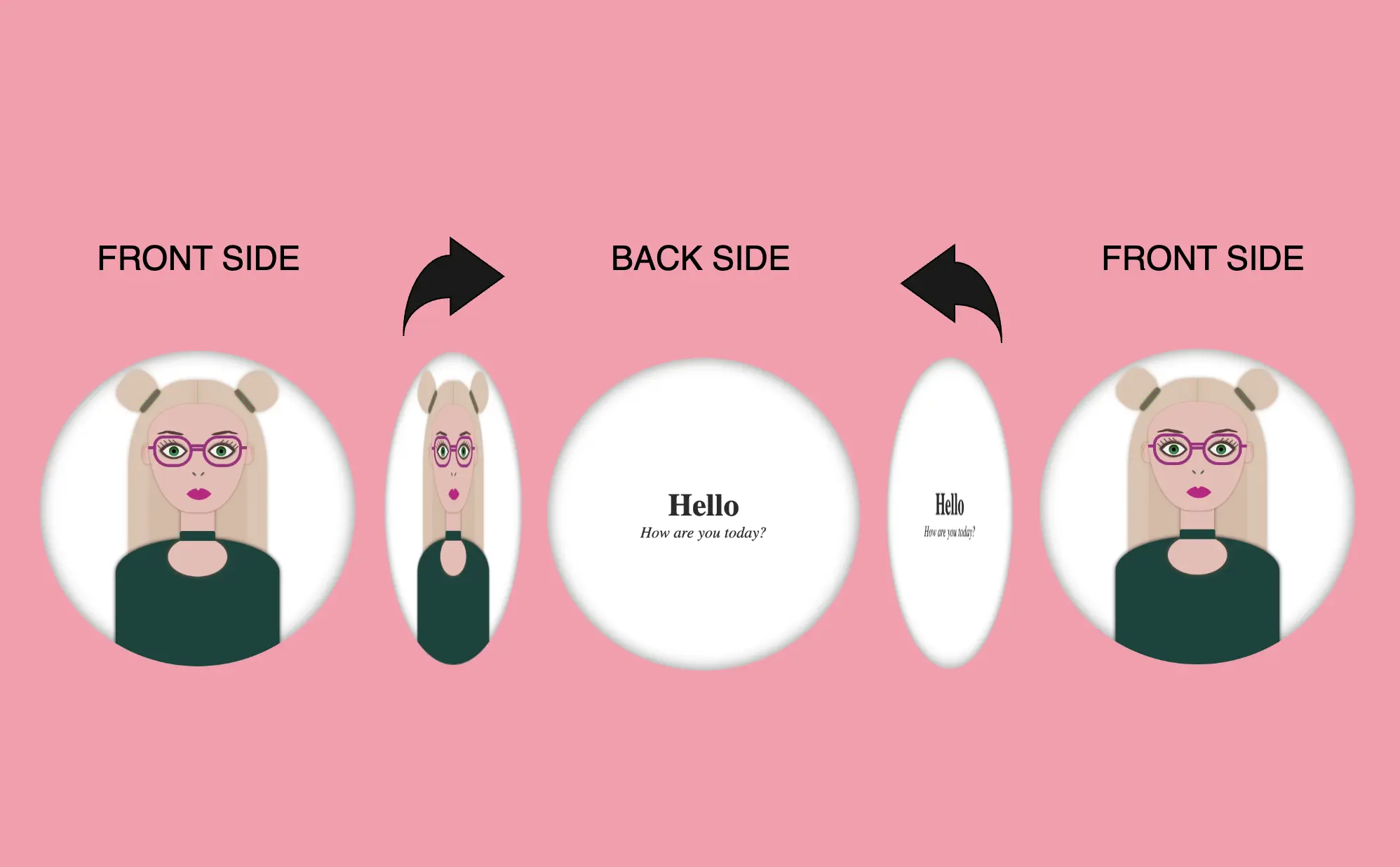
    Hello! In this post, I will show you how to create a visually appealing CSS 2d card with flipping animation that activates when you hover over it. To enhance the design, I have added an avatar and integrated the animation with it. If you are interested in how I created the avatar, you can check out the complete avatar code at the end of this post. You are free to use it in your animation or customize it to your liking. Enjoy! 😉

    For now, let’s move forward and create this incredible animation!

    CSS Flipping card animation on hover

    The following HTML and SCSS (Sass) code makes a card flip around. Using the X-axis and Y-axis which are two lines that intersect, helps us determine the position of a point in a two-dimensional area.

    Let’s analyze our code one step at a time:

    HTML structure

    We will begin with the HTML structure. We create a parent container called .flip-wrapper. This container acts as the parent element for our animation. Inside it, we have a child element with the .flip-card class, this is where our animation happens. Next, we divide the child element into two parts: the front side and the back side. On the front side, we’ll add the .avatar-container and place the avatar inside while on the back side, we’ll add the .text-container class and add some text.

    <div class="flip-wrapper">
      <div class="flip-card">
        <div class="avatar-container"></div>
        <div class="text-container">
          <h1>Hello</h1>
          <div><i>How are you today?</i></div>
        </div>
      </div>
    </div>
    HTML

    CSS Basic structure

    In our CSS code snippet, first of all, we set the background of our whole page to pink. 🐷🐷

    Moving on to the .flip-wrapper container, we specify its dimensions, giving it a fixed width and height of 300 pixels. To make a circular appearance, we apply a border-radius of 50%. If you desire, you can maintain the square ⬜ shape. I chose this rounded ⚪ design because it makes it easier for us to observe the effect we’re aiming for. 😉

    Next, we focus on the .flip-card element. We set the position: relative property and then its witdh and height to 100% to ensure it covers the entire available space. We also add a white background-color and a subtle gray shadow effect. To maintain the circular theme, we apply a border-radius of 50% to this container too.

    Finally, we set the position: absolute property in both .avatar-container and .text-container classes. In that way we will be ready to place the content we want on both, the front and the back, sides of our card.

    body {
      background: pink;
    }
    
    .flip-wrapper {
      width: 300px;
      height: 300px;
      border-radius: 50%;
      .flip-card {
        position: relative;
        width: 100%;
        height: 100%;
        background-color: white;
        box-shadow: inset 0 0 15px grey;
        border-radius: 50%;
      }
    }
    
    .avatar-container,
    .text-container {
      position: absolute;
    }
    SCSS

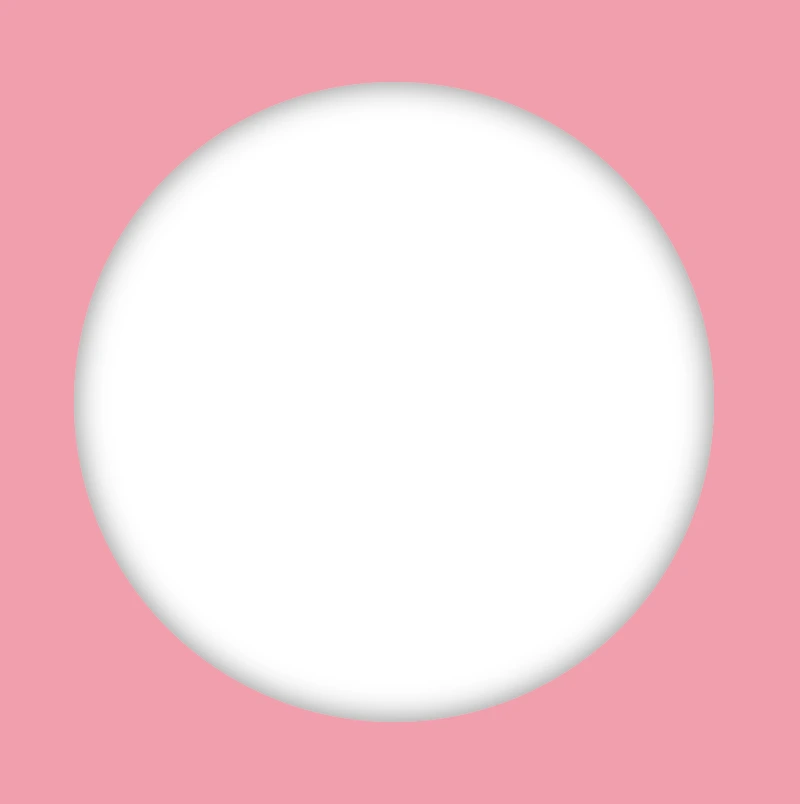
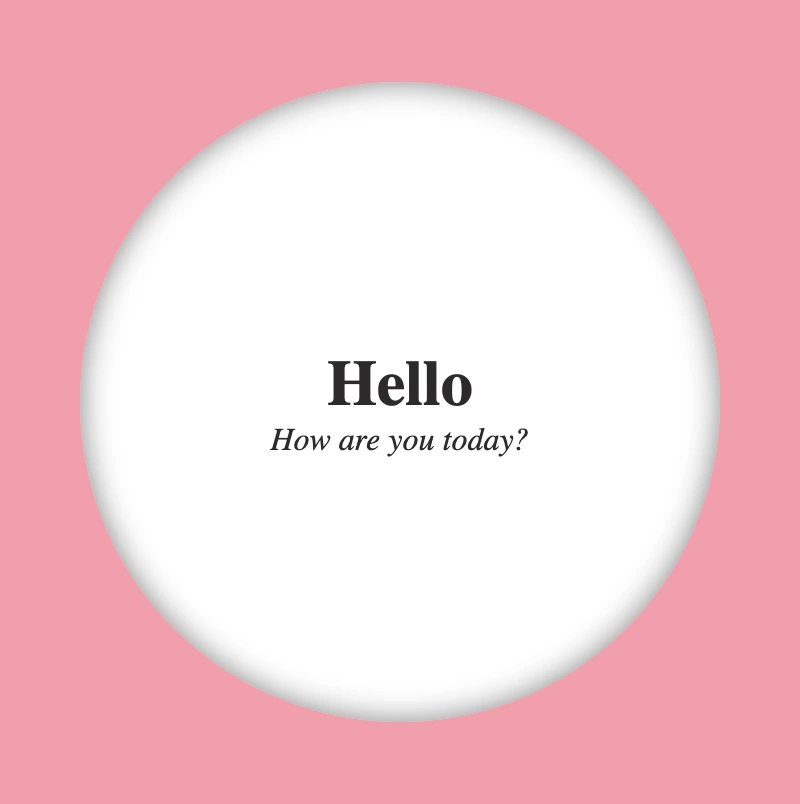
    This is what’s rendered on our screen at the moment.

    Adding the hover effect

    In order for our effect to function as intended we have to work with both the parent and the child element. We begin with the parent element, where we apply the :hover effect and change the cursor to a pointer (you can pick any cursor style you prefer).

    .flip-wrapper {
      ...
      &:hover {
        cursor: pointer;
      }
    }
    SCSS

    Preparing the front side of my flipping card

    I added an avatar on the front side of my flipping card. You can add whatever you want (some text, maybe, or an emoticon ✏️) or you can leave it empty, though it is not really useful for observing the flipping.

    .avatar-container {
      ...
    }
    SCSS

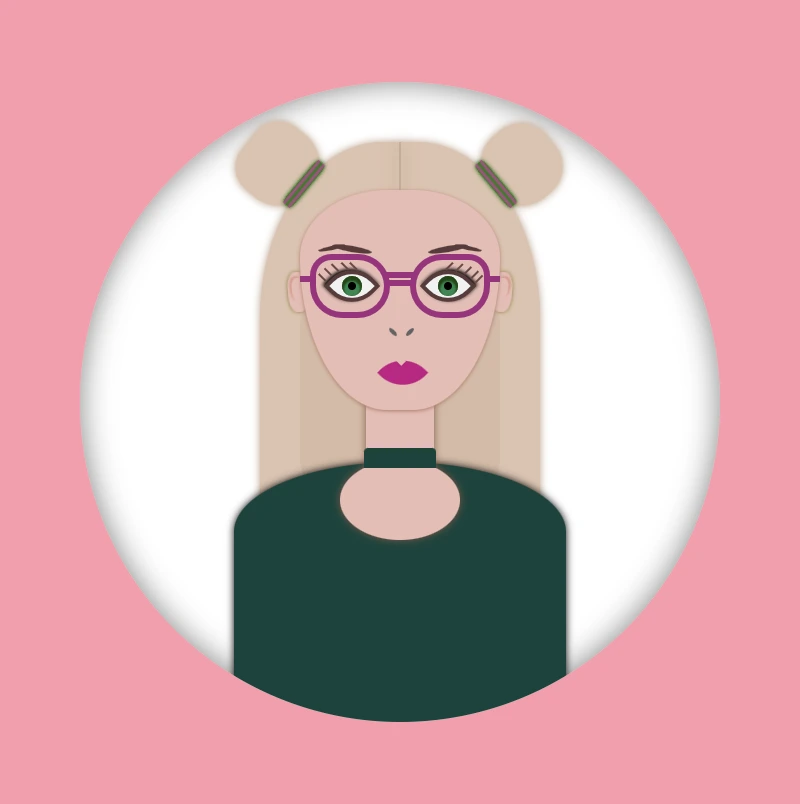

    In the following image, we can see how the front side of our flipping card would be. Nice! Isn’t it? 😃

    Preparing the back side of my flipping card

    Here we prepare our text’s style. We keep the default black color and we centered our text based on the display: flex method.

    .text-container {
      display: flex;
      flex-direction: column;
      align-items: center;
      justify-content: center;
    }
    SCSS

    Below we can see how the back side of our flipping card would be. Cool huh! 😃

    Now we are ready to connect these two parts and finally create our amazing animation.

    Adding the flipping animation at the 2D card

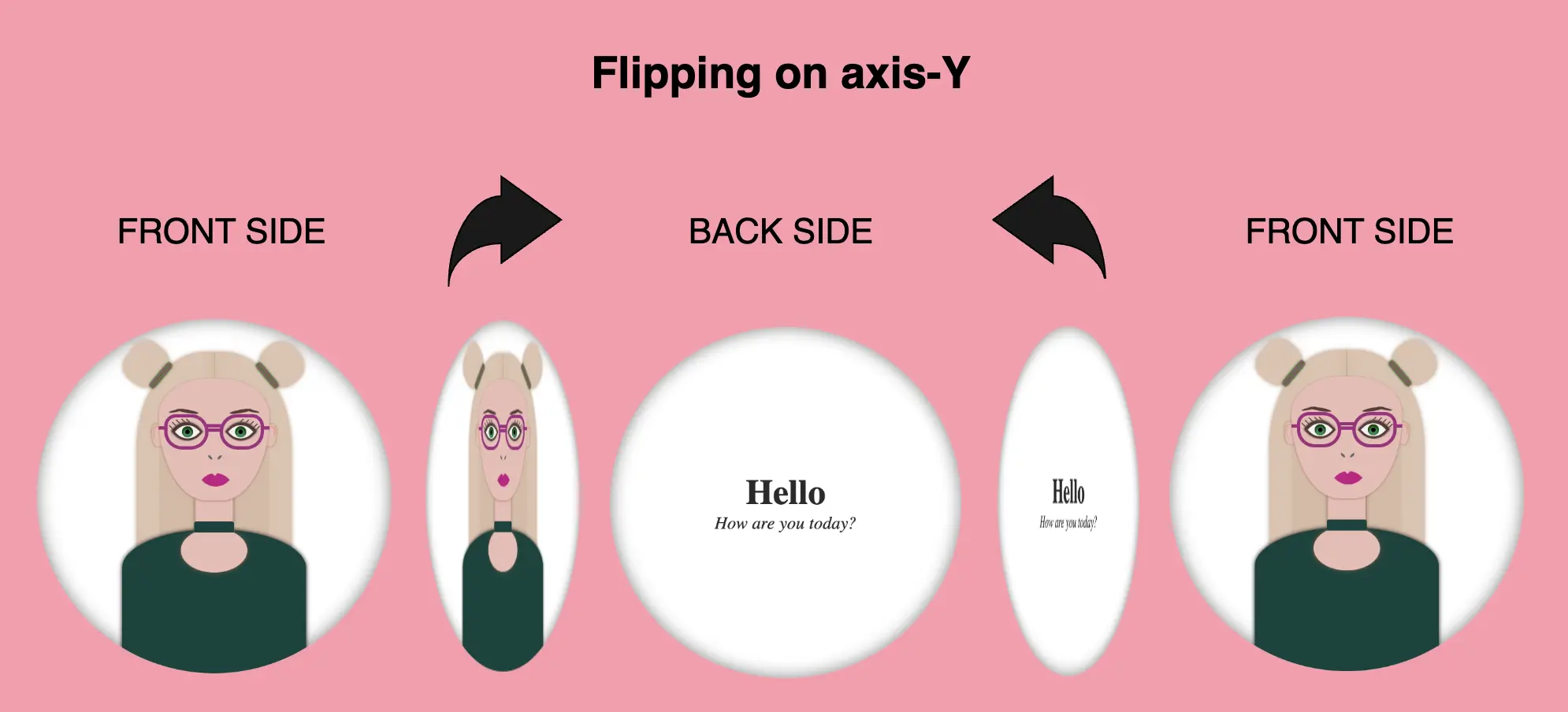
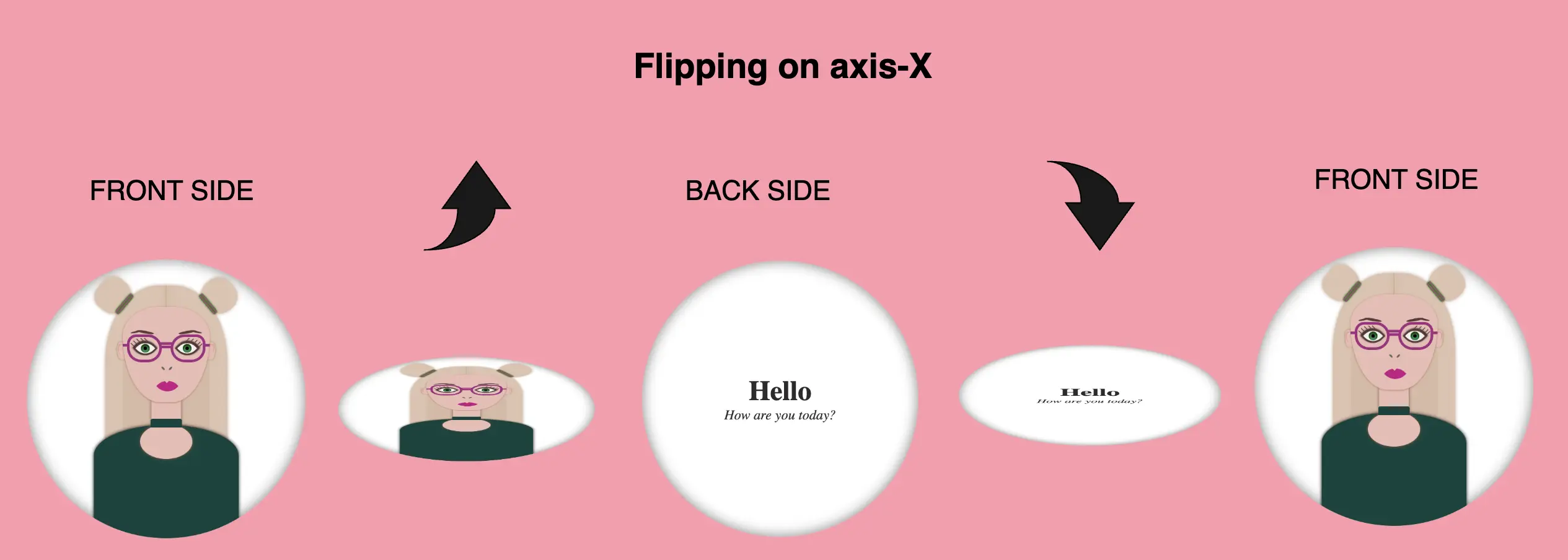
    We are free to create flipping animations on both axis X and Y. Below, I prepared two examples. The first one is for axis-Y while the second one is for axis-X. Let’s break it down and see them analytically. 🧐

    Flipping animation on axis-Y

    In order to achieve our goal we have to combine the following CSS properties.

    1. transform: rotateY(180deg) We begin by setting the transform property, which is responsible for the flipping, inside the hover effect. It is also necessary to add it to the class that represents the back side of our card, in our case the .text-container class, otherwise, our text won’t be rendered on the screen when we hover over the card.
    2. transition: transform 6s & transform-style: preserve-3d We continue by combining these two properties inside the .flip-card class. The first one shows us the exact, time in seconds (s), our effect will take place while the second one makes the children of an element appear as if they are positioned in a 3D space. So this property gives us the impression that the descendants (children) of our element are located within a three-dimensional space.
    3. backface-visibility: hidden We finalize our work with the backface-visibility property that defines whether or not the back side of an element should be visible when facing the user. The back face of an element is a mirror image of the front face being displayed.
    .flip-wrapper {
      ...
      &:hover {
        cursor: pointer;
        .flip-card {
          transform: rotateY(180deg);
        }
      }
      .flip-card {
        ...
        transition: transform 6s;
        transform-style: preserve-3d;
      }
    }
    
    .avatar-container,
    .text-container {
      ...
      backface-visibility: hidden;
    }
    
    .text-container {
      transform: rotateY(180deg);
    }
    SCSS

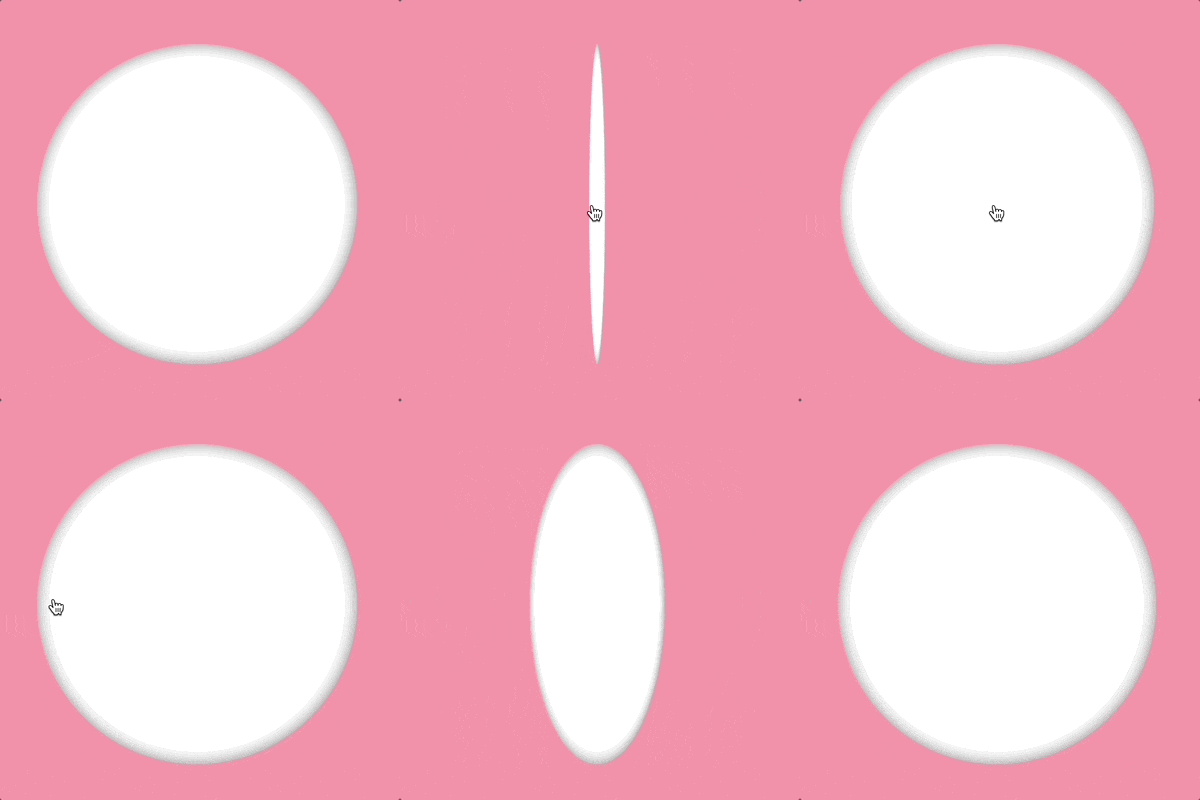
    Voila!! Here is our amazing flipping 2d card animation for the Y-axis!! 🥳

    Flipping animation on axis-X

    We do as previously but in this case, we set the transform: rotateX as we want our animation to move along the X-axis.

    .flip-wrapper {
      ...
      &:hover {
        cursor: pointer;
        .flip-card {
          transform: rotateX(180deg);
        }
      }
      .flip-card {
        ...
        transition: transform 6s;
        transform-style: preserve-3d;
      }
    }
    
    .avatar-container,
    .text-container {
      ...
      backface-visibility: hidden;
    }
    
    .text-container {
      transform: rotateX(180deg);
    }
    SCSS

    Boom! 🎉 This is our wonderful flipping 2d card animation for the X-axis!!

    Complete avatar code

    Below, I include my HTML and CSS avatar code.

    <div class="avatar-container">
      <div class="hair-back"></div>
      <div class="hair hair--left"></div>
      <div class="hair hair--right"></div>
      <div class="hair-clip hair-clip--left"></div>
      <div class="hair-clip hair-clip--right"></div>
      <div class="ear ear--left"></div>
      <div class="ear ear--right"></div>
      <div class="face">
        <div class="eyebrow1 eyebrow1--left"></div>
        <div class="eyebrow1 eyebrow1--right"></div>
        <div class="eyebrow2 eyebrow2--left"></div>
        <div class="eyebrow2 eyebrow2--right"></div>
        <div class="eye-glasses eye-glasses-left"></div>
        <div class="eye-glasses eye-glasses-right"></div>
        <div class="eye eye--left">
          <div class="eyelash eyelash--left"></div>
          <div class="eyelash eyelash--left1"></div>
          <div class="eyelash eyelash--left2"></div>
          <div class="eyelash eyelash--left3"></div>
          <div class="eyelash eyelash--left4"></div>
        </div> <!-- end of left eye -->
        <div class="eye eye--right">
          <div class="eyelash eyelash--right"></div>
          <div class="eyelash eyelash--right1"></div>
          <div class="eyelash eyelash--right2"></div>
          <div class="eyelash eyelash--right3"></div>
          <div class="eyelash eyelash--right4"></div>
        </div> <!-- end of right eye -->
        <div class="nose"></div>
        <div class="lips"></div>
      </div> <!-- end of face -->
      <div class="neck"></div>
      <div class="t-shirt"></div>
      <div class="neckless"></div>
    </div> <!-- end of avatar-container -->
    HTML
    Expand
    $body-color: #ff9aab;
    $container-color: white;
    $skin-color: #eabcb4;
    $primary-color: #2d2a2a;
    $secondary-color: #f1f1f1;
    $eye-color: #17884e;
    $eyeline-color: #5b3a3a;
    $eyelash-color: #6d4646;
    $iris-color: #000;
    $hair-color: #dfc2ae;
    $hair-clip-color1: green;
    $hair-clip-color2: #b3498d;
    $hair-clip-color: linear-gradient($hair-clip-color1, $hair-clip-color2, $hair-clip-color1, $hair-clip-color2, $hair-clip-color1);
    $eye-glasses-color: #a32a80;
    $eyebrow-color: #5b3a3a;
    $nose-color: #646363;
    $lips-color: #cd0b87;
    $t-shirt-color: #0b443c;
    $neckless-color: #0b443c;
    
    * {
      margin: 0;
      padding: 0;
      box-sizing: border-box;
    }
    
    html,
    body {
      height: 100vh;
    }
    
    body {
      width: 100%;
      display: flex;
      align-items: center;
      justify-content: center;
      background: $body-color;
    }
    
    .avatar-container {
      position: relative;
      width: 320px;
      height: 320px;
      border-radius: 50%;
      background-color: $container-color;
      box-shadow: inset 0 0 15px grey;
      overflow: hidden;
      .hair-back {
        position: absolute;
        width: 140px;
        height: 200px;
        border-radius: 44% 44% 20px 20px;
        top: 30px;
        left: 50%;
        transform: translate(-50%);
        background-color: $hair-color;
        filter: drop-shadow(0 0 2px #bc9b83);
        z-index: 2;
        &:before {
          content: "";
          position: absolute;
          width: 0.5px;
          height: 28px;
          background-color: #bc9b83;
          filter: drop-shadow(0 0 4px #69660f);
          top: 0px;
          left: 50%;
          transform: translate(-50%);
        }
        &:after {
          content: "";
          position: absolute;
          width: 100px;
          height: 110px;
          border-radius: 20%;
          background-color: #d8baa4;
          top: 70px;
          left: 50%;
          transform: translate(-50%);
        }
      }
      
      .hair {
          position: absolute;
          width: 40px;
          height: 40px;
          background-color: $hair-color;
          filter: drop-shadow(0 0 2px #bc9b83);
          z-index: 1;
          &--left {
            border-radius: 50% 50% 70% 70%;
            top: 22px;
            left: 80px;
            transform: rotate(-50deg);
          }
          &--right {
            border-radius: 50% 50% 60% 60%;
            top: 22px;
            right: 80px;
            transform: rotate(50deg);
          }
        }
      
      .hair-clip {
        position: absolute;
        width: 28px;
        height: 6px;
        background: $hair-clip-color;
        box-shadow: 0 0 2px #037203;
        border-radius: 20%;
        z-index: 10;
        &--left {
          transform: rotate(-50deg);
          top: 48px;
          left: 98px;
        }
        &--right {
          transform: rotate(50deg);
          top: 48px;
          right: 98px;
        }
      }
    
      .ear {
        position: absolute;
        width: 10px;
        height: 20px;
        background-color: $skin-color;
        filter: drop-shadow(0 0 1px #7e7a1f);
        border-radius: 40%;
        top: 95px;
        z-index: 3;
        &--left {
          left: 104px;
          transform: rotate(-5deg);
          &:before {
            content: "";
            position: absolute;
            width: 6px;
            height: 12px;
            background-color: $skin-color;
            border-radius: 40% 40% 50% 50%;
            box-shadow: -1px -1px 1px darken($skin-color, 10%);
            top: 3px;
            left: 2px;
          }
        }
        &--right {
          right: 104px;
          transform: rotate(5deg);
          &:before {
            content: "";
            position: absolute;
            width: 6px;
            height: 10px;
            background-color: $skin-color;
            border-radius: 40% 40% 50% 50%;
            box-shadow: 1px -1px 1px darken($skin-color, 10%);
            top: 3px;
            right: 2px;
          }
        }
      } // end of ear
    
      .face {
        position: absolute;
        width: 100px;
        height: 110px;
        border-radius: 100% / 70% 70% 160% 160%;
        background-color: $skin-color;
        top: 54px;
        left: 50%;
        transform: translate(-50%);
        box-shadow: 0 0.5px 2px #b37865;
        z-index: 10;
            
        .eye-glasses {
        position: absolute;
        width: 40px;
        height: 32px;
        border: 3px solid $eye-glasses-color;
        top: 32px;
        z-index: 10;
        &.eye-glasses-left {
          border-radius: 12px 18px 18px 18px;
          left: 5px;
          &:before {
            content: "";
            position: absolute;
            width: 14px;
            height: 3px;
            background-color: $eye-glasses-color;
            top: 10px;
            left: 35px;
          }
          &:after {
            content: "";
            position: absolute;
            width: 6px;
            height: 3px;
            background-color: $eye-glasses-color;
            top: 8px;
            left: -8px;
          }
        }
        &.eye-glasses-right {
          border-radius: 18px 12px 18px 18px;
          right: 5px;
          &:before {
            content: "";
            position: absolute;
            width: 15px;
            height: 3px;
            background-color: $eye-glasses-color;
            top: 6px;
            left: -15px;
          }
          &:after {
            content: "";
            position: absolute;
            width: 6px;
            height: 3px;
            background-color: $eye-glasses-color;
            top: 8px;
            right: -8px;
          }
        }
      }  // end of eye-glasses
    
        .eye {
        position: absolute;
        width: 20px;
        height: 20px;
        top: 38px;
        background-color: $secondary-color;
        border: 2px solid $eyeline-color;
        border-radius: 75% 0%;
        transform: rotate(45deg);
        &:before {
          content: "";
          position: absolute;
          width: 10px;
          height: 10px;
          top: 50%;
          left: 50%;
          transform: translate(-50%, -50%);
          background-color: $eye-color;
          border-radius: 50%;
          box-shadow: inset 1px 1px 1px 1px #17460d;
        }
        &--left {
          left: 16px;
          box-shadow: -1px 0 2px darken($eyeline-color, 50%);
        }
        &--right {
          right: 16px;
          box-shadow: 0 -1px 2px darken($eyeline-color, 50%);
        }
        &:after {
          content: "";
          position: absolute;
          width: 4px;
          height: 4px;
          top: 50%;
          left: 50%;
          transform: translate(-50%, -50%);
          background-color: $iris-color;
          border-radius: 50%;
        }
          .eyelash {
          position: absolute;
          Width: 1px;
          height: 5px;
          background-color: $eyelash-color;
          &--left,
          &--left1,
          &--left2,
          &--left3,
          &--left4 {
            transform: rotate(90deg);
          }
          &--left {
            top: -2px;
            left: 1px
          }
          &--left1 {
            top: 1px;
            left: -2px
          }
          &--left2 {
            top: 5px;
            left: -5px
          }
          &--left3 {
            top: 9px;
            left: -6px
          }
          &--left4 {
            top: 13px;
            left: -6px
          }
          &--right {
            top: -2px;
            right: 14px;
          }
          &--right1 {
            top: -5px;
            right: 10px;
          }
          &--right2 {
            top: -7px;
            right: 6px;
          }
          &--right3 {
            top: -8px;
            right: 2px;
          }
          &--right4 {
            top: -8px;
            right: -1px;
          }
        } // end of eye-lash
      } // end of eye
         
        .eyebrow1 {
          position: absolute;
          width: 20px;
          height: 3px;
          background-color: $eyebrow-color;
          border-radius: 50%;
          top: 28px;
          &--left {
            transform: rotate(10deg);
            left: 16px;
          }
          &--right {
            transform: rotate(-10deg);
            right: 16px;
          }
        } // end of eyebrow1 //
        .eyebrow2 {
            position: absolute;
            content: "";
            width: 14px;
            height: 2px;
            background-color: $eyebrow-color;
            border-radius: 50%;
            top: 28px;
            &--left {
              transform: rotate(-12deg);
              left: 9px;
            }
            &--right {
              transform: rotate(12deg);
              right: 9px;
            }
          } // end of eyebrow2 //
        
        .nose {
          position: absolute;
          width: 5px;
          height: 2px;
          background-color: $nose-color;
          border-radius: 50%;
          transform: rotate(45deg);
          top: 70px;
          left: 44px;
          &:before {
            content: "";
            position: absolute;
            width: 5px;
            height: 2px;
            background-color: $nose-color;
            border-radius: 50%;
            transform: rotate(90deg);
            top: -6px;         
            left: 6px;
            }
        } // end of nose
    
        .lips {
        position: absolute;
        width: 18px;
        height: 18px;
        border-radius: 90% 0;
        background-color: darken($lips-color, 1%);
        top: 90px;
        left: 50%;
        transform: rotate(45deg) translate(-60%);
        &:before {
          content: "";
          position: absolute;
          width: 0;
          height: 0;
          border-left: 3px solid transparent;
          border-right: 3px solid transparent;
          border-top: 3px solid $skin-color;
          border-radius: 60%;
          transform: rotate(-45deg);
          top: 24%;
          left: 12%;
        }
      }  // end of lips
    } // end of face 
    
      .neck {
        position: absolute;
        width: 34px;
        height: 50px;
        background-color: $skin-color;
        filter: drop-shadow(0 0 2px #865748);
        top: 149px;
        left: 50%;
        transform: translate(-50%);
        z-index: 9;
        &:before {
          content: "";
          position: absolute;
          width: 60px;
          height: 40px;
          background-color: $skin-color;
          border-radius: 50%;
          top: 40px;
          left: 50%;
          transform: translate(-50%);
        }
      } // end of neck
    
      .t-shirt {
        position: absolute;
        width: 166px;
        height: 140px;
        background-color: $t-shirt-color;
        border-radius: 100% / 50% 50% 20% 20%;
        top: 190px;
        left: 50%;
        transform: translate(-50%);
        filter: drop-shadow(0 0 2px);
        z-index: 4;
      } // end of t-shirt
      
      .neckless {
        content: "";
        position: absolute;
        width: 36px;
        height: 10px;
        background-color: $neckless-color;
        border-radius: 2px 2px 0 0;
        z-index: 10;
        top: 183px;
        left: 50%;
        transform: translate(-50%);
      } // end of neckless
    } // end of avatar-container
    SCSS
    Expand
  • CSS Rainbow Text: How To Make Astonishing And Vibrant Fonts

    CSS Rainbow Text: How To Make Astonishing And Vibrant Fonts

    Imagine infusing your web typography (fonts) with the vibrant hues of a dazzling 🌈✨ rainbow! Cascading Style Sheets (CSS) empower designers and developers to bring this captivating vision to life. A colorful font like the CSS rainbow effect is more than just a spectrum of colors; it’s a creative and dynamic way to enhance your website’s visual appeal and make a lasting impression on your visitors.

    Today, with this post, 😃 we’ll dive into the exciting world of creating a rainbow effect, unlocking the magic of colors and typography to elevate your web design. Enjoy! 💻

    Prepare basic HTML and CSS structure

    We begin with our HTML and CSS structure. We create an HTML <div> element that has a class called rainbow-effect. Then, we set some rules in CSS that are applied to our HTML element. So, let’s move forward and analyze our CSS code snippet.

    <body>
      <div class="raibow-effect">rainbow effect</div>
    </body>
    HTML
    body {
      background-color: #050c20; /* deep blue */
    }
    
    .rainbow-effect {
      text-align: center;
      color: white;
      font-size: 180px;
      font-weight: bold;
      font-family: 'Roboto', sans-serif;
    }
    CSS

    First of all, we set the background color of our body to be a deep blue. Then, we proceed with our text. We create a center aligned, white 180px text with bold and highly legible fonts, as we specifically seek a font with excellent readability.

    Once set, we can then proceed with our tweaks in order to infuse the text with the enchanting hues of a rainbow. The following image shows what is rendered on the screen for the time being. 😃

    This image shows our text with its basic characteristics.

    Apply the rainbow effect

    Within the style rules of the .rainbow-effect, we find specific directives regarding our rainbow effect:

    
    .rainbow-effect {
      ...
      background-image: linear-gradient(
        to right, red, orange, yellow, green, blue, indigo, violet
      );
      background-clip: text;
      color: transparent;
    }
    
    CSS

    background-image: linear-gradient
    The first thing we need to know is that by using the background-image CSS property we are able to create a background with more than one color.

    We do so by setting the linear-gradient value, and we are free to choose any color and any direction we want for our text. In our case, we use the to right direction and the gradient starts with the color red on the left and smoothly transitions through orange, yellow, green, blue, indigo, and violet as it moves from left to right. So, it gives a colorful, horizontal stripe-like background.

    The rainbow effect word with a rainbow effect as a background. This happens as we set the CSS background-image property to linear-gradient(to right, red, orange, yellow, green, blue, indigo, violet)

    You are always free to choose any direction of the linear-gradient you like! 👍

    background-clip: text
    We continue our work with the background-clip property which is used to define how the background should be clipped or masked. In our case, it’s set to text, which tells the browser to apply the background gradient only to the text inside our div.

    The rainbow effect word after setting the -webkit-background-clip CSS property to text. We can see that for now our text is white with the body's background.

    What? Nothing happened yet? Why? Using this property, the colorful background is applied to the text, but the effect is not visible yet because it is necessary to proceed to our next step 🧐 ⬇ in order to achieve the final and desired results. So, let’s move on!

    color: transparent
    Finally, adding the color property to transparent renders the text itself invisible, allowing the colorful background to show through the text. And there it is! 🥳

    The rainbow effect word with the css rainbow effect after setting color CSS property to transparent. We are able now to see that our text inherits the colors of the rainbow. So, now we can see a completely colorful text.

    So, in summary, putting it all together, when you use this code, you’ll have a text with a colorful gradient background (rainbow colors) that appears within the text. The text itself is invisible, creating a striking and colorful text effect. 🎉

  • What Is the CSS Box Model in Simple Terms

    What Is the CSS Box Model in Simple Terms

    Our life consists of large and small boxes! By saying that, I mean all those things we have to deal with daily, and we usually put them into categories as we do in programming with boxes by using the amazing CSS box model property. Are these boxes a mystery 🧐 puzzle 🧩 or could they end up being really helpful when we truly understand how they work? Let’s continue and get a clearer understanding of it! 😀

    What is a CSS box model?

    By saying CSS box 🎁 model we mean the space which contains an HTML element. A CSS box consists of:

    1) Content: This is the space that the HTML element occupies. By content, we mean text, images, lists, avatars, videos, icons, shapes …

    2) Border: It’s the line we surround something. We could define it as a frame that encloses HTML elements. Border doesn’t include content, it’s an independent property. Border property can take only one value (border) or many values (some we use more are border-widthborder-styleborder-colorborder-radiusborder-image but there are many others too). You can also set different values for each side of the border with border-top, border-bottomborder-leftborder-right CSS properties.

    3) Paddings: It’s the distance between content and border. We can set the same value for all four sides (padding) or we can set different values for each side (padding-toppadding-bottompadding-left & padding-right).

    4) Margins: It’s the external distance between HTML elements. By setting margin in one value it works the same for all four sides of the element, otherwise, you can set dissimilar values with margin-topmargin-bottommargin-left & margin-right CSS properties.

    We can COMBINE all these properties in a CSS box but we can also use them separately.
    Below, we have an image that shows a CSS box model diagram.

    This is an image that shows a css box model with its content, padding, border and margin inside a screen.

    Paddings and margins are both transparent. Paddings use the same background as the one used by the main content, while margins inherit their background from the parent element to which they belong.

    CSS Box model example

    We can now take a break ☕ and continue…
    Let’s analyze a little bit more our CSS box model with an example. First, we have to write down our HTML & CSS code without paddingborder & margin. The image, that follows our code snippet, shows what was rendered through our code.

    <body>
      <div class="title">
        Hello there! How are you today?
      </div>
    </body>
    HTML
    html,
    body {
      height: 100%;
    }
    
    body {
      /* we use display property to center our HTML element to the body */
      display: flex;
      align-items: center;
      justify-content: center;
      background-color: grey;
    }
    
    .title {
      text-align: center; /* to center our text */
      color: blue;
      background-color: purple;
      font-size: 40px;
      width: 300px;
      height: 100px;
    }
    CSS

    For the time being, we are able to observe the content displayed on the screen.

    This is an image that shows a centered box with content but without paddings, borders, and margins inside a screen.

    Below, we can see the same example after adding paddingborder & margin.

    .title {
      ...
      /* if you have different values, instead of padding-left padding-top,
      padding-right, padding-bottom you can write all padding values together
      like above. */
      padding: 50px 150px 100px 150px; /* top, right, bottom, left */
      /* instead of border-width, border-style & border-color you can write just 
      border and set all these values together like above */
      border: 20px solid black;
      /* if margin-top & margin-bottom have the same value, margin-left & 
      margin-right the same too you can write all margin values together
      like above */
      margin: 50px 100px; /* (top & bottom 50px) then (left & right 100px) */
    }
    CSS
    What is a css box model? This is an image that shows a css box model diagram, that is  a centered box with content and all relative paddings, borders, and margins inside a screen.

    💡Explaining CSS Box Model Calculations

    It would be helpful to understand the calculation process for determining Total Width & Total Height” and make the concepts clearer. At this point, it would be really helpful to know that the CSS box model has, by default, box-sizing: content-box which means that borders and paddings take extra place around the object we want to add them.

    Margins are NOT included, as they are outside the CSS box model.

    width:300px (content’s width) + 40px (20px border-left + 20px border-right) + 300px (150px padding-left & 150px padding-right) = 640px;

    height:100px (content’s height) + 40px (20px border-top + 20px border-bottom) + 250px (50px padding-top + 100px padding-bottom) = 390px;

    🕵️‍♀️ There is a method to include borders and paddings within the box’s dimensions. If you’re interested in learning more about the box-sizing CSS property to achieve this, I recommend checking out our guide for detailed insights on this topic. You will find detailed instructions and explanations.

    Avoid These Mistakes

    When we want to SEPARATE HTML ELEMENTS we must use margin instead of padding. Most times, we work without borders, so we can’t see the elements’ boundaries. Because of that, we think that we can use both paddings or margins to create space between elements, BUT we should NOT.
    I’ve included an example with two images below, to show you the wrong usage of separating elements using padding instead of margin. As you see, when we use padding, even though we create space, we do it the wrong way.

    We should not separate HTML elements using their INNER SPACE (padding).

    Box model CSS: Here we have two images. The first image shows two boxes, (one box next to the other box) with content, padding, border and margin. We separate these two boxes with margin between them. The second image shows exactly the same boxes but we separate them with big paddings. In the second case, we see that paddings alter boxes' content. Also content stops being centered as padding give more space only to one side.
  • How to Use !important in CSS

    How to Use !important in CSS

    Attention everyone! 😃 In this post, we will learn about the !important CSS property, which overrides other rules to give a property the highest level of specificity. We use it selectively when we want to override stylings. We utilize it as a LAST RESORT only when we find ourselves in a situation where no alternative method can achieve the desired results.

    Below, I’ve presented an outline designed to assist you in precisely placing 📌 our CSS property. It is typically applied to individual CSS properties within a style rule, not to the entire rule itself. Notice that the !important always follows the property value and always comes before the question mark.

    I tried to make things clearer for you by preparing the example that follows:

    We will begin with this simple HTML code snippet.

    <div id="hello">Hello everybody! This is an " !important property " example!</div>
    <div class="hi">Hello everybody! This is an " !important property " example!</div>
    <div>Hello everybody! This is an " !important property " example!</div>
    HTML

    Now, we can continue with our CSS code snippet. The code specifies different styles for the HTML elements based on their identifiers, their classes, and their names.

    • Elements with the id hello will have a smaller font size and be colored orange 🟧
    • Elements with the class hi will have a slightly larger font size and be colored purple 🟪
    • All div elements will have the largest font size and be colored green 🟩
    #hello {
      font-size: 20px;
      color: orange;
    }
    
    .hi {
      font-size: 30px;
      color: purple;
    }
    
    div {
      font-size: 40px;
      color: green;
    }
    CSS

    The image below captures the current screen rendering, reflecting the output generated by the previous code.

    This image shows three sentences with the same text inside. The first has 20px font size and color orange, the second has 30px font size and color purple while the third has 40px font size and color green.

    Now, let’s proceed and witness our property in action 🥁. As I previously explained, HTML elements are styled uniquely, guided by their attributes and the corresponding CSS rules. The id and class attributes play a crucial role in defining which styles are assigned to individual elements. Additionally, the careful use of the !important ensures that certain styles take priority.

    div {
      font-size: 40px;
      color: green !important;
    }
    CSS

    In the provided image, it’s obvious that the font-size of our HTML elements remain consistent, while the text color switches to green 🟩. We can see clearly that this color change takes precedence over other specified colors, thanks to the application of the !important CSS property. 😃

    This image shows three sentences with the same text inside. The first has 20px font size , the second has 30px font size while the third has 40px font size. All three sentences follows the !important CSS property and have color green.

    Best Practices: Avoid Using the !important CSS Property

    Understanding the ✨ usage of the !important CSS property is crucial but it should only be employed when absolutely necessary. Here are several reasons to steer clear of it:

    1. Specificity Conflicts: The !important declaration makes a CSS rule very strong 💪, so it’s hard to change it with other styles. This might cause surprising 💣 problems when we try to edit our styles later.
    2. Maintainability Overheads: If we use it too often, our styles can become a confusing 🍝 mix of conflicting instructions. Over time, as your project grows, the number of !important can increase significantly, making it extremely challenging to maintain and extend our CSS.
    3. Debugging Complexity: When we’re trying to fix problems in our CSS, it gets trickier 🤹‍♀️ 🤹‍♂️ if we’re using !important. We might end up spending more time trying to figure out issues and less time making our styles better. Over time, it becomes difficult to determine why a style was applied, and making changes or debugging becomes more complex.
    4. Override Difficulty: If we want to change a rule that uses !important later on, we’ll have to make another rule 💥 with even more strength using !important. This can create a loop 🌪 that becomes hard to control.
    5. Code Readability and Understandability: Overuse !important can make your CSS code harder to read 👀 and can create a challenge for other developers trying to understand 🤯 it.
    6. Future Compatibility: Relying on !important to fix styling issues might not work well in the long 🏃‍♀️ 🏃‍♂️ run. It’s better to understand and use CSS specificity and inheritance properly to build styles that are adaptable and easy to maintain.

    While there are situations where !important can be really useful, such as dealing with third-party CSS or when working with dynamically generated styles, it’s generally best to use it rarely and as a last resort. It’s usually better to write well-structured 🏗, specific 🎯, and organized 🧩 CSS rules to avoid the problems associated with !important.

  • Transform Your Text: Black and White CSS Stripes Made Easy

    Transform Your Text: Black and White CSS Stripes Made Easy

    Welcome to a world where ⚫ black and ⚪ white aren’t just colors. In this post, 😃 we’ll explore the exciting world of creating black and white CSS stripes. It is a really cool effect to level up your text by adding stripes, making it even more fascinating and appealing.

    We will be learning about this effect by using an example to make it crystal clear. Let’s check it out! 👩‍💻

    Create basic HTML and CSS structure

    We will begin with our HTML and CSS structure. Our HTML code includes a <div> element that has a class named .stripes-effect for identification and styling purposes. Following that, we add some CSS rules to apply specific styles to our HTML element with this class.

    <body>
      <div class="stripes-effect">black & white text with shadow</div>
    </body
    HTML
    body {
      background-color: black;
    }
    
    .stripes-effect {
      font-family: 'Bungee', sans-serif;
      text-align: center;
      color:  white;
    }
    CSS

    By doing so, our heading is ready for applying our CSS stripes effect and should now look like this

    This image shows a white text with a black background

    Adding black and white vertical stripes

    Now that we have added our basic structure, we’ll create our stripe effect gradually, step by step, until it’s perfected. Let’s add the following styling

    .stripes-effect {
      ...
      background-image: linear-gradient(to right, white, black, ...);
      /* clips the background pattern */
      background-clip: text;
      /* makes text invisible */
      color: transparent;
    }
    CSS

    In our already existing .stripes-effect class, we have the following rules:

    background-image: linear-gradient(to right, white, black, ...) ➡ We begin by setting this CSS property that creates a background pattern using a gradient of alternating black and white stripes from left to right. The default direction is from top to bottom.

    This image shows a white text with black and white background that comes from the CSS property background-image: linear-gradient(to right, white, black, ...) CSS property.

    Don’t worry if our black-and-white text is hard to read; 🕯 😂 it is a temporary phase just to serve our purpose for now. We will move forward and see! So let’s proceed immediately! ⏳

    background-clip: text ➡ By adding this property, it clips the background pattern to the shape of the text, making the text appear as if it’s filled with black and white stripes. If we just add this property and leave our CSS settings without any other change, our effect will not show properly.

    This image shows that the browser clips the background when we set the -webkit-background-clip: text CSS property.

    If we want this to see our effect it is necessary to proceed with the following step (color: transparent ⬇).

    color: transparent ➡ It’s time to make the text transparent, enabling the background pattern we created in the previous step to be visible!

    This image shows the color: transparent CSS property. We now see our text having a black and white - css zebra effect.

    Black and white CSS stripes variations

    The Zebra effect is not limited to vertical stripes (linear-gradient) for your texts; you can explore more options and create any effect you want. Below, you will find some variations to give you the inspiration you need.

    Horizontal striped text

    .stripes-effect {
      ...
      background-image: linear-gradient(white, black, ...);
    }
    CSS
    This image shows the CSS stripes effect but with horizontal lines direction.

    Diagonal striped text

    .stripes-effect {
      ...
      background-image: linear-gradient(to bottom right white, black, ...);
    }
    CSS
    This image shows the black and white CSS stripes effect but with diagonal lines direction.
  • How To Make A CSS Reflection Effect

    How To Make A CSS Reflection Effect

    Hello everyone! 😃 Today, we will learn how to create a cool CSS reflection effect. Through step-by-step instructions, we will understand how to manipulate linear-gradient and opacity CSS properties to create a stunning mirror-like effect. Below, I’ll include’ll give you all the information you need. Let’s get started.

    HTML structure

    Our HTML structure starts with an empty div element, with the class .reflection where our effect will take place.

    <div class="reflection"></div>
    HTML

    CSS foundation

    Let’s continue with the CSS basic structure. We will start by setting the background-color to orange.

    body {
      background-color: orange;
    }
    CSS

    Creating the element

    In the following step, we will define the element. I opt for a color black rectangle with 300 pixels width and 200 pixels height.We will also be adding the flex method to the body to center our element.

    body {
      ...
      display: flex;
      align-items: center;
      justify-content: center;
    }
    
    .reflection {
      width: 300px;
      height: 200px;
      background-color: black;
    }
    CSS

    This is what is rendered on the screen for now. A perfectly centered black rectangle! 

    Adding the CSS structure for the reflection effect

    A CSS reflection effect can be accomplished using pseudoelements like before and after.First, we need to add position: relative in our .reflection class to get prepared for our pseudoelement’s positioning.

    .reflection {
      ...
      position: relative;
    }
    CSS

    Then we are ready to create our reflection utilizing the before pseudoelement.

    .reflection:before {
      position: absolute;
      content: "";
      width: 100%;
      height: 100%;
      background: linear-gradient(
        to bottom, 
        rgba(0, 0, 0, 5), 
        rgba(0, 0, 0, 0) 80%
      );
    }
    CSS

    We initiate by setting the the position as absolute. Setting the content to an empty string (“”) and then its width and height to 100%, will make our pseudoelement appear and inherit its parent’s dimensions (width 300px and height 200px).  

    Next, we add a background: linear-gradient that goes downwards, by specifying its direction, from top to bottom. This way, we create black gradients that are more intense at the top and gradually fade toward the bottom to achieve our desired effect.

    So far, we have created the CSS reflection effect below our original rectangle. However, we need to take one more step for our effect to be visible. We add the top CSS property and set it to 205 pixels. This will move our reflection 5 pixels down from the origin rectangle.

    .reflection:before {
      ...
      top: 205px;
      opacity: 0.5;
    }
    CSS

    Additionally, we set the opacity to achieve a smoother and more natural-looking effect. You might be thinking that the same result could be accomplished by adjusting the linear-gradient property and you are right. It’s just that using the opacity this way requires much less effort and produces similar results.

    .reflection:before {
      ...
      opacity: 0.5;
    }
    CSS


    Voila! Here is our amazing reflection! 🥳

    Exploring different reflection colors

    🔖 Feel free to use any color you prefer, but it’s important to create a linear-gradient that gives the perspective shades. Here are examples of white and yellow reflections. I am keeping the orange background to facilitate easier comparison.

    White reflection

    .reflection {
      width: 10px;
      height: 200px;
      background-color: white;
    }
    
    .reflection:before {
      content: "";
      position: absolute;
      width: 100%;
      height: 100%;
      top: 205px;
      background: linear-gradient(to bottom, 
      rgba(255, 255, 255, 5), 
      rgba(255, 255, 255, 0) 80%);
      opacity: 0.5;
    }
    CSS

    Yellow reflection

    .reflection {
      width: 200px;
      height: 200px;
      background-color: yellow;
    }
    
    .reflection:before {
      content: "";
      position: absolute;
      width: 100%;
      height: 100%;
      top: 205px;
      background: linear-gradient(to bottom, 
      rgba(255, 255, 0, 5), 
      rgba(255, 255, 0, 0) 80%);
      opacity: 0.5;
    }
    CSS

    Choosing the perfect colors with their appropriate shades can truly transform your work. Be bold in your choices and let your creativity shine. Remember, there are endless possibilities and your creativity knows no bounds. 🎉 ✨

  • CSS Radial Gradient: How To Make Colorful Infinite Loops

    CSS Radial Gradient: How To Make Colorful Infinite Loops

    Greetings! 😃 Utilizing CSS radial gradient techniques is a remarkable approach for vibrant, colorful combinations. Gradients give us the liberty to choose any desired direction, defined by a clear starting and ending point. Using a minimum of two colors is essential, but we are free to blend even more based on our needs. This lets us achieve progressions or variations based on our specific requirements.

    In today’s post, we will analyze the captivating world of CSS radial gradient techniques. 🌈✨ Imagine colors coming out from a central point, spreading outwards in a circular fashion—an effect 🌀 that can truly elevate your design.

    Radial gradients offer a versatile approach to blending colors, creating central points or smooth transitions. By mastering radial gradients, you unlock the potential to infuse depth and excitement into your web design.

    Excited to learn more about this captivating technique? Let’s dive 🤿 right in! 💻

    Definition of a radial gradient

    A radial gradient is a visual effect in which colors blend outward from a central point, creating a smooth transition from one color to another in a circular or elliptical pattern. Circular ones spread colors outward from the center, evenly, making a symmetrical look. Elliptical ones also start from the center but stretch the colors toward the edges, creating an oval appearance.

    A radial gradient is a visual effect in which colors blend outward from a central point, creating a smooth transition from one color to another in a circular or elliptical pattern

    The default CSS radial gradient

    We’ll start by exploring the default orientation for the radial gradient which starts in the center of our elements and spreads outward. To better understand, look at the following piece of code and the pictures that go with it.

    The first picture shows a circle, while the second one depicts an ellipse.

    .radial-default {
      background-image: radial-gradient(red, green, blue);
    }
    
    /* circle default */
    .box-square {
      width: 240px;
      height: 240px;
    }
    
    /* elliptical default */
    .box-rectangle {
      width: 340px;
      height: 240px;
    }
    CSS

    Center at sides

    We can change the center of our element by setting circle at left , circle at top , circle at bottom and circle at right. To understand this better we’ve prepared an example. As before, the left picture relates to the circle, whereas the second one refers to the ellipse.

    .radial-at-side {
      background-image: radial-gradient(circle at top, red, green, blue);
    }
    
    /* circle default */
    .box-square {
      width: 240px;
      height: 240px;
    }
    
    /* elliptical default */
    .box-rectangle {
      width: 340px;
      height: 240px;
    }
    CSS

    Center at corners

    Also, the diagonal direction of our circle can change if we combine any corner with its adjacent sides.

    .radial-at-corner {
      background-image: radial-gradient(circle at top right, red, green, blue);
    }
    
    /* circle default */
    .box-square {
      width: 240px;
      height: 240px;
    }
    
    /* elliptical default */
    .box-rectangle {
      width: 340px;
      height: 240px;
    }
    CSS

    CSS Radial gradient using %

    With less blend

    We are also up to play with the blend we want to create. In the following example, the gradient blends between various colors in a circular pattern, it begins with red at the center, transitioning to green, then blue, purple, and finally orange at the outer edge.

    .radial-less-blend {
      background-image: radial-gradient(
        red 0%, red 20%, 
        green 30%, green 50%, 
        blue 60%, blue 100%
      );
    }
    
    /* circle default */
    .box-square {
      width: 240px;
      height: 240px;
    }
    
    /* elliptical default */
    .box-rectangle {
      width: 340px;
      height: 240px;
    }
    CSS

    🕵️‍♂️ In this example, I’ve divided the space into 3 sections. I left a 10% blend in each space in order to create a smooth small transition. The percentages between the color stops, determine how smoothly the transition between colors happens.

    • Red (0%-20%): The gradient starts at the center (0%) with the red color.
    • Red to Green (20%-30%): Within this radial range, there is a subtle transition from red to green, creating a visually appealing blend.
    • Green (30%-50%): the gradient takes a solid green color.
    • Green to Blue (50%-60%): Between this radial distance, there’s a gentle transition from green to blue.
    • Blue (60%-100%): Finally, the gradient concludes with a blue hue, providing a vibrant and visually striking finish.

    Without blend

    We also have the option to make non-blend gradients. As you can see below, the gradient consists of multiple color stops, transitioning from red to orange in a radial pattern, like colorful rings. Each color is assigned to specific percentage intervals, creating a visually appealing gradient effect.

    .radial-no-blend {
      background-image: radial-gradient(
        red 0%, red 33%, 
        green 33%, green 66%, 
        blue 66%, blue 100%
      );
    }
    
    /* circle default */
    .box-square {
      width: 240px;
      height: 240px;
    }
    
    /* elliptical default */
    .box-rectangle {
      width: 340px;
      height: 240px;
    }
    CSS

    🕵️‍♂️ In this example, I’ve divided the space into 3 sections. There is no blending among them. We can see a shape like a target, 🎯 that creates clear bands of sharp colors.

    • Red: Starts at 0% and ends at 33%.
    • Green: Starts at 33% and ends at 66%.
    • Blue: Starts at 66% and ends at 100%.
  • How To Effectively Use CSS Transform Scale On Hover

    How To Effectively Use CSS Transform Scale On Hover

    Hey there! Today, I’m gonna teach you how to use CSS transform scale on hover by using the transform: scale property. I’ve already created an avatar in order to make our animation more understandable and fun! 😄 If you’re curious about how I made the avatar, you will find the complete avatar code at the end of my post. You are encouraged to incorporate it into your animation as well 😉 The choice is yours!

    Meanwhile, let’s just dive 🤿 into creating these amazing scale animations!

    Meanwhile, let’s just dive into creating these amazing scale animations!

    HTML structure

    In order to create the scale transformations, first of all, it is necessary to make a container, which I named scale-content. This is the ‘place’ where we will do our CSS manipulations. After that, we move forward with a second container, the avatar-container. I named it that way as I intend to position the avatar inside it. As a matter of choice, 😊 you are able to add the avatar, too. Otherwise, you can continue only with the box. Once we prepare those two containers we are ready to move on.

    <div class="scale-content">
      <div class="avatar-container">
        ... Here goes my avatar
      </div> <!-- end of avatar-container -->
    </div> <!-- end of scale-content -->
    HTML

    CSS basic styling

    Next, we do the appropriate settings in order to center our container to the body, using the display: flex CSS property. We have also added the colors, setting body-color and container-color.

    $body-color: #8e7d9e;
    $container-color: #0f0b0f;
    
    * {
      margin: 0;
      padding: 0;
      box-sizing: border-box;
    }
    
    html,
    body {
      height: 100%;
    }
    
    body {
      min-width: 500px;
      display: flex;
      align-items: center;
      justify-content: center;
      background-color: $body-color;
    }
    SCSS

    CSS containers structure

    We begin with position: relative CSS property to the parent container and position: absolute to the child container in order to achieve the desired positioning of elements. Next, we specify the width and height of both containers according to our desired dimensions. We also use the CSS properties we want in order to create our avatar-container with the willing characteristics.

    .scale-content {
      position: relative;
      width: 320px;
      height: 320px;
      .avatar-container {
        position: absolute;
        width: 100%;
        height: 100%;
        background-color: $container-color;
        border: 2px solid black;
        box-shadow: 0 0 10px;
        border-radius: 50%;
        overflow: hidden;
      } /* end of avatar-container */
    } /* end of scale-content */
    SCSS

    Great! Now, take a break and look at the container we made using our earlier code. Feel free to go with it, or you may come up with your own! 😊

    CSS scale transformation structure

    Our containers are ready!! We can continue by doing our manipulations and creating scale transformations.

    We apply the transition: transform CSS property to the parent element, which enables us to achieve smooth changes in property values within a specified duration. As you can see below, I set 4s, and as a result, our transition lasts 4 seconds.

    Next, we set the CSS transform: scale(X, Y) property on the child element in order to resize, increase, or decrease the size of an element in the axes. We have the capability to simultaneously resize both axes with the same or different values or selectively resize either the X-axis or the Y-axis.

    💡 Below there are some examples of scale transformations as a way to understand it better 😃

    transform: scale(X, Y) with the same value on both axes

    • Resizes (increases) with the same value, the size of an element in both axes.
    .scale-content {
      ...
      transition: transform 4s;
      &:hover {
        cursor: pointer;
        transform: scale(1.2);
      }
      .avatar-container {
        ...
      } /* end of avatar-container */

    }  /* end of scale-content */
    CSS
    CSS scale transform:This image shows a scale transformation effect on hover which increase, with the same value, the size of the avatar-container in both axes.
    • Resizes (decreases) with the same value, the size of an element in both axes.
    .scale-content {
      ...
      transition: transform 4s;
      &:hover {
        cursor: pointer;
        transform: scale(0.5);
      }
      .avatar-container {
        ...
      } /* end of avatar-container */
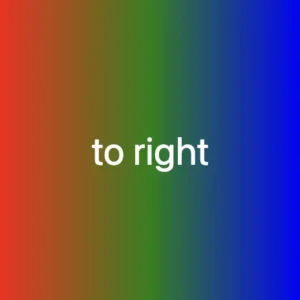
    } /* end of scale-content */
    CSS

    transform: scale(X, Y) with different values on both axes

    • Resizes (increase the width and decrease the height), with different values, the size of an element in both axes.
    .scale-content {
      ...
      transition: transform 4s;
      &:hover {
        cursor: pointer;
        transform: scale(1.4, 0.4);
      }
      .avatar-container {
        ...
      } /* end of avatar-container */

    } /* end of scale-content */
    CSS
    • Resizes (decrease the width and increase the height), with different values, the size of an element in both axes.
    .scale-content {
      ...
      transition: transform 4s;
      &:hover {
        cursor: pointer;
        transform: scale(0.4, 1.4);
      }
      .avatar-container {
        ...
      } /* end of avatar-container */
    } /* end of scale-content */
    CSS

    transform: scale(X) increase or decrease width

    • Resizes (increases) the width of an element (X-axis).
    .scale-content {
      ...
      transition: transform 4s;
      &:hover {
        cursor: pointer;
        transform: scaleX(2);
      }
      .avatar-container {
        ...
      } /* end of avatar-container */
    } /* end of scale-content */
    CSS
    • Resizes (decreases) the width of an element (X-axis).
    .scale-content {
      ...
      transition: transform 4s;
      &:hover {
        cursor: pointer;
        transform: scaleX(0.2);
      }
      .avatar-container {
        ...
      } /* end of avatar-container */
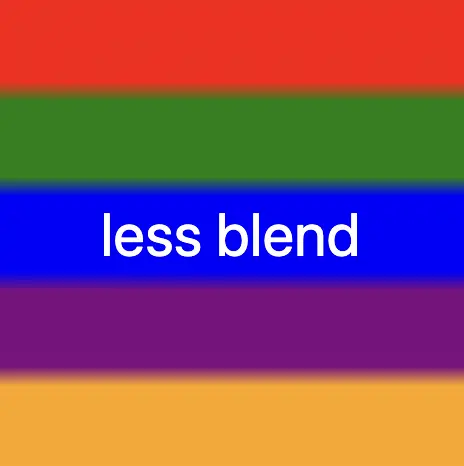
    } /* end of scale-content */
    CSS

    transform: scale(Y) increase or decrease height

    • Resizes (increases) the height of an element (Y-axis).
    .scale-content {
      ...
      transition: transform 4s;
      &:hover {
        cursor: pointer;
        transform: scaleY(2);
      }
      .avatar-container {
        ...
      } /* end of avatar-container */
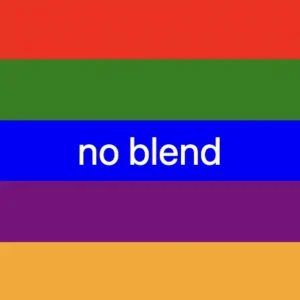
    } /* end of scale-content */

    CSS
    • Resizes (decreases) the height of an element (Y-axis).
    .scale-content {
      ...
      transition: transform 4s;
      &:hover {
        cursor: pointer;
        transform: scaleY(0.5);
      }
      .avatar-container {
        ...
      } /* end of avatar-container */

    } /* end of scale-content */

    CSS

    Complete avatar code

    Below, I include my HTML and CSS avatar code.

    <section class="avatar-container">
      <div class="hair-back"></div>
      <div class="face">
        <div class="ear ear-left">
          <div class="earing earing-left"></div>
        </div>
        <div class="ear ear-right">
          <div class="earing earing-right"></div>
        </div>
        <div class="eyebrow eyebrown-left"></div>
        <div class="eyebrow eyebrown-right"></div>
        <div class="hair-front"></div>
        <div class="hair-long"></div>
        <div class="hairband">
          <div class="bow-big"></div>
          <div class="bow-small"></div>
        </div>
        <div class="eye eye-left">
          <div class="eyelash eyelash--left"></div>
          <div class="eyelash eyelash--left1"></div>
          <div class="eyelash eyelash--left2"></div>
          <div class="eyelash eyelash--left3"></div>
          <div class="eyelash eyelash--left4"></div>
        </div>
        <div class="eye eye-right">
          <div class="eyelash eyelash--right"></div>
          <div class="eyelash eyelash--right1"></div>
          <div class="eyelash eyelash--right2"></div>
          <div class="eyelash eyelash--right3"></div>
          <div class="eyelash eyelash--right4"></div>
        </div>
        <div class="eye-glasses eye-glasses-left"></div>
        <div class="eye-glasses eye-glasses-right"></div>
        <div class="nose"></div>
        <div class="lips"></div>
      </div>
      <div class="avatar-body">
        <div class="neck"></div>
        <div class="t-shirt">
          <div class="pocket"></div>
        </div>
        <div class="neckless">
          <div class="perl perl--perl1"></div>
          <div class="perl perl--perl2"></div>
          <div class="perl perl--perl3"></div>
          <div class="perl perl--perl4"></div>
          <div class="perl perl--perl5"></div>
          <div class="perl perl--perl6"></div>
          <div class="perl perl--perl7"></div>
          <div class="perl perl--perl8"></div>
          <div class="perl perl--perl9"></div>
          <div class="perl perl--perl10"></div>
        </div>
      </div>
    </section>
    HTML
    Expand
    $body-color: #8e7d9e;
    $container-color: #0f0b0f;
    $skin-color: #fbd0c3;
    $hair-color: #ec3535;
    $eyebrow-color: #5b3a3a;
    $hairband-color: #091845;
    $bow-big-color: #2d2b78;
    $bow-small-color: #9914d2;
    $eye-base-color: #f1f1f1;
    $eyeline-color: #5b3a3a;
    $eyelash-color: #6d4646;
    $iris-color: #000;
    $eye-glasses-color: #0d2b85;
    $nose-color: #383737;
    $lips-color: #e41202;
    $t-shirt-color: #e6e9ee;
    $button-color: #2d2a2a;
    $perl-color: #8314d2;
    
    * {
      margin: 0;
      padding: 0;
      box-sizing: border-box;
    }
    
    html,
    body {
      height: 100%;
    }
    
    body {
      display: flex;
      align-items: center;
      justify-content: center;
      background-color: $body-color;
    }
    
    .avatar-container {
      position: relative;
      width: 320px;
      height: 320px;
      background-color: $container-color;
      border: 2px solid black;
      box-shadow: 0 0 10px;
      border-radius: 50%;
      overflow: hidden;
      .hair-back {
        position: absolute;
        width: 106px;
        height: 110px;
        border-radius: 50%;
        top: 30px;
        left: 50%;
        transform: translate(-50%);
        background-color: $hair-color;
          &:before {
          content: "";
          position: absolute;
          width: 34px;
          height: 100px;
          border-radius: 60%;
          background-color: $hair-color;
          top: 74px;
          left: -8px;
        }
    } // end of hair-back
      
      .face {
        position: absolute;
        width: 100px;
        height: 110px;
        border-radius: 100% / 70% 70% 140% 140%;
        background-color: $skin-color;
        top: 54px;
        left: 50%;
        transform: translate(-50%);
        box-shadow: 0 0.5px 3px;
        z-index: 2;
        .ear {
        position: absolute;
        width: 12px;
        height: 22px;
        background-color: $skin-color;
        border-radius: 40%;
        top: 40px;
        z-index: 6;
        &.ear-left {
          left: -9px;
          transform: rotate(-6deg);
           &:before {
            content: "";
            position: absolute;
            width: 7px;
            height: 10px;
            background-color: $skin-color;
            border-radius: 40%;
            box-shadow: inset 1px 1px 1px darken($skin-color, 15%);
            top: 3px;
            left: 2px;
          }
        }
        &.ear-right {
          right: -9px;
          transform: rotate(6deg);
          &:before {
            content: "";
            position: absolute;
            width: 7px;
            height: 10px;
            background-color: $skin-color;
            border-radius: 40%;
            box-shadow: inset -1px 1px 1px darken($skin-color, 15%);
            top: 3px;
            right: 2px;
          }
        }
        .earing {
          position: absolute;
          width: 5px;
          height: 5px;
          background-color: $perl-color;
          border: 1px solid black;
          border-radius: 50%;
          z-index: 7;
          top: 15px;
          &.earing-left {
            left: 3px;
          }
          &.earing-right {
            right: 3px;
          }
        } // end of earings
      } // end of ears
        .eyebrow {
          position: absolute;
          width: 34px;
          height: 10px;  
          border: solid 3px $eyebrow-color;
          border-color: $eyebrow-color transparent transparent transparent;
          top: 28px;
          z-index: 3;
          &.eyebrown-left {
            left: 7px;
            border-radius: 50%/5px 10px 0 0;
          }
          &.eyebrown-right {
            right: 7px;
            border-radius: 50%/10px 5px 0 0;
          }
    } // end of eyebrows
        
        .hair-front {
        position: absolute;
        z-index: 10;
        width: 80px;
        height: 36px;
        border-radius:50%;
        top: -7px;
        left: -14px;
        background-color: $hair-color;
        transform: rotate(-50deg);
        z-index: 4;
        &:before {
          content: "";
          position: absolute;
          z-index: 10;
          width: 70px;
          height: 30px;
          border-radius:50%;
          top: 44px;
          right: -23px;
          background-color: $hair-color;
          transform: rotate(-85deg);
        }
    }  // end of hair-front
        
        .hair-long {
          position: absolute;
          width: 60px;
          height: 60px;
          border-radius: 60%;
          box-shadow: 20px 12px 0 0 $hair-color;
          z-index: -1;
          top: 116px;
          left: 10px;
          transform: rotate(122deg);
          &:before {
            content: "";
            position: absolute;
            width: 60px;
            height: 60px;
            border-radius: 60%;
            box-shadow: 20px 12px 0 0 $hair-color;
            z-index: 100;
            top: 58px;
            left: 37px;
            transform: rotate(230deg);
          }
    }  // end of hair-long
    
        .hairband {
          position: absolute;
          width: 100px;
          height: 100px;
          border-radius: 60%;
          box-shadow: 4px 4px 0 0 $hairband-color;
          z-index: 10;
          top: -5px;
          transform: rotate(225deg);
          .bow-big {
            position: absolute;
            width: 10px;
            height: 14px;
            background-color: $bow-big-color;
            border-radius: 50%;
            transform: rotate(90deg);
            top: 40px;
            left: 96px;
            z-index: 10;
            &:before {
              content: "";
              position: absolute;
              width: 0;
              height: 0;
              border-top: 10px solid transparent;
              border-left: 20px solid $bow-big-color;
              border-bottom: 10px solid transparent;
              border-radius: 30%;
              top: -4px;
              left: -10px;
            }
            &:after {
              content: "";
              position: absolute;
              width: 0;
              height: 0;
              border-top: 10px solid transparent;
              border-right: 20px solid $bow-big-color;
              border-bottom: 10px solid transparent;
              border-radius: 30%;
              top: -4px;
              right: -10px;
            }
          }
          .bow-small {
            position: absolute;
            width: 6px;
            height: 10px;
            background-color: $bow-small-color;
            border-radius: 50%;
            transform: rotate(90deg);
            top: 42px;
            left: 98px;
            z-index: 10;
            &:before {
              content: "";
              position: absolute;
              width: 0;
              height: 0;
              border-top: 6px solid transparent;
              border-left: 16px solid $bow-small-color;
              border-bottom: 6px solid transparent;
              border-radius: 30%;
              top: -2px;
              left: -10px;
            }
            &:after {
              content: "";
              position: absolute;
              width: 0;
              height: 0;
              border-top: 6px solid transparent;
              border-right: 16px solid $bow-small-color;
              border-bottom: 6px solid transparent;
              border-radius: 30%;
              top: -2px;
              right: -10px;
            }
          }
    } // end of hairband
        
        .eye {
          position: absolute;
          width: 20px;
          height: 20px;
          top: 38px;
          background-color: $eye-base-color;
          border: 2px solid $eyeline-color;
          border-radius: 75% 0%;
          transform: rotate(45deg);
          &:before {
            content: "";
            position: absolute;
            width: 10px;
            height: 10px;
            top: 50%;
            left: 50%;
            transform: translate(-30%, -70%);
            background: radial-gradient(circle, purple, blue);
            box-shadow: inset 0 0 3px;
            border-radius: 50%;
          }
          &.eye-left {
            left: 15px;
            box-shadow: -1px 1px 2px darken($eyeline-color, 10%);
          }
          &.eye-right {
            right: 15px;
            box-shadow: 1px -1px 2px darken($eyeline-color, 10%);
          }
          &:after {
            content: "";
            position: absolute;
            width: 4px;
            height: 4px;
            top: 50%;
            left: 50%;
            transform: translate(20%, -120%);
            background-color: $iris-color;
            border-radius: 50%;
          }
          .eyelash {
            position: absolute;
            width: 1px;
            height: 5px;
            background-color: $eyelash-color;
            &--left,
            &--left1,
            &--left2,
            &--left3,
            &--left4 {
              transform: rotate(90deg);
            }
            &--left {
             top: -2px;
             left: 2px;
            }
            &--left1 {
             top: 2px;
             left: -2px;
            }
            &--left2 {
             top: 6px;
             left: -4px;
            }
            &--left3 {
             top: 10px;
             left: -5px;
            }
            &--left4 {
             top: 14px;
             left: -5px;
            }
            &--right {
              top: -1px;
              right: 15px;
            }
            &--right1 {
              top: -4px;
              right: 11px;
            }
            &--right2 {
              top: -7px;
              right: 7px;
            }
            &--right3 {
              top: -8px;
              right: 3px;
            }
            &--right4 {
              top: -8px;
              right: -1px;
            }
          }
    } // end of eye
    
        .eye-glasses {
          position: absolute;
          width: 40px;
          height: 34px;
          border: 4px solid $eye-glasses-color;
          top: 31px;
          z-index: 5;
          border-radius: 50%;
          &.eye-glasses-left {
            left: 5px;
            &:before {
              content: "";
              position: absolute;
              width: 14px;
              height: 4px;
              background-color: $eye-glasses-color;
              top: 8px;
              left: 35px;
            }
            &:after {
              content: "";
              position: absolute;
              width: 9px;
              height: 3px;
              background-color: $eye-glasses-color;
              top: 8px;
              left: -9px;
            }
          }
          &.eye-glasses-right {
            right: 5px;
            &:after {
              content: "";
              position: absolute;
              width: 9px;
              height: 3px;
              background-color: $eye-glasses-color;
              top: 8px;
              right: -10px;
            }
          }
        } // end of eyeglasses
    
        .nose {
          position: absolute;
          width: 8px;
          height: 8px;
          border-radius: 50%;
          box-shadow: 1px 1px 0 0 $nose-color;
          top: 62px;
          left: 46px;
          transform: rotate(45deg);
            &:before {
            content: "";
            position: absolute;
            width: 10px;
            height: 10px;
            border-radius: 60%;
            box-shadow: 1px 1px 0 0 $nose-color;
            top: 1px;
            left: -2px;
            transform: rotate(75deg);
          }
          &:after {
            content: "";
            position: absolute;
            width: 10px;
            height: 10px;
            border-radius: 50%;
            box-shadow: 1px 1px 0 0 $nose-color;
            top: -3px;
            right: -3px;
            transform: rotate(-65deg);
          }
    } // end of nose
    
        .lips {
          position: absolute;
          width: 18px;
          height: 18px;
          border-radius: 90% 0;
          background-color: darken($lips-color, 1%);
          top: 90px;
          left: 50%;
          transform: rotate(45deg) translate(-60%);
          &:before {
            content: "";
            position: absolute;
            width: 0;
            height: 0;
            border-left: 3px solid transparent;
            border-right: 3px solid transparent;
            border-top: 3px solid $skin-color;
            border-radius: 60%;
            transform: rotate(-45deg);
            top: 24%;
            left: 12%;
          }
    } // end of lips
      } // end of face
      
      .avatar-body {
        .neck {
          position: absolute;
          width: 36px;
          height: 50px;
          background-color: $skin-color;
          top: 150px;
          left: 50%;
          transform: translate(-50%);
          z-index: 1;
          &:before {
            content: "";
            position: absolute;
            width: 40px;
            height: 34px;
            border-radius: 2px 2px 50% 50%;
            background-color: $t-shirt-color;
            top: 26px;
            left: -2px;
          }
        } // end of neck
        .t-shirt {
          position: absolute;
          width: 160px;
          height: 140px;
          background-color: $t-shirt-color;
          border-radius: 100% / 40% 40% 20% 20%;
          top: 190px;
          left: 50%;
          transform: translate(-50%);
          .pocket {
            position: absolute;
            width: 32px;
            height: 40px;
            background-color: $t-shirt-color;
            box-shadow: 0 0 2px;
            border: 2px solid black;
            border-radius: 20%;
            top: 50px;
            left: 100px;
            &:before {
              content: "";
              position: absolute;
              width: 30px;
              height: 12px;
              background-color: $t-shirt-color;
              box-shadow: 0 0 2px;
              border: 2px solid black;
              border-radius: 20%;
              top: -4px;
              left: -3px;
            }
            &:after {
              content: "";
              position: absolute;
              width: 5px;
              height: 5px;
              background-color: $button-color;
              box-shadow: 0 0 2px;
              border: 2px solid black;
              border-radius: 50%;
              top: 0px;
              left: 9px;
            }
          } // end of pocket
        } // end of t-shirt
        .neckless {
          position: absolute;
          width: 50px;
          height: 50px;
          border-radius: 50%;
          box-shadow: 2px 2px 0 transparent;
          top: 167px;
          left: 50%;
          transform: translate(-50%) rotate(45deg);
          z-index: 10;
          .perl {
            position: absolute;
            width: 10px;
            height: 10px;
            border-radius: 50%;
            border: 2px solid black;
            background-color: $perl-color;
            &--perl1 {
              top: 4px;
              left: 42px;
            }
            &--perl2 {
              top: 42px;
              left: 4px;
            }
            &--perl3 {
              top: 12px;
              left: 44px;
            }
            &--perl4 {
              top: 44px;
              left: 12px;
            }
            &--perl5 {
              top: 20px;
              left: 45px;
            }
            &--perl6 {
              top: 45px;
              left: 20px;
            }
            &--perl7 {
              top: 28px;
              left: 45px;
            }
            &--perl8 {
              top: 45px;
              left: 28px;
            }
            &--perl9 {
              top: 36px;
              left: 42px;
            }
            &--perl10 {
              top: 42px;
              left: 35px;
            }
          } // end of perl
        } // end of neckless
      } // end of body
    } // end of avatar-container
    SCSS
    Expand
    This image shows our avatar.