Hello there! 😃 In CSS, we have a really helpful property called backdrop-filter. It’s like a special filter that applies grayish shades to the backgrounds. A useful tool when we want to focus on a part of the webpage without changing the actual element itself. Mm… 🤔 that is a little bit tricky! Isn’t it? Let’s grab a cup of coffee ☕ and move forward! We will clarify everything in this post about using a grayscale backdrop filter. 👩💻
How the backdrop filter works
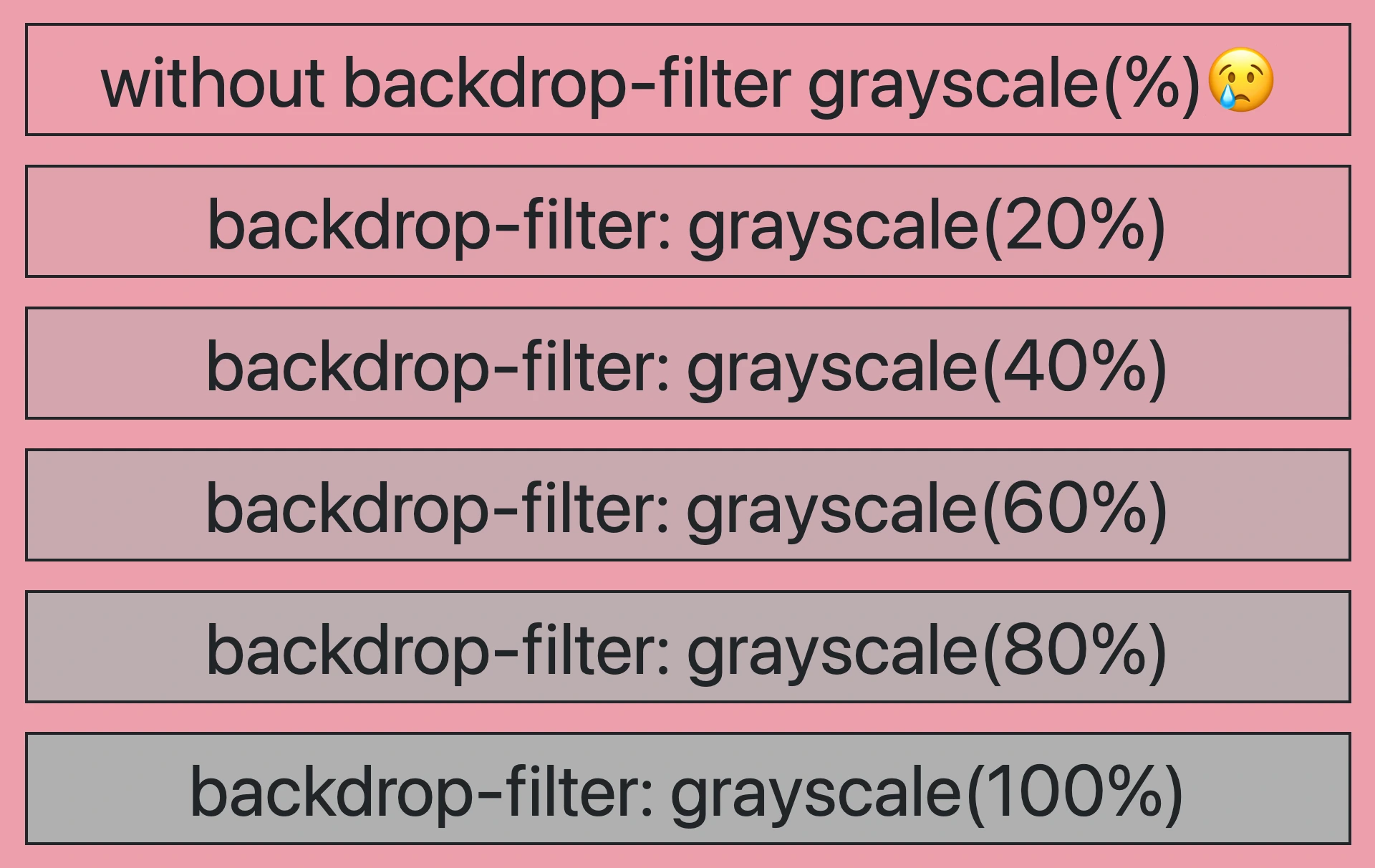
So, how does this property really work? We will begin by setting the backdrop-filter property to grayscale(percentage), where the percentage determines the intensity of the grayscale effect, ranging from 0% to 100%. A value of 100% turns the color into a complete grayscale color, while a value of 0% will keep the element’s original color shades without any grayscale effect.
This CSS property is not quite noticeable on black or white backgrounds because it adds shades of gray, and black is already the darkest shade while white is the lightest one. In simpler words, black and white will not get converted to grayscale because it already belongs to the darkest side of grayscale.
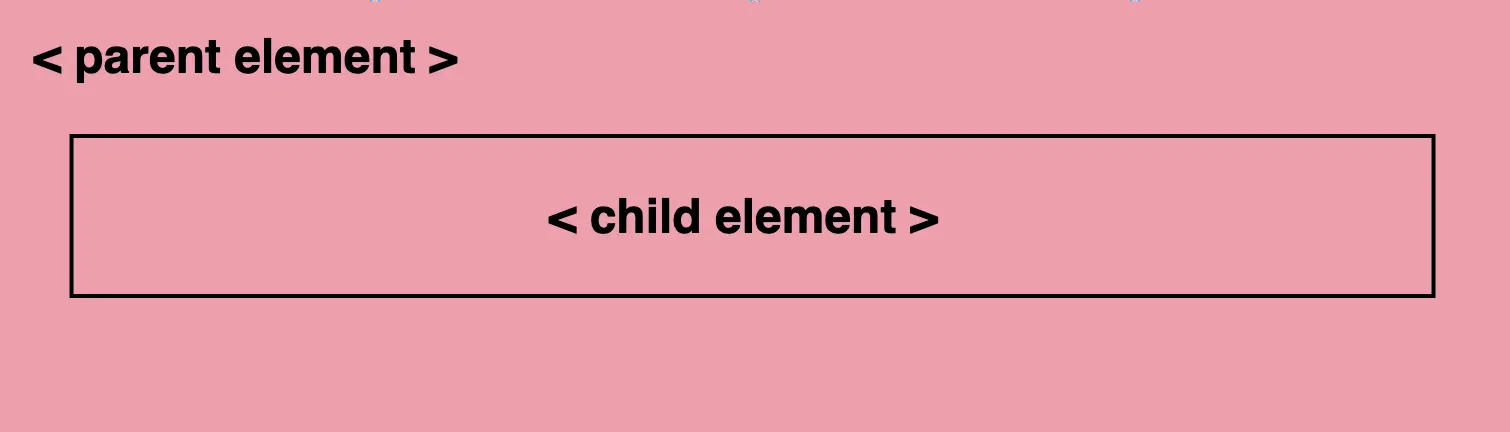
For the filter to work properly, as a first step, we need to set the background-color property of the parent element. Afterward, we add the backdrop filter to the child elements we want to apply the grayscale effect. The backdrop filter will only affect the child element’s background color but not its content, text, images, etc.
As a result, the parent element maintains its original background color, while the child element’s background is desaturated, creating a monochromatic, grayscale effect.
Create a grayscale backdrop filter effect
This HTML and CSS code above creates a <section> element (father) with a <p> element (child) inside. The section has a background color in a shade of pinkish peach, defined by the hex color code #f99bab. Initially, the paragraph inherits the same background color.
<section><p>...</p></section
HTML
/* PARENT ELEMENT */section {background-color: #f99bab; // a shade of pinkish peach}/* CHILD ELEMENT */p {backdrop-filter: grayscale(50%);}
CSS
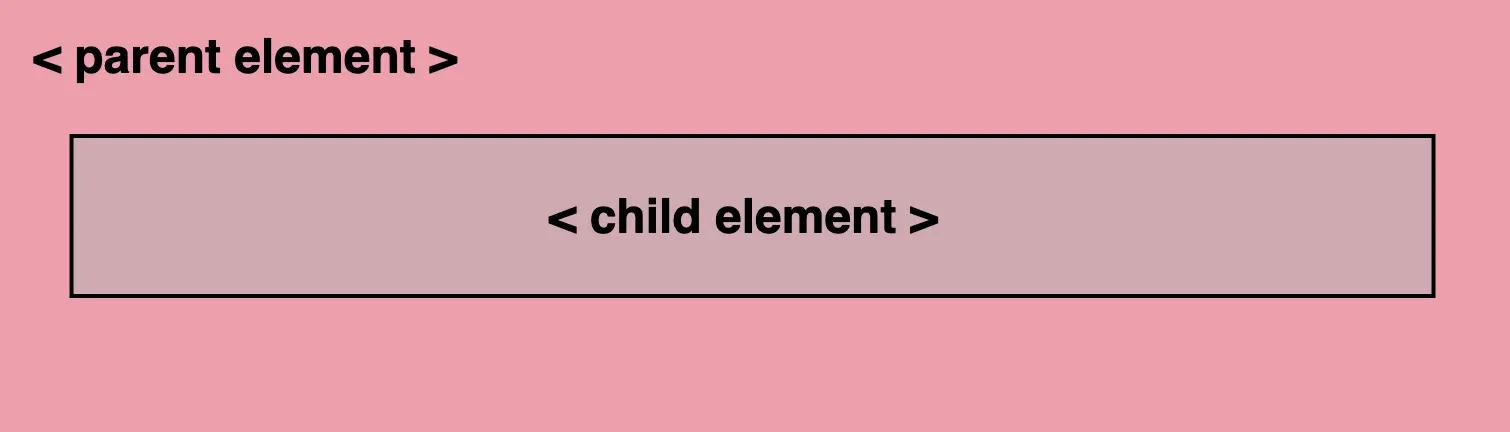
We continue with the <p> element styled by a backdrop-filter with a grayscale value of 50%. This effect visually desaturates the paragraph’s background (the paragraph inherits its background from its parent, the section). This means that the colors where the backdrop filter is applied (the area behind the element) will be desaturated to 50%. As a result, a grayscale effect will be applied where the colors are halfway between their original color and grayscale while leaving the content unaffected.
In simple terms, by setting this code, we create a parent element with a shade of pinkish peach-colored background, and its child element has a somewhat muted, desaturated appearance while at the same time retaining some of the original pink color.
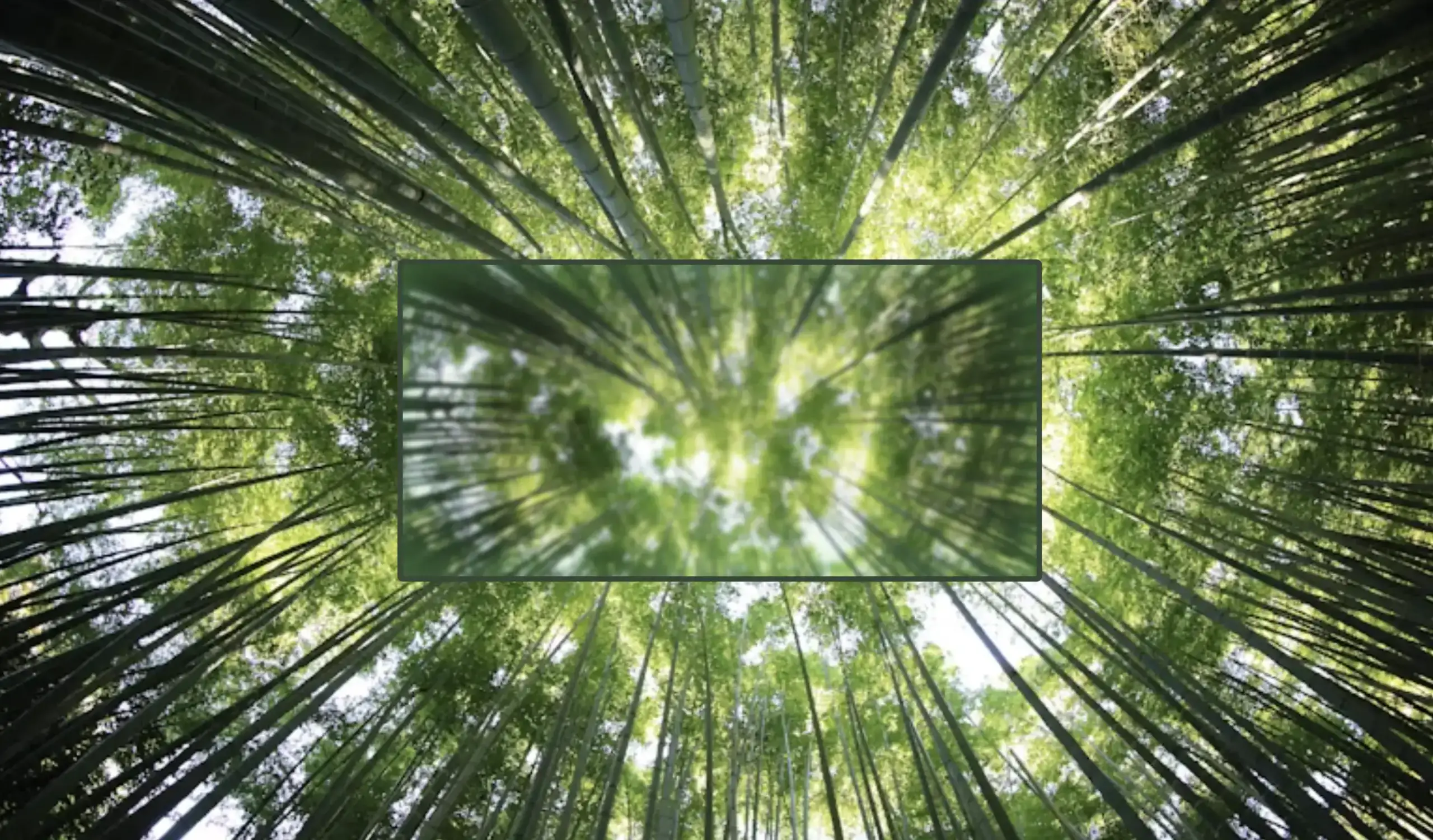
Hello everybody 😃 Today, we will discover the art of the powerful CSS blur effect. Get ready to meet the amazing backdrop-filter CSS property. We’ll dive 🤿 into the world of adding visual elegance and depth to our web design, and we will learn to create captivating and stunning web elements. Let’s get started!
Adding basic HTML structure
Let’s get started with the HTML setup. We create a parent div named custom-container for the background and a child div named blurry-container where we will apply the CSS blur effect. Follow along for the step-by-step process.
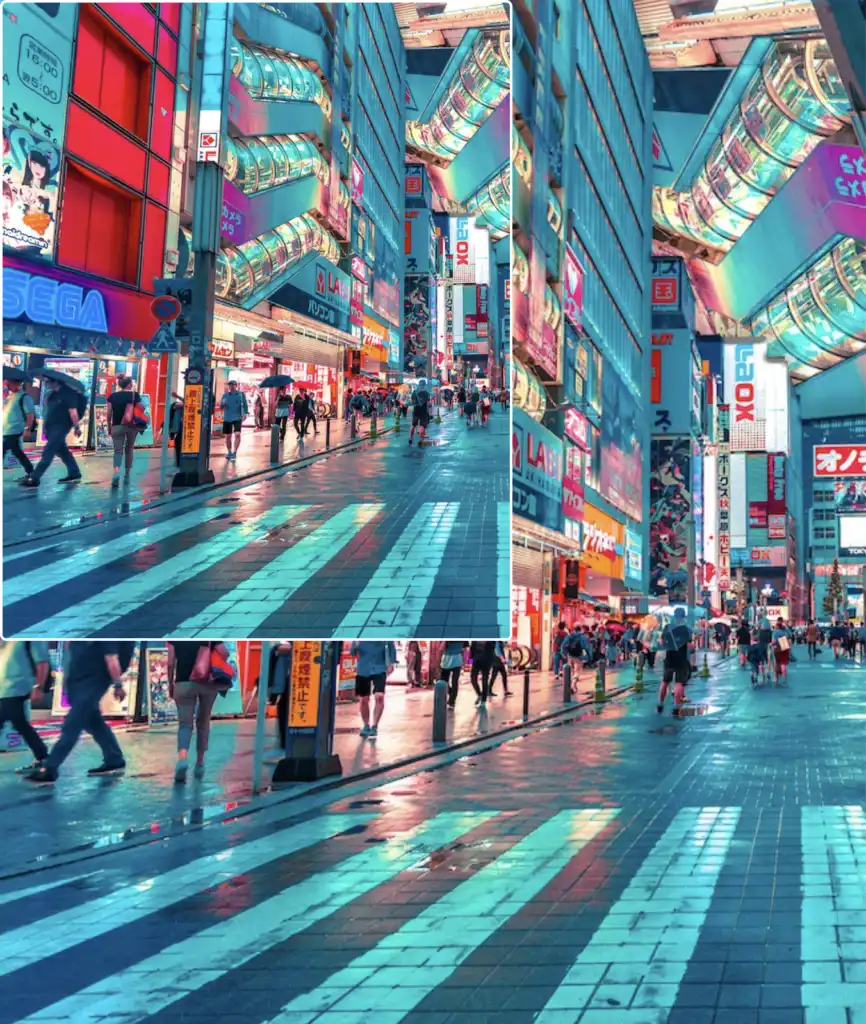
We move forward with the CSS structure by preparing the background. I opted for a striking and colorful background image as it is more impressive and gives prominence to our effect, setting background-image. I also add background-repeat which determines how the background image is shown, and background-size which sets the size of the image, in our case we want to fill the entire display. Completing it with height: 100vh for full-screen coverage.
The next step is to create a “place” where we can accommodate our blur, I believe a box would serve this need. To begin, I create one by setting the appropriate width and height along with its border and border-radius. I utilized borders to ensure my box remains visible. Whether to keep them or not is entirely up to you. The design can still look great in both cases. Feel free to choose whichever option suits your preference or the project’s requirements. 😃
We create the blur effect using the pseudo-element :before. To manage this, we have to set position:relative to the parent element and position: absolute to the child. The child element needs the content CSS property to be assigned an empty string value in order to be displayed. Despite the recent code adjustments, you won’t notice any visible changes on the screen just yet. 😭
.custom-container { ...position: relative;.blurry-container { ...&:before {position: absolute;content: ""; } /* end of before */ } /* end of blurry-container */} /* end of custom-container */
SCSS
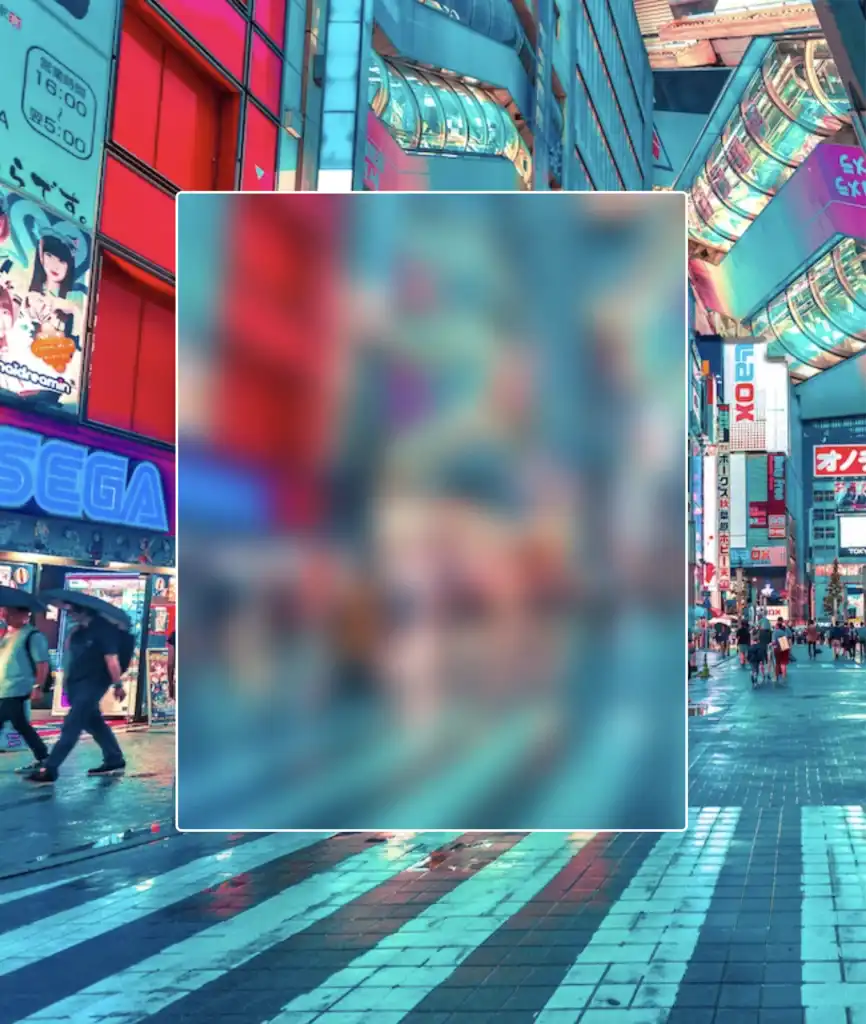
Let’s proceed with our effect. 🥁 We do so by adding the backdrop-filter CSS property to :before pseudoelement. Increasing the pixel value intensifies the blur effect by creating a stronger visual impact. I’ve applied a 12px blur effect, but you have the flexibility to adjust it according to your preferences. If you desire a clearer look, feel free to reduce ⬇ the pixels. Alternatively, for a stronger fade effect, you can increase ⬆ the pixel value.
Remember that the blur effect can sometimes get out of control on a web page because of how it’s applied to an element. When you use the blur effect, it makes the element bigger, like it’s expanded, depending on how much blur you want. So, the more blur you add, the larger the element becomes. Because of that, the element might grow so big that it spills out of its box or crashes into nearby elements. 😟
Observe how the blur CSS property overflows in the current setup above. To correct that, apply the overflow: hidden CSS property to the PARENT element custom-container. With this modification, you can control the blur effect and prevent it from causing a mess on your web page.
.custom-container { ...overflow: hidden;}
SCSS
… and boom 🥳 here it is! Our blur effect displayed flawlessly, as intended!
Complete code solution
Below is the full code referenced in this blog post. Feel free to copy and use it in your own projects. If you have any questions or encounter any issues, don’t hesitate to reach out for assistance. You can easily copy the desired code snippet by clicking on the copy icon, located in the top-right corner of each snippet.
<sectionclass="custom-container"><divclass="blurry-container"><divclass="title">Hello World</div></div><!-- end of blurry-container --></section><!-- end of customer-container -->
Below, I include the code for my post’s cover. I also added a title to see how we add text over the blur effect. 😎
<sectionclass="custom-container"><divclass="blurry-container"><divclass="title">Hello World</div></div><!-- end of blurry-container --></section><!-- end of customer-container -->