Tag: background-clip

  • How To Make A CSS Text Reflection Effect

    How To Make A CSS Text Reflection Effect

    Hi there! 😃 In this post, we’ll learn bit by bit how to create a CSS text reflection effect. When we say reflection, we’re referring to a mirror-like effect that looks like the text reflects on a surface, much like the way we see our reflection in a mirror.

    This is a simple yet amazing way to enhance the appearance of your text. Let’s analyze our effect so that you can easily follow along.

    HTML structure

    We will begin with our HTML structure. As you can see below, I prepared a div with the class .reflection-text , this is where our effect will take place.

    <div class="reflection-text">HELLO WORLD</div>
    CSS

    CSS foundation

    Let’s move forward with the CSS basic structure. We start with defining the background. It’s worth noting that using radial-gradient can make our effect more impressive. 😃

    body {
      background: radial-gradient(lightgreen, darkgreen);
      height: 100vh;
    }
    CSS

    Below, we can see the background we just created.

    In web development, we use the flex method in order to center our text. Then we will enhance its appearance, by making some adjustments. We will set the font-size to 100 pixels, select the “Roboto” font-family, and choose white as the text color.

    body {
      ...
      display: flex;
      align-items: center;
      justify-content: center;
    }
    
    .reflection-text {
      font-size: 100px;
      font-family: 'Roboto', sans-serif;
      color: white;
    }
    CSS

    This is what is rendered on the screen for now. A perfectly centered, 🎯 white text.

    Adding the CSS structure for the reflection effect

    Creating a reflection can be achieved by using pseudoelements like :before and :after. To ensure this works properly, we need to include position: relative in our .reflection-text class.

    .reflection-text {
      ...
      position: relative;
    }
    CSS

    Now, we are ready to proceed and create our reflection by adding the :before pseudoelement with all the necessary properties, as shown in the following code snippet.

    .reflection-text:before {
      content: "HELLO WORLD";
      position: absolute;
      top: 65px;
      transform: rotate(180deg) scaleX(-1);
      background: linear-gradient(
        to bottom, 
        rgba(255, 255, 255, 0) 20%, 
        rgba(255, 255, 255, 0.5) 60%, 
        rgba(255, 255, 255, 2) 100%
      );
      background-clip: text;
      color: transparent;
      opacity: 0.3;
    }
    CSS

    Breaking down the process

    🟢 To begin, we add the text “HELLO WORLD” to create another text element with the same content. This new text will serve as our reflection. Then, we set position: absolute so that we can move our reflected text below the original text. We use the top property to move the reflected text 65 pixels from the top, but you can always move the reflection in any direction you prefer. It is important to position the text and its reflection closely together for a more realistic reflection effect. 😉

    🟢 We move forward and use the transform CSS property to rotate the text by 180 degrees

    and then flip it horizontally using scaleX(-1). Now we have the perfect reflection! Let’s continue and make it more realistic.

    🟢 In the next step, we will adjust the color of our reflected text. To achieve this, we will utilize the linear-gradient CSS property and specify the direction as downwards. This will create white gradients, with the top appearing more intense and gradually fading towards the bottom of the text.

    🟢 It is commonly known that gradients cannot be directly applied to texts. Don’t worry! 🤔 We already have the solution to this problem. For now, let’s give a quick explanation. To create a clipped linear background pattern for text, first, we add the -webkit-background-clip: text property, and at the same time, we set the color to transparent, and our text automatically turns to transparent. In that way, our text takes the background: linear-gradient as its real color.

    🟢 For a more transparent text, we can adjust the opacity. The lower the opacity, the more transparent our text becomes. So, here we are! Our reflection is ready! 🥳


    Exploring different colors

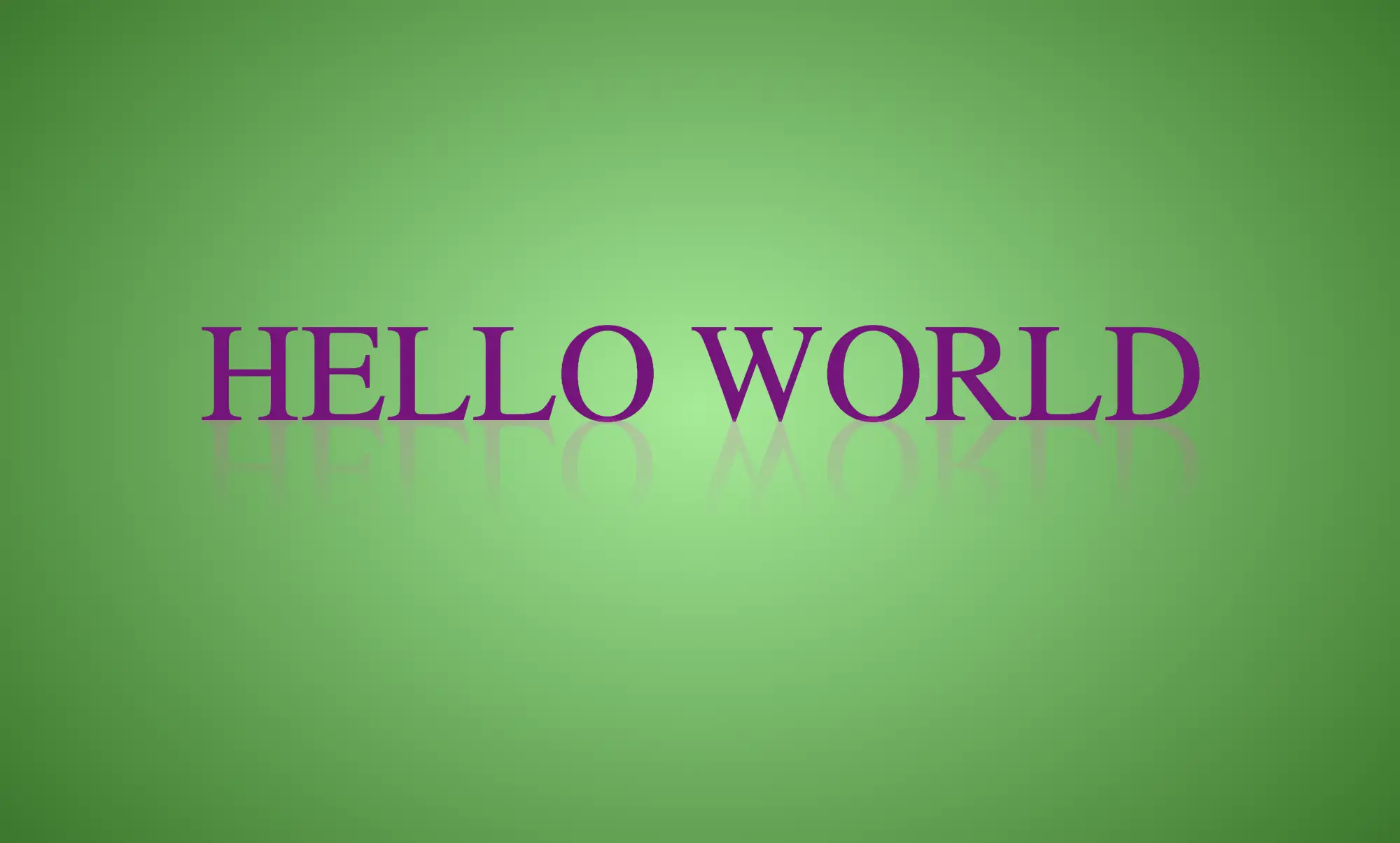
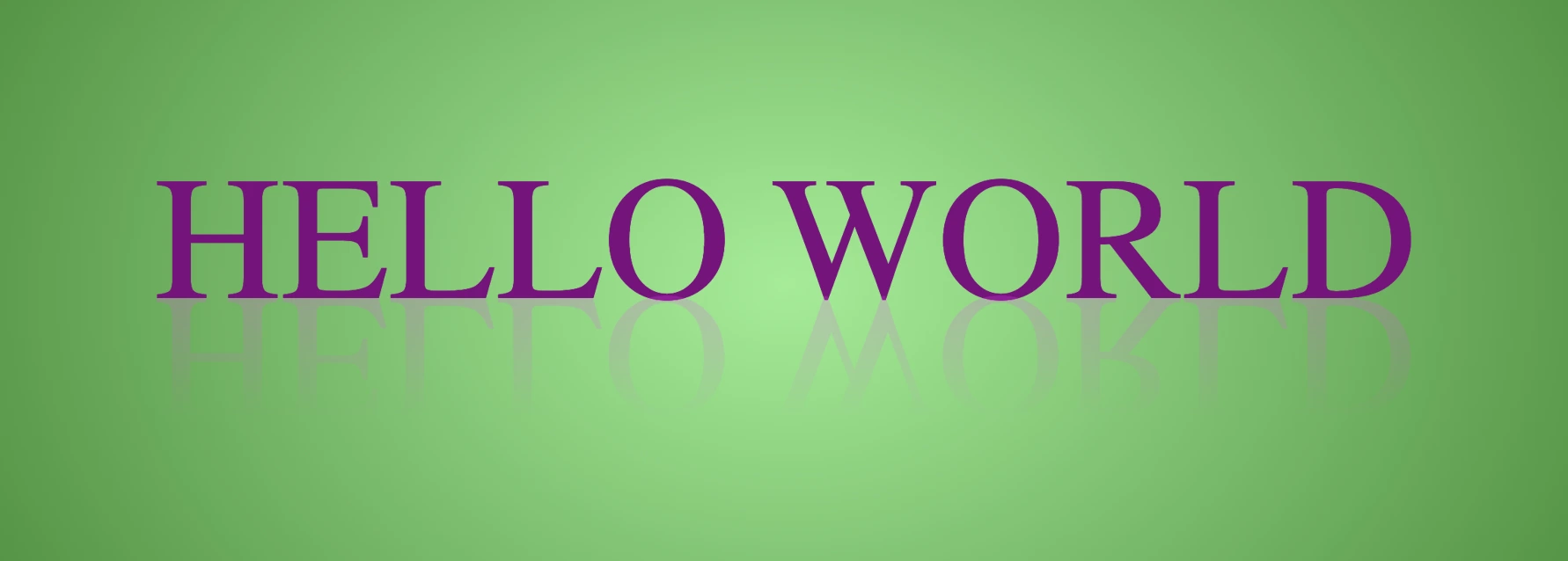
    🔖 It is always an option to use black or any other color in our work. Below, I’ve included examples of texts with black, purple, and green colors. It’s important to remember that the key factor is to set the correct gradients at the linear-gradient property. That way, we can create respective shades. Therefore, please give extra attention to that! 😊

    Black text

    .reflection-text {
      position: relative;
      font-size: 100px;
      font-family: 'Roboto', sans-serif;
      color: black; /* default color */
    }
    CSS
    .reflection-text:before {
      content: "HELLO WORLD";
      position: absolute;
      top: 65px;
      transform: rotate(180deg) scaleX(-1);
      background: linear-gradient(to bottom, 
      rgba(0, 0, 0, 0) 20%, 
      rgba(0, 0, 0, 0.5) 60%, 
      rgba(0, 0, 0, 2) 100%);
      background-clip: text;
      color: transparent;
      opacity: 0.3;
    }

    CSS

    Purple Text

    .reflection-text {
      position: relative;
      font-size: 100px;
      font-family: 'Roboto', sans-serif;
      color: purple;
    }
    CSS
    .reflection-text:before {
      content: "HELLO WORLD";
      position: absolute;
      top: 65px;
      transform: rotate(180deg) scaleX(-1);
      background: linear-gradient(to bottom, 
      rgba(255, 55, 205, 0) 20%, 
      rgba(255, 55, 205, 0.5) 60%, 
      rgba(255, 55, 205, 2) 100%);
      background-clip: text;
      color: transparent;
      opacity: 0.3;
    }
    CSS

    Green Text

    .reflection-text {
      position: relative;
      font-size: 100px;
      font-family: 'Roboto', sans-serif;
      color: green;
    }
    CSS
    .reflection-text2:before {
      content:"HELLO WORLD";
      position: absolute;
      top: 65px;
      transform: rotate(180deg) scaleX(-1);
      background: linear-gradient(to bottom, 
      rgba(20, 150, 20, 0) 20%, 
      rgba(20, 150, 20) 60%, 
      rgba(20, 150, 20, 2) 100%);
      background-clip: text;
      color: transparent;
      opacity: 0.3;
    }

    CSS
  • CSS Rainbow Text: How To Make Astonishing And Vibrant Fonts

    CSS Rainbow Text: How To Make Astonishing And Vibrant Fonts

    Imagine infusing your web typography (fonts) with the vibrant hues of a dazzling 🌈✨ rainbow! Cascading Style Sheets (CSS) empower designers and developers to bring this captivating vision to life. A colorful font like the CSS rainbow effect is more than just a spectrum of colors; it’s a creative and dynamic way to enhance your website’s visual appeal and make a lasting impression on your visitors.

    Today, with this post, 😃 we’ll dive into the exciting world of creating a rainbow effect, unlocking the magic of colors and typography to elevate your web design. Enjoy! 💻

    Prepare basic HTML and CSS structure

    We begin with our HTML and CSS structure. We create an HTML <div> element that has a class called rainbow-effect. Then, we set some rules in CSS that are applied to our HTML element. So, let’s move forward and analyze our CSS code snippet.

    <body>
      <div class="raibow-effect">rainbow effect</div>
    </body>
    HTML
    body {
      background-color: #050c20; /* deep blue */
    }
    
    .rainbow-effect {
      text-align: center;
      color: white;
      font-size: 180px;
      font-weight: bold;
      font-family: 'Roboto', sans-serif;
    }
    CSS

    First of all, we set the background color of our body to be a deep blue. Then, we proceed with our text. We create a center aligned, white 180px text with bold and highly legible fonts, as we specifically seek a font with excellent readability.

    Once set, we can then proceed with our tweaks in order to infuse the text with the enchanting hues of a rainbow. The following image shows what is rendered on the screen for the time being. 😃

    This image shows our text with its basic characteristics.

    Apply the rainbow effect

    Within the style rules of the .rainbow-effect, we find specific directives regarding our rainbow effect:

    
    .rainbow-effect {
      ...
      background-image: linear-gradient(
        to right, red, orange, yellow, green, blue, indigo, violet
      );
      background-clip: text;
      color: transparent;
    }
    
    CSS

    background-image: linear-gradient
    The first thing we need to know is that by using the background-image CSS property we are able to create a background with more than one color.

    We do so by setting the linear-gradient value, and we are free to choose any color and any direction we want for our text. In our case, we use the to right direction and the gradient starts with the color red on the left and smoothly transitions through orange, yellow, green, blue, indigo, and violet as it moves from left to right. So, it gives a colorful, horizontal stripe-like background.

    The rainbow effect word with a rainbow effect as a background. This happens as we set the CSS background-image property to linear-gradient(to right, red, orange, yellow, green, blue, indigo, violet)

    You are always free to choose any direction of the linear-gradient you like! 👍

    background-clip: text
    We continue our work with the background-clip property which is used to define how the background should be clipped or masked. In our case, it’s set to text, which tells the browser to apply the background gradient only to the text inside our div.

    The rainbow effect word after setting the -webkit-background-clip CSS property to text. We can see that for now our text is white with the body's background.

    What? Nothing happened yet? Why? Using this property, the colorful background is applied to the text, but the effect is not visible yet because it is necessary to proceed to our next step 🧐 ⬇ in order to achieve the final and desired results. So, let’s move on!

    color: transparent
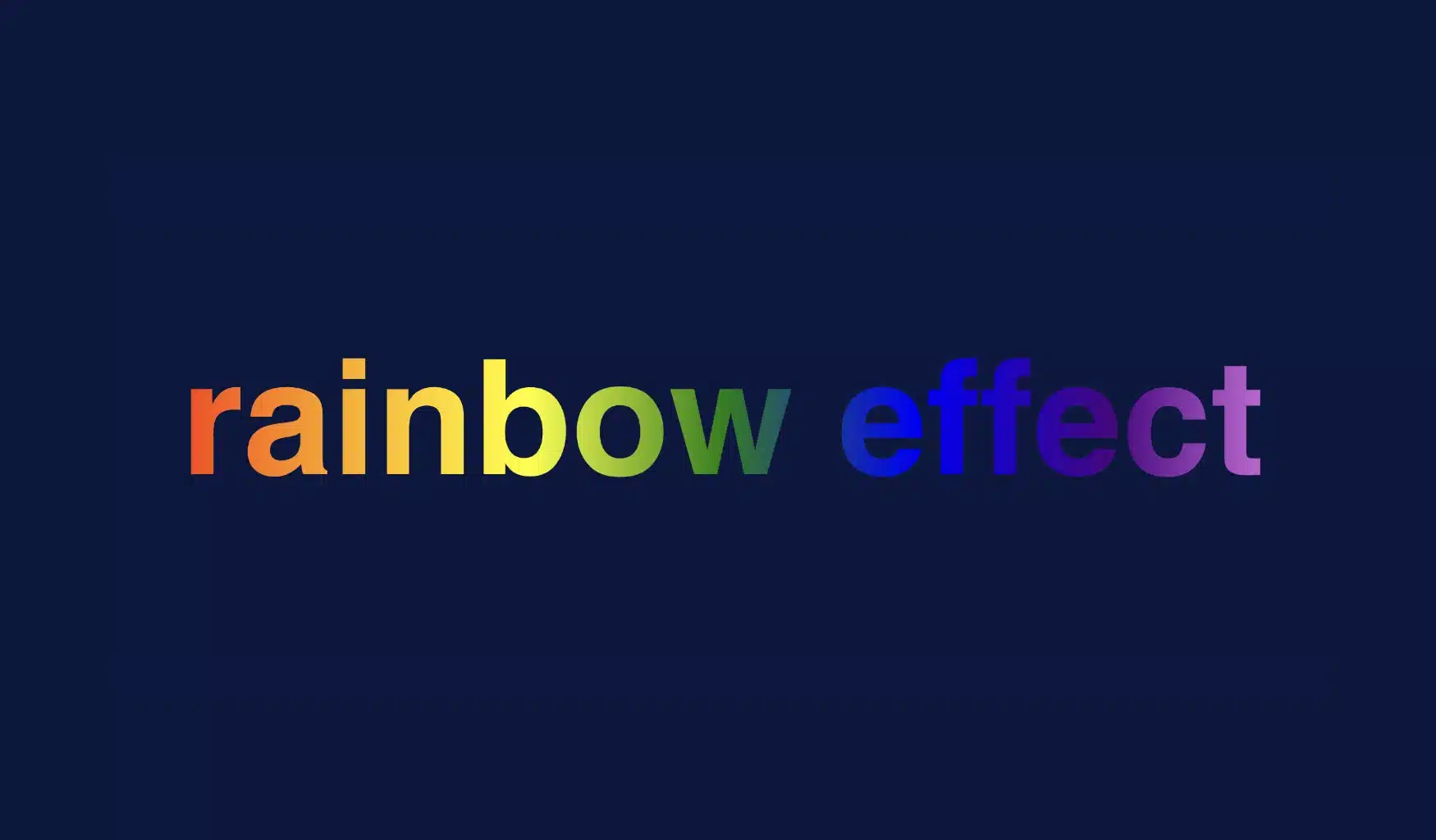
    Finally, adding the color property to transparent renders the text itself invisible, allowing the colorful background to show through the text. And there it is! 🥳

    The rainbow effect word with the css rainbow effect after setting color CSS property to transparent. We are able now to see that our text inherits the colors of the rainbow. So, now we can see a completely colorful text.

    So, in summary, putting it all together, when you use this code, you’ll have a text with a colorful gradient background (rainbow colors) that appears within the text. The text itself is invisible, creating a striking and colorful text effect. 🎉

  • Transform Your Text: Black and White CSS Stripes Made Easy

    Transform Your Text: Black and White CSS Stripes Made Easy

    Welcome to a world where ⚫ black and ⚪ white aren’t just colors. In this post, 😃 we’ll explore the exciting world of creating black and white CSS stripes. It is a really cool effect to level up your text by adding stripes, making it even more fascinating and appealing.

    We will be learning about this effect by using an example to make it crystal clear. Let’s check it out! 👩‍💻

    Create basic HTML and CSS structure

    We will begin with our HTML and CSS structure. Our HTML code includes a <div> element that has a class named .stripes-effect for identification and styling purposes. Following that, we add some CSS rules to apply specific styles to our HTML element with this class.

    <body>
      <div class="stripes-effect">black & white text with shadow</div>
    </body
    HTML
    body {
      background-color: black;
    }
    
    .stripes-effect {
      font-family: 'Bungee', sans-serif;
      text-align: center;
      color:  white;
    }
    CSS

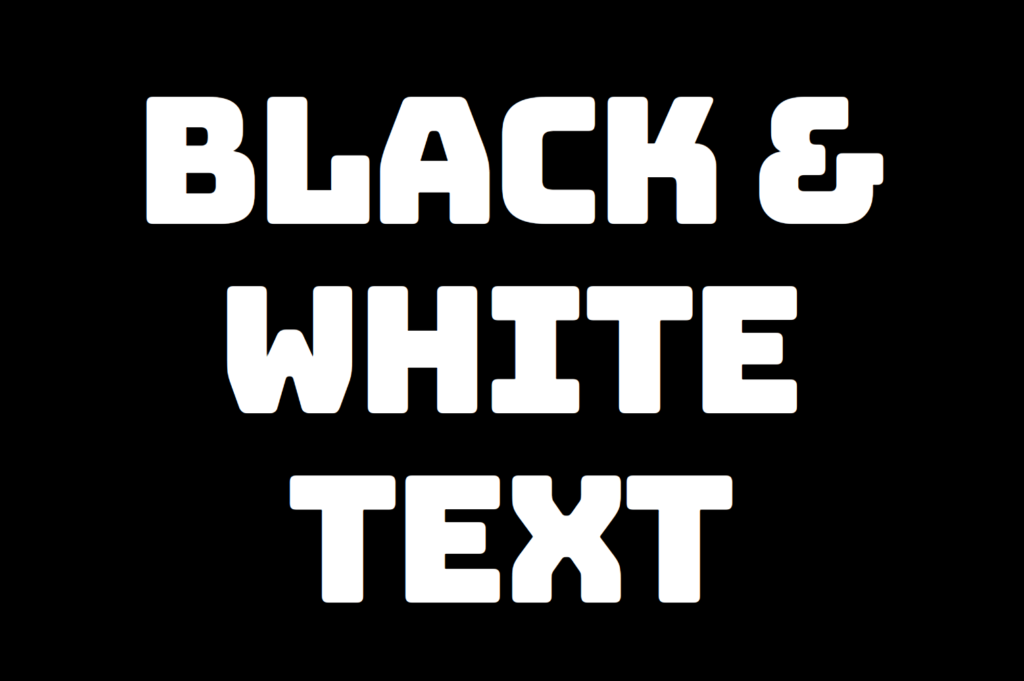
    By doing so, our heading is ready for applying our CSS stripes effect and should now look like this

    This image shows a white text with a black background

    Adding black and white vertical stripes

    Now that we have added our basic structure, we’ll create our stripe effect gradually, step by step, until it’s perfected. Let’s add the following styling

    .stripes-effect {
      ...
      background-image: linear-gradient(to right, white, black, ...);
      /* clips the background pattern */
      background-clip: text;
      /* makes text invisible */
      color: transparent;
    }
    CSS

    In our already existing .stripes-effect class, we have the following rules:

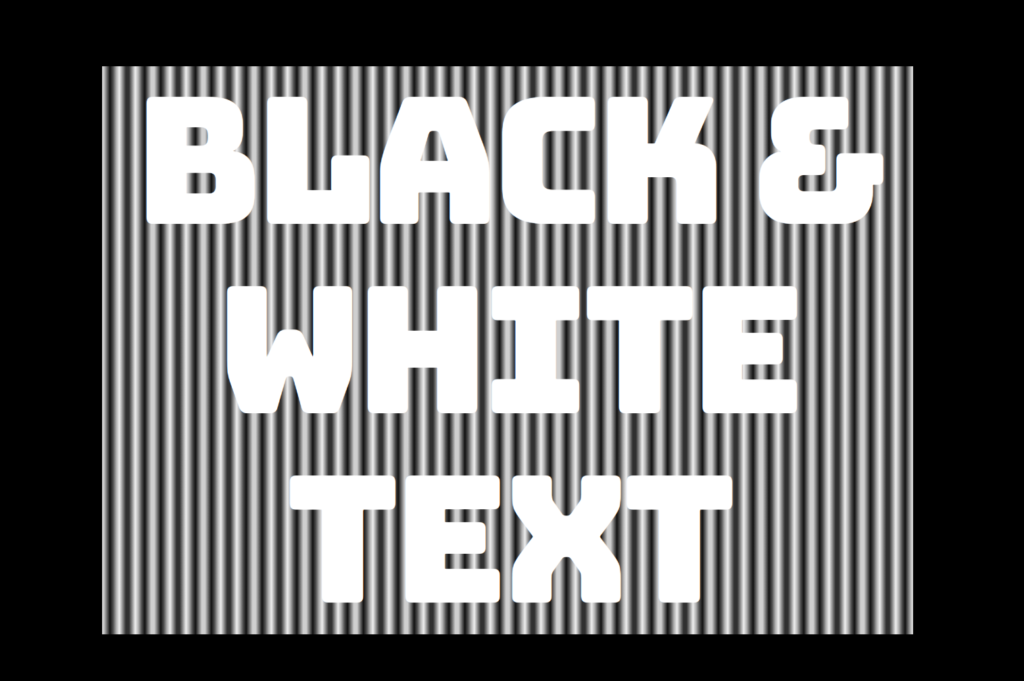
    background-image: linear-gradient(to right, white, black, ...) ➡ We begin by setting this CSS property that creates a background pattern using a gradient of alternating black and white stripes from left to right. The default direction is from top to bottom.

    This image shows a white text with black and white background that comes from the CSS property background-image: linear-gradient(to right, white, black, ...) CSS property.

    Don’t worry if our black-and-white text is hard to read; 🕯 😂 it is a temporary phase just to serve our purpose for now. We will move forward and see! So let’s proceed immediately! ⏳

    background-clip: text ➡ By adding this property, it clips the background pattern to the shape of the text, making the text appear as if it’s filled with black and white stripes. If we just add this property and leave our CSS settings without any other change, our effect will not show properly.

    This image shows that the browser clips the background when we set the -webkit-background-clip: text CSS property.

    If we want this to see our effect it is necessary to proceed with the following step (color: transparent ⬇).

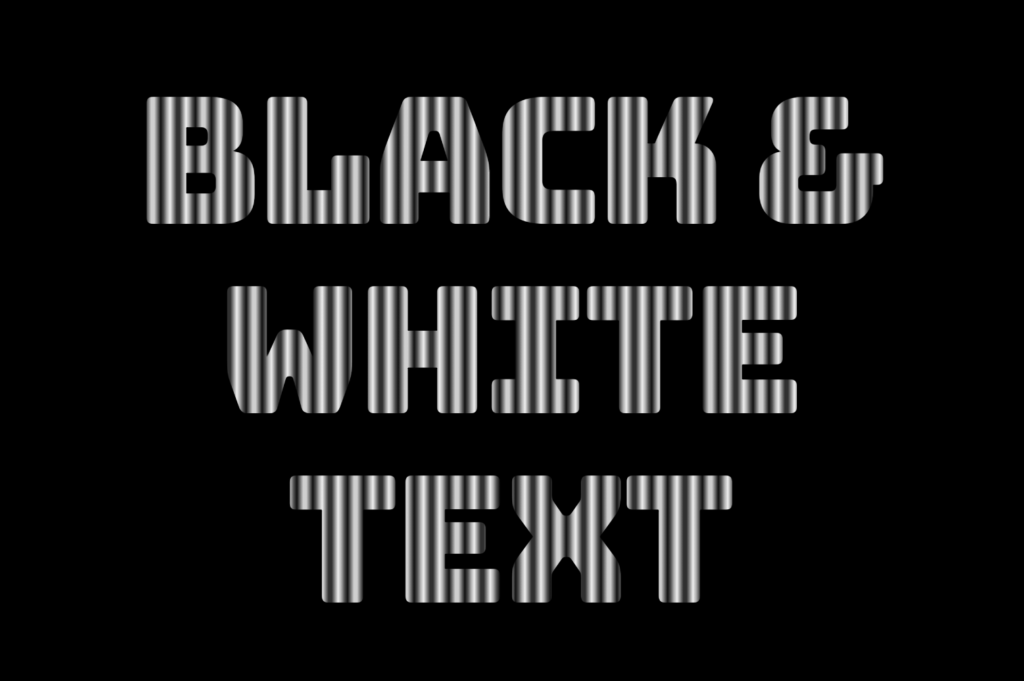
    color: transparent ➡ It’s time to make the text transparent, enabling the background pattern we created in the previous step to be visible!

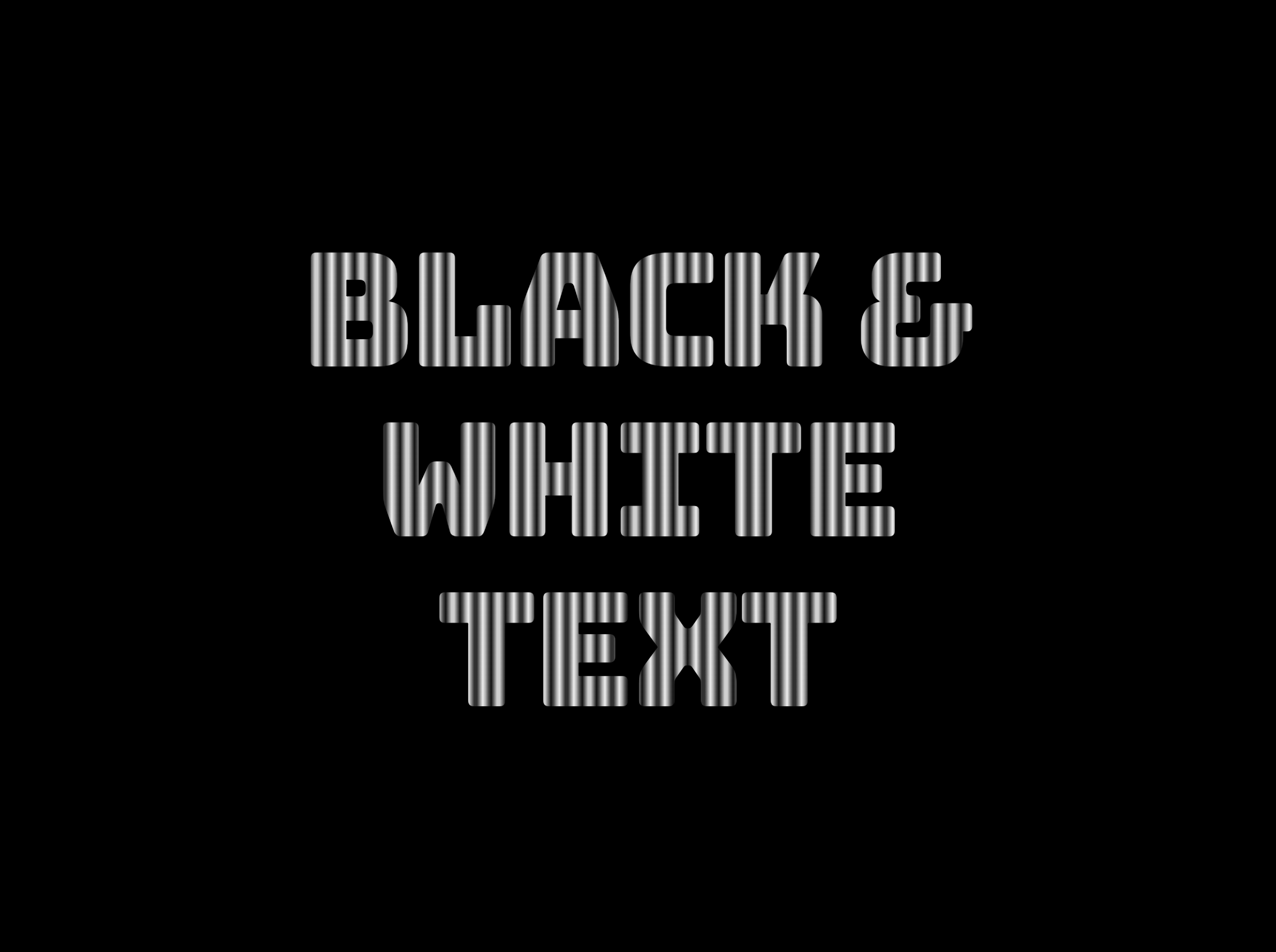
    This image shows the color: transparent CSS property. We now see our text having a black and white - css zebra effect.

    Black and white CSS stripes variations

    The Zebra effect is not limited to vertical stripes (linear-gradient) for your texts; you can explore more options and create any effect you want. Below, you will find some variations to give you the inspiration you need.

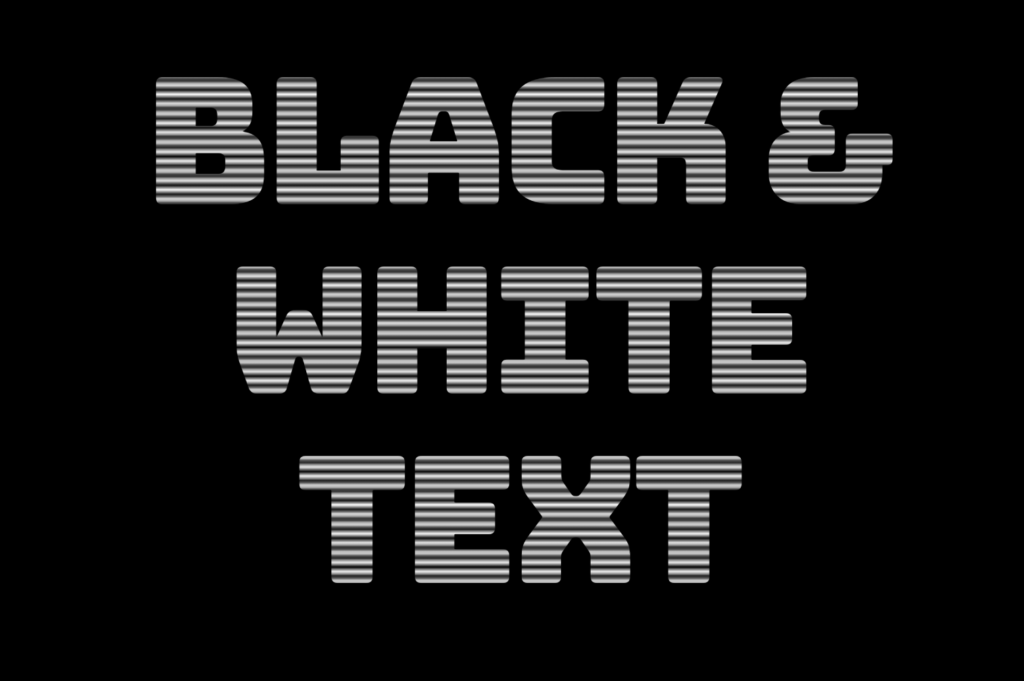
    Horizontal striped text

    .stripes-effect {
      ...
      background-image: linear-gradient(white, black, ...);
    }
    CSS
    This image shows the CSS stripes effect but with horizontal lines direction.

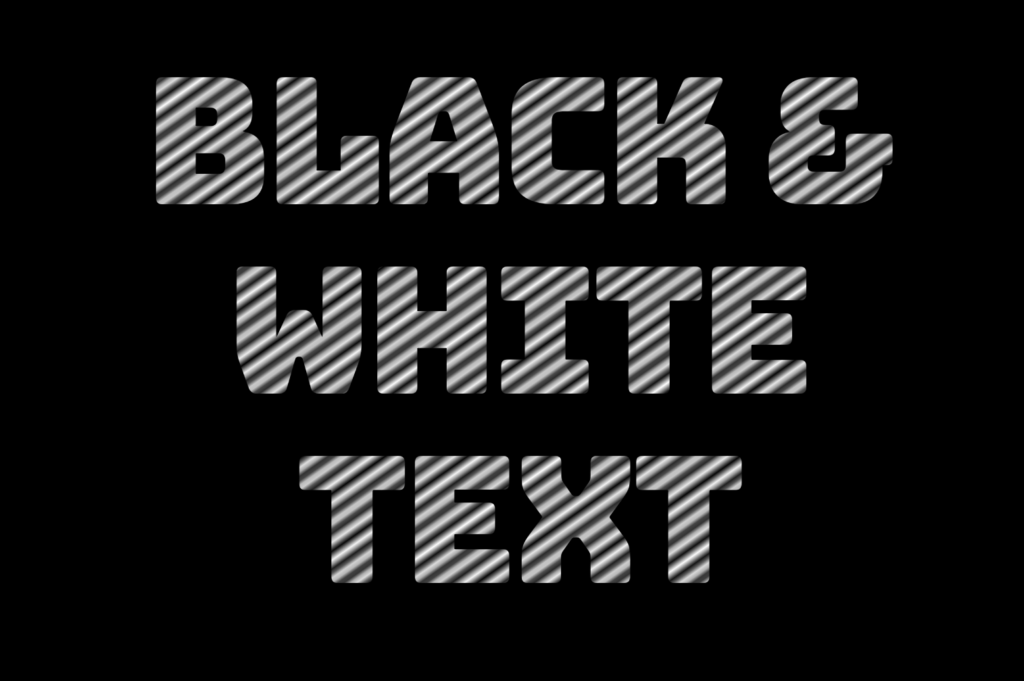
    Diagonal striped text

    .stripes-effect {
      ...
      background-image: linear-gradient(to bottom right white, black, ...);
    }
    CSS
    This image shows the black and white CSS stripes effect but with diagonal lines direction.