Tag: border-radius

  • CSS Water Drop Effect: How to Make Text Look Wet & Glossy

    CSS Water Drop Effect: How to Make Text Look Wet & Glossy

    😃 In this post, we are beyond excited to show you how to create a breathtaking water drop effect that stands on top of a text using only the power of CSS.

    We will confidently guide you through every single step of the process, from the initial design phase to the final finishing touches.

    In addition, we will share expert tips on how to masterfully experiment with CSS properties to achieve the perfect shape and reflection effects. So, let’s jump right in and create something fantastic together!

    Setting up the HTML structure for the water drop effect

    We begin with the HTML structure. We need to create an element with the class name .wrapper. This element will have two child elements. The first child element will be dedicated to the text, so we give a suitable class name, such as .text. Similarly, we should name the second child element with a class name that reflects its purpose, such as .drop.

    <div class="wrapper">
      <div class="text">drop</div>
      <div class="drop"></div>
    </div>
    HTML

    Our top priority right now is to work on the second child element, which is our amazing drop. 💦 🤓 Once we’re done with that, we’ll move on to the text.

    Styling the water drop effect with CSS

    We move forward with the CSS structure. To create a flexible layout for our project, we set the flex property on the element with the class .wrapper. This will allow us to easily adjust the size and position of its child elements.

    Additionally, we added the position: relative property to the wrapper to establish a reference point for any absolutely positioned child elements later on in the project. By doing this, we have prepared the necessary space and layout for easier and more precise positioning of elements.

    .wrapper {
      display: flex;
      align-items: center;
      justify-content: center;
      position: relative;
    }
    CSS

    How to create a realistic water drop effect in CSS

    Firstly, we must select a color for the body, setting the background-color. Keep in mind that the same color must be used for the drop. Therefore, it is crucial to choose the color carefully. 🌈

    Then, we need to establish the dimensions and borders. Thus, we will set the width and height and then adjust the border-radius property to create a slightly rounded shape.

    Next, we maintain the body’s background-color by adjusting the transparency of the drop. In that way, our drop inherits the color of the body.

    Additionally, we add the box-shadow property which is the most crucial part as it is responsible for creating a realistic-looking drop that appears three-dimensional. Without it, the element may appear flat and lacking in depth. 😉 So, don’t be afraid to experiment with different shadow settings until you find the right combination that works for you. It’s truly amazing how much of a difference a small tweak-change can make!

    body {
      background-color: #5fc8e8; /* a light shade of blue */
    }
    
    .wrapper {
      ...
    }
    
    .drop {
      width: 210px;
      height: 220px;
      
      background-color: transparent;
      border-radius: 45% 50% 45% 55%;
      
      box-shadow: -2px -2px 10px 5px #0f9dc4, /* all around */
      5px 5px 10px #0796c1, /* top & right */
      inset 15px 15px 30px #0796c1, /* inset top & right */
      inset -29px -20px 50px #f2f4f7; /* inset left & bottom */
    }
    CSS

    This is what is rendered on the screen. For now, we continue to ignore the text and focus on our almost-ready 🙃 amazing drop!
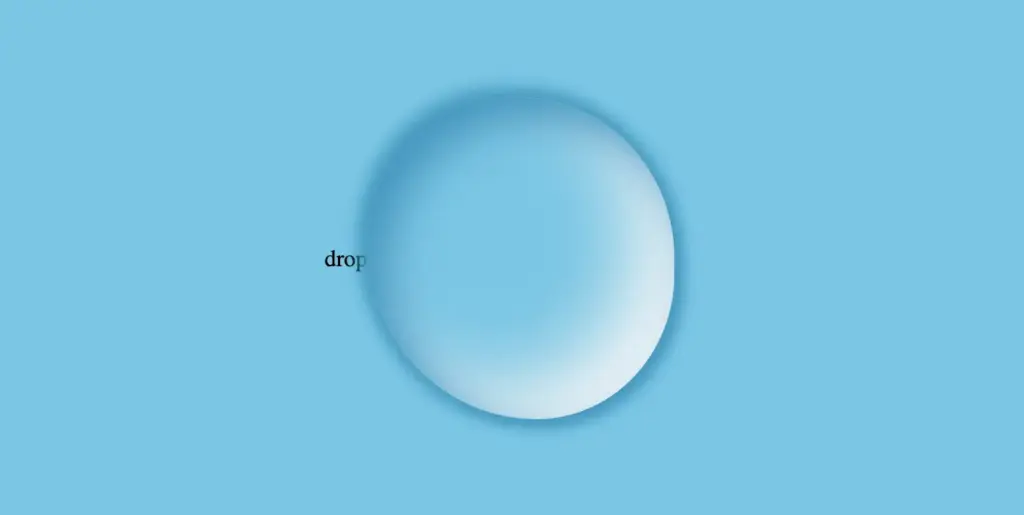

    Adding shine to the water drop

    By utilizing the CSS properties :before and :after, we can create two new pseudo-elements without the need for additional HTML markup. This technique can be used to create a glancing effect. Both pseudo-elements have the same properties but with different values, which helps to differentiate them from each other and create a unique look.

    We can effortlessly position those glances within the drop element by using the CSS property position: absolute.

    Then, we specify their dimensions and the color by setting the width, height and background-color.

    Next, we modify the shadows and their shape by setting the box-shadow and border-radius .

    After that, we use the top and left properties to position them. Finally, to make them look even more realistic, we can add some rotation by using the transform: rotate() property.

    .drop {
      ...
      position: absolute;
    }
    
    .drop:before {
      position: absolute;
      content: "";
      width: 14%;
      height: 7%;
      background-color: #f5f5f5;
      box-shadow: 0 0 10px #f5f5f5;
      border-radius: 60% 45% 50% 60%/60% 45% 60% 50%;
      top: 15%;
      left: 20%;
      transform: rotate(140deg);
    }
      
    .drop:after {
      position: absolute;
      content: "";
      width: 10%;
      height: 5%;
      background-color: #fff;
      box-shadow: 0 0 10px #fff;
      border-radius: 50% 45% 45% 60%/50% 50% 40% 55%;
      top: 25%;
      left: 10%;
      transform: rotate(-45deg);
    }
    CSS

    After adding these glances, we can see our final drop. 💦 ✨ It’s pretty cool, isn’t it?

    Adjusting text appearance beneath the water drop effect

    We are moving forward by adjusting our text and making it more visually appealing. I have selected the “Lobster” font-family with a font size of 140 pixels, a warm dark orange, and a black 2px text-shadow.

    In case we wish to use another font-family than the usual ones, we need to insert it into our CSS. We do so by setting the @import url(...). Ensure this statement is placed at the beginning of your CSS code snippet, just like I did. Check below. 👇

    @import url('https://fonts.googleapis.com/css?family=Lobster');
    
    .text {
      font-family: "Lobster", sans-serif;
      font-size: 140px;
      color: #e85a5a; /* a shade of warm dark orange */
      text-shadow: 2px 2px 2px black;
    }
    CSS

    Take a closer look now. The text appears so different behind the water drop. It’s quite impressive, don’t you think? 😎

    One last step, and we are ready! We are free to place our text wherever we want by setting the position: absolute , top and left CSS properties in order to move it.

    We also have full control over the placement of our text. This can be achieved by confidently adjusting the CSS properties position: absolute , top and left.

    .text {
      ...
      position: absolute;
      top: -45px;
      left: -35px;
    }
    CSS

    The final step is complete! Congratulations! 🥳 You have the option to either keep the original design or create your own. Please remember that the most important thing is to combine the appropriate colors 🌈 and shadows; this is necessary for our drop to look realistic.

    Full CSS water drop effect code (copy & paste ready)

    Below is the full code referenced in this blog post. Feel free to copy and use it in your own projects. If you have any questions or encounter any issues, don’t hesitate to reach out for assistance. You can easily copy the desired code snippet by clicking on the copy icon, located in the top-right corner of each snippet.

    <div class="wrapper">
      <div class="text">drop</div>
      <div class="drop"></div>
    </div>
    HTML
    @import url('https://fonts.googleapis.com/css?family=Lobster');
    
    * {
      margin: 0;
      padding: 0;
      box-sizing: border-box;
    }
    
    html,
    body {
      height: 100vh;
    }
    
    body {
      background-color: #5fc8e8;
      display: flex;
      align-items: center;
      justify-content: center;
    }
    
    .wrapper {
      display: flex;
      align-items: center;
      justify-content: center;
      position: relative;
    }
    
    .text {
      position: absolute;
      font-family: "Lobster", sans-serif;
      font-size: 140px;
      color: #e85a5a;
      text-shadow: 2px 2px 2px black;
      top: -45px;
      left: -35px;
    }
    
    .drop {
      width: 210px;
      height: 220px;
      background-color: transparent;
      border-radius: 45% 50% 45% 55%;
      box-shadow: -2px -2px 10px 5px #0f9dc4, /* all around */
      5px 5px 10px #0796c1, /* top & right */
      inset 15px 15px 30px #0796c1, /* inset top & right */
      inset -29px -20px 50px #f2f4f7; /* inset left & bottom */
      position: absolute;
    }
    
    .drop:before {
      position: absolute;
      content: "";
      width: 14%;
      height: 7%;
      background-color: #f5f5f5;
      box-shadow: 0 0 10px #f5f5f5;
      border-radius: 60% 45% 50% 60%/60% 45% 60% 50%;
      top: 15%;
      left: 20%;
      transform: rotate(140deg);
    }
    
    .drop:after {
      position: absolute;
      content: "";
      width: 10%;
      height: 5%;
      background-color: #fff;
      box-shadow: 0 0 10px #fff;
      border-radius: 50% 45% 45% 60%/50% 50% 40% 55%;
      top: 25%;
      left: 10%;
      transform: rotate(-45deg);
    }
    CSS
    Expand
  • How To Create A Stunning Gray CSS Water Drop

    How To Create A Stunning Gray CSS Water Drop

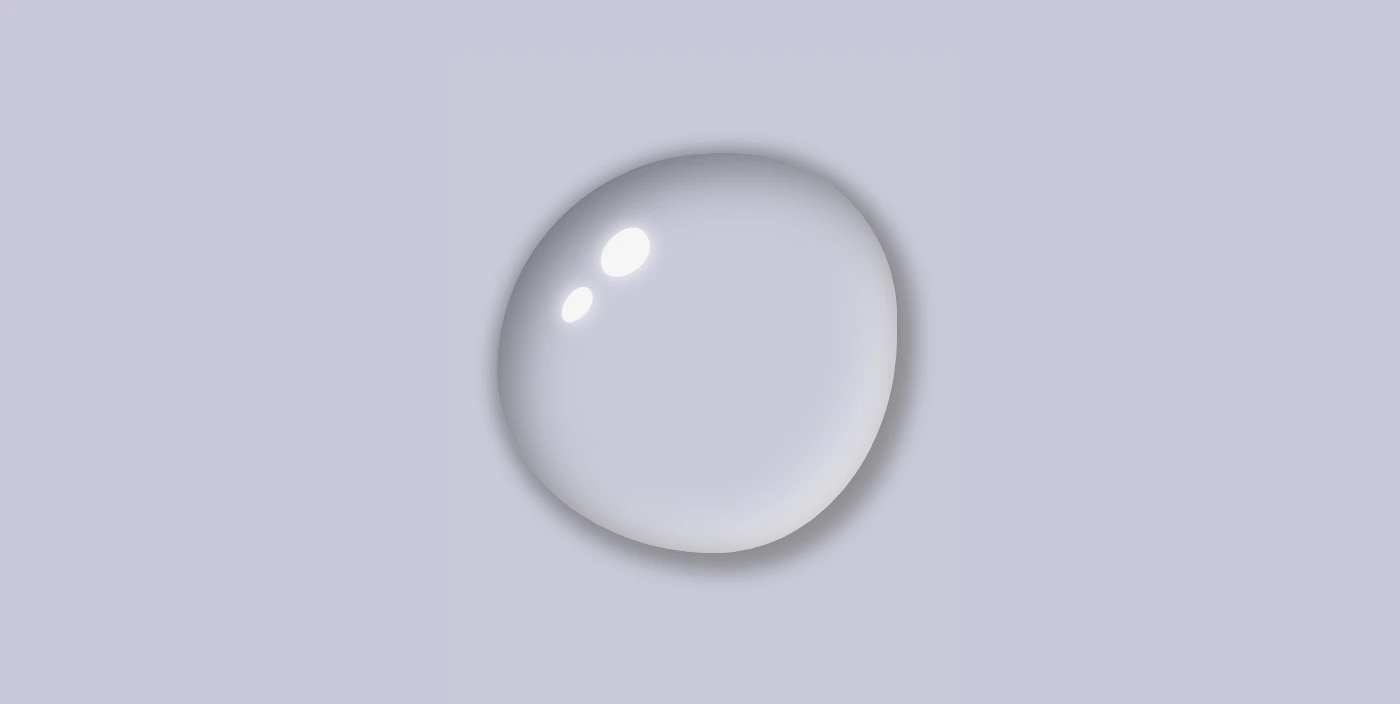
    Hello there! 😃 In this post, we will guide you drop-by-drop ☔ on how to make a beautiful gray CSS water drop using only CSS. We will take you through the entire process, from the initial design to the final touches, and provide useful tips on how to adjust CSS properties to achieve the perfect shape and reflection effects. By the end, you will have created stunning water drops that will capture everyone’s attention.

    So, let’s begin this adventure and dive in! 🤿

    HTML Structure for water drop

    First, we create an HTML element with a class name that reflects the intended purpose and makes it easily identifiable. In our example, we will use the class name .drop 💦✨.

    <div class="drop"></div>
    HTML

    CSS Structure for a water drop

    We continue working on our CSS code. First, we have to create our drop, then we will add some shine as a way to look more natural, and finally, we will add two more drops with different sizes. Let the game begin! ⏳

    Create the water drop

    We begin by setting the background-color for our body, giving it a light shade of grayish blue (#c9c9db). As drops are transparent, picking the appropriate color as their background is essential.

    Then we define the dimensions and borders of our drop, setting the width and height and adjusting the border-radius property to create a slightly rounded shape. (It’s important to note that nothing will be rendered on the screen at this stage as our drop does not have any color yet. 💬 )

    Next, we work on creating the drop effect using only shadows, which can be quite challenging. To achieve this, we have to make sure that the drop’s background-color is set to transparent.

    body {
      background-color: #c9c9db; /* a light shade of grayish blue */
    }
    
    .drop {
      width: 200px;
      height: 200px;
      
      border-radius: 60% 45% 50% 60%/60% 45% 60% 50%;
      background-color: transparent;
    }
    CSS

    We finalize by adding the box-shadow property to create the CSS water drop effect. We have to play somehow 🎨 🖌 with our color shades till we manage 🤯 to create the perfect result. 💪

    body {
      background-color: #c9c9db; /* a light shade of grayish blue */
    }
    
    .drop {
      ...
      box-shadow: 0 0 10px #8a8a8e, /* top-right-left-bottom */
      5px 5px 10px 5px #929297, /* left & bottom */
      inset 8px 8px 25px #71717a, /* inset top & right */
      inset -8px -8px 25px #f2f2f2; /* inset left & bottom */
    }
    CSS

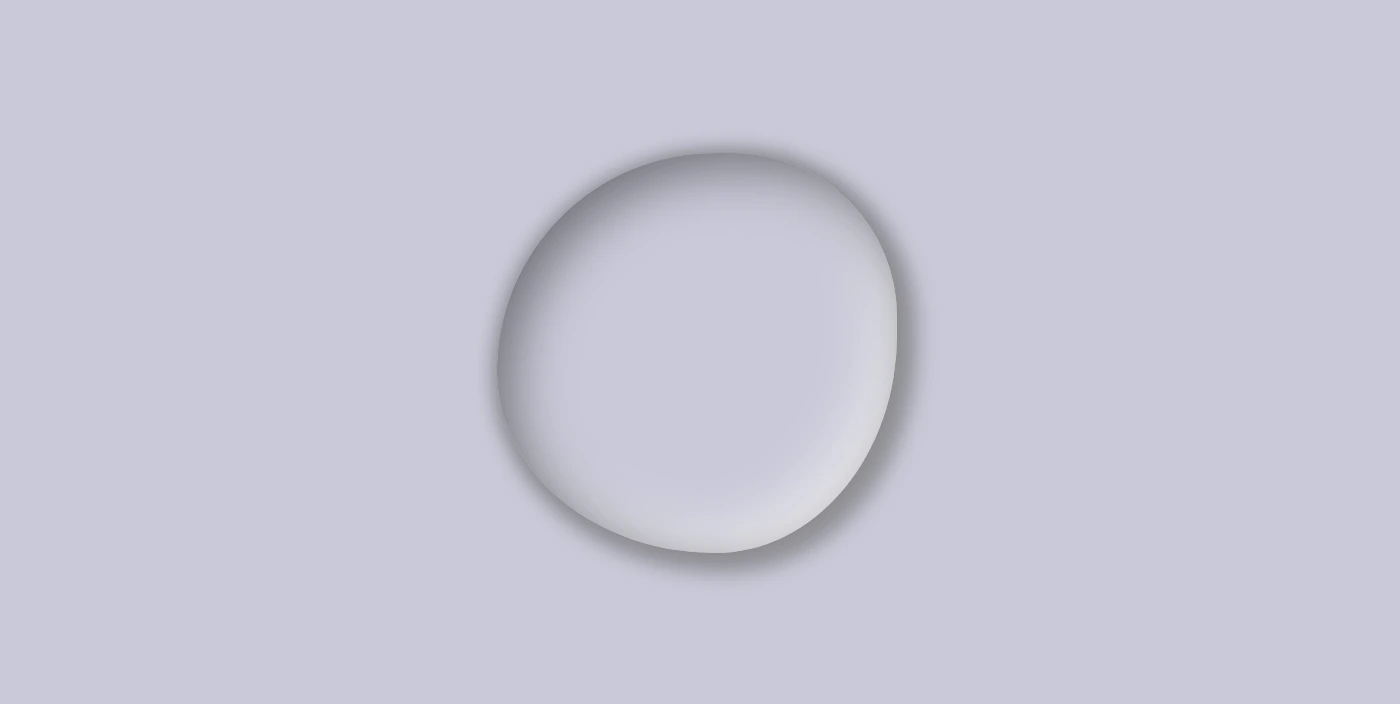
    Below, we can see what has been displayed on the screen up to this point.

    Adding shine to the CSS water drop

    With the power of CSS, we can bring to life unique and captivating shine ✨ effects using the :before and : after pseudo-elements. By setting different values for the same properties, we can create a distinctive and inspiring look that will leave a lasting impression on our audience.

    To position the shine inside the drop element, we utilize the position: relative to our class and then the position: absolute to our pseudoelements.

    .drop {
      ...
      position: relative;
    }
    
    .drop:before {
      position: absolute;
    
      content: "";
      width: 14%;
      height: 10%;
      background-color: #f5f5f5;
      
      box-shadow: 0 0 10px #fff;
      border-radius: 60% 45% 50% 60%/60% 45% 60% 50%;
      top: 20%;
      left: 25%;
      transform: rotate(-40deg);
    }
    
    .drop:after {
      position: absolute;
    
      content: "";
      width: 10%;
      height: 6%;
      background-color: #f5f5f5;
      
      box-shadow: 0 0 10px #fff;
      border-radius: 60% 45% 50% 60%/60% 45% 60% 50%;
      top: 35%;
      left: 15%;
      transform: rotate(-50deg);
    }
    CSS

    Then, we specify the dimensions and colors for the shine by setting the width, height and background-color.

    Next, we add the box-shadow and border-radius properties that allow us to create smooth and rounded corners on the shiny elements. This can give the design a softer look.

    After that, we use the top and left properties to position them.

    Finally, to make them look even more realistic, we can add some rotation by using the transform: rotate() property.

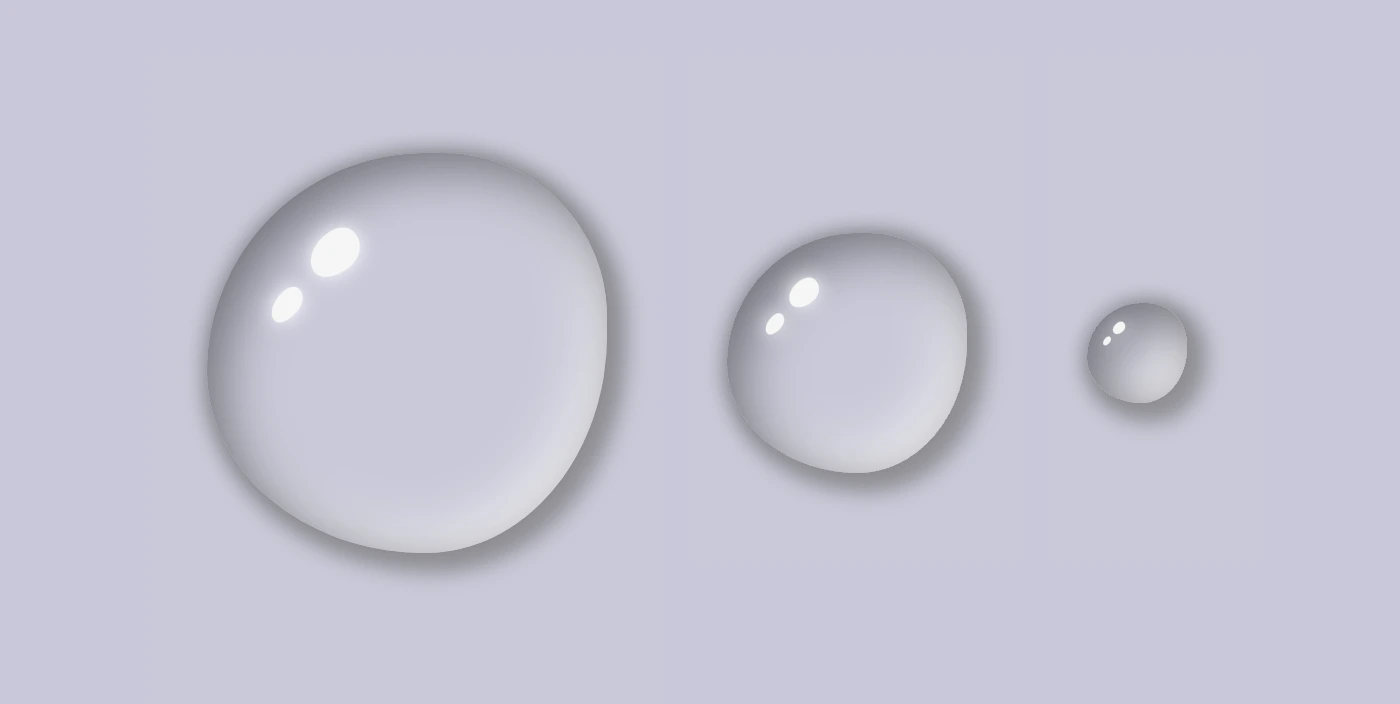
    In the following image, you can see the changes applied: a shiny, grey water drop!

    Create the rest of the water drops

    We will complete our work by adding two more drops. Each drop will have a different class, depending on its size.

    <div class="drop"></div>
    <div class="drop drop--medium"></div>
    <div class="drop drop--small"></div>
    HTML

    First of all, we add a small margin of 30 pixels between the drops. Then, we continue with adding the drop’s size based on our preferences.

    .drop {
      ...
      margin: 30px;
    }
    .drop--medium {
      width: 120px;
      height: 120px;
    }
    
    .drop--small {
      width: 50px;
      height: 50px;
    }
    CSS

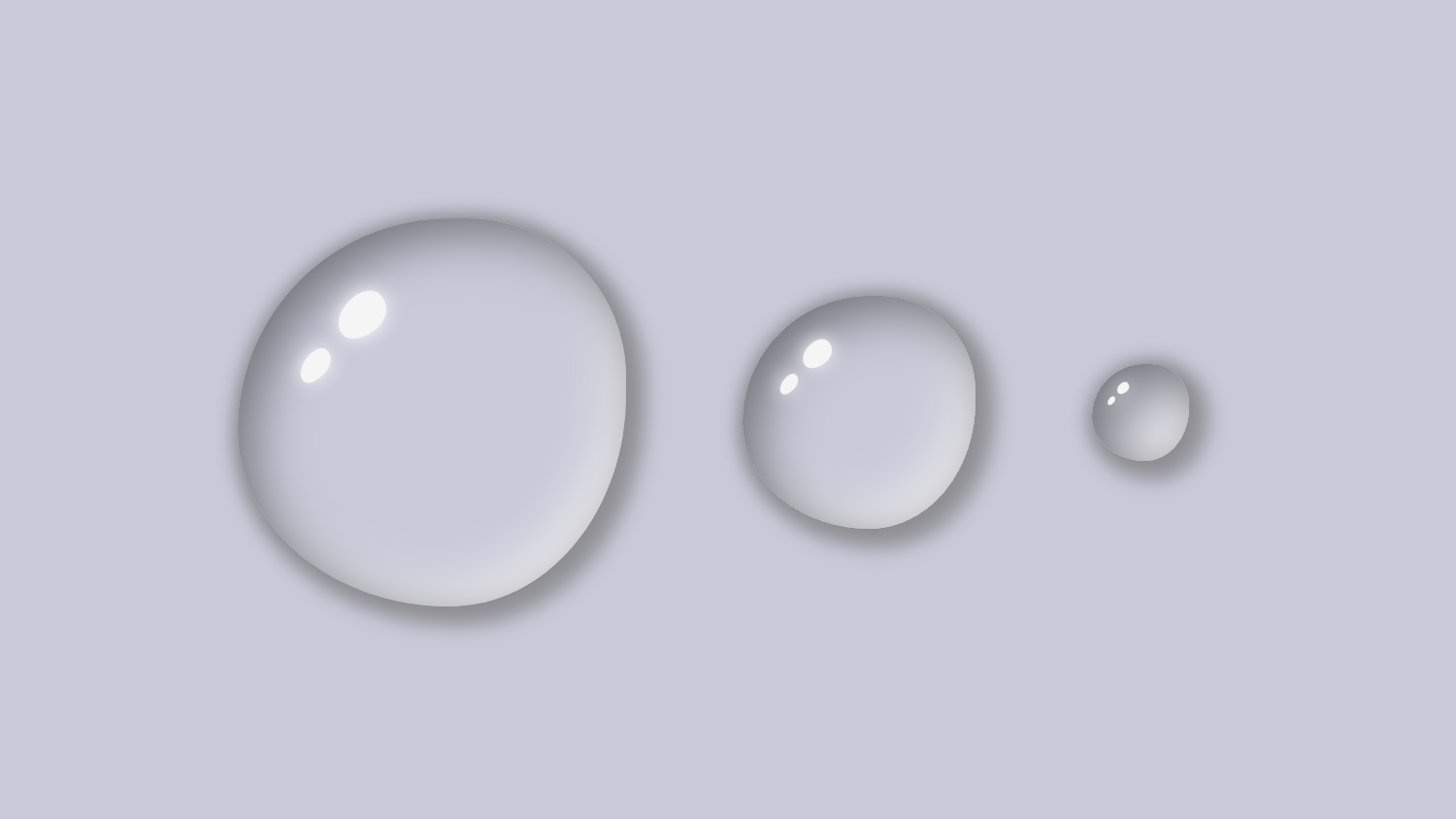
    Here we are! Our stunning water drops are displayed on the screen! Nice, isn’t it? 😎
    (We added some extra styling, not included in our code snippets, to center our drops, in case you are wondering about the last screenshot)

    Hope you found it useful. Utilize these techniques to create stunning water drops that will impress your audience. Have fun experimenting with different colors, shades, and shapes to produce your own unique designs! 💦 ✨ Happy coding!

    Complete code solution

    Below is the full code referenced in this blog post, along with some extra stylings to enhance our final result. Feel free to copy and use it in your own projects. If you have any questions or encounter any issues, don’t hesitate to reach out for assistance in the comments section. You can easily copy the desired code snippet by clicking on the copy icon located in the top-right corner of each snippet.

    <div class="drop"></div>
    <div class="drop drop--medium"></div>
    <div class="drop drop--small"></div>
    HTML
    * {
      margin: 0;
      padding: 0;
      box-sizing: border-box;
    }
    
    html,
    body {
      height: 100vh;
    }
    
    body {
      background: #c9c9db;
      display: flex;
      align-items: center;
      justify-content: center;
    }
    
    .drop {
      width: 200px;
      height: 200px;
      border-radius: 60% 45% 50% 60%/60% 45% 60% 50%;
      background-color: transparent;
      box-shadow: 0 0 10px #8a8a8e, /* top-right-left-bottom */
      5px 5px 10px 5px #929297, /* left & bottom */
      inset 8px 8px 25px #71717a, /* inset top & right */
      inset -8px -8px 25px #f2f2f2; /* inset left & bottom */
      
      position: relative;
      margin: 30px;
    }
     
    .drop:before {
      position: absolute;
    
      content: "";
      width: 14%;
      height: 10%;
      background-color: #f5f5f5;
      
      box-shadow: 0 0 10px #fff;
      border-radius: 60% 45% 50% 60%/60% 45% 60% 50%;
      top: 20%;
      left: 25%;
      transform: rotate(-40deg);
    }
    
    .drop:after {
      position: absolute;
    
      content: "";
      width: 10%;
      height: 6%;
      background-color: #f5f5f5;
      
      box-shadow: 0 0 10px #fff;
      border-radius: 60% 45% 50% 60%/60% 45% 60% 50%;
      top: 35%;
      left: 15%;
      transform: rotate(-50deg);
    }
    
    .drop--medium {
      width: 120px;
      height: 120px;
    }
    
    .drop--small {
      width: 50px;
      height: 50px;
    }
    CSS
    Expand
  • How To Be Creative With Different CSS Border Styles

    How To Be Creative With Different CSS Border Styles

    Hello everybody! 😀 In this post, we’ll work with the amazing CSS border property, which is basically the line that surrounds our objects. Borders are an independent property and do not affect the content within. You can think of borders as beautiful frames that enclose HTML elements. ✨ 🖼 Let’ dive into the details of CSS border styles.

    When working with borders in CSS, we have four key properties to consider:

    • border-width
    • border-style
    • border-color
    • border-radius

    Furthermore, we have the option to handle each side individually by using properties like border-top, border-right, border-bottom and border-left. We can either modify all four sides at once or selectively apply changes to different sides.

    Below, there are some basic examples of borders so that you can have a quick glimpse of the possibilities offered by this CSS property. Afterward, we will go deeper and explore every case more analytically.

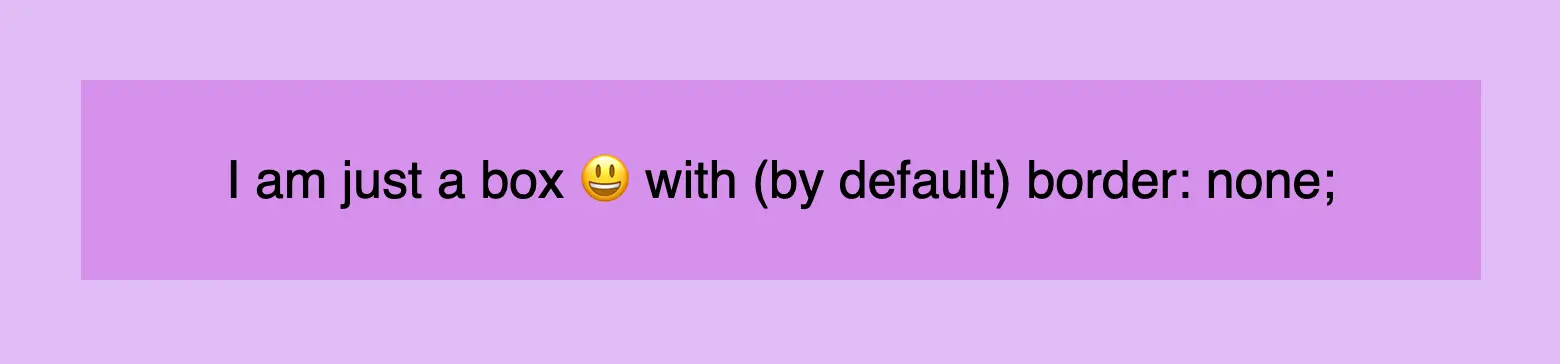
    CSS border styles: This is an image that shows a box with border box none.
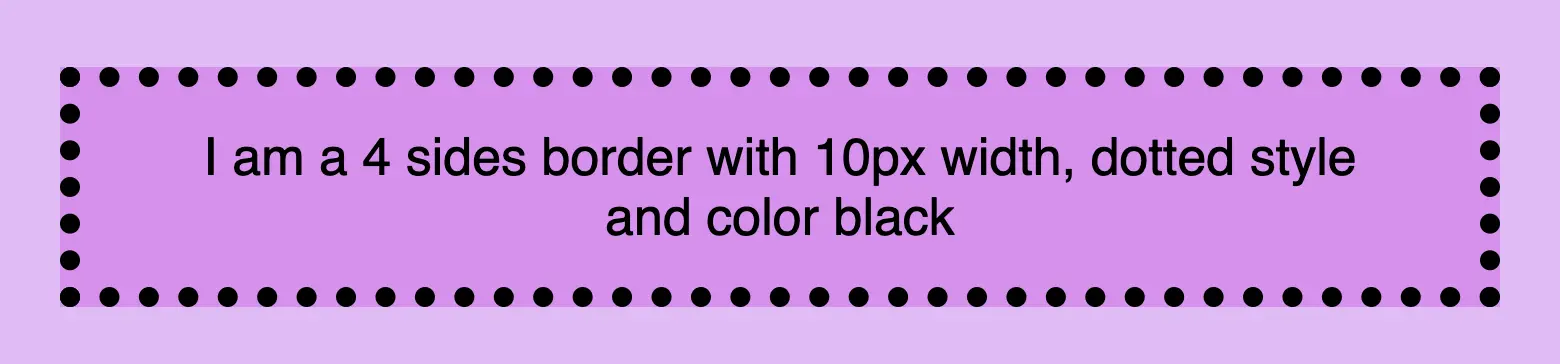
    CSS border styles: This is an image that shows a box with 4 sides border, 10px width, dotted style and color black.
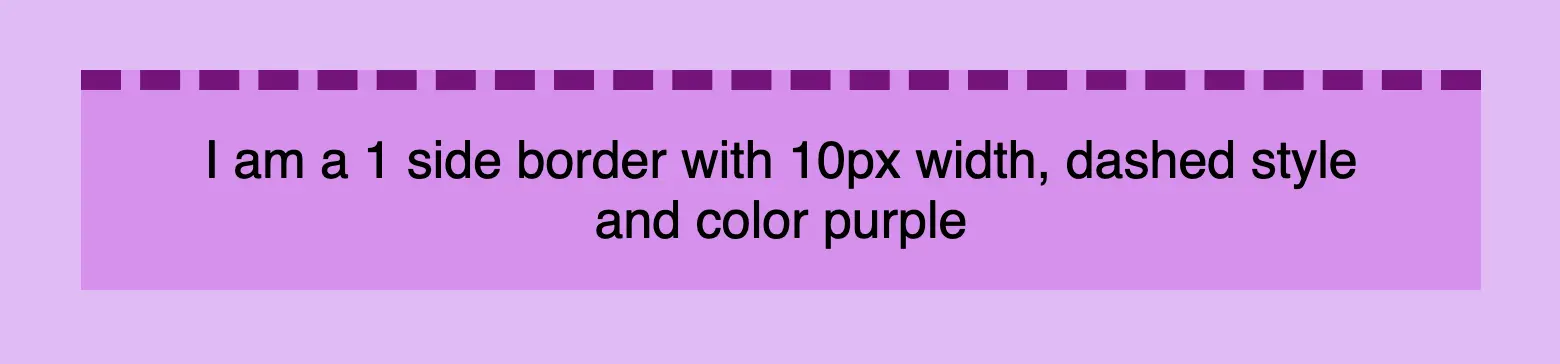
    CSS border styles: This is an image that shows a box with 1 side border, 10px width, dashed style and color purple.
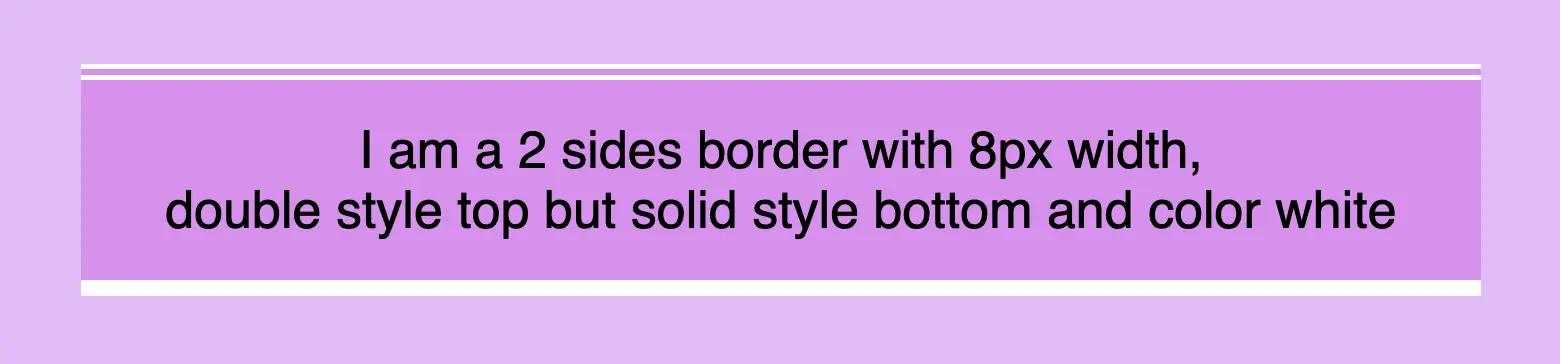
    CSS border styles: This is an image that shows a box with 2 sides border, 8px width, double style top but solid style bottom and color white.
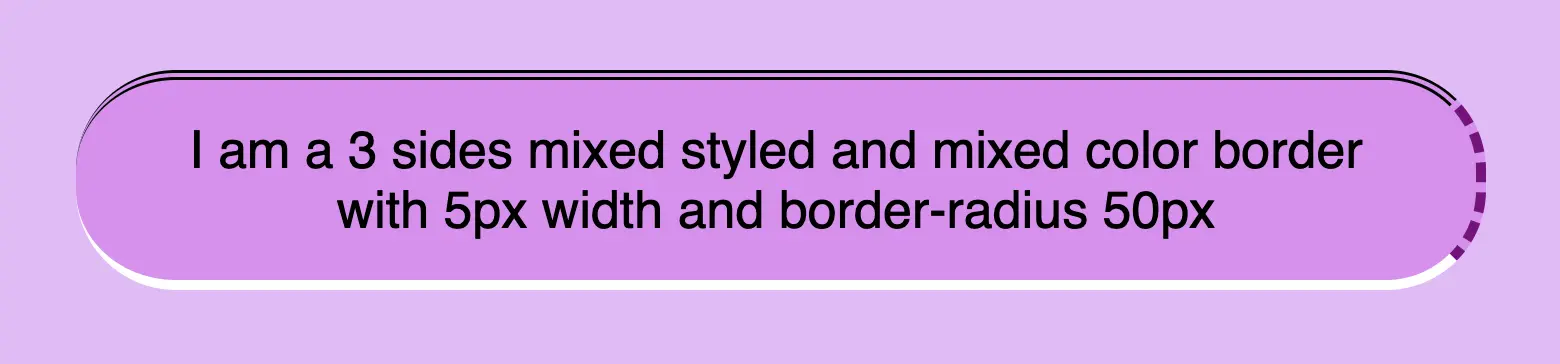
    CSS border styles: This is an image that shows a box with a 3 sides mixed styled and mixed color border with 5px width and border-radius 50px.
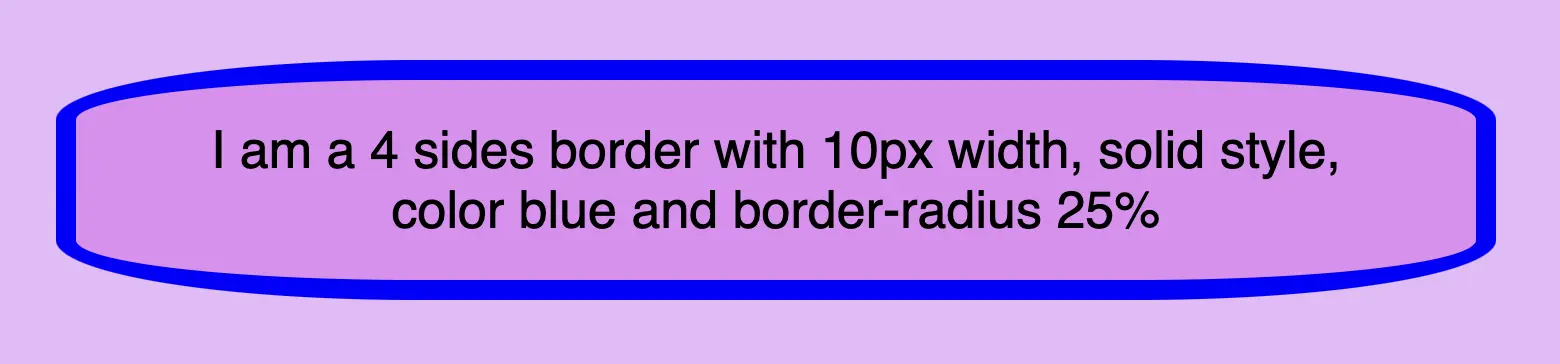
    CSS border styles: This is an image that shows a 4 sides border with 10px width, solid style, color blue and border-radius 25%.

    CSS border style – The playful property

    We can now move forward and focus on the first thing we need to know about borders is the border-style CSS property. There are many styles available, but for today, we will concentrate on the most common ones.

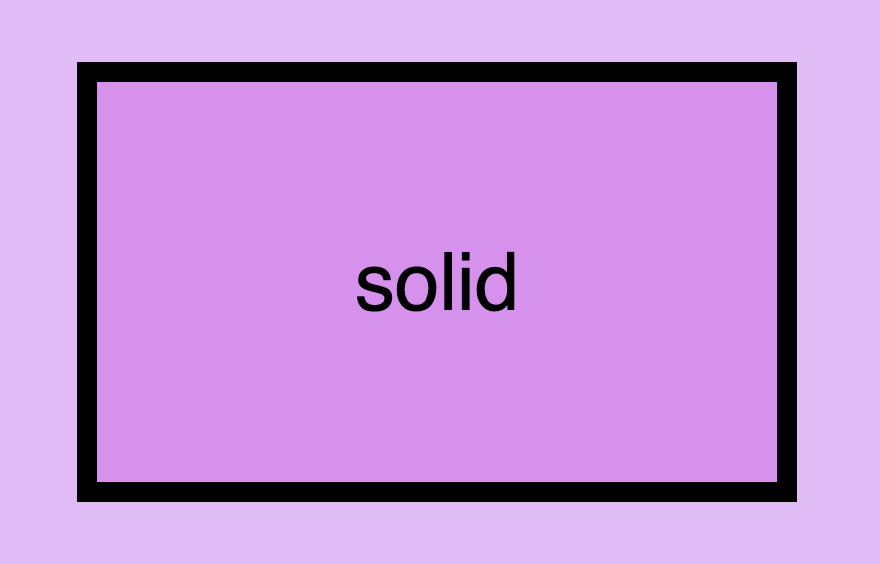
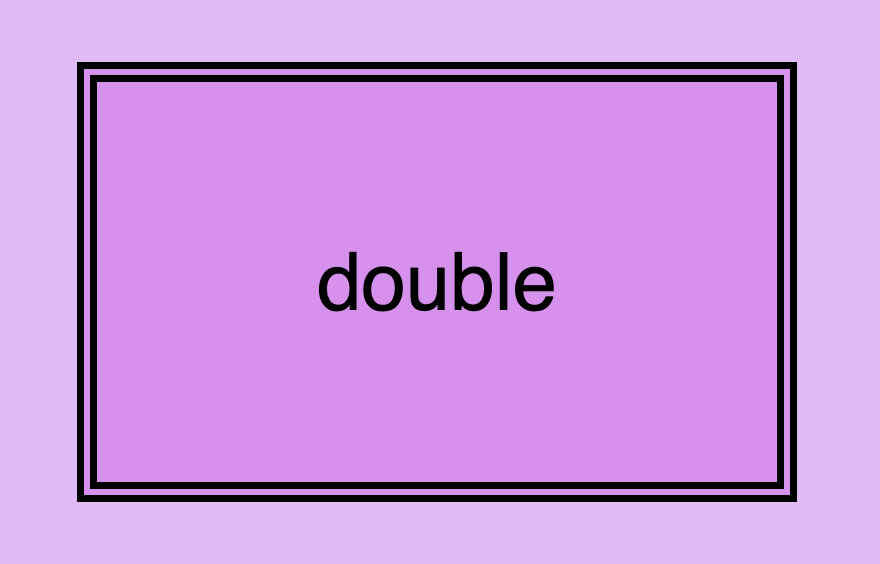
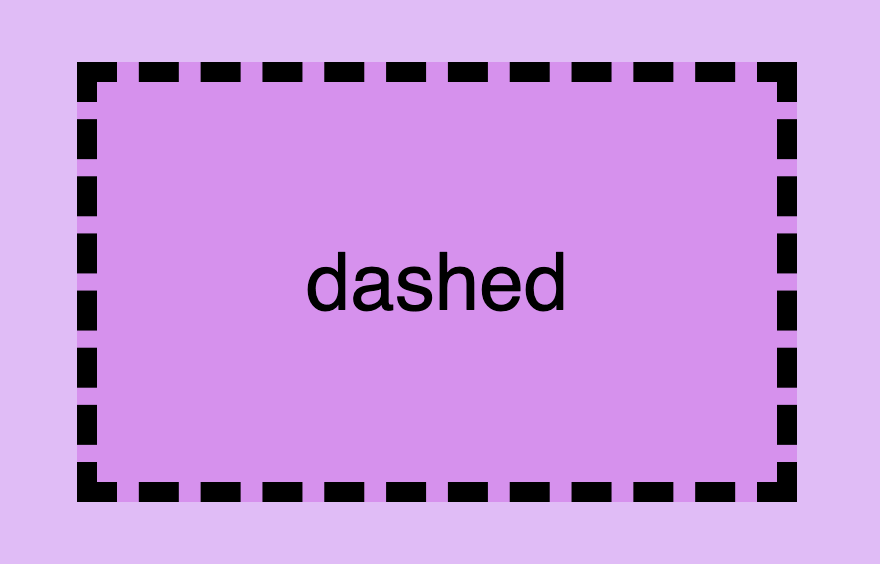
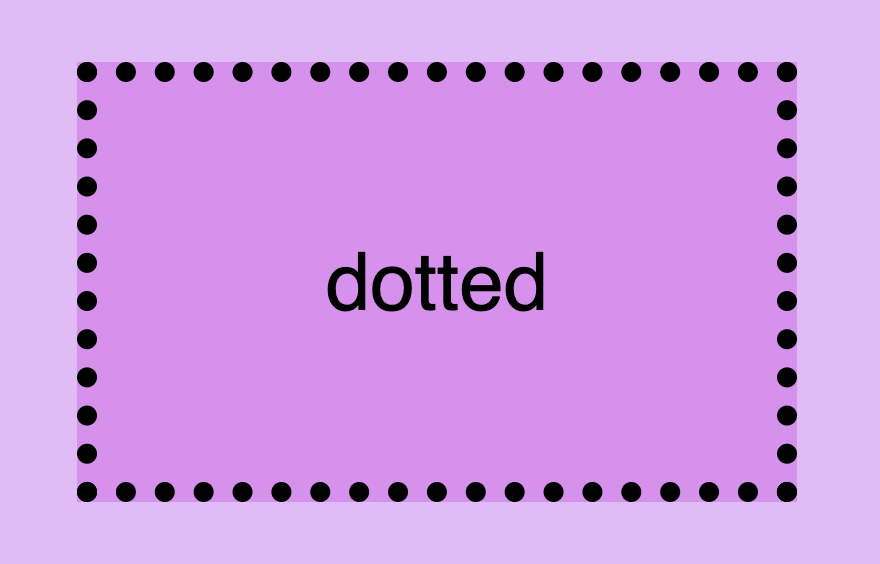
    The first and most usual is the solid type which is just a simple line. Then we have the double which is as you’d expect a double line border. Another style is the dashed one in which, the line is made up of dashes. It’s nice to have clear and descriptive names right? Finally, the dotted style is the one in which the border line consists of dots.

    Below, you will find examples showcasing the styles we’ve just mentioned alongside their respective CSS code:

    border-style: solid;
    CSS
    CSS border style: This is an image that shows a box with border style solid.
    CSS border style: This is an image that shows a box with border style double.
    border-style: double;
    CSS
    border-style: dashed;
    CSS
    CSS border style: This is an image that shows a box with border style dashed.
    CSS border style: This is an image that shows a box with border style dotted.
    border-style: dotted;
    CSS

    CSS border width – Focusing on precision

    Now that you’ve seen the basic border stylings, it’s time to check out the border’s width property. By default, borders have 1px width. To change that, we must modify the border-width property according to our needs.

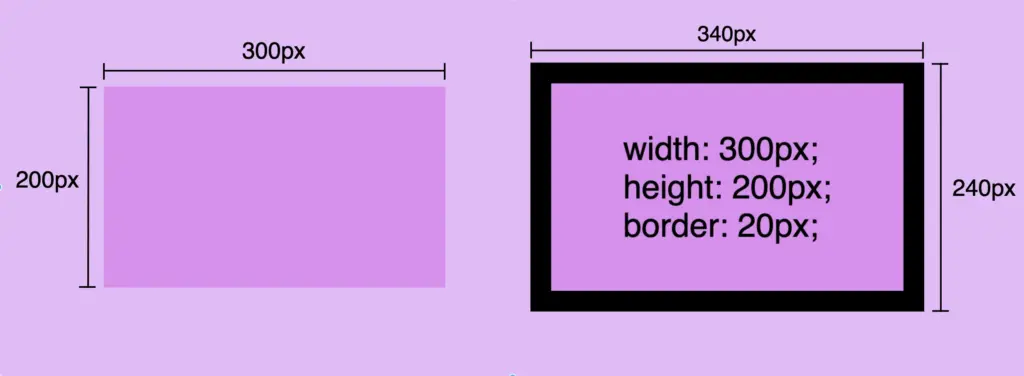
    Before we continue, it’s important to give you some insights on an important property that directly affects border behaviors and is called box-sizing. Box sizing’s value is set, by default, to content-box . Because of that borders occupy additional space around the objects they surround.

    In simple words, if I have a box with 300px width and 200px height and I want to add a 20px border to all sides, then I will end up having a bordered box with 340px width and 240px height. Let’s see how I came up with this result:

    width:300px (box’s width) + 40px (20px border-left + 20px border-right) = 340px;

    height:200px (box’s height) + 40px (20px border-top + 20px border-bottom) = 240px;

    border-width: 20px;
    CSS

    🕵️‍♀️ By exploring the box-sizing CSS property, we can include borders within the box’s dimensions. If you’re interested in learning more about it check out my post. You will find detailed instructions and explanations on each box sizing method.

    CSS border color – For vivid results

    The next step is to understand how border color works. By default, borders are always rendered in black. This means that if we don’t specify a color our borders will automatically display in black.

    By default, borders are always rendered in black

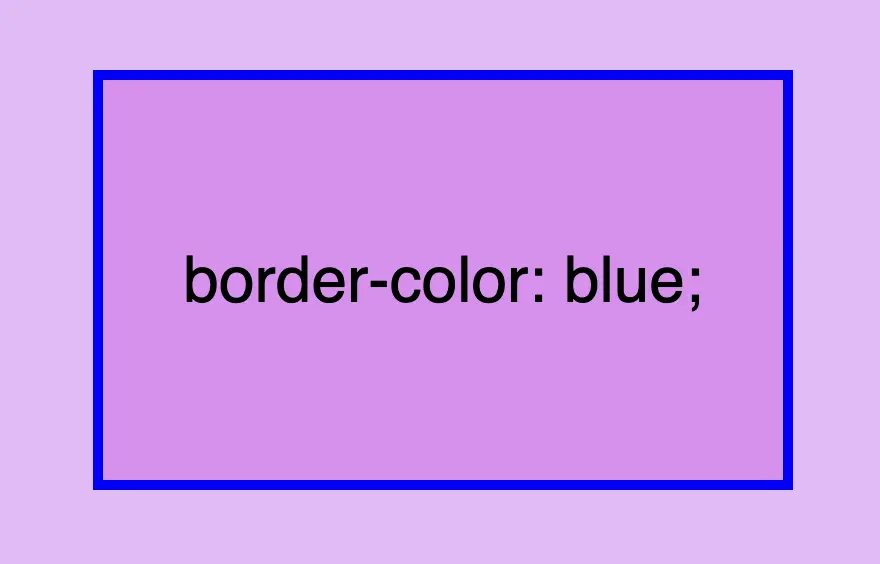
    However, if we want a different color we have the freedom to choose any color we desire and simply assign it to the border-color property. Let’s see that in action:

    border-color: blue;
    CSS

    Border colors can be described using various different value types. For instance, you can specify the color blue by using :

    • The word blue
    • The corresponding hex code #00F
    • The RGB value rgb(0, 0, 255)
    • The HSL value hsl(240, 100%, 50%)

    A color 🌈 guide is also available to help expand your knowledge of colors.

    Border shorthand for simplified stylings

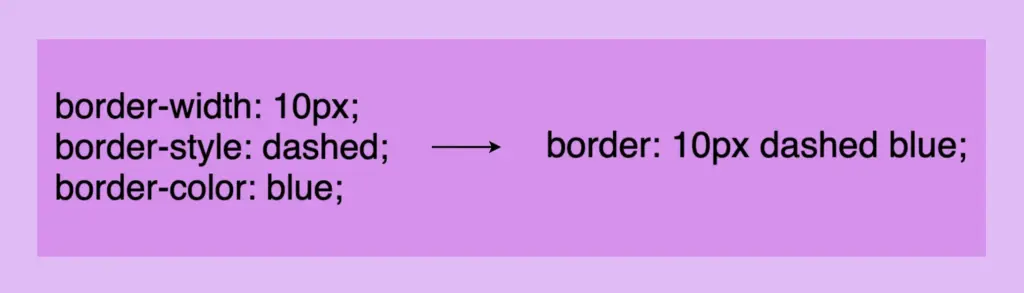
    border: border-width border-style border-color

    There is a cool method for writing all the above border properties that prove to be highly useful. By choosing this approach, you can set multiple values simultaneously. This technique is a super efficient way to define all border properties in a quick and easy manner. It’s a total time and space saver! 😃

    Instead of listing each property separately, you just add each property side by side in a single line:

    Border-style css: This image shows that border-width, border-style and border-color can be declared only with the word border.
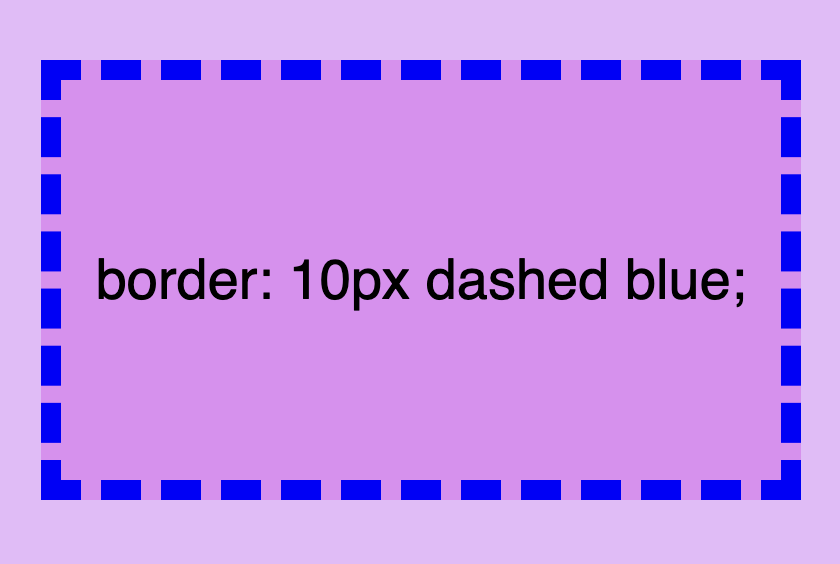
    border: 10px dashed blue;
    CSS
    Border-style css: This image shows a box with a 10px dashed blue 4 sides border.

    Cool right? 😎 ✨ Keep in mind that the order of the property doesn’t matter! We usually start with pixels and then add style and color, but it’s up to you the final decision!

    CSS Border Styles for unique results


    Additionally, we have the flexibility to selectively choose specific sides when defining our border styles. This allows us to create borders combined with different styling. In the following example, you can check out some of these combinations. But still, you are free to make your own! 😀

    One side border

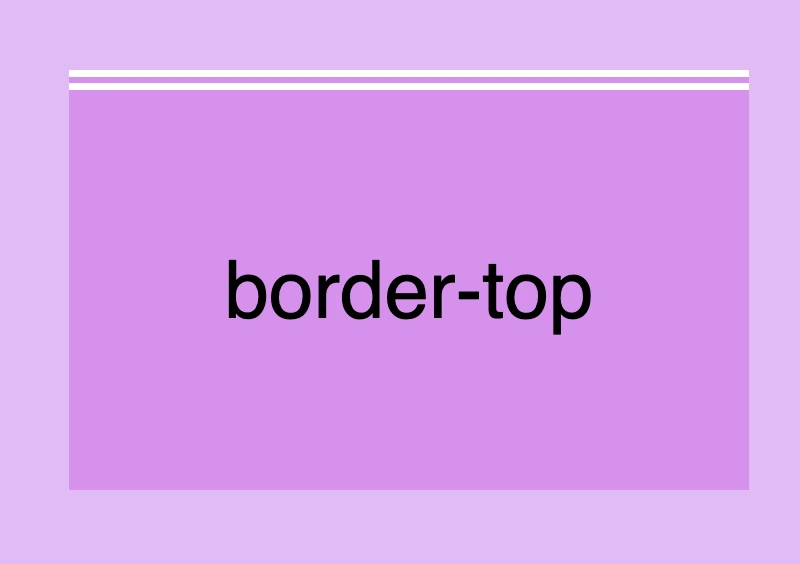
    border-top: 10px double white;
    CSS
    Border styles css: This image shows a box with a 10px double white border-top.
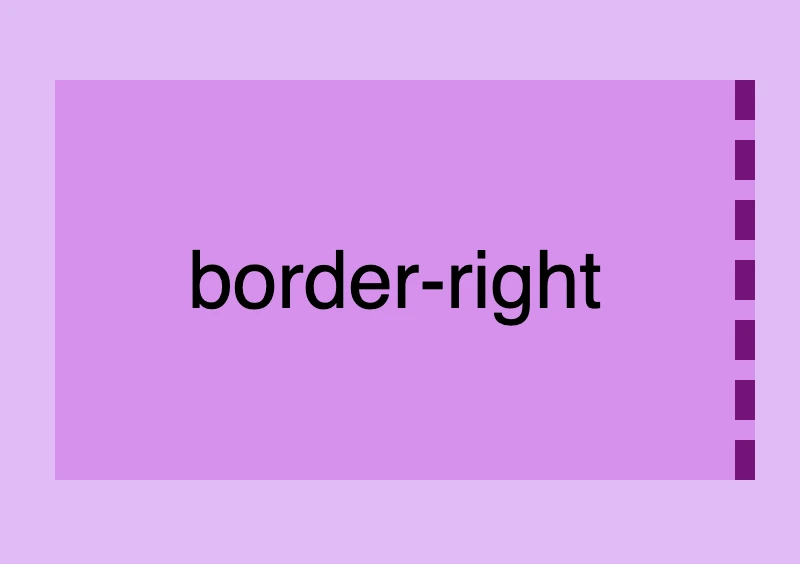
    Border styles css: This image shows a box with a 10px dashed purple border-right.
    border-right: 10px dashed purple;
    CSS
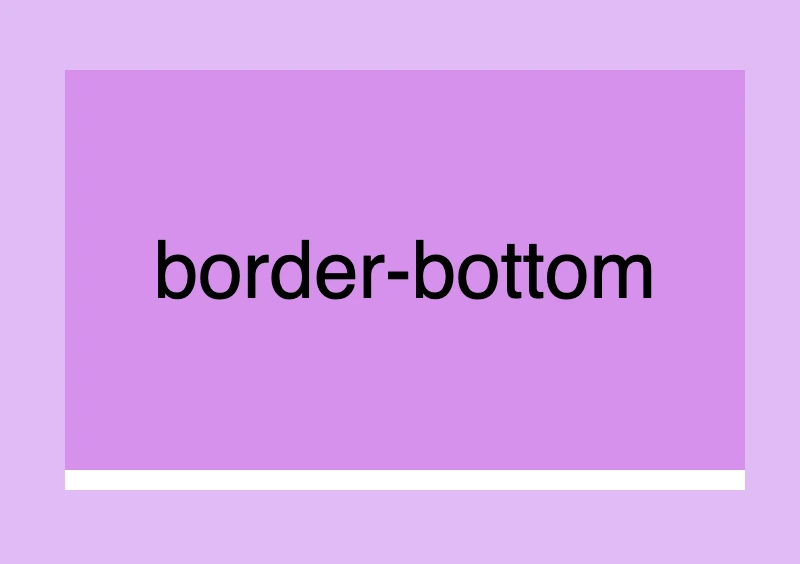
    border-bottom: 10px solid white;
    CSS
    Border styles css: This image shows a box with a 10px solid white border-bottom.
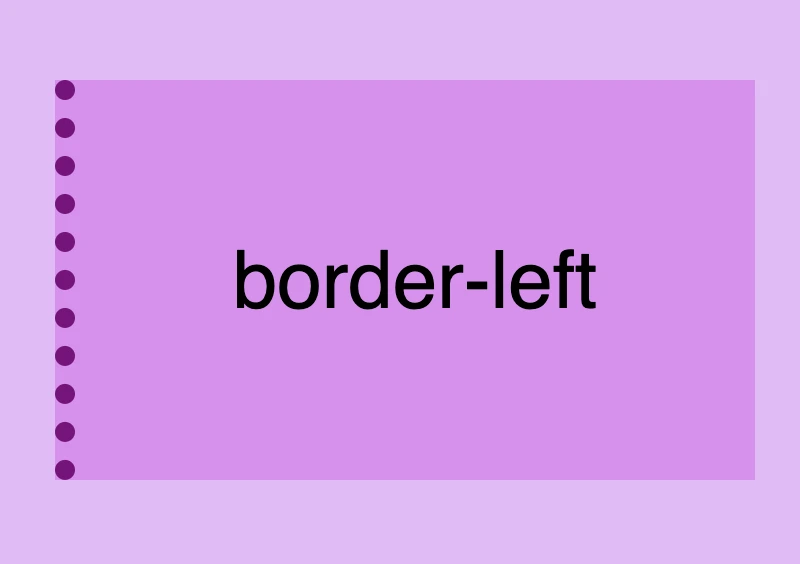
    Border styles css: This image shows a box with a 10px dotted purple border-left.
    border-left: 10px dotted purple;
    CSS

    Multiple sides border

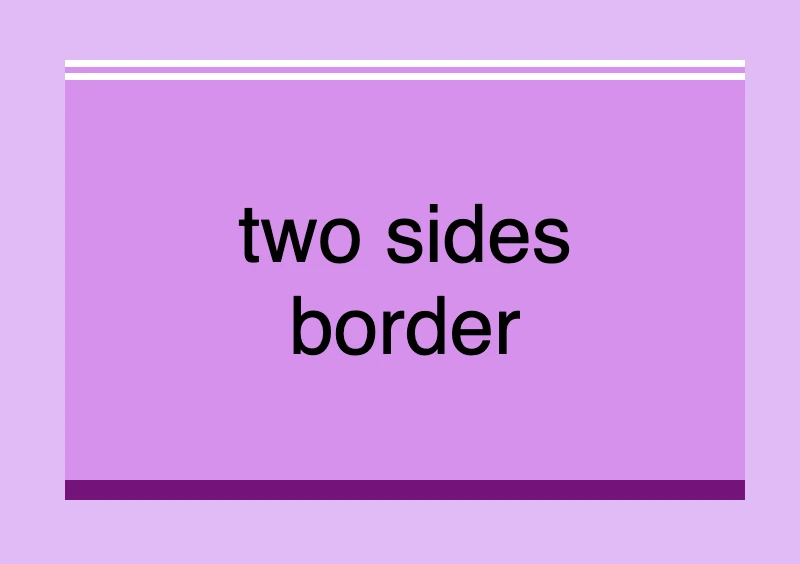
      border-top: 10px double white;
      border-right: none;
      border-bottom: 10px solid purple;
      border-left: none;
    CSS
    Border styles css: This image shows a box with a 10px double white border-top and a 10px solid purple border-bottom. Border-left and border-right have value none.
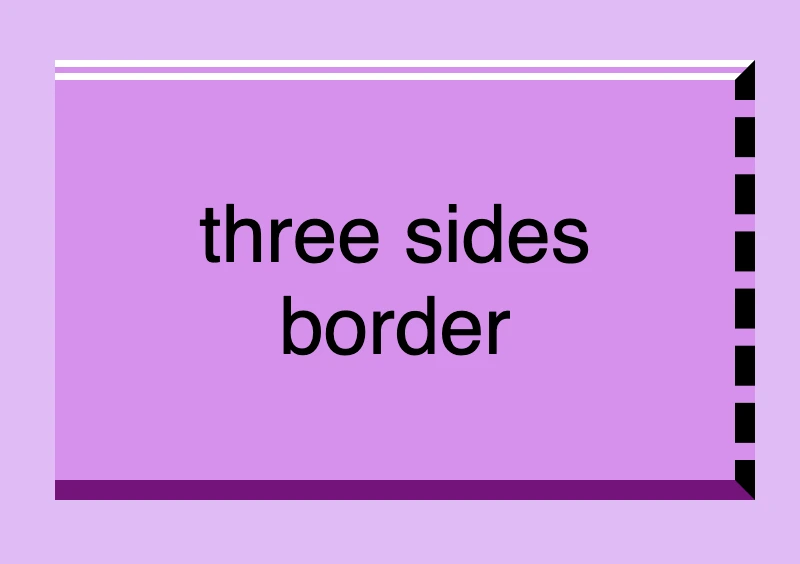
    Border styles css: This image shows a box with a 10px double white border-top, a 10px solid purple border-bottom and a 10px dashed black border-right. Border-left has value none.
      border-top: 10px double white;
      border-right: 10px dashed black;
      border-bottom: 10px solid purple;
      border-left: none;
    CSS
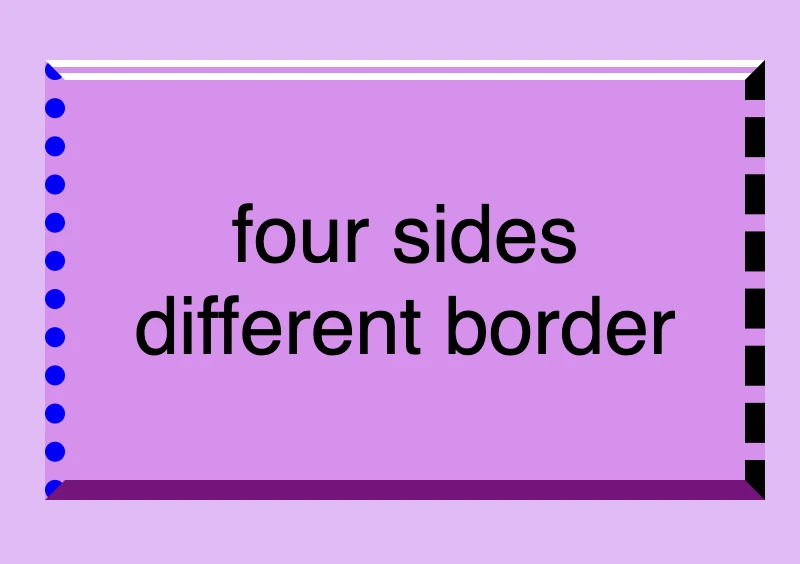
      border-top: 10px double white;
      border-right: 10px dashed black;
      border-bottom: 10px solid purple;
      border-left: 10px dotted blue;
    CSS
    Border styles css: This image shows a box with a 10px double white border-top, a 10px solid purple border-bottom, a 10px dashed black border-right and a 10px dotted blue border-left.
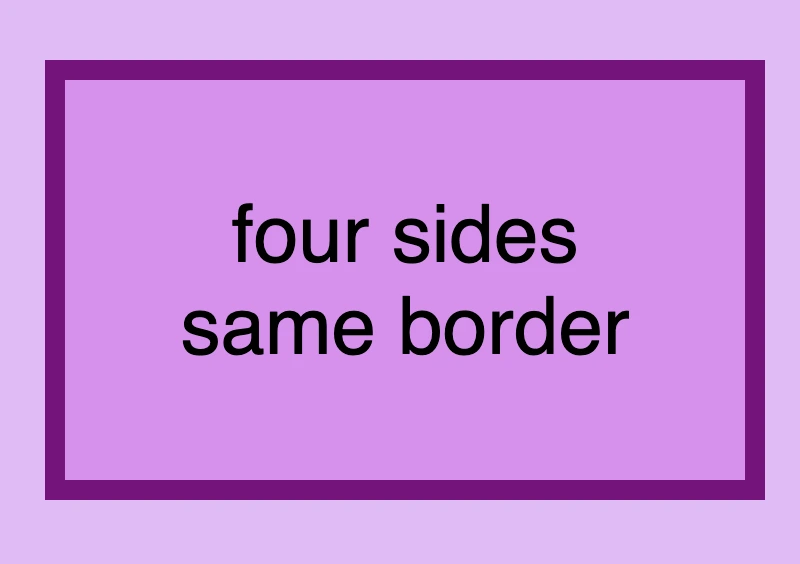
    Border styles css: This image shows a box with a 10px solid purple border applied to all 4 sides.
      border-top: 10px solid purple;
      border-right: 10px solid purple;
      border-bottom: 10px solid purple;
      border-left: 10px solid purple;
      /* OR */
      border: 10px solid purple;
    CSS

    🔖 Keep in mind when working with the CSS border property that it is considered a good practice to set equal border widths for all sides. Being consistent helps by bringing a sense of balance and distraction-free results.
    Furthermore, try to avoid mismatched styles and colors. Matching styles and colors lead to a smooth and cohesive look that’s easy on the eyes. Not to mention, it keeps your code cleaner 🎉 and easier to manage. 😀

    DO’S

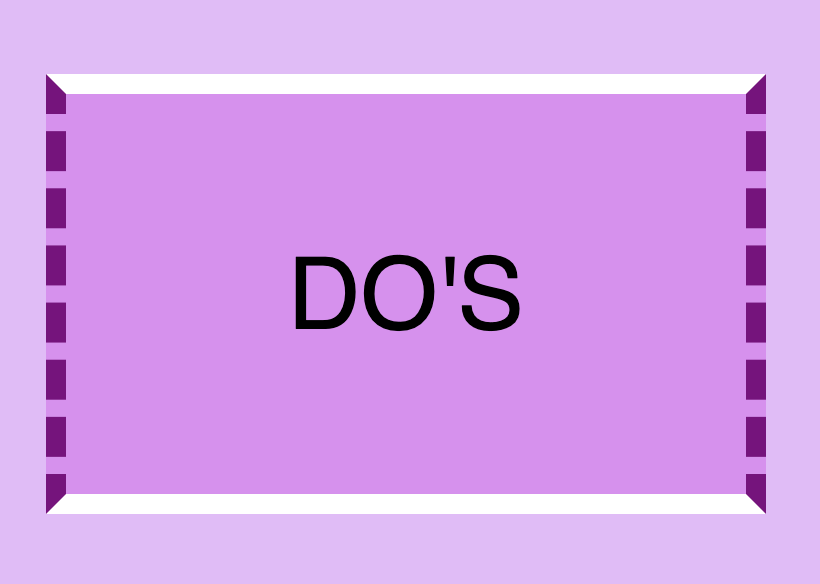
      border-top: 10px solid white;
      border-right: 10px dashed purple;
      border-bottom: 10px solid white;
      border-left: 10px dashed purple;
    CSS
    This image shows a box with a 10px solid white border top and bottom, while border right and left have 10px dashed purple. Also this image has a message inside it that says: 'DO'S"

    DON’TS

    This image shows a box with a 30px double red border-top, a 5px dashed green border-right, a 20px solid orande border-bottom,  and a 15px dotted blue border-left. Also this image has a message inside it that says: 'DON'TS"
    border-top: 30px double red;
    border-right: 5px dashed green;
    border-bottom: 20px solid orange;
    border-left: 15px dotted blue;
    CSS

    Create curved corners using border-radius

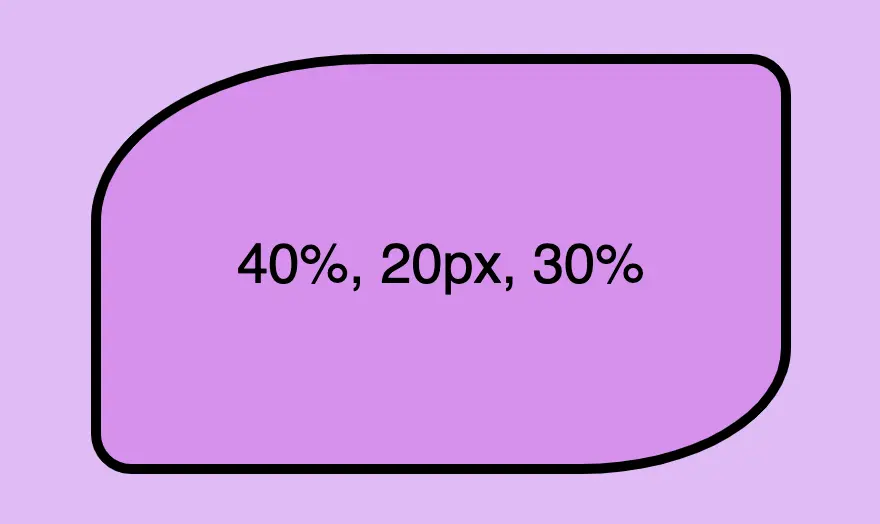
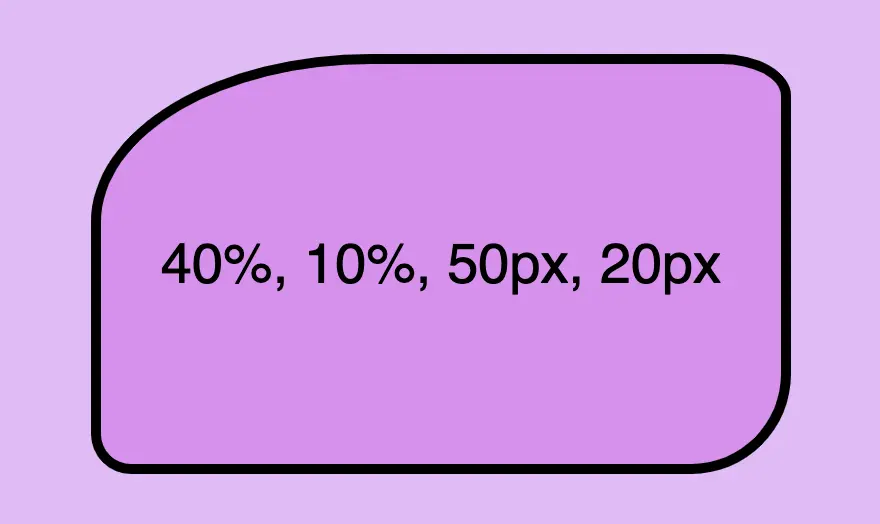
    Last but not least we have the border-radius CSS property, which enables us to give our elements rounded corners. We can opt for uniform rounding or we can apply different degrees of rounding to each corner. In addition to that, it’s useful to know that when we are working with different radius per corner, we can also combine px with %.

    When we are setting different border-radius per corner, we are free to combine px with %.

    Same corners

    border-radius: 50%;
    CSS
    This image shows a box with border-radius: 50% 25%; Top-left and bottom-right corners have radius 50% while top-right and bottom-left corners have radius 25%.
    This image shows a box with border-radius: 40% 20px 30%; Top-left corner have radius 40%, top-right and bottom-left corners have radius 20px while bottom-right corners have radius 30%.
    border-radius: 50px;
    CSS

    Different corners

    /* top-left & bottom-right | top-right & bottom-left */
    border-radius: 50% 25%;
    CSS
    This image shows a box with border-radius: 50% 25%; Top-left and bottom-right corners have radius 50% while top-right and bottom-left corners have radius 25%.
    This image shows a box with border-radius: 40% 20px 30%; Top-left corner have radius 40%, top-right and bottom-left corners have radius 20px while bottom-right corners have radius 30%.
    /* top-left | top-right & bottom-left | bottom-right */
    border-radius: 40% 20px 30%;
    CSS
    /* top-left | top-right | bottom-right | bottom-left */
    border-radius: 40% 10% 50px 20px;
    CSS
    This image shows a box with border-radius: 40% 10% 50px 20px. Top-left corner has radius 40%, top-right corner has radius 10%, bottom-right corner has radius 50px and bottom-left corner has radius 20px.