Tag: box-shadow

  • How to Make a Circular Clickable Button with Shadow Effect

    How to Make a Circular Clickable Button with Shadow Effect

    Hey there! 😃 In today’s technology-obsessed world, it’s absolutely crucial to master the art of creating an amazing circular clickable button. A well-crafted button not only enhances the presentation but also elevates the user experience. Maximizing user attention is vital, and buttons are, most of the time, the key to achieving this goal. By utilizing the right tools and techniques, we can create a visually stunning and functionally efficient button that not only looks great but also delivers an unforgettable user experience. 🆙

    Let’s collaborate to create a standout button that supports user-friendliness.

    HTML Basic Structure

    To start building our button, we need to organize our HTML code snippet. The first step is to create a parent element that will act as the base of our button. We give this element the class name .button-base. Next, we need to add a child element within this parent element to serve as the clickable part of the button. We give this child element the class name .clicable-part. It’s important to nest these two elements within a button HTML element as it’s more semantic, better for accessibility, and behaves correctly in forms and interactive contexts by default.
    Additionally, we need to create the shadow effect for our button, so we add one more HTML element with the class name .button-shadow.

    <button>
      <div class="button-base">
        <div class="clicable-part"></div>
      </div>
    </button>
    <div class="button-shadow"></div>
    HTML

    CSS foundation

    We move forward with CSS and make our button fresh and stylish! For this post, I am writing CSS using Sass syntax. If you would like to convert it to vanilla CSS and don’t already know how, I’d suggest you use an online Sass — CSS converter.

    Prepare the body for the clickable button

    Firstly, we apply a color (#f5f5f5 – dark gray) to the body by setting the background-color. Additionally, we want to center our button. For that reason, we are using the flex method.

    body {
      background-color: #f5f5f5;
      
      display: flex;
      align-items: center;
      justify-content: center;
    }
    SCSS

    Create the base of the clickable button

    To create the base of our button, we start by making a square with a width and height of 200 pixels. Then, we make it rounded by adding a border-radius of 50%. We use a pale white color (#f9f9f9) for the button’s background-color. To give it a more stylish look, we add some shadows using the box-shadow property.

    Finally, we add the flex method to prepare the space to position the clickable part of the button in the center of the base.

    📍 As seen in the code snippet below, we need to include border: none and background-color: transparent properties in the button element to ensure it will display only the styles we define. These properties remove the browser’s default styles that typically come with. As a result, it provides us with a clean starting point, so the button appears exactly as we’ve styled it, with no unexpected borders or colors.

    button {
      border: none;
      background-color: transparent;
      .button-base {
        width: 200px;
        height: 200px;
        border-radius: 50%;
        background-color: #f9f9f9;
        box-shadow: inset 0 6px 8px #eae8e8, /* top inset shadow */
          inset 0 -2px 15px #ccc7c7, /* bottom inset shadow */
          0 3px 3px #d6d1d1; /* bottom shadow */
        
        display: flex;
        align-items: center;
        justify-content: center;
      }
    }
    SCSS

    In the image below, you can see the base of the button we just created.

    An image showing the base of the circular clickable button

    Create the clickable part of the button

    To create the clickable part of our button, we first set the height and width to 80%. Then, we apply a border-radius: inherit to make it appear rounded and follow the shape of the base. For the background of the button, we use a linear-gradient that adds depth as it gives a bright orange color at the top that gradually becomes darker as it goes down. To add a more stylish look, we include shadows using the box-shadow property.

    .clicable-part {
      width: 80%;
      height: 80%;
      border-radius: inherit;
      border: 1px solid white;
      background: linear-gradient(
        to bottom,
        #f7eb13,
        #fd741b
        );
      box-shadow: inset 0px 3px 6px #ffa500, /* top inset shadow */
        0px 1px 3px #d05a05, /* bottom inset shadow */
        0 6px 6px #bcb8b8; /* bottom shadow */
    }
    SCSS

    The following image shows the clickable part we just added on the top of the base.

    An image showing the base of the circular clickable button. On it's top it has the clickable part.

    Add content at the top of the clickable part

    To add content at the top of the clickable part of a button, we can use a :before pseudoelement. Inside the pseudoelement, we can insert the desired symbol or text using the content property. For instance, in our case, a question mark emoticon (?) has been used, but you can use any symbol or text you prefer. It’s important to note that the flex method in the .clickable-part class is essential, as it centers the mark correctly.

    .clicable-part {
      ...
      display: flex;
      align-items: center;
      justify-content: center;
      &:before {
        position: absolute;
        content: "❔";
      }
    }
    SCSS

    The image below displays the content we added on the top of the clickable part of the button.

    An image showing the base of the circular clickable button. On it's top it has the clickable part. The clickable part it has a question mark on.

    Add the hover effect on the top of the clickable button

    To add a hover effect, we set the :hover CSS property. For the cursor, I prefer using the value pointer (👆), but feel free to choose any other style from the plethora of options available here. Finally, I apply the filter: brightness and increase it to 110%. This makes our button appear brighter whenever the mouse hovers over it. ✨

    .clicable-part {
      ...
      &:before {
        ..
      }
      &:hover {
        cursor: pointer;
        filter: brightness(110%);
      }
    }
    SCSS

    The gif below demonstrates how the hover effect (👆) appears.

    Activate the clickable part of the button

    To make your button fully functional, you need to activate its clickable part. We can achieve this by adding the :active property. Next, we give it a background with a linear-gradient that creates a sense of depth by providing a bright magenta color at the top that gradually becomes darker as it goes down. To make it more visually appealing, we include shadows using the box-shadow property.

    .clicable-part {
      ...
      &:before {
        ..
      }
      &:hover {
        ...
      }
      &:active {
        background: linear-gradient(
          to bottom,
          #f767f7,
          #df0361
          );
          box-shadow: inset 0px 3px 6px #df0361, /* top inset shadow */
          0 3px 5px #bcb8b8; /* bottom shadow */
      }
    }
    SCSS

    The following gif displays the activated clickable area.

    Update the button’s content when it is activated

    To enhance the user experience, we can dynamically update the content displayed on the button when it’s clicked. This may be accomplished by adding a :before pseudoelement and inserting the desired content into the content property. In our case, we will display a white heart (🤍) when the button is clicked.

    .clicable-part {
      ...
      &:before {
        ..
      }
      &:hover {
        ...
      }
      &:active {
        ...
        &:before {
          position: absolute;
          content: "🤍";
        }
      }
    }
    SCSS

    With just a single click, this button comes to life and reveals its beautiful new content in the following gif (🤍) – it’s an absolute must-see!! 😎

    Add the shadow effect to the clickable button

    The last thing we have to do is add the shadow effect. We create a rectangle with 140 pixels width and 15 pixels height. Next, we give it a rounded shape by setting the border-radius property to 50%. To create a background that looks like it becomes lighter as it goes toward outer space, we use the radial-gradient technique and make the center darker. To make the whole thing look smoother, we add shadows with the box-shadow property.

    Finally, we utilize the position: absolute combined with the top, left, and transform properties to move it below the button and center it.

    .shadow {
      width: 140px;
      height: 15px;
      border-radius: 50%;
      background: radial-gradient(#a7aaaa, #b2b7b7 10%, #eaeded);
      box-shadow: -5px 0px 10px 5px #eaeded, /* shadow right side */
        5px 0px 10px 5px #eaeded, /* shadow left side */
        inset -5px 0px 5px #eaeded, /* inset shadow right side */
        inset 5px 0px 5px #eaeded; /* inset shadow left side */
        
      position: absolute;
      top: 520px;
      left: 50%;
      transform: translate(-50%);
    }
    SCSS

    The button’s captivating shadow effect is truly impressive and adds to the overall appeal. Hope you find it enjoyable and engaging. Thank you for your attention. 🥳


    An image showing the base of the circular clickable button. On it's top it has the clickable part. The clickable part it has a question mark on. Button also has a shadow below.

    Complete code solution

    Below is the full code referenced in this blog post. Feel free to copy and use it in your own projects. If you have any questions or encounter any issues, don’t hesitate to reach out for assistance. You can easily copy the desired code snippet by clicking on the copy icon, located in the top-right corner of each snippet.

    <button>
      <div class="button-base">
        <div class="clicable-part"></div>
      </div>
    </button>
    <div class="button-shadow"></div>
    HTML
    @mixin flex-all-center {
      display: flex;
      align-items: center;
      justify-content: center;
    }
    
    $body-color: #f5f5f5;
    $button-base-color: #f9f9f9;
    $button-base-inset-top-shadow: #eae8e8;
    $button-base-inset-bottom-shadow: #ccc7c7;
    $button-base-dark-shadow: #d6d1d1;
    $button-color: linear-gradient(to bottom, #f7eb13, #fd741b);
    $button-inset-top-shadow: #ffa500;
    $button-inset-bottom-shadow: #d05a05;
    $button-dark-shadow: #bcb8b8;
    $button-active-color: linear-gradient(to bottom, #f767f7, #df0361);
    $button-active-inset-shadow: #df0361;
    $button-shadow: #eaeded;
    
    * {
      margin: 0;
      padding: 0;
      box-sizing: border-box;
    }
    
    html,
    body {
      height: 100vh;
    }
    
    body {
      background: $body-color;
      @include flex-all-center;
      min-width: 300px;
    }
    
    button {
      border: none;
      background-color: transparent;
      .button-base {
        width: 200px;
        height: 200px;
        border-radius: 50%;
        background-color: $button-base-color;
        box-shadow: inset 0 6px 8px $button-base-inset-top-shadow, /* top inset shadow */
        inset 0 -2px 15px $button-base-inset-bottom-shadow, /* bottom inset shadow */
        0 3px 3px $button-base-dark-shadow; /* bottom shadow */
        @include flex-all-center;
        .clicable-part {
          width: 80%;
          height: 80%;
          font-size: 50px;
          border-radius: inherit;
          border: 1px solid white;
          background: $button-color;
          box-shadow: inset 0px 3px 6px $button-inset-top-shadow, /* top inset shadow */
          0px 1px 3px $button-inset-bottom-shadow, /* bottom shadow */
          0 6px 6px $button-dark-shadow; /* bottom shadow */
          @include flex-all-center;
          &:before {
            position: absolute;
            content: "❔";
          }
          &:hover {
            cursor: pointer;
            filter: brightness(110%);
          }
          &:active {
            background: $button-active-color;
            box-shadow: inset 0px 3px 6px $button-active-inset-shadow, /* top inset shadow */
              0 3px 5px $button-dark-shadow; /* bottom shadow */
            &:before {
              position: absolute;
              content: "🤍";
            }
          }
        } /* end of clicable-part */
      } /* end of button-base */
    } /* end of button */
    
    .button-shadow {
      width: 140px;
      height: 15px;
      border-radius: 50%;
      background: radial-gradient(#a7aaaa, #b2b7b7 10%, #eaeded);
      box-shadow: -5px 0px 10px 5px $button-shadow, /* shadow right side */
        5px 0px 10px 5px $button-shadow, /* shadow left side */
        inset -5px 0px 5px $button-shadow, /* inset shadow right side */
        inset 5px 0px 5px $button-shadow; /* inset shadow left side */
      position: absolute;
      top: 520px;
      left: 50%;
      transform: translate(-50%);
    } /* end of shadow */


    SCSS
    Expand
  • How inset Works in box-shadow (Made Simple)

    How inset Works in box-shadow (Made Simple)

    Shadows are a simple yet powerful way to add depth and dimension. In programming, the box shadow CSS property creates a sense of layering by simulating light or darkness on HTML elements. The inset box-shadow, which we will analyze in this post, creates a shadow inside the element, giving it a “pressed” or “embossed” effect that adds even more visual interest to your design.

    📌 Always remember that inset shadows are drawn inside the box, hence they can reduce the space inside the element.

    For better clarity, let’s begin by breaking down the box-shadow property as each value controls and affects a specific part of how the shadow appears.

    box-shadow: /* offset-X, offset-Y, blur-radius, spread-radius, color;
    CSS

    🔸 position
      • offset-X: moves the shadow horizontally
      • offset-Y: moves the shadow vertically

    🔸 blur-radius
     • It softens the edges of the shadow

    🔸 spread-radius
      • It makes the shadow bigger

    🔸 color
      • It defines the color and the transparency rgba() of a shadow

    Setting up the layout

    We begin by establishing the basic HTML and CSS structure. Our shadow will be housed within a gray ⬜ box, but for now, we need to adjust the body element so it can properly center and display our box.

    <div class="box"></div>
    HTML
    body {
      background-color: #e0e0e0; /* Light Gray */
      display: flex;
      align-items: center;
      justify-content: center;
      margin: 0;
    }
    CSS

    Creating the box

    Now it’s time to create a rounded box with a light gray background color to gently contrast with the body. This subtle color difference helps us clearly see the shadow effect in action.

    .box {
      width: 200px;
      height: 200px;
      border-radius: 10px;
      background-color: #ece9e9; /* Very Light Gray */
    }
    CSS
    A gray box on a dark gray background.

    Creating inner shadows using box-shadow

    We finalize our work with the shadow effect. Let’s break down our code to make it clear:

    inset -5px -5px 10px rgba(255, 255, 255, 0.8)
    ➤ It positions the shadow at the bottom-right, with a softly blurred, which makes the edges smooth rather than sharp. Also, the shadow is white and mostly visible.

    inset 5px 5px 10px rgba(50, 50, 50, 0.2)
    ➤ It positions the shadow at the top-left, we have again a softly blurred effect, and the shadow now is dark gray and very soft.

    .box {
      ...
      box-shadow: inset -5px -5px 10px 0 rgba(255, 255, 255, 0.8),
        inset 5px 5px 10px 0 rgba(50, 50, 50, 0.2);
    }
    CSS
    A gray box with inset dark shadow at the top left sides and light shadow at the bottom right sides

    If you use spread-radius with inset shadows, it can make the shadow spread too much, making it look too big or messy. By leaving it out, the shadow stays close to the edges, keeping the effect clean and focused.

    Working with different shades of gray adds a touch of elegance and also elevates your work. Additionally, it maintains a clean and modern design. 🚀 ✨ So, what’s your take? Do you agree with me, or do you see it in a whole different way? 😄

  • CSS Water Drop Effect: How to Make Text Look Wet & Glossy

    CSS Water Drop Effect: How to Make Text Look Wet & Glossy

    😃 In this post, we are beyond excited to show you how to create a breathtaking water drop effect that stands on top of a text using only the power of CSS.

    We will confidently guide you through every single step of the process, from the initial design phase to the final finishing touches.

    In addition, we will share expert tips on how to masterfully experiment with CSS properties to achieve the perfect shape and reflection effects. So, let’s jump right in and create something fantastic together!

    Setting up the HTML structure for the water drop effect

    We begin with the HTML structure. We need to create an element with the class name .wrapper. This element will have two child elements. The first child element will be dedicated to the text, so we give a suitable class name, such as .text. Similarly, we should name the second child element with a class name that reflects its purpose, such as .drop.

    <div class="wrapper">
      <div class="text">drop</div>
      <div class="drop"></div>
    </div>
    HTML

    Our top priority right now is to work on the second child element, which is our amazing drop. 💦 🤓 Once we’re done with that, we’ll move on to the text.

    Styling the water drop effect with CSS

    We move forward with the CSS structure. To create a flexible layout for our project, we set the flex property on the element with the class .wrapper. This will allow us to easily adjust the size and position of its child elements.

    Additionally, we added the position: relative property to the wrapper to establish a reference point for any absolutely positioned child elements later on in the project. By doing this, we have prepared the necessary space and layout for easier and more precise positioning of elements.

    .wrapper {
      display: flex;
      align-items: center;
      justify-content: center;
      position: relative;
    }
    CSS

    How to create a realistic water drop effect in CSS

    Firstly, we must select a color for the body, setting the background-color. Keep in mind that the same color must be used for the drop. Therefore, it is crucial to choose the color carefully. 🌈

    Then, we need to establish the dimensions and borders. Thus, we will set the width and height and then adjust the border-radius property to create a slightly rounded shape.

    Next, we maintain the body’s background-color by adjusting the transparency of the drop. In that way, our drop inherits the color of the body.

    Additionally, we add the box-shadow property which is the most crucial part as it is responsible for creating a realistic-looking drop that appears three-dimensional. Without it, the element may appear flat and lacking in depth. 😉 So, don’t be afraid to experiment with different shadow settings until you find the right combination that works for you. It’s truly amazing how much of a difference a small tweak-change can make!

    body {
      background-color: #5fc8e8; /* a light shade of blue */
    }
    
    .wrapper {
      ...
    }
    
    .drop {
      width: 210px;
      height: 220px;
      
      background-color: transparent;
      border-radius: 45% 50% 45% 55%;
      
      box-shadow: -2px -2px 10px 5px #0f9dc4, /* all around */
      5px 5px 10px #0796c1, /* top & right */
      inset 15px 15px 30px #0796c1, /* inset top & right */
      inset -29px -20px 50px #f2f4f7; /* inset left & bottom */
    }
    CSS

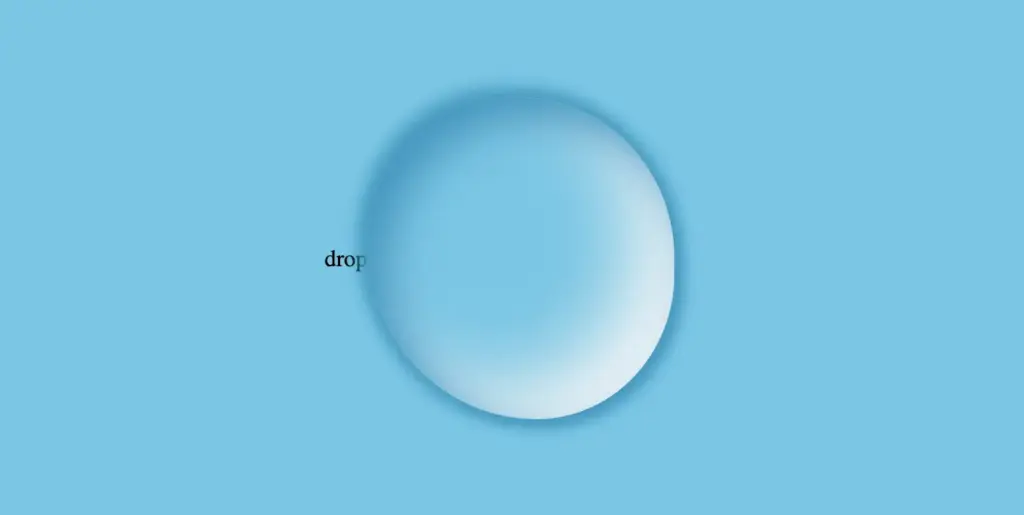
    This is what is rendered on the screen. For now, we continue to ignore the text and focus on our almost-ready 🙃 amazing drop!

    Adding shine to the water drop

    By utilizing the CSS properties :before and :after, we can create two new pseudo-elements without the need for additional HTML markup. This technique can be used to create a glancing effect. Both pseudo-elements have the same properties but with different values, which helps to differentiate them from each other and create a unique look.

    We can effortlessly position those glances within the drop element by using the CSS property position: absolute.

    Then, we specify their dimensions and the color by setting the width, height and background-color.

    Next, we modify the shadows and their shape by setting the box-shadow and border-radius .

    After that, we use the top and left properties to position them. Finally, to make them look even more realistic, we can add some rotation by using the transform: rotate() property.

    .drop {
      ...
      position: absolute;
    }
    
    .drop:before {
      position: absolute;
      content: "";
      width: 14%;
      height: 7%;
      background-color: #f5f5f5;
      box-shadow: 0 0 10px #f5f5f5;
      border-radius: 60% 45% 50% 60%/60% 45% 60% 50%;
      top: 15%;
      left: 20%;
      transform: rotate(140deg);
    }
      
    .drop:after {
      position: absolute;
      content: "";
      width: 10%;
      height: 5%;
      background-color: #fff;
      box-shadow: 0 0 10px #fff;
      border-radius: 50% 45% 45% 60%/50% 50% 40% 55%;
      top: 25%;
      left: 10%;
      transform: rotate(-45deg);
    }
    CSS

    After adding these glances, we can see our final drop. 💦 ✨ It’s pretty cool, isn’t it?

    Adjusting text appearance beneath the water drop effect

    We are moving forward by adjusting our text and making it more visually appealing. I have selected the “Lobster” font-family with a font size of 140 pixels, a warm dark orange, and a black 2px text-shadow.

    In case we wish to use another font-family than the usual ones, we need to insert it into our CSS. We do so by setting the @import url(...). Ensure this statement is placed at the beginning of your CSS code snippet, just like I did. Check below. 👇

    @import url('https://fonts.googleapis.com/css?family=Lobster');
    
    .text {
      font-family: "Lobster", sans-serif;
      font-size: 140px;
      color: #e85a5a; /* a shade of warm dark orange */
      text-shadow: 2px 2px 2px black;
    }
    CSS

    Take a closer look now. The text appears so different behind the water drop. It’s quite impressive, don’t you think? 😎

    One last step, and we are ready! We are free to place our text wherever we want by setting the position: absolute , top and left CSS properties in order to move it.

    We also have full control over the placement of our text. This can be achieved by confidently adjusting the CSS properties position: absolute , top and left.

    .text {
      ...
      position: absolute;
      top: -45px;
      left: -35px;
    }
    CSS

    The final step is complete! Congratulations! 🥳 You have the option to either keep the original design or create your own. Please remember that the most important thing is to combine the appropriate colors 🌈 and shadows; this is necessary for our drop to look realistic.

    Full CSS water drop effect code (copy & paste ready)

    Below is the full code referenced in this blog post. Feel free to copy and use it in your own projects. If you have any questions or encounter any issues, don’t hesitate to reach out for assistance. You can easily copy the desired code snippet by clicking on the copy icon, located in the top-right corner of each snippet.

    <div class="wrapper">
      <div class="text">drop</div>
      <div class="drop"></div>
    </div>
    HTML
    @import url('https://fonts.googleapis.com/css?family=Lobster');
    
    * {
      margin: 0;
      padding: 0;
      box-sizing: border-box;
    }
    
    html,
    body {
      height: 100vh;
    }
    
    body {
      background-color: #5fc8e8;
      display: flex;
      align-items: center;
      justify-content: center;
    }
    
    .wrapper {
      display: flex;
      align-items: center;
      justify-content: center;
      position: relative;
    }
    
    .text {
      position: absolute;
      font-family: "Lobster", sans-serif;
      font-size: 140px;
      color: #e85a5a;
      text-shadow: 2px 2px 2px black;
      top: -45px;
      left: -35px;
    }
    
    .drop {
      width: 210px;
      height: 220px;
      background-color: transparent;
      border-radius: 45% 50% 45% 55%;
      box-shadow: -2px -2px 10px 5px #0f9dc4, /* all around */
      5px 5px 10px #0796c1, /* top & right */
      inset 15px 15px 30px #0796c1, /* inset top & right */
      inset -29px -20px 50px #f2f4f7; /* inset left & bottom */
      position: absolute;
    }
    
    .drop:before {
      position: absolute;
      content: "";
      width: 14%;
      height: 7%;
      background-color: #f5f5f5;
      box-shadow: 0 0 10px #f5f5f5;
      border-radius: 60% 45% 50% 60%/60% 45% 60% 50%;
      top: 15%;
      left: 20%;
      transform: rotate(140deg);
    }
    
    .drop:after {
      position: absolute;
      content: "";
      width: 10%;
      height: 5%;
      background-color: #fff;
      box-shadow: 0 0 10px #fff;
      border-radius: 50% 45% 45% 60%/50% 50% 40% 55%;
      top: 25%;
      left: 10%;
      transform: rotate(-45deg);
    }
    CSS
    Expand
  • How To Create Stunning Vibrant Neon Effect – CSS Only

    How To Create Stunning Vibrant Neon Effect – CSS Only

    The neon effect in web design brings that bold, electric vibe that grabs attention right away. ⚡🌈 Inspired by real-life neon signs, which I’m sure you have seen outside bars, arcades, or glowing up city streets, it mixes retro charm with a modern twist. It adds personality and mood, turning plain text or shapes into glowing, eye-catching pieces. That soft glow, the depth, those bright color fades — they take a simple design and make it feel alive, as if you have just travelled back in time. 🌟 And the best part? You can pull it off with just HTML and CSS. No images, no JavaScript. 🥳

    Setting the stage: Basic HTML structure

    To begin creating this effect, we’ll start with a basic HTML structure and add custom CSS later. Think of the HTML <div> we are using, as the frame for a neon sign, and the text as the glowing message inside it.

    <div class="neon-effect">Neon Vibes Simple Css</div>
    HTML

    From there, we move to CSS structure. We import a Google font named “Orbitron”, a futuristic style text, that fits perfectly for our neon effect.

    Then we lay the foundation: we structure the page by setting the body to fill the entire viewport and using display: flex to center our neon box both vertically and horizontally. Finally, we add a solid black background — it doesn’t look like much yet, but it sets the perfect stage for the neon glow we’ll add soon, creating strong contrast just like a real sign glowing in the dark.

    @import url('https://fonts.googleapis.com/css?family=Orbitron');
    
    body {
      max-width: 100%;
      height: 100vh;
      
      display: flex;
      align-items: center;
      justify-content: center;
      
      background-color: #000;
    }
    CSS

    Building the neon sign base

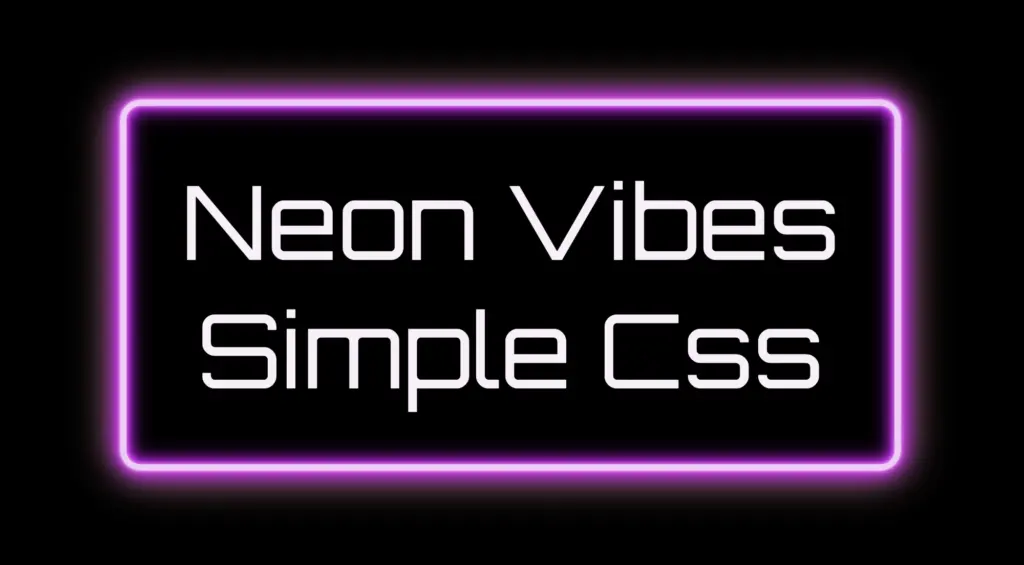
    The .neon-effect class is used to create the main structure of the glowing sign. It defines a rectangular box with a width of 700px and a height of 300px, along with a soft, rounded border in light violet (#f4cbf8).

    The box uses display: flex to perfectly center the text both vertically and horizontally. The font is set to Orbitron, giving the text a bold, futuristic style, and its size is large (80px) to make it stand out.

    .neon-effect {
      /* Frame */
      width: 700px;
      height: 300px;
      border: 6px solid #f4cbf8; /* light violet */
      
      border-radius: 20px;
      display: flex;
      align-items: center;
      justify-content: center;
      
      /* Fonts */
      font-family: 'Orbitron', Arial;
      font-size: 80px;
      text-align: center;
      color: #faf0fb; /* light pink */
    }
    CSS
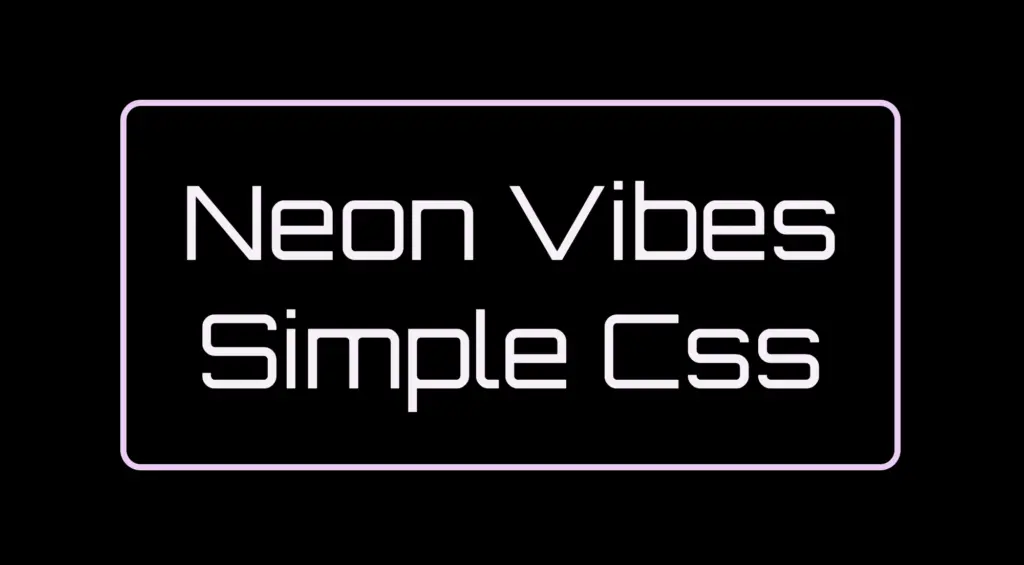
    Building the neon sign base (frame and text) to create the neon effect.

    The text color is a very light pink (#faf0fb), which will work beautifully once we add glowing shadow effects around it. For now, this creates a clean and centered base — the canvas for our neon sign.

    Glowing borders: Neon frame with box-shadow

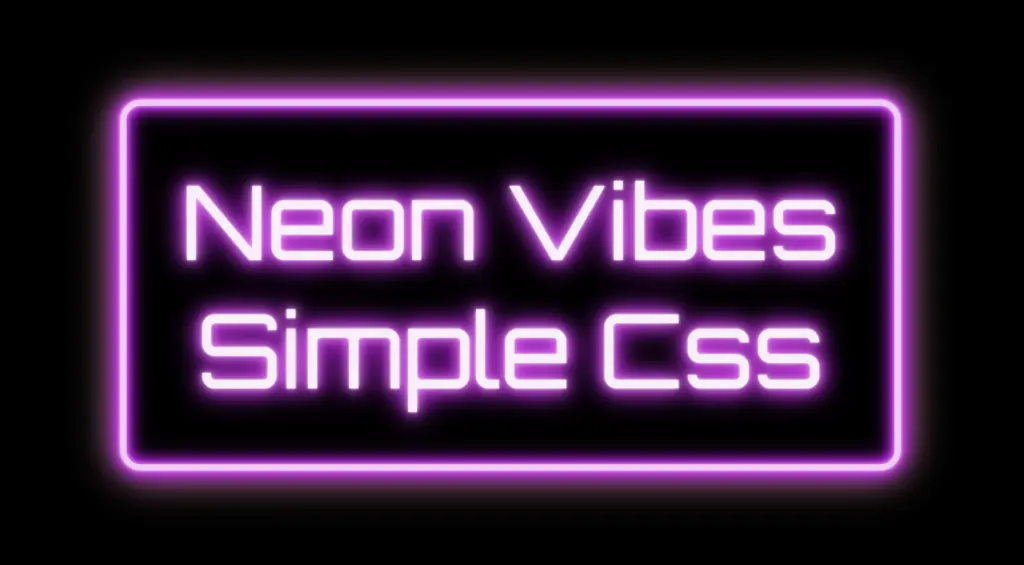
    To create the glowing neon frame around the box, we use layered box-shadow effects. The outer shadows softly expand in multiple directions, starting with white and transitioning through vivid shades of pink, magenta, and purple. This gives the impression of light softly spreading from the edges.

    We also include a subtle touch of yellow-gold hue, blending into the glow. This not only adds visual warmth but also gives a nostalgic nod to vintage neon signs, bringing up the charm of the old days while keeping the overall look fresh and vibrant.

    .neon-effect {
      ...
      box-shadow:
        /* outer glow */
        0 0 2px #fff, /* white */
        0 0 6px #ff99ff, /* light pink */
        0 0 12px #ff33ff, /* magenta */
        0 0 20px #cc00ff, /* violet */
        0 0 28px #9900cc, /* deep purple */
        0 0 36px #660066, /* dark purple */
        0 0 40px #ffe187, /* light yellow - soft gold */
        /* inner glow */
        inset 0 0 4px #ff99ff, /* light pink */
        inset 0 0 8px #ff33ff, /* magenta */
        inset 0 0 14px #cc00ff, /* violet */
        inset 0 0 18px #9900cc, /* deep purple */
        inset 0 0 24px #660066; /* dark purple */
      }
    CSS

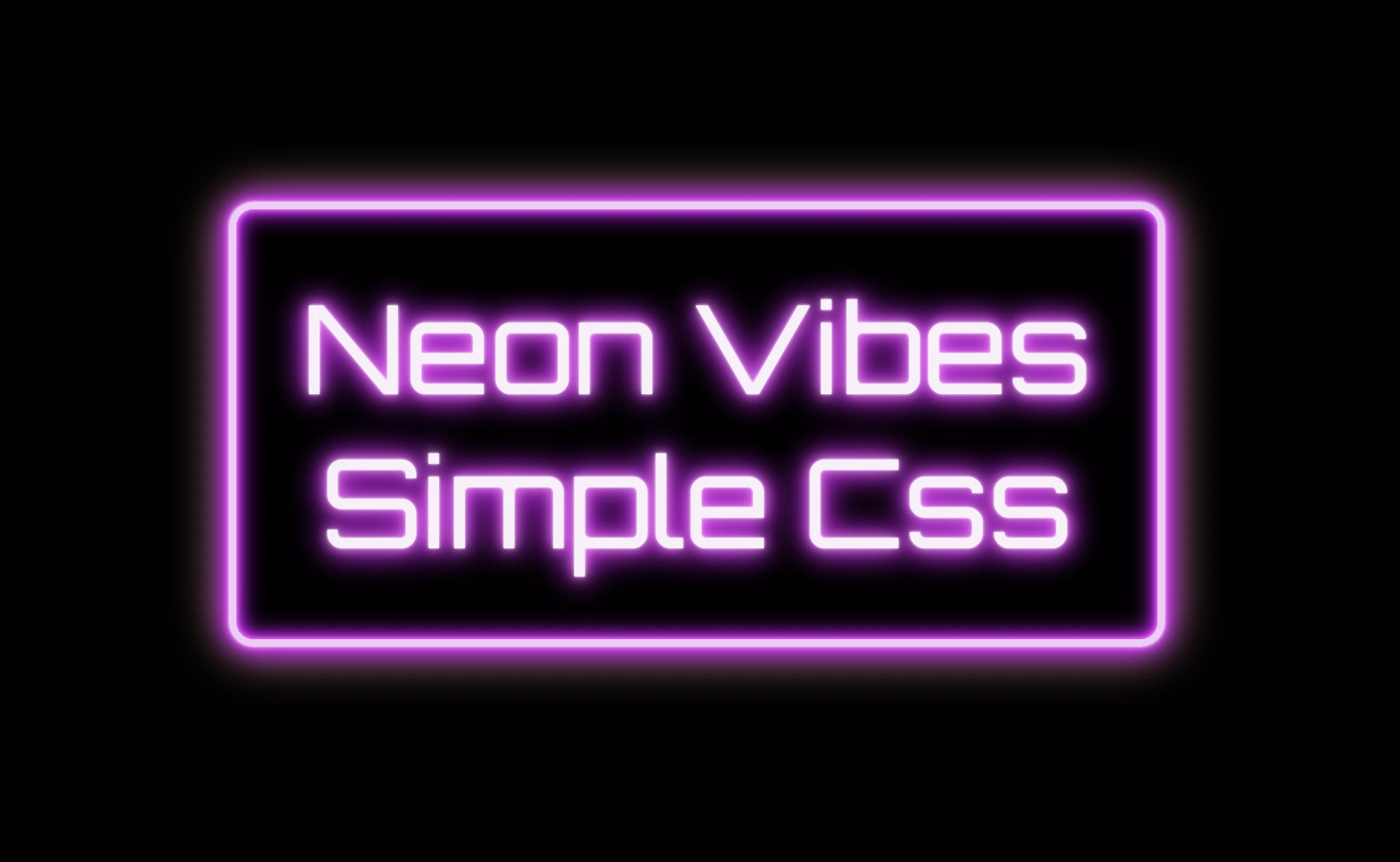
    Equally important is the second group, which uses the inset keyword and adds an inner glow that shines inside the box. These inset shadows create depth and give the illusion that the light is not only around the sign, but also glowing from within. The combination of outer and inset shadows is essential for achieving a rich, realistic neon effect.

    Styling the neon frame with pink, magenta, purple and yellow-gold hues setting the box shadow CSS property.

    Illuminated Text: Neon Glow with Text-Shadow

    To create the glowing effect around the text, we use the same method, multiple layers of text-shadow. Each shadow in your code adds a soft light in a different shade: from white and light pink to vibrant magenta, deep purple.

    .neon-effect {
      ...
      text-shadow:
        0 0 2px #fff, /* white */
        0 0 10px #ff99ff, /* light pink */
        0 0 20px #ff33ff, /* magenta */
        0 0 26px #cc00ff, /* violet */
        0 0 24px #9900cc, /* deep purple */
        0 0 32px #660066; /* dark purple *
    }
    
    CSS

    These layered shadows build a rich glow around each letter, giving it a strong, radiant presence against the dark background. The variation in color and blur size creates depth, making the text appear as if it’s lit from within, just like real neon tubing.

    Styling the neon text with pink, magenta and purple hues setting the text shadow CSS property.

    Neon effects in web design are a powerful way to grab attention. ✨ They combine vivid colors, glowing shadows, and sharp contrast to mimic the iconic look of neon signs. Whether you’re aiming for a modern tech vibe or a nostalgic retro feel, neon brings style and energy. Using CSS alone, we can recreate this classic visual with precision and creativity — no electricity needed! 💡😎

  • How To Create A Stunning Gray CSS Water Drop

    How To Create A Stunning Gray CSS Water Drop

    Hello there! 😃 In this post, we will guide you drop-by-drop ☔ on how to make a beautiful gray CSS water drop using only CSS. We will take you through the entire process, from the initial design to the final touches, and provide useful tips on how to adjust CSS properties to achieve the perfect shape and reflection effects. By the end, you will have created stunning water drops that will capture everyone’s attention.

    So, let’s begin this adventure and dive in! 🤿

    HTML Structure for water drop

    First, we create an HTML element with a class name that reflects the intended purpose and makes it easily identifiable. In our example, we will use the class name .drop 💦✨.

    <div class="drop"></div>
    HTML

    CSS Structure for a water drop

    We continue working on our CSS code. First, we have to create our drop, then we will add some shine as a way to look more natural, and finally, we will add two more drops with different sizes. Let the game begin! ⏳

    Create the water drop

    We begin by setting the background-color for our body, giving it a light shade of grayish blue (#c9c9db). As drops are transparent, picking the appropriate color as their background is essential.

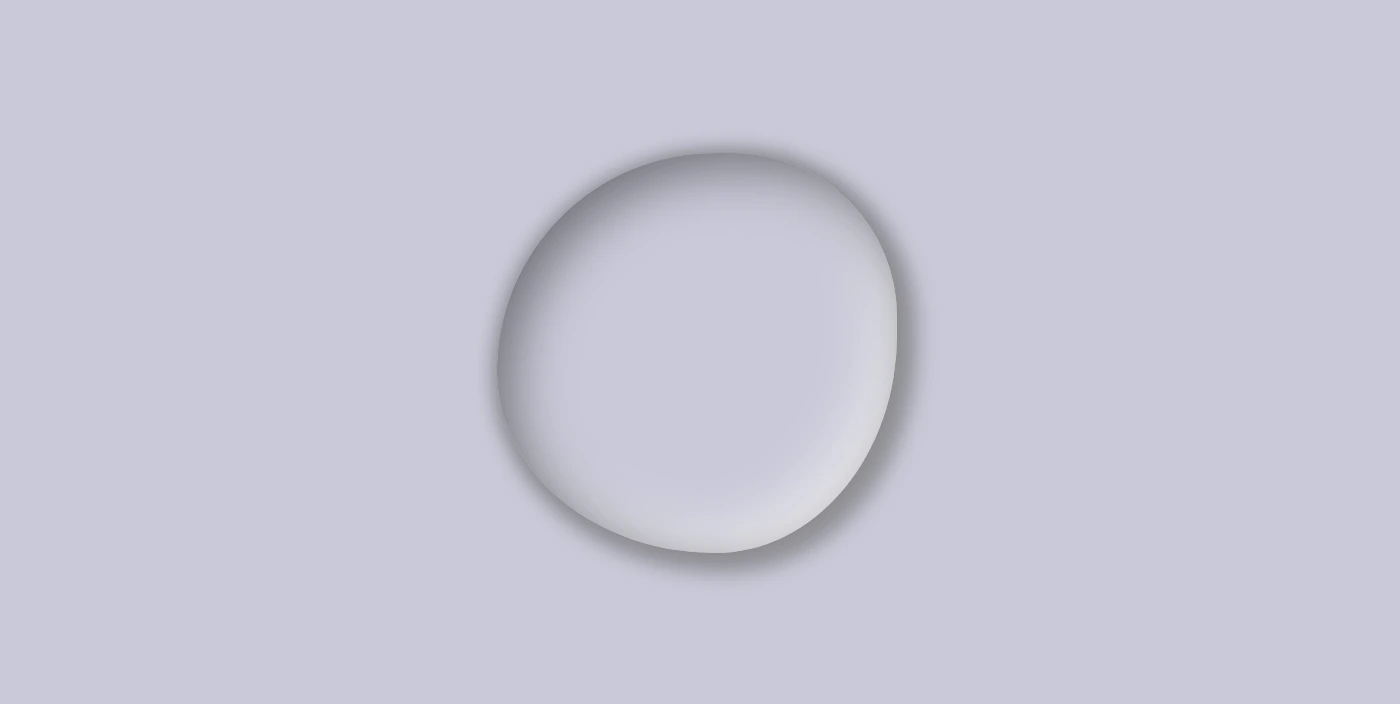
    Then we define the dimensions and borders of our drop, setting the width and height and adjusting the border-radius property to create a slightly rounded shape. (It’s important to note that nothing will be rendered on the screen at this stage as our drop does not have any color yet. 💬 )

    Next, we work on creating the drop effect using only shadows, which can be quite challenging. To achieve this, we have to make sure that the drop’s background-color is set to transparent.

    body {
      background-color: #c9c9db; /* a light shade of grayish blue */
    }
    
    .drop {
      width: 200px;
      height: 200px;
      
      border-radius: 60% 45% 50% 60%/60% 45% 60% 50%;
      background-color: transparent;
    }
    CSS

    We finalize by adding the box-shadow property to create the CSS water drop effect. We have to play somehow 🎨 🖌 with our color shades till we manage 🤯 to create the perfect result. 💪

    body {
      background-color: #c9c9db; /* a light shade of grayish blue */
    }
    
    .drop {
      ...
      box-shadow: 0 0 10px #8a8a8e, /* top-right-left-bottom */
      5px 5px 10px 5px #929297, /* left & bottom */
      inset 8px 8px 25px #71717a, /* inset top & right */
      inset -8px -8px 25px #f2f2f2; /* inset left & bottom */
    }
    CSS

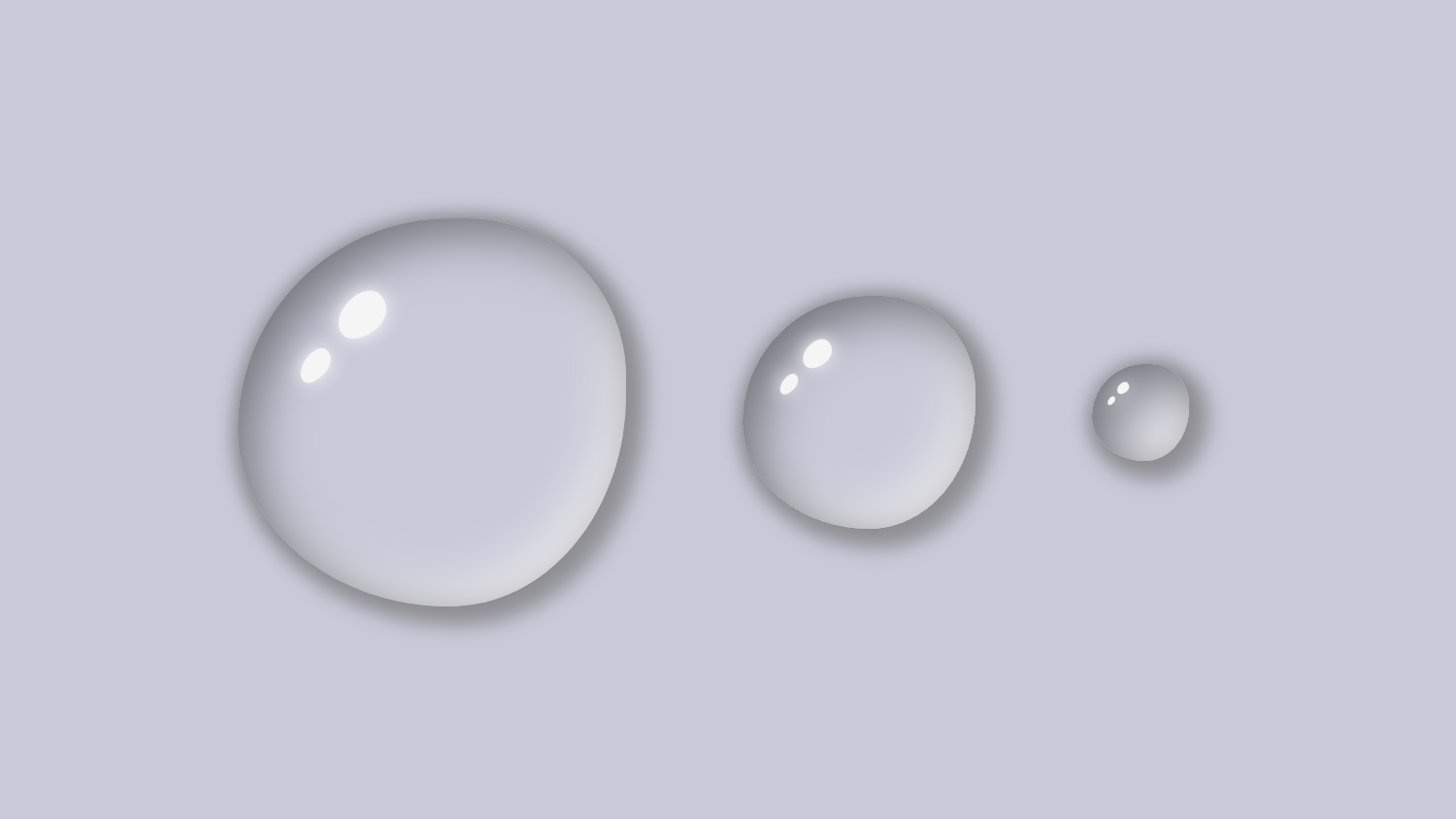
    Below, we can see what has been displayed on the screen up to this point.

    Adding shine to the CSS water drop

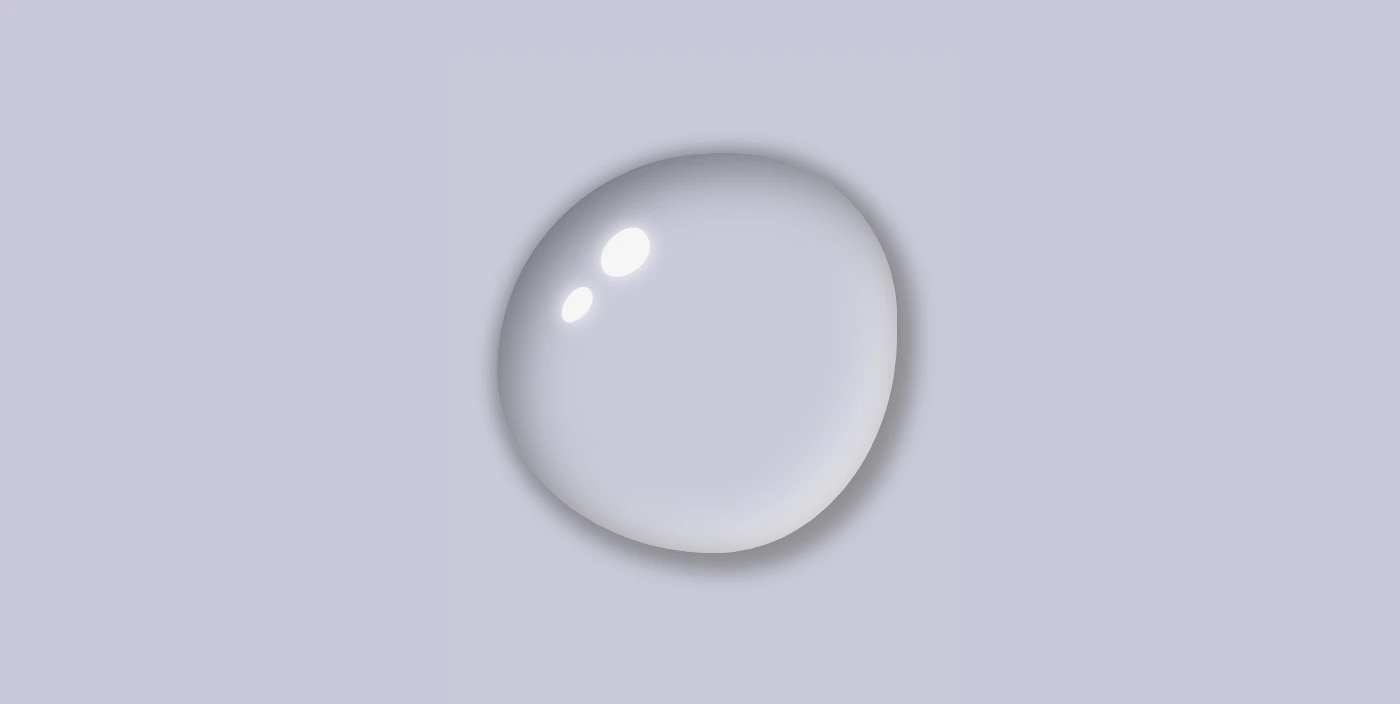
    With the power of CSS, we can bring to life unique and captivating shine ✨ effects using the :before and : after pseudo-elements. By setting different values for the same properties, we can create a distinctive and inspiring look that will leave a lasting impression on our audience.

    To position the shine inside the drop element, we utilize the position: relative to our class and then the position: absolute to our pseudoelements.

    .drop {
      ...
      position: relative;
    }
    
    .drop:before {
      position: absolute;
    
      content: "";
      width: 14%;
      height: 10%;
      background-color: #f5f5f5;
      
      box-shadow: 0 0 10px #fff;
      border-radius: 60% 45% 50% 60%/60% 45% 60% 50%;
      top: 20%;
      left: 25%;
      transform: rotate(-40deg);
    }
    
    .drop:after {
      position: absolute;
    
      content: "";
      width: 10%;
      height: 6%;
      background-color: #f5f5f5;
      
      box-shadow: 0 0 10px #fff;
      border-radius: 60% 45% 50% 60%/60% 45% 60% 50%;
      top: 35%;
      left: 15%;
      transform: rotate(-50deg);
    }
    CSS

    Then, we specify the dimensions and colors for the shine by setting the width, height and background-color.

    Next, we add the box-shadow and border-radius properties that allow us to create smooth and rounded corners on the shiny elements. This can give the design a softer look.

    After that, we use the top and left properties to position them.

    Finally, to make them look even more realistic, we can add some rotation by using the transform: rotate() property.

    In the following image, you can see the changes applied: a shiny, grey water drop!

    Create the rest of the water drops

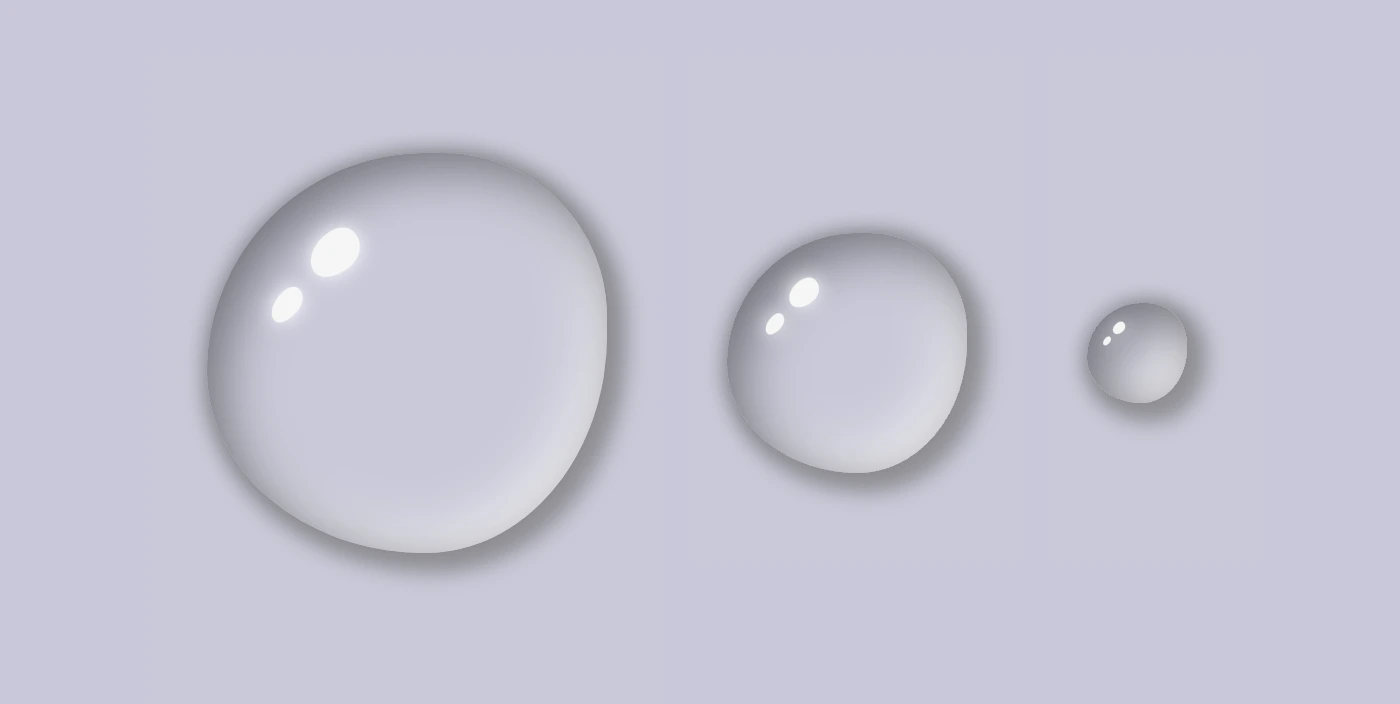
    We will complete our work by adding two more drops. Each drop will have a different class, depending on its size.

    <div class="drop"></div>
    <div class="drop drop--medium"></div>
    <div class="drop drop--small"></div>
    HTML

    First of all, we add a small margin of 30 pixels between the drops. Then, we continue with adding the drop’s size based on our preferences.

    .drop {
      ...
      margin: 30px;
    }
    .drop--medium {
      width: 120px;
      height: 120px;
    }
    
    .drop--small {
      width: 50px;
      height: 50px;
    }
    CSS

    Here we are! Our stunning water drops are displayed on the screen! Nice, isn’t it? 😎
    (We added some extra styling, not included in our code snippets, to center our drops, in case you are wondering about the last screenshot)

    Hope you found it useful. Utilize these techniques to create stunning water drops that will impress your audience. Have fun experimenting with different colors, shades, and shapes to produce your own unique designs! 💦 ✨ Happy coding!

    Complete code solution

    Below is the full code referenced in this blog post, along with some extra stylings to enhance our final result. Feel free to copy and use it in your own projects. If you have any questions or encounter any issues, don’t hesitate to reach out for assistance in the comments section. You can easily copy the desired code snippet by clicking on the copy icon located in the top-right corner of each snippet.

    <div class="drop"></div>
    <div class="drop drop--medium"></div>
    <div class="drop drop--small"></div>
    HTML
    * {
      margin: 0;
      padding: 0;
      box-sizing: border-box;
    }
    
    html,
    body {
      height: 100vh;
    }
    
    body {
      background: #c9c9db;
      display: flex;
      align-items: center;
      justify-content: center;
    }
    
    .drop {
      width: 200px;
      height: 200px;
      border-radius: 60% 45% 50% 60%/60% 45% 60% 50%;
      background-color: transparent;
      box-shadow: 0 0 10px #8a8a8e, /* top-right-left-bottom */
      5px 5px 10px 5px #929297, /* left & bottom */
      inset 8px 8px 25px #71717a, /* inset top & right */
      inset -8px -8px 25px #f2f2f2; /* inset left & bottom */
      
      position: relative;
      margin: 30px;
    }
     
    .drop:before {
      position: absolute;
    
      content: "";
      width: 14%;
      height: 10%;
      background-color: #f5f5f5;
      
      box-shadow: 0 0 10px #fff;
      border-radius: 60% 45% 50% 60%/60% 45% 60% 50%;
      top: 20%;
      left: 25%;
      transform: rotate(-40deg);
    }
    
    .drop:after {
      position: absolute;
    
      content: "";
      width: 10%;
      height: 6%;
      background-color: #f5f5f5;
      
      box-shadow: 0 0 10px #fff;
      border-radius: 60% 45% 50% 60%/60% 45% 60% 50%;
      top: 35%;
      left: 15%;
      transform: rotate(-50deg);
    }
    
    .drop--medium {
      width: 120px;
      height: 120px;
    }
    
    .drop--small {
      width: 50px;
      height: 50px;
    }
    CSS
    Expand
  • Drop-shadow VS Box-shadow: What is the difference?

    Drop-shadow VS Box-shadow: What is the difference?

    Greetings 😃 In today’s session, we’re about to explore 🔎 the fascinating world of the CSS shadow properties. Get ready to unlock 🗝 the secret between CSS drop-shadow and box-shadow properties!

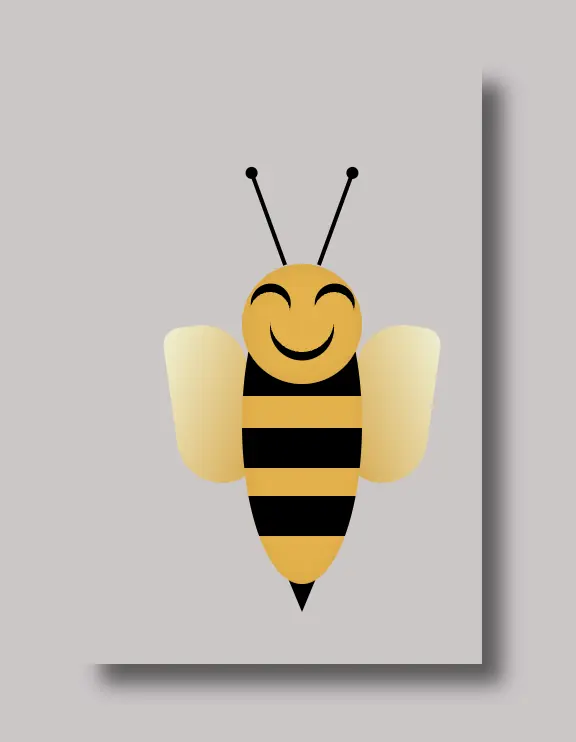
    I created a beautiful, playful bee 🐝 to make our example understandable and funny! You can check out my “bee code” at the end of my post and see how I created it. You are welcome to use it wherever suits you!

    CSS box-shadow

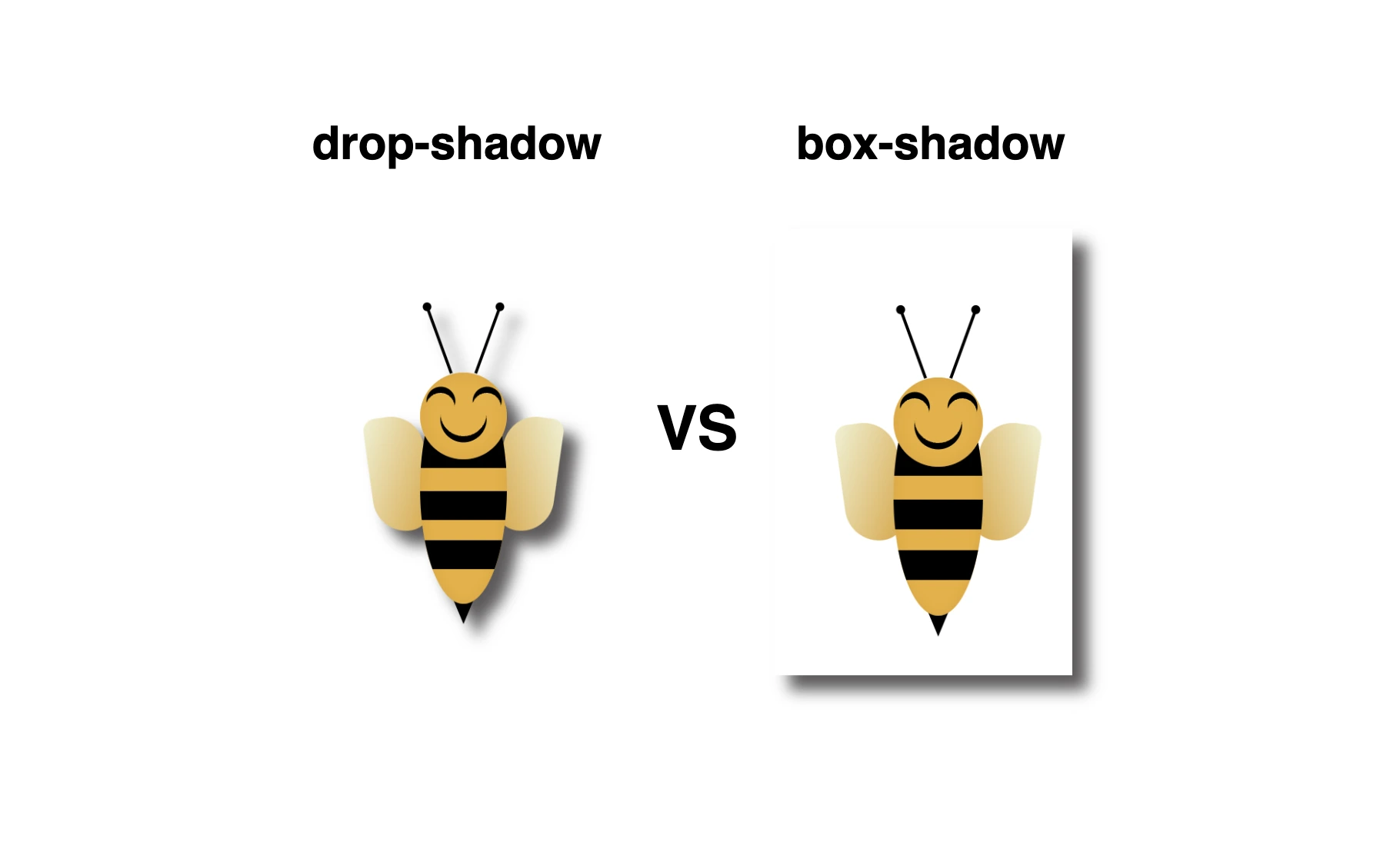
    Now, let’s focus on our shadows! In the following example, we see the effect of the box-shadow property. Our shadow is applied to the two sides of our box (bee-wrapper). The code I provided creates a gray shadow with the following characteristics:

    .bee-wrapper {
      ...
      /* offset-X | offset-Y | blur-radius | spread-radius | color */
      box-shadow: 10px 10px 10px 0 #5b5959;
    } 
    CSS
    • offset-X: adds 10 pixels to the right of the element.
    • offset-Y: adds 10 pixels below the element.
    • blur-radius: A blurry shadow with a radius of 10 pixels. (You are free to use a higher blur radius for a softer, more diffuse shadow, or you might opt for a lower blur radius to create a sharper, crisper shadow).
    • spread-radius: The shadow doesn’t expand or contract beyond the blur radius as I set it to zero. (I chose not to add spread, but it’s totally up to you if you want to add it.
      🔖 Keep in mind that the spread-radius parameter determines whether the shadow expands or reduces in size. A positive value will enlarge the shadow, whereas a negative value will shrink it).
    • color: The color of the shadow is a shade of gray (#5b5959).
    Comparison between box-shadow and drop-shadow CSS properties.This is the box shadow property

    CSS drop-shadow

    In this case, on the other hand, we can see that by setting the filter: drop-shadow() property the shadow applies smoothly to all parts of our content inside the box (bee-wrapper). Cool 🥳 ha! So, let’s see our code in more detail and how the shadow will now be rendered on the screen through our lovely bee!

    .bee-wrapper {
      ...
    /* offset-X | offset-Y | blur-radius | color */
    filter: drop-shadow(10px 10px 5px #5b5959);
    }
    CSS
    • filter: The filter property in CSS applies various graphical effects, including blurs, color adjustments, and, in this instance, shadows, to an element.
    • offset-X: This specifies the horizontal offset of the shadow from the element. It’s 10 pixels to the right, creating a shadow on the right side of the element.
    • offset-Y: This specifies the vertical offset of the shadow from the element. It’s 10 pixels below the element, creating a shadow below it.
    • blur-radius: A moderately blurry shadow with a radius of 5 pixels. (A higher value would create a more diffused and softer shadow, while a lower one would create a sharper shadow).
    • color: The shadow’s color is a shade of gray (#5b5959).

    🔖 It is worth mentioning that spread-radius property does not appear here.

    Comparison between drop-shadow and box-shadow CSS properties. This is the drop shadow property

    Complete bee code

    Below, I include my HTML and CSS bee code.

    <div class="bee-wrapper">
      <div class="face">
        <div class="antenna antenna--left"></div>
        <div class="antenna antenna--right"></div>
        <div class="bee-eye bee-eye-left"></div>
        <div class="bee-eye bee-eye-right"></div>
        <div class="bee-mouth"></div>
      </div>
      <div class="wing wing--left"></div>
      <div class="wing wing--right"></div>
      <div class="sting"></div>
      <div class="bee-body">
        <div class="stripes"></div>
      </div>
    </div>
    HTML
    Expand
    :root {
      --bg-color: #cdc6c7;
    }
    
    * {
      margin: 0;
      padding: 0;
      box-sizing: border-box;
    }
    
    html,
    body {
      height: 100%;
    }
    
    body {
      min-width: 300px;
      background-color: var(--bg-color);
      display: flex;
      flex-direction: column;
      align-items: center;
      justify-content: center;
    }
    
    // BEE
    .bee-wrapper {
      position: relative;
      width: 200px;
      height: 300px;
      
                /* BOX-SHADOW */
      /* uncomment to see the box-shadow effect
      * offset-x | offset-y | blur-radius | spread-radius | color
      */
      // box-shadow: 10px 10px 10px 0 #5b5959;
      
                /* DROP-SHADOW */
      /* uncomment to see the drop-shadow effect
      * x-offset | y-offset | blur | color
      */
      // filter: drop-shadow(10px 10px 5px #5b5959);
      
      .face {
        position: absolute;
        width: 60px;
        height: 60px;
        background-color: #ecaf2f;
        box-shadow: inset 0 0 10px #dda22c;
        border-radius: 50%;
        z-index: 20;
        top: 100px;
        left: 80px;
        .antenna {
          position: absolute;
          width: 2px;
          height: 50px;
          background-color: black;
          &--left {
            top: -48px;
            left: 12px;
            transform: rotate(-20deg);
            &:after {
              content: "";
              position: absolute;
              width: 6px;
              height: 6px;
              background-color: black;
              border-radius: 50%;
              top: -2px;
              left: -2px;
            }
          }
          &--right {
            top: -48px;
            right: 12px;
            transform: rotate(20deg);
            &:after {
              content: "";
              position: absolute;
              width: 6px;
              height: 6px;
              background-color: black;
              border-radius: 50%;
              top: -2px;
              right: -2px;
            }
          }
      }
        .bee-eye {
          position: absolute;
          width: 20px;
          height: 20px;
          border-radius: 50%;
          box-shadow: 3px 3px 0 0 black;
          transform: rotate(230deg);
          &.bee-eye-left {
            top: 14px;
            left: 4px;
          }
          &.bee-eye-right {
            top: 14px;
            right: 4px;
          }
      }
        .bee-mouth {
          position: absolute;
          width: 32px;
          height: 32px;
          border-radius: 60%;
          box-shadow: 3px 3px 0 0 black;
          top: 12px;
          left: 14px;
          transform: rotate(45deg);
        }
      }
    
      .wing {
        position: absolute;
        width: 40px;
        height: 80px;
        &--left {
          background-image: linear-gradient(to bottom right, #f0f1d2, #dda22c);
          border-radius: 30px 80px 60px 80px;
          transform: rotate(352deg);
          top: 130px;
          left: 45px;
        }
        &--right {
          background-image: linear-gradient(to bottom left, #f0f1d2, #dda22c);
          border-radius: 80px 30px 80px 60px;
          transform: rotate(8deg);
          top: 130px;
          left: 135px;
        }
      }
    
      .bee-body {
        position: absolute;
        width: 60px;
        height: 160px;
        border-radius: 50%;
        background-color: #ecaf2f;
        box-shadow: inset 0 0 8px #dda22c;
        overflow: hidden;
        top: 100px;
        left: 80px;
          .stripes {
          position: absolute;
          width: 80px;
          height: 22px;
          background-color: black;
          border-radius: 10px;
          top: 44px;
          left: 50%;
          transform: translate(-50%);
          &:before {
            content: "";
            position: absolute;
            width: 80px;
            height: 20px;
            background-color: black;
            border-radius: 10px;
            top: 38px
          }
          &:after {
            content: "";
            position: absolute;
            width: 80px;
            height: 20px;
            background-color: black;
            border-radius: 10px;
            top: 72px;
          }
        }
      }
    
      .sting {
        position: absolute;
        width: 0;
        height: 0;
        border-left: 10px solid transparent;
        border-right: 10px solid transparent;
        border-top: 24px solid black;
        top: 250px;
        left: 100px;
      }
    }
    CSS
    Expand
  • How to Make a Transparent Button Using HTML and CSS

    How to Make a Transparent Button Using HTML and CSS

    Hey there! 😃 In today’s technology-driven world, it’s super important to learn how to create an awesome transparent button. A well-designed button not only adds to the product’s aesthetic appeal but also enhances the user experience. Therefore, it’s essential to create buttons that are both visually appealing and functionally efficient.

    Let’s work together, utilizing only HTML and CSS, to design the perfect button that stands out and enhances your app’s user-friendliness.

    HTML basic structure

    First, we prepare our HTML code snippet. We need to create a parent element with the class .wrapper that acts as the base of the button. Next, we add a child element within the parent element that will serve as the clickable part of the button. This child element has the class .custom-button . Doing so will help us create an interactive button that users can click on, to perform an action. How amazing is this! 😎

    <div class="wrapper">
      <button class="custom-button"></button>
    </div>
    HTML

    CSS foundation

    Let’s continue by using our CSS magic and making our button look cool! For this post, I am writing CSS using Sass syntax. If you would like to convert it to vanilla CSS and don’t already know how, I’d suggest you use an online Sass —CSS converter.

    Create the base for the transparent button

    First of all, we set the background-color of the body to dark grey and also add some extra positioning properties in order for our button to be centered. We will be using the same color for our button, by applying the background: transparent CSS property, along with some width and height of our choice in the .wrapper class.

    We are also applying a border-radius of 80 pixels and a box-shadow with carefully selected shades of grey. It is important to select the appropriate shades to ensure the desired outcome. 😉

    For our example, we are placing the clickable part of the button in the center of the base. For that reason, we are using the flex method.

    body {
      background-color: darkgrey;
      height: 100vh;
      
      display: flex;
      align-items: center;
      justify-content: center;
    }
    
    .wrapper {
      width: 500px;
      height: 140px;
      background: transparent;
      border-radius: 80px;
      box-shadow: inset 0px 3px 5px #c6c2c2,
        0px 5px 5px #727070;
    
      display: flex;
      align-items: center;
      justify-content: center;
    } 
    SCSS

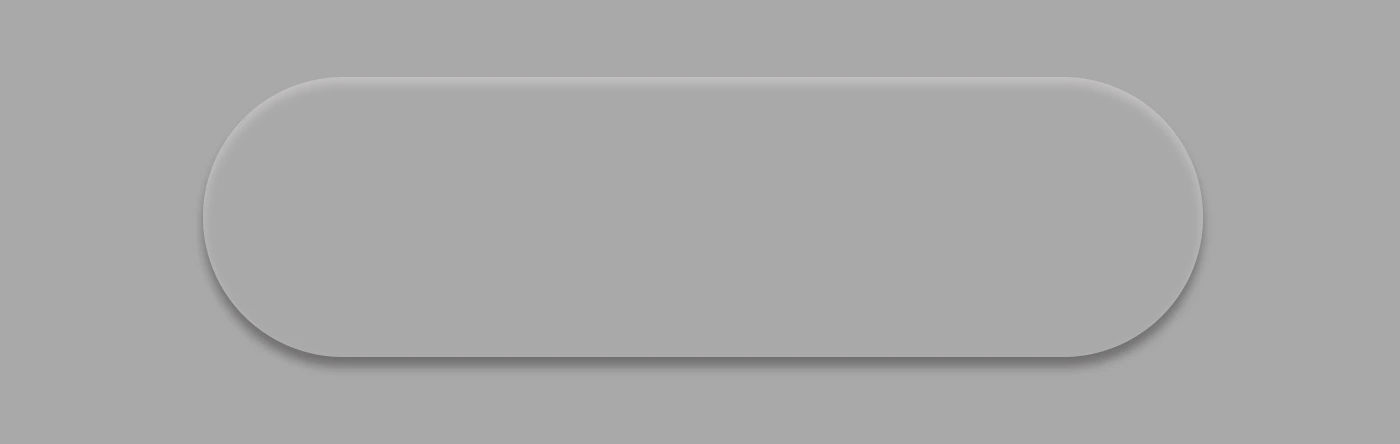
    Take a look at the image below to see what’s currently rendered on screen.

    Create the clickable part of the transparent button

    We proceed with the clickable area of our button. After applying some basic dimensions, we need to make sure the background is set to transparent as we did before, with the base part of the button. After that, we adjust the border-radius and box-shadow to inherit, so that these attributes would be identical to the base. To remove any natively applied border styling we use border: none.

    .custom-button {
      width: 460px;
      height: 100px;
      background: transparent;
      border-radius: inherit;
      box-shadow: inherit;
      border: none;
    }
    SCSS

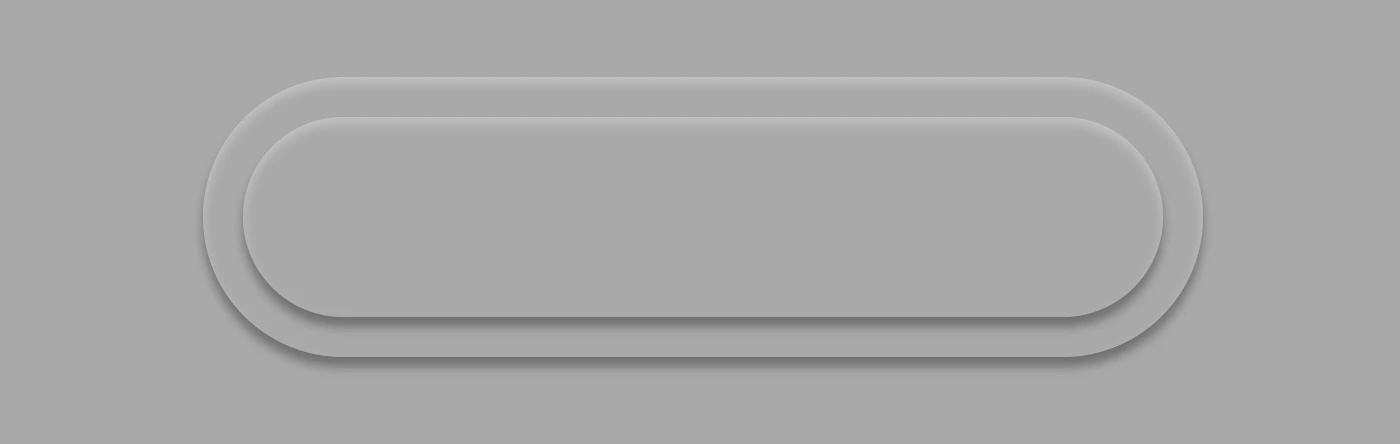
    Below, you see what’s on the screen now, with the clickable (top) part of our button added.

    Add the button text

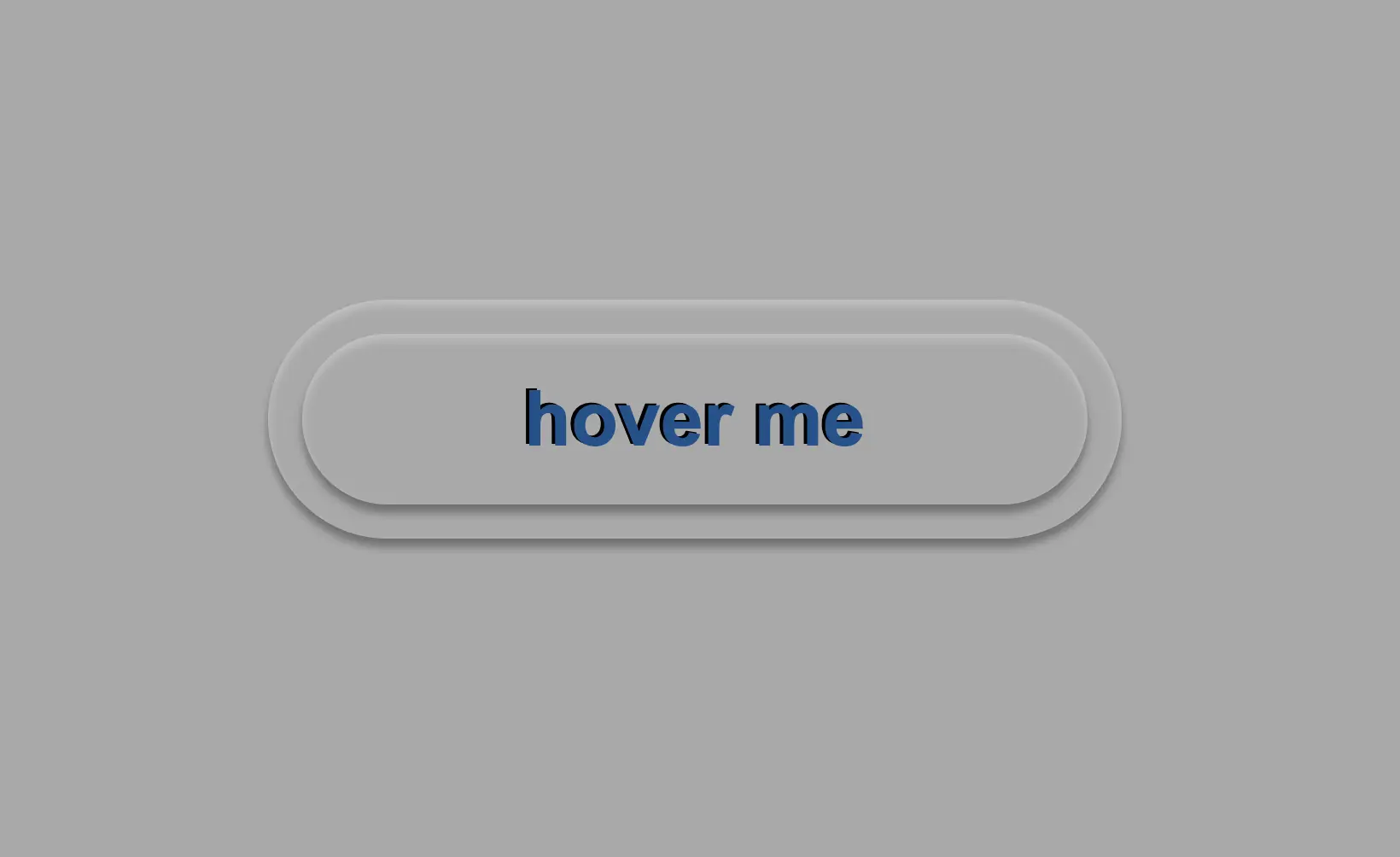
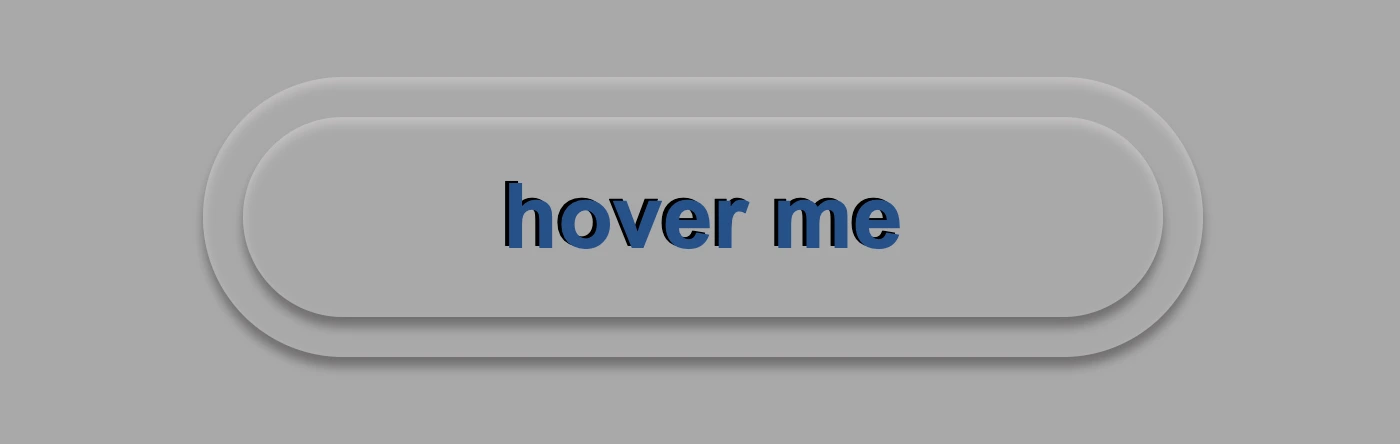
    To begin, we use the flex method to center the button’s text appropriately. Then we add the text using the :before CSS pseudoselector, adding “hover me” as the content. I used a bold, 45-pixel blue text with a black shadow effect. For enhanced readability, I opted for the Arial font-family as it is really legible. 🆒 ✨

    .custom-button {
      ...
      font-family: 'Arial';
      font-size: 45px;
      color: #12528e; /* a shade of blue */
      font-weight: bold;
      display: flex;
      align-items: center;
      justify-content: center;
      &:before {
        position: absolute;
        content: "hover me";
        text-shadow: -2px -1px black;
      }
    }
    SCSS

    In the following image, we can see what’s displayed on the screen now.

    Apply the hover effect of the transparent button

    Now, is the appropriate time to implement the hover effect. We can achieve this by adding the :hover CSS pseudo-class with the cursor set to pointer. After that, we will use :before again to modify the text content to display “click me”.

    .custom-button {
      ...
      &:hover {
        cursor: pointer;
        &:before {
          content: "click me";
        }
      }
    }
    SCSS

    Below, we can observe 🔎 the hover effect in action. Moving the cursor over the button, immediately transforms from arrow ⬆ into pointer 👆(hand), and the text content changes. The hover effect is a widely used design technique that adds interactivity and visual interest to a webpage.

    Apply the active effect of the transparent button

    Now, we can add the :active state to the button to finish our work. Once we click on the button, the active state will be triggered. To make it look more realistic and impressive, we adjust the box-shadow CSS property.

    Additionally, we will modify the text content using the :before CSS property and change it to be inspiring and display the text “Good Job!” in indigo color with white text-shadow.

    .custom-button {
      ...
      &:active {
        box-shadow: 0px -1px 3px #969393,  /* top side */
          inset 0px 5px 3px #b7b5b5, /* inset top side */
          inset 1px 0px 3px #969393, /* inset left side */
          inset -1px 0px 3px #969393, /* inset right side */
          inset 0px -4px 3px #969393; /* inset bottom side */
        &:before {
          content: "Good Job!";
          color: indigo;
          text-shadow: -2px -1px white;
        }
      }
    }
    SCSS

    At this moment, you can witness 🧐 the active effect in action. Take a moment to observe and analyze how the effect is taking place and what impact it has. This will help you gain a better understanding of the process and its outcomes, which can be useful for future reference and decision-making. 😇 So, good luck with your work!

    Complete code solution

    Below is the full code referenced in this blog post. Feel free to copy and use it in your own projects. If you have any questions or encounter any issues, don’t hesitate to reach out for assistance. You can easily copy the desired code snippet by clicking on the copy icon, located in the top-right corner of each snippet.

    <div class="wrapper">
      <button class="custom-button"></button>
    </div>
    HTML
    body {
      background-color: darkgrey;
      height: 100vh;
      
      display: flex;
      align-items: center;
      justify-content: center;
    }
    
    .wrapper {
      width: 500px;
      height: 140px;
      background: transparent;
      border-radius: 80px;
      box-shadow: inset 0px 3px 5px #c6c2c2,
        0px 5px 5px #727070;
    
      display: flex;
      align-items: center;
      justify-content: center;
    }
    
    .custom-button {
      width: 460px;
      height: 100px;
      background: transparent;
      border-radius: inherit;
      box-shadow: inherit;
      border: none;
      font-family: 'Arial';
      font-size: 45px;
      color: #12528e; /* a shade of blue */
      font-weight: bold;
      display: flex;
      align-items: center;
      justify-content: center;
      &:before {
        position: absolute;
        content: "hover me";
        text-shadow: -2px -1px black;
      }
      &:hover {
        cursor: pointer;
        &:before {
          content: "click me";
        }
      }
      &:active {
        box-shadow: 0px -1px 3px #969393,  /* top side */
          inset 0px 5px 3px #b7b5b5, /* inset top side */
          inset 1px 0px 3px #969393, /* inset left side */
          inset -1px 0px 3px #969393, /* inset right side */
          inset 0px -4px 3px #969393; /* inset bottom side */
        &:before {
          content: "Good Job!";
          color: indigo;
          text-shadow: -2px -1px white;
        }
      }
    }
    SCSS
    Expand