Tag: clip-path: polygon()

  • Clip-path For Simplified Triangles – Ready Code-To-Copy

    Clip-path For Simplified Triangles – Ready Code-To-Copy

    Have you come across the clip-path CSS property before? It’s a unique tool that helps us to create a variety of shapes from scratch without the need for complex code. A trully captivating addition in web design.

    The clip-path accepts several values: circle(), ellipse(), polygon(), and inset(). These values define the shape of the clipping path applied to an element and we utilize them depending on the shape we want to create each time.
    Specifically, in today’s post, we will learn how to clip an element into a triangle shape by setting the clip-path: polygon().

    Clip-path polygon() function explained

    It’s time to continue and focus on our triangles. Let’s proceed with the example I prepared and see how this special tool works. 🪄 Below we have a black square. We used to create squares by setting the width and height CSS properties, but for today, let’s see how we can replace them with the clip-path property.

    Take a look below. I begin with a ⬛ square, making it easier to understand our function as squares (boxes) are the most familiar shapes in CSS. Then I will transform this square into a 📐 triangle. The color code shows how we position the square along both the X-axis and Y-axis. The colored points on the corners represent the clipping region.

    🖇 Despite having three magenta points and one green point, for now, all points behave the same. The differentiation of the green point will be meaningful later and hold significance for the following stages in our work.
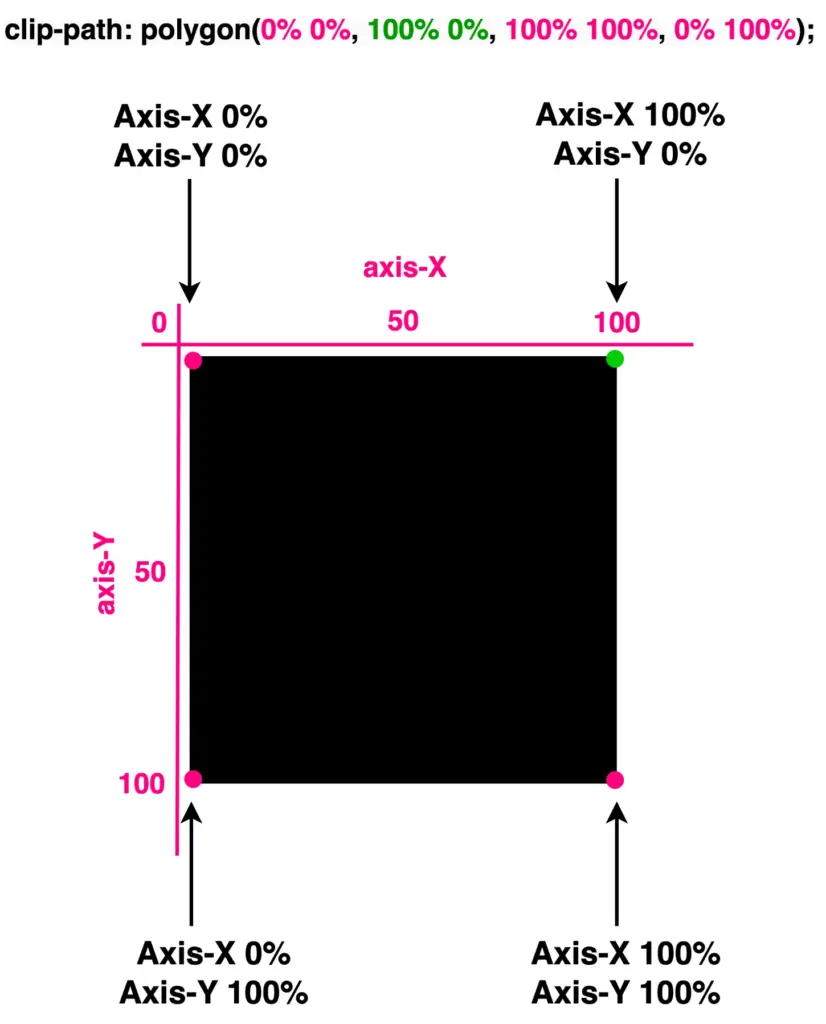
    A square made by setting the clip-path: polygon(0% 0%,100% 0%,100% 100%, 0% 100%);

    Each pair of values inside the clip-path: polygon() function represents a point, and all these points together define a clipping region.

    Create orthogonal triangles

    Now, let’s see how we can transform it into a triangle. The square has four corners (points) while the triangle has three corners. Depending on the type of triangle we want to create, we need to cut the corresponding corner.
    In my example, I create an orthogonal triangle. I cut the top-right corner (100% 0%). As you can see in the following image, cutting this corner, we have the triangle we need.
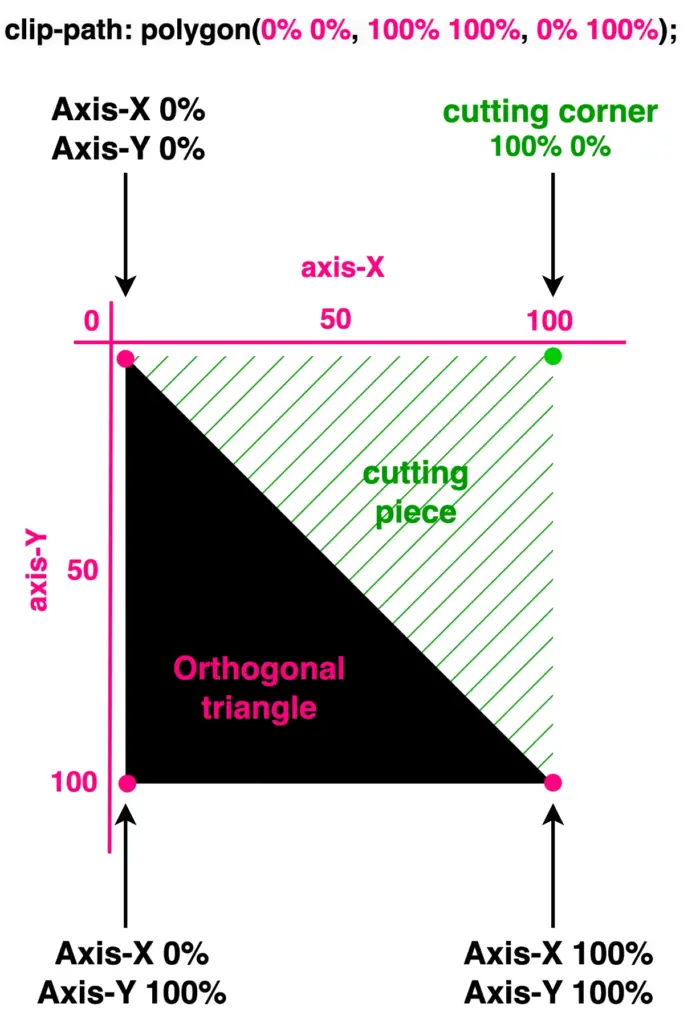
    An orthogonal triangle made by setting the clip-path: polygon(0% 0%,100% 100%,0% 100%);

    What do you think? It looks good! Isn’t it? 😎 With just a simple line of code!

    🔖 I opted to clip the top-right corner (100% 0%). Alternatively, it would also be correct to clip the top-left corner (0% 0%), the bottom-right corner (100% 100%), or the bottom-left corner (0% 100%). All these clippings yield the same result, so you can choose the one that best fits your preferences. Additionally, you can use transform: rotate to adjust the orientation as needed.
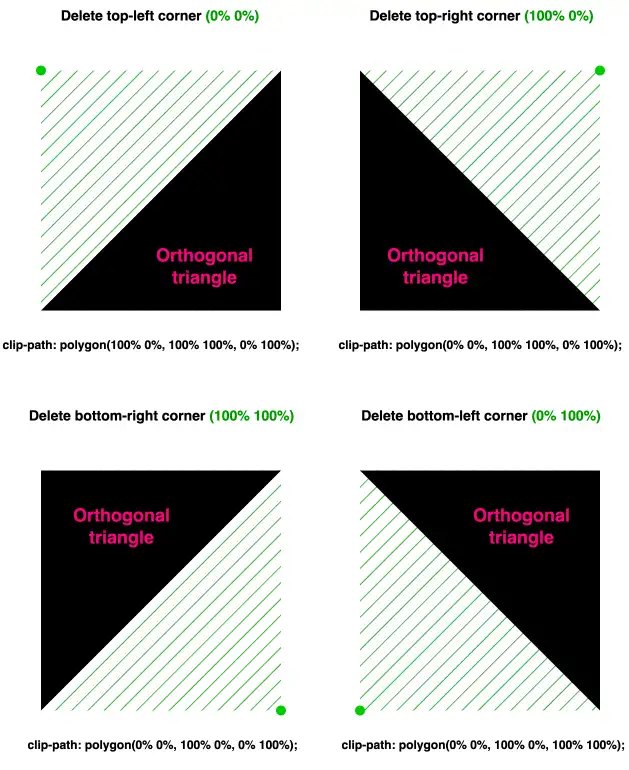
    Creating orthogonal triangles setting the clip-path CSS property.

    With our triangles now in place, let’s explore how we can move them along both axes and discover the variety of triangles we can create.

    Create equilateral triangles

    We move forward by keeping the initial design where we cut the top-right corner (100% 0%). We will work with this triangle.

    To start, I’ve chosen to create equilateral triangles. This involves first focusing on the remaining top-left corner and then on the remaining bottom-right corner. Don’t worry and don’t feel confused, we’ll clear everything up. As mentioned above, the code and diagrams for clarity are ready!

    As you can see below, we maintain the bottom corners as they are, and we change the remaining top-right corner, where we move it left to 50% along the X-axis. By doing so, we transform our orthogonal triangle into an equilateral triangle.

    clip-path: polygon(
               50% 0%,
               100% 100%,
               0% 100%);
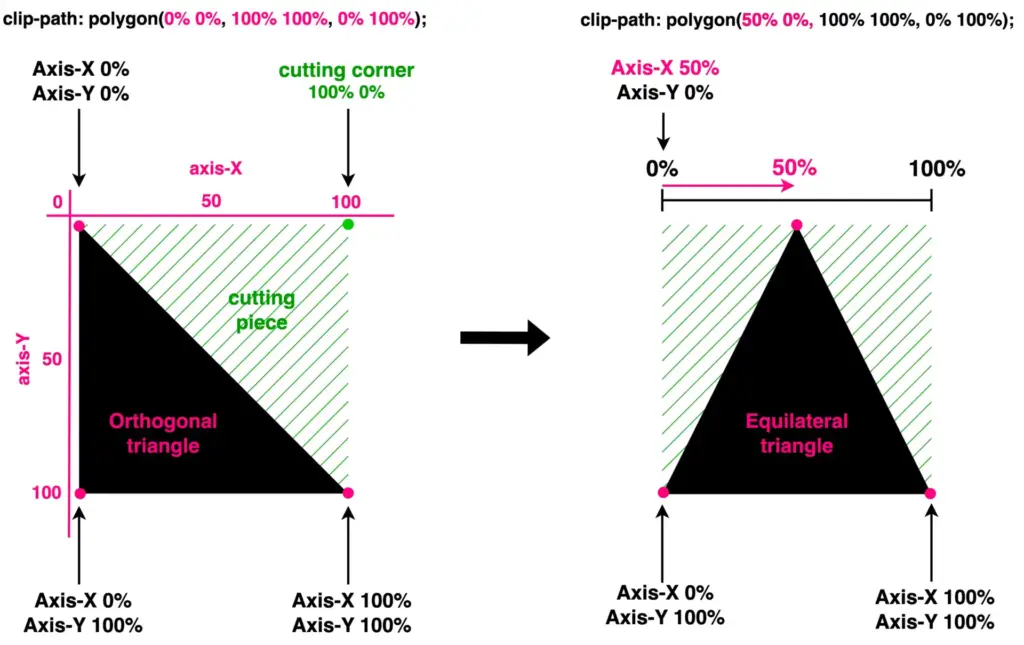
    Two triangles. On the left we see a square made by setting the clip-path: polygon(0% 0%,100% 100%,0% 100%);
while on the right we see an An orthogonal triangle made by setting the clip-path: polygon(50% 0%,100% 100%,0% 100%);

    This orthogonal triangle can give us one more equilateral triangle. We maintain the top-left and bottom-left corners, and we change the bottom-right corner by moving it up to 50%on the Y-axis.

    clip-path: polygon(
               0% 0%,
               100% 50%,
               0% 100%);
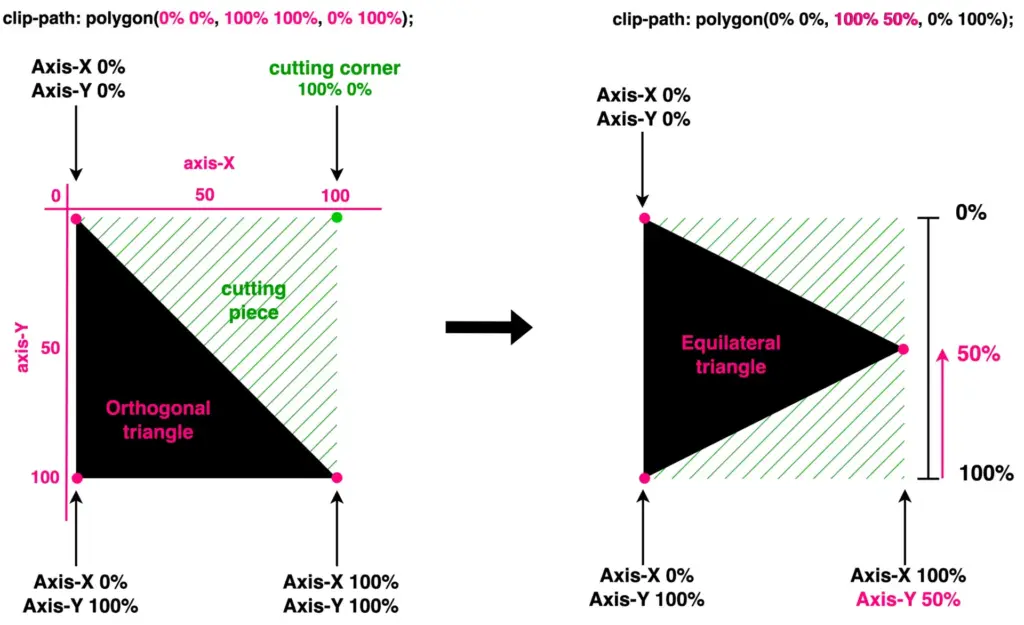
    Two triangles. On the left we see an orthogonal triangle made by setting the clip-path: polygon(0% 0%,100% 100%,0% 100%);
while on the right we see an equilateral triangle made by setting the clip-path: polygon(0% 0%,100% 50%,0% 100%);

    Create acute triangles

    We continue with the acute triangles. Once again, we maintain the bottom corners as they are, and we change the remaining top-right corner. Here, we have two cases. First, we move it left to 15% along the X-axis, while in the second case, we move it left to 85%. By doing so, we transform our orthogonal triangle into acute triangles. Depending on our preferences.

    clip-path: polygon(
               15% 0%,
               100% 100%,
               0% 100%);
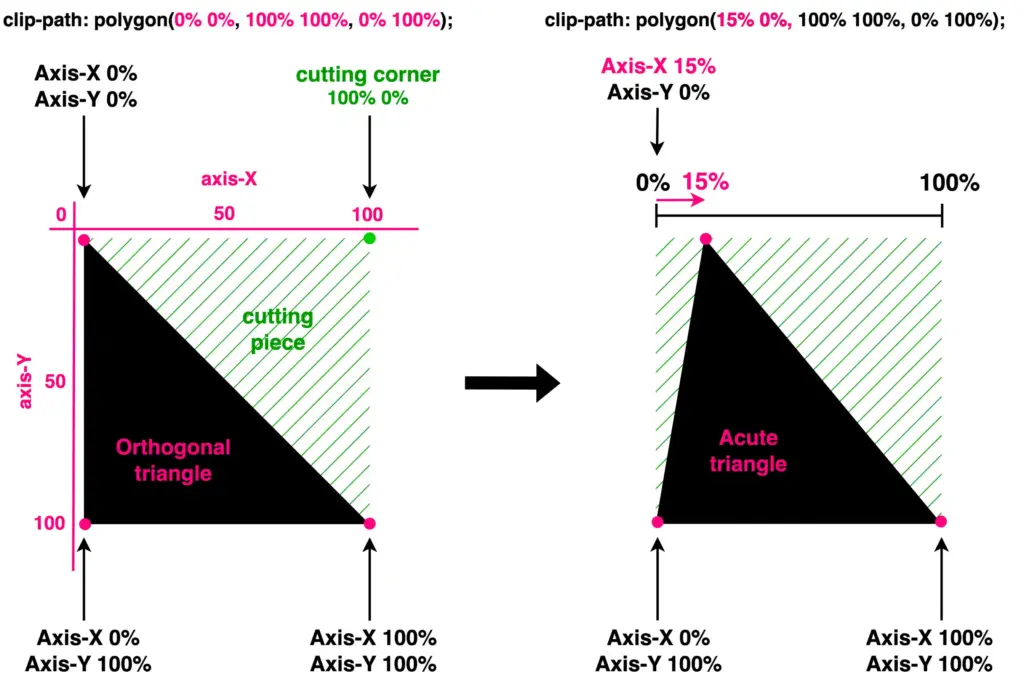
    Two triangles. On the left we see a an orthogonal triangle made by setting the clip-path: polygon(0% 0%,100% 100%,0% 100%);
while on the right we see an acute triangle made by setting the clip-path: polygon(15% 0%,100% 100%,0% 100%);
    clip-path: polygon(
               85% 0%,
               100% 100%,
               0% 100%);
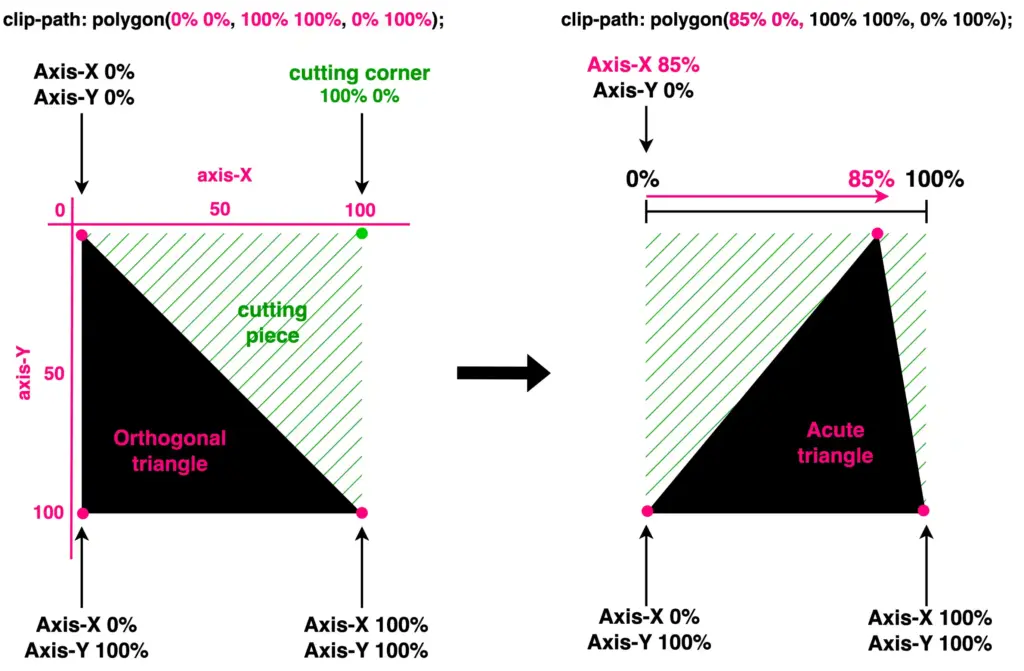
    Two triangles. On the left we see an orthogonal triangle made by setting the clip-path: polygon(0% 0%,100% 100%,0% 100%);
while on the right we see an An acute triangle made by setting the clip-path: polygon(85% 0%,100% 100%,0% 100%);

    Another approach is to work with the bottom-right corner and adjust the values on the Y-axis. Let’s see how our triangle will become then. I move the bottom-right corner first up to 35% and then up to 65%.

    clip-path: polygon(
               0% 0%,
               100% 35%,
               0% 100%);
               /* OR */
    clip-path: polygon(
               0% 0%,
               100% 65%,
               0% 100%);
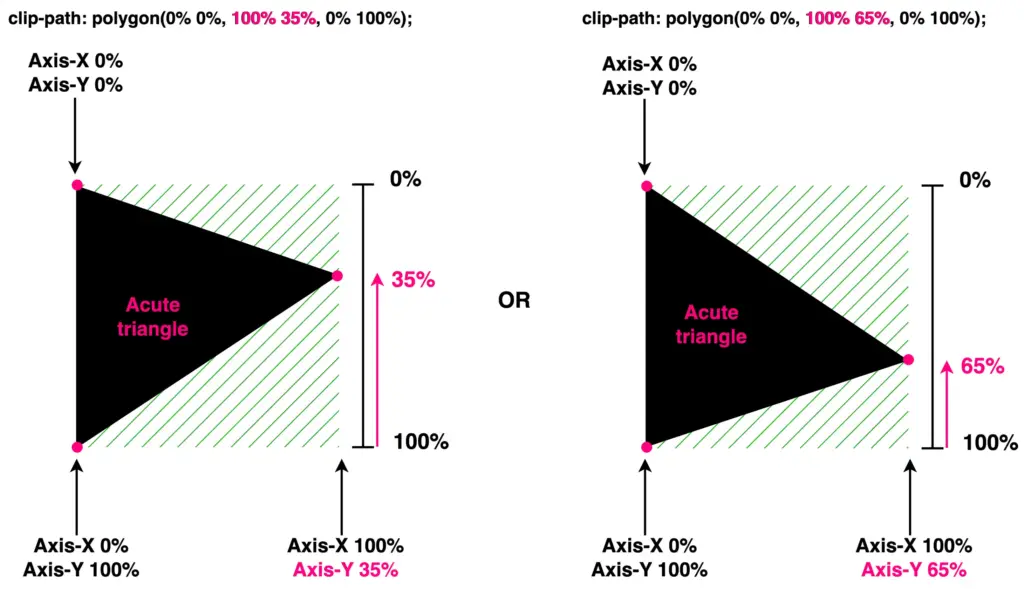
    Two acute triangles. On the left it is made by setting the clip-path: polygon(0% 0%,100% 35%,0% 100%);
while on the right it is made by setting the clip-path: polygon(0% 0%,100% 65%,0% 100%);

    🔖 The values I use to create the triangles are indicative. Feel free to choose any value that suits your preferences and requirements. 😃

    Create obtuse triangles


    Finally, it’s time to work with the bottom-left corner. We leave the top-left and bottom-right corners unchanged while modifying the values of the bottom-left corner. Initially, I adjust the X-axis value, shifting the corner left to 20%. Next, I adjust the Y-axis value, moving the corner up to 80%.

    clip-path: polygon(
               0% 0%,
               100% 100%,
               20% 100%);
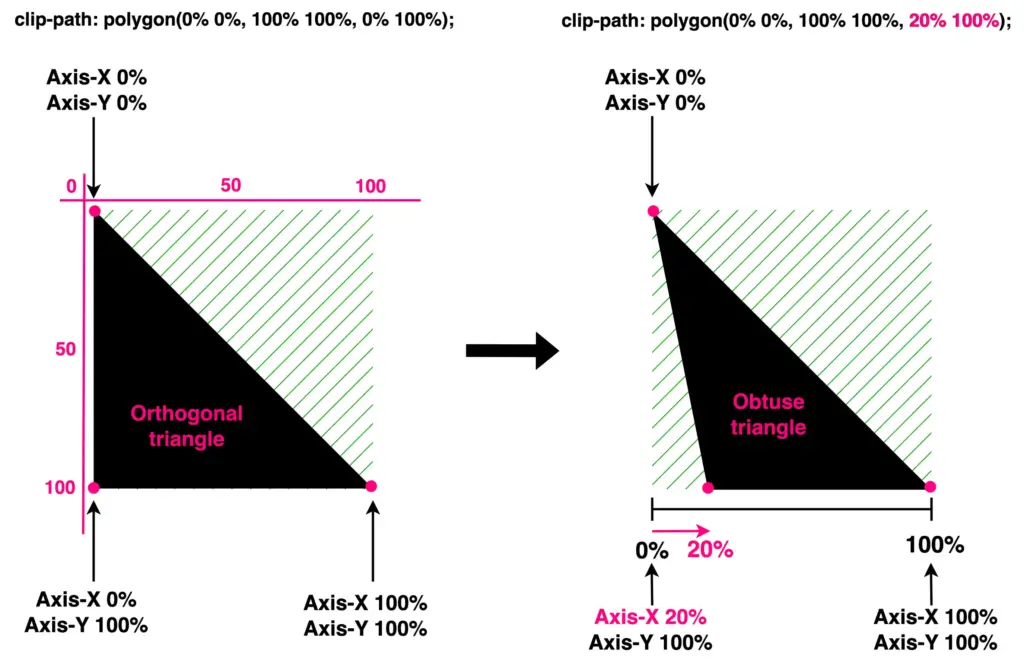
    Two triangles. On the left we see an orthogonal triangle made by setting the clip-path: polygon(0% 0%,100% 100%,0% 100%);
while on the right we see an obtuse triangle made by setting the clip-path: polygon(0% 0%,100% 100%,20% 100%);
    clip-path: polygon(
               0% 0%,
               100% 100%,
               0% 80%);
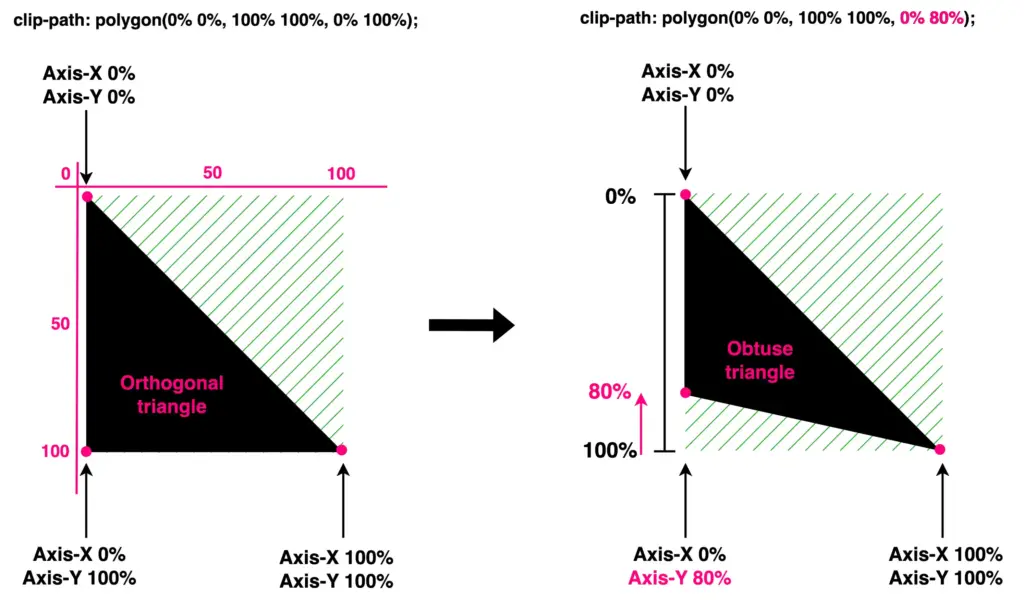
    Two triangles. On the left we see a an orthogonal triangle made by setting the clip-path: polygon(0% 0%,100% 100%,0% 100%);
while on the right we see an obtuse triangle made by setting the clip-path: polygon(0% 0%,100% 100%,0% 80%);
  • Clip-path For Navigation Signs – Ready Code-To-Copy

    Clip-path For Navigation Signs – Ready Code-To-Copy

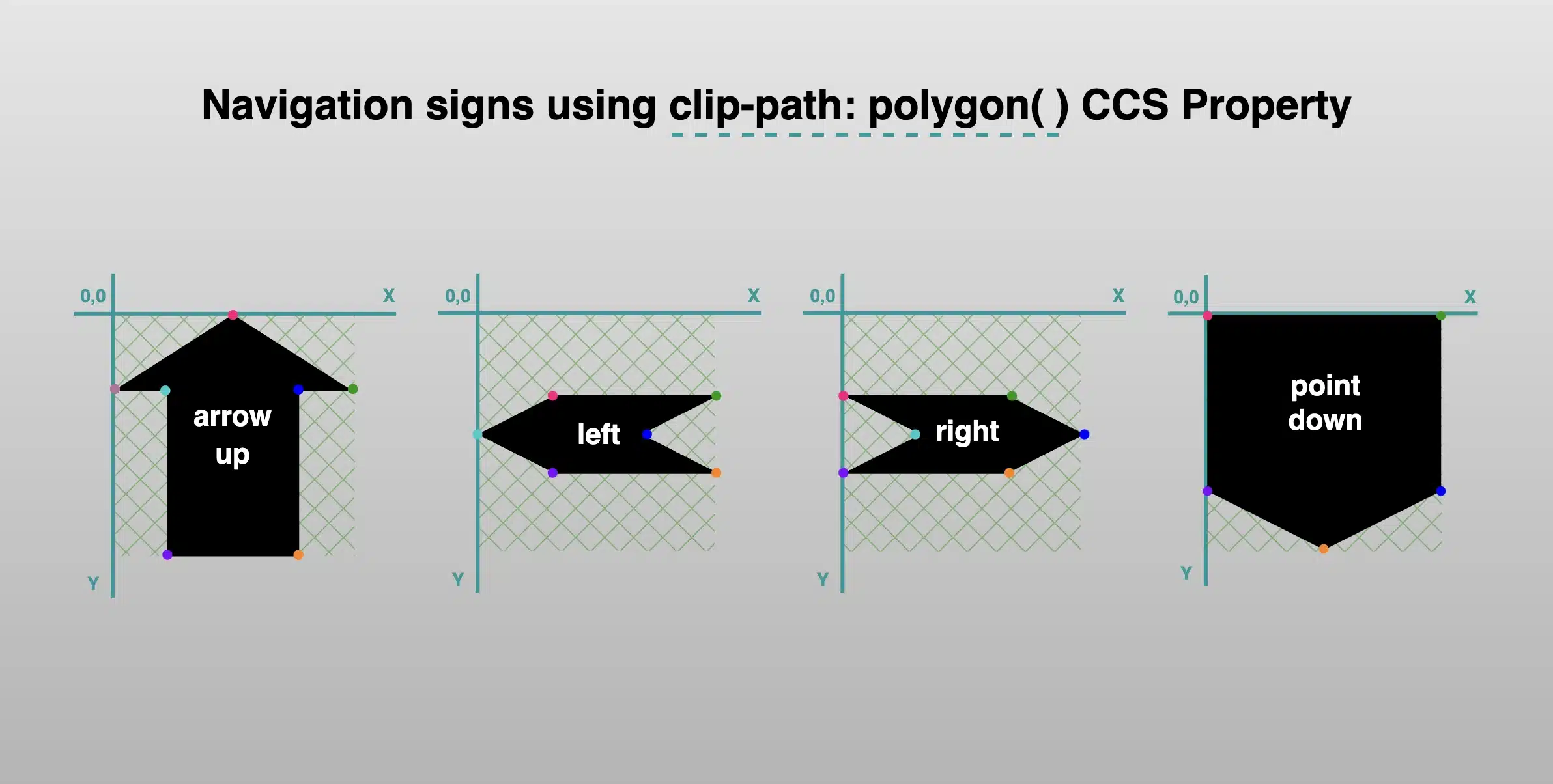
    Have you ever wondered if you can create all these directional signs (⬆,↙, etc.), you see everywhere around, using only CSS? I have the solution for you! What about exploring the unique clip-path CSS property, where you can create complex shapes following specific movements!

    The clip-path property allows us to cut ✂ an element to a shape of our choice by specifying a series of points. It takes many values, but in our case, we will use the clip-path: polygon() function. I’ll briefly note circle(), ellipse(), and inset() which are the rest of the functions. In this post, we will analyze how we can create navigation signs only.

    Clip-path: polygon() function explained

    It would be an excellent start to examine the syntax of this amazing tool. Below I’ve illustrated the code along with explanatory diagrams.
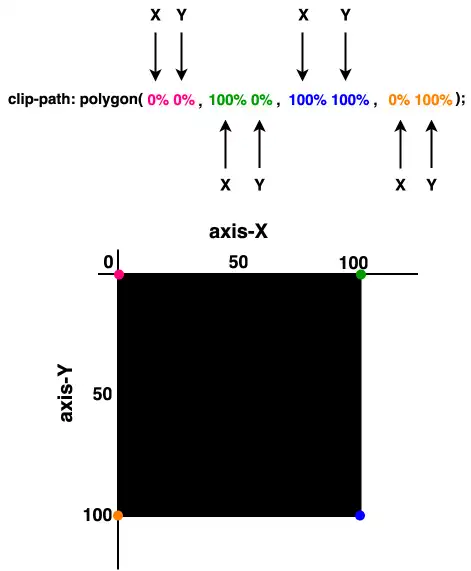
    The first one shows how we can make a square setting the clip-path: polygon() function. We used to create square shapes ⬛ by simply setting the width and height CSS properties. However, I opted to use the clip-path to utilize its familiarity and improve clarity. 😎
    I used colored code to show you how we measured on both the axis-X and axis-Y. Each pair of values represents a point, with the first value indicating the horizontal position and the second value indicating the vertical position. Then an image accompanied the code and display a series of colored points illustrate how we form our visual element.

    Creating square with clip-path: polygon() function - clip-path: polygon(0% 0%, 100% 0%, 100% 100%, 0% 100%);
    “Clip-path is extremely flexible. We can create any shape we desire from scratch, but we can also apply it to existing shapes and create transformations of our choice”.

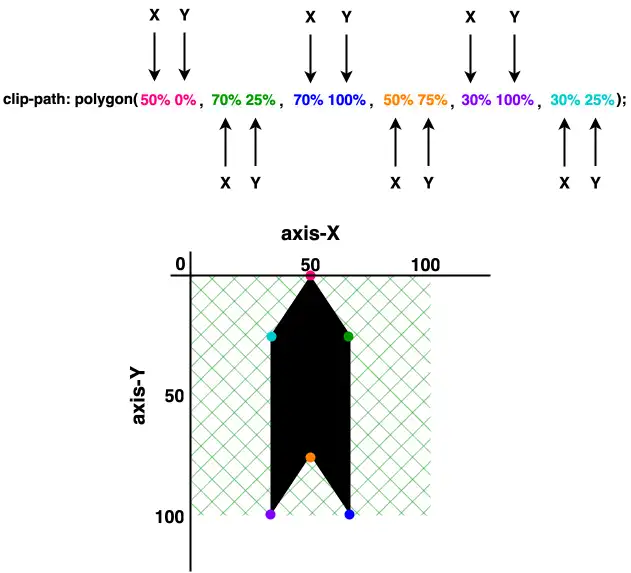
    The second case shows how we can transform the square into a directional sign that points to the top. Again, the clip-path: polygon function is defined by coordinates relative to the element’s bounding box, but this time it is a bit harder. 🤯 Don’t worry, I am here to clarify for you! 🤓

    • It starts at the top-middle (50% 0%).
    • Then it moves diagonally down and right (70% 25%).
    • From there, it continues straight down (70% 100%) where it turns diagonally again for two times in a row.
    • First up and left (50% 75%), then down and left (30% 100%).
    • Finally, it moves straight up (30% 25%) where it completes its movements.
    Creating a shape 'direction to up' with clip-path: polygon() function - clip-path: polygon(50% 0%, 70% 25%, 70% 100%, 50% 75%, 30% 100%, 30% 25%);
    These one-direction moves enable you to create complicated shapes by strategically placing each point to outline the desired polygonal form. This method allows for precise control over the path of the shape, facilitating the design of visually appealing and geometrically complex elements on web pages.

    Ready-to-copy code snippets

    Below, I have prepared ready-to-copy code for directional signs. Feel free to use it everywhere you need. Enjoy! 🎊

    Directions

    Ready code and explanation diagrams for directions.

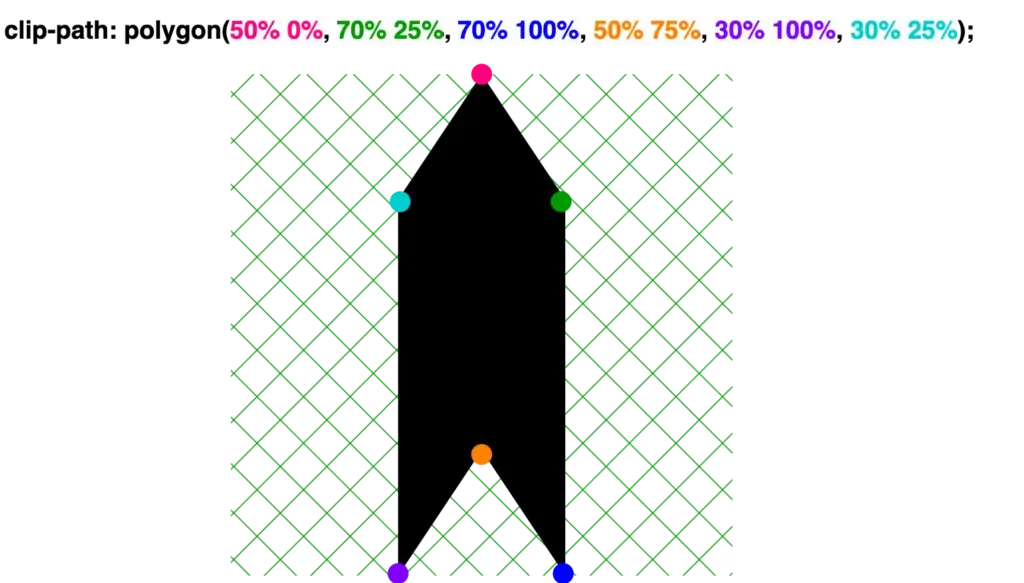
    Direction to Up

    clip-path: polygon(
               50% 0%,
               70% 25%,
               70% 100%,
               50% 75%,
               30% 100%,
               30% 25%);
    Creating a shape 'direction to up' with clip-path: polygon() function. clip-path: polygon(
           50% 0%,
           70% 25%,
           70% 100%,
           50% 75%,
           30% 100%,
           30% 25%);
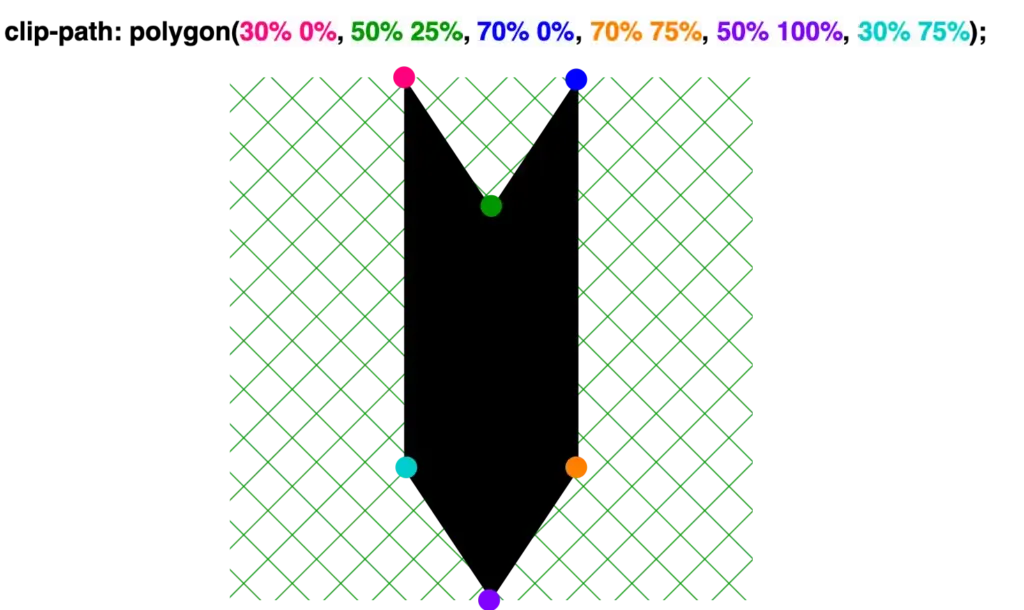
    Direction to Down

    clip-path: polygon(
               30% 0%,
               50% 25%,
               70% 0%,
               70% 75%,
               50% 100%,
               30% 75%);
    Creating a shape 'direction to down' with clip-path: polygon() function. clip-path: polygon(
           30% 0%,
           50% 25%,
           70% 0%,
           70% 75%,
           50% 100%,
           30% 75%);

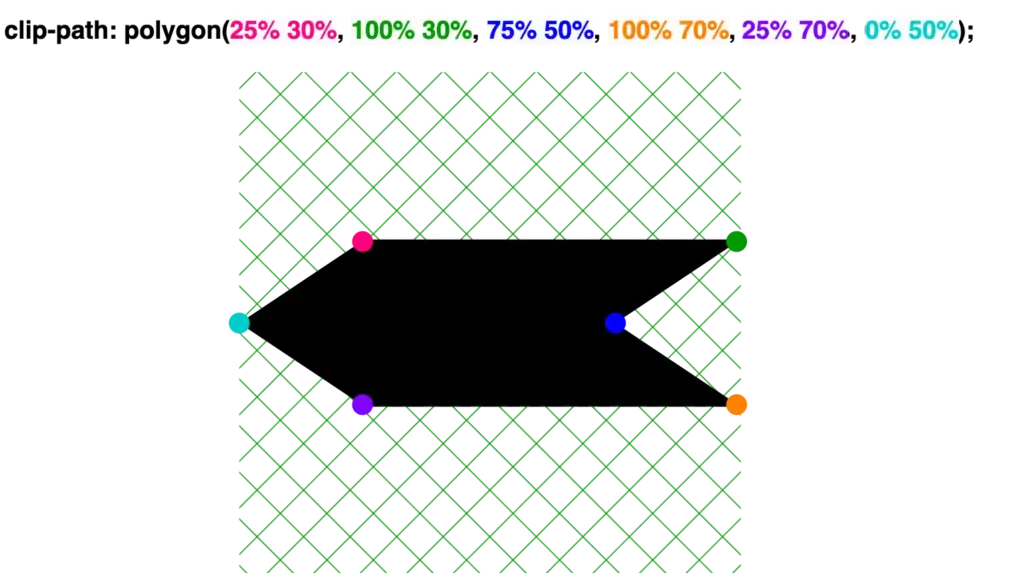
    Direction to the Left

    clip-path: polygon(
               25% 30%,
               100% 30%,
               75% 50%,
               100% 70%,
               25% 70%,
               0% 50%);
    Creating a shape 'direction to left' with clip-path: polygon() function. clip-path: polygon(
           25% 30%,
           100% 30%,
           75% 50%,
           100% 70%,
           25% 70%,
           0% 50%);

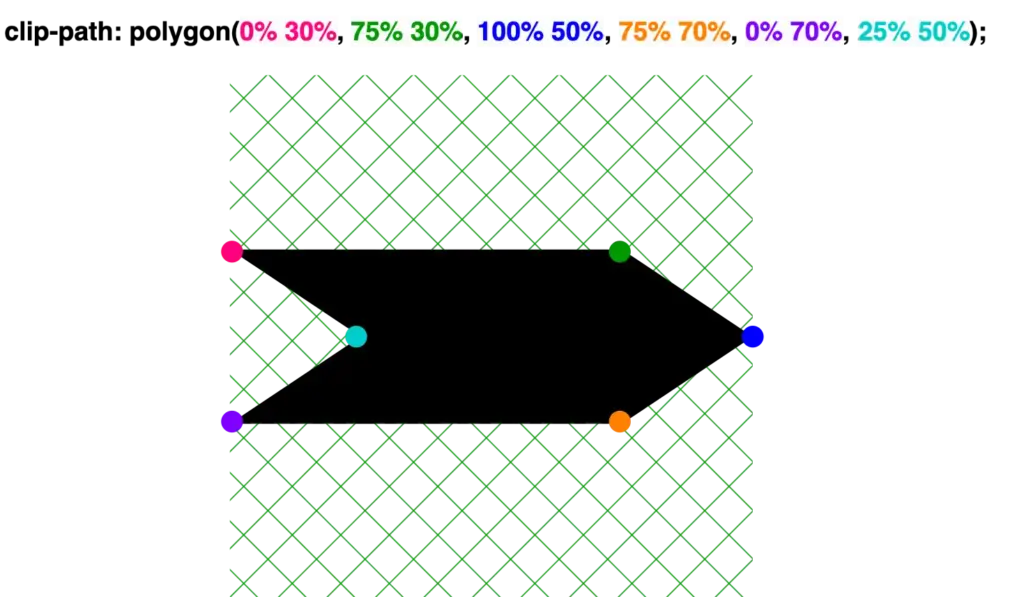
    Direction to the Right

    clip-path: polygon(
               0% 30%,
               75% 30%,
               100% 50%,
               75% 70%,
               0% 70%,
               25% 50%);
    Creating a shape 'direction to right' with clip-path: polygon() function. clip-path: polygon(
           0% 30%,
           75% 30%,
           100% 50%,
           75% 70%,
           0% 70%,
           25% 50%);

    🔖 We are always free to skip all these signs and create just one, 😇 to show only one direction, then we can rotate it until it aligns with our preferences.

    Arrows

    Ready code and explanation diagrams for arrows.

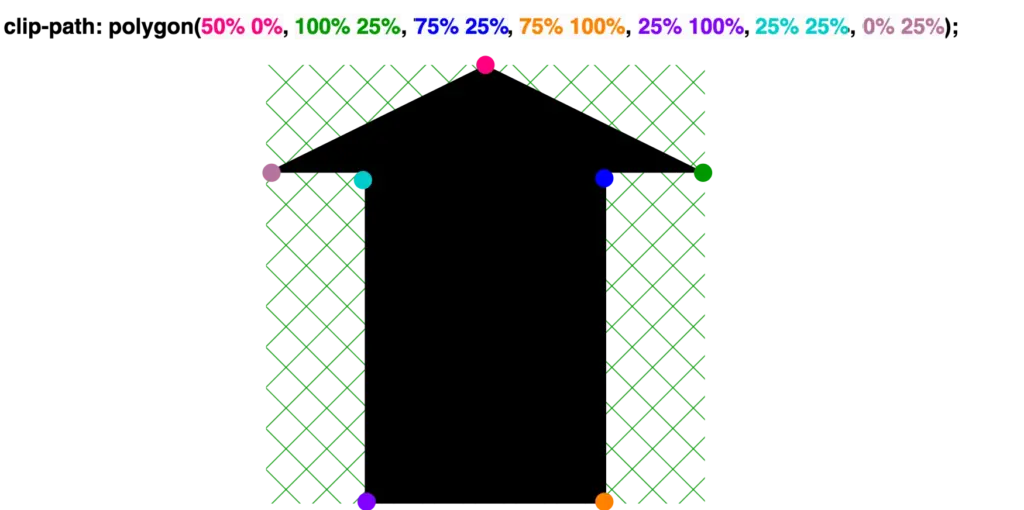
    Arrow up

    clip-path: polygon(
               50% 0%,
               100% 25%,
               75% 25%,
               75% 100%,
               25% 100%,
               25% 25%,
               0% 25%);
    Creating a shape 'arrow to up' with clip-path: polygon() function. 
clip-path: polygon(
           50% 0%,
           100% 25%,
           75% 25%,
           75% 100%,
           25% 100%,
           25% 25%,
           0% 25%);

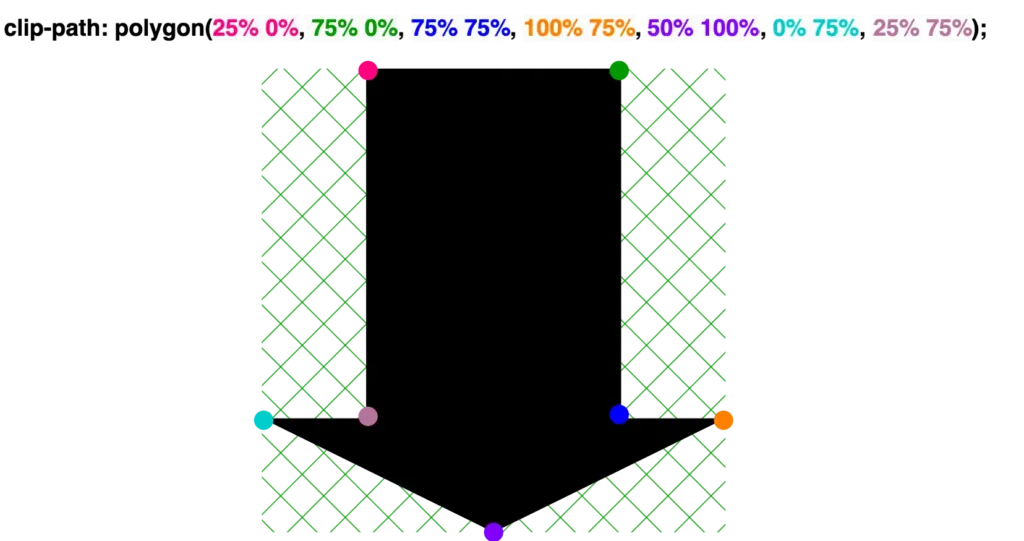
    Arrow down

    clip-path: polygon(
               25% 0%,
               75% 0%,
               75% 75%,
               100% 75%,
               50% 100%,
               0% 75%,
               25% 75%);
    Creating a shape 'arrow to down' with clip-path: polygon() function. clip-path: polygon(
           25% 0%,
           75% 0%,
           75% 75%,
           100% 75%,
           50% 100%,
           0% 75%,
           25% 75%);

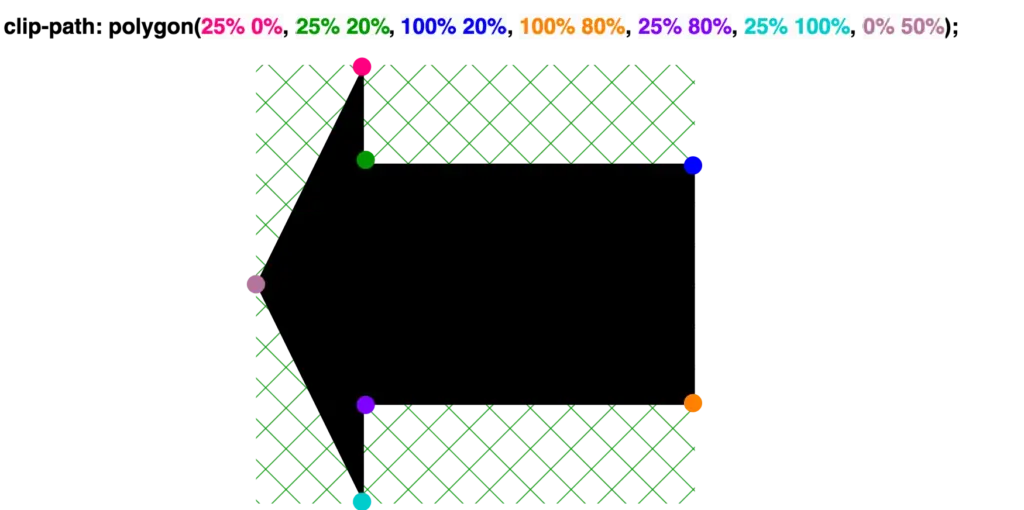
    Arrow to the left

    clip-path: polygon(
               25% 0%,
               25% 20%,
               100% 20%,
               100% 80%,
               25% 80%,
               25% 100%,
               0% 50%);
    Creating a shape 'arrow to the left' with clip-path: polygon() function.
clip-path: polygon(
           25% 0%,
           25% 20%,
           100% 20%,
           100% 80%,
           25% 80%,
           25% 100%,
           0% 50%);

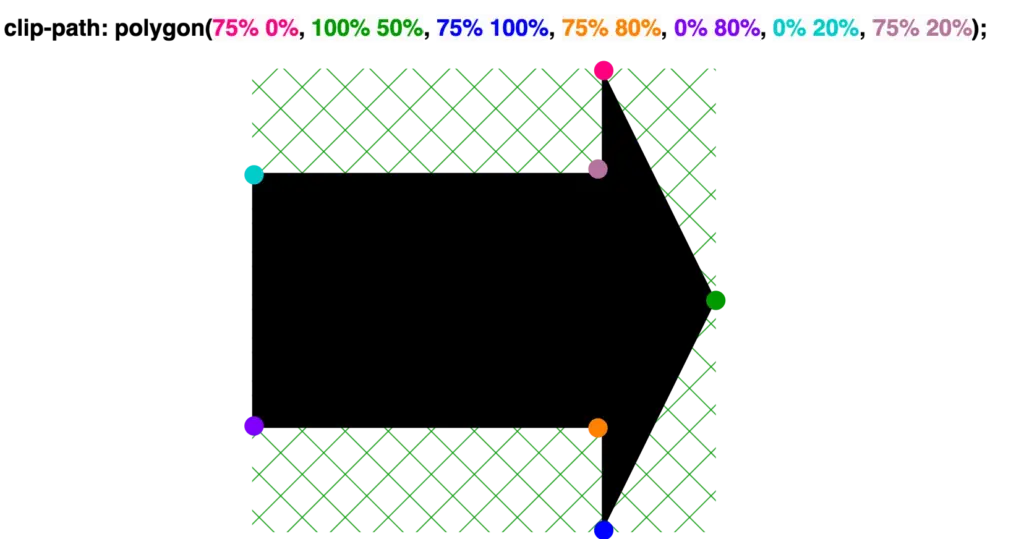
    Arrow to the right

    clip-path: polygon(
               75% 0%,
               100% 50%,
               75% 100%,
               75% 80%,
               0% 80%,
               0% 20%,
               75% 20%);
    Creating a shape 'arrow to the right' with clip-path: polygon() function.
clip-path: polygon(
           75% 0%,
           100% 50%,
           75% 100%,
           75% 80%,
           0% 80%,
           0% 20%,
           75% 20%);

    Points

    Ready code and explanation diagrams for points.

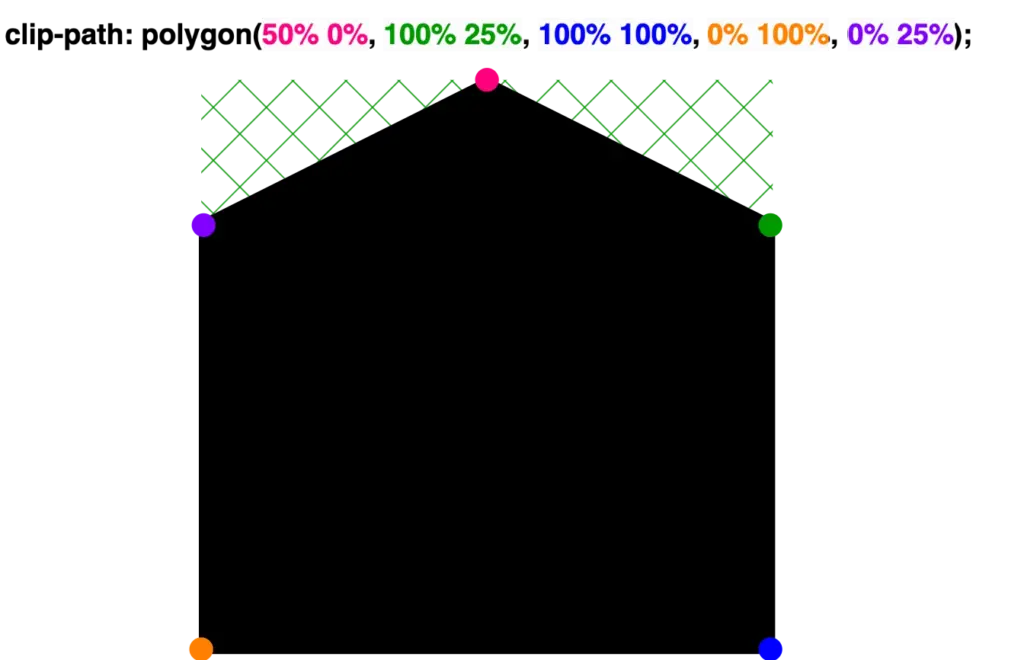
    Point up

    clip-path: polygon(
               50% 0%,
               100% 25%,
               100% 100%,
               0% 100%,
               0% 25%);
    Creating a shape 'point up' with clip-path: polygon() function. 
clip-path: polygon(
           50% 0%,
           100% 25%,
           100% 100%,
           0% 100%,
           0% 25%);

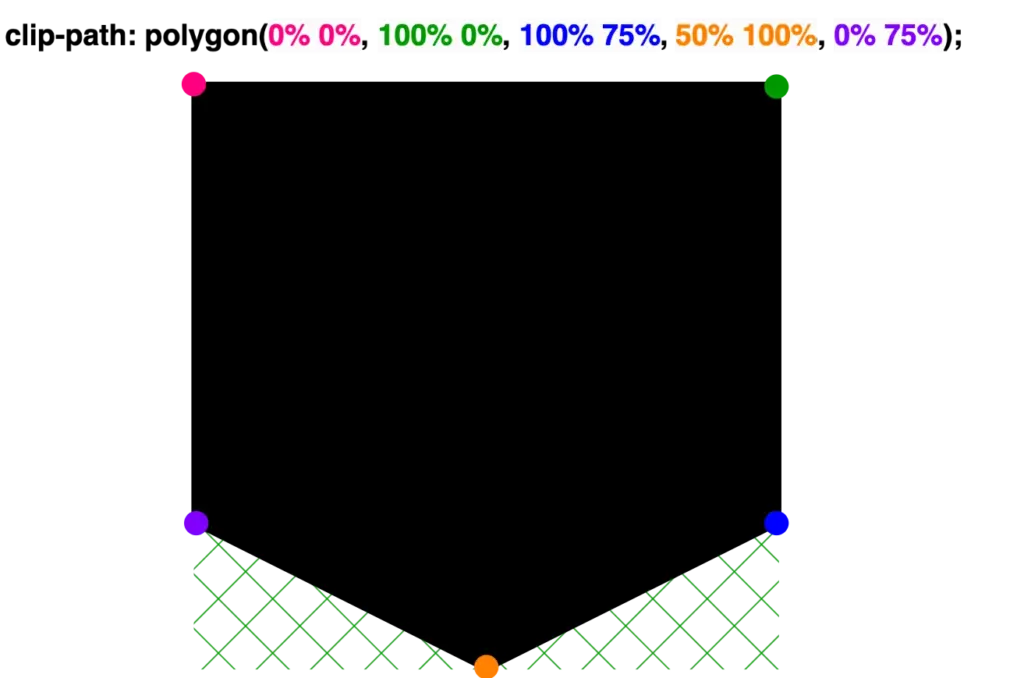
    Point down

    clip-path: polygon(
               0% 0%,
               100% 0%,
               100% 75%,
               50% 100%,
               0% 75%);
    Creating a shape 'point down' with clip-path: polygon() function. 
clip-path: polygon(
           0% 0%,
           100% 0%,
           100% 75%,
           50% 100%,
           0% 75%);

    Point left

    clip-path: polygon(
               25% 0%,
               100% 0%,
               100% 100%,
               25% 100%,
               0% 50%);
    Creating a shape 'point left' with clip-path: polygon() function. 
clip-path: polygon(
           25% 0%,
           100% 0%,
           100% 100%,
           25% 100%,
           0% 50%);

    Point right

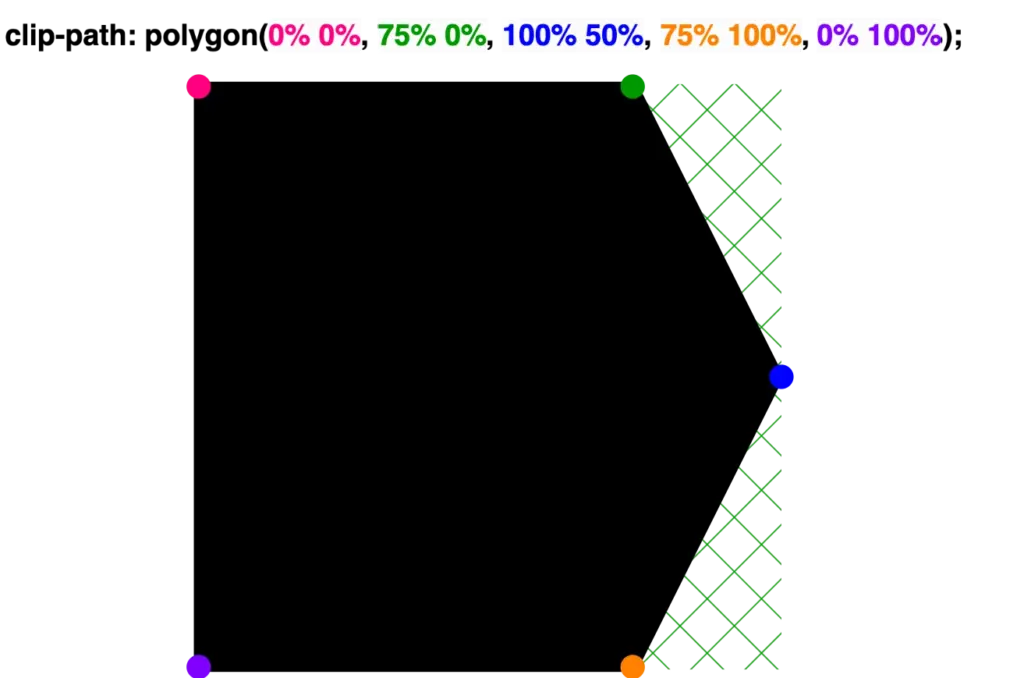
    clip-path: polygon(
               0% 0%,
               75% 0%,
               100% 50%,
               75% 100%,
               0% 100%);
    Creating a shape 'point right' with clip-path: polygon() function. 
clip-path: polygon(
           0% 0%,
           75% 0%,
           100% 50%,
           75% 100%,
           0% 100%);
  • Clip-path For Quick Polygons – Ready Code-To-Copy

    Clip-path For Quick Polygons – Ready Code-To-Copy

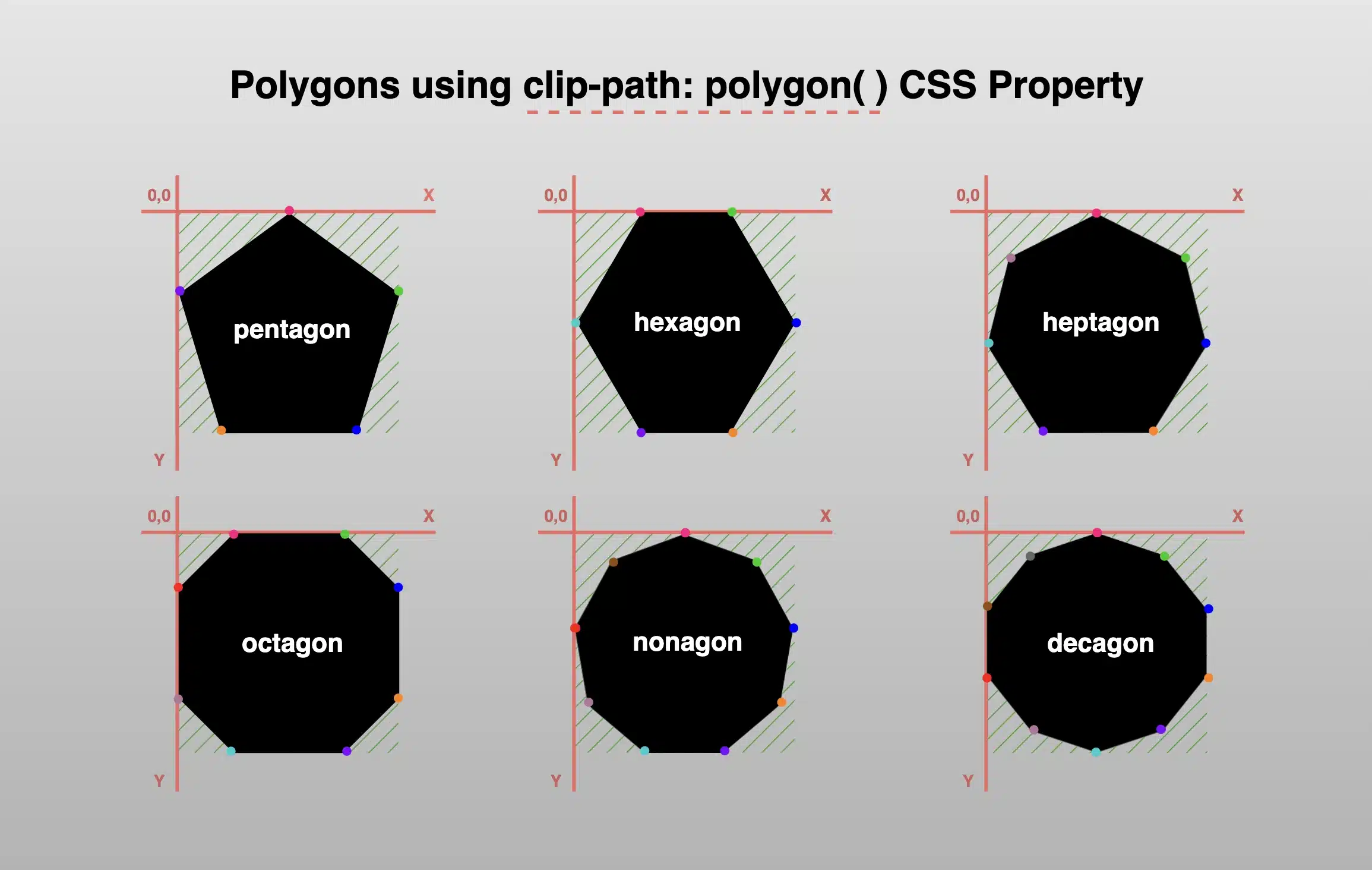
    Welcome! Today we’ll dig ⛏ deep and dive into geometric layouts exploring the fascinating clip-path CSS property. This amazing tool helps us to define specific regions within an element, allowing creative shape manipulation. We declare specific points based on the shape we intend to create, offering precise control over our work preferences and needs.

    Clip-path CSS property supports several shapes. Depending on the shape we want to create we have the following options: circle(), ellipse(), inset(), and polygon(). In today’s post we’ll spend time on clip-path: polygon() as this anables us to clip an element into a polygon shape.

    Clip-path polygon() function explained

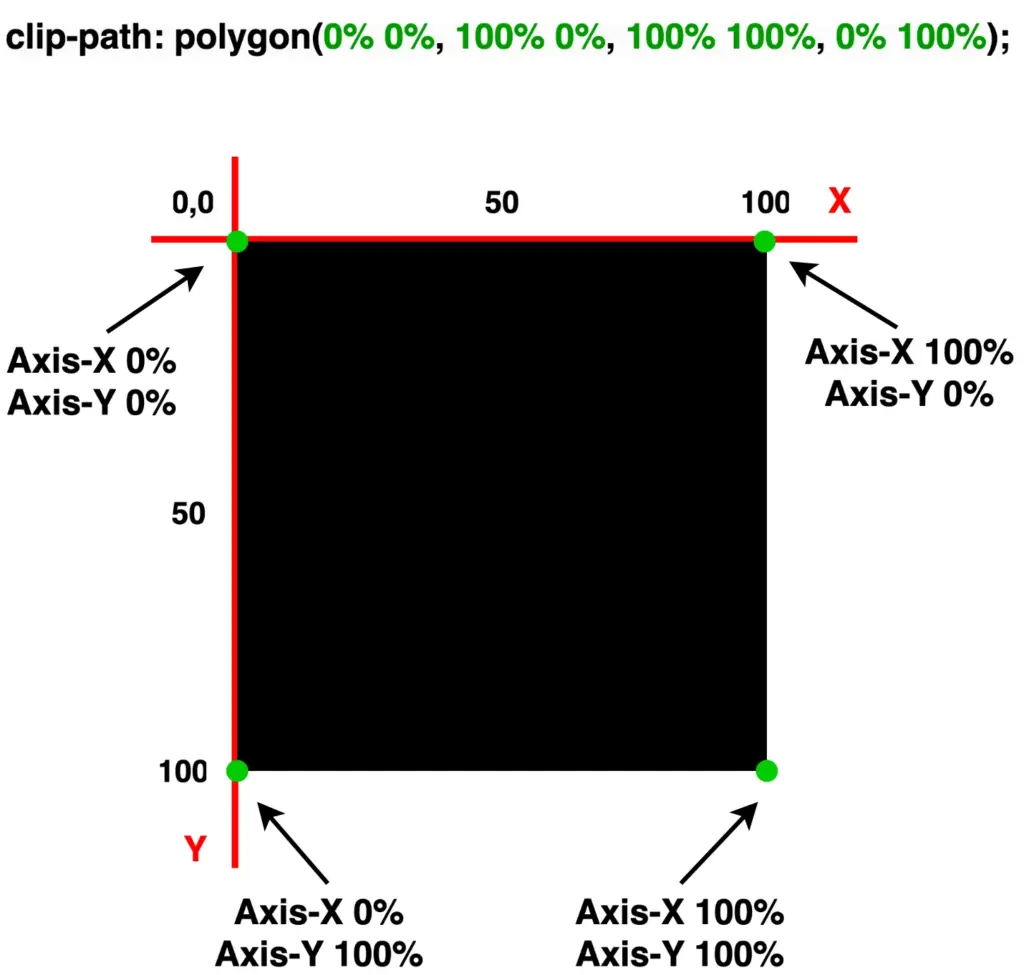
    To illustrate the clip-path: polygon() CSS property I chose to start with a square, as it is the most common type of polygon.
    Below, we can see the code marked with colors. Each pair of values, inside the parentheses, symbolizes a point. In our case, we have four pairs of values, hence we have a shape with four points (square).
    The four color points represent the clipping area and display how we position the square on both axes X and Y.

    /* square */
    clip-path: polygon(
               0% 0%,
               100% 0%,
               100% 100%,
               0% 100%);
    CSS
    A square with highlight marks, positioned on both X and Y axes.

    Below is ready-to-copy code for polygons. Feel free to use it wherever you need! 🤗

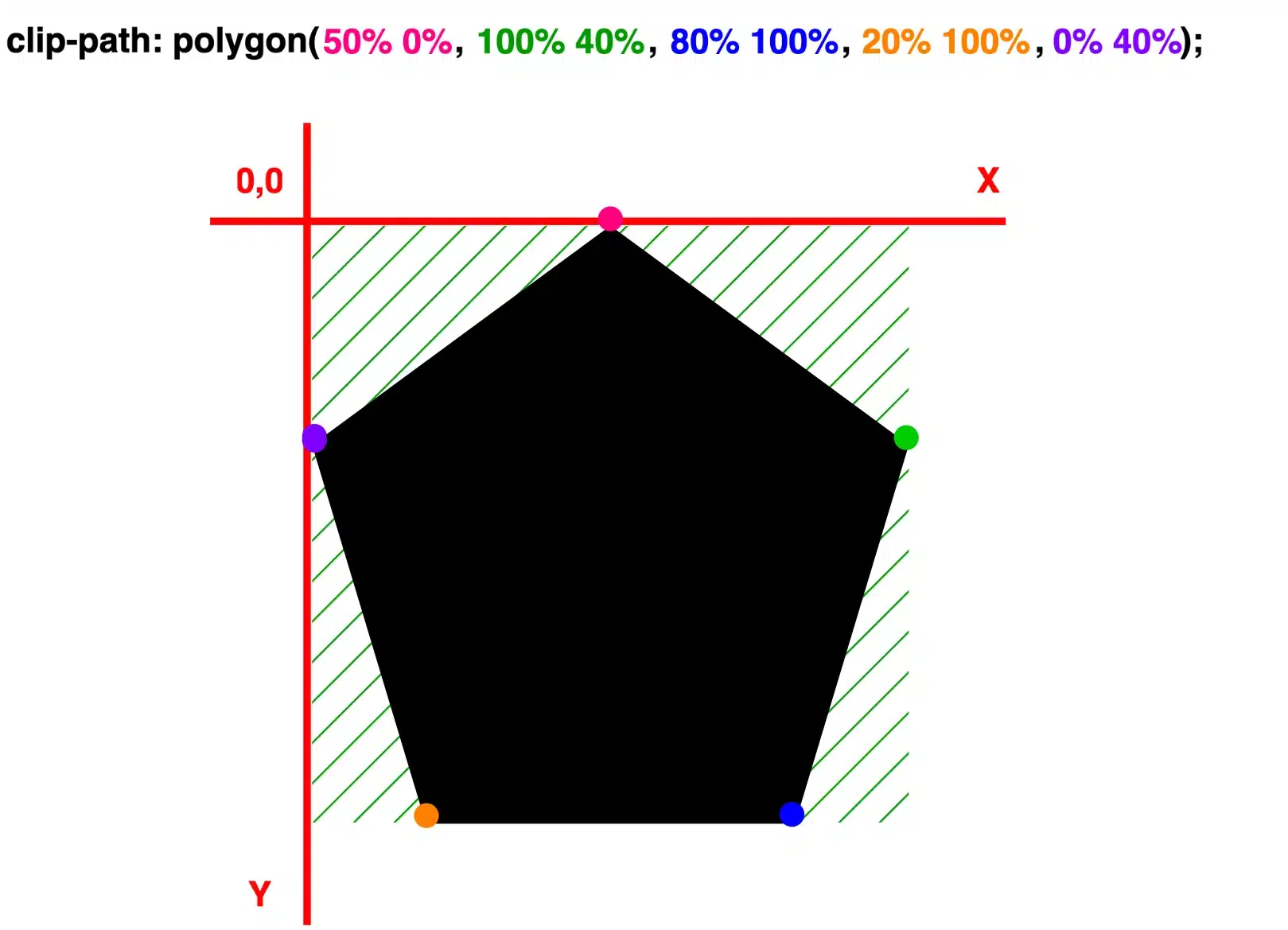
    Create pentagon

    /* pentagon */
    clip-path: polygon(
               50% 0%,
               100% 40%,
               80% 100%,
               20% 100%,
               0% 40%);
    CSS
    A pentagon with highlight marks, positioned on both X and Y axes.
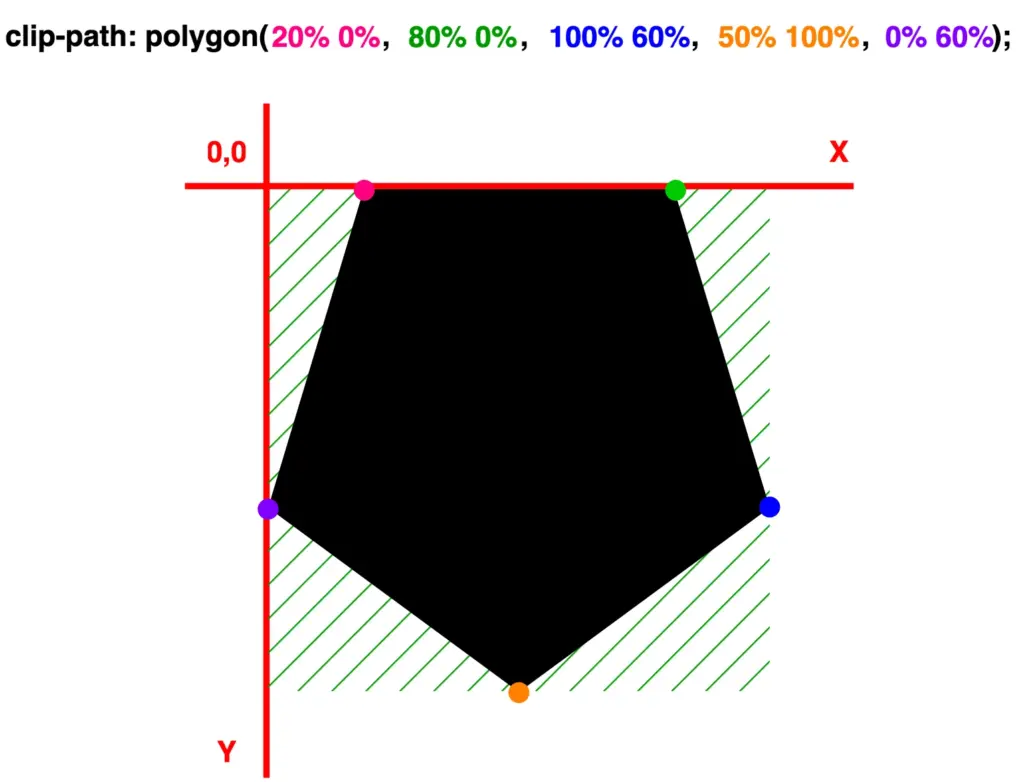
    /* pentagon oriented downward */
    clip-path: polygon(
               20% 0%,
               80% 0%,
               100% 60%,
               50% 100%,
               0% 60%);
    CSS
    A pentagon oriented downward with highlight marks, positioned on both X and Y axes.

    Create hexagon

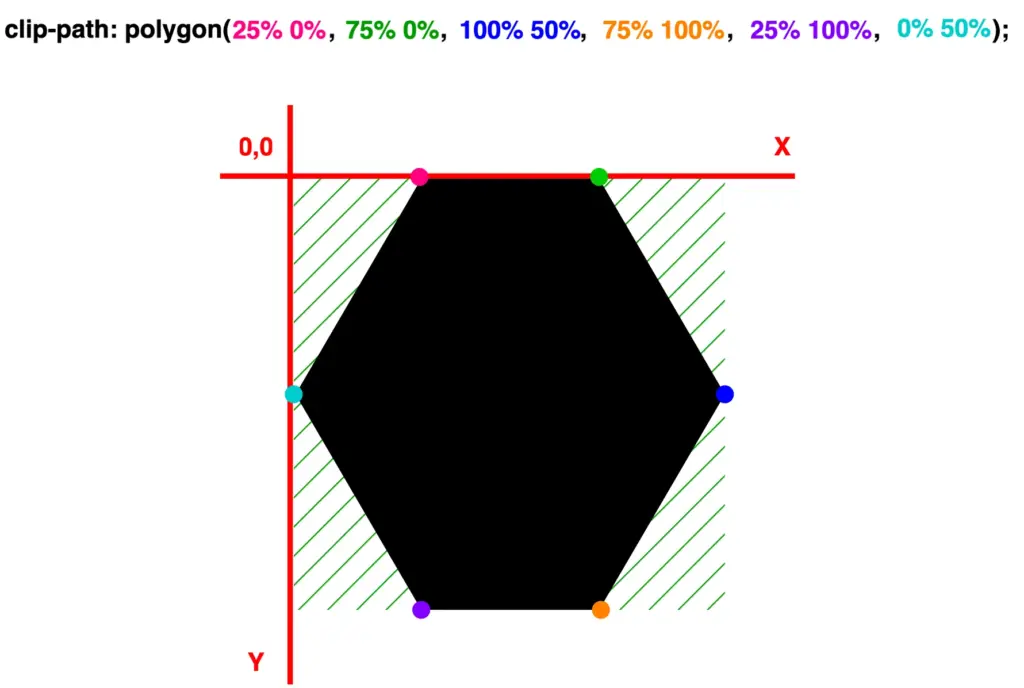
    /* hexagon vertical */
    clip-path: polygon(
               25% 0%,
               75% 0%,
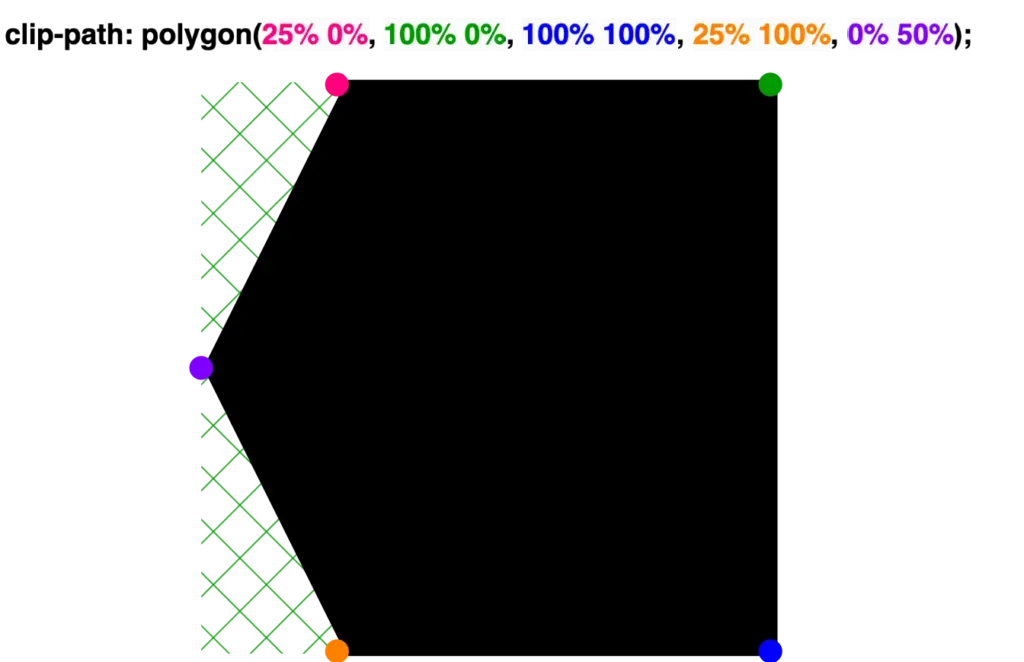
               100% 50%,
               75% 100%,
               25% 100%,
               0% 50%);
    CSS
    A vertical hexagon with highlight marks, positioned on both X and Y axes.
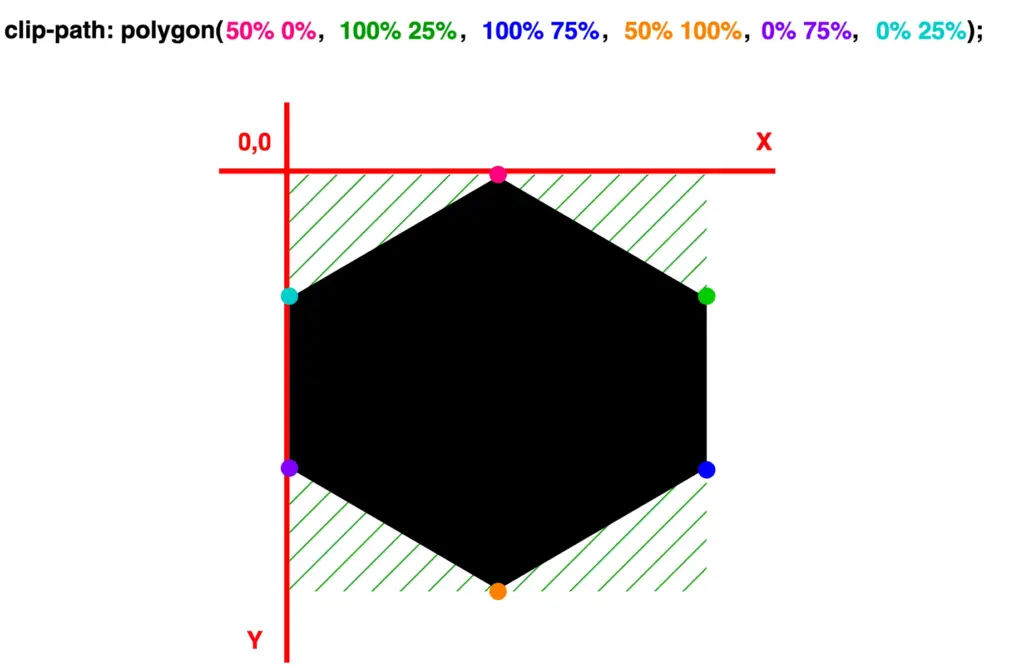
    /* hexagon horizontal */
    clip-path: polygon(
               50% 0%,
               100% 25%,
               100% 75%,
               50% 100%,
               0% 75%,
               0% 25%);
    CSS
    A horizontal hexagon with highlight marks, positioned on both X and Y axes.

    Create heptagon

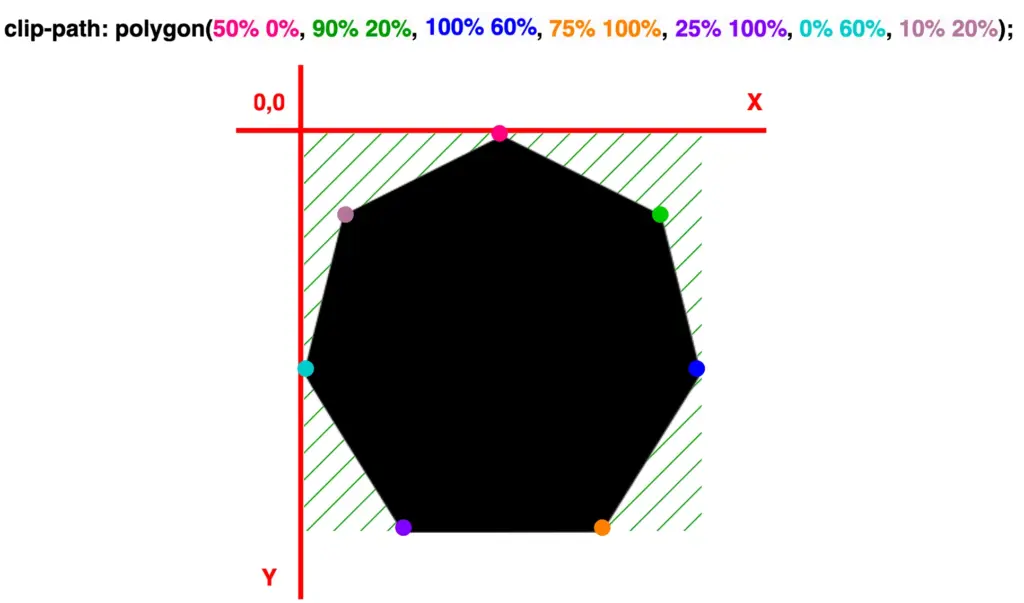
    /* heptagon */
    clip-path: polygon(
               50% 0%,
               90% 20%,
               100% 60%,
               75% 100%,
               25% 100%,
               0% 60%,
               10% 20%);
    CSS
    A heptagon with highlight marks, positioned on both X and Y axes.
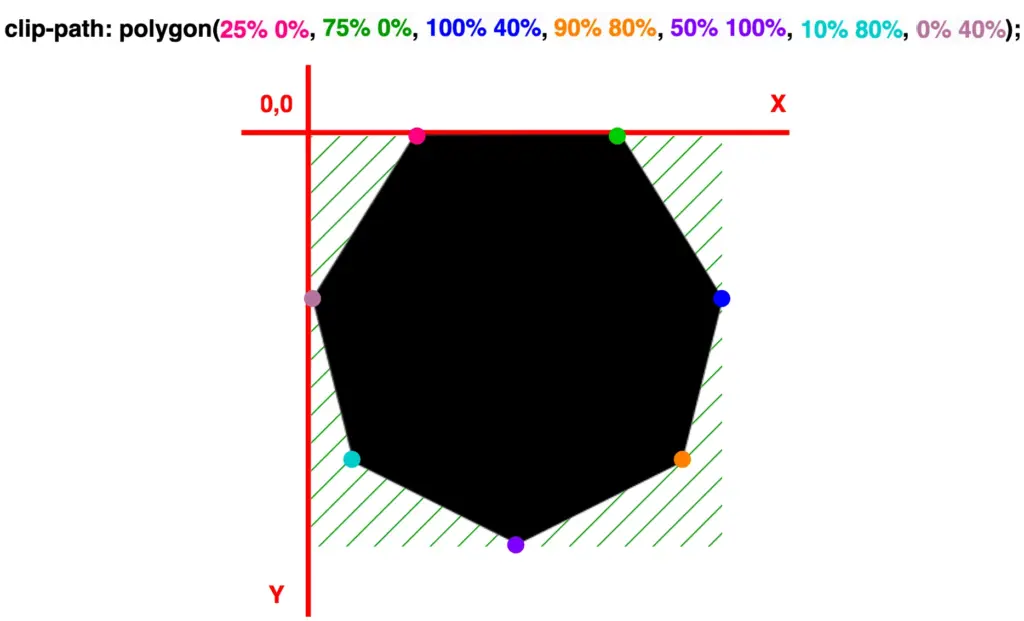
    /* heptagon oriented downward */
    clip-path: polygon(
               25% 0%,
               75% 0%,
               100% 40%,
               90% 80%,
               50% 100%,
               10% 80%,
               0% 40%);
    CSS
    A heptagon oriented downward with highlight marks, positioned on both X and Y axes.

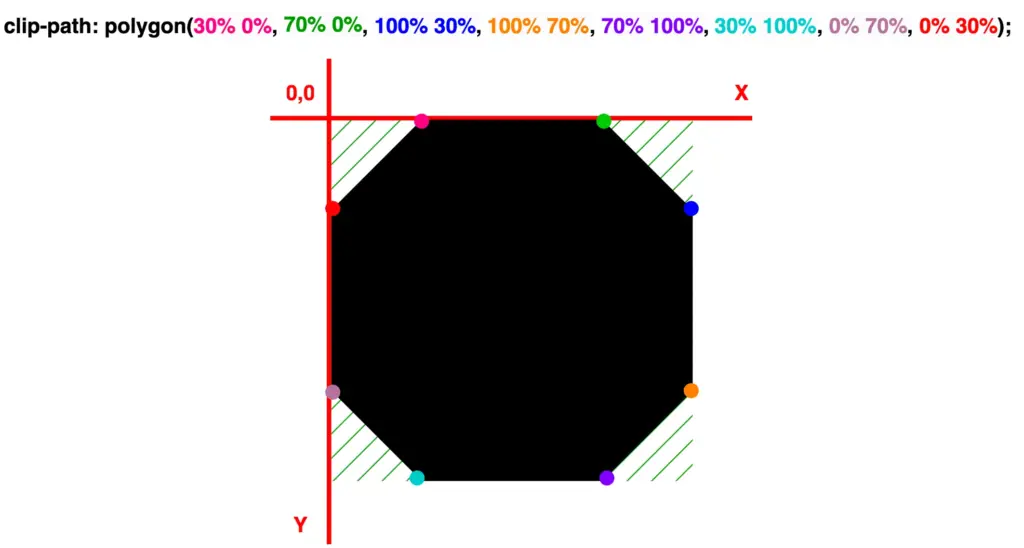
    Create octagon

    clip-path: polygon(
               30% 0%,
               70% 0%,
               100% 30%,
               100% 70%,
               70% 100%,
               30% 100%,
               0% 70%,
               0% 30%);
    CSS
    An octagon with highlight marks, positioned on both X and Y axes.

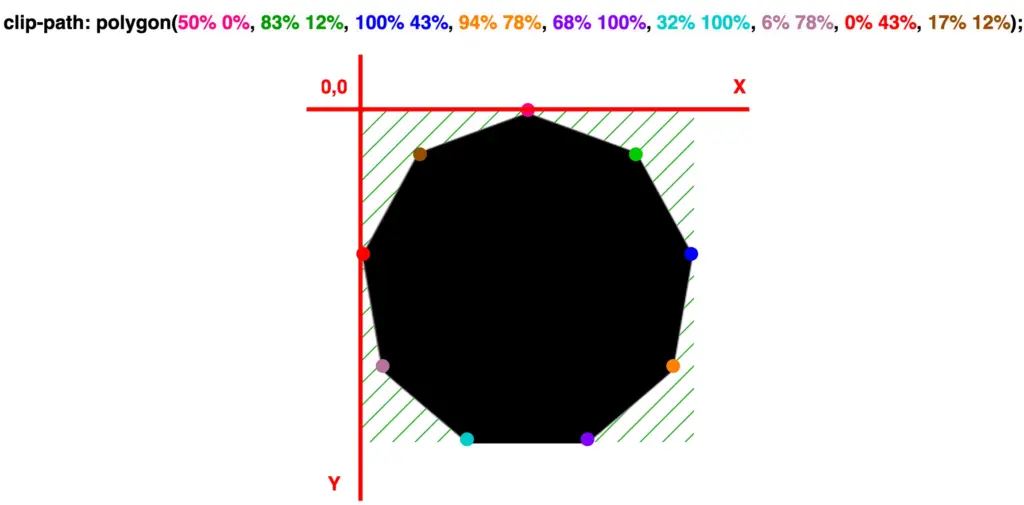
    Create nonagon

    /* nonagon */
    clip-path: polygon(
               50% 0%,
               83% 12%,
               100% 43%,
               94% 78%,
               68% 100%,
               32% 100%,
               6% 78%,
               0% 43%,
               17% 12%);
    CSS
    A nonagon with highlight marks, positioned on both X and Y axes.
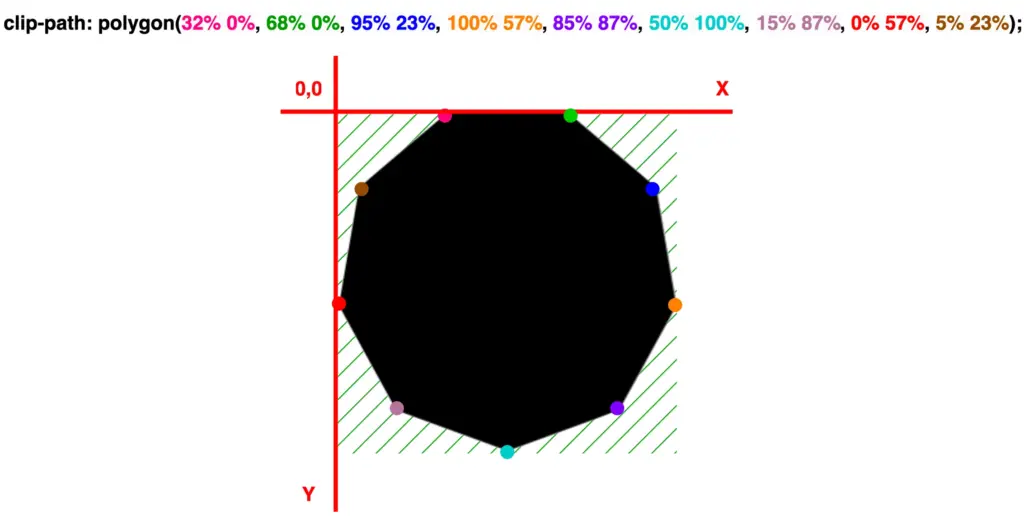
    /* nonagon oriented downward */
    clip-path: polygon(
               32% 0%,
               68% 0%,
               95% 23%,
               100% 57%,
               85% 87%,
               50% 100%,
               15% 87%,
               0% 57%,
               5% 23%);
    CSS
    A nonagon oriented downward with highlight marks, positioned on both X and Y axes.

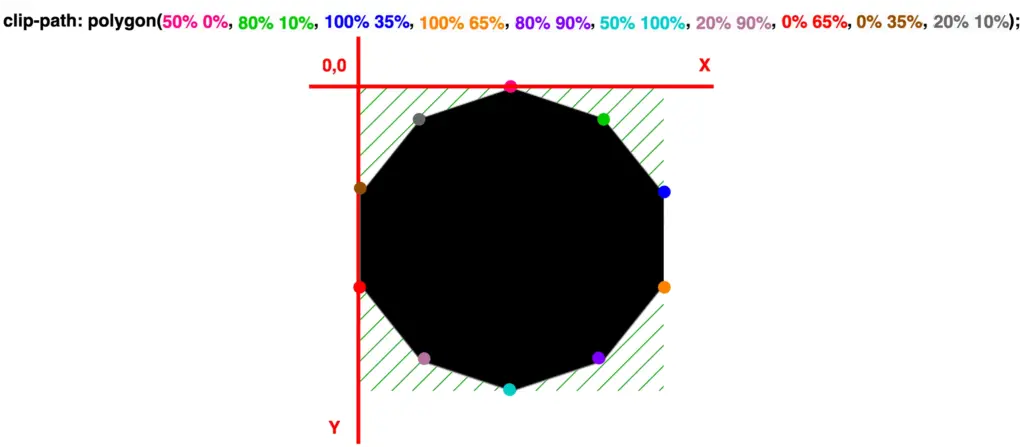
    Create decagon

    clip-path: polygon(
               50% 0%,
               80% 10%,
               100% 35%,
               100% 65%,
               80% 90%,
               50% 100%,
               20% 90%,
               0% 65%,
               0% 35%,
               20% 10%);
    CSS
    A decagon with highlight marks, positioned on both X and Y axes.

    Adjust polygon rotation for simplicity

    To make things easier, we are free to create only one type of shape at a time and adjust its direction by customizing its orientation.
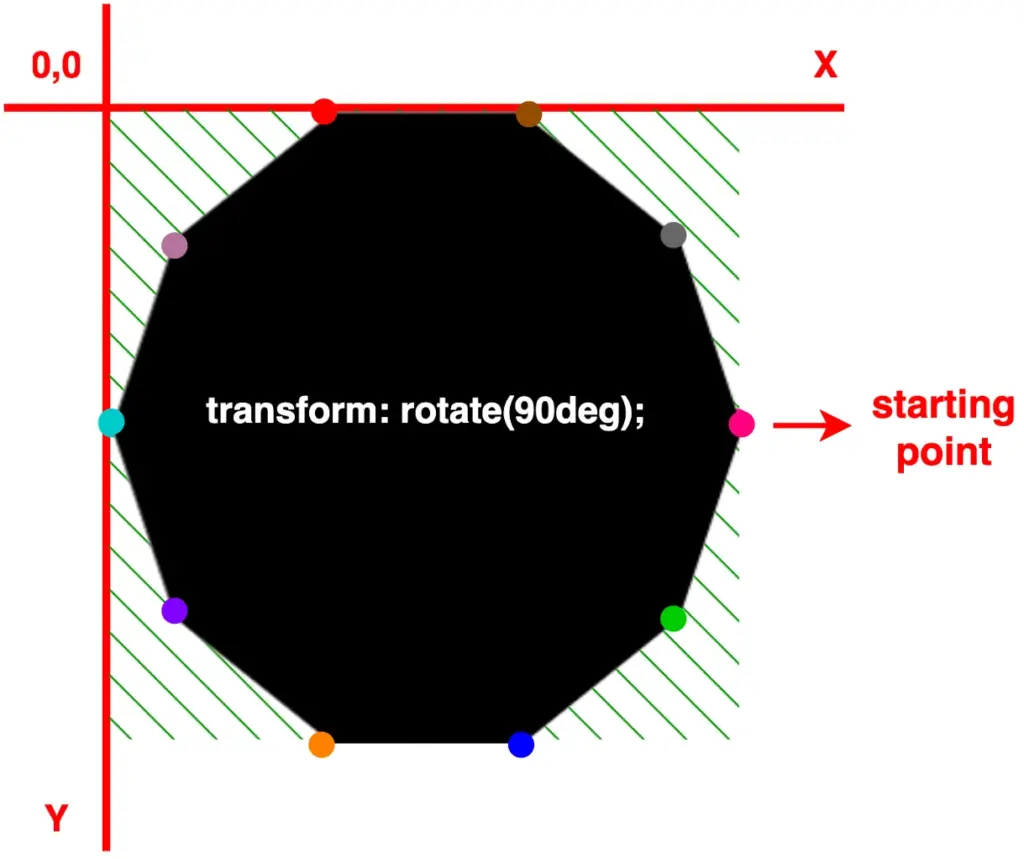
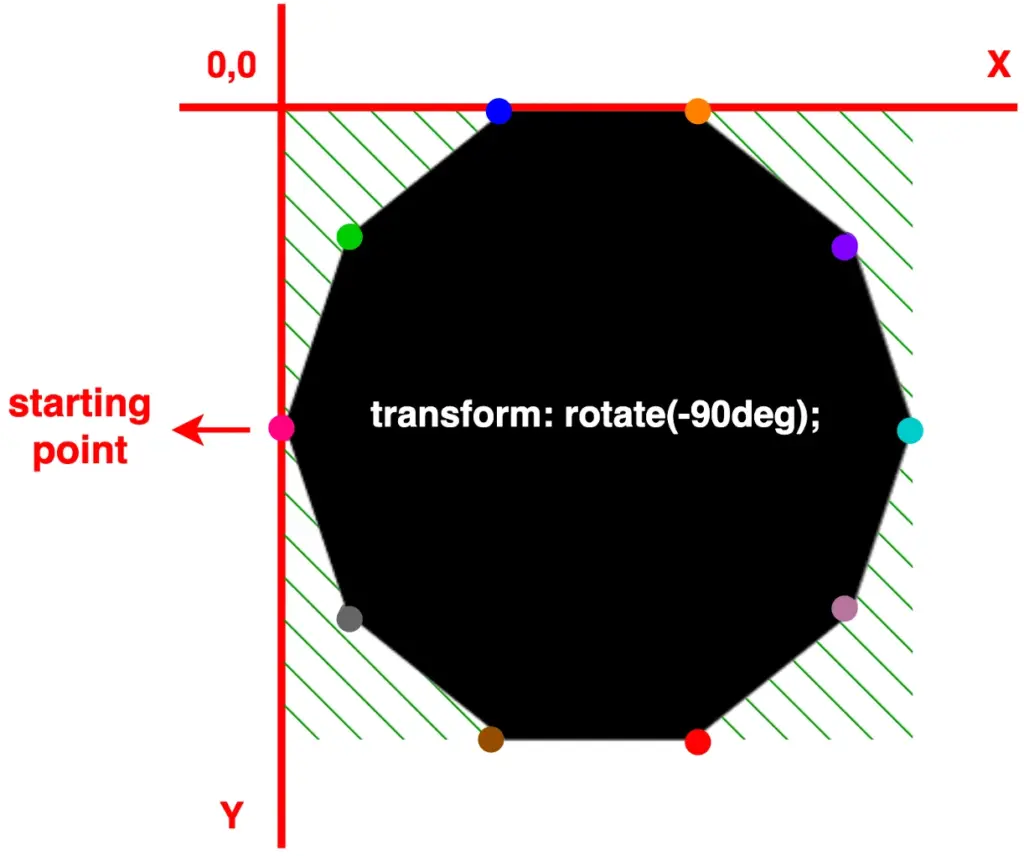
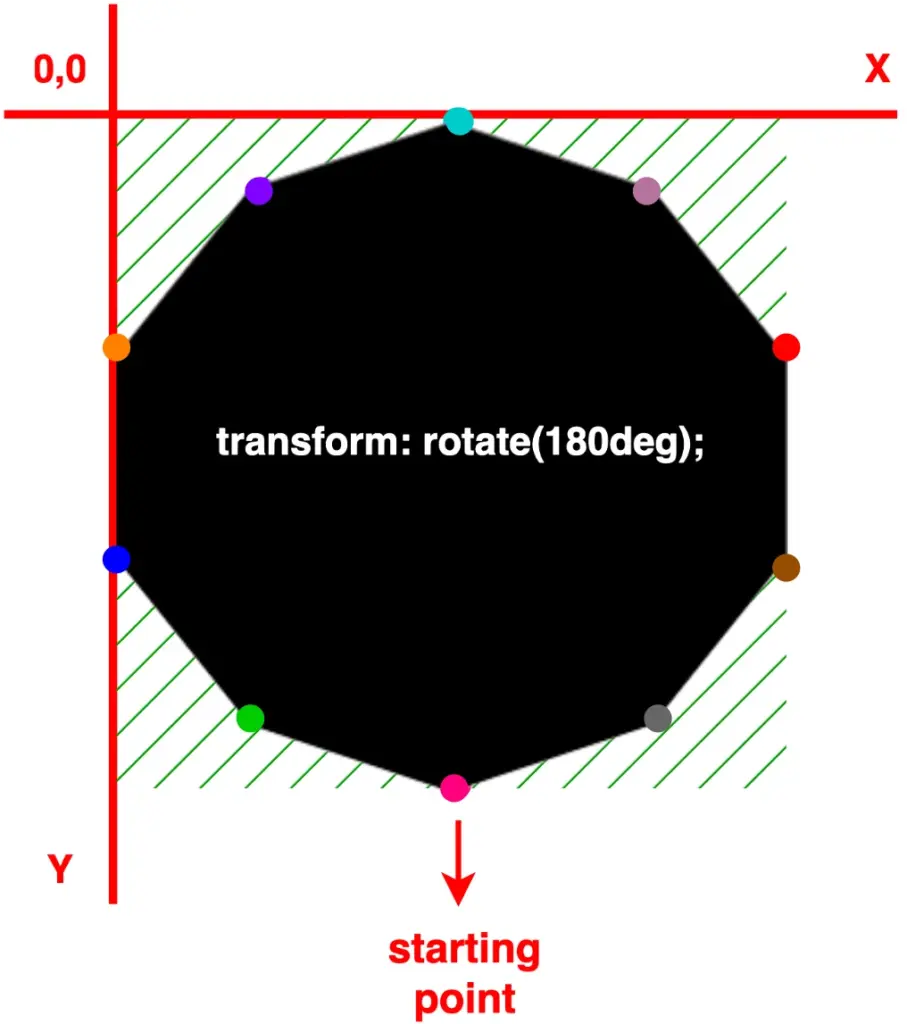
    For instance, as demonstrated below, we can use a decagon shape, which is the last shape we created above, and modify its degrees through the transform: rotate() CSS property. In that way, we set the orientation according to our preferences.

    More specifically:

    • In case 1, we notice our decagon rotating 90 degrees to the right
    • In case 2, with the use of a negative value, our decagon moves anticlockwise and rotates 90 degrees to the left
    • In case 3, it rotates 180 degrees to the right, resembling a downward orientation

    🔖 Pay attention to how the colorful dots shift from one place to another, updating their positions each time we change the rotating value. 🥳

    /* case 1 */
    transform: rotate(90deg);
    /* case 2 */
    transform: rotate(-90deg);
    /* case 3 */
    transform: rotate(180deg);
    CSS
    A decagon with highlight marks and 90 deg rotation, positioned on both X and Y axes.
    A decagon with highlight marks and -90 deg rotation, positioned on both X and Y axes.
    A decagon with highlight marks and 180 deg rotation, positioned on both X and Y axes.
  • Make a Unique Folded Corner Effect Utilizing the clip-path CSS Property

    Make a Unique Folded Corner Effect Utilizing the clip-path CSS Property

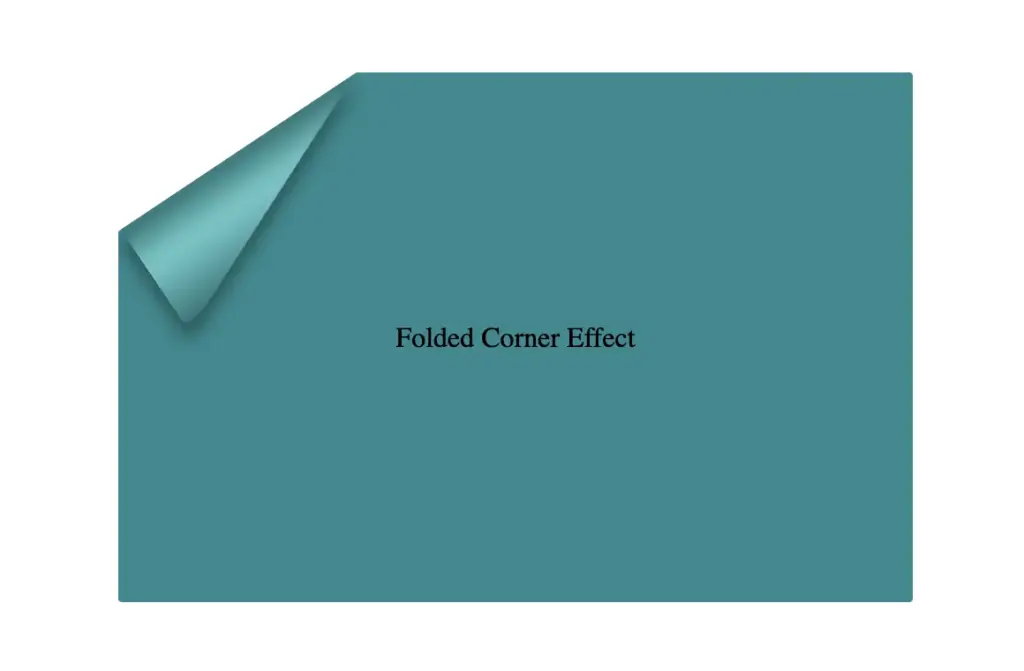
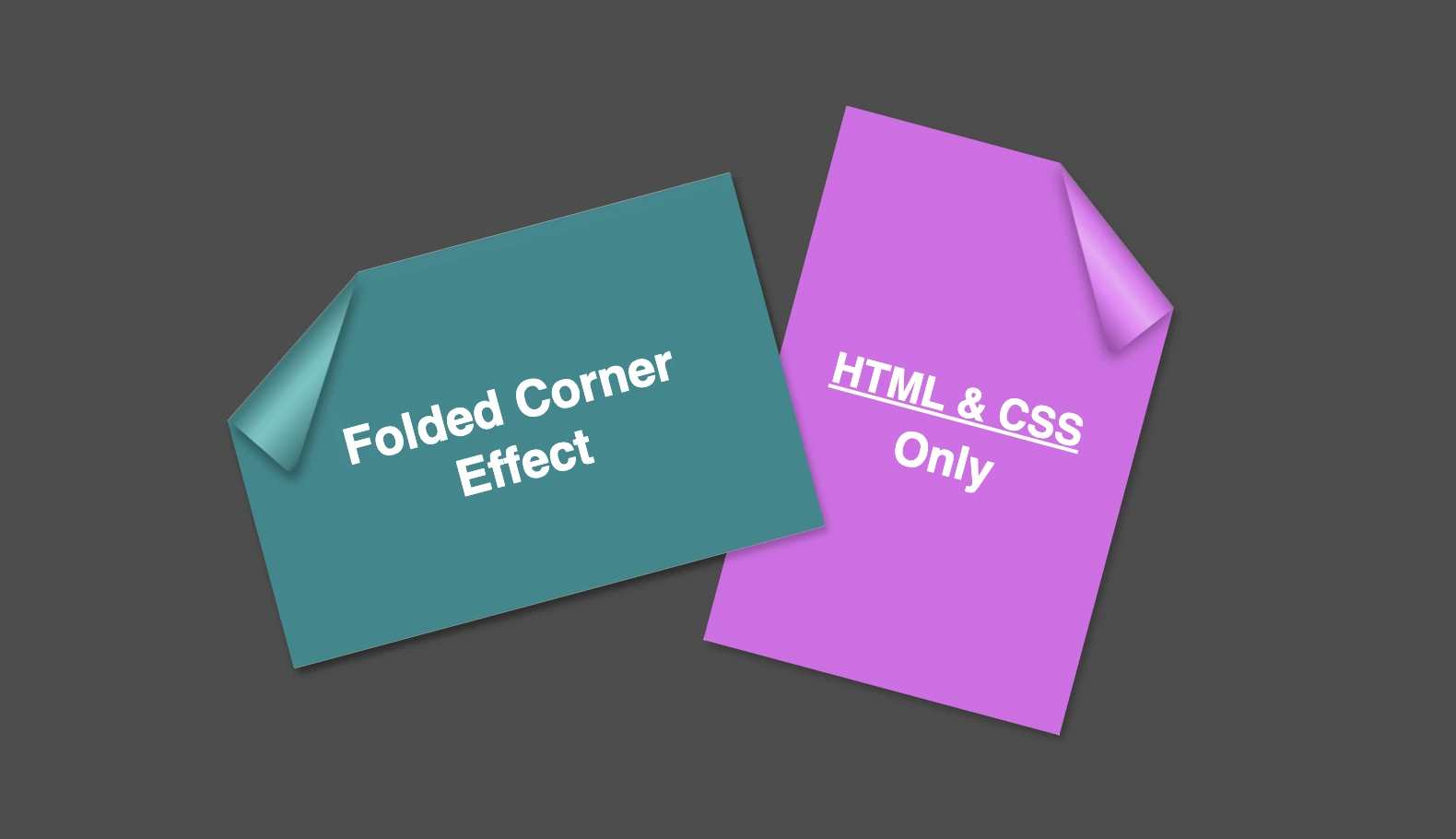
    Hello everybody! I’m excited to share a cool folded corner effect I created using just HTML and CSS. This eye-catching design adds a dynamic flair, creating a realistic illusion that enhances your webpage’s visual appeal —no images, extra scripts, or complex code required. How awesome is that? 😎

    Elements with clip-path do not take shadows directly. Instead, they must be nested within a container to inherit its shadows.

    Creating the folded corner effect using pseudo-element

    We’ll start by using the :before pseudo-element combined with the clip-path property to create the folded corner effect. The main element, which contains the pseudo-element, is styled with a filter property to apply a shadow. This shadow is then inherited by the pseudo-element, allowing the folded corner to display a subtle, realistic shadow as well. This technique keeps the design lightweight and visually appealing.

    Basic HTML structure for the folded corner effect

    The HTML code snippet creates a card layout. We have a parent element with the class .card, housing two child elements: the first with the class .title for the card’s title, and the second with the class .folded-corner to apply the folded corner effect via CSS.

    <div class="card">
      <div class="title">Folded Corner Effect</div>
      <div class="folded-corner"></div>
    </div>
    HTML

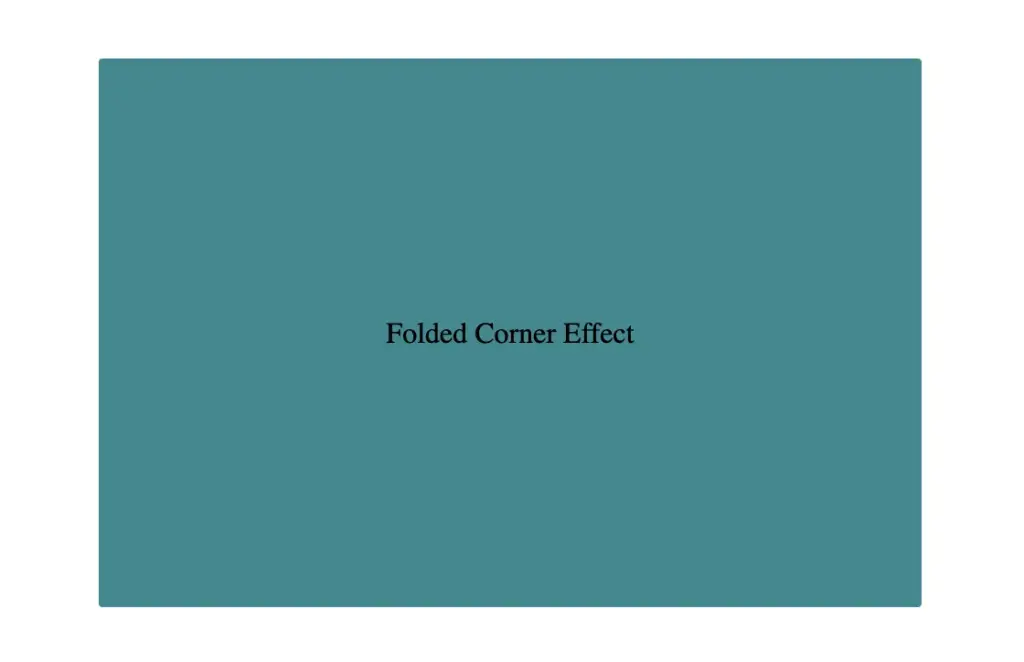
    CSS structure: creating the paper and cut corner

    Starting with the CSS, we define a horizontal rectangle by setting the width to 450px and the height to 300px, along with a subtle 2px border-radius for slightly rounded corners. The background color is set to #228a90, a rich teal with greenish-blue tones that gives the card a fresh, modern look.

    .card {
      width: 450px;
      height: 300px;
      border-radius: 2px;
      background-color: #228a90;
        
      display: flex;
      align-items: center;
      justify-content: center;
    }
    CSS
    Initial paper design before applying folded corner effect

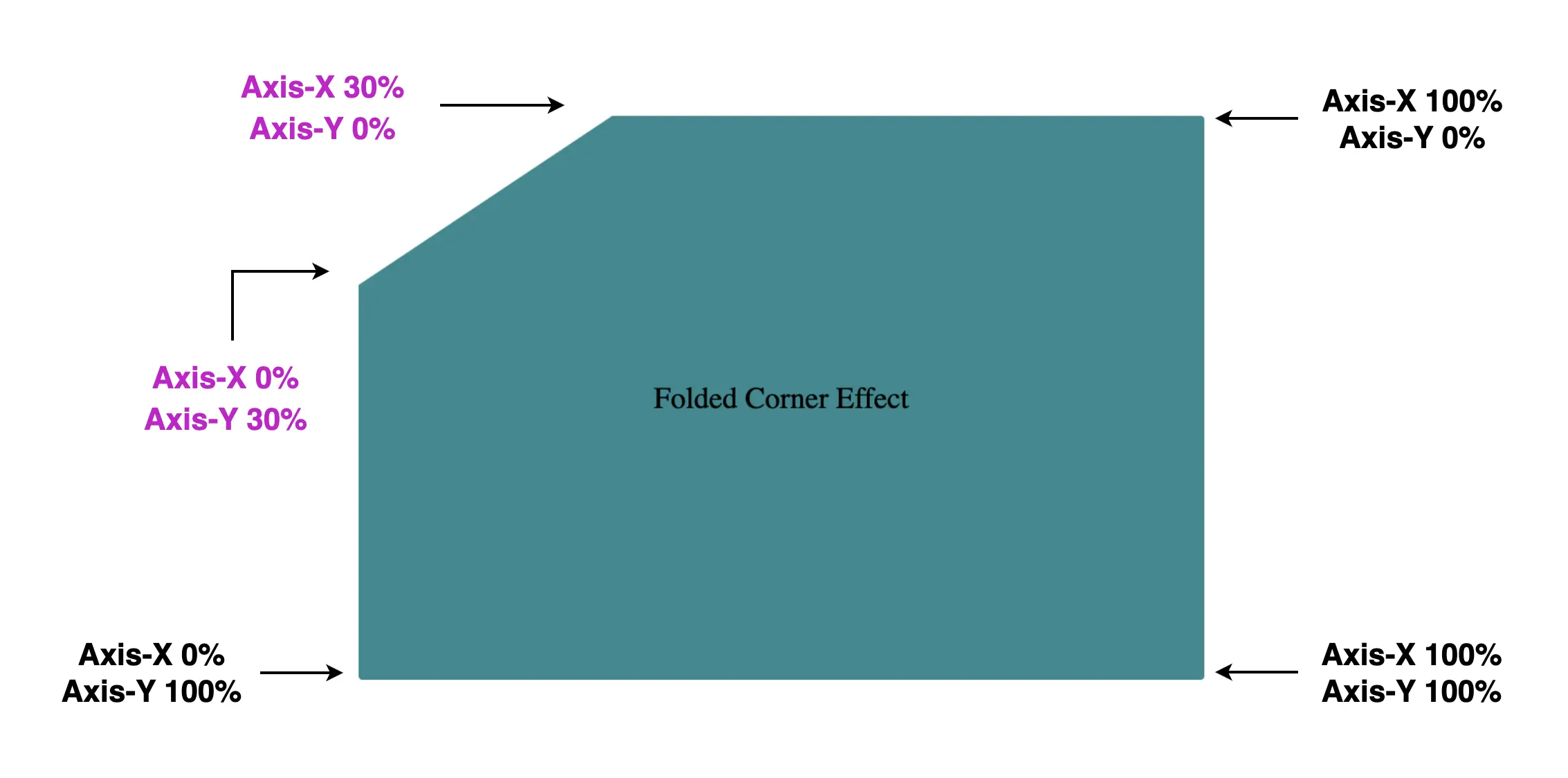
    Then we use the clip-path property to shape the desired paper corner for the folded effect. I chose the top-left corner, but you can select any one you prefer by adjusting the corresponding points in the clip-path: polygon() function.

    .card {
      width: 450px;
      height: 300px;
      border-radius: 2px;
      background-color: #228a90;
      
      clip-path: polygon(0% 30%, 30% 0%, 100% 0%, 100% 100%, 0% 100%);
      position: relative;
    }
    CSS

    Think of the corners in this order: top-left, top-right, bottom-right, bottom-left (clockwise).

    Remember to split each selected corner into two coordinates to get the right look (watch those 👇 magenta measurements! 😉)
    Take into account that the top-left corner has both Axis-X and Axis-Y on 0%.

    Axis coordinates of card showing top-left corner cut, preparing the folded corner effect

    Finally, adding position:relative does not change something in our effect but prepares us for future positioning adjustments. As for centering our elements using flexbox—it’s purely for aesthetic purposes, helping keep everything visually balanced and neat.
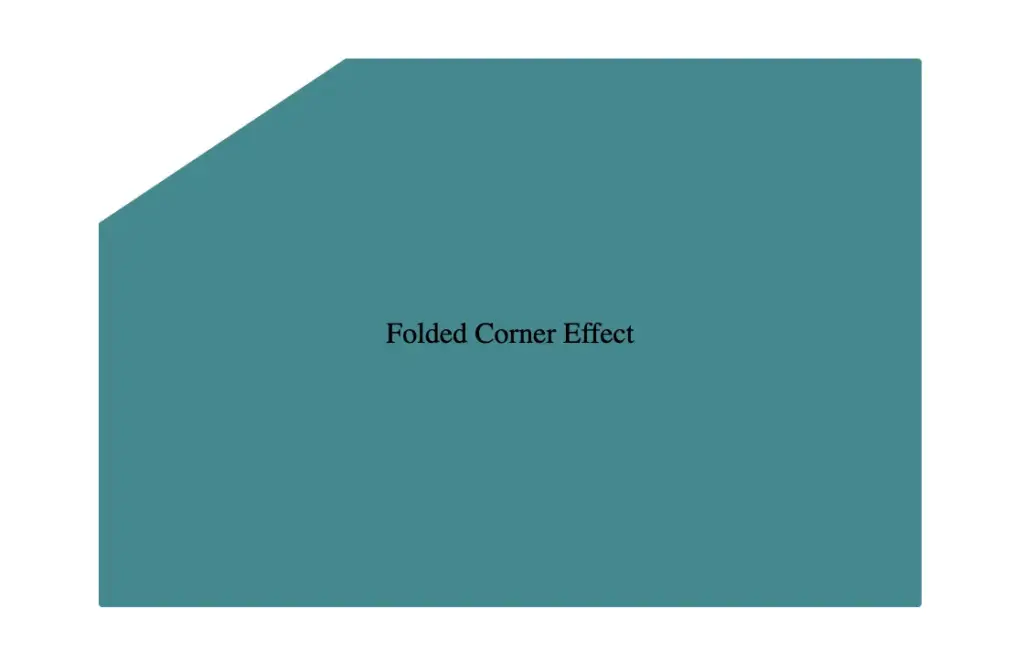
    Below, we can see what is rendered on the screen for now. Pretty cool, right!? 😃

    Progress so far: paper with cut corner created using HTML and CSS folded corner effect

    CSS structure: how to create the folded corner effect

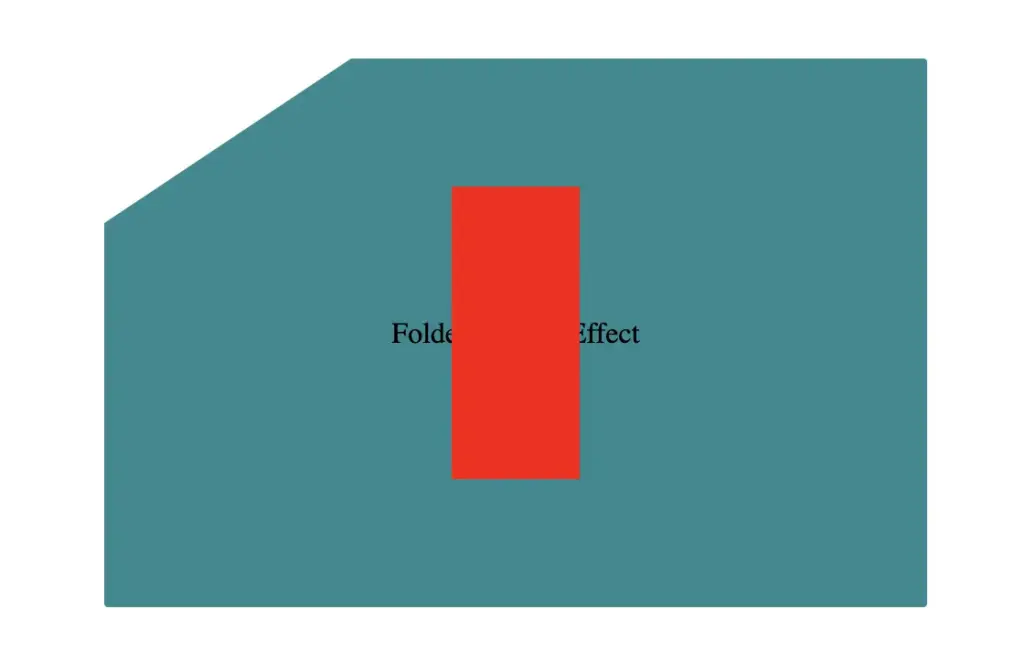
    To continue building our effect, we’ll use the folder-corner child element to create a second rectangle within the parent card element. This element will act as the folded piece of paper. We’ll give it a width of 70px and a height of 160px.

    .card .folded-corner {
      width: 70px;
      height: 160px;
      background-color: red;
      position: absolute;
    }
    CSS

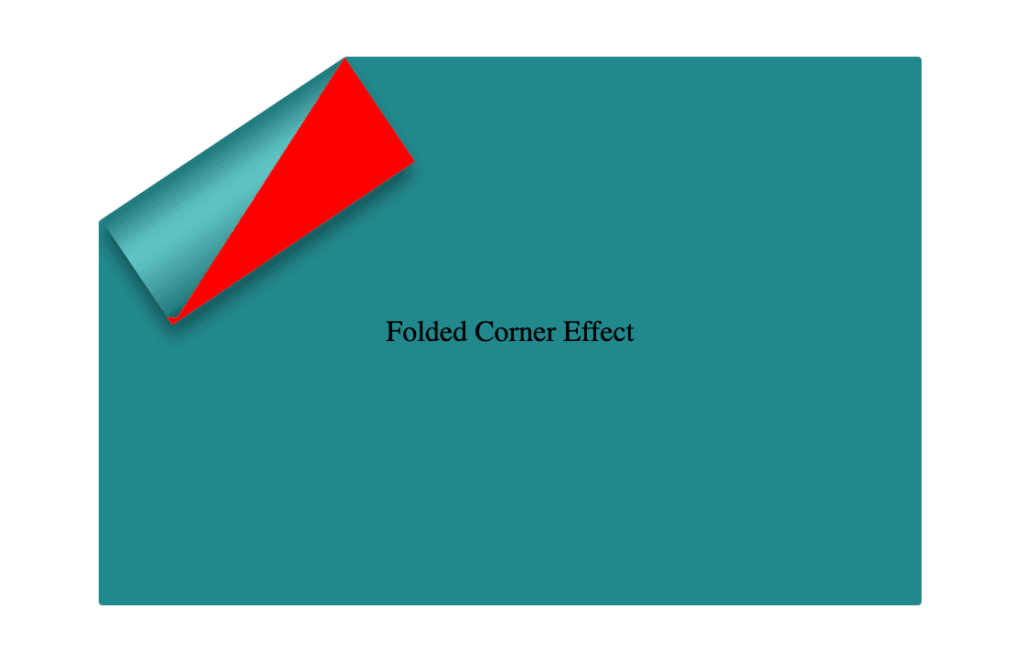
    For now, we’ll use a red background color to help us visualize its position and behavior more clearly—this will be updated to its final color later. We’ll also apply position: absolute to enable precise positioning.

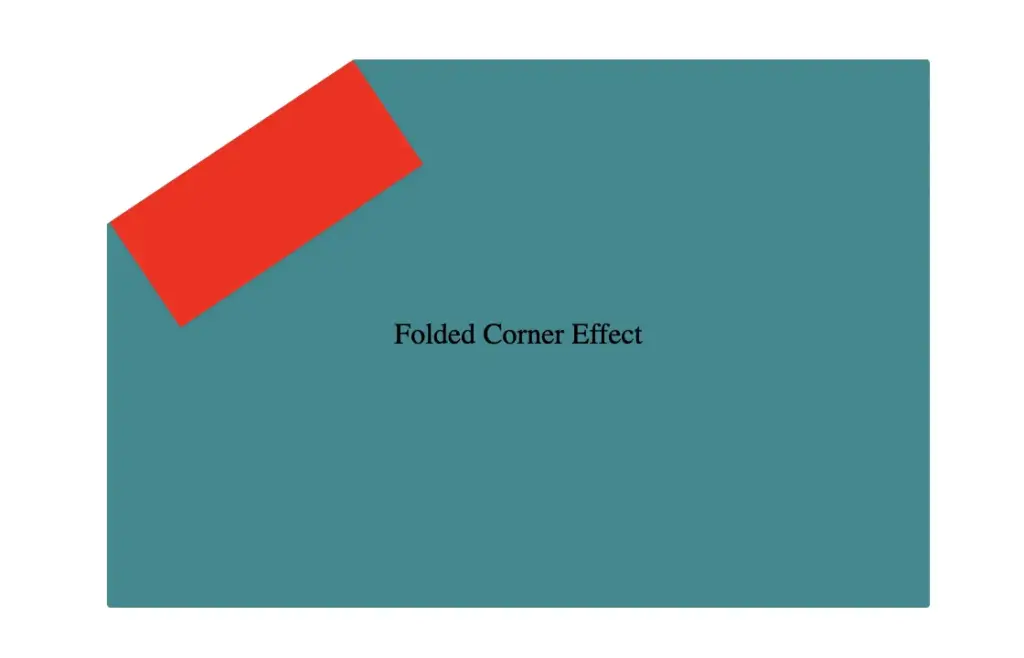
    Initial red-colored container element for folded corner effect

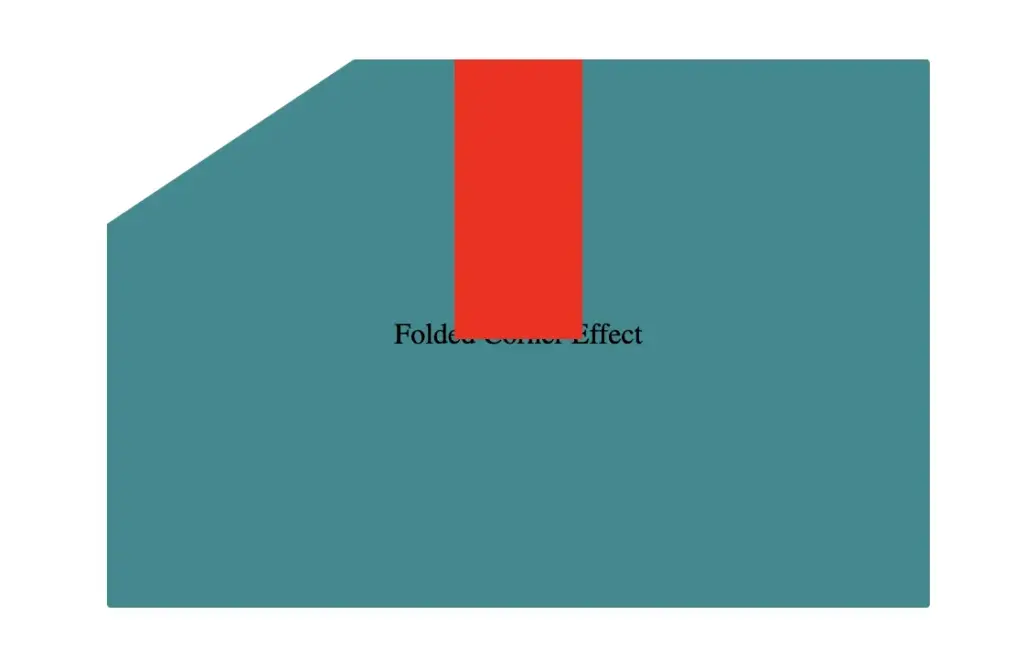
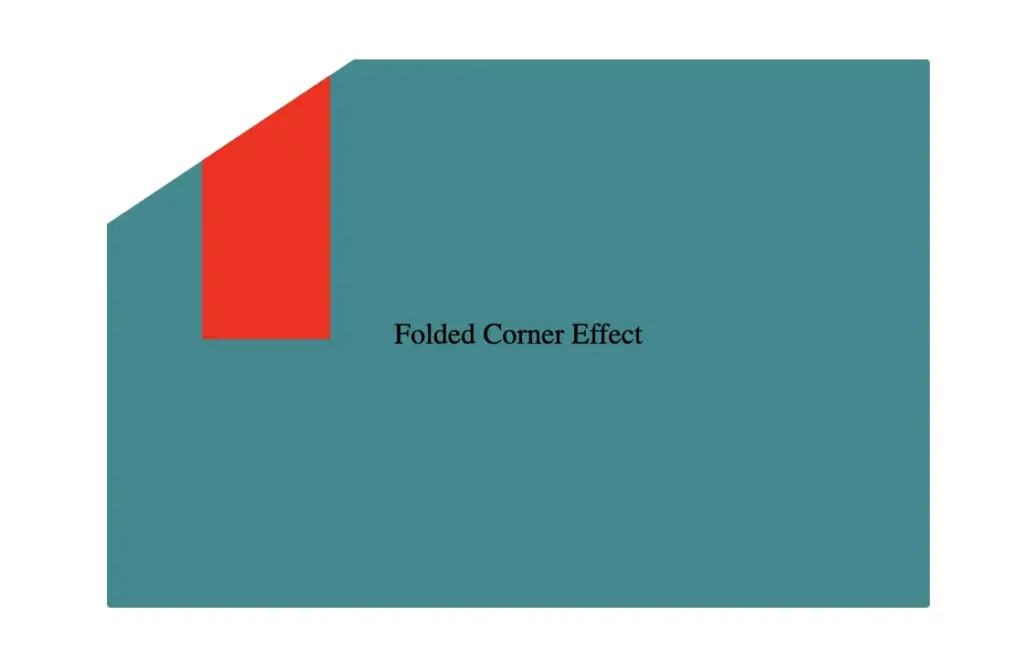
    Next, we continue with positioning. We use the top and left properties to move the .folded-corner element closer to the clipped corner, then apply the transform property to rotate it into place.

    .card .folded-corner {
      ...
      top: -7px;
      left: 52px;
      transform: rotate(56deg);
    }
    CSS
    Positioning folded-corner element at top -7px in folded corner effect layout
    top: -7px;
    Positioning folded-corner element at left 52px to align with cut corner
    left: 52px;
    Rotating folded-corner element by 52 degrees using CSS transform property
    transform: rotate(56deg);

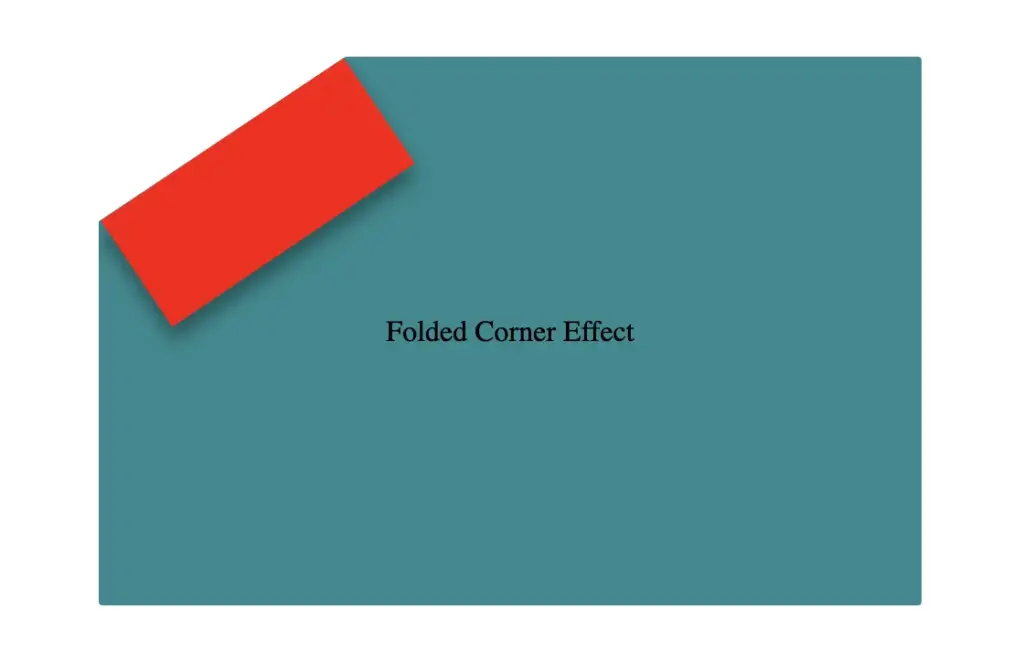
    Finally, adding the filter property is essential for completing our effect. As mentioned earlier, applying a shadow directly to an element with a clip-path isn’t possible — so the solution is to create an additional element that can hold the shadow.

    To do this, we’ll add a :before pseudo-element with the same dimensions as our folded corner. This allows us to recreate the folded shape and apply the shadow to it — adding depth and realism to the folded corner effect. 😎

    .card .folded-corner {
      ...
      top: -7px;
      left: 52px;
      transform: rotate(56deg);
      filter: drop-shadow(6px 4px 5px rgba(0, 0, 0, 0.4));
    }
    CSS
    Initial red-colored container element for folded corner effect
    filter: drop-shadow(6px 4px 5px rgba(0, 0, 0, 0.4));

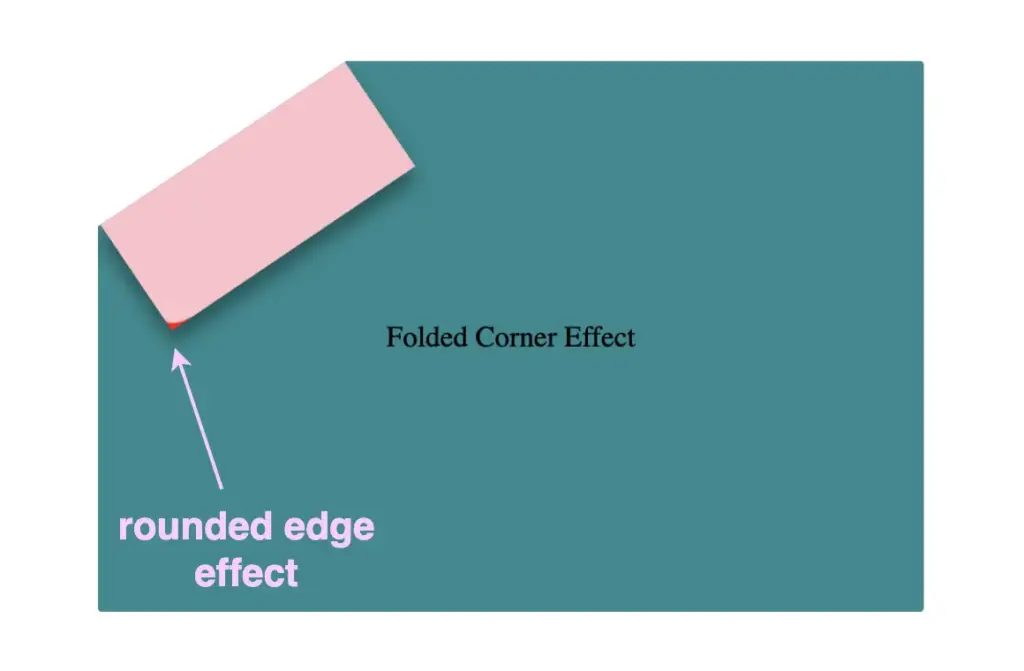
    Next, we move forward by using the before pseudo-element with the content property and set its position to absolute for precise placement within the parent.
    We want this pseudo-element to have the exact dimensions as the parent, so we set both its width and height to 100%, something that allows it to inherit the parent’s size.

    .card .folded-corner:before {
      content: "";
      position: absolute;
      width: 100%;
      height: 100%;
      background: pink;
      border-radius: 0 0 10% 0;
    }
    CSS

    For now, we apply a pink background to help visualize the structure. Finally, we add a border-radius of 10% to the bottom corner, which softens the edge and creates a smoother, more realistic folded appearance.

    Adding the before pseudoelement

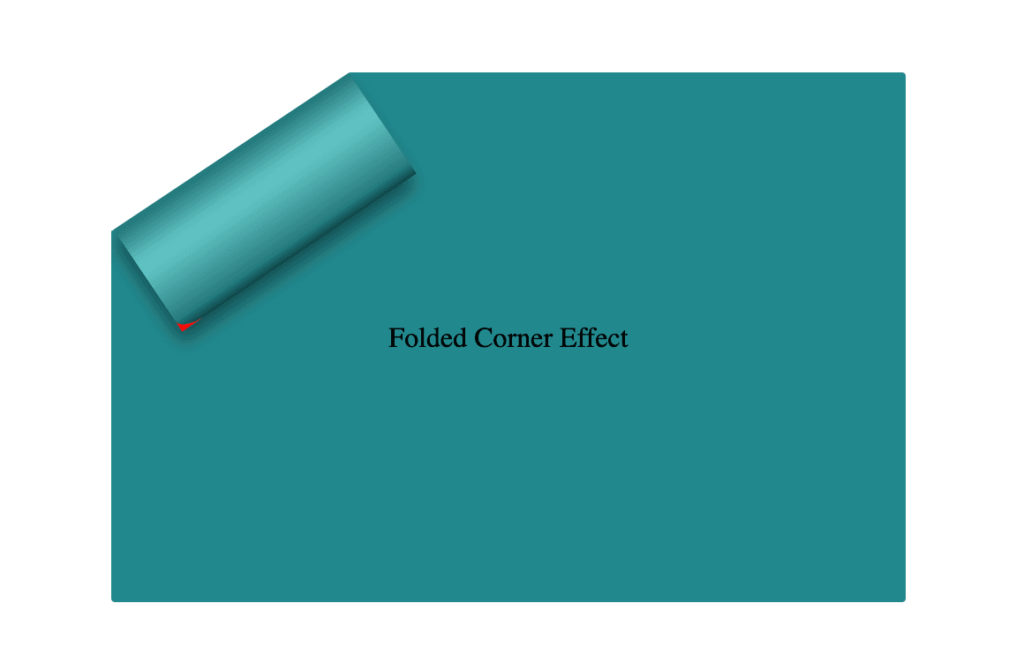
    Next, we replace the pink background with a smooth linear gradient. We choose colors similar to the main hue but make them darker towards the edges and lighter in the center. This gradient effect enhances the appearance by making the center appear brighter and polish. ✨

    .card .folded-corner:before {
      ...
      background: linear-gradient(to right, #277c7f 5%, #5abcbc 30%, #63c5c6 40%, #5abcbc 50%, #277c7f 90%, #0d4749);
    }
    CSS
    Adding linear- gradient at the before pseudoelement

    To complete the shape, we apply the clip-path: polygon(0% -2%, 0% 100%, 100% 100%) property. This is essential for transforming the before pseudo-element —which starts as a rectangle, just like its parent—into a triangle.

    In simple words, this clipping path reshapes the element into the desired triangular form. 🥳

    .card .folded-corner:before {
      ...
      clip-path: polygon(0% -2%, 0% 100%, 100% 100%);
    }
    CSS
    Adding clip-path to the before pseudoelement

    The last step is to turn back to the parent element with the class .folded-corner and “remove” the red rectangle from view by simply replacing the red background-color with a transparent value.
    As we can see, the :before pseudoelement inherits its parent shadow effect while the parent becomes invisible.

    .card .folded-corner {
      width: 70px;
      height: 160px;
      background-color: transparent;
      position: absolute;
      top: -7px;
      left: 52px;
      transform: rotate(56deg);
      filter: drop-shadow(6px 4px 5px rgba(0, 0, 0, 0.4));
    }
    CSS
    Finalize the folded corner effect

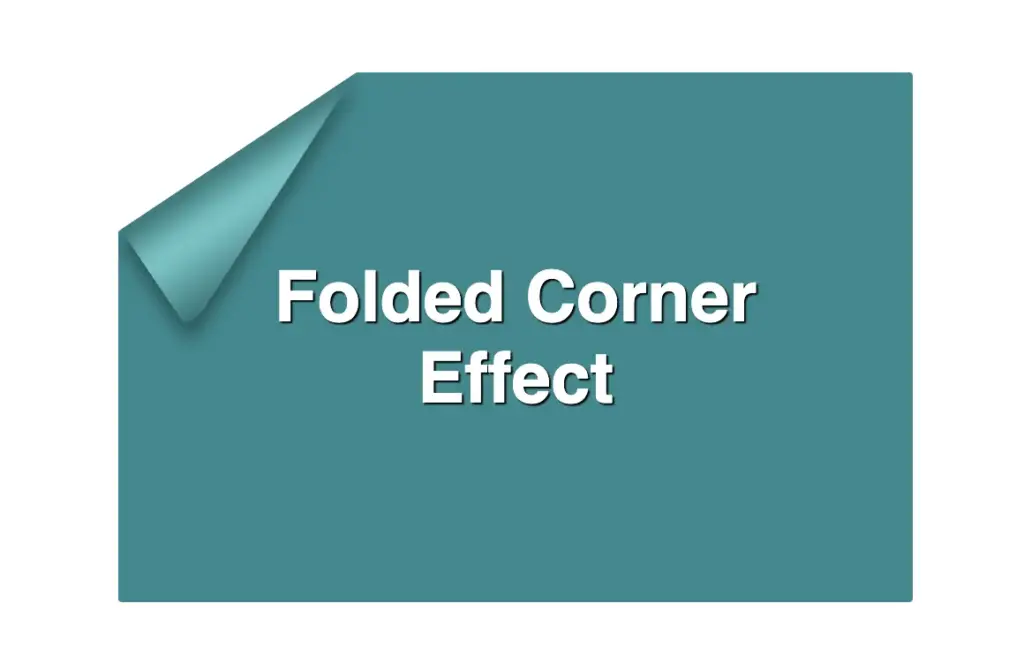
    We can enhance the title to have a more eye-cathing result. Applying a white background-color, increasing the font-size, and adding a subtle black text-shadow will make the title stand out beautifully, elevating the overall design. 📄 ✨

    .card .title {
      font-family: sans-serif;
      font-size: 40px;
      font-weight: bold;
      text-align: center;
      padding: 0 50px;
      color: white;
      text-shadow: 1px 1px 1px black;
    }
    CSS
    Stylling paper's title

    Complete code example

    <div class="card">
      <div class="title">Folded Corner Effect</div>
      <div class="folded-corner"></div>
    </div>
    HTML
    .card {
      width: 450px;
      height: 300px;
      border-radius: 2px;
      background-color: #228a90;
      clip-path: polygon(0% 30%, 30% 0%, 100% 0%, 100% 100%, 0% 100%);
      position: relative;
      display: flex;
      align-items: center;
      justify-content: center;
    }
    
    .card .folded-corner {
      width: 70px;
      height: 160px;
      background-color: transparent;
      position: absolute;
      top: -7px;
      left: 52px;
      transform: rotate(56deg);
      filter: drop-shadow(6px 4px 5px rgba(0, 0, 0, 0.4));
    }
    
    .card .folded-corner:before {
      content: "";
      position: absolute;
      width: 100%;
      height: 100%;
      border-radius: 0 0 10% 0;
      background: linear-gradient(to right, #277c7f 5%, #5abcbc 30%, #63c5c6 40%, #5abcbc 50%, #277c7f 90%, #0d4749);
      clip-path: polygon(0% -2%, 0% 100%, 100% 100%);
    }
    
    .card .title {
      font-family: sans-serif;
      font-size: 40px;
      font-weight: bold;
      text-align: center;
      padding: 0 50px;
      color: white;
      text-shadow: 1px 1px 1px black;
    }
    CSS
    Expand

    If you have any questions or run into any issues, don’t hesitate to reach out in the comments below — I’m happy to help. You can easily copy any code snippet by clicking the copy icon in the top-right corner of each block.

    Summary

    We started by creating the paper and cutting its corner. Then, we set the clip-path property to define the shape and positioned the folded-corner element precisely over the clipped area. After that, we enhanced the styling with background gradients that match the paper’s tone, and wrapped up by polishing the effect for a clean, realistic look. 📄 ✨

    Wishing you the best of luck in all your creative endeavors! 😃