In this post, we’ll learn how to embed Codepen projects in WordPress the right way. If you are here, chances are, you have tried to embed a project and got an error about a referer required by Codepen.

I might also be right to assume that you did so by copy-pasting the project’s URL on your website while trying to do so.
Let’s explore a different way to embed Codepen projects without getting this error. The first thing you need to do is visit the project you would like to embed. While on the project’s page check to the bottom right and find a button labelled “Embed”.
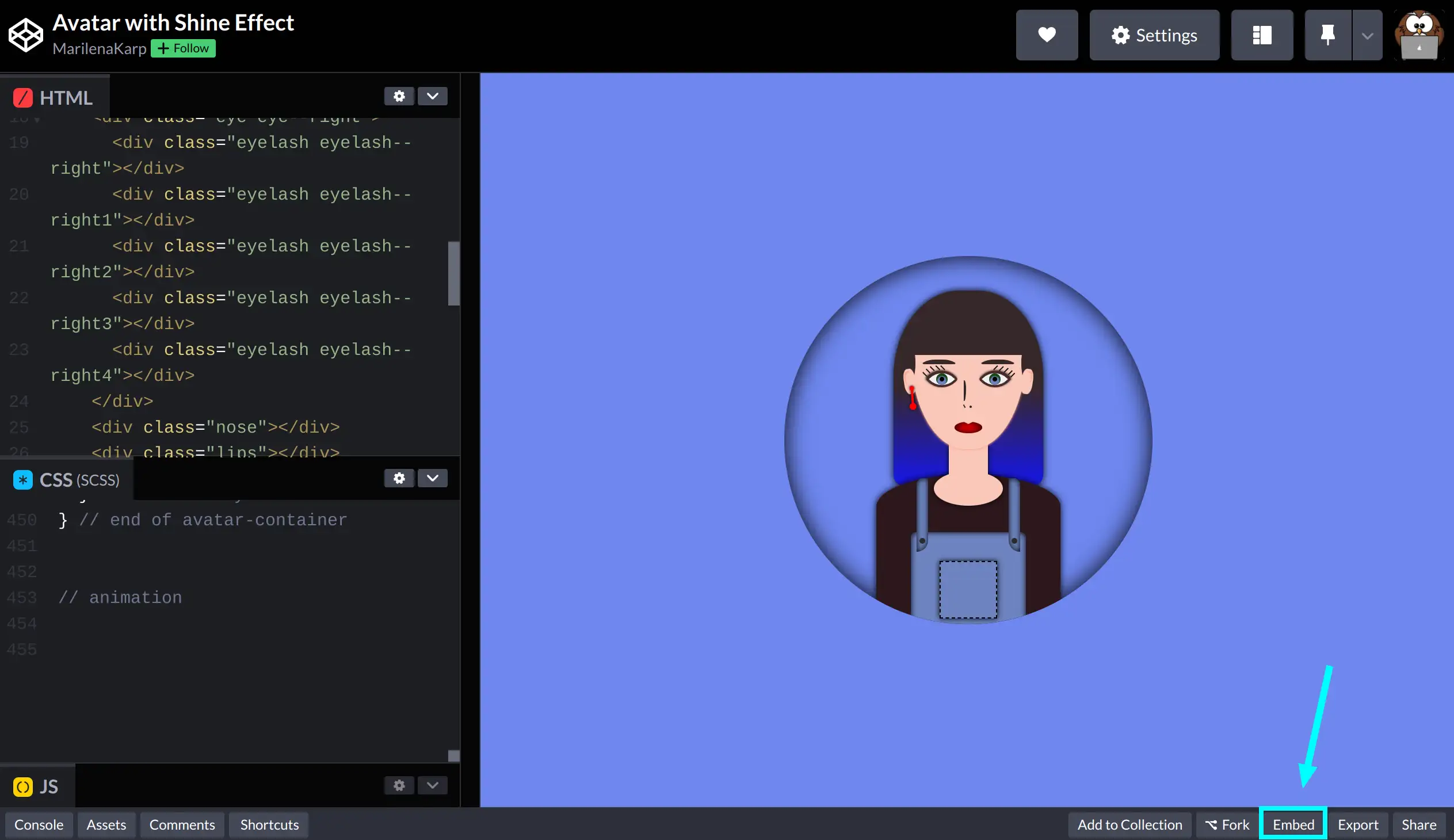
Click on it and you will see a modal popping up with the following options:
(We have added colored light blue numbers in the following image to help you out with each setting)
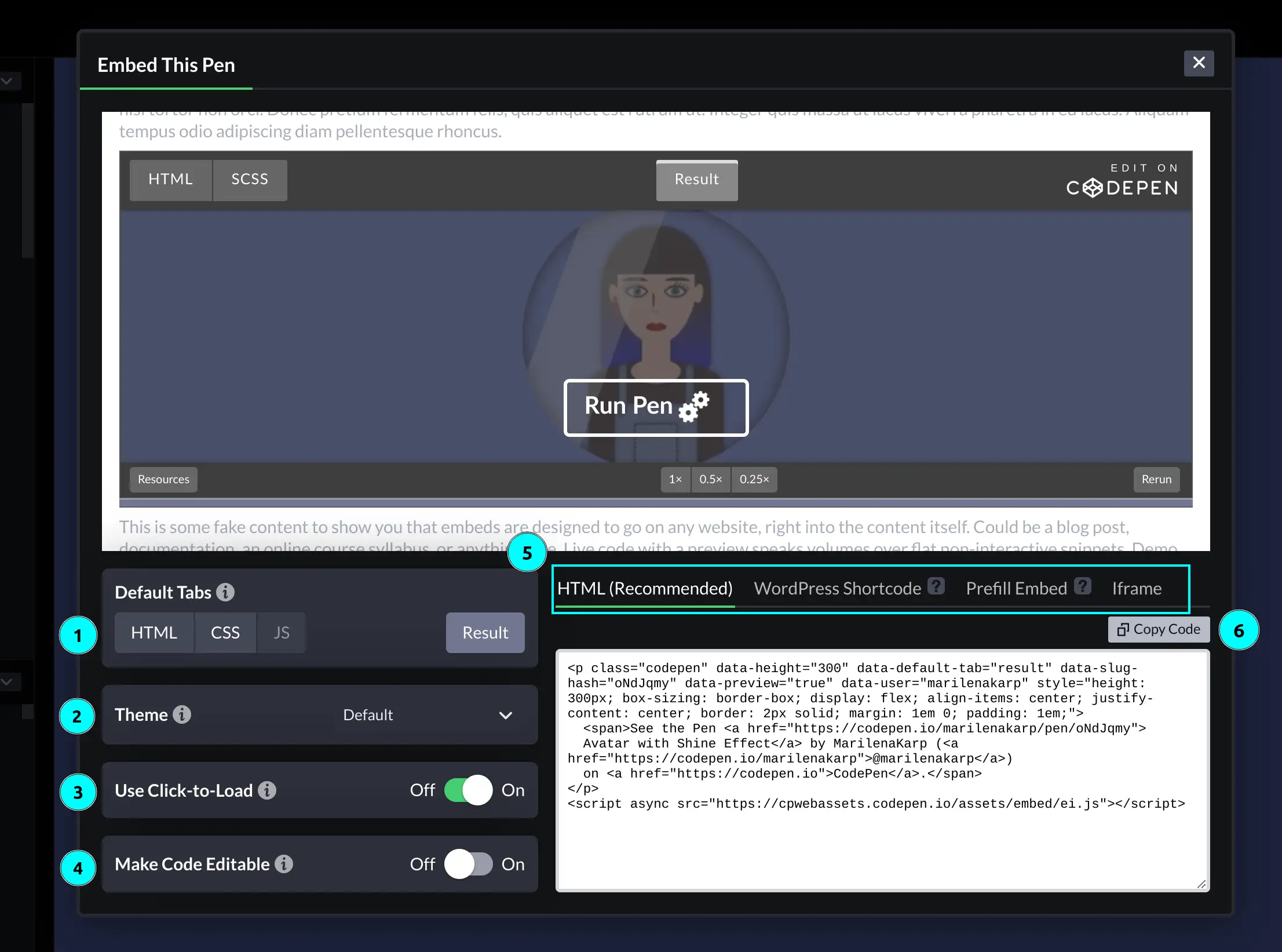
1️⃣ Default tabs – Here, you have the option to choose which tab will be initially displayed as selected.
2️⃣ Theme – Select if you would like to show your embedding in a light, dark, or custom theme.
3️⃣ Click to load – By enabling this setting your embedding will not load by default, it will rather show a “Run Pen ⚙️” cta at the bottom of your embedding preview.
4️⃣ Code Editable – Enable this setting if you would like to provide your viewers with the ability to edit the embedded pen in real time.
5️⃣ Code snippet type – Each tab (HTML, WordPress, etc.) shows a different type of code snippet you need for your embedding. The type you need depends on your WordPress Editor so you’d better check the Embeds Codepen’s guide to be sure what to select.
6️⃣ Copy code – Rather than manually selecting the code snippet, simply click this button to copy it. 😋
Adjusting height
There is a way to adjust the height of your embedding which is often easily overlooked. While on the embedding settings modal, hover over the bottom border on your preview screen, click on it, and adjust your height according to your needs.

An alternative approach could involve directly modifying the value of the data-height attribute within your code snippet to your desired value.
Finally, to embed your pen, go to your WordPress editor, type /shortcode, and press Enter.
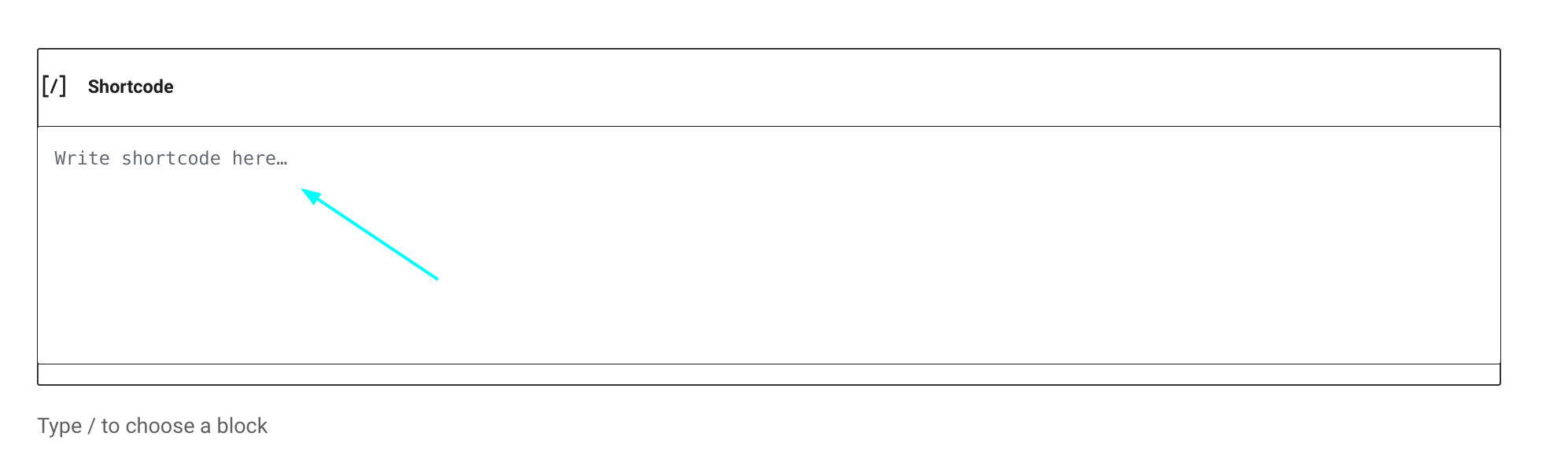
Paste the code snippet you copied from Codepen where it says: “Write shortcode here“.
Saving your post and previewing your changes should look something like:
See the Pen
Avatar with Shine Effect by MarilenaKarp (@marilenakarp)
on CodePen.