Tag: color

Practical CSS tips on using color — variables, contrast, palettes, and small choices that make interfaces clearer and more polished.

  • CSS Conic Gradient Made Easy

    CSS Conic Gradient Made Easy

    Hello! 😃 CSS conic gradient techniques are a fantastic way to add colorful, creative flair to your designs. Today, we’re diving into the enchanting world of conic-gradient in CSS — a type of gradient where colors transition in a circular or conical pattern around a central point (either the default center or one you define within the element).

    This powerful technique allows you to blend and combine colors in unique ways, creating artistic and visually striking effects. Plus, it’s perfect for building things like pie charts for presentations — no extra libraries needed!

    In addition to conic-gradient CSS also offers linear-gradient and radial-gradient techniques. 🌈✨ They all have a starting and an ending point, giving us the flexibility to control the direction and flow of the gradient. It is essential to blend at least two colors, but we can blend even more, creating smooth transitions or distinct shifts between them based on our needs.

    Ready to unlock 🗝 the art and practical uses of conical gradients? Let’s jump into this creative adventure! 💻

    What is a conic gradient?

    A CSS conic gradient is a styling technique used in CSS to create a color transition that radiates from a central point in a circular or conical pattern. It allows you to specify different color stops and angles, leading to a visually pleasing gradient effect for backgrounds or other elements on a webpage.

    There are many variations and creative ways to use conic gradients — and we’ll be exploring them in the next sections!

    Understanding the default direction of a CSS conic gradient

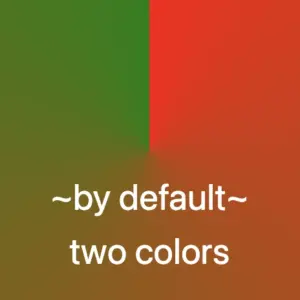
    So, let’s begin with the default direction, which is clockwise. To create a conic gradient, we need at least two colors. Below, I’ve prepared some examples to show exactly what I mean.

    /* blend two colors */
    
    .conic-two-colors {
      background-image: conic-gradient(red, green);
    }
    
    CSS
    Default CSS conic gradient with two colors, red and green
    /* blend many colors */
    
    .conic-multiple-colors {
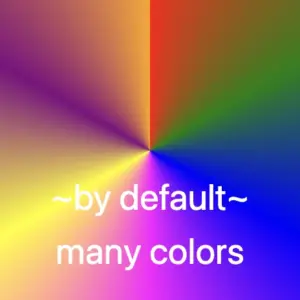
      background-image: conic-gradient(red, green, blue, magenta, yellow, purple, orange);
    }
    
    CSS
    Default conic gradient with many colors.
    /* blend black and white */
    
    .conic-black-white {
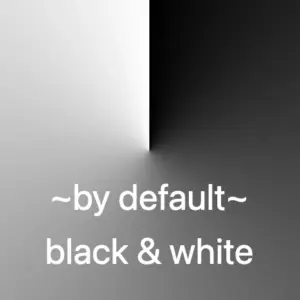
      background-image: conic-gradient(black, white);
    }
    
    CSS
    Default conic gradient with only black and white.

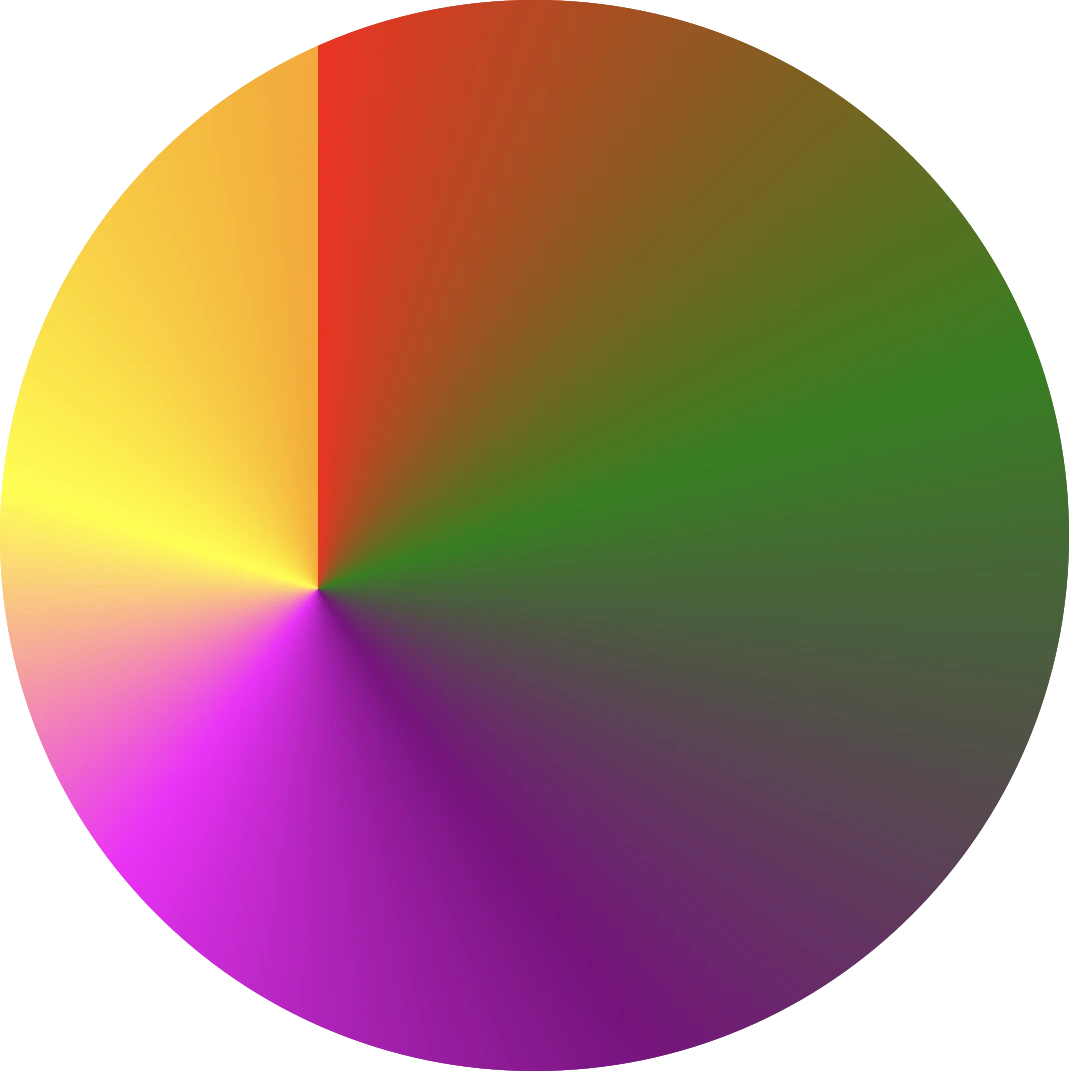
    🔖 Keep in mind that if we want to achieve a seamless transition between the last and first color, we have two ways to achieve this:

    • First, we can choose intermediate colors between the starting and ending colors. For example, in our case, we can pick colors from #FF4C00 (orange) to #FF6E00 (a reddish shade), creating a smooth blend from orange to red.
    • The second option, which is simpler, involves repeating the same color at both ends. In this example, we’ll use red as the repeated color.

    Here’s a simple code snippet to help illustrate this.

    /* using specific colors when blending */
    .conic-smooth-option-a {
      background-image: conic-gradient(red, green, blue, magenta, yellow, purple, orange, #FF4C00, #FF6E00);
    }
    
    /* using the same color at both ends */
    .conic-smooth-option-b {
      background-image: conic-gradient(red, green, blue, magenta, yellow, purple, orange, red);
    }
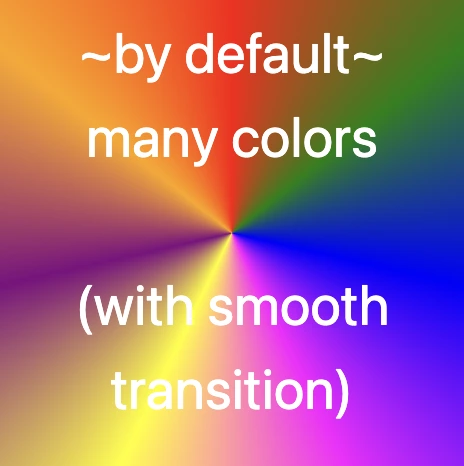
    
    CSS

    Positioning the center of a CSS conic gradient

    Move the center to the sides

    In CSS, conic gradients provide the flexibility to reposition the gradient’s center anywhere within the container. This enables precise alignment with a specific side, whether or not you use percentage values (%) or define specific color stops.

    In the following examples, we’ll focus on positioning the gradient center along different sides of the container.

    /* Gradient starting from the left */
    
    .conic-left-point {
      background-image: conic-gradient(at left, red, green, blue, purple, orange);
    }
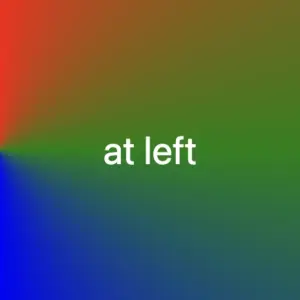
    
    CSS
    Conic gradient with many colors. The center is at the left side of the square.
    /* Starting point at 75% from the left */
    
    .conic-using-percentage {
      background-image: conic-gradient(at left 75%, red, green, blue, purple, orange);
    }
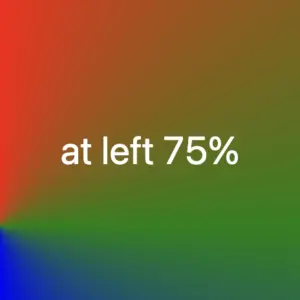
    
    CSS
    Conic gradient with many colors. The center is at the 75% of the left side of the square.
    /* Gradient starting at 75% left with defined color stops */
    
    .conic-specific-stops {
      background-image: conic-gradient(at left 75%, red 5%, green 10%, blue 15%, purple 20%, orange 25%);
    }
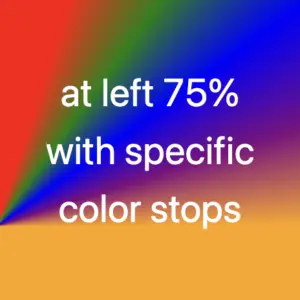
    
    CSS
    Conic gradient with many colors and specific color stops. The center is at the 75% of the left side of the square.

    Move the center to the corners

    Building on the previous section, we can also move the gradient’s center to the corners of the container. Conic gradients in CSS allow this kind of precise positioning, with or without using color stops, giving you even more layout control.

    Without color stops

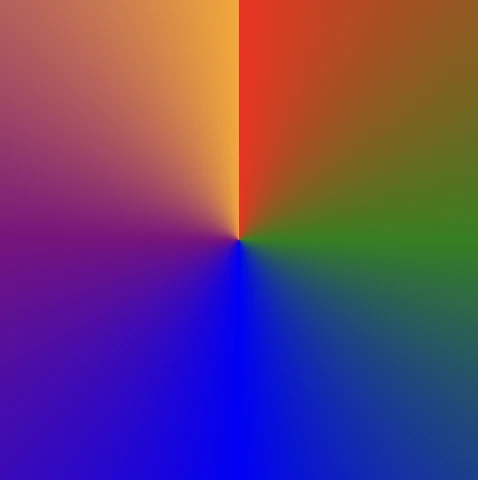
    The following code snippet shows a gradient that starts from the center point of our element with red color, transitions to green, then blue, followed by purple, ending with orange, creating a smooth, circular gradient effect.

    .conic-default {
      background-image: conic-gradient(red, green, blue, purple, orange);
    }
    CSS

    Below we can see how the previous gradient can break into different pieces the position we choose for the gradient’s center.

    The CSS code snippet .conic-corner-bottom-right starts at the bottom right corner of our element and smoothly transitions through red, green, blue, purple, and orange creating a visually appealing color blend.

    .conic-bottom-right-corner {
      background-image: conic-gradient(at bottom right, red, green, blue, purple, orange);
    }

    CSS
    CSS Conic-gradient where the center is at the bottom right corner.

    The reason you’re only seeing the purple and orange colors is due to the angle of the gradient in relation to the element.

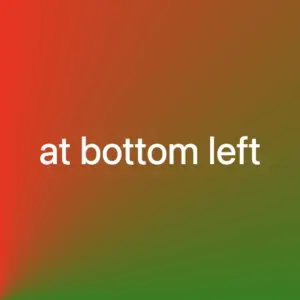
    I followed the same steps with .conic-bottom-left-corner, and as the angle changes, the red and green colors become visible. The same goes for .conic-top-right-corner, where we can now see shades of blue and purple. Finally, by setting the center to the top left using .conic-top-left-corner, green and blue come into view. How cool is that! 🥳

    .conic-bottom-left-corner {
      background-image: conic-gradient(at bottom left, red, green, blue, purple, orange);
    }
    CSS
    CSS Conic-gradient where the center is at the bottom left corner.
    .conic-top-right-corner {
      background-image: conic-gradient(at top right, red, green, blue, purple, orange);
    }

    CSS
    Conic-gradient where the center is at the top right corner.
    .conic-top-left-corner {
      background-image: conic-gradient(at top left, red, green, blue, purple, orange);
    }

    CSS
    Conic-gradient where the center is at the top left corner.

    Imagine that changing the center position and adjusting the angle is like zooming in on the gradient — revealing each quarter of the circle more closely, one at a time. 🔍 It’s like examining the gradient through a magnifying glass as you explore each corner!

    With color stops

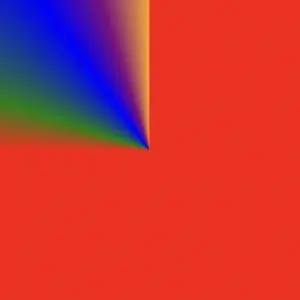
    Let’s take a look at the following example, where color stops are used to better control how and where each color appears within the conic gradient.

    Color stops let you define specific points along the gradient circle where a color should begin or end. This gives you greater precision over the flow of colors, rather than relying on an even, automatic blend. For example:

    .conic-color-stops {
      background-image: conic-gradient(red 75%, green 80%, blue 90%, purple 95%, orange 100%);
    }
    CSS
    CSS conic-gradient with color stops — red to 75%, then green, blue, purple, and orange up to 100%, creating sharp transitions in a circular layout.

    In this case, red takes up the majority of the gradient — up to 75% — and the remaining colors (green, blue, purple, and orange) appear in quicker succession toward the end.

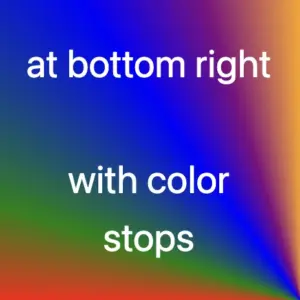
    We can also combine color stops with center positioning to control not only when colors appear but also where they start. For instance:

    .conic-bottom-right-stops {
      background-image: conic-gradient(at bottom right, red 75%, green 80%, blue 90%, purple 95%, orange 100%);
    }
    CSS
    Conic-gradient with many colors and specific color stops. The center is at the bottom right corner.
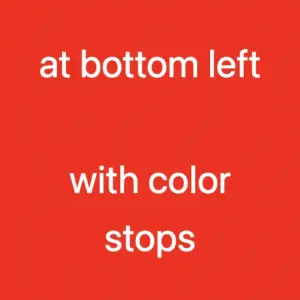
    .conic-bottom-left-stops {
      background-image: conic-gradient(at bottom left, red 75%, green 80%, blue 90%, purple 95%, orange 100%);
    }
    CSS
    Conic-gradient with many colors and specific color stops. The center is at the bottom left corner.

    These examples show how positioning the gradient center at different corners—while using color stops—can dramatically affect which parts of the gradient are visible. You’ll notice that the dominant red still takes the lead, but the visibility of the other colors shifts depending on the corner you choose.

    Moving the center inside the element

    We continue with a really powerful feature of conic gradients: the ability to position the center anywhere inside the element. This opens up even more creative possibilities — and of course, you’re free to use color stops with these custom center positions as well.

    Below, I’ve prepared two examples.

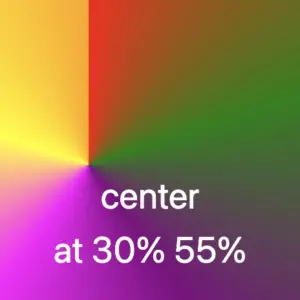
    In the first one, the gradient starts from a point located 30% across and 55% down the element. It then smoothly transitions through different colors: red, green, purple, magenta, yellow, and orange. Imagine a color wheel starting from red and going around in order, stopping at each of these colors along the way.

    .conic-center-30-55 {
      background-image: conic-gradient(at 30% 55%, 
      red, green, purple, magenta, yellow, orange);
    }
    CSS
    Conic-gradient with many colors where the center is at 30% across and 55% down.

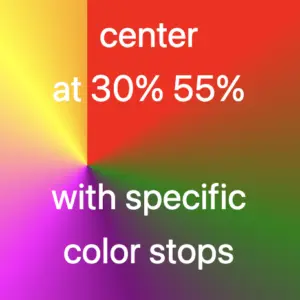
    In the second one, the gradient starts from a point 30% across and 55% down the element — but this time, it uses color stops to control exactly where each color appears.

    Then it transitions through different color stops: red 15%, green 30%, purple 45%, magenta 60%, yellow 90%, and finally orange at 100%. You can use my example or you are free to create your own. I chose these values based on what felt right to me—but feel free to experiment and create your own version. It’s totally up to you

    .conic-center-30-55-stops {
      background-image: conic-gradient(at 30% 55%, 
      red 15%, green 30%, purple 45%, magenta 60%, yellow 90%, orange 100%);
    }
    CSS
    Conic-gradient with many colors and specific color stops. The center is at 30% across and 55% down.

    Changing the starting angle of a CSS conic gradient

    Let’s move forward and explore another option we have another option available with conic gradients, as we are free to start the gradient from different points.

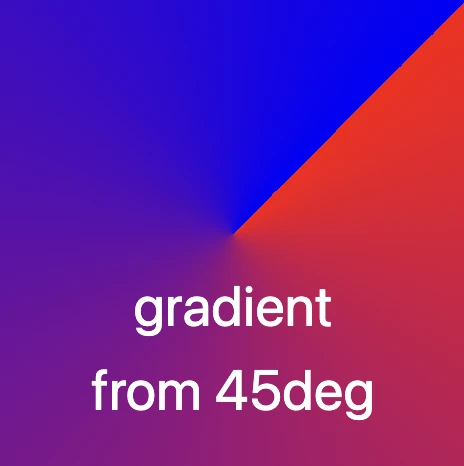
    In our example the gradient starts at 45 degrees to the right, moving from red to blue. This means the colors change smoothly in a circular motion, like a slice of pie with red at the starting edge and blue at the finishing point.

    .conic-angle-45 {
      background-image: conic-gradient(from 45deg, red, blue);
    }
    CSS

    CSS conic gradient without blending

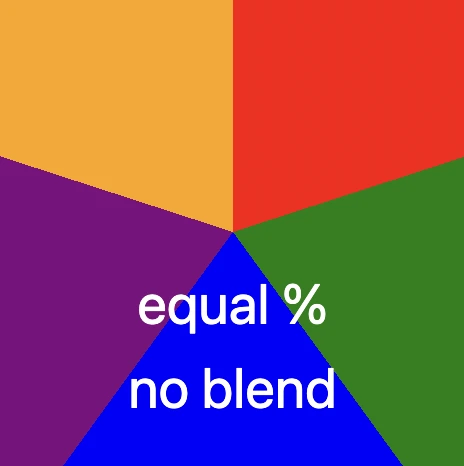
    Another option is to use a non-blend gradient technique. In the following code snippet, the gradient starts with the color red at the top of the circle and makes sharp, sudden transitions to the next colors — green, blue, purple, and finally orange. Each color occupies a distinct 20% slice of the circle, creating a step-like, segmented pattern with no smooth blending between sections. It’s like a colorful pie chart made of equal parts..

    .conic-no-blending {
      background-image: conic-gradient(
      red 0%, red 20%, 
      green 20%, green 40%, 
      blue 40%, blue 60%, 
      purple 60%, purple 80%, 
      orange 60%, orange 100%
      );
    }
    CSS

    Creating repeating CSS conic gradients

    The repeating-conic-gradient is a function that is used to repeat the conic gradient. Below are two examples that show just how flexible and creative conic gradients can be.

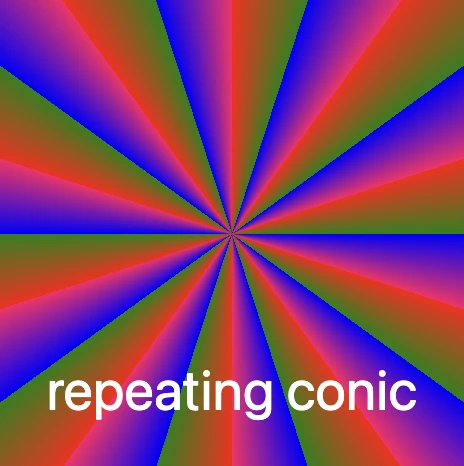
    1. Repeating every 10%: The gradient originates from the center of the element. It begins with red at the center, then transitions to green at 5%, and to blue shortly after. At 10%, it shifts to a specific pinkish-red color defined by the hex code #ff1064. These color transitions repeat every 10% of the circle, creating a series of concentric slices that cycle outward in a continuous, colorful loop.

    .conic-repeat-10 {
      background-image: repeating-conic-gradient(red, green 5%, blue 5%, #ff1064 10%);
    }
    CSS

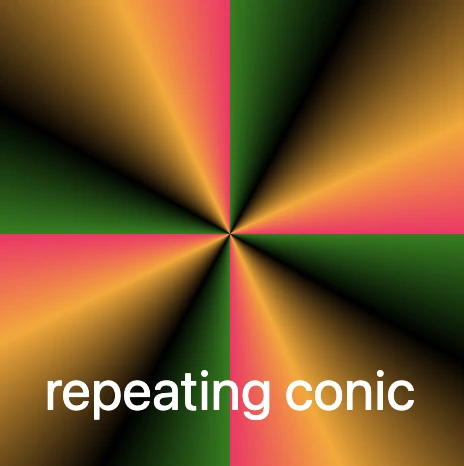
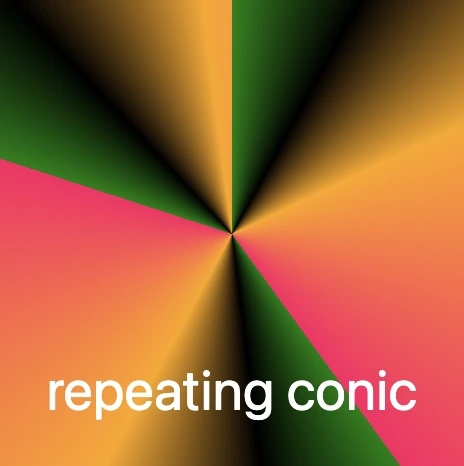
    2. Repeating every 25%: In this example, the gradient is centered within the element and begins with green at the starting point. As it radiates outward, it shifts to black at 8%, then to orange at 18%, and finally to a vibrant pinkish-red at 25% (using the hex code #ff1064). These defined color stops repeat every 25% of the circle, creating a looping, segmented pattern that spirals out from the center in consistent, colorful sections.

    .conic-repeat-25 {
      background-image: repeating-conic-gradient(green, black 8%, orange 18%, #ff1064 25%)
    }
    CSS

    What to avoid when creating CSS conic gradients

    Always bear in mind that, to create a harmonious and uniform repeating conic gradient, it’s important to maintain consistent spacing and carefully planned distances between color stops.

    In the image below, we can observe that green, black, and orange are each repeated three times, while the color #ff1064 (a shade of pinkish-red) appears only twice. This happens because the total space occupied by all the defined color stops—green, black, orange, and #ff1064—adds up to 40% of the conic gradient.

    This setup ensures that the entire pattern repeats in a balanced way: the specified colors take up 40% of the gradient, and the remaining 60% of the circle is evenly distributed across the repeated pattern. The result is a visually pleasing and consistent circular repetition.

    The following code snippet defines the color stops and their positions for this repeating conic gradient:

    .conic-avoid-repeating {
      background-image: repeating-conic-gradient(green, black 8%, orange 18%, #ff1064 40%);
    }
    CSS

    Here’s what each part means:

    • green: This is the starting color of the gradient. It begins right at the 0% mark.
    • black 8%: The next color in the gradient is black, and it starts at 8%.
    • orange 18%: Orange follows next, starting at 18% of the circle.
    • #ff1064 40%: Finally, the last color in the gradient is a shade of pinkish-red specified by the hexadecimal color code #ff1064, and it starts at 40% of the circle’s circumference.

    After that, the pattern repeats, starting again from green and continuing through the same sequence.
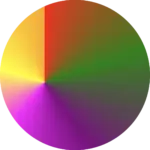
    Creating amazing pie charts with CSS conic gradient

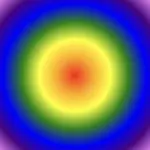
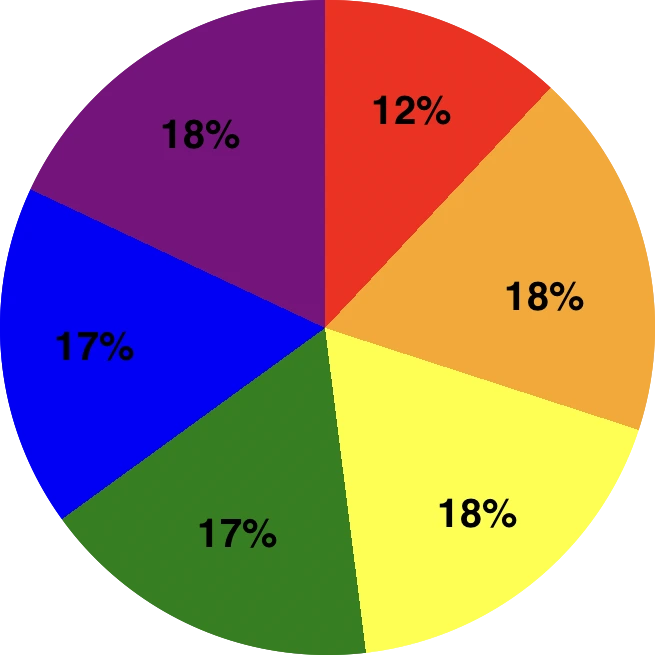
    The CSS conic function is used to create conic gradient backgrounds. A conic gradient creates a circular gradient, much like a pie chart, with or without different color stops defining different sections of the circle.

    And here’s the fun part: we’re completely free to shape our gradients into perfect circles using CSS! Just apply a border-radius of 50%, and you can create stunning pie-style visuals. 😃

    .pie-chart {
      background-image: conic-gradient(
      red 0%, red 12%, 
      orange 12%, orange 30%, 
      yellow 30%, yellow 48%, 
      green 48%, green 65%, 
      blue 65%, blue 82%, 
      purple 82%, purple 100%
      );
    }
    
    .circle {
      width: 240px;
      height: 240px;
      border-radius: 50%;
    }
    CSS

    Breakdown of the color segments:

    • red 0%, red 12% This pair defines a red segment that starts at 0% and ends at 12% of the circle. This represents the first segment of the conic gradient.
    • orange 12%, orange 30%: Starts right after red and continues to 30%, forming the orange slice.
    • yellow 30%, yellow 48%, green 48%, green 65%, and blue 65%, blue 82% each define their own slices.
    • The last segment, purple 82%, purple 100%, defines the purple segment that starts at 82% and goes all the way to 100% of the circle. This represents the last segment of the conic gradient.

    Each pair of color stops defines a slice of the CSS conic gradient, making it easy to visualize proportions — just like a pie chart!

  • How To Make A CSS Text Reflection Effect

    How To Make A CSS Text Reflection Effect

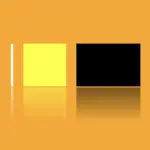
    Hi there! 😃 In this post, we’ll learn bit by bit how to create a CSS text reflection effect. When we say reflection, we’re referring to a mirror-like effect that looks like the text reflects on a surface, much like the way we see our reflection in a mirror.

    This is a simple yet amazing way to enhance the appearance of your text. Let’s analyze our effect so that you can easily follow along.

    HTML structure

    We will begin with our HTML structure. As you can see below, I prepared a div with the class .reflection-text , this is where our effect will take place.

    <div class="reflection-text">HELLO WORLD</div>
    CSS

    CSS foundation

    Let’s move forward with the CSS basic structure. We start with defining the background. It’s worth noting that using radial-gradient can make our effect more impressive. 😃

    body {
      background: radial-gradient(lightgreen, darkgreen);
      height: 100vh;
    }
    CSS

    Below, we can see the background we just created.

    In web development, we use the flex method in order to center our text. Then we will enhance its appearance, by making some adjustments. We will set the font-size to 100 pixels, select the “Roboto” font-family, and choose white as the text color.

    body {
      ...
      display: flex;
      align-items: center;
      justify-content: center;
    }
    
    .reflection-text {
      font-size: 100px;
      font-family: 'Roboto', sans-serif;
      color: white;
    }
    CSS

    This is what is rendered on the screen for now. A perfectly centered, 🎯 white text.

    Adding the CSS structure for the reflection effect

    Creating a reflection can be achieved by using pseudoelements like :before and :after. To ensure this works properly, we need to include position: relative in our .reflection-text class.

    .reflection-text {
      ...
      position: relative;
    }
    CSS

    Now, we are ready to proceed and create our reflection by adding the :before pseudoelement with all the necessary properties, as shown in the following code snippet.

    .reflection-text:before {
      content: "HELLO WORLD";
      position: absolute;
      top: 65px;
      transform: rotate(180deg) scaleX(-1);
      background: linear-gradient(
        to bottom, 
        rgba(255, 255, 255, 0) 20%, 
        rgba(255, 255, 255, 0.5) 60%, 
        rgba(255, 255, 255, 2) 100%
      );
      background-clip: text;
      color: transparent;
      opacity: 0.3;
    }
    CSS

    Breaking down the process

    🟢 To begin, we add the text “HELLO WORLD” to create another text element with the same content. This new text will serve as our reflection. Then, we set position: absolute so that we can move our reflected text below the original text. We use the top property to move the reflected text 65 pixels from the top, but you can always move the reflection in any direction you prefer. It is important to position the text and its reflection closely together for a more realistic reflection effect. 😉

    🟢 We move forward and use the transform CSS property to rotate the text by 180 degrees

    and then flip it horizontally using scaleX(-1). Now we have the perfect reflection! Let’s continue and make it more realistic.

    🟢 In the next step, we will adjust the color of our reflected text. To achieve this, we will utilize the linear-gradient CSS property and specify the direction as downwards. This will create white gradients, with the top appearing more intense and gradually fading towards the bottom of the text.

    🟢 It is commonly known that gradients cannot be directly applied to texts. Don’t worry! 🤔 We already have the solution to this problem. For now, let’s give a quick explanation. To create a clipped linear background pattern for text, first, we add the -webkit-background-clip: text property, and at the same time, we set the color to transparent, and our text automatically turns to transparent. In that way, our text takes the background: linear-gradient as its real color.

    🟢 For a more transparent text, we can adjust the opacity. The lower the opacity, the more transparent our text becomes. So, here we are! Our reflection is ready! 🥳

    Exploring different colors

    🔖 It is always an option to use black or any other color in our work. Below, I’ve included examples of texts with black, purple, and green colors. It’s important to remember that the key factor is to set the correct gradients at the linear-gradient property. That way, we can create respective shades. Therefore, please give extra attention to that! 😊

    Black text

    .reflection-text {
      position: relative;
      font-size: 100px;
      font-family: 'Roboto', sans-serif;
      color: black; /* default color */
    }
    CSS
    .reflection-text:before {
      content: "HELLO WORLD";
      position: absolute;
      top: 65px;
      transform: rotate(180deg) scaleX(-1);
      background: linear-gradient(to bottom, 
      rgba(0, 0, 0, 0) 20%, 
      rgba(0, 0, 0, 0.5) 60%, 
      rgba(0, 0, 0, 2) 100%);
      background-clip: text;
      color: transparent;
      opacity: 0.3;
    }
    CSS

    Purple Text

    .reflection-text {
      position: relative;
      font-size: 100px;
      font-family: 'Roboto', sans-serif;
      color: purple;
    }
    CSS
    .reflection-text:before {
      content: "HELLO WORLD";
      position: absolute;
      top: 65px;
      transform: rotate(180deg) scaleX(-1);
      background: linear-gradient(to bottom, 
      rgba(255, 55, 205, 0) 20%, 
      rgba(255, 55, 205, 0.5) 60%, 
      rgba(255, 55, 205, 2) 100%);
      background-clip: text;
      color: transparent;
      opacity: 0.3;
    }
    CSS

    Green Text

    .reflection-text {
      position: relative;
      font-size: 100px;
      font-family: 'Roboto', sans-serif;
      color: green;
    }
    CSS
    .reflection-text2:before {
      content:"HELLO WORLD";
      position: absolute;
      top: 65px;
      transform: rotate(180deg) scaleX(-1);
      background: linear-gradient(to bottom, 
      rgba(20, 150, 20, 0) 20%, 
      rgba(20, 150, 20) 60%, 
      rgba(20, 150, 20, 2) 100%);
      background-clip: text;
      color: transparent;
      opacity: 0.3;
    }
    CSS
  • CSS Linear Gradient Techniques: Create Colorful Line Drawings

    CSS Linear Gradient Techniques: Create Colorful Line Drawings

    Hey there! 😃 Exploring CSS linear gradient techniques is a fantastic approach to fashion vibrant, colorful mixtures. Gradients give us the flexibility to choose any desired direction, defined by their starting and ending points. Mixing a minimum of two colors is fundamental, yet the potential for blending expands further, enabling us to achieve seamless transitions or pronounced shifts based on our design requirements.

    Today, let’s dive into the exciting world of CSS linear gradient techniques. 🌈✨ Picture a smooth transition of colors in a straight line, adding a sleek and dynamic touch to your web design. With linear gradients, you can smoothly transition between colors. You have the power to guide the eye seamlessly from one color to another. Whether it’s a subtle shift or a striking contrast, mastering linear gradients empowers you to enhance the visual appeal of your web projects.

    Ready to discover 🔍 the art and versatility behind linear gradients? Let’s get started! 💻

    Definition of a radial gradient

    A linear gradient is a visual effect that allows us to smoothly shift between colors in a straight line inside any shape we want. It’s like blending multiple colors together in a straight line pattern, allowing us to create colorful and visually appealing backgrounds or effects for elements on our website.

    A linear gradient is a visual effect that allows us to smoothly shift between colors in a straight line inside any shape we want

    The default CSS linear gradient

    We will begin our exploration with the default linear gradient, characterized by its top-to-bottom direction. The following code snippet and image provide a clear representation.

    .linear-default {
      background-image: linear-gradient(red, green);
    }
    
    /* we are free to use "deg" too */
    .linear-default {
      background-image: linear-gradient(180deg, red, green);
    }
    CSS

    From side to side

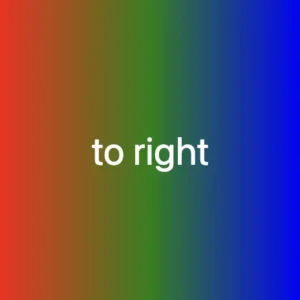
    We can adjust the direction of our gradients whenever we need to. To help you understand this better, take a look at the example below, where we changed the default direction to to right.

    We are also free to choose any direction we want to top , to right , to bottom (the default direction), to left.

    .linear-to-top {
      background-image: linear-gradient(to right, red, green, blue);
    }
    CSS

    From corner to corner

    At any point, we also have the flexibility to alter the orientation of our gradients along the diagonal path. To illustrate this concept, consider the following example with the to bottom right direction.

    Here colors would spread from the top-left corner to the bottom-right corner. We can combine any corner with its adjacent sides, to top left, to top right, to bottom left, and to bottom right.

    .linear-to-corner {
      background-image: linear-gradient(to bottom right, red, green, blue);
    }
    CSS

    CSS Linear gradient using percentages %

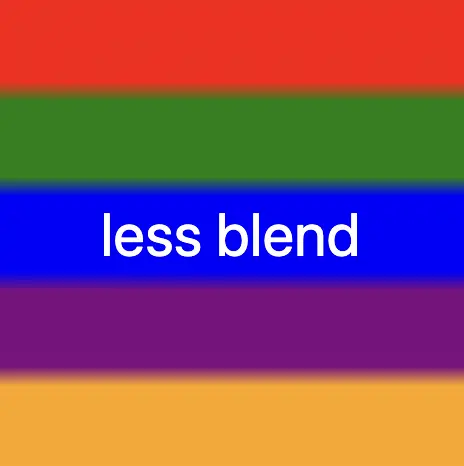
    With less blend

    If we want to create a linear gradient with less blending (colors have more distinct limits this way) and maintain the same space for each color, we can use equal specific stops in the gradient by adding % percentages.

    .linear-less-blend {
      background-image: linear-gradient(
        red 0%, red 18%,
        green 22%, green 38%,
        blue 42%, blue 58%,
        purple 62%, purple 78%,
        orange 82%, orange 100%
      );
    }
    CSS

    🕵️‍♂️ In this example, I’ve divided the space into 5 segments, but I left a 4% blend among each space in order to create a smooth but small transition.

    The percentages between the color stops determine how smooth the transition between colors is.

    • Red (0% – 18%): defines a red color stop that starts at 0% and ends at 18% of the gradient.
    • Between 18% and 22%, there is no specific color stop defined. This gap represents a transition zone where the gradient transitions smoothly from red to green.
    • Green 22%, green 38%): defines a green color stop that starts at 22% and ends at 38% of the gradient.
    • Between 38% and 42%, there is no specific color stop defined. This gap represents a transition zone where the gradient transitions smoothly from green to blue.
    • Blue (42% – 58%): defines a blue color stop that starts at 42% and ends at 58% of the gradient.
    • Between 58% and 62%, there is no specific color stop defined. This gap represents a transition zone where the gradient transitions smoothly from blue to purple.
    • Purple (62% – 78%): defines a purple color stop that starts at 62% and ends at 78% of the gradient.
    • Between 78% and 82%, there is no specific color stop defined. This gap represents a transition zone where the gradient transitions smoothly from purple to orange.
    • Orange (82% – 100%): defines an orange color stop that starts at 82% and ends at 100% of the gradient.
    A colorful css linear gradient technique. Setting the background-image: linear-gradient( red 0%, red 18%, green 22%, green 38%, blue 42%, blue 58%, purple 62%, purple 78%, orange 82%, orange 100% );

    Without blend

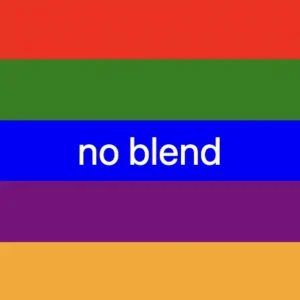
    Finally, it is really useful to know that we are able to create non-smooth transitions. In the following example, we will see a gradient with distinct color stops at specific percentage intervals, resulting in a distinct color transition from red to orange. Each color stop abruptly changes to the next color at the defined percentage points.

    .linear-no-blend {
      background-image: linear-gradient(
        red 0%, red 20%, 
        green 20%, green 40%, 
        blue 40%, blue 60%, 
        purple 60%, purple 80%, 
        orange 80%, orange 100%
      );
    }
    CSS

    🕵️‍♂️ In this example, I’ve divided the space into 5 equal segments without blending among each other. So, we create multiple color stops without transitions.

    • Red (0% – 20%): defines a red color stop that starts at 0% and ends at 20% of the gradient.
    • Green (20% – 40%): defines a green color stop that starts at 20% and ends at 40% of the gradient.
    • Blue (40% – 60%): defines a blue color stop that starts at 40% and ends at 60% of the gradient.
    • Purple (60% – 80%): defines a purple color stop that starts at 60% and ends at 80% of the gradient.
    • Orange (80% – 100%): defines an orange color stop that starts at 80% and ends at 100%
  • Gray vs Grey in CSS. What Is the Right Choice?

    Gray vs Grey in CSS. What Is the Right Choice?

    Gray VS grey? Is there a right choice between these two? It is well known that both gray and grey in CSS are considered equivalent with no impact on functionality. We can use either of them without any issues. In the context of web development and CSS, they are both recognized and accepted. CSS specifications and web browsers accommodate both equally.

    Why 🤔 do web designers and programmers use both gray and grey in CSS?

    Because they wanted to add a little color to the spelling debate!

    Below we can see an example of two elements. We set gray for the first element while the second element has grey:

    /* Using "gray" (American English) */
    .first-element {
      color: gray;
    }
    
    /* Using "grey" (British English) */
    .second-element {
      color: grey;
    }
    CSS

    Both examples are correct, and your CSS should be functional, .first-element and .second-element classes will share the same color, as CSS treats gray and grey interchangeably.

    It turns out that the choice between gray and grey in CSS is primarily a matter of personal preference and doesn’t affect how web browsers interpret your code. You are free to use either.

    Similarly, there are other color names with variations in spelling that are recognized by most modern browsers, for example, “lightgray” and “lightgrey” or “darkgray” and “darkgrey” are all valid. 😃

  • CSS Rainbow Text: How To Make Astonishing And Vibrant Fonts

    CSS Rainbow Text: How To Make Astonishing And Vibrant Fonts

    Imagine infusing your web typography (fonts) with the vibrant hues of a dazzling 🌈✨ rainbow! Cascading Style Sheets (CSS) empower designers and developers to bring this captivating vision to life. A colorful font like the CSS rainbow effect is more than just a spectrum of colors; it’s a creative and dynamic way to enhance your website’s visual appeal and make a lasting impression on your visitors.

    Today, with this post, 😃 we’ll dive into the exciting world of creating a rainbow effect, unlocking the magic of colors and typography to elevate your web design. Enjoy! 💻

    Prepare basic HTML and CSS structure

    We begin with our HTML and CSS structure. We create an HTML <div> element that has a class called rainbow-effect. Then, we set some rules in CSS that are applied to our HTML element. So, let’s move forward and analyze our CSS code snippet.

    <body>
      <div class="raibow-effect">rainbow effect</div>
    </body>
    HTML
    body {
      background-color: #050c20; /* deep blue */
    }
    
    .rainbow-effect {
      text-align: center;
      color: white;
      font-size: 180px;
      font-weight: bold;
      font-family: 'Roboto', sans-serif;
    }
    CSS

    First of all, we set the background color of our body to be a deep blue. Then, we proceed with our text. We create a center aligned, white 180px text with bold and highly legible fonts, as we specifically seek a font with excellent readability.

    Once set, we can then proceed with our tweaks in order to infuse the text with the enchanting hues of a rainbow. The following image shows what is rendered on the screen for the time being. 😃

    This image shows our text with its basic characteristics.

    Apply the rainbow effect

    Within the style rules of the .rainbow-effect, we find specific directives regarding our rainbow effect:

    
    .rainbow-effect {
      ...
      background-image: linear-gradient(
        to right, red, orange, yellow, green, blue, indigo, violet
      );
      background-clip: text;
      color: transparent;
    }
    
    CSS

    background-image: linear-gradient
    The first thing we need to know is that by using the background-image CSS property we are able to create a background with more than one color.

    We do so by setting the linear-gradient value, and we are free to choose any color and any direction we want for our text. In our case, we use the to right direction and the gradient starts with the color red on the left and smoothly transitions through orange, yellow, green, blue, indigo, and violet as it moves from left to right. So, it gives a colorful, horizontal stripe-like background.

    The rainbow effect word with a rainbow effect as a background. This happens as we set the CSS background-image property to linear-gradient(to right, red, orange, yellow, green, blue, indigo, violet)

    You are always free to choose any direction of the linear-gradient you like! 👍

    background-clip: text
    We continue our work with the background-clip property which is used to define how the background should be clipped or masked. In our case, it’s set to text, which tells the browser to apply the background gradient only to the text inside our div.

    The rainbow effect word after setting the -webkit-background-clip CSS property to text. We can see that for now our text is white with the body's background.

    What? Nothing happened yet? Why? Using this property, the colorful background is applied to the text, but the effect is not visible yet because it is necessary to proceed to our next step 🧐 ⬇ in order to achieve the final and desired results. So, let’s move on!

    color: transparent
    Finally, adding the color property to transparent renders the text itself invisible, allowing the colorful background to show through the text. And there it is! 🥳

    The rainbow effect word with the css rainbow effect after setting color CSS property to transparent. We are able now to see that our text inherits the colors of the rainbow. So, now we can see a completely colorful text.

    So, in summary, putting it all together, when you use this code, you’ll have a text with a colorful gradient background (rainbow colors) that appears within the text. The text itself is invisible, creating a striking and colorful text effect. 🎉

  • Transform Your Text: Black and White CSS Stripes Made Easy

    Transform Your Text: Black and White CSS Stripes Made Easy

    Welcome to a world where ⚫ black and ⚪ white aren’t just colors. In this post, 😃 we’ll explore the exciting world of creating black and white CSS stripes. It is a really cool effect to level up your text by adding stripes, making it even more fascinating and appealing.

    We will be learning about this effect by using an example to make it crystal clear. Let’s check it out! 👩‍💻

    Create basic HTML and CSS structure

    We will begin with our HTML and CSS structure. Our HTML code includes a <div> element that has a class named .stripes-effect for identification and styling purposes. Following that, we add some CSS rules to apply specific styles to our HTML element with this class.

    <body>
      <div class="stripes-effect">black & white text with shadow</div>
    </body
    HTML
    body {
      background-color: black;
    }
    
    .stripes-effect {
      font-family: 'Bungee', sans-serif;
      text-align: center;
      color:  white;
    }
    CSS

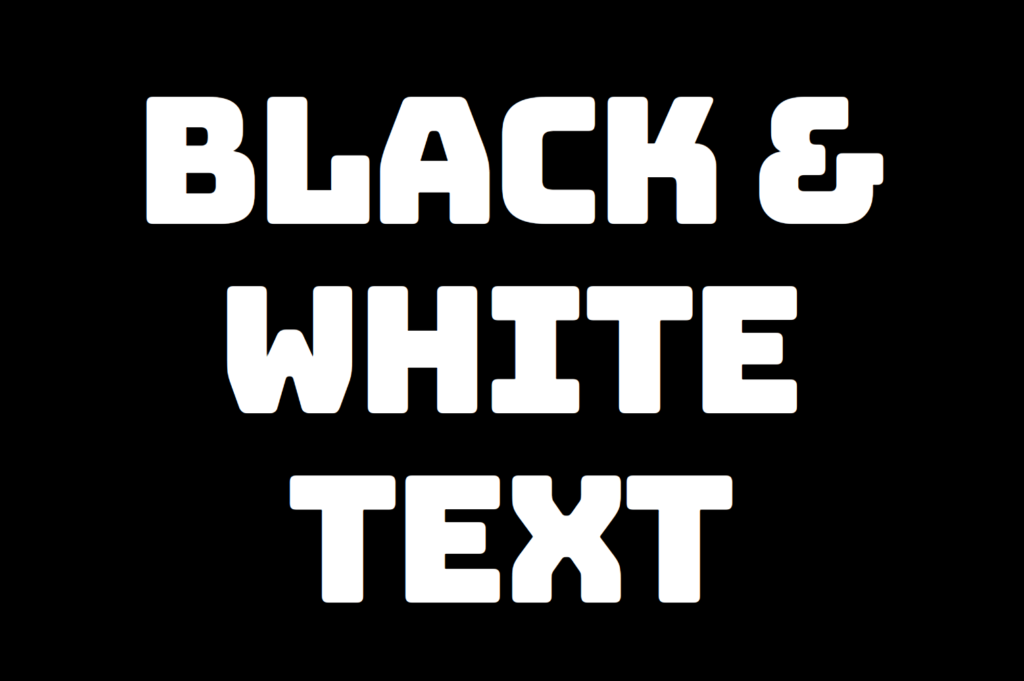
    By doing so, our heading is ready for applying our CSS stripes effect and should now look like this

    This image shows a white text with a black background

    Adding black and white vertical stripes

    Now that we have added our basic structure, we’ll create our stripe effect gradually, step by step, until it’s perfected. Let’s add the following styling

    .stripes-effect {
      ...
      background-image: linear-gradient(to right, white, black, ...);
      /* clips the background pattern */
      background-clip: text;
      /* makes text invisible */
      color: transparent;
    }
    CSS

    In our already existing .stripes-effect class, we have the following rules:

    background-image: linear-gradient(to right, white, black, ...) ➡ We begin by setting this CSS property that creates a background pattern using a gradient of alternating black and white stripes from left to right. The default direction is from top to bottom.

    This image shows a white text with black and white background that comes from the CSS property background-image: linear-gradient(to right, white, black, ...) CSS property.

    Don’t worry if our black-and-white text is hard to read; 🕯 😂 it is a temporary phase just to serve our purpose for now. We will move forward and see! So let’s proceed immediately! ⏳

    background-clip: text ➡ By adding this property, it clips the background pattern to the shape of the text, making the text appear as if it’s filled with black and white stripes. If we just add this property and leave our CSS settings without any other change, our effect will not show properly.

    This image shows that the browser clips the background when we set the -webkit-background-clip: text CSS property.

    If we want this to see our effect it is necessary to proceed with the following step (color: transparent ⬇).

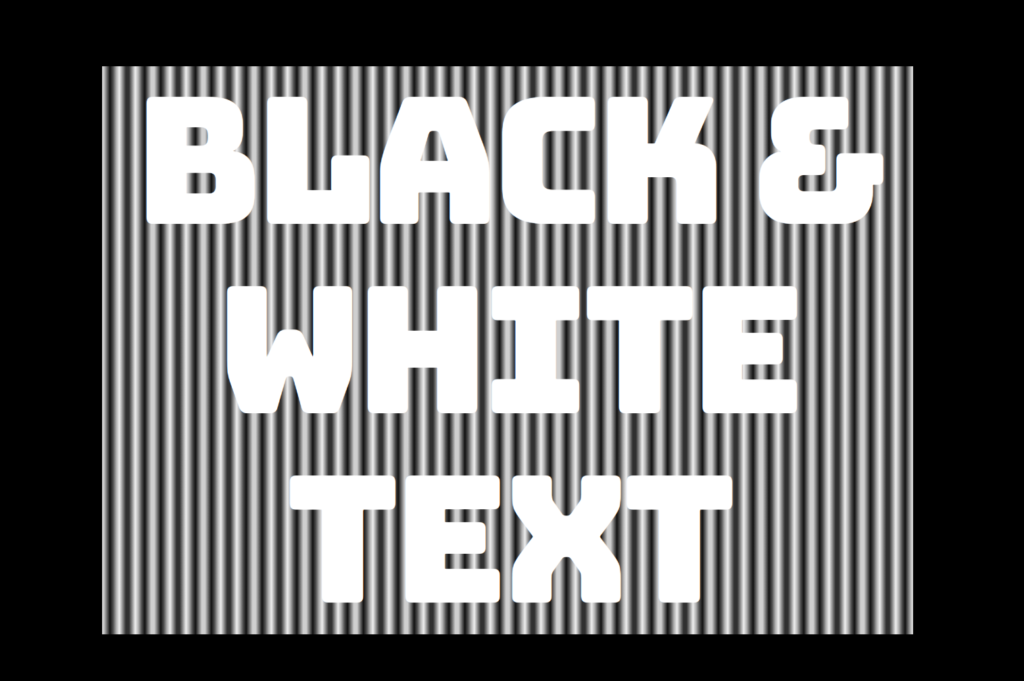
    color: transparent ➡ It’s time to make the text transparent, enabling the background pattern we created in the previous step to be visible!

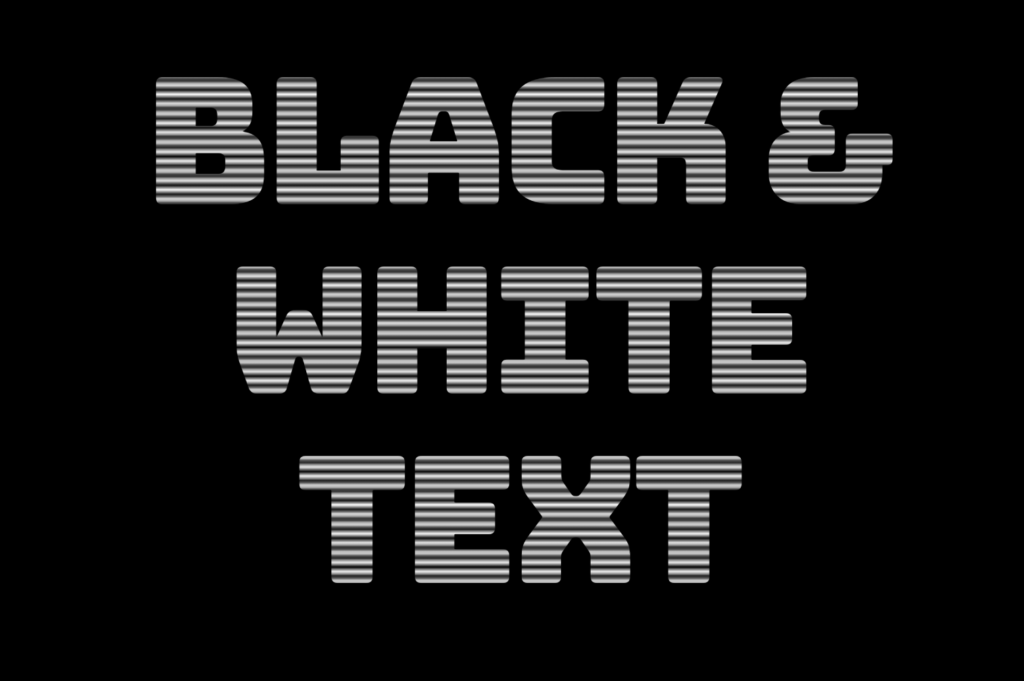
    This image shows the color: transparent CSS property. We now see our text having a black and white - css zebra effect.

    Black and white CSS stripes variations

    The Zebra effect is not limited to vertical stripes (linear-gradient) for your texts; you can explore more options and create any effect you want. Below, you will find some variations to give you the inspiration you need.

    Horizontal striped text

    .stripes-effect {
      ...
      background-image: linear-gradient(white, black, ...);
    }
    CSS
    This image shows the CSS stripes effect but with horizontal lines direction.

    Diagonal striped text

    .stripes-effect {
      ...
      background-image: linear-gradient(to bottom right white, black, ...);
    }
    CSS
    This image shows the black and white CSS stripes effect but with diagonal lines direction.
  • CSS Radial Gradient: How To Make Colorful Infinite Loops

    CSS Radial Gradient: How To Make Colorful Infinite Loops

    Greetings! 😃 Utilizing CSS radial gradient techniques is a remarkable approach for vibrant, colorful combinations. Gradients give us the liberty to choose any desired direction, defined by a clear starting and ending point. Using a minimum of two colors is essential, but we are free to blend even more based on our needs. This lets us achieve progressions or variations based on our specific requirements.

    In today’s post, we will analyze the captivating world of CSS radial gradient techniques. 🌈✨ Imagine colors coming out from a central point, spreading outwards in a circular fashion—an effect 🌀 that can truly elevate your design.

    Radial gradients offer a versatile approach to blending colors, creating central points or smooth transitions. By mastering radial gradients, you unlock the potential to infuse depth and excitement into your web design.

    Excited to learn more about this captivating technique? Let’s dive 🤿 right in! 💻

    Definition of a radial gradient

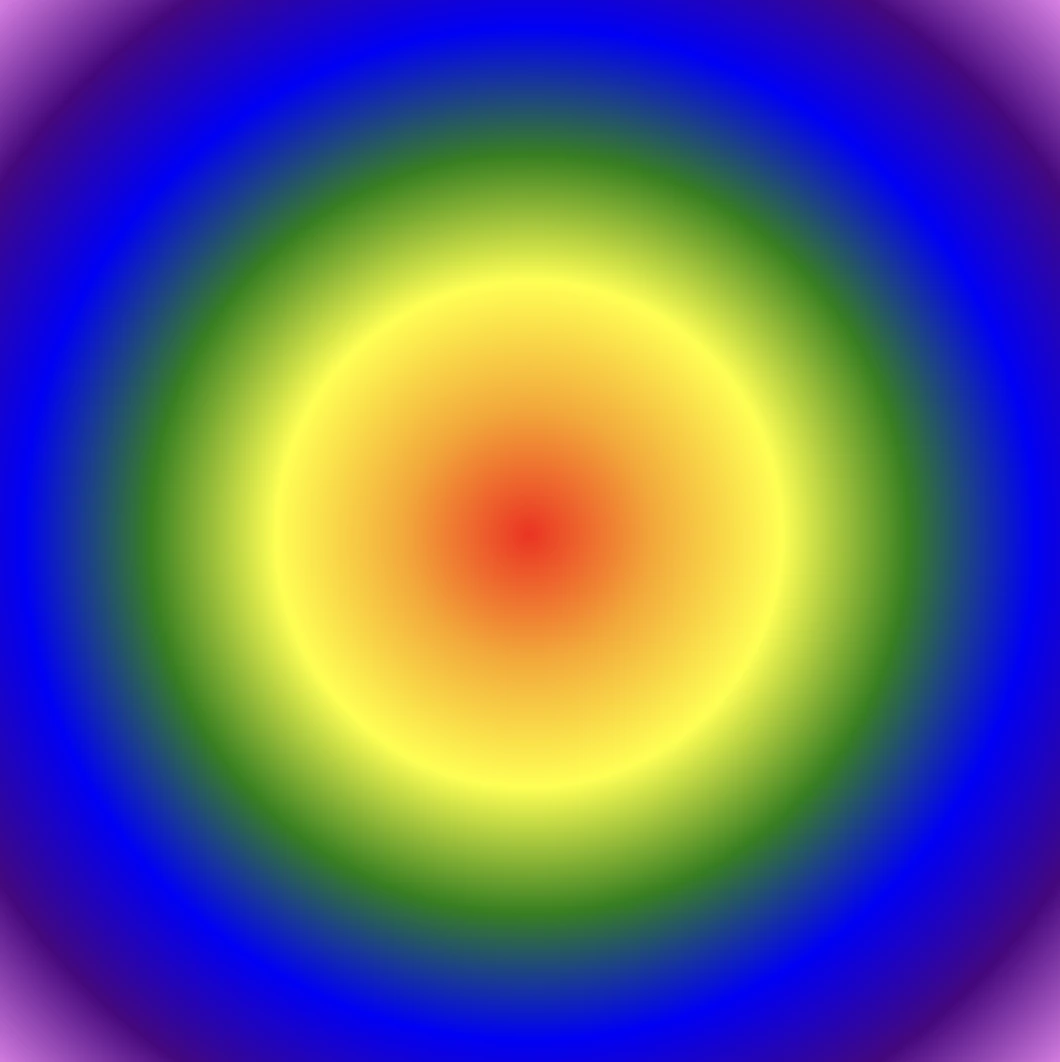
    A radial gradient is a visual effect in which colors blend outward from a central point, creating a smooth transition from one color to another in a circular or elliptical pattern. Circular ones spread colors outward from the center, evenly, making a symmetrical look. Elliptical ones also start from the center but stretch the colors toward the edges, creating an oval appearance.

    A radial gradient is a visual effect in which colors blend outward from a central point, creating a smooth transition from one color to another in a circular or elliptical pattern

    The default CSS radial gradient

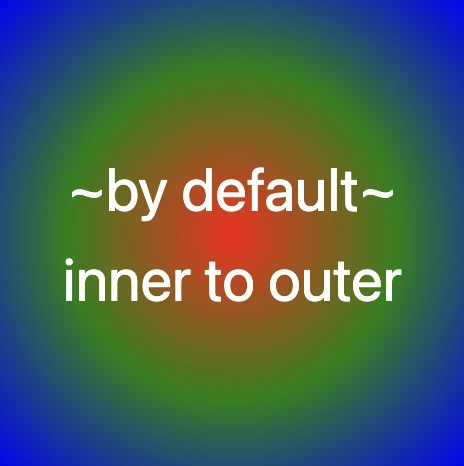
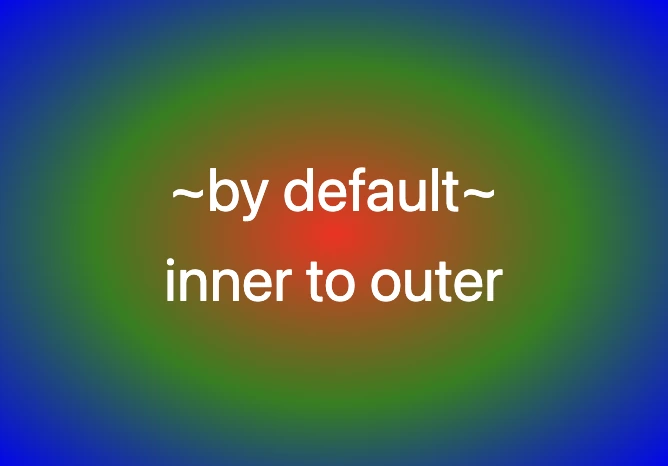
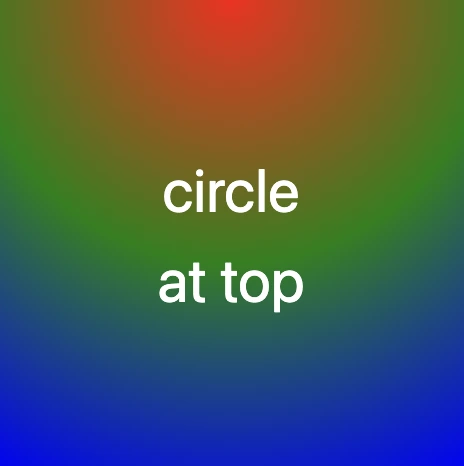
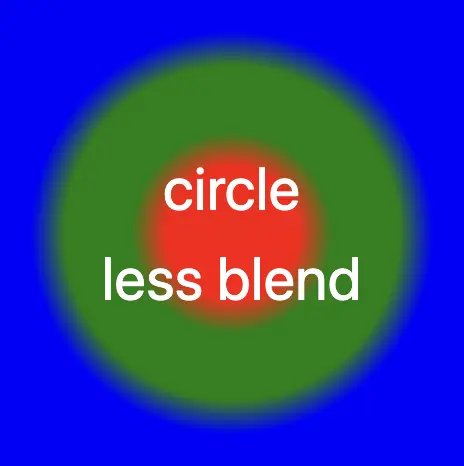
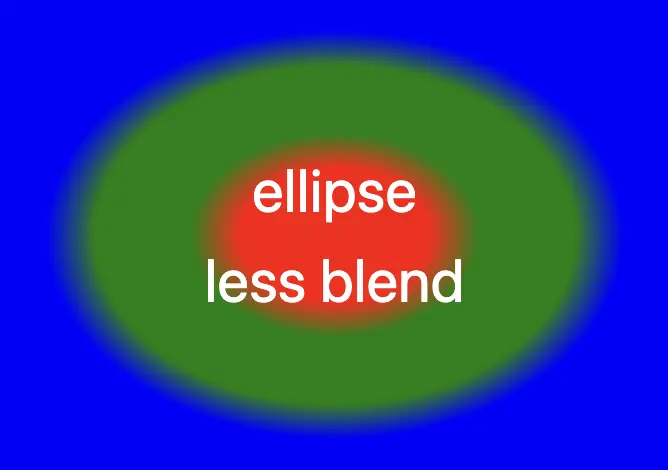
    We’ll start by exploring the default orientation for the radial gradient which starts in the center of our elements and spreads outward. To better understand, look at the following piece of code and the pictures that go with it.

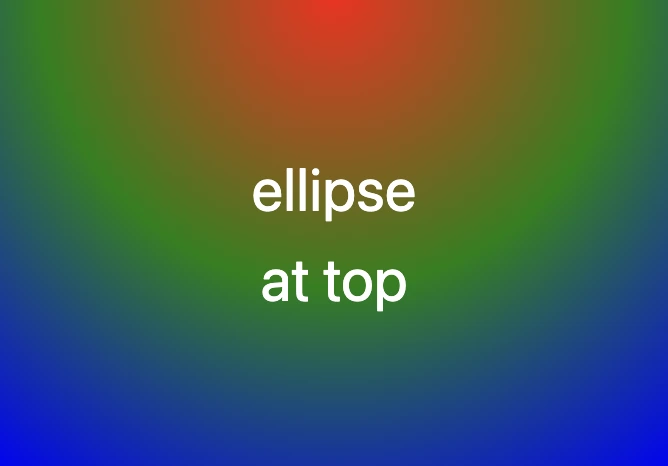
    The first picture shows a circle, while the second one depicts an ellipse.

    .radial-default {
      background-image: radial-gradient(red, green, blue);
    }
    
    /* circle default */
    .box-square {
      width: 240px;
      height: 240px;
    }
    
    /* elliptical default */
    .box-rectangle {
      width: 340px;
      height: 240px;
    }
    CSS

    Center at sides

    We can change the center of our element by setting circle at left , circle at top , circle at bottom and circle at right. To understand this better we’ve prepared an example. As before, the left picture relates to the circle, whereas the second one refers to the ellipse.

    .radial-at-side {
      background-image: radial-gradient(circle at top, red, green, blue);
    }
    
    /* circle default */
    .box-square {
      width: 240px;
      height: 240px;
    }
    
    /* elliptical default */
    .box-rectangle {
      width: 340px;
      height: 240px;
    }
    CSS

    Center at corners

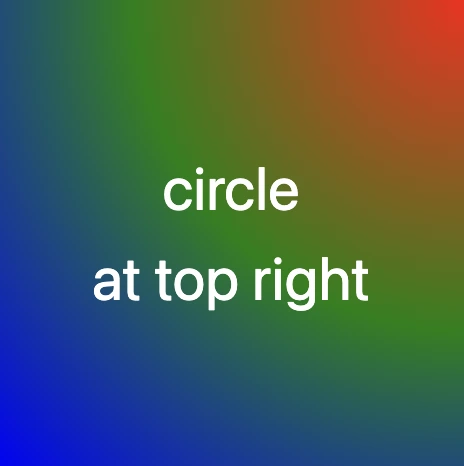
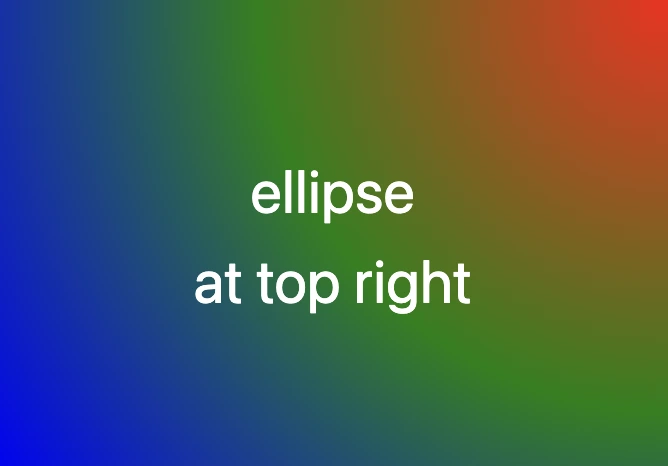
    Also, the diagonal direction of our circle can change if we combine any corner with its adjacent sides.

    .radial-at-corner {
      background-image: radial-gradient(circle at top right, red, green, blue);
    }
    
    /* circle default */
    .box-square {
      width: 240px;
      height: 240px;
    }
    
    /* elliptical default */
    .box-rectangle {
      width: 340px;
      height: 240px;
    }
    CSS

    CSS Radial gradient using %

    With less blend

    We are also up to play with the blend we want to create. In the following example, the gradient blends between various colors in a circular pattern, it begins with red at the center, transitioning to green, then blue, purple, and finally orange at the outer edge.

    .radial-less-blend {
      background-image: radial-gradient(
        red 0%, red 20%, 
        green 30%, green 50%, 
        blue 60%, blue 100%
      );
    }
    
    /* circle default */
    .box-square {
      width: 240px;
      height: 240px;
    }
    
    /* elliptical default */
    .box-rectangle {
      width: 340px;
      height: 240px;
    }
    CSS

    🕵️‍♂️ In this example, I’ve divided the space into 3 sections. I left a 10% blend in each space in order to create a smooth small transition. The percentages between the color stops, determine how smoothly the transition between colors happens.

    • Red (0%-20%): The gradient starts at the center (0%) with the red color.
    • Red to Green (20%-30%): Within this radial range, there is a subtle transition from red to green, creating a visually appealing blend.
    • Green (30%-50%): the gradient takes a solid green color.
    • Green to Blue (50%-60%): Between this radial distance, there’s a gentle transition from green to blue.
    • Blue (60%-100%): Finally, the gradient concludes with a blue hue, providing a vibrant and visually striking finish.

    Without blend

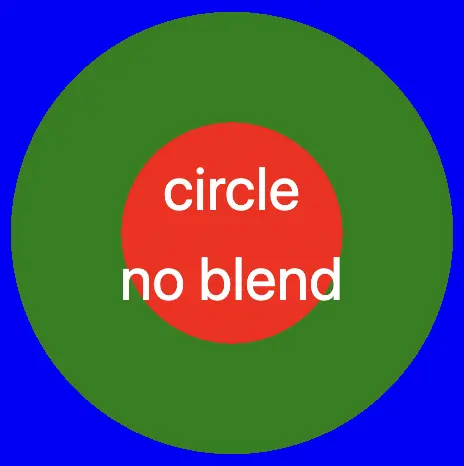
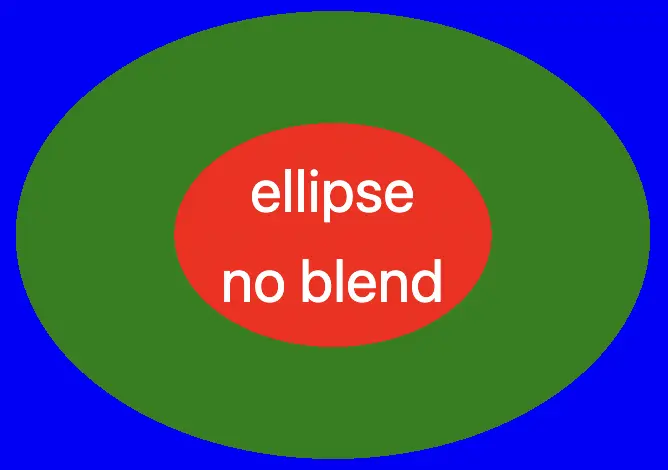
    We also have the option to make non-blend gradients. As you can see below, the gradient consists of multiple color stops, transitioning from red to orange in a radial pattern, like colorful rings. Each color is assigned to specific percentage intervals, creating a visually appealing gradient effect.

    .radial-no-blend {
      background-image: radial-gradient(
        red 0%, red 33%, 
        green 33%, green 66%, 
        blue 66%, blue 100%
      );
    }
    
    /* circle default */
    .box-square {
      width: 240px;
      height: 240px;
    }
    
    /* elliptical default */
    .box-rectangle {
      width: 340px;
      height: 240px;
    }
    CSS

    🕵️‍♂️ In this example, I’ve divided the space into 3 sections. There is no blending among them. We can see a shape like a target, 🎯 that creates clear bands of sharp colors.

    • Red: Starts at 0% and ends at 33%.
    • Green: Starts at 33% and ends at 66%.
    • Blue: Starts at 66% and ends at 100%.
  • CSS Colorful Text – Crafting Vibrant Effects

    CSS Colorful Text – Crafting Vibrant Effects

    Hello, everybody 😃 Get ready to add a vibrant twist to your web designs with my latest post on fonts. In this post, we’ll explore the fascinating world of typography, sharing clever ways to add a burst of colors, outlines, shadows, and CSS colorful text. Whether we are looking to level up designs or experiment with CSS, this post provides the inspiration and know-how to make texts truly stand out on your screen. Stay tuned for an amazing journey into the art of CSS typography! 🌈✨

    We already know the color CSS property. When setting the text color, we’re setting the color of the text itself. In contrast, setting the background-color sets the background color behind the text. But what if we want a more challenging font? Can we do that? Absolutely!

    Below, I prepared an example as a way to make it more understandable. Enjoy! 💻

    Preparing our HTML and CSS structure

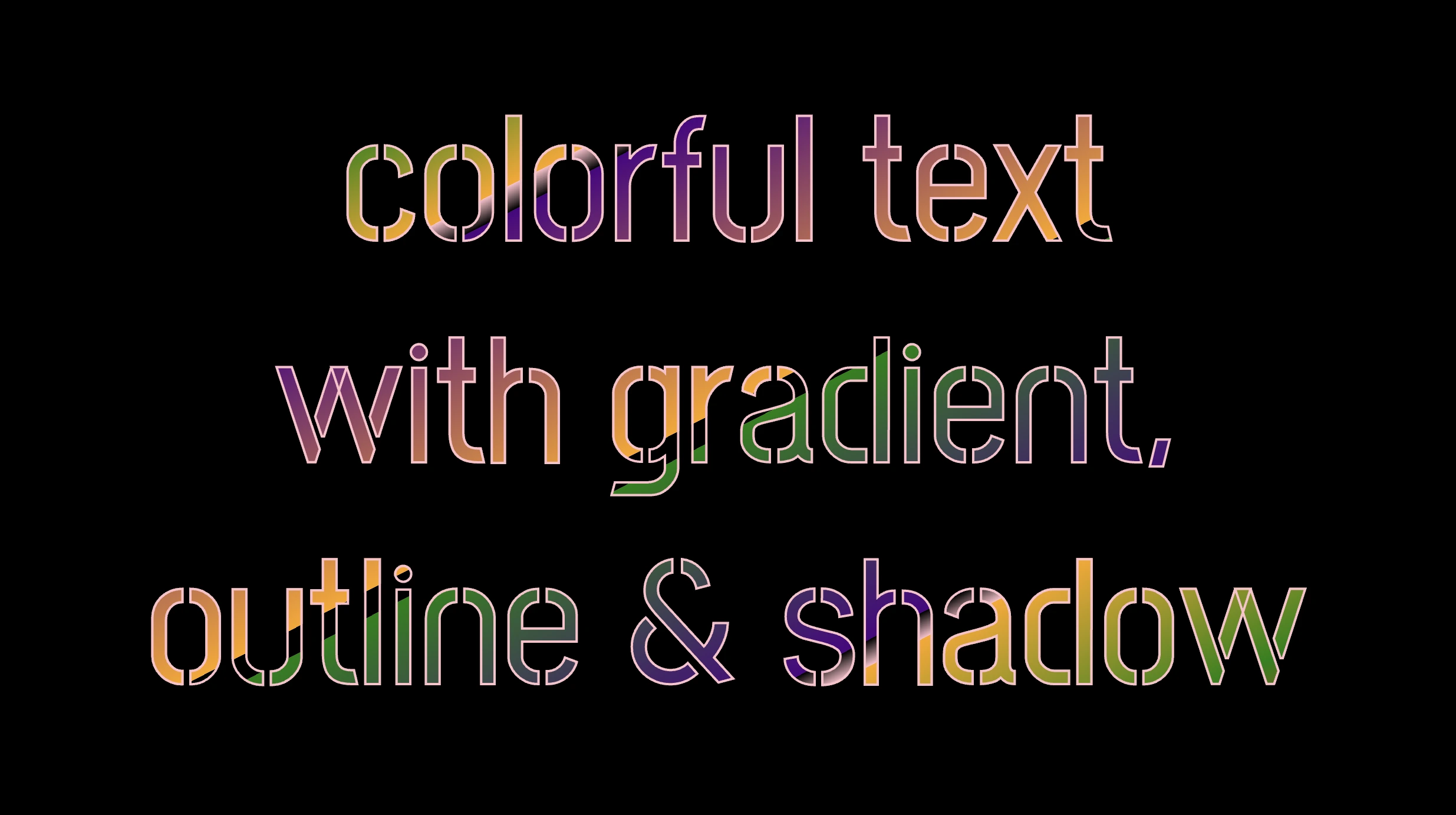
    The following code creates a colorful text with gradient, outline, and shadow. We will start with our HTML structure. Our body has background-color: black. Inside, we make an HTML div element that serves as a container for our text and has a class attribute named font-effects.

    <body>
      <div class="font-effects">
        colorful text with gradient, outline & shadow is so impressive
      </div>
    </body>
    HTML

    Next, let’s proceed with our CSS structure. The font-effects class contains the rules applied to the HTML element mentioned earlier. We’ll provide a thorough examination of these rules as we progress through this post. For now, it’s important to note that our text has color white, our body has background-color black, and we’ve also integrated (@import url(...)) a font-family of Google Fonts.

    Ensure this statement is placed at the beginning of your CSS code snippet, just like I did (check line 2).

    /* insert google fonts */
    @import url(
      'https://fonts.googleapis.com/css2?family=Stick No Bills'
    );
    
    body {
      background-color: black;
    }
    
    .font-combinations {
      width: 1100px;
      font-size: 150px;
      color: white;
      font-family: 'Stick No Bills', sans-serif;
      text-align: center;
    }
    CSS

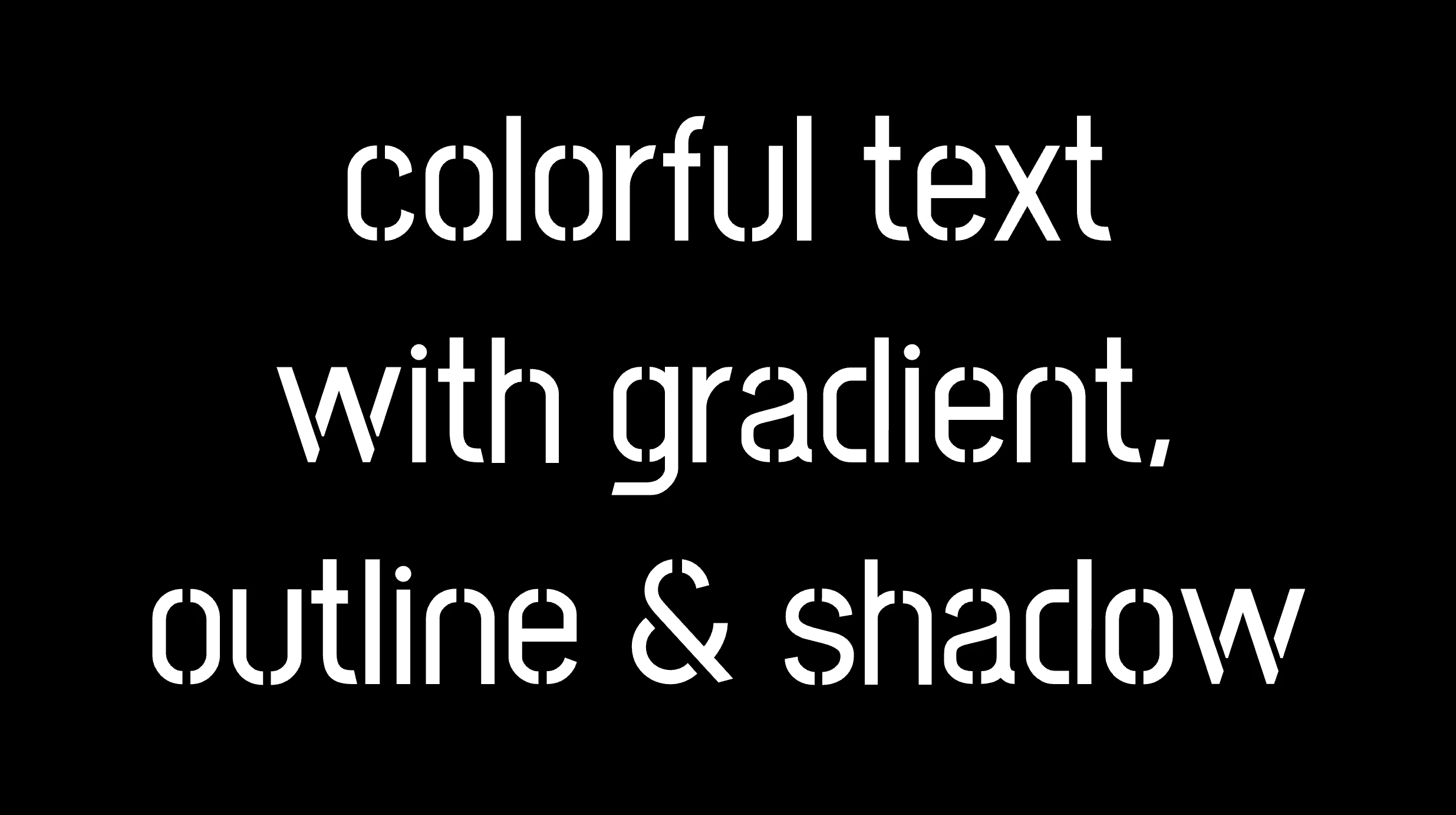
    The following image shows what is rendered on the screen now.

    Explaining the CSS colorful text effect

    Inside the .font-effects style rules, we include the following instructions to create these amazing fonts:

    .font-combinations {
      ...
      /* adding colors */
      background-image: linear-gradient(
        to right bottom, red 0, green 15%, orange 25%, pink 25%,
        transparent 27%, indigo 27%, orange 50%, black 50%,
        transparent 52%, green 52%, indigo 73%,
        transparent 73%, pink 75%, orange 75%, green 90%,
        red 100%
      );
      /* Makes the text shape match the background */
      -webkit-background-clip: text;
      color: transparent;
        /* adding outline to text */
      -webkit-text-stroke-width: 1px;
      -webkit-text-stroke-color: pink;
      /* adding shadow to text */
      filter: drop-shadow(-2px 2px 2px rgba(250, 190, 210, 0.8));
    }
    CSS

    Adding the linear gradient effect

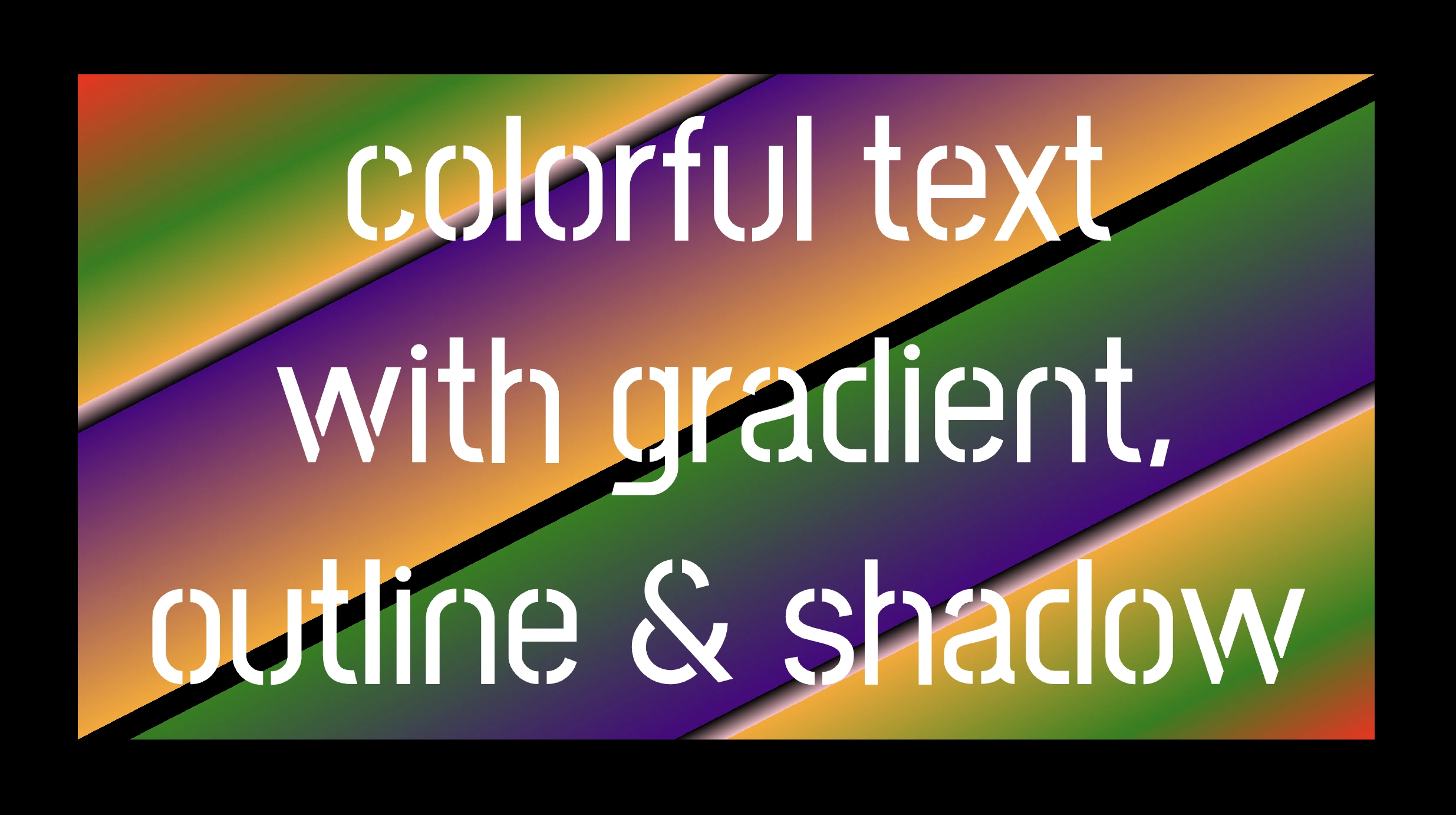
    background-image: linear-gradient(...) ➡ This CSS rule creates a background gradient using the linear-gradient function. The gradient begins with red, transitions to green, and then shifts to orange. It then transitions to pink, becomes transparent, then indigo, returns orange becomes transparent once more, shifts to green, then indigo, then transparent again, returns to pink, then orange for the third time, then green, and finally returns red again.

    Remember that this gradient will be used as the background for our text. Isn’t this awesome? 😎

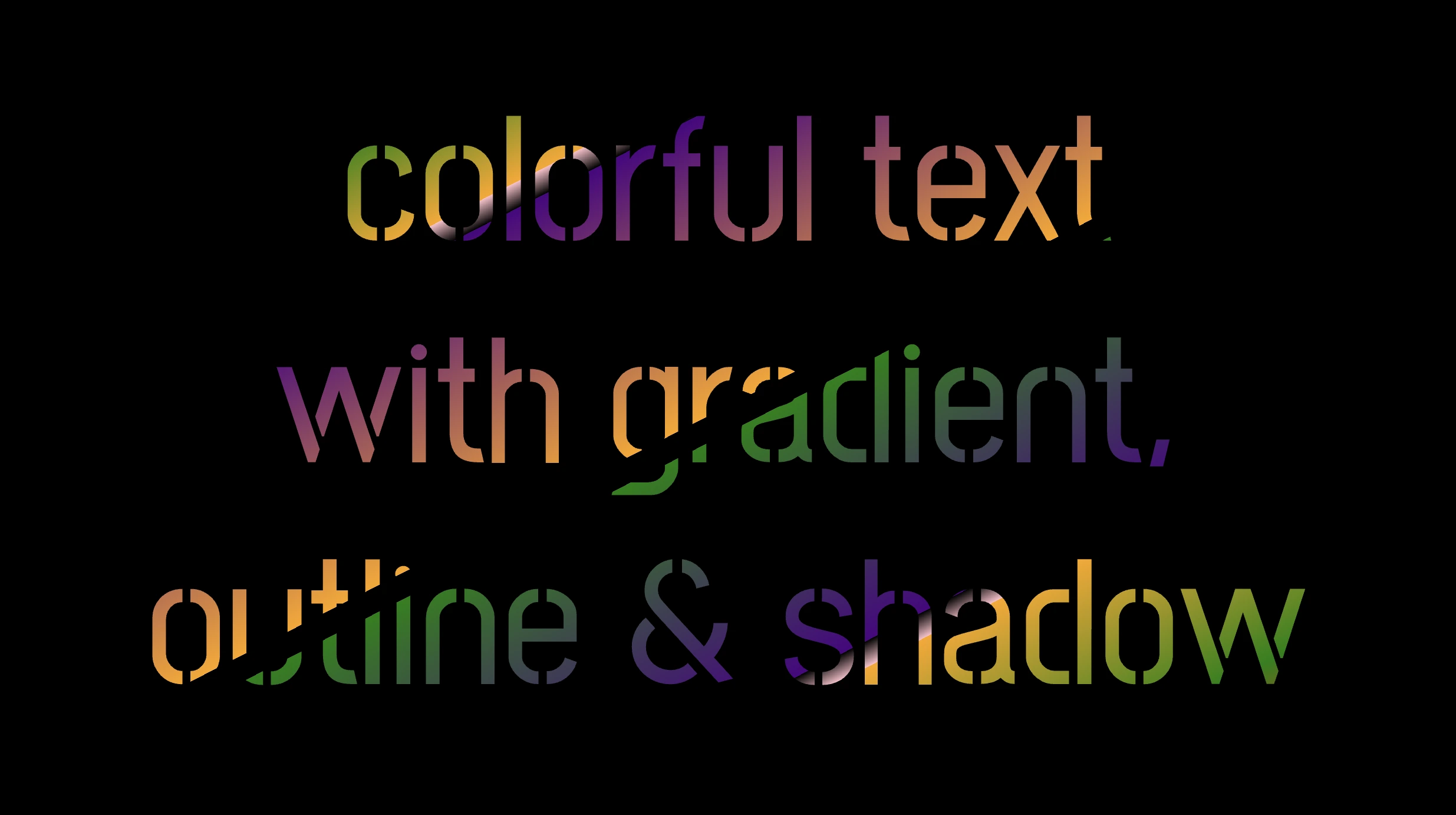
    -webkit-background-clip: text ➡ We continue with this CSS rule that tells the browser to clip the background gradient to the shape of the text. We are not ready yet to see the colorful background as text. 😕 We just prepared the space (fonts). Don’t worry we will proceed with our work and see the amazing result! 😉

    color: transparent ➡ This CSS rule makes the actual text content transparent. This allows the colorful gradient to show through the text 🥳, and there it 🥁 is!

    Adding the outline effect

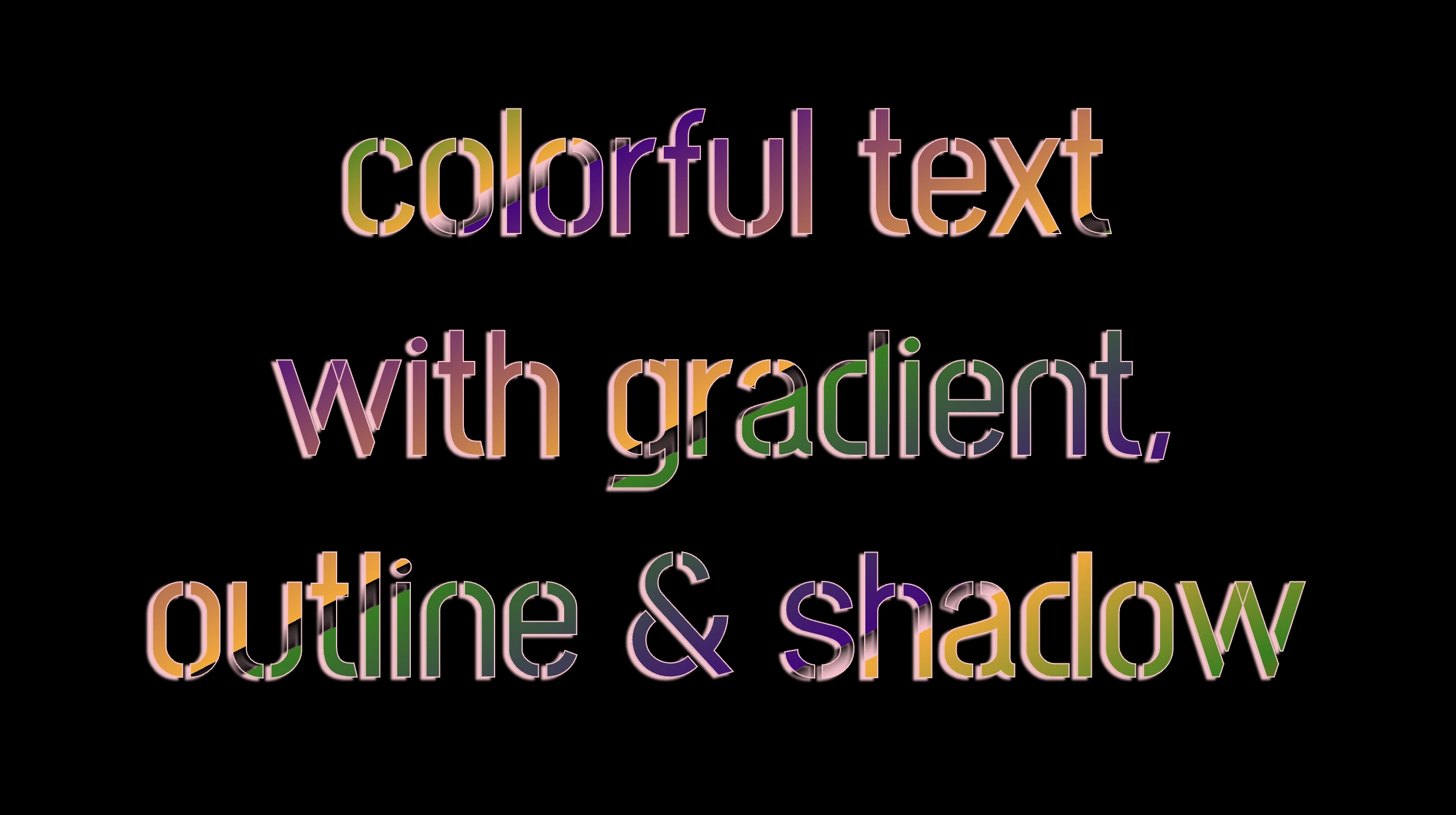
    -webkit-text-stroke: 2px red ➡ Then we add a pink outline or stroke with a width of 2 pixels. This makes the text more visible against the background gradient.

    🔖 We are free to write it more analytically setting the following two CSS properties -webkit-text-stroke-width and -webkit-text-stroke-color. It’s up to you!

    Applying the shadow effect

    filter: drop-shadow(-2px 2px 2px rgb(250, 190, 210, 0.8)) ➡ To finalize our work we add a shadow to the entire section, with an offset of -2 pixels to the left, 2 pixels down, a blur radius of 2 pixels, and a subtle pink shadow rgba(10, 10, 10, 0.8). This deep shadow adds a subtle but noticeable darkening effect to our text.

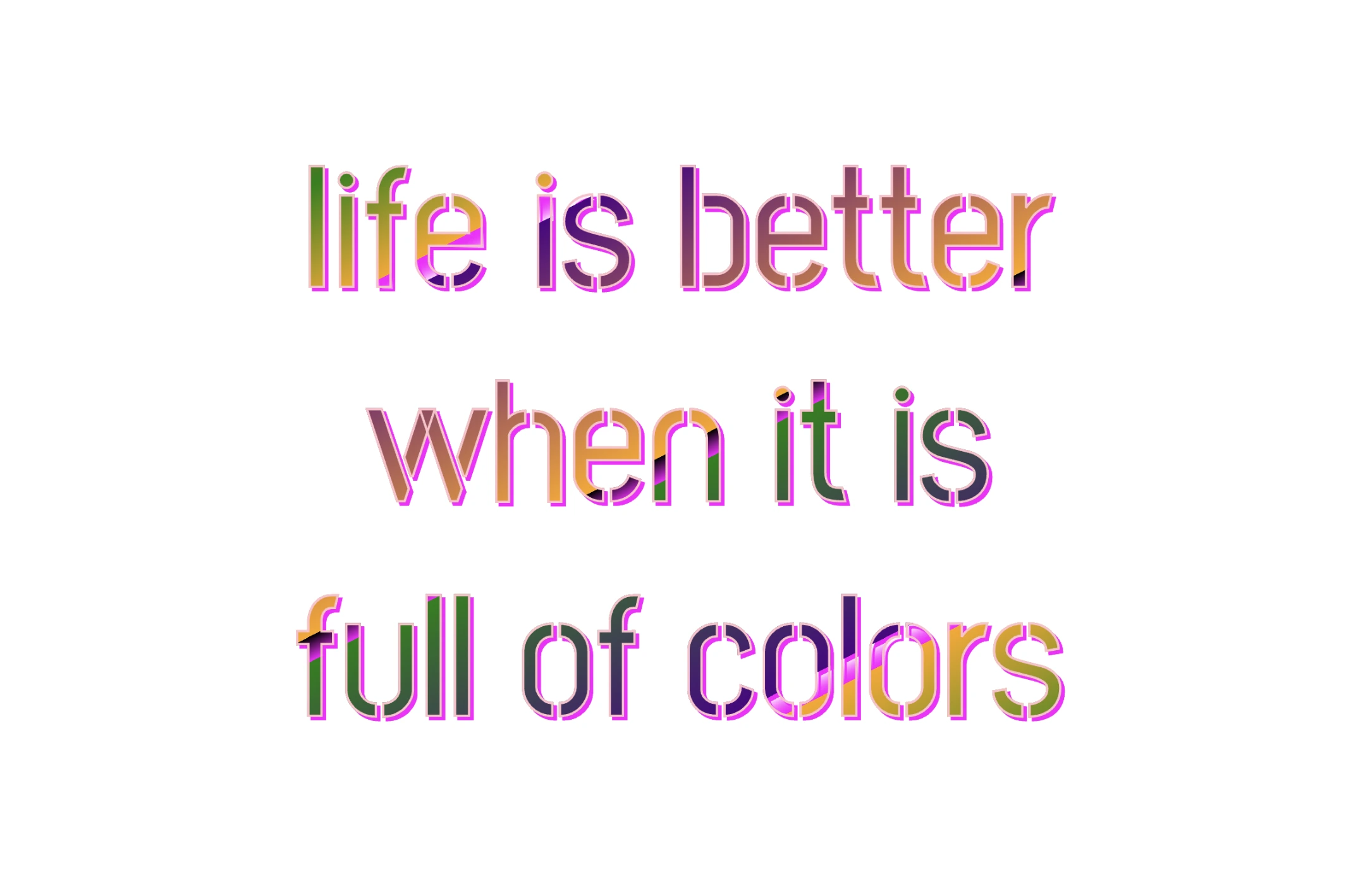
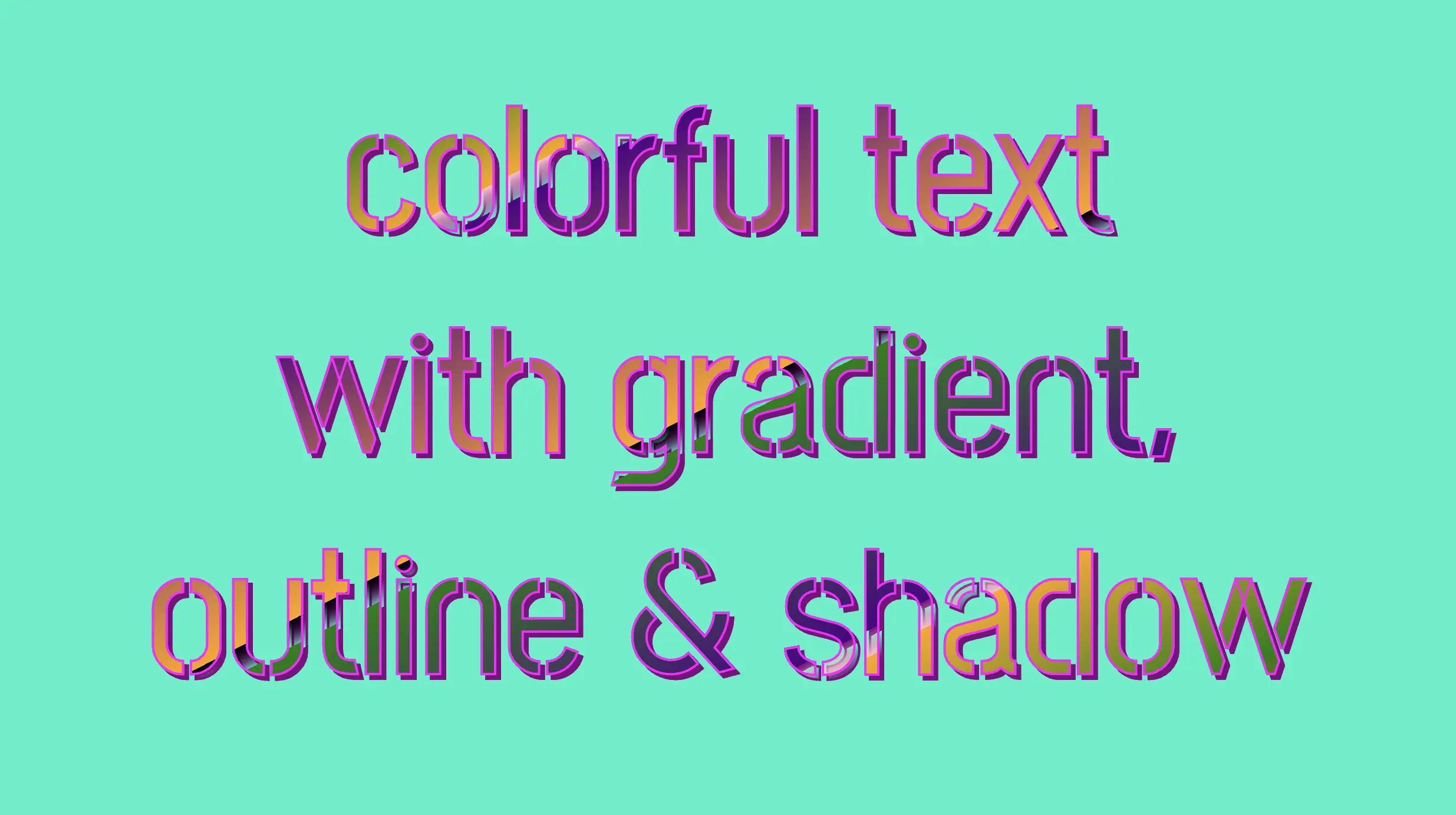
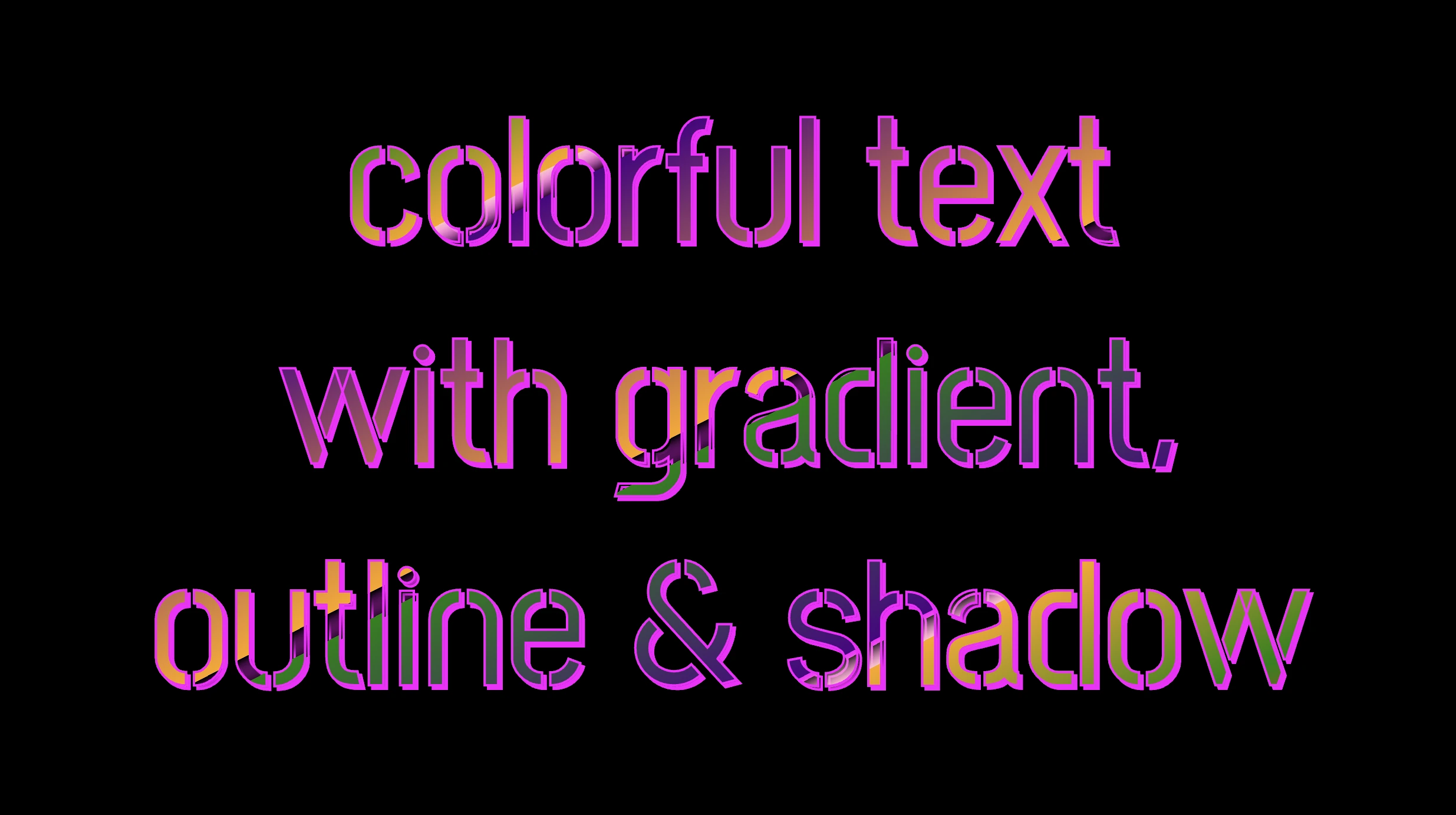
    To infuse our text with a touch of fantasy and vibrance 🎉 ✨, we can use a brighter color for the outline and change the shadow to match. For example, we could create a vivid or dark background as a way to create contrast and then swap out the pink outline and shadow for a more vibrant magenta. In the picture below, you can see how these small changes make a big difference, giving a more colorful and bright result.

  • CSS Text Outline: How To Make Amazing Outlined Texts

    CSS Text Outline: How To Make Amazing Outlined Texts

    Hello, there 😃 Let’s step into a digital world where CSS brings forth the captivating CSS text outline effect. It’s a simple yet powerful technique that adds structure and clarity to texts and elements.

    Let’s dive into how CSS outlines 🖋 can make a significant difference in the visual appeal of your website. 💻 🫧

    Create basic HTML and CSS structure

    As a first step, we need some basic HTML structure to apply our CSS stylings.

    <body>
      <div class="outline-effect">outline effect</div>
    </body>
    HTML
    /* insert google fonts */
    @import url(
      'https://fonts.googleapis.com/css2?family=Emilys+Candy&display=swap'
    );
    
    body {
      background-color: purple;
    }
    
    .outline-effect {
      width: 650px;
      font-size: 180px;
      text-align: center;
      font-family: 'Emilys Candy', cursive;
    }
    CSS

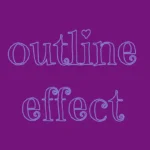
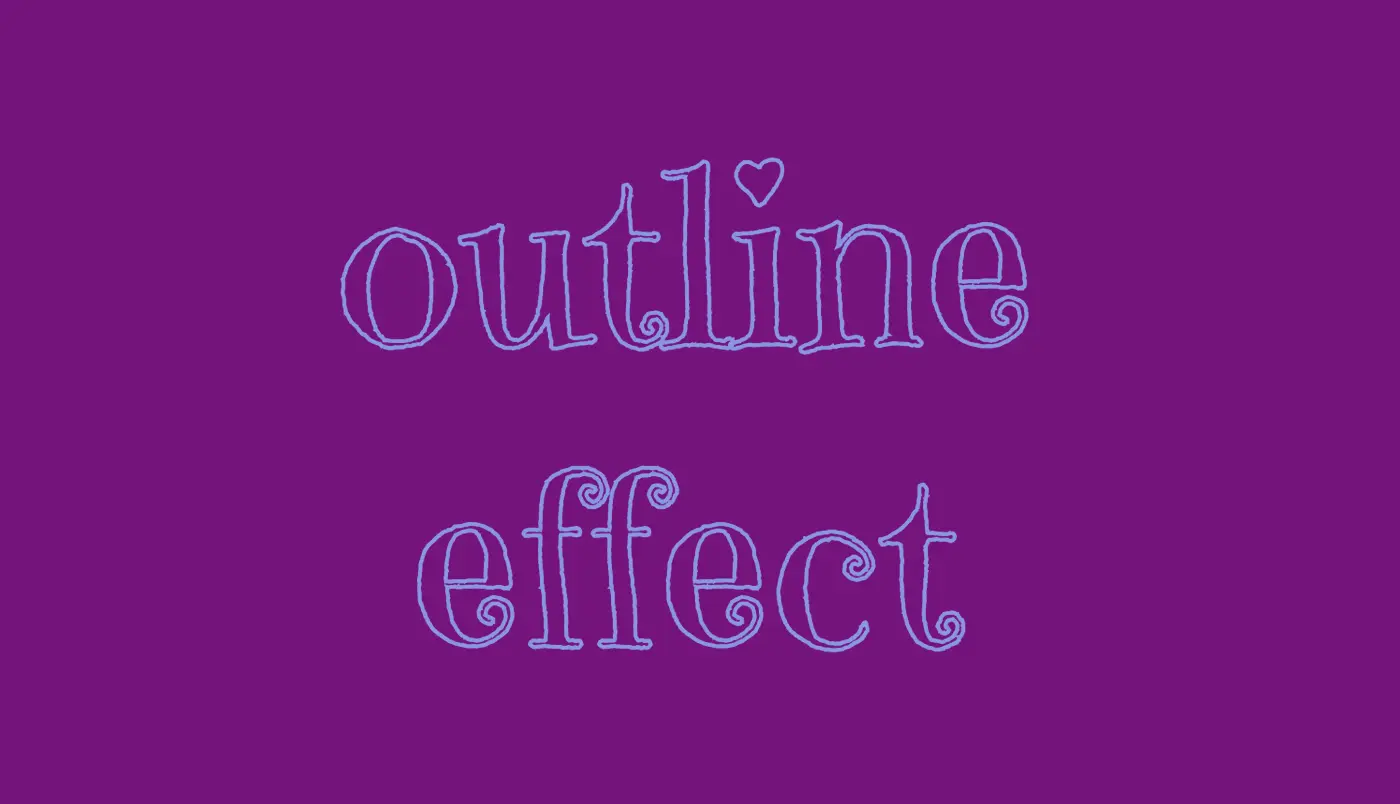
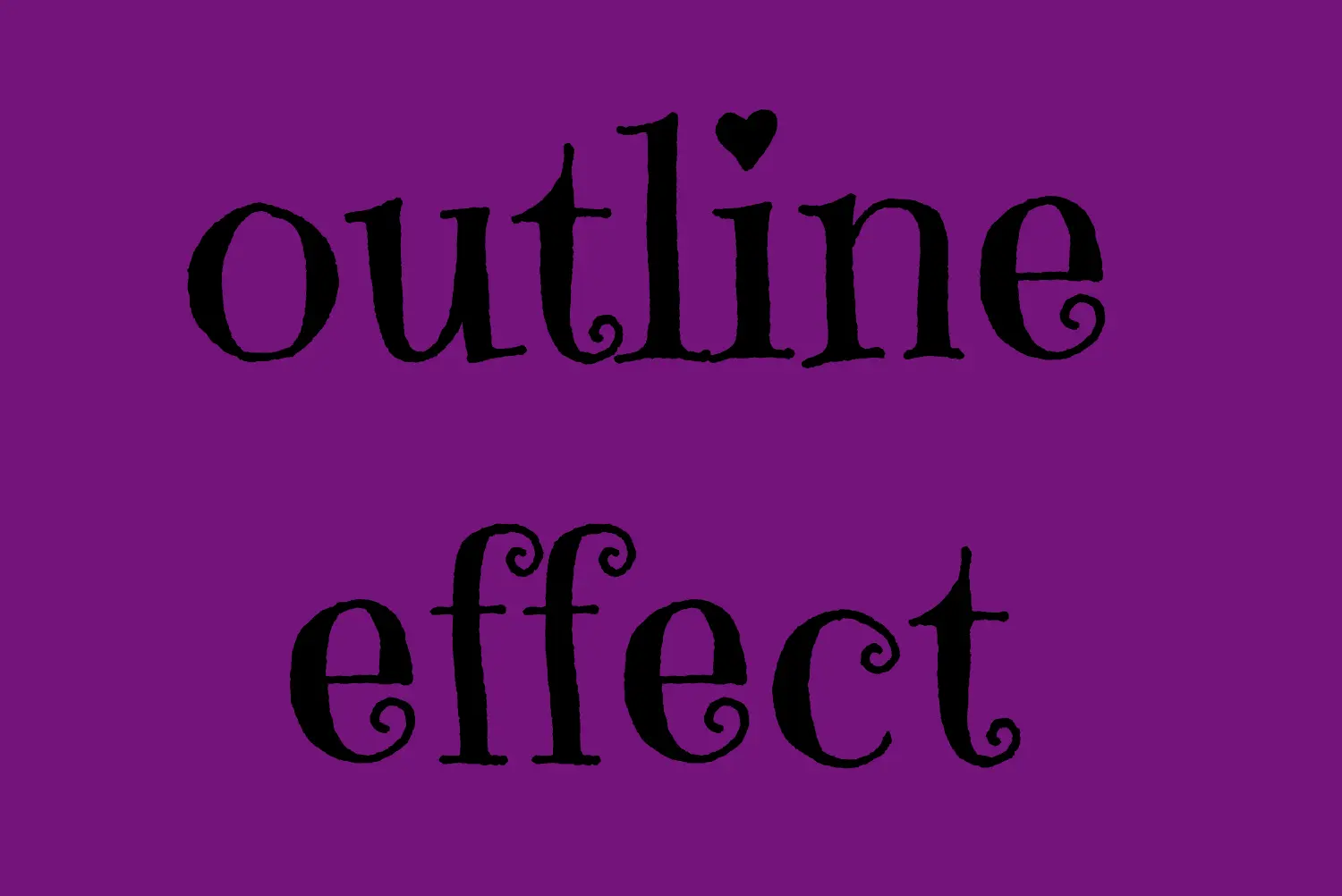
    Let’s see what we have done so far. I have chosen a vibrant purple color for our background while keeping the text in the default black color. Our text is set to 180px, perfectly aligned to the center.

    To give a playful and lively vibe to our design, I’ve chosen the “Emily Candy” font-family which adds a delightful touch. If you also intend to use this font family, importing it into your CSS file is essential. Ensure the @import statement is placed at the beginning of your CSS code snippet, just like I did (check above lines 2-4).

    In the image below, you can see the current rendering on the screen up to this point.

    Apply the CSS text outline effect

    .outline-effect {
      ...
      text-stroke: 2px #8695e9; // medium blue shade
      color: transparent;
    }
    CSS

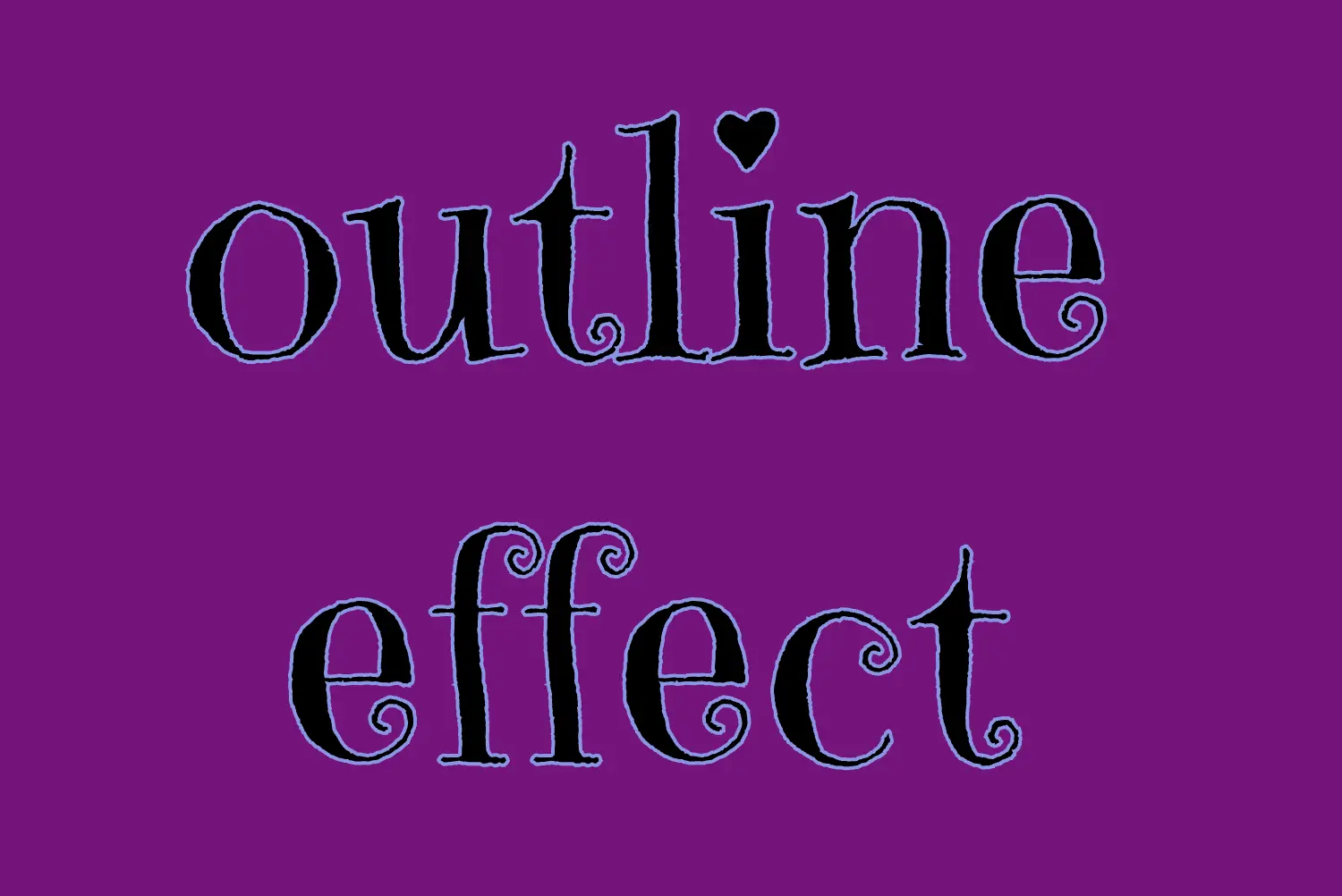
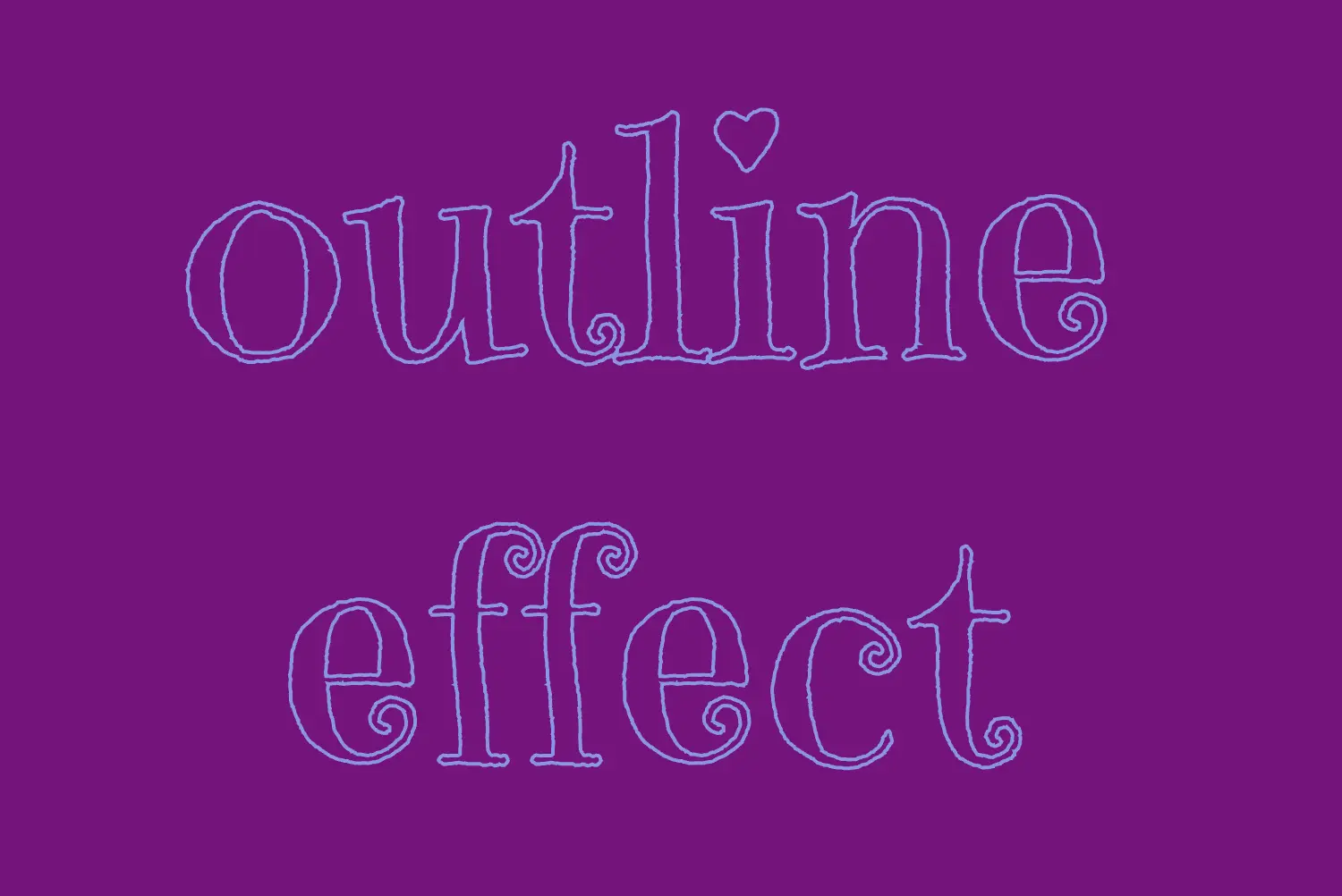
    The first thing we have to do is set the text-stoke property which represents a specific style line. Here, in our example, the text should have a light to medium blue color (#8695e9) outline with 2 pixels wide. Remember that as we increase the pixels, the outline becomes wider.

    🔖 It’s useful to know that we can split the text-stroke property in two: text-stroke-width and text-stroke-color.

    /* 1st choice */
      text-stroke: 2px #8695e9;
    
    /* 2nd choice */
      text-stroke-width: 2px;
      text-stroke-color:  #8695e9;
    CSS

    (Personally, I opt for the shortened form, saving time and extra lines of code, but the choice is yours. 🙂)

    Finally, by adding color: transparent we complete our effect by allowing the background to show through.

    To sum up, this code styles a piece of text with a see-through center and a visible 2px blue outline. It’s simple yet impressive 🎈 ✨

  • What You Need to Know About CSS Color Methods

    What You Need to Know About CSS Color Methods

    Welcome to the vibrant 🎡 world of colors! The CSS color property is one of the most creative building blocks of web design. Whether you want to create a visually stunning user interface or simply add a touch of flair to your project, understanding the variation of colors will empower you to paint your digital canvas with endless possibilities. In this post, we’ll dive into CSS color methods and explore their syntax and formats. Let’s embark on this chromatic journey together! 🌈✨

    Exploring CSS color methods

    Most colors have a predefined name, allowing us to easily declare them by referencing their designated names. For instance, if we desire a blue color, we can do so by setting background-color: blue.

    CSS color methods: This image shows a box with color blue. In the center it has the title 'blue'.

    Apart from names, we can declare colors by setting the values HEX , RGB , and HSL.

    HEX color method

    A hexadecimal (HEX) color is stated with #RRGGBB where RR represents the red color, GG stands for the green color, and BB acts for the blue color. In the example below, we can see that the HEX value for pure blue is #0000FF , where the first two ’00’ represent no red and the second two ’00’ represent no green, while ‘FF’ indicates the maximum intensity of blue color. So, at this point, is the right time to say that ’00’ stands for zero and represents the absence or off state, while ‘FF’ stands for the highest value and represents full intensity or the presence of all components.

    Hexadecimal syntax supports using from 3 to 6 letters in order to denote RGB color combinations. As you may have already guessed, using less letter syntax reduces our color combinations, that’s why it’s mostly common to see 6-digit hexadecimal system when working on projects. In our example, we could write #00F instead of #0000FF.

    🔖 It is essential to note that hexadecimal color works only if we add the # in front of it.

    CSS color methods: This image shows a box with color blue. In the center it has the title: hex #0000ff.

    🔖 This 6-digit format for RGB colors (#rrggbb), can be extended to 8 digits to include an alpha channel, where the last two digits (00 to ff) represent the alpha value, with 00 being fully transparent and ff being fully opaque.
    Hexadecimal numbers use digits 0-9 and letters a-f. They represent numbers in a base-16 system.
    🔹 Higher aa values (closer to ff or ee, etc.) mean less see-through colors.
    🔹 Lower aa values (closer to 00 or 11, etc.) mean more see-through colors.

    CSS color methods: This image shows a box with a shade of color blue. In the center it has the title: #0000ff1a. That means we have a blue color with almost full (0.1) opacity.
    CSS color methods: This image shows a box with a shade of color blue. In the center it has the title: #0000ff80. That means we have a blue color with half (0.5) opacity.
    CSS color methods: This image shows a box with a shade of color blue. In the center it has the title: #0000ffe6. That means we have a blue color with almost none (0.9) opacity.

    RGB color method

    The RGB color model is a way of defining colors using red (R), green (G), and blue (B) values. These values go from 0 to 255, or you can use percentages from 0% to 100%. This gives us loads of different shades to play with!

    Each value determines how strong that color should be. When the values are at ‘0’ or ‘0%’, it means the color is completely off, like it’s not there at all. But when they’re set to ‘255’ or ‘100%’, the color is at its maximum power or indicates the highest achievable intensity level. Cool, right? 😎

    By skillfully combining them, we open up a plethora of possibilities, allowing us to create captivating color combinations.

    Below, we see an example of the RGB color model for the color blue. The intensity of red and green is set to 0, and the intensity of blue is set to its maximum value of 255, resulting in pure blue color. In terms of percentages, it would be rgb(0%, 0%, 100%).

    CSS color methods: This image shows a box with color blue. In the center it has the title: rgb(0, 0, 255).

    🔖 This function also allows us to add the alpha value (a) responsible for our color’s opacity (transparency), but this time written in a different way. It ranges from 0.0, which is fully transparent, to 1.0, which represents full color.

    CSS color methods: This image shows a box with a shade of color blue. In the center it has the title: rgba(0, 0, 255, 0.1). That means we have a blue color with 0.1 opacity.
    CSS color methods: This image shows a box with a shade of color blue. In the center it has the title: rgba(0, 0, 255, 0.5). That means we have a blue color with 0.5 opacity.
    CSS color methods: This image shows a box with a shade of color blue. In the center it has the title: rgba(0, 0, 255, 0.9). That means we have a blue color with 0.9 opacity.

    HSL color method

    The HSL is another cool way to define colors. It consists of three parts that work together. So, let’s break it down!

    The first part is hue (H), which is a number on a color 🎨 wheel. It goes from 0 to 360, where red is 360, green is 120, and blue is 240. So, you can pick any hue you want, and it’ll give you a different color.

    The second part is saturation (S). This one controls how vibrant the color is. When it’s at 0%, the color becomes grayish, but when it’s turned on at 100%, you get the boldest, brightest color!

    And finally, we’ve got lightness (L). This guy decides how light or dark the color should be. At 0%, it’s dark as black; 50% is the regular normal color, and at 100%, it’s bright as white.

    Combining all the parts we can effortlessly create a myriad of captivating color 🍭 combinations.

    Above is an example of the HSL color model for the color blue. We begin with the hue value of 240 degrees, which corresponds to the blue color on the HSL color wheel. The saturation is set to 100%, meaning it is fully saturated and vivid. The lightness is set to 50%, which represents a mid-level brightness for the blue color.

    CSS color methods: This image shows a box with color blue. In the center it has the title: hsl(240, 100%, 50%).

    🔖 This function also includes the alpha (a) component which controls opacity (transparency) and is written in the same way as rgb(), a number between 0.0, fully transparent, and 1.0, which gives a clear color.

    CSS color methods: This image shows a box with a shade of color blue. In the center it has the title: hsla(240, 100%, 50%, 0.1). That means we have a blue color with 0.5 opacity.
    CSS color methods: This image shows a box with a shade of color blue. In the center it has the title: hsla(240, 100%, 50%, 0.5). That means we have a blue color with 0.5 opacity.
    CSS color methods: This image shows a box with a shade of color blue. In the center it has the title: hsla(240, 100%, 50%, 0.9). That means we have a blue color with 0.9 opacity.

    Defining colors in CSS

    In CSS, colors can be defined in three primary ways, each serving a specific purpose.

    • The first way is used to change the color of the text. This is achieved through the color property.
    • We continue with the second one, which focuses on adding color to the background by utilizing the background-color property.
    • Finally, the third way revolves around defining colors for element borders, providing them with a distinct and visually appealing appearance. This is accomplished by setting the border-color property. If you’d like to learn more, check out my post on creative ways to style CSS borders.

    Explore different color combinations and properties to create a user experience that matches your design vision. For now, check out a simple example that follows:

    <div class="container">
      <h1>Goodbye</h1>
      <p>Hope to see you around again! 😀</p>
    </div>
    HTML
    body {
      text-align: center;
      background-color: #0000ff;
    }
    
    .container {
      /* border-width border-style border-color */
      border: 30px solid #00ff00;
    }
    
    h1,
    p {
      color: white;
    }
    CSS

    Not too cool 💫 for the eyes 😵‍💫 but still, it works for our example 😄

    CSS color methods: This image shows a box with three colors. Background blue, border green and white text. The text is centered and says 'Goodbye Hope to see you around again! 😀(smiling face)'.