Tag: CSS selectors

Simple explanations of CSS selectors — from basics to useful patterns that help you target elements cleanly and confidently.

  • CSS Last Child Selector – The Most Valuable Selector

    CSS Last Child Selector – The Most Valuable Selector

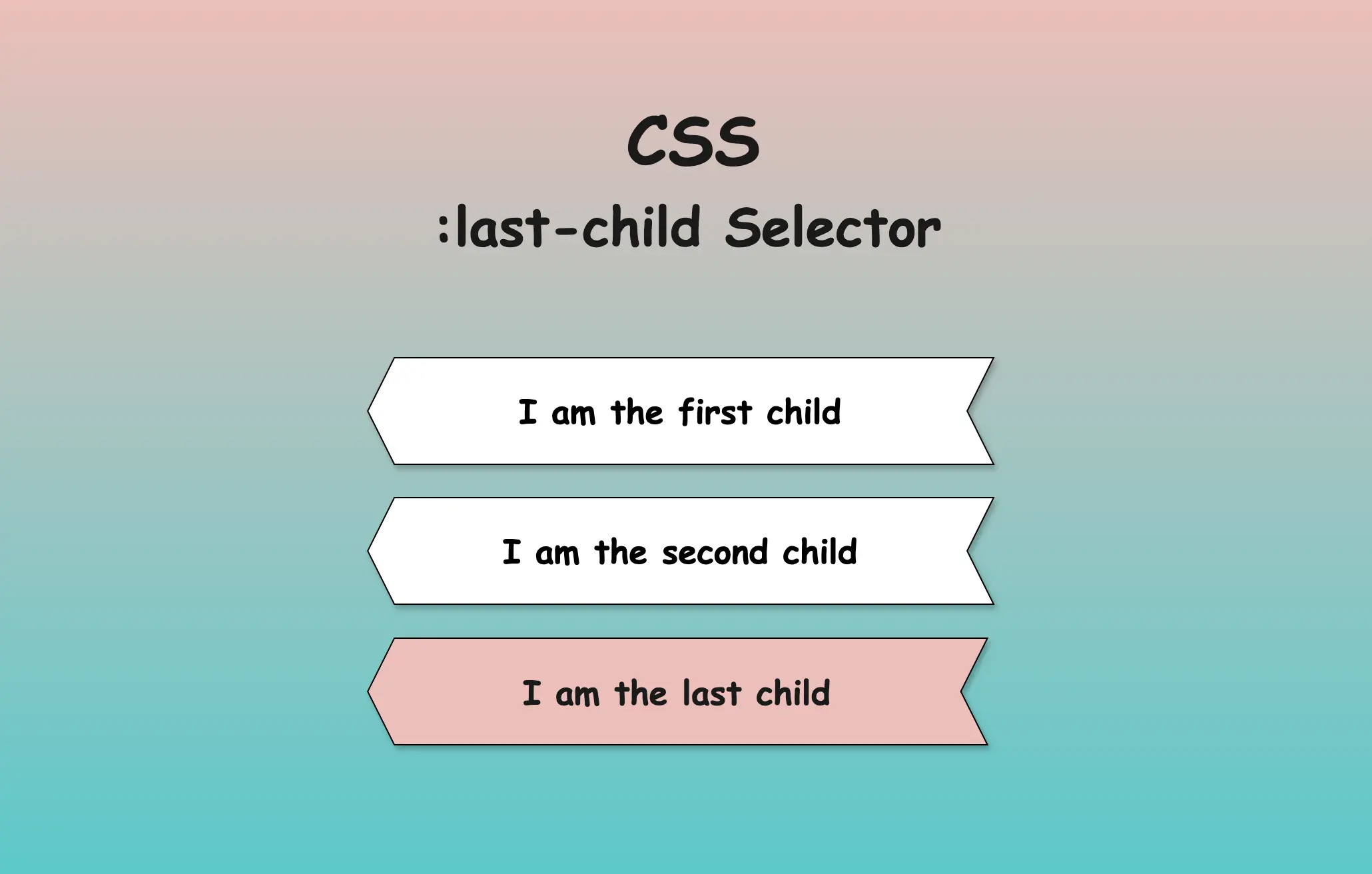
    Hello everyone! In this post, we will explore the CSS last child selector, one of the most useful selectors in CSS. We use the CSS last-child selector when we want to target and modify only the last element of the same type. By types of elements, we mean HTML tags like paragraphs (<p>), headings (<h1>, <h2> …), lists (<li>) and others.

    Typically, we use the CSS last-child selector with list items <li>, but it can be applied to any type of element. I have prepared some examples to help you understand how to use the selector based on your needs.

    How to use the CSS last child selector for list elements

    In the example below, the HTML structure includes an ordered list (<ol>) with three list items (<li>), all colored indigo.

    <ol>
      <li>First item</li>
      <li>Second item</li>
      <li>Last item</li>
    </ol>

    HTML
    An ordered list with three items all colored indigo.

    We continue by adding the CSS rule, which selects only the last item and applies a red color to it.

    /* Applies indigo color to all list items */
    li {
      color: indigo; 
    }
    
    
    /* Applies red color only to the last list item */
    li:last-child {
      color: red; 
    }
    
    
    /*       OR       */
    
    li:nth-last-child(1) {
      color: red;
    }

    CSS
    An ordered list with three items all colored indigo apart from the last one which has color red as we used the: CSS last child selector. :last-child OR :nth-last-child(1)

    When using the :last-child selector in CSS, it targets the last element within its parent. When we add a new item to the end of the list, this new item becomes the last child of the list, and the previous first item now becomes the second one from the end. This change causes the :last-child selector to now target the newly added item instead.

    Applying the CSS last child selector to non-list elements

    In the following example, we will use the last child selector for paragraphs. The HTML structure contains a <div> which enclose three paragraph (<p>) elements. By default, all HTML elements have black text color, so paragraphs will appear in black.

    <div>
      <p>First paragraph</p>
      <p>Second paragraph</p>
      <p>Last paragraph</p>
    </div>

    HTML
    Three paragraphs all colored by default black.

    By setting the CSS last child selector, it selects the last <p> element and applies the text color red to a white background. As a result, the last paragraph appears in red with a white background, while the subsequent paragraphs keep their default styling.

    /* Applies red color and background white
       to the last paragraph
    */
    p:last-child {
      color: red;
      background-color: white;
    }
    
    /*       OR       */
    
    p:nth-last-child(1) {
      color: red;
      background: white;
    }

    
    CSS
    Three paragraphs all colored by default black, apart from the last one which has color red and background color white as we used the last child css selector.

    Using the last child selector across multiple parent containers

    In this example, we will examine another case, as many times, we have multiple HTML elements to work with within a document. Here, we have two div elements, each containing two paragraph (<p>) elements colored black.

    <div>
      <p>First paragraph inside the first div</p>
      <p>Last paragraph inside the first div</p>
    </div>
    <div>
      <p>First paragraph inside the second div</p>
      <p>Last paragraph inside the second div</p>
    </div>
    HTML
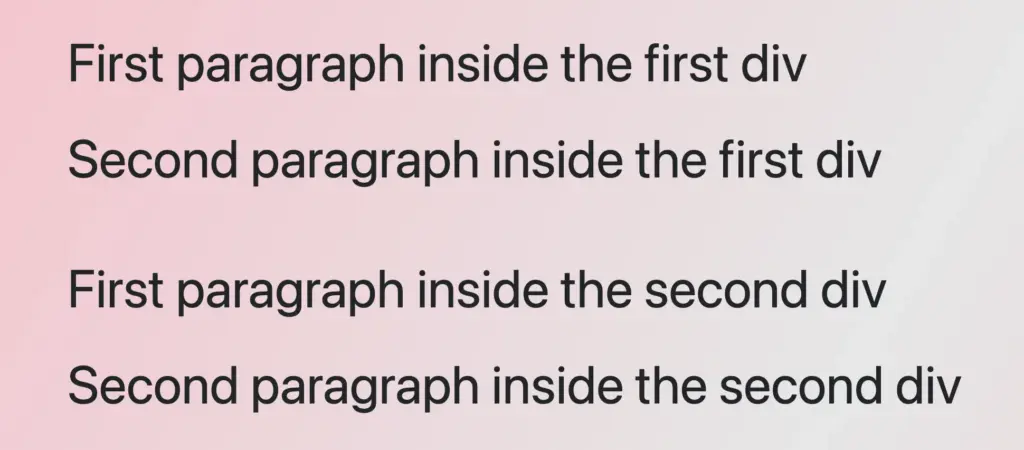
    Four paragraphs all colored black

    The CSS rule div p:last-child selects the last <p> element within any <div> and applies the specified styles to it.

    /* Applies red color and white background
       to the last paragraph inside each div
    */
    div p:last-child {
      color: red;
      background-color: white;
    }
    
    /*       OR       */
    
    div p:nth-last-child(1) {
      color: red;
      background-color: white;
    }
    
    CSS

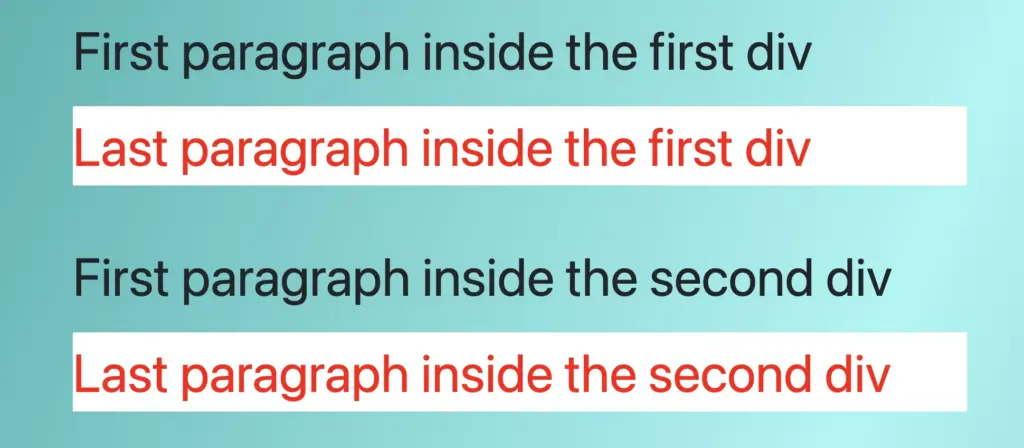
    As a result, the last paragraph of each <div> will display in red with a white background.

    Four paragraphs all colored by default black, apart from the second and last one which has color red and background color white.

    Meanwhile, the remaining paragraphs will keep their default styles. This demonstrates how the :last-child selector can be used to style the last element within several parent containers. 😉

    Selecting the last child inside the first parent element

    In this example, we have two <div> elements, each containing two paragraph <p> elements colored black as in the previous one, but this time, we will examine how we can select only the last paragraph inside the first div.

    <div>
      <p>First paragraph in the first div</p>
      <p>Second paragraph in the first div</p>
    </div>
    <div>
      <p>First paragraph in the second div</p>
      <p>Second paragraph in the second div</p>
    </div>
    HTML
    Four paragraphs all colored black

    The CSS rule div:first-child p:last-child selects only the first paragraph <p> within the first div and applies the specified styles to it.

    /* Applies red color and white background
       to the last paragraph of the first div
    */
    
    div:first-child p:last-child {
      color: red;
      background-color: white;
    }
    
    /*       OR       */
    
    div:nth-child(1) p:nth-last-child(1) {
      color: red;
      background-color: white;
    }                    
    CSS

    Therefore, the last paragraph in the first div will be shown in red with a white background, while the second paragraph will remain in its default black color.

    Four paragraphs all colored by default black, apart from the second one which has color red and background color white.

    The second div, is not influenced at all by the styles applied to the first div, demonstrating selective styling implementation. 😉 This method is particularly useful for assigning specific styles to elements in complex layouts.

    Avoiding the last child with the :not(:last-child) selector

    Finally, we will examine the opposite case and how to avoid selecting the last child element. In this example, the HTML structure consists of an ordered list <ol> housing three list <li> elements.

    <ol>
      <li>First item</li>
      <li>Second item</li>
      <li>Last item</li>
    </ol>
    HTML
    An ordered list with three items all colored by default, black.

    The CSS rule ol li:not(:last-child) selects all <li> elements within the ol apart from the last one and apply the specified styles to them.

    /* Applies red color to all paragraphs
       except for the last one
    */
    
    ol li:not(:last-child) {
      color: red;
    }
    CSS

    As a result, all list items except for the last one will be pictured in red, while the last list item will retain its default color, black.

    An ordered list with three items. The last item has by default color black while the other two items have color red as we used the css  not last child selector.

    Alternatively, we can use the CSS nth-last-child selector like this

    ol li:not(:nth-last-child(1)) {
      color: red;
    }
    CSS

    This selector serves a similar purpose, but it is more flexible as it allows for the selection of any child based on its position.

  • CSS Selectors nth-child VS nth-of-type And How To Use Them

    CSS Selectors nth-child VS nth-of-type And How To Use Them

    The amazing CSS selectors family! One of the most helpful tools we can use when styling our website. In today’s post, 😃 we’ll examine the unstoppable battle of nth-child() VS nth-of-type() selectors. They both allow you to target HTML elements based on their position within a parent, but they achieve that differently.

    The moment to clarify the key difference between them and how to use each effectively to get the styling we want has finally come! 🤓

    So, let’s proceed by analyzing and comparing these amazing pseudo-classes! 💻 ✨

    Preparing our HTML structure

    We begin with an HTML code snippet by creating a <section> element as the parent, which contains some <p> and <div> children.

    <section>
      <p>I'm the first paragraph</p>
      <div>I'm the first div</div>
      <p>I'm the second paragraph</p>
      <div>I'm the second div</div>
      <p>I'm the third paragraph</p>
      <div>I'm the third div</div>
    </section>
    HTML

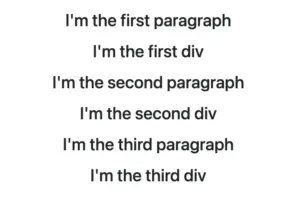
    Below, we can see what is rendered on the screen for now. Three paragraphs and three div elements. Note that I have kept the default styling: black text on a white background.

    CSS nth child VS nth of type selectors. This image shows <p> and <div> as children inside a <section> element

    The nth-child selector

    The :nth-child() selector targets the HTML element declared inside the parentheses, regardless of its type. In the code snippet below, we pick the second child (which happens to be a div) by placing the number 2 inside the parentheses.

    section :nth-child(2) {
      color: white;
      background-color: magenta;
    }
    CSS

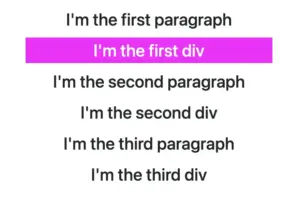
    The image below shows that the second child takes on our attributes.

    This image shows <p> and <div> sibling elements, with the second element styled differently using the nth-child(2) CSS selector

    The nth-of-type selector

    The :nth-of-type() selector targets HTML elements based on their type. In the following code snippet, we pick the second <p> element by placing the number 2 inside the parentheses () and specifying the type p before the selector.

    section p:nth-of-type(2) {
        color: white;
        background-color: magenta;
    }
    CSS

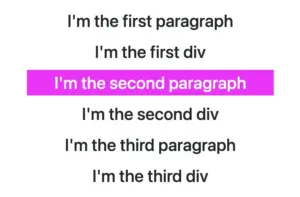
    The image below shows that the styling is now applied to the second paragraph instead of the second child.

    This image shows sibling <p> and <div> elements. The second <p> element is styled differently using the p:nth-of-type(2) CSS selector, with 2 inside the parentheses and p preceding the selector

    We can also try to do the same with our <div> elements. Let’s change the type, in front of our selector, from p to div. What would happen then?

    section div:nth-of-type(2) {
        color: white;
        background-color: magenta;
    }
    CSS

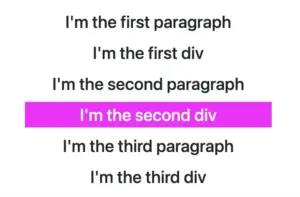
    We now notice that the styling is removed from the second paragraph and applied to the second div. Cool huh? 😎

    This image shows sibling <p> and <div> elements. The second <div> element is styled differently using the div:nth-of-type(2) CSS selector, with 2 inside the parentheses and div preceding the selector.

    By learning correctly when and how to use each selector, we can ensure that our CSS targets exactly the elements we intend and help us achieve more precise and effective styling. Happy coding! 🎉 👩‍💻

  • The CSS nth-of-type Selector – How To Target Elements By Type

    The CSS nth-of-type Selector – How To Target Elements By Type

    Hello there! Today, we’ll explore how the CSS nth-of-type() selector works. This powerful CSS selector allows us to target every nth child HTML element of a specific type within its parent container.

    Below, I prepared some examples to analyze this amazing pseudo-class thoroughly.

    Basic HTML structure

    We begin with the HTML structure. We create an <article> HTML element. It contains two headings (<h1> , <h2>) elements. Also, we include some <p> and <div> HTML elements. The example may seem slightly complicated, but it is the right way to understand just how useful 🛠 tool this selector can be. 😃
    For now, we’ll maintain the default styling with a white background and black text.

    🔖 Please note that this HTML code snippet will be used across all examples.

    <article>
      <h1>Explore India</h1>
      <h2>India's Top Ten Attractions</h2>
      <p>Here goes the 1st paragraph about India's attractions</p>
      <p>Here goes the 2nd paragraph about India's attractions</p>
      <h2>India's Food</h2>
      <div>Here goes text about India's cusine</div>
      <div>Here goes text about India's cusine</div>
    </article>
    HTML

    Below, we can see what is rendered on the screen 💻 for now. It’s just a simple article in a newspaper 🗞 or on the internet. At least as articles were once upon a time 😂 just text, no images, and no special styling. Don’t worry; it works well for us!

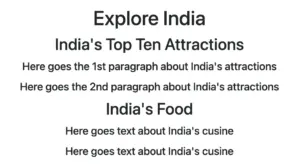
    An article HTML element with <h1>, <h2>, <p>, and <div> elements, all displaying default styling, illustrating the CSS nth-of-type() selector in action.

    Targeting a specific HTML element

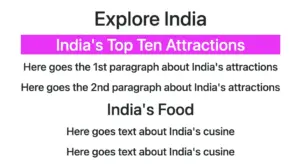
    Now let’s explore how this selector works. We start by using the nth-of-type() selector, preceded by h2, and placing the number 1 inside the parentheses (). This targets the very first <h2> element within our <article> parent.

    article h2:nth-of-type(1) {
      color: white;
      background-color: magenta;
    }
    CSS

    In the following image, we can see the result of the applied nth-of-type selector.

    An article HTML element containing <h1>, <h2>, <p>, and <div> elements. All have default styling, except the first <h2> element, which has a magenta background and white text, styled using the h2:nth-of-type(1) CSS selector.

    Targeting all elements of a specific type

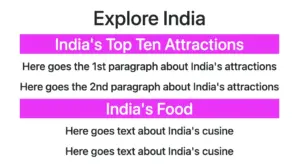
    We continue and dive a bit deeper! We place h2 before our nth-of-type() selector, but this time, we add the n inside the parentheses (). By doing so, we target all <h2> elements within our parent element.

    The n in nth-of-type(n) enables the selector to match elements at any position among siblings. This means you can apply styles to all matching elements without specifying an exact position, ensuring that every instance is included.. 😎

    article h2:nth-of-type(n) {
      color: white;
      background-color: magenta;
    }
    CSS

    In the image below, we notice the styling applied to all <h2> HTML elements after using the nth-last-of-type(n) selector.

    An article HTML element containing <h1>, <h2>, <p>, and <div> elements. All have default styling except the <h2> elements, which have a magenta background and white text, styled using the h2:nth-of-type(n) CSS selector.

    Targeting elements of various types

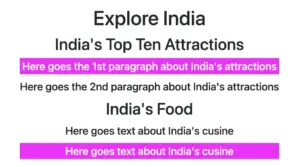
    Additionally, we have the option to use the nth-of-type() selector to target more than one different type of HTML elements. In our case, we set the p:nth-of-type(1) to target the first <p> element and also the div:nth-of-type(2) to target the second <div> element.

    article p:nth-of-type(1),
    article div:nth-of-type(2) {
    	 color: white;
    	 background-color: magenta;
    }
    CSS

    This is how it currently looks on the screen 💻. Cool huh? 😃 ✨

    An article HTML element containing <h1>, <h2>, <p>, and <div> elements. All have default styling except the first <p> and the second <div> elements, which have a magenta background and white text, styled using the p:nth-of-type(1) and div:nth-of-type(2) CSS selectors.
  • All You Need to Know About the CSS nth child Selector

    All You Need to Know About the CSS nth child Selector

    The CSS nth child selector is an extremely useful tool for targeting and styling the nth element within a group of similar HTML elements on a webpage. It’s really handy for organizing your code and helps you pick elements based on their position in a sequence. It’s also part of a larger group of selectors.

    You can apply specific styles like color or size to just that nth item or to combinations with the nth item in a list or group, making it different from all the others.

    The “nth” is a mathematical term that refers to any position in a list or sequence, such as the first, second, third, and so on. A sequence is a set of numbers or elements that follow a particular pattern or rule.

    Below are examples of utilizing this selector. Let’s proceed and explore its uses in more detail. 🧐

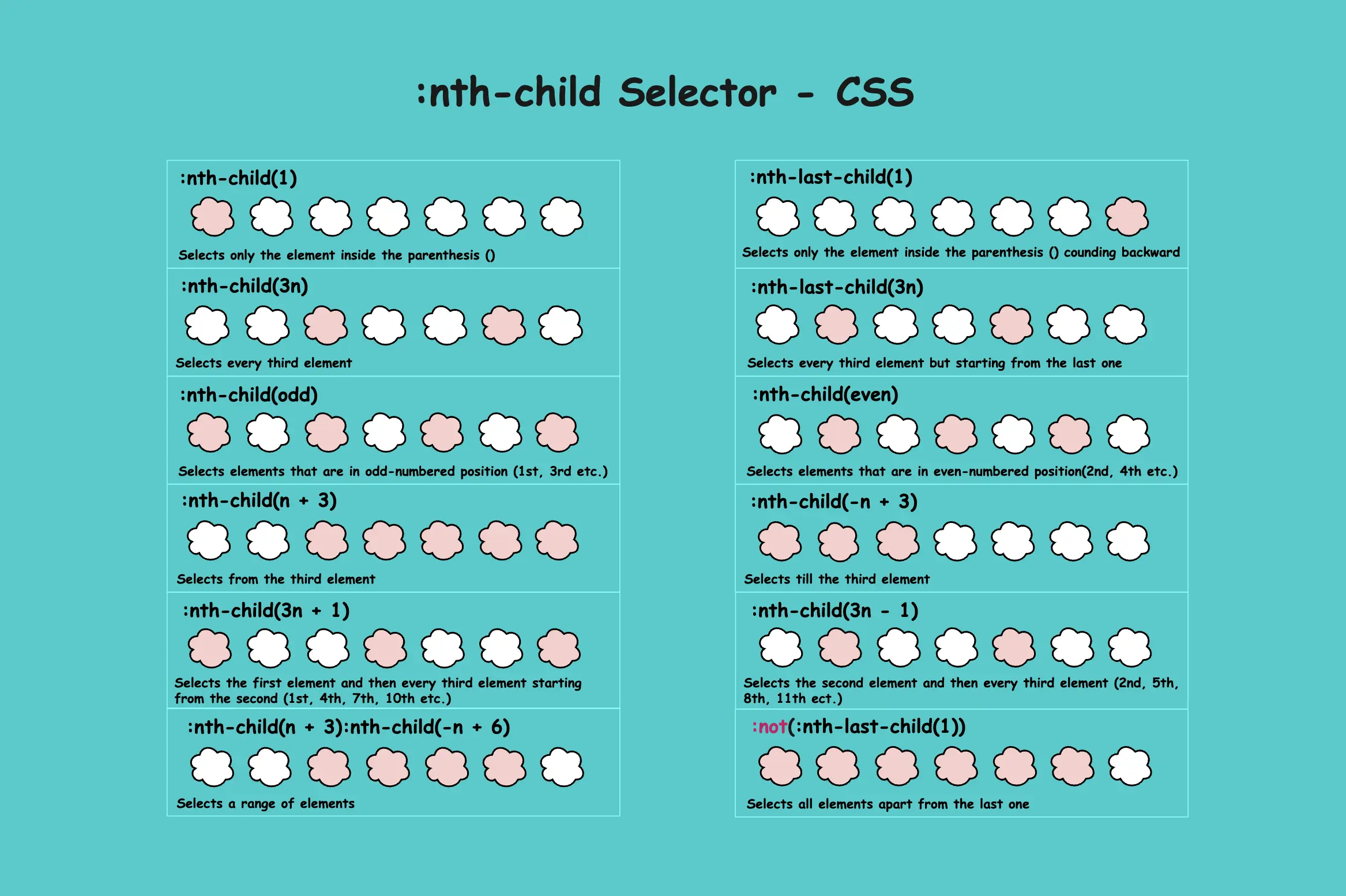
    We will use the same HTML code snippet for all instances. We have seven child elements inside our body element. Each one represents an ice cream cone. Yes! You read correctly! An ice cream cone! Let’s make our learning a bit fun! The empty cones remain unaffected, while the cones that have ice cream strawberry 🍓 flavor 🍦 on top are styled based on the nth-child() selector.

    <div>First child element</div>
    <div>Second child element</div>
    <div>Third child element</div>
    <div>Fourth child element</div>
    <div>Fifth child element</div>
    <div>Sixth child element</div>
    <div>Seventh child element</div>
    HTML

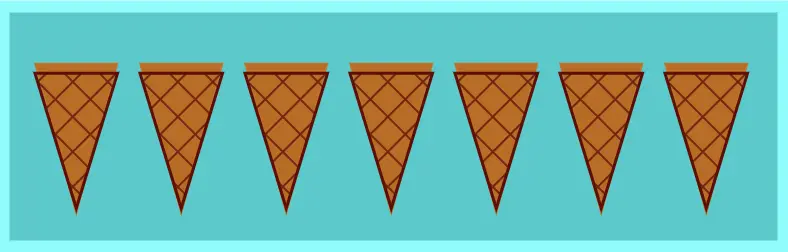
    Let’s imagine that what you see below would be rendered on the screen if each div child element was actually a cone.

    The CSS nth-child() selector. Seven ice cream cones side by side.

    Styling the first element with nth-child(1)

    The nth-child(1) selector targets and styles only the first element. So, in our case, we add ice cream strawberry 🍓 flavor 🍦 only to the top of the first cone. All the other cones remain unaffected.

    div:nth-child(1) {
      background-color: pink;
    }
    CSS
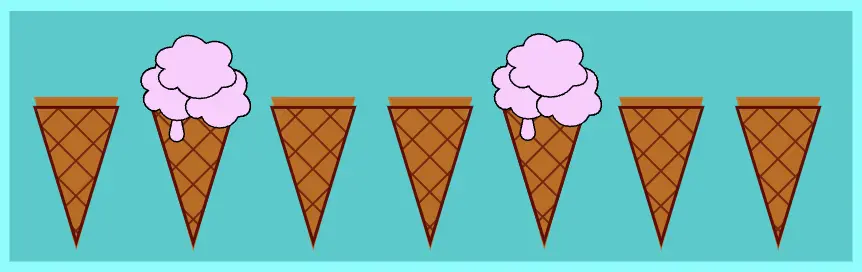
    Seven ice cream cones one next to other. The first cone has ice cream strawberry flavor.  All the others remain unaffected. We set the css nth-child(1) selector.

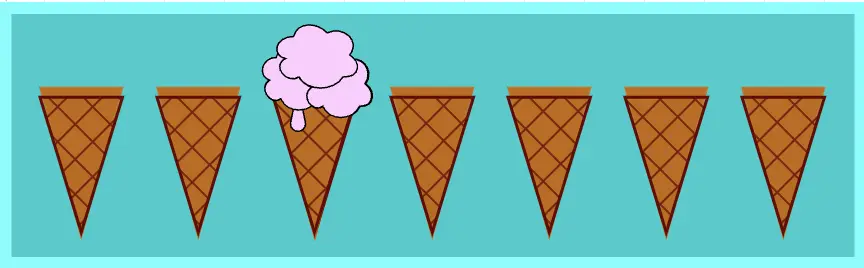
    * If we want to target the third child, use :nth-child(3), and similarly for other positions.

    Seven ice cream cones one next to other. The third cone has ice cream strawberry flavor.  All the others remain unaffected. We set the css nth-child(3) selector.

    Styling only the last element with nth-last-child(1)

    The nth-last-child(1) selector targets and styles only the last element as it counts backward. That’s why we added the word last in our selector. So that it will pick the first (1) element from the end of the list.

    div:nth-last-child(1) {
      background-color: pink;
    }
    CSS
    Seven ice cream cones one next to other. The last cone has ice cream strawberry flavor.  All the others remain unaffected. We set the css nth-last-child(1) selector.

    * If we want to pick the fourth child from the end, we set the :nth-last-child(4), etc.

    Seven ice cream cones one next to other. The fourh cone counting backward has ice cream strawberry flavor.  All the others remain unaffected. We set the css nth-last-child(4) selector.

    Select all elements apart from the last one

    Combing the nth-last-child selector with the not pseudoclass, we can target and style all elements apart from the last one. That’s why, in this example, we added the word :not and then the word last in our selector, indicating we wanted all but not the last one (1). 🤔

    div:not(:nth-last-child(1)) {
      background-color: pink;
    }
    CSS
    Seven ice cream cones one next to other. The last one remain unaffected.  All the others have ice cream strawberry flavor. We set the css :not(:nth-last-child(1)) selector.

    *If we want to pick all elements apart from the first one we can erase the last word and set the :not(:nth-child(1)) etc.

    Seven ice cream cones one next to other. The first one remain unaffected.  All the others have ice cream strawberry flavor. We set the css :not(:nth-child(1)) selector.

    Target every odd child element

    Using the word “odd” in our nth-child selector we can target and style every other element, specifically the 1st, 3rd, 5th, 7th and so on

    *Odd numbers are those that, when divided by 2, always leave a remainder of 1.

    div:nth-child(odd) {
      background-color: pink;
    }
    CSS
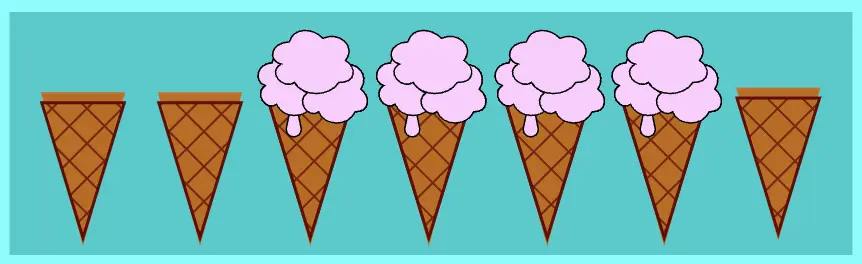
    Seven ice cream cones one next to other. The 1st, 3rd, 5th and last have ice cream strawberry flavor.  All the others remain unaffected. We set the css nth-child(odd) selector.

    Target every even child element

    Just as we did for odd elements, we can also target even elements by using the keyword “even” in our nth-child selector. This allows us to style every second element, specifically the 2nd, 4th, 6th, and so on

    *Even numbers are those that can be divided by 2 and leave no remainder.

    div:nth-child(even) {
      background-color: pink;
    }
    CSS
    Seven ice cream cones one next to other. The 2nd, 4th and 6th clouds  have ice cream strawberry flavor. All the others remain unaffected. We set the css nth-child(even) selector.

    Advanced math tricks with CSS nth child selector

    The nth-child() selector offers great flexibility, allowing us to create combinations that target multiple child elements simultaneously.

    Selecting elements based on multiplying by the nth-child()

    By using nth-child(3n) we target every third element. In this example, the 3rd element is the first one selected. From there, we move three steps forward forward to the next target, which is the 6th element.

    The n in 3n starts at 0 and increases incrementally with each integer (0, 1, 2, 3…).
    By multiplying n by 3 we target elements at positions that are multiples of 3 (0, 3, 6, 9…).

    div:nth-child(3n) {
      background-color: pink;
    }
    CSS
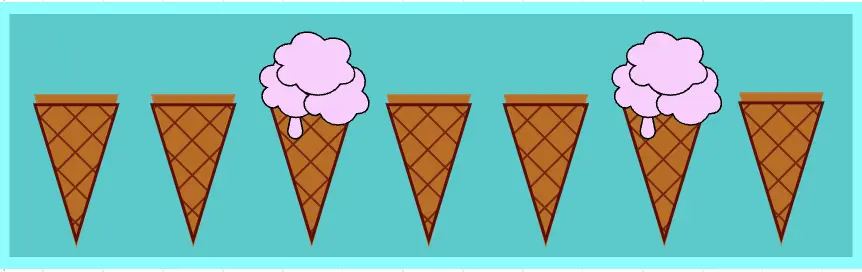
    Seven ice cream cones one next to other. The 3rd and 6th have ice cream strawberry flavor. All the others remain unaffected. We set the css nth-child(3n) selector.

    Select elements based on multiplies with the nth-child(), counting backward

    When using the nth-last-child(3n)selector we target every third element, but this time, it starts counting from the end. In our case, we have seven elements. Starting counting from the 7th one, the 5th element is the first we pick. Then we continue by taking three steps backward to the second choice, which is the 2nd element.

    The n in 3n starts at 0 and increases incrementally with each integer (0, 1, 2, 3…).
    The number 3 we assign to n shows multiplies of it, but we also have the last word in our selector, which indicates we start counting from the last child towards the first one.

    div:nth-last-child(3n) {
      background-color: pink;
    }
    
    
    CSS
    Seven ice cream cones one next to other. The 3rd and 6th have ice cream strawberry flavor. All the others remain unaffected. We set the css nth-child(3n) selector.

    Pick elements that appear after a specific point

    This one seems more complicated. 😰 Let’s analyze it a bit more! 🧐

    When using the nth-child(n + 3) selector, we are targeting the third element and all subsequent elements. If we use n + 5, it would start counting from the fifth element onward, including the fifth element itself, and continue until the end.

    The (n) starts at 0 and increases incrementally with each integer (0, 1, 2, 3…).
    The (+ 3) means that the selector starts matching from the 3rd element onward.

    Here’s how n works under the hood:

    n=0 selects the 3rd element (0 + 3 = 3).
    n=1 selects the 4th element (1 + 3 = 4).
    n=2 selects the 5th element (2 + 3 = 5).
    n=3 selects the 6th element (3 + 3 = 6).
    n=4 selects the 7th element (4 + 3 = 7).

    div:nth-child(n + 3) {
      background-color: pink;
    }
    
    
    CSS
    Seven ice cream cones one next to other. The two first remain unaffected.  From the third all the others till the end have ice cream strawberry flavor. We set the css nth-child(n + 3) selector.

    Select elements that appear up to a specific point

    Using nth-child(-n+3), the selector targets elements up to a specific point, setting a limit to which element will stop. In our case, it picks and styles all the elements up to and including the third element.

    The (n) represents 0.
    The (-n) by itselft is not used in CSS selectors because it does not correspond to any valid child positions. However when combined with a positive number (e.g. :nth-child(-n + 3)), it allows to select the child elements up to and including the specified position, such as the 3rd child.
    The (+ 3) part of the selector means that the selector matches elements up to and including the 3rd element..

    Here’s how n works in practice:

    n=0 selects the 3rd element (-0 + 3 = 3).
    n=1 selects the 2nd element (-1 + 3 = 2).
    n=2 selects the 1st element (-2 + 3 = 1).
    n=3 selects no child element (-3 + 3 = 0). 😮

    div:nth-child(-n + 3) {
      background-color: pink;
    }
    
    
    CSS
    Seven ice cream cones one next to other. The three first have ice cream strawberry flavor.  From the fourth and all the other cones till the end remain unaffected. We set the css nth-child(n - 3) selector.

    :nth-child(n + X) targets every element from the Xth onward, ensuring the Xth element is also included.
    WHILE
    :nth-child(-n + X) targets every element up to and including the Xth element.

    Pick a range of elements

    If we combine the previous two types of the nth-child selector, we can pick and style a portion of elements. In our example, all elements between the 3rd and the 6th element. Both the start (3rd element) and the end (6th element) are included.

    The :nth-child(n + 3) selector targets all children starting from the third element onward.

    The :nth-child(-n + 6) selector targets all children up to the sixth element.

    div:nth-child(n + 3):nth-child(-n + 6) {
      background-color: pink;
    }
    
    
    CSS
    Seven ice cream cones one next to other. From the third cone up to sixth first have ice cream strawberry flavor. All the other cones (1st, 2nd, 7th) remain unaffected. We set the css nth-child(n + 3):nth-child(-n + 6) selector.

    Select the first element and then every third element

    The n starts at 0 and increases by 1 with each step, representing all integer values (0, 1, 2, 3, …)

    Using the expression (n + 1) we determine which elements we want to pick.

    By applying the multiplier 3n, we instruct CSS to target every third element in the sequence.

    Combining all those charectistics we get:

    When n is 03n + 1 => 3 * 0 + 1 = 1, so it selects the 1st child.
    When n is 13n + 1 => 3 * 1 + 1 = 4, so it selects the 4th child.
    When n is 23n + 1 => 3 * 2 + 1 = 7, so it selects the 7th child, etc.

    div:nth-child(3n + 1) {
      background-color: pink;
    }
    
    
    CSS
    Seven ice cream cones one next to other. From the third cone up to sixth first have ice cream strawberry flavor. All the other cones (1st, 2nd, 7th) remain unaffected. We set the css nth-child(n + 3):nth-child(-n + 6) selector.

    Choose the first element and then every third element, counting backward

    Same as before, but this time, we start picking elements from the end, as indicated by the word last in our selector.

    The n starts at 0 and increases by 1 with each step, representing all integer values (0, 1, 2, 3, …)

    Using the expression (n + 1) we determine which elements we want to pick.

    By applying the multiplier 3n, we instruct CSS to target every third element in the sequence.

    Let’s see how that works:

    When n is 03n + 1 => 3 * 0 + 1 = 1, so it selects the 1st child from the end which is the 7th child.
    When n is 13n + 1 => 3 * 1 + 1 = 4, so it selects the 4th child.
    When n is 23n + 1 => 3 * 2 + 1 = 7, so it selects the 7th child from the end which is the 1th child.

    div:nth-last-child(3n + 1) {
      background-color: pink;
    }
    
    
    CSS
    Seven ice cream cones one next to other. From the third cone up to sixth first have ice cream strawberry flavor. All the other cones (1st, 2nd, 7th) remain unaffected. We set the css nth-child(n + 3):nth-child(-n + 6) selector.

    Choose the second element and then every third element

    The same logic applies as in the previous example, except that in this case, we are using subtraction with the selector 3n-1

    The n starts at 0 and increases by 1 with each step, representing all integer values (0, 1, 2, 3, …)

    Using the expression (n - 1) we determine which elements we want to pick.

    By applying the multiplier 3n, we instruct CSS to target every third element in the sequence.

    Now that we know what each part does, let’s dive in and see how CSS works when using this selector:

    When n is 0 then 3n - 1 => 3 * 0 - 1 = -1, so it selects no child. (I know 🥱)
    When n is 1 then 3n - 1 => 3 * 1 - 1 = 2, so it selects the 2nd child.
    When n is 2 then 3n - 1 => 3 * 2 - 1 = 5, so it selects the 5th child, etc.

    div:nth-child(3n - 1) {
      background-color: pink;
    }
    
    
    CSS
    Seven ice cream cones one next to other. The 2nd and 5th have ice cream strawberry flavor. All the other cones (1st, 3rd, 4th, 6th and 7th) remain unaffected. We set the css nth-child(3n + 1) selector.

    Using + or - in the selector may sometimes result in the same outcome. In our example, doing 3n+2 or 3n-1, ends up targeting the second element and then every third element onward. However, it’s important to understand that the underlying logic is different.

    Select the second element and then every third element, counting backward

    Same as before, but this time, we start picking from the end since we have the word last in our selector.

    The n starts at 0 and increases by 1 with each step, representing all integer values (0, 1, 2, 3, …)

    Using the expression (n - 1) we determine which elements we want to pick.

    By applying the multiplier 3n, we instruct CSS to target every third element in the sequence.

    Let’s dive in and see whats happening:

    When n is 0 then 3n - 1 => 3 * 0 - 1 = -1, so it selects no child.
    When n is 1 then 3n - 1 => 3 * 1 - 1 = 2, so it selects the 2nd child from the end.
    When n is 2 then 3n - 1 => 3 * 2 - 1 = 5, so it selects the 5th child from the end, etc.

    div:nth-last-child(3n - 1) {
      background-color: pink;
    }
    
    CSS
    Seven ice cream cones one next to other. The 3rd and 6th have ice cream strawberry flavor. All the others remain unaffected. We set the css nth-child(3n) selector.

    Select all elements

    Although the nth-child() selector is made in order to target specific positions or patterns among children, we can also use it to match all child elements at once by assigning the n inside the parenthesis ().

    The n lets the selector match elements at any position inside the parent element. This flexibility allows us to pick elements and apply styles without specifying an exact position. As a result, we can target all possible positions. 😎
    Additionally, we have all our cones full of delicious strawberry 🍓 flavor 🍦 ice cream! So, this is by far the sweetest choice!

    div:nth-child(n) {
      background-color: pink;
    }
    
    
    CSS
    Seven ice cream cones one next to other. All of them have ice cream strawberry flavor. We set the css nth-child(n) selector.

    I hope you enjoyed our little trip to the “ice cream CSS nth child” land!! 🎉 🎉 Keep going till next time!! 🍓 🍦 ✨

  • Learn How to Select Only the CSS First Child

    Learn How to Select Only the CSS First Child

    Hello everybody! In this post, we will analyze the CSS first child selector, one of the most useful selectors in CSS. We utilize the CSS first-child selector when we want to target and manipulate only the first element among a variety of elements of the same type. Note that when we refer to types of elements, we mean HTML tags like paragraphs (<p>), headings (<h1>, <h2> …), lists (<li>), and so on.

    We often apply the CSS first child selector to list items (<li>), but it can be used with any type of element. Below, I have prepared some examples to help you understand how to use the CSS first child selector depending on your needs.

    Alternatively, we can use the CSS nth child selector like this :nth-child(1) for the same purpose, but it’s more generic as it allows the selection of any child based on its position.

    In addition to providing all the necessary CSS syntax for each first child case we describe, we have also included Sass syntax under each code snippet if you are using a Sass pre-processor.

    CSS first child selector: List element

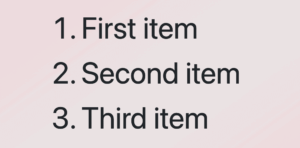
    In the following example, the HTML structure consists of an ordered list (<ol>) with three list items (<li>), all colored indigo.

    <ol>
      <li>First item</li>
      <li>Second item</li>
      <li>Third item</li>
    </ol>
    HTML
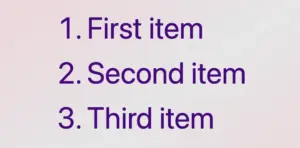
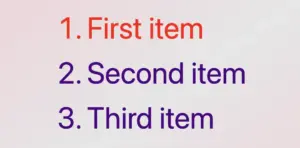
    An ordered list with three items all colored indigo.

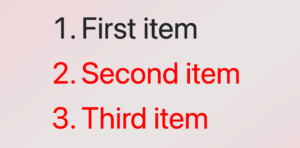
    Then, we add the CSS rule, which selects only the first item and applies a red color to it.

    /* Applies indigo color to all list items */
    li {
      color: indigo; 
    }
    
    
    /* Applies red color only to the first list item */
    li:first-child {
      color: red; 
    }
    
    
    /*       OR       */
    
    li:nth-child(1) {
      color: red;
    }
    CSS

    🔖 When we work with Sass, our code will be structured as follows:

    li {
      color: indigo;
    
      &:first-child {
        color: red;
      }
    }
    
    /*       OR       */
    
    li {
      color: indigo;
      
      &:nth-child(1) {
        color: red; 
      }
    }
    SCSS
    An ordered list with three items all colored indigo apart from the first one which has color red as we used the: CSS first child selector. :first-child OR :nth-child(1)

    When using the :first-child selector in CSS, it targets the very first element within its parent. When we add a new item to the beginning of the list, this new item becomes the first child of the list, and the previous first item now becomes the second one. This change causes the :first-child selector to now target the newly added item instead.

    CSS first child selector: Non-list element

    In the example below, we set the first child selector for paragraphs. The HTML structure consists of a <div> containing three paragraph (<p>) elements. By default, all HTML elements have black text color, so paragraphs will appear in black.

    <div>
      <p>First paragraph</p>
      <p>Second paragraph</p>
      <p>Third paragraph</p>
    </div>
    HTML
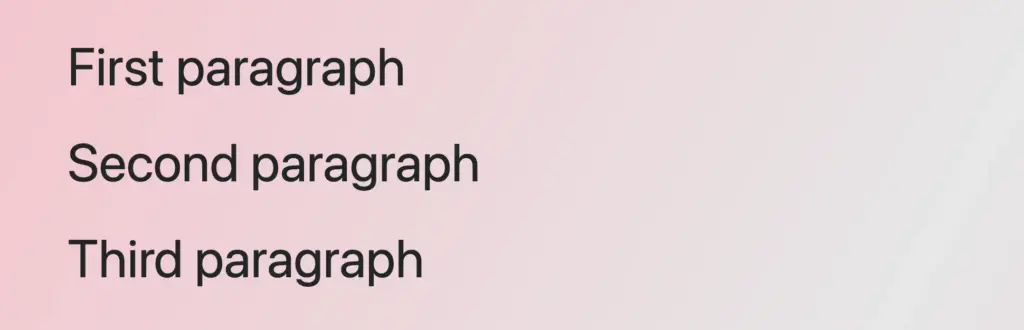
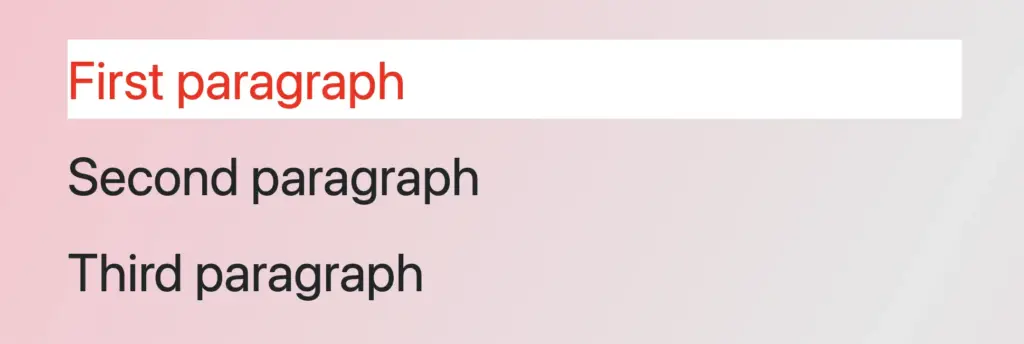
    Three paragraphs all colored by default black.

    By applying the CSS first child selector, it selects the first <p> element and apply the text color red to a white background. As a result, the first paragraph appears in red with a white background, while the subsequent paragraphs maintain their default styling.

    /* Applies red color and background white
       to the first paragraph
    */
    p:first-child {
      color: red;
      background-color: white;
    }
    
    /*       OR       */
    
    p:nth-child(1) {
      color: red;
      background: white;
    }

    
    CSS

    🔖 When working with Sass, our code will be structured as follows:

    p {
      &:first-child {
        color: red;
        background: white;
      }
    }
    
    /*       OR       */
    
    p {
      &:nth-child(1) {
        color: red;
        background: white;
      }
    }
    
    SCSS
    Three paragraphs all colored by default black, apart from the first one which has color red and background color white as we used the first child css selector.

    First child CSS selector applied across multiple parent containers

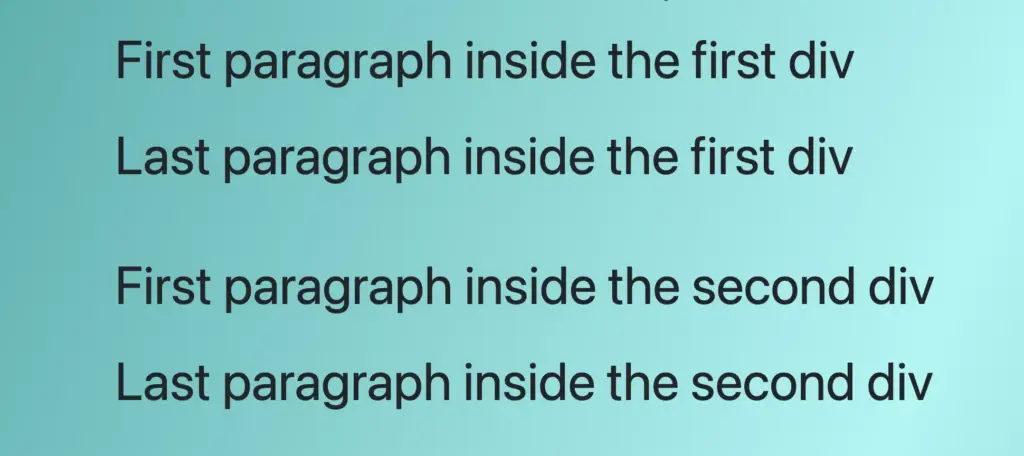
    In this example, we can see a different approach, as most times, we have multiple HTML elements to manipulate within a document. In our case, we have two div elements, each containing two paragraph (<p>) elements colored black.

    <div>
      <p>First paragraph inside the first div</p>
      <p>Second paragraph inside the first div</p>
    </div>
    <div>
      <p>First paragraph inside the second div</p>
      <p>Second paragraph inside the second div</p>
    </div>
    HTML
    Four paragraphs all colored black

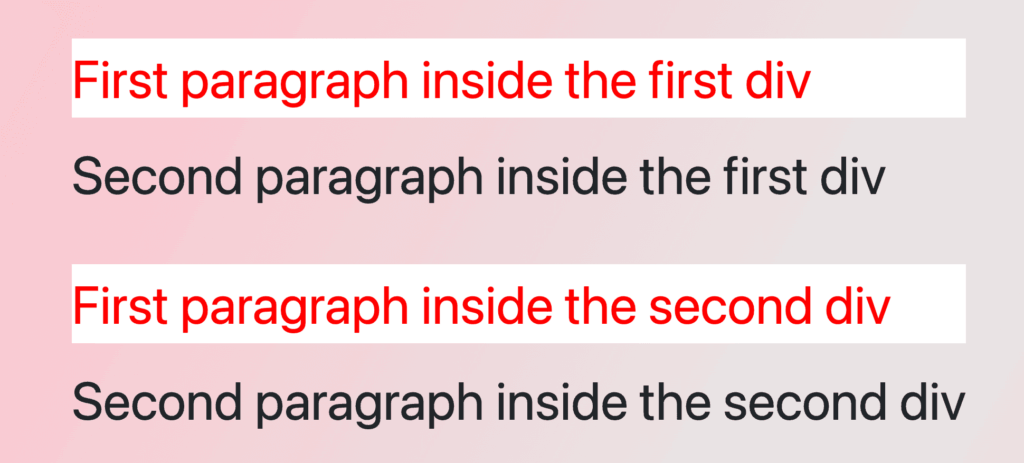
    The CSS rule div p:first-child selects the first <p> element within any <div> and applies the specified styles to it. As a result, the first paragraph within each <div> will display in red with a white background, while the remaining paragraphs will retain their default styles. This demonstrates how the :first-child selector can be used to style the first element within a number of parent containers. 😉

    /* Applies red color and white background
       to the first paragraph inside each div
    */
    div p:first-child {
      color: red;
      background-color: white;
    }
    
    /*       OR       */
    
    div p:nth-child(1) {
      color: red;
      background-color: white;
    }
    
    CSS

    🔖 When using Sass, our code will look like this:

    div {
      p:first-child {
        color: red;
        background-color: white;
      }
    }
    
    /*       OR       */
    
    div {
      p:nth-child(1) {
        color: red;
        background-color: white;
      }
    }
    
    SCSS
    Four paragraphs colored black. The first paragraphs are colored red with white background as we set the first child css selector.

    First child CSS selector targeting the first element of the first parent

    In the following example, we have two div elements, each containing two paragraph (<p>) elements colored black.

    <div>
      <p>First paragraph in the first div</p>
      <p>Second paragraph in the first div</p>
    </div>
    <div>
      <p>First paragraph in the second div</p>
      <p>Second paragraph in the second div</p>
    </div>
    HTML
    Four paragraphs all colored by default black.

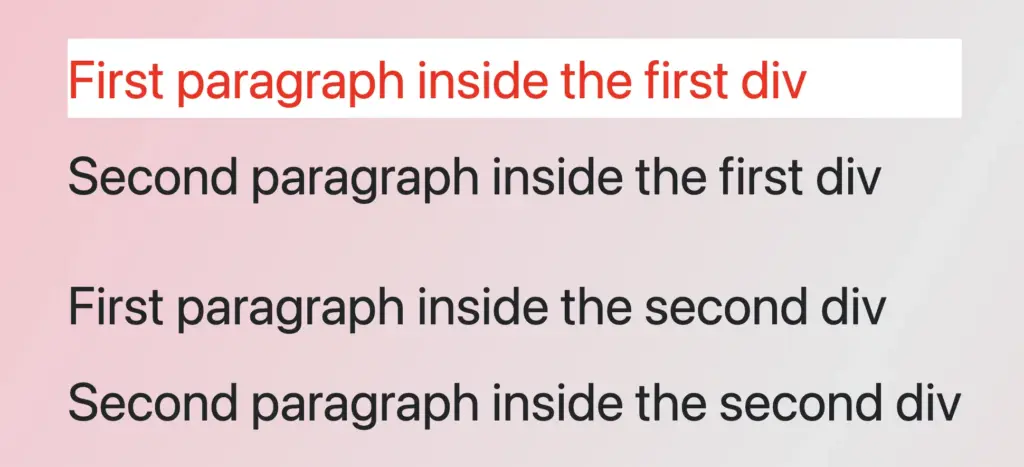
    the CSS rule div:first-child p:first-child selects only the first paragraph (<p>) within the first div and applies the specified styles to it. Thus, the first paragraph in the first div will be displayed in red with a white background, while the second paragraph will remain in its default black color.
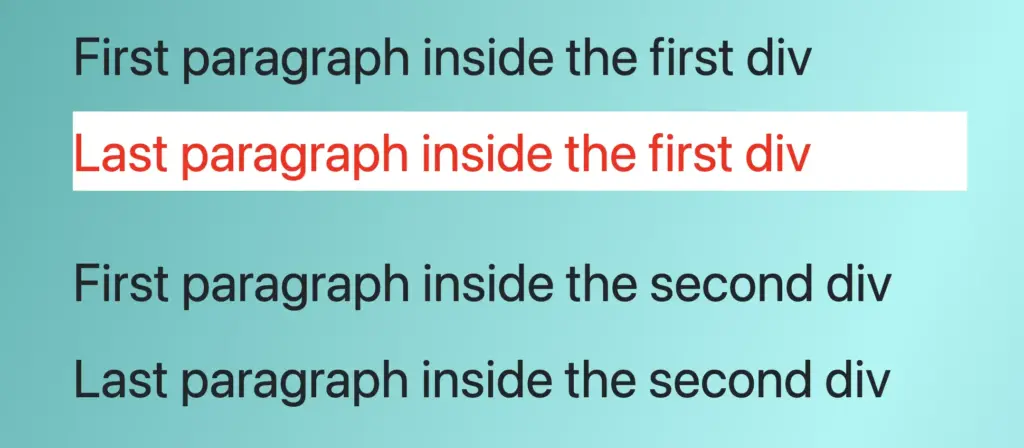
    The second div, remains unaffected by the styles applied to the first div, showcasing how to apply specific styles selectively. 😉 This approach is really helpful for applying specific styles to elements in complex layouts.

    /* Applies red color and white background
       to the first paragraph of the first div
    */
    
    div:first-child p:first-child {
      color: red;
      background-color: white;
    }
    
    /*       OR       */
    
    div:nth-child(1) p:nth-child(1) {
      color: red;
      background-color: white;
    }                    
    CSS

    🔖 When we work with Sass, we will write our code as follows:

    div:first-child {
      p:first-child {
        color: red;
        background-color: white;
      }
    }
    
    /*       OR       */
    
    div:nth-child(1) {
      p:nth-child(1) {
        color: red;
        background-color: white;
      }
    }
    SCSS
    Four paragraphs colored black. The first paragraph is colored red with white background as we have set the

    Using the :not(:first-child) selector

    In our last example, we have the opposite case. How not to select the CSS first child. The HTML structure consists of an ordered list <ol> containing three list <li> elements.

    <ol>
      <li>First item</li>
      <li>Second item</li>
      <li>Third item</li>
    </ol>
    HTML
    An ordered list with three items all colored by default, black.

    The CSS rule ol li:not(:first-child) selects all <li> elements within the ol apart from the first one and applies the specified styles to them. Because of that, all list items apart from the first one will be displayed in red, while the first list item will retain its default color, black.

    /* Applies red color to all paragraphs
       except for the first one
    */
    
    ol li:not(:first-child) {
      color: red;
    }
    
    /*       OR       */
    
    ol li:not(:nth-child(1)) {
      color: red;
    }
    
    CSS

    🔖 When we work with Sass, we will write our code as follows:

    ol {
      li:not(:first-child) {
        color: red;
      }
    }
    
    /*       OR       */
    
    ol {
      li:not(:nth-child(1)) {
        color: red;
      }
    }
    SCSS
    An ordered list with three items. The first item has by default color black while the other two items have color red as we used the css  not first child selector.
  • Coding Made Easy With CSS Selectors: An Ultimate Guide

    Coding Made Easy With CSS Selectors: An Ultimate Guide

    Greetings everyone! 😃 Today, our focus will be on addressing CSS selectors. These unique tools 🛠 are essential for targetting 🎯 specific HTML elements and controlling their appearance using CSS. Utilizing CSS selectors enables us to apply styles to those chosen elements which simplify and organize our code as well as improve the presentation and display of our websites.

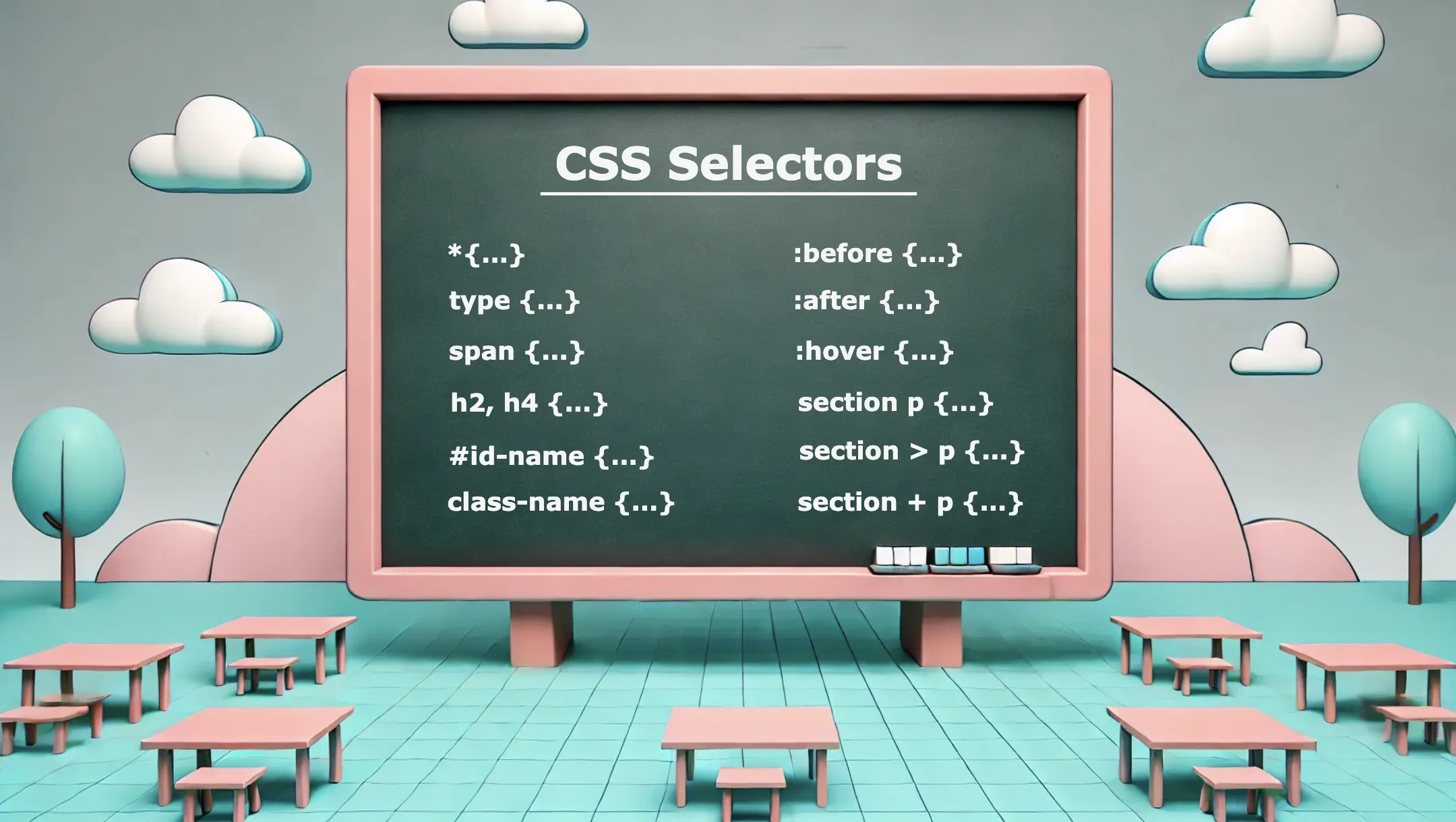
    CSS selectors offer a wide range of options, from a basic element selection class, id, type, * to more advanced techniques when combining them. In addition, we have the pseudo-selectors :before, and :after which also apply styles but only to specific elements and then it is the :hover pseudo-selector which adds the hover effect. So, let’s continue and analyze them one by one!

    Universal CSS Selector

    We are able to select ALL elements by setting the asterisk * selector. We utilize the asterisk to seamlessly/harmoniously apply uniform styles across all elements on our page. Below we can see an example where the CSS selector * applies a padding of 10 pixels to all HTML elements on the page. This means that every element, such as headings, paragraphs, images, buttons, and more, will have a padding of 10 pixels on all sides, creating consistent spacing around each element.

    * {
      padding: 10px;
    }
    CSS

    Basic CSS Selectors

    Now, it’s time to continue with the basic CSS selectors.

    class selector

    The first one is when we select elements based on their class. In the following example, we set all elements with classname="custom-class" to have background-color: yellow.

    .custom-class {
      background-color: yellow;
    }
    CSS

    id selector

    We continue with the second selector where we pick out elements based on their id. In the example below, we set all elements with id="custom-id" to have background-color: yellow.

    #custom-id {
      background-color: yellow;
    }
    CSS

    type selector

    Finally, the third selector is when we target elements based on their type (e.g.: p, h3, div, etc…). The code to the coming example selects all p elements from our document. The rules background-color: yellow and font-size: 14px means that all paragraphs on our document will be displayed with this specified background color and font size.

    p {
      background-color: yellow;
      font-size: 14px;
    }
    CSS

    Combine CSS Selectors

    We can further enhance CSS selectors by creating powerful combinations. Mixing and matching elements, make our selectors stronger and maintain our code super clean. 😄✨ The examples provided above show how adeptly combining CSS selectors can lead to remarkable outcomes.
    Multiple selectors

    We can begin with the power of CSS selectors in tailoring styles to a variety of HTML elements. Using the above code snippet we set the text color for h1 and h3 to magenta, while the text color for h2, h4 and p will be pink. All other elements (e.g.: h5, h6, div, a, etc…) will not be affected by these rules and will retain their default styling.

    h1, h3 {
      color: magenta;
    }
    
    h2, h4, p {
      color: pink;
    }
    CSS

    Adjacent Sibling Selector (+)

    We move forward with a slightly different example. Here, our code selects only the first p element that stands after every section element. So, here we will give a purple background-color to paragraphs that come immediately after sections. If there are paragraphs that follow other sections but are not direct siblings, they will not be affected by this specific rule.

    section + p {
      background-color: purple;
    }
    CSS
    <section>
      <p>This paragraph will NOT have a purple background.</p>
    </section>
    <p>This paragraph will have a purple background because it is immediately preceded by a section element.</p>
    <section>
      <p>This paragraph will NOT have a purple background.</p>
    </section>
    <p>This paragraph will have a purple background because it is immediately preceded by a section element.</p>
    <p>This is an additional paragraph after the last 'p' element, and it will NOT have a purple background.</p>
    HTML

    Direct children selector (>)

    We continue by setting the following code which selects all the p elements but only when they are nested inside a section and only the direct children. So, here will give a purple background-color to all paragraphs p that are direct children of all section elements. Any other paragraphs inside nested elements or outside the section elements will not be affected by this specific rule.

    section > p {
      background-color: purple;
    }
    CSS
    <section>
      <p>This paragraph will be selected.</p>
      <p>This paragraph will be selected.</p>
      <div>
        <p>This paragraph will NOT be selected.</p>
      </div>
    </section>
    <p>This paragraph will NOT be selected</p>
    HTML

    All descendants selector

    Our last example selects all p elements inside section elements. So, here will give a purple background-color to all paragraphs p that are nested to section elements. Any other paragraphs outside the section elements will not be affected by this specific rule.

    section p {
      background-color: purple;
    }
    CSS
    <section>
      <p>This paragraph will be selected.</p>
      <div>
        <p>This paragraph will ALSO be selected.</p>
      </div>
    </section>
    <p>This paragraph will NOT be selected</p>
    <p>This paragraph will NOT be selected</p>
    HTML

    🔎 🕵️‍♀️ 🔍 The main difference between 3 and 4 is that section > p selects all p elements that are direct children, of the section, while section p selects all p elements that are descendants of the section, no matter how deeply nested.

    Pseudo-selectors

    Before and After

    The :before and :after are not standalone selectors in CSS. They are pseudo-elements that can be used with regular CSS selectors to apply styles to specific parts of an element’s content. They are used in conjunction with regular selectors to add content before or/and after the selected elements and apply specific styles to that generated content.

    Here we have an example using an h1 selector with :before and :after pseudo-selectors. Styles defined within h1:before will be applied to the content that appears before(left) the h1 element while styles defined within h1:after will be applied to the content that appears after(right) the h1 element.

    h1:before {
      content: "🥰 😀"; /* the two faces will be placed before my heading(h1) */
      padding-right: 10px;
    }
    
    h1:after {
      content: "😀 🥰"; /* the two faces will be placed after my heading(h1) */
      padding-left: 10px;
    }
    CSS

    OR (using Sass)

    h1 {
      &:before {
        content: "🥰 😀";
        padding-right: 10px;
      }
      &:after {
        content: "😀 🥰";
        padding-left: 10px;
      }
    } /* end of h1 */
    SCSS

    🔖 We need to add padding-right and padding-left in order to give our pseudo-selectors a small space, in our case 10px, from our heading.

    <h1>Pseudo-selectors are awesome!</h1>
    HTML

    Ta-da 🥁 ! Below, we are able to view the current visual output displayed on the screen. Awesome! Isn’t it? ✨ 🎉

    CSS selectors: This is an image that shows an <h1> html element tag with <before> and <after> pseudo selectors.

    Hover

    We use the :hover selector to change the style of an element when we hover over it. While it is commonly used with links it can also be applied to all elements. To implement this effect, first, select the element you want to target, in our case the <button>, and then apply the :hover pseudo-selector to it. After that, when we hover over the button, its color will change from pink to green.

    button {
      background-color: pink;
    }
    
    button:hover {
      background-color: green;
    }
    CSS

    OR (using Sass)

    button {
      background-color: pink;
      &:hover {
        background-color: green;
      }
    }
    SCSS

    The CSS selectors play a fundamental role in web development, enabling us to target and style specific elements efficiently. They provide great flexibility and precision in styling web pages. Use them in the right way 🧐 and you will be able to do amazing things! Sending good vibes for your CSS explorations! Happy coding!!