Tag: grayscale

  • CSS Grayscale Filter – A Complete Guide

    CSS Grayscale Filter – A Complete Guide

    Hello everybody! 😃 In the vibrant world of web design, the CSS grayscale filter stands as a powerful tool for transforming the visual appearance of images and elements on a webpage. The CSS filter: grayscale(%) works like a magic wand. 🪄 It takes colorful images or elements and converts them into grayscale shades. This effect is great for creating different aesthetics, whether you’re aiming for a vintage charm or a sleek, modern look. The CSS grayscale filter can be applied to various elements, including images, SVGs, emojis, font icons, and even HTML elements.

    Let’s explore what makes this filter so enchanting! 🧙‍♀️

    Grayscale on HTML elements

    First of all, it’s important to note that the CSS grayscale filter may not be noticeable on black and white elements. Since grayscale shifts colors toward shades of gray, and black is already the darkest shade, while white stays the lightest one. Secondly, always keep in mind that the filter: grayscale(100%) can make text completely dark, which may not be ideal when placed on black or very dark backgrounds.

    Using the CSS grayscale filter on fonts

    We will begin by applying grayscale to fonts. In the following example, I used blue text, instead of the default black to emphasize the contrast and make the transition to shades of gray more noticeable.

    This reinforces an important point we discussed earlier—this effect stands out most when applied to bright, colored elements rather than dark, black, or near-black ones. 😉

    <h1>The grayscale filter</h1>
    HTML
    h1 {
      color: blue;
      filter: grayscale(50%);
    }
    CSS

    With the HTML code, we define an <h1> heading element, then CSS sets its text color to blue and applies a grayscale filter to it. Initially, we use 50% intensity, creating a visual effect where the blue text is converted to grayscale while still retaining a subtle hint of its original blue color.

    To clarify, there is another example where we use the filter at 90%, resulting in the title appearing in different shades of gray. This time, it’s very close to being completely dark gray—almost black, we could say.


    This image shows a blue text.
    without grayscale(%)
    This image displays blue text with the CSS grayscale filter set to 50%, partially desaturating the blue color into varying shades of gray.
    with grayscale(50%)
    This image displays blue text with the CSS grayscale filter set to 90%, turning it into grayish shades while retaining 10% of the original blue color.
    with grayscale(90%)

    Grayscale on background color

    In this case, instead of setting the text color, we will set the background-color. Now, take a look at the orange. In the first image, we see a bright orange, while in the second, the color appears slightly darker (grayish) due to the filter: grayscale(40%) property.

    <h1>The grayscale filter</h1>
    HTML
    h1 {
      background-color: orange;
      filter: grayscale(40%);
    }


    CSS
    This image displays black text on an orange background color.
    without grayscale(%)
    This image displays black text on an orange background with the CSS grayscale filter set to 50%, converting the background into grayish shades while reducing its original color intensity.
    with grayscale(40%)

    Grayscale on other HTML elements

    We can also apply the grayscale filter to various HTML elements, such as <span>, <li>, and more. Below, I’ve provided two examples for clarity: the first applies the filter to the content of two <span> elements, while the second applies it to the bullets of an <li>.

    Example using a span

    <div class="grayscale-elements">
      <span>"</span> Happy Coding! <span>"</span>
    </div>
    HTML
    .grayscale-elements {
      color: orange;
    }
    
    .grayscale-elements span {
      filter: grayscale(80%);
    }
    CSS

    In the HTML snippet, we create a <div> element with the class .grayscale-elements. Inside this <div>, we add two <span> elements, each containing a double quote to frame the text “Happy Coding!” These <span> elements allow us to style the quotes differently from the rest of the text.

    In the associated CSS code, .grayscale-elements is targeting elements with this class. The text color of the elements with this class is set to orange. Additionally, the CSS rules target the <span> elements inside and apply an 80% grayscale filter to them, rendering the quotes in shades of gray while retaining the orange color for the rest of the content.


    This image displays orange text enclosed in quotation marks.
    without grayscale(%)
    This image displays orange text enclosed in quotes, with the quotes inside <span> elements. The spans have the CSS grayscale filter set to 80%, converting the orange color into grayish shades while retaining 20% of its original hue.
    with grayscale(80%)

    Example using a ul

    <ul>
      <li>HTML</li>
      <li>CSS</li>
      <li>Javascript</li>
    </ul>
    HTML
    ul {
      list-style: none; /* remove the default bullets */
    }
    
    li {
      color: magenta; /* change lists default (black) color */
    }
    
    li:before {
      content: "•"; /* add new bullets and now can be manipulatated */
      margin-right: 10px; /* add distance between the bullet and the text */
      filter: grayscale(50%); /* one of our examples */
    }
    
    CSS

    In the HTML snippet, we create an unordered list (<ul>) containing three list items (<li>).

    In the associated CSS, we target the <ul> element and remove the default bullets using list-style: none. Then, we style the list items (<li>), setting their text color to magenta.

    The :before pseudo-element is used to add custom bullets before each list item. In this case, the bullet is a solid circle (•) created using the content property. The margin-right property adds spacing between the bullet and the text.

    Additionally, a grayscale effect is applied to the bullets using filter: grayscale(50%), reducing their original color intensity by 50%. This results in bullets appearing in varying shades of gray while still retaining some color.

    For an even more pronounced effect, I also applied a 90% grayscale filter (filter: grayscale(90%)), making the bullets appear even closer to a true gray. 😃
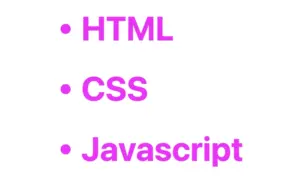
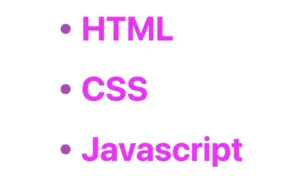
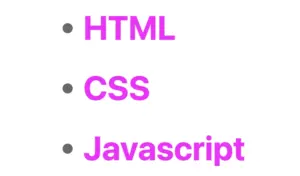
    This image displays an unordered list with three list items, all styled in magenta color.
    without grayscale(%)
    This image shows an unordered list with three list items inside. The list items have color magenta while a grayscale effect is applied to the bullets using filter: grayscale(50%), rendering them with a 50% intensity of grayscale.
    with grayscale(50%)
    This image displays an unordered list with three magenta-colored list items. The bullets have the CSS grayscale filter set to 90%, making them appear in grayish shades.
    with grayscale(90%)

    CSS Grayscale on images

    Another way to take advantage of this CSS property is by applying the filter: grayscale to images, transforming their colors into shades of gray. This is particularly useful for making pictures look old-fashioned or monochromatic when they create a black and white effect.

    <div class="grayscale-image"><div>
    HTML
    .grayscale-image {
      background-image: url(<your-image>);
      background-repeat: no-repeat;
      background-size: cover;
      width: 300px;
      height: 400px;
      filter: grayscale(70%);
    }
    CSS

    The given code creates an HTML div element with the class .grayscale-image.

    This class is styled using CSS to display a grayscale image. The background of the div is set to an image from the provided URL using the background-image property. The image is styled to not repeat (background-repeat: no-repeat) and to cover the entire area (background-size: cover). Its dimensions are set to width of 300 pixels and height of 400 pixels. Finally, a grayscale filter is applied to the image using the filter property, with a 70% level of grayscale.


    This image displays a photo with vibrant colors, including shades of pink, gold, and green.
    without grayscale(%) – Original photo by Katie Harp on Unsplash
    This image displays a photo with colors close to pink, gold, and green, with the CSS grayscale filter set to 70%, partially desaturating the colors into grayish tones.
    with grayscale(70%)

    I did something similar for the following image but set the grayscale to 100%, which transformed the image entirely into shades of gray. Impressive, isn’t it? 🙃


    This image displays a photo of a brown building with the sky in the background and an airplane flying overhead.
    without grayscale – Original photo by Sorasak on Unsplash
    This image displays a photo of a brown building and the sky with an airplane. The CSS grayscale filter is set to 100%, converting the entire photo into grayscale shades.
    grayscale(100%)

    CSS Grayscale on SVG

    The grayscale filter can be applied to SVG elements too, making them appear in varying shades of gray. This is often used to achieve a specific artistic or design effect. For instance, we applied this filter to an SVG of a moon, which was originally yellow, transforming it into a soft gray and adding a unique visual dimension. Awesome, right?

    svg {
      filter: grayscale(80%);
    }
    CSS

    In our CSS code, we apply a filter with a specified grayscale percentage of 80%. This effect transforms the originally yellow image into varying shades of gray while preserving a subtle hint of its original color.

    🔖 Remember that directly targeting the <svg> element may cause conflicts 🌩 ⚡ if multiple SVGs exist in the document.


    This image displays a yellow moon against a dark background.
    without grayscale(%)
    This image displays a yellow moon with the CSS grayscale filter set to 80%, partially desaturating the colors into grayish shades while retaining 20% of the original hue.
    with grayscale(80%)

    CSS Grayscale in Font Awesome

    Another way to use this CSS trick is with Font Awesome icons. In the example below, we will see how to do it the correct way. Since Font Awesome icons start off as black, it’s important to apply color before adding the grayscale effect.

    <i class="fa-solid fa-camera-retro"></i>
    
    HTML
    .fa-camera-retro {
      color: red;
      filter: grayscale(70%);
    }
    
    /* OR - if you want a more generic rule */
    
    i {
      color: red;
      filter: grayscale(70%);
    }
    CSS

    In this HTM snippet, we have an <i> element with the class .fa-solid .fa-camera-retro from the Font Awesome library.

    The corresponding CSS styles .fa-camera-retro, setting the icon’s color to red and applying a 70% grayscale effect. Additionally, we can also target the <i> element directly for a more generic customization.

    🔖 Remember, if you use the Font Awesome .fa-solid class for multiple icons or style them via <i>, all instances will inherit the same appearance, affecting every <i> element in the document.


    This image displays a red retro camera icon from Font Awesome.
    without grayscale
    This image displays a red retro camera icon from Font Awesome with the CSS grayscale filter set to 70%, making the red appear much darker, almost brown.
    with grayscale(70%)

    CSS Grayscale on emoticons using pseudo-elements

    Next, we move on to the beloved emoticons (like 🤗, 😇, etc.). It’s a cool way to make them look a bit different! Below I crafted an example to give a clearer explanation. I chose two of my favorite emoticons 👩‍🎤 🧚‍♀️. Feel free to choose your personal favorite and enjoy the experience!! Always remember that the more vivid the colors, the stronger and more noticeable the effect will be! Good luck! 🌟 🥳

    <div class="grayscale-emoticons"></div>
    HTML
    .grayscale-emoticons:before {
      content: "👩‍🎤 🧚‍♀️";
      filter: grayscale(40%);
      font-size: '50px';
    }
    CSS

    The HTML snippet creates a div element with the class .grayscale-emoticons.

    The linked CSS code, .grayscale-emoticons uses the :before pseudo-element to insert content. The inserted content consists of two emojis: “👩‍🎤” and “🧚‍♀️.” Additionally, a grayscale filter of 40% is applied, giving the emojis a subtle grayscale effect, displaying them in varying shades of gray while retaining some of their original colors.

    I also included another example with a 100% grayscale filter, which completely removes all colors, rendering the emojis entirely in grayscale.


    This image shows two colorful emoticons.
    without grayscale
    This image shows two colorful emoticons with a grayscale filter of 40%. As a result the emoticons are now displayed in varying shades of gray with 40% intensity of the original colors.
    with grayscale(40%)
    This image shows two colorful emoticons with a grayscale filter of 100%. As a result the emoticons are now displayed only in shades of gray.
    with grayscale(100%)

    Using shades of gray adds a nice touch, but if you want to go the extra mile 🏃‍♀️, try adding shadows to elements for a more realistic look. Building on our previous example, I’ve incorporated the fantastic drop-shadow CSS property to achieve this. Pretty cool, right! 😃

    .grayscale-emoticons:before {
      content: "👩‍🎤 🧚‍♀️";
      filter: grayscale(40%) drop-shadow(2px -1px 1px #1d1e22);
      font-size: 100px;
    }


    CSS
    This image displays two colorful emoticons with the CSS grayscale filter set to 40%, partially desaturating their colors. They also feature a 2px -1px 1px gray shadow.
    filter: grayscale(40%) drop-shadow(2px -1px 1px #1d1e22);
    This image shows two colorful emoticons with a grayscale filter of 100%. As a result the emoticons are now displayed in various shades of gray. They also have a 2px -2px 2px gray shadow.
    filter: grayscale(100%) drop-shadow(2px -2px 2px #1d1e22);

  • The CSS Sepia Filter – Learn How to Make Vintage Images

    The CSS Sepia Filter – Learn How to Make Vintage Images

    In the world of web design, adding a touch of nostalgia or a vintage vibe to images can significantly enhance a website’s aesthetic. One timeless technique to achieve this effect is the CSS sepia filter.

    Originating from sepia ink, which has been used for centuries, this filter gives photos a warm, brownish tone reminiscent of old photographs, lending a sense of history and charm to the visuals.

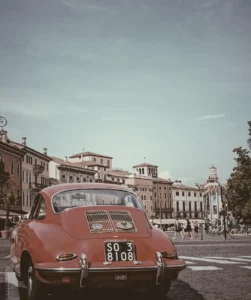
    An image with 0% sepia maintains its original, true colors, while at 100% sepia, the image is entirely transformed into a warm, brownish tone as an aged photograph. As you increase the percentage, you intensify the sepia effect.

    Join me 😃 into the magic of the filter: sepia(%) CSS property and explore how it can be seamlessly integrated into your web design toolbox.

    History of the sepia ink

    🧐 Did you know that sepia ink is a brownish-black ink made from the ink sac of the common cuttlefish, Sepia? 🐙 They belong to the class Cephalopoda, which also includes squid, octopuses, and nautiluses.

    Historically, it has been used for writing and drawing, and it was particularly popular in the past for writing manuscripts and creating artwork.

    The ink took its name from the sepia cuttlefish, which was the source of the ink. The ink was widely used in antiquity and during the Renaissance*, and it has a characteristic warm, brownish hue which is why the CSS filter that replicates this effect is referred to as the “sepia” filter.

    (* The Renaissance was a period in European history that spanned roughly from the 14th century to the 17th century. It was characterized by a significant cultural, artistic, and intellectual rebirth after the Middle Ages. The term “Renaissance” is derived from the French word meaning “rebirth”).

    Use the CSS sepia filter to an image

    Below I craft an example as an easy way to explain this amazing CSS property to you! 😃 So, let’s proceed.

    We will start with our HTML and CSS code snippets.

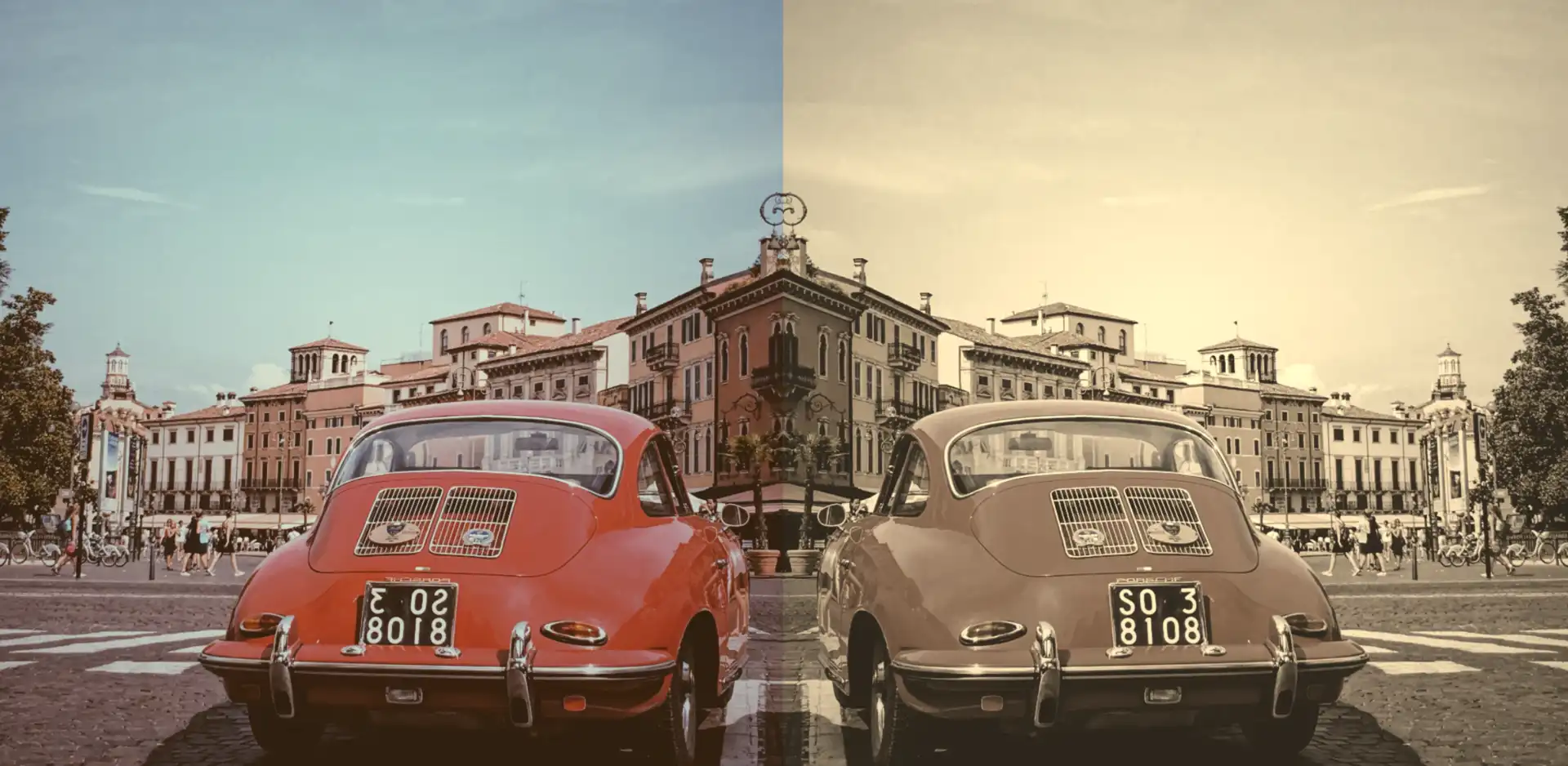
    The HTML snippet contains two <img> elements. The first one has the .original-image class, indicating a standard image. The second one has also the .original-image and additionally the .with-sepia, implying it’s a styled image using the sepia filter, giving it a warm, brownish tone.

    <img class="original-image"/>
    <img class="original-image with-sepia"/>
    HTML

    The .original-image class is shared by both image elements, setting a background image, ensuring it doesn’t repeat and covering the specified width and height (400px by 500px).

    The .with-sepia class applied only to the second image, introduces a sepia filter of 80%, giving a warm, brownish tone.

    .original-image {
      background-image: url(https://images.unsplash.com/photo-1501829385782-9841539fa6bf?ixlib=rb-4.0.3&ixid=M3wxMjA3fDB8MHxwaG90by1wYWdlfHx8fGVufDB8fHx8fA%3D%3D&auto=format&fit=crop&w=3024&q=80);
      background-repeat: no-repeat;
      background-size: cover;
      width: 400px;
      height: 500px;
    }
    
    .with-sepia {
      filter: sepia(80%);
    }
    CSS

    By placing the two images side by side, we can effortlessly 🧐 perceive the contrast between them. It’s absolutely fascinating, isn’t it? 😃

    Enrich filter CSS sepia property with grayscale value

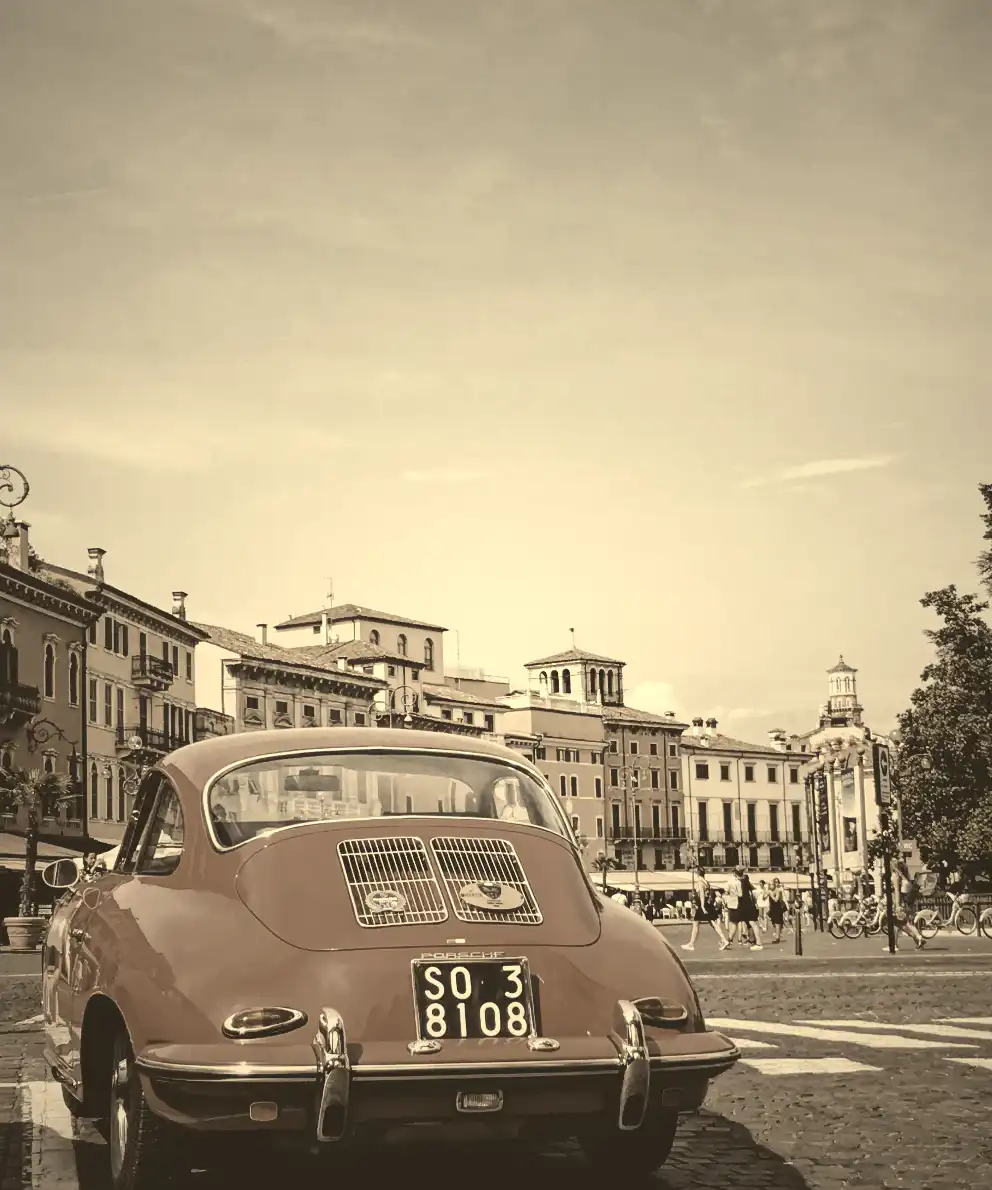
    In addition, we can add the filter: grayscale(%) CSS property. Together, these filters can create a unique and visually captivating presentation, capturing the essence of both the past and the present in a single frame.

    .with-sepia {
      filter: sepia(80%) grayscale(50%);
    }
    CSS

    Wow! 🌟 This is absolutely stunning! 😃

  • How to Make Grayscale Images with CSS

    How to Make Grayscale Images with CSS

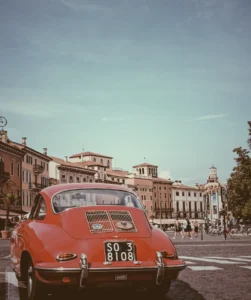
    Transforming your images into stunning black-and-white tones with depth and texture has become easier than ever with the powerful grayscale filter. Adding a touch of gray to your images creates a modern vibe and turns them into art. To achieve this effect, we use the CSS filter: grayscale(%) property.

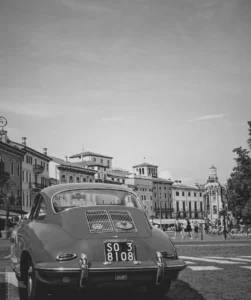
    The grayscale filter allows you to adjust the percentage of gray. When you increase the percentage, you boost the effect. An image with 0% grayscale maintains its authentic colors, while at 100% grayscale, the image is entirely transformed into a cold, grayish tone.

    Join me 😃 in the magic of the grayscale filter, explore how it can be merged harmoniously, and enhance your techniques.

    Monochrome – Grayscale method

    The grayscale method, or in other words, monochrome photography method, captures and displays different levels of light but not different colors. It includes all forms of black-and-white photography, which produces images with shades of gray ranging from black to white.

    It originated in 1820 when Nicephore Niepce, a French inventor and photographer, created the first photograph. In today’s world, monochrome photography is mainly used for applications other than photographs.

    Applying the grayscale filter to an image

    Below, I’ve prepared an example to help clarify this property for you! 😃 So, let’s move forward.

    We begin with our HTML and CSS code snippets.

    The HTML snippet includes three img elements. The first one has the .original-image class, indicating a standard image. The second and the third also have the .original-image plus the .with-grayscale class, meaning it’s a styled image using the grayscale filter, giving it a cold, grayish tone.

    <img class="original-image"/>
    <img class="original-image with-grayscale"/>
    <img class="original-image with-grayscale"/>
    HTML

    The .original-image class is applied to all image elements, setting a background image, ensuring no repetition, and covering the specified dimensions of 400px width and 500px height.

    The .with-grayscale class applied only to the second and third images, introduces a grayscale filter. In the second case, it is set at 50%, displaying our image with some grayish tones, while in the third case, it is set at 100%, decolorizing our image and declaring a completely gray tone.

    .original-image {
      background-image: url('...');
      background-repeat: no-repeat;
      background-size: cover;
      width: 400px;
      height: 500px;
    }
    
    .with-grayscale {
      filter: grayscale(50%);
    }
    
    .with-grayscale {
      filter: grayscale(100%);
    }
    
    CSS

    By positioning the three images side by side, we can clearly 🧐 observe the contrast among them. It’s absolutely captivating. Don’t you agree? 😃

  • Grayscale Backdrop Filter: What It Is and How to Use It

    Grayscale Backdrop Filter: What It Is and How to Use It

    Hello there! 😃 In CSS, we have a really helpful property called backdrop-filter. It’s like a special filter that applies grayish shades to the backgrounds. A useful tool when we want to focus on a part of the webpage without changing the actual element itself. Mm… 🤔 that is a little bit tricky! Isn’t it? Let’s grab a cup of coffee ☕ and move forward! We will clarify everything in this post about using a grayscale backdrop filter. 👩‍💻

    How the backdrop filter works

    So, how does this property really work? We will begin by setting the backdrop-filter property to grayscale(percentage), where the percentage determines the intensity of the grayscale effect, ranging from 0% to 100%. A value of 100% turns the color into a complete grayscale color, while a value of 0% will keep the element’s original color shades without any grayscale effect.

    This CSS property is not quite noticeable on black or white backgrounds because it adds shades of gray, and black is already the darkest shade while white is the lightest one. In simpler words, black and white will not get converted to grayscale because it already belongs to the darkest side of grayscale.

    For the filter to work properly, as a first step, we need to set the background-color property of the parent element. Afterward, we add the backdrop filter to the child elements we want to apply the grayscale effect. The backdrop filter will only affect the child element’s background color but not its content, text, images, etc.

    As a result, the parent element maintains its original background color, while the child element’s background is desaturated, creating a monochromatic, grayscale effect.

    Create a grayscale backdrop filter effect

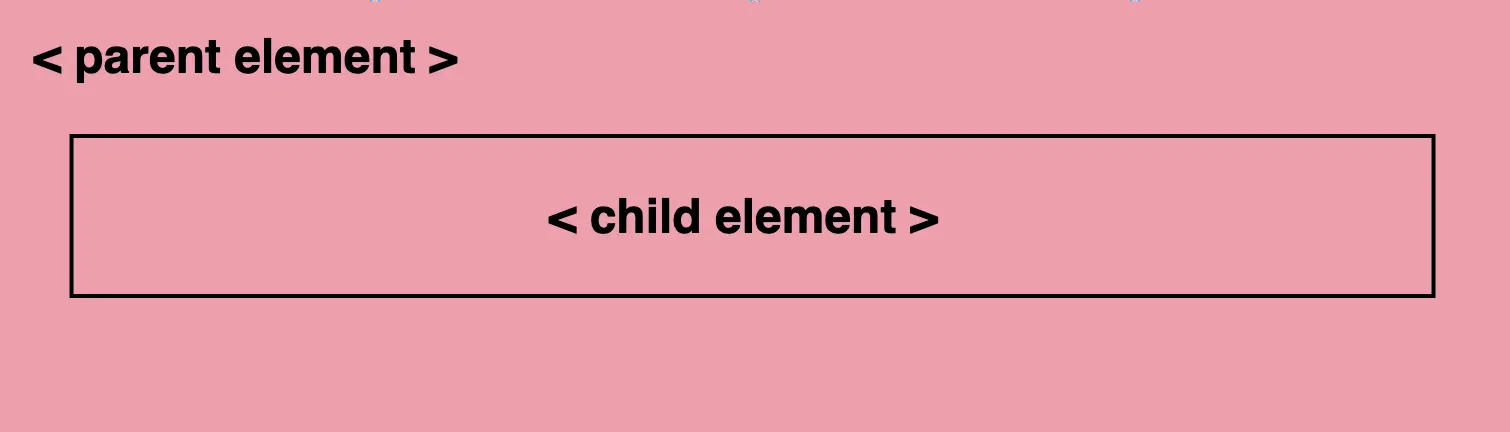
    This HTML and CSS code above creates a <section> element (father) with a <p> element (child) inside. The section has a background color in a shade of pinkish peach, defined by the hex color code #f99bab. Initially, the paragraph inherits the same background color.

    <section>
      <p>...</p>
    </section
    HTML
    /* PARENT ELEMENT */
    section {
      background-color: #f99bab; // a shade of pinkish peach
    }
    
    /* CHILD ELEMENT */  
    p {
      backdrop-filter: grayscale(50%);
    }
    CSS

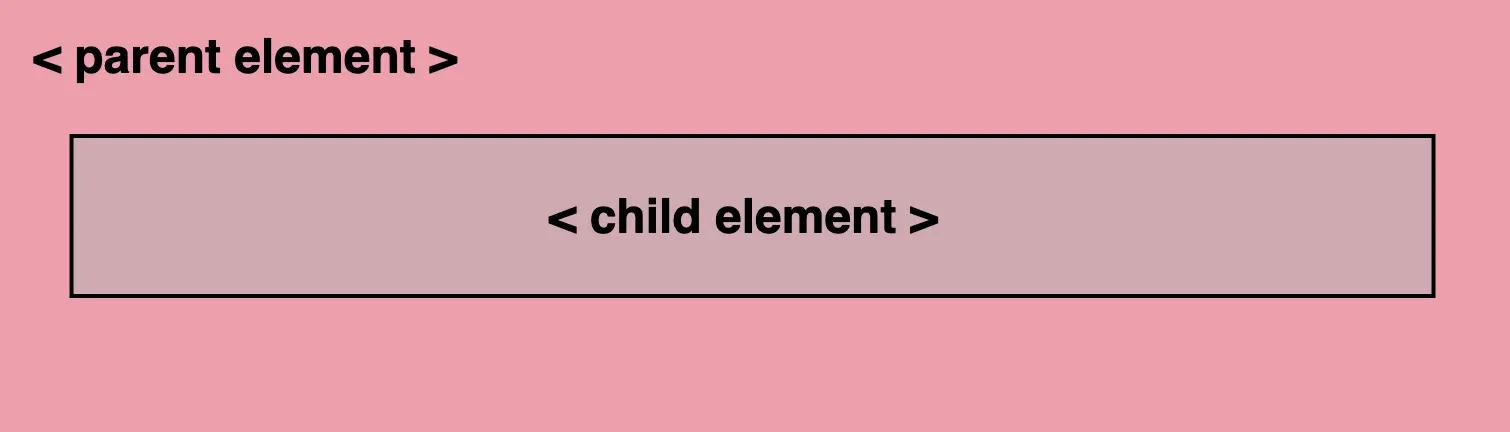
    We continue with the <p> element styled by a backdrop-filter with a grayscale value of 50%. This effect visually desaturates the paragraph’s background (the paragraph inherits its background from its parent, the section). This means that the colors where the backdrop filter is applied (the area behind the element) will be desaturated to 50%. As a result, a grayscale effect will be applied where the colors are halfway between their original color and grayscale while leaving the content unaffected.

    In simple terms, by setting this code, we create a parent element with a shade of pinkish peach-colored background, and its child element has a somewhat muted, desaturated appearance while at the same time retaining some of the original pink color.

    Α p html element inside a section element.  They both have the same background color, a shade of pinkish peach (#f99bab).
    without grayscale
    Α p html element inside a section element. Its background color is a shade of pinkish peach (#f99bab). The child emelent had the backdrop-filter: grayscale(50%) CSS property which means the background color is a shade of pinkish peach desaturated  by 50%.
    with grayscale(50%)

    A grayscale-themed table

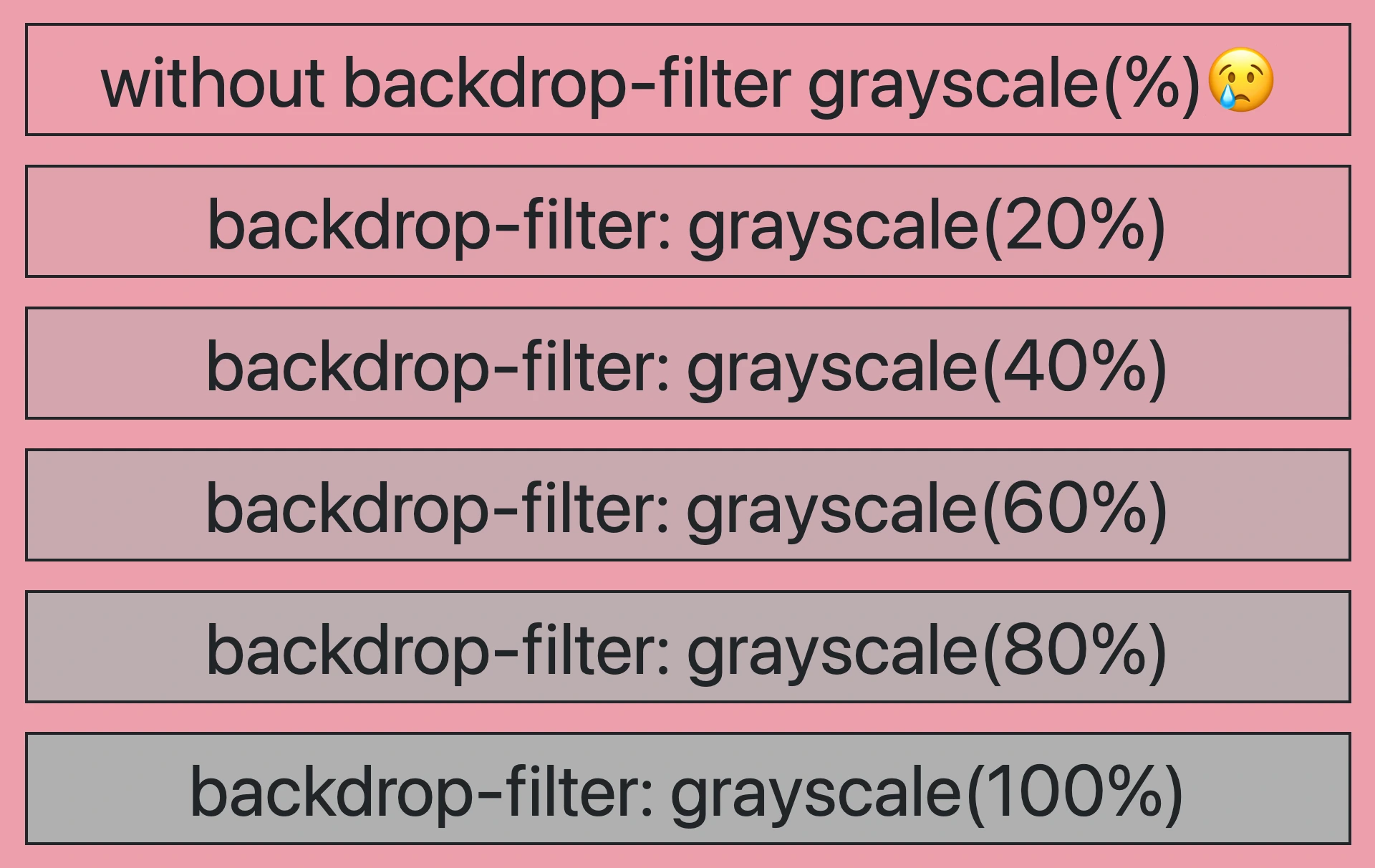
    Below, I have included a table that visually presents some possible variations of the grayscale backdrop filter effect. 😃

    Α table with different grayscales in each row. We have a zero grayscale, a 20%, 40%, 60% and finally 100%.