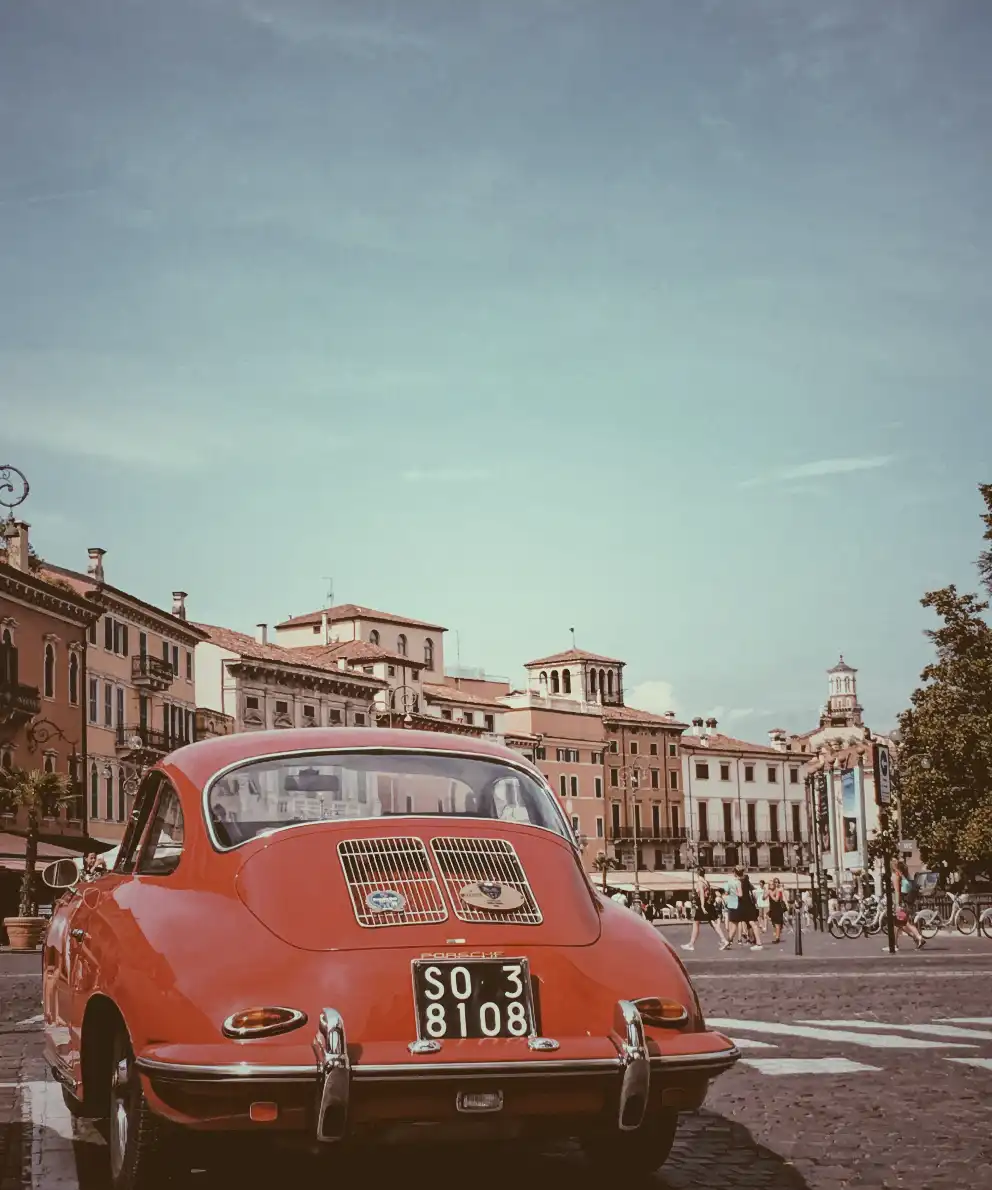
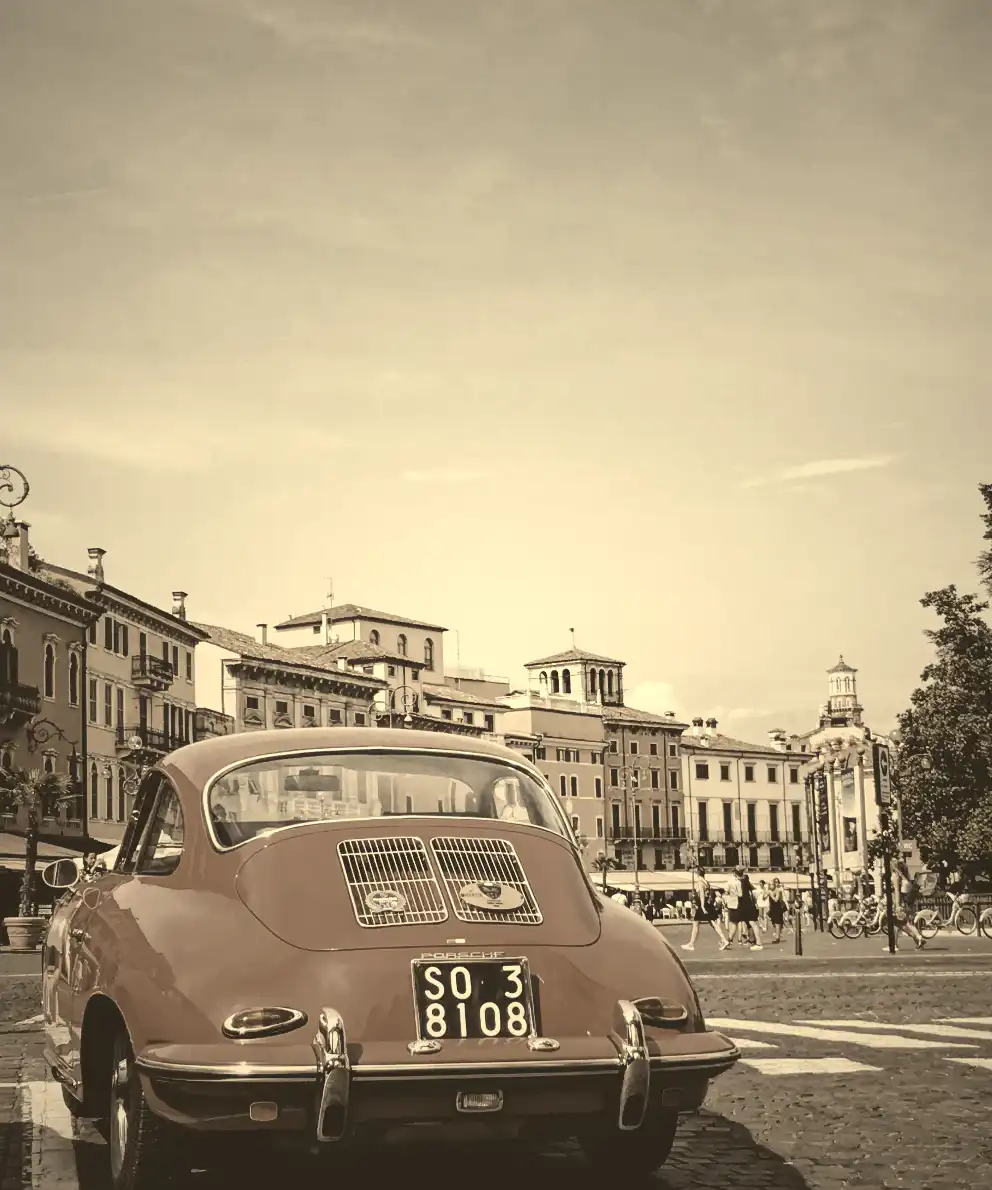
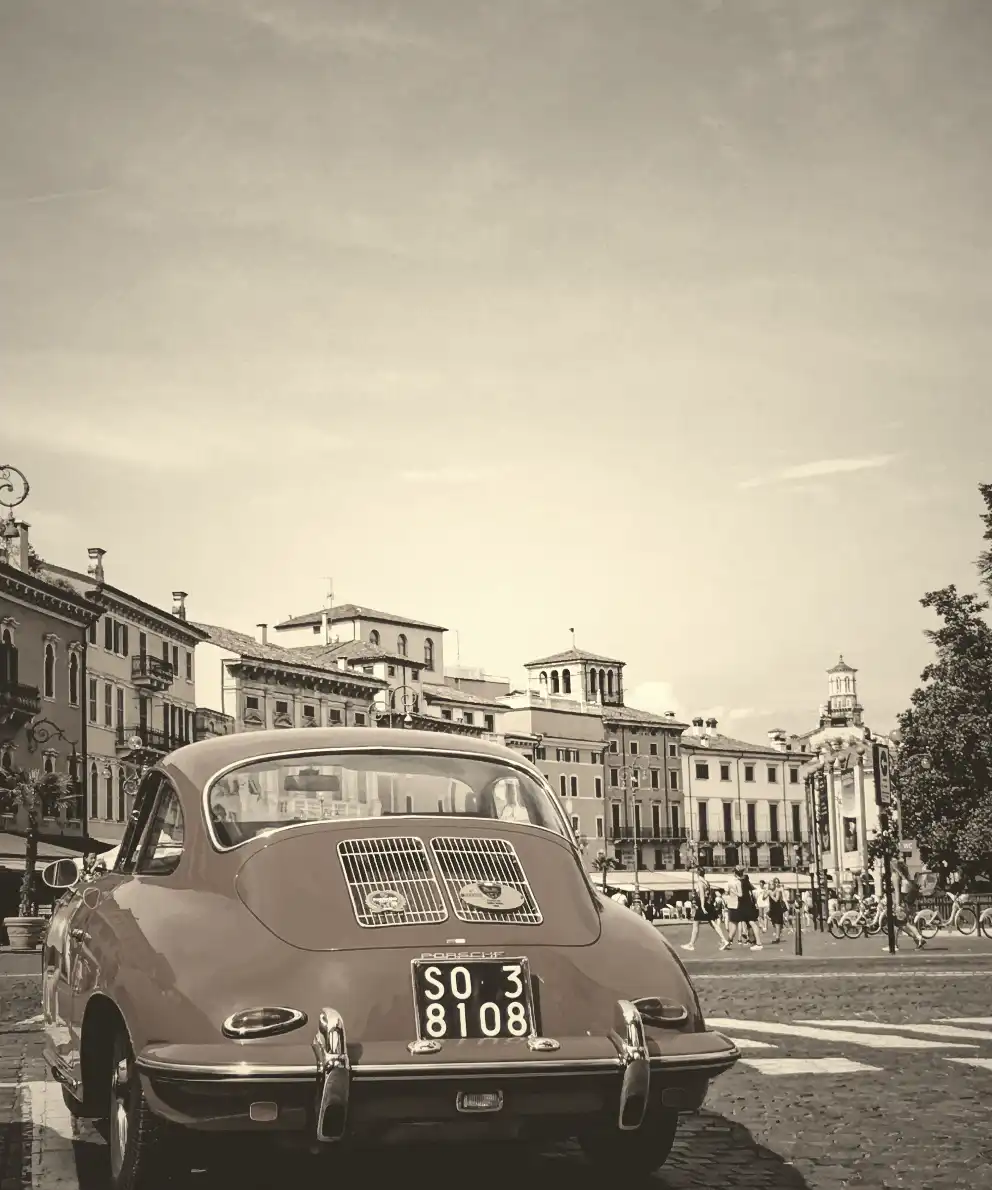
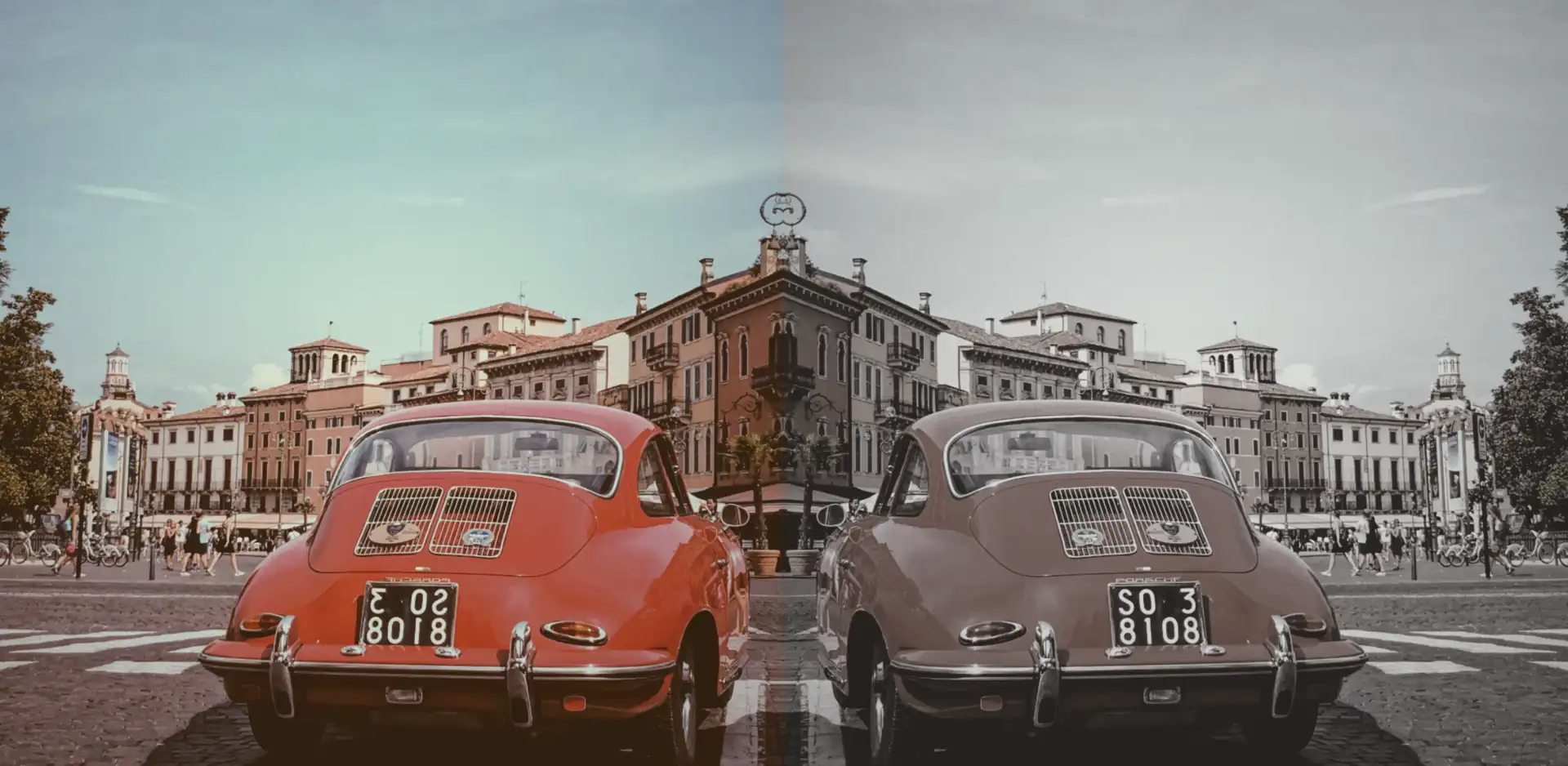
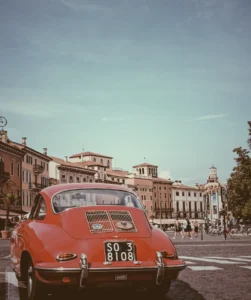
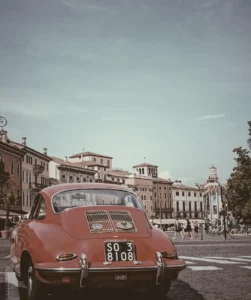
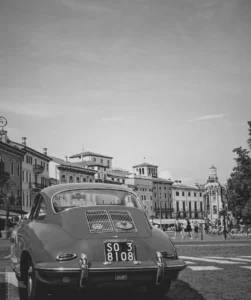
Tag: image

  • Clip-path Inset CSS Property – Cropping Elements As A Pro

    Clip-path Inset CSS Property – Cropping Elements As A Pro

    Another efficient and user-friendly CSS method to cut down ✂ and “play” 🤹‍♀️ with existing HTML elements. In contrast to most clip-path methods that use coordinate pairs(X, Y) to define points (that act as the corners of the shape) inset() manipulate the sides of the element. How so? Let’s discover it together!

    The clip-path: inset() is a way to restrict the visible area of an element by “pushing in” its sides from the element’s bounding box. This function doesn’t create a new shape as every element’s box is rectangular (and it can be a square if the width and height match), it just “trims” the existing one. The result is always a four-sided shape with right angles, which can be either a rectangle or, in special cases, a square.

    Now, let’s proceed with a more detailed analysis and try out this amazing tool. For better understanding, I have prepared some practical examples for you. This is our “working area” for today! 👷‍♀️ 🏗 👷‍♂️

    Clip-path: inset() function explained

    First things first. What does this mean? Well.. We need a rectangular or a square shape in order to work with clip-path: inset() CSS property.

    The following code snippet and image illustrate how we create a simple black square with 200px width and 200px height.

    /* square */
    .square-shape {
      width: 200px;
      height: 200px;
      background-color: black;
      }
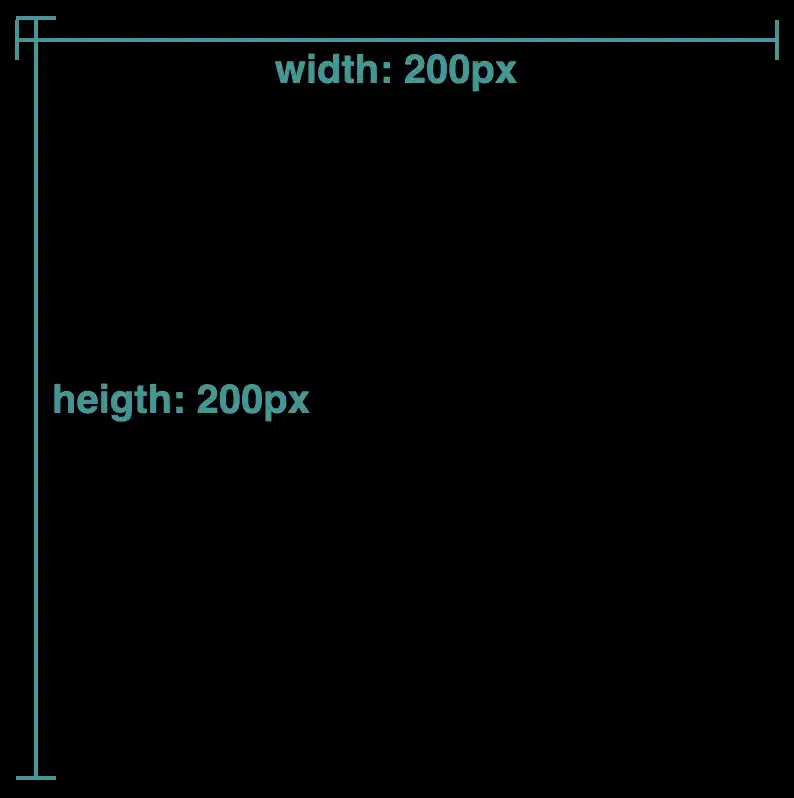
    CSS
    A black square with 200px width and height

    Inset accepts up to four values, each controlling how far the sides are pushed inward.

    So, how about analyzing the different cases based on these values, and then proceeding with examples?

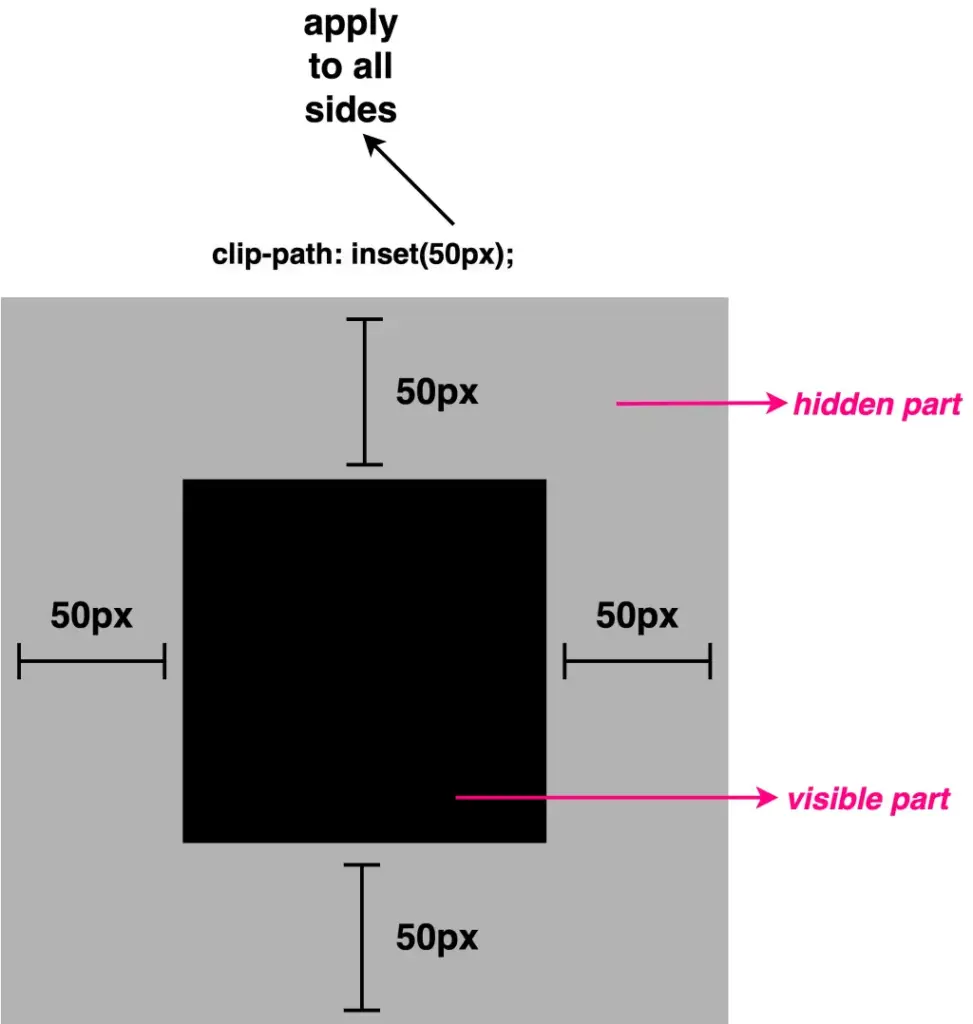
    • One value: it applies to all four sides
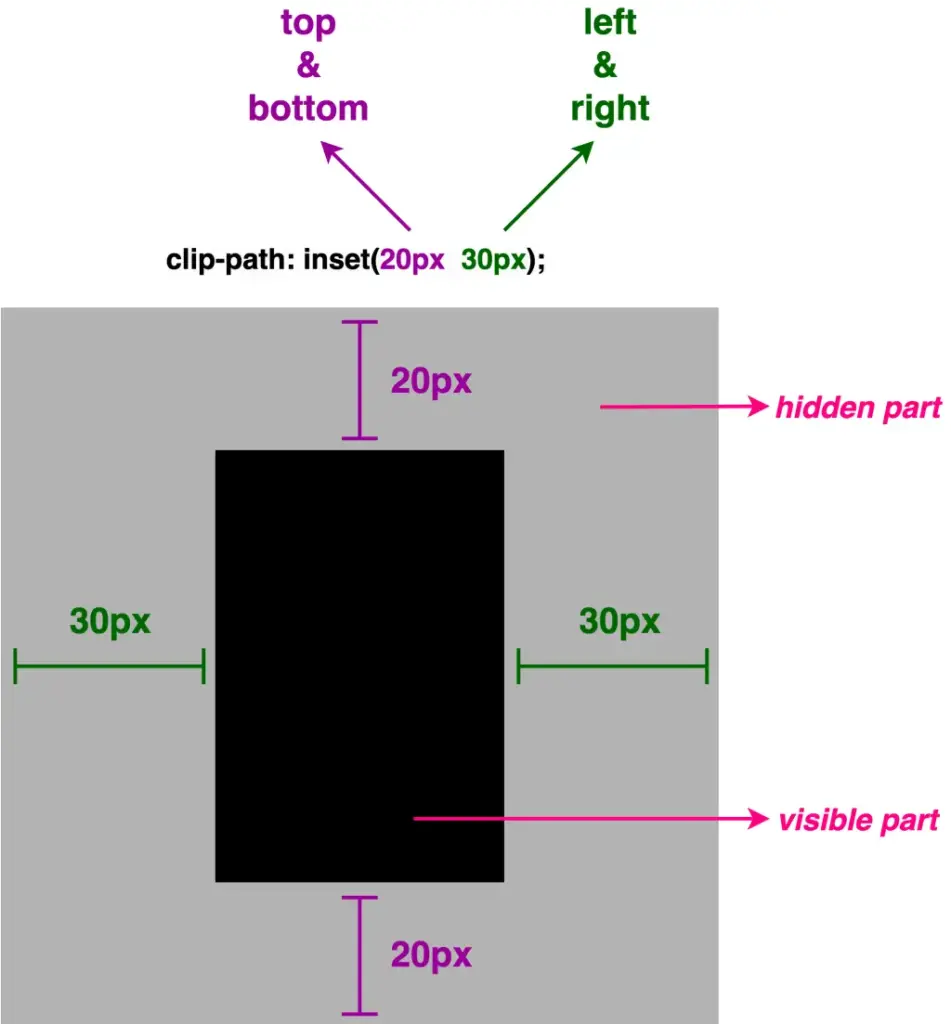
    • Two values: the first one is for top & bottom, while the second is for left & right
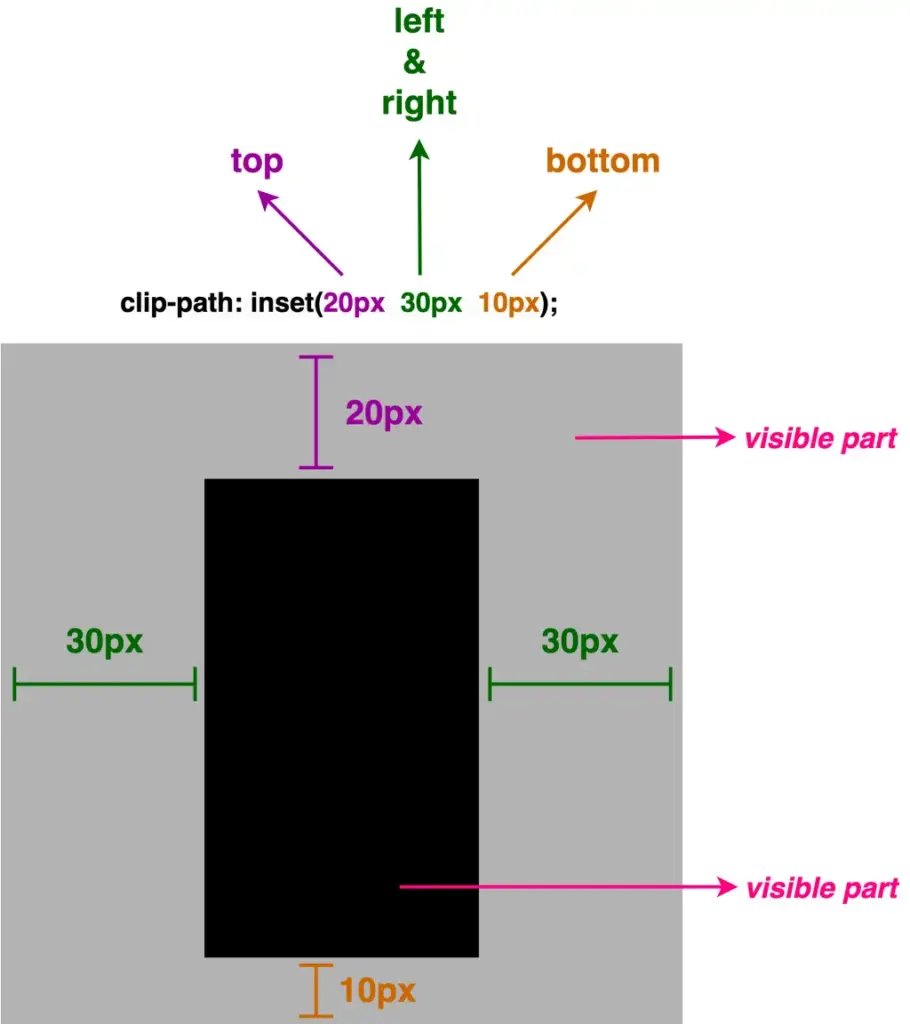
    • Three values: the first one is for top, the second for left & right and the third for bottom
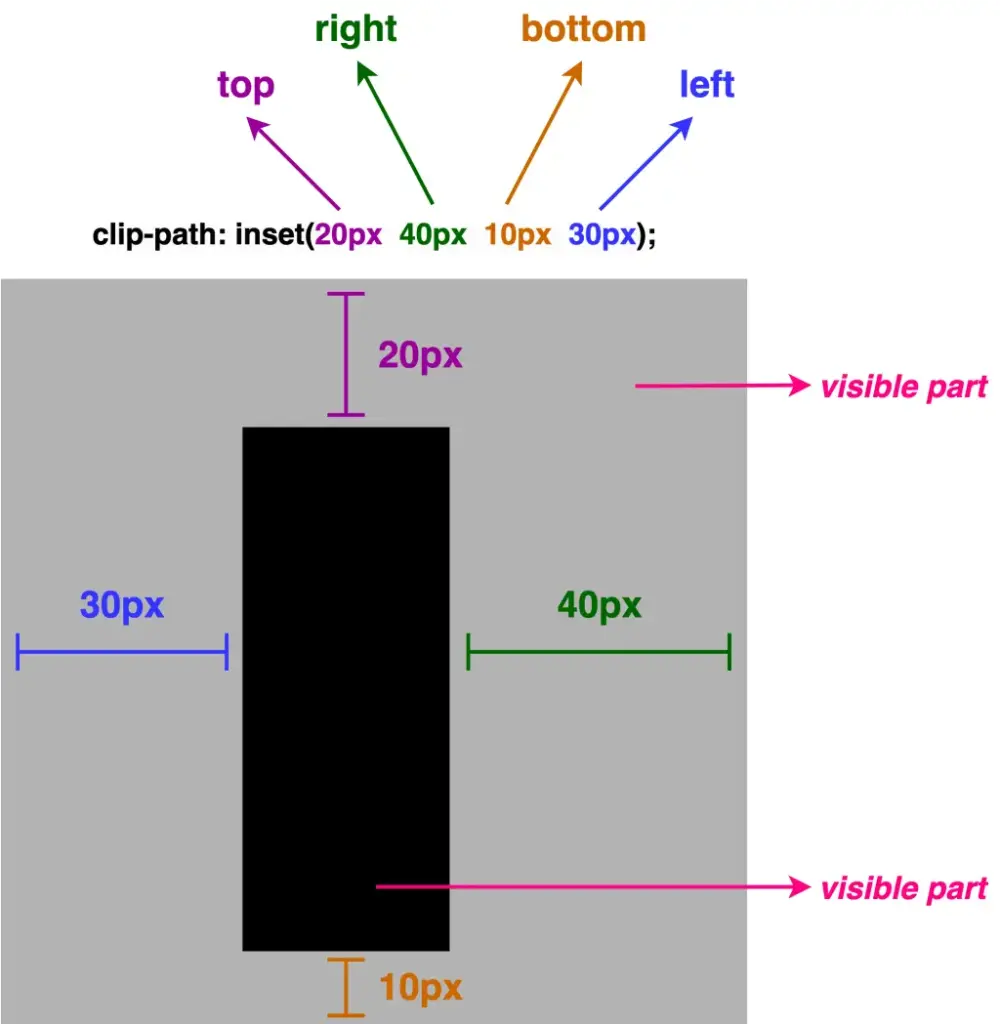
    • Four values: the first one is for top, the second for left, the third for bottom and finally the fourth value is for the right side (clockwise).

    We can now proceed with our examples. The code snippets and images that follow display these four cases.

    First case – One value

    .square-shape {
      ...
      clip-path: inset(50px);
      }
    CSS
    A black square with 100 pixels width and height. Applying to all sides clip-path: inset(50px);

    NOTE: ⬜ The gray color is used only for clarity, to distinguish the initial square from the clipped one. In practice, this part would be cut out (hidden).

    Second case – Two values

    .square-shape {
      ...
      clip-path: inset(20px 30px);
      }
    CSS
    A black square with 100 pixels width and height. Applying to all sides clip-path: inset(20px 30px);

    Third case – Three values

    .square-shape {
      ...
      clip-path: inset(20px 30px 10px);
      }
    CSS
    A black square with 100 pixels width and height. Applying to all sides clip-path: inset(20px 30px 10px);

    Fourth case – Four values

    .square-shape {
      ...
      clip-path: inset(20px 40px 10px 30px);
      }
    CSS
    A black square with 100 pixels width and height. Applying to all sides clip-path: inset(20px 40px 10px 30px);

    Making your elements smooth with rounded corners

    Apart from cropping, inset() allows you to round the corners of the clipped shape as well. This is achieved by adding the optional round keyword, followed by a radius value, which functions similarly to the border-radius CSS property.
    By utilizing it, we can transform the sharp corners into rounded ones.

    As previously with the inset(), round takes up to four values, too.

    • One value: it applies to all corners the same value
    • Two values: they applied diagonal, the first one is for top-left & bottom-right corners, while the second is for top-right & bottom-left corners
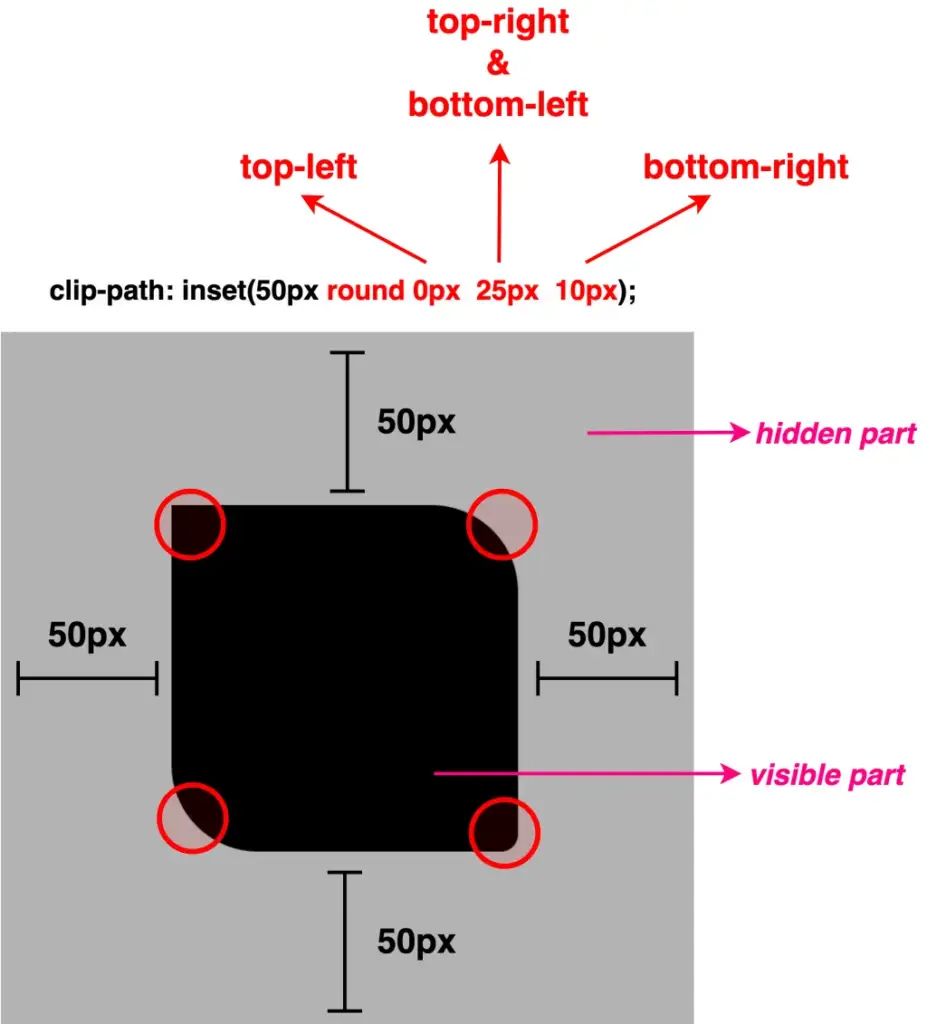
    • Three values: the first one is for the top-left corner, the second goes diagonally and is applied to both the top-right & bottom-left corners, and the third for the bottom-right corner
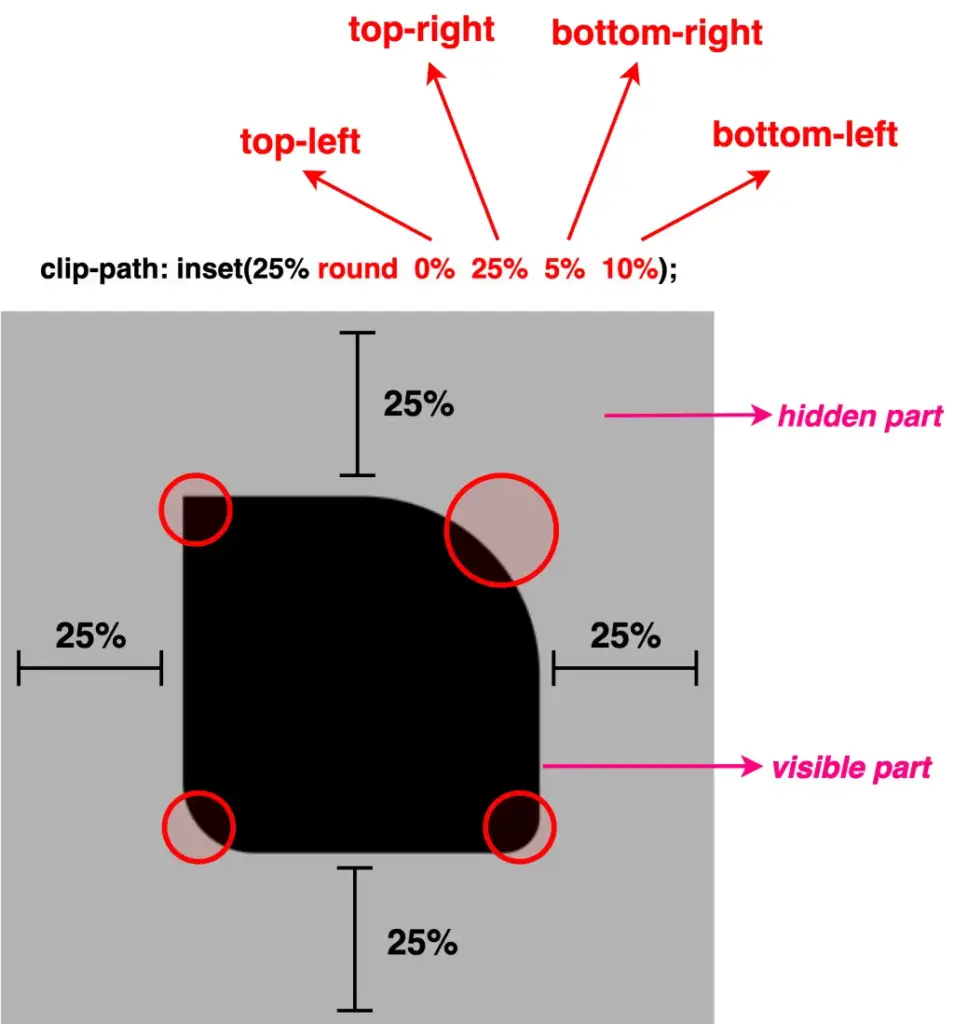
    • Four values: the first one is for the top-left corner, the second for the top-right, the third for the bottom-right, and finally the fourth value is for the bottom-left corner (clockwise).

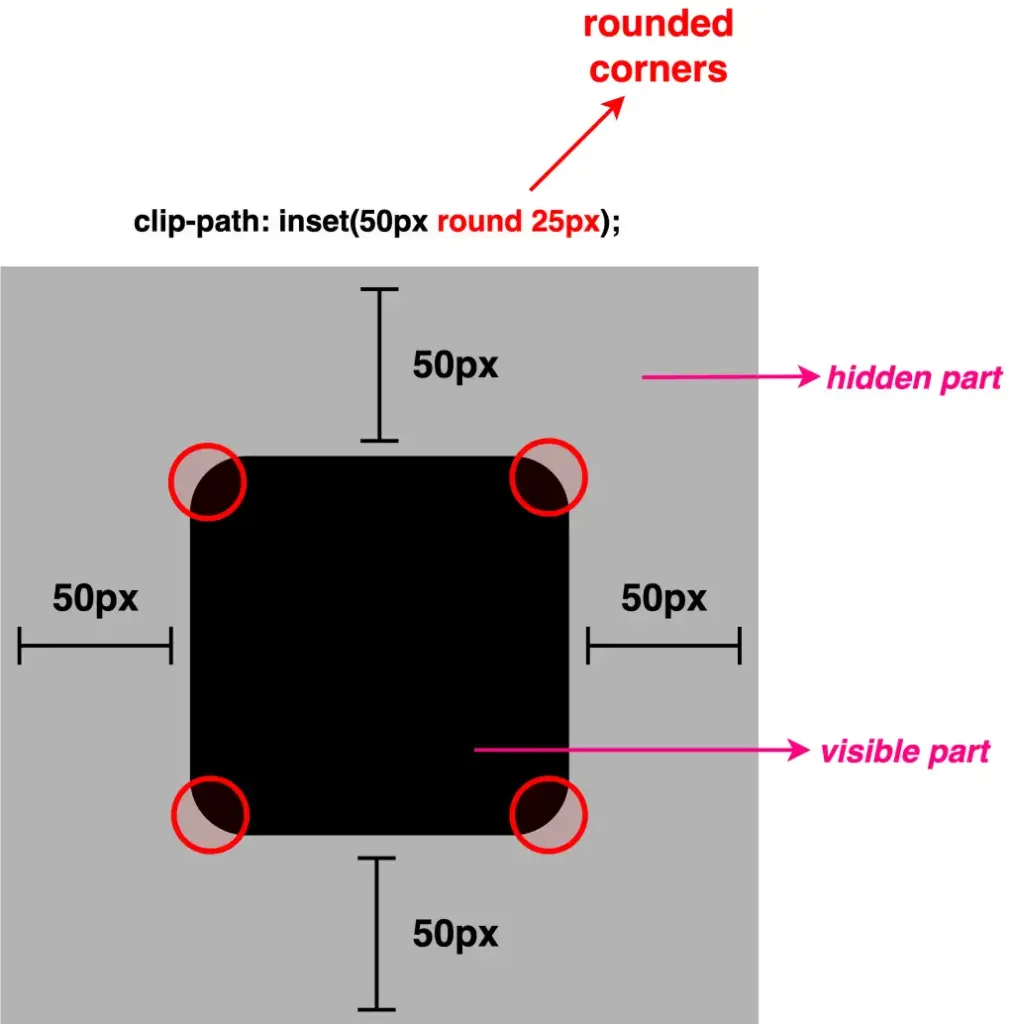
    We move forward with our examples. The following code snippets and images display these four cases.

    First case – One value

    .square-shape {
      ...
      clip-path: inset(50px round 25px);
      }
    CSS
    A black square with 100 pixels width and height. Applying clip-path: inset(50px round 25px);

    Second case – Two values

    .square-shape {
      ...
      clip-path: inset(50px round 0px 25px);
      }
    CSS
    A black square with 100 pixels width and height. Applying clip-path: inset(50px round 0px 25px);

    Third case – Three values

    .square-shape {
      ...
      clip-path: inset(50px round 0px 25px 10px);
      }
    CSS
    A black square with 100 pixels width and height. Applying clip-path: inset(50px round 0px 25px 10px);

    Fourth case – Four values

    .square-shape {
      ...
      clip-path: inset(50px round 0px 25px 10px 20px);
      }
    CSS
    A black square with 100 pixels width and height. Applying clip-path: inset(50px round 0px 25px 10px 20px);

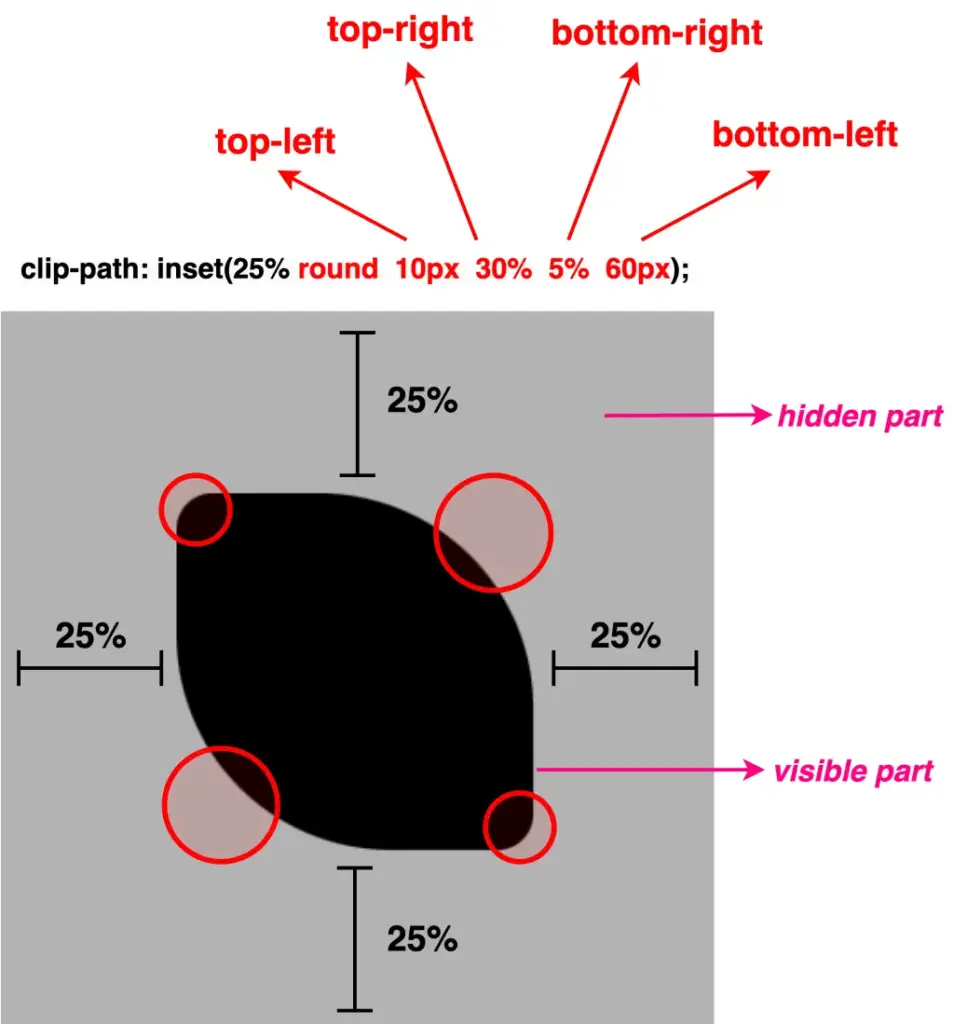
    Apart from pixels, all values can also be written in percentages. The two units, px and %, can even be combined.

    The following examples, along with their code snippets and images, illustrate these cases.

    Using percentages as values

    .square-shape {
      ...
      clip-path: inset(25% round 0% 25% 5% 10%);
      }
    CSS
    A black square with 100 pixels width and height. Applying clip-path: inset(25% round 0% 25% 5% 10%);

    Combine percentages with pixels

    .square-shape {
      ...
      clip-path: inset(25% round 10px 30% 5% 60px);
      }
    CSS
    A black square with 100 pixels width and height. Applying clip-path: inset(25% round 10px 30% 5% 60px);

    Well, something like a 🍋 lemon is here!! Cool, hug!?

    Clip-path inset function – manipulating images

    Images can also be clipped, revealing only part of them, by simply utilizing the clip-path: inset() CSS property.

    Below, we have an image of a bicycle 🚴‍♀️ out in nature. 🏞 Let’s say that we want to isolate the bicycle and display it within a rounded shape, pretty much like a frame. ✨

    An image with 100px width and height, showing a bicycle in nature.


    Depending on our prefrences, we cut away the unnecessary parts. First, our initial square image turns into a rectangle. After that, we add the round with a value of 50% which gives the remaining part a smooth, nicely rounded shape.

    NOTE: To make things more straightforward, I’ve prepared an image with colored code and overlays 🎨 ✂ showing which values correspond to the parts we cut away.

    .image {
      ...
      clip-path: inset(47px  14px  7px  20px  round 50%);
      }
    CSS

    Now we see just the bicycle kept in view, while everything else is clipped out. Exactly the effect we want to achieve.
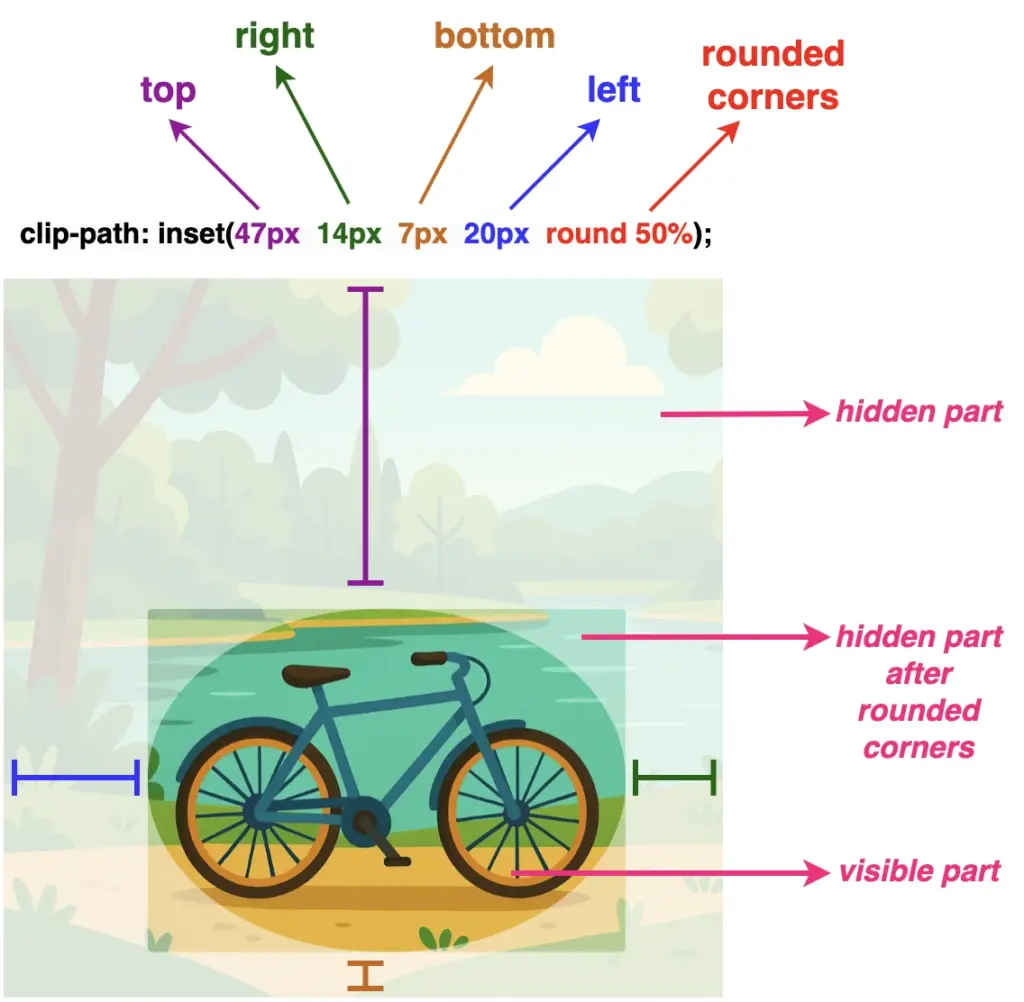
    An image with 100px width and height, showing a bicycle in nature. Applying clip-path: inset(47px 14px 7px 20px round 50%);

    Voila!! There we have it! Our final updated image!! 🥳 Ready to be styled even more with all those amazing CSS properties!

    A rounded image showing a bicycle
  • Easy Made Circles – A Simple Guide to clip-path CSS Property

    Easy Made Circles – A Simple Guide to clip-path CSS Property

    The clip-path property in CSS lets you control which part of an element is visible by defining a specific shape, no matter what the element’s shape is. It’s like placing a mask over an element—only the area inside the shape will be shown. Everything outside will be hidden. This provides a clever way to “cut out” parts of an element without needing extra images or complex code.

    A great tool for creating unique layouts, applying image effects, and designing custom shapes. CSS supports several shapes for clip-path, including circle(), ellipse(), inset(), and polygon()—each giving you different ways to shape your content and hide any parts you don’t need. 🪄

    In today’s post, we’ll focus on the circle() ⚫ function and explore how it works. 🧐
    Let’s dive in!

    The circle() function

    The circle() function is one of the simpler ways to create circles by clipping an element into a rounded shape with a radius of our preference based on the element’s smaller dimension (width or height, selecting the smaller one, ensuring the circle fits within the element).
    Traditionally, we can use pixels px and percentages % to define the dimensions and the position of the circle. Otherwise, we can just utilize the handy center keyword, which is responsible for positioning our circle.

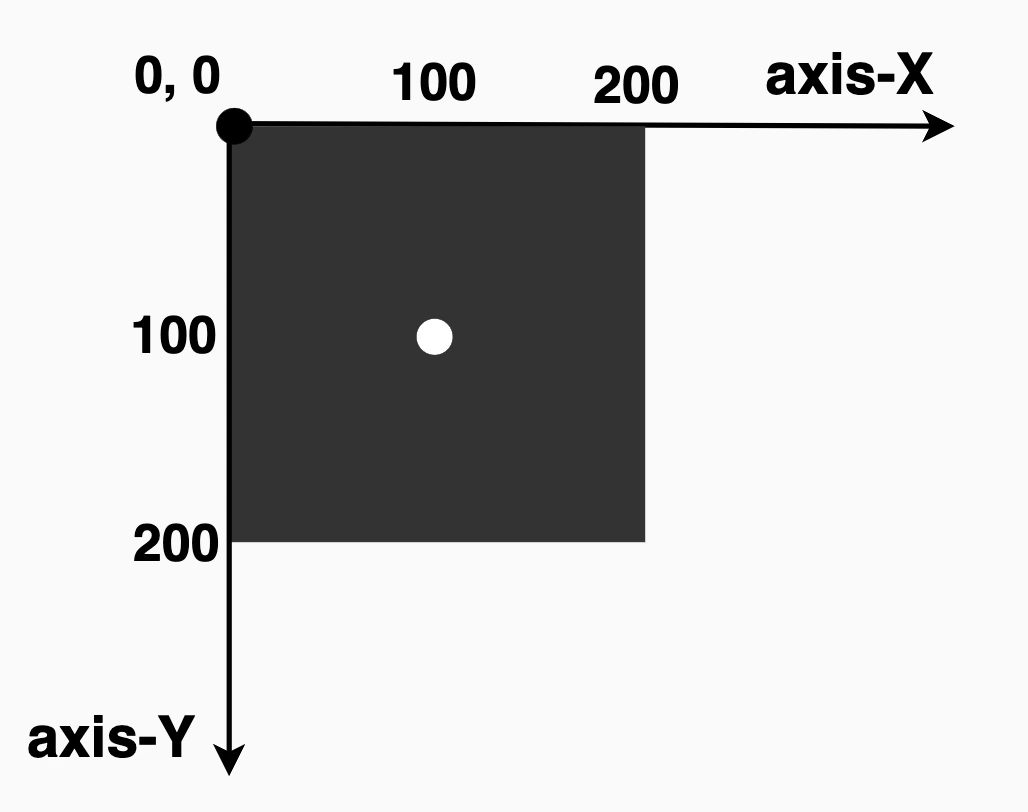
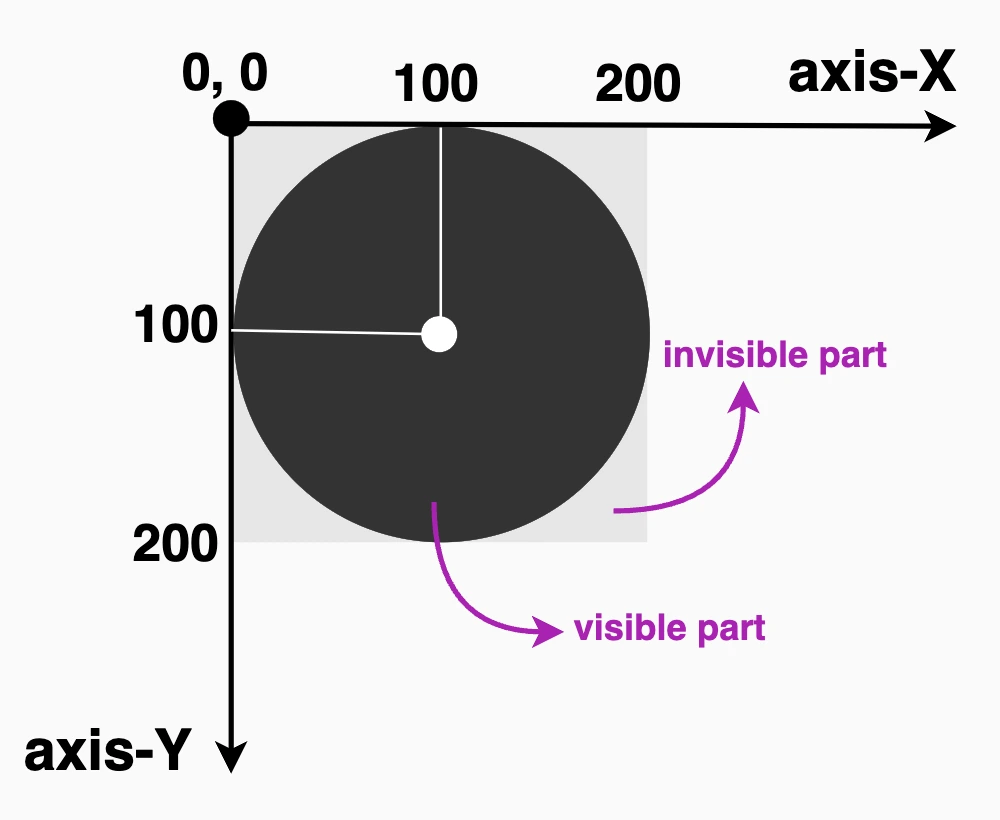
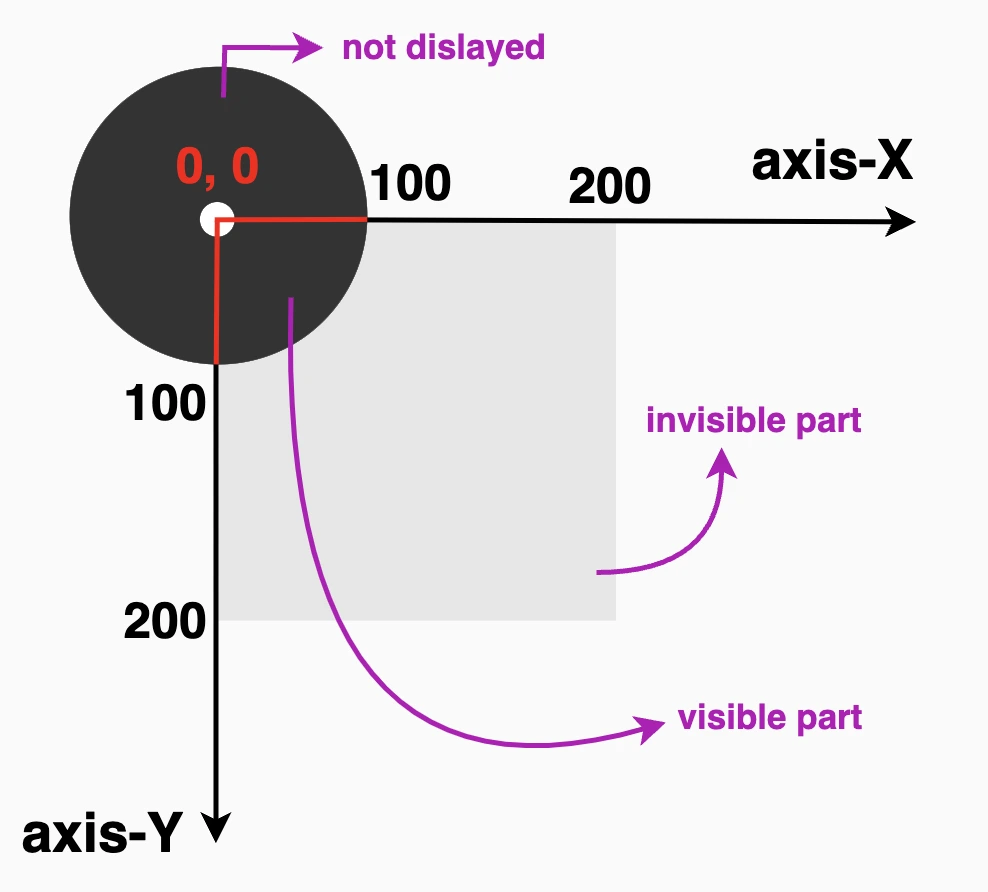
    Below, we see the starting setup we’ll use to explore this awesome CSS property. It shows a dark grey square, with a width and height of 200px. Also, a small white dot marks its center. This allows us to visualize exactly how the circle is positioned. The square is placed on an axis to make things even clearer.
    This helps explain both positioning and how the circle will be clipped inside it (inside the square element). 📐 😃

    A square we will transform to a circle using clip-path: circle()

    The circle(radius at axis-X axis-Y) function using pixels and percentages

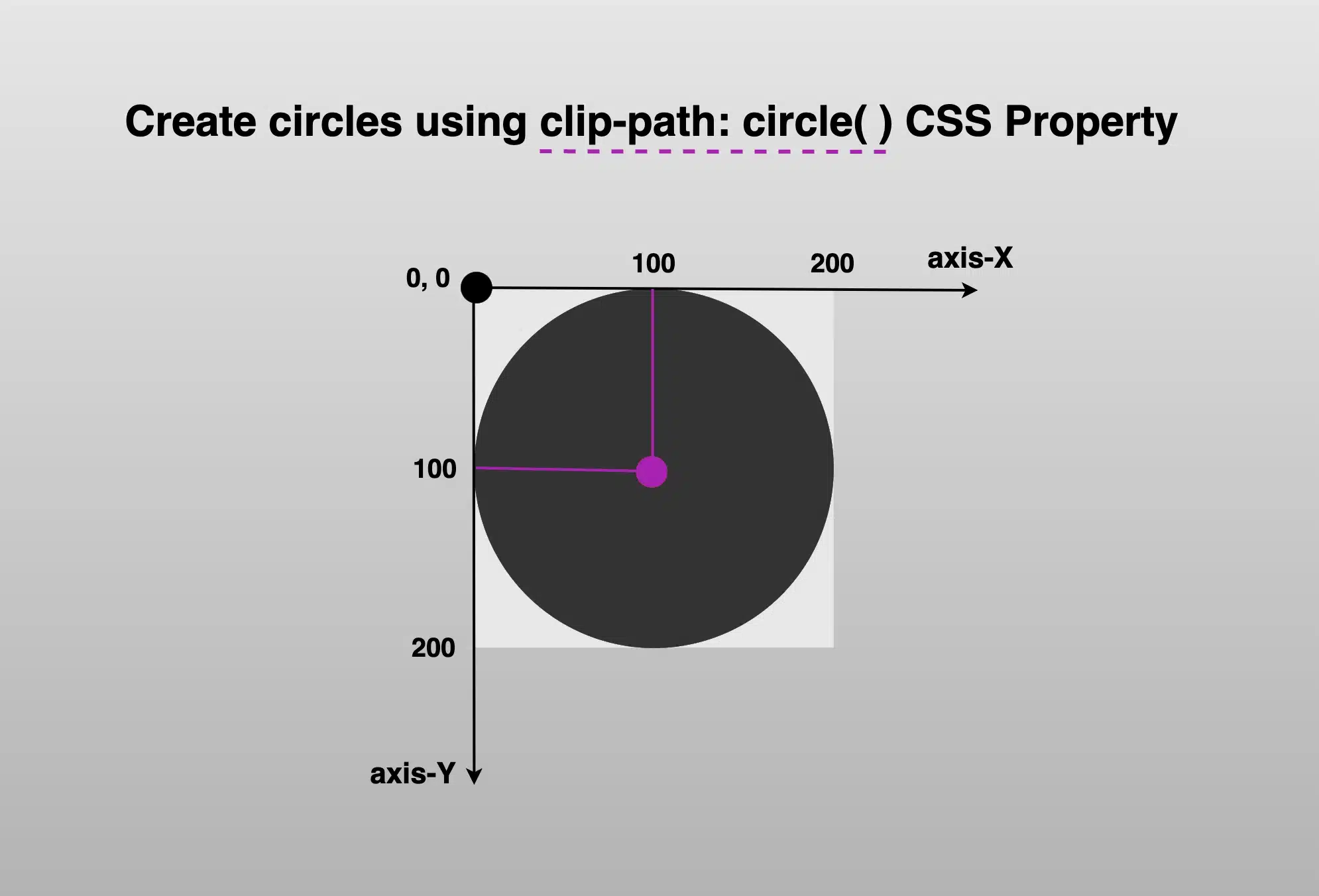
    It defines a circular clipping area using two values: the radius of the circle and its center point. We set the radius to 100px wide or 50% of the element’s width, and we positioned it 100px from the left and 100px from the top of the element or 50% 50%, which places the circle right in the element’s center. Everything outside the circle will be invisible.
    This creates a circle that is perfectly centered within the square.

    .circle {
          // circle(radius at axis-X axis-Y) //
    clip-path: circle(100px at 100px 100px);
    }
                  // OR //
    .circle {
       // circle(radius at axis-X axis-Y) //
    clip-path: circle(50% at 50% 50%);
    }
    CSS
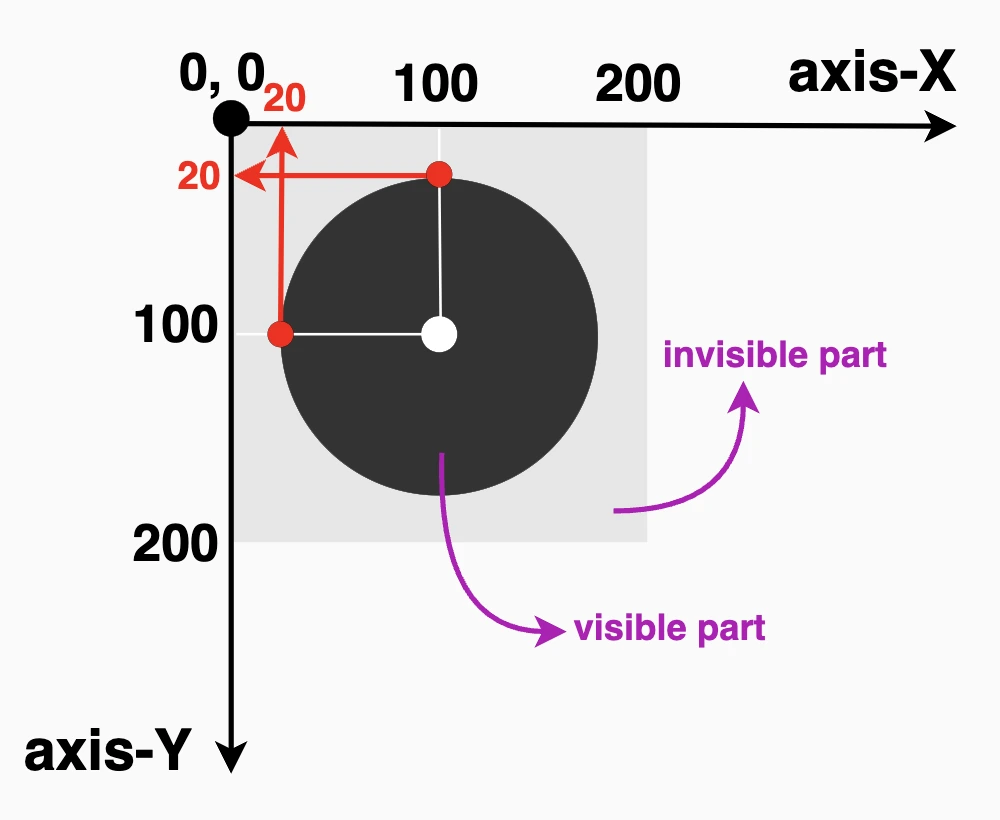
    A perfectlry centered circle with a 50% radius using clip-path

    Now, let’s try to cut ✂ a smaller circle. Maybe with a radius of 80px. How would our code and circle look now? Check out the updated code snippet below.

    We’re still cutting out a specific shape, a circle, from the element, but this time the circle is smaller (radius of 80px or 40% of the element’s width), though it is centered at the same spot as before (100px from the left and 100px from the top or 50% 50%). That means the circle stays perfectly centered within the square.

    .circle {
    clip-path: circle(80px at 100px 100px);
    }
                  // OR //
    .circle {
    clip-path: circle(40% at 50% 50%);
    }
    CSS
    A perfectlry centered circle with a 40% radius using clip-path

    🔖 Bear in mind that we can combine pixels with percentages, too. E.g. clip-path: circle(80px at 50% 50%);

    Using % instead of pixels, it makes our shapes responsive and adjusts to the size of our elements each time. In that way, our designs are more flexible and adaptable to different screen sizes.

    The circle(radius) function

    Another way to create circles using clip-path is the circle(%). It clips the element into a perfect circle with a radius of our preference. Additionally, since you do not specify a position, it centers by default at 50% 50% (50% horizontally and 50% vertically).

    Below, we have two examples. The first one has a radius of 50%, while the second has a radius of 40%, allowing for easy comparison with the previous examples.

    .circle {
    clip-path: circle(50%);
    }
          // OR //
    .circle {
    clip-path: circle(40%);
    }
    CSS
    A perfectlry centered circle with a 50% radius using clip-path
    A perfectlry centered circle with a 40% radius using clip-path

    The circle(radius at center) function using the ‘center’ keyword

    It defines a circular clipping area using the radius and the keyword center. Using this method, we create a circle with a 100px radius perfectly 🎯 centered inside the element. Anything outside that circle will be hidden.

    🔖 Note that setting the center it is the same as writing 50% 50%, maintain a cleaner and clearer code. ✨

    .circle {
      clip-path: circle(100px at center);
    }
                // OR //
    .circle {
    clip-path: circle(50% at center);
    }
    CSS
    A perfectlry centered circle with a 50% radius using clip-path

    Likewise, if we create a smaller circle.

    .circle {
      clip-path: circle(80px at center);
    }
                // OR //
    .circle {
    clip-path: circle(40% at center);
    }
    CSS
    A perfectlry centered circle with a 40% radius using clip-path

    clip-path: circle() VS border-radius

    Now, let’s see why we are utilizing the clip-path instead of simply relying on the border-radius CSS property. As we mentioned earlier, when setting the clip-path, we deal with two main values: the radius, similar to what border-radius offers, and the positioning, which is particularly important if we want to create a circle that is not 🎯 centered within the element.

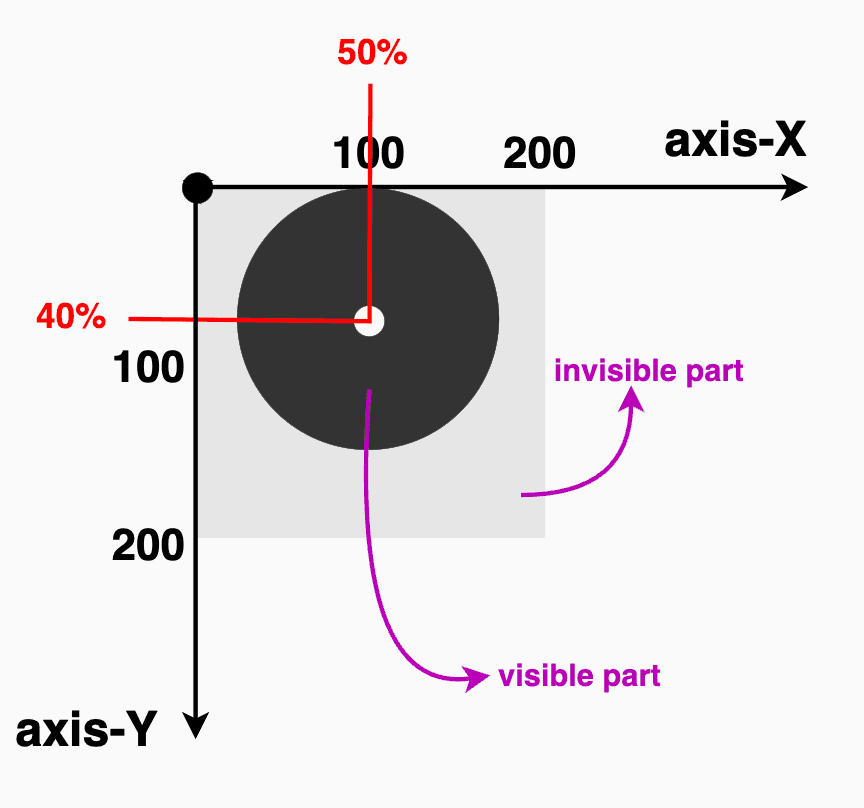
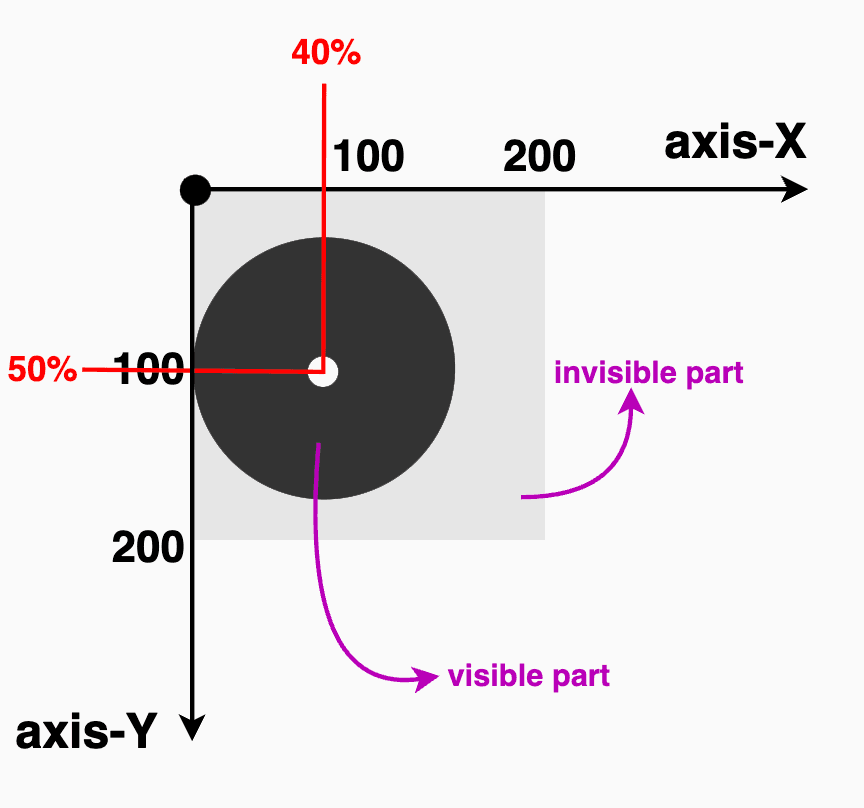
    Let’s create our circle again, with a radius of 80px or 40% (depending on your preferences – if you use px or %). Next, position it, but not in the center of our element (50% 50%).

    🔶 If we want the visible part to be closer to the top side, we keep axis-X at 50%, but we change the axis-Y from 50% to 40%.
    🔶 If we want the visible part closer to the right side, we keep the axis-Y at 50%, but we will change the axis-X from 50% to 40%.

    .circle {
         // circle(radius at axis-X axis-Y) //
      clip-path: circle(80px at 50% 40%);
    }
                  // OR //
    .circle {
      clip-path: circle(40% at 50% 40%);
    }CSS
    CSS
    .circle {
       // circle(radius at axis-X axis-Y) //
      clip-path: circle(80px at 40% 50%);
    }
                  // OR //
    .circle {
      clip-path: circle(40% at 40% 50%);
    }CSS
    CSS
    A circle with a 40% radius using clip-path. It's center is placed at the top-left corner of the element
    A circle with a 40% radius using clip-path

    Setting clip-path instead of border-radius gives us the privilege to focus on any part of our element we prefer, not just the center. A really useful method, especially when working with images 📸 and you want to keep a part of the image that is not necessarily at the center.

    Let’s examine another case. What do you think? Are we able to vanish 🎩🐇 a whole piece of our circle and keep only a small part if needed? Let’s see the following code snippet. We position the center of the circle at zero (0%) on both axis. This means that the center of our circle will be placed at the top-left corner of the initial element, as that’s the point where both axes X and Y begin.

    .circle {
    clip-path: circle(80px at 0% 0%);
    }
                  // OR //
    .circle {
    clip-path: circle(40% at 0% 0%);
    }
    CSS

    Take a closer look at the image below. Since the circle is positioned at the element’s top-left corner, only the 🕞 quarter of the circle that fits within the element’s bounds will be visible, all the rest, that is extended beyond the element’s boundaries, will not be displayed at all. Cool hug! 😎

    Apply clip-path to images

    Now it’s the perfect time to analyze how we can utilize clip-path with images. A clever way to control their shape and also ‘cut out’ and leave in view only a specific part of the image.

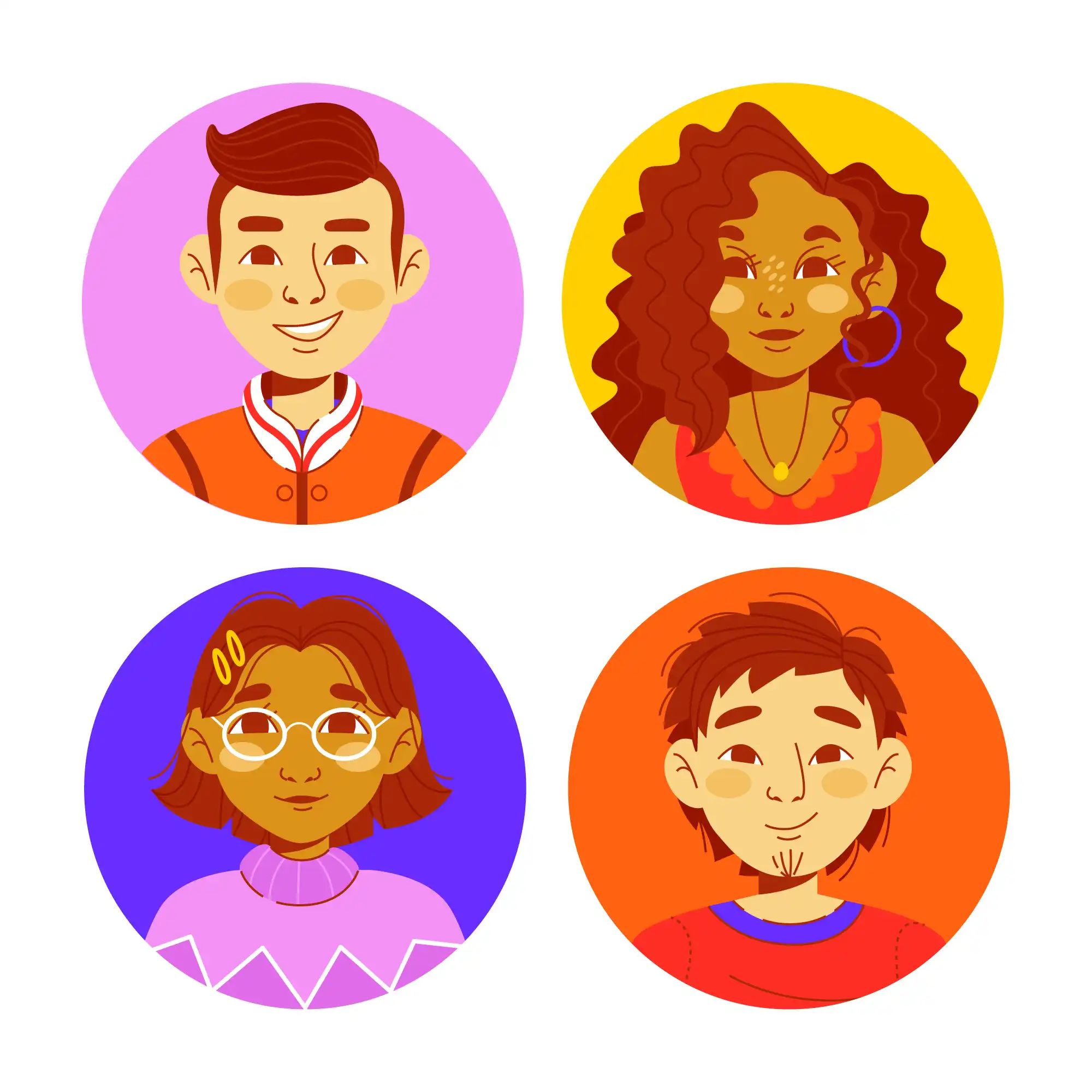
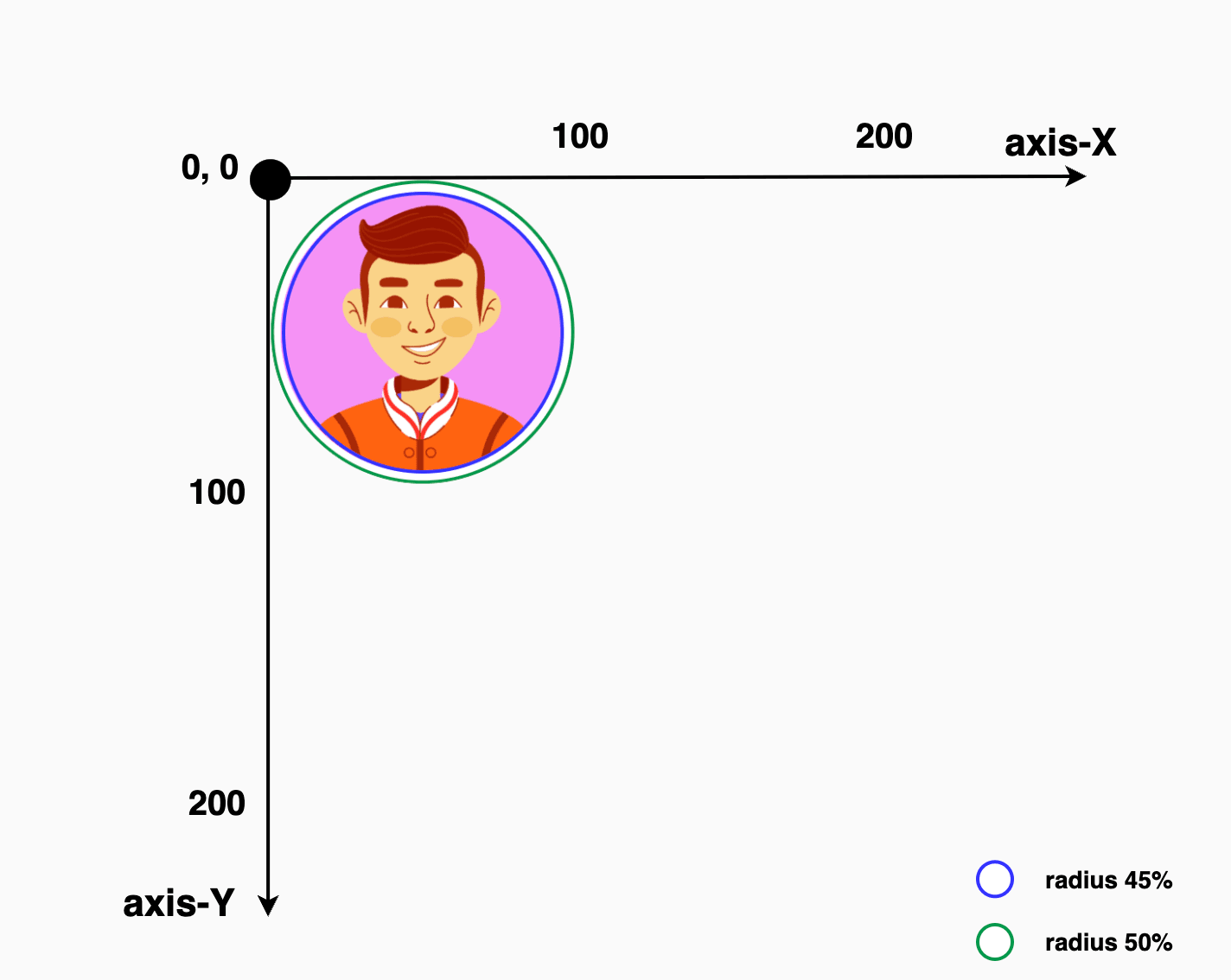
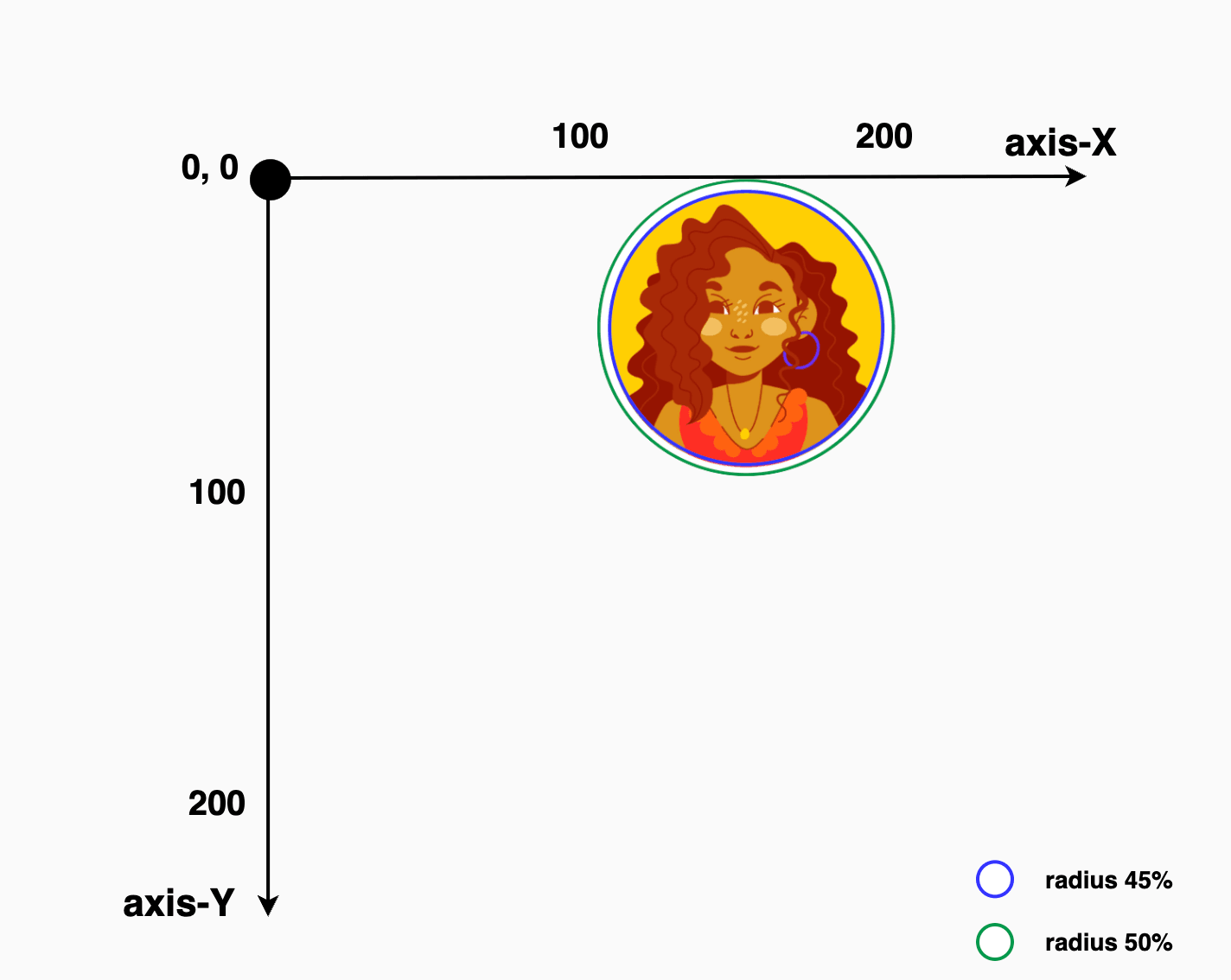
    In the following example, we’re working with an image that contains four avatars, each placed in one of the image’s corners: top-left, top-right, bottom-left, and bottom-right. The image is divided into four equal parts, with one avatar in each. By using the clip-path: circle() function, we can focus on just one avatar at a time.

    An image with four avatars, each placed in one of the image's corners

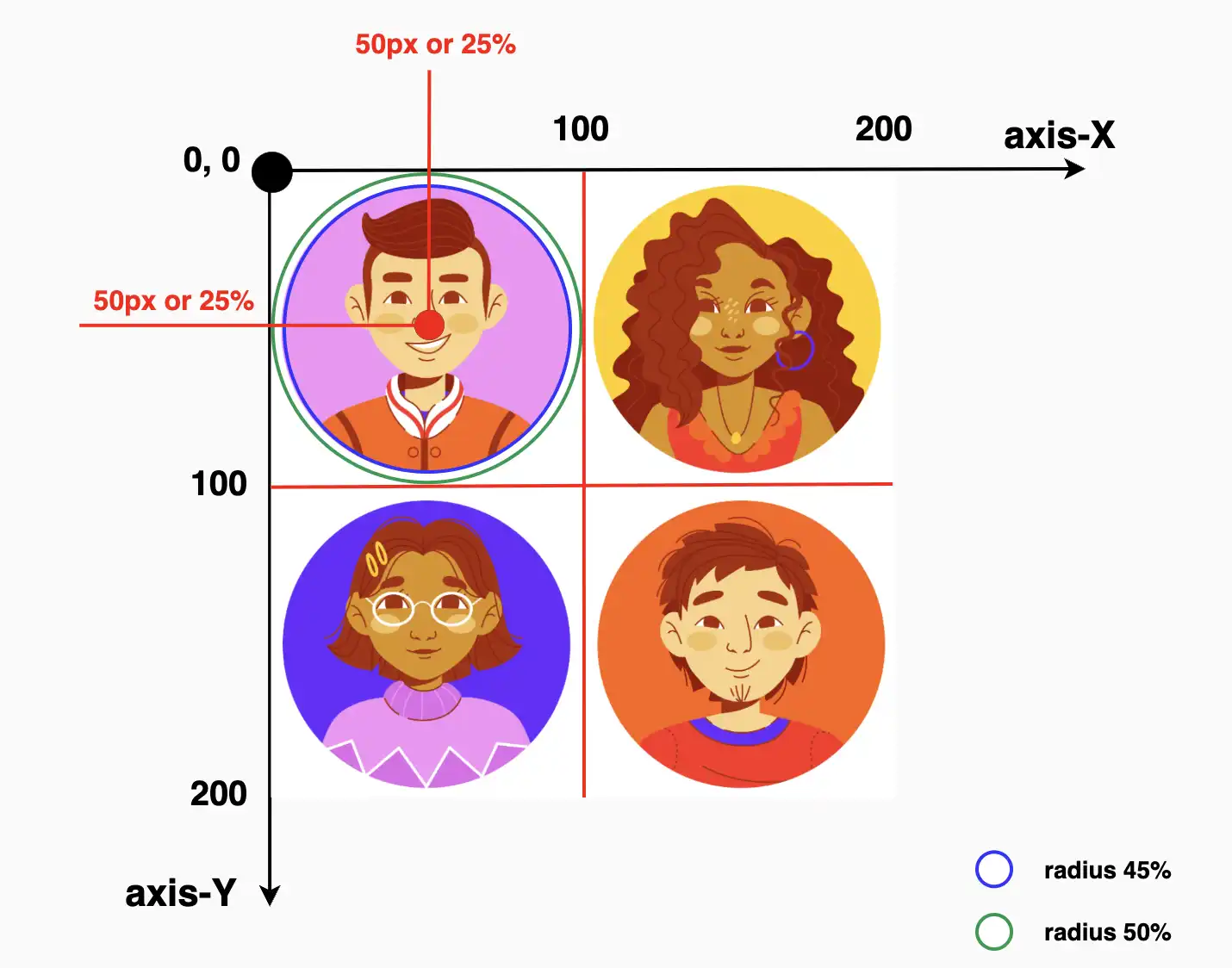
    First, we apply clip-path: circle() to cut out the top-right part of the image, revealing only the avatar placed there. Then, we do the same for the top-left corner to show the avatar in that section. We repeat this process for the bottom-left and bottom-right parts as well, effectively isolating each avatar with a circular crop.

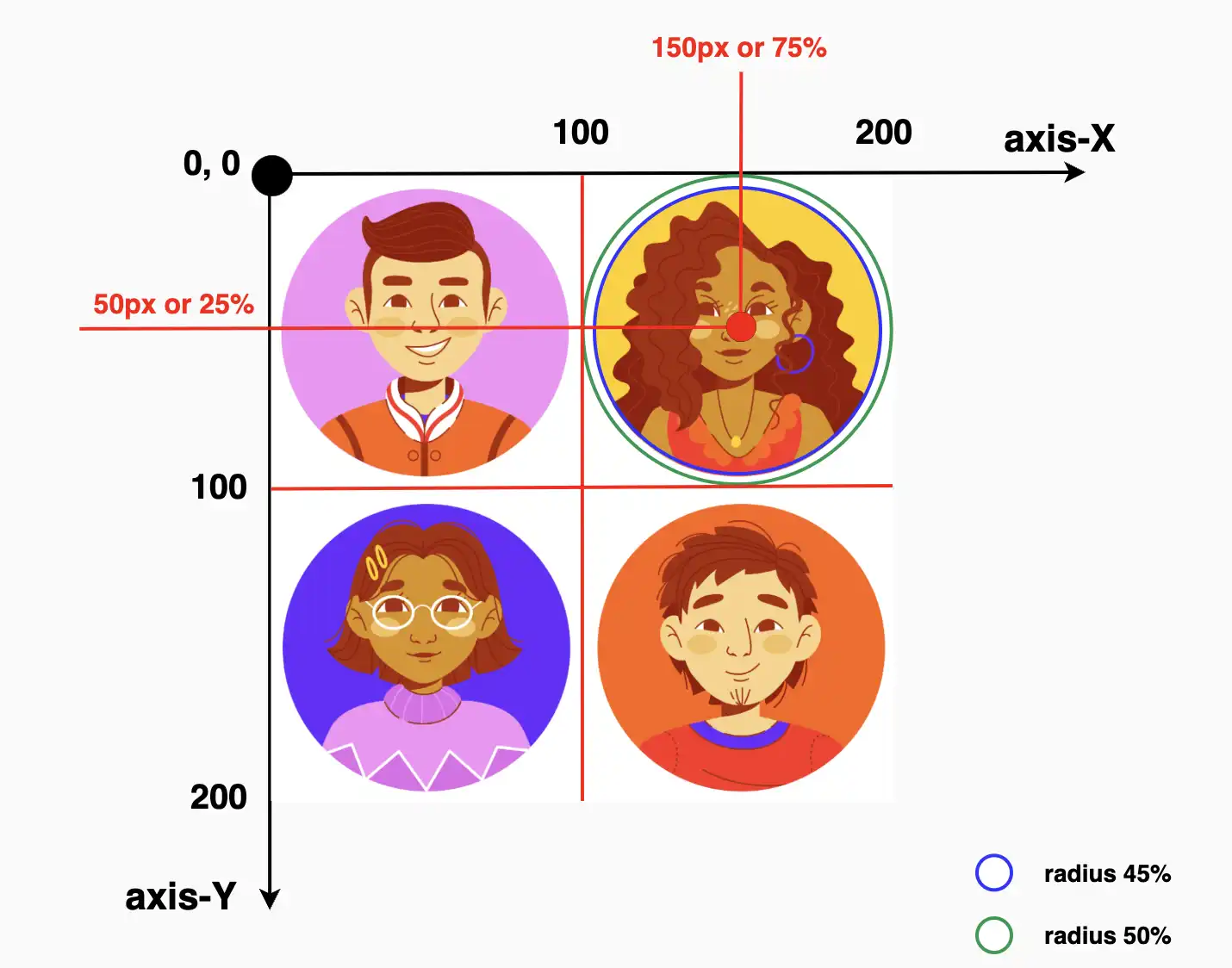
    Depending on the visual balance and spacing, you can choose 45% (blue 🔵 border) to match the exact size of the avatar or go with 50% (green 🟢 border) to include a bit of extra white space from the image background for a more relaxed look. 🌈 😎

    To target and isolate each avatar at the top of the image:

    🔶 For the top-right avatar, we place the circle’s center at 25% 25%. This moves the circle’s center closer to the top-right side of the image.

    🔶 For the top-left avatar, we set the position at 75% 25%. This turns the focus to the top-right area of the image.

    Adjusting these percentages gives you fine control over what part of the image stays visible, allowing you to highlight exactly what you want.

    .circle {
        // circle(radius at axis-X axis-Y) //
    clip-path: circle(45% at 25% 25%);
    }
                  // OR //
    .circle {
    clip-path: circle(50% at 25% 25%);
    }
    CSS
    .circle {
        // circle(radius at axis-X axis-Y) //
    clip-path: circle(45% at 75% 25%);
    }
                  // OR //
    .circle {
    clip-path: circle(50% at 75% 25%);
    }
    CSS
    An image with four avatars, each placed in one of the image's corners. Setting the clip-path: circle() we place the circle's center at 25% 25% and move  the circle's center closer to the top-right side of the image
    An image with four avatars, each placed in one of the image's corners. Setting the clip-path: circle() we place the circle's center at 75% 25% and move  the circle's center closer to the top-left side of the image

    Below we can see the final results for the two avatars. The first image displays only the first avatar while the second presents only the second one. All the rest of the avatars will be hidden. Pretty cool, right?

    Desplaying only the first avatar
    Desplaying only the second avatar

    This technique allows us to pinpoint and display specific parts of the image. Then, with the necessary positioning, we put this specific part of the image in our desired place. 😃 ✨

  • CSS Grayscale Filter – A Complete Guide

    CSS Grayscale Filter – A Complete Guide

    Hello everybody! 😃 In the vibrant world of web design, the CSS grayscale filter stands as a powerful tool for transforming the visual appearance of images and elements on a webpage. The CSS filter: grayscale(%) works like a magic wand. 🪄 It takes colorful images or elements and converts them into grayscale shades. This effect is great for creating different aesthetics, whether you’re aiming for a vintage charm or a sleek, modern look. The CSS grayscale filter can be applied to various elements, including images, SVGs, emojis, font icons, and even HTML elements.

    Let’s explore what makes this filter so enchanting! 🧙‍♀️

    Grayscale on HTML elements

    First of all, it’s important to note that the CSS grayscale filter may not be noticeable on black and white elements. Since grayscale shifts colors toward shades of gray, and black is already the darkest shade, while white stays the lightest one. Secondly, always keep in mind that the filter: grayscale(100%) can make text completely dark, which may not be ideal when placed on black or very dark backgrounds.

    Using the CSS grayscale filter on fonts

    We will begin by applying grayscale to fonts. In the following example, I used blue text, instead of the default black to emphasize the contrast and make the transition to shades of gray more noticeable.

    This reinforces an important point we discussed earlier—this effect stands out most when applied to bright, colored elements rather than dark, black, or near-black ones. 😉

    <h1>The grayscale filter</h1>
    HTML
    h1 {
      color: blue;
      filter: grayscale(50%);
    }
    CSS

    With the HTML code, we define an <h1> heading element, then CSS sets its text color to blue and applies a grayscale filter to it. Initially, we use 50% intensity, creating a visual effect where the blue text is converted to grayscale while still retaining a subtle hint of its original blue color.

    To clarify, there is another example where we use the filter at 90%, resulting in the title appearing in different shades of gray. This time, it’s very close to being completely dark gray—almost black, we could say.

    This image shows a blue text.
    without grayscale(%)
    This image displays blue text with the CSS grayscale filter set to 50%, partially desaturating the blue color into varying shades of gray.
    with grayscale(50%)
    This image displays blue text with the CSS grayscale filter set to 90%, turning it into grayish shades while retaining 10% of the original blue color.
    with grayscale(90%)

    Grayscale on background color

    In this case, instead of setting the text color, we will set the background-color. Now, take a look at the orange. In the first image, we see a bright orange, while in the second, the color appears slightly darker (grayish) due to the filter: grayscale(40%) property.

    <h1>The grayscale filter</h1>
    HTML
    h1 {
      background-color: orange;
      filter: grayscale(40%);
    }
    CSS
    This image displays black text on an orange background color.
    without grayscale(%)
    This image displays black text on an orange background with the CSS grayscale filter set to 50%, converting the background into grayish shades while reducing its original color intensity.
    with grayscale(40%)

    Grayscale on other HTML elements

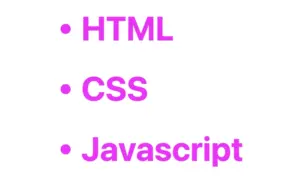
    We can also apply the grayscale filter to various HTML elements, such as <span>, <li>, and more. Below, I’ve provided two examples for clarity: the first applies the filter to the content of two <span> elements, while the second applies it to the bullets of an <li>.

    Example using a span

    <div class="grayscale-elements">
      <span>"</span> Happy Coding! <span>"</span>
    </div>
    HTML
    .grayscale-elements {
      color: orange;
    }
    
    .grayscale-elements span {
      filter: grayscale(80%);
    }
    CSS

    In the HTML snippet, we create a <div> element with the class .grayscale-elements. Inside this <div>, we add two <span> elements, each containing a double quote to frame the text “Happy Coding!” These <span> elements allow us to style the quotes differently from the rest of the text.

    In the associated CSS code, .grayscale-elements is targeting elements with this class. The text color of the elements with this class is set to orange. Additionally, the CSS rules target the <span> elements inside and apply an 80% grayscale filter to them, rendering the quotes in shades of gray while retaining the orange color for the rest of the content.

    This image displays orange text enclosed in quotation marks.
    without grayscale(%)
    This image displays orange text enclosed in quotes, with the quotes inside <span> elements. The spans have the CSS grayscale filter set to 80%, converting the orange color into grayish shades while retaining 20% of its original hue.
    with grayscale(80%)

    Example using a ul

    <ul>
      <li>HTML</li>
      <li>CSS</li>
      <li>Javascript</li>
    </ul>
    HTML
    ul {
      list-style: none; /* remove the default bullets */
    }
    
    li {
      color: magenta; /* change lists default (black) color */
    }
    
    li:before {
      content: "•"; /* add new bullets and now can be manipulatated */
      margin-right: 10px; /* add distance between the bullet and the text */
      filter: grayscale(50%); /* one of our examples */
    }
    
    CSS

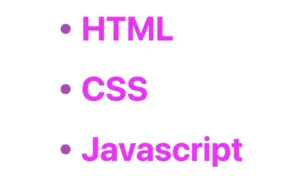
    In the HTML snippet, we create an unordered list (<ul>) containing three list items (<li>).

    In the associated CSS, we target the <ul> element and remove the default bullets using list-style: none. Then, we style the list items (<li>), setting their text color to magenta.

    The :before pseudo-element is used to add custom bullets before each list item. In this case, the bullet is a solid circle (•) created using the content property. The margin-right property adds spacing between the bullet and the text.

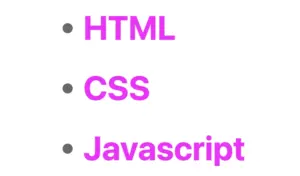
    Additionally, a grayscale effect is applied to the bullets using filter: grayscale(50%), reducing their original color intensity by 50%. This results in bullets appearing in varying shades of gray while still retaining some color.

    For an even more pronounced effect, I also applied a 90% grayscale filter (filter: grayscale(90%)), making the bullets appear even closer to a true gray. 😃

    This image displays an unordered list with three list items, all styled in magenta color.
    without grayscale(%)
    This image shows an unordered list with three list items inside. The list items have color magenta while a grayscale effect is applied to the bullets using filter: grayscale(50%), rendering them with a 50% intensity of grayscale.
    with grayscale(50%)
    This image displays an unordered list with three magenta-colored list items. The bullets have the CSS grayscale filter set to 90%, making them appear in grayish shades.
    with grayscale(90%)

    CSS Grayscale on images

    Another way to take advantage of this CSS property is by applying the filter: grayscale to images, transforming their colors into shades of gray. This is particularly useful for making pictures look old-fashioned or monochromatic when they create a black and white effect.

    <div class="grayscale-image"><div>
    HTML
    .grayscale-image {
      background-image: url(<your-image>);
      background-repeat: no-repeat;
      background-size: cover;
      width: 300px;
      height: 400px;
      filter: grayscale(70%);
    }
    CSS

    The given code creates an HTML div element with the class .grayscale-image.

    This class is styled using CSS to display a grayscale image. The background of the div is set to an image from the provided URL using the background-image property. The image is styled to not repeat (background-repeat: no-repeat) and to cover the entire area (background-size: cover). Its dimensions are set to width of 300 pixels and height of 400 pixels. Finally, a grayscale filter is applied to the image using the filter property, with a 70% level of grayscale.

    This image displays a photo with vibrant colors, including shades of pink, gold, and green.
    without grayscale(%) – Original photo by Katie Harp on Unsplash
    This image displays a photo with colors close to pink, gold, and green, with the CSS grayscale filter set to 70%, partially desaturating the colors into grayish tones.
    with grayscale(70%)

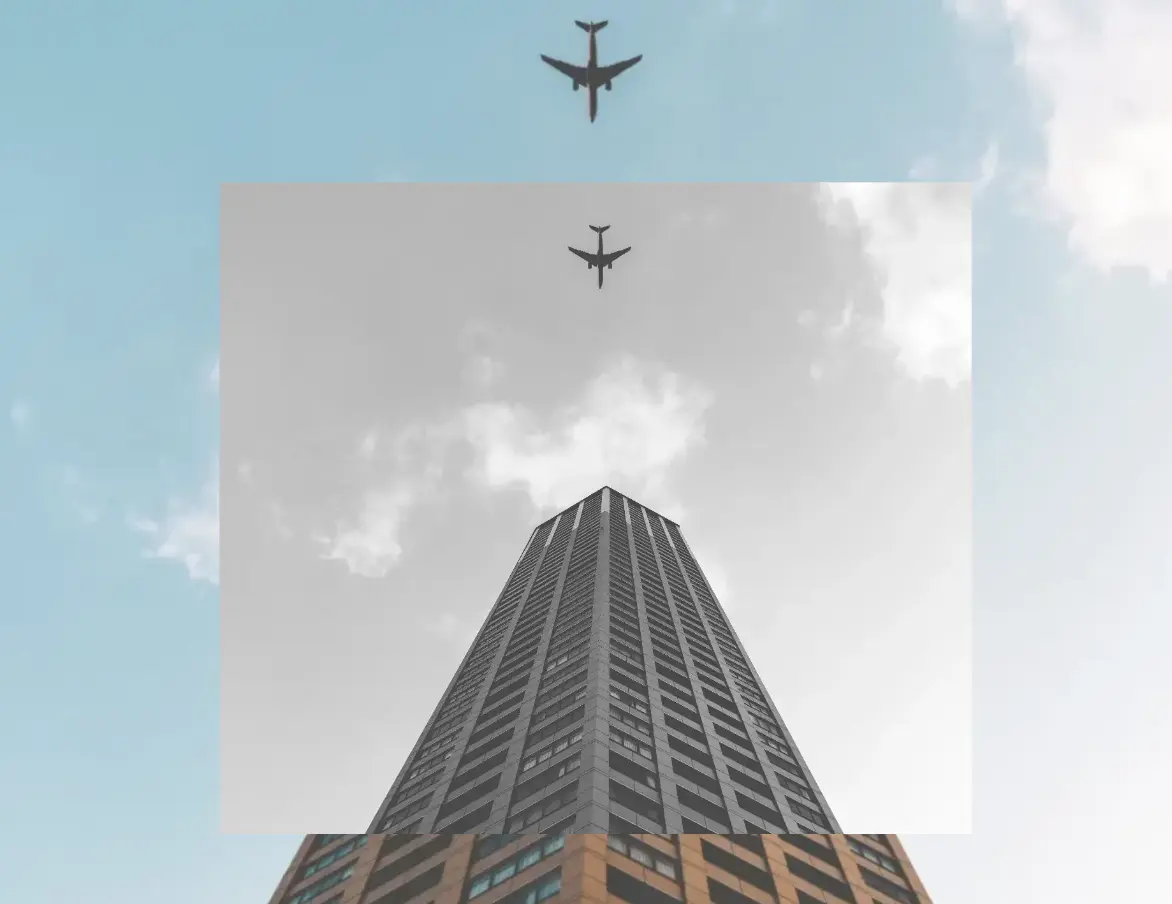
    I did something similar for the following image but set the grayscale to 100%, which transformed the image entirely into shades of gray. Impressive, isn’t it? 🙃

    This image displays a photo of a brown building with the sky in the background and an airplane flying overhead.
    without grayscale – Original photo by Sorasak on Unsplash
    This image displays a photo of a brown building and the sky with an airplane. The CSS grayscale filter is set to 100%, converting the entire photo into grayscale shades.
    grayscale(100%)

    CSS Grayscale on SVG

    The grayscale filter can be applied to SVG elements too, making them appear in varying shades of gray. This is often used to achieve a specific artistic or design effect. For instance, we applied this filter to an SVG of a moon, which was originally yellow, transforming it into a soft gray and adding a unique visual dimension. Awesome, right?

    svg {
      filter: grayscale(80%);
    }
    CSS

    In our CSS code, we apply a filter with a specified grayscale percentage of 80%. This effect transforms the originally yellow image into varying shades of gray while preserving a subtle hint of its original color.

    🔖 Remember that directly targeting the <svg> element may cause conflicts 🌩 ⚡ if multiple SVGs exist in the document.

    This image displays a yellow moon against a dark background.
    without grayscale(%)
    This image displays a yellow moon with the CSS grayscale filter set to 80%, partially desaturating the colors into grayish shades while retaining 20% of the original hue.
    with grayscale(80%)

    CSS Grayscale in Font Awesome

    Another way to use this CSS trick is with Font Awesome icons. In the example below, we will see how to do it the correct way. Since Font Awesome icons start off as black, it’s important to apply color before adding the grayscale effect.

    <i class="fa-solid fa-camera-retro"></i>
    
    HTML
    .fa-camera-retro {
      color: red;
      filter: grayscale(70%);
    }
    
    /* OR - if you want a more generic rule */
    
    i {
      color: red;
      filter: grayscale(70%);
    }
    CSS

    In this HTM snippet, we have an <i> element with the class .fa-solid .fa-camera-retro from the Font Awesome library.

    The corresponding CSS styles .fa-camera-retro, setting the icon’s color to red and applying a 70% grayscale effect. Additionally, we can also target the <i> element directly for a more generic customization.

    🔖 Remember, if you use the Font Awesome .fa-solid class for multiple icons or style them via <i>, all instances will inherit the same appearance, affecting every <i> element in the document.

    This image displays a red retro camera icon from Font Awesome.
    without grayscale
    This image displays a red retro camera icon from Font Awesome with the CSS grayscale filter set to 70%, making the red appear much darker, almost brown.
    with grayscale(70%)

    CSS Grayscale on emoticons using pseudo-elements

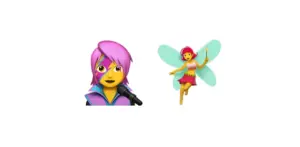
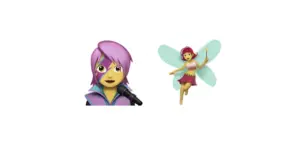
    Next, we move on to the beloved emoticons (like 🤗, 😇, etc.). It’s a cool way to make them look a bit different! Below I crafted an example to give a clearer explanation. I chose two of my favorite emoticons 👩‍🎤 🧚‍♀️. Feel free to choose your personal favorite and enjoy the experience!! Always remember that the more vivid the colors, the stronger and more noticeable the effect will be! Good luck! 🌟 🥳

    <div class="grayscale-emoticons"></div>
    HTML
    .grayscale-emoticons:before {
      content: "👩‍🎤 🧚‍♀️";
      filter: grayscale(40%);
      font-size: '50px';
    }
    CSS

    The HTML snippet creates a div element with the class .grayscale-emoticons.

    The linked CSS code, .grayscale-emoticons uses the :before pseudo-element to insert content. The inserted content consists of two emojis: “👩‍🎤” and “🧚‍♀️.” Additionally, a grayscale filter of 40% is applied, giving the emojis a subtle grayscale effect, displaying them in varying shades of gray while retaining some of their original colors.

    I also included another example with a 100% grayscale filter, which completely removes all colors, rendering the emojis entirely in grayscale.

    This image shows two colorful emoticons.
    without grayscale
    This image shows two colorful emoticons with a grayscale filter of 40%. As a result the emoticons are now displayed in varying shades of gray with 40% intensity of the original colors.
    with grayscale(40%)
    This image shows two colorful emoticons with a grayscale filter of 100%. As a result the emoticons are now displayed only in shades of gray.
    with grayscale(100%)

    Using shades of gray adds a nice touch, but if you want to go the extra mile 🏃‍♀️, try adding shadows to elements for a more realistic look. Building on our previous example, I’ve incorporated the fantastic drop-shadow CSS property to achieve this. Pretty cool, right! 😃

    .grayscale-emoticons:before {
      content: "👩‍🎤 🧚‍♀️";
      filter: grayscale(40%) drop-shadow(2px -1px 1px #1d1e22);
      font-size: 100px;
    }
    CSS
    This image displays two colorful emoticons with the CSS grayscale filter set to 40%, partially desaturating their colors. They also feature a 2px -1px 1px gray shadow.
    filter: grayscale(40%) drop-shadow(2px -1px 1px #1d1e22);
    This image shows two colorful emoticons with a grayscale filter of 100%. As a result the emoticons are now displayed in various shades of gray. They also have a 2px -2px 2px gray shadow.
    filter: grayscale(100%) drop-shadow(2px -2px 2px #1d1e22);

  • Opacity And Saturate: Empower CSS Filter For Unique Images

    Opacity And Saturate: Empower CSS Filter For Unique Images

    Welcome to a practical guide on using the CSS filter to modify how your images 📸 look. In this post, we’ll work on how to adjust the opacity and saturate (color intensity) CSS filters. These two methods will help us handle how images are rendered on our website, particularly concerning their colors and transparency.

    Let’s get into the world of CSS 👩‍💻 and customize the images to suit our needs.

    CSS filter: opacity

    The CSS property filter: opacity() helps you control how colorful an image appears against its background. You can set it anywhere between 0% and 100%. At 0%, the image turns grayscale, losing all its colors and showing only the background color. If you set it to 100%, the image displays its true, unaltered colors. Values in between change how colorful the image appears.

    🔖 For setting CSS opacity, you can use either a percentage of 0% and 100% or a decimal value between 0 and 1, both options ending up in the same outcome. 🫧😃

    Example

    Starting with the HTML code which includes three <img> elements. All images share the same .image class. Additionally, the second image includes one more class the .opacity-image2 while the third image includes the .opacity-image3 class.

    <body>
      <img class="image"/>
      <img class="image opacity-image2"/>
      <img class="image opacity-image3"/>
    </body>
    HTML

    In the CSS code the .image class introduces a non-repeated image that covers the entire background area of the element. Its dimensions are 300 pixels in width and 500 pixels in height.

    We move forward with the other two classes. The .opacity-image2 class targets the second image and applies a visual effect controlling transparency. An opacity of 80% means the element will be slightly transparent, allowing some background to show through.

    The .opacity-image3 class is meant for the third image, ensuring the same visual change happens there too. In this case, an opacity of 20% means the element will be mostly transparent, allowing more background to show through.

    .image {
      background-image: url(https://images.unsplash.com/photo-1501829385782-9841539fa6bf?ixlib=rb-4.0.3&ixid=M3wxMjA3fDB8MHxwaG90by1wYWdlfHx8fGVufDB8fHx8fA%3D%3D&auto=format&fit=crop&w=3024&q=80);
      background-repeat: no-repeat;
      background-size: cover;
      width: 300px;
      height: 500px;
    }
    
    .opacity-image2 {
      filter: opacity(80%);
    }
    
    .opacity-image3 {
      filter: opacity(20%);
    }
    CSS

    * In this case, the background is black, so our effect turns to dark shades.

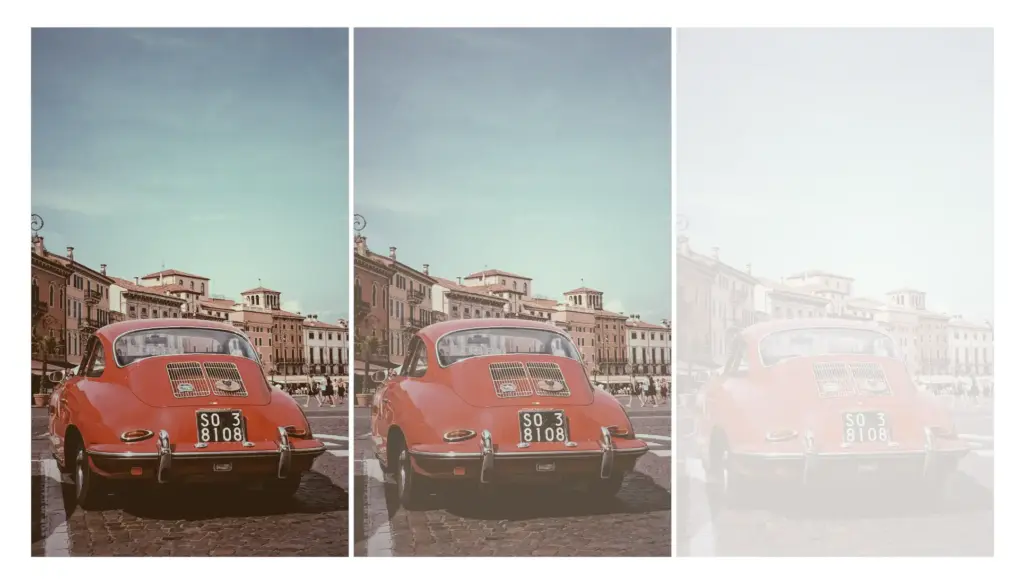
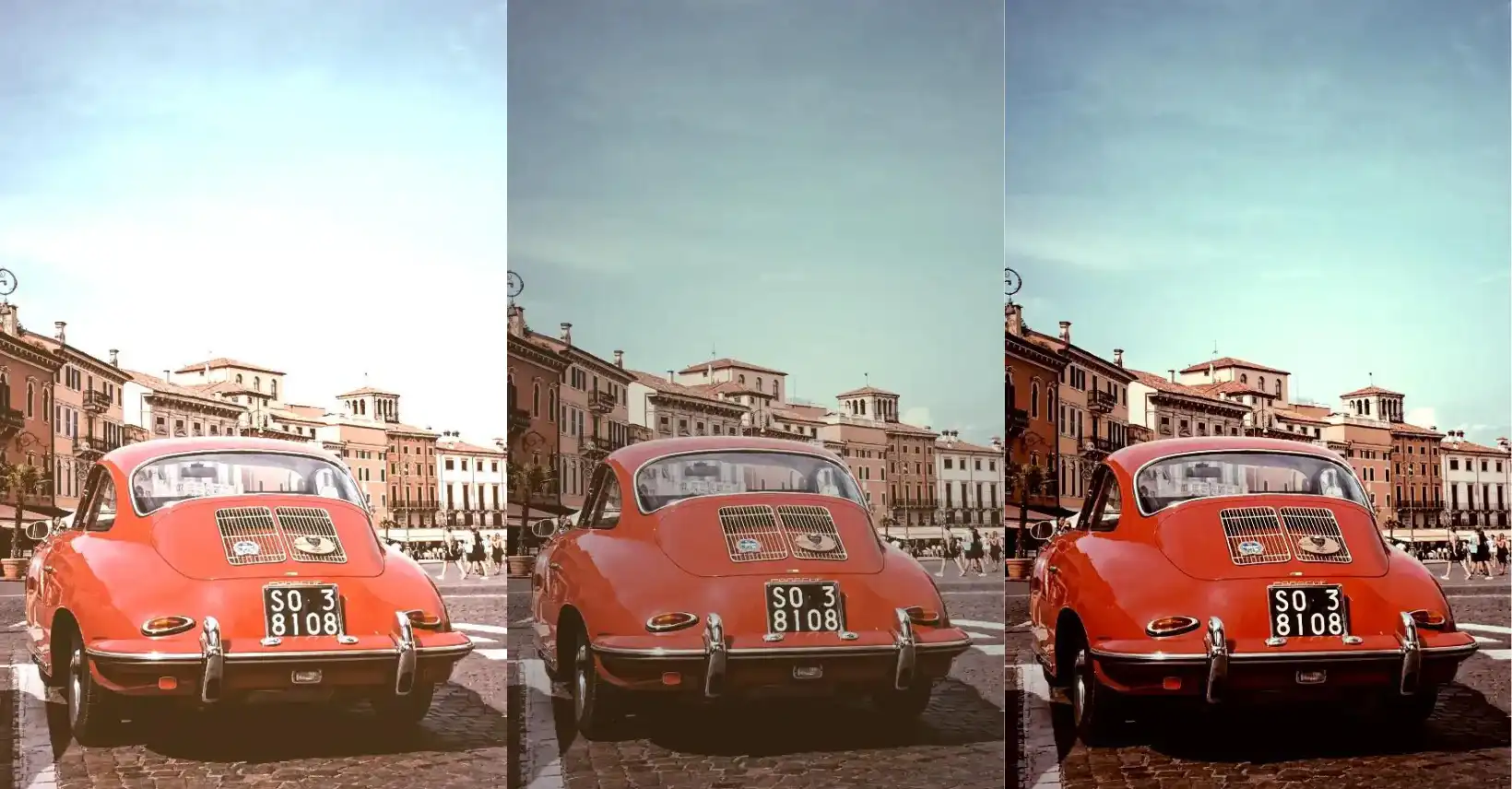
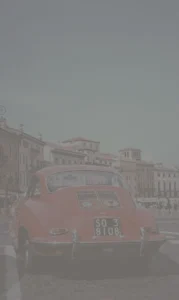
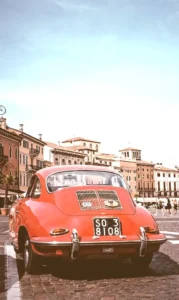
    Three identical photos of a red car with old buildings in Verona city, Italy. The first photo displays original colors. The second has opacity set to 80%, and the third has opacity set to 20%. The white background affects the opacity.
    Original Photo by Jonatan Hernandez on Unsplash – opacity(80%) – opacity(20%)

    * In this case, the background is white, so our effect turns to bright shades.

    This image shows three identical photos. All photos shown a red car with old buildings as a background.This photo was captured in Verona city Italy. The first photo has the original colors. The second has set the filter: opacity(80%); CSS property while the third has set the filter: opacity(20%);. Additionally the background has color white which affects the opacity.
    Original photo by Jonatan Hernandez on Unsplash – opacity(80%) – opacity(20%)

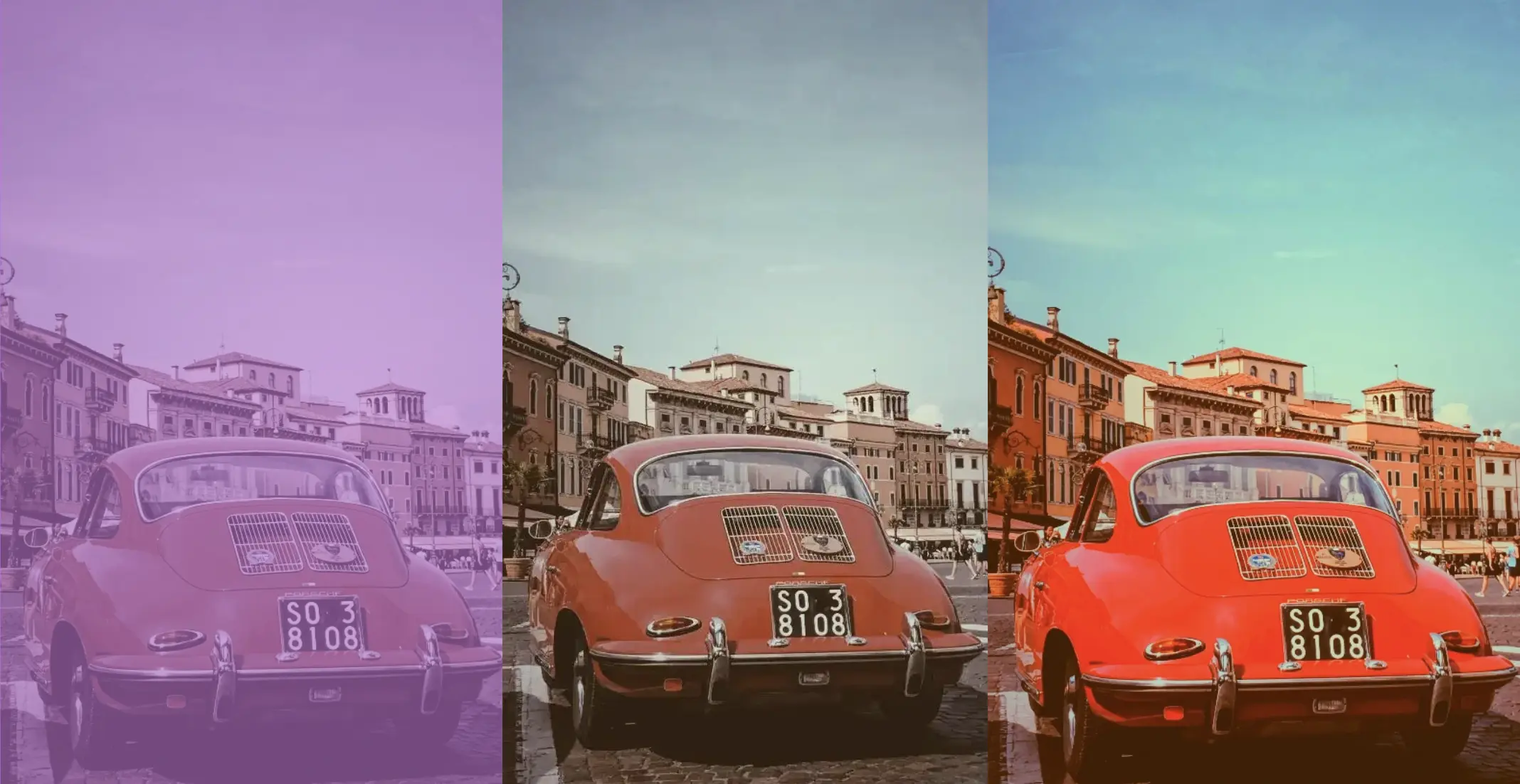
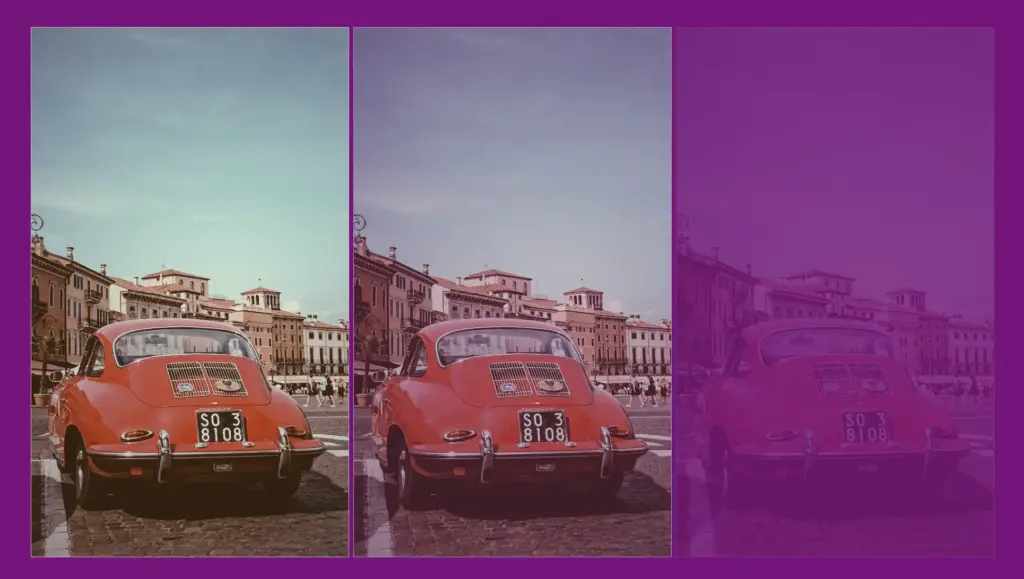
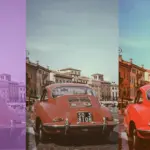
    * In this case, the background is purple (a random color for this specific example, as you can pick any color you prefer), so our effect will blend the original element’s colors and the purple background color, influenced by the 80% opacity.

    Red car with old buildings in Verona city, Italy, demonstrating CSS opacity filter effects. Three photos: original colors, 80% opacity, and 20% opacity against a purple background.

    Original photo by Jonatan Hernandez on Unsplash – opacity(80%) – opacity(20%)

    CSS filter: saturate

    Saturation is about how bright and vivid colors are in a picture. The CSS property filter: saturate() helps you adjust this. The values vary from 0% to 100%. If you choose 0%, the colors disappear and become black and white (grayscale). With a value of 100%, it stays as colorful as it was.

    Keep in mind that going over 100% makes colors appear highly vibrant. Specifying a saturation of 200% is technically allowed, but that’s not the usual way.

    🔖 To specify a percentage for saturation, you can use values like 10% or 0.1, they mean the same thing. It’s up to you. 🫧😃

    Example

    Starting with the HTML code which includes three <img> elements. All images share the same .image class. Additionally, the second image includes one more class the .saturate-image2 while the third image includes the .saturate-image3 class.

    <img class="image"/>
    <img class="image saturate-image2"/>
    <img class="image saturate-image3"/>
    
    HTML

    In the CSS code, the .image class introduces a non-repeated image that covers the entire background area of the element. Its dimensions are 300 pixels in width and 500 pixels in height.

    We continue with the other two classes. The .saturate-image2 class targets the second image and applies a visual effect controlling saturation. A saturation of 200% will be doubled compared to the original colors of the image, resulting in a sharp visual effect.

    The .saturate-image3 class focuses on the third image and applies the same visual effect. In this case, a saturation of 20% means the image will have its colors slightly desaturated, resulting in a toned-down appearance compared to the original colors. The saturation level will be reduced to one-fifth of the original, giving a less intense color effect.

    .image {
      background-image: url(https://images.unsplash.com/photo-1501829385782-9841539fa6bf?ixlib=rb-4.0.3&ixid=M3wxMjA3fDB8MHxwaG90by1wYWdlfHx8fGVufDB8fHx8fA%3D%3D&auto=format&fit=crop&w=3024&q=80);
      background-repeat: no-repeat;
      background-size: cover;
      width: 300px;
      height: 500px;
    }
    
    .saturate-image2 {
      filter: saturate(200%);
    }
    
    .saturate-image3 {
      filter: saturate(20%);
    }
    CSS

    The results are shown in the images below.

    Red car with old buildings in Verona city, Italy
    default-saturate(100%) Original photo by Jonatan Hernandez on Unsplash
    Vibrant red car against old buildings in Verona city, Italy, with CSS saturate filter set to 200%.
    saturate(200%)
    Red car against old buildings in Verona city, Italy, with CSS saturate filter set to 20%, resulting in a more grayish appearance compared to the original photo.
    saturate(20%)
  • CSS Filters: Adjust Contrast and Brightness

    CSS Filters: Adjust Contrast and Brightness

    Welcome to a practical guide on using CSS filter to modify the appearance of your 📸 images. In this post, we’ll focus on adjusting the contrast and brightness CSS filters. These techniques will allow us to control how images are displayed, specifically regarding their levels of light and darkness.

    Let’s dive into the world of CSS 👩‍💻 and customize the images to suit our preferences.

    CSS property filter: contrast

    The CSS property filter: contrast() is used to control the difference between the light and dark parts of an image. The contrast property accepts values from 0% to infinity. A value of 100% (or 1) is normal contrast. A higher value, increases the difference between light and dark areas, making the image appear more vivid and clearer. On the contrary, a lower value decreases the distinction, resulting in a softer and more blended appearance.

    Always remember, if you want your picture to be clear and detailed, you can try using higher contrast values. This way, you find the right mix between making the picture softer and keeping it sharp and clear. But if you set the contrast too low, the picture might not show the different parts or details well. It might look a bit boring or like it has a gray layer on top. 🙁

    🔖 You can express contrast either as a percentage (10%) or in decimal form (0.1) – both methods produce identical results. The choice between the two is entirely based on your personal liking. 🫧😃

    CSS Contrast filter example

    I crafted an example for you.

    Starting with the HTML code which includes three <img> elements. All images share the same .image class. Additionally, the second image includes one more class the .contrast-image2 while the third image includes the .contrast-image3 class.

    <img class="image"/>
    <img class="image contrast-image2"/>
    <img class="image contrast-image3"/>
    HTML

    In the CSS code the .image class introduces a non-repeated image that covers the entire background area of the element. Its dimensions are 300 pixels in width and 500 pixels in height.

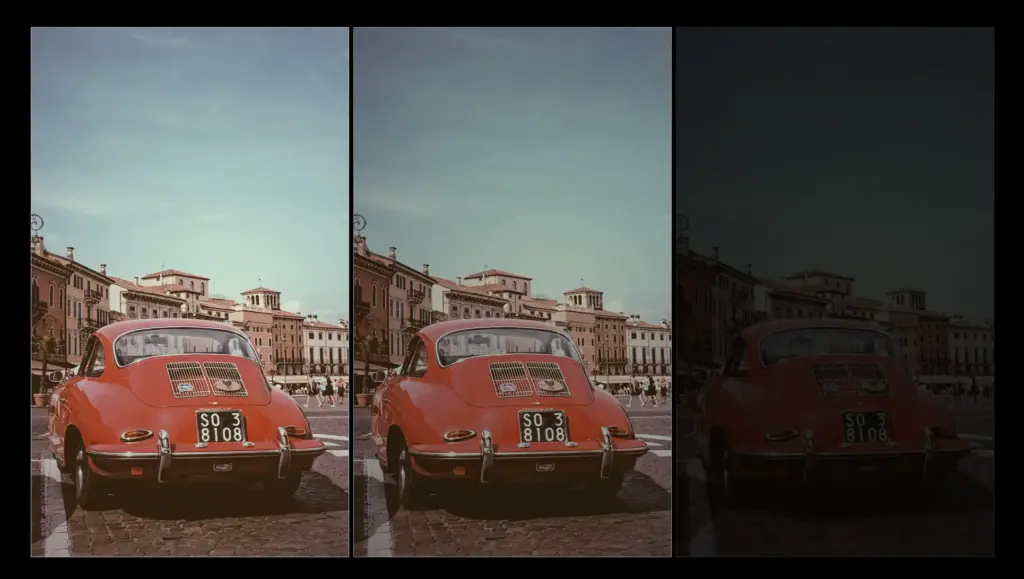
    We move forward with the other two classes. The .contrast-image2 class targets the second image and applies a visual effect that controls the contrast. A value of 150% would make the differences between light and dark elements in the image more pronounced, resulting in a sharper and more defined visual appearance.

    The .contrast-image3 class targets the third image and applies the same visual effect. In this case, a value of 20% reduces the contrast, making it less distinct and blending the light and dark areas.

    .image {
      background-image: url(https://images.unsplash.com/photo-1501829385782-9841539fa6bf?ixlib=rb-4.0.3&ixid=M3wxMjA3fDB8MHxwaG90by1wYWdlfHx8fGVufDB8fHx8fA%3D%3D&auto=format&fit=crop&w=3024&q=80);
      background-repeat: no-repeat;
      background-size: cover;
      width: 300px;
      height: 500px;
    }
    
    .contrast-image2 {
      filter: contrast(150%);
    }
    
    .contrast-image3 {
      filter: contrast(20%);
    }
    CSS

    In the images below we can see the results.

    CSS property filter: brightness

    The CSS filter: brightness is a property that adjusts the intensity of light in an image. It influences how bright or dark the visual element appears to the viewer. A value of 100% (or 1) represents the origin brightness. Values less than 100% darken the element, while values greater than 100% brighten it. For example, 50% would make the element half as bright, and 200% would make it twice as bright while a brightness of 0% gives only a black color.

    🔖 You have the choice to indicate brightness using percentages, such as 10%, or in decimal form like 0.1, both have the same results. It’s completely up to your preference. 🫧😃

    CSS Brightness filter example

    Here is an example for you.

    Starting with the HTML code which includes three <img> elements. All images share the same .image class. Additionally, the second image includes one more class the .brightness-image2 while the third image includes the .brightness-image3 class.

    <img class="image"/>
    <img class="image brightness-image2"/>
    <img class="image brightness-image3"/>
    HTML

    In the CSS code the .image class introduces a non-repeated image that covers the entire background area of the element. Its dimensions are 300 pixels in width and 500 pixels in height.

    We proceed with the other two classes. The .brightness-image2 class targets the second image and applies a visual effect that controls the brightness making the element 1.5 times brighter than its normal appearance.

    The .brightness-image3 class targets the third image and applies the same visual effect. In this case, a brightness of 20% means the element will be darkened, making it one-fifth as bright as its original state.

    .image {
      background-image: url(https://images.unsplash.com/photo-1501829385782-9841539fa6bf?ixlib=rb-4.0.3&ixid=M3wxMjA3fDB8MHxwaG90by1wYWdlfHx8fGVufDB8fHx8fA%3D%3D&auto=format&fit=crop&w=3024&q=80);
      background-repeat: no-repeat;
      background-size: cover;
      width: 300px;
      height: 500px;
    }
    
    .brightness-image2 {
      filter: brightness(150%);
    }
    
    .brightness-image3 {
      filter: brightness(20%);
    }
    CSS

    In the images below we can see the results.

  • The CSS Sepia Filter – Learn How to Make Vintage Images

    The CSS Sepia Filter – Learn How to Make Vintage Images

    In the world of web design, adding a touch of nostalgia or a vintage vibe to images can significantly enhance a website’s aesthetic. One timeless technique to achieve this effect is the CSS sepia filter.

    Originating from sepia ink, which has been used for centuries, this filter gives photos a warm, brownish tone reminiscent of old photographs, lending a sense of history and charm to the visuals.

    An image with 0% sepia maintains its original, true colors, while at 100% sepia, the image is entirely transformed into a warm, brownish tone as an aged photograph. As you increase the percentage, you intensify the sepia effect.

    Join me 😃 into the magic of the filter: sepia(%) CSS property and explore how it can be seamlessly integrated into your web design toolbox.

    History of the sepia ink

    🧐 Did you know that sepia ink is a brownish-black ink made from the ink sac of the common cuttlefish, Sepia? 🐙 They belong to the class Cephalopoda, which also includes squid, octopuses, and nautiluses.

    Historically, it has been used for writing and drawing, and it was particularly popular in the past for writing manuscripts and creating artwork.

    The ink took its name from the sepia cuttlefish, which was the source of the ink. The ink was widely used in antiquity and during the Renaissance*, and it has a characteristic warm, brownish hue which is why the CSS filter that replicates this effect is referred to as the “sepia” filter.

    (* The Renaissance was a period in European history that spanned roughly from the 14th century to the 17th century. It was characterized by a significant cultural, artistic, and intellectual rebirth after the Middle Ages. The term “Renaissance” is derived from the French word meaning “rebirth”).

    Use the CSS sepia filter to an image

    Below I craft an example as an easy way to explain this amazing CSS property to you! 😃 So, let’s proceed.

    We will start with our HTML and CSS code snippets.

    The HTML snippet contains two <img> elements. The first one has the .original-image class, indicating a standard image. The second one has also the .original-image and additionally the .with-sepia, implying it’s a styled image using the sepia filter, giving it a warm, brownish tone.

    <img class="original-image"/>
    <img class="original-image with-sepia"/>
    HTML

    The .original-image class is shared by both image elements, setting a background image, ensuring it doesn’t repeat and covering the specified width and height (400px by 500px).

    The .with-sepia class applied only to the second image, introduces a sepia filter of 80%, giving a warm, brownish tone.

    .original-image {
      background-image: url(https://images.unsplash.com/photo-1501829385782-9841539fa6bf?ixlib=rb-4.0.3&ixid=M3wxMjA3fDB8MHxwaG90by1wYWdlfHx8fGVufDB8fHx8fA%3D%3D&auto=format&fit=crop&w=3024&q=80);
      background-repeat: no-repeat;
      background-size: cover;
      width: 400px;
      height: 500px;
    }
    
    .with-sepia {
      filter: sepia(80%);
    }
    CSS

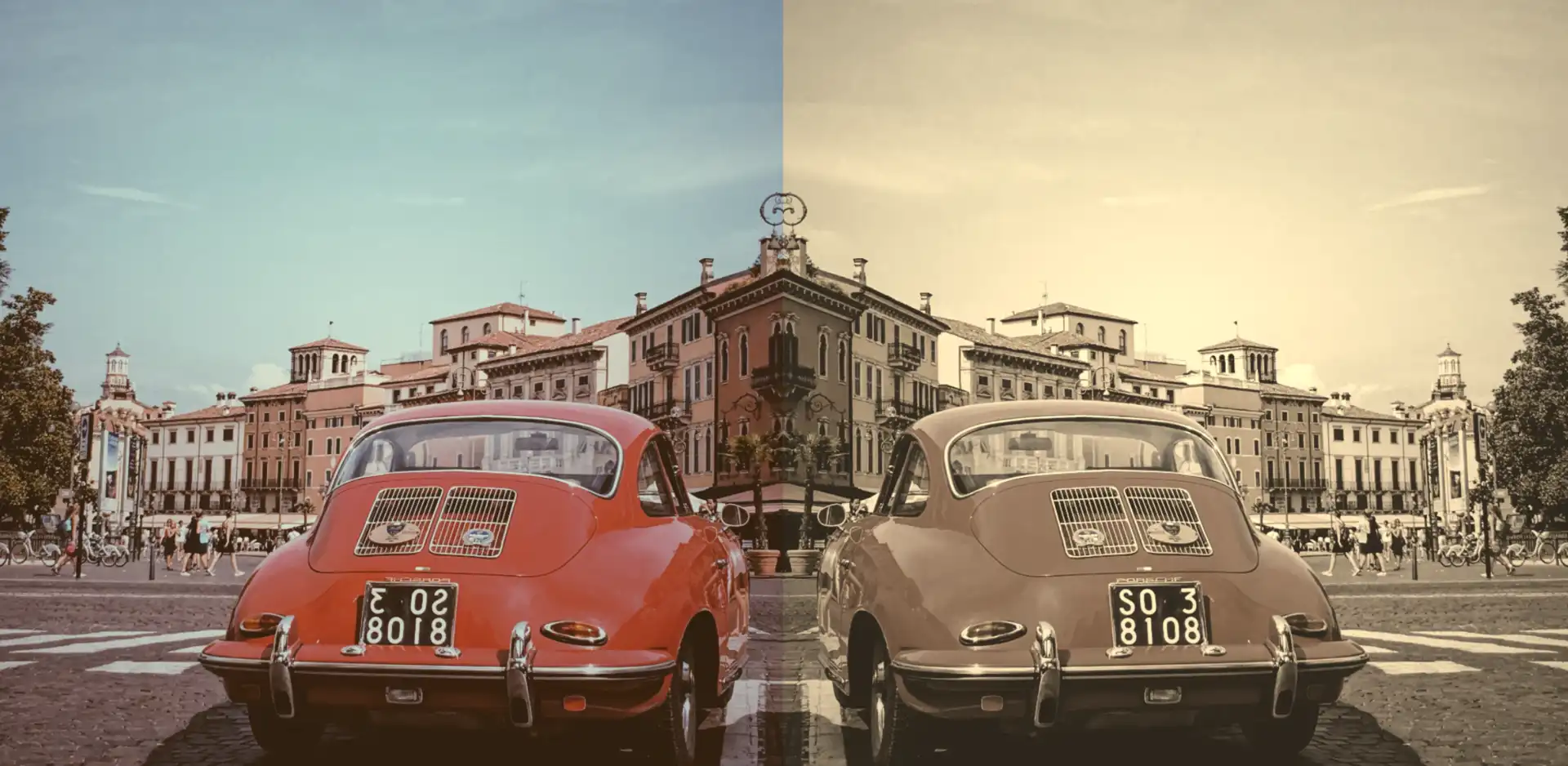
    By placing the two images side by side, we can effortlessly 🧐 perceive the contrast between them. It’s absolutely fascinating, isn’t it? 😃

    Enrich filter CSS sepia property with grayscale value

    In addition, we can add the filter: grayscale(%) CSS property. Together, these filters can create a unique and visually captivating presentation, capturing the essence of both the past and the present in a single frame.

    .with-sepia {
      filter: sepia(80%) grayscale(50%);
    }
    CSS

    Wow! 🌟 This is absolutely stunning! 😃

  • How to Make Grayscale Images with CSS

    How to Make Grayscale Images with CSS

    Transforming your images into stunning black-and-white tones with depth and texture has become easier than ever with the powerful grayscale filter. Adding a touch of gray to your images creates a modern vibe and turns them into art. To achieve this effect, we use the CSS filter: grayscale(%) property.

    The grayscale filter allows you to adjust the percentage of gray. When you increase the percentage, you boost the effect. An image with 0% grayscale maintains its authentic colors, while at 100% grayscale, the image is entirely transformed into a cold, grayish tone.

    Join me 😃 in the magic of the grayscale filter, explore how it can be merged harmoniously, and enhance your techniques.

    Monochrome – Grayscale method

    The grayscale method, or in other words, monochrome photography method, captures and displays different levels of light but not different colors. It includes all forms of black-and-white photography, which produces images with shades of gray ranging from black to white.

    It originated in 1820 when Nicephore Niepce, a French inventor and photographer, created the first photograph. In today’s world, monochrome photography is mainly used for applications other than photographs.

    Applying the grayscale filter to an image

    Below, I’ve prepared an example to help clarify this property for you! 😃 So, let’s move forward.

    We begin with our HTML and CSS code snippets.

    The HTML snippet includes three img elements. The first one has the .original-image class, indicating a standard image. The second and the third also have the .original-image plus the .with-grayscale class, meaning it’s a styled image using the grayscale filter, giving it a cold, grayish tone.

    <img class="original-image"/>
    <img class="original-image with-grayscale"/>
    <img class="original-image with-grayscale"/>
    HTML

    The .original-image class is applied to all image elements, setting a background image, ensuring no repetition, and covering the specified dimensions of 400px width and 500px height.

    The .with-grayscale class applied only to the second and third images, introduces a grayscale filter. In the second case, it is set at 50%, displaying our image with some grayish tones, while in the third case, it is set at 100%, decolorizing our image and declaring a completely gray tone.

    .original-image {
      background-image: url('...');
      background-repeat: no-repeat;
      background-size: cover;
      width: 400px;
      height: 500px;
    }
    
    .with-grayscale {
      filter: grayscale(50%);
    }
    
    .with-grayscale {
      filter: grayscale(100%);
    }
    
    CSS

    By positioning the three images side by side, we can clearly 🧐 observe the contrast among them. It’s absolutely captivating. Don’t you agree? 😃