Tag: keyframes

  • Infinite Flipping Card Animation Utilizing Transform And Keyframes CSS Properties

    Infinite Flipping Card Animation Utilizing Transform And Keyframes CSS Properties

    Welcome to this article, where I will guide you through some simple steps of creating a stunning CSS infinite flipping card animation. With my easy-to-follow instructions, you’ll be able to design a beautiful and eye-catching card in no time. Don’t miss this opportunity to elevate your website and impress your audience! 😉

    Let’s proceed and direct our attention towards creating this distinctive animation!

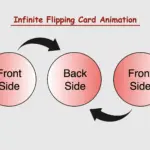
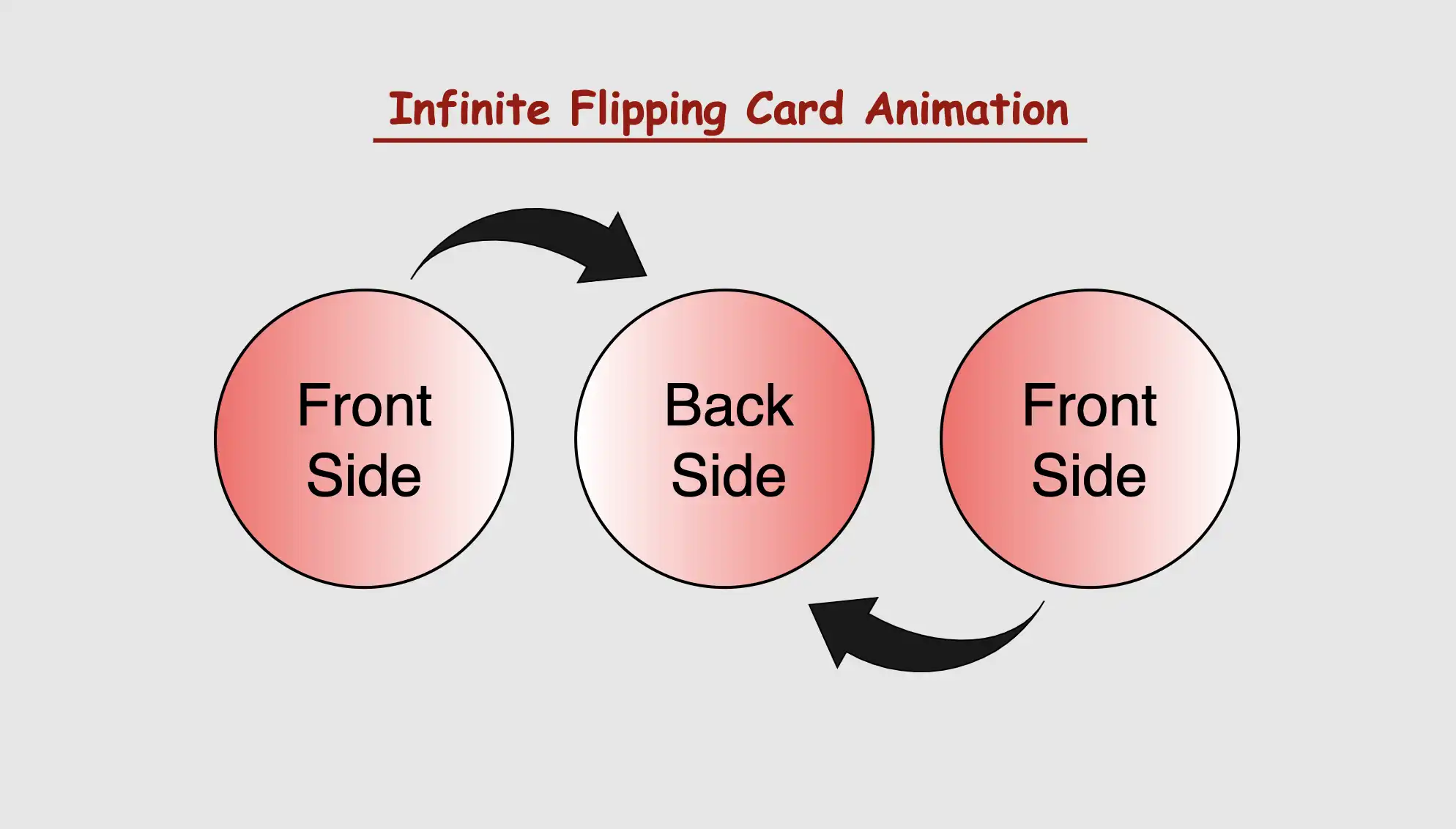
    CSS Infinite flipping card effect animation

    The supplied HTML and SCSS (Sass) code generates a flip card that exhibits movement along both the Y and X axes. The X-axis and Y-axis represent two intersecting lines, defining the coordinates of a point in a two-dimensional space.

    Now, let’s analyze the code one step at a time:

    HTML structure

    Let’s start by examining the HTML structure. We begin by creating a container element with the class flip-wrapper. This container acts as the main hub for our animation. Inside this container, we have a special area with the class flip-card. So, now we have a parent element and a child element. The parent element is where we will build the animation while the child element is the one that determines the appearance of our animation.

    <div class="flip-wrapper">
      <div class="flip-card"></div>
    </div>
    HTML

    CSS Basic Structure

    In our CSS code example, we start by making the whole page’s background-color a shade of gray (#c3c8c3).

    Then, for the container called .flip-wrapper we decide its size by giving it a fixed width and height of 300 pixels. We also make it look circular or rounded by using the border-radius property. It’s important to mention that you can keep it square ⬛ if you prefer, but I went with the rounded look ⚫ because it helps us see clearly the effect.

    Moving on to the .flip-card element, we set its width and height to 100% as a way to cover the entire available space. We make it look nicer by giving it a linear-gradient background using white and black colors. A subtle gray shadow effect is also a nice touch, giving a sense of depth. To keep the circular style consistent, we add the inherit value to border-radius property.

    body {
      background-color: #213450; /* dark blue */
    }
    
    .flip-wrapper {
      width: 300px;
      height: 300px;
      border-radius: 50%;
      .flip-card {
        width: 100%;
        height: 100%;
        background-color: #e1b6ea; /* lavender */
        box-shadow: inset 0 0 30px;
        border-radius: inherit;
      }
    }
    SCSS

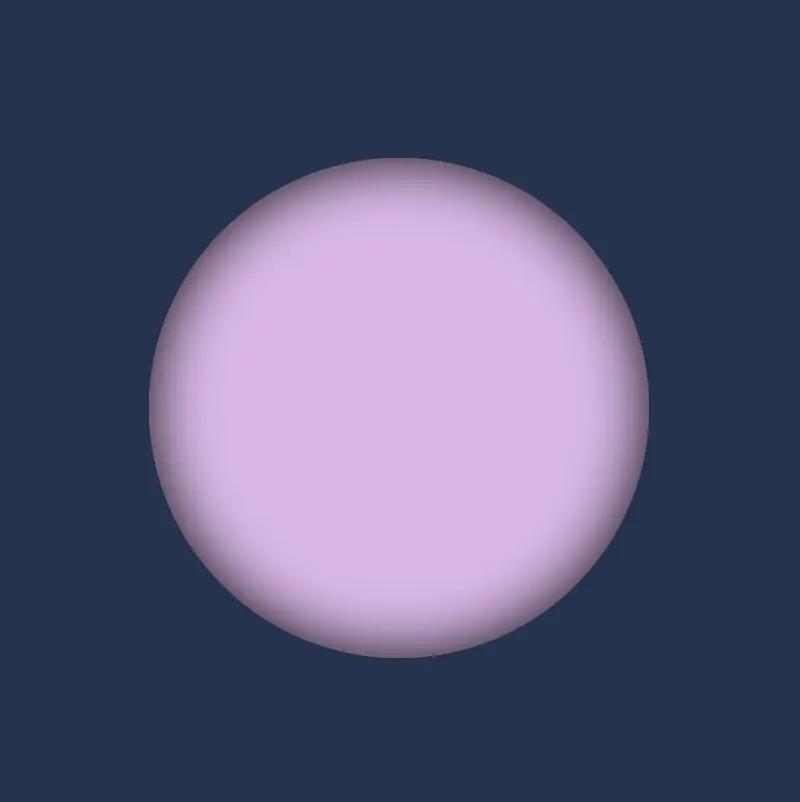
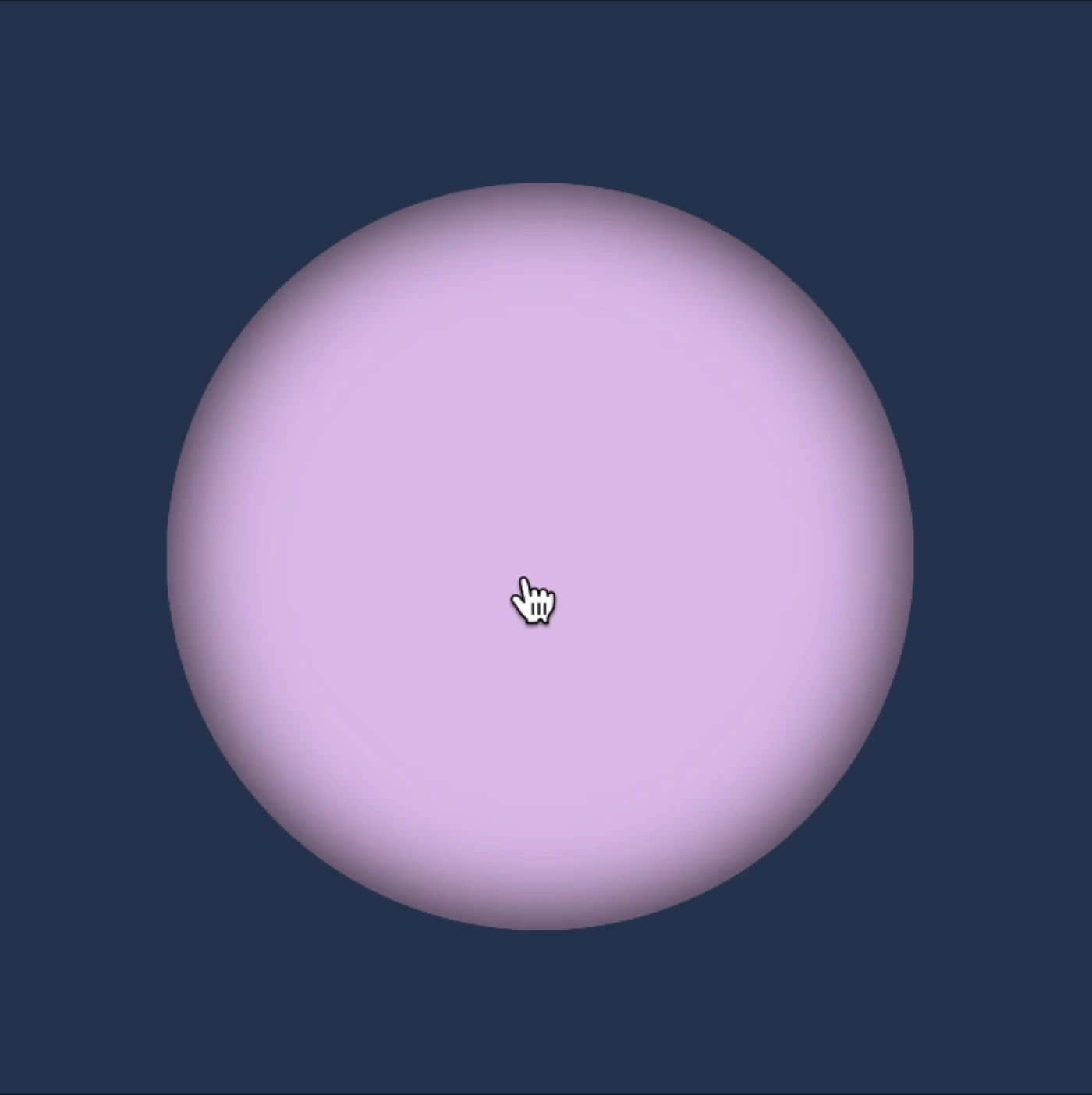


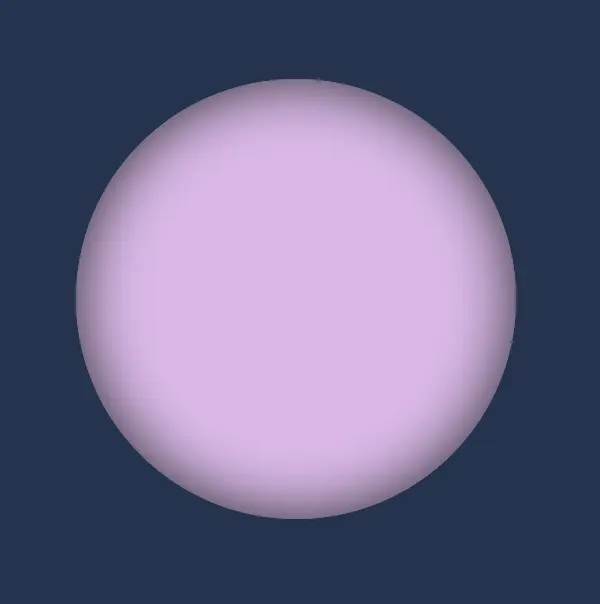
    This is what’s currently visible on our screen.
    Creating the CSS flipping card effect animation

    To achieve this captivating effect, we must employ the following two CSS properties: animation and @keyframes. Let’s dive deeper into their analytical exploration.

    To create an infinite flipping card animation it is essential to connect the animation and @keyframes CSS properties. Otherwise, it won’t work.

    Setting the animation CSS property

    In this section of the code, we’re applying the CSS animation property to the element we want to make the animation, in our case to the .flip-wrapper class. The purpose of this property is to associate the animation with the element, as we mentioned above.

    • First of all, we need a name for our animation. Here the animation is named rotation. This name acts as a reference point, allowing us to reuse and target this specific animation throughout our stylesheet.
    • Then we have to give it a duration. Our example has a duration of 8 seconds 8s. This duration defines how long the animation takes to complete one cycle, indicating that the entire animation, from start to finish, will span over 8 seconds.
    • Additionally, it’s set to repeat infinitely. This means that once the animation completes, it restarts immediately and runs continuously without a break. This creates a continuous animation effect (loop 🌪 😂).

    In summary, we are using the animation property to apply an animation named ‘rotation’ to the .flip-wrapper class, making it last for 8 seconds and repeat indefinitely, resulting in an uninterrupted, continuous animation for an element.

    .flip-wrapper {
      ...
      animation: rotation 8s infinite;
      .flip-card {
        ...
      }
    }
    SCSS

    Ways to add the @keyframes

    In the @keyframes rotation section, we define the animation behavior. It specifies a transformation that involves rotating an element around its X-axis and Y-axis. Here’s a breakdown of its key components:

    • @keyframes: This is the rule used to define the keyframes for the animation. Keyframes specify how the animation should change over time, in this case, from the starting state (from) to the ending state (to).
    • rotation: This is the name given to the animation, and it will be used to reference the animation when applying it to elements using the animation property.
    • from and to: These define the initial and final states of the animation. In the from state, the element has a rotation of 0 degrees around the X-axis, meaning it starts with no rotation. In the to state, the element is rotated 360 degrees, completing one full rotation, around the X-axis and/or Y-axis.
    • transform: The transform property is used to apply a specific transformation to the element. In rotation animations, (the specific transformation applied can vary, such as rotating, scaling, or skewing the element.) it enables the element to change its orientation.
    transform: rotateY()

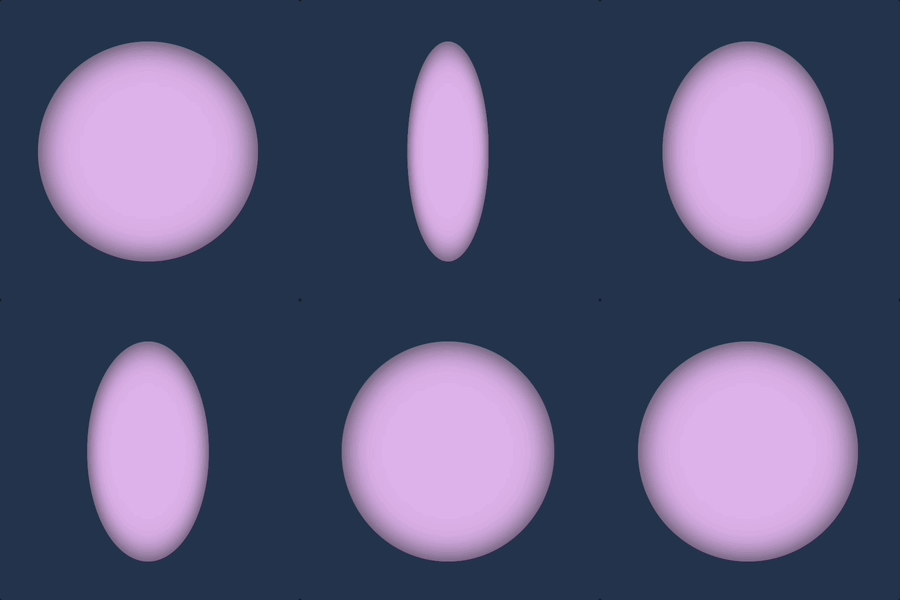
    In the following CSS animation, named rotation , our animation starts from a rotation of 0 degrees (from) and smoothly transitions to a 360-degree rotation (to) around the Y-axis.

    /* ANIMATION */
    @keyframes rotation {
      from {
        transform: rotateY(0deg);
      }
      to {
        transform: rotateY(360deg);
      }
    }
    SCSS
    transform: rotateX()

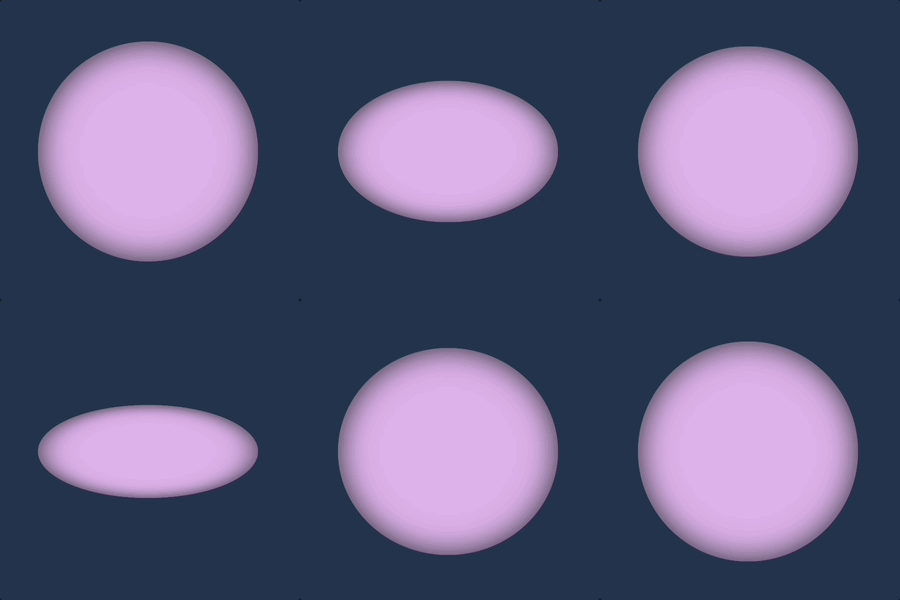
    This CSS animation, named rotation rotates the element around its X-axis. It starts (from) with no rotation (0 degrees) and smoothly completes (to) a full 360-degree rotation.

    /* ANIMATION */
    @keyframes rotation {
      from {
        transform: rotateX(0deg);
      }
      to {
        transform: rotateX(360deg);
      }
    }
    SCSS

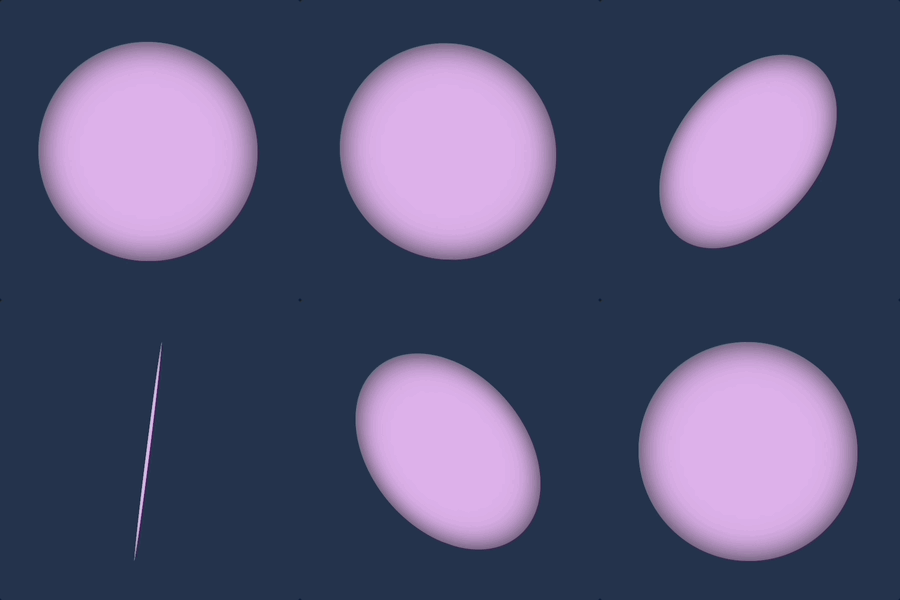
    We have the capability to create rotations along both the Y and X axis at the same time.

    transform: rotateX() rotateY()

    In this CSS animation named rotation the element is rotated in both the X and Y axes. It starts (from) with no rotation (0 degrees in both axes) and gradually complete (to) a full 360-degree rotation in both the X and Y axes. This animation can create a complex spinning effect that involves rotations in multiple directions. Cool huh!! 😎

    /* ANIMATION */
    @keyframes rotation {
      from {
        transform: rotateX(0deg) rotateY(0deg);
      }
      to {
        transform: rotateX(360deg) rotateY(360deg);
      }
    }
    SCSS

    What to avoid when making a CSS flipping card effect animation

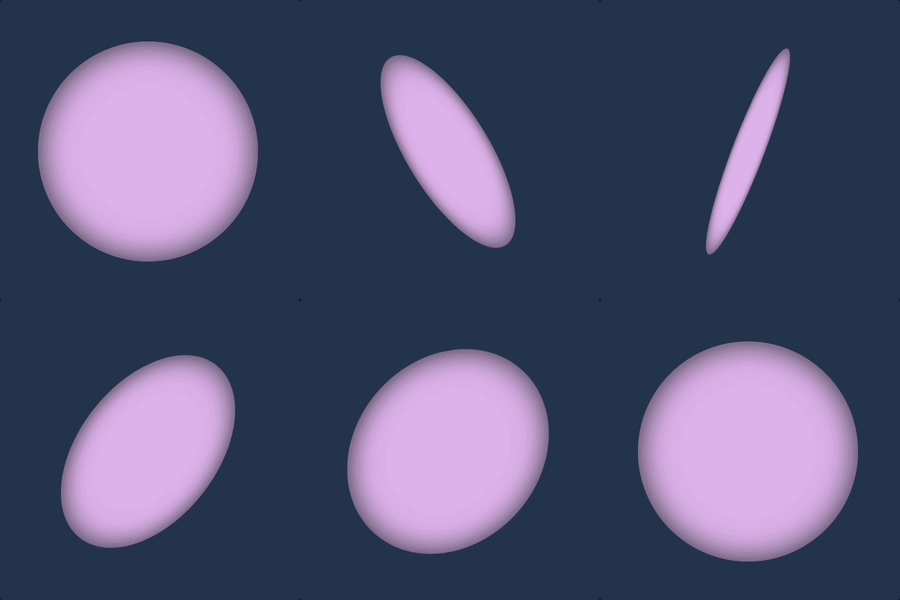
    As a reminder, it’s important to ensure that our animation transitions smoothly. To achieve a complete rotation, we must rotate (from) 0 degrees (to) 360 degrees. In the provided animation code, the @keyframes specifies a rotation of (160 deg) for both the X and Y axes, resulting in a card flip effect. However, this setup does not create a smooth transition beyond the 180-degree point. The card abruptly returns to its initial position, giving it a characteristic stop-and-return appearance. To achieve a more natural and realistic flipping effect, we need to ensure a complete 360-degree rotation or a half 180-degree rotation.

    /* ANIMATION */
    @keyframes rotation {
      from {
        transform: rotateX(0deg) rotateY(0deg);
      }
      to {
        transform: rotateX(160deg) rotateY(160deg);
      }
    }
    SCSS

    🌼 Hope you found my post interesting and helpful.
    Thanks for being here! 🌼
  • Static VS Dynamic Design With CSS – From Stillness to Action

    Static VS Dynamic Design With CSS – From Stillness to Action

    CSS in motion! Another perfect title for this post, as CSS is no longer just a language to style static pages, but also to elevate them with animations. CSS entered a new era and has grown into a clever tool that brings digital interfaces to life through movement. It began to shine, showing its full potential and ultimately becoming part of the experience, not just the look.

    CSS properties for movement

    Now, time to focus on where CSS credits its upgrade. Utilizing the following properties: transformtransitionanimation and @keyframes, elements can scaleslidefadespin and move through time all without a single line of JavaScript. Today, we’ll focus on understanding how these properties create such amazing visual feedback. We’ll take a step back from the code and examine these features from a more theoretical perspective: what they mean, how they influence behavior, and why they play such a crucial role in modern design.
    So, let’s zoom in! 🧐

    Transform CSS property

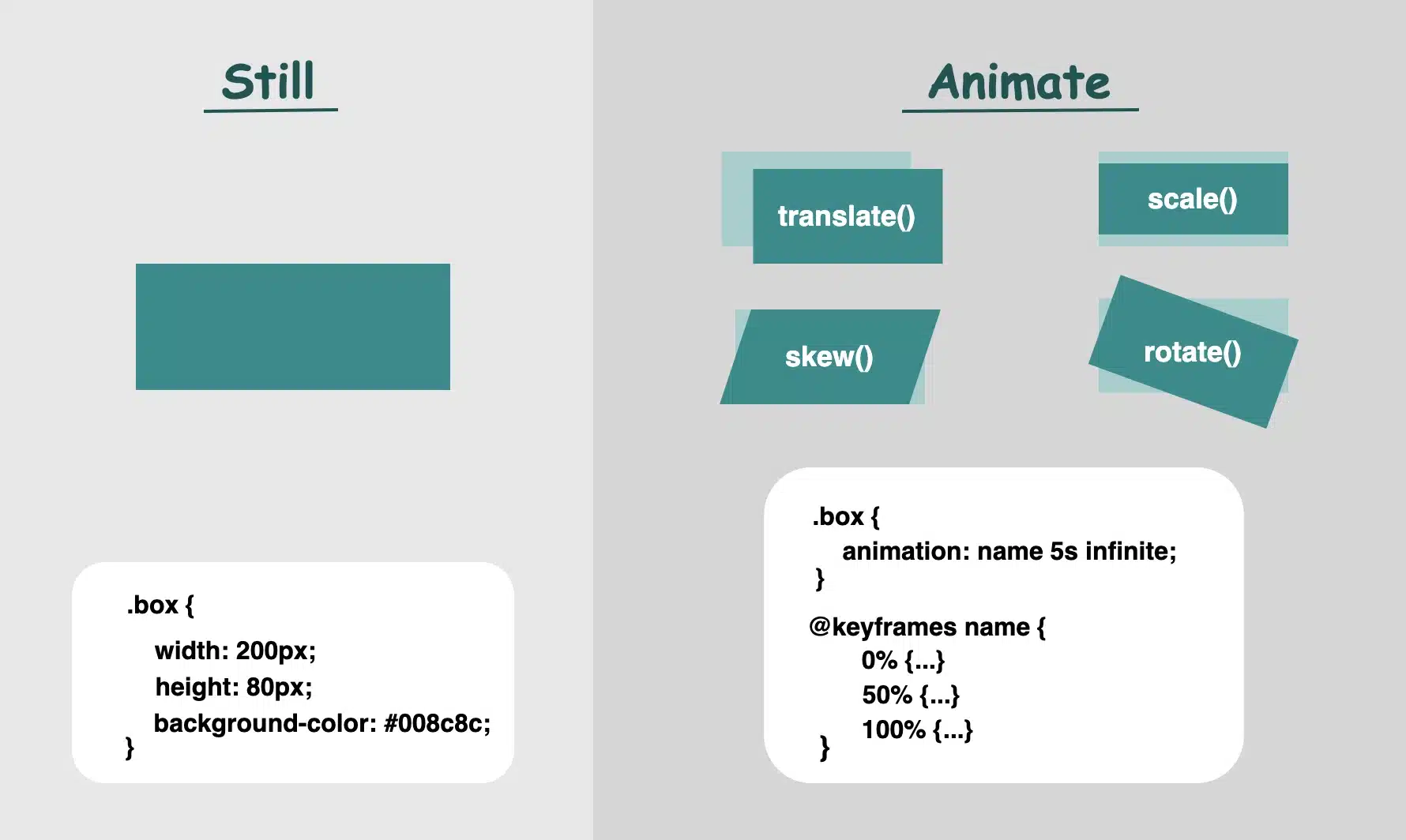
    It applies 2D or 3D transformations 🛠 to an element. It can change the sizerotation, position, and shape.
    Values:

    • scale(): Resize elements – making them smaller or bigger depending on our preferences (use unitless numbers).
    • skew(): Slant elements (use deg, which stands for degrees).
    • translate(): Move elements (use length units like: %pxrem, etc.).
    • rotate(): Spin elements (use deg, like skew).

    📌 Depending on our needs and preferences, we are free to make combinations with the above values.

    • perspective(): Creates a 3D effect, giving the elements a sense of depth.
    • matrix(): Creates 2D transformations. It provides a streamlined approach for applying scaling, skewing, translation, and rotation through a unified matrix. (a mathematical representation – transform: matrix(a, b, c, d, e, f) – that combines the first three transformations into a single matrix. If you want to include rotation as well, you would replace a, b, c, and d with the appropriate cosine and sine values for the desired rotation angle, while keeping e and f for translation.)

    Transition CSS property

    It animates changes in property values over time ⏳ and smoothens the transition between two stages (e.g. on hover, focus)
    Values:

    • transition-property: What property will animate (e.g. transformopacity)
    • transition-duration: How much time does the transition take to complete (e.g. 0.4ss stands for seconds, we are free to use ms too, for milliseconds)
    • transition-timing-function: Define the speed curve (easelinearease-inease-outease-in-out)
    • transition-delay: The time you wait before an animation starts (s and ms, similar to animation-duration). Its default value is 0s, which means the transition will start instantly.

    Keyframes CSS property

    Define intermediate states of an animation 📽 series. Breaks the animation into episodes 🎬, like “first episode, look like this,” “second episode, change to this,” “third episode, change to that,” and “final episode, finish like that.” Each episode represents a point in the timeline where the property-value changes (opacity, rotation, color, etc.).
    Values:

    • From / To : Timeline positions
    • Percentages % : Timeline positions

    📌 Each one represents a property-value pair that defines the appearance at a specific moment

    Animation CSS property

    It runs 🎞 a full animation based on the @keyframes you have defined. Unlike the transition we mentioned above, which moves from one point to another, animations can have many points ⏱ and follow more complex timing rules.
    Values:

    • name: the identifier of the @keyframes rule
    • duration: for how long it moves
    • time-function: how the speed flows
      • ease: it gives a smooth motion, starts slow, continues faster, and ends slow again (which is the default value)
      • linear: it has the same speed all the way
      • ease-in: it starts slow, then it speeds up
      • ease-out: it starts fast, then it slows down (Suitable for hover effects 😎)
      • ease-in-out: starts slow, in the middle spreads up, then slows down again
    • delay: if the animations begin immediately or with a delay
      • a value of 0s (seconds) indicates it starts as soon as it’s applied (which is the default value)
      • positive value that it will start after a set amount of time (e.g. 2s, which means it will start 2 seconds later)
      • negative value that starts straightforward but acts like it has already begun (e.g. -2s the animation won’t wait — it’ll jump in as if it had already been playing for 2 seconds. This can be very helpful if you want animations to be already in motion when the page loads. 😎)
    • iteration-count: how many times to repeat (infinite12, ech)
    • direction: in which direction the animation moves
      • normal ➡ the animation moves forward (which is the default value)
      • reverse ⬅ the animation moves backward
      • alternate ➡ ⬅ first forward, then backward
      • alternate-reverse ➡ ⬅ ➡ first forward, then backward, then again forward
    • fill-mode: shows how the element should look like before the animation starts or after it ends. You have the option to freeze the first or last frame so it doesn’t snap back (➡ forwards, ⬅ backwards). The default value is none, which means it does not apply any styles to the elements.
    • play-state: control if the animation is running or paused, like play ▶ or pause ⏸ buttons (runningpaused)

    📌 For an animation to actually play, we need to utilize only the: animation-nameanimation-duration and the @keyframe. All the other CSS properties are optional.

    When creating content for the web, even the smallest detail can significantly alter how something appears. The experience of bringing elements to life is amazing! It doesn’t need to be dramatic or complex. A simple yet well-structured and strategically placed change at the right moment can make everything more connected, useful and realistic.

    🌼 Hope you found my post interesting and helpful.
    Thanks for being here! 🌼

  • Flipping Card Animation On Hover Using Transform And Transition CSS Properties

    Flipping Card Animation On Hover Using Transform And Transition CSS Properties

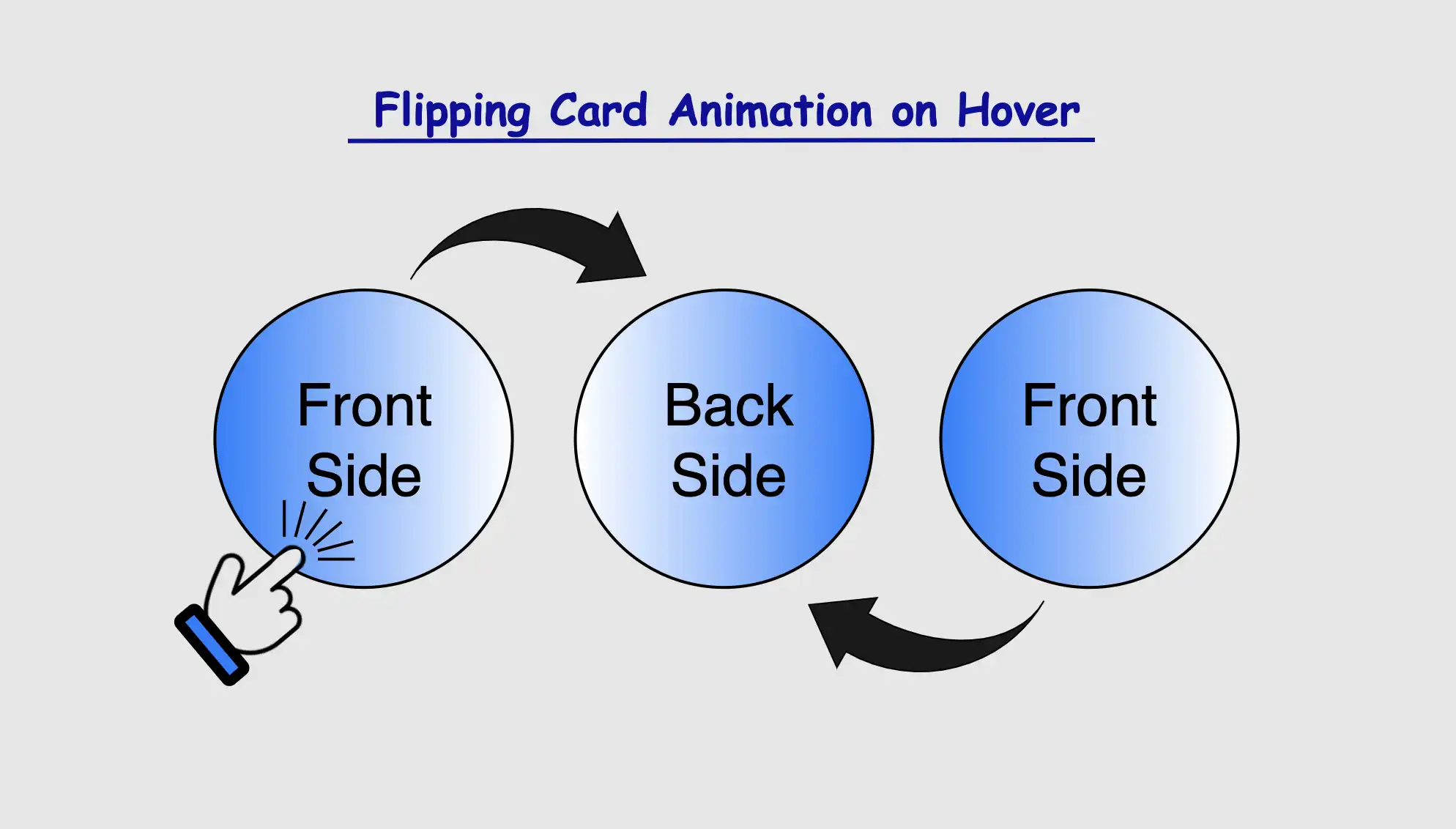
    Greetings! Today, I’m excited to walk you through the steps of crafting an amazing CSS flipping card animation that will activate when the user hovers over it. By following my detailed guidance, you’ll learn how to create a stunning animated card that will grab the attention of your viewers and enhance the overall appearance of your website. So, don’t miss out! 😉

    Let’s focus on making this unique animation!

    CSS Flipping card animation on hover

    The provided HTML and SCSS (Sass) code creates a flip card that moves along the Y and X axis. The X-axis and Y-axis are two lines that cross each other. They’re used to define the location of a point in a two-dimensional space.

    Let’s break down the code step by step:

    HTML structure

    To start, let’s focus on the HTML structure. We begin by creating a parent container with the class flip-wrapper. This container serves as the parent for our captivating animation. Inside this wrapper, we have a child element with the .flip-card class. This particular element is where our animation will take place.

    <div class="flip-wrapper">
      <div class="flip-card"></div>
    </div>
    HTML

    CSS basic structure

    In our CSS code snippet, we start by setting the background-color of the entire page to a deep shade of dark blue (#213450).

    Moving on to the .flip-wrapper container, we specify its dimensions, giving it a fixed width and height of 300 pixels. To create a circular or rounded appearance, we apply border-radius. It’s worth noting that, if desired, you can leave the dimensions as is to maintain a square 🟪 shape. I chose this rounded 🟣 design because it makes it easier for us to observe the effect we’re aiming for. 😉

    Next, we focus on the .flip-card element. We set its witdh and height to 100% to ensure it covers the entire available space. We also enhance its visual appeal with a soothing pastel purple (lavender) background-color and a subtle gray shadow effect. To maintain the circular theme, we add the inherit value to border-radius property.

    body {
      background-color: #213450; /* dark blue */
    }
    
    .flip-wrapper {
      width: 300px;
      height: 300px;
      border-radius: 50%;
      .flip-card {
        width: 100%;
        height: 100%;
        background-color: #e1b6ea; /* lavender */
        box-shadow: inset 0 0 30px;
        border-radius: inherit;
      }
    }
    SCSS


    This is what’s visible on our screen at the moment.

    Ways to add the hover effect

    For our effect to function as intended we have to work with both the parent and the child element. We begin with the parent element where we apply the :hover effect and change the cursor to a pointer 👆. You can check out all cursor style and pick the one that suits you best. 🤗

    .flip-wrapper {
      ...
      &:hover {
        cursor: pointer;
      }
    }
    SCSS

    Next, we’ll move on to our child element. Here, we set the transform CSS property to rotateY and specify the degree (deg) of rotation we desire.

    Afterward, we’ll define the transition CSS property. We can use it in two ways. We add it to the :hover or we can add it directly to the .flip-card class. In the first case, the effect works only when you hover in. In the second case, the effect works when you hover in, but when you hover out it turns back to its original position. Then we set the transform value and specify the duration in seconds (s). In our case, I’ve chosen 8 seconds to make the effect slow and easily observable. 😉

    transform: rotateY()

    hover-in
    .flip-wrapper {
      ...
      &:hover {
        ...
        .flip-card {
          ...
          transform: rotateY(180deg);
          transition: transform 8s;
        }
      }
    }
    SCSS
    hover-in-out
    .flip-wrapper {
      ...
      &:hover {
        ...
          transform: rotateY(180deg);
        }
        .flip-card {
          transition: transform 8s;
        }
      }
    }
    SCSS

    transform: rotateX()

    We do the same, but this time along axisX.

    hover-in
    .flip-wrapper {
      ...
      &:hover {
        ...
        .flip-card {
          ...
          transform: rotateX(360deg);
          transition: transform 8s;
        }
      }
    }
    SCSS
    hover-in-out
    .flip-wrapper {
      ...
      &:hover {
        ...
          transform: rotateX(360deg);
        }
        .flip-card {
          transition: transform 8s;
        }
      }
    }
    SCSS

    We have the capability to create rotations along both the Y and X axes at the same time.

    transform: rotateX() rotateY()

    hover-in
    .flip-wrapper {
      ...
      &:hover {
        ...
        .flip-card {
          ...
          transform: rotateX(180deg) rotateY(180deg);
          transition: transform 8s;
        }
      }
    }
    SCSS
    hover-in-out
    .flip-wrapper {
      ...
      &:hover {
        ...
          transform: rotateX(180deg) rotateY(180deg);
        }
        .flip-card {
          transition: transform 8s;
        }
      }
    }
    SCSS

    🌼 Hope you found my post interesting and helpful.
    Thanks for being here! 🌼
  • How CSS Became So Powerful with Animations

    How CSS Became So Powerful with Animations

    Hi there! You’re aware that the web 🕸 wasn’t always like it is today? Websites were like digital 📰 posters – just text and images. A page loads, and no changes occur. Static design had the reins. No movement, no glow! 🤹‍♀️ ✨ Everything remained visually frozen. 🧊 🥶 CSS was only a tool to decorate that static content and make some improvements, such as selecting a font, changing colors, adding a border or a margin.

    As time went on, browsers improved, and users began to expect more. That’s when CSS started to shine and show the way from static pages to fluid experiences! With features like transition, transform, animation, and keyframes, the focus shifted from how things looked to how they can pulse and move in time. Dynamic design is finally here! CSS became a language capable of transforming static HTML elements into dynamic 🧨 ones.

    Motion matters. It allows users to feel when something changes and witness how elements react. It’s a way of communication, 🔊 not just decoration. With only CSS, designers can craft these interactions. Creating animations that ‘rotate‘, ‘skew‘, scale‘ or ‘shift‘ position suggests ongoing system activity. A sliding menu, like a ‘hamburger icon‘, reveals categories, indicating that navigation continues beyond the current view. A spinning icon, after a user clicks ‘Submit’ or ‘Save’ on a button, signals that a process is loading. A button that gently fades in and out on hover – labeled ‘Sign Up‘ – asks for interaction. A fading alert, such as ‘Connection lost‘ or ‘Download has failed, retrying‘, quietly suggests that the message is temporary. Even a ‘scale-up‘ focusing on an image can reveal that it is active. CSS became a must to represent progress and maintain users’ attention.

    Of course, as with everything, setting boundaries is essential. Many times action can cause confusion and make users feel distracted or, even worse, rushed. Not every interface needs to include movement. Sometimes, picking stillness is the best choice. Valuable designs recognise when to pause!

  • Keyframes in CSS Explained – Make Your Animations Stand Out

    Keyframes in CSS Explained – Make Your Animations Stand Out

    Hi there! 😃 In today’s post, we will analyze the amazing CSS @keyframes rule, an incredibly powerful tool for creating complex and visually stunning animations on web pages.

    Understanding keyframes in CSS

    In simple terms, keyframes define the animation’s behavior through a series of @keyframes which describes how the animation should change over time.
    Each keyframe represents a specific point in time, and CSS smoothly transitions between these keyframes to create fluid motion.

    With CSS keyframes, you can create various animations, from simple color changes to complex effects like movements and transformations. By combining keyframes with other CSS properties, we can control timing and duration and create dynamic and visually engaging websites.

    I will provide you with an example that will make this at-rule crystal clear. 🧐 Let’s grab a ☕ and move forward. 🚀 We’ve got this!

    Example of keyframes in CSS: The theory behind it

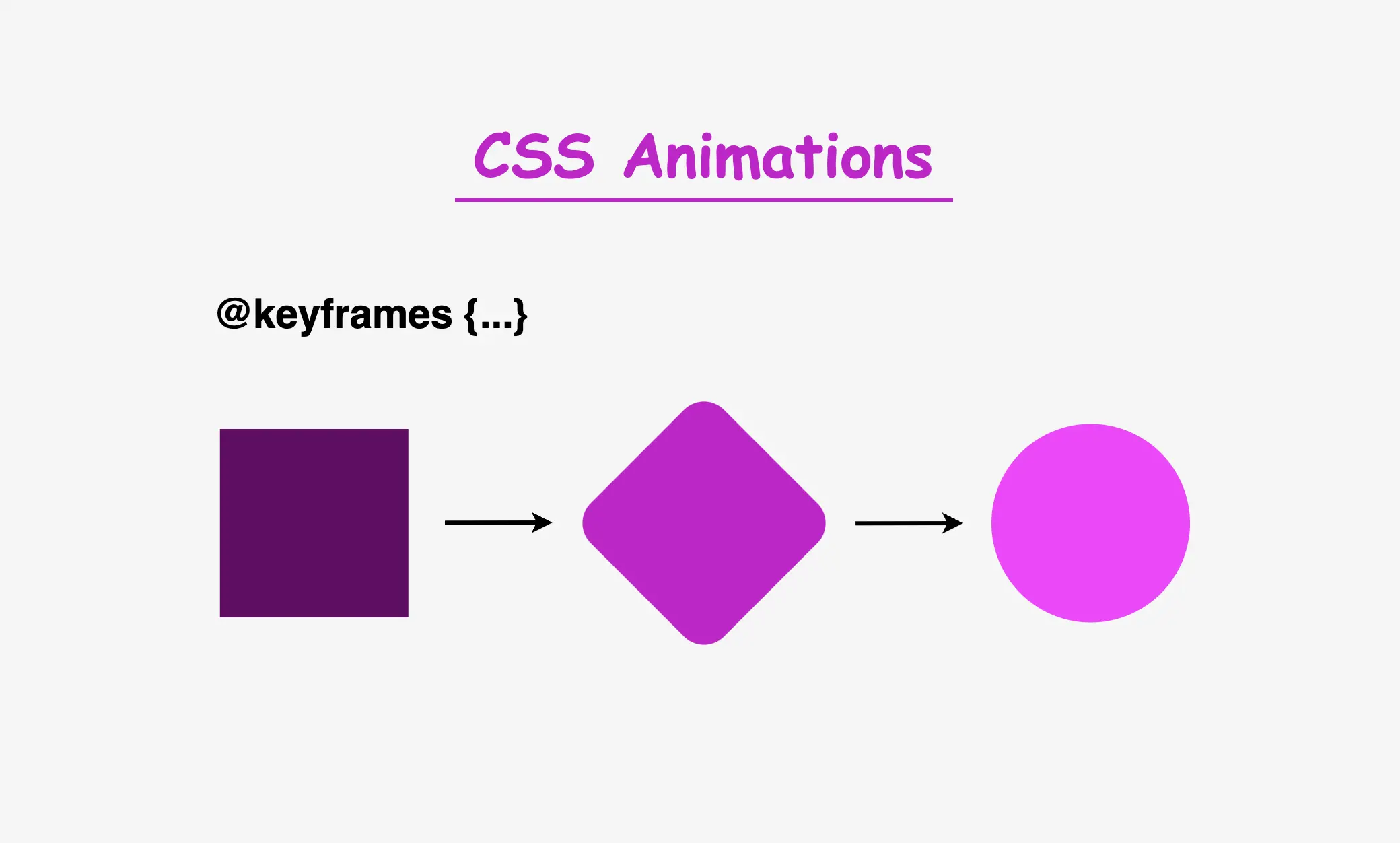
    The details of the animation will depend on the specific effect we want to achieve. Let’s say we want to create an animation where a square ⬛ transforms into a circle ⚫ and then back into a square ⬛ again. Additionally, the color 🌈 of the shape changes during the animation, and there are some movements and transitions involved. It might seem massive and confusing, 😰 but we can deal with it step by step together! 🛠

    For our animation to be smooth and realistic, we need to define the @keyframes. The first keyframe serves as the starting point (0%), followed by intermediate points and the final keyframe (100%) that marks the end of the animation and returns to the starting point.

    😃The following code snippet provides a quick example of a keyframes structure in action.

    @keyframes name-of-keyframe {
      0% {
        ... /* this is the starting point */
      }
      50% {
        ... /* this is one intermediate point */
      }
      100% {
        ... /* this is the ending point */
      }
    }
    CSS

    To create these keyframes, you’ll need to use CSS animation properties, such as animation-name, animation-duration, animation-iteration-count and animation-delay. The animation-name property connects the animation to its keyframes, while the other properties control how long it should last, how it should behave over time, and whether it has a delay before starting..

    Once you’ve defined your keyframes and animation properties, CSS will automatically insert transitions between the keyframes to create smooth changes. This means you don’t need to worry about manual calculations. CSS takes care of it for you. Cool huh!? 😎 ✨

    Example of keyframes in CSS: Practical implementation

    As we already mentioned, we will work with a box. We need to start with the HTML code and create a <div> element that has the class name .box.

    <div class="box"></div>
    HTML

    Then, in our CSS code, we define the basic properties. It should be a square with a width and height of 200 pixels, and we’ll keep the background-color simple by using black for now.

    .box {
      width: 200px;
      height: 200px;
      background-color: black;
    }
    CSS

    This is what is rendered on the screen for now. A simple black box.

    Applying animation effects to the elements

    To add animation effects to our <div> element, we need to define the animation properties of our class .box. We set the animation-name, which is the animation’s name, then the animation-duration, which is the time the animation takes to complete, and finally, the animation-iteration-count which declares how many times the animation should repeat.

    .box {
      ...
      animation-name: my-animation;
      animation-duration: 10s;
      animation-iteration-count: infinite;
    }
    
    /* ----- MY ANIMATION ----- */
    @keyframes my-animation {}
    CSS

    Then, we create our animation using the @keyframes rule, where we can specify the values of the CSS properties at different points during the animation. The most crucial step is to link the animation to our element. We do this by using the animation-name property and assigning it to the same name we defined earlier. In our case my-animation.

    Transforming colors and shapes with animation

    We will start our transformations by working with colors and shapes using the background-color and border-radius properties.

    /* ----- MY ANIMATION ----- */
    @keyframes my-animation {
      0% {
        background-color: pink;
      }
      25% {
        background-color: purple;
        border-radius: 50%;
      }
      50% {
        background-color: black;
        border-radius: 50%;
      }
      75% {
        background-color: purple;
        border-radius: 50%;
      }
      100% {
        background-color: pink;
      }
    }
    CSS



    As we can see, it begins with a pink square at starting point: 0%. Then, it transitions to purple (25%) where it starts becoming cyclic. After that, it turns to black (50%) and remains a full circle. Then (75%) shifts to purple again, where it starts transitioning back to a square. Finally (ending point: 100%) turns to a pink square.

    Keyframes in CSS: A pink square transitions into a purple circle, then a black circle, and back to a pink square using CSS @keyframes, background-color, and border-radius properties.

    Animating Element Position

    The next step is adjusting the position of our box. To do this, we need to adjust the positioning of the HTML element associated with our .box class and set it to position: relative, allowing it to move within its container.

    Now, let’s animate its movement:

    • The animation starts at the top-left corner 0%.
    • At 25%, it moves diagonally by changing both the top and left values.
    • At 50%, it continues moving horizontally to the left.
    • At 75%, it moves diagonally back by adjusting top and left again.
    • Finally, at 100%, it returns to its original position at the top-left corner.
    .box {
      ...
      position: relative;
    }
    
    /* ----- MY ANIMATION ----- */
    @keyframes my-animation {
      0% {
        ...
        left: 0px;
        top: 0px;
      }
      25% {
        ...
        left: 200px;
        top: 100px;
      }
      50% {
        ...
        left: 300px;
      }
      75% {
        ...
        left: 200px;
        top: 100px;
      }
      100% {
        ...
        left: 0px;
        top: 0px;
      }
    }
    CSS

    CSS animations: A pink square moves from the top left while transforming into a purple circle, then shifts left and becomes a black circle, before returning to the top left as a pink square using CSS @keyframes, top, and left properties.

    Animating Element Rotation

    We can also make our box a little bit playful! 🤹‍♀️ We will add some extra moves with the amazing transform CSS property.

    We will apply a rotation only between 25% and 75%.

    • The animation starts with no rotation at 0%.
    • At 25%, the element remains unrotated with transform: rotateY(0deg).
    • At 50%, it completes a full rotation with transform: rotateY(360deg)
    • At 75%, it returns to its original position with transform: rotateY(0deg).
    • Finally, at 100%, the cycle resets, ready to repeat.
    /* ----- MY ANIMATION ----- */
    @keyframes my-animation {
      0% {
        ...
      }
      25% {
        ...
        transform: rotateY(0deg);
      }
      50% {
        ...
        transform: rotateY(360deg);
      }
      75% {
        ...
        transform: rotateY(0deg);
      }
      100% {
        ...
      }
    }
    CSS

    CSS animations with @keyframes: This image shows a pink square moving from top left and turning to a purple circle, then moving only to left by rotating at axis-Y and turning to a black circle and then again moving back to top left and turning to a pink square using the CSS @keyframes property and the css transform: rotateY() property.

    Now, let’s try to make it even more impressive by enriching the starting and ending phases.

    • At 0%, we add transform: rotateX(360deg).
    • At 25%, it resets with transform: rotateX(0deg), creating a rotation along the X-axis from 0% to 25%.
    • At 50% and 75%, we maintain a non-rotating phase with transform: rotateX(0deg).
    • Finally, at 100%, we add transform: rotateX(360deg), creating another rotation from 75% to 100%.
    /* ----- MY ANIMATION ----- */
    @keyframes my-animation {
      0% {
        ...
        transform: rotateX(360deg);
      }
      25% {
        ...
        transform: rotateX(0deg);
      }
      50% {
        ...
        transform: rotateX(0deg);
      }
      75% {
        ...
        transform: rotateX(0deg);
      }
      100% {
        ...
        transform: rotateX(360deg);
      }
    }
    CSS
    CSS Keyframes: This image shows a pink square that rotating to axis-X from top left and turning to a purple circle, then moving only to left by rotating at axis-Y and turning to a black circle and then again rotating to axis-X going back to top left and turning to a pink square using the CSS @keyframes property and the css transform: rotateY() property.

    Inserting content into the animated element

    We can also add any content we want (text, image, emoticon, etc.) inside our HTML element. For our example, I use an emoticon and set its font-size to 100px.

    <div class="box">

      <div class="emoticon">🪐</div>
    </div>
    HTML
    .box .emoticon {
      font-size: 100px;
    }
    CSS

    CSS keyframes: This image shows a pink square with a perfectrly centered emoticon (Ringed planet) inside it, that rotating to axis-X from top left and turning to a purple circle, then moving only to left by rotating at axis-Y and turning to a black circle and then again rotating to axis-X going back to top left and turning to a pink square using the CSS @keyframes property. We create this animation setting the CSS animation-name, CSS animation-duration and CSS animation-iteration-count properties.

    Delaying the animation start

    We can add a delay to our animation by setting the animation-delay CSS property. This delay momentarily pauses the animation before it begins, creating a smoother and more controlled start.

    For instance, if we set the delay to 2s, the animation will start after 2 seconds. However, please note that this delay occurs only once when we first see the animation. To observe the effect again, we may need to refresh the page. 

    .box {
      ...
      animation-delay: 2s;
    }
    CSS

    You can see the animation with the delay effect below. It starts with its initial black background-color and after the 2s it starts the transitions we created with the @keyframes. 😉

    CSS Keyframes: This image shows a pink square with a perfectrly centered emoticon (Ringed planet) inside it, that rotating to axis-X from top left and turning to a purple circle, then moving only to left by rotating at axis-Y and turning to a black circle and then again rotating to axis-X going back to top left and turning to a pink square using the CSS @keyframes property. This animation has a starting delay of 2 seconds. We do so using the CSS animation-delay property.

    Using the @keyframes shorthand for animations

    By using shorthand, you can save space and time while improving your code’s readability. Instead of writing multiple properties separately, you can define them all using just the animation shorthand.

    .box {
      animation-name: my-animation;
      animation-duration: 10s;
      animation-iteration-count: infinite;
      animation-delay: 2s;
      
      /* Here’s the shorthand version */
      animation: my-animation 10s 2s infinite;
    }
    CSS

    Complete CSS animation code (copy & paste ready)

    Below is the full code referenced in this blog post. Feel free to copy and use it in your own projects.

    If you have any questions or encounter any issues, don’t hesitate to ask for help. You can easily copy the desired code snippet by clicking on the copy icon, located in the top-right corner of each snippet.

    We’d love to hear your thoughts! If you have feedback or questions, drop a comment below.

    <div class="box">
      <div class="emoticon">🪐</div>
    </div>
    HTML
    * {
      margin: 0;
      padding: 0;
      box-sizing: border-box;
    }
    
    html,
    body {
      height: 100vh;
    }
    
    .box {
      width: 200px;
      height: 200px;
      background-color: black;
      
      position: relative;
      display: flex;
      align-items: center;
      justify-content: center;
      
      animation: my-animation 10s 2s infinite;
    }
    
    .box .emoticon {
      font-size: 100px;
    }
    
    /* ----- MY ANIMATION ----- */
    @keyframes my-animation {
      0% {
        left: 0px;
        top: 0px;
        background-color: pink;
        transform: rotateX(360deg);
      }
      25% {
        left: 200px;
        top: 100px;
        background-color: purple;
        border-radius: 50%;
        transform: rotateY(0deg) rotateX(0deg);
      }
      50% {
        left: 300px;
        background-color: black;
        border-radius: 50%;
        transform: rotateY(360deg) rotateX(0deg);
        visibility: visible;
      }
      75% {
        left: 200px;
        top: 100px;
        background-color: purple;
        border-radius: 50%;
        transform: rotateY(0deg) rotateX(0deg);
      }
      100% {
        left: 0px;
        top: 0px;
        background-color: pink;
        transform: rotateX(360deg);
      }
    }
    CSS
  • How to Make A Blinking Animation Using CSS

    How to Make A Blinking Animation Using CSS

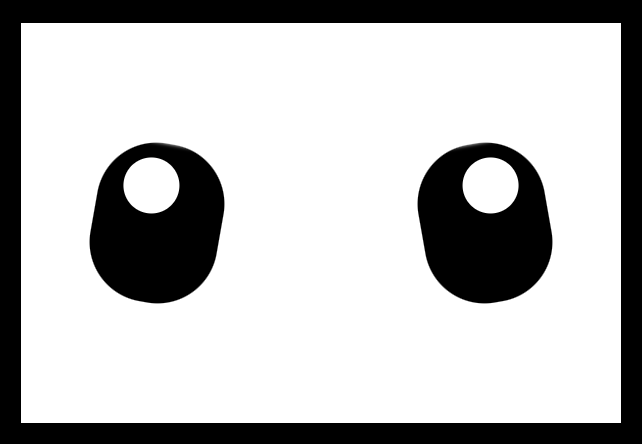
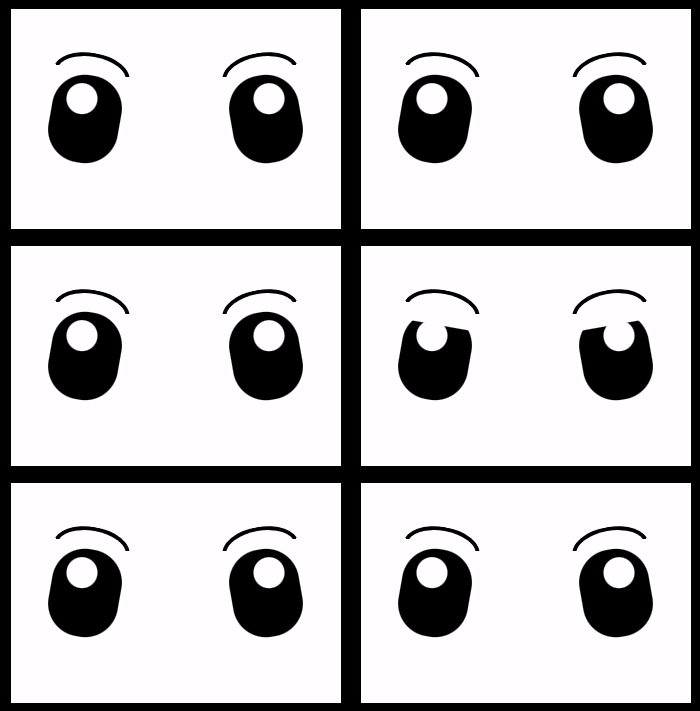
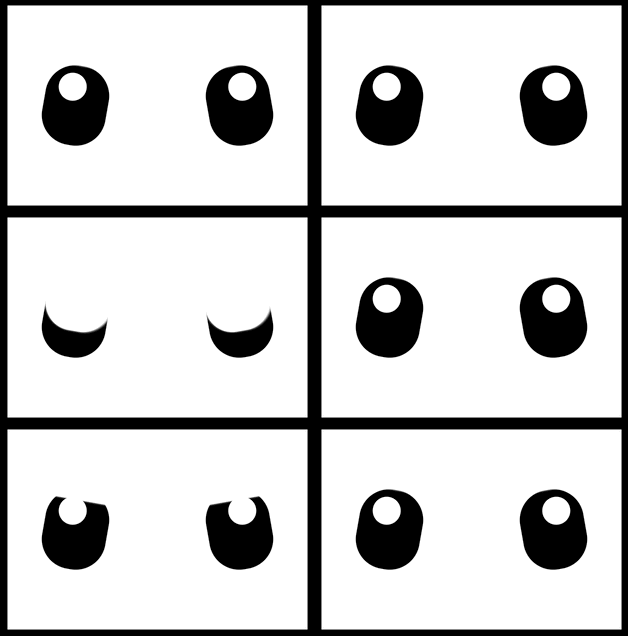
    Hey there! In this post, I will show you how to create a pair of blinking eyes effect using only CSS (SCSS), complete with a smooth blinking animation to bring the eyes to life. A cow’s pair of eyes! Yes, yes, you read it right! We are dealing with a hidden 🐮 cow! Below, you can see our new 🐄 friend, with flesh and bones.

    We are dealing with a hidden 🐮 cow!

    HTML Structure

    Firstly, let’s build our blinking eyes’ initial structure using only HTML:

    <div class="face">
      <div class="eye eye--left"></div>
      <div class="eye eye--right"></div>
      <div class="eyebrow eyebrow--left"></div>
      <div class="eyebrow eyebrow--right"></div>
    </div>
    HTML

    CSS Structure

    Secondly, we continue by enhancing our HTML with CSS, starting from the body. We use flexbox as we want to place our face container in the center of our screen.

    body {
      height: 100vh; // gives us the full screen-size height
      background-color: black;
      display: flex;
      align-items: center;
      justify-content: center;
    }
    CSS

    CSS Face Structure

    Next, we add our face container styling in order to be ready for our eyes’ positioning. We set background-color: white; just for contrast since our eyes will be black. Afterward, we use display: grid; and place-items: center; because we want our container’s children, our eyes, to get centered.

    .face {
      position: relative;
      width: 300px;
      height: 200px;
      background-color: white;
      display: grid;
      place-items: center;
    }
    CSS

    Adding the eyes

    Afterward, we continue by creating our beautiful cow’s 👀 eyes.

    .face {
      ...
      .eye {
        position: absolute;
        width: 64px;
        height: 80px;
        background-color: black;
        border-radius: 30px;
        overflow: hidden;
        &:before { // iris
          content: "";
          position: absolute;
          width: 28px;
          height: 28px;
          background-color: white;
          border-radius: 50%;
        } // end of before 
        &--left { // position of left eye
          left: 200px;
          transform: rotate(-10deg);
          &:before { // position of left iris
            top: 8px;
            right: 12px;
          }
        }
        &--right { // position of right eye
          right: 200px;
          transform: rotate(10deg);
          &:before { // position of right iris
            top: 8px;
            left: 12px;
          }
        }
      } // end of eye 
    } // end of face
    SCSS

    Adding the blinking animation

    Now is the right time, drum 🥁 roll, to add our blinking animation 😉 .

    .face {
      ...
      .eye {
        ...
        &:after { // eyelid 
          content: "";
          position: absolute;
      
          /* takes the same width as the eye (width: 64px;)
          in order to cover the whole eye when blinking */
          width: 100%;
          /* we need 0 initial height - as our starting point before the 
          animation runs */
          height: 0%;
          background-color: white;
          border-radius: 30px;
          box-shadow: 1px -2px 2px 2px white;
      
          /* here we add our "blink" animation since this is the
          html part (:after - blinking) we want to make animate.
          We want the animation to repeat every 4 seconds forever.
          */ 
          animation: blink 4s infinite ease-in;
        } // end of after
      } // end of eye
    } // end of face
    
    /* we name our animation "blink". We set different height percentages
    as a way to set our eye lids STAY IN DIFFERENT PART each time */ 
    @keyframes blink {
      0% {
        height: 0%;
      }
      30% {
        height: 0%;
      }
      33% {
        height: 100%;
      }
      40% {
        height: 0%;
      }
      70% {
        height: 0%;
      }
      75% {
        height: 100%;
      }
      78% {
        height: 0%;
      }
      81% {
        height: 100%;
      }
      84% {
        height: 0%;
      }
      100% {
        height: 0%; 
      }
    }
    SCSS

    Hint 💡
    Moreover, you should apply box shadow (check code above) to make the blinking eyelid overflow the eyes’ borders. This way during the blinking animation it will cover the whole eye and make it more realistic!

    Adding the eyebrows

    Finally, we add the 🤨 eyebrows to complete the gaze.

    .face {
      ...
      .eye {
        ...
      } /* end of eye */ 
      
      .eyebrow {
        position: absolute;
        width: 70px;
        height: 20px;
        border: solid 4px black;
        border-color: black transparent transparent transparent;
        border-radius: 50%/20px 20px 0 0;
        top: 40px;
        &--left {
          left: 40px;
          transform: rotate(10deg);
        }
        &--right {
          right: 40px;
          transform: rotate(-10deg);
        }
      } /* end of eyebrow */
    } /* end of face */
    SCSS

    Complete code solution

    Below is the full CSS code referenced in this blog post. Feel free to copy and use it in your projects.

    body {
      height: 100vh; // gives us the full screen-size height
      background-color: black;
      display: flex;
      align-items: center;
      justify-content: center;
    }
    
    .face {
      position: relative;
      width: 300px;
      height: 200px;
      background-color: white;
      display: grid;
      place-items: center;
      .eye {
        position: absolute;
        width: 64px;
        height: 80px;
        background-color: black;
        border-radius: 30px;
        overflow: hidden;
        &:before { // iris
          content: "";
          position: absolute;
          width: 28px;
          height: 28px;
          background-color: white;
          border-radius: 50%;
        } // end of before 
            &:after { // eyelid 
          content: "";
          position: absolute;
      
          /* takes the same width as the eye (width: 64px;)
          in order to cover the whole eye when blinking */
          width: 100%;
          /* we need 0 initial height - as our starting point before the 
          animation runs */
          height: 0%;
          background-color: white;
          border-radius: 30px;
          box-shadow: 1px -2px 2px 2px white;
      
          /* here we add our "blink" animation since this is the
          html part (:after - blinking) we want to make animate.
          We want the animation to repeat every 4 seconds forever.
          */ 
          animation: blink 4s infinite ease-in;
        } // end of after
        &--left { // position of left eye
          left: 200px;
          transform: rotate(-10deg);
          &:before { // position of left iris
            top: 8px;
            right: 12px;
          }
        }
        &--right { // position of right eye
          right: 200px;
          transform: rotate(10deg);
          &:before { // position of right iris
            top: 8px;
            left: 12px;
          }
        }
      } // end of eye 
      .eyebrow {
        position: absolute;
        width: 70px;
        height: 20px;
        border: solid 4px black;
        border-color: black transparent transparent transparent;
        border-radius: 50%/20px 20px 0 0;
        top: 40px;
        &--left {
          left: 40px;
          transform: rotate(10deg);
        }
        &--right {
          right: 40px;
          transform: rotate(-10deg);
        }
      } /* end of eyebrow */
    } // end of face
    
    @keyframes blink {
      0% {
        height: 0%;
      }
      30% {
        height: 0%;
      }
      33% {
        height: 100%;
      }
      40% {
        height: 0%;
      }
      70% {
        height: 0%;
      }
      75% {
        height: 100%;
      }
      78% {
        height: 0%;
      }
      81% {
        height: 100%;
      }
      84% {
        height: 0%;
      }
      100% {
        height: 0%; 
      }
    }
    SCSS
    Expand
  • How To Make a CSS Shine Effect Animation

    How To Make a CSS Shine Effect Animation

    Welcome to this post! Today, I will share with you how to create a fascinating CSS shine effect animation. To make it more interesting and attractive, I have already prepared an avatar (using only HTML and CSS) and added the animation to it. If you’re curious about how I made the avatar, you can find the complete avatar code at the end of this post. Please feel free to enclose it in your animation if you wish. Remember, the most important thing is to have fun and let your creativity shine. 😉 ✨

    For the moment, let’s focus on making this astonishing animation!

    HTML structure

    To begin, we need to create the base for our project by adding the HTML structure. We’ll start by creating our avatar-container , which will serve for our manipulations. I will carefully guide you through the following steps to achieve the desired results. Once we have a good structure in place, we can build upon it our CSS shine effect.

    <div class="avatar-container">
     ... Here goes my avatar
    </div> <!-- end of avatar-container -->
    HTML

    CSS basic structure

    Moving forward, let’s focus on organizing our project’s visual appeal by adding the CSS structure. Our first step will be to center the avatar-container on the screen, therefore, we can take advantage of the display: flex property of the body element. This will help us align it along the horizontal and vertical axes, creating a perfectly centered layout. With this basic structure in place, we can then proceed to add styles and create everything we have in mind. 😊

    $body-color: #6e87ef;
    
    * {
      margin: 0;
      padding: 0;
      box-sizing: border-box;
    }
    
    html,
    body {
      height: 100%;
    }
    
    body {
      width: 100%;
      display: flex;
      align-items: center;
      justify-content: center;
      background: $body-color;
    }
    SCSS

    CSS avatar container

    In order to place the avatar inside the container, it is essential to set it position: relative. Then we can place the components we want to include for our avatar, just by adding position: absolute to them.

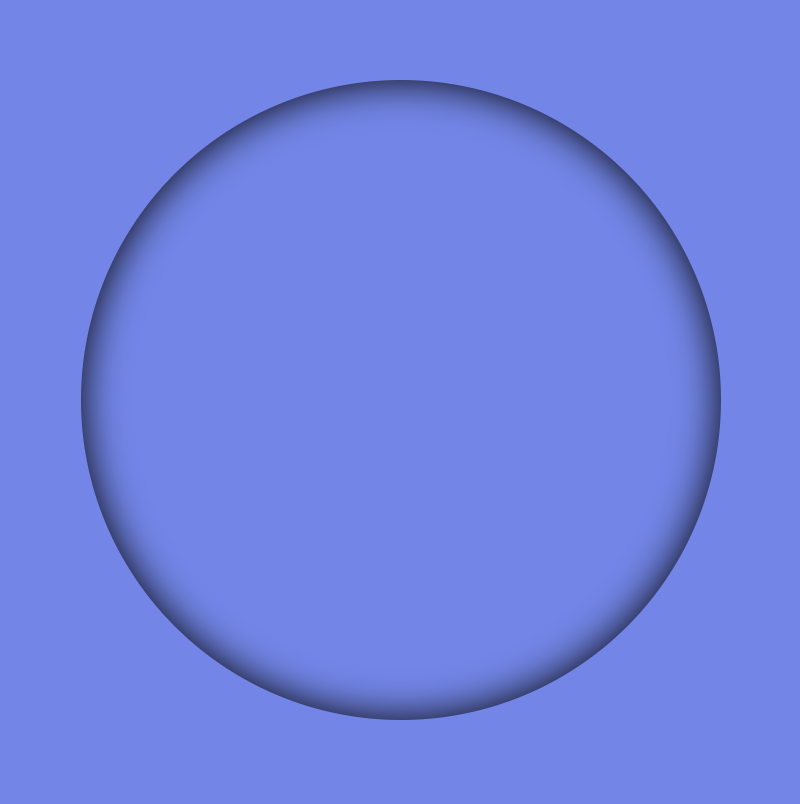
    .avatar-container {
      position: relative;
      min-width: 320px;
      height: 320px;
      background-color: transparent;
      box-shadow: inset 0 0 20px;
      border-radius: 50%;
    } /* end of avatar-container */
    SCSS

    CSS Shine Effect

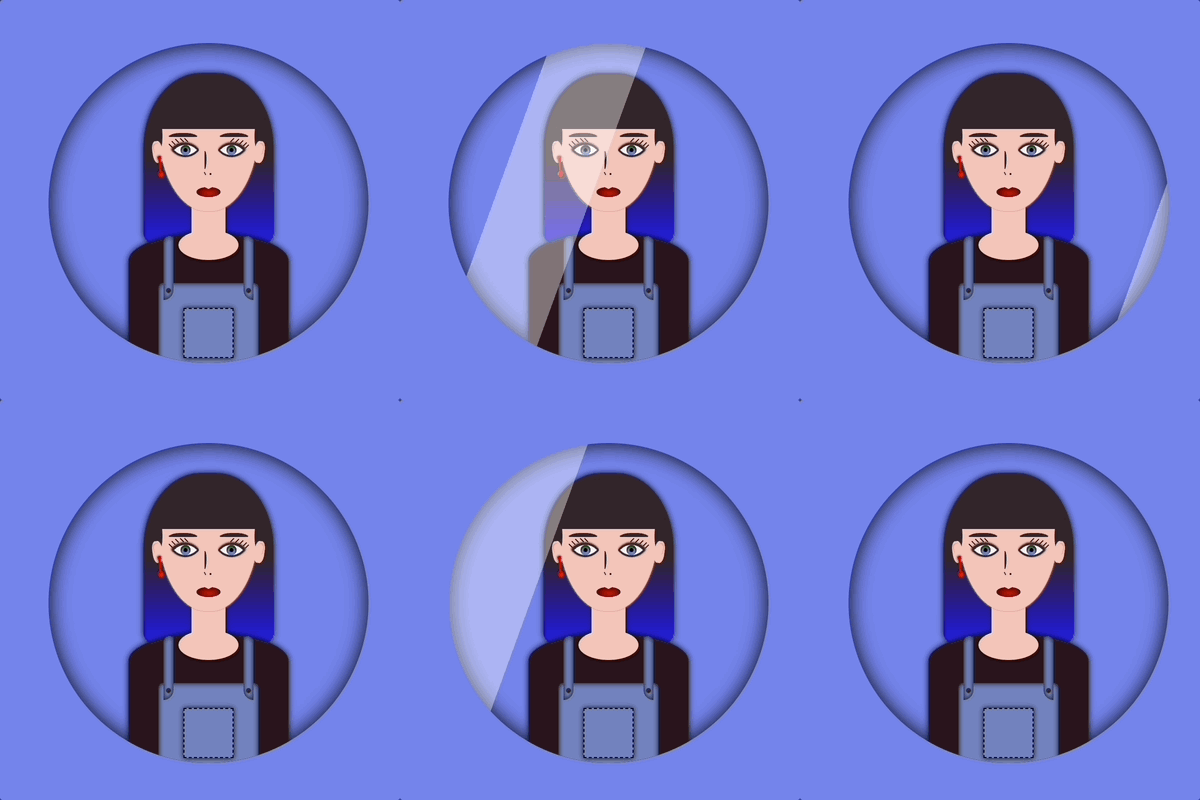
    All the necessary preparations have been completed. Let’s now move forward and make the shine 🥳 effect.

    Create the shine

    • Firstly, we use :before pseudo-element which allows styling specific parts of an element without adding extra content to HTML. It behaves as a child of the chosen CSS element. In our case, avatar-container takes extra data only by using :before CSS property.
    • Next, we set width: 30% and height: 100% as this is a proper space in our example.
    • We also set background-color: rgba(255, 255, 255, 0.4) as it is the most suitable for the CSS shine effect.
    • We continue with z-index which overlaps the stack order of an HTML element. In simple words, it manages which HTML element should appear on top of others. The higher the stack order, the higher the element will be placed at the top of the stacking order. A really useful CSS property that is responsible for layering. To achieve the desired effect over my avatar, I have specified a z-index: 4 as my avatar has multiple layers. Without multiple layers applied to it (in simple words without the avatar), z-index CSS property is not necessary. It’s good practice when we use z-index to count close numbers. We can set positive and negative integer values.
    .avatar-container {
        position: relative;
        width: 320px;
        height: 320px;
        background-color: transparent;
        box-shadow: inset 0 0 20px;
        border-radius: 50%;
        overflow: hidden;
        &:before {
          position: absolute;
          content: "";
          width: 30%;
          height: 100%;
          background-color: rgba(255, 255, 255, 0.4);
          transform: skewX(-20deg);
          left: -120px;
          z-index: 3;
        } /* end of before */
      } /* end of avatar-container */
    SCSS

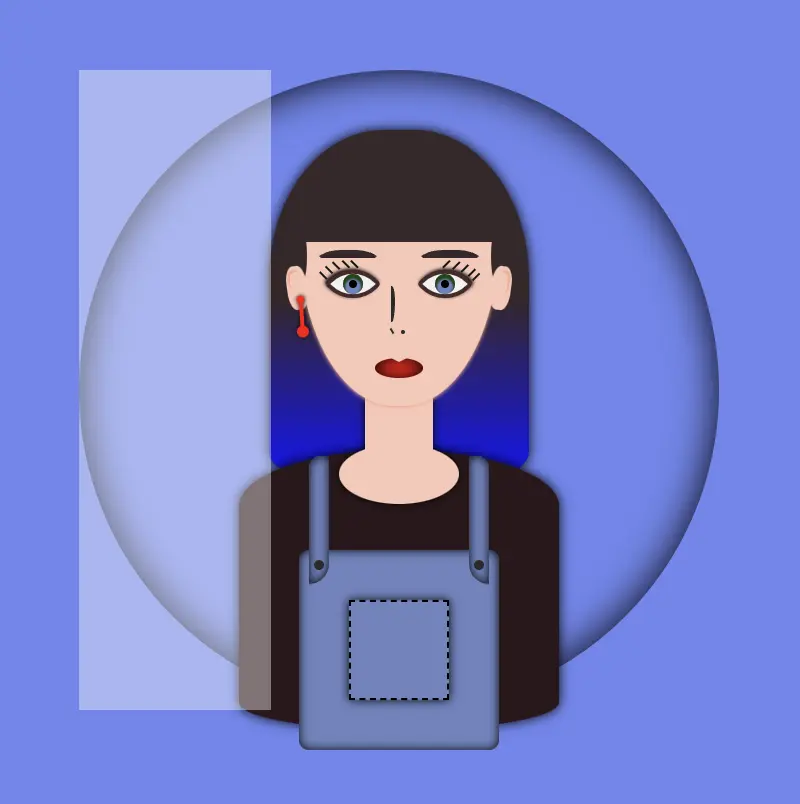
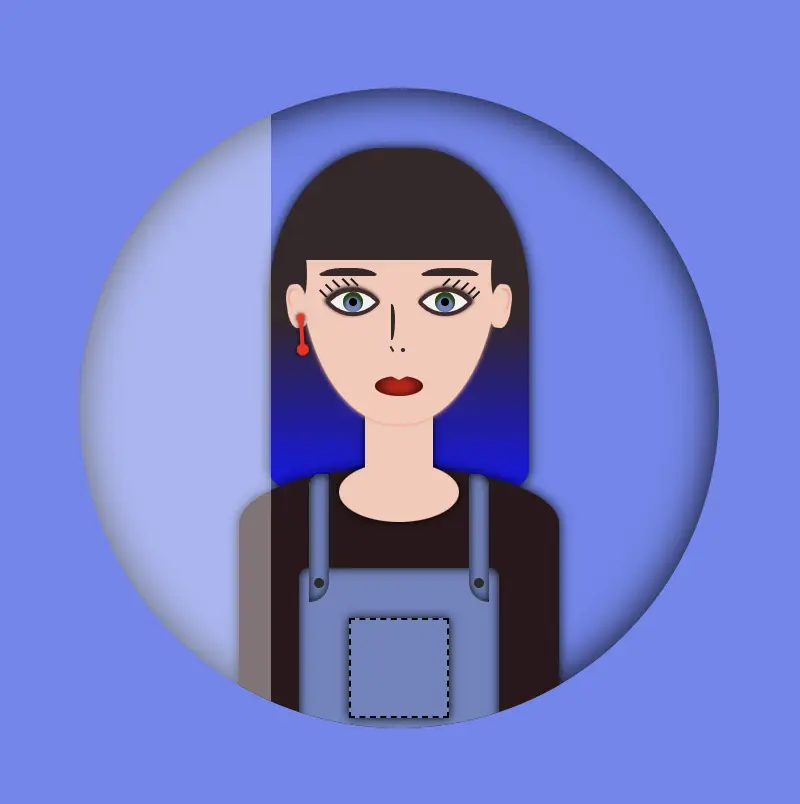
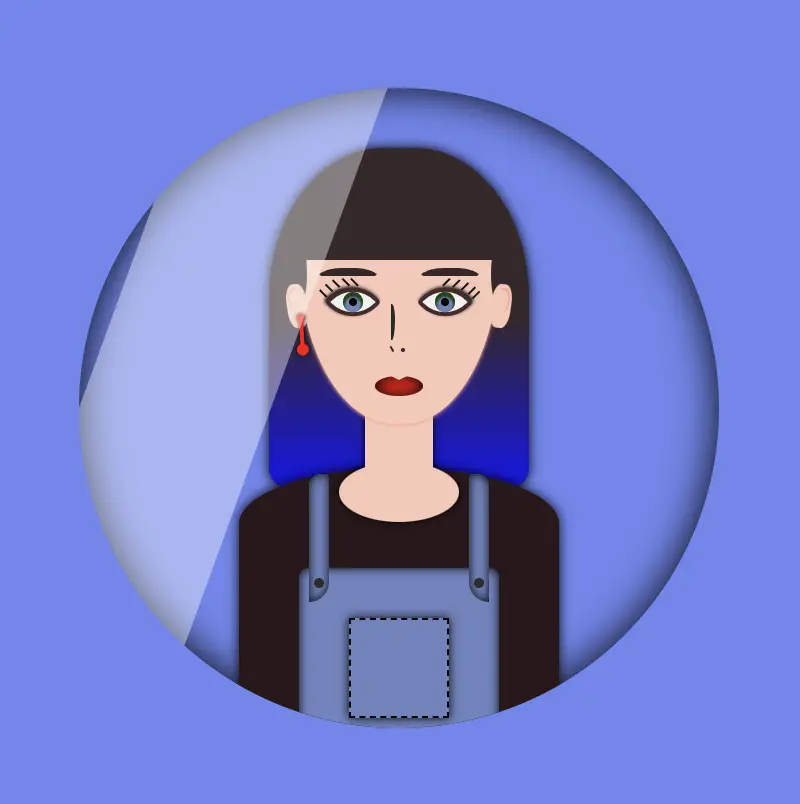
    The image below displays a preview of the code mentioned above.

    Transform the CSS shine effect

    • Afterward is necessary to add overflow: hidden to avatar-container, as we want to hide the content that flows over our container’s bounds.
    • We continue with transform: skew as a way to add inclination to our shine.
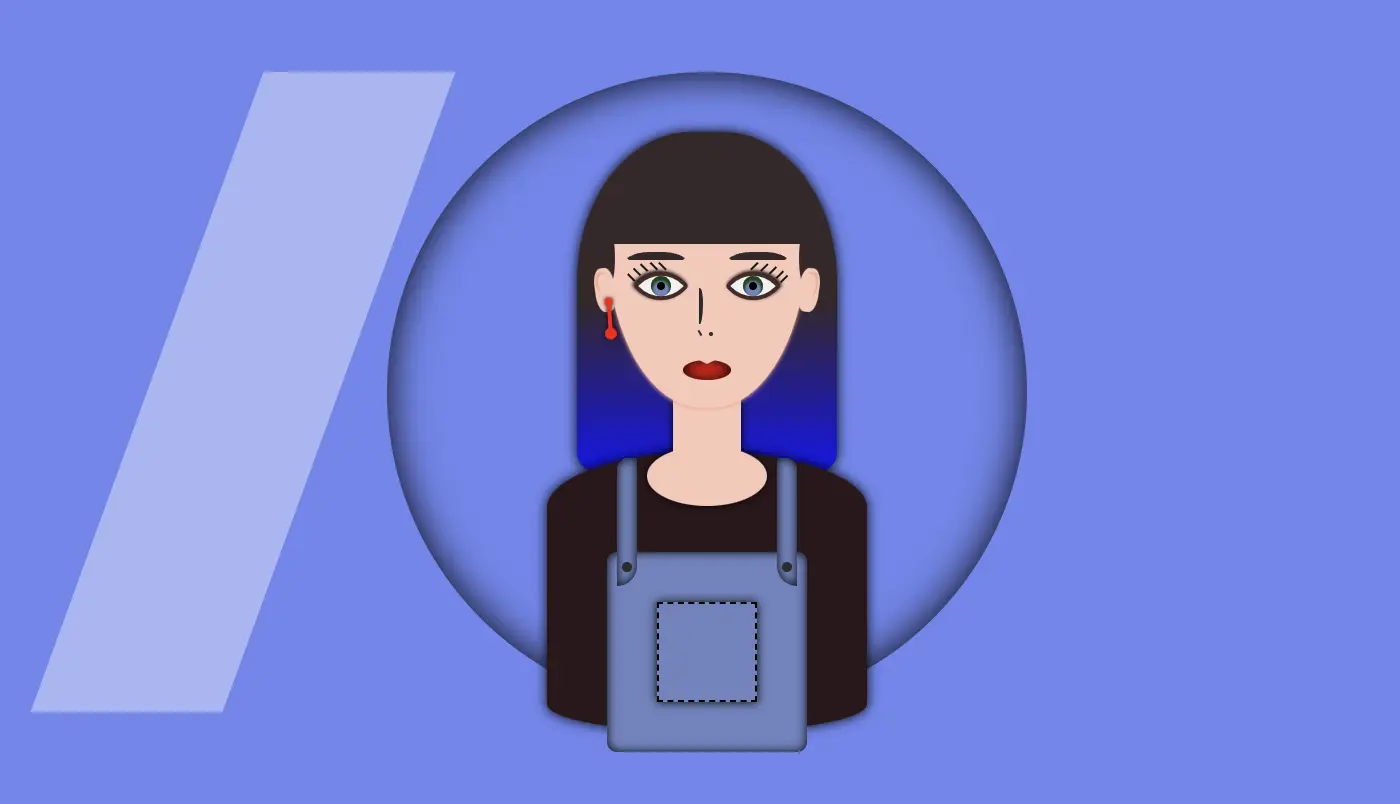
    • Finally left: -120px keeps our effect in the appropriate place, -120px left out of the avatar-container , in order to be invisible. As we previously used, overflow: hidden anything outside of the avatar-container is not visible, that’s why in this pick, below, we can’t see our effect. It’s still there though! 😄

    HINT

    💡 Well, maybe at this point it might be a good idea to temporarily disable the CSS property overflow: hidden and observe the current position of the effect. By doing so, one can see if the effect is working as intended and make any necessary adjustments. The effect is now positioned -120 pixels to the left, as this is the starting point from where the effect will begin to move.

    Create an animation for the CSS shine effect

    • To finalize my work, firstly, I’m adding the animation CSS property animation: <animation-name> <animation-duration> <animation-iteration-count> which is responsible for the way our animation behaves.
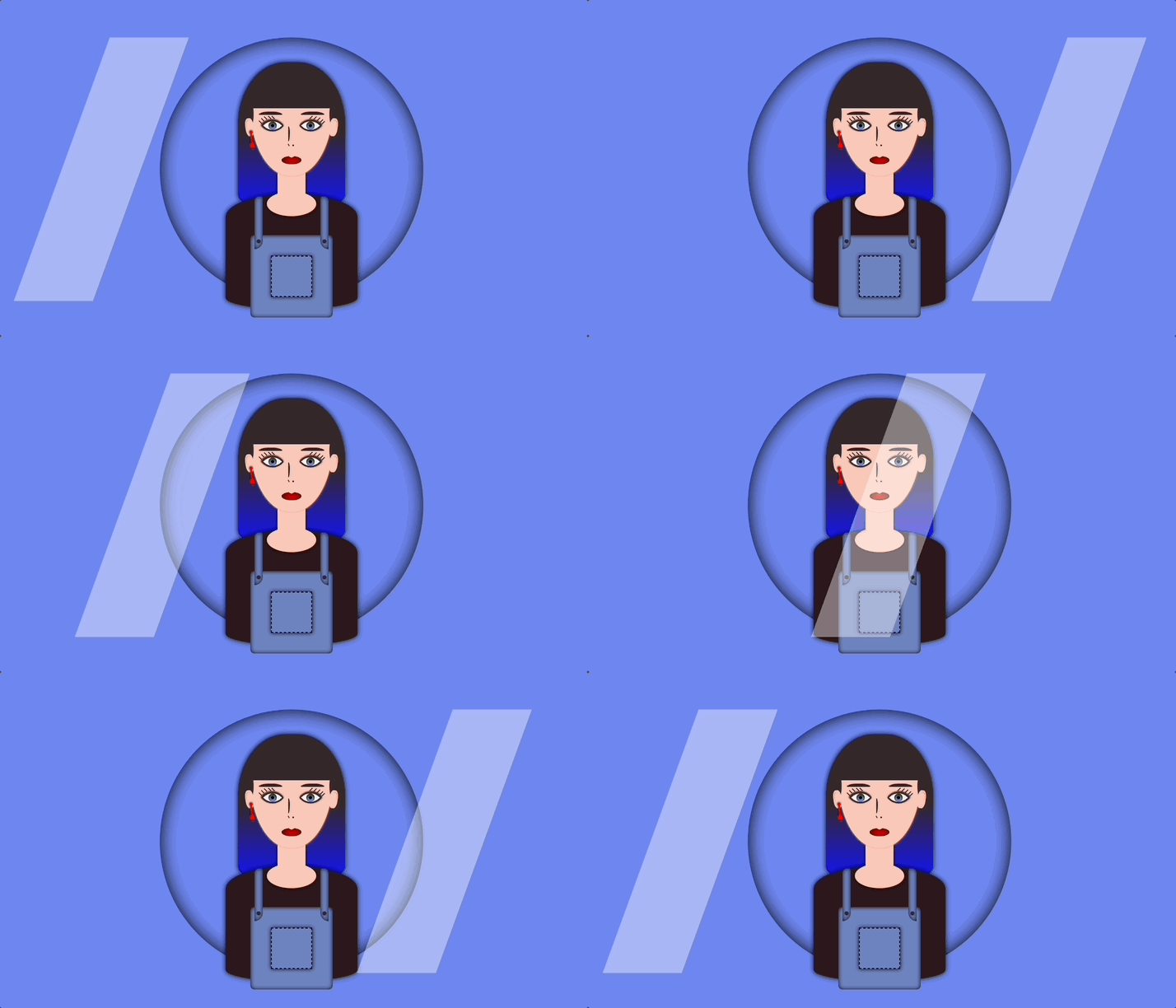
    • Secondly, I add CSS @keyframes which is used to control the style of the animation at different points in time. In this post, we want our shine to move rightwards, starting from -120px left to 350px left and then turning back to -120px left again.
    • By combining these 2 properties we end up having the desired animation result, that is, moving our shine every 5 seconds, forever (infinite), from -120px to 350px and back.

    🚫 It is required to connect these two properties. We do so by giving a name to the @keyframes and putting the same name on the animation property. In our case, this name is “shine”.

    .avatar-container {
      ...
      &:before {
        ...
        animation: shine 5s infinite;
      } /* end of before */
    } /* end of avatar-container */
      
      
    /* My animation */
    @keyframes shine {
      0% {
        left: -120px;
      }
      50% {
        left: 350px;
      }
      0% {
        left: -120px;
      }
    }
    SCSS

    💡 If you want to see the whole move of the CSS shine effect you can once again disable the CSS property overflow: hidden to avatar-container and observe the effect. Isn’t it great? 😄

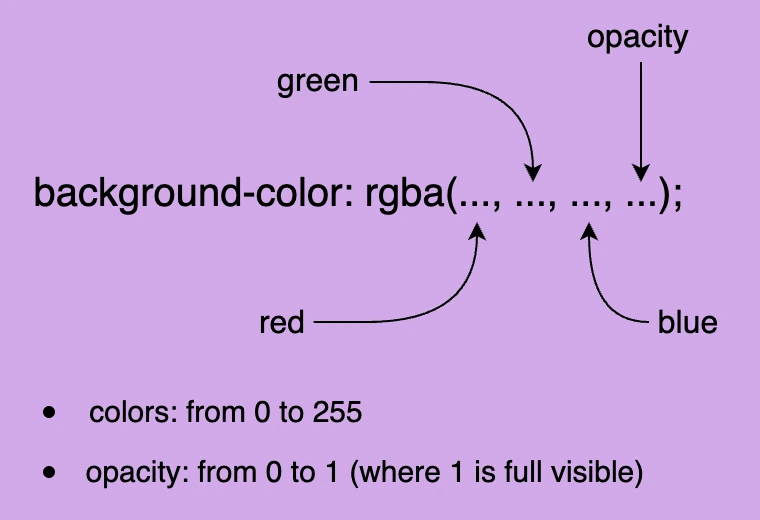
    🔖 Please be informed that you have the flexibility to modify the background-color: rgba(..., ..., ..., ...) CSS property at any point to adjust both the color and opacity of your shine effect. In this context, I have chosen to generate a grey shine, as this shade is widely recognized and utilized.

    Below, I add some examples with different shades. You are free to try them, or you can experiment and create some from scratch! 🛠

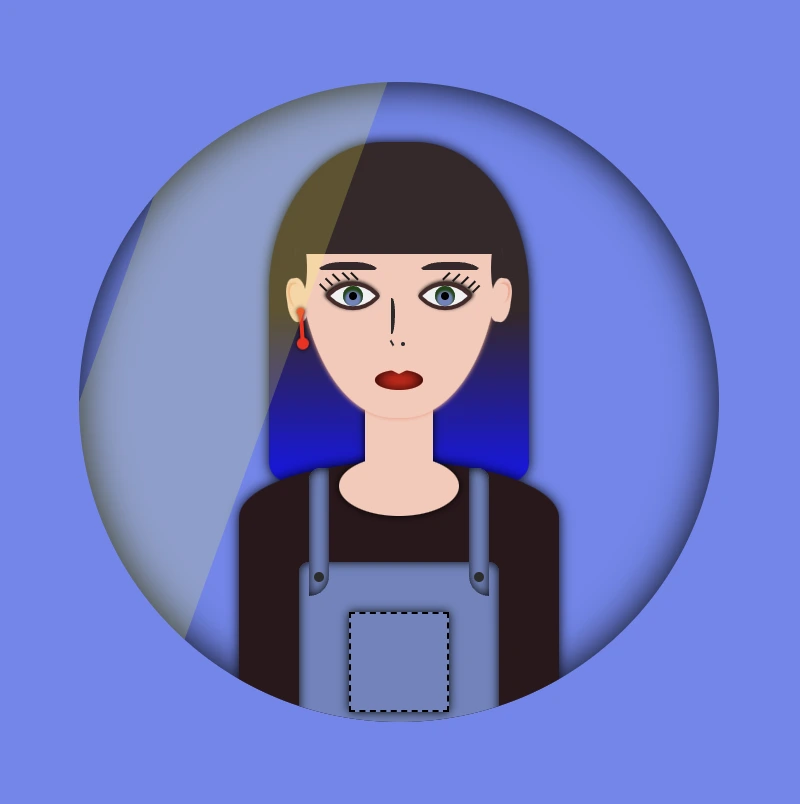
    Yellow shade -> background-color:rgba(255, 255, 0, 0.2)

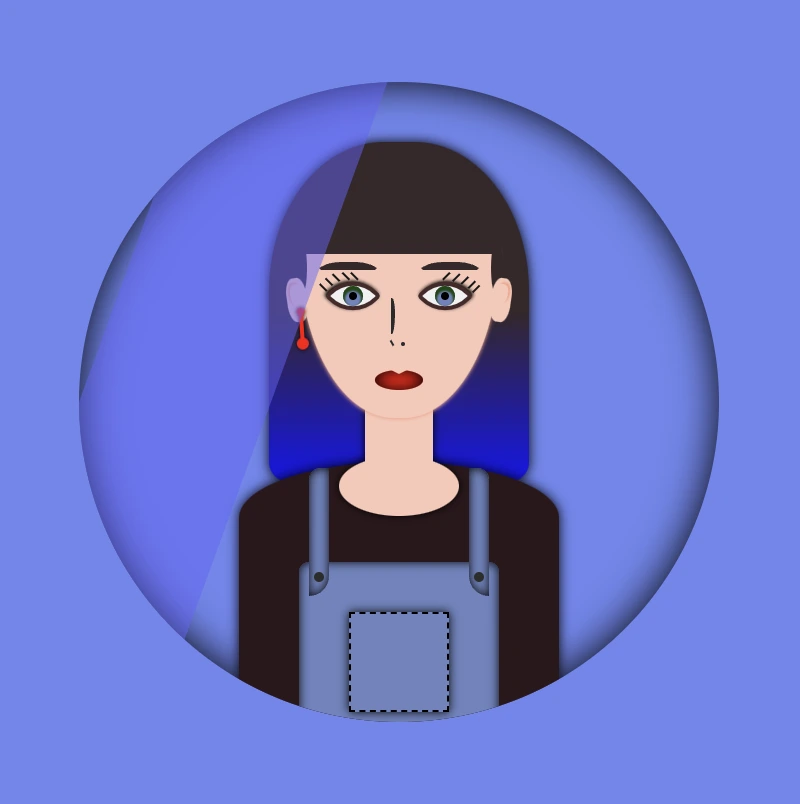
    🧨 Blue shade -> background-color:rgba(100, 100, 250, 0.5) always remember to make contrasts. Avoid using the same color for backgrounds and shades.

    You can also try to change both the container’s and shades’ background-color.

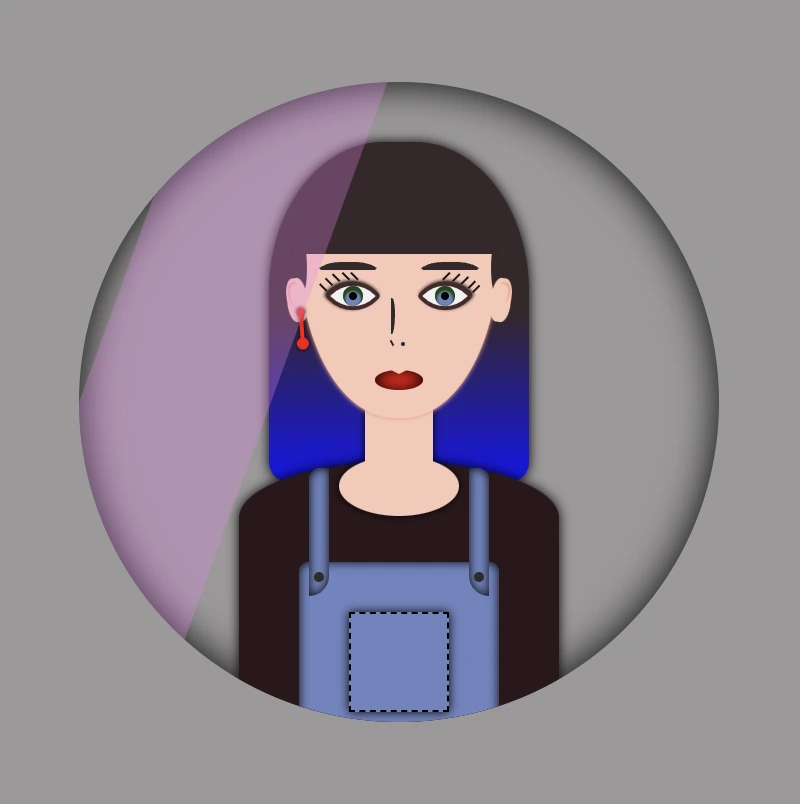
    Pink shade -> background-color:rgba(238, 130, 238, 0.3)

    Container’s color -> background-color: #c4c0c0 (grey)

    Complete avatar code

    Below, I include my HTML and CSS avatar code.

    <div class="avatar-container">
      <div class="hair-long"></div>
      <div class="face">
        <div class="ear ear--left">
          <div class="earing earing--left"></div>
        </div>
        <div class="ear ear--right"></div>
        <div class="hair-front"></div>
        <div class="eyebrow eyebrow--left"></div>
        <div class="eyebrow eyebrow--right"></div>
        <div class="eye eye--left">
          <div class="eyelash eyelash--left"></div>
          <div class="eyelash eyelash--left1"></div>
          <div class="eyelash eyelash--left2"></div>
          <div class="eyelash eyelash--left3"></div>
          <div class="eyelash eyelash--left4"></div>
        </div> <!-- end of left eye -->
        <div class="eye eye--right">
          <div class="eyelash eyelash--right"></div>
          <div class="eyelash eyelash--right1"></div>
          <div class="eyelash eyelash--right2"></div>
          <div class="eyelash eyelash--right3"></div>
          <div class="eyelash eyelash--right4"></div>
        </div> <!-- end of right eye -->
        <div class="nose"></div>
        <div class="lips"></div>
      </div> <!-- end of face -->
      <div class="body-avatar">
        <div class="neck"></div>
        <div class="t-shirt"></div>
        <div class="dungarees">
          <div class="pocket"></div>
          <div class="strap strap--left">
            <div class="button button--left"></div>
          </div>
          <div class="strap strap--right">
            <div class="button button--right"></div>
          </div>
        </div> <!-- end of dungarees -->
      </div> <!-- end of body -->
    </div> <!-- end of avatar-container -->
    HTML
    Expand
    $body-color: #6e87ef;
    $skin-color: #fac8b9;
    $hair-color: #36272a;
    $hair-ombre-color: linear-gradient(#36272a 50%, #1616ee);
    $eyebrow-color: #36272a;
    $eye-color: #6d84c0;
    $eye-base-color: #f1f1f1;
    $eyeline-color: #472a2a;
    $eyelash-color: #171616;
    $iris-color: #000;
    $earing-color: red;
    $nose-color: #2b2a2a;
    $lips-color: #f50000;
    $t-shirt-color: #2c171b;
    $dungarees-color: #6d84c0;
    $strap-color: #6d84c0;
    $button-color: #2d2c2c;
    
    
    * {
      margin: 0;
      padding: 0;
      box-sizing: border-box;
    }
    
    html,
    body {
      height: 100vh;
    }
    
    body {
      width: 100%;
      display: flex;
      align-items: center;
      justify-content: center;
      background: $body-color;
    }
    
    .avatar-container {
      position: relative;
      min-width: 320px;
      height: 320px;
      background-color: transparent;
      box-shadow: inset 0 0 20px;
      border-radius: 50%;
      overflow: hidden;
    
      .hair-long {
        position: absolute;
        width: 130px;
        height: 170px;
        border-radius: 44% 44% 10px 10px;
        top: 30px;
        left: 50%;
        transform: translate(-50%);
        background: $hair-ombre-color;
        filter: drop-shadow(0 0 3px);
      }
    
      .face {
        position: absolute;
        width: 100px;
        height: 110px;
        border-radius: 100% / 50% 50% 160% 160%;
        background-color: $skin-color;
        top: 58px;
        left: 50%;
        transform: translate(-50%);
        z-index: 2;
        box-shadow: 0 0.5px 2px darken($skin-color, 10%);
        .ear {
          position: absolute;
          width: 10px;
          height: 22px;
          background-color: $skin-color;
          border-radius: 40%;
          top: 40px;
          z-index: 3;
          &--left {
            left: -6px;
            transform: rotate(-8deg);
            &:before {
              content: "";
              position: absolute;
              width: 6px;
              height: 12px;
              background-color: $skin-color;
              border-radius: 40% 40% 50% 50%;
              box-shadow: -1px -1px 1px darken($skin-color, 10%);
              top: 3px;
              left: 2px;
            }
          }
          &--right {
            right: -6px;
            transform: rotate(8deg);
            &:before {
              content: "";
              position: absolute;
              width: 6px;
              height: 10px;
              background-color: $skin-color;
              border-radius: 40% 40% 50% 50%;
              box-shadow: 1px -1px 1px darken($skin-color, 10%);
              top: 3px;
              right: 2px;
            }
          }
          .earing {
            position: absolute;
            width: 4px;
            height: 4px;
            background-color: $earing-color;
            filter: drop-shadow(0 0 1px);
            border-radius: 50%;
            transform: rotate(4deg);
            &:before {
              content: "";
              position: absolute;
              width: 2px;
              height: 16px;
              background-color: $earing-color;
            }
            &:after {
              content: "";
              position: absolute;
              width: 6px;
              height: 6px;
              background-color: $earing-color;
              border-radius: 50%;
            }
            &--left {
              top: 15px;
              left: 4px;
              &:before {
                top: 3px;
                right: 1px;
              }
              &:after {
                top: 15px;
                left: -1px;
              } 
            }
          } // end of earing
        } // end of ear
        .hair-front {
          position: absolute;
          width: 104px;
          height: 30px;
          top: -2px;
          left: -2px;
          border-radius: 5px;
          background-color: $hair-color;
          &:before {
            content: "";
            position: absolute;
            width: 28px;
            height: 6px;
            background-color: $hair-color;
            border-radius: 50%;
            top: 34px;
            left: -11px;
            transform: rotate(-90deg);
          }
          &:after {
            content: "";
            position: absolute;
            width: 28px;
            height: 6px;
            background-color: $hair-color;
            border-radius: 50%;
            top: 34px;
            right: -11px;
            transform: rotate(-90deg);
          }
        }  // end of hair-front
    
        .eye {
          position: absolute;
          width: 20px;
          height: 20px;
          top: 39px;
          background-color: $eye-base-color;
          border: 2px solid $eyeline-color;
          border-radius: 85% 10%;
          transform: rotate(45deg);
          &:before {
            content: "";
            position: absolute;
            width: 10px;
            height: 10px;
            top: 50%;
            left: 50%;
            transform: translate(-50%, -50%);
            background-color: $eye-color;
            border-radius: 50%;
            box-shadow: inset 1px 1px 1px 1px #17460d;
          }
          &--left {
            left: 17px;
            box-shadow: -1px 0 2px darken($eyeline-color, 50%);
          }
          &--right {
            right: 17px;
            box-shadow: 0 -1px 2px darken($eyeline-color, 50%);
          }
          &:after {
            content: "";
            position: absolute;
            width: 4px;
            height: 4px;
            top: 50%;
            left: 50%;
            transform: translate(-50%, -50%);
            background-color: $iris-color;
            border-radius: 50%;
          }
          .eyelash {
            position: absolute;
            width: 1px;
            height: 5px;
            background-color: $eyelash-color;
            &--left,
            &--left1,
            &--left2,
            &--left3,
            &--left4 {
              transform: rotate(90deg);
            }
            &--left {
              top: -2px;
              left: 1px
            }
            &--left1 {
              top: 1px;
              left: -2px
            }
            &--left2 {
              top: 5px;
              left: -5px
            }
            &--left3 {
              top: 9px;
              left: -6px
            }
            &--left4 {
              top: 13px;
              left: -6px
            }
            &--right {
              top: -2px;
              right: 14px;
            }
            &--right1 {
              top: -5px;
              right: 10px;
            }
            &--right2 {
              top: -7px;
              right: 6px;
            }
            &--right3 {
              top: -8px;
              right: 2px;
            }
            &--right4 {
              top: -8px;
              right: -1px;
            }
          }  // end of eyelash
        }  // end of eye
    
        .eyebrow {
          position: absolute;
          width: 35px;
          height: 7px;  
          border: solid 4px $hair-color;
          border-color: $hair-color transparent transparent transparent;
          border-radius: 50%/10px 10px 0 0;
          top: 32px;
          &--left {
            left: 7px;
          }
          &--right {
            right: 7px;
          }
        } // end of eyebrows
    
        .nose {
          position: absolute;
          width: 2px;
          height: 18px;
          border: 2px solid $nose-color;
          border-left: 0px;
          border-top-right-radius: 80% 40%;
          border-bottom-right-radius: 80% 60%;
          top: 50px;
          left: 46px;
          &:before {
            position: absolute;
            content: "";
            width: 1px;
            height: 3px;
            background-color: $nose-color;
            top: 19px;
            transform: rotate(-30deg);
          }
          &:after {
            position: absolute;
            content: "";
            width: 2px;
            height: 2px;
            border-radius: 50%;
            background-color: $nose-color;
            top: 20px;
            left: 5px;
          }
        } // end of nose
    
        .lips {
          position: absolute;
          width: 24px;
          height: 10px;
          border-radius: 50%;
          background-color: $lips-color;
          top: 86px;
          left: 50%;
          transform: translate(-50%);
          box-shadow: inset 0 0 7px;
          &:after {
            content: "";
            position: absolute;
            width: 0;
            height: 0;
            border-left: 6px solid transparent;
            border-right: 6px solid transparent;
            border-top: 3px solid $skin-color;
            border-radius: 60%;
            top: -1px;
            left: 6px;
          }
        } // end of lips
      } // end of face
    
      .body-avatar {
        .neck {
          position: absolute;
          width: 34px;
          height: 50px;
          background-color: $skin-color;
          filter: drop-shadow(0 0 2px);
          top: 152px;
          left: 50%;
          transform: translate(-50%);
          z-index: 1;
          &:before {
            content: "";
            position: absolute;
            width: 60px;
            height: 30px;
            background-color: $skin-color;
            border-radius: 50%;
            top: 35px;
            left: 50%;
            transform: translate(-50%);
          }
        }
    
        .t-shirt {
          position: absolute;
          width: 160px;
          height: 140px;
          background-color: $t-shirt-color;
          border-radius: 100% / 40% 40% 20% 20%;
          top: 190px;
          left: 50%;
          transform: translate(-50%);
          filter: drop-shadow(0 0 3px);
        } // end of t-shirt
    
        .dungarees {
          position: absolute;
          width: 100px;
          height: 100px;
          background-color: $dungarees-color;
          border-radius: 5%;
          box-shadow: inset 0 0 5px;
          top: 240px;
          left: 50%;
          transform: translate(-50%);
          .pocket {
            position: absolute;
            width: 50px;
            height: 50px;
            background-color: $dungarees-color;
            border: 1px dashed black;
            box-shadow: 0 0 5px;
            top: 25px;
            left: 50%;
            transform: translate(-50%);
          }
          .strap {
            position: absolute;
            width: 10px;
            height: 64px;
            background-color: $strap-color;
            box-shadow: inset 0 0 5px;
            top: -47px;
            .button {
              position: absolute;
              width: 5px;
              height: 5px;
              background-color: $button-color;
              border-radius: 50%;
              top: 52px;
              &--left {
                left: 50%;
                transform: translate(-50%);
              }
              &--right {
                left: 50%;
                transform: translate(-50%);
              }
            } // end of button
            &--left {
              left: 5px;
              border-radius: 6px 0 10px 0;
            }
            &--right {
              right: 5px;
              border-radius: 0 6px 0 10px;
            }
          } // end of strap
        } // end of dungarees
      } // end of body-avatar
    } // end of avatar-container
    SCSS
    Expand