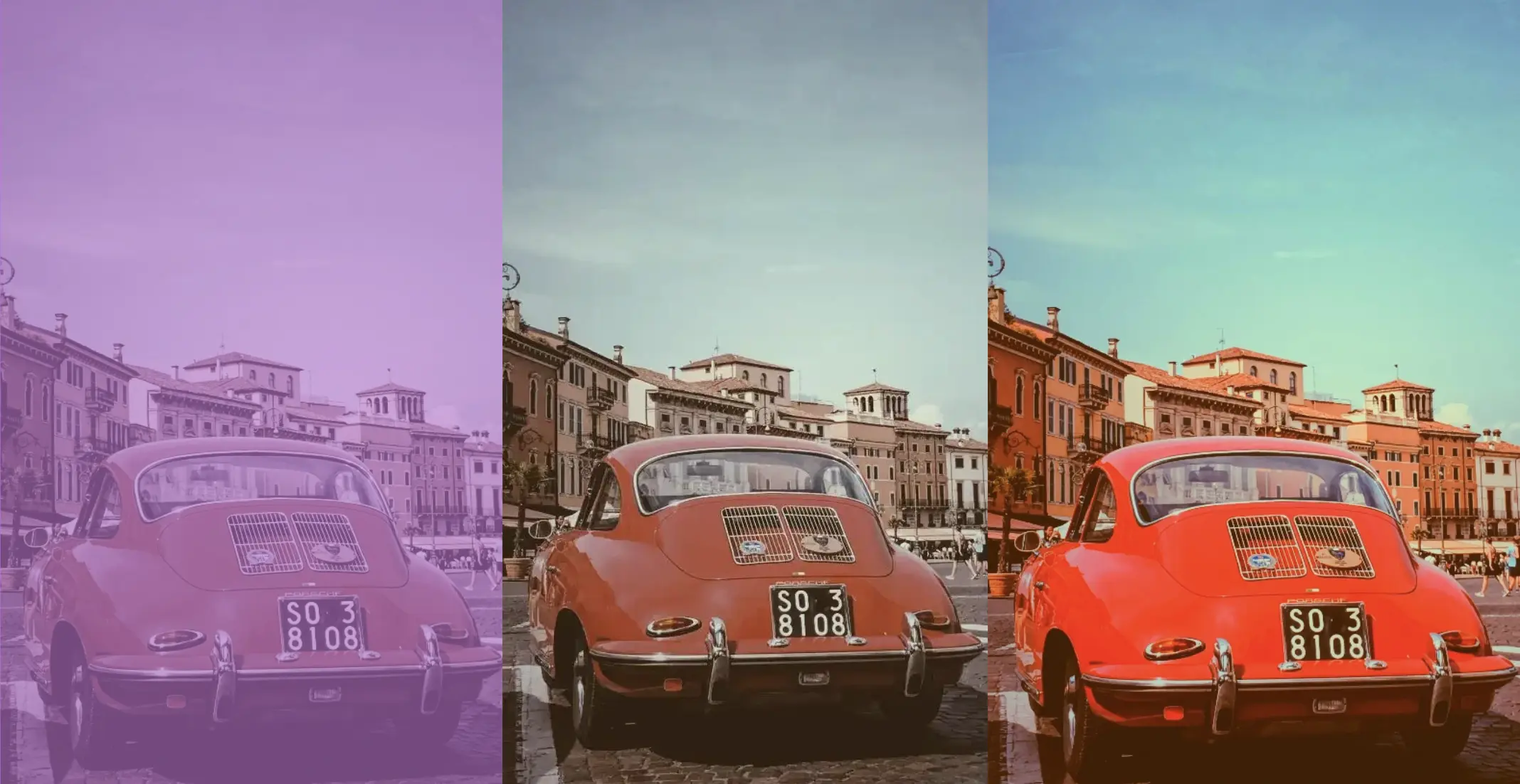
Tag: opacity

  • Opacity And Saturate: Empower CSS Filter For Unique Images

    Opacity And Saturate: Empower CSS Filter For Unique Images

    Welcome to a practical guide on using the CSS filter to modify how your images 📸 look. In this post, we’ll work on how to adjust the opacity and saturate (color intensity) CSS filters. These two methods will help us handle how images are rendered on our website, particularly concerning their colors and transparency.

    Let’s get into the world of CSS 👩‍💻 and customize the images to suit our needs.

    CSS filter: opacity

    The CSS property filter: opacity() helps you control how colorful an image appears against its background. You can set it anywhere between 0% and 100%. At 0%, the image turns grayscale, losing all its colors and showing only the background color. If you set it to 100%, the image displays its true, unaltered colors. Values in between change how colorful the image appears.

    🔖 For setting CSS opacity, you can use either a percentage of 0% and 100% or a decimal value between 0 and 1, both options ending up in the same outcome. 🫧😃

    Example

    Starting with the HTML code which includes three <img> elements. All images share the same .image class. Additionally, the second image includes one more class the .opacity-image2 while the third image includes the .opacity-image3 class.

    <body>
      <img class="image"/>
      <img class="image opacity-image2"/>
      <img class="image opacity-image3"/>
    </body>
    HTML

    In the CSS code the .image class introduces a non-repeated image that covers the entire background area of the element. Its dimensions are 300 pixels in width and 500 pixels in height.

    We move forward with the other two classes. The .opacity-image2 class targets the second image and applies a visual effect controlling transparency. An opacity of 80% means the element will be slightly transparent, allowing some background to show through.

    The .opacity-image3 class is meant for the third image, ensuring the same visual change happens there too. In this case, an opacity of 20% means the element will be mostly transparent, allowing more background to show through.

    .image {
      background-image: url(https://images.unsplash.com/photo-1501829385782-9841539fa6bf?ixlib=rb-4.0.3&ixid=M3wxMjA3fDB8MHxwaG90by1wYWdlfHx8fGVufDB8fHx8fA%3D%3D&auto=format&fit=crop&w=3024&q=80);
      background-repeat: no-repeat;
      background-size: cover;
      width: 300px;
      height: 500px;
    }
    
    .opacity-image2 {
      filter: opacity(80%);
    }
    
    .opacity-image3 {
      filter: opacity(20%);
    }
    CSS

    * In this case, the background is black, so our effect turns to dark shades.
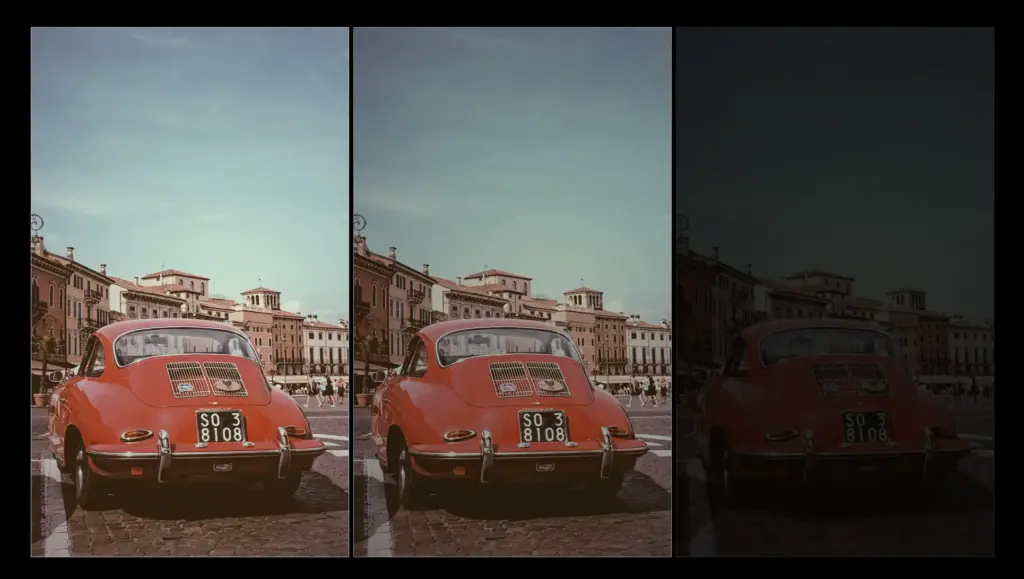
    Three identical photos of a red car with old buildings in Verona city, Italy. The first photo displays original colors. The second has opacity set to 80%, and the third has opacity set to 20%. The white background affects the opacity.
    Original Photo by Jonatan Hernandez on Unsplash – opacity(80%) – opacity(20%)

    * In this case, the background is white, so our effect turns to bright shades.
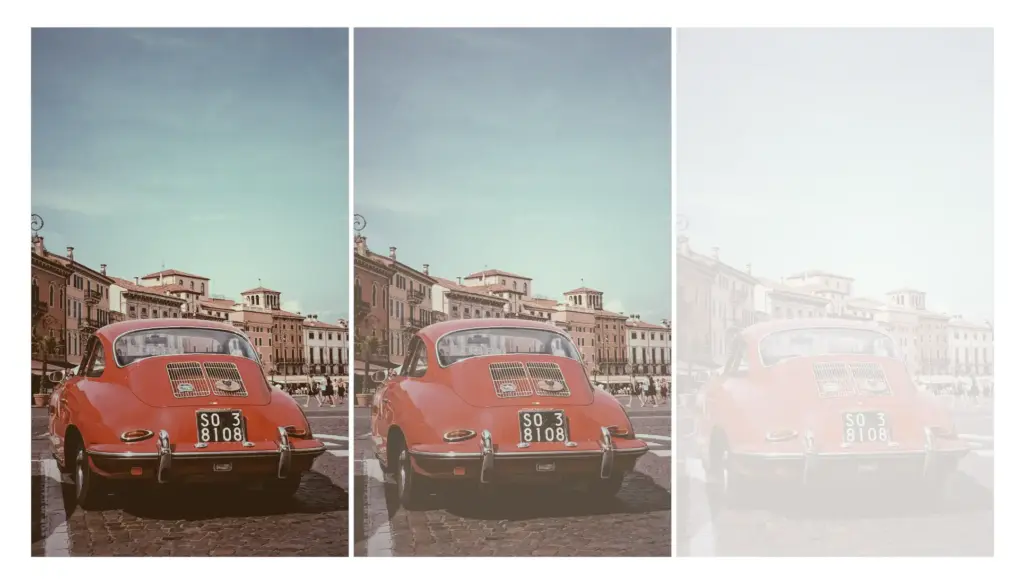
    This image shows three identical photos. All photos shown a red car with old buildings as a background.This photo was captured in Verona city Italy. The first photo has the original colors. The second has set the filter: opacity(80%); CSS property while the third has set the filter: opacity(20%);. Additionally the background has color white which affects the opacity.
    Original photo by Jonatan Hernandez on Unsplash – opacity(80%) – opacity(20%)

    * In this case, the background is purple (a random color for this specific example, as you can pick any color you prefer), so our effect will blend the original element’s colors and the purple background color, influenced by the 80% opacity.
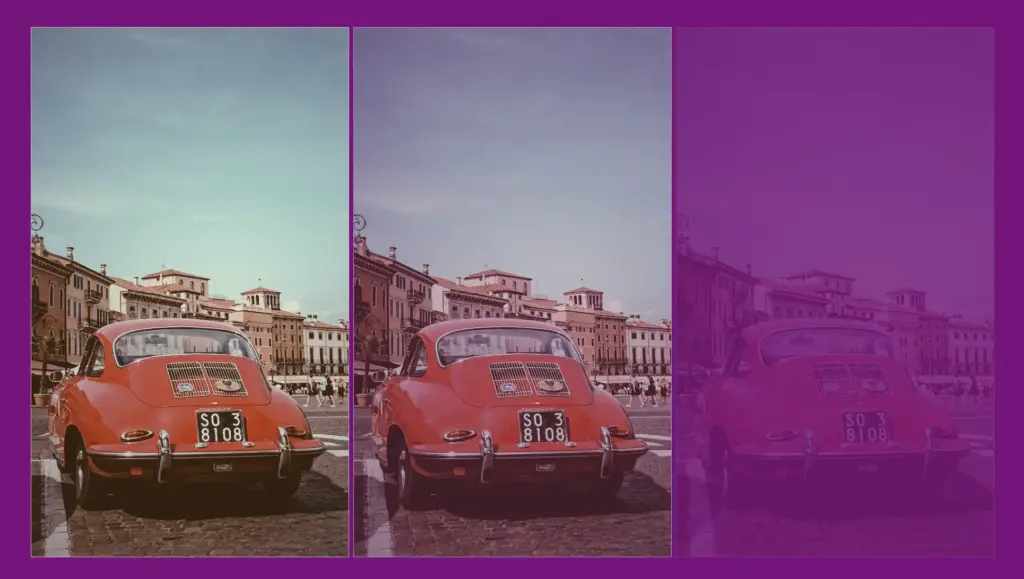
    Red car with old buildings in Verona city, Italy, demonstrating CSS opacity filter effects. Three photos: original colors, 80% opacity, and 20% opacity against a purple background.

    Original photo by Jonatan Hernandez on Unsplash – opacity(80%) – opacity(20%)

    CSS filter: saturate

    Saturation is about how bright and vivid colors are in a picture. The CSS property filter: saturate() helps you adjust this. The values vary from 0% to 100%. If you choose 0%, the colors disappear and become black and white (grayscale). With a value of 100%, it stays as colorful as it was.

    Keep in mind that going over 100% makes colors appear highly vibrant. Specifying a saturation of 200% is technically allowed, but that’s not the usual way.

    🔖 To specify a percentage for saturation, you can use values like 10% or 0.1, they mean the same thing. It’s up to you. 🫧😃

    Example

    Starting with the HTML code which includes three <img> elements. All images share the same .image class. Additionally, the second image includes one more class the .saturate-image2 while the third image includes the .saturate-image3 class.

    <img class="image"/>
    <img class="image saturate-image2"/>
    <img class="image saturate-image3"/>
    
    HTML

    In the CSS code, the .image class introduces a non-repeated image that covers the entire background area of the element. Its dimensions are 300 pixels in width and 500 pixels in height.

    We continue with the other two classes. The .saturate-image2 class targets the second image and applies a visual effect controlling saturation. A saturation of 200% will be doubled compared to the original colors of the image, resulting in a sharp visual effect.

    The .saturate-image3 class focuses on the third image and applies the same visual effect. In this case, a saturation of 20% means the image will have its colors slightly desaturated, resulting in a toned-down appearance compared to the original colors. The saturation level will be reduced to one-fifth of the original, giving a less intense color effect.

    .image {
      background-image: url(https://images.unsplash.com/photo-1501829385782-9841539fa6bf?ixlib=rb-4.0.3&ixid=M3wxMjA3fDB8MHxwaG90by1wYWdlfHx8fGVufDB8fHx8fA%3D%3D&auto=format&fit=crop&w=3024&q=80);
      background-repeat: no-repeat;
      background-size: cover;
      width: 300px;
      height: 500px;
    }
    
    .saturate-image2 {
      filter: saturate(200%);
    }
    
    .saturate-image3 {
      filter: saturate(20%);
    }
    CSS

    The results are shown in the images below.

    Red car with old buildings in Verona city, Italy
    default-saturate(100%) Original photo by Jonatan Hernandez on Unsplash
    Vibrant red car against old buildings in Verona city, Italy, with CSS saturate filter set to 200%.
    saturate(200%)
    Red car against old buildings in Verona city, Italy, with CSS saturate filter set to 20%, resulting in a more grayish appearance compared to the original photo.
    saturate(20%)
  • Using CSS Opacity for Transparency

    Using CSS Opacity for Transparency

    The CSS opacity filter is a property that allows you to adjust the transparency of an element on a website. Opacity values range from 0.0 to 1 (default), where opacity: 0.0 indicates complete transparency and opacity: 1 indicates complete intransparency (opaqueness). 👻💻

    How to change opacity on hover?

    You can create visually appealing effects by overlapping the elements’ colors. Moreover, you can make it more dynamic 💥 by animating it with CSS transitions. For instance, you can create an effect when an element is clicked or hovered over.

    Let’s say, for example, we have a red box like this

    A magenta box on an orange background

    and would like to change its opacity on hover. How would we do that? We would add the following code:

    .box:hover {
      opacity: 0.5;
    }
    CSS

    As a result, when hovering over our element, it would change its opacity like this

    See the Pen
    Opacity box no transition
    by George (@GeorgeLin)
    on CodePen.

    Some may think this is not ideal; changing the opacity is cool, but it feels like we can do better. A straightforward way to improve the opacity change is just to add a transition effect and make it look much cooler:

    .box {
      transition: opacity 0.5;
    }
    .box:hover {
      opacity: 0.5;
      transition: opacity 0.5;
    }
    CSS

    We apply the same transition to both the .box class and its hover state to ensure a consistent effect when hovering on or off the element. This approach produces the following result:

    See the Pen
    Opacity box with transition
    by George (@GeorgeLin)
    on CodePen.

    Pretty cool, right?

    Exploring CSS Opacity and Its Impact on Background Colors in HTML

    Depending on the opacity value, the child’s hues are influenced by the parent’s colors. Hues become more vibrant as the opacity/transparency increases. If the child element has a low opacity value, its colors will be more similar to the parent’s background-color. Conversely, if the child element has a high opacity value, its colors will be less similar to the parent’s color.

    In the following examples I prepared, we can see how this CSS property works. 🧐 So, let’s take a closer look.

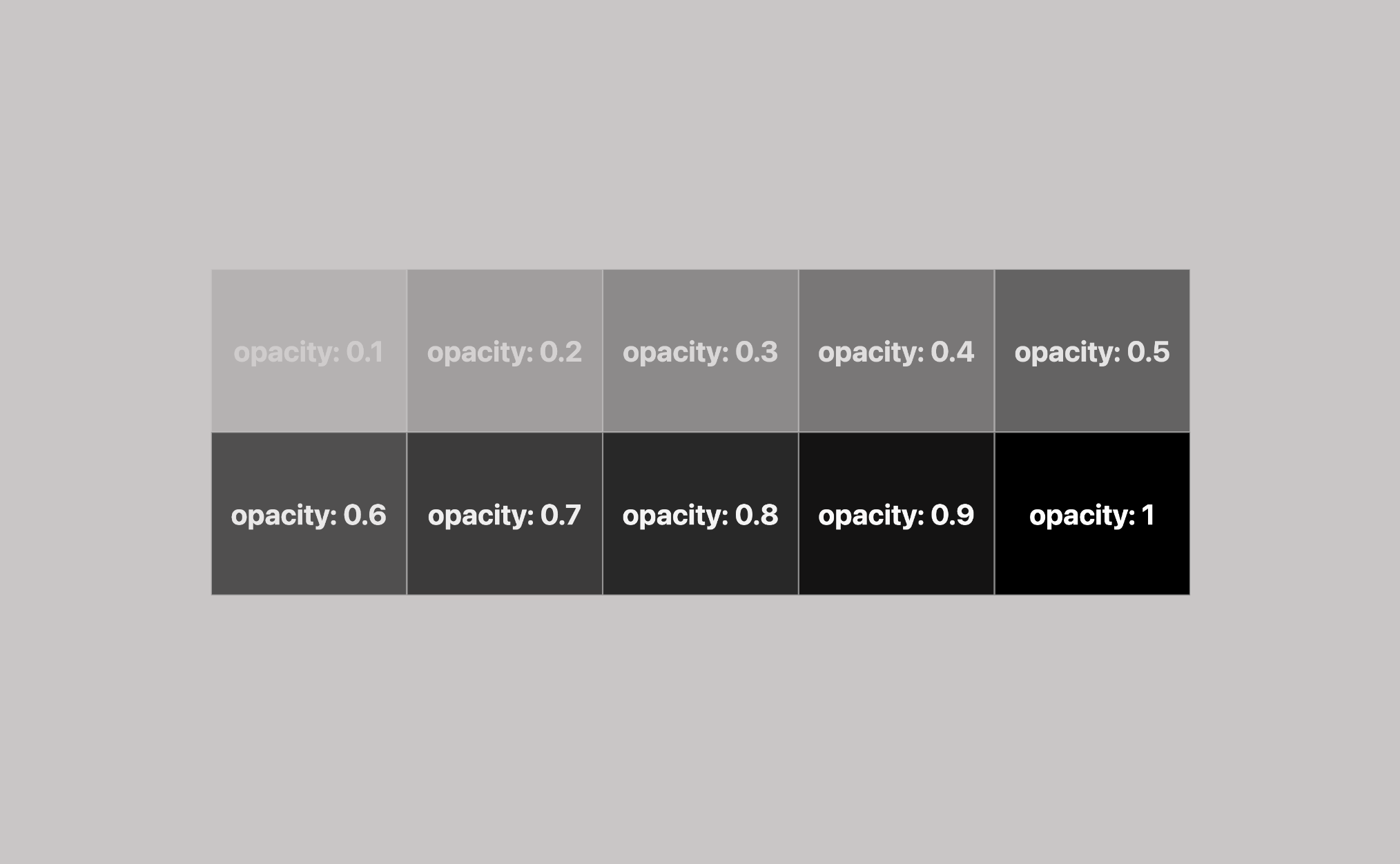
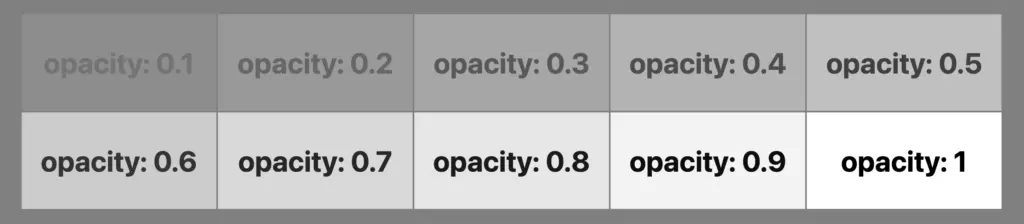
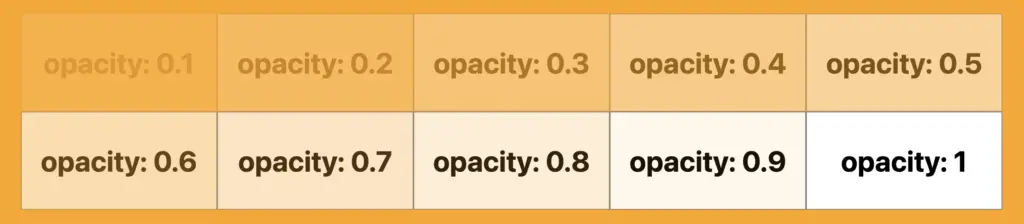
    Each example has a pair of HTML elements, one with .parent class and one with the .child class. Child elements have the same colors (color: black and  background-color: white) while parent elements have different background-color each time (gray and orange).

    CSS Opacity: Effects on HTML Elements with Gray Backgrounds

    As we can see, the resulting color of our child element will be a mix of white, influenced by the grey ⬜ background color.

    .parent {
      background-color: grey;
    }
    
    .child {
      color: black;
      background-color: white;
      opacity: 0.1; // depending on the value //
    }
    CSS
    An image showing a table with 10 blocks. Each block shows the CSS opacity filter starting from 0.1 to 1

    CSS Opacity: Effects on HTML Elements with Orange Backgrounds

    As observed, the child’s resulting color will be a blend of white, affected by the orange 🟧 background color.

    .parent {
      background-color: orange;
    }
    
    .child {
      color: black;
      background-color: white;
      opacity: 0.1; // depending on the value //
    }
    CSS
    An image showing a table with 10 blocks. Each block shows the CSS opacity filter starting from 0.1 to 1.

    CSS opacity offers a powerful way to control transparency, influencing how the background colors of parent elements interact with those of child elements. Understanding these interactions can help create visually appealing designs where colors harmoniously blend across different layers. 🌈 ✨

  • How To Make A CSS Text Reflection Effect

    How To Make A CSS Text Reflection Effect

    Hi there! 😃 In this post, we’ll learn bit by bit how to create a CSS text reflection effect. When we say reflection, we’re referring to a mirror-like effect that looks like the text reflects on a surface, much like the way we see our reflection in a mirror.

    This is a simple yet amazing way to enhance the appearance of your text. Let’s analyze our effect so that you can easily follow along.

    HTML structure

    We will begin with our HTML structure. As you can see below, I prepared a div with the class .reflection-text , this is where our effect will take place.

    <div class="reflection-text">HELLO WORLD</div>
    CSS

    CSS foundation

    Let’s move forward with the CSS basic structure. We start with defining the background. It’s worth noting that using radial-gradient can make our effect more impressive. 😃

    body {
      background: radial-gradient(lightgreen, darkgreen);
      height: 100vh;
    }
    CSS

    Below, we can see the background we just created.

    In web development, we use the flex method in order to center our text. Then we will enhance its appearance, by making some adjustments. We will set the font-size to 100 pixels, select the “Roboto” font-family, and choose white as the text color.

    body {
      ...
      display: flex;
      align-items: center;
      justify-content: center;
    }
    
    .reflection-text {
      font-size: 100px;
      font-family: 'Roboto', sans-serif;
      color: white;
    }
    CSS

    This is what is rendered on the screen for now. A perfectly centered, 🎯 white text.

    Adding the CSS structure for the reflection effect

    Creating a reflection can be achieved by using pseudoelements like :before and :after. To ensure this works properly, we need to include position: relative in our .reflection-text class.

    .reflection-text {
      ...
      position: relative;
    }
    CSS

    Now, we are ready to proceed and create our reflection by adding the :before pseudoelement with all the necessary properties, as shown in the following code snippet.

    .reflection-text:before {
      content: "HELLO WORLD";
      position: absolute;
      top: 65px;
      transform: rotate(180deg) scaleX(-1);
      background: linear-gradient(
        to bottom, 
        rgba(255, 255, 255, 0) 20%, 
        rgba(255, 255, 255, 0.5) 60%, 
        rgba(255, 255, 255, 2) 100%
      );
      background-clip: text;
      color: transparent;
      opacity: 0.3;
    }
    CSS

    Breaking down the process

    🟢 To begin, we add the text “HELLO WORLD” to create another text element with the same content. This new text will serve as our reflection. Then, we set position: absolute so that we can move our reflected text below the original text. We use the top property to move the reflected text 65 pixels from the top, but you can always move the reflection in any direction you prefer. It is important to position the text and its reflection closely together for a more realistic reflection effect. 😉

    🟢 We move forward and use the transform CSS property to rotate the text by 180 degrees

    and then flip it horizontally using scaleX(-1). Now we have the perfect reflection! Let’s continue and make it more realistic.

    🟢 In the next step, we will adjust the color of our reflected text. To achieve this, we will utilize the linear-gradient CSS property and specify the direction as downwards. This will create white gradients, with the top appearing more intense and gradually fading towards the bottom of the text.

    🟢 It is commonly known that gradients cannot be directly applied to texts. Don’t worry! 🤔 We already have the solution to this problem. For now, let’s give a quick explanation. To create a clipped linear background pattern for text, first, we add the -webkit-background-clip: text property, and at the same time, we set the color to transparent, and our text automatically turns to transparent. In that way, our text takes the background: linear-gradient as its real color.

    🟢 For a more transparent text, we can adjust the opacity. The lower the opacity, the more transparent our text becomes. So, here we are! Our reflection is ready! 🥳

    Exploring different colors

    🔖 It is always an option to use black or any other color in our work. Below, I’ve included examples of texts with black, purple, and green colors. It’s important to remember that the key factor is to set the correct gradients at the linear-gradient property. That way, we can create respective shades. Therefore, please give extra attention to that! 😊

    Black text

    .reflection-text {
      position: relative;
      font-size: 100px;
      font-family: 'Roboto', sans-serif;
      color: black; /* default color */
    }
    CSS
    .reflection-text:before {
      content: "HELLO WORLD";
      position: absolute;
      top: 65px;
      transform: rotate(180deg) scaleX(-1);
      background: linear-gradient(to bottom, 
      rgba(0, 0, 0, 0) 20%, 
      rgba(0, 0, 0, 0.5) 60%, 
      rgba(0, 0, 0, 2) 100%);
      background-clip: text;
      color: transparent;
      opacity: 0.3;
    }
    CSS

    Purple Text

    .reflection-text {
      position: relative;
      font-size: 100px;
      font-family: 'Roboto', sans-serif;
      color: purple;
    }
    CSS
    .reflection-text:before {
      content: "HELLO WORLD";
      position: absolute;
      top: 65px;
      transform: rotate(180deg) scaleX(-1);
      background: linear-gradient(to bottom, 
      rgba(255, 55, 205, 0) 20%, 
      rgba(255, 55, 205, 0.5) 60%, 
      rgba(255, 55, 205, 2) 100%);
      background-clip: text;
      color: transparent;
      opacity: 0.3;
    }
    CSS

    Green Text

    .reflection-text {
      position: relative;
      font-size: 100px;
      font-family: 'Roboto', sans-serif;
      color: green;
    }
    CSS
    .reflection-text2:before {
      content:"HELLO WORLD";
      position: absolute;
      top: 65px;
      transform: rotate(180deg) scaleX(-1);
      background: linear-gradient(to bottom, 
      rgba(20, 150, 20, 0) 20%, 
      rgba(20, 150, 20) 60%, 
      rgba(20, 150, 20, 2) 100%);
      background-clip: text;
      color: transparent;
      opacity: 0.3;
    }
    CSS
  • How To Make A CSS Reflection Effect

    How To Make A CSS Reflection Effect

    Hello everyone! 😃 Today, we will learn how to create a cool CSS reflection effect. Through step-by-step instructions, we will understand how to manipulate linear-gradient and opacity CSS properties to create a stunning mirror-like effect. Below, I’ll include’ll give you all the information you need. Let’s get started.

    HTML structure

    Our HTML structure starts with an empty div element, with the class .reflection where our effect will take place.

    <div class="reflection"></div>
    HTML

    CSS foundation

    Let’s continue with the CSS basic structure. We will start by setting the background-color to orange.

    body {
      background-color: orange;
    }
    CSS

    Creating the element

    In the following step, we will define the element. I opt for a color black rectangle with 300 pixels width and 200 pixels height.We will also be adding the flex method to the body to center our element.

    body {
      ...
      display: flex;
      align-items: center;
      justify-content: center;
    }
    
    .reflection {
      width: 300px;
      height: 200px;
      background-color: black;
    }
    CSS

    This is what is rendered on the screen for now. A perfectly centered black rectangle! 

    Adding the CSS structure for the reflection effect

    A CSS reflection effect can be accomplished using pseudoelements like before and after.First, we need to add position: relative in our .reflection class to get prepared for our pseudoelement’s positioning.
    .reflection {
      ...
      position: relative;
    }
    CSS

    Then we are ready to create our reflection utilizing the before pseudoelement.

    .reflection:before {
      position: absolute;
      content: "";
      width: 100%;
      height: 100%;
      background: linear-gradient(
        to bottom, 
        rgba(0, 0, 0, 5), 
        rgba(0, 0, 0, 0) 80%
      );
    }
    CSS

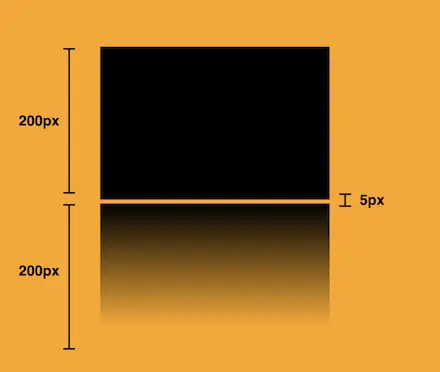
    We initiate by setting the the position as absolute. Setting the content to an empty string (“”) and then its width and height to 100%, will make our pseudoelement appear and inherit its parent’s dimensions (width 300px and height 200px).  

    Next, we add a background: linear-gradient that goes downwards, by specifying its direction, from top to bottom. This way, we create black gradients that are more intense at the top and gradually fade toward the bottom to achieve our desired effect.

    So far, we have created the CSS reflection effect below our original rectangle. However, we need to take one more step for our effect to be visible. We add the top CSS property and set it to 205 pixels. This will move our reflection 5 pixels down from the origin rectangle.

    .reflection:before {
      ...
      top: 205px;
      opacity: 0.5;
    }
    CSS

    Additionally, we set the opacity to achieve a smoother and more natural-looking effect. You might be thinking that the same result could be accomplished by adjusting the linear-gradient property and you are right. It’s just that using the opacity this way requires much less effort and produces similar results.

    .reflection:before {
      ...
      opacity: 0.5;
    }
    CSS


    Voila! Here is our amazing reflection! 🥳

    Exploring different reflection colors

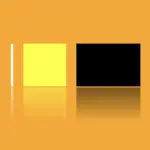
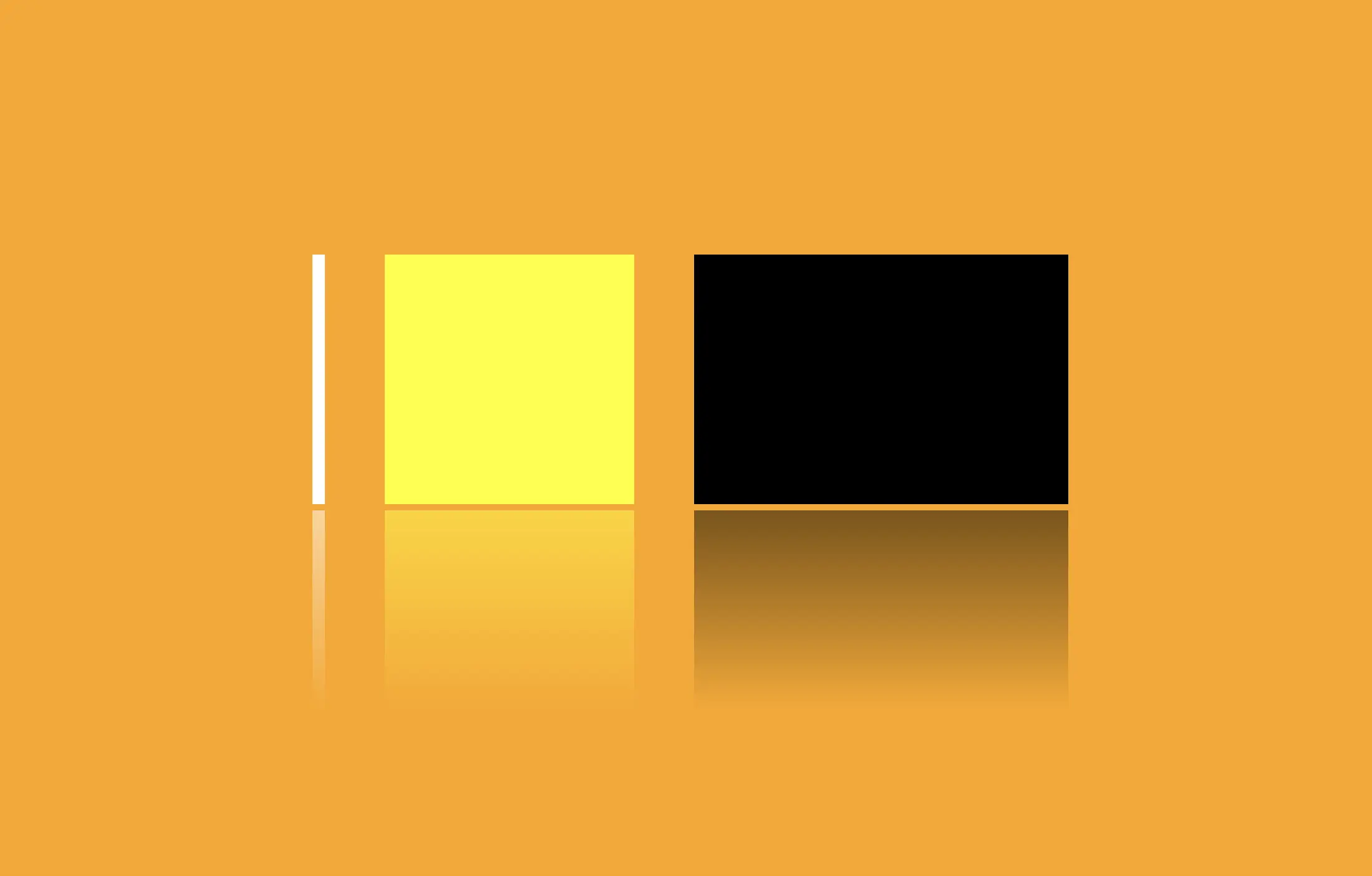
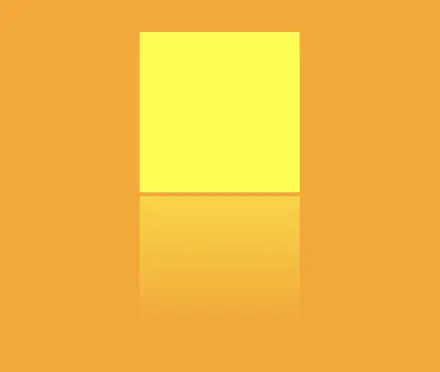
    🔖 Feel free to use any color you prefer, but it’s important to create a linear-gradient that gives the perspective shades. Here are examples of white and yellow reflections. I am keeping the orange background to facilitate easier comparison.

    White reflection

    .reflection {
      width: 10px;
      height: 200px;
      background-color: white;
    }
    
    .reflection:before {
      content: "";
      position: absolute;
      width: 100%;
      height: 100%;
      top: 205px;
      background: linear-gradient(to bottom, 
      rgba(255, 255, 255, 5), 
      rgba(255, 255, 255, 0) 80%);
      opacity: 0.5;
    }
    CSS

    Yellow reflection

    .reflection {
      width: 200px;
      height: 200px;
      background-color: yellow;
    }
    
    .reflection:before {
      content: "";
      position: absolute;
      width: 100%;
      height: 100%;
      top: 205px;
      background: linear-gradient(to bottom, 
      rgba(255, 255, 0, 5), 
      rgba(255, 255, 0, 0) 80%);
      opacity: 0.5;
    }
    CSS

    Choosing the perfect colors with their appropriate shades can truly transform your work. Be bold in your choices and let your creativity shine. Remember, there are endless possibilities and your creativity knows no bounds. 🎉 ✨