Tag: pseudoelements

Clear, simple examples of CSS pseudo-elements like ::before and ::after for adding visual details without extra markup at littlecoding things.

  • How to Make a Circular Clickable Button with Shadow Effect

    How to Make a Circular Clickable Button with Shadow Effect

    Hey there! 😃 In today’s technology-obsessed world, it’s absolutely crucial to master the art of creating an amazing circular clickable button. A well-crafted button not only enhances the presentation but also elevates the user experience. Maximizing user attention is vital, and buttons are, most of the time, the key to achieving this goal. By utilizing the right tools and techniques, we can create a visually stunning and functionally efficient button that not only looks great but also delivers an unforgettable user experience. 🆙

    Let’s collaborate to create a standout button that supports user-friendliness.

    HTML Basic Structure

    To start building our button, we need to organize our HTML code snippet. The first step is to create a parent element that will act as the base of our button. We give this element the class name .button-base. Next, we need to add a child element within this parent element to serve as the clickable part of the button. We give this child element the class name .clicable-part. It’s important to nest these two elements within a button HTML element as it’s more semantic, better for accessibility, and behaves correctly in forms and interactive contexts by default.
    Additionally, we need to create the shadow effect for our button, so we add one more HTML element with the class name .button-shadow.

    <button>
      <div class="button-base">
        <div class="clicable-part"></div>
      </div>
    </button>
    <div class="button-shadow"></div>
    HTML

    CSS foundation

    We move forward with CSS and make our button fresh and stylish! For this post, I am writing CSS using Sass syntax. If you would like to convert it to vanilla CSS and don’t already know how, I’d suggest you use an online Sass — CSS converter.

    Prepare the body for the clickable button

    Firstly, we apply a color (#f5f5f5 – dark gray) to the body by setting the background-color. Additionally, we want to center our button. For that reason, we are using the flex method.

    body {
      background-color: #f5f5f5;
      
      display: flex;
      align-items: center;
      justify-content: center;
    }
    SCSS

    Create the base of the clickable button

    To create the base of our button, we start by making a square with a width and height of 200 pixels. Then, we make it rounded by adding a border-radius of 50%. We use a pale white color (#f9f9f9) for the button’s background-color. To give it a more stylish look, we add some shadows using the box-shadow property.

    Finally, we add the flex method to prepare the space to position the clickable part of the button in the center of the base.

    📍 As seen in the code snippet below, we need to include border: none and background-color: transparent properties in the button element to ensure it will display only the styles we define. These properties remove the browser’s default styles that typically come with. As a result, it provides us with a clean starting point, so the button appears exactly as we’ve styled it, with no unexpected borders or colors.

    button {
      border: none;
      background-color: transparent;
      .button-base {
        width: 200px;
        height: 200px;
        border-radius: 50%;
        background-color: #f9f9f9;
        box-shadow: inset 0 6px 8px #eae8e8, /* top inset shadow */
          inset 0 -2px 15px #ccc7c7, /* bottom inset shadow */
          0 3px 3px #d6d1d1; /* bottom shadow */
        
        display: flex;
        align-items: center;
        justify-content: center;
      }
    }
    SCSS

    In the image below, you can see the base of the button we just created.

    An image showing the base of the circular clickable button

    Create the clickable part of the button

    To create the clickable part of our button, we first set the height and width to 80%. Then, we apply a border-radius: inherit to make it appear rounded and follow the shape of the base. For the background of the button, we use a linear-gradient that adds depth as it gives a bright orange color at the top that gradually becomes darker as it goes down. To add a more stylish look, we include shadows using the box-shadow property.

    .clicable-part {
      width: 80%;
      height: 80%;
      border-radius: inherit;
      border: 1px solid white;
      background: linear-gradient(
        to bottom,
        #f7eb13,
        #fd741b
        );
      box-shadow: inset 0px 3px 6px #ffa500, /* top inset shadow */
        0px 1px 3px #d05a05, /* bottom inset shadow */
        0 6px 6px #bcb8b8; /* bottom shadow */
    }
    SCSS

    The following image shows the clickable part we just added on the top of the base.

    An image showing the base of the circular clickable button. On it's top it has the clickable part.

    Add content at the top of the clickable part

    To add content at the top of the clickable part of a button, we can use a :before pseudoelement. Inside the pseudoelement, we can insert the desired symbol or text using the content property. For instance, in our case, a question mark emoticon (?) has been used, but you can use any symbol or text you prefer. It’s important to note that the flex method in the .clickable-part class is essential, as it centers the mark correctly.

    .clicable-part {
      ...
      display: flex;
      align-items: center;
      justify-content: center;
      &:before {
        position: absolute;
        content: "❔";
      }
    }
    SCSS

    The image below displays the content we added on the top of the clickable part of the button.

    An image showing the base of the circular clickable button. On it's top it has the clickable part. The clickable part it has a question mark on.

    Add the hover effect on the top of the clickable button

    To add a hover effect, we set the :hover CSS property. For the cursor, I prefer using the value pointer (👆), but feel free to choose any other style from the plethora of options available here. Finally, I apply the filter: brightness and increase it to 110%. This makes our button appear brighter whenever the mouse hovers over it. ✨

    .clicable-part {
      ...
      &:before {
        ..
      }
      &:hover {
        cursor: pointer;
        filter: brightness(110%);
      }
    }
    SCSS

    The gif below demonstrates how the hover effect (👆) appears.

    Activate the clickable part of the button

    To make your button fully functional, you need to activate its clickable part. We can achieve this by adding the :active property. Next, we give it a background with a linear-gradient that creates a sense of depth by providing a bright magenta color at the top that gradually becomes darker as it goes down. To make it more visually appealing, we include shadows using the box-shadow property.

    .clicable-part {
      ...
      &:before {
        ..
      }
      &:hover {
        ...
      }
      &:active {
        background: linear-gradient(
          to bottom,
          #f767f7,
          #df0361
          );
          box-shadow: inset 0px 3px 6px #df0361, /* top inset shadow */
          0 3px 5px #bcb8b8; /* bottom shadow */
      }
    }
    SCSS

    The following gif displays the activated clickable area.

    Update the button’s content when it is activated

    To enhance the user experience, we can dynamically update the content displayed on the button when it’s clicked. This may be accomplished by adding a :before pseudoelement and inserting the desired content into the content property. In our case, we will display a white heart (🤍) when the button is clicked.

    .clicable-part {
      ...
      &:before {
        ..
      }
      &:hover {
        ...
      }
      &:active {
        ...
        &:before {
          position: absolute;
          content: "🤍";
        }
      }
    }
    SCSS

    With just a single click, this button comes to life and reveals its beautiful new content in the following gif (🤍) – it’s an absolute must-see!! 😎

    Add the shadow effect to the clickable button

    The last thing we have to do is add the shadow effect. We create a rectangle with 140 pixels width and 15 pixels height. Next, we give it a rounded shape by setting the border-radius property to 50%. To create a background that looks like it becomes lighter as it goes toward outer space, we use the radial-gradient technique and make the center darker. To make the whole thing look smoother, we add shadows with the box-shadow property.

    Finally, we utilize the position: absolute combined with the top, left, and transform properties to move it below the button and center it.

    .shadow {
      width: 140px;
      height: 15px;
      border-radius: 50%;
      background: radial-gradient(#a7aaaa, #b2b7b7 10%, #eaeded);
      box-shadow: -5px 0px 10px 5px #eaeded, /* shadow right side */
        5px 0px 10px 5px #eaeded, /* shadow left side */
        inset -5px 0px 5px #eaeded, /* inset shadow right side */
        inset 5px 0px 5px #eaeded; /* inset shadow left side */
        
      position: absolute;
      top: 520px;
      left: 50%;
      transform: translate(-50%);
    }
    SCSS

    The button’s captivating shadow effect is truly impressive and adds to the overall appeal. Hope you find it enjoyable and engaging. Thank you for your attention. 🥳


    An image showing the base of the circular clickable button. On it's top it has the clickable part. The clickable part it has a question mark on. Button also has a shadow below.

    Complete code solution

    Below is the full code referenced in this blog post. Feel free to copy and use it in your own projects. If you have any questions or encounter any issues, don’t hesitate to reach out for assistance. You can easily copy the desired code snippet by clicking on the copy icon, located in the top-right corner of each snippet.

    <button>
      <div class="button-base">
        <div class="clicable-part"></div>
      </div>
    </button>
    <div class="button-shadow"></div>
    HTML
    @mixin flex-all-center {
      display: flex;
      align-items: center;
      justify-content: center;
    }
    
    $body-color: #f5f5f5;
    $button-base-color: #f9f9f9;
    $button-base-inset-top-shadow: #eae8e8;
    $button-base-inset-bottom-shadow: #ccc7c7;
    $button-base-dark-shadow: #d6d1d1;
    $button-color: linear-gradient(to bottom, #f7eb13, #fd741b);
    $button-inset-top-shadow: #ffa500;
    $button-inset-bottom-shadow: #d05a05;
    $button-dark-shadow: #bcb8b8;
    $button-active-color: linear-gradient(to bottom, #f767f7, #df0361);
    $button-active-inset-shadow: #df0361;
    $button-shadow: #eaeded;
    
    * {
      margin: 0;
      padding: 0;
      box-sizing: border-box;
    }
    
    html,
    body {
      height: 100vh;
    }
    
    body {
      background: $body-color;
      @include flex-all-center;
      min-width: 300px;
    }
    
    button {
      border: none;
      background-color: transparent;
      .button-base {
        width: 200px;
        height: 200px;
        border-radius: 50%;
        background-color: $button-base-color;
        box-shadow: inset 0 6px 8px $button-base-inset-top-shadow, /* top inset shadow */
        inset 0 -2px 15px $button-base-inset-bottom-shadow, /* bottom inset shadow */
        0 3px 3px $button-base-dark-shadow; /* bottom shadow */
        @include flex-all-center;
        .clicable-part {
          width: 80%;
          height: 80%;
          font-size: 50px;
          border-radius: inherit;
          border: 1px solid white;
          background: $button-color;
          box-shadow: inset 0px 3px 6px $button-inset-top-shadow, /* top inset shadow */
          0px 1px 3px $button-inset-bottom-shadow, /* bottom shadow */
          0 6px 6px $button-dark-shadow; /* bottom shadow */
          @include flex-all-center;
          &:before {
            position: absolute;
            content: "❔";
          }
          &:hover {
            cursor: pointer;
            filter: brightness(110%);
          }
          &:active {
            background: $button-active-color;
            box-shadow: inset 0px 3px 6px $button-active-inset-shadow, /* top inset shadow */
              0 3px 5px $button-dark-shadow; /* bottom shadow */
            &:before {
              position: absolute;
              content: "🤍";
            }
          }
        } /* end of clicable-part */
      } /* end of button-base */
    } /* end of button */
    
    .button-shadow {
      width: 140px;
      height: 15px;
      border-radius: 50%;
      background: radial-gradient(#a7aaaa, #b2b7b7 10%, #eaeded);
      box-shadow: -5px 0px 10px 5px $button-shadow, /* shadow right side */
        5px 0px 10px 5px $button-shadow, /* shadow left side */
        inset -5px 0px 5px $button-shadow, /* inset shadow right side */
        inset 5px 0px 5px $button-shadow; /* inset shadow left side */
      position: absolute;
      top: 520px;
      left: 50%;
      transform: translate(-50%);
    } /* end of shadow */


    SCSS
    Expand
  • CSS Water Drop Effect: How to Make Text Look Wet & Glossy

    CSS Water Drop Effect: How to Make Text Look Wet & Glossy

    😃 In this post, we are beyond excited to show you how to create a breathtaking water drop effect that stands on top of a text using only the power of CSS.

    We will confidently guide you through every single step of the process, from the initial design phase to the final finishing touches.

    In addition, we will share expert tips on how to masterfully experiment with CSS properties to achieve the perfect shape and reflection effects. So, let’s jump right in and create something fantastic together!

    Setting up the HTML structure for the water drop effect

    We begin with the HTML structure. We need to create an element with the class name .wrapper. This element will have two child elements. The first child element will be dedicated to the text, so we give a suitable class name, such as .text. Similarly, we should name the second child element with a class name that reflects its purpose, such as .drop.

    <div class="wrapper">
      <div class="text">drop</div>
      <div class="drop"></div>
    </div>
    HTML

    Our top priority right now is to work on the second child element, which is our amazing drop. 💦 🤓 Once we’re done with that, we’ll move on to the text.

    Styling the water drop effect with CSS

    We move forward with the CSS structure. To create a flexible layout for our project, we set the flex property on the element with the class .wrapper. This will allow us to easily adjust the size and position of its child elements.

    Additionally, we added the position: relative property to the wrapper to establish a reference point for any absolutely positioned child elements later on in the project. By doing this, we have prepared the necessary space and layout for easier and more precise positioning of elements.

    .wrapper {
      display: flex;
      align-items: center;
      justify-content: center;
      position: relative;
    }
    CSS

    How to create a realistic water drop effect in CSS

    Firstly, we must select a color for the body, setting the background-color. Keep in mind that the same color must be used for the drop. Therefore, it is crucial to choose the color carefully. 🌈

    Then, we need to establish the dimensions and borders. Thus, we will set the width and height and then adjust the border-radius property to create a slightly rounded shape.

    Next, we maintain the body’s background-color by adjusting the transparency of the drop. In that way, our drop inherits the color of the body.

    Additionally, we add the box-shadow property which is the most crucial part as it is responsible for creating a realistic-looking drop that appears three-dimensional. Without it, the element may appear flat and lacking in depth. 😉 So, don’t be afraid to experiment with different shadow settings until you find the right combination that works for you. It’s truly amazing how much of a difference a small tweak-change can make!

    body {
      background-color: #5fc8e8; /* a light shade of blue */
    }
    
    .wrapper {
      ...
    }
    
    .drop {
      width: 210px;
      height: 220px;
      
      background-color: transparent;
      border-radius: 45% 50% 45% 55%;
      
      box-shadow: -2px -2px 10px 5px #0f9dc4, /* all around */
      5px 5px 10px #0796c1, /* top & right */

      inset 15px 15px 30px #0796c1, /* inset top & right */
      inset -29px -20px 50px #f2f4f7; /* inset left & bottom */
    }
    CSS

    This is what is rendered on the screen. For now, we continue to ignore the text and focus on our almost-ready 🙃 amazing drop!

    Adding shine to the water drop

    By utilizing the CSS properties :before and :after, we can create two new pseudo-elements without the need for additional HTML markup. This technique can be used to create a glancing effect. Both pseudo-elements have the same properties but with different values, which helps to differentiate them from each other and create a unique look.

    We can effortlessly position those glances within the drop element by using the CSS property position: absolute.

    Then, we specify their dimensions and the color by setting the width, height and background-color.

    Next, we modify the shadows and their shape by setting the box-shadow and border-radius .

    After that, we use the top and left properties to position them. Finally, to make them look even more realistic, we can add some rotation by using the transform: rotate() property.

    .drop {
      ...
      position: absolute;
    }
    
    .drop:before {
      position: absolute;
      content: "";
      width: 14%;
      height: 7%;
      background-color: #f5f5f5;
      box-shadow: 0 0 10px #f5f5f5;
      border-radius: 60% 45% 50% 60%/60% 45% 60% 50%;
      top: 15%;
      left: 20%;
      transform: rotate(140deg);
    }
      
    .drop:after {
      position: absolute;
      content: "";
      width: 10%;
      height: 5%;
      background-color: #fff;
      box-shadow: 0 0 10px #fff;
      border-radius: 50% 45% 45% 60%/50% 50% 40% 55%;
      top: 25%;
      left: 10%;
      transform: rotate(-45deg);
    }
    CSS

    After adding these glances, we can see our final drop. 💦 ✨ It’s pretty cool, isn’t it?

    Adjusting text appearance beneath the water drop effect

    We are moving forward by adjusting our text and making it more visually appealing. I have selected the “Lobster” font-family with a font size of 140 pixels, a warm dark orange, and a black 2px text-shadow.

    In case we wish to use another font-family than the usual ones, we need to insert it into our CSS. We do so by setting the @import url(...). Ensure this statement is placed at the beginning of your CSS code snippet, just like I did. Check below. 👇

    @import url('https://fonts.googleapis.com/css?family=Lobster');
    
    .text {
      font-family: "Lobster", sans-serif;
      font-size: 140px;
      color: #e85a5a; /* a shade of warm dark orange */
      text-shadow: 2px 2px 2px black;
    }
    CSS

    Take a closer look now. The text appears so different behind the water drop. It’s quite impressive, don’t you think? 😎

    One last step, and we are ready! We are free to place our text wherever we want by setting the position: absolute , top and left CSS properties in order to move it.

    We also have full control over the placement of our text. This can be achieved by confidently adjusting the CSS properties position: absolute , top and left.

    .text {
      ...
      position: absolute;
      top: -45px;
      left: -35px;
    }
    CSS

    The final step is complete! Congratulations! 🥳 You have the option to either keep the original design or create your own. Please remember that the most important thing is to combine the appropriate colors 🌈 and shadows; this is necessary for our drop to look realistic.

    Full CSS water drop effect code (copy & paste ready)

    Below is the full code referenced in this blog post. Feel free to copy and use it in your own projects. If you have any questions or encounter any issues, don’t hesitate to reach out for assistance. You can easily copy the desired code snippet by clicking on the copy icon, located in the top-right corner of each snippet.

    <div class="wrapper">
      <div class="text">drop</div>
      <div class="drop"></div>
    </div>
    HTML
    @import url('https://fonts.googleapis.com/css?family=Lobster');
    
    * {
      margin: 0;
      padding: 0;
      box-sizing: border-box;
    }
    
    html,
    body {
      height: 100vh;
    }
    
    body {
      background-color: #5fc8e8;
      display: flex;
      align-items: center;
      justify-content: center;
    }
    
    .wrapper {
      display: flex;
      align-items: center;
      justify-content: center;
      position: relative;
    }
    
    .text {
      position: absolute;
      font-family: "Lobster", sans-serif;
      font-size: 140px;
      color: #e85a5a;
      text-shadow: 2px 2px 2px black;
      top: -45px;
      left: -35px;
    }
    
    .drop {
      width: 210px;
      height: 220px;
      background-color: transparent;
      border-radius: 45% 50% 45% 55%;
      box-shadow: -2px -2px 10px 5px #0f9dc4, /* all around */
      5px 5px 10px #0796c1, /* top & right */
      inset 15px 15px 30px #0796c1, /* inset top & right */
      inset -29px -20px 50px #f2f4f7; /* inset left & bottom */
      position: absolute;
    }
    
    .drop:before {
      position: absolute;
      content: "";
      width: 14%;
      height: 7%;
      background-color: #f5f5f5;
      box-shadow: 0 0 10px #f5f5f5;
      border-radius: 60% 45% 50% 60%/60% 45% 60% 50%;
      top: 15%;
      left: 20%;
      transform: rotate(140deg);
    }
    
    .drop:after {
      position: absolute;
      content: "";
      width: 10%;
      height: 5%;
      background-color: #fff;
      box-shadow: 0 0 10px #fff;
      border-radius: 50% 45% 45% 60%/50% 50% 40% 55%;
      top: 25%;
      left: 10%;
      transform: rotate(-45deg);
    }
    CSS
    Expand
  • How To Create A Stunning Gray CSS Water Drop

    How To Create A Stunning Gray CSS Water Drop

    Hello there! 😃 In this post, we will guide you drop-by-drop ☔ on how to make a beautiful gray CSS water drop using only CSS. We will take you through the entire process, from the initial design to the final touches, and provide useful tips on how to adjust CSS properties to achieve the perfect shape and reflection effects. By the end, you will have created stunning water drops that will capture everyone’s attention.

    So, let’s begin this adventure and dive in! 🤿

    HTML Structure for water drop

    First, we create an HTML element with a class name that reflects the intended purpose and makes it easily identifiable. In our example, we will use the class name .drop 💦✨.

    <div class="drop"></div>
    HTML

    CSS Structure for a water drop

    We continue working on our CSS code. First, we have to create our drop, then we will add some shine as a way to look more natural, and finally, we will add two more drops with different sizes. Let the game begin! ⏳

    Create the water drop

    We begin by setting the background-color for our body, giving it a light shade of grayish blue (#c9c9db). As drops are transparent, picking the appropriate color as their background is essential.

    Then we define the dimensions and borders of our drop, setting the width and height and adjusting the border-radius property to create a slightly rounded shape. (It’s important to note that nothing will be rendered on the screen at this stage as our drop does not have any color yet. 💬 )

    Next, we work on creating the drop effect using only shadows, which can be quite challenging. To achieve this, we have to make sure that the drop’s background-color is set to transparent.

    body {
      background-color: #c9c9db; /* a light shade of grayish blue */
    }
    
    .drop {
      width: 200px;
      height: 200px;
      
      border-radius: 60% 45% 50% 60%/60% 45% 60% 50%;
      background-color: transparent;
    }
    CSS

    We finalize by adding the box-shadow property to create the CSS water drop effect. We have to play somehow 🎨 🖌 with our color shades till we manage 🤯 to create the perfect result. 💪

    body {
      background-color: #c9c9db; /* a light shade of grayish blue */
    }
    
    .drop {
      ...
      box-shadow: 0 0 10px #8a8a8e, /* top-right-left-bottom */
      5px 5px 10px 5px #929297, /* left & bottom */
      inset 8px 8px 25px #71717a, /* inset top & right */
      inset -8px -8px 25px #f2f2f2; /* inset left & bottom */
    }
    CSS

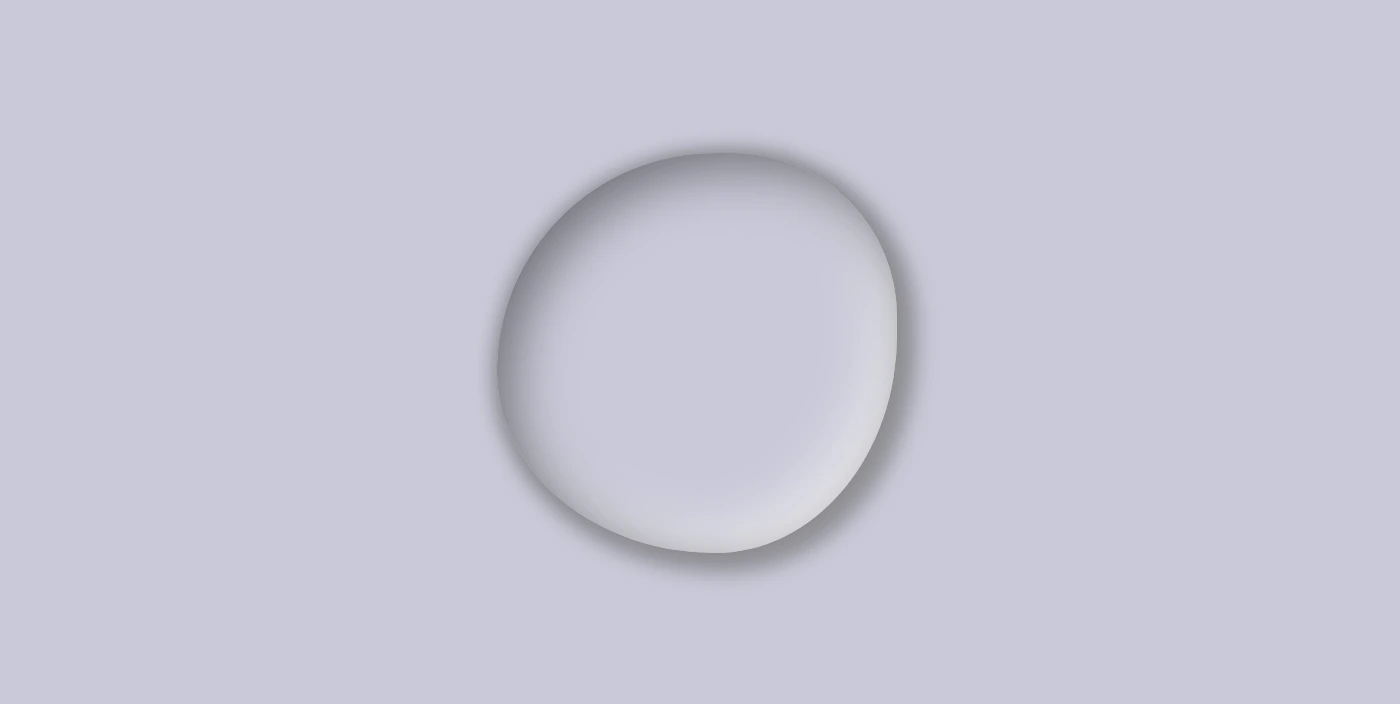
    Below, we can see what has been displayed on the screen up to this point.

    Adding shine to the CSS water drop

    With the power of CSS, we can bring to life unique and captivating shine ✨ effects using the :before and : after pseudo-elements. By setting different values for the same properties, we can create a distinctive and inspiring look that will leave a lasting impression on our audience.

    To position the shine inside the drop element, we utilize the position: relative to our class and then the position: absolute to our pseudoelements.

    .drop {
      ...
      position: relative;
    }
    
    .drop:before {
      position: absolute;
    
      content: "";
      width: 14%;
      height: 10%;
      background-color: #f5f5f5;
      
      box-shadow: 0 0 10px #fff;
      border-radius: 60% 45% 50% 60%/60% 45% 60% 50%;
      top: 20%;
      left: 25%;
      transform: rotate(-40deg);
    }
    
    .drop:after {
      position: absolute;
    
      content: "";
      width: 10%;
      height: 6%;
      background-color: #f5f5f5;
      
      box-shadow: 0 0 10px #fff;
      border-radius: 60% 45% 50% 60%/60% 45% 60% 50%;
      top: 35%;
      left: 15%;
      transform: rotate(-50deg);
    }
    CSS

    Then, we specify the dimensions and colors for the shine by setting the width, height and background-color.

    Next, we add the box-shadow and border-radius properties that allow us to create smooth and rounded corners on the shiny elements. This can give the design a softer look.

    After that, we use the top and left properties to position them.

    Finally, to make them look even more realistic, we can add some rotation by using the transform: rotate() property.

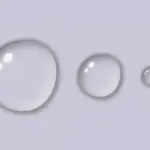
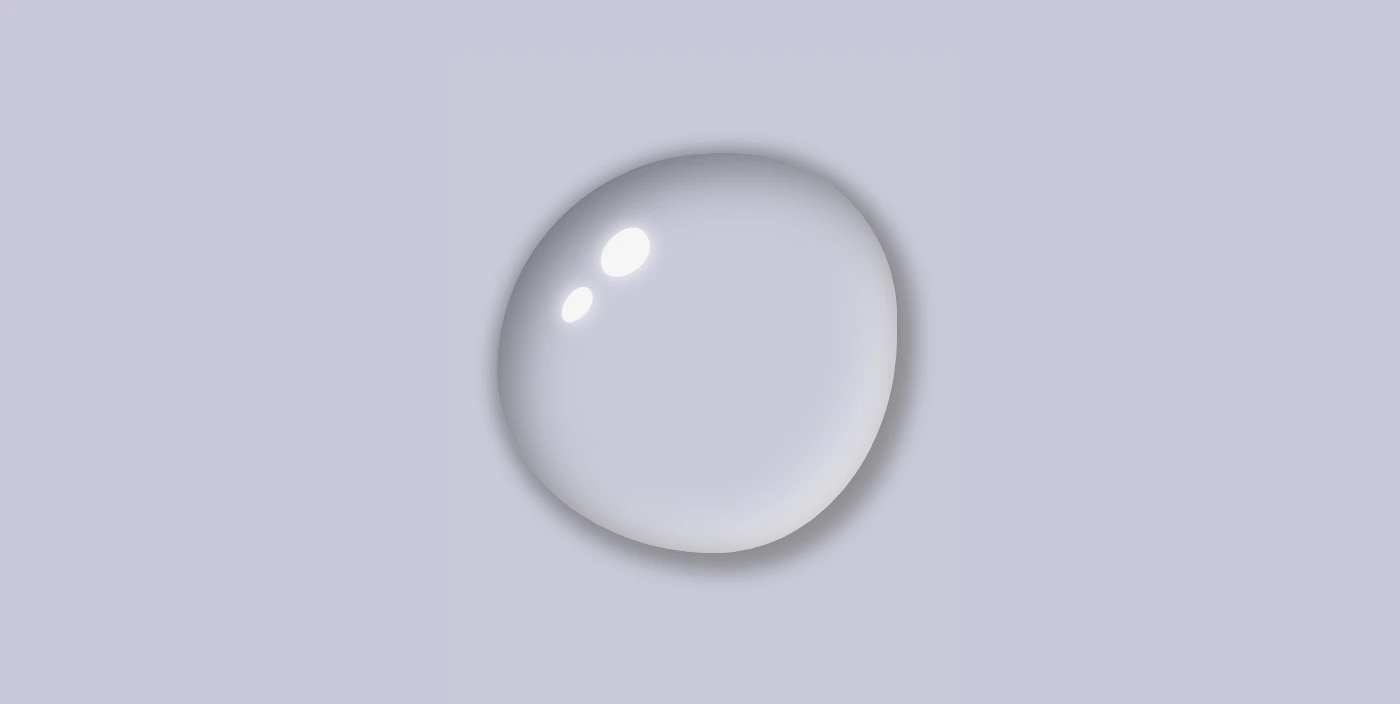
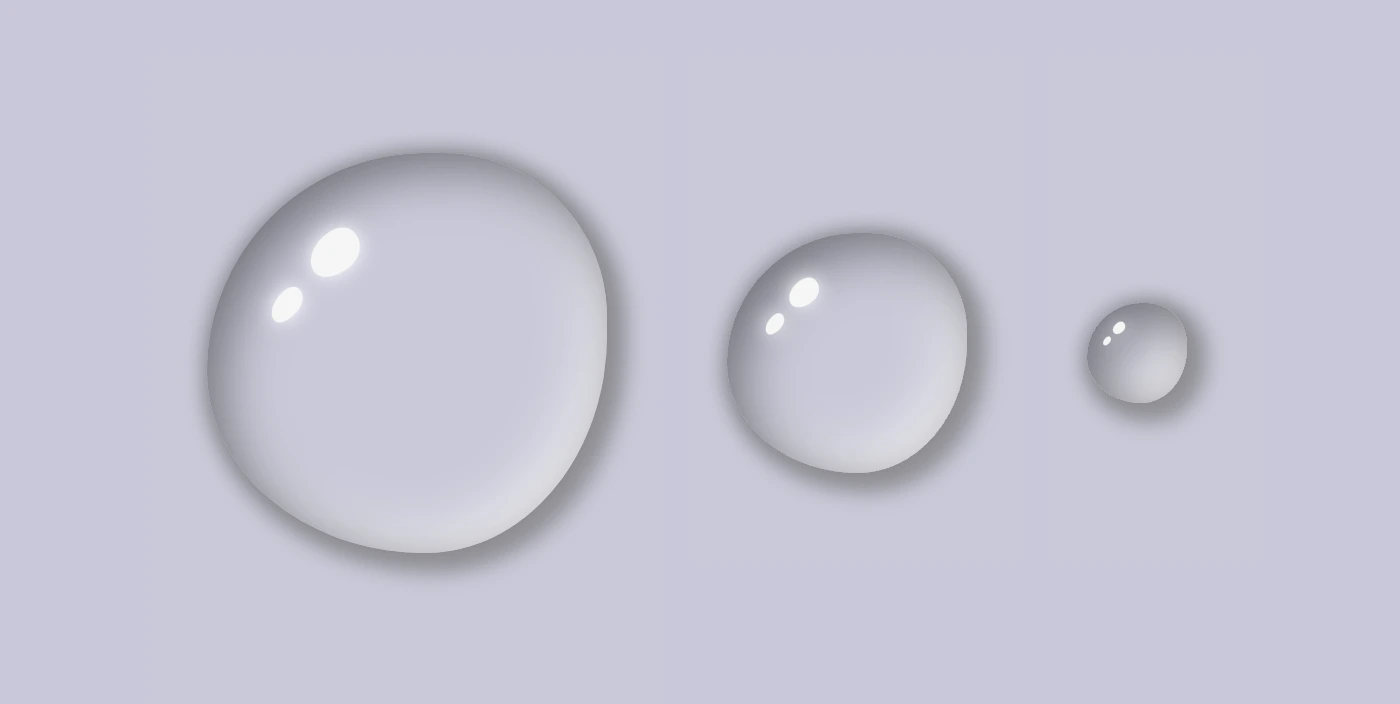
    In the following image, you can see the changes applied: a shiny, grey water drop!

    Create the rest of the water drops

    We will complete our work by adding two more drops. Each drop will have a different class, depending on its size.

    <div class="drop"></div>
    <div class="drop drop--medium"></div>
    <div class="drop drop--small"></div>
    HTML

    First of all, we add a small margin of 30 pixels between the drops. Then, we continue with adding the drop’s size based on our preferences.

    .drop {
      ...
      margin: 30px;
    }
    .drop--medium {
      width: 120px;
      height: 120px;
    }
    
    .drop--small {
      width: 50px;
      height: 50px;
    }
    CSS

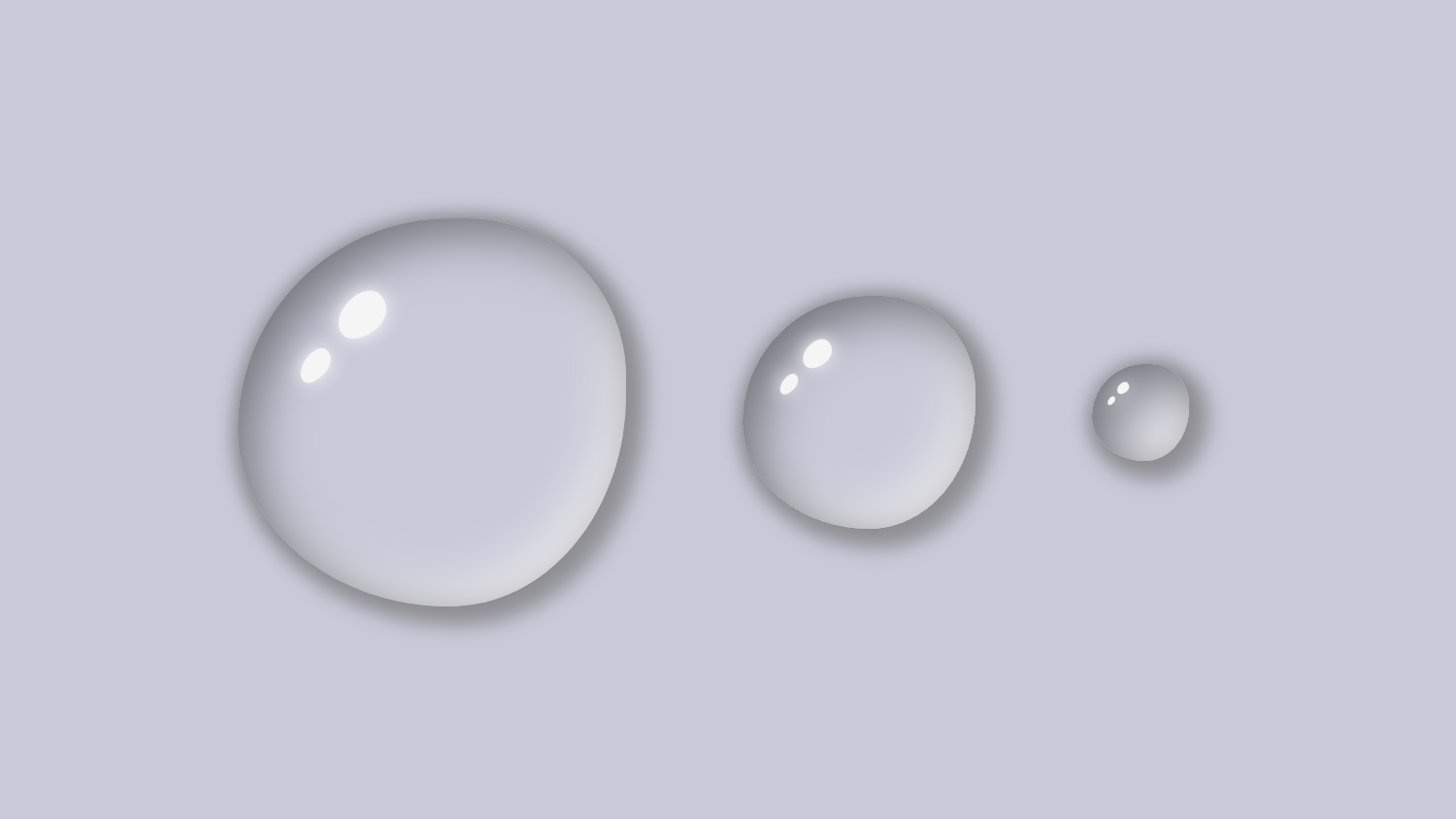
    Here we are! Our stunning water drops are displayed on the screen! Nice, isn’t it? 😎
    (We added some extra styling, not included in our code snippets, to center our drops, in case you are wondering about the last screenshot)

    Hope you found it useful. Utilize these techniques to create stunning water drops that will impress your audience. Have fun experimenting with different colors, shades, and shapes to produce your own unique designs! 💦 ✨ Happy coding!

    Complete code solution

    Below is the full code referenced in this blog post, along with some extra stylings to enhance our final result. Feel free to copy and use it in your own projects. If you have any questions or encounter any issues, don’t hesitate to reach out for assistance in the comments section. You can easily copy the desired code snippet by clicking on the copy icon located in the top-right corner of each snippet.

    <div class="drop"></div>
    <div class="drop drop--medium"></div>
    <div class="drop drop--small"></div>
    HTML
    * {
      margin: 0;
      padding: 0;
      box-sizing: border-box;
    }
    
    html,
    body {
      height: 100vh;
    }
    
    body {
      background: #c9c9db;
      display: flex;
      align-items: center;
      justify-content: center;
    }
    
    .drop {
      width: 200px;
      height: 200px;
      border-radius: 60% 45% 50% 60%/60% 45% 60% 50%;
      background-color: transparent;
      box-shadow: 0 0 10px #8a8a8e, /* top-right-left-bottom */
      5px 5px 10px 5px #929297, /* left & bottom */
      inset 8px 8px 25px #71717a, /* inset top & right */
      inset -8px -8px 25px #f2f2f2; /* inset left & bottom */
      
      position: relative;
      margin: 30px;
    }
     
    .drop:before {
      position: absolute;
    
      content: "";
      width: 14%;
      height: 10%;
      background-color: #f5f5f5;
      
      box-shadow: 0 0 10px #fff;
      border-radius: 60% 45% 50% 60%/60% 45% 60% 50%;
      top: 20%;
      left: 25%;
      transform: rotate(-40deg);
    }
    
    .drop:after {
      position: absolute;
    
      content: "";
      width: 10%;
      height: 6%;
      background-color: #f5f5f5;
      
      box-shadow: 0 0 10px #fff;
      border-radius: 60% 45% 50% 60%/60% 45% 60% 50%;
      top: 35%;
      left: 15%;
      transform: rotate(-50deg);
    }
    
    .drop--medium {
      width: 120px;
      height: 120px;
    }
    
    .drop--small {
      width: 50px;
      height: 50px;
    }
    CSS
    Expand
  • Make a Unique Folded Corner Effect Utilizing the clip-path CSS Property

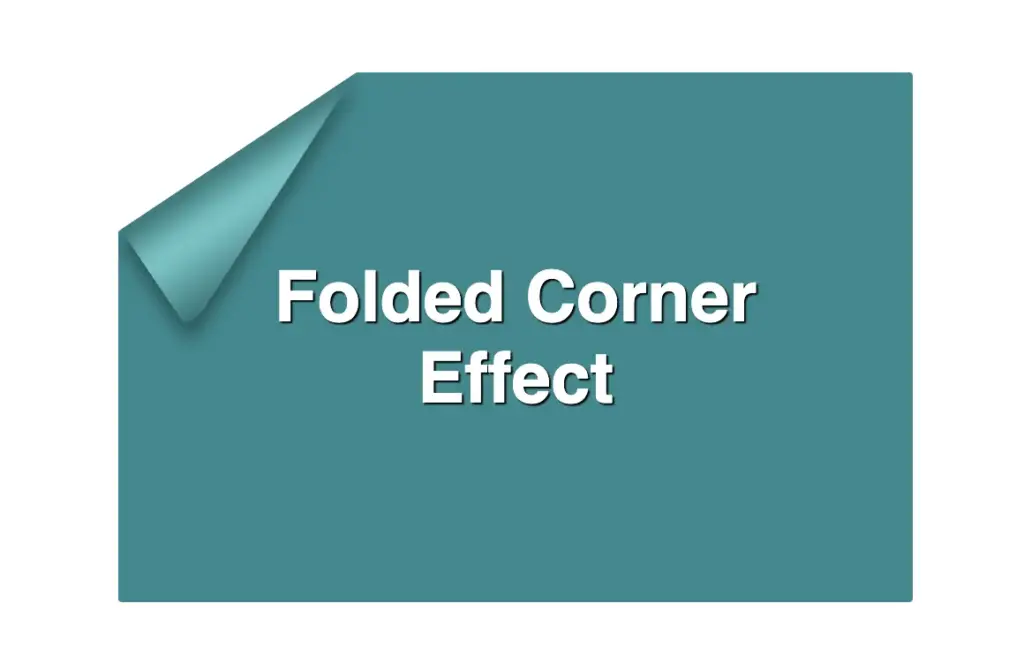
    Make a Unique Folded Corner Effect Utilizing the clip-path CSS Property

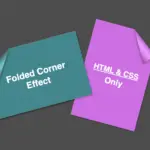
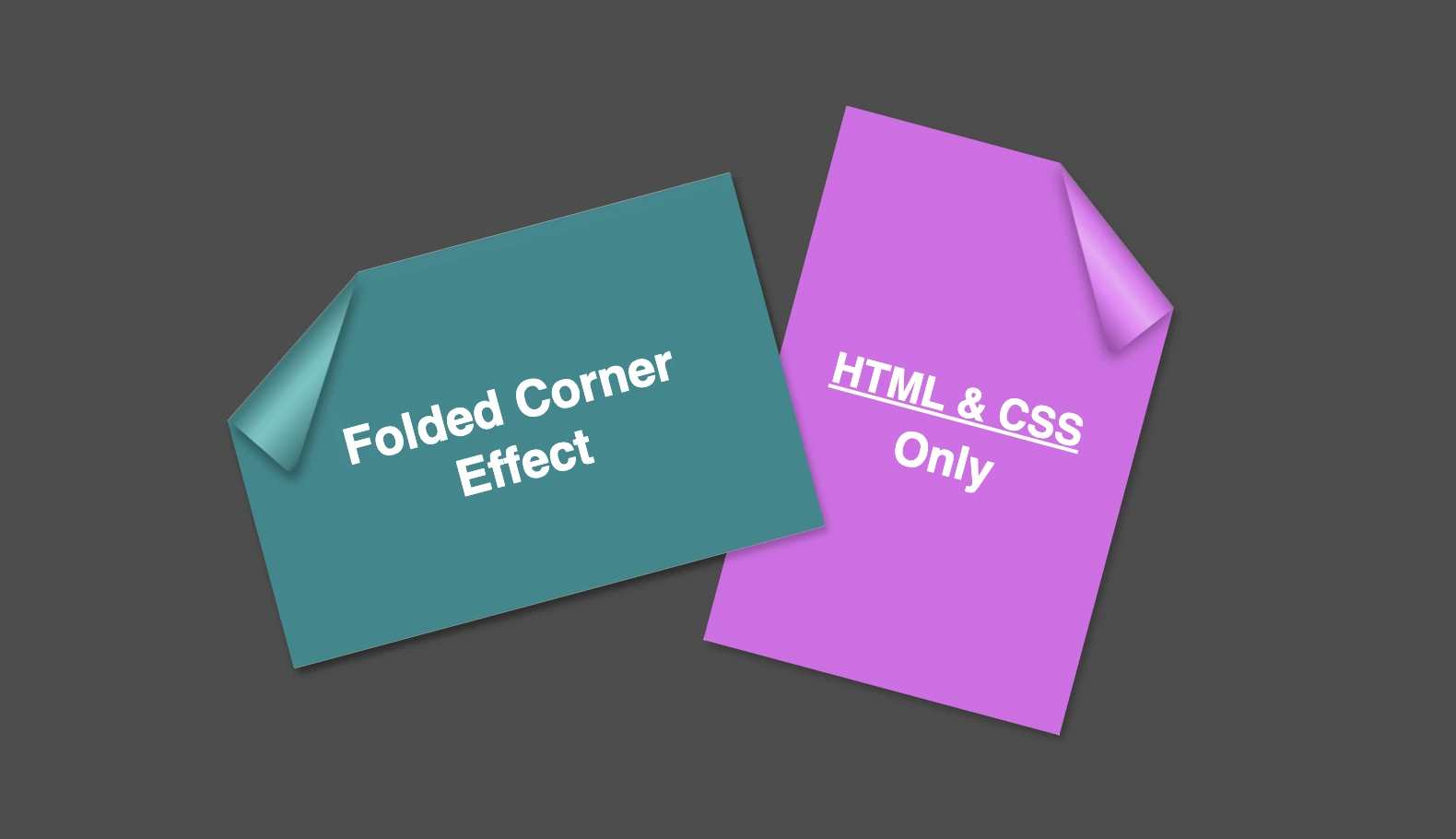
    Hello everybody! I’m excited to share a cool folded corner effect I created using just HTML and CSS. This eye-catching design adds a dynamic flair, creating a realistic illusion that enhances your webpage’s visual appeal —no images, extra scripts, or complex code required. How awesome is that? 😎

    Elements with clip-path do not take shadows directly. Instead, they must be nested within a container to inherit its shadows.

    Creating the folded corner effect using pseudo-element

    We’ll start by using the :before pseudo-element combined with the clip-path property to create the folded corner effect. The main element, which contains the pseudo-element, is styled with a filter property to apply a shadow. This shadow is then inherited by the pseudo-element, allowing the folded corner to display a subtle, realistic shadow as well. This technique keeps the design lightweight and visually appealing.

    Basic HTML structure for the folded corner effect

    The HTML code snippet creates a card layout. We have a parent element with the class .card, housing two child elements: the first with the class .title for the card’s title, and the second with the class .folded-corner to apply the folded corner effect via CSS.

    <div class="card">
      <div class="title">Folded Corner Effect</div>
      <div class="folded-corner"></div>
    </div>
    HTML

    CSS structure: creating the paper and cut corner

    Starting with the CSS, we define a horizontal rectangle by setting the width to 450px and the height to 300px, along with a subtle 2px border-radius for slightly rounded corners. The background color is set to #228a90, a rich teal with greenish-blue tones that gives the card a fresh, modern look.

    .card {
      width: 450px;
      height: 300px;
      border-radius: 2px;
      background-color: #228a90;
        
      display: flex;
      align-items: center;
      justify-content: center;
    }
    CSS
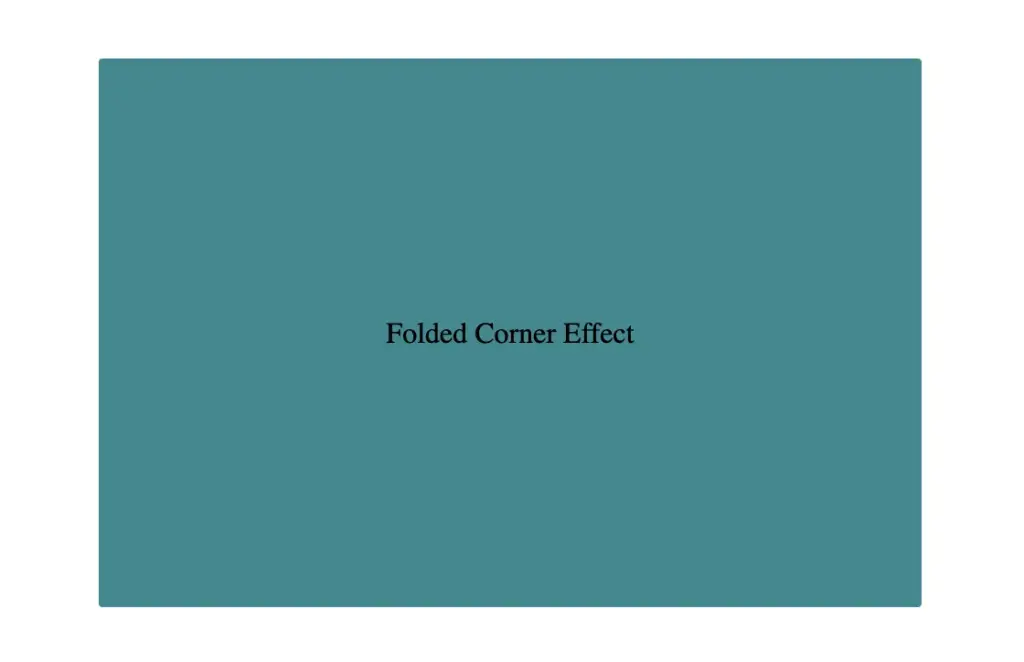
    Initial paper design before applying folded corner effect

    Then we use the clip-path property to shape the desired paper corner for the folded effect. I chose the top-left corner, but you can select any one you prefer by adjusting the corresponding points in the clip-path: polygon() function.

    .card {
      width: 450px;
      height: 300px;
      border-radius: 2px;
      background-color: #228a90;
      
      clip-path: polygon(0% 30%, 30% 0%, 100% 0%, 100% 100%, 0% 100%);
      position: relative;
    }
    CSS

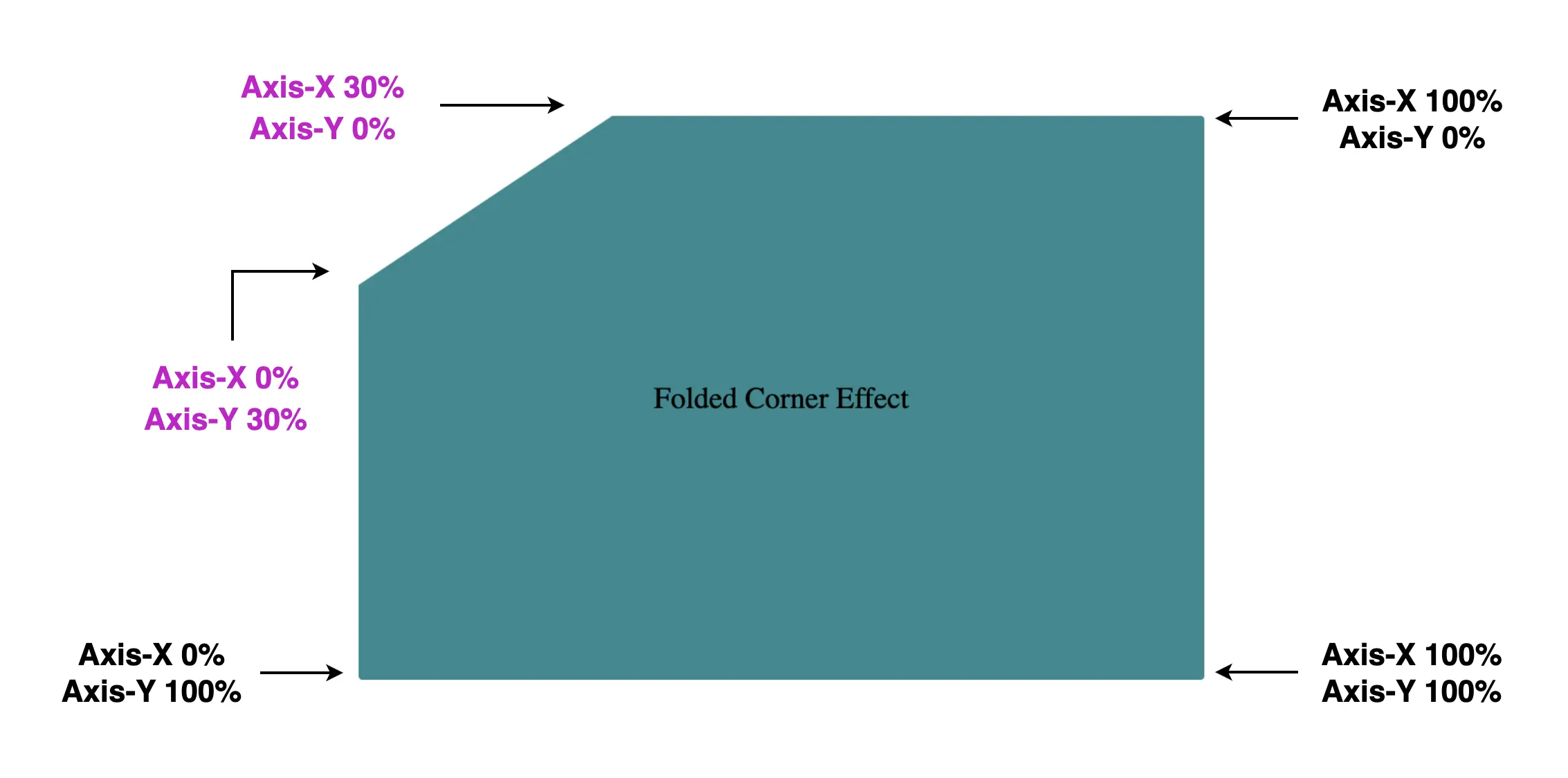
    Think of the corners in this order: top-left, top-right, bottom-right, bottom-left (clockwise).

    Remember to split each selected corner into two coordinates to get the right look (watch those 👇 magenta measurements! 😉)
    Take into account that the top-left corner has both Axis-X and Axis-Y on 0%.

    Axis coordinates of card showing top-left corner cut, preparing the folded corner effect

    Finally, adding position:relative does not change something in our effect but prepares us for future positioning adjustments. As for centering our elements using flexbox—it’s purely for aesthetic purposes, helping keep everything visually balanced and neat.
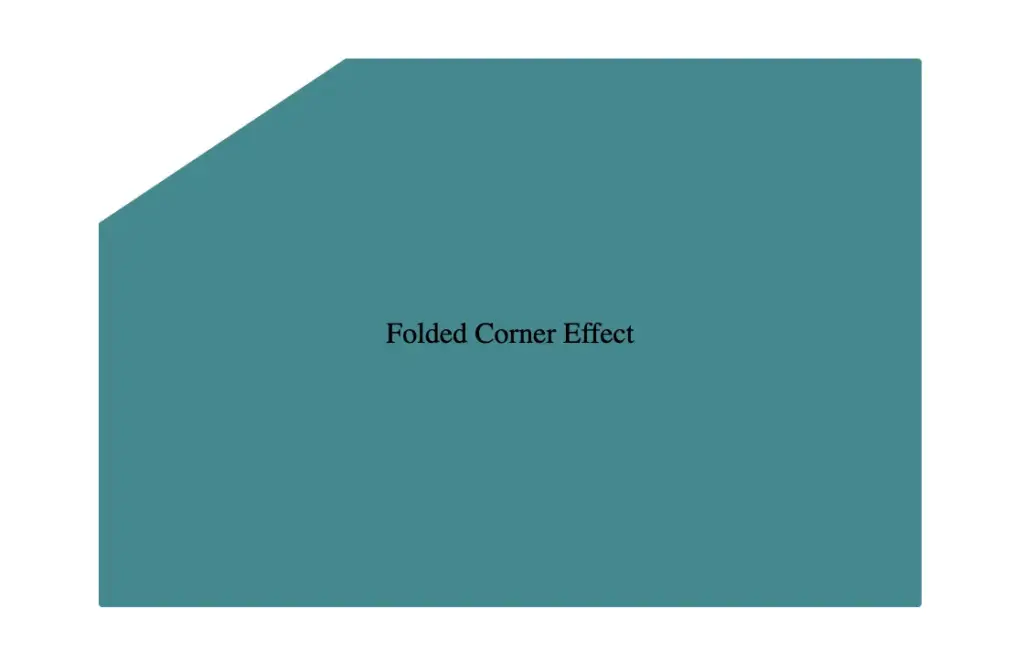
    Below, we can see what is rendered on the screen for now. Pretty cool, right!? 😃

    Progress so far: paper with cut corner created using HTML and CSS folded corner effect

    CSS structure: how to create the folded corner effect

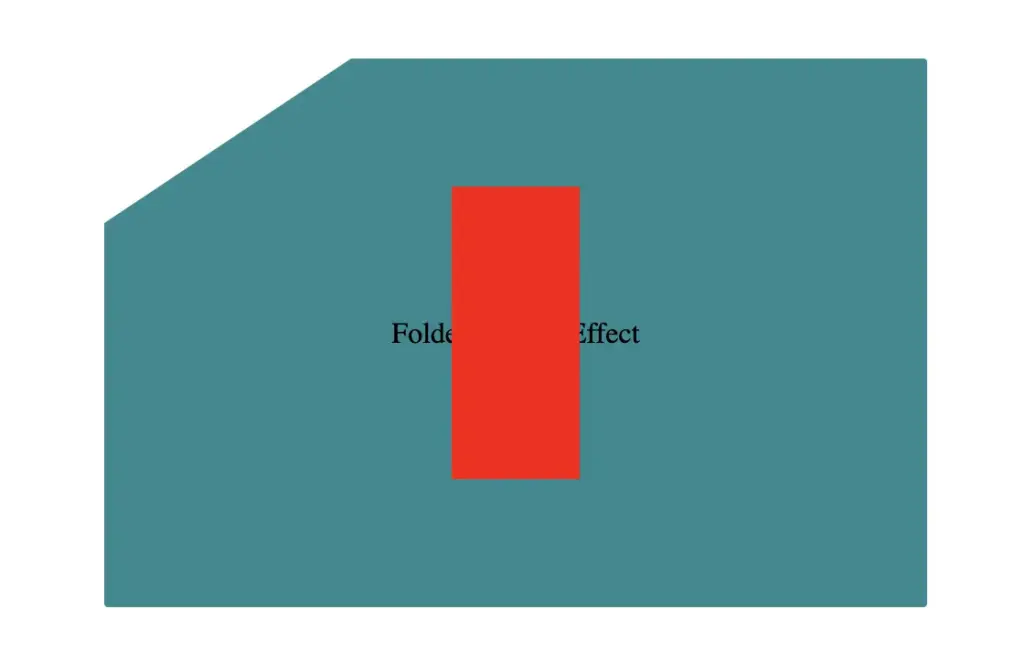
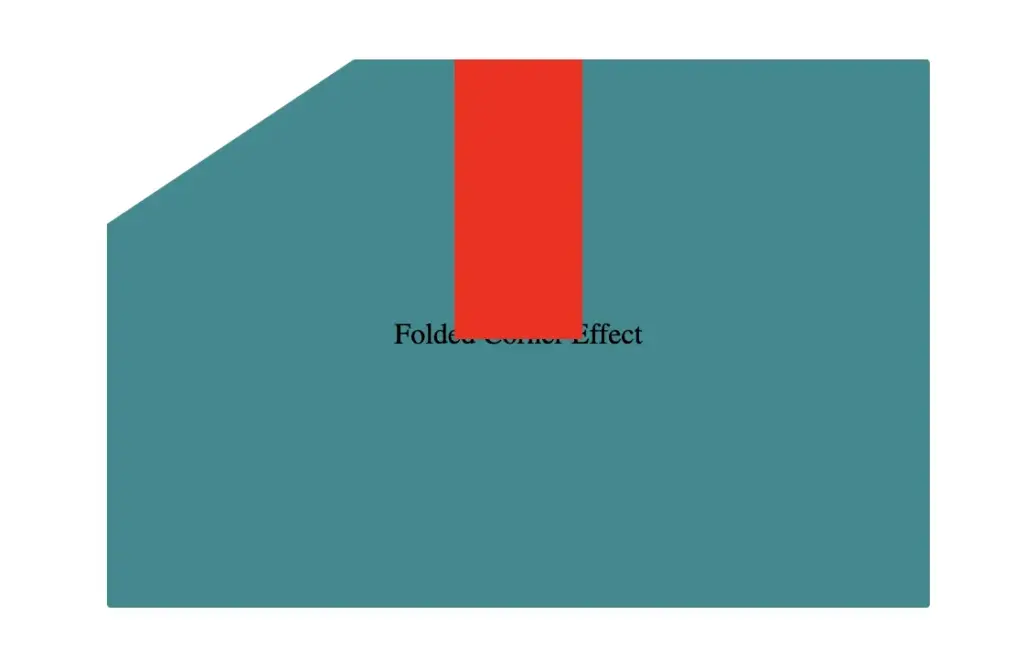
    To continue building our effect, we’ll use the folder-corner child element to create a second rectangle within the parent card element. This element will act as the folded piece of paper. We’ll give it a width of 70px and a height of 160px.

    .card .folded-corner {
      width: 70px;
      height: 160px;
      background-color: red;
      position: absolute;
    }
    CSS

    For now, we’ll use a red background color to help us visualize its position and behavior more clearly—this will be updated to its final color later. We’ll also apply position: absolute to enable precise positioning.

    Initial red-colored container element for folded corner effect

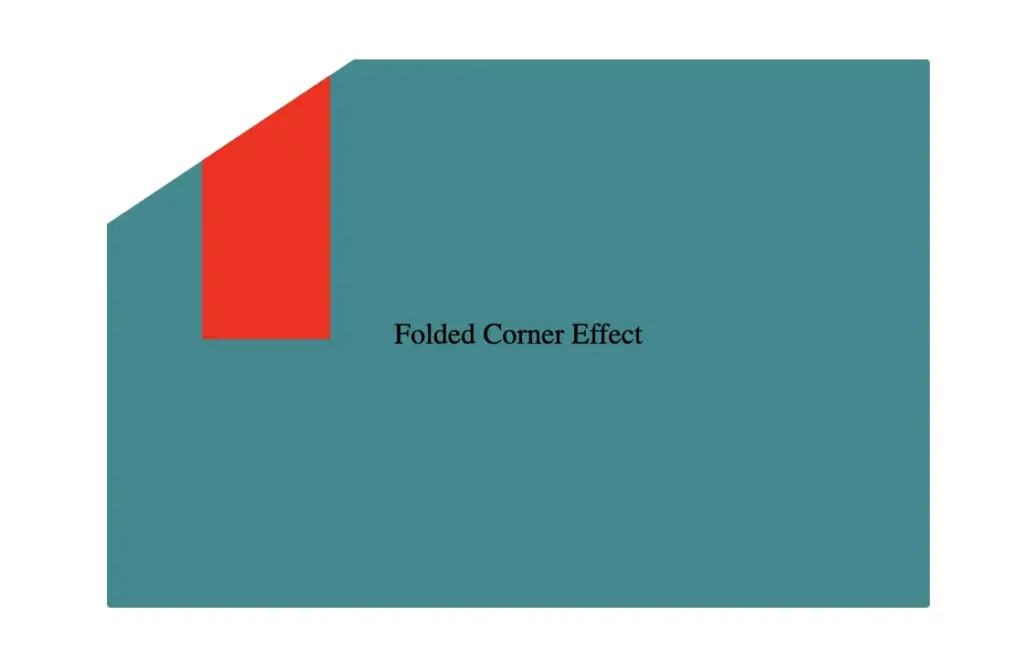
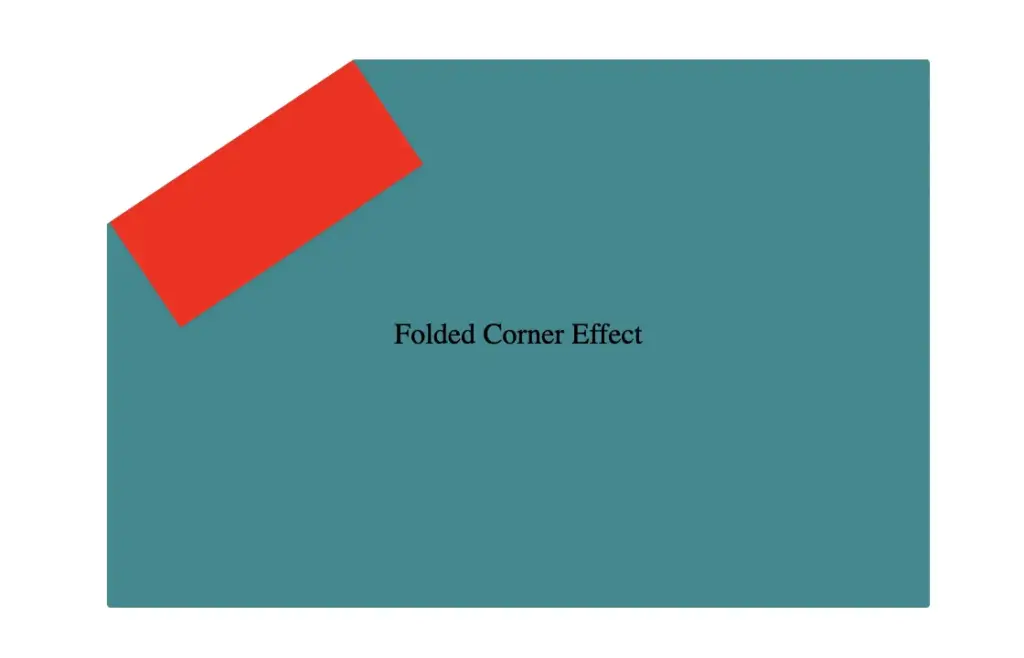
    Next, we continue with positioning. We use the top and left properties to move the .folded-corner element closer to the clipped corner, then apply the transform property to rotate it into place.

    .card .folded-corner {
      ...
      top: -7px;
      left: 52px;
      transform: rotate(56deg);
    }
    CSS
    Positioning folded-corner element at top -7px in folded corner effect layout
    top: -7px;
    Positioning folded-corner element at left 52px to align with cut corner
    left: 52px;
    Rotating folded-corner element by 52 degrees using CSS transform property
    transform: rotate(56deg);

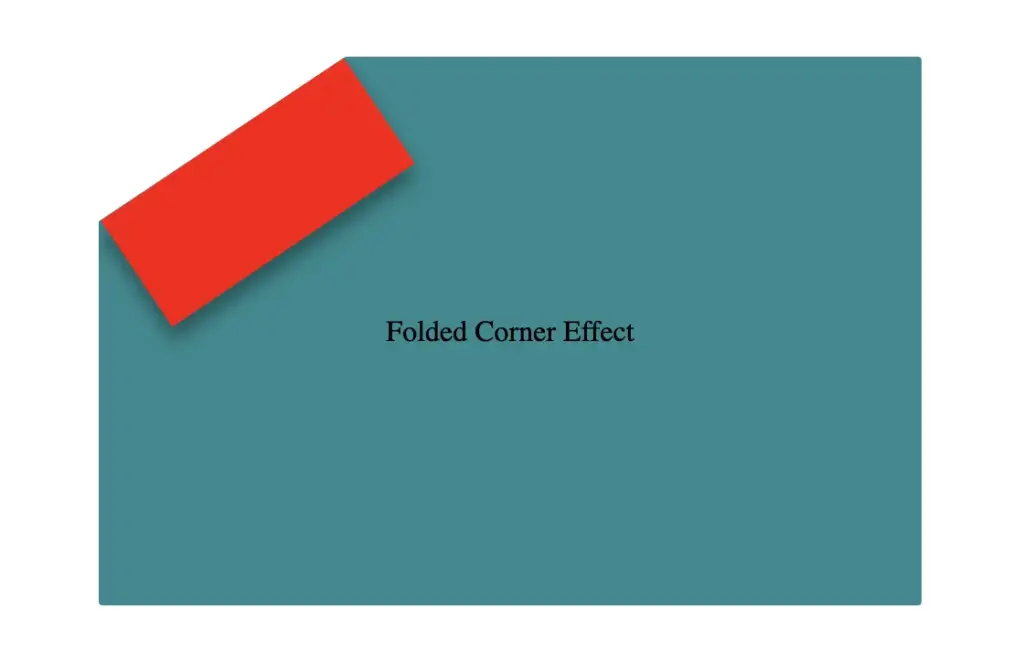
    Finally, adding the filter property is essential for completing our effect. As mentioned earlier, applying a shadow directly to an element with a clip-path isn’t possible — so the solution is to create an additional element that can hold the shadow.

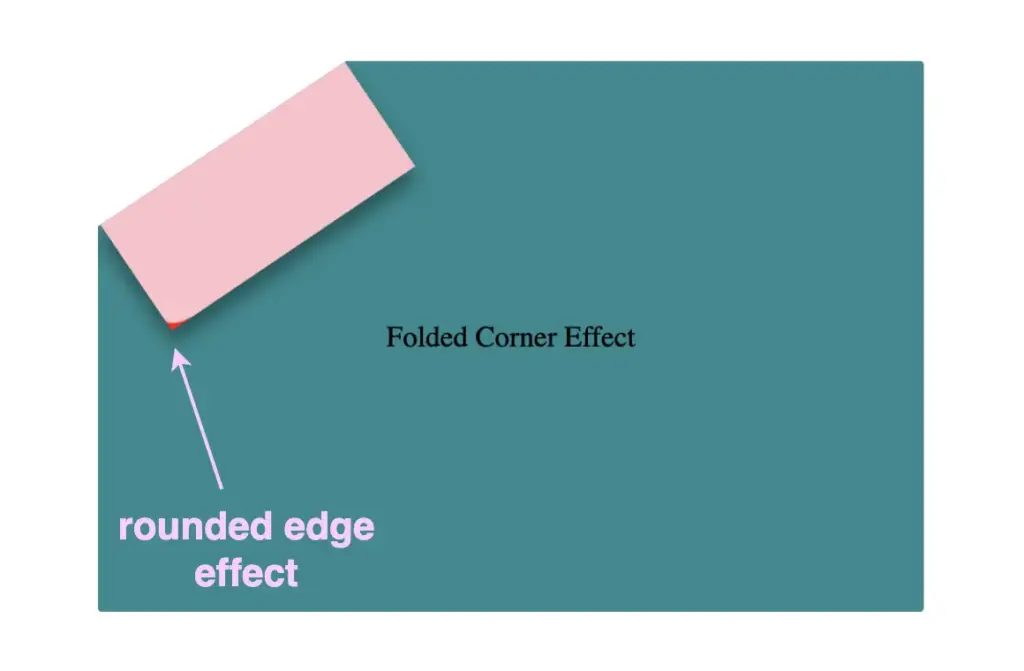
    To do this, we’ll add a :before pseudo-element with the same dimensions as our folded corner. This allows us to recreate the folded shape and apply the shadow to it — adding depth and realism to the folded corner effect. 😎

    .card .folded-corner {
      ...
      top: -7px;
      left: 52px;
      transform: rotate(56deg);
      filter: drop-shadow(6px 4px 5px rgba(0, 0, 0, 0.4));
    }
    CSS
    Initial red-colored container element for folded corner effect
    filter: drop-shadow(6px 4px 5px rgba(0, 0, 0, 0.4));

    Next, we move forward by using the before pseudo-element with the content property and set its position to absolute for precise placement within the parent.
    We want this pseudo-element to have the exact dimensions as the parent, so we set both its width and height to 100%, something that allows it to inherit the parent’s size.

    .card .folded-corner:before {
      content: "";
      position: absolute;
      width: 100%;
      height: 100%;
      background: pink;
      border-radius: 0 0 10% 0;
    }
    CSS

    For now, we apply a pink background to help visualize the structure. Finally, we add a border-radius of 10% to the bottom corner, which softens the edge and creates a smoother, more realistic folded appearance.

    Adding the before pseudoelement

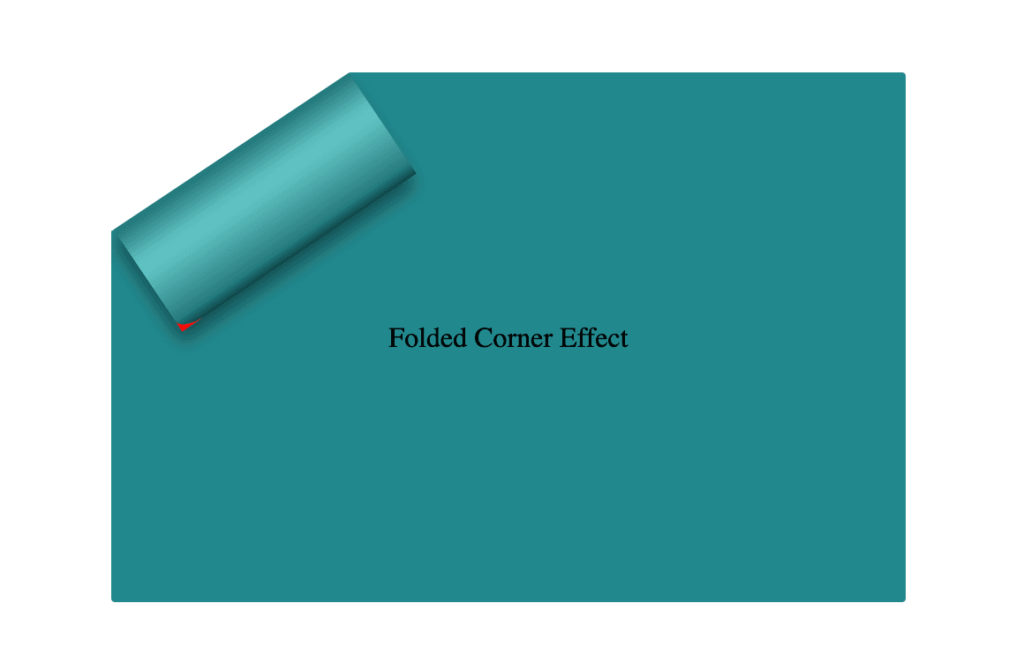
    Next, we replace the pink background with a smooth linear gradient. We choose colors similar to the main hue but make them darker towards the edges and lighter in the center. This gradient effect enhances the appearance by making the center appear brighter and polish. ✨

    .card .folded-corner:before {
      ...
      background: linear-gradient(to right, #277c7f 5%, #5abcbc 30%, #63c5c6 40%, #5abcbc 50%, #277c7f 90%, #0d4749);
    }
    CSS
    Adding linear- gradient at the before pseudoelement

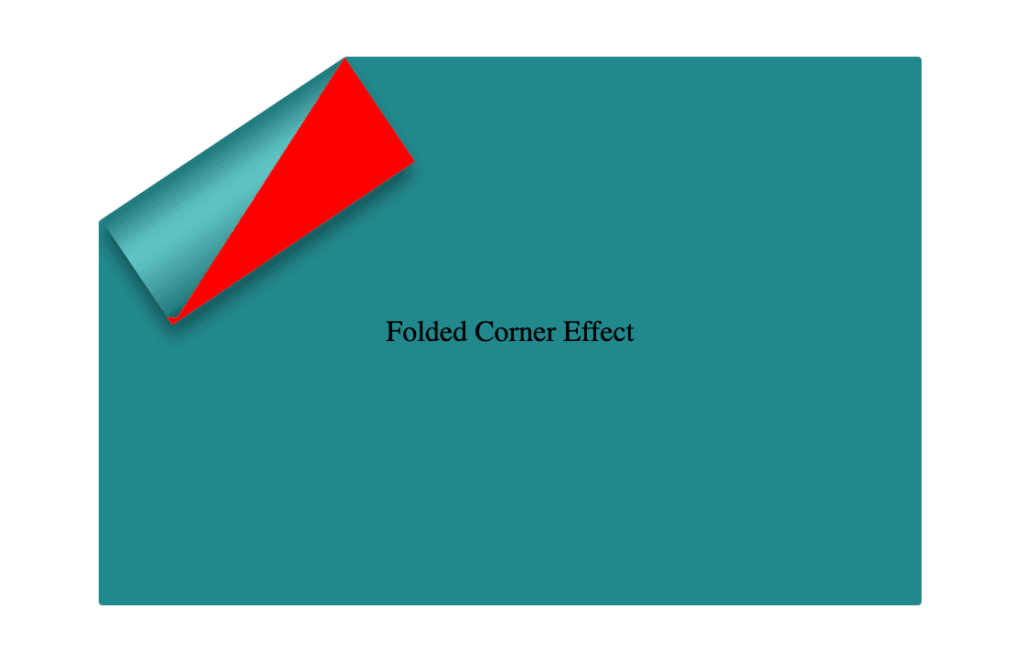
    To complete the shape, we apply the clip-path: polygon(0% -2%, 0% 100%, 100% 100%) property. This is essential for transforming the before pseudo-element —which starts as a rectangle, just like its parent—into a triangle.

    In simple words, this clipping path reshapes the element into the desired triangular form. 🥳

    .card .folded-corner:before {
      ...
      clip-path: polygon(0% -2%, 0% 100%, 100% 100%);
    }
    CSS
    Adding clip-path to the before pseudoelement

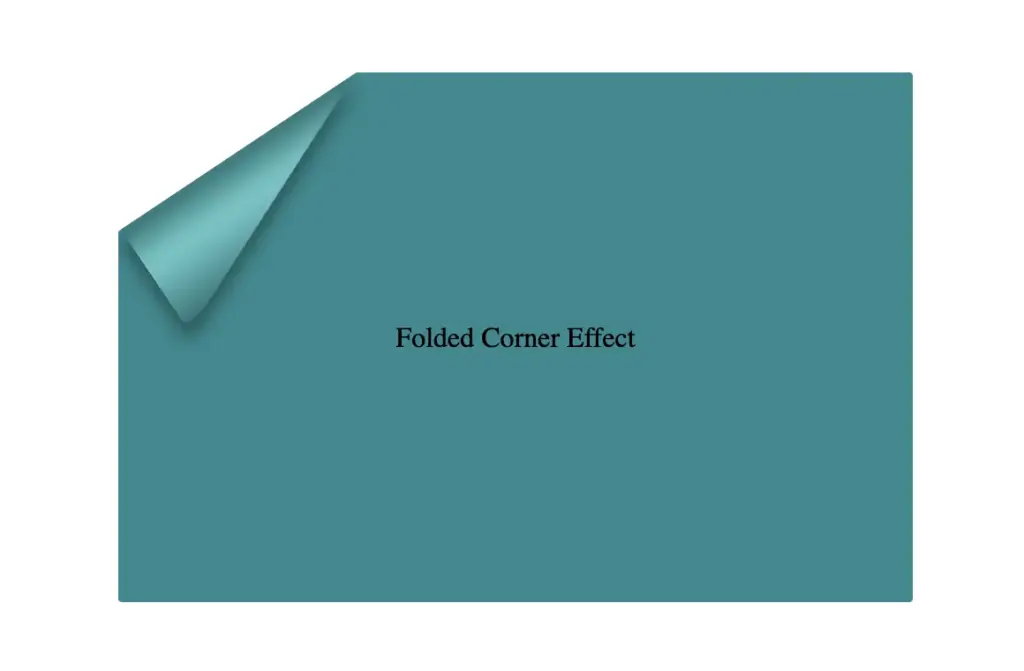
    The last step is to turn back to the parent element with the class .folded-corner and “remove” the red rectangle from view by simply replacing the red background-color with a transparent value.
    As we can see, the :before pseudoelement inherits its parent shadow effect while the parent becomes invisible.

    .card .folded-corner {
      width: 70px;
      height: 160px;
      background-color: transparent;
      position: absolute;
      top: -7px;
      left: 52px;
      transform: rotate(56deg);
      filter: drop-shadow(6px 4px 5px rgba(0, 0, 0, 0.4));
    }
    CSS
    Finalize the folded corner effect

    We can enhance the title to have a more eye-cathing result. Applying a white background-color, increasing the font-size, and adding a subtle black text-shadow will make the title stand out beautifully, elevating the overall design. 📄 ✨

    .card .title {
      font-family: sans-serif;
      font-size: 40px;
      font-weight: bold;
      text-align: center;
      padding: 0 50px;
      color: white;
      text-shadow: 1px 1px 1px black;
    }
    CSS
    Stylling paper's title

    Complete code example

    <div class="card">
      <div class="title">Folded Corner Effect</div>
      <div class="folded-corner"></div>
    </div>
    HTML
    .card {
      width: 450px;
      height: 300px;
      border-radius: 2px;
      background-color: #228a90;
      clip-path: polygon(0% 30%, 30% 0%, 100% 0%, 100% 100%, 0% 100%);
      position: relative;
      display: flex;
      align-items: center;
      justify-content: center;
    }
    
    .card .folded-corner {
      width: 70px;
      height: 160px;
      background-color: transparent;
      position: absolute;
      top: -7px;
      left: 52px;
      transform: rotate(56deg);
      filter: drop-shadow(6px 4px 5px rgba(0, 0, 0, 0.4));
    }
    
    .card .folded-corner:before {
      content: "";
      position: absolute;
      width: 100%;
      height: 100%;
      border-radius: 0 0 10% 0;
      background: linear-gradient(to right, #277c7f 5%, #5abcbc 30%, #63c5c6 40%, #5abcbc 50%, #277c7f 90%, #0d4749);
      clip-path: polygon(0% -2%, 0% 100%, 100% 100%);
    }
    
    .card .title {
      font-family: sans-serif;
      font-size: 40px;
      font-weight: bold;
      text-align: center;
      padding: 0 50px;
      color: white;
      text-shadow: 1px 1px 1px black;
    }
    CSS
    Expand

    If you have any questions or run into any issues, don’t hesitate to reach out in the comments below — I’m happy to help. You can easily copy any code snippet by clicking the copy icon in the top-right corner of each block.

    Summary

    We started by creating the paper and cutting its corner. Then, we set the clip-path property to define the shape and positioned the folded-corner element precisely over the clipped area. After that, we enhanced the styling with background gradients that match the paper’s tone, and wrapped up by polishing the effect for a clean, realistic look. 📄 ✨

    Wishing you the best of luck in all your creative endeavors! 😃

  • Introduction To The Powerful CSS Blur Effect

    Introduction To The Powerful CSS Blur Effect

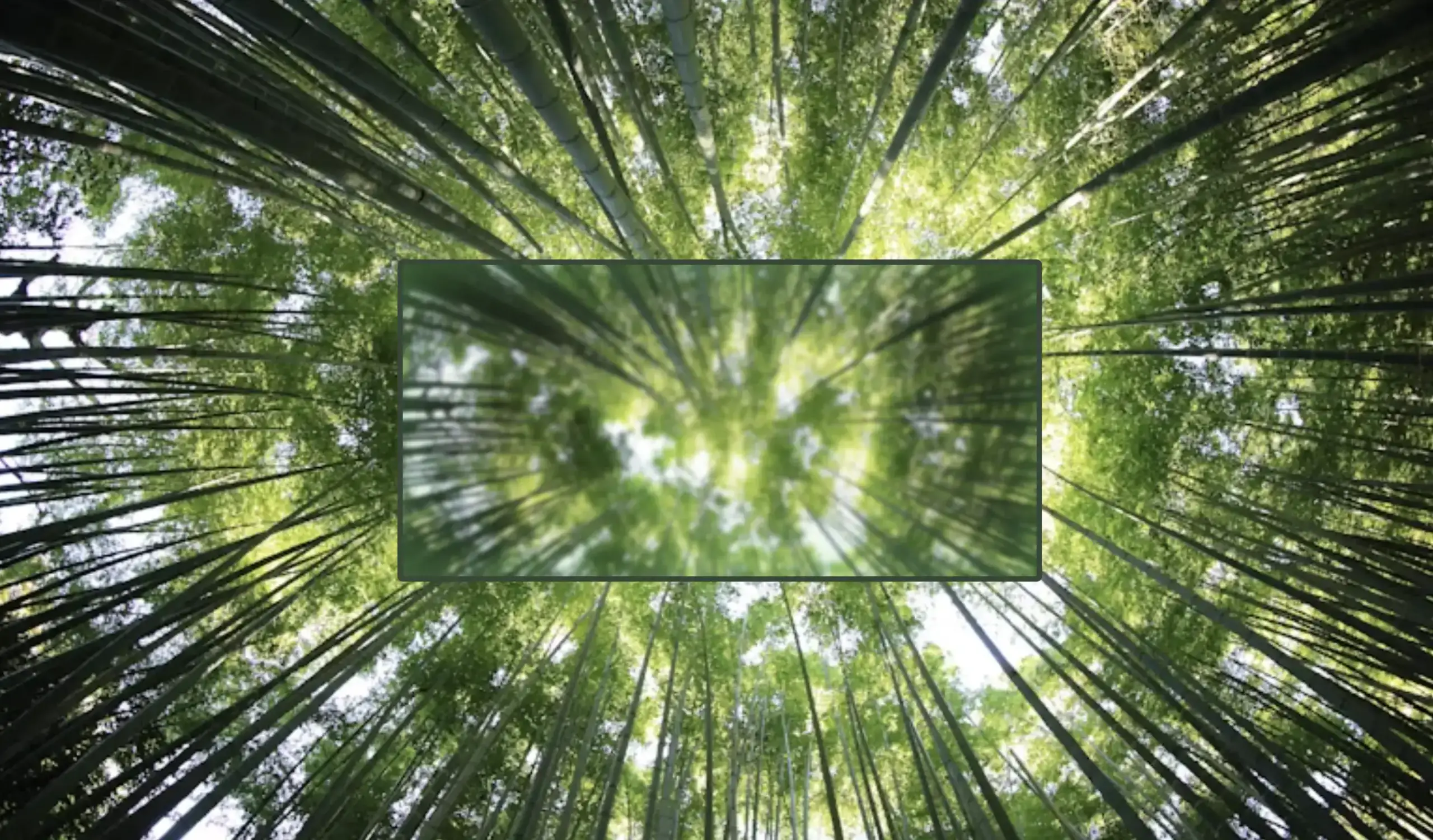
    Hello everybody 😃 Today, we will discover the art of the powerful CSS blur effect. Get ready to meet the amazing backdrop-filter CSS property. We’ll dive 🤿 into the world of adding visual elegance and depth to our web design, and we will learn to create captivating and stunning web elements. Let’s get started!

    Adding basic HTML structure

    Let’s get started with the HTML setup. We create a parent div named custom-container for the background and a child div named blurry-container where we will apply the CSS blur effect. Follow along for the step-by-step process.

    <div class="custom-container">
      <div class="blurry-container"></div>
    </div>
    HTML

    Adding the background image

    We move forward with the CSS structure by preparing the background. I opted for a striking and colorful background image as it is more impressive and gives prominence to our effect, setting background-image. I also add background-repeat which determines how the background image is shown, and background-size which sets the size of the image, in our case we want to fill the entire display. Completing it with height: 100vh for full-screen coverage.

    .custom-container {
      background-image: url(https://images.unsplash.com/photo-1540959733332-eab4deabeeaf?ixlib=rb-1.2.1&ixid=MnwxMjA3fDB8MHxwaG90by1wYWdlfHx8fGVufDB8fHx8&auto=format&fit=crop&w=1194&q=80);
      background-repeat: no-repeat;
      background-size: cover;
      height: 100vh;
    }
    CSS

    The next step is to create a “place” where we can accommodate our blur, I believe a box would serve this need. To begin, I create one by setting the appropriate width and height along with its border and border-radius. I utilized borders to ensure my box remains visible. Whether to keep them or not is entirely up to you. The design can still look great in both cases. Feel free to choose whichever option suits your preference or the project’s requirements. 😃

    .blurry-container {
      border: 2px solid white;
      border-radius: 5px;
      width: 400px;
      height: 500px;
    }
    CSS

    If we want our box to share the same image as its background, and not just be transparent, it is crucial to add the background: inherit CSS property.

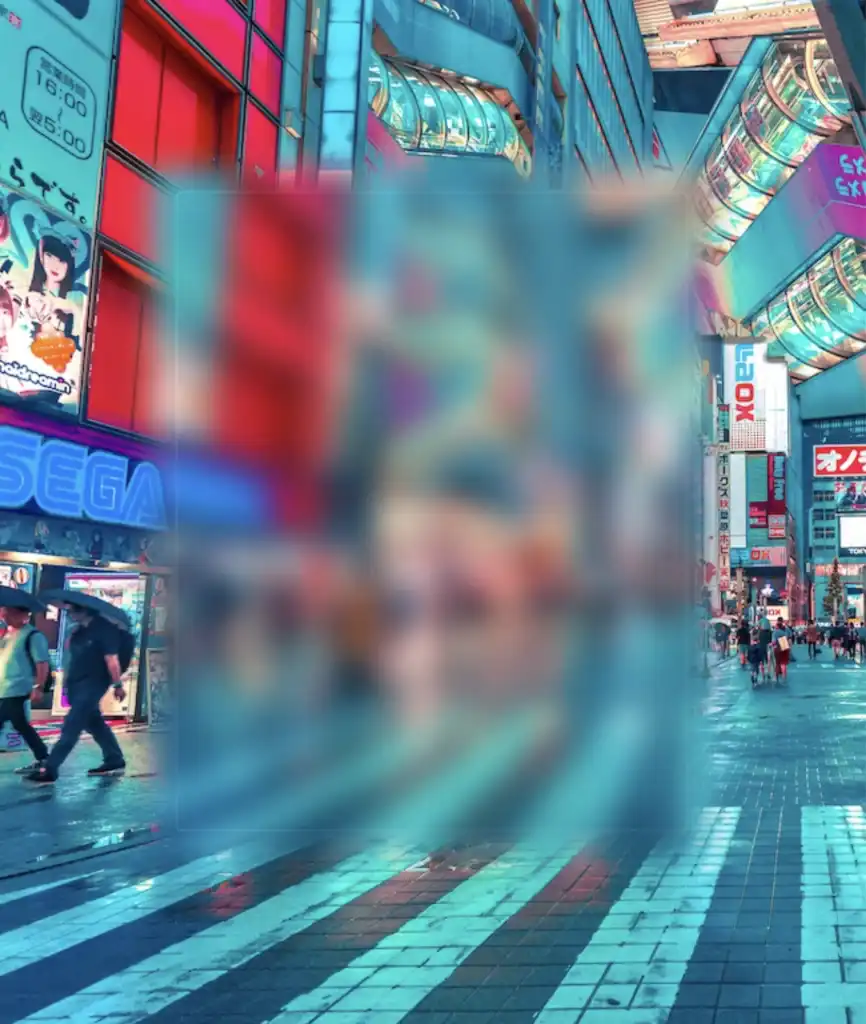
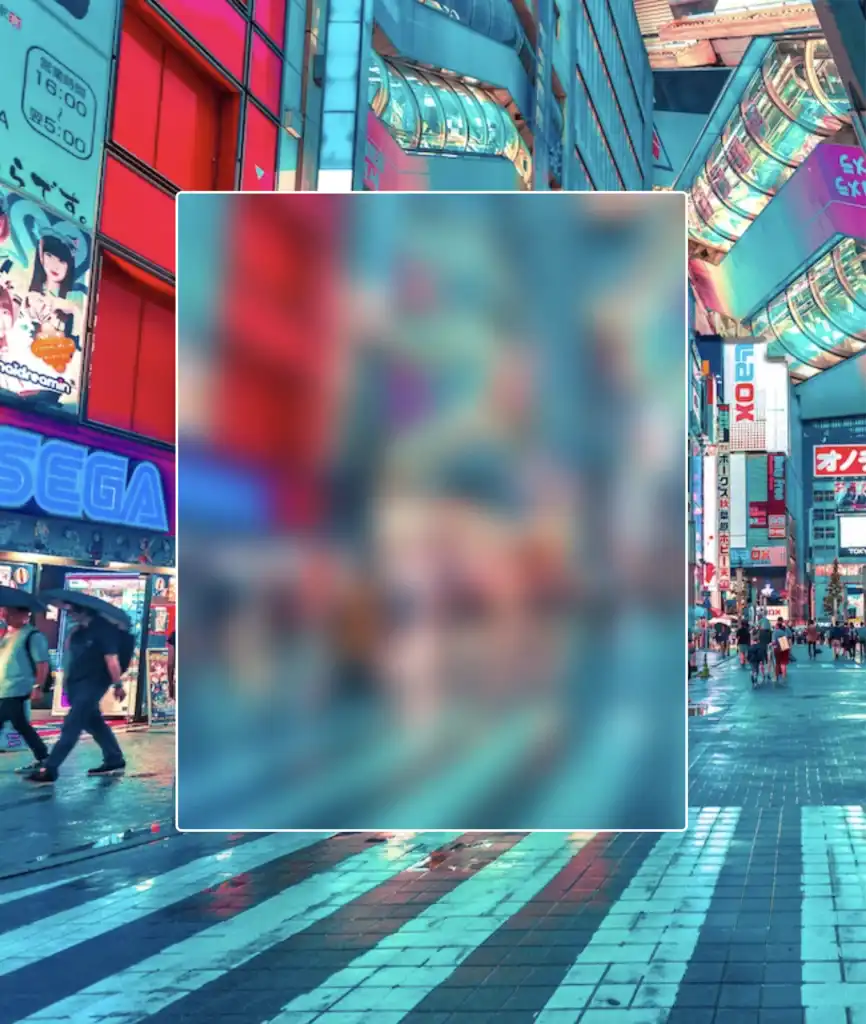
    In the following image, we can see clearly that our box now has the exact same image as its background.

    .blurry-container {
      ...
      background: inherit;
    }
    CSS

    Now it’s time to center our box. We do so by applying the flex CSS property to the parent HTML element which is the custom-container.

    .custom-container {
      ...
      display: flex;
      align-items: center;
      justify-content: center;
    }
    CSS

    Adding the blur effect (backdrop-filter)

    We create the blur effect using the pseudo-element :before. To manage this, we have to set position:relative to the parent element and position: absolute to the child. The child element needs the content CSS property to be assigned an empty string value in order to be displayed. Despite the recent code adjustments, you won’t notice any visible changes on the screen just yet. 😭

    .custom-container {
      ...
      position: relative;
      .blurry-container {
        ...
        &:before {
          position: absolute;
          content: "";
        } /* end of before */
      } /* end of blurry-container */
    } /* end of custom-container */
    SCSS

    Let’s proceed with our effect. 🥁 We do so by adding the backdrop-filter CSS property to :before pseudoelement. Increasing the pixel value intensifies the blur effect by creating a stronger visual impact. I’ve applied a 12px blur effect, but you have the flexibility to adjust it according to your preferences. If you desire a clearer look, feel free to reduce ⬇ the pixels. Alternatively, for a stronger fade effect, you can increase ⬆ the pixel value.

    &:before {
      ...
      backdrop-filter: blur(12px);
    }
    SCSS

    🔖 What to avoid when applying the blur effect

    Remember that the blur effect can sometimes get out of control on a web page because of how it’s applied to an element. When you use the blur effect, it makes the element bigger, like it’s expanded, depending on how much blur you want. So, the more blur you add, the larger the element becomes. Because of that, the element might grow so big that it spills out of its box or crashes into nearby elements. 😟

    Observe how the blur CSS property overflows in the current setup above. To correct that, apply the overflow: hidden CSS property to the PARENT element custom-container. With this modification, you can control the blur effect and prevent it from causing a mess on your web page.

    .custom-container {
      ...
      overflow: hidden;
    }
    SCSS

    … and boom 🥳 here it is! Our blur effect displayed flawlessly, as intended!

    Complete code solution

    Below is the full code referenced in this blog post. Feel free to copy and use it in your own projects. If you have any questions or encounter any issues, don’t hesitate to reach out for assistance. You can easily copy the desired code snippet by clicking on the copy icon, located in the top-right corner of each snippet.

    <section class="custom-container">
      <div class="blurry-container">
        <div class="title">Hello World</div>
      </div> <!-- end of blurry-container -->
    </section> <!-- end of customer-container -->
    HTML
    * {
      box-sizing: border-box;
      padding: 0;
      margin: 0;
    }
    
    .custom-container {
      height: 100vh;
      display: flex;
      align-items: center;
      justify-content: center;
      background-image: url(https://images.unsplash.com/photo-1540959733332-eab4deabeeaf?ixlib=rb-1.2.1&ixid=MnwxMjA3fDB8MHxwaG90by1wYWdlfHx8fGVufDB8fHx8&auto=format&fit=crop&w=1194&q=80);
      background-repeat: no-repeat;
      background-size: cover;
    
      .blurry-container {
        position: relative;
        border: 2px solid white;
        border-radius: 5px;
        width: 400px;
        height: 500px;
        padding: 100px 50px;
        display: flex;
        align-items: center;
        justify-content: center;
        background: inherit;
        overflow: hidden;
        &:before {
          content: "";
          position: absolute;
          top: -20px;
          left: -20px;
          bottom: -20px;
          right: -20px;
          box-shadow: inset 0 0 300px rgba(25, 100, 128, 0.5);
          backdrop-filter: blur(12px);
        }
        .title {
          font-size: 50px;
          color: #132216;
          font-weight: bold;
          padding: 5px 20px;
          border: 2px solid #364739;
          border-radius: 50px;
          backdrop-filter: blur(8px);
        }
      } /* end of blurry-container */
    } /* end of customer-container */
    SCSS
    Expand

    Complete code solution for post’s cover

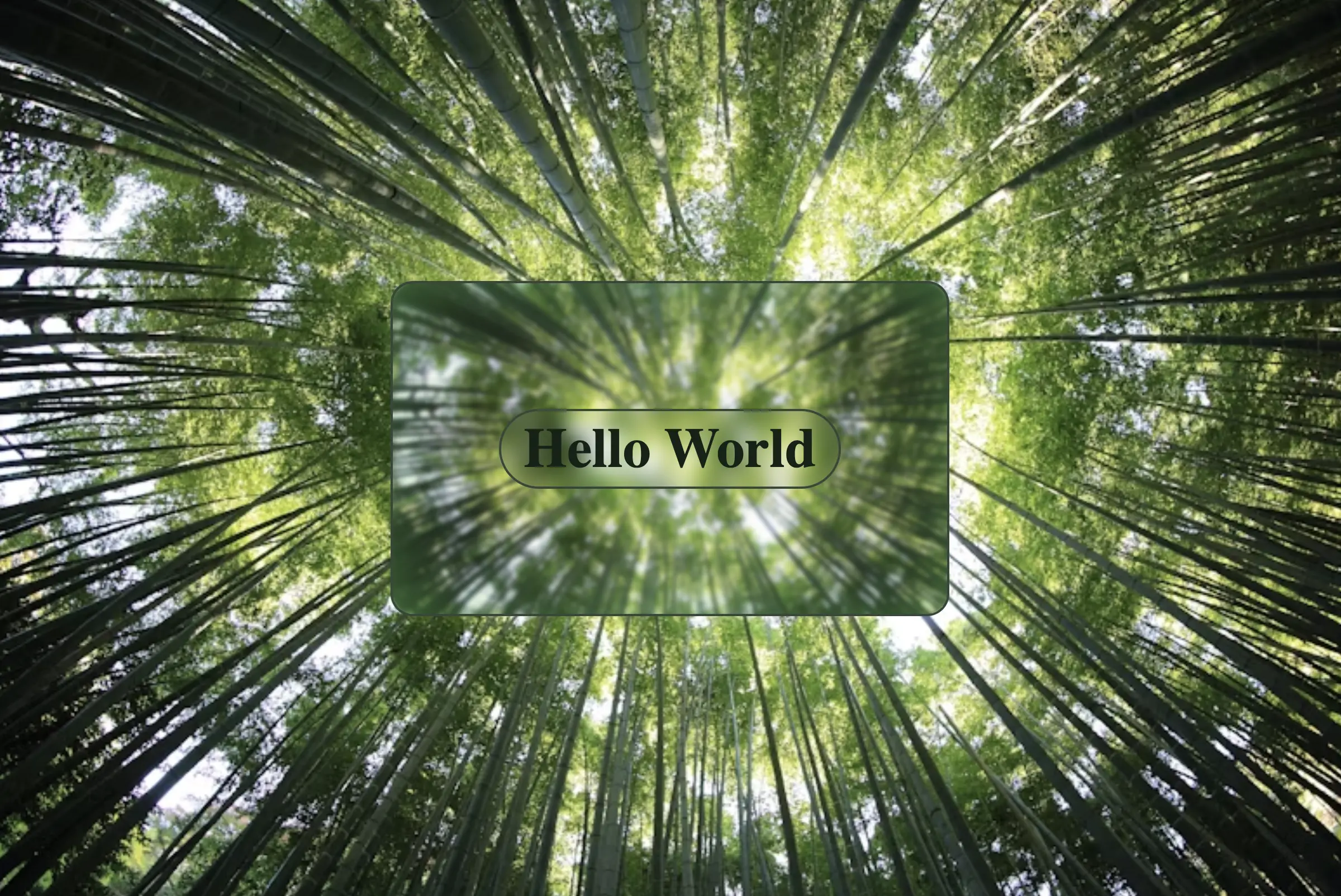
    Below, I include the code for my post’s cover. I also added a title to see how we add text over the blur effect. 😎

    <section class="custom-container">
      <div class="blurry-container">
        <div class="title">Hello World</div>
      </div> <!-- end of blurry-container -->
    </section> <!-- end of customer-container -->
    HTML
    * {
      box-sizing: border-box;
      padding: 0;
      margin: 0;
    }
    
    .custom-container {
      height: 100vh;
      display: flex;
      align-items: center;
      justify-content: center;
      background-image: url(https://images.unsplash.com/photo-1440342359743-84fcb8c21f21?w=800&auto=format&fit=crop&q=60&ixlib=rb-4.0.3&ixid=M3wxMjA3fDB8MHxzZWFyY2h8MTJ8fGZvcmVzdHxlbnwwfDB8MHx8fDA%3D);
      background-repeat: no-repeat;
      background-size: cover;
      .blurry-container {
        position: relative;
        border: 2px solid #364739;
        border-radius: 20px;
        width: 500px;
        height: 300px;
        padding: 100px 50px;
        display: flex;
        align-items: center;
        justify-content: center;
        background: inherit;
        overflow: hidden;
        &:before {
          content: "";
          position: absolute;
          top: -20px;
          left: -20px;
          bottom: -20px;
          right: -20px;
          box-shadow: inset 0 0 100px rgba(100, 200, 100, 0.8);
          backdrop-filter: blur(2px);
        }
      } /* end of blurry-container */
      .title {
        font-size: 50px;
        color: #132216;
        font-weight: bold;
        padding: 5px 20px;
        border: 2px solid #364739;
        border-radius: 50px;
        backdrop-filter: blur(8px);
      }
    } /* end of customer-container */
    SCSS
    Expand
  • How to Make a Transparent Button Using HTML and CSS

    How to Make a Transparent Button Using HTML and CSS

    Hey there! 😃 In today’s technology-driven world, it’s super important to learn how to create an awesome transparent button. A well-designed button not only adds to the product’s aesthetic appeal but also enhances the user experience. Therefore, it’s essential to create buttons that are both visually appealing and functionally efficient.

    Let’s work together, utilizing only HTML and CSS, to design the perfect button that stands out and enhances your app’s user-friendliness.

    HTML basic structure

    First, we prepare our HTML code snippet. We need to create a parent element with the class .wrapper that acts as the base of the button. Next, we add a child element within the parent element that will serve as the clickable part of the button. This child element has the class .custom-button . Doing so will help us create an interactive button that users can click on, to perform an action. How amazing is this! 😎

    <div class="wrapper">
      <button class="custom-button"></button>
    </div>
    HTML

    CSS foundation

    Let’s continue by using our CSS magic and making our button look cool! For this post, I am writing CSS using Sass syntax. If you would like to convert it to vanilla CSS and don’t already know how, I’d suggest you use an online Sass —CSS converter.

    Create the base for the transparent button

    First of all, we set the background-color of the body to dark grey and also add some extra positioning properties in order for our button to be centered. We will be using the same color for our button, by applying the background: transparent CSS property, along with some width and height of our choice in the .wrapper class.

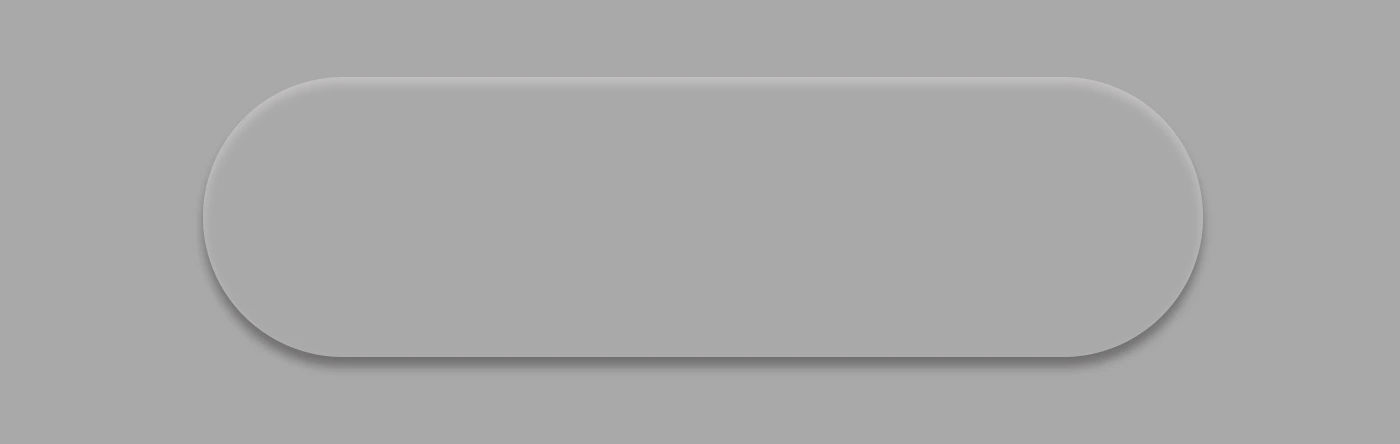
    We are also applying a border-radius of 80 pixels and a box-shadow with carefully selected shades of grey. It is important to select the appropriate shades to ensure the desired outcome. 😉

    For our example, we are placing the clickable part of the button in the center of the base. For that reason, we are using the flex method.

    body {
      background-color: darkgrey;
      height: 100vh;
      
      display: flex;
      align-items: center;
      justify-content: center;
    }
    
    .wrapper {
      width: 500px;
      height: 140px;
      background: transparent;
      border-radius: 80px;
      box-shadow: inset 0px 3px 5px #c6c2c2,
        0px 5px 5px #727070;
    
      display: flex;
      align-items: center;
      justify-content: center;
    } 
    SCSS

    Take a look at the image below to see what’s currently rendered on screen.

    Create the clickable part of the transparent button

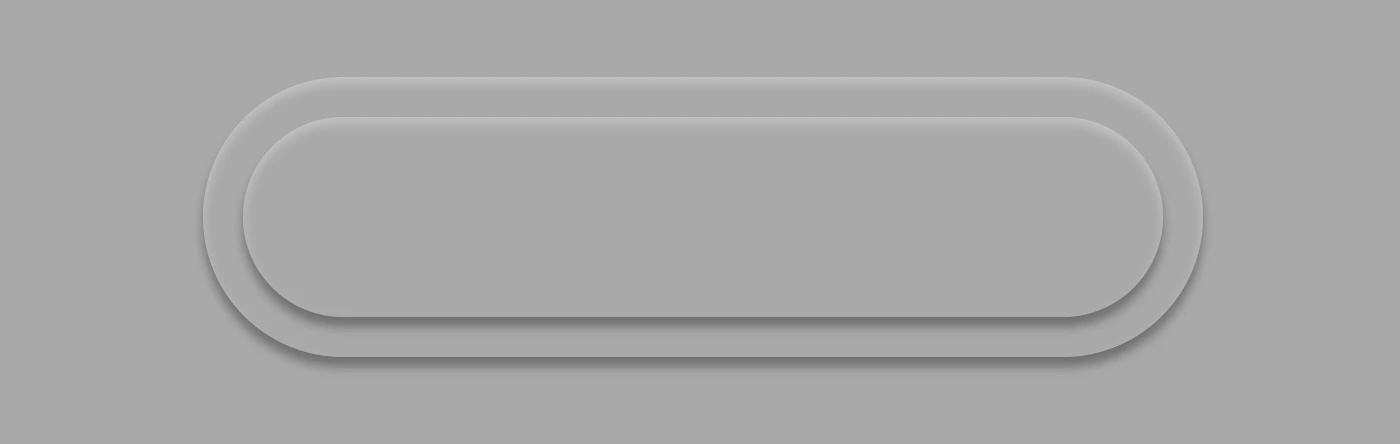
    We proceed with the clickable area of our button. After applying some basic dimensions, we need to make sure the background is set to transparent as we did before, with the base part of the button. After that, we adjust the border-radius and box-shadow to inherit, so that these attributes would be identical to the base. To remove any natively applied border styling we use border: none.

    .custom-button {
      width: 460px;
      height: 100px;
      background: transparent;
      border-radius: inherit;
      box-shadow: inherit;
      border: none;
    }
    SCSS

    Below, you see what’s on the screen now, with the clickable (top) part of our button added.

    Add the button text

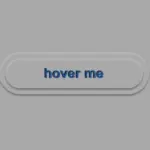
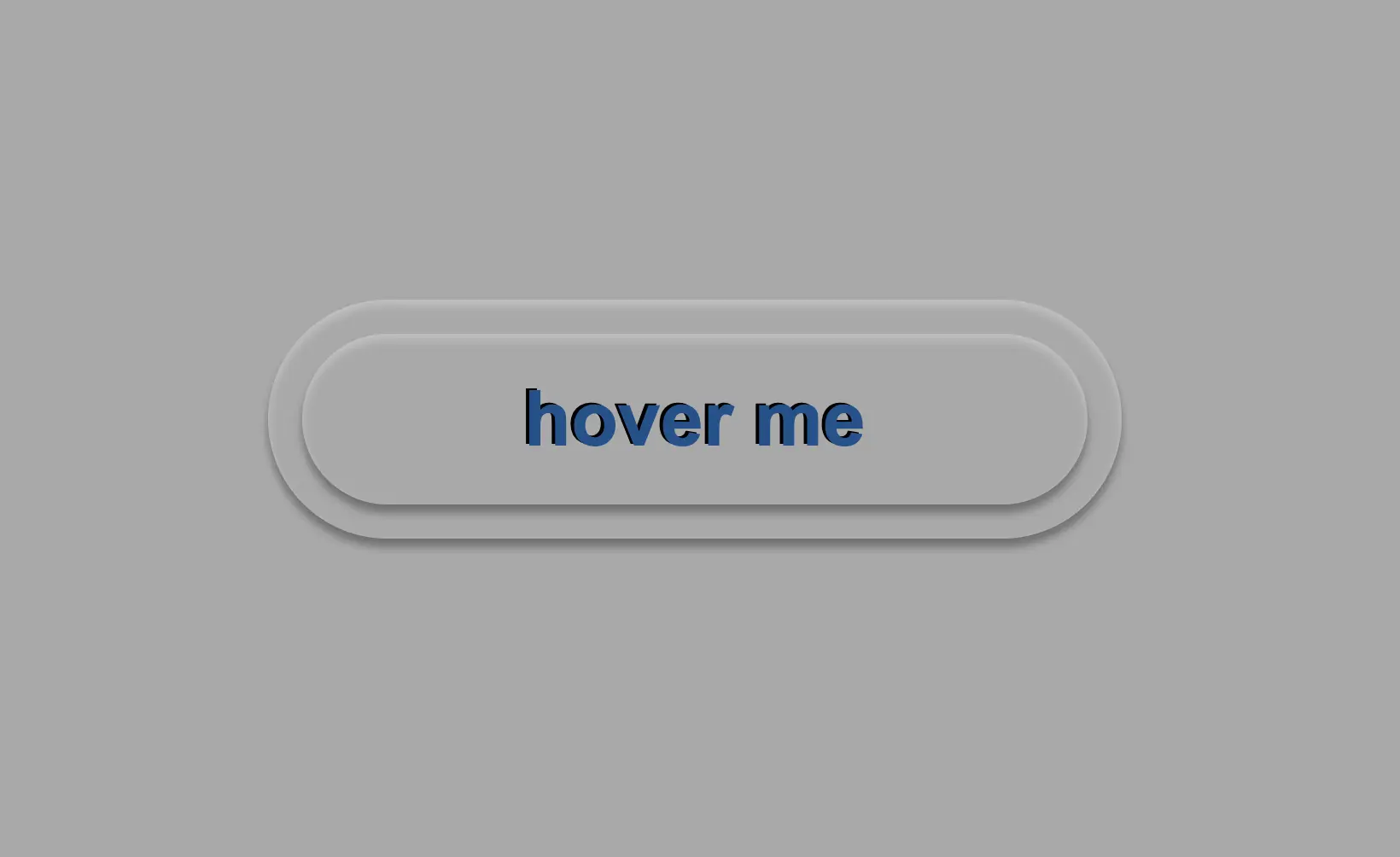
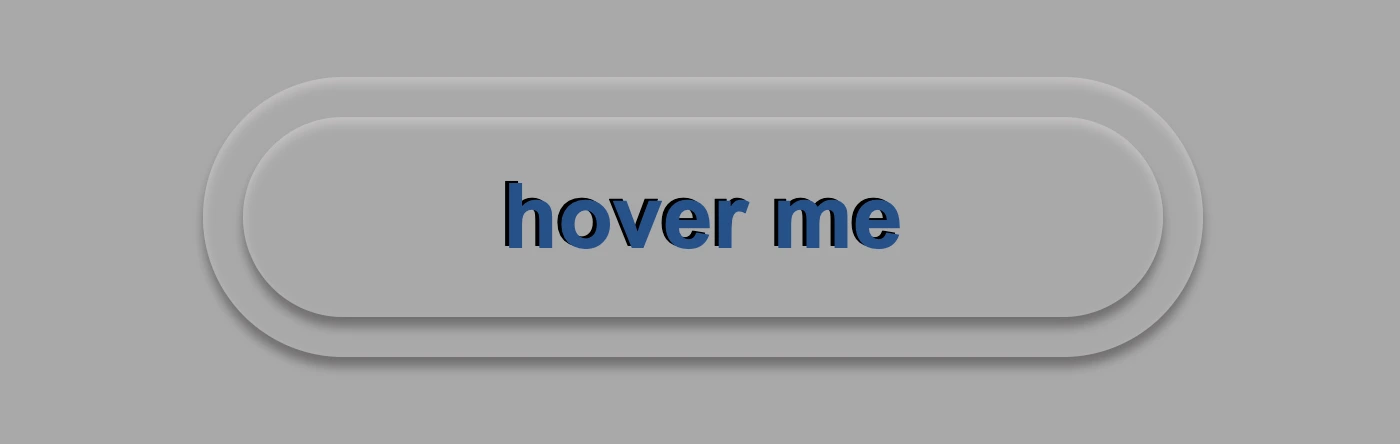
    To begin, we use the flex method to center the button’s text appropriately. Then we add the text using the :before CSS pseudoselector, adding “hover me” as the content. I used a bold, 45-pixel blue text with a black shadow effect. For enhanced readability, I opted for the Arial font-family as it is really legible. 🆒 ✨

    .custom-button {
      ...
      font-family: 'Arial';
      font-size: 45px;
      color: #12528e; /* a shade of blue */
      font-weight: bold;
      display: flex;
      align-items: center;
      justify-content: center;
      &:before {
        position: absolute;
        content: "hover me";
        text-shadow: -2px -1px black;
      }
    }
    SCSS

    In the following image, we can see what’s displayed on the screen now.

    Apply the hover effect of the transparent button

    Now, is the appropriate time to implement the hover effect. We can achieve this by adding the :hover CSS pseudo-class with the cursor set to pointer. After that, we will use :before again to modify the text content to display “click me”.

    .custom-button {
      ...
      &:hover {
        cursor: pointer;
        &:before {
          content: "click me";
        }
      }
    }
    SCSS

    Below, we can observe 🔎 the hover effect in action. Moving the cursor over the button, immediately transforms from arrow ⬆ into pointer 👆(hand), and the text content changes. The hover effect is a widely used design technique that adds interactivity and visual interest to a webpage.

    Apply the active effect of the transparent button

    Now, we can add the :active state to the button to finish our work. Once we click on the button, the active state will be triggered. To make it look more realistic and impressive, we adjust the box-shadow CSS property.

    Additionally, we will modify the text content using the :before CSS property and change it to be inspiring and display the text “Good Job!” in indigo color with white text-shadow.

    .custom-button {
      ...
      &:active {
        box-shadow: 0px -1px 3px #969393,  /* top side */
          inset 0px 5px 3px #b7b5b5, /* inset top side */
          inset 1px 0px 3px #969393, /* inset left side */
          inset -1px 0px 3px #969393, /* inset right side */
          inset 0px -4px 3px #969393; /* inset bottom side */
        &:before {
          content: "Good Job!";
          color: indigo;
          text-shadow: -2px -1px white;
        }
      }
    }
    SCSS

    At this moment, you can witness 🧐 the active effect in action. Take a moment to observe and analyze how the effect is taking place and what impact it has. This will help you gain a better understanding of the process and its outcomes, which can be useful for future reference and decision-making. 😇 So, good luck with your work!

    Complete code solution

    Below is the full code referenced in this blog post. Feel free to copy and use it in your own projects. If you have any questions or encounter any issues, don’t hesitate to reach out for assistance. You can easily copy the desired code snippet by clicking on the copy icon, located in the top-right corner of each snippet.

    <div class="wrapper">
      <button class="custom-button"></button>
    </div>
    HTML
    body {
      background-color: darkgrey;
      height: 100vh;
      
      display: flex;
      align-items: center;
      justify-content: center;
    }
    
    .wrapper {
      width: 500px;
      height: 140px;
      background: transparent;
      border-radius: 80px;
      box-shadow: inset 0px 3px 5px #c6c2c2,
        0px 5px 5px #727070;
    
      display: flex;
      align-items: center;
      justify-content: center;
    }
    
    .custom-button {
      width: 460px;
      height: 100px;
      background: transparent;
      border-radius: inherit;
      box-shadow: inherit;
      border: none;
      font-family: 'Arial';
      font-size: 45px;
      color: #12528e; /* a shade of blue */
      font-weight: bold;
      display: flex;
      align-items: center;
      justify-content: center;
      &:before {
        position: absolute;
        content: "hover me";
        text-shadow: -2px -1px black;
      }
      &:hover {
        cursor: pointer;
        &:before {
          content: "click me";
        }
      }
      &:active {
        box-shadow: 0px -1px 3px #969393,  /* top side */
          inset 0px 5px 3px #b7b5b5, /* inset top side */
          inset 1px 0px 3px #969393, /* inset left side */
          inset -1px 0px 3px #969393, /* inset right side */
          inset 0px -4px 3px #969393; /* inset bottom side */
        &:before {
          content: "Good Job!";
          color: indigo;
          text-shadow: -2px -1px white;
        }
      }
    }
    SCSS
    Expand
  • How To Make A CSS Text Reflection Effect

    How To Make A CSS Text Reflection Effect

    Hi there! 😃 In this post, we’ll learn bit by bit how to create a CSS text reflection effect. When we say reflection, we’re referring to a mirror-like effect that looks like the text reflects on a surface, much like the way we see our reflection in a mirror.

    This is a simple yet amazing way to enhance the appearance of your text. Let’s analyze our effect so that you can easily follow along.

    HTML structure

    We will begin with our HTML structure. As you can see below, I prepared a div with the class .reflection-text , this is where our effect will take place.

    <div class="reflection-text">HELLO WORLD</div>
    CSS

    CSS foundation

    Let’s move forward with the CSS basic structure. We start with defining the background. It’s worth noting that using radial-gradient can make our effect more impressive. 😃

    body {
      background: radial-gradient(lightgreen, darkgreen);
      height: 100vh;
    }
    CSS

    Below, we can see the background we just created.

    In web development, we use the flex method in order to center our text. Then we will enhance its appearance, by making some adjustments. We will set the font-size to 100 pixels, select the “Roboto” font-family, and choose white as the text color.

    body {
      ...
      display: flex;
      align-items: center;
      justify-content: center;
    }
    
    .reflection-text {
      font-size: 100px;
      font-family: 'Roboto', sans-serif;
      color: white;
    }
    CSS

    This is what is rendered on the screen for now. A perfectly centered, 🎯 white text.

    Adding the CSS structure for the reflection effect

    Creating a reflection can be achieved by using pseudoelements like :before and :after. To ensure this works properly, we need to include position: relative in our .reflection-text class.

    .reflection-text {
      ...
      position: relative;
    }
    CSS

    Now, we are ready to proceed and create our reflection by adding the :before pseudoelement with all the necessary properties, as shown in the following code snippet.

    .reflection-text:before {
      content: "HELLO WORLD";
      position: absolute;
      top: 65px;
      transform: rotate(180deg) scaleX(-1);
      background: linear-gradient(
        to bottom, 
        rgba(255, 255, 255, 0) 20%, 
        rgba(255, 255, 255, 0.5) 60%, 
        rgba(255, 255, 255, 2) 100%
      );
      background-clip: text;
      color: transparent;
      opacity: 0.3;
    }
    CSS

    Breaking down the process

    🟢 To begin, we add the text “HELLO WORLD” to create another text element with the same content. This new text will serve as our reflection. Then, we set position: absolute so that we can move our reflected text below the original text. We use the top property to move the reflected text 65 pixels from the top, but you can always move the reflection in any direction you prefer. It is important to position the text and its reflection closely together for a more realistic reflection effect. 😉

    🟢 We move forward and use the transform CSS property to rotate the text by 180 degrees

    and then flip it horizontally using scaleX(-1). Now we have the perfect reflection! Let’s continue and make it more realistic.

    🟢 In the next step, we will adjust the color of our reflected text. To achieve this, we will utilize the linear-gradient CSS property and specify the direction as downwards. This will create white gradients, with the top appearing more intense and gradually fading towards the bottom of the text.

    🟢 It is commonly known that gradients cannot be directly applied to texts. Don’t worry! 🤔 We already have the solution to this problem. For now, let’s give a quick explanation. To create a clipped linear background pattern for text, first, we add the -webkit-background-clip: text property, and at the same time, we set the color to transparent, and our text automatically turns to transparent. In that way, our text takes the background: linear-gradient as its real color.

    🟢 For a more transparent text, we can adjust the opacity. The lower the opacity, the more transparent our text becomes. So, here we are! Our reflection is ready! 🥳

    Exploring different colors

    🔖 It is always an option to use black or any other color in our work. Below, I’ve included examples of texts with black, purple, and green colors. It’s important to remember that the key factor is to set the correct gradients at the linear-gradient property. That way, we can create respective shades. Therefore, please give extra attention to that! 😊

    Black text

    .reflection-text {
      position: relative;
      font-size: 100px;
      font-family: 'Roboto', sans-serif;
      color: black; /* default color */
    }
    CSS
    .reflection-text:before {
      content: "HELLO WORLD";
      position: absolute;
      top: 65px;
      transform: rotate(180deg) scaleX(-1);
      background: linear-gradient(to bottom, 
      rgba(0, 0, 0, 0) 20%, 
      rgba(0, 0, 0, 0.5) 60%, 
      rgba(0, 0, 0, 2) 100%);
      background-clip: text;
      color: transparent;
      opacity: 0.3;
    }
    CSS

    Purple Text

    .reflection-text {
      position: relative;
      font-size: 100px;
      font-family: 'Roboto', sans-serif;
      color: purple;
    }
    CSS
    .reflection-text:before {
      content: "HELLO WORLD";
      position: absolute;
      top: 65px;
      transform: rotate(180deg) scaleX(-1);
      background: linear-gradient(to bottom, 
      rgba(255, 55, 205, 0) 20%, 
      rgba(255, 55, 205, 0.5) 60%, 
      rgba(255, 55, 205, 2) 100%);
      background-clip: text;
      color: transparent;
      opacity: 0.3;
    }
    CSS

    Green Text

    .reflection-text {
      position: relative;
      font-size: 100px;
      font-family: 'Roboto', sans-serif;
      color: green;
    }
    CSS
    .reflection-text2:before {
      content:"HELLO WORLD";
      position: absolute;
      top: 65px;
      transform: rotate(180deg) scaleX(-1);
      background: linear-gradient(to bottom, 
      rgba(20, 150, 20, 0) 20%, 
      rgba(20, 150, 20) 60%, 
      rgba(20, 150, 20, 2) 100%);
      background-clip: text;
      color: transparent;
      opacity: 0.3;
    }
    CSS
  • How To Make A CSS Reflection Effect

    How To Make A CSS Reflection Effect

    Hello everyone! 😃 Today, we will learn how to create a cool CSS reflection effect. Through step-by-step instructions, we will understand how to manipulate linear-gradient and opacity CSS properties to create a stunning mirror-like effect. Below, I’ll include’ll give you all the information you need. Let’s get started.

    HTML structure

    Our HTML structure starts with an empty div element, with the class .reflection where our effect will take place.

    <div class="reflection"></div>
    HTML

    CSS foundation

    Let’s continue with the CSS basic structure. We will start by setting the background-color to orange.

    body {
      background-color: orange;
    }
    CSS

    Creating the element

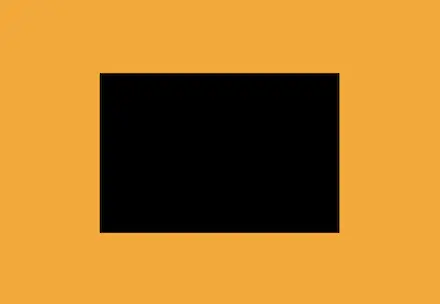
    In the following step, we will define the element. I opt for a color black rectangle with 300 pixels width and 200 pixels height.We will also be adding the flex method to the body to center our element.

    body {
      ...
      display: flex;
      align-items: center;
      justify-content: center;
    }
    
    .reflection {
      width: 300px;
      height: 200px;
      background-color: black;
    }
    CSS

    This is what is rendered on the screen for now. A perfectly centered black rectangle! 

    Adding the CSS structure for the reflection effect

    A CSS reflection effect can be accomplished using pseudoelements like before and after.First, we need to add position: relative in our .reflection class to get prepared for our pseudoelement’s positioning.

    .reflection {
      ...
      position: relative;
    }
    CSS

    Then we are ready to create our reflection utilizing the before pseudoelement.

    .reflection:before {
      position: absolute;
      content: "";
      width: 100%;
      height: 100%;
      background: linear-gradient(
        to bottom, 
        rgba(0, 0, 0, 5), 
        rgba(0, 0, 0, 0) 80%
      );
    }
    CSS

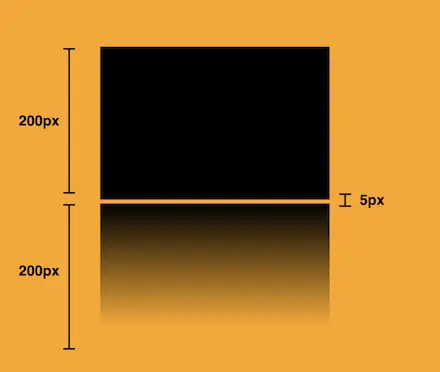
    We initiate by setting the the position as absolute. Setting the content to an empty string (“”) and then its width and height to 100%, will make our pseudoelement appear and inherit its parent’s dimensions (width 300px and height 200px).  

    Next, we add a background: linear-gradient that goes downwards, by specifying its direction, from top to bottom. This way, we create black gradients that are more intense at the top and gradually fade toward the bottom to achieve our desired effect.

    So far, we have created the CSS reflection effect below our original rectangle. However, we need to take one more step for our effect to be visible. We add the top CSS property and set it to 205 pixels. This will move our reflection 5 pixels down from the origin rectangle.

    .reflection:before {
      ...
      top: 205px;
      opacity: 0.5;
    }
    CSS

    Additionally, we set the opacity to achieve a smoother and more natural-looking effect. You might be thinking that the same result could be accomplished by adjusting the linear-gradient property and you are right. It’s just that using the opacity this way requires much less effort and produces similar results.

    .reflection:before {
      ...
      opacity: 0.5;
    }
    CSS


    Voila! Here is our amazing reflection! 🥳

    Exploring different reflection colors

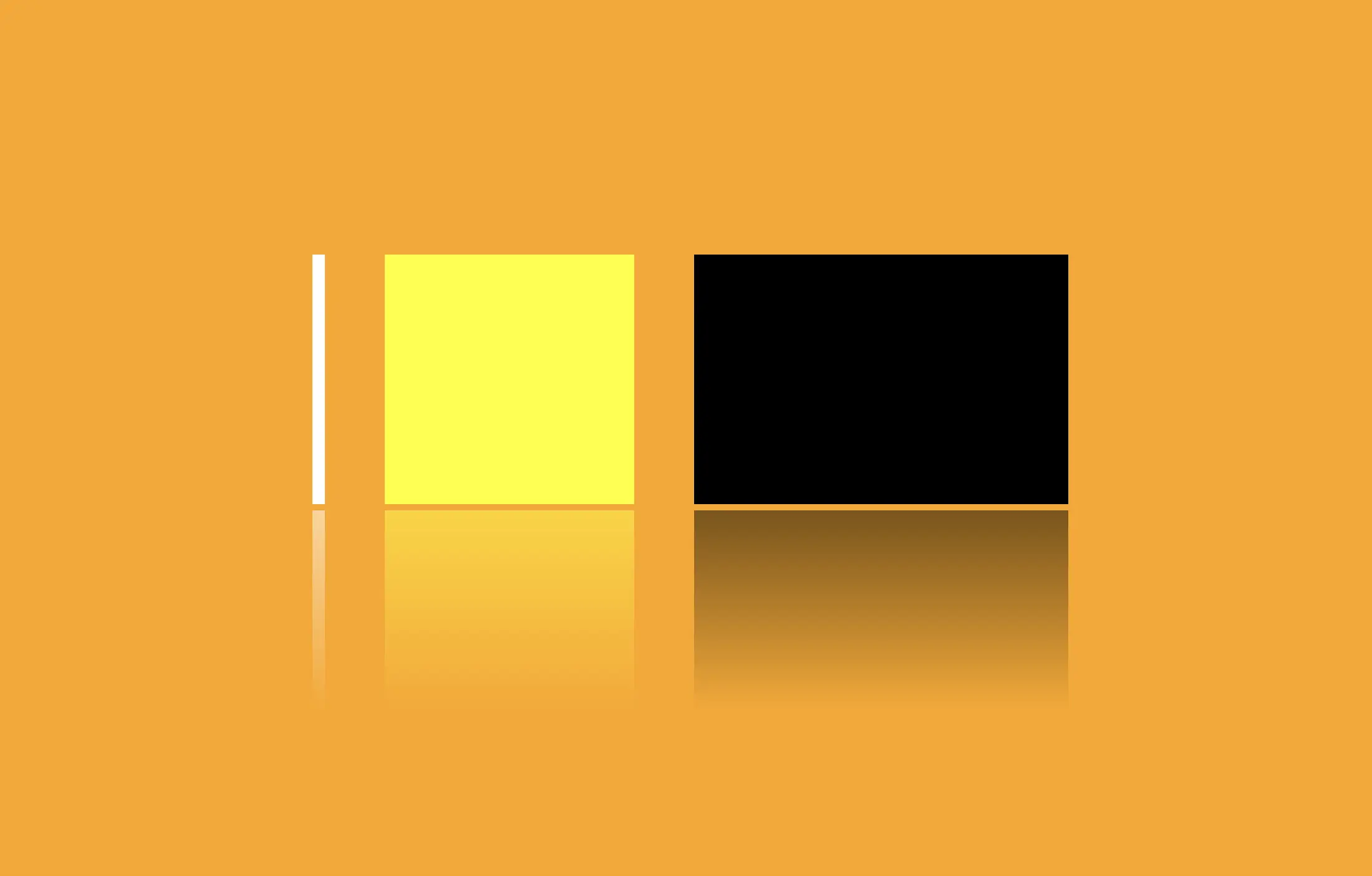
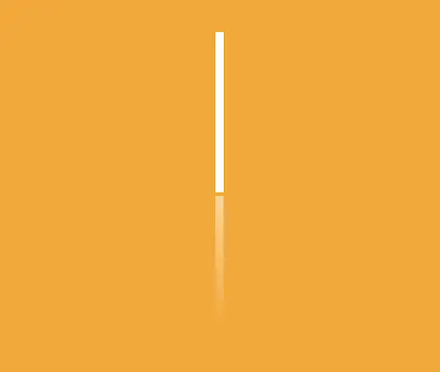
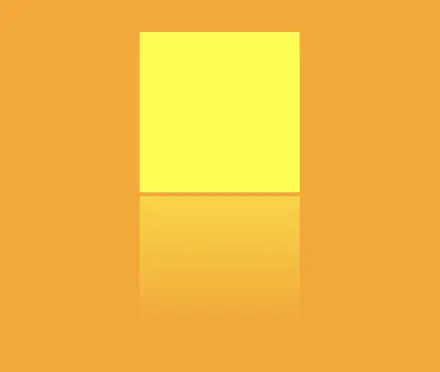
    🔖 Feel free to use any color you prefer, but it’s important to create a linear-gradient that gives the perspective shades. Here are examples of white and yellow reflections. I am keeping the orange background to facilitate easier comparison.

    White reflection

    .reflection {
      width: 10px;
      height: 200px;
      background-color: white;
    }
    
    .reflection:before {
      content: "";
      position: absolute;
      width: 100%;
      height: 100%;
      top: 205px;
      background: linear-gradient(to bottom, 
      rgba(255, 255, 255, 5), 
      rgba(255, 255, 255, 0) 80%);
      opacity: 0.5;
    }
    CSS

    Yellow reflection

    .reflection {
      width: 200px;
      height: 200px;
      background-color: yellow;
    }
    
    .reflection:before {
      content: "";
      position: absolute;
      width: 100%;
      height: 100%;
      top: 205px;
      background: linear-gradient(to bottom, 
      rgba(255, 255, 0, 5), 
      rgba(255, 255, 0, 0) 80%);
      opacity: 0.5;
    }
    CSS

    Choosing the perfect colors with their appropriate shades can truly transform your work. Be bold in your choices and let your creativity shine. Remember, there are endless possibilities and your creativity knows no bounds. 🎉 ✨