Hello everybody! In the land of web design, the CSS text shadow property is like adding magic to your text. It helps you create elegant headings that command attention and, many times, make text easier to read. The text-shadow empowers designers to pass beyond the limits of ordinary with just a few lines of simple yet powerful code.
However, it’s essential to use it wisely, overdoing it can sometimes cause confusion and reading can end up difficult. Therefore, we must keep in mind that beyond styling, readability is also important. Always aim to strike a balance between appearance and clarity so our text is accessible to everyone.
Text shadow structure
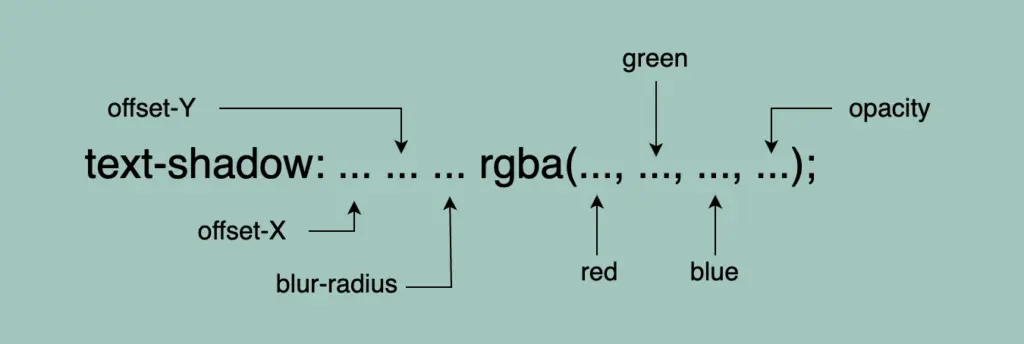
First things first! We’ll begin with the structure and break down its components:
Offset-X and Offset-Y: They determine the horizontal and vertical distances of the shadow. When we use positive values, the shadow moves to the down and right. When we use negative values, the shadow moves to the top and left.
Blur-radius: It specifies the extent of blurring for the shadow. A higher value creates a spread, while a lower value sharpens the shadow.
Color: Here, we set the color of the shadow. All color methods are accessible (color names, hexadecimal codes, rgba and hsla values).
If we don’t want to use a specific color, our shadow defaults to black.
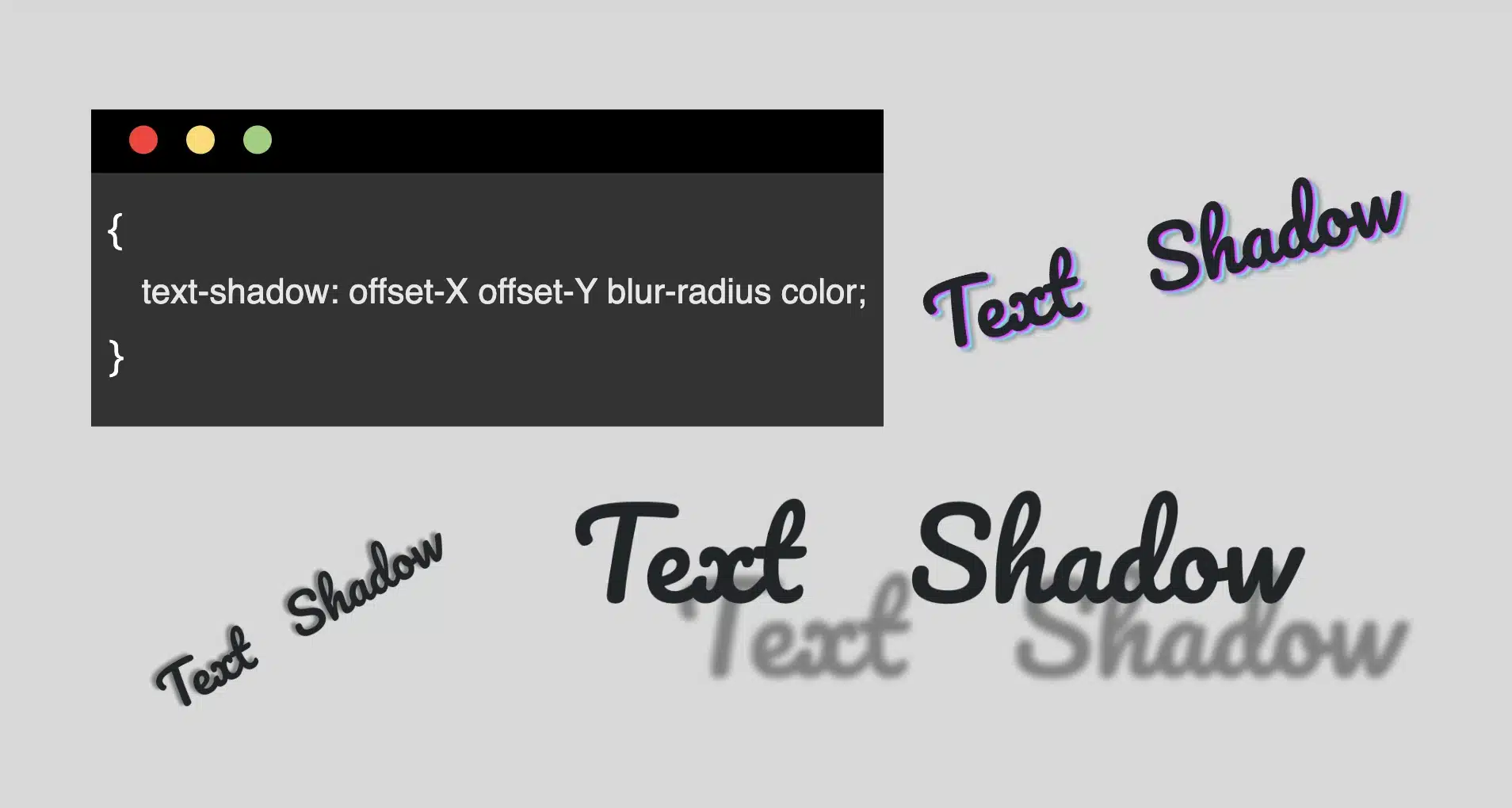
Below, I have prepared some examples to make this amazing tool more understandable. I’ll use the charming “Pacifico” font with the text “Text Shadow” to showcase its capabilities. So, let the game begin!! 😃
Text shadow with positive values
In our first example, we use positive values and create a gray shadow 5 pixels to the bottom and right of our text. It has a blur radius of 5 pixels, giving it a softened appearance.
.text-shadow {text-shadow: 5px5px5pxgray;}
Text shadow with negative values
Next, we create a gray shadow 5 pixels to the top and left of our text, using negative values. It has a blur radius of 5 pixels.
.text-shadow {text-shadow: -5px-5px5pxgray;}
Text shadow with colors
Nothing better than playing with colors!! 🌈 In that case, we add two vibrant colors: magenta and cyan, then finish our shadow with color gray. Cool hug!? 😎 As shown in the following code snippet, to create a repeating shadow with different colors, we must increase the pixels along both the X-axis and the Y-axis each time we add a new color.
⛔ In this example, we increase the blur, and we are able to notice that it is very, very important to keep blur-radius at low values, otherwise, our text appears a bit confusing with poor readability.
.text-shadow4 {text-shadow: 5px5px20pxgray;}
Text shadow with high values
Finally, let’s get creative. By increasing the values at both the X-axis and Y-axis, we can widen the gap between the text and its shadow, achieving a more strongly marked visual effect.
.text-shadow {text-shadow: 70px50px5pxgray;}
Whether a shadow type is “good” depends on your design goals. For bold, eye-catching text that stands on the page, this approach can be very effective. If you’re going for a more subtle or minimalistic design, you might opt for smaller offsets and blurs. It’s all about finding the balance that fits your overall design concept!
Utilizing the text shadow, you are not only creating a stylish effect, but you are also crafting an experience that users will remember. So, get playful when using it. Experiment! Let your creativity shine through! ✨ 🎉
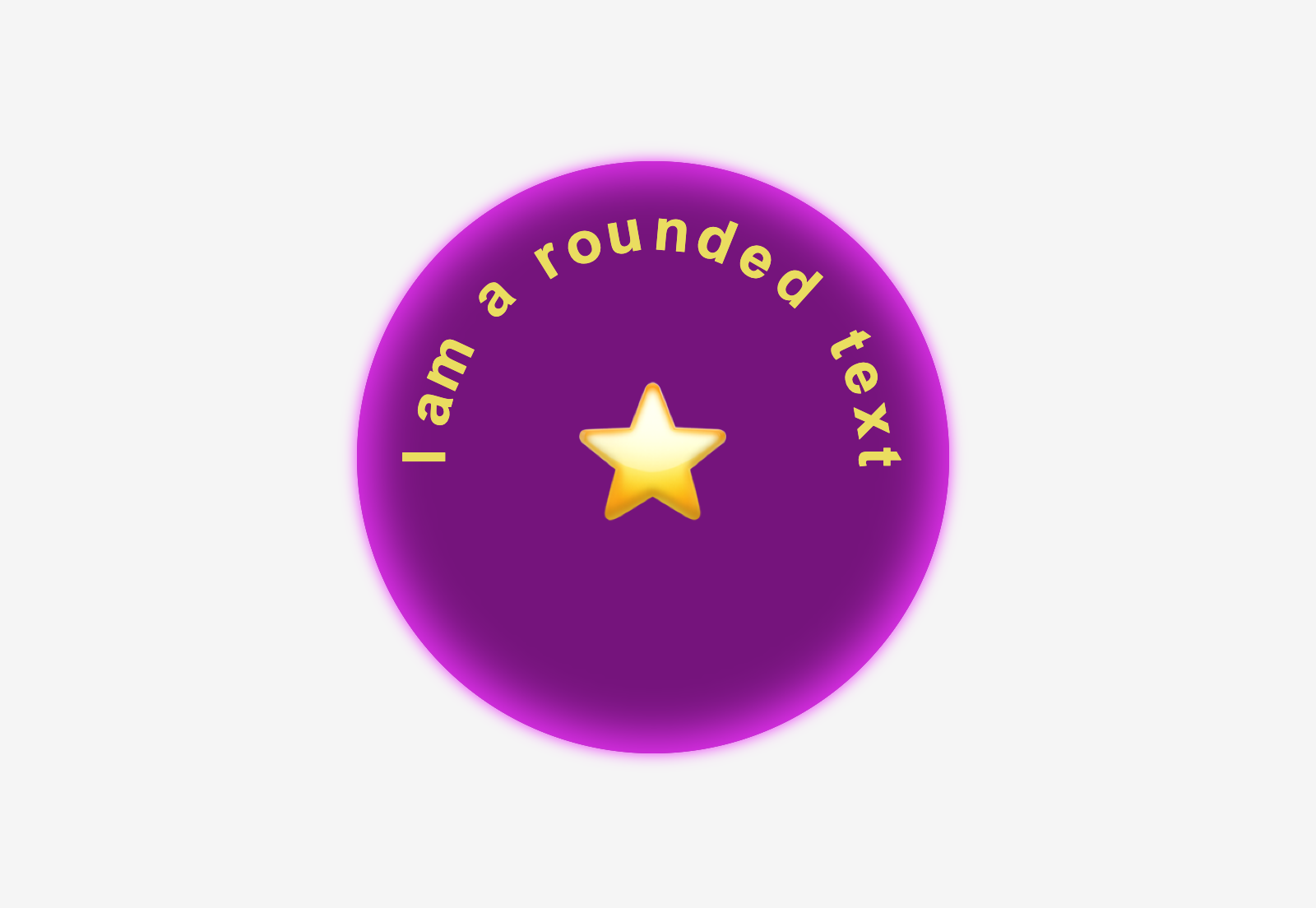
Greetings, all! 😃 I’m excited to share an incredible CSS technique with you today. We’ll learn little by little how to create impressive and rounded text. This technique can give our text a unique and captivating appearance that stands out from the usual. Get ready to take your text to the next level! 🧨 ⚡
Are you interested in learning how to uplevel your typography? Stick around to explore the endless possibilities of CSS and take your website to new heights! Let the game 🌀 begin and happy designing! 😊
HTML structure
To create a text that appears in a rounded effect we begin with the HTML structure. First, we need an HTML div with a specific class. Let’s call it .wrapper. This div will be the container where the text will be displayed. To achieve the desired effect, we also need to add a span element for each character we want to use. By doing so, it allows us to handle and move each character separately and create the shape we want. 😉
In our example, we will use 15 letters and a star, so we need to add 16 spans. Each span represents a character. You can see the code snippet below for a better understanding.
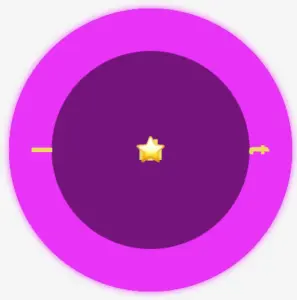
We move forward with the CSS. We begin by styling the wrapper HTML element with a width and height of 400 pixels. It will also have a purple background-color, an inset magenta shadow (the inset box-shadow is a clever idea 💡 to create a distinctive boundary inside our wrapper, which will help us later with the positioning), and a border-radius of 50%, giving it a completely round shape. Finally, the flex method will perfectly align our text inside the wrapper.
Next, we will apply some styling to the spans within the wrapper. They will have a font-family: Arial (we need a really distinct font), a font-size of 40 pixels, and will be colored in a yellowish shade (#eddc42).
🔖 Note that we won’t add spaces between characters since we will place them one by one. By avoiding spaces, we can achieve precise and accurate positioning, which allows for greater control and flexibility in our design.
Preparation before starting to position the letters
To be able to make the positioning, we set position: relative property to the wrapper and position: absolute property to the span as a way to move them freely. By doing so, all characters take the same place, but we can observe only the last one as it is on the top.
Now, we can see what is currently shown on the screen. While I’m not a looping message so far, 🤪 I will be soon! Let’s proceed. 😃
Creating the rounded shape
Starting from the two ends and going toward the middle side is a smart tactic to divide the space equally. Remember, we have a star that we will put in the center of the circle, so we do not count it. Thus, we initiate our positioning from the letters “Ι and t”, the first and last letter of our phrase, and place them in the middle of axis-Y by setting top: 50% and transform: translate(-50%) .
Also, we keep the letters 40 pixels away from the left and right sides, with the left and right CSS properties respectively.
Finally, transforming our letters setting the transform: rotate() gives them a vibrant and dynamic perspective, bringing them to life in a truly inspiring way.
Now, take a look at this sequence of characters. Notice how both the first and last letters are in their respective positions on the displayed screen. This is a good time to examine how the box-shadow CSS property helps us to count and place the characters accurately. 🟣 🤩 🟣 🤩 🟣
We move forward with this topic by counting the remaining characters. Ι know! I know! It can be a bit tricky and confusing 🤯 because of the counting, but the result will be amazing!! ✨ 🎉 Therefore, please ensure to maintain the positioning using the same tactic consistently. Finally, I’m including the rest of the code snippet below to complete my work.
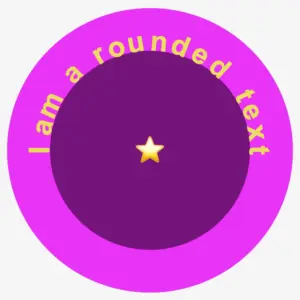
As we can see, all letters are in their respective positions on the displayed screen and our text is finally taking a rounded shape. 🟣 🤩 🟣 🤩 🟣
To finalize, it would be better if the star appears bigger so we modify the .character16-emoticon class and adjust the font-size property to 100px. Additionally, the box-shadow property needs to be updated to achieve the desired visual effect. Therefore, we will need to go back and make the necessary changes to ensure it looks exactly as we want it to.
Below is the full code referenced in this blog post. Feel free to copy and use it in your own projects. If you have any questions or encounter any issues, don’t hesitate to reach out for assistance. You can easily copy the desired code snippet by clicking on the copy icon, located in the top-right corner of each snippet.
😃 In this post, we are beyond excited to show you how to create a breathtaking water drop effect that stands on top of a text using only the power of CSS.
We will confidently guide you through every single step of the process, from the initial design phase to the final finishing touches.
In addition, we will share expert tips on how to masterfully experiment with CSS properties to achieve the perfect shape and reflection effects. So, let’s jump right in and create something fantastic together!
Setting up the HTML structure for the water drop effect
We begin with the HTML structure. We need to create an element with the class name .wrapper. This element will have two child elements. The first child element will be dedicated to the text, so we give a suitable class name, such as .text. Similarly, we should name the second child element with a class name that reflects its purpose, such as .drop.
Our top priority right now is to work on the second child element, which is our amazing drop. 💦 🤓 Once we’re done with that, we’ll move on to the text.
Styling the water drop effect with CSS
We move forward with the CSS structure. To create a flexible layout for our project, we set the flex property on the element with the class .wrapper. This will allow us to easily adjust the size and position of its child elements.
Additionally, we added the position: relative property to the wrapper to establish a reference point for any absolutely positioned child elements later on in the project. By doing this, we have prepared the necessary space and layout for easier and more precise positioning of elements.
How to create a realistic water drop effect in CSS
Firstly, we must select a color for the body, setting the background-color. Keep in mind that the same color must be used for the drop. Therefore, it is crucial to choose the color carefully. 🌈
Then, we need to establish the dimensions and borders. Thus, we will set the width and height and then adjust the border-radius property to create a slightly rounded shape.
Next, we maintain the body’s background-color by adjusting the transparency of the drop. In that way, our drop inherits the color of the body.
Additionally, we add the box-shadow property which is the most crucial part as it is responsible for creating a realistic-looking drop that appears three-dimensional. Without it, the element may appear flat and lacking in depth. 😉 So, don’t be afraid to experiment with different shadow settings until you find the right combination that works for you. It’s truly amazing how much of a difference a small tweak-change can make!
body {background-color: #5fc8e8; /* a light shade of blue */}.wrapper { ...}.drop {width: 210px;height: 220px;background-color: transparent;border-radius: 45%50%45%55%;box-shadow: -2px-2px10px5px#0f9dc4, /* all around */5px5px10px#0796c1, /* top & right */inset15px15px30px#0796c1, /* inset top & right */inset-29px-20px50px#f2f4f7; /* inset left & bottom */}
CSS
This is what is rendered on the screen. For now, we continue to ignore the text and focus on our almost-ready 🙃 amazing drop!
By utilizing the CSS properties :before and :after, we can create two new pseudo-elements without the need for additional HTML markup. This technique can be used to create a glancing effect. Both pseudo-elements have the same properties but with different values, which helps to differentiate them from each other and create a unique look.
We can effortlessly position those glances within the drop element by using the CSS property position: absolute.
Then, we specify their dimensions and the color by setting the width, height and background-color.
Next, we modify the shadows and their shape by setting the box-shadow and border-radius .
After that, we use the top and left properties to position them. Finally, to make them look even more realistic, we can add some rotation by using the transform: rotate() property.
After adding these glances, we can see our final drop. 💦 ✨ It’s pretty cool, isn’t it?
Adjusting text appearance beneath the water drop effect
We are moving forward by adjusting our text and making it more visually appealing. I have selected the “Lobster” font-family with a font size of 140 pixels, a warm dark orange, and a black 2pxtext-shadow.
In case we wish to use another font-family than the usual ones, we need to insert it into our CSS. We do so by setting the @import url(...). Ensure this statement is placed at the beginning of your CSS code snippet, just like I did. Check below. 👇
@importurl('https://fonts.googleapis.com/css?family=Lobster');.text {font-family: "Lobster", sans-serif;font-size: 140px;color: #e85a5a; /* a shade of warm dark orange */text-shadow: 2px2px2pxblack;}
CSS
Take a closer look now. The text appears so different behind the water drop. It’s quite impressive, don’t you think? 😎
One last step, and we are ready! We are free to place our text wherever we want by setting the position: absolute , top and leftCSS properties in order to move it.
We also have full control over the placement of our text. This can be achieved by confidently adjusting the CSS properties position: absolute , top and left.
The final step is complete! Congratulations! 🥳 You have the option to either keep the original design or create your own. Please remember that the most important thing is to combine the appropriate colors 🌈 and shadows; this is necessary for our drop to look realistic.
Full CSS water drop effect code (copy & paste ready)
Below is the full code referenced in this blog post. Feel free to copy and use it in your own projects. If you have any questions or encounter any issues, don’t hesitate to reach out for assistance. You can easily copy the desired code snippet by clicking on the copy icon, located in the top-right corner of each snippet.
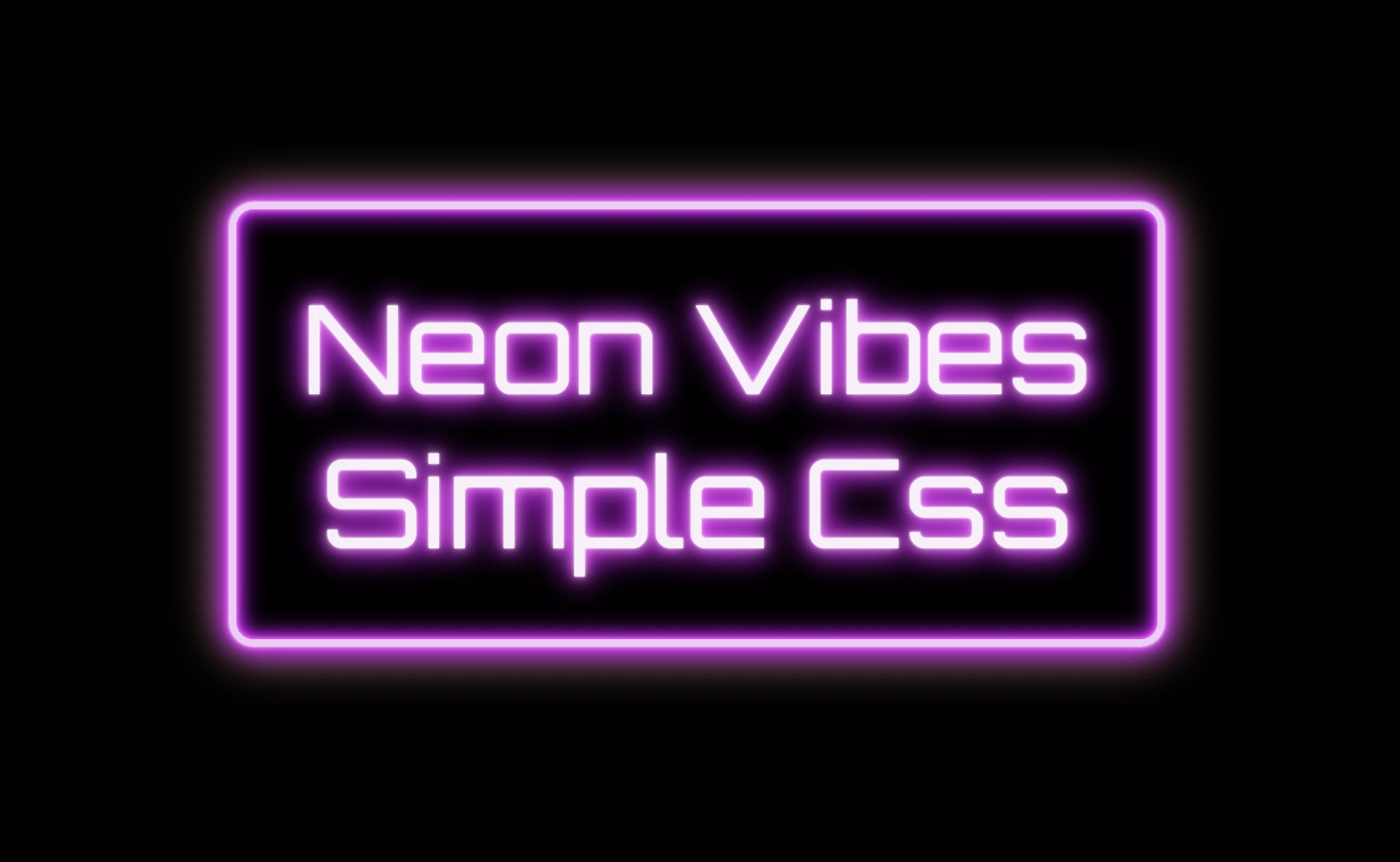
The neon effect in web design brings that bold, electric vibe that grabs attention right away. ⚡🌈 Inspired by real-life neon signs, which I’m sure you have seen outside bars, arcades, or glowing up city streets, it mixes retro charm with a modern twist. It adds personality and mood, turning plain text or shapes into glowing, eye-catching pieces. That soft glow, the depth, those bright color fades — they take a simple design and make it feel alive, as if you have just travelled back in time. 🌟 And the best part? You can pull it off with just HTML and CSS. No images, no JavaScript. 🥳
Setting the stage: Basic HTML structure
To begin creating this effect, we’ll start with a basic HTML structure and add custom CSS later. Think of the HTML <div> we are using, as the frame for a neon sign, and the text as the glowing message inside it.
From there, we move to CSS structure. We import a Google font named “Orbitron”, a futuristic style text, that fits perfectly for our neon effect.
Then we lay the foundation: we structure the page by setting the body to fill the entire viewport and using display: flexto center our neon box both vertically and horizontally. Finally, we add a solid black background — it doesn’t look like much yet, but it sets the perfect stage for the neon glow we’ll add soon, creating strong contrast just like a real sign glowing in the dark.
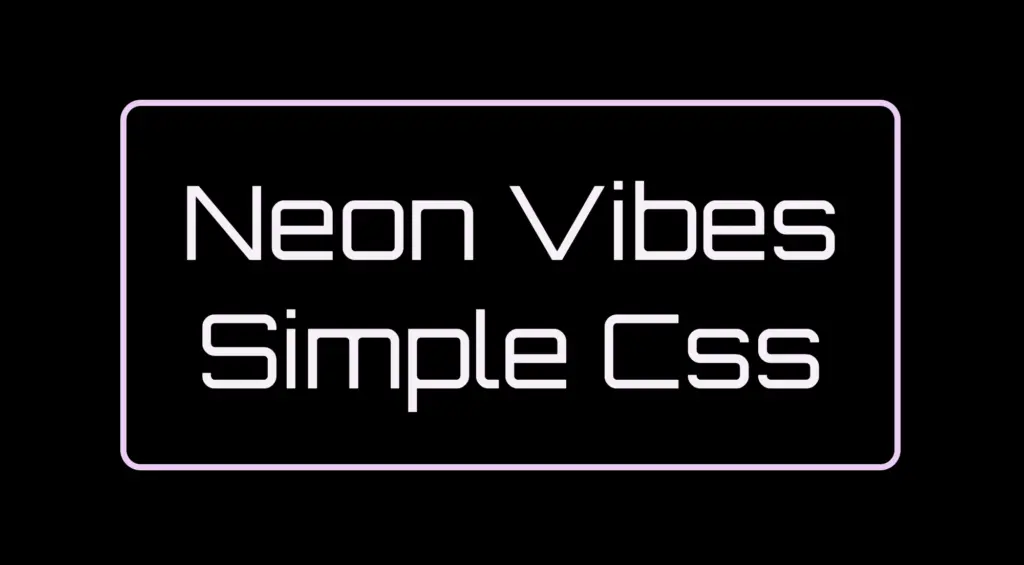
The .neon-effect class is used to create the main structure of the glowing sign. It defines a rectangular box with a width of 700px and a height of 300px, along with a soft, rounded border in light violet (#f4cbf8).
The box uses display: flex to perfectly center the text both vertically and horizontally. The font is set to Orbitron, giving the text a bold, futuristic style, and its size is large (80px) to make it stand out.
The text color is a very light pink (#faf0fb), which will work beautifully once we add glowing shadow effects around it. For now, this creates a clean and centered base — the canvas for our neon sign.
Glowing borders: Neon frame with box-shadow
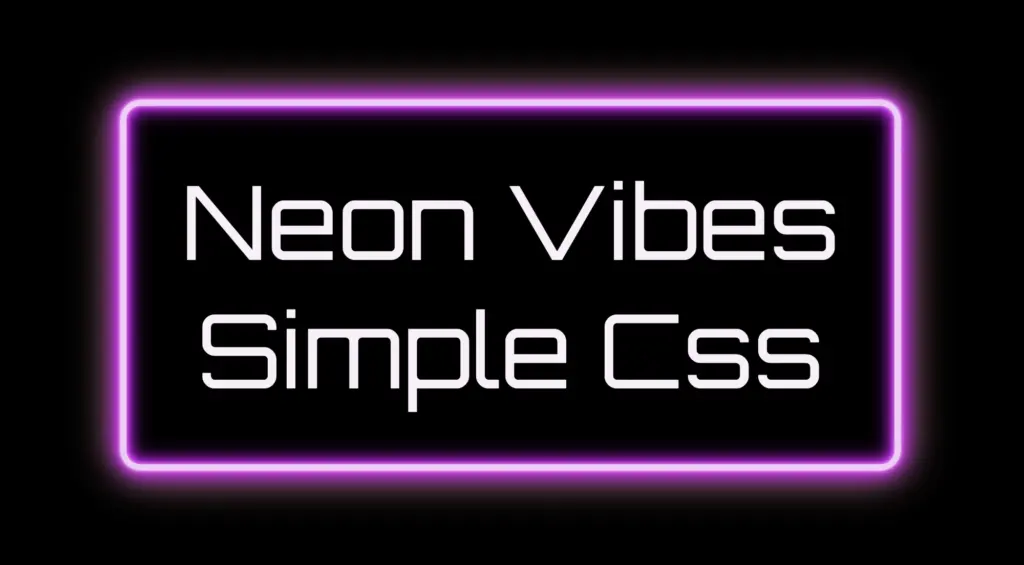
To create the glowing neon frame around the box, we use layered box-shadow effects. The outer shadows softly expand in multiple directions, starting with white and transitioning through vivid shades of pink, magenta, and purple. This gives the impression of light softly spreading from the edges.
We also include a subtle touch of yellow-gold hue, blending into the glow. This not only adds visual warmth but also gives a nostalgic nod to vintage neon signs, bringing up the charm of the old days while keeping the overall look fresh and vibrant.
Equally important is the second group, which uses the inset keyword and adds an inner glow that shines inside the box. These inset shadows create depth and give the illusion that the light is not only around the sign, but also glowing from within. The combination of outer and inset shadows is essential for achieving a rich, realistic neon effect.
Illuminated Text: Neon Glow with Text-Shadow
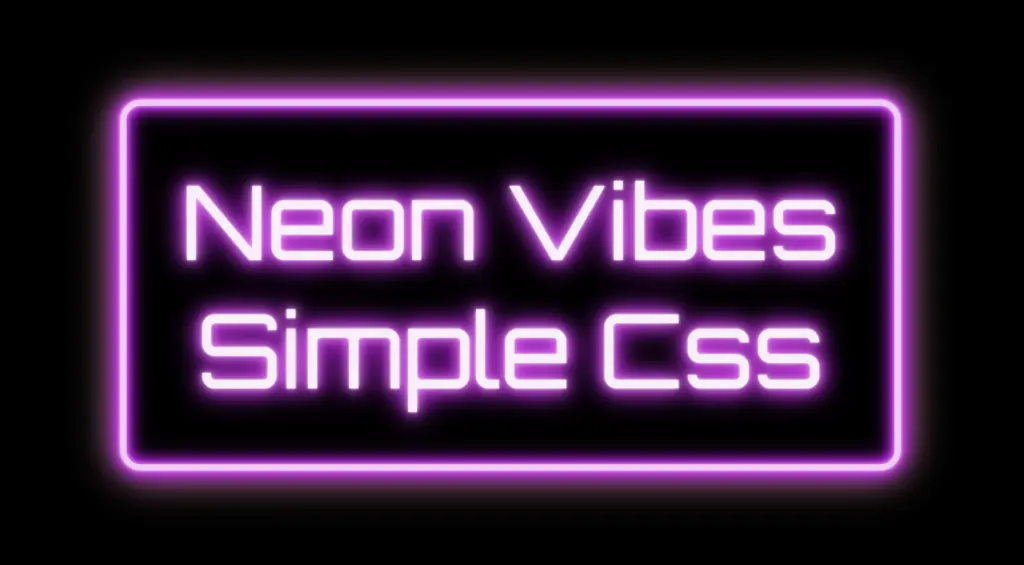
To create the glowing effect around the text, we use the same method, multiple layers of text-shadow. Each shadow in your code adds a soft light in a different shade: from white and light pink to vibrant magenta, deep purple.
.neon-effect { ...text-shadow:002px#fff, /* white */0010px#ff99ff, /* light pink */0020px#ff33ff, /* magenta */0026px#cc00ff, /* violet */0024px#9900cc, /* deep purple */0032px#660066; /* dark purple *}
CSS
These layered shadows build a rich glow around each letter, giving it a strong, radiant presence against the dark background. The variation in color and blur size creates depth, making the text appear as if it’s lit from within, just like real neon tubing.
Neon effects in web design are a powerful way to grab attention. ✨ They combine vivid colors, glowing shadows, and sharp contrast to mimic the iconic look of neon signs. Whether you’re aiming for a modern tech vibe or a nostalgic retro feel, neon brings style and energy. Using CSS alone, we can recreate this classic visual with precision and creativity — no electricity needed! 💡😎
Hey everyone! 😃 In this post, we’ll take a look at the CSS property called word spacing. It controls the horizontal distance between words in a text. By default, the CSS word spacing is set to 0px, which is known as normal (word-spacing: normal). If you increase the spacing value, the distance between words will get bigger, while decreasing it will make the spacing smaller.
Let’s take a closer look at this simple yet useful CSS property to gain a better understanding of it.
Let’s begin by creating an HTML document. In it, we include three headings <h1> that display the text “Hello World”. The first heading has the class .spacing-normal, the second heading has the class .spacing-big, and the third heading has the class .spacing-small. All headings contain the same text, as it allows an easy comparison. 👌
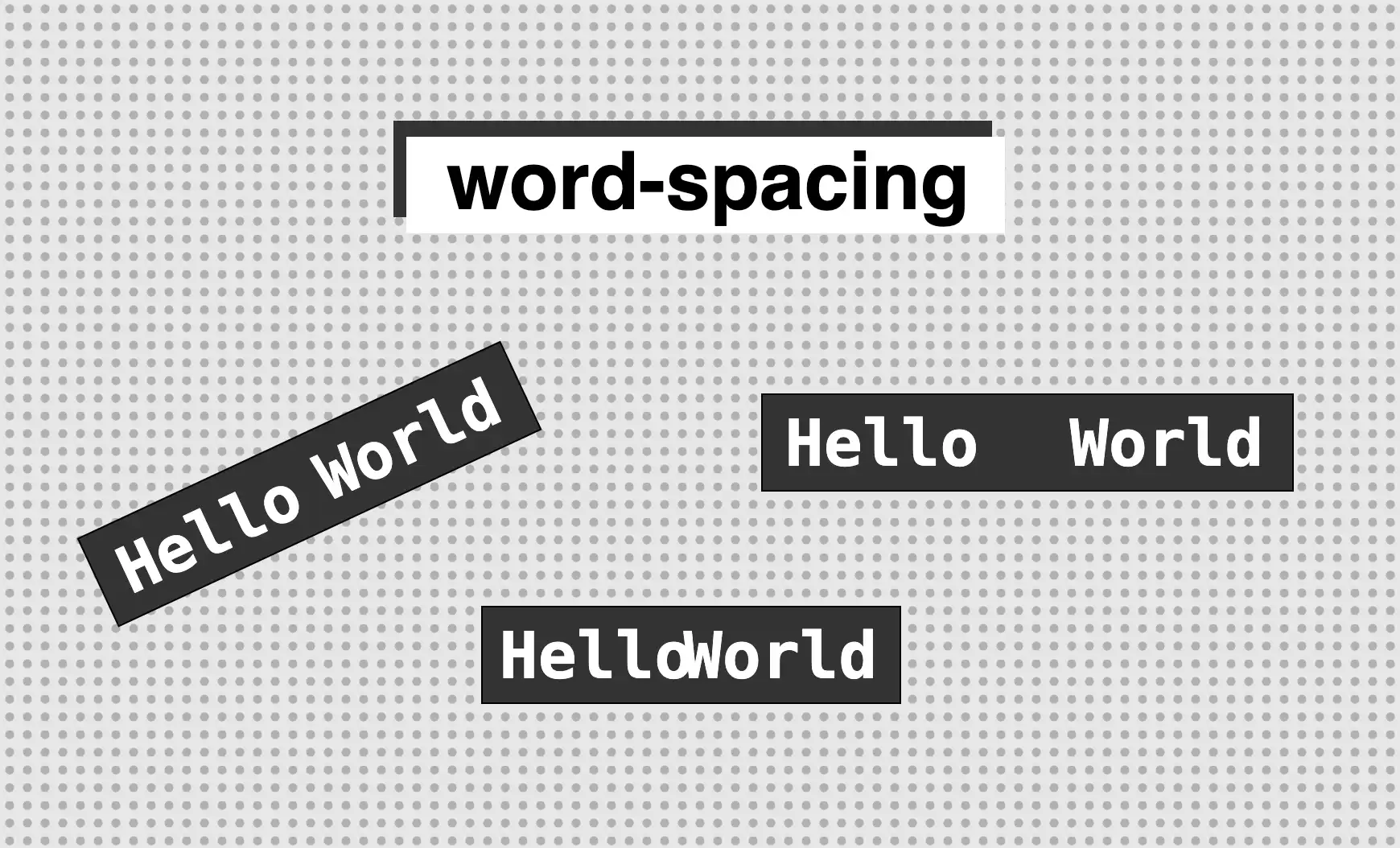
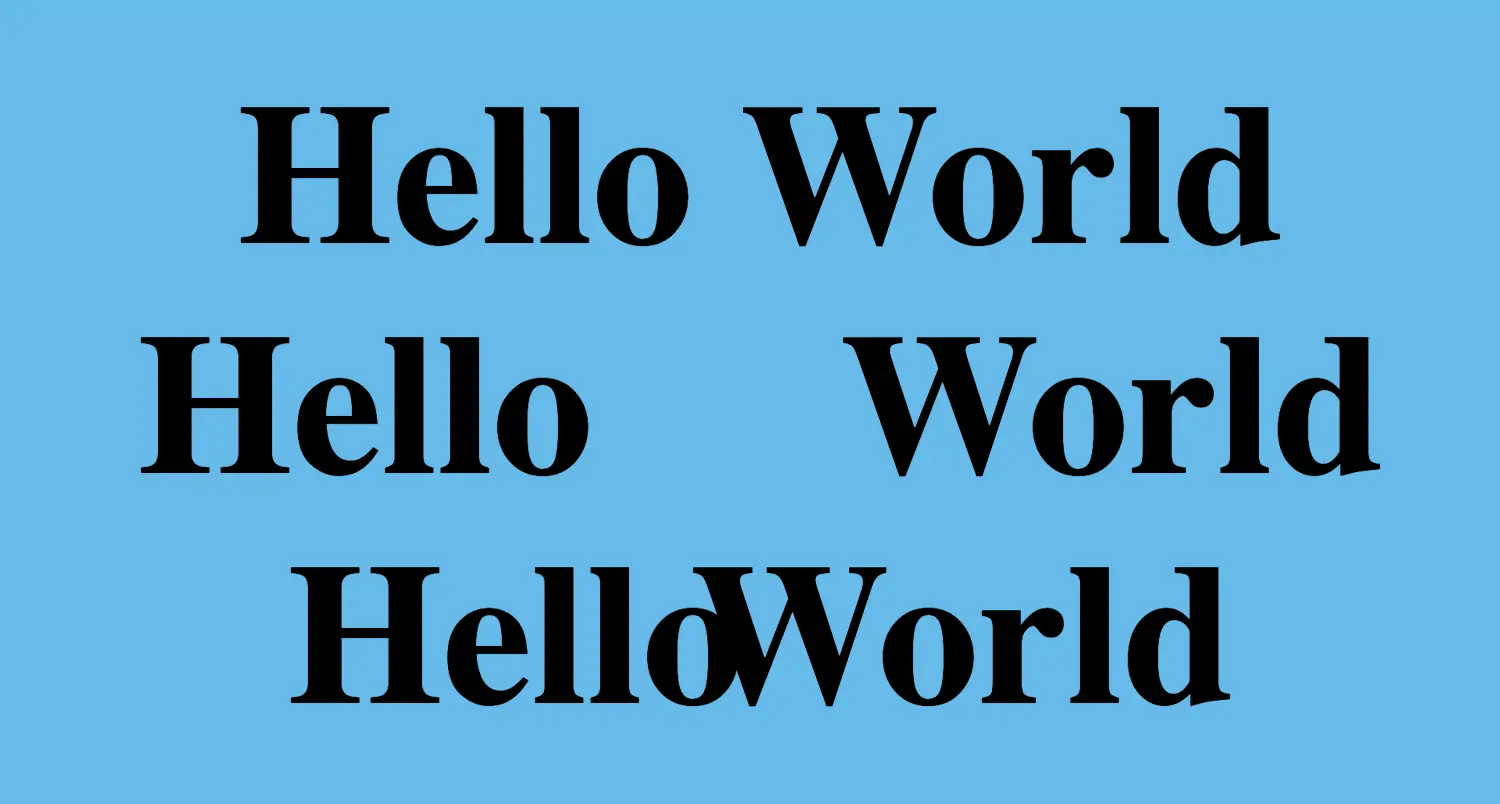
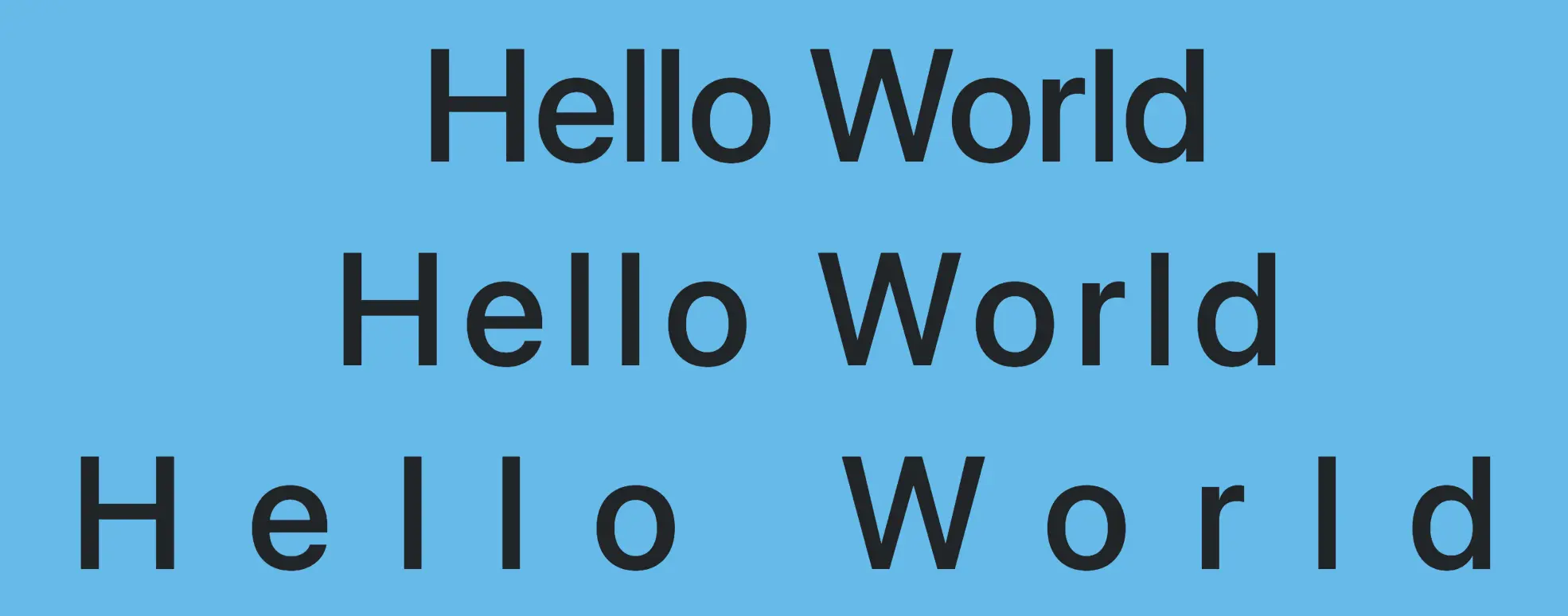
The image below illustrates the effect of varying word spacing values on each of our headings. The first heading has normal word spacing, while the second has a larger distance between words due to the increased word spacing value. Similarly, the third heading has a narrower spacing resulting from the decreased value.
🔖 It is important to avoid using word spacing values that are either too large or too small.
In summary, this image illustrates how adjusting the spacing between words can affect the appearance of text. It’s amazing how even small changes can have a significant impact. Isn’t it? 😎
Greetings! 😃 In today’s post, we will explore the CSS letter spacing property, which is responsible for the horizontal distance between letters. The default letter spacing is equivalent to 0px, known as normal (letter-spacing: normal). Increasing value results in bigger spacing.
We will continue with some examples to understand better this easy but still useful CSS property.
We start with our HTML document by creating three <h1> headings with the text “Hello World”. All headings contain identical text to highlight the difference in letter spacing. The headings are styled differently, the first one uses .spacing-normal class, the second one .spacing-small class, and the third one .spacing-big.
We continue our work with the CSS structure. We have assigned the letter-spacing property to all three classes but with different values. Even though the text is the same in all headings, they will appear different due to class variation.
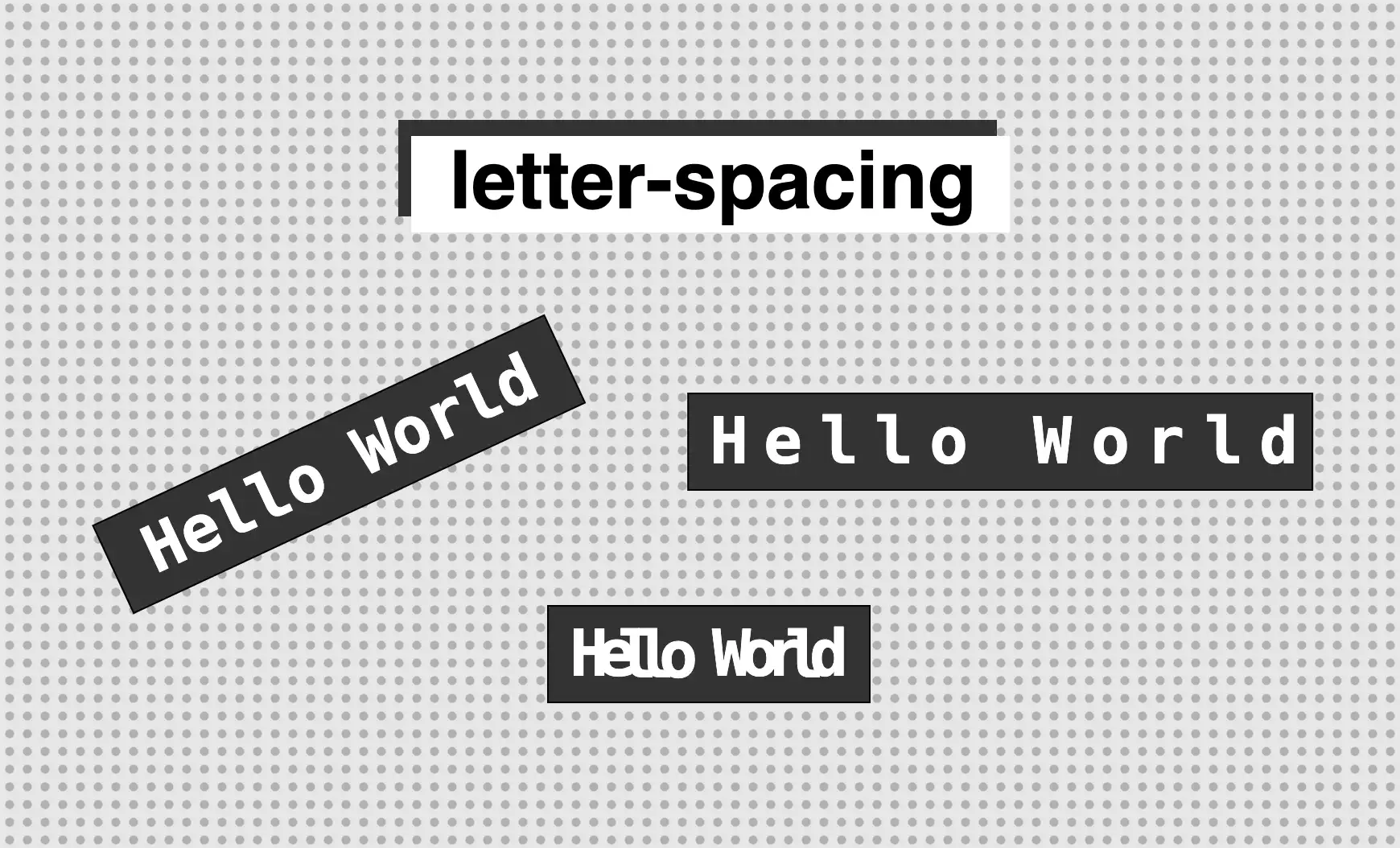
In the image provided, we can see the effect of varying letter spacing in css on the previously created headings. Increasing the letter spacing value results in greater distance between the letters, resulting in a more notable gap between them. The image clearly illustrates the relationship between letter spacing and letter distance.
🔖 Note that letter spacing affects the distance between words, too.
What to AVOID when using CSS letter-spacing property
The letter spacing can support negative values. However, reducing the default letter spacing requires caution as it can negatively impact text legibility by causing letters to appear too close together. Here’s an example:
Hey there! 😃 In today’s technology-driven world, it’s super important to learn how to create an awesome transparent button. A well-designed button not only adds to the product’s aesthetic appeal but also enhances the user experience. Therefore, it’s essential to create buttons that are both visually appealing and functionally efficient.
Let’s work together, utilizing only HTML and CSS, to design the perfect button that stands out and enhances your app’s user-friendliness.
HTML basic structure
First, we prepare our HTML code snippet. We need to create a parent element with the class .wrapper that acts as the base of the button. Next, we add a child element within the parent element that will serve as the clickable part of the button. This child element has the class .custom-button . Doing so will help us create an interactive button that users can click on, to perform an action. How amazing is this! 😎
Let’s continue by using our CSS magic and making our button look cool! For this post, I am writing CSS using Sass syntax. If you would like to convert it to vanilla CSS and don’t already know how, I’d suggest you use an online Sass —CSS converter.
Create the base for the transparent button
First of all, we set the background-color of the body to dark grey and also add some extra positioning properties in order for our button to be centered. We will be using the same color for our button, by applying the background: transparent CSS property, along with some width and height of our choice in the .wrapper class.
We are also applying a border-radius of 80 pixels and a box-shadow with carefully selected shades of grey. It is important to select the appropriate shades to ensure the desired outcome. 😉
For our example, we are placing the clickable part of the button in the center of the base. For that reason, we are using the flex method.
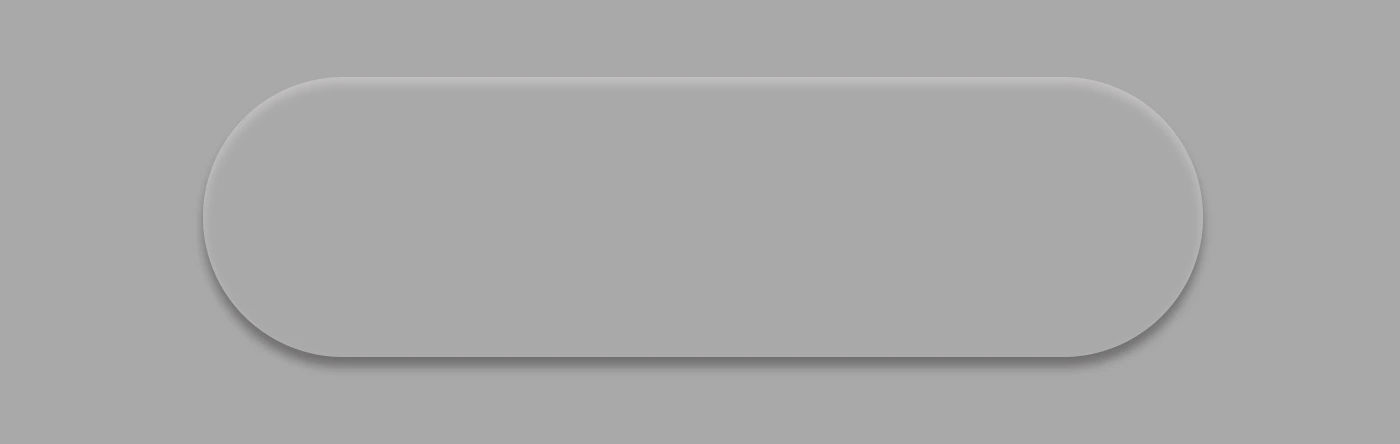
Take a look at the image below to see what’s currently rendered on screen.
Create the clickable part of the transparent button
We proceed with the clickable area of our button. After applying some basic dimensions, we need to make sure the background is set to transparent as we did before, with the base part of the button. After that, we adjust the border-radius and box-shadow to inherit, so that these attributes would be identical to the base. To remove any natively applied border styling we use border: none.
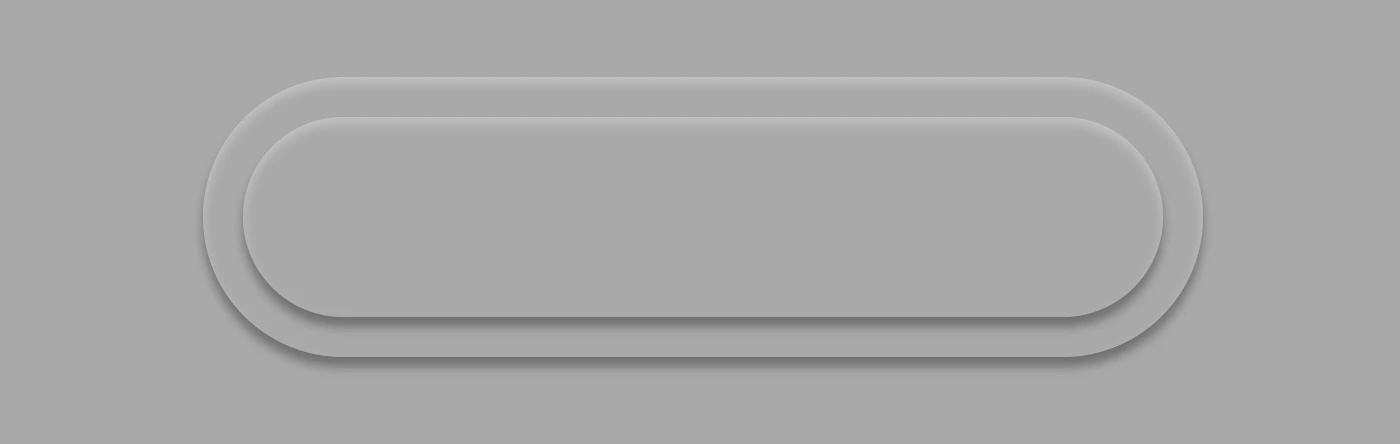
Below, you see what’s on the screen now, with the clickable (top) part of our button added.
Add the button text
To begin, we use the flex method to center the button’s text appropriately. Then we add the text using the :before CSS pseudoselector, adding “hover me” as the content. I used a bold, 45-pixel blue text with a black shadow effect. For enhanced readability, I opted for the Arial font-family as it is really legible. 🆒 ✨
.custom-button { ...font-family: 'Arial';font-size: 45px;color: #12528e; /* a shade of blue */font-weight: bold;display: flex;align-items: center;justify-content: center;&:before {position: absolute;content: "hover me";text-shadow: -2px-1pxblack; }}
SCSS
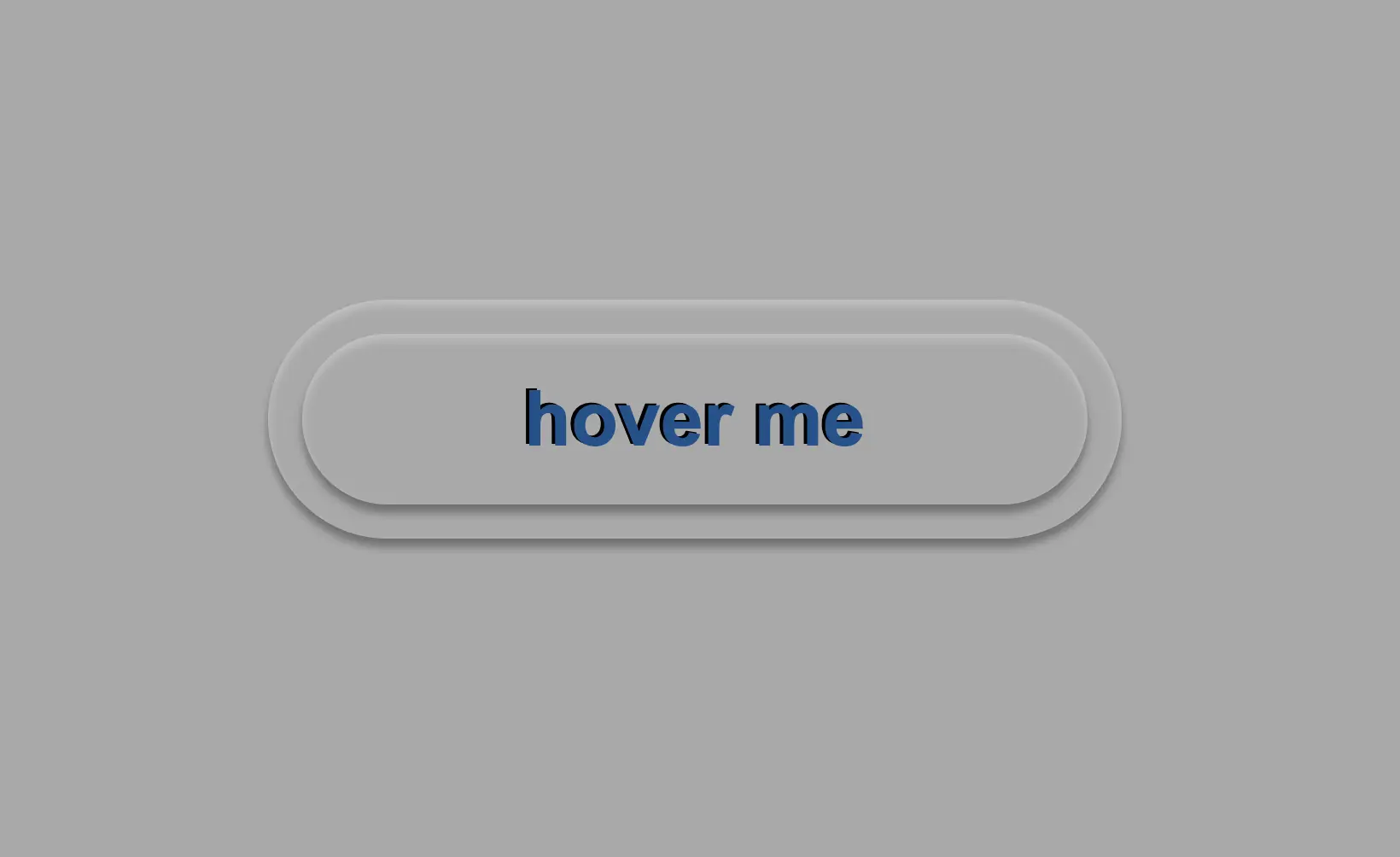
In the following image, we can see what’s displayed on the screen now.
Now, is the appropriate time to implement the hover effect. We can achieve this by adding the :hover CSS pseudo-classwith the cursor set to pointer. After that, we will use :before again to modify the text content to display “click me”.
Below, we can observe 🔎 the hover effect in action. Moving the cursor over the button, immediately transforms from arrow ⬆ into pointer 👆(hand), and the text content changes. The hover effect is a widely used design technique that adds interactivity and visual interest to a webpage.
Apply the active effect of the transparent button
Now, we can add the :active state to the button to finish our work. Once we click on the button, the active state will be triggered. To make it look more realistic and impressive, we adjust the box-shadow CSS property.
Additionally, we will modify the text content using the :before CSS property and change it to be inspiring and display the text “Good Job!” in indigo color with white text-shadow.
.custom-button { ...&:active {box-shadow: 0px-1px3px#969393, /* top side */inset0px5px3px#b7b5b5, /* inset top side */inset1px0px3px#969393, /* inset left side */inset-1px0px3px#969393, /* inset right side */inset0px-4px3px#969393; /* inset bottom side */&:before {content: "Good Job!";color: indigo;text-shadow: -2px-1pxwhite; } }}
SCSS
At this moment, you can witness 🧐 the active effect in action. Take a moment to observe and analyze how the effect is taking place and what impact it has. This will help you gain a better understanding of the process and its outcomes, which can be useful for future reference and decision-making. 😇 So, good luck with your work!
Complete code solution
Below is the full code referenced in this blog post. Feel free to copy and use it in your own projects. If you have any questions or encounter any issues, don’t hesitate to reach out for assistance. You can easily copy the desired code snippet by clicking on the copy icon, located in the top-right corner of each snippet.
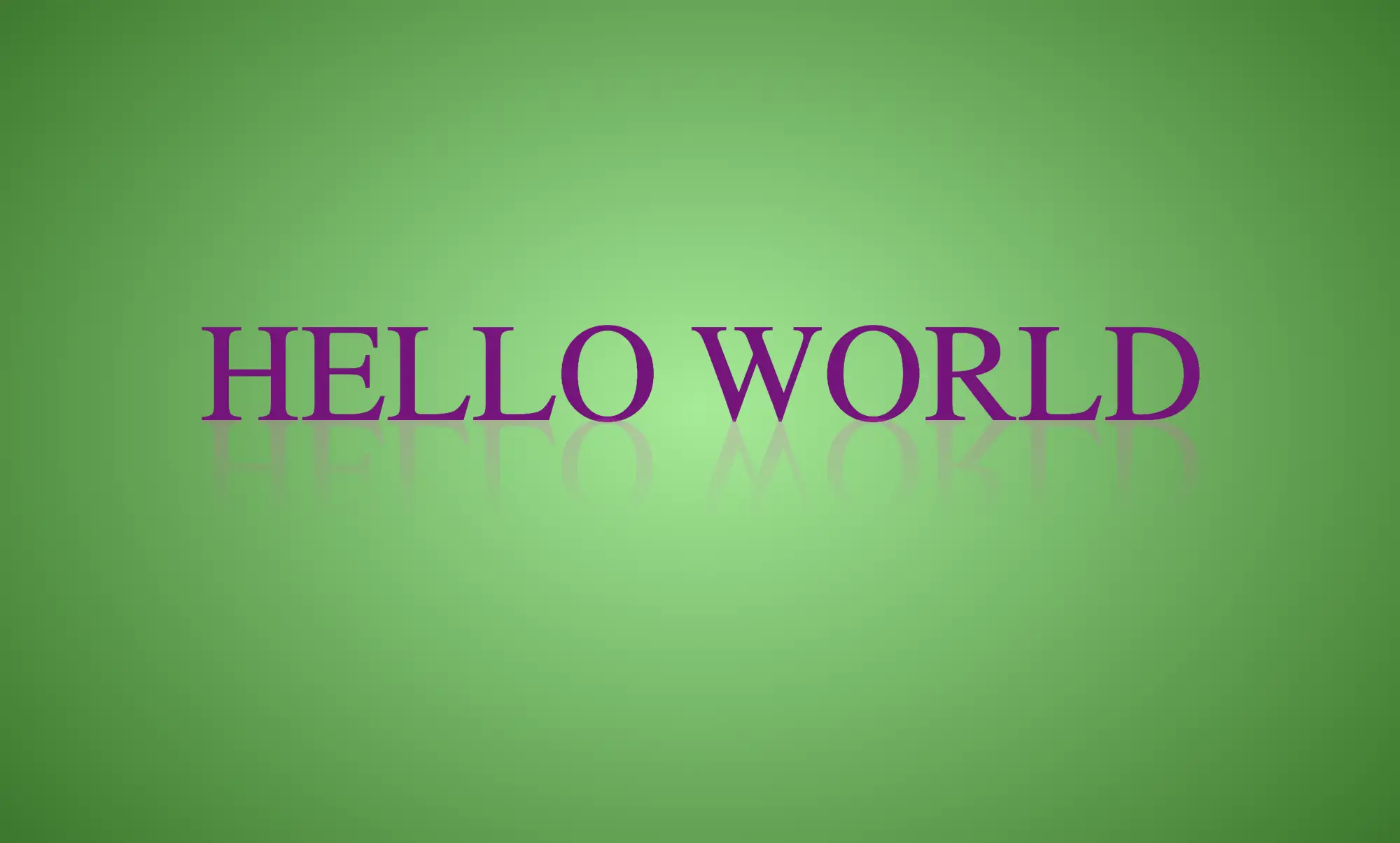
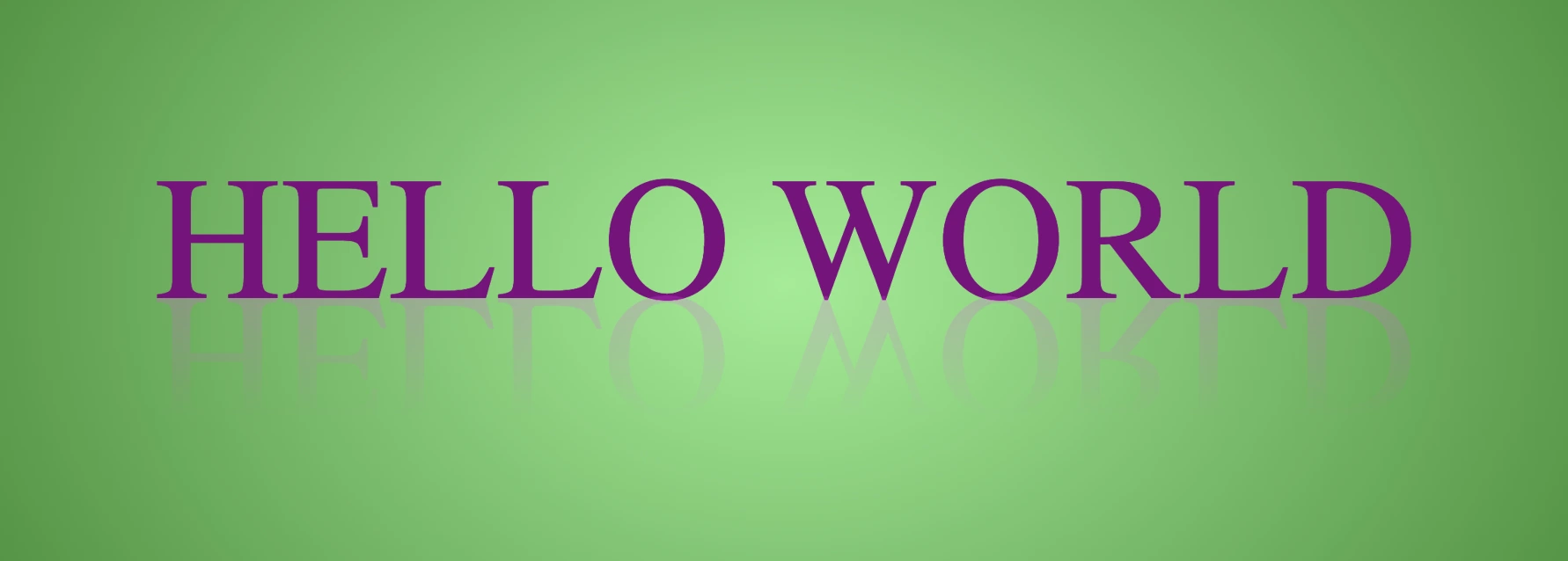
Hi there! 😃 In this post, we’ll learn bit by bit how to create a CSS text reflection effect. When we say reflection, we’re referring to a mirror-like effect that looks like the text reflects on a surface, much like the way we see our reflection in a mirror.
This is a simple yet amazing way to enhance the appearance of your text. Let’s analyze our effect so that you can easily follow along.
HTML structure
We will begin with our HTML structure. As you can see below, I prepared a div with the class .reflection-text , this is where our effect will take place.
<div class="reflection-text">HELLO WORLD</div>
CSS
CSS foundation
Let’s move forward with the CSS basic structure. We start with defining the background. It’s worth noting that using radial-gradient can make our effect more impressive. 😃
body {background: radial-gradient(lightgreen, darkgreen);height: 100vh;}
CSS
Below, we can see the background we just created.
In web development, we use the flex method in order to center our text. Then we will enhance its appearance, by making some adjustments. We will set the font-size to 100 pixels, select the “Roboto” font-family, and choose white as the text color.
Adding the CSS structure for the reflection effect
Creating a reflection can be achieved by using pseudoelements like :before and :after. To ensure this works properly, we need to include position: relative in our .reflection-text class.
.reflection-text { ...position: relative;}
CSS
Now, we are ready to proceed and create our reflection by adding the :before pseudoelement with all the necessary properties, as shown in the following code snippet.
🟢 To begin, we add the text “HELLO WORLD” to create another text element with the same content. This new text will serve as our reflection. Then, we set position: absolute so that we can move our reflected text below the original text. We use the top property to move the reflected text 65 pixels from the top, but you can always move the reflection in any direction you prefer. It is important to position the text and its reflection closely together for a more realistic reflection effect. 😉
🟢 We move forward and use the transform CSS property to rotate the text by 180 degrees
and then flip it horizontally using scaleX(-1). Now we have the perfect reflection! Let’s continue and make it more realistic.
🟢 In the next step, we will adjust the color of our reflected text. To achieve this, we will utilize the linear-gradient CSS property and specify the direction as downwards. This will create white gradients, with the top appearing more intense and gradually fading towards the bottom of the text.
🟢 It is commonly known that gradients cannot be directly applied to texts. Don’t worry! 🤔 We already have the solution to this problem. For now, let’s give a quick explanation. To create a clipped linear background pattern for text, first, we add the -webkit-background-clip: text property, and at the same time, we set the color to transparent, and our text automatically turns to transparent. In that way, our text takes the background: linear-gradient as its real color.
🟢 For a more transparent text, we can adjust the opacity. The lower the opacity, the more transparent our text becomes. So, here we are! Our reflection is ready! 🥳
🔖 It is always an option to use black or any other color in our work. Below, I’ve included examples of texts with black, purple, and green colors. It’s important to remember that the key factor is to set the correct gradients at the linear-gradient property. That way, we can create respective shades. Therefore, please give extra attention to that! 😊
Gray VS grey? Is there a right choice between these two? It is well known that both gray and grey in CSS are considered equivalent with no impact on functionality. We can use either of them without any issues. In the context of web development and CSS, they are both recognized and accepted. CSS specifications and web browsers accommodate both equally.
Why 🤔 do web designers and programmers use both gray and grey in CSS?
Because they wanted to add a little color to the spelling debate!
Below we can see an example of two elements. We set gray for the first element while the second element has grey:
/* Using "gray" (American English) */.first-element {color: gray;}/* Using "grey" (British English) */.second-element {color: grey;}
CSS
Both examples are correct, and your CSS should be functional, .first-element and .second-element classes will share the same color, as CSS treats gray and grey interchangeably.
It turns out that the choice between gray and grey in CSS is primarily a matter of personal preference and doesn’t affect how web browsers interpret your code. You are free to use either.
Similarly, there are other color names with variations in spelling that are recognized by most modern browsers, for example, “lightgray” and “lightgrey” or “darkgray” and “darkgrey” are all valid. 😃
Imagine infusing your web typography (fonts) with the vibrant hues of a dazzling 🌈✨ rainbow! Cascading Style Sheets (CSS) empower designers and developers to bring this captivating vision to life. A colorful font like the CSS rainbow effect is more than just a spectrum of colors; it’s a creative and dynamic way to enhance your website’s visual appeal and make a lasting impression on your visitors.
Today, with this post, 😃 we’ll dive into the exciting world of creating a rainbow effect, unlocking the magic of colors and typography to elevate your web design. Enjoy! 💻
Prepare basic HTML and CSS structure
We begin with our HTML and CSS structure. We create an HTML <div> element that has a class called rainbow-effect. Then, we set some rules in CSS that are applied to our HTML element. So, let’s move forward and analyze our CSS code snippet.
body {background-color: #050c20; /* deep blue */}.rainbow-effect {text-align: center;color: white;font-size: 180px;font-weight: bold;font-family: 'Roboto', sans-serif;}
CSS
First of all, we set the background color of our body to be a deep blue. Then, we proceed with our text. We create a center aligned, white180px text with bold and highly legible fonts, as we specifically seek a font with excellent readability.
Once set, we can then proceed with our tweaks in order to infuse the text with the enchanting hues of a rainbow. The following image shows what is rendered on the screen for the time being. 😃
background-image: linear-gradient The first thing we need to know is that by using the background-image CSS property we are able to create a background with more than one color.
We do so by setting the linear-gradient value, and we are free to choose any color and any direction we want for our text. In our case, we use the to right direction and the gradient starts with the color red on the left and smoothly transitions through orange, yellow, green, blue, indigo, and violet as it moves from left to right. So, it gives a colorful, horizontal stripe-like background.
You are always free to choose any direction of the linear-gradient you like! 👍
background-clip: text We continue our work with the background-clip property which is used to define how the background should be clipped or masked. In our case, it’s set to text, which tells the browser to apply the background gradient only to the text inside our div.
What? Nothing happened yet? Why? Using this property, the colorful background is applied to the text, but the effect is not visible yet because it is necessary to proceed to our next step 🧐 ⬇ in order to achieve the final and desired results. So, let’s move on!
color: transparent Finally, adding the color property to transparent renders the text itself invisible, allowing the colorful background to show through the text. And there it is! 🥳
So, in summary, putting it all together, when you use this code, you’ll have a text with a colorful gradient background (rainbow colors) that appears within the text. The text itself is invisible, creating a striking and colorful text effect. 🎉
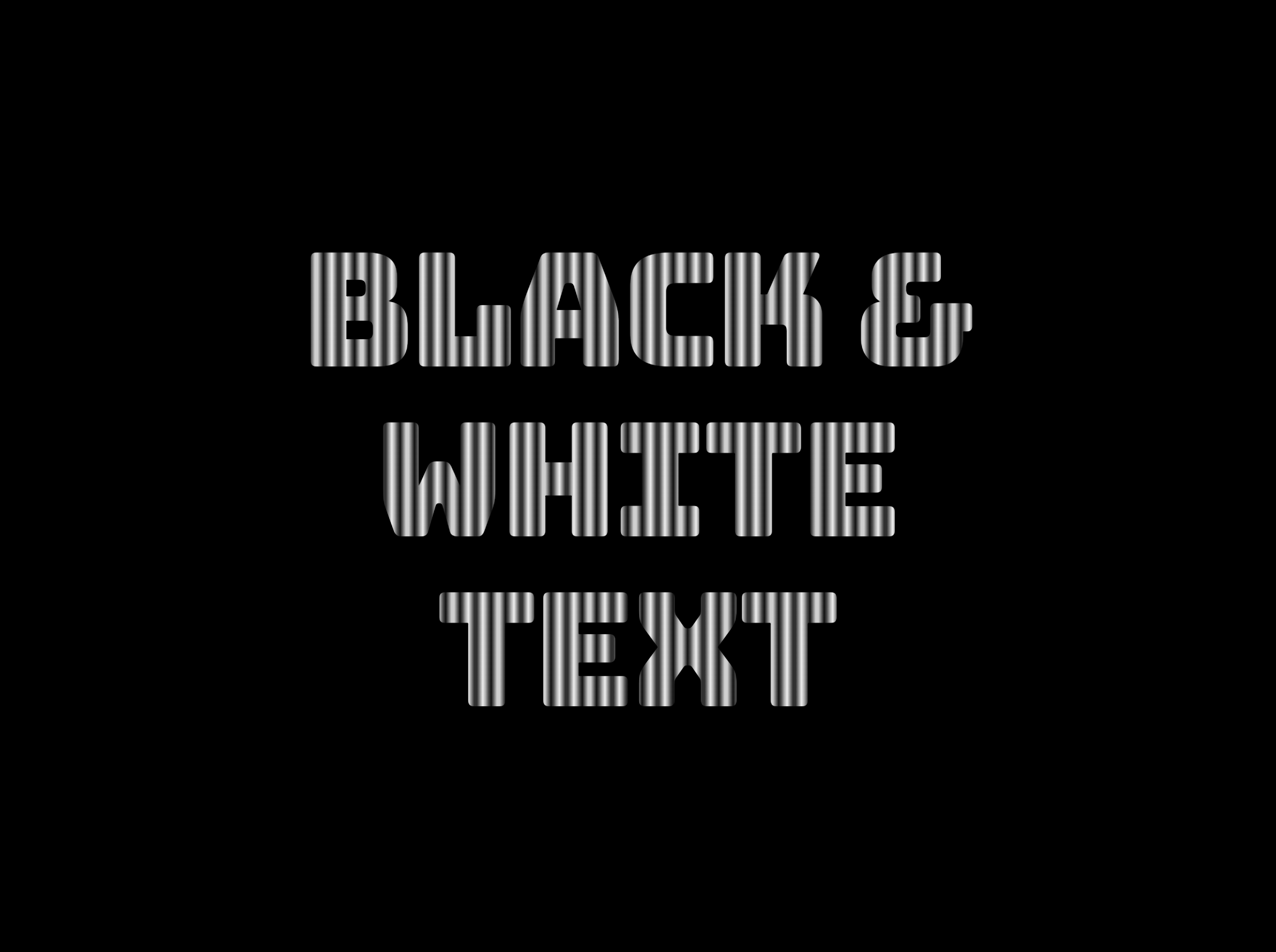
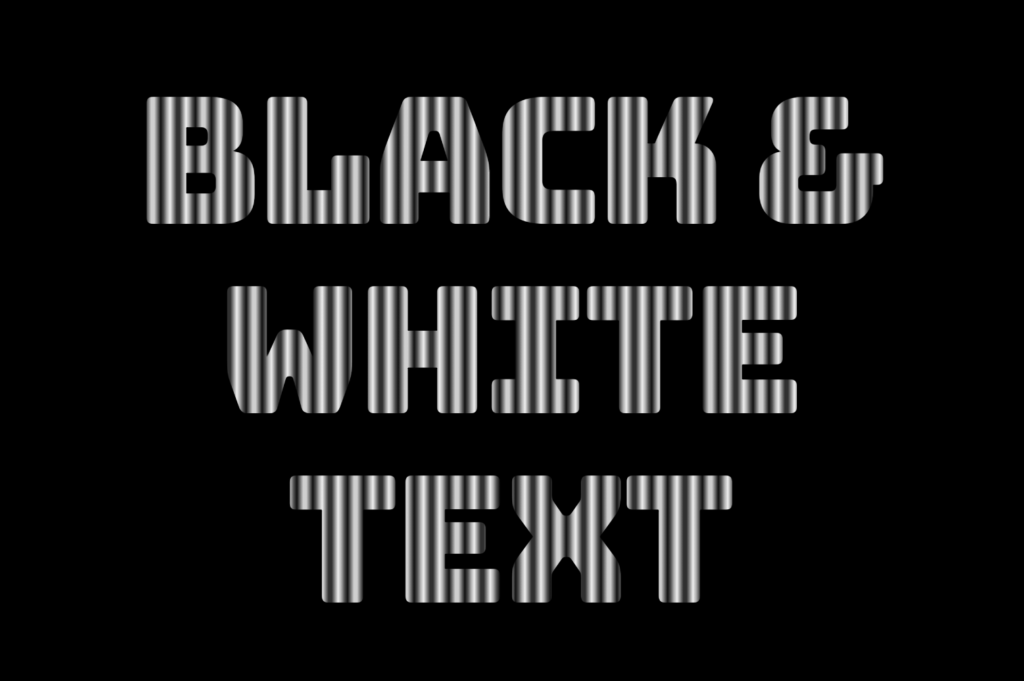
Welcome to a world where ⚫ black and ⚪ white aren’t just colors. In this post, 😃 we’ll explore the exciting world of creating black and white CSS stripes. It is a really cool effect to level up your text by adding stripes, making it even more fascinating and appealing.
We will be learning about this effect by using an example to make it crystal clear. Let’s check it out! 👩💻
Create basic HTML and CSS structure
We will begin with our HTML and CSS structure. Our HTML code includes a <div> element that has a class named .stripes-effect for identification and styling purposes. Following that, we add some CSS rules to apply specific styles to our HTML element with this class.
<body><divclass="stripes-effect">black & white text with shadow</div></body
HTML
body {background-color: black;}.stripes-effect {font-family: 'Bungee', sans-serif;text-align: center;color: white;}
CSS
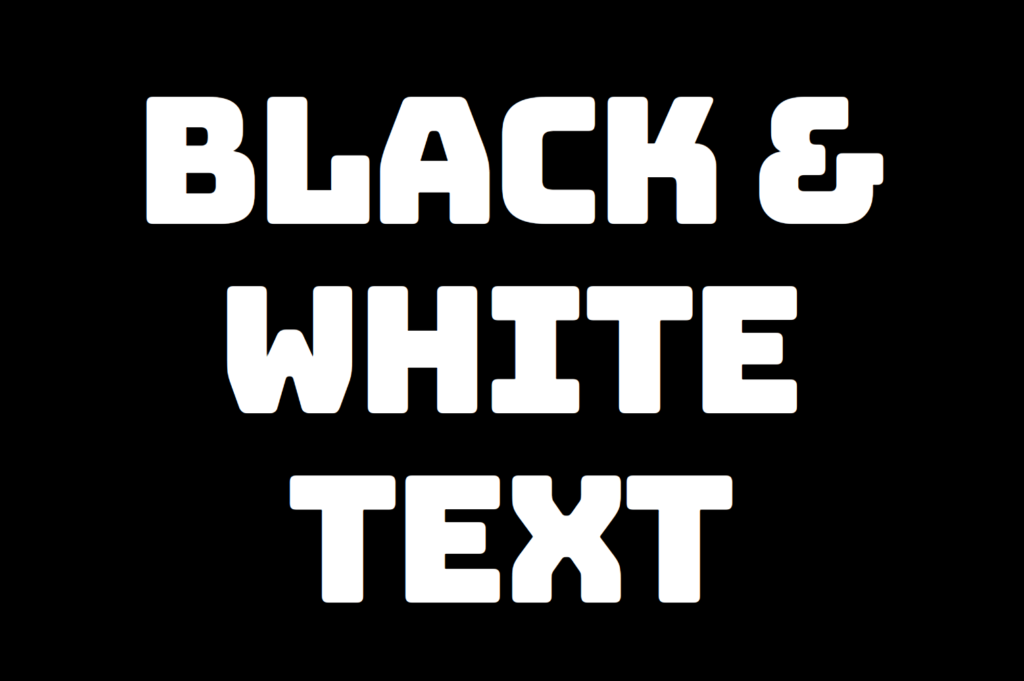
By doing so, our heading is ready for applying our CSS stripes effect and should now look like this
Adding black and white vertical stripes
Now that we have added our basic structure, we’ll create our stripe effect gradually, step by step, until it’s perfected. Let’s add the following styling
.stripes-effect { ...background-image: linear-gradient(to right, white, black, ...);/* clips the background pattern */background-clip: text;/* makes text invisible */color: transparent;}
CSS
In our already existing .stripes-effect class, we have the following rules:
background-image: linear-gradient(to right, white, black, ...) ➡ We begin by setting this CSS property that creates a background pattern using a gradient of alternating black and white stripes from left to right. The default direction is from top to bottom.
Don’t worry if our black-and-white text is hard to read; 🕯 😂 it is a temporary phase just to serve our purpose for now. We will move forward and see! So let’s proceed immediately! ⏳
background-clip: text ➡ By adding this property, it clips the background pattern to the shape of the text, making the text appear as if it’s filled with black and white stripes. If we just add this property and leave our CSS settings without any other change, our effect will not show properly.
If we want this to see our effect it is necessary to proceed with the following step (color: transparent ⬇).
color: transparent ➡ It’s time to make the text transparent, enabling the background pattern we created in the previous step to be visible!
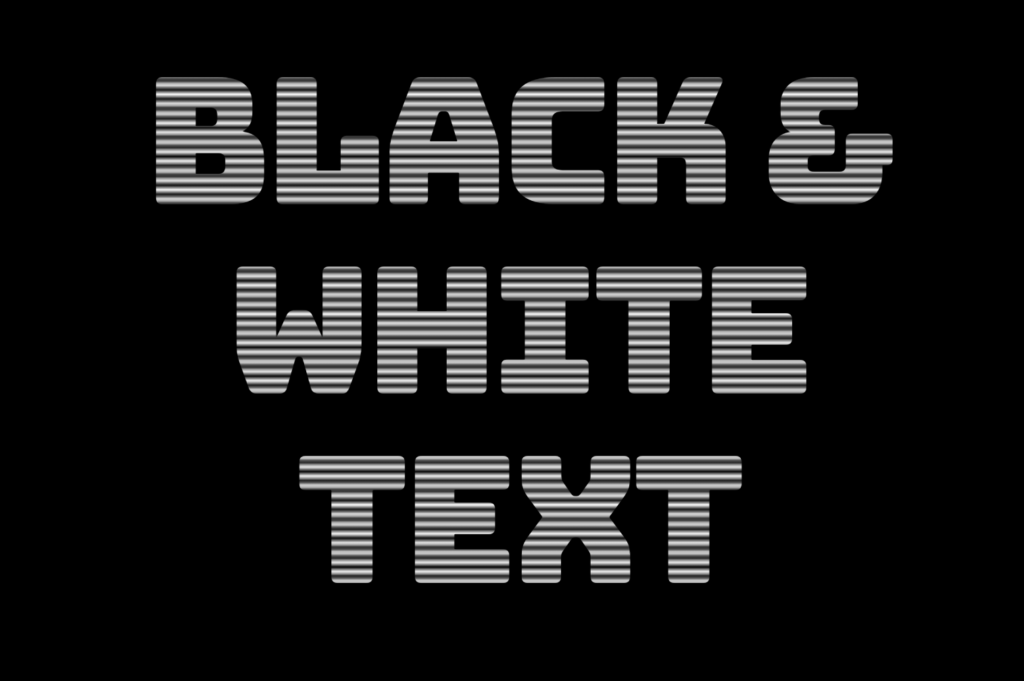
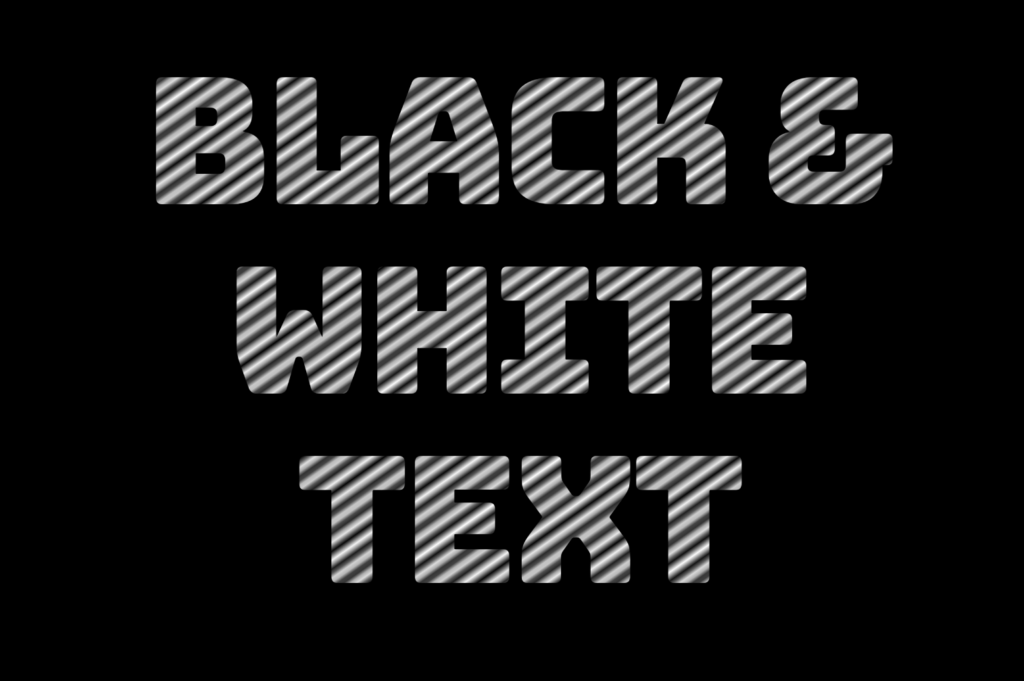
The Zebra effect is not limited to vertical stripes (linear-gradient) for your texts; you can explore more options and create any effect you want. Below, you will find some variations to give you the inspiration you need.
Hello, everybody 😃 Get ready to add a vibrant twist to your web designs with my latest post on fonts. In this post, we’ll explore the fascinating world of typography, sharing clever ways to add a burst of colors, outlines, shadows, and CSS colorful text. Whether we are looking to level up designs or experiment with CSS, this post provides the inspiration and know-how to make texts truly stand out on your screen. Stay tuned for an amazing journey into the art of CSS typography! 🌈✨
We already know the color CSS property. When setting the text color, we’re setting the color of the text itself. In contrast, setting the background-color sets the background color behind the text. But what if we want a more challenging font? Can we do that? Absolutely!
Below, I prepared an example as a way to make it more understandable. Enjoy! 💻
Preparing our HTML and CSS structure
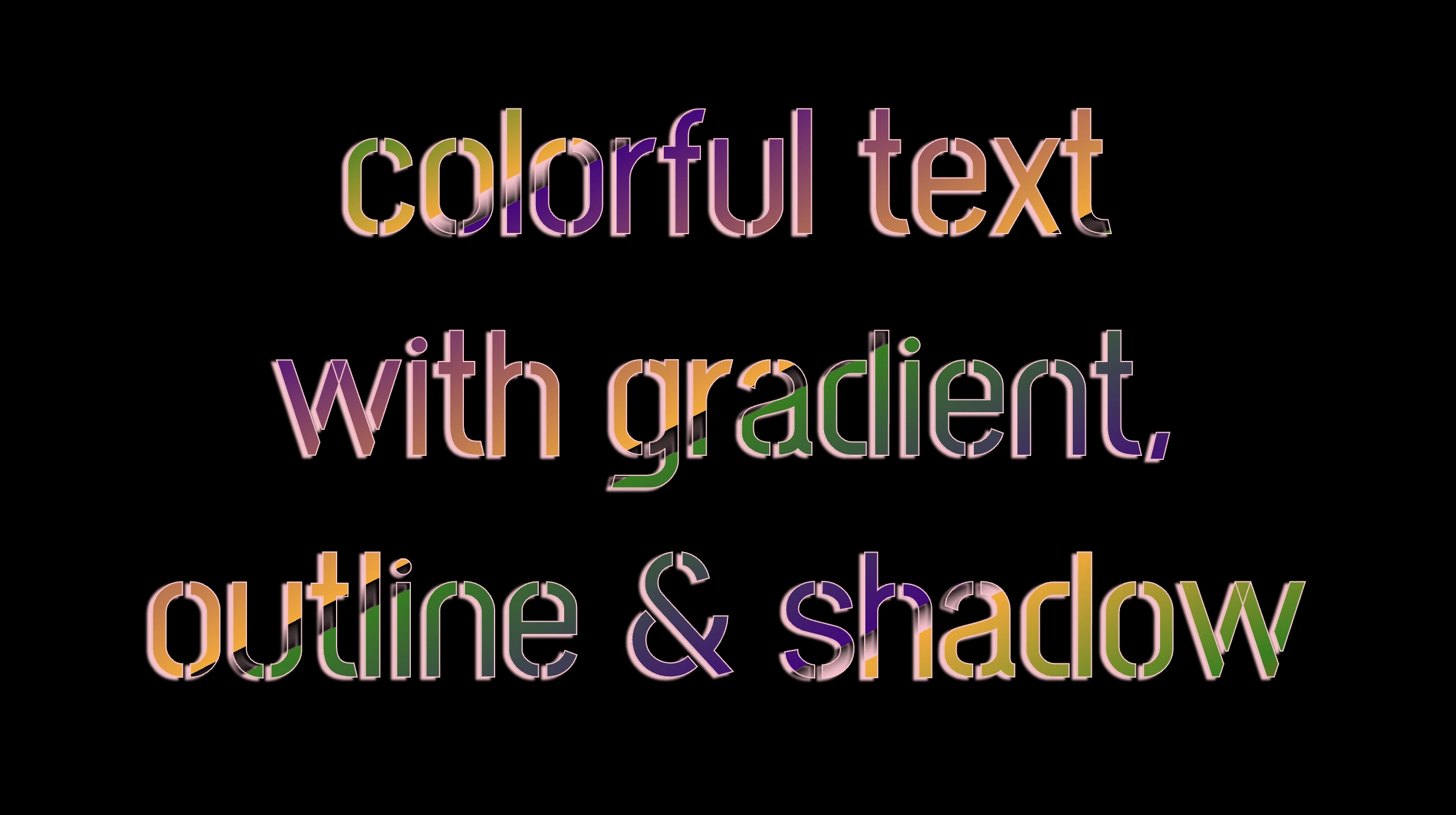
The following code creates a colorful text with gradient, outline, and shadow. We will start with our HTML structure. Our body has background-color: black. Inside, we make an HTML div element that serves as a container for our text and has a class attribute named font-effects.
<body><divclass="font-effects"> colorful text with gradient, outline & shadow is so impressive</div></body>
HTML
Next, let’s proceed with our CSS structure. The font-effects class contains the rules applied to the HTML element mentioned earlier. We’ll provide a thorough examination of these rules as we progress through this post. For now, it’s important to note that our text has color white, our body has background-color black, and we’ve also integrated (@import url(...)) a font-family of Google Fonts.
Ensure this statement is placed at the beginning of your CSS code snippet, just like I did (check line 2).
/* insert google fonts */@importurl('https://fonts.googleapis.com/css2?family=Stick No Bills');body {background-color: black;}.font-combinations {width: 1100px;font-size: 150px;color: white;font-family: 'Stick No Bills', sans-serif;text-align: center;}
CSS
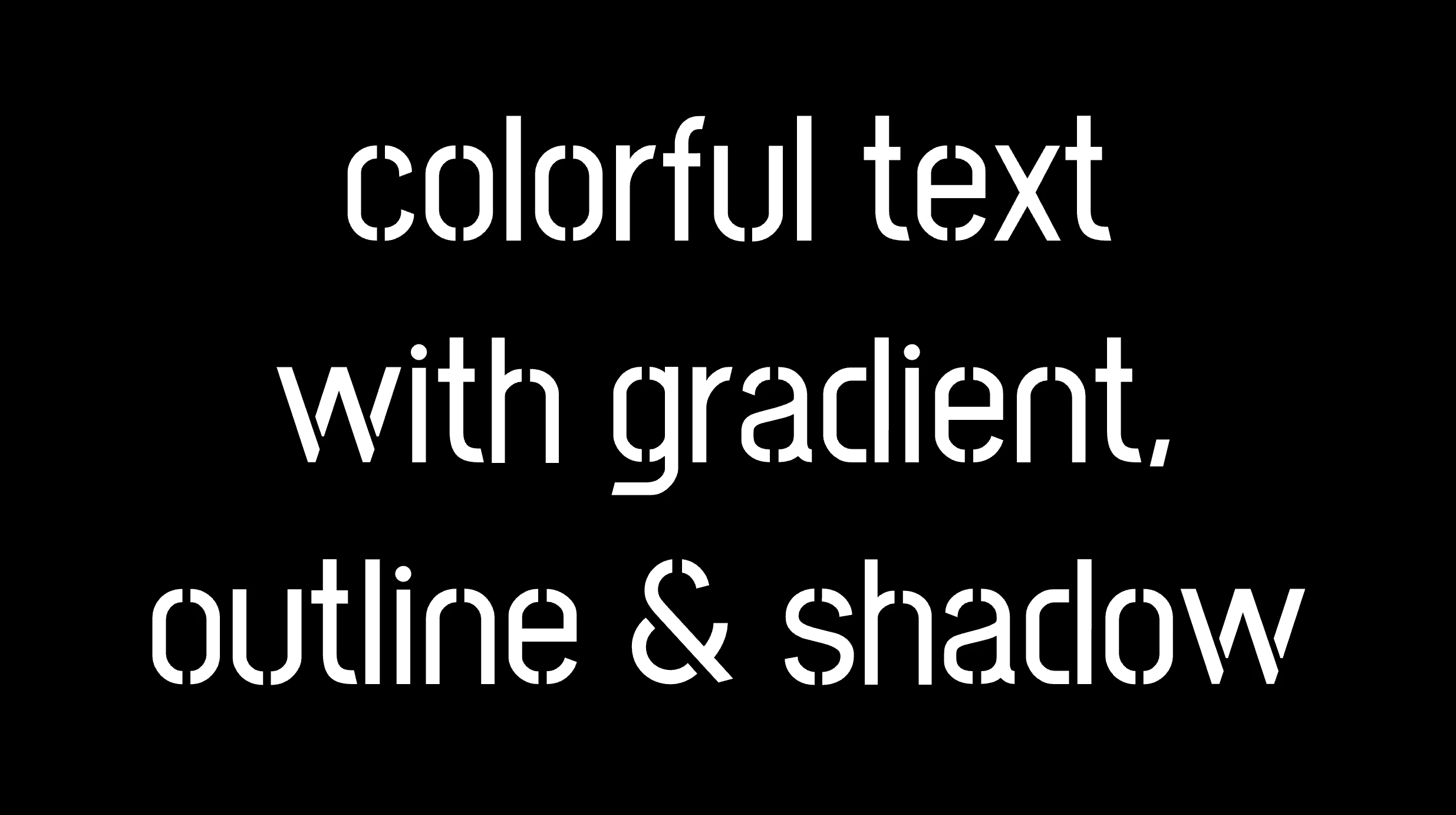
The following image shows what is rendered on the screen now.
Inside the .font-effects style rules, we include the following instructions to create these amazing fonts:
.font-combinations { .../* adding colors */background-image: linear-gradient( to rightbottom, red0, green15%, orange25%, pink25%,transparent27%, indigo27%, orange50%, black50%,transparent52%, green52%, indigo73%,transparent73%, pink75%, orange75%, green90%,red100% );/* Makes the text shape match the background */-webkit-background-clip: text;color: transparent;/* adding outline to text */-webkit-text-stroke-width: 1px;-webkit-text-stroke-color: pink;/* adding shadow to text */filter: drop-shadow(-2px2px2pxrgba(250, 190, 210, 0.8));}
CSS
Adding the linear gradient effect
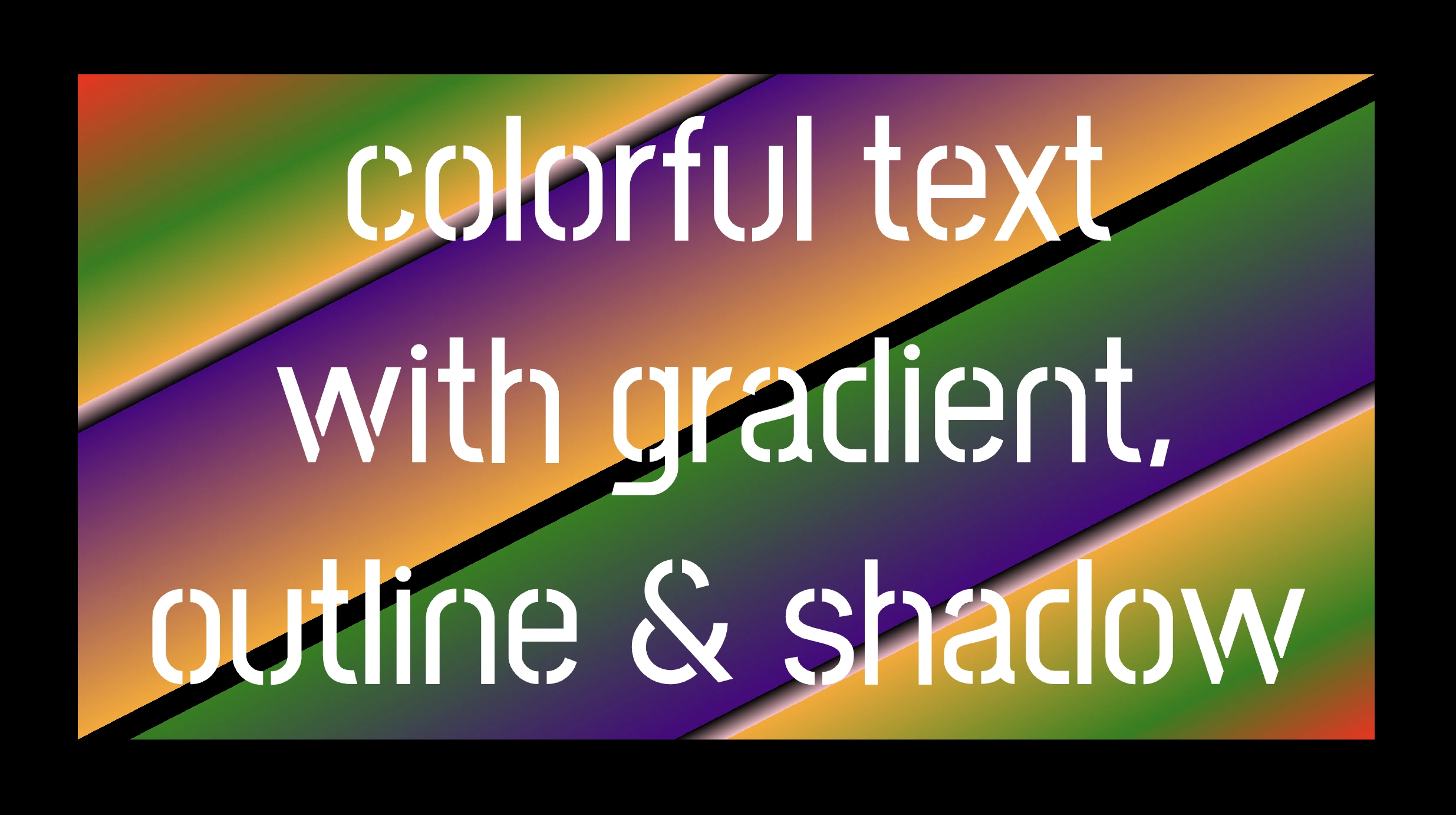
background-image: linear-gradient(...) ➡ This CSS rule creates a background gradient using the linear-gradient function. The gradient begins with red, transitions to green, and then shifts to orange. It then transitions to pink, becomes transparent, then indigo, returns orange becomes transparent once more, shifts to green, then indigo, then transparent again, returns to pink, then orange for the third time, then green, and finally returns red again.
Remember that this gradient will be used as the background for our text. Isn’t this awesome? 😎
-webkit-background-clip: text ➡ We continue with this CSS rule that tells the browser to clip the background gradient to the shape of the text. We are not ready yet to see the colorful background as text. 😕 We just prepared the space (fonts). Don’t worry we will proceed with our work and see the amazing result! 😉
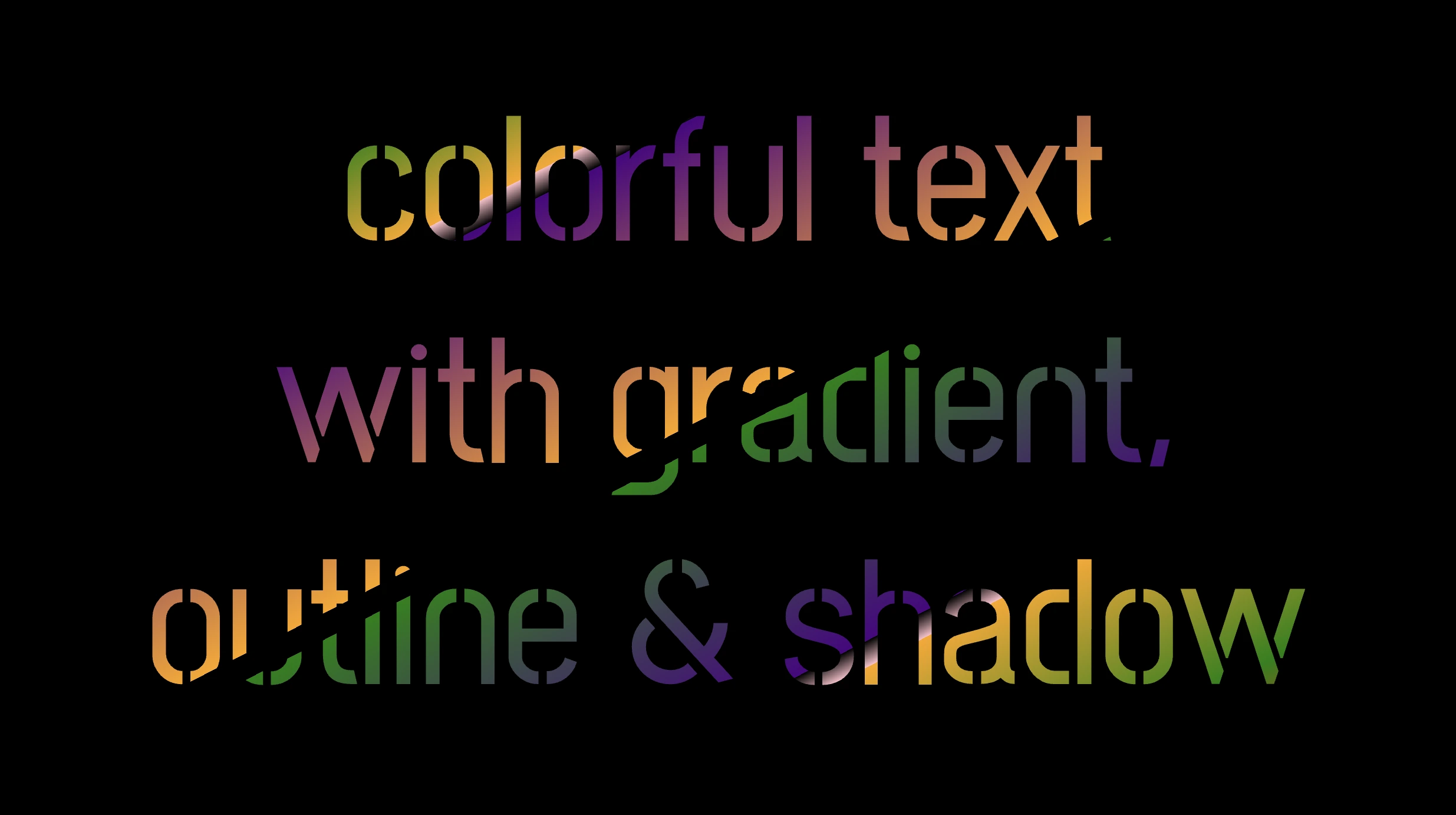
color: transparent ➡ This CSS rule makes the actual text content transparent. This allows the colorful gradient to show through the text 🥳, and there it 🥁 is!
Adding the outline effect
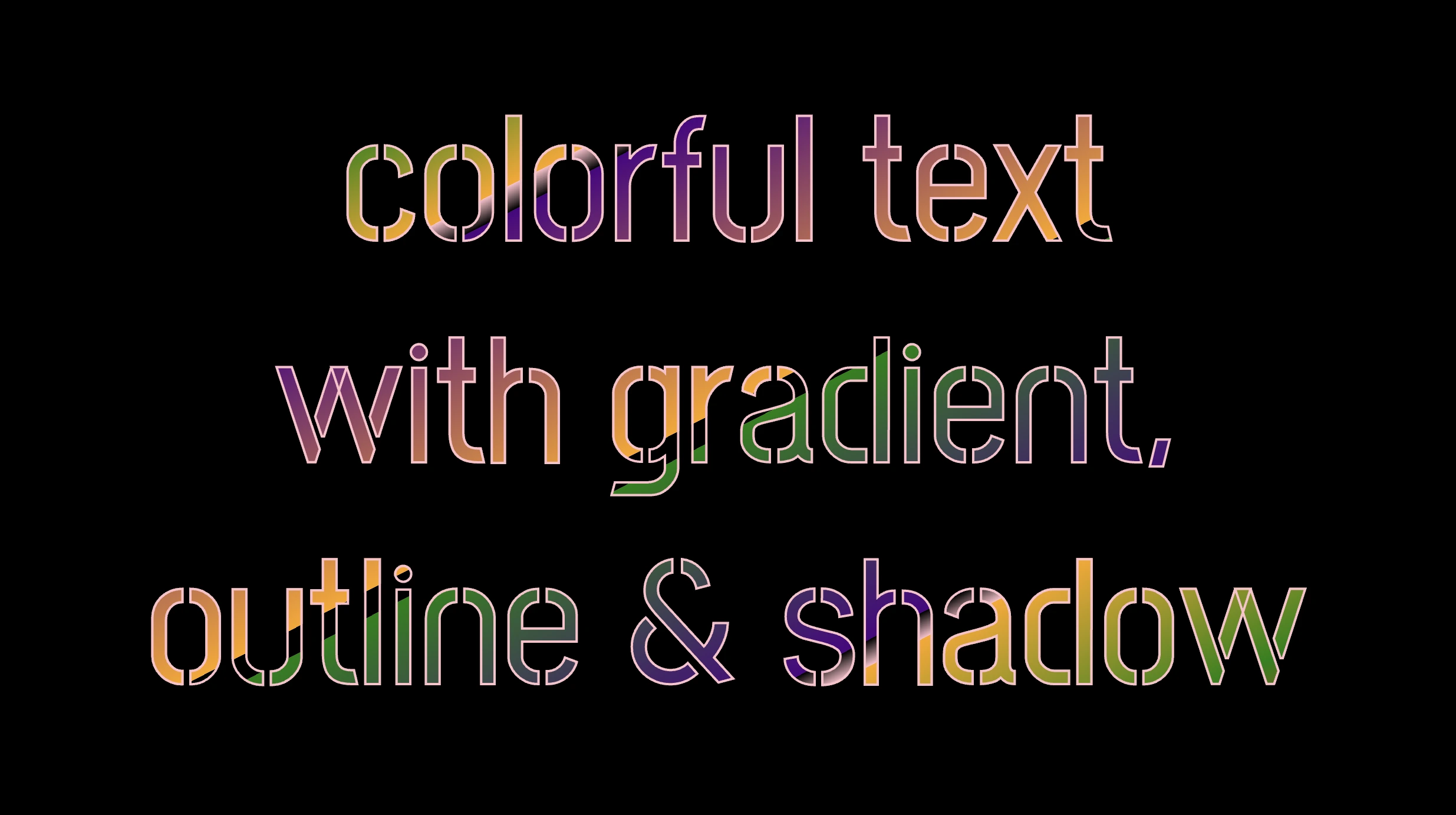
-webkit-text-stroke: 2px red ➡ Then we add a pink outline or stroke with a width of 2 pixels. This makes the text more visible against the background gradient.
🔖 We are free to write it more analytically setting the following two CSS properties -webkit-text-stroke-width and -webkit-text-stroke-color. It’s up to you!
Applying the shadow effect
filter: drop-shadow(-2px 2px 2px rgb(250, 190, 210, 0.8)) ➡ To finalize our work we add a shadow to the entire section, with an offset of -2 pixels to the left, 2 pixels down, a blur radius of 2 pixels, and a subtle pink shadow rgba(10, 10, 10, 0.8). This deep shadow adds a subtle but noticeable darkening effect to our text.
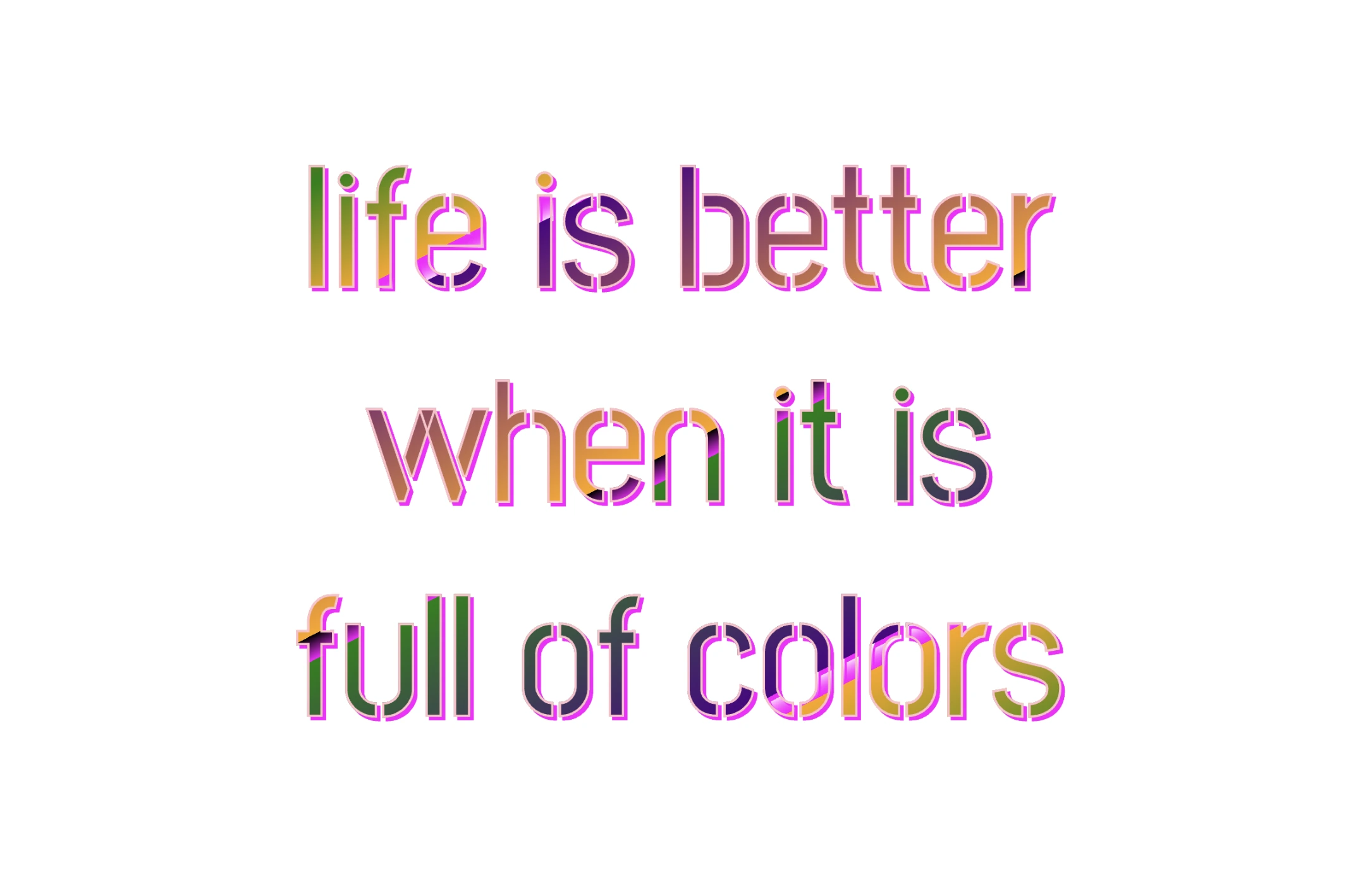
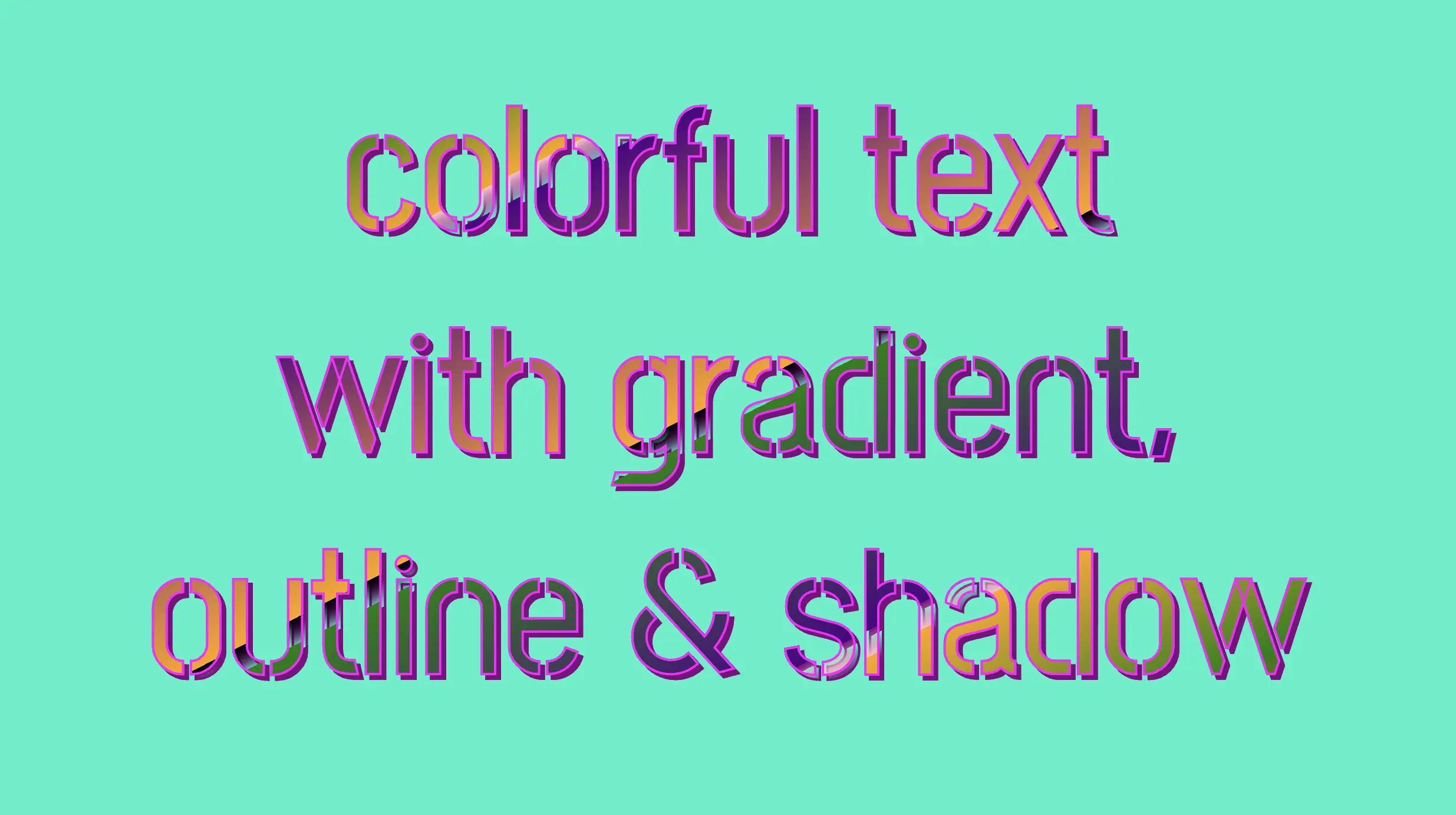
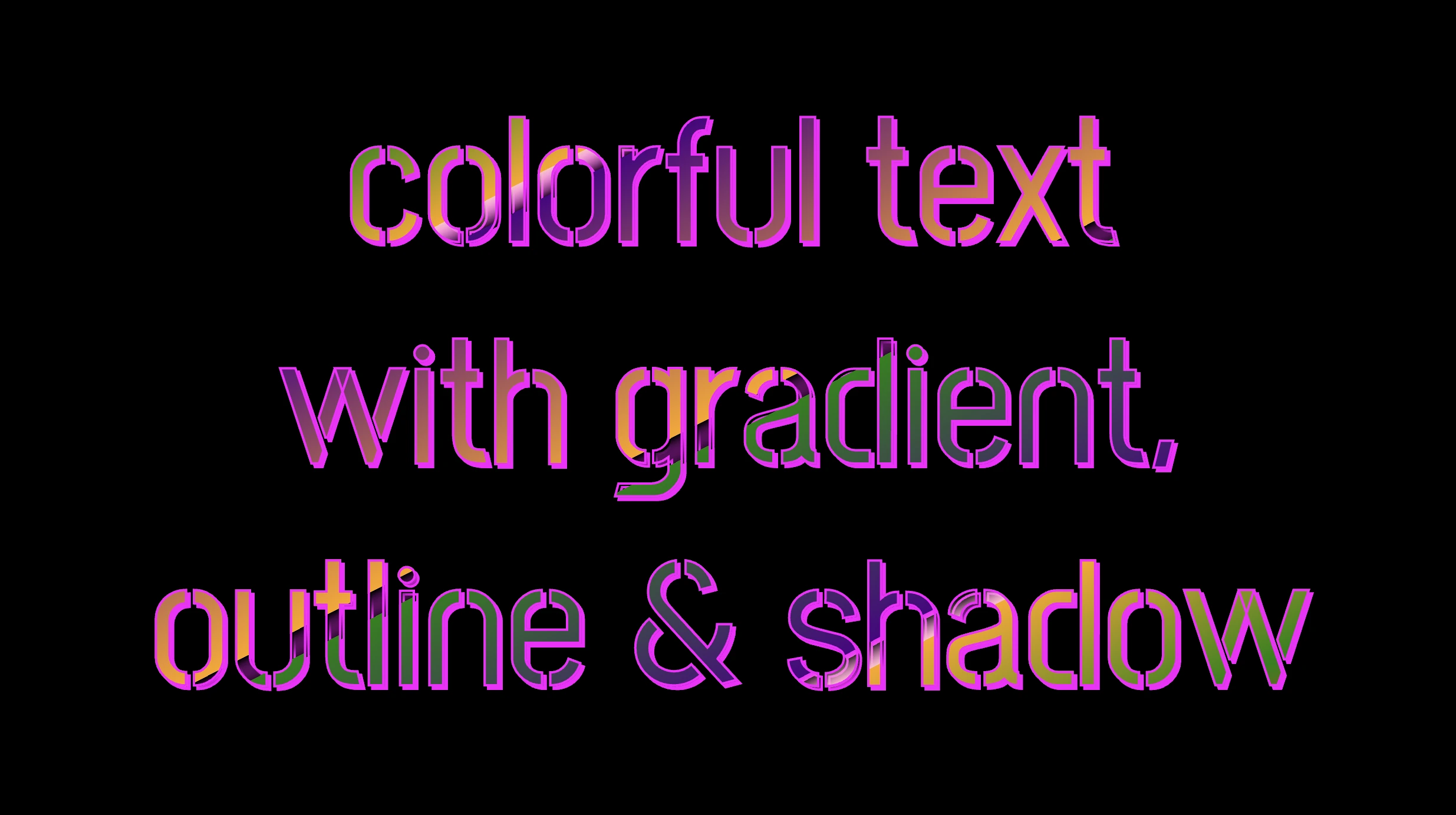
To infuse our text with a touch of fantasy and vibrance 🎉 ✨, we can use a brighter color for the outline and change the shadow to match. For example, we could create a vivid or dark background as a way to create contrast and then swap out the pink outline and shadow for a more vibrant magenta. In the picture below, you can see how these small changes make a big difference, giving a more colorful and bright result.
Hello, there 😃 Let’s step into a digital world where CSS brings forth the captivating CSS text outline effect. It’s a simple yet powerful technique that adds structure and clarity to texts and elements.
Let’s dive into how CSS outlines 🖋 can make a significant difference in the visual appeal of your website. 💻 🫧
Create basic HTML and CSS structure
As a first step, we need some basic HTML structure to apply our CSS stylings.
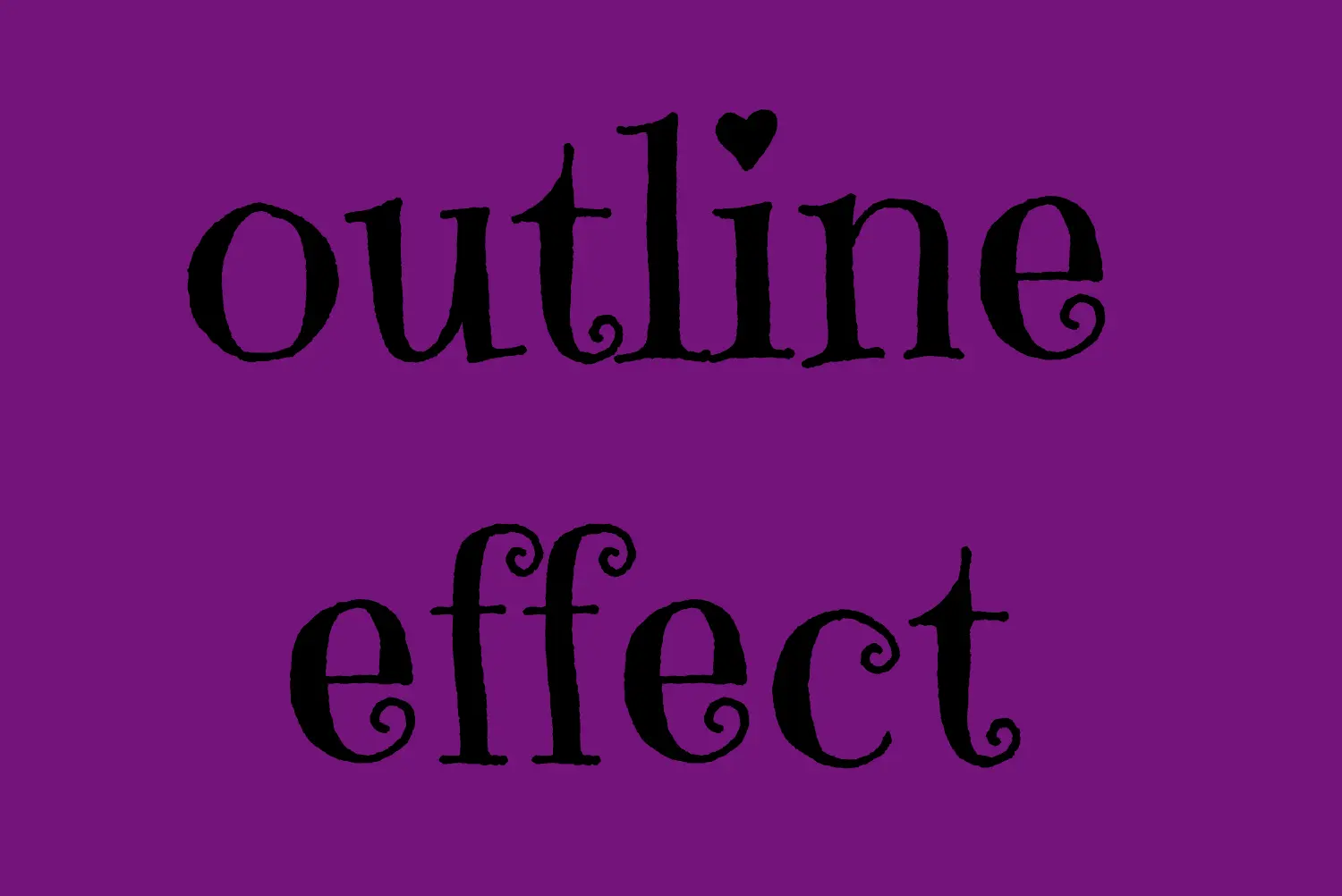
Let’s see what we have done so far. I have chosen a vibrant purple color for our background while keeping the text in the default black color. Our text is set to 180px, perfectly aligned to the center.
To give a playful and lively vibe to our design, I’ve chosen the “Emily Candy” font-family which adds a delightful touch. If you also intend to use this font family, importing it into your CSS file is essential. Ensure the @import statement is placed at the beginning of your CSS code snippet, just like I did (check above lines 2-4).
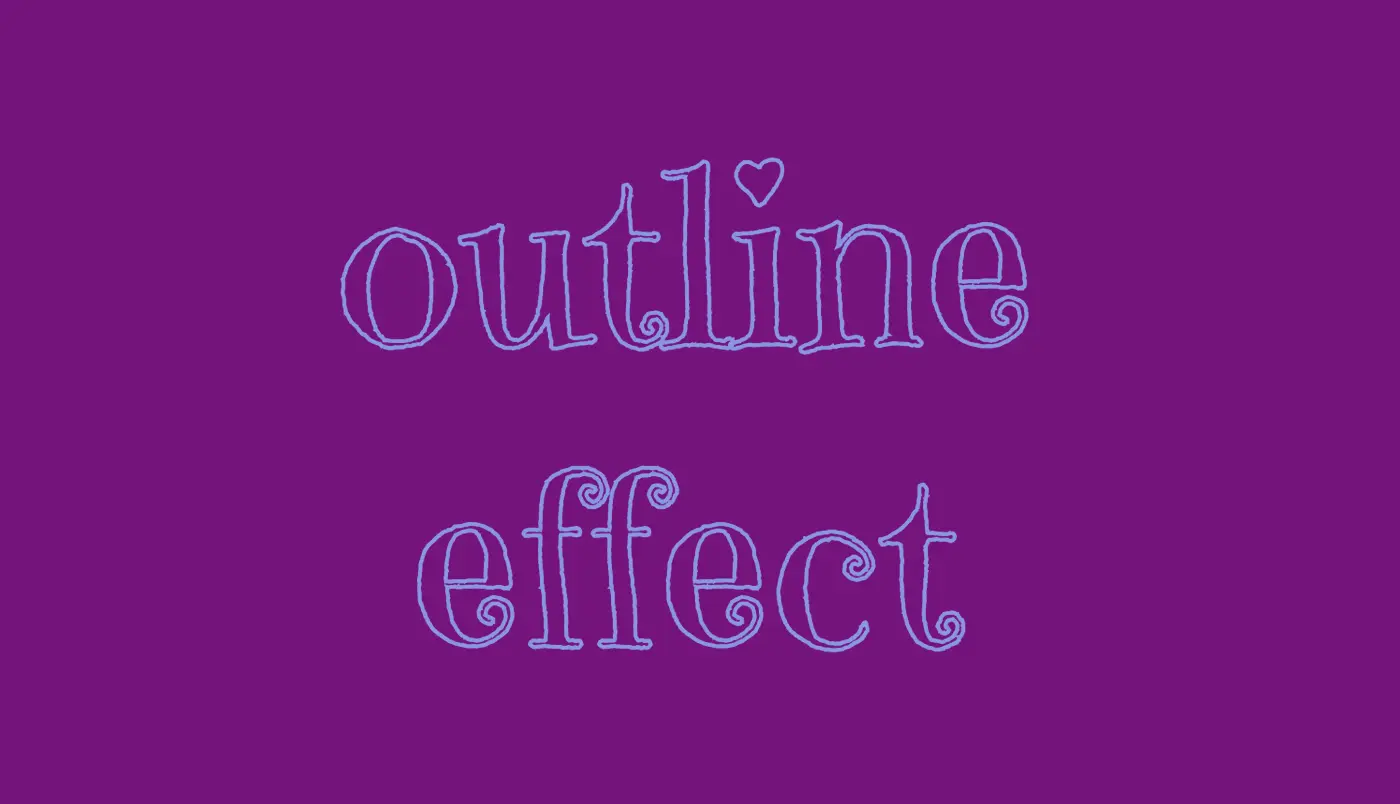
In the image below, you can see the current rendering on the screen up to this point.
Apply the CSS text outline effect
.outline-effect { ... text-stroke: 2px#8695e9; // medium blue shadecolor: transparent;}
CSS
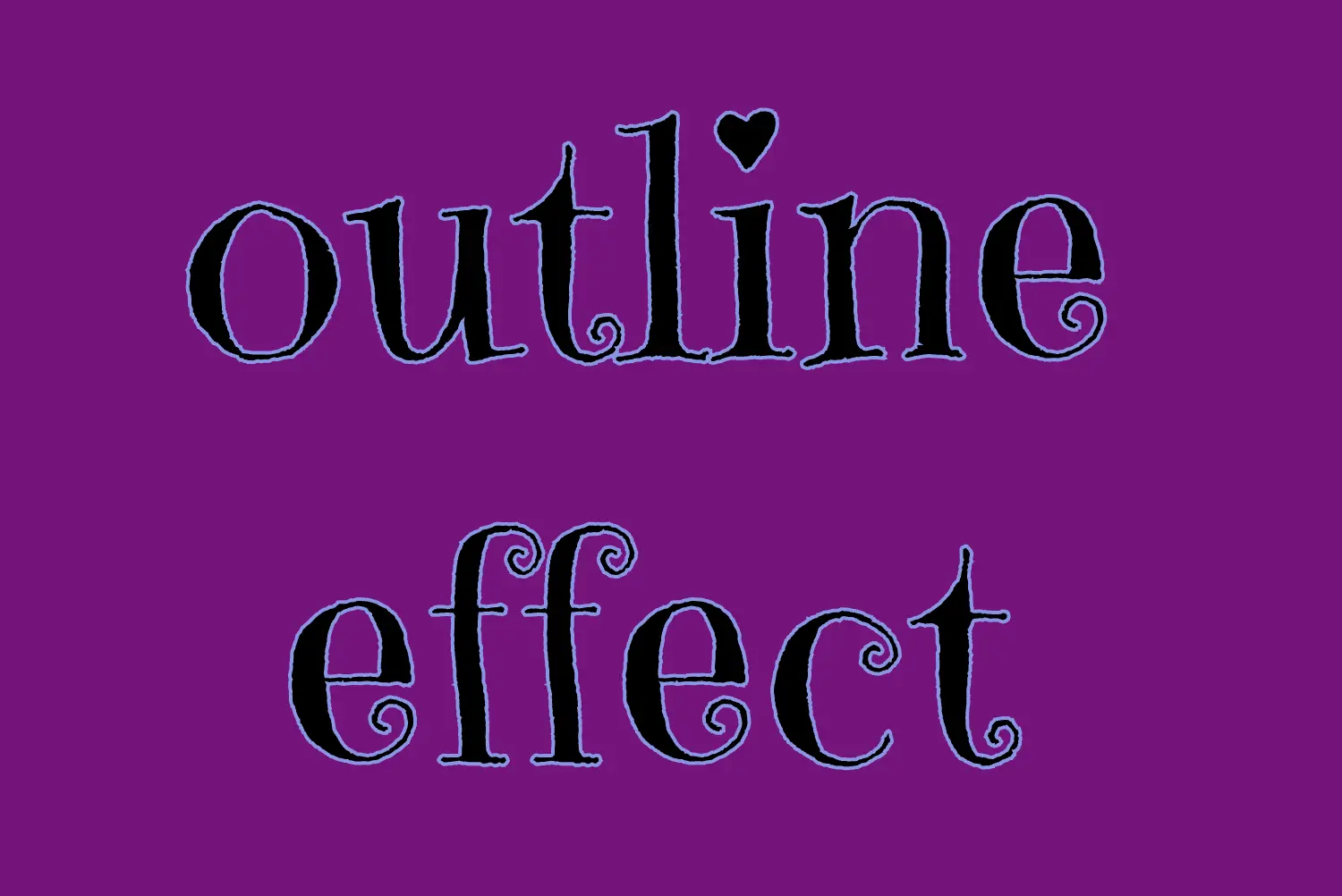
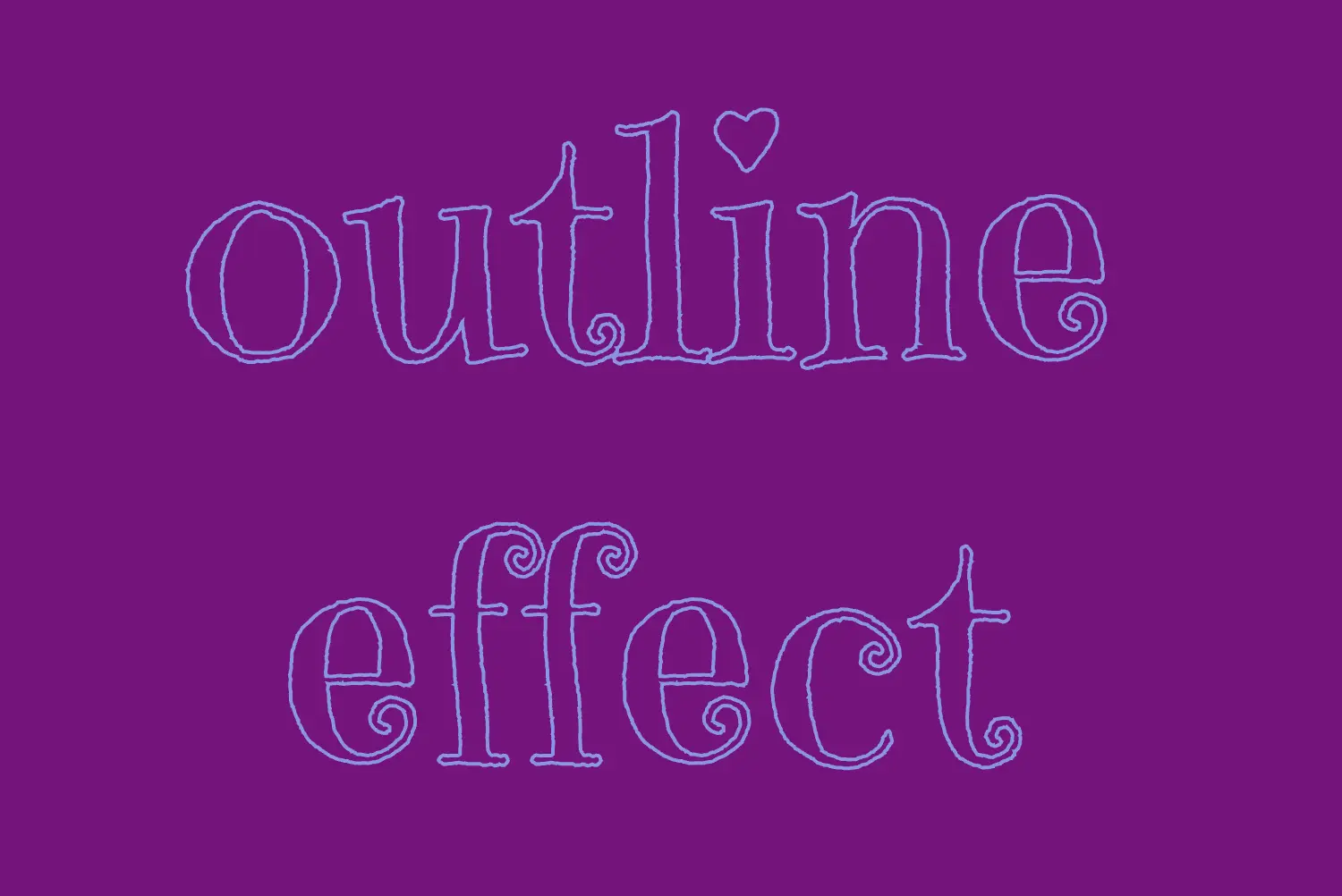
The first thing we have to do is set the text-stoke property which represents a specific style line. Here, in our example, the text should have a light to medium blue color (#8695e9) outline with 2 pixels wide. Remember that as we increase the pixels, the outline becomes wider.
🔖 It’s useful to know that we can split the text-stroke property in two: text-stroke-width and text-stroke-color.
Hi to everyone 😃 Today, we will analyze the CSS text decoration property, which is a valuable tool for improving the presentation of text on your website. It allows us to add visual enhancements such as underlines for hyperlinks, strikethroughs for completed tasks, or the removal of decoration for a clean and professional appearance.
With minor code adjustments to our CSS code, we can enhance the visual appeal of our text content. Consider integrating it to elevate the aesthetics of our website. Below, I’ve prepared a detailed guide.
Wishing you bug-free reading 👩💻, I mean coding! 💻 ✨
Text-decoration line
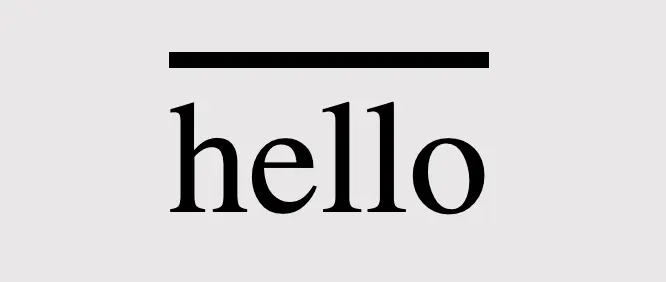
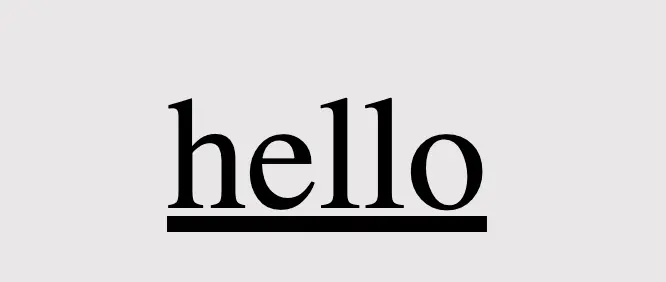
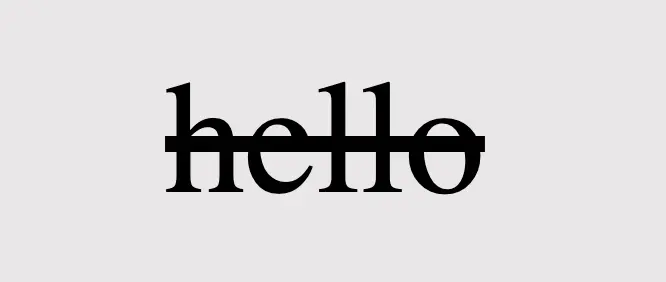
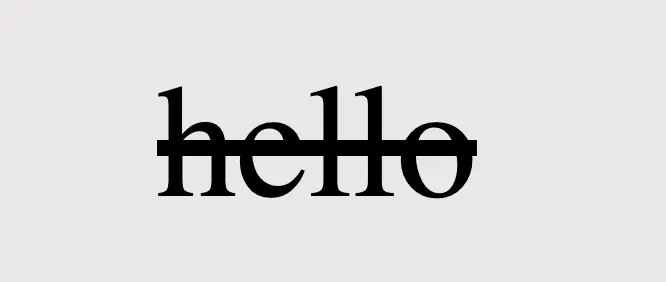
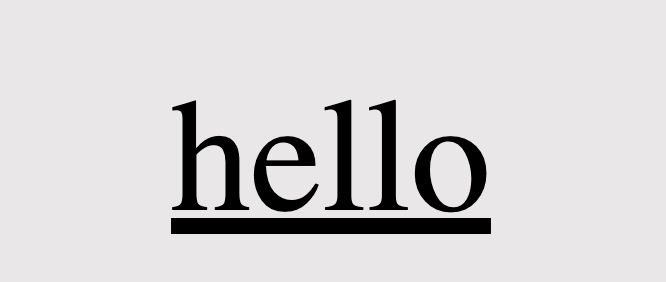
First of all, we define the position of the line we desire by setting text-decoration-line. Those are: underline, overline, and line-through.
text-decoration-line: overline;
CSS
text-decoration-line: underline;
CSS
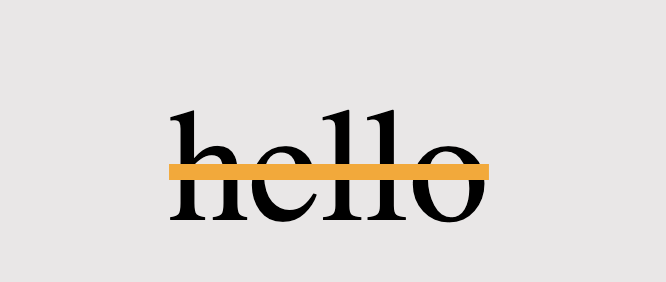
/* text-decoration: line-through is also a way to write it */text-decoration-line: through;
CSS
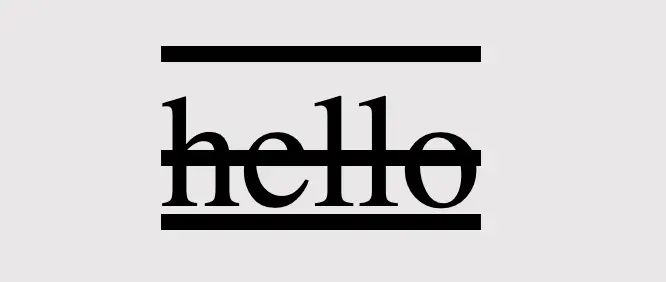
/* we are also able to make line combinations */text-decoration-line: overline through underline;
CSS
Text-decoration style
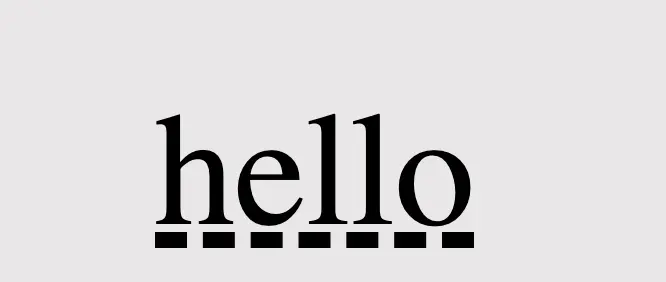
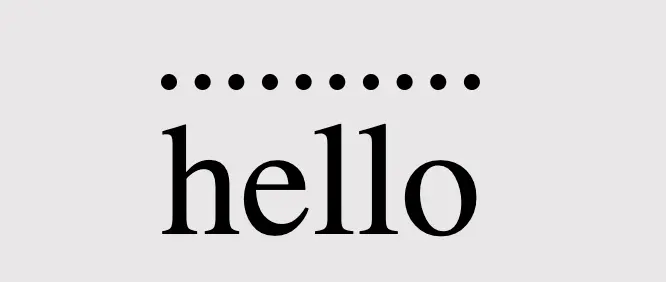
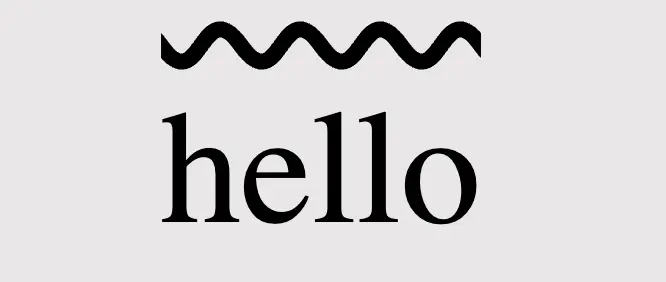
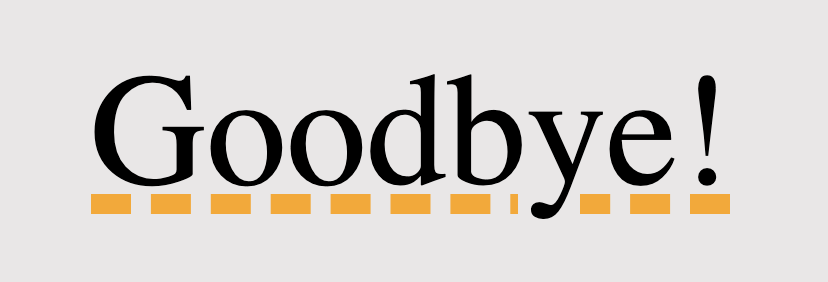
Next, we proceed by configuring text-decoration-style to specify the desired line style, such as solid, dashed, dotted, double, or wavy.
🔖 Each example set a different position (text-decoration-line) for the lines as an opportunity to see more combinations. 😎
Using colors is a timeless strategy for enhancing aesthetics. Embracing the use of colors is equally effective in our case, accomplished through the addition of text-decoration-color.
/* default color value */text-decoration-color: black;/* or */text-decoration-color: initial;
CSS
text-decoration-color: orange;
CSS
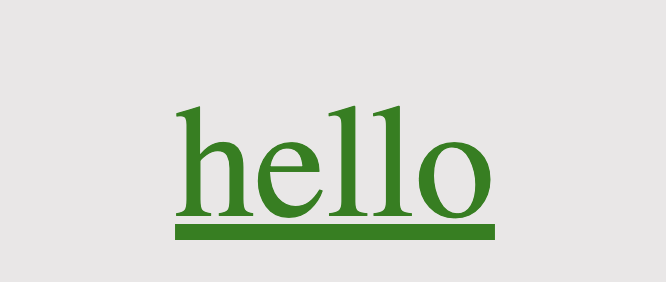
.text-color {color: green;}/* inherits text's color */text-decoration-color: current-color;/* or */text-decoration-color: inherit;
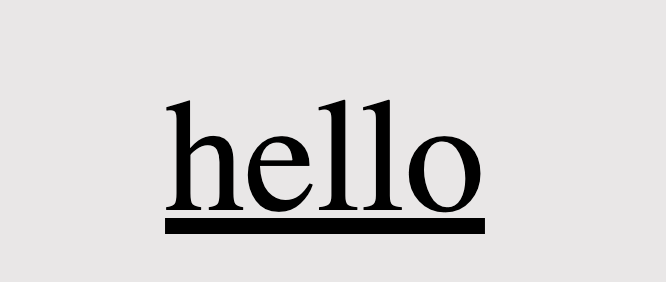
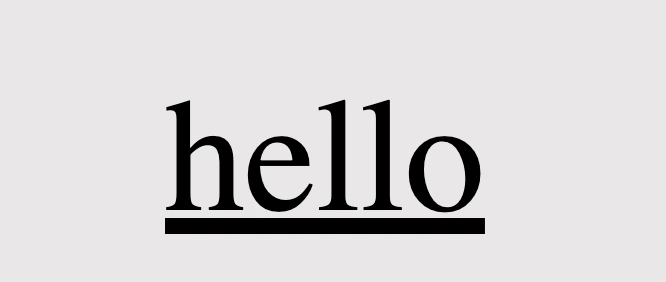
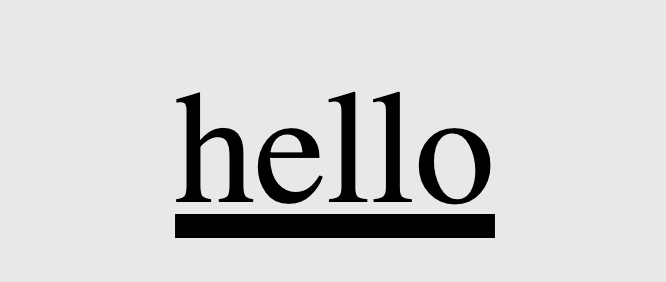
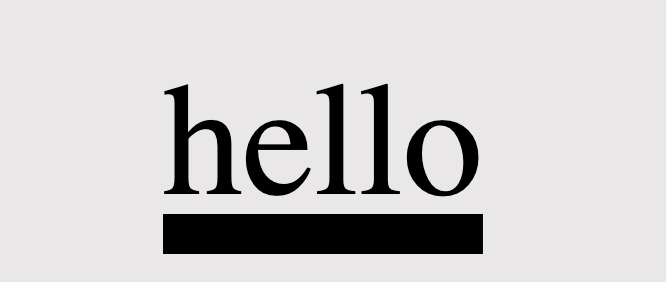
Lastly, adjusting the text-decoration-thickness allows us to precisely manage the thickness and also offers us the flexibility to choose between pixels (px) or percentages (%) based on our preferences.
/* the browser pick the thickness of the text decoration line */text-decoration-thickness: auto;
CSS
/* means "use the default thickness for underlines as determined * by the browser". */text-decoration-thickness: initial;
CSS
/* The percentage value is relative to the font size of the text * to which the decoration is applied. * Example: * In our case the font size is set to 40 pixels, * so the underline will be 6 pixels thick, * which is 15% of its font size (15% of 40 pixels) */text-decoration-thickness: 15%;
CSS
/* override the applied default thickness */text-decoration-thickness: 10px;
CSS
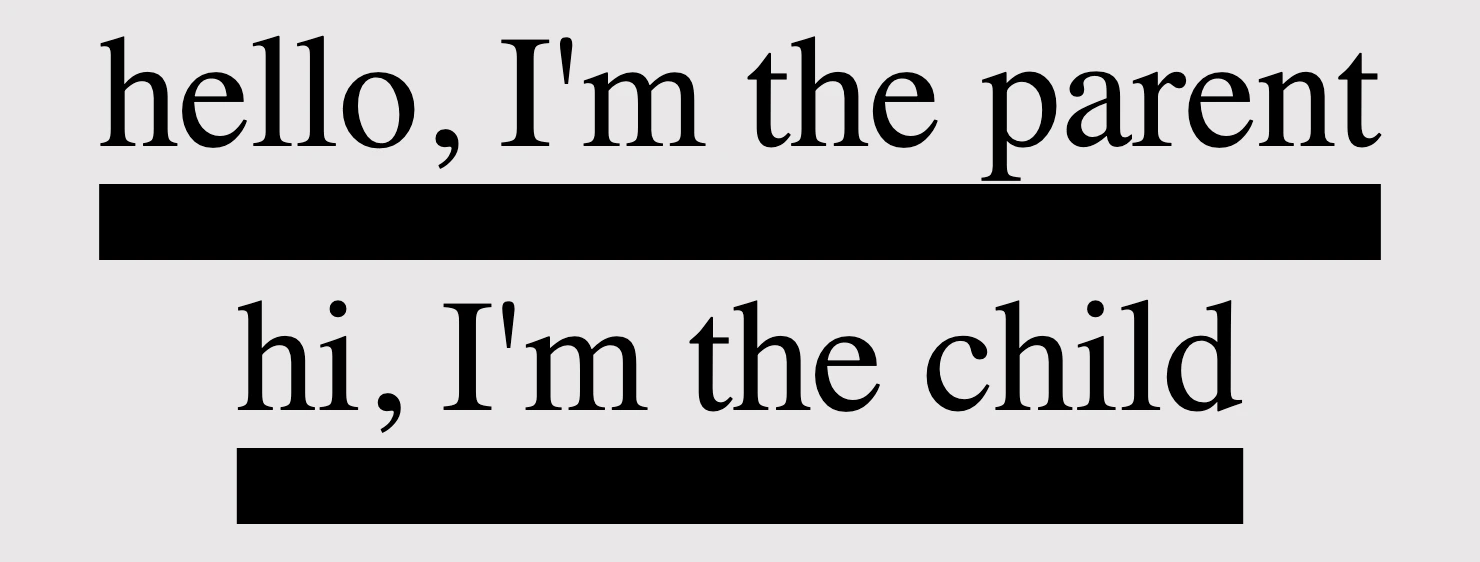
<divclass="parent"> hello, I'm the parent<divclass="child">hi, I'm the child</div></div>
HTML
/* Thickness for the parent element */.parent {text-decoration: underline;text-decoration-style: solid;text-decoration-thickness: 20px;}/* Inherits thickness from the parent */.child {text-decoration-thickness: inherit;}
CSS
Be distinctive by mixing text-decoration
We can always create mixings and make our texts more strong and more stylish. Below I prepared two examples for you in order to make it clearer. 😃
Underline mixings
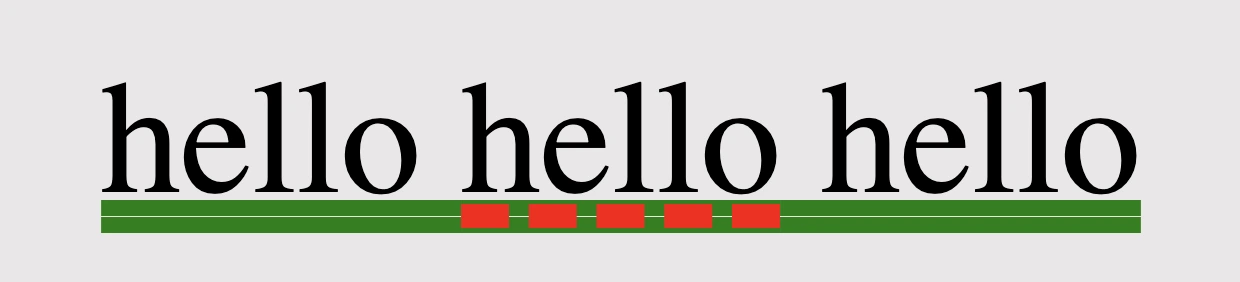
We combined the following HTML and CSS code snippets to create a styled text element. The HTML part consists of a <div> element with the class underline-mixings containing the text hello and a nested <span> element with the class extra-underline, also containing the text hello.
The CSS styles are applied to these elements using their respective class selectors. The underline-mixingsins class applies an underline with a double style and green color to the text within the <div>.
On the other hand, the extra-underline class applies a red dashed underline to the text within the <span>, along with a 12-pixel thickness for the underline.
When combined, this code creates a styled text element where the text inside the <div> is underlined with a green double line, while the text inside the <span> has a red dashed underline with increased thickness. We can use it if we want to emphasize a specific part of a text.
Strike through mixings
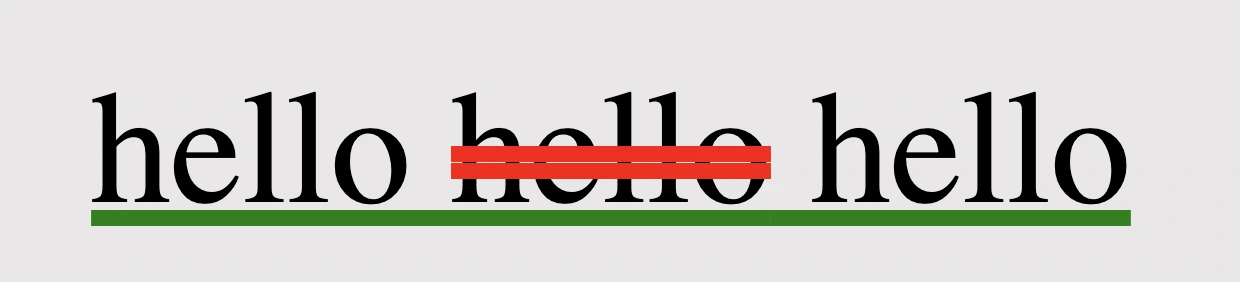
Within the HTML code, there is a <div> element with the class strike-through-mixings, encompassing the text hello and containing a nested <span> element with the class extra-underline, which also contains the text hello.
The CSS styles are assigned to these elements through their corresponding class selectors. The strike-through-mixings class gives the text within the <div> an underline with a solid style and a green color. Meanwhile, the extra-underline class applies a red double line-through decoration to the text inside the <span>, with an 8-pixel thickness.
When we put together this code, generates a styled text element where the text within the <div> has a green solid underline, and the text within the <span> is displayed with a red double line-through decoration of increased thickness. It is really useful if we want to erase a part of a text.
Text-decoration shorthand
The CSS text-decoration shorthand property lets you apply decorations like underline, overline, and line-through in a single statement. It simplifies things by merging multiple properties into one. Settling the shorthand makes your code shorter and easier to understand. You can set all of these properties at once, making it more efficient or you can pick some of them based on your requirements.
The CSS text-decoration shorthand property lets you apply decorations like underline, overline, and line-through in a single statement
🔖 Note that the order of these values doesn’t matter; you can change the order and still achieve the same results. However, it is essential to specify the type of the line, as setting the text-decoration-line is a necessary step for your code to work properly.
We often format HTML elements using CSS but can achieve basic text formatting using only HTML. Below are some of the most common HTML formatting elements for text and layout. I also prepared some examples for better understanding.
HTML Elements – Text Formatting
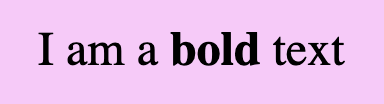
bold
<b>...</b>
<div>I am a <b>bold</b> text</div>
HTML
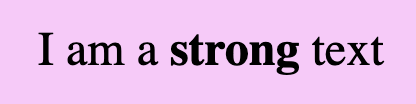
strong
<strong>...</strong>
<div>I am a <strong>strong</strong> text</div>
HTML
📢 Bold VS Strong
As we can see below <bold> and <strong> look exactly the same. The difference is that we use strong when we have to show an important text and bold when we want just to pay attention to the text, something like highlighting.
<div>I am a <b>simple</b> text BUT i am an <strong>important</strong> text!!</div>
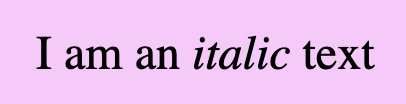
Formatting italic <i> and emphasized <em> appear in the exact same way. We use emphasized when we want to give emphasis to the text and italic when we want to present different our text.
<div>I am an <i>italic</i> text BUT i am an <em>emphasized</em> text!!</div>
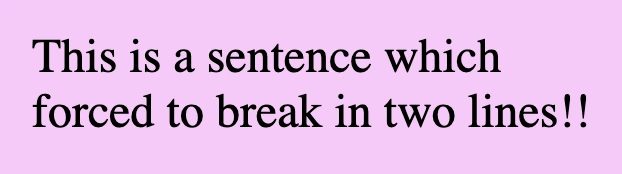
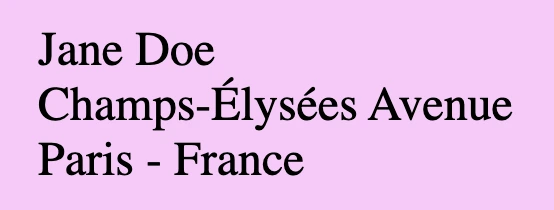
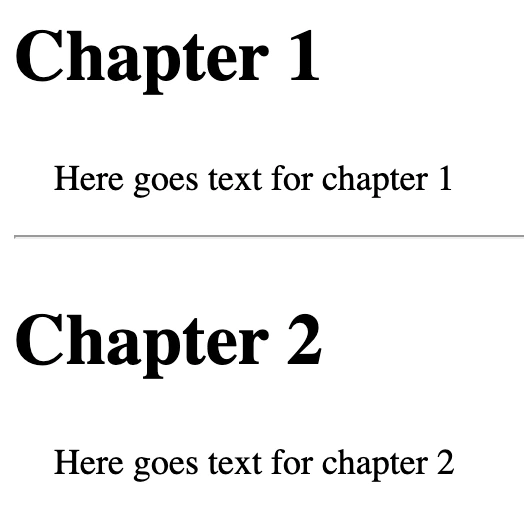
We can use two tags in HTML to manipulate our document’s layout. Break Line tag <br/> which inserts a new line by adding the tag wherever we want to force the text to break and the Horizontal row tag<hr/> which is used if we want to add space between HTML elements. There are both self-closing tags as they are empty elements.
break line
<br>
<div>This is a sentence which <br>forced to break in two lines!!</div>
HTML
💡 A common practice for adding a new line is using the break line tag, which is helpful If we want to write an address.
<h2>Chapter 1</h2><p>Here goes text for chapter 1</p><hr/><h2>Chapter 2</h2><p>Here goes text for chapter 2</p>
HTML
💡 Remember, If you want to apply extra styling, you have to use 🔓 CSS instead! HTML is used as a markup language, whereas CSS is the one responsible for making something more beautiful 😄).