Tag: text-shadow

  • The CSS Text Shadow Property – Enhance Your Content

    The CSS Text Shadow Property – Enhance Your Content

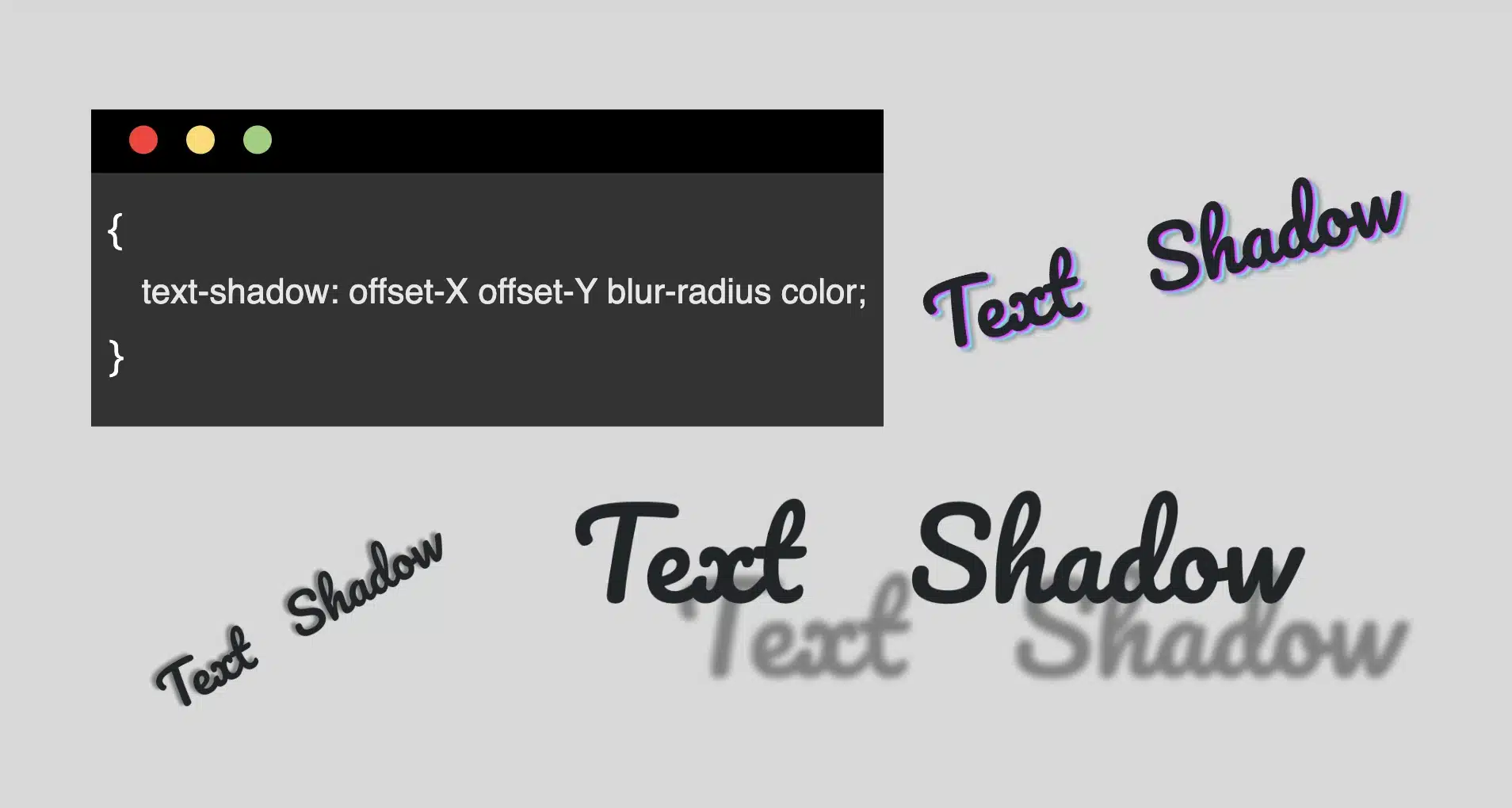
    Hello everybody! In the land of web design, the CSS text shadow property is like adding magic to your text. It helps you create elegant headings that command attention and, many times, make text easier to read. The text-shadow empowers designers to pass beyond the limits of ordinary with just a few lines of simple yet powerful code.

    However, it’s essential to use it wisely, overdoing it can sometimes cause confusion and reading can end up difficult. Therefore, we must keep in mind that beyond styling, readability is also important. Always aim to strike a balance between appearance and clarity so our text is accessible to everyone.

    Text shadow structure

    First things first! We’ll begin with the structure and break down its components:
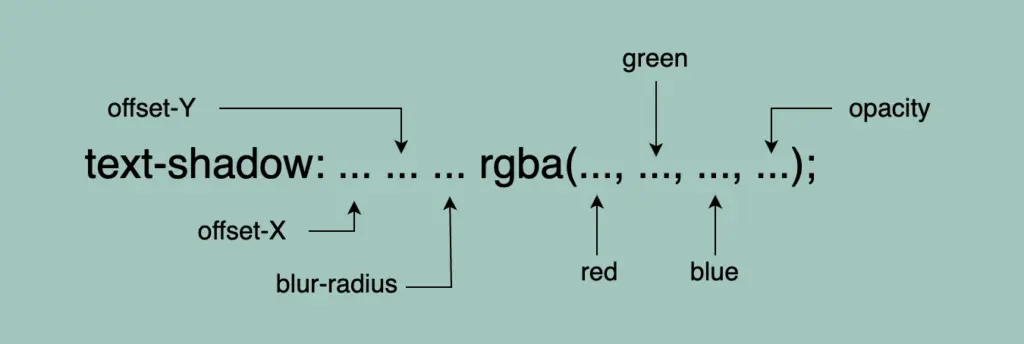
    • Offset-X and Offset-Y: They determine the horizontal and vertical distances of the shadow. When we use positive values, the shadow moves to the down and right. When we use negative values, the shadow moves to the top and left.
    • Blur-radius: It specifies the extent of blurring for the shadow. A higher value creates a spread, while a lower value sharpens the shadow.
    • Color: Here, we set the color of the shadow. All color methods are accessible (color names, hexadecimal codes, rgba and hsla values).

    If we don’t want to use a specific color, our shadow defaults to black.

    Below, I have prepared some examples to make this amazing tool more understandable. I’ll use the charming “Pacifico” font with the text “Text Shadow” to showcase its capabilities. So, let the game begin!! 😃

    Text shadow with positive values

    In our first example, we use positive values and create a gray shadow 5 pixels to the bottom and right of our text. It has a blur radius of 5 pixels, giving it a softened appearance.

    .text-shadow {
      text-shadow: 5px 5px 5px gray;
    }

    A shadow of 5px 5px 5px gray

    Text shadow with negative values

    Next, we create a gray shadow 5 pixels to the top and left of our text, using negative values. It has a blur radius of 5 pixels.

    .text-shadow {
      text-shadow: -5px -5px 5px gray;
    }

    A shadow of -5px -5px 5px gray

    Text shadow with colors

    Nothing better than playing with colors!! 🌈 In that case, we add two vibrant colors: magenta and cyan, then finish our shadow with color gray. Cool hug!? 😎
    As shown in the following code snippet, to create a repeating shadow with different colors, we must increase the pixels along both the X-axis and the Y-axis each time we add a new color.

    .text-shadow3 {
      text-shadow: 2px 2px 2px magenta, 4px 4px 2px cyan, 6px 6px 5px gray;
    }


    A shadow of 2px 2px 2px magenta, 4px 4px 2px cyan, 6px 6px 5px gray

    Text shadow with high blur-radius

    â›” In this example, we increase the blur, and we are able to notice that it is very, very important to keep blur-radius at low values, otherwise, our text appears a bit confusing with poor readability.

    .text-shadow4 {
      text-shadow: 5px 5px 20px gray;
    }

    Ashadow of 5px 5px 20px gray

    Text shadow with high values

    Finally, let’s get creative. By increasing the values at both the X-axis and Y-axis, we can widen the gap between the text and its shadow, achieving a more strongly marked visual effect.

    .text-shadow {
      text-shadow: 70px 50px 5px gray;
    }

    A shadow of 70px 50px 5px gray

    Whether a shadow type is “good” depends on your design goals. For bold, eye-catching text that stands on the page, this approach can be very effective. If you’re going for a more subtle or minimalistic design, you might opt for smaller offsets and blurs. It’s all about finding the balance that fits your overall design concept!

    Utilizing the text shadow, you are not only creating a stylish effect, but you are also crafting an experience that users will remember. So, get playful when using it. Experiment! Let your creativity shine through! ✨ 🎉
  • How To Create Stunning Vibrant Neon Effect – CSS Only

    How To Create Stunning Vibrant Neon Effect – CSS Only

    The neon effect in web design brings that bold, electric vibe that grabs attention right away. ⚡🌈 Inspired by real-life neon signs, which I’m sure you have seen outside bars, arcades, or glowing up city streets, it mixes retro charm with a modern twist. It adds personality and mood, turning plain text or shapes into glowing, eye-catching pieces. That soft glow, the depth, those bright color fades — they take a simple design and make it feel alive, as if you have just travelled back in time. 🌟 And the best part? You can pull it off with just HTML and CSS. No images, no JavaScript. 🥳

    Setting the stage: Basic HTML structure

    To begin creating this effect, we’ll start with a basic HTML structure and add custom CSS later. Think of the HTML <div> we are using, as the frame for a neon sign, and the text as the glowing message inside it.

    <div class="neon-effect">Neon Vibes Simple Css</div>
    HTML

    From there, we move to CSS structure. We import a Google font named “Orbitron”, a futuristic style text, that fits perfectly for our neon effect.

    Then we lay the foundation: we structure the page by setting the body to fill the entire viewport and using display: flex to center our neon box both vertically and horizontally. Finally, we add a solid black background — it doesn’t look like much yet, but it sets the perfect stage for the neon glow we’ll add soon, creating strong contrast just like a real sign glowing in the dark.

    @import url('https://fonts.googleapis.com/css?family=Orbitron');
    
    body {
      max-width: 100%;
      height: 100vh;
      
      display: flex;
      align-items: center;
      justify-content: center;
      
      background-color: #000;
    }
    CSS

    Building the neon sign base

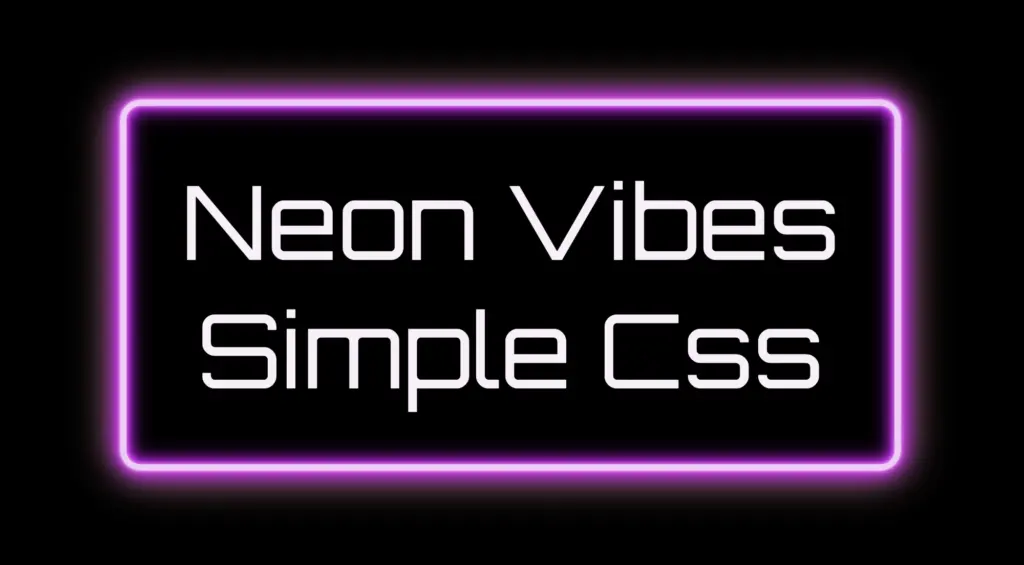
    The .neon-effect class is used to create the main structure of the glowing sign. It defines a rectangular box with a width of 700px and a height of 300px, along with a soft, rounded border in light violet (#f4cbf8).

    The box uses display: flex to perfectly center the text both vertically and horizontally. The font is set to Orbitron, giving the text a bold, futuristic style, and its size is large (80px) to make it stand out.

    .neon-effect {
      /* Frame */
      width: 700px;
      height: 300px;
      border: 6px solid #f4cbf8; /* light violet */
      
      border-radius: 20px;
      display: flex;
      align-items: center;
      justify-content: center;
      
      /* Fonts */
      font-family: 'Orbitron', Arial;
      font-size: 80px;
      text-align: center;
      color: #faf0fb; /* light pink */
    }
    CSS
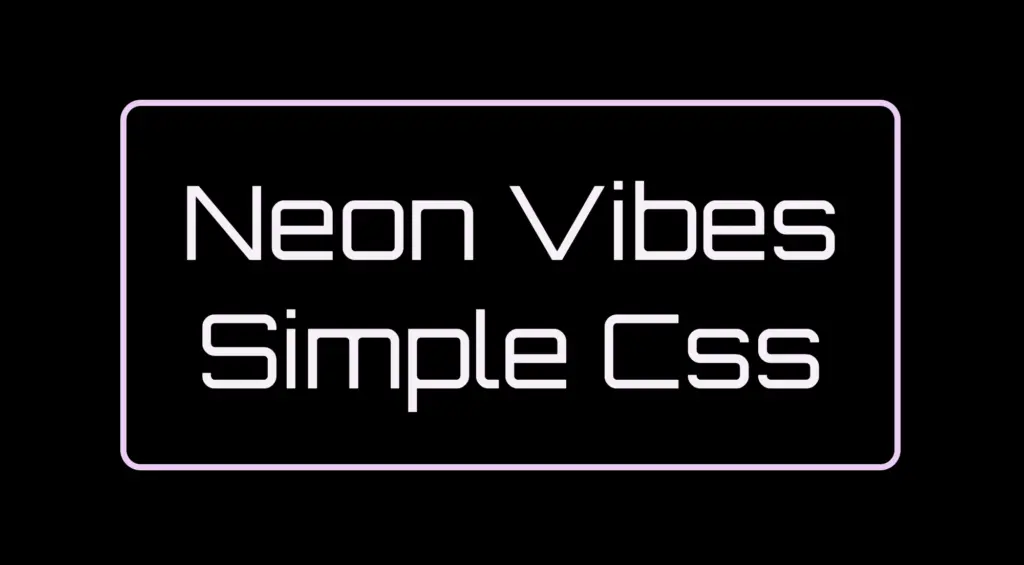
    Building the neon sign base (frame and text) to create the neon effect.

    The text color is a very light pink (#faf0fb), which will work beautifully once we add glowing shadow effects around it. For now, this creates a clean and centered base — the canvas for our neon sign.

    Glowing borders: Neon frame with box-shadow

    To create the glowing neon frame around the box, we use layered box-shadow effects. The outer shadows softly expand in multiple directions, starting with white and transitioning through vivid shades of pink, magenta, and purple. This gives the impression of light softly spreading from the edges.

    We also include a subtle touch of yellow-gold hue, blending into the glow. This not only adds visual warmth but also gives a nostalgic nod to vintage neon signs, bringing up the charm of the old days while keeping the overall look fresh and vibrant.

    .neon-effect {
      ...
      box-shadow:
        /* outer glow */
        0 0 2px #fff, /* white */
        0 0 6px #ff99ff, /* light pink */
        0 0 12px #ff33ff, /* magenta */
        0 0 20px #cc00ff, /* violet */
        0 0 28px #9900cc, /* deep purple */
        0 0 36px #660066, /* dark purple */
        0 0 40px #ffe187, /* light yellow - soft gold */
        /* inner glow */
        inset 0 0 4px #ff99ff, /* light pink */
        inset 0 0 8px #ff33ff, /* magenta */
        inset 0 0 14px #cc00ff, /* violet */
        inset 0 0 18px #9900cc, /* deep purple */
        inset 0 0 24px #660066; /* dark purple */
      }
    CSS

    Equally important is the second group, which uses the inset keyword and adds an inner glow that shines inside the box. These inset shadows create depth and give the illusion that the light is not only around the sign, but also glowing from within. The combination of outer and inset shadows is essential for achieving a rich, realistic neon effect.

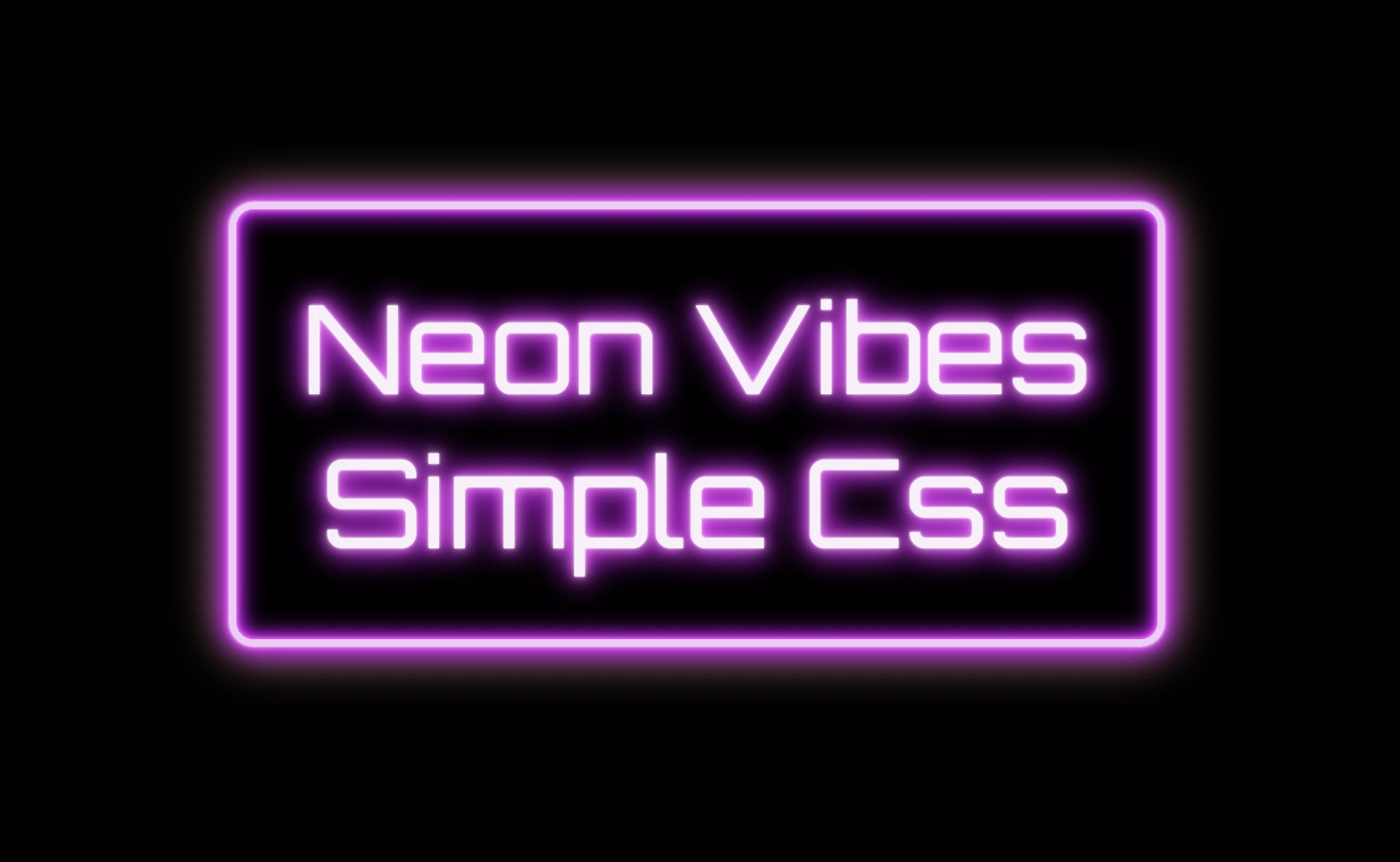
    Styling the neon frame with pink, magenta, purple and yellow-gold hues setting the box shadow CSS property.

    Illuminated Text: Neon Glow with Text-Shadow

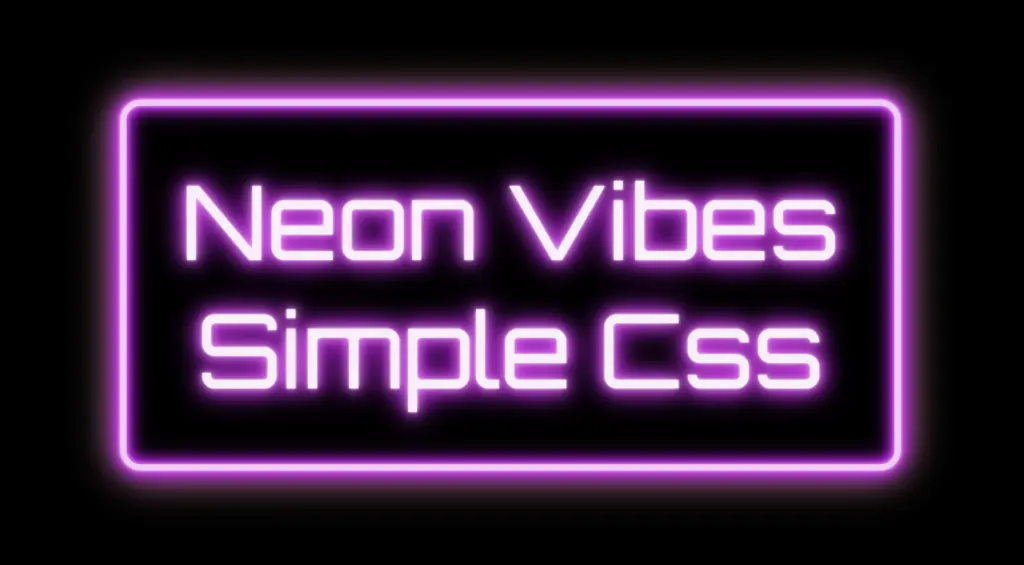
    To create the glowing effect around the text, we use the same method, multiple layers of text-shadow. Each shadow in your code adds a soft light in a different shade: from white and light pink to vibrant magenta, deep purple.

    .neon-effect {
      ...
      text-shadow:
        0 0 2px #fff, /* white */
        0 0 10px #ff99ff, /* light pink */
        0 0 20px #ff33ff, /* magenta */
        0 0 26px #cc00ff, /* violet */
        0 0 24px #9900cc, /* deep purple */
        0 0 32px #660066; /* dark purple *
    }
    
    CSS

    These layered shadows build a rich glow around each letter, giving it a strong, radiant presence against the dark background. The variation in color and blur size creates depth, making the text appear as if it’s lit from within, just like real neon tubing.

    Styling the neon text with pink, magenta and purple hues setting the text shadow CSS property.

    Neon effects in web design are a powerful way to grab attention. ✨ They combine vivid colors, glowing shadows, and sharp contrast to mimic the iconic look of neon signs. Whether you’re aiming for a modern tech vibe or a nostalgic retro feel, neon brings style and energy. Using CSS alone, we can recreate this classic visual with precision and creativity — no electricity needed! 💡😎